

Part 6 · Security, compliance and privacy
IT audit
Run an IT security audit engagement under Québec's Law 25, from assessed items and watch points to the report delivered to the client.
Watch it
The Audit TI (IT audit) application runs an IT security audit engagement, from scoping to delivery of the report. It serves the person who conducts the audit, the person who validates the summary before delivery, and management tracking progress. Every finding is recorded on the same grid of fourteen items, for a given client and supplier, so that two engagements can be compared. The result: a progress report assembled from the assessments entered, and a list of watch points that outlives the end of the engagement.
Overview#
Five concepts are enough. An audit item is a topic to check: fourteen numbered items ship with the module, from policies to backups. An IT supplier is a third party that handles the audited organization's data: host, office suite, backup service, telephony. An audited client is the engagement file. An assessment is the intersection of a client, a supplier and an item: it is a cell in the grid, and it carries a status. A watch point is a risk identified during the engagement, with a priority and a person responsible.
The dashboard brings these concepts together on a single entry screen.
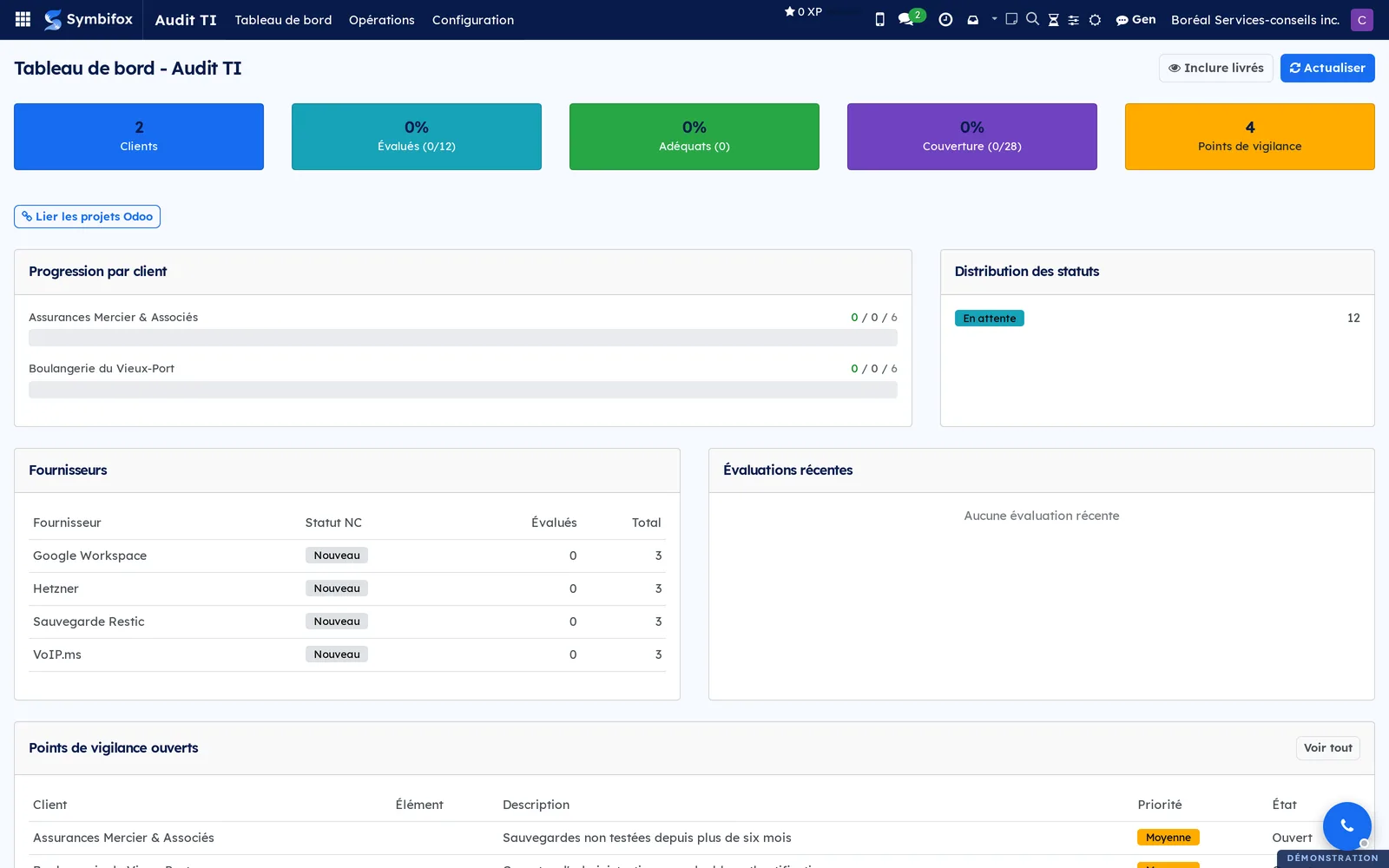
The counters at the top give the number of clients, the share of assessments done, the share of adequate statuses, the coverage and the number of open watch points. Inclure livrés (include delivered) brings back engagements already delivered, which are hidden by default. Actualiser (refresh) rereads the figures. Progress by client shows as three numbers: the green, yellow and red items. They sum up the state of an engagement without opening its file.
Audit TI connects to two other applications. An audited client points to a contact in the Contacts application and to a project in the Project application, so you can find the engagement's timesheets and meetings. The consent and destruction side lives elsewhere, in Privacy (Law 25 and other frameworks). The two applications form the Law 25 suite: one for the technical assessment, the other for the governance of personal information. Law 25 is Québec's Act respecting the protection of personal information in the private sector.
Configuration#
Access and permissions#
| Group | What it opens |
|---|---|
| Utilisateur Audit TI (IT audit user) | The application, audited clients, assessments and watch points |
| Gestionnaire Audit TI (IT audit manager) | Everything above, plus Configuration (audit items and IT suppliers) |
A person without one of these two groups does not see the application. Configuration disappears for a plain user: the grid and the supplier list remain a manager's responsibility.
Settings#
Audit TI adds no setting to the general Settings. Everything set in advance lives in Audit TI › Configuration, described in Base data.
Base data#
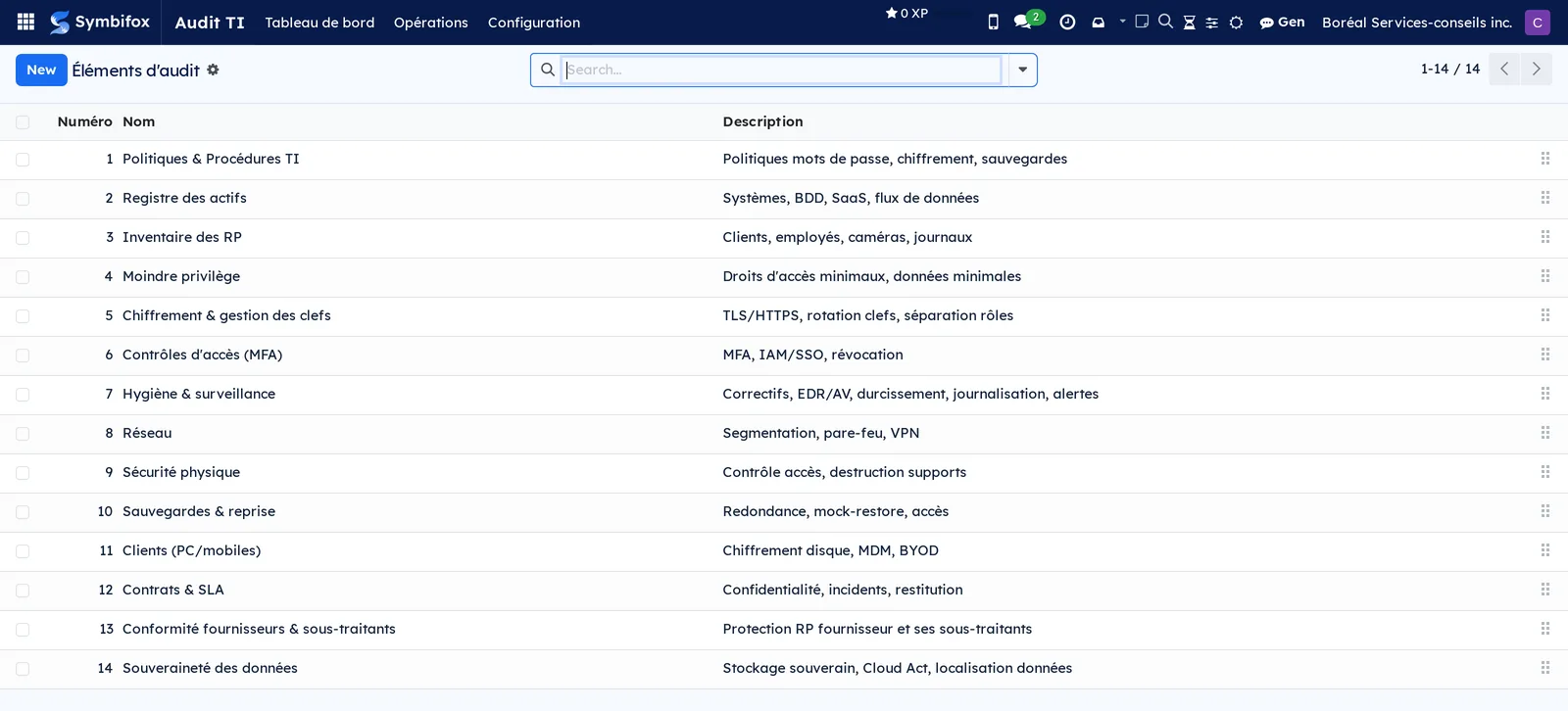
Two lists come before the first engagement. The audit items ship with the module: fourteen numbered topics, in an order you can change by dragging the rows. Review them before you start, since this is the grid on which every client will be rated.
The IT suppliers are created as engagements go: a name, a type, a compliance status and, if needed, aliases. An alias helps when the same supplier is spelled several ways from one client to another.
Getting started#
This walkthrough opens an engagement on the Boréal demo, fills it in and prints its report. It assumes the Gestionnaire Audit TI permission.
- Open Audit TI › Opérations (operations) > Clients, then select New.
- Enter the engagement name, for example “Clinique dentaire Rosemont”, then fill in Contact Odoo (Odoo contact) and, if it exists, Projet Odoo (Odoo project).
- In the Fournisseurs (suppliers) tab, select Add a line, choose a supplier, then enter its roles.
- Save, then open Audit TI › Opérations › Évaluations (assessments) and select New.
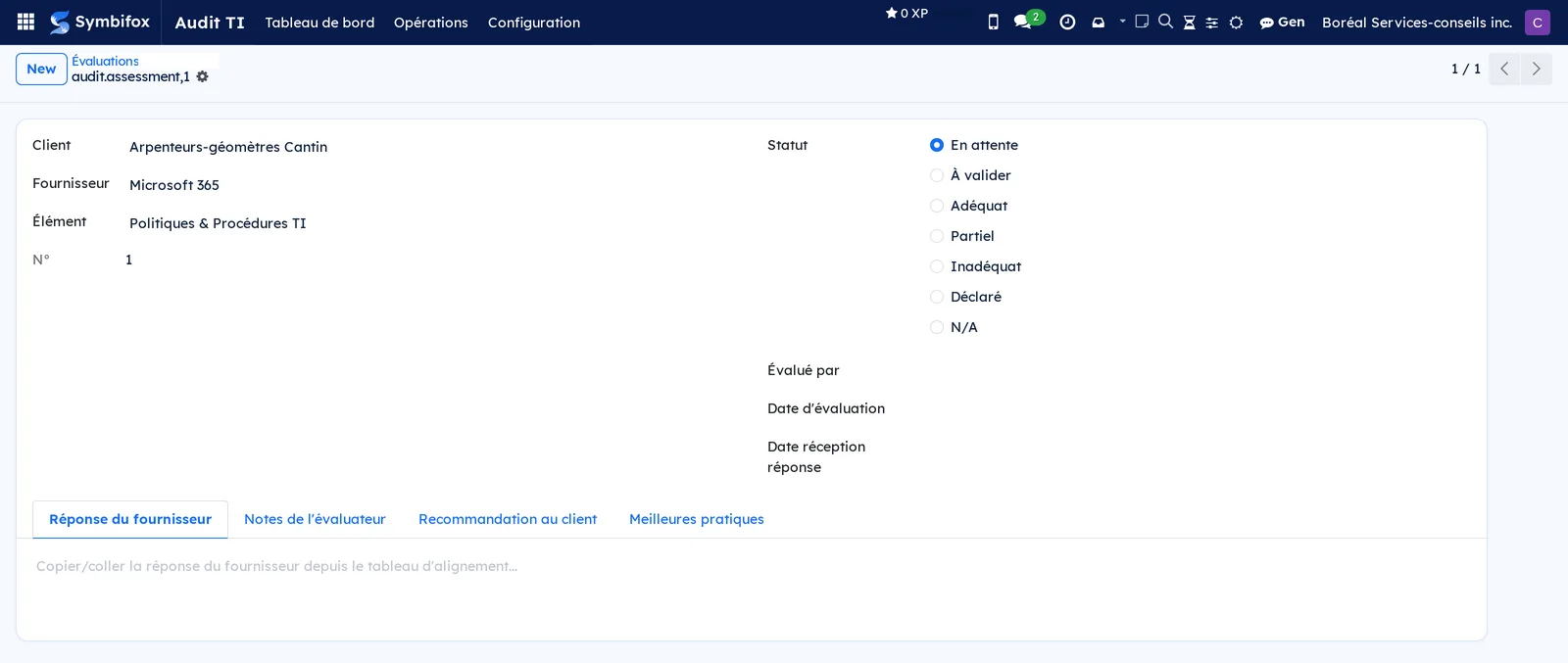
- Choose the client, the supplier and the item, then check a Statut (status).
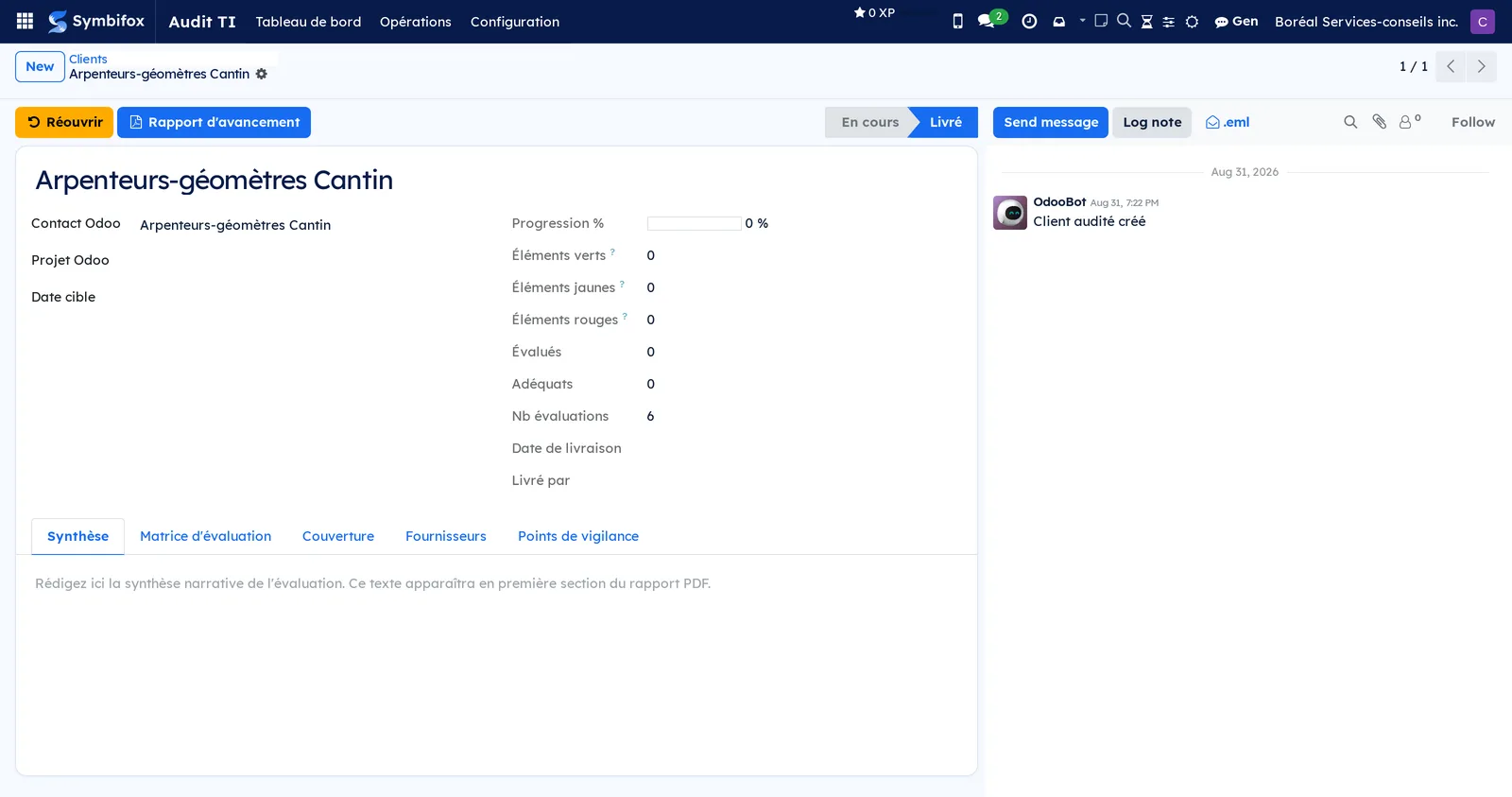
- Go back to the client's record, open the Synthèse (summary) tab and write the narrative of the assessment.
- Select Rapport d'avancement (progress report).
Result: the PDF opens, with the summary as the first section, followed by the coverage of the items, the suppliers and the watch points. The record now shows a progress figure and the count of green, yellow and red items.
Common tasks#
Link a supplier to a client#
A supplier is assessed only for the clients it is linked to, and its role says what it does for them.
- Open Audit TI › Opérations › Clients and select the client.
- Open the Fournisseurs tab.
- Select Add a line and choose the supplier.
- Enter the Rôles (roles) with the letters provided: “X” for IT service provider, “A” for application, “C” for cloud, “S” for backup.
- Save.
Result: the supplier appears in the client's matrix, and the dashboard counts it in its supplier list.
Enter an assessment#
An assessment is a cell in the grid: one item, at one supplier, for one client. It is the most repeated action of the engagement.
- Open Audit TI › Opérations › Évaluations and select the row to rate.
- Paste the response received into the Réponse du fournisseur (supplier's response) tab and fill in Date réception réponse (date response received).
- Check the Statut that matches the finding.
- Note what supports the finding in the Notes de l'évaluateur (assessor's notes) tab.
- Write the Recommandation au client (recommendation to the client) tab, which is what the client will read.
- Fill in Évalué par (assessed by) and Date d'évaluation (assessment date), then save.
Result: the client's progress moves forward. The green, yellow or red item count changes according to the statuses of all the suppliers for that item.
Open a watch point from an assessment#
A finding that deserves follow-up becomes a watch point, without being retyped.
- Open the assessment concerned.
- Select Créer un point de vigilance (create a watch point).
- Complete the Description, then choose the Priorité (priority).
- Fill in Assigné à (assigned to) and save.
Result: the point appears in Opérations › Points de vigilance (watch points), in the client's tab and in the dashboard's list of open points.
Follow up on watch points#
Watch points are what remains to be done after the report is delivered.
- Open Audit TI › Opérations › Points de vigilance.
- Group by Client or by Priorité to see what is urgent.
- Open a point and change its État (state) when it has been dealt with.
Result: closed points leave the dashboard's list of open points, which shows only what still calls for action.
Write the summary#
The narrative summary is the first section of the delivered report. It is written once the assessments are entered, never before.
- Open the client's record.
- Open the Synthèse tab.
- Write the text, drawing on the Couverture (coverage) and Points de vigilance tabs of the same record.
- Save.
Result: the text appears at the top of the PDF, before the coverage of the items and the supplier matrix.
Print the progress report#
The report can be produced at any point in the engagement, not only at the end.
- Open the client's record.
- Select Rapport d'avancement.
Result: a PDF in your organization's colours, with the summary, the coverage of the fourteen items, the supplier matrix, the watch points and a progress bar.
Mark an audit as delivered#
The state separates engagements in progress from delivered ones, and lightens the dashboard.
- Open the client's record.
- Select Marquer comme livré (mark as delivered).
Result: the state changes to “Livré” (delivered), and the date and the person who delivered are recorded. The engagement leaves the dashboard and the list filtered on “En cours” (in progress). Réouvrir (reopen) brings it back.
Declare a supplier alias#
The same supplier is rarely spelled the same way everywhere. An alias keeps it from appearing twice in the matrix.
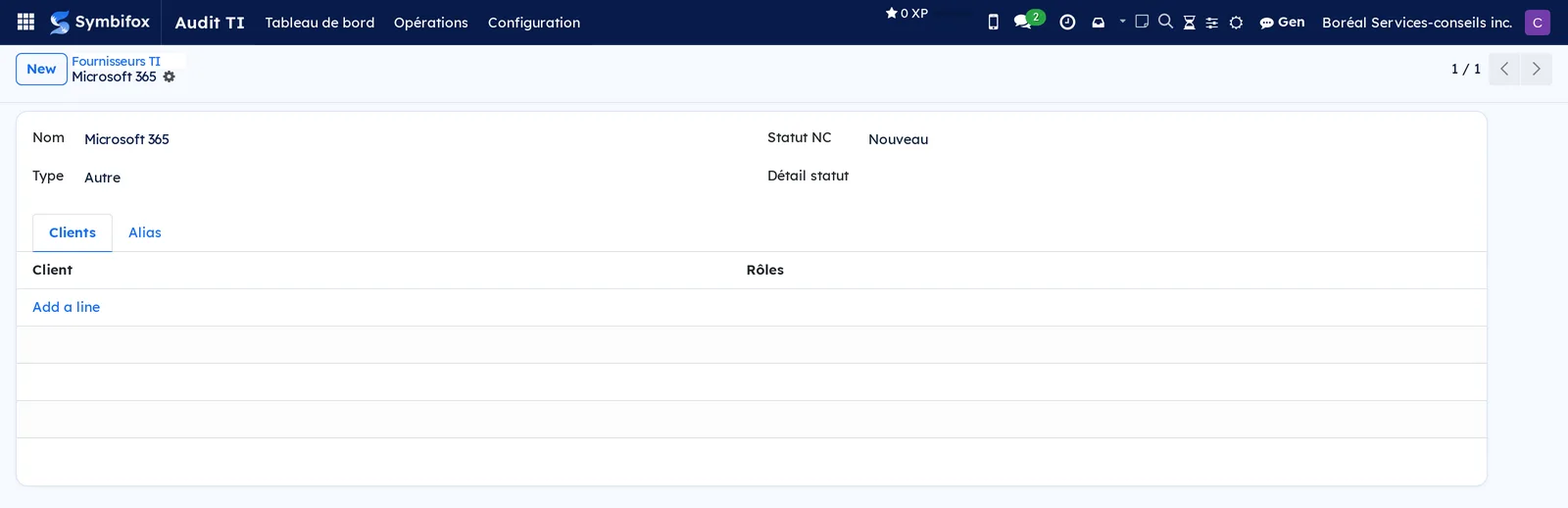
- Open Audit TI › Configuration › Fournisseurs TI (IT suppliers) and select the supplier.
- Open the Alias tab.
- Select Add a line and enter the variant, for example “M365”.
- Save.
Result: the recognized spellings attach to the same supplier, and the supplier list stays readable.
Link engagements to projects#
When audit files and projects have similar names, linking them takes a single pass.
- Open Audit TI › Tableau de bord (dashboard).
- Select Lier les projets Odoo (link Odoo projects).
- Check Projet Odoo on the clients concerned, and complete by hand those left empty.
Result: each engagement points to its project, which ties the audit to the tasks and timesheets that carry it.
The menus, one by one#
Audit TI › Tableau de bord: the entry screen, described in Overview. Counter cards, progress by client, status distribution, suppliers with their assessed share, recent assessments and open watch points. Voir tout (view all) opens the full list of watch points.
Audit TI › Opérations: grouping menu, with no screen.
Audit TI › Opérations › Clients: the list of engagements, filtered on “En cours” when it opens. Columns Nom (name), Progression % (progress), V, J, R (vert, jaune, rouge: green, yellow, red), Total, Évalués (assessed), Adéquats (adequate) and État. Remove the filter to also see delivered engagements.

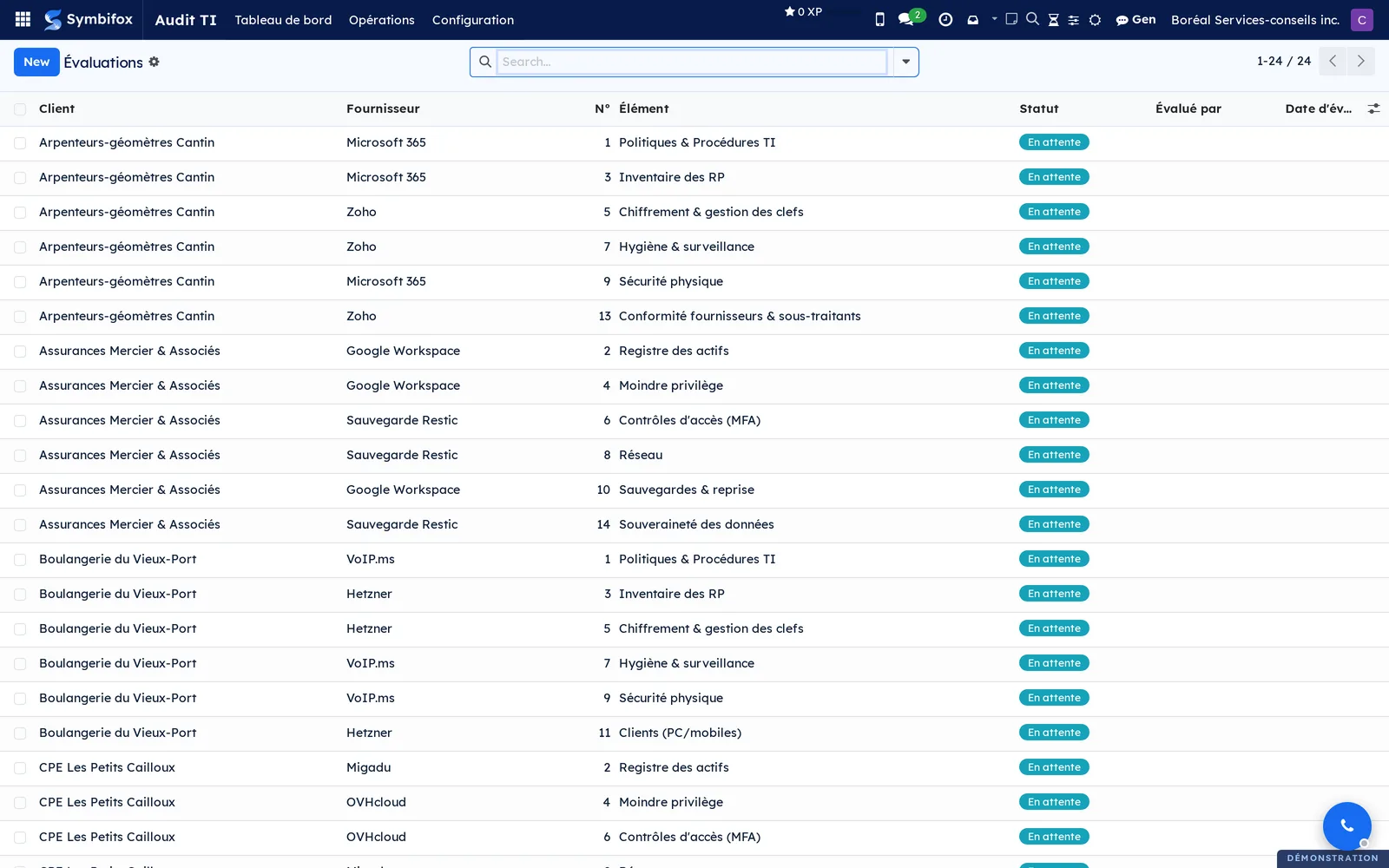
Audit TI › Opérations › Évaluations: every cell of the grid, across all clients. Columns Client, Fournisseur (supplier), N° (number), Élément (item), Statut, Évalué par and Date d'évaluation. Group by client or by supplier to work through a batch at once.
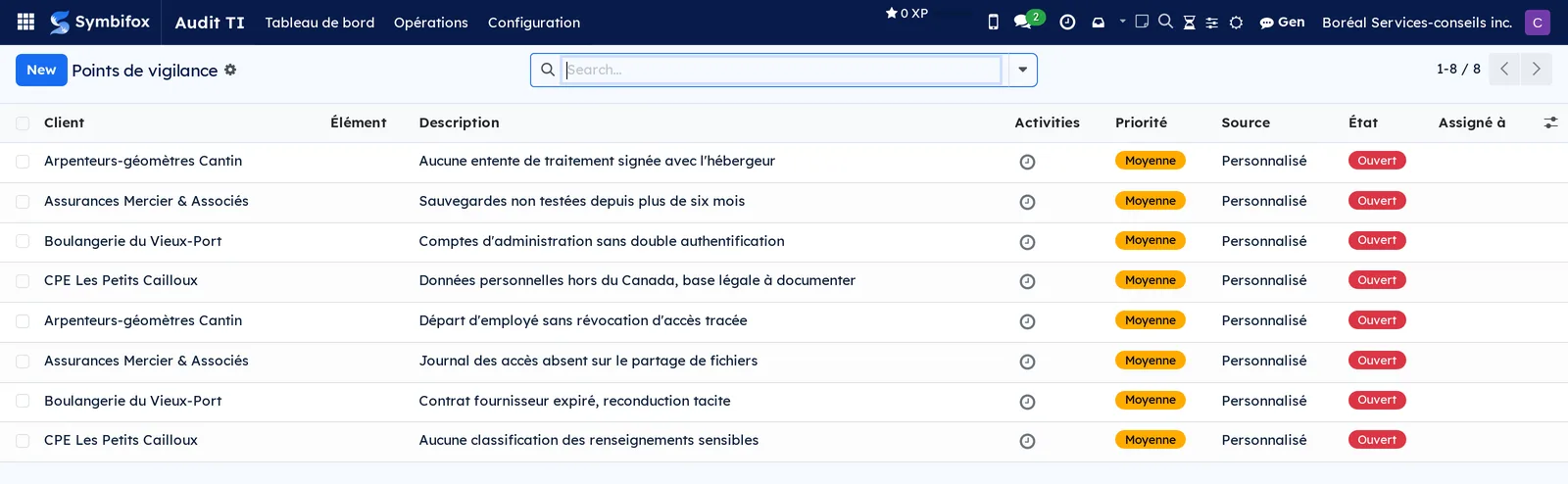
Audit TI › Opérations › Points de vigilance: the risks identified, with Client, Élément, Description, the activities, Priorité, Source, État and Assigné à.
Audit TI › Configuration: grouping menu, visible to managers only.
Audit TI › Configuration › Éléments d'audit: the grid of fourteen items, with Numéro (number), Nom and Description, which you reorder by dragging.
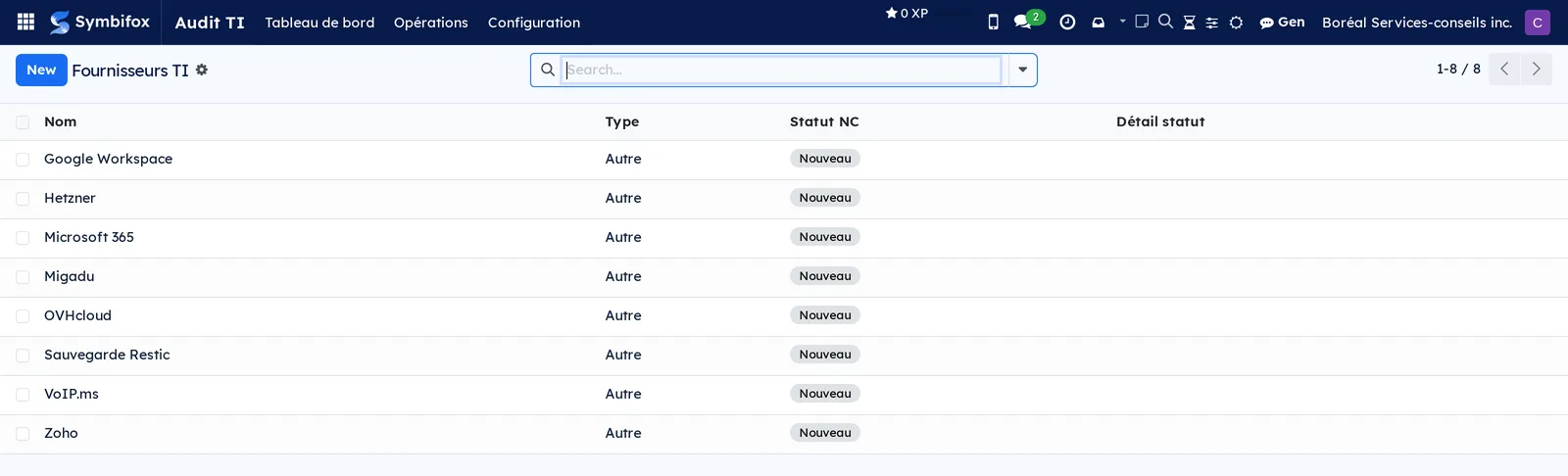
Audit TI › Configuration › Fournisseurs TI: the list of assessed third parties, with Nom, Type, Statut NC (compliance status) and Détail statut (status detail).
Reference#
Fields of the audited client form#
| Field | Description | Required or default |
|---|---|---|
| Nom | Engagement name, the one that appears on the report | Required |
| Contact Odoo | Record of the audited organization | Optional |
| Projet Odoo | Project that carries the engagement's hours and meetings | Optional |
| Date cible (target date) | Target date for delivery | Optional |
| État | En cours or Livré | Required, “En cours” |
| Date de livraison, Livré par (delivery date, delivered by) | Recorded by Marquer comme livré | Computed |
| Progression %, Évalués, Adéquats, Nb évaluations (number of assessments) | Progress of the engagement | Computed |
| V, J, R | Green, yellow and red items, according to the statuses of all the suppliers | Computed |
| Synthèse de l'évaluation (assessment summary) | Narrative, first section of the report | Optional |
| Couverture des 14 éléments (coverage of the 14 items) | Overview of the grid, in the Couverture tab | Computed |
| Fournisseurs, Évaluations, Points de vigilance | The three working tabs of the engagement | As entered |
Fields of the assessment form#
| Field | Description | Required or default |
|---|---|---|
| Client, Fournisseur, Élément | The intersection that defines the cell | Required |
| N° | Item number, repeated for sorting | Computed |
| Statut | En attente (pending), À valider (to validate), Adéquat (adequate), Partiel (partial), Inadéquat (inadequate), Déclaré (declared), N/A | “En attente” |
| Réponse du fournisseur | What the supplier answered, verbatim | Optional |
| Date réception réponse | Date of the response | Optional |
| Notes de l'évaluateur | What supports the finding, for internal use | Optional |
| Recommandation au client | What the client will read in the report | Optional |
| Meilleures pratiques | Text taken from the audit item | Taken from the item |
| Évalué par, Date d'évaluation | Who decided, and when | Optional |
Fields of the watch point form#
| Field | Description | Required or default |
|---|---|---|
| Client | Engagement the point belongs to | Required |
| Élément | Audit item concerned, when the point concerns one | Optional |
| Description | The risk, in one sentence the client can read | Required |
| Priorité | High, medium or low | Medium |
| Source | Where the finding comes from | Depends on how the point was created |
| État | Open or closed | Open |
| Assigné à | Person responsible for the follow-up | Optional |
Fields of the IT supplier form#
| Field | Description | Required or default |
|---|---|---|
| Nom | Name used for this supplier | Required |
| Type | Nature of the service provided | Optional |
| Statut NC | Observed compliance status | Optional |
| Détail statut | Free-text detail on this status | Optional |
| Actif (active) | Clear it to remove a supplier from the lists without deleting it | Checked |
| Clients | The engagements where this supplier is assessed, with its roles | As entered |
| Alias | The other spellings of the same name | Optional |
Reports and exports#
The module produces one printable report, the Rapport d'avancement. You print it from a client's record or, for several clients at once, through Générer rapports d'avancement in the list's Actions. Lists also export as everywhere else in Symbifox, as described in Common actions in every application.
Automations#
No task runs overnight in this application: nothing changes in an engagement unless a person asked for it. Three things are still calculated on their own. Progress, the green, yellow and red item counters and the coverage are recalculated with each assessment saved. The delivery date and the person who delivers are recorded when the engagement changes to delivered. Aliases attach similar spellings to the right supplier. Finally, Lier les projets Odoo matches engagements to projects by name similarity: it is an action you trigger, and whose result you check.
Public pages and portal#
The application publishes no public page and does not appear in the client portal. The client receives the report, never the working file.
Modules that extend this application#
No satellite module adds to Audit TI: this chapter covers a single module, which by itself provides its screens, its report and its permissions. The neighbouring work happens elsewhere. Privacy (Law 25 and other frameworks) holds consents and document retention, and reads as the second part of the same engagement.
Understanding#
Why one cell per supplier, and not per client. Law 25 makes the organization responsible for its subcontractors. Recording “backups are adequate” for a client means nothing if three different suppliers each handle part of them. The grid therefore crosses the client, the supplier and the item. This is what lets you say which of the three is falling short, and show it in the report.
Why three colours. An item is green when all the suppliers concerned are adequate, yellow when the picture is mixed, and red when nothing covers it. The count of the three colours reads in a second and does not depend on the number of suppliers, unlike a simple percentage.
Why the “Déclaré” status exists. Some findings rest on the supplier's word, without verified proof. Treating them like a validated finding would weaken the report. The status says so, and the reader knows what they are reading.
Why a delivered engagement disappears. A dashboard that shows everything shows nothing. Delivered engagements are hidden by default, and Inclure livrés brings them back for a comparison. The same filter applies to the client list.
Why the summary is written by hand. The assessments provide the facts; the summary says what they mean for this organization. The module does not write it for you. It puts the summary in the right place in the report and keeps it with the engagement.
What the client never sees. The assessor's notes stay internal. The report includes the recommendation to the client, the coverage and the watch points, not the reasoning that led to them.
Troubleshooting#
| Symptom | Likely cause | Fix |
|---|---|---|
| Configuration does not appear | The person has only the Utilisateur Audit TI group | Grant the Gestionnaire Audit TI group in Settings › Users |
| A delivered engagement cannot be found on the dashboard | Delivered engagements are hidden by default | Select Inclure livrés, or remove the “En cours” filter in the client list |
| Progress stays at 0% despite the assessments created | The assessments exist, but their status is still “En attente” | Open each assessment and check a status, or group by status to spot the empty cells |
| An item turns red although one supplier is adequate | Another supplier for the same item is inadequate or not assessed | Open the client's Couverture tab to see which supplier is falling short |
| The same supplier appears twice, under two spellings | No alias links the two spellings | Add the variant in the Alias tab of the supplier you keep |
| The report comes out without introductory text | The client's Synthèse tab is empty | Write the summary, then run Rapport d'avancement again |
| An engagement still has no project after Lier les projets Odoo | The names are too different to be matched | Fill in Projet Odoo by hand on the client's record |
See also#
- Privacy (Law 25 and other frameworks): the second part of the Law 25 suite.
- Project: the project that carries the engagement's hours and meetings.
- Contacts: the record of the audited organization.
- Secure transfers: delivering the report through a link that expires.
- Common actions in every application: filters, groupings and list exports.