

Part 3 · Projects, time and knowledge
Knowledge base
Keep the organization's policies, procedures and registers, track the decisions of an engagement, and prove who received which version.
Watch it

The Base de connaissances (knowledge base) application brings together two things that usually sit apart: the organization's documentation (policies, procedures, manuals, registers) and the tracking of an engagement's decisions. It is for the people who keep policies up to date, those who lead an implementation project, and those who must show that a procedure was actually distributed. The result is documentation that is dated, versioned and distributed, and one matrix per engagement that replaces the tracking spreadsheet. This is the fullest chapter in the guide, because the application covers the most ground.
Overview#
Four concepts structure the application.
A document is a record: a name, a reference, a type, an owner, a next review date. Its content lives in versions. A version has a number, a change log, an approver and an effective date. Publishing a version freezes its content: that version is the one that was distributed, and it will not change again. A document's body can be written directly in Symbifox, section by section, or stay a pointer to an external file.
A distribution links a version to someone: a client or an employee. It records the sending date, the method, and the acknowledgement when the person confirms receipt. A distribution becomes outdated on its own as soon as a newer version appears. This is the feature that answers the question “who read what, and when”, and it is turned off by default.
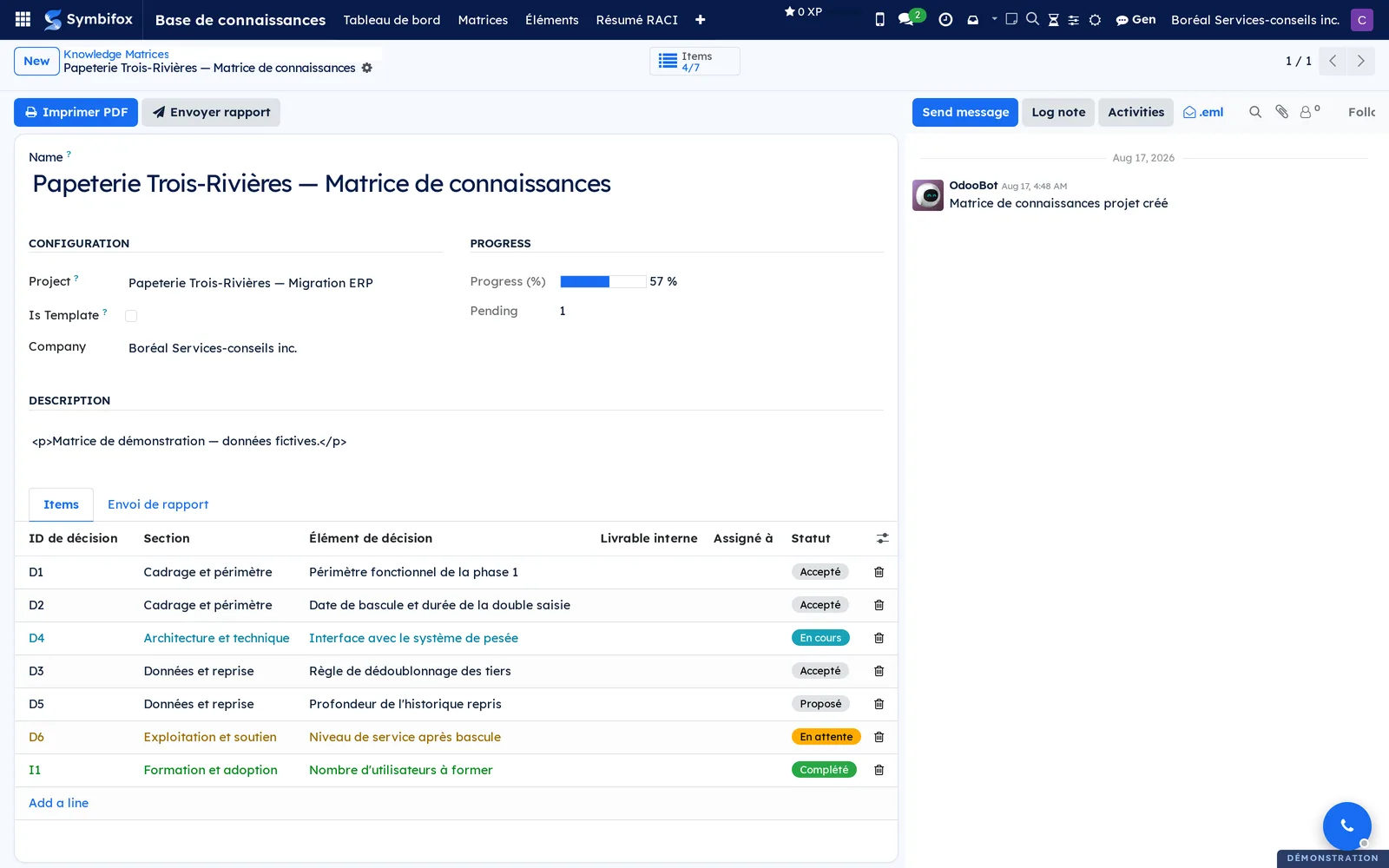
A knowledge matrix groups the items of an engagement: a decision to make, information to obtain, content to produce. Each item carries its section, its phase, its owner, its deadline, its status and its attachments. The matrix is attached to a project and calculates its own progress. A matrix can also serve as a template, copied from one engagement to the next.
Finally, corporate governance holds the resolutions of the board, the shareholders and the members, the registers of directors and officers, the calendar of annual obligations and the minute book. The credentials vault stores a project's passwords and keys, encrypted, with their expiry date.
The policy and procedure registry can also come out as files. The registry export produces a published copy of it, filed in folders by an export template, for staff who still look for a procedure in a file explorer. The copy comes out as a ZIP archive, or is deposited in a Nextcloud folder. It is not authoritative: the version in force stays in Symbifox.
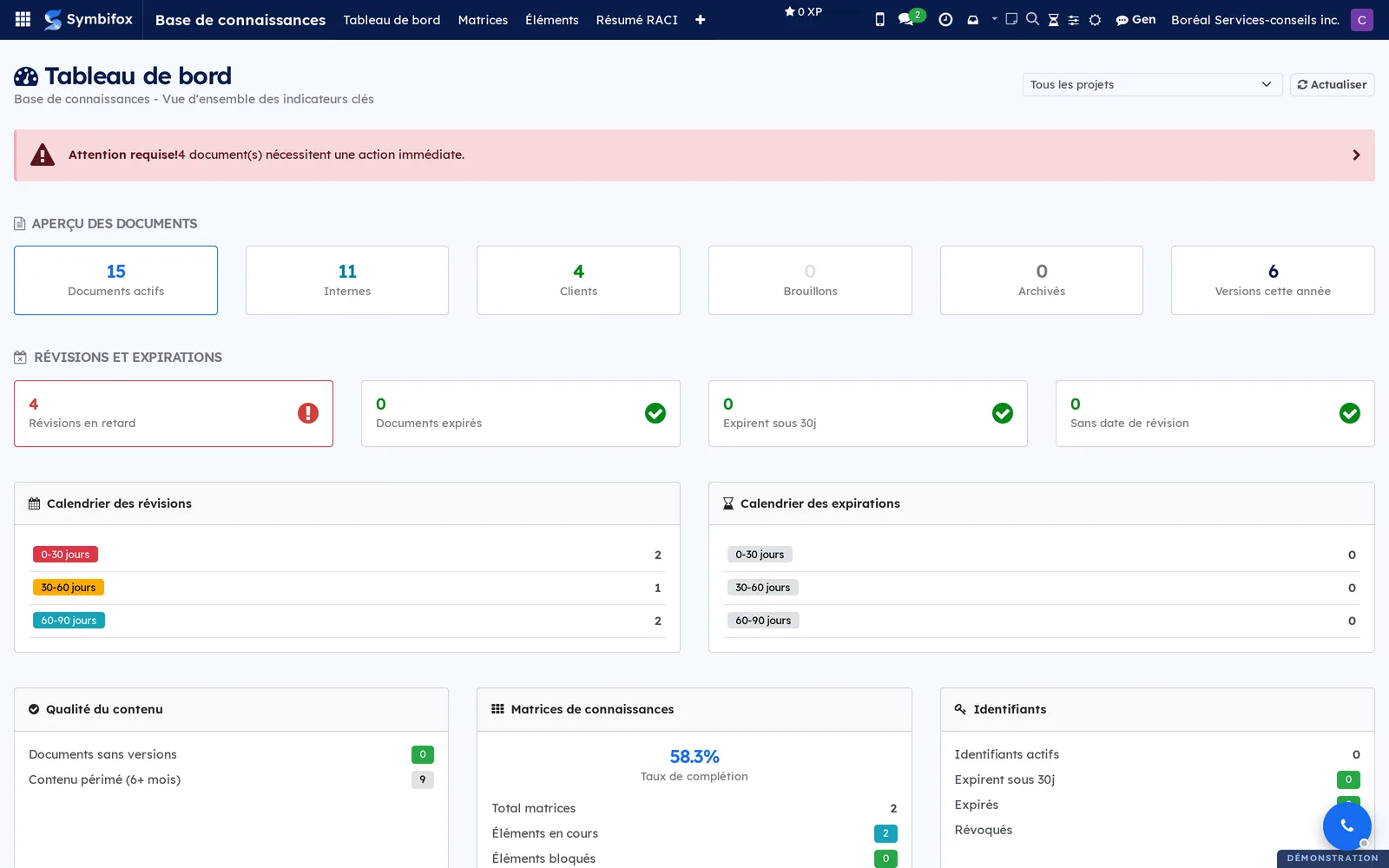
The dashboard brings all of this together as figures you can open.
The application is tied to Project: a matrix belongs to a project, an item can generate a task, and a document can be filed under an engagement. Decisions recorded here feed the steps of a process map (see Process maps) and show up in meeting reports. Documents can live on Nextcloud rather than in Symbifox (see Nextcloud and Collabora).
What sets the Symbifox approach apart: the record and the content are two different things. The life cycle, the dates, the distribution and the proof of receipt stay in Symbifox, wherever the file itself is stored.
Configuration#
Access and permissions#
Permissions are granted in Settings, on the user's record. The application has several, independent of one another:
- Matrices de connaissances (knowledge matrices), Utilisateur (user) or Gestionnaire (manager): view matrices and items, or administer them. Only the manager sees Configuration.
- Documents, user or manager: the user gets all of Documentation, and the manager also adds document types and document sections. For the registry export, a user asks for exports and sees only their own; the manager sees every export, downloads its archive, and maintains the export templates and the classification plans.
- Distribution et accusés de réception (distribution and acknowledgements): the three distribution entries. This is a separate permission, because the list of people who have not yet acknowledged receipt is sensitive information.
- Identifiants (credentials), user or manager: the Identifiants entry. A credential marked as restricted shows its password to the manager only.
- Gouvernance corporative (corporate governance), manager: the Gouvernance corporative entry and its five screens.
A person who holds none of these permissions does not see the application.
Settings#
The settings live in Settings, Base de connaissances section:
- Distribution et accusés de réception: turns distribution on. When it is cleared, the three distribution entries disappear, the reminders stop and the matching blocks leave the dashboard. Nothing is deleted: the distributions and the acknowledgements already obtained stay in the database.
- Rapport automatique activé (automatic report on) and Destinataires du rapport (report recipients): the dashboard summary goes out by email every two weeks, to the addresses entered. Envoyer maintenant (send now) triggers an immediate send so you can check the result.
- Configuration Nextcloud par defaut (default Nextcloud configuration): the connection offered to new documents, if you store your files on Nextcloud.
Base data#
Three sets of reference data are supplied, ready to use, and can be edited in Base de connaissances › Configuration:
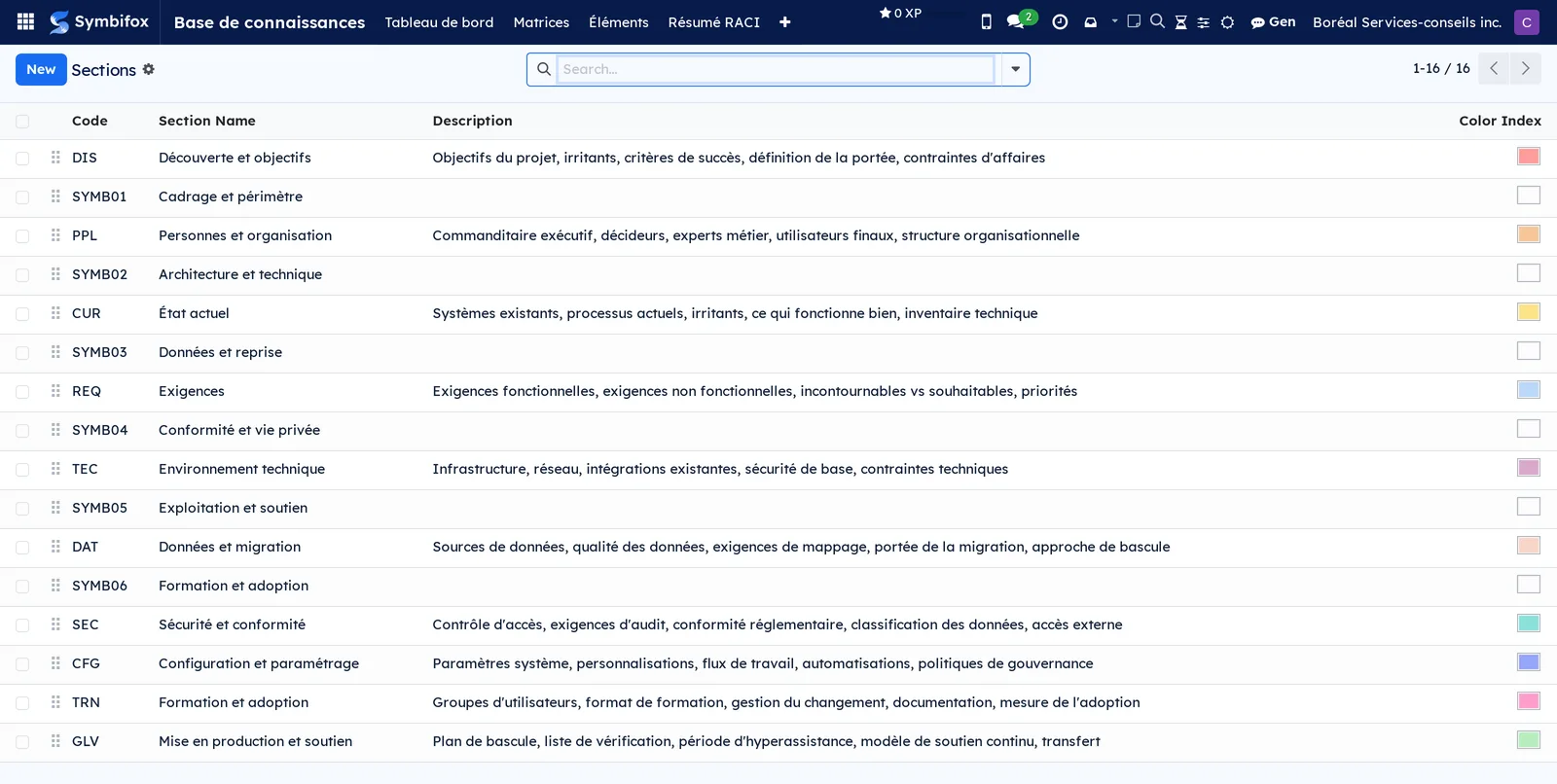
- the matrix sections, sixteen on the demo, which classify items (scoping and boundaries, data and migration, compliance and privacy, operations and support, training and adoption);
- the document types, twenty-two on the demo, which tell a user manual from an HR policy or a register. Each type says whether it is internal or meant for clients, and carries its Gabarit de sections (section template);
- the document sections, fourteen on the demo, the catalogue of sections that make up the body of a policy written in Symbifox;
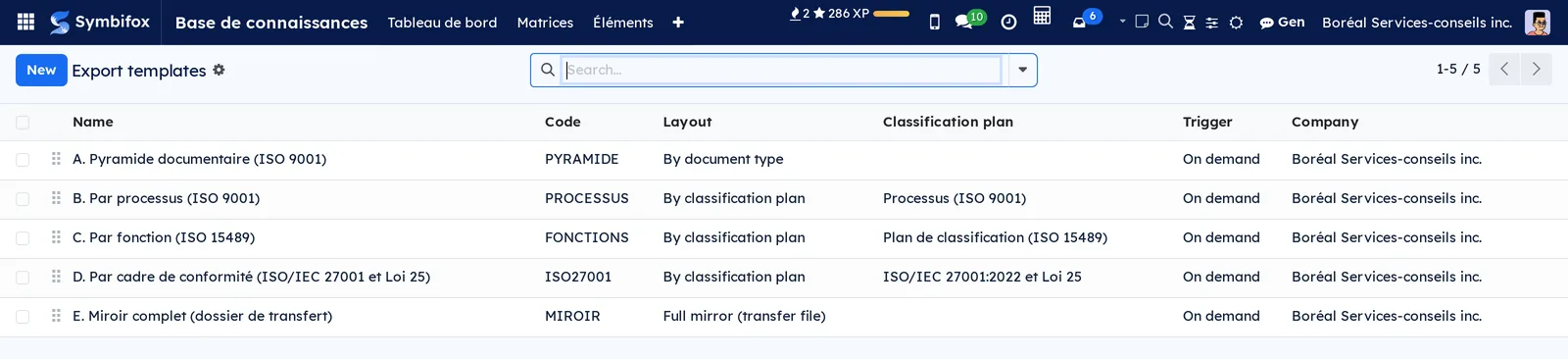
- the export templates, five, and the classification plans, three, supplied with the registry export. They can be edited freely: a module update does not overwrite your changes.
Add your types before you create your first documents: the type decides the sections and whether the document is internal.
Getting started#
This walkthrough creates a matrix on a Boréal engagement, records a decision in it and produces a report.
- Go to Base de connaissances › Matrices and select New.
- In Name, enter “ERP migration, tracking matrix”, then choose the Project it belongs to. Save.
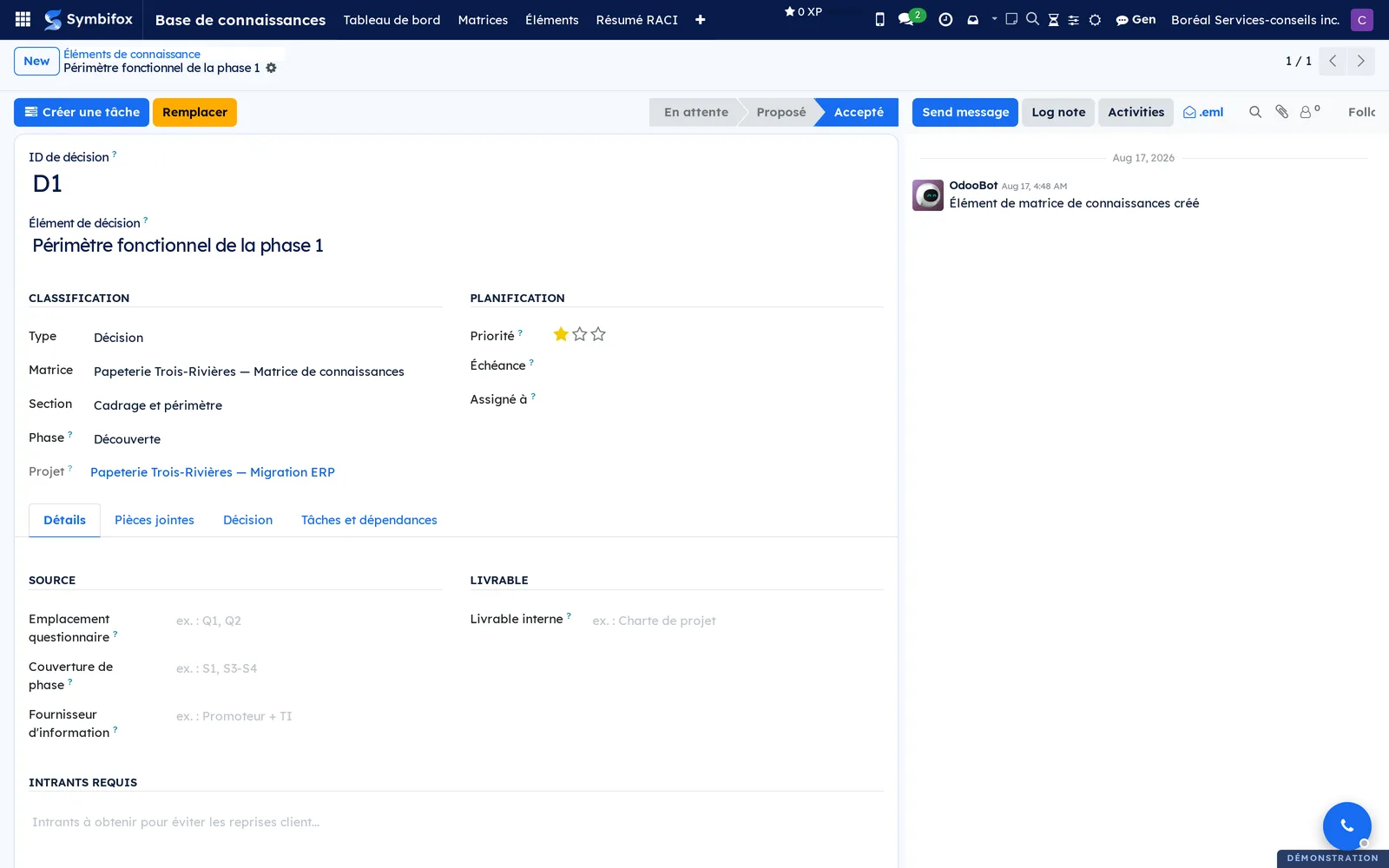
- In the Items tab, select Add a line. Enter the ID de décision (decision ID) “D1”, choose the Section “Cadrage et périmètre” (scoping and boundaries) and describe the Élément de décision (decision item): “Functional scope of phase 1”.
- Open the line to complete its record: Type “Décision”, Phase “Découverte” (discovery), Assigné à (assigned to) and Échéance (deadline).
- When the decision is made, select Accepter (accept). The status bar changes to Accepté (accepted).
- Select Créer une tâche (create a task) to pass the resulting work down into the project.
- Go back to the matrix and select Imprimer PDF (print PDF).
You now have a matrix that shows its progress, an item decided and dated, a linked task and a report to send. The rest of this chapter shows how to keep documentation the same way.
Common tasks#
Record a decision and move it forward#
A matrix item serves as much to request information as to set a decision and its context in stone.
- Go to Base de connaissances › Éléments (items) and select New.
- Enter the ID de décision, the Matrice (matrix), the Section and the Élément de décision.
- Under Classification, choose the Type (information, decision, content) and the Phase.
- Under Planification (planning), set the Priorité (priority), the Échéance and Assigné à.
- In the Décision (decision) tab, fill in the Contexte (context), the Décision, the Alternatives considérées (alternatives considered), the Justification and the Conséquences (consequences).
- Select Proposer (propose), then Accepter or Rejeter (reject), depending on the outcome.
The status bar shows where the item stands. An information item follows the other path: Démarrer (start), Marquer complété (mark complete), or Marquer S/O (mark not applicable) when the question falls away. Réinitialiser (reset) returns it to pending. Remplacer (replace) creates a successor and marks the current decision as superseded, without erasing it: an outdated decision stays readable, alongside what replaced it.
Link an item to a task and its dependencies#
A decision that goes nowhere stays an intention.
- Open the item.
- Select Créer une tâche: the name, the description, the assignee and the deadline are taken from the item.
- Open the Tâches et dépendances (tasks and dependencies) tab to see the tasks already linked.
- In Bloqué par (blocked by), designate the items that must be settled before this one.
The item then shows the number of linked tasks in its shortcut buttons at the top of the form, and a badge flags it as blocked until its prerequisites are complete. The task itself appears in the project as usual.
Capture a decision from a conversation#
A decision is often made in an email filed in a task's chatter, the message thread at the bottom of the record, rather than in a form.
- Open the project task, in Project.
- In the chatter, find the message that contains the decision.
- On that message, select the light bulb icon.
- The form for a new item opens, prefilled: project, matrix, author, quoted message body, linked task and provisional identifier.
- Complete the section and the status, then save.
The item joins the project's first active matrix and is assigned to you. This action is offered to internal people only, on project tasks.
Import a matrix from a spreadsheet#
A matrix that already exists in a spreadsheet comes in without retyping.
- Go to Base de connaissances › Configuration › Importer depuis CSV (import from CSV).
- Choose the Matrice cible (target matrix).
- Select Upload your file and pick your file.
- Set the Délimiteur (delimiter): semicolon, comma or tab.
- Check Lignes d'en-tête à ignorer (header rows to skip) and say how many rows to skip.
- Check Mettre à jour les éléments existants (update existing items) so that an identifier already present is updated rather than duplicated.
- Verify the Éléments à importer (items to import) count, then run the import.
The items join the chosen matrix. Rows whose decision identifier already exists are updated or skipped, depending on the checkbox.
Start from a matrix template#
An engagement that resembles the last one does not have to be rebuilt from scratch.
- Go to Base de connaissances › Modèles (templates).
- Open the template to reuse, or create one by checking Is Template on an existing matrix.
- Copy it to the project you want.
- Open the new matrix and adjust the items to the engagement.
Modèles and Matrices show the same records, filtered differently: the Is Template checkbox is all that separates them.
Send a matrix report to a client#
The report gives the client the real progress of the engagement, without building a table by hand.
- Open the matrix.
- Select Imprimer PDF to get it right away, with its indicators, its progress bar and its items grouped by section.
- To send it, select Envoyer rapport (send report).
- In the dialog, choose the Destinataires (recipients), and adjust the Sujet (subject) and the Corps du message (message body).
- Optional: select Prévisualiser PDF (preview PDF) to reread it before sending.
- Select Envoyer (send).
The email goes out in the colours of the matrix's company, with the report attached. For a recurring send, open the matrix's Envoi de rapport (report sending) tab, check Envoi automatique (automatic sending), then choose the Destinataires du rapport and the Fréquence (frequency): weekly, every two weeks, monthly, or a custom interval.
See who carries what in an engagement#
The RACI summary answers, at a glance, who is responsible for how many things on this engagement.
- In your items, fill in Assigné à, Décideur (decision maker), Consultés (consulted) and Informés (informed).
- Go to Base de connaissances › Résumé RACI (RACI summary).
- Read the pivot table: people in rows, roles in columns, number of items in the cells.
- From a project's record, use the shortcut button RACI at the top of the form to get this engagement only.
The screen stays empty as long as no role is filled in. The four roles are read straight from the items: there is no second list to maintain.
Create a document and keep it up to date#
The document record carries its identity and its schedule; its content comes afterwards.
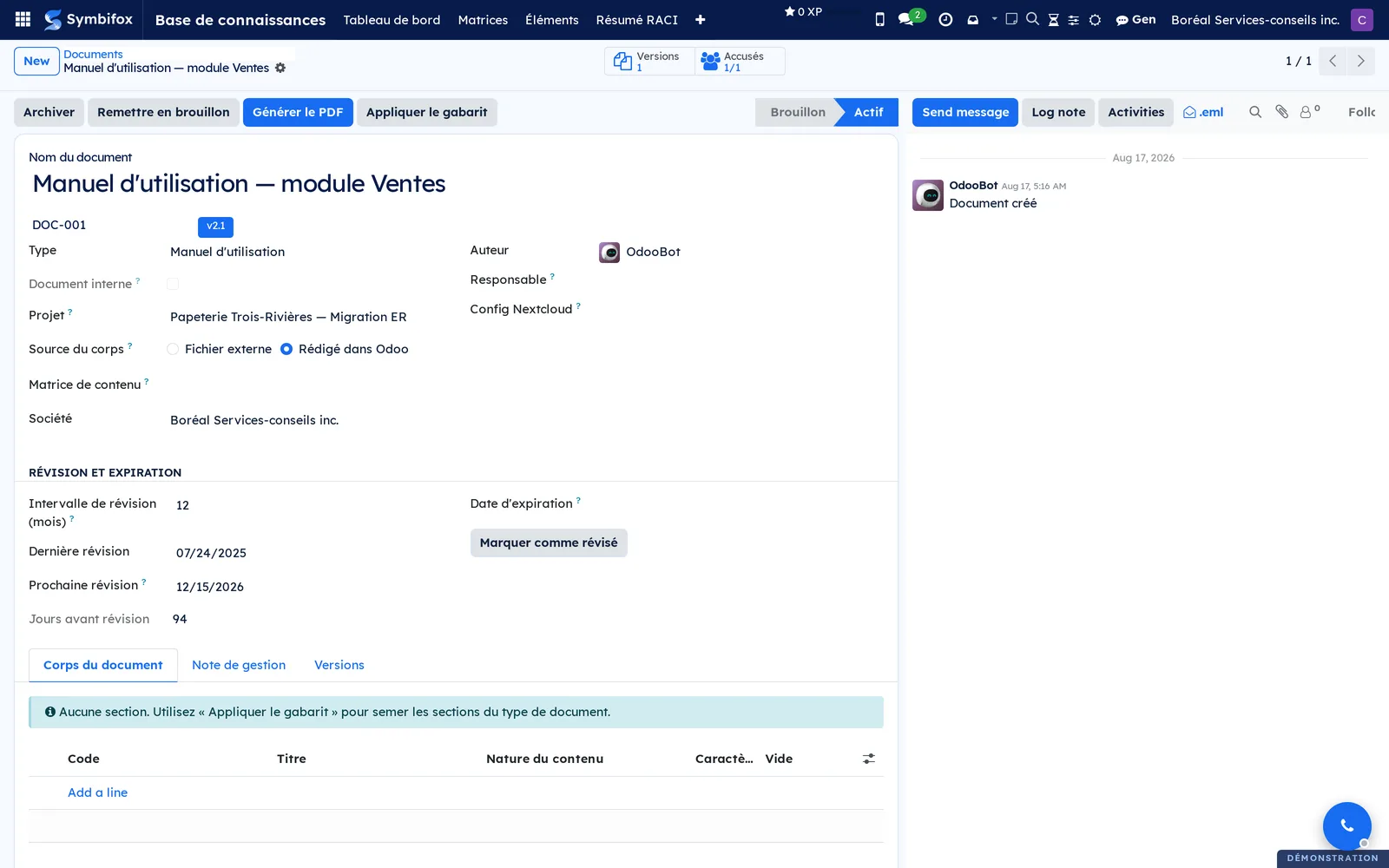
- Go to Base de connaissances › Documentation › Tous les documents (all documents) and select New.
- Enter the Nom du document (document name) and the Référence (reference), then choose the Type.
- Enter the Responsable (owner), and the Projet (project) if the document belongs to an engagement. Leave it empty for a document that is valid across the organization.
- Under Révision et expiration (review and expiry), enter the Intervalle de révision (mois) (review interval in months) and, if there is one, the Date d'expiration (expiry date).
- Choose the Source du corps (body source): Fichier externe (external file) or Rédigé dans Odoo (written in Odoo).
- Save, then select Activer (activate).
The Prochaine révision (next review) is calculated from the interval. Once the reread is done, Marquer comme révisé (mark as reviewed) pushes the date forward by as much. Archiver (archive) takes the document out of circulation without destroying it, and Remettre en brouillon (reset to draft) returns it to preparation.
Write a policy in Symbifox#
The text lives in the record rather than in a file that travels from computer to computer.
- Open the document and set the Source du corps to Rédigé dans Odoo.
- Select Appliquer le gabarit (apply the template): the sections planned by the document type are seeded in the Corps du document (document body) tab.
- Write each section. The generated sections (version history, governance, approvals) fill themselves in.
- Select Générer le PDF (generate the PDF) to get the version in force in your organization's colours, as it was frozen at its publication.
- To proofread changes not yet published, select Aperçu du brouillon (draft preview).
The screen shows the number of characters written, the empty sections and those that have changed since the last publication. Appliquer le gabarit only adds the missing sections: it never touches what is already written.
As long as no version is published, Générer le PDF prints the draft, marked as such. Aperçu du brouillon only appears when the body has changed since the last version: it prints the working draft under its own number, with the words “Brouillon, non approuvé” (draft, not approved) on every page.
Publish a version#
Publishing is the action that dates the content and makes it distributable.
- Open the document, Versions tab, and create a version.
- Enter the Version number, the Type de modification (change type: major, minor or editorial) and the Résumé des modifications (change summary).
- Detail the Journal des modifications (change log), and attach the Fichier du document (document file) if the body lives outside.
- Select Soumettre pour révision (submit for review), then Approuver (approve).
- Select Publier (publish).
The version becomes the current version, and the previous one becomes superseded. Retirer (withdraw) takes a published version out of circulation, and Remettre en brouillon reopens it. Check Correctif mineur (minor fix) for a cosmetic change: the acknowledgements already obtained stay valid.
On the form of a version whose body is written in Symbifox, Générer le PDF prints that very version, under its number: its frozen text if it was published, otherwise the draft, marked as such. A superseded or withdrawn version, or one approved but not yet published, prints with a banner that says so.
Distribute a document and track the acknowledgements#
A procedure distributed with no trace of receipt proves nothing.
- On the published version, select Distribuer (distribute).
- Choose the Type de destinataire (recipient type), then the Client or the Employé (employee), and the Méthode de distribution (distribution method).
- Check Signature requise (signature required) if the reading must be signed.
- Select Envoyer le document (send the document): the message opens, prefilled, so that you reread it before it goes out.
- When the person confirms, select Marquer accusé reçu (mark as acknowledged); the date is recorded on its own.
- Follow up if needed with Envoyer un rappel (send a reminder).
The distribution goes from En attente d'accusé (awaiting acknowledgement) to Accusé reçu (acknowledged). Rappeler (recall) cancels a distribution sent by mistake, Remettre en attente (set back to pending) starts over, and Notifier mise à jour (notify of an update) warns a recipient who holds an outdated version.
Export the registry as files#
The copy as files takes a few actions to request and is prepared while you keep working.
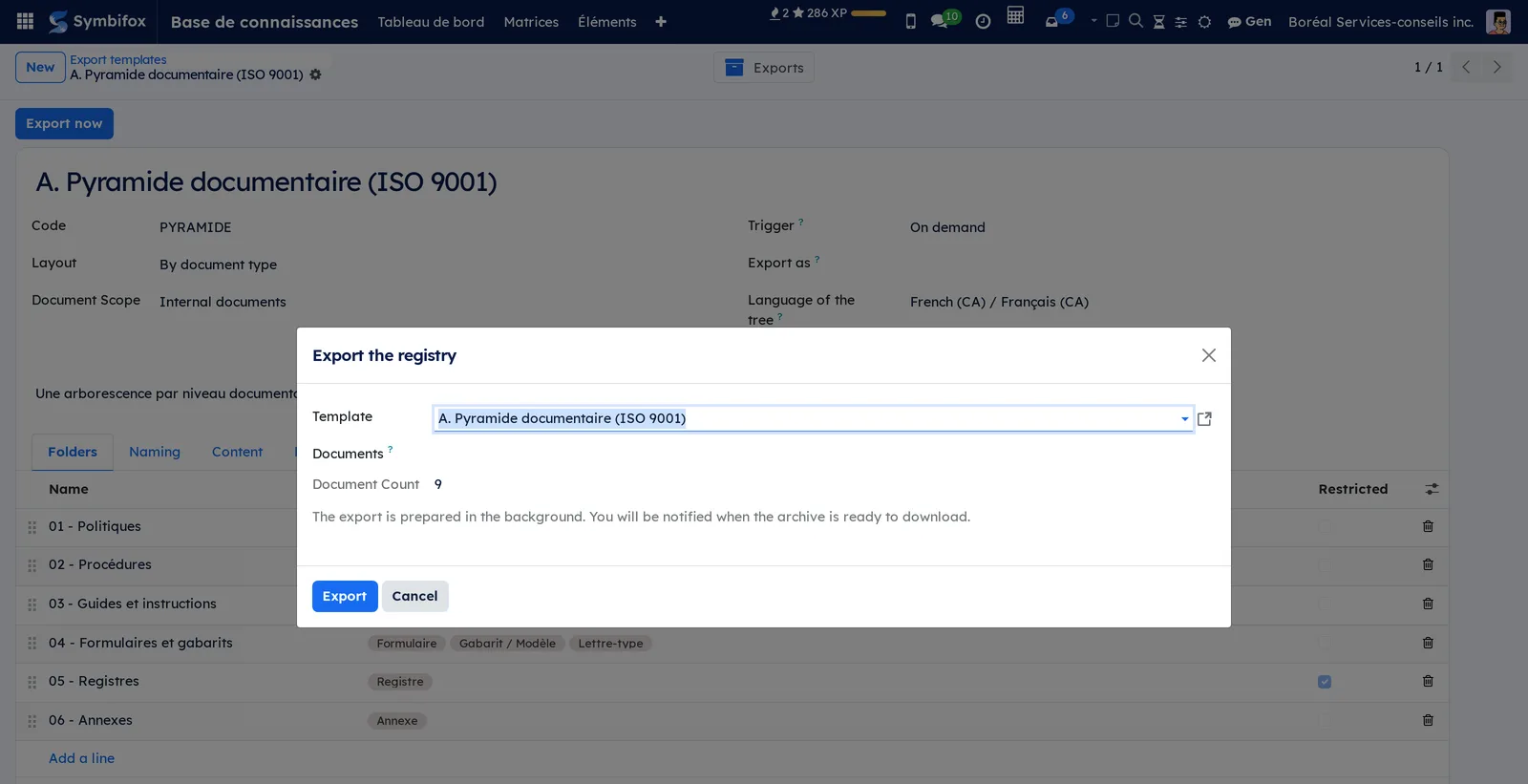
- Go to Base de connaissances › Documentation › Export as files.
- Choose the Template.
- Leave Documents empty to export everything the template covers. The Document Count shows below.
- Select Export.
- When the notification arrives, open the export and select Download.
The export goes from Queued to Running, then to Done. The archive holds every document in force under a stable name, for example “PRO-002 - Incident response.pdf”, which does not change from one version to the next. To export only a few documents, check them in Tous les documents, then open Actions › Export as files.
Adjust an export template#
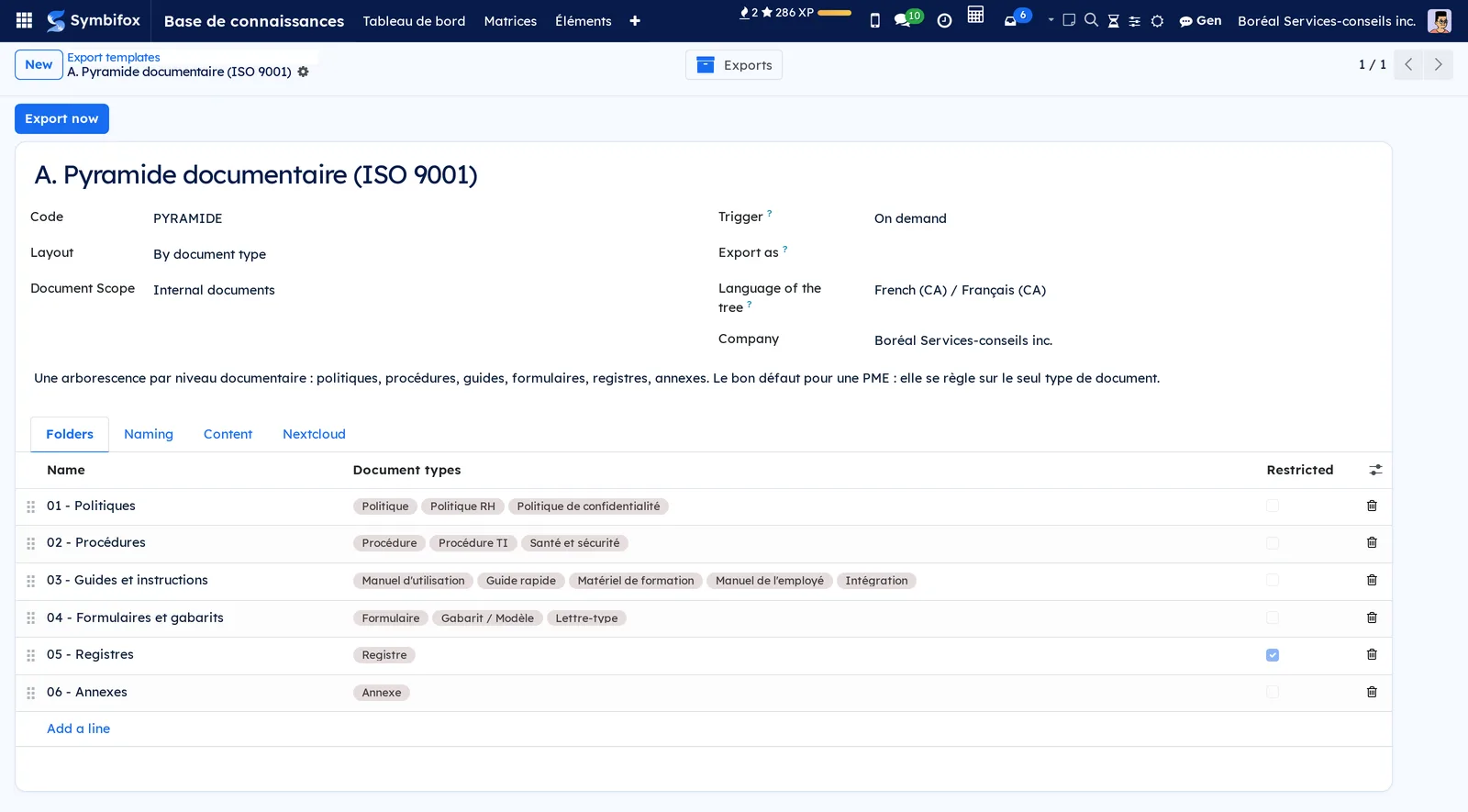
The template decides the folder tree: which folders, which documents go in each, and what stays out.
- Go to Base de connaissances › Configuration › Export templates.
- Open the supplied template closest to your needs and copy it with Actions › Duplicate: the supplied template stays as the reference.
- On the copy, choose the Layout: By document type, By classification plan with its Classification plan, or Full mirror (transfer file).
- In the Folders tab, name each folder and match your Document types to it. A type created by hand is added by its code, in the optional Type Codes column.
- In the Naming tab, adjust the Root Name, the Current file name and the Max Path Length.
- In the Content tab, set what goes in (Drafts Mode, Archives Mode, Include Sections, Include a record file) and what stays out (Excluded types, Confidential types, Confidential Mode).
- Choose the Language of the tree: the language of the master list, the index, the readme and the PDF footers.
A document whose type has no folder lands in “98 - À classer” (to be filed), and the export reports it. Aim for an empty to-be-filed folder. Check Restricted on a folder that must be protected once the archive is unpacked: the manifest and the readme flag it.
File documents in a plan#
The templates by process, by function and by compliance framework file documents by a classification plan, not by type.
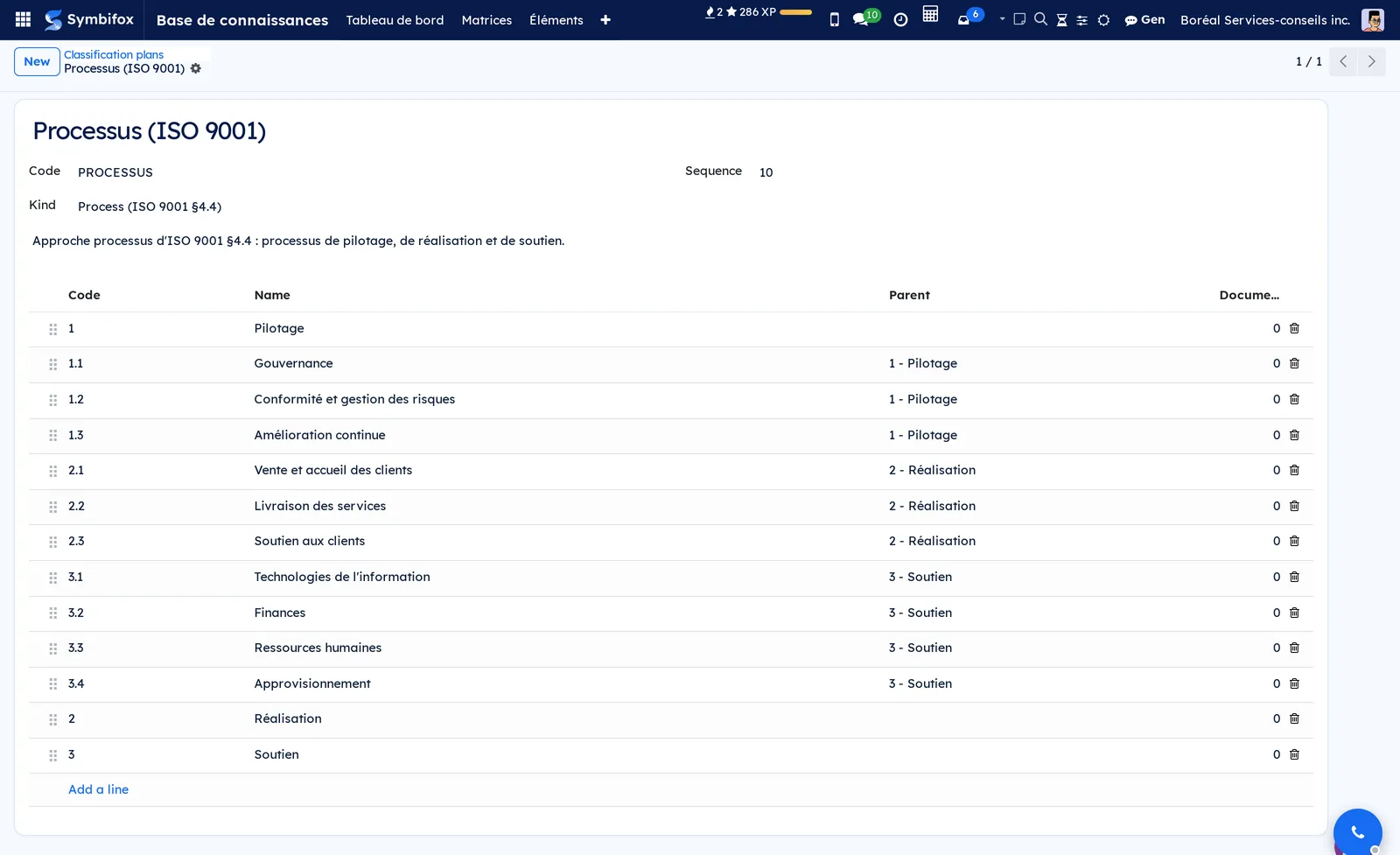
- Go to Base de connaissances › Configuration › Classification plans and open the plan your template follows.
- Adjust its classifications: Code, Name, and Parent to nest them.
- Open a document, in Documentation › Tous les documents.
- In Classification, choose its place in each plan that concerns it.
- Save.
- In the document list, apply the Without classification filter to find the ones left.
A document can belong to several plans at once: its process, its records function and its compliance theme. If you already keep a retention schedule, carry its codes over to the functions plan before filing. The Classification grouping of the document list shows the breakdown at a glance.
Run a dry run before the first deposit#
Before giving the copy a destination, an on-demand export shows where each document will land.
- Open the adjusted template, with nothing in its Nextcloud tab, and select Export now.
- In the dialog, select Export.
- When the export is Done, read its Warnings tab: shortened names, numbered names, types with no folder, source files not found.
- Select Download and unpack the archive.
- Review the master list and the readme with the person who keeps the registry.
- Open two or three PDFs: every page carries the code, the version, the effective date and the words “Copy exported on”.
- Correct the registry, then run the dry run again until “98 - À classer” is empty.
The dry run changes nothing: the archive stays on the export, with no destination. A warning “active without a released version” is fixed by publishing a version in the registry, not in the template.
Deposit the copy on Nextcloud#
The deposit files the published copy in a Nextcloud folder that staff browse without opening Symbifox. It requires a Nextcloud connection (see Nextcloud and Collabora) and the document manager permission.
- Open the template, Nextcloud tab.
- Choose the Nextcloud and enter the Deposit folder, for example “/Politiques et procédures (copie publiée)”.
- If some documents keep their file on Nextcloud, choose the Source Nextcloud and enter the Source folders, one per line.
- In Export as, name the person whose permissions will be used to read the registry, preferably a document manager.
- Save.
- Signed in under their own account, the Export as person selects Export now, then Export.
- On the finished export, read the Delivery tab.
Then share the deposit folder read-only with staff, in Nextcloud. The delivery state becomes Delivered, Delivered, with files left untouched or Delivery failed. The template's On Nextcloud shortcut button at the top of the form counts the deposited files. On the next deposit, only the changed documents and the four indexes are written again.
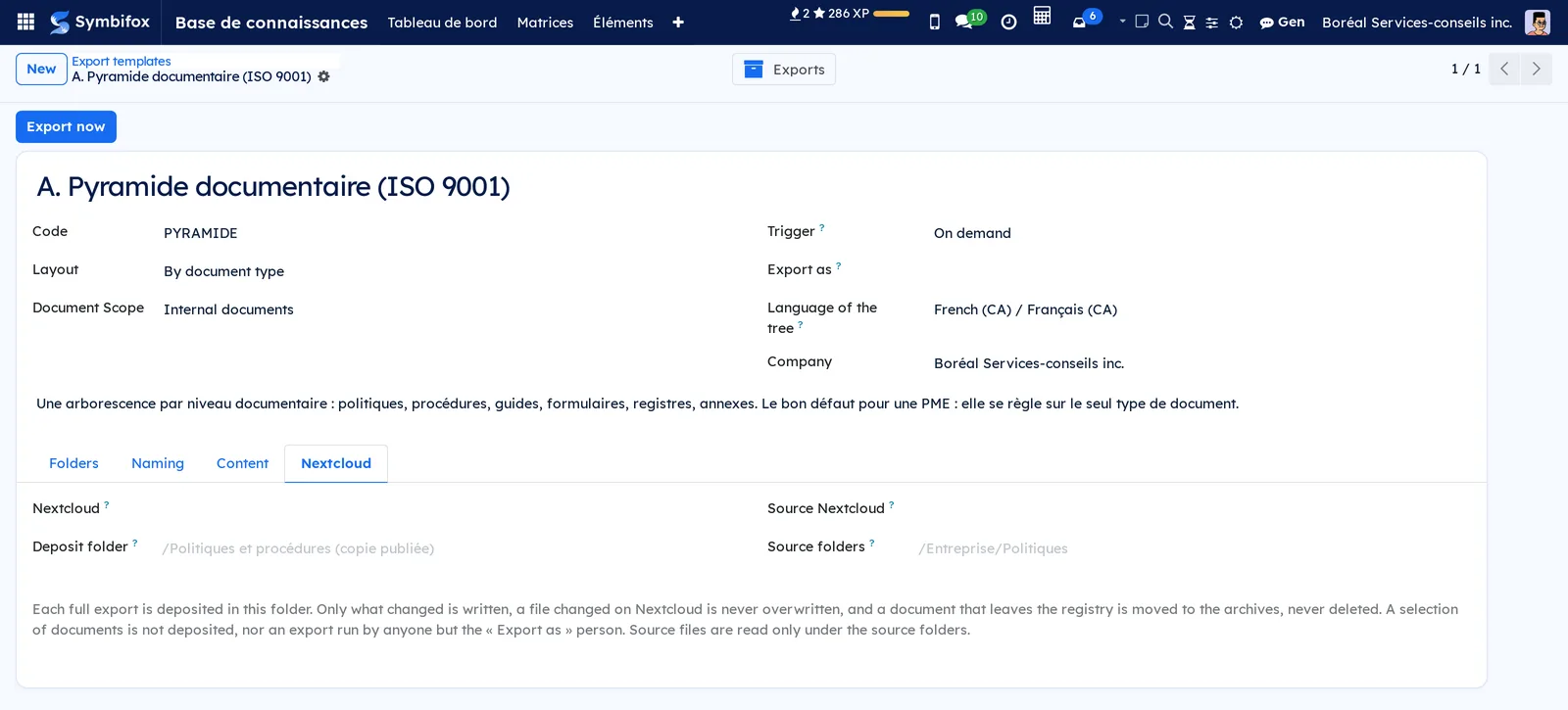
Set the export trigger#
An up-to-date copy without thinking about it: that is the trigger's job.
- Open the template.
- In Trigger, choose On demand or On each publication.
- For On each publication, name the person in Export as: the field becomes required.
- Save.
Each time a version covered by the template is published, an export is queued, only once even for several publications in a row, then deposited. Publishing never waits for the export. An export triggered by a publication notifies the named person only when it fails or the deposit is incomplete; otherwise, its outcome stays on the export.
Store a credential and change its password#
The vault keeps a project's access details somewhere other than a shared spreadsheet.
- Go to Base de connaissances › Identifiants and select New.
- Enter the Nom (name), the Projet and the Type: the type decides which fields are shown.
- Fill in the URL, the Nom d'utilisateur (username), the Mot de passe (password) or the Clé API (API key), and attach the Fichier de clé (key file) if there is one.
- Enter the Date d'expiration and check Restreint (restricted) for sensitive access.
- After a check, select Vérifier (verify) to date that check.
- To change the password, select Rotation du mot de passe (password rotation), enter the new one twice, choose the Raison (reason), then confirm.
Passwords and keys are encrypted. Révoquer (revoke) takes an access out of circulation, and Réactiver (reactivate) puts it back in service. The rotation leaves a dated trace in the chatter.
Adopt a corporate resolution#
A resolution is prepared, proposed, adopted, and printed ready to sign.
- Go to Base de connaissances › Gouvernance corporative › Résolutions (resolutions) and select New.
- Enter the Titre (title), the Type de résolution (resolution type), the Catégorie de sujet (subject category) and the Date de la séance (meeting date).
- Write the ATTENDU QUE (whereas) preamble and the IL EST RÉSOLU QUE (be it resolved that) body.
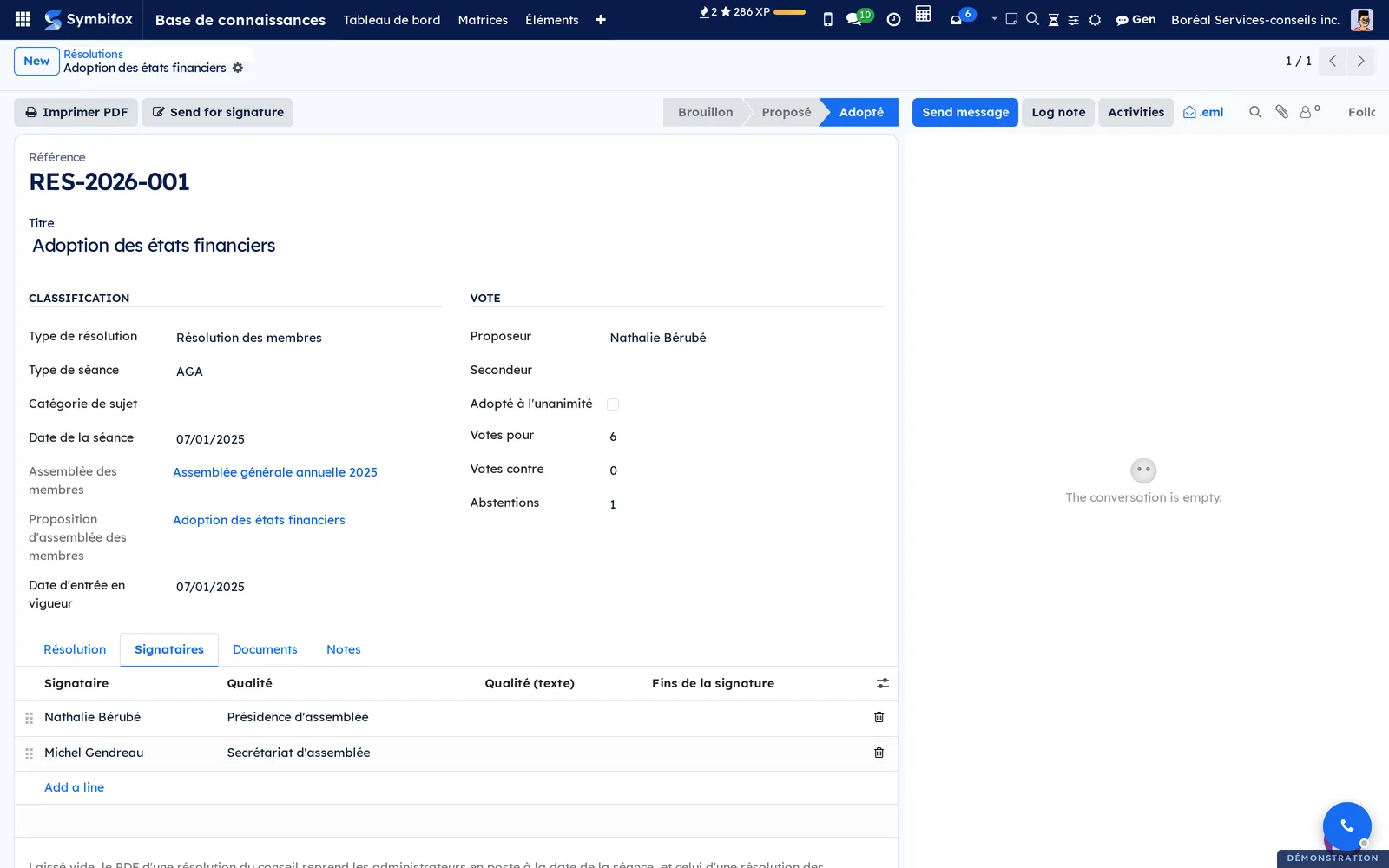
- Enter the Proposeur (mover), the Secondeur (seconder) and the votes, or check Adopté à l'unanimité (adopted unanimously).
- In the Signataires (signatories) tab, add who signs and in what Qualité (capacity).
- Select Proposer, then Adopter (adopt) or Rejeter.
- Select Imprimer PDF.
The resolution's reference is assigned when it is created. The Documents tab links it to the records of the minute book. When the Signataires tab is left empty, the signature block of a board resolution uses the directors in office on the date of the meeting, not today's.
Keep a resolution of the members' meeting#
A non-profit, an association or a co-operative adopts its resolutions at a members' meeting, not in a board meeting or among shareholders. The register keeps them in the same place as the others, under their own type.
- Go to Base de connaissances › Gouvernance corporative › Résolutions and select New.
- In Type de résolution, choose Résolution des membres (members' resolution).
- Fill in the title, the meeting date, the preamble and the body as for any resolution.
- In the Signataires tab, add the person who chaired the meeting and choose the Qualité Présidence d'assemblée (meeting chair).
- Add the person who acted as secretary, with the capacity Secrétariat d'assemblée (meeting secretary).
- Select Proposer, then Adopter, and finally Imprimer PDF.
The PDF is headed “Résolution de l'assemblée des membres” (resolution of the members' meeting) and its signature block “Signatures de l'assemblée” (signatures of the meeting). With no signatory entered, it prints two lines to fill in, under the meeting chair and the meeting secretary. The Membres (members) filter of the list finds them all.
A resolution can also come from the Membres application: a proposal adopted by a closed meeting is entered in the register in one action, with the text, the vote totals, the date and the meeting's signatories. Its form then shows the Assemblée des membres (members' meeting) and the Proposition d'assemblée des membres (members' meeting proposal) it came from. The notice, the quorum and the vote are handled in Members.
Track corporate deadlines#
The compliance calendar recalls annual obligations before the date, not after.
- Go to Base de connaissances › Gouvernance corporative › Calendrier de conformité (compliance calendar).
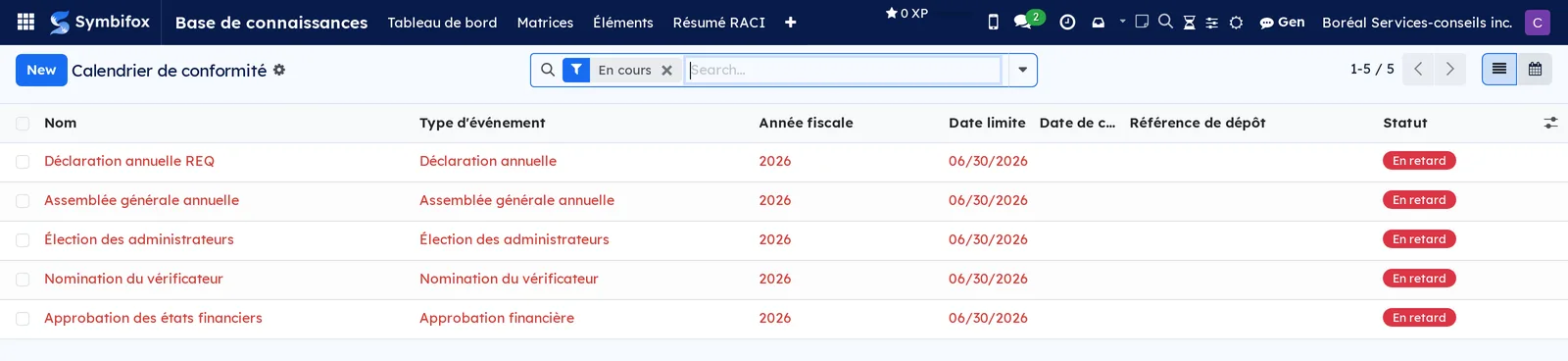
- Open the event, or create one with its Type d'événement (event type), its Année fiscale (fiscal year) and its Date limite (deadline).
- When the obligation is met, enter the Référence de dépôt (filing reference) and select Marquer complété.
- Réinitialiser reopens an event closed by mistake.
The state goes from À venir (upcoming) to Échéance proche (due soon), then En retard (overdue), and finally Complété (complete). The calendar view shows the year at a glance.
The menus, one by one#
Base de connaissances: the application menu; it has no screen of its own. On a narrow screen, the entries that do not fit fold under the add button of the menu bar.
Base de connaissances › Tableau de bord (dashboard): the home screen. A red banner announces the number of documents that need immediate action, then come the blocks: document overview (active, internal, client, drafts, archived, versions this year), reviews and expiries, review and expiry calendars in steps of thirty days, content quality, knowledge matrices, credentials, distribution and governance. Each figure opens the list it counts. The Tous les projets (all projects) selector, at the top right, restricts the dashboard to one engagement; the corporate figures, which hold for the whole company, then disappear instead of showing a misleading zero.
Base de connaissances › Matrices: the list of matrices, with the name, the project, the number of items, the progress as a percentage and the Is Template checkbox. Two matrices on the demo, at 57% and 60%.

Base de connaissances › Éléments: every item, grouped by section and filtered on the active items. Columns: priority, decision identifier, section, decision item, phase, deadline, assignee, number of tasks and status. The useful filters cover lateness, deadlines this week, priority, blocking and phase.
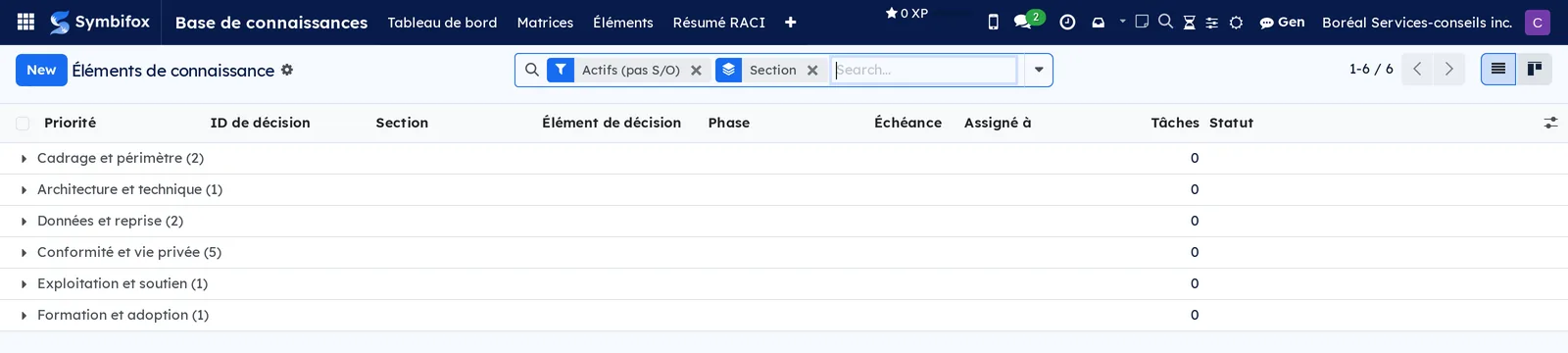
Base de connaissances › Résumé RACI: the pivot table of roles by person and by project. Empty on the demo: the help text invites you to fill in the responsible people, decision makers, consulted and informed in the items.
Base de connaissances › Modèles: the matrices marked as templates, to copy to a new engagement.
Base de connaissances › Identifiants: the vault, as a list or as cards. Empty on the demo: the help text recalls that passwords and keys are encrypted at rest.
Base de connaissances › Documentation: grouping menu; it has no screen of its own.
Base de connaissances › Documentation › Tous les documents: the complete list, filtered on the active documents. Columns: reference, name, type, internal document, current version, body source, project, next review, expiry date, owner, number of versions, distributions, pending acknowledgements and state. Review dates that have passed stand out in colour. Fifteen documents on the demo.
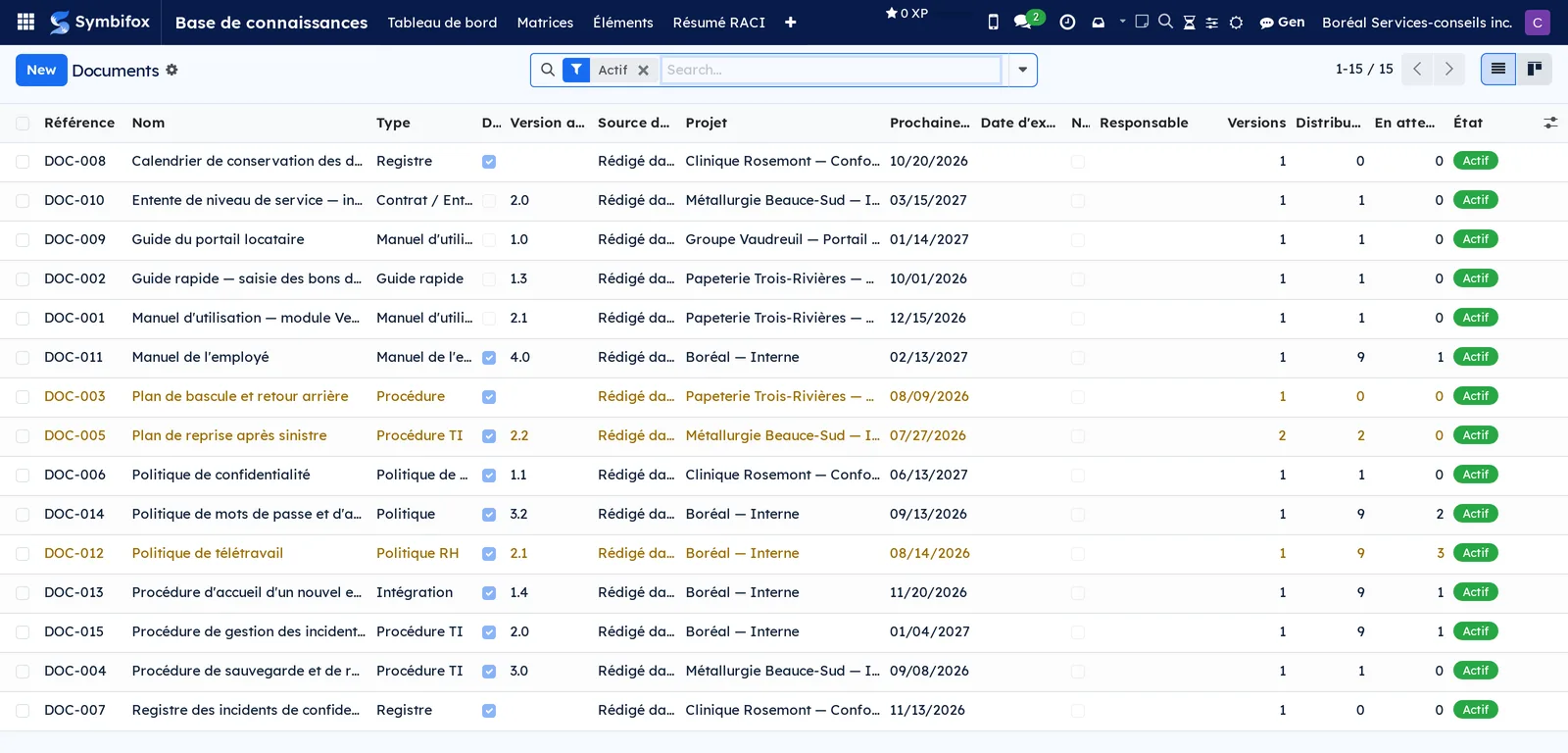
Base de connaissances › Documentation › Politiques et procédures (policies and procedures): the same list, restricted to internal documents. This is the screen for HR policies, IT procedures and employee manuals.
Base de connaissances › Documentation › Documents clients (client documents): the same list, restricted to the manuals, contracts and guides meant for clients.
Base de connaissances › Documentation › À traiter (to handle): the documents that have expired, are expiring soon, or are overdue for review. The screen to open first thing on Monday morning.
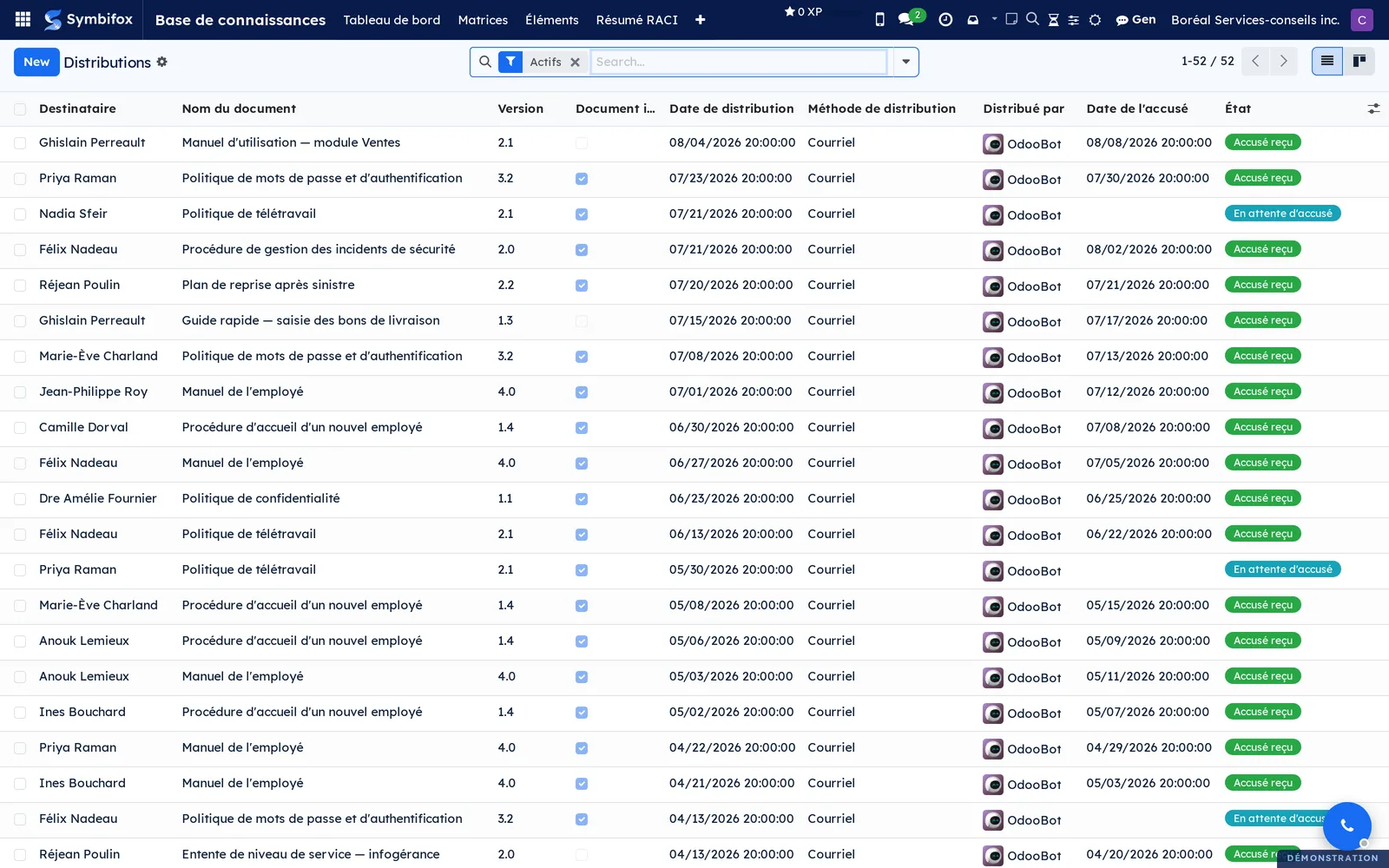
Base de connaissances › Documentation › Distributions: every distribution, with the recipient, the document name, the version, the distribution date, the method, the person who distributed it, the acknowledgement date and the state. Fifty-two on the demo, almost all acknowledged.
Base de connaissances › Documentation › Accusés internes (internal acknowledgements): the same distributions, restricted to employees. This is the proof of internal compliance: who confirmed reading the policy, and on what date.
Base de connaissances › Documentation › Documentation obsolète (outdated documentation): the recipients who hold an outdated version. The starting point of an update campaign.
Base de connaissances › Documentation › Export as files: the Export the registry dialog, which requests a copy of the registry as files according to a template (see Export the registry as files).
Base de connaissances › Documentation › Registry exports: the exports, most recent first. Columns: name (the template and the time of the request), template, trigger, requested by, document count, file count, warning count, state and delivery. A failed export stands out in red. A user sees only their own exports there. On the form, Download gives the archive and Run now restarts a queued or failed export; the Warnings, Delivery and Selected documents tabs say what happened. The last three archives of each template are kept; older exports keep only their log. No export on the demo.
Base de connaissances › Gouvernance corporative: grouping menu; it has no screen of its own.
Base de connaissances › Gouvernance corporative › Résolutions: the resolutions of the board, the shareholders and the members. Columns: reference, meeting date, title, resolution type, subject category and status. The Conseil (board), Actionnaires (shareholders) and Membres filters separate them. One resolution on the demo: the adoption of the financial statements by the members' annual general meeting.

Base de connaissances › Gouvernance corporative › Registre des administrateurs (register of directors): the directors, their appointment and end dates, the reason for the end and the residence. Empty on the demo.
Base de connaissances › Gouvernance corporative › Registre des dirigeants (register of officers): the officers and their title, with the history of appointments. Empty on the demo.
Base de connaissances › Gouvernance corporative › Calendrier de conformité: the annual obligations, as a list or as a calendar. Columns: name, event type, fiscal year, due date, completion date, filing reference and state. Five events on the demo, all overdue, which shows exactly what the screen is for.
Base de connaissances › Gouvernance corporative › Livre des minutes (minute book): the documents classified by section of the minute book (articles, by-laws, shareholder agreements, minutes, filed forms, financial statements). A document appears there only once its section is filled in.
Base de connaissances › Configuration: grouping menu, reserved for the knowledge manager.
Base de connaissances › Configuration › Sections: the matrix sections, with their code, their name, their description and their colour, a free colour that the matrix items' cards take on. On a section's or a document type's form, Displayed color opens My color, a shade only you see. Sixteen on the demo, general sections (discovery and objectives, requirements, security and compliance) and sections specific to an implementation.
Base de connaissances › Configuration › Importer depuis CSV: the dialog for importing a matrix (see Import a matrix from a spreadsheet).
Base de connaissances › Configuration › Types d'identifiants (credential types): the nine access categories, each saying which fields to show (domain, address, API key, key file) and carrying a free colour (Couleur, on its form, where Couleur affichée opens My color).
Base de connaissances › Configuration › Porteurs de deuxième facteur (second factor holders): the team vaults, authenticator applications, phones and hardware tokens that hold the credentials' second factor (see the credentials vault callout, further down).
Base de connaissances › Configuration › Types de documents (document types): the twenty-two types, with their code, their icon, their free colour, the internal document checkbox and their Gabarit de sections tab.
Base de connaissances › Configuration › Nextcloud Documents: the connections to Nextcloud storage. Empty on the demo; see Nextcloud and Collabora.
Base de connaissances › Configuration › Sections de documents (document sections): the catalogue of sections that make up a document's body. Fourteen on the demo. A system section is supplied by the application and cannot be deleted.
Base de connaissances › Configuration › Export templates: the registry export templates, with their name, their code, their layout, their classification plan, their trigger and their company. Reserved for the document manager. The five supplied templates on the demo, from the document pyramid to the full mirror, all on demand. Their names, like the folders and plans supplied with them, stay in French on the English screen.
Base de connaissances › Configuration › Classification plans: the plans, with their code, their kind (process, records function, compliance framework or other) and the number of their classifications. Three on the demo: processes according to ISO 9001, the classification plan according to ISO 15489, and ISO/IEC 27001:2022 with Law 25.
Base de connaissances › Configuration › Classifications: every classification, grouped by plan, with its full name (the parent, then the child) and the number of documents filed in it. No document is filed yet on the demo.
Reference#
Fields of the Document form#
The labels below appear in French on the English screen, as the screens show them.
| Field | Description | Required or default |
|---|---|---|
| Nom du document | The document's title | Required |
| Référence | Unique code, for example “DOC-014” | Required |
| Type | Decides the sections of the body and whether the document is internal | Required |
| Document interne | Policy or procedure for internal use | Taken from the type |
| Langue, Traduction de | The document's language, and the document it translates | Language required |
| Projet | The engagement the document belongs to; empty for the whole organization | Optional |
| Source du corps | External file, or written in Symbifox | External file |
| Responsable, Auteur | Who maintains the document, and who wrote it | Optional |
| Intervalle de révision (mois) | Used to calculate the next review | Optional |
| Prochaine révision, Dernière révision | The reread schedule | Calculated, editable |
| Date d'expiration | Date after which the document no longer holds | Optional |
| État | Draft, active or archived | Draft |
| Version actuelle | The number of the latest published version | Calculated |
| Section du livre des minutes | Files the document in the minute book | Optional |
Fields of the Matrix item form#
| Field | Description | Required or default |
|---|---|---|
| ID de décision | Short, stable identifier, for example “D1” | Required |
| Matrice, Section | Where the item is filed | Required |
| Élément de décision | What is tracked, in one line | Required |
| Type | Information, decision or content | Optional |
| Catégorie de décision, Niveau d'impact | The nature and the reach of the decision | Optional |
| Phase | Discovery, requirements, build, testing, go-live | Optional |
| Priorité, Échéance, Assigné à | The planning | Optional |
| Statut | Pending, in progress, complete, not applicable, proposed, accepted, rejected, superseded | Pending |
| Contexte, Décision, Alternatives, Justification, Conséquences | The reasoning that is recorded | Optional |
| Décideur, Consultés, Informés | The roles, read by the RACI summary | Optional |
| Bloqué par, Bloque | The dependencies between items | Optional |
| En retard, Est bloqué | Flagged on their own | Calculated |
Fields of the Document version form#
| Field | Description | Required or default |
|---|---|---|
| Version | The number, for example “2.1” | Required |
| Type de modification | Major, minor or editorial | Optional |
| Résumé des modifications | One line: what changed | Optional |
| Journal des modifications | The detail of the changes | Optional |
| Fichier du document, Fichiers supplémentaires | The main file and its appendices | Optional |
| Approuvé par, Date d'approbation | Who approved, and when | Filled in on approval |
| Date d'entrée en vigueur, Date d'expiration | The validity of this version | Optional |
| Prochaine révision | Carried over to the document | Optional |
| Correctif mineur | A cosmetic change that does not invalidate the acknowledgements obtained | Cleared |
| État | Draft, in review, approved, published, withdrawn, superseded | Draft |
Fields of the Distribution form#
| Field | Description | Required or default |
|---|---|---|
| Version du document | The version sent | Required |
| Type de destinataire | Client or employee | Required |
| Client, Employé | Who receives it | Depends on the type |
| Date de distribution, Méthode de distribution | When, and by what means | Date required |
| Accusé reçu, Date de l'accusé, Accusé par | The proof of receipt | Filled in on acknowledgement |
| Signature requise, Date de signature | When the reading must be signed | Cleared |
| Obsolète | A newer version exists | Calculated |
| État | Awaiting acknowledgement, acknowledged, recalled | Pending |
Reports and exports#
- Imprimer PDF, on a matrix: the engagement report, with its indicators, its progress bar and its items grouped by section.
- Envoyer rapport, on a matrix: the same report, sent by email with a covering message.
- Générer le PDF, on a document written in Symbifox: the version in force, laid out in your organization's colours, under its own number; with no published version, the draft, marked as such.
- Aperçu du brouillon, on the same document: the working draft, marked “Brouillon, non approuvé” on every page.
- Générer le PDF, on a version: that very version, under its number, with a banner if it is not the version in force.
- Imprimer PDF, on a resolution: the resolution ready to sign, with its signature block. A members' resolution is headed “Résolution de l'assemblée des membres”.
- The dashboard summary, sent by email every two weeks to the addresses set in Settings.
- Export as files: a ZIP archive of the registry, filed according to the template. At its root, the master list (XLSX: code, title, type, version, effective date, next review, owner, language, classification, path), a browsable offline index (HTML), a manifest giving the fingerprint of each file (JSON) and a readme. Every page of the PDFs carries the code, the version, the effective date and the words “Copy exported on …: the version in force is in the registry”.
Automations#
Seven passes run on their own, with nothing for you to start:
- every day, the documents are reviewed: review reminders and expiry alerts at four levels (ninety, sixty, thirty and seven days before the deadline), flagging of the recipients who hold an outdated version, and follow-up on acknowledgements that are dragging;
- every day, the credentials whose expiry date is approaching or has passed change state on their own;
- every day, corporate deadlines less than thirty days away create an activity for the managers, with a priority that rises as the date approaches;
- every day, matrix items that are overdue or close to their deadline create a follow-up activity for their owner;
- every day, the matrices set to automatic sending send their report to the planned recipients, at the chosen frequency;
- every two weeks, the dashboard summary goes out by email, if the setting is on;
- every hour, a pass picks up the registry exports left in the queue, for example after a server restart. Normally, an export starts as soon as it is requested.
Each time a version is published, an export template set to On each publication also queues an export.
Each activity and each reminder goes out only once per level: a document does not generate a daily reminder for three months.
Modules that extend this application#
Understanding#
The record and the content are two things. A document is an identity, a schedule and an owner; a version is dated content. That is what lets a document outlive its files: the manual keeps its reference, its distributions and its history while its content goes from version 1.0 to version 4.0.
Publishing freezes, and that is the point. The live body of a document keeps changing after a publication. The published version, for its part, keeps a copy of its content, section by section. That text is the one that was distributed and attested, and it is the one that must stay readable three years from now. The screen tells you which sections have changed since the last publication. The document's PDF, the acknowledgement portal and a distribution's signature show this frozen text, never the draft: the printed body and number always come from the same version. An old version published while its body still lived in an external file has no frozen text; its PDF says so and points to the file attached to the version rather than printing the text of another.
A report wears the company of its record. On a database with several companies, a matrix's report, its PDF and its email take the name, logo and colours of the matrix's company: its Company field, else its project's company. A matrix created on a project receives the project's company when none is chosen. A resolution's PDF likewise follows the resolution's company. The sender address does not change.
Distribution is off by default, and turning it off destroys nothing. Many organizations want versioned policies without chasing acknowledgements. The setting hides the menus, stops the reminders and takes the blocks off the dashboard, but it leaves the distributions and the acknowledgements in the database. An acknowledgement is proof that a document was brought to someone's attention on a given date, and proof is not deleted because someone changed their mind about a feature. The setting does not touch access rights: use the distribution permission to restrict who can read these screens.
The dashboard figures are read from the states, not from the dates. An expired credential is a credential that the daily pass has moved to the expired state, not an active credential whose date has passed. The two populations are not the same, and the second is empty by design.
A matrix is not a spreadsheet. Each item is a full record, with its chatter, its attachments, its activities and its tasks. That is what lets you follow a decision between two meetings, know who carried it, and find out, a year later, why it was made rather than another.
The register of directors does not say who signs. A shareholders' resolution is signed by shareholders, and the module keeps no register of shareholders. Hence the Signataires tab: when it is empty, the signature block of a board resolution is derived from the directors in office on the date of the meeting. That of a members' resolution leaves two lines to fill in, under the meeting chair and the meeting secretary: the people who held the meeting sign, not those who moved the proposal. For everything else, only the mover and the seconder are printed, with no capacity. Printing a guessed capacity under a name would be worse than printing none.
A resolution entered by the meeting keeps what the meeting voted. When it comes from the Membres application, its title, text, totals, type, meeting and signatories can no longer be rewritten in the register, and it cannot be deleted: an outdated resolution is marked superseded, like the others. The register does not receive the names of who moved or seconded: it is read without the Members role, and those names stay with the meeting. The effective date, the preamble, the notes and the documents follow the register's ordinary life.
The exported copy is not authoritative. It is a snapshot of the registry, dated on every page and in its readme. Only the version in force of each document goes in; drafts stay out, unless requested, in a separate folder and marked. Confidential registers, which may hold personal information under Law 25, stay out by default. File names avoid every character refused by Windows, OneDrive or SharePoint, and full paths stay under 200 characters. Dates follow the time zone of the person who requested the export.
Five templates, five uses. The supplied templates follow recognized records filing practices:
| Template | Filing | For whom |
|---|---|---|
| A. Pyramide documentaire (ISO 9001) | By type: policies, procedures, guides, forms, registers, appendices | The default: it needs nothing but the document type |
| B. Par processus (ISO 9001) | Management, operations, support | An organization that has mapped its processes |
| C. Par fonction (ISO 15489) | Functions numbered 1000 to 6000, which can be aligned on a retention schedule | An organization that keeps a classification plan |
| D. Par cadre de conformité (ISO/IEC 27001 et Loi 25) | The four control themes of Annex A, plus governance and Law 25 | An organization working on its information security |
| E. Miroir complet (dossier de transfert) | The whole registry: every frozen version, the body section by section, a record file per document | Reversibility, or a safety archive |
An export reads with the permissions of the person who asks for it. A file, a version or a matrix that this person cannot read stays out, and the export reports it. An export triggered by a publication reads with the permissions of the Export as person, who must be an active internal user. Nobody can write an export's outcome by hand: who asked, the archive, the log and the delivery are recorded by the export alone.
The deposit destroys nothing. A file changed on Nextcloud is never overwritten: it is left untouched and reported in the delivery log. A file already there that the export did not write is adopted when it is identical, and left untouched otherwise. A document that leaves the registry, or changes name, goes to “99 - Archives” with the words “withdrawn on” and its date. The deposit folder cannot overlap a source folder: the published copy is never written among its sources. Two PDF renders of the same version are never identical byte for byte; the deposit therefore compares them by what they show, and does not rewrite a document that has not changed.
The limits. The approval cycle knows neither conditional levels nor delegation: a named panel that must conclude, nothing more. The RACI summary is read, not entered: the roles are filled in on the items. The corporate figures cannot be filtered by project, since they hold for the whole company. And the registry export deposits, for now, only on Nextcloud: elsewhere, the ZIP archive is downloaded and filed by hand.
Troubleshooting#
| Symptom | Likely cause | Fix |
|---|---|---|
| An expected entry is missing: Distributions, Accusés internes, Documentation obsolète, Identifiants or Export templates | The distribution setting was cleared, or the matching permission is not granted | Turn Distribution et accusés de réception back on in Settings (nothing has been lost), or ask for the credentials user permission, or the document manager permission for templates and plans |
| Publier refuses to go any further | A required approval opinion is missing, or a refusal is recorded | Open the version's Approval tab: the message names who is still awaited, and only that person can give their opinion. A refusal cannot be removed: create a new version |
| A document offers no section to write | Its type has no section template | Complete the type's Gabarit de sections tab, then select Appliquer le gabarit |
| The RACI summary stays empty, or a matrix's progress does not move | No role is filled in on the items, or the items are still pending or proposed | Fill in Assigné à, Décideur, Consultés and Informés; move the items forward, since only a completed item counts toward progress |
| An active document is flagged as having no version, on the dashboard or in an export's warnings | No version has been published; the export then puts it out as a draft | Create a version in the Versions tab and publish it |
| A resolution's PDF prints no capacity under the names, or a signatory line is refused | No signatory was entered (neither a board nor a members' resolution), or, on a members' resolution, the capacity is empty or a shareholder capacity | Complete the Signataires tab with each person's capacity: Présidence d'assemblée or Secrétariat d'assemblée for a members' resolution |
| Documents land in “98 - À classer” | Their type has no folder in the template, or they have no classification in its plan | Add the type or its code to a folder, or file the documents, then run the dry run again |
| The copy on Nextcloud did not change after an export, fully or in part | The export was run by someone other than the Export as person, or on a selection; a file “left untouched” was changed on Nextcloud | Have the person named on the template run a full export; set the changed file right, or delete it from the deposit folder so the export writes it again |
See also#
- Project: the engagement a matrix is attached to, and the tasks created from the items.
- Nextcloud and Collabora: store document files on your Nextcloud and edit them online.
- Process maps: the decisions recorded here explain the steps of a map.
- Meetings: the meeting reports where the decisions are made.
- Privacy (Law 25 and other frameworks): the registers and policies required by law, including Québec's Law 25, the Act respecting the protection of personal information in the private sector, and their distribution.
- Members: the general meeting, its quorum and its votes, where members' resolutions come from.
- Common actions in every application: lists, filters, chatter, activities, attachments.