
Part 4 · Finance
Invoicing
Invoice customers, enter vendor bills, collect payments, follow up on late accounts and manage recurring contracts, with AI reading of vendor bills.
Watch it
The Invoicing application handles the money coming in and the money going out: customer invoices, vendor bills, credit notes, payments and journal entries. It is for the person who invoices, the person who pays vendors and the accountant who keeps the books. In practice, an invoice goes out, a payment is recorded, a late account is followed up, and the books stay accurate without double entry. Symbifox adds recurring contracts, follow-up levels and the reading of a PDF vendor bill.
Overview#
Every money document is a journal entry. A customer invoice, a vendor bill, a credit note, a receipt or a manual entry are the same thing seen from different angles. Each entry lives in a journal (sales, purchases, bank, miscellaneous operations), moves from Draft to Posted, and carries lines that point to accounts in the chart of accounts. A payment is then matched with the invoice it settles: this is reconciliation.
Three concepts come up everywhere. Payment terms set the due date, and therefore what counts as late. Taxes apply the GST and the QST, and the fiscal position replaces them according to the customer's province or country. The analytic account changes nothing in the books: it spreads the same amount by project or by client, which feeds the profitability shown in Project.
The application draws on the others. Billable timesheets become invoice lines, approved expenses become vendor bills (see Expenses), and contracts produce an invoice at each due date.
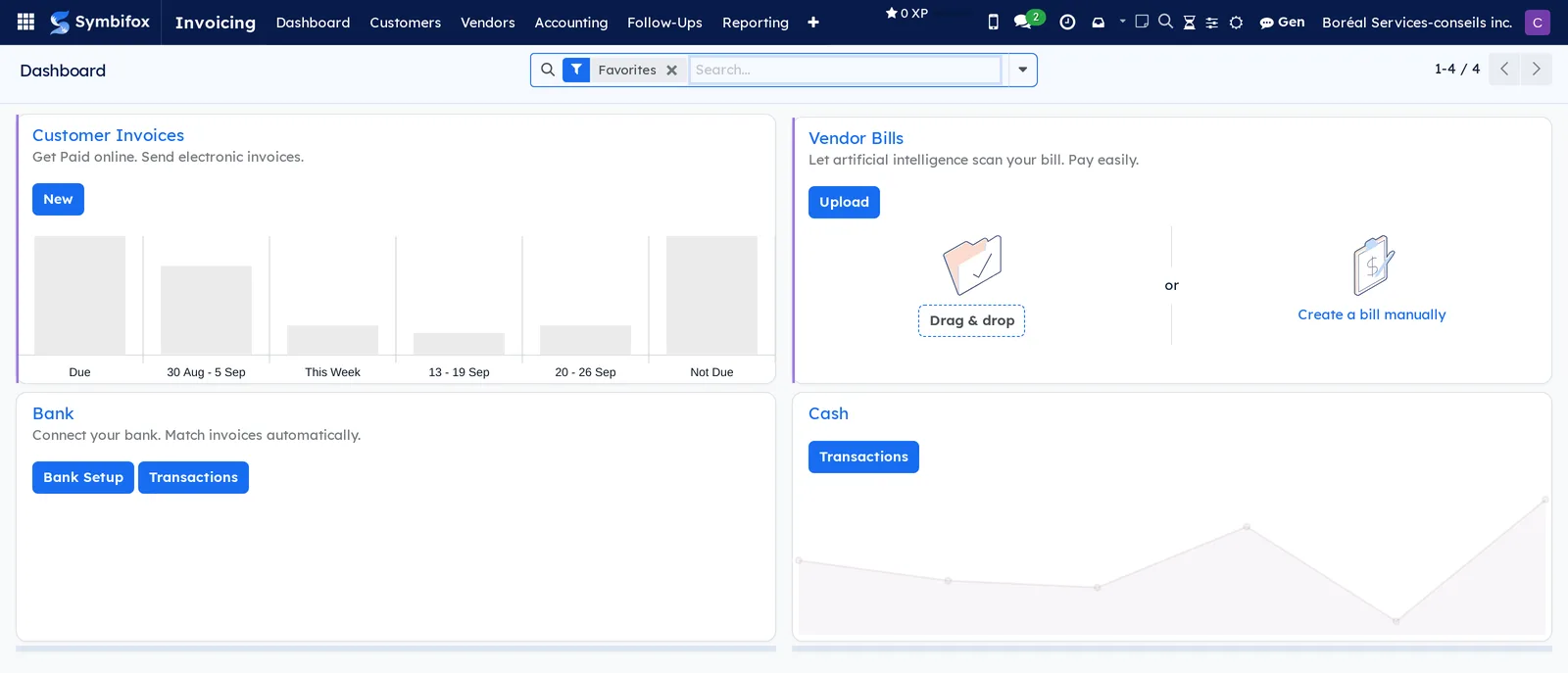
The first screen fits in four cards: customer invoices with their due date curve, vendor bills with the drop zone for a PDF, bank, and cash.
Configuration#
Access and permissions#
Permissions are granted in Settings › Users, Accounting section, from the most restricted to the broadest.
| Level | What it opens |
|---|---|
| Read-only | View invoices and reports, without changing anything |
| Billing | Create and post customer invoices and vendor bills, record payments |
| Accountant | Everything above, plus entries, journals, the chart of accounts and the full reports |
| Administrator | Everything above, plus the Configuration menu, taxes and the securing of entries |
Recurring contracts follow these same levels; only an administrator sets the follow-up levels.
Settings#
The Invoicing › Configuration › Settings menu opens the application's section in the general Settings.
| Setting | Effect |
|---|---|
| Main Currency | Currency of the books. Other currencies are set per invoice. |
| Default Payment Terms | Due date applied to new customers that have none. |
| Early Discount | Discount granted for prompt payment, computed on the invoice. |
| Lock Entries | Prevents any change before a date, for periods already filed. |
| Online Payments | Turns on payment providers and the payment button on the customer portal. |
| Duplicate Vendor Bill Warning | Flags a bill that has the same reference from the same vendor. |
AI reading of vendor bills is set up elsewhere: see Modules that extend this application.
Base data#
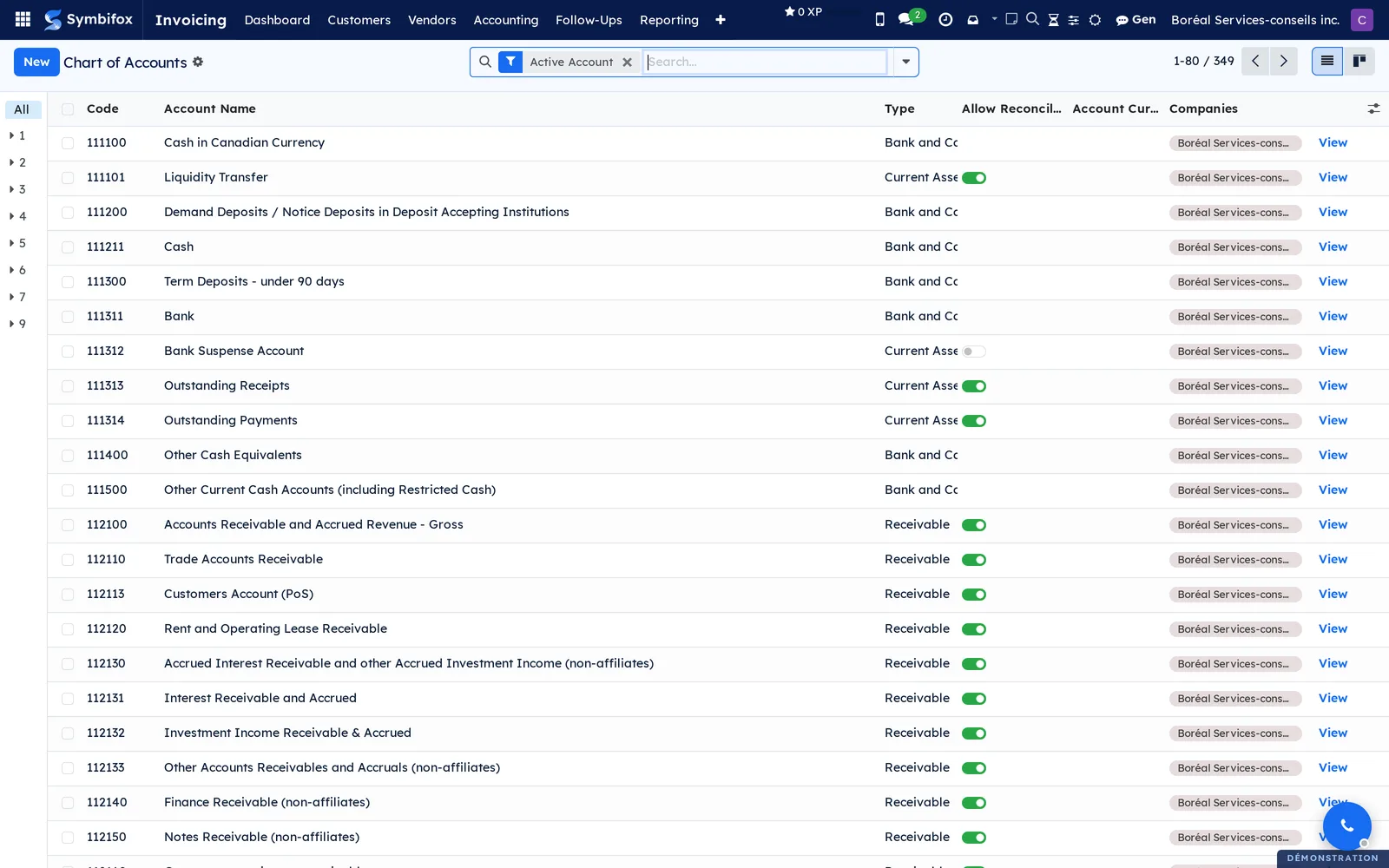
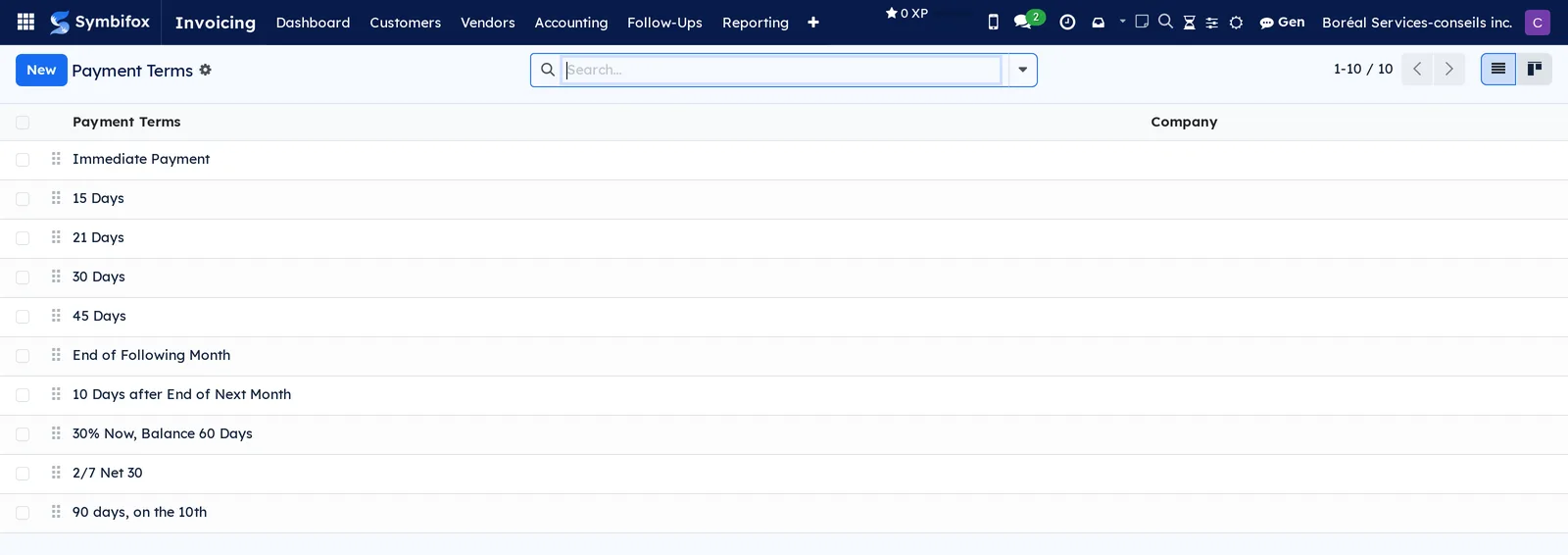
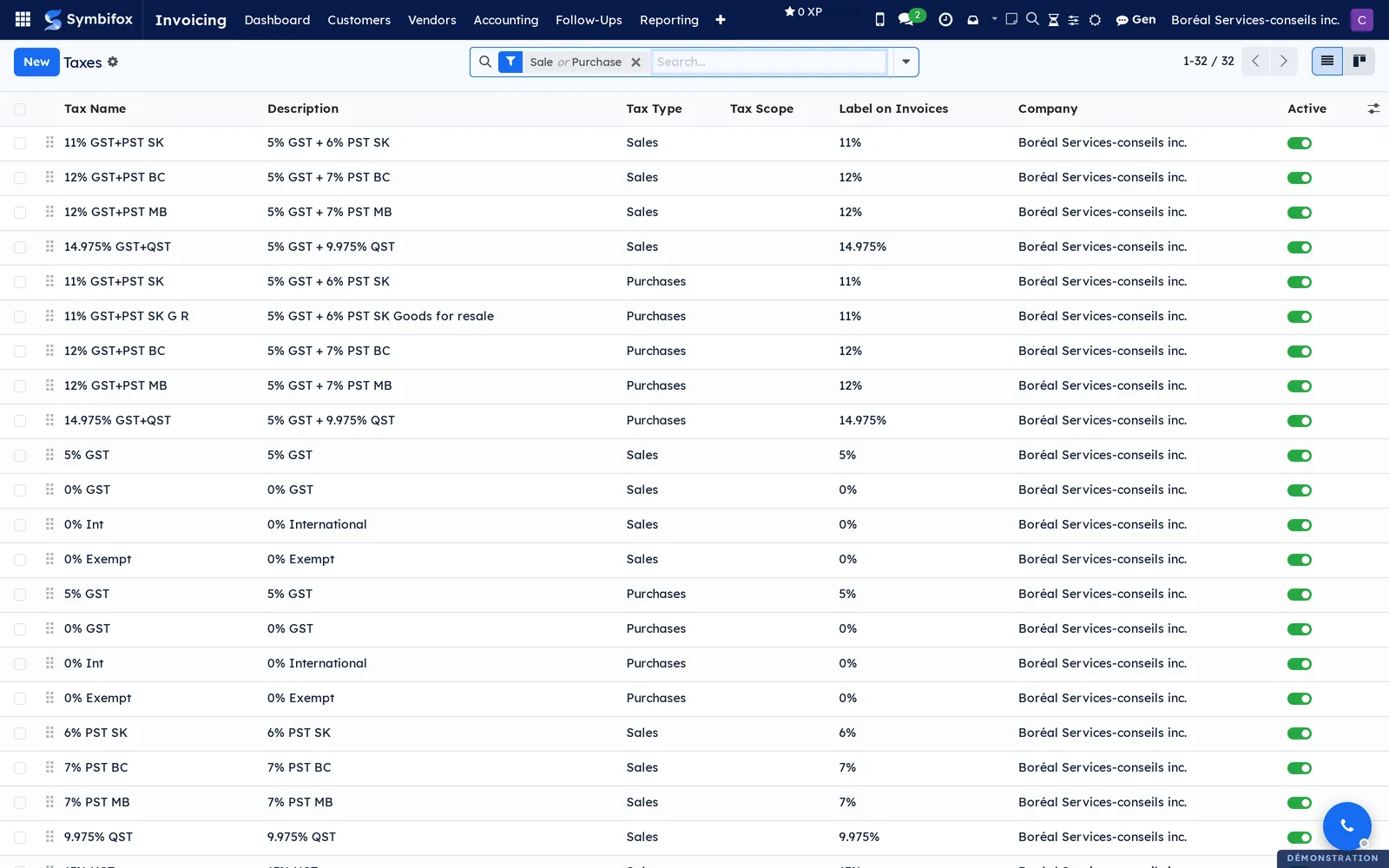
Four sets of data come before the first invoice, all provided at installation. The chart of accounts, filled in for Canada: 349 active accounts on the demo. The taxes: 32 sales and purchase lines, including “14.975% GST+QST”, which groups 5% GST and 9.975% QST. The journals: seven, one per type of document. The payment terms: ten, from “Immediate Payment” to “90 days, on the 10th”. Check the chart of accounts before you open the application to the whole team: it decides where each amount lands.
Finally, add your products. A product carries a price, an income account and its taxes, which saves you from retyping three fields on each invoice line.
Getting started#
This walkthrough invoices an engagement to the Clinique dentaire Rosemont, from creation to payment.
- Open Invoicing › Customers › Invoices, then select New.
- In Customer, choose “Clinique dentaire Rosemont”. The payment terms and fiscal position from the customer's record fill in automatically.
- Check the Invoice Date and the Due Date.
- In the Invoice Lines tab, select Add a line, choose the product, and adjust the Quantity and the Unit Price.
- Check the line's taxes and the total shown below the table.
- Select Confirm: the invoice gets its number and moves to the posted state.
- Select Send, then confirm the sending.
Result: the invoice goes out by email with its PDF and appears in the list as Not Paid. Its chatter (the message thread at the bottom of the form) keeps a record of the sending. To settle it, select Pay, choose the bank journal and confirm: the status changes to Paid.
Common tasks#
Issue a credit note#
A credit note cancels or reduces an invoice that is already posted. A posted invoice cannot be deleted: it is cancelled by a credit note, which leaves a trace.
- Open the invoice in Invoicing › Customers › Invoices.
- Select Credit Note.
- Choose the method: partial refund, full refund, or full refund followed by a new draft invoice.
- Enter the Reason displayed on Credit Note and the Reversal date.
- Select Reverse.
- On the resulting credit note, adjust the lines if needed, then select Confirm.
Result: the credit note appears in Customers › Credit Notes and the customer's balance drops by the same amount. The original invoice stays readable exactly as it was sent.
Enter a vendor bill from its PDF#
A bill received as a PDF is dropped in as is: artificial intelligence extracts the vendor, the dates, the amounts, the tax breakdown and the detail lines. Prerequisite: an AI provider configured by the technical team.
- Open Invoicing › Dashboard.
- On the Vendor Bills card, drag the PDF onto the drop zone, or select Upload.
- Open the draft that was created, then select Scanner OCR (scan with OCR).
- In the OCR tab, read the scan status and the confidence score.
- Compare the filled-in fields with the PDF, which stays attached, and correct what needs correcting.
- Check the GST and QST breakdown on each line.
- Select Confirm.
Result: the bill is posted, the PDF stays attached, and the vendor is matched when the scan found a record.
A paper bill takes the same road from a phone. The scanning page creates the draft, attaches the photo to it and starts the reading where automatic reading can read a photo; where it cannot, the bill waits instead of being marked in error, and the next pass picks it up. That gesture is described in Mobile apps and browser extension.
Pay a vendor bill#
When you enter the payment from the bill, it reconciles by itself.
- Open the bill in Invoicing › Vendors › Bills.
- Select Pay.
- Choose the bank Journal and the Payment Method.
- Check the Amount and the Payment Date.
- Select Create Payment.
Result: the status changes to Paid and the payment appears in Vendors › Payments, ready for bank reconciliation.
Set up a recurring contract#
A recurring contract invoices at its own pace, without anyone having to remember it: monthly hosting, a support package.
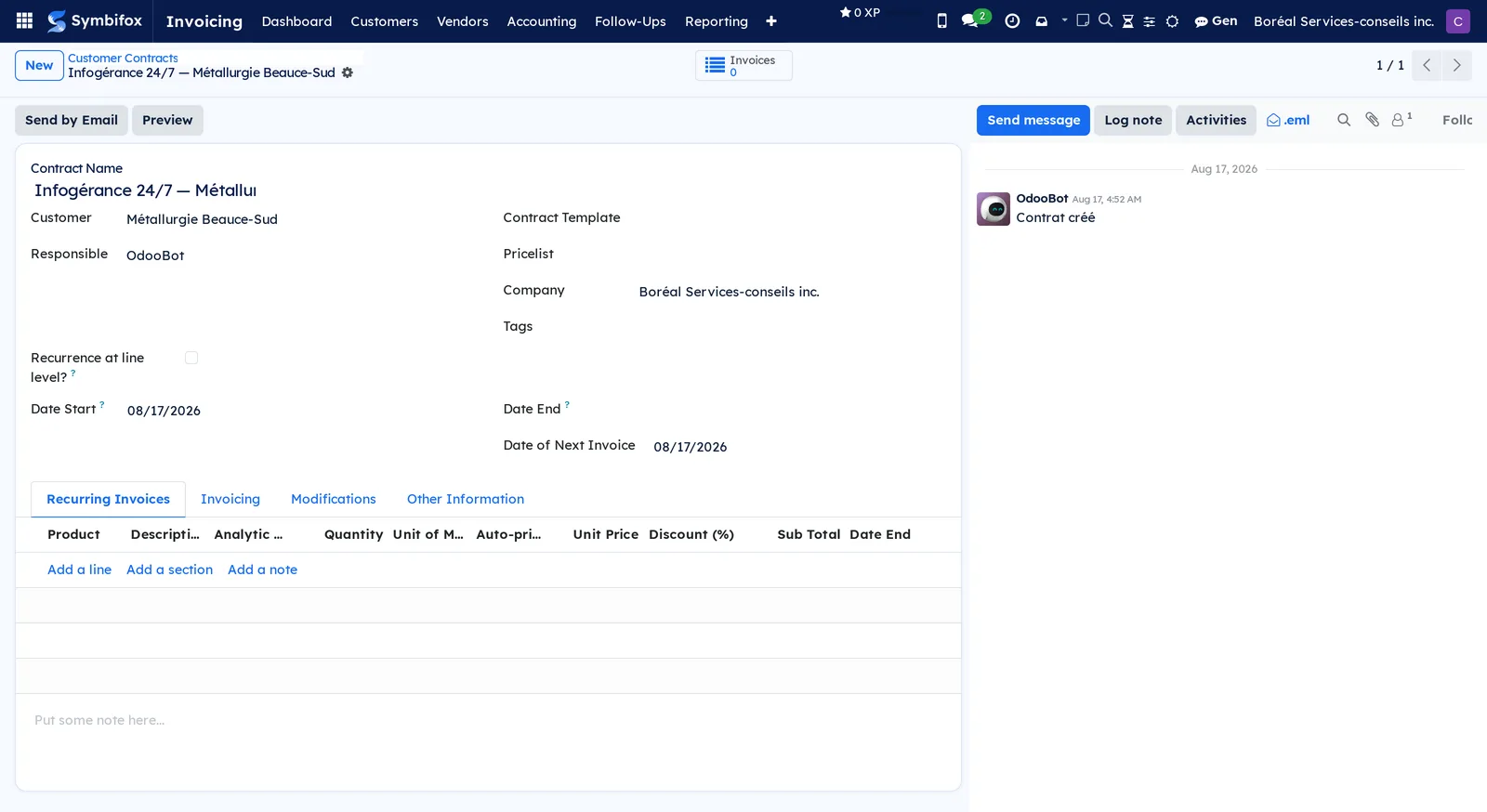
- Open Invoicing › Customers › Customer Contracts, then select New.
- Enter the Contract Name and choose the Customer.
- Choose the Journal that will receive the invoices produced.
- Fill in the Date Start and, if the contract has an end, the Date End.
- In the Recurring Invoices tab, select Add a line: product, description, quantity, unit price, and the line's recurrence.
- Check the Date of Next Invoice.
- Save.
Result: at each due date, a draft invoice is created and the next invoice date moves forward. The Invoices shortcut at the top of the form counts the invoices already produced.
Invoice contracts without waiting for the due date#
The dialog produces the invoices in one go, for example before a month-end close.
- Open Invoicing › Customers › Manually Invoice Sale Contracts.
- Enter the Date up to which contracts should be invoiced.
- Select Create invoices.
Result: each contract due by that date produces a draft invoice. The same procedure applies on the vendor side, under Vendors › Manually Invoice Purchase Contracts.
Follow up with late customers#
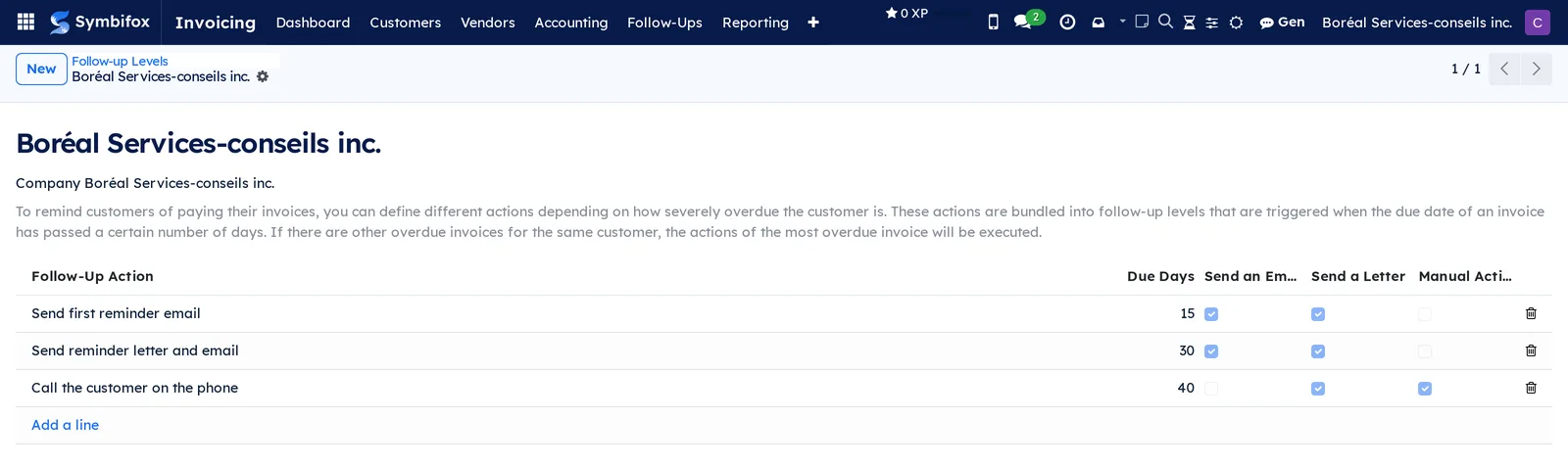
Follow-up levels decide what to do, and after how many days late. The demo has three, at 15, 30 and 40 days, set in Invoicing › Configuration › Follow-up › Follow-up Levels.
- Open Invoicing › Follow-Ups › Send Letters and Emails.
- Choose the Follow-up Sending Date and the levels to process.
- Check the list of proposed customers.
- Select Send emails and generate letters.
Result: the first two levels go out by email, the letters to mail come out as a single PDF, and each customer record keeps the date of its latest follow-up.
Handle a follow-up manually#
The third level calls for a phone call, not one more email.
- Open Invoicing › Follow-Ups › My Follow-Ups.
- Open the customer's record.
- Read the outstanding invoices and the amount due.
- Make the call, then enter a note in the chatter.
- Fill in the Next Action and its date.
Result: the customer leaves the list until the next action date.
Collect payments online#
A payment provider adds a payment button to the invoice you send and to the portal.
- Open Invoicing › Configuration › Online Payments › Payment Providers.
- Open the provider you want among the seventeen offered.
- Enter the credentials supplied by the payment processor.
- Choose the State: “Test Mode” first, “Enabled” afterwards.
- Save.
Result: invoices you send carry a payment button, and each attempt leaves a row in Payment Transactions.
Lock a filed period#
Once the GST and QST are filed, nothing should change before the filing date.
- Open Invoicing › Accounting › Secure Entries. This menu only appears in developer mode, or for an account in the Show Inalterability Features group.
- Enter the date up to which entries should be sealed.
- Read the warning about entries still in draft.
- Select Secure Entries.
Result: entries posted up to that date can no longer be changed. A correction goes through a credit note or an entry dated after the period.
Track invoicing#
Two screens answer “how much have we invoiced”.
- Open Invoicing › Reporting › Management › Invoice Analysis.
- Choose the measure in Measures.
- Group by customer, by product or by month.
- Switch between the graph view and the pivot table.
- Export the table if needed.
Result: a total invoiced per axis, ready to export. To find out who changed what, the Audit Trail screen lists the changes recorded on journal entries.
The menus, one by one#
The main menu has six visible entries, plus Configuration. A grouping menu opens no screen.
Invoicing › Dashboard: the seven journals as cards, each with its buttons (New, Upload, the drop zone, Transactions). Home screen.
Invoicing › Customers: grouping menu for the sales screens.
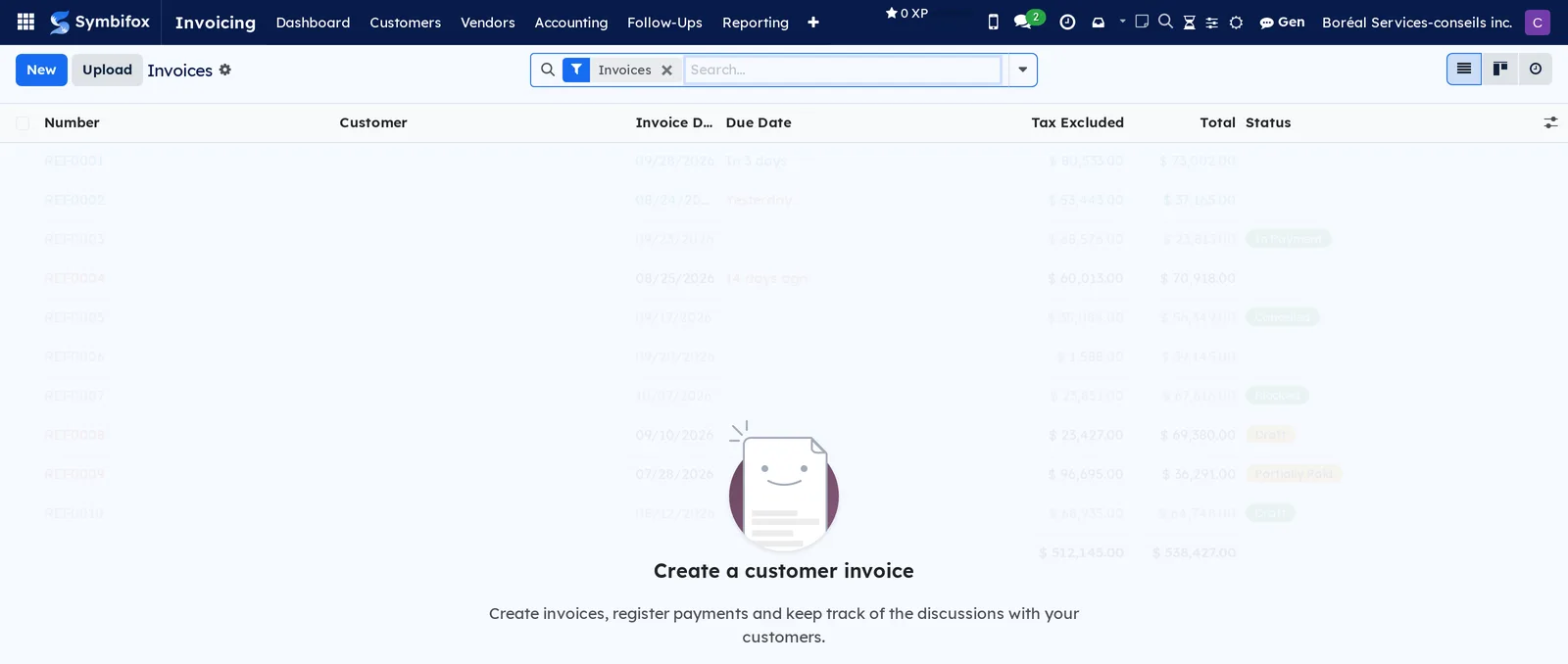
Invoicing › Customers › Invoices: sales invoices, with the Number, the Customer, the Invoice Date, the Due Date, the Tax Excluded amount, the Total and the Status. On the demo, it holds the Boréal invoices. On a new database it is empty, and the help text explains that this is where you create invoices, record payments and keep track of discussions with the customer.
Invoicing › Customers › Credit Notes: credit notes issued to customers, with the same columns as invoices.
Invoicing › Customers › Receipts: sales receipts, for a sale paid on the spot.
Invoicing › Customers › Payments: payments received, by customer, date, amount and journal. Useful filter: unreconciled payments.
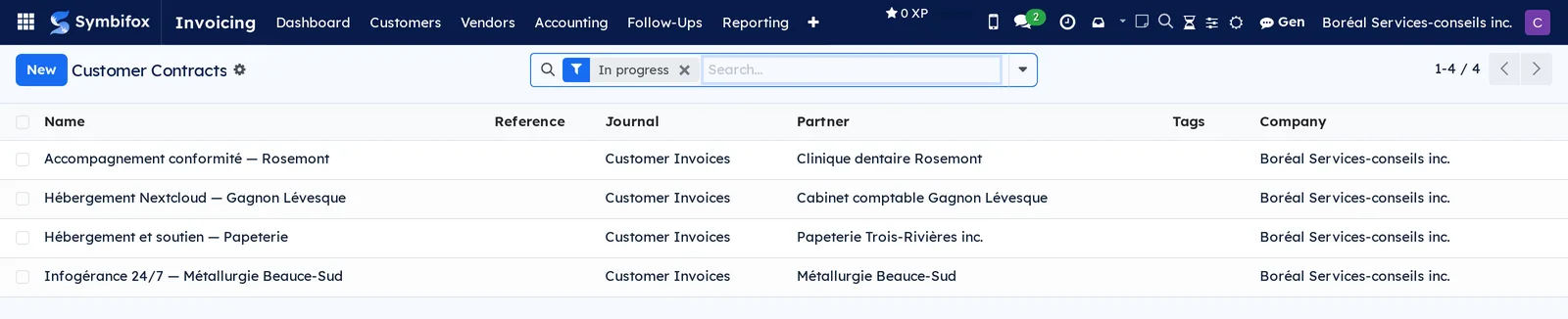
Invoicing › Customers › Customer Contracts: the four recurring sales contracts, with the Name, the Reference, the Journal, the Partner and the Tags. The In progress filter is applied by default.
Invoicing › Customers › Products: the six products as cards, with price, income account and sales taxes.
Invoicing › Customers › Customers: the customer directory, one hundred records. See Contacts.
Invoicing › Customers › Manually Invoice Sale Contracts: the dialog that produces the invoices of due contracts in one go.
Invoicing › Vendors: grouping menu for the purchase screens.
Invoicing › Vendors › Bills: bills received, by number, vendor, dates and payment status. A PDF dropped on the dashboard ends up here.
Invoicing › Vendors › Refunds: credit notes received from vendors.
Invoicing › Vendors › Receipts: purchase receipts, for a purchase paid in cash.
Invoicing › Vendors › Payments: payments issued, by vendor, date, amount and journal.
Invoicing › Vendors › Employee Expenses: expense reports to reimburse. See Expenses.
Invoicing › Vendors › Supplier Contracts: the four recurring vendor contracts, with the same form as on the customer side.
Invoicing › Vendors › Products: the six products, with expense account and purchase taxes.
Invoicing › Vendors › Vendors: the vendor directory, one hundred records.
Invoicing › Vendors › Manually Invoice Purchase Contracts: the equivalent dialog on the purchasing side.
Invoicing › Accounting: grouping menu for bookkeeping.
Invoicing › Accounting › Journal Entries: all entries, across all journals. Use it to find a miscellaneous operations entry.
Invoicing › Accounting › Journal Items: the line-by-line detail, with pivot table and graph. This is the general ledger.
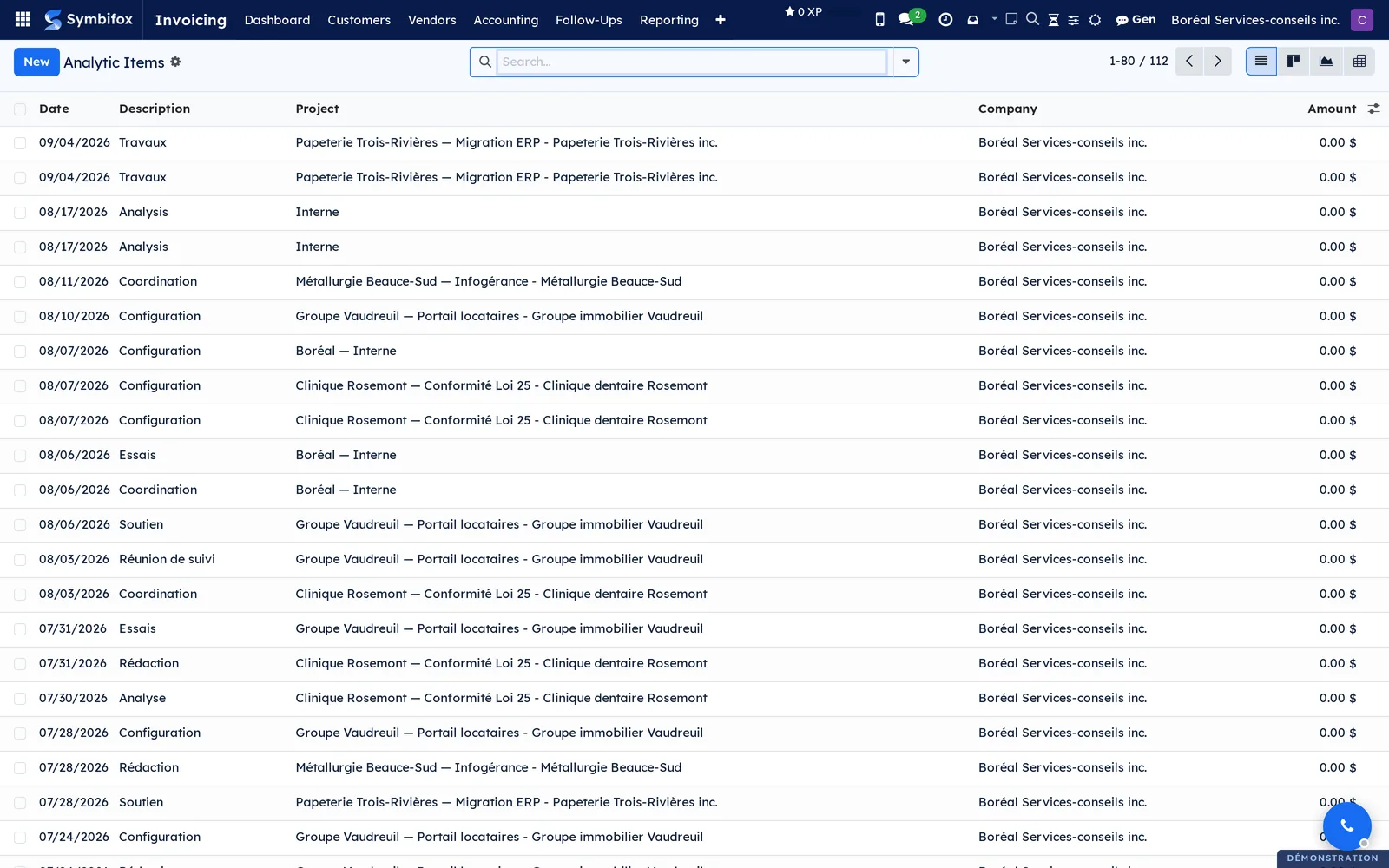
Invoicing › Accounting › Analytic Items: the demo's 112 lines, with the Date, the Description, the Project and the Amount.
Invoicing › Accounting › Secure Entries: the dialog that seals entries up to a date, visible only in developer mode or for the Show Inalterability Features group.
Invoicing › Follow-Ups: grouping menu for follow-ups.
Invoicing › Follow-Ups › Send Letters and Emails: the batch sending dialog, described in Follow up with late customers.
Invoicing › Follow-Ups › Do Manual Follow-Ups: the customers to follow up, with the Next Action, the Follow-up Responsible, the Latest Follow-up Level, the Amount Overdue and the Amount Due. The Follow-ups To Do filter is applied by default; on the demo, nobody is late.
Invoicing › Follow-Ups › My Follow-Ups: the same screen, limited to the customers you are responsible for.
Invoicing › Follow-Ups › Follow-ups Analysis: the graph of follow-ups sent, by level and by period.
Invoicing › Reporting: grouping menu for reports.
Invoicing › Reporting › Statement Reports: grouping menu for financial statements.
Invoicing › Reporting › Partner Reports: grouping menu for customer and vendor balances.
Invoicing › Reporting › Management: grouping menu for operational reports.
Invoicing › Reporting › Management › Invoice Analysis: the amount invoiced, as a graph or a pivot table.
Invoicing › Reporting › Management › Analytic Report: the same 112 analytic lines, as a list, for export.
Invoicing › Reporting › Management › Audit Trail: the 1,356 messages recorded on journal entries. It answers “who changed this invoice, and when”.
Invoicing › Reporting › Contracts: grouping menu for contract lines.
Invoicing › Reporting › Contracts › Customer Contract lines: the lines of customer contracts, flattened. This label shows in English in the French interface as well.
Invoicing › Reporting › Contracts › Supplier Contract lines: the same lines, on the vendor side.
Invoicing › Configuration: grouping menu, reserved for administrators.
Invoicing › Configuration › Settings: the settings described in Settings.
Invoicing › Configuration › Invoicing: grouping menu.
Invoicing › Configuration › Invoicing › Payment Terms: the demo's ten payment terms, from “Immediate Payment” to “90 days, on the 10th”.
Invoicing › Configuration › Invoicing › Incoterms: the eleven international trade rules provided.
Invoicing › Configuration › Contracts: grouping menu.
Invoicing › Configuration › Contracts › Contract Templates: templates for recurring contracts. Empty on the demo.
Invoicing › Configuration › Contracts › Contract Tag: tags for sorting contracts. Empty on the demo.
Invoicing › Configuration › Banks: grouping menu.
Invoicing › Configuration › Banks › Add a Bank Account: shortcut to create a bank journal.
Invoicing › Configuration › Banks › Reconciliation Models: four rules that propose a ready-made entry during bank reconciliation.
Invoicing › Configuration › Accounting: grouping menu.
Invoicing › Configuration › Accounting › Chart of Accounts: the demo's 349 accounts, with the Code, the Account Name, the Type and the Currency. The left panel filters by the first digit of the code.
Invoicing › Configuration › Accounting › Taxes: the demo's 32 taxes, with the Tax Name, the Description, the Tax Type and the Label on Invoices.
Invoicing › Configuration › Accounting › Journals: the seven journals, one per type of document.
Invoicing › Configuration › Accounting › Reporting: grouping menu for report settings.
Invoicing › Configuration › Accounting › Currencies: the 170 currencies provided, with their rates. Activate only the ones you use.
Invoicing › Configuration › Accounting › Fiscal Positions: the fourteen positions, which replace one tax with another according to the province or country.
Invoicing › Configuration › Accounting › Multi-Ledger: journal groups. Empty on the demo.
Invoicing › Configuration › Accounting › Tax Groups: the eight groups, which decide how taxes add up at the bottom of an invoice.
Invoicing › Configuration › Online Payments: grouping menu.
Invoicing › Configuration › Online Payments › Payment Providers: the seventeen providers offered, as cards.
Invoicing › Configuration › Online Payments › Payment Methods: the 220 methods these providers recognize.
Invoicing › Configuration › Online Payments › Payment Tokens: the payment methods saved by customers. Empty on the demo.
Invoicing › Configuration › Online Payments › Payment Transactions: every online payment attempt, successful or not.
Invoicing › Configuration › Management: grouping menu.
Invoicing › Configuration › Management › Product Categories: the three categories, which carry the default accounts for products.
Invoicing › Configuration › Management › Cash Roundings: rules for rounding to the nearest five cents. Empty on the demo.
Invoicing › Configuration › Analytic Accounting: grouping menu.
Invoicing › Configuration › Analytic Accounting › Analytic Distribution Models: rules that assign an analytic account automatically. Empty on the demo.
Invoicing › Configuration › Analytic Accounting › Analytic Accounts: the demo's eight accounts, one per engagement.
Invoicing › Configuration › Analytic Accounting › Analytic Plans: one plan on the demo. A plan is an axis of analysis; the project is one of them.
Invoicing › Configuration › Follow-up: grouping menu.
Invoicing › Configuration › Follow-up › Follow-up Levels: one record per company, which holds the follow-up actions and their delays.
Reference#
Fields of the Customer Invoice form#
| Field | Description | Required or default |
|---|---|---|
| Customer | Recipient of the invoice; sets the payment terms and the fiscal position. | Required |
| Invoice Date | Accounting date of the entry. | Today's date |
| Due Date | Payment deadline, computed from the payment terms. | Computed |
| Payment Terms | Schedule applied. | From the customer record |
| Journal | Sales journal that receives the entry. | Default sales journal |
| Invoice Lines tab | Product, description, quantity, unit price, taxes, analytic distribution. | At least one line |
| Status | Draft, Posted or Cancelled. | Draft |
| Payment Status | Not Paid, In Payment, Partially Paid, Paid. | Computed |
Fields of the Vendor Bill form#
| Field | Description | Required or default |
|---|---|---|
| Vendor | Issuer of the bill; left empty if the scan matched nothing. | Required to confirm |
| Bill Reference | Number given by the vendor; used to detect a duplicate. | Empty |
| Bill Date | Date shown on the document received. | Today's date |
| Due Date | Payment deadline. | Computed |
| Invoice Lines tab | Product, description, quantity, price, purchase taxes, expense account. | At least one line |
| OCR tab | Scan status, date, confidence score, error message and raw data. | Empty until a scan has run |
| Payment Status | Not Paid, In Payment, Paid. | Computed |
Fields of the Contract form#
| Field | Description | Required or default |
|---|---|---|
| Contract Name | Label repeated on the invoices produced. | Required |
| Customer | Partner invoiced. | Required |
| Contract Template | Template that fills in the lines in one go. | Empty |
| Journal | Journal of the invoices produced. | Sales journal |
| Date Start, Date End | Bounds of the contract; with no end date, it keeps running. | Today's date, end empty |
| Date of Next Invoice | Next invoicing date; moves forward by itself. | Start date |
| Recurrence at line level? | Each line follows its own pace rather than the contract's. | Cleared |
| Recurring Invoices tab | Product, description, quantity, price, discount, subtotal, end date. | At least one line |
Reports and exports#
The invoice and the credit note print as PDF in the organization's branding. Invoice Analysis and Analytic Report offer the graph and pivot views, which export to a spreadsheet. Financial statements live under Reporting › Statement Reports and Partner Reports. Any list can be exported: see Common actions in every application.
Automations#
Three mechanisms work on their own. Recurring contracts produce their draft invoices at each due date. An hourly run reads draft vendor bills that carry a PDF and have never been scanned. Exchange rates refresh at the configured interval, when a rate service is chosen.
Public pages and portal#
A customer who receives an invoice can open it on the portal, download the PDF and, if a payment provider is enabled, pay it online. The customer sees their invoices, never your entries. See Customer experience.
Modules that extend this application#
Four components are added to the Odoo application: three come from the Odoo community, one is by Symbifox.
The Odoo community contracts module adds the Customer Contracts and Supplier Contracts menus, the two manual invoicing dialogs, the templates and the tags. The follow-up module adds the entire Follow-Ups menu and the Follow-up Levels. Odoo's payment module adds the four Online Payments screens and the payment button on the portal.
Understanding#
Why a posted invoice cannot be changed. Invoice numbers form a sequence with no gaps: that is what makes the books verifiable. Changing an invoice already sent would make your copy differ from the customer's, with nothing to flag it. That is what the credit note is for: it corrects while keeping both documents readable.
The PDF you drop in remains the source. AI reading fills in fields; it does not replace the supporting document. The original PDF stays attached, and it is the one you will show in an audit. That is also why the reading never confirms a bill: it prepares a draft, and a person decides.
Why vendor matching is cautious. The reading looks for the vendor by tax number, exact name, email domain and phone. Then by name stripped of its legal suffixes, by distinctive words, and finally in the history of previous scans. When nothing is convincing, the field stays empty. A bill attached to the wrong vendor distorts the purchase history and the balance payable, and nobody notices before reconciliation.
A recurring contract does not invoice all the way on its own. It produces a draft, not a sent invoice. That is intentional: a rate increase, a partial month or a suspended engagement can be corrected before sending.
Follow-ups never go out by themselves. Sending is a deliberate action: you open the dialog, review the list, and send. A follow-up sent for an invoice that is paid but not yet reconciled costs more in customer relations than the delay it was chasing.
Analytic and financial accounting do not measure the same thing. A journal item says where the money went in the books; an analytic line says which project the cost belongs to. The same amount can carry both, and adding them together would count it twice.
A group tax is still two taxes. The “14.975% GST+QST” line applies 5% and then 9.975%, and produces two journal items, one per government. That is what lets the tax reports produce the two returns separately.
Troubleshooting#
| Symptom | Likely cause | Fix |
|---|---|---|
| Confirm stays inactive on an invoice. | A line without a product or account, or a customer without a complete address. | Complete the faulty line, flagged in red, and the customer's address. |
| Scanner OCR does not appear. | The bill is no longer in draft, or no PDF is attached. | Reset the bill to draft, or attach the PDF before scanning. |
| The scan returns a correct amount but no tax. | Neither the product nor the company has a default purchase tax. | Set the product's purchase tax, or the company's default purchase tax. |
| The contract no longer produces invoices. | The Date End has passed, or the Date of Next Invoice is later than today. | Open the contract, check both dates, then run the manual invoicing dialog again. |
| No customer appears in the follow-ups. | No invoice has passed the first level's delay, or the invoices are not posted. | Check the Due Days of the first level and the status of the outstanding invoices. |
| A paid invoice stays at Not Paid. | The payment was entered outside the invoice and was not reconciled. | Open the invoice and select the suggested payment in the reconciliation banner. |
| An entry cannot be changed. | The period was secured up to a later date. | Correct it with a credit note or an entry dated after the sealed period. |
| The customer sees no payment button. | No payment provider is enabled, or the provider was left in “Test Mode”. | Switch the provider to “Enabled” in Online Payments. |
See also#
- Mobile apps and browser extension: photographing a bill from a phone.
- Expenses: expense reports, which become vendor bills.
- Purchase: the purchase orders that come before the bill.
- Operating budgets: the budget that reads these entries without copying them.
- Project: projects, and the profitability fed by analytic accounting.
- Hour bank: prepaid hours and how they are invoiced.
- Contacts: customer and vendor records.
- Customer experience: the portal where customers view and pay their invoices.
- Common actions in every application: chatter, activities, exports.