

Part 2 · Clients, sales and relationships
Customer experience
Measure client satisfaction through NPS waves and continuous feedback, handle complaints and publish consented testimonials, without over-surveying anyone.
Watch it
The Expérience client (customer experience) application gathers everything your clients tell you in a single register: NPS survey responses, ratings received by email, comments heard in meetings, complaints and testimonials. It is meant for the people who carry the client relationship: management, account managers, coordination. What you get is a satisfaction score you can trust, a recovery loop for every unhappy client, a complete file for each complaint, and testimonials you can publish because the consent is on record.
Overview#
Four concepts structure the application.
- A feedback entry is one line in the register: a score, a comment or both, with its date, its channel (survey, email rating, manual entry, meeting, other) and the client concerned. An NPS feedback entry is classified as promoter, passive or detractor.
- A program links a survey from the Surveys application to a measurement intent: relational NPS, transactional CSAT, continuous pulse or internal feedback (360). The program sets the invitation template, the reminder delay and the minimum cadence between two requests.
- A send wave invites a batch of contacts to answer a program's survey. Each recipient gets a personal response link, and non-respondents receive a reminder.
- A complaint is a separate file, modelled on the ISO 10002 standard: severity, a real acknowledgement of receipt, root cause analysis, corrective action, then a check that the complainant is satisfied.
The testimonial closes the cycle: a satisfied respondent who agrees to be quoted becomes a candidate, and the quote is published only once consent is on record. When the respondent gives that consent in the survey itself, the testimonial arrives already consented, with the answer as proof.
Two words sum up what sets the Symbifox approach apart: honesty and restraint. The NPS shown covers a stated rolling window (twelve months by default) and stays hidden below ten responses, because under that the margin of error exceeds twenty points. And every request for feedback, whichever application sends it, goes through the same safeguards: a pause between two requests to the same contact, the email blocklist, the “Ne pas contacter” (do not contact) list of the Privacy module, the exclusion of clients in collections, and of the accounts you have decided never to survey.
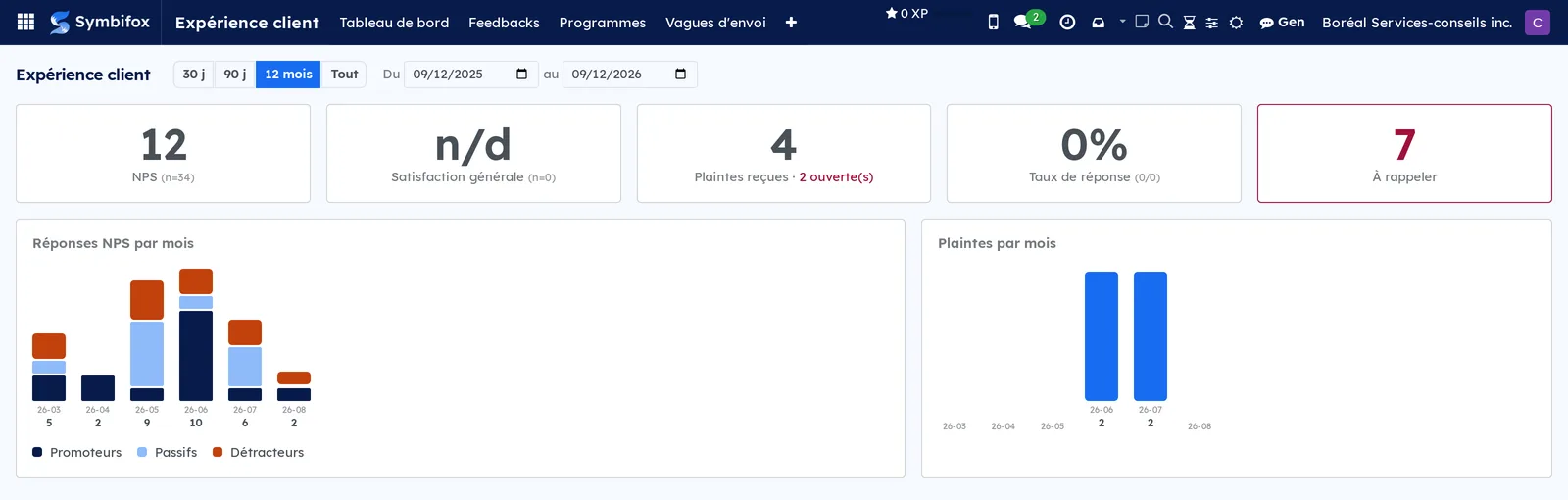
The application's home screen is the experience dashboard: NPS score, satisfaction, open complaints and response rate for the chosen period, with monthly trends and recurring themes.
The application relies on Surveys (the questionnaire and the score question), Contacts (the recipients and their request history) and Project (the engagement a feedback entry or a complaint belongs to). Fourteen bridge modules connect it to other applications, and an optional module analyzes comments with AI; all of them are described in Modules that extend this application.
Configuration#
Access and permissions#
The application defines two groups, in Settings › Users, under the Expérience client category.
| Group | What it opens |
|---|---|
| Opérateur (operator) | Every menu except Configuration: programs, waves, feedback, complaints and testimonials. Does not see internal feedback (360) entries. Also receives the Surveys user right. |
| Gestionnaire (manager) | Everything, including Configuration › Paramètres (settings) and internal feedback (360). |
A client signed in to the portal sees only the feedback of their own company, never the internal entries (see Public pages and portal).
Settings#
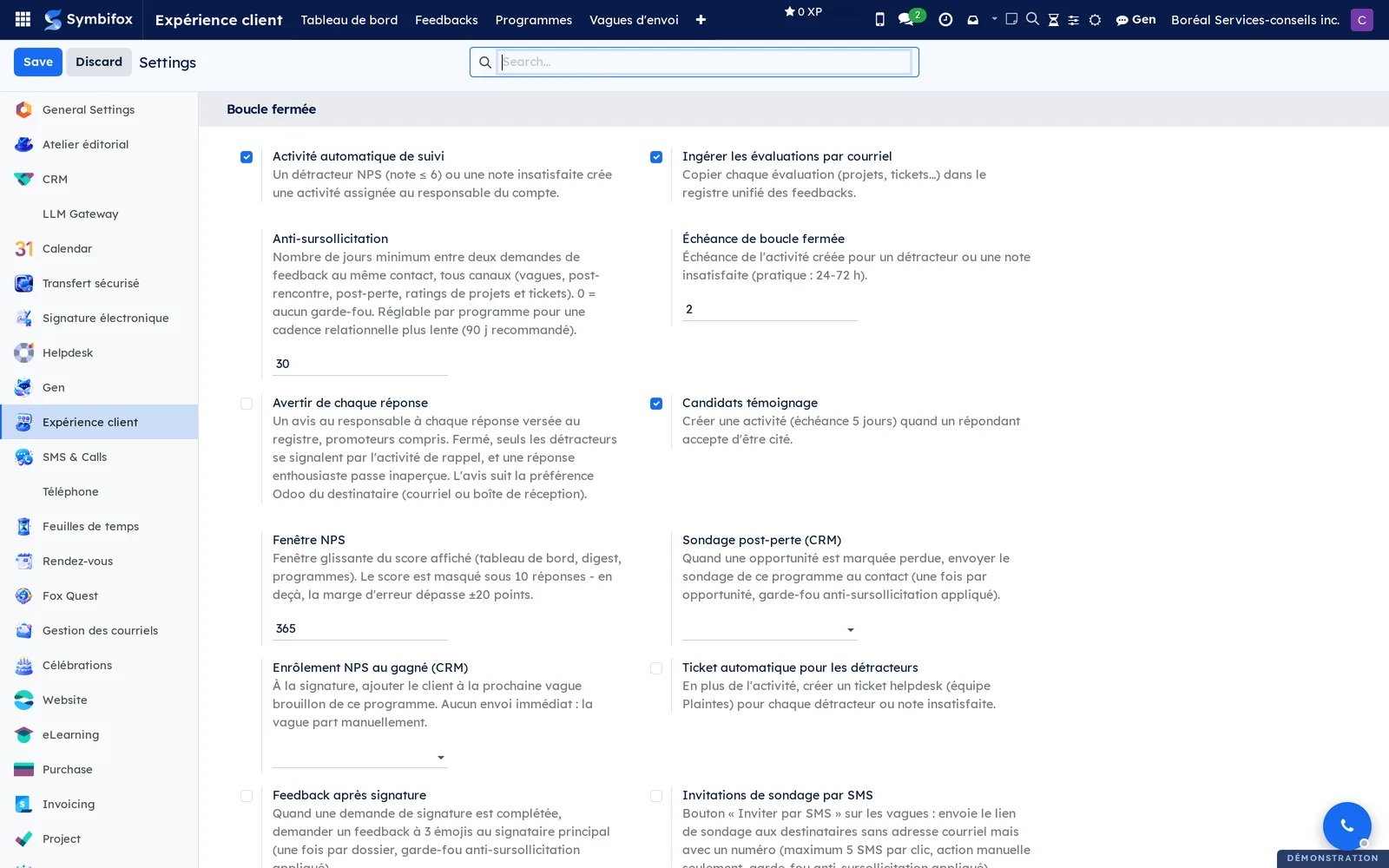
The settings are in Expérience client › Configuration › Paramètres, in the Expérience client section.
| Setting | Effect |
|---|---|
| Activité automatique de suivi (automatic follow-up activity) | Creates a follow-up activity for the owner as soon as a detractor (score of 0 to 6 out of 10) or a dissatisfied rating (under 3 out of 5) arrives. |
| Ingérer les évaluations par courriel (ingest email ratings) | Copies every rating received by email into the feedback register, a project task rating for example. The satisfaction survey of tickets stays in Helpdesk (tickets). |
| Anti-sursollicitation (over-surveying guard) | Minimum number of days between two feedback requests to the same contact, across all channels. Thirty days by default; “0” turns the safeguard off. |
| Échéance de boucle fermée (closed-loop deadline) | Deadline, in days, of the activity created for a detractor. In practice, get back to the client within 24 to 72 hours. |
| Avertir de chaque réponse (notify on every response) | Sends a notice to the owner for every response, promoters included. Without this option, only detractors are flagged. |
| Candidats témoignage (testimonial candidates) | Creates an activity (due in five days) when a respondent agrees to be quoted: get back to them if they asked to confirm, publish their testimonial if they consented in the survey. |
| Fenêtre NPS (NPS window) | Rolling window, in days, of the displayed score. 365 days by default, the only honest window at low volume. |
| Contact de test (test contact) | Contact who receives the emails sent by Envoyer un essai (send a test). Use an address of your own: the test is really sent. |
| Délai d'accusé de réception (acknowledgement deadline) | Number of days to acknowledge a complaint; sets the due date shown on each complaint. |
The bridge modules add their own settings to the same page: Ticket automatique pour les détracteurs (automatic ticket for detractors), Feedback after a signature, Feedback after maintenance (hosting), Survey invitations by SMS with Sending SMS line, and Donor experience survey. The AI analysis module adds Analyse IA automatique des verbatims (automatic AI analysis of verbatims). All are off by default.
Base data#
Before the first wave, you need:
- A survey in Surveys that contains a Scale question (0 to 10 for an NPS), if needed a text question for the comment, and a single-choice question that asks permission to quote the respondent.
- A measurement program that points to this survey (see Create a measurement program). The Boréal demo includes two, among them the “Rétroaction 360” (360 feedback) program shipped with the application, and its survey.
- Contacts with a valid email address in Contacts.
- Optional: feedback themes (turnaround, communication, price, quality). Themes have no menu of their own: you create them as you go in Thèmes (themes), on a feedback entry or a complaint, or through the AI analysis when its module is installed. Each theme carries a free colour, which its badges show on a feedback entry or a complaint. Selecting one of these badges opens My color, a shade of the theme that only you see.
Four email templates are provided: survey invitation, survey reminder, complaint acknowledgement and 360 feedback invitation. They use your organization's logo and colour, exist in French and English, and carry a signed unsubscribe link.
Getting started#
This walkthrough launches a first NPS wave on the Boréal demo, with a test before the real send.
- Go to Expérience client › Configuration › Paramètres and, in Contact de test, select your own contact record. Select Save.
- Go to Expérience client › Programmes (programs) and open the NPS program in the list to check its survey and its reminder delay.
- Go to Expérience client › Vagues d'envoi (send waves) and select New.
- Enter a name, for example “NPS fall 2026”, then select the program in Programme (program).
- In the Destinataires (recipients) tab, add a few demo contacts, for example those of Clinique dentaire Rosemont and Métallurgie Beauce-Sud.
- Select Envoyer un essai: the real invitation goes to your test contact, and to no one else. Open the email you receive and answer the survey to see what the client sees.
- Return to the wave and select Envoyer les invitations (send the invitations).
The wave moves to the Envoyée (sent) state, the send date fills in, and the Invitations tab lists one pending response per recipient. Completed responses will appear in Feedbacks, and the reminder goes out on its own to non-respondents after the delay set on the program.
Common tasks#
Record feedback heard in a meeting or on the phone#
A client who comments in person deserves the same record as a survey respondent.
- Go to Expérience client › Feedbacks and select New.
- Select the client in Contact and, if relevant, the engagement in Projet / mandat (project / engagement).
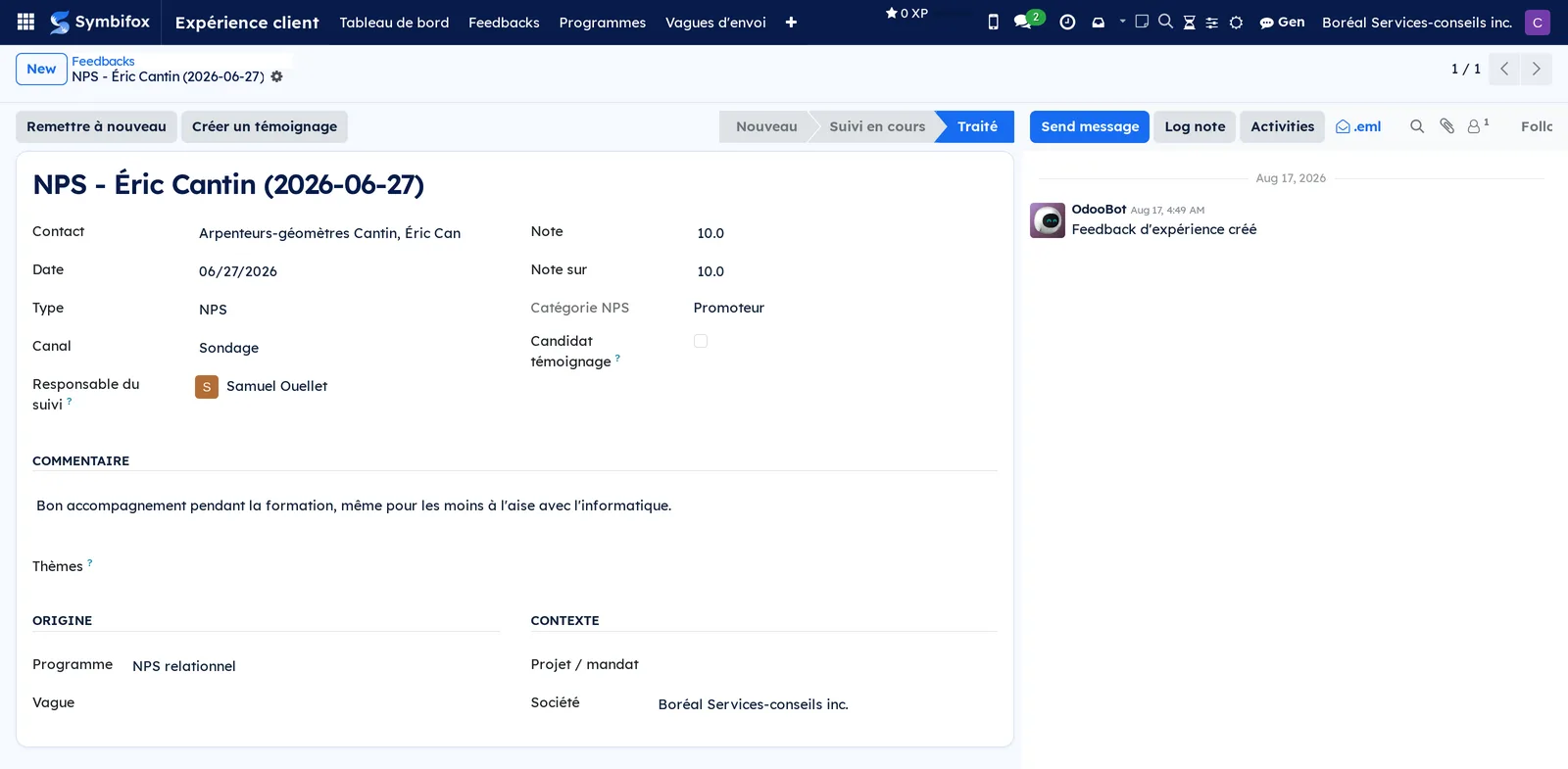
- In Type, choose Commentaire (comment), Satisfaction (CSAT) or NPS, then the Canal (channel): Rencontre (meeting), Saisie manuelle (manual entry) or Autre (other).
- Enter the score in Note (score) and its maximum in Note sur (out of), if the client gave one.
- Enter the client's words in Commentaire and attach one or more Thèmes.
- Select Save.
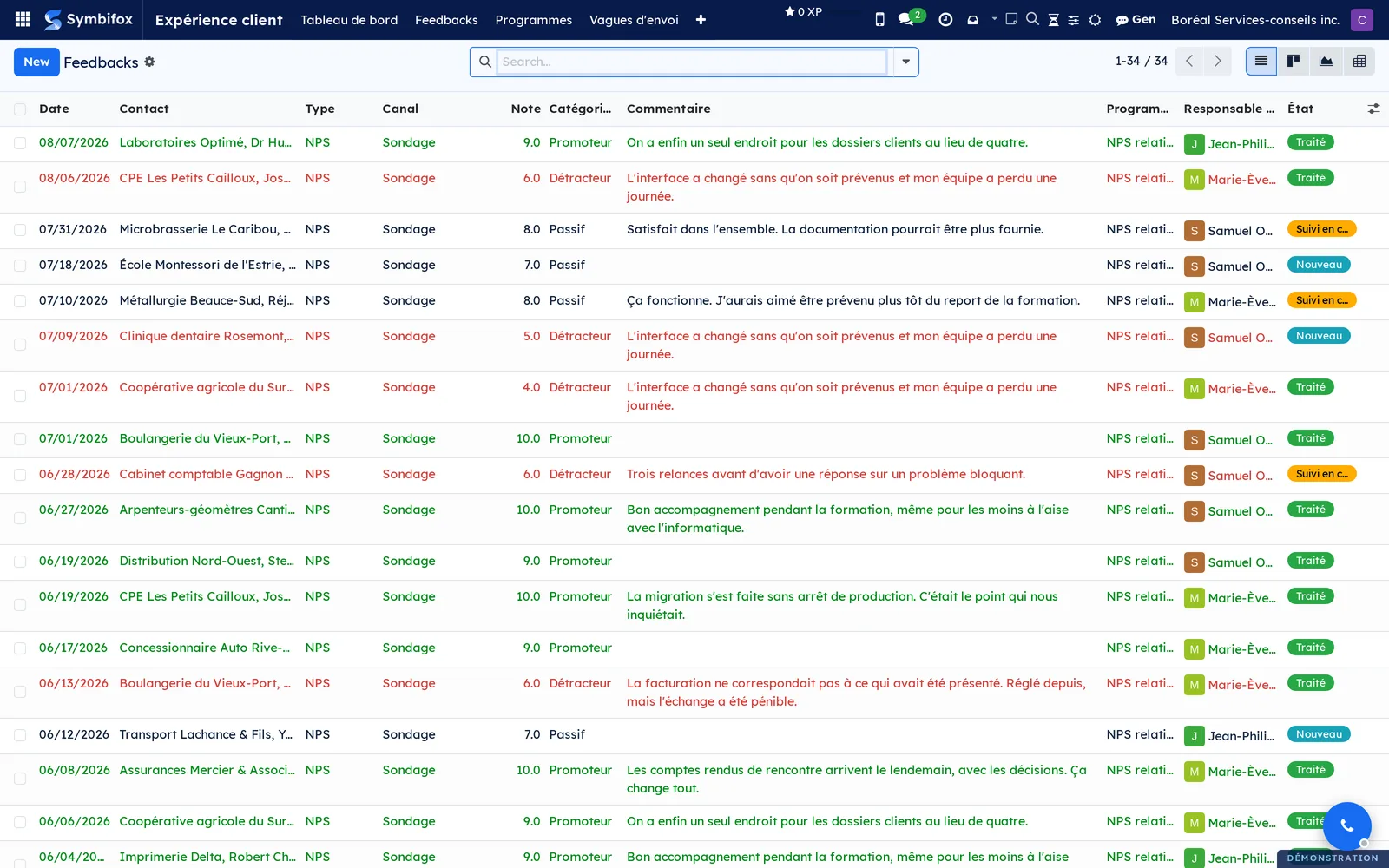
The feedback appears in the register in the Nouveau (new) state. If the score is a detractor's or a dissatisfied one, À rappeler (to call back) is checked and a follow-up activity is created for the Responsable du suivi (follow-up owner).
Create a measurement program#
A program is the contract between a survey and a way of using it. Create one per intent: an annual relational NPS, a CSAT after each delivery, internal feedback.
Prerequisite: the survey already exists in Surveys with its Scale question.
- Go to Expérience client › Programmes and select New.
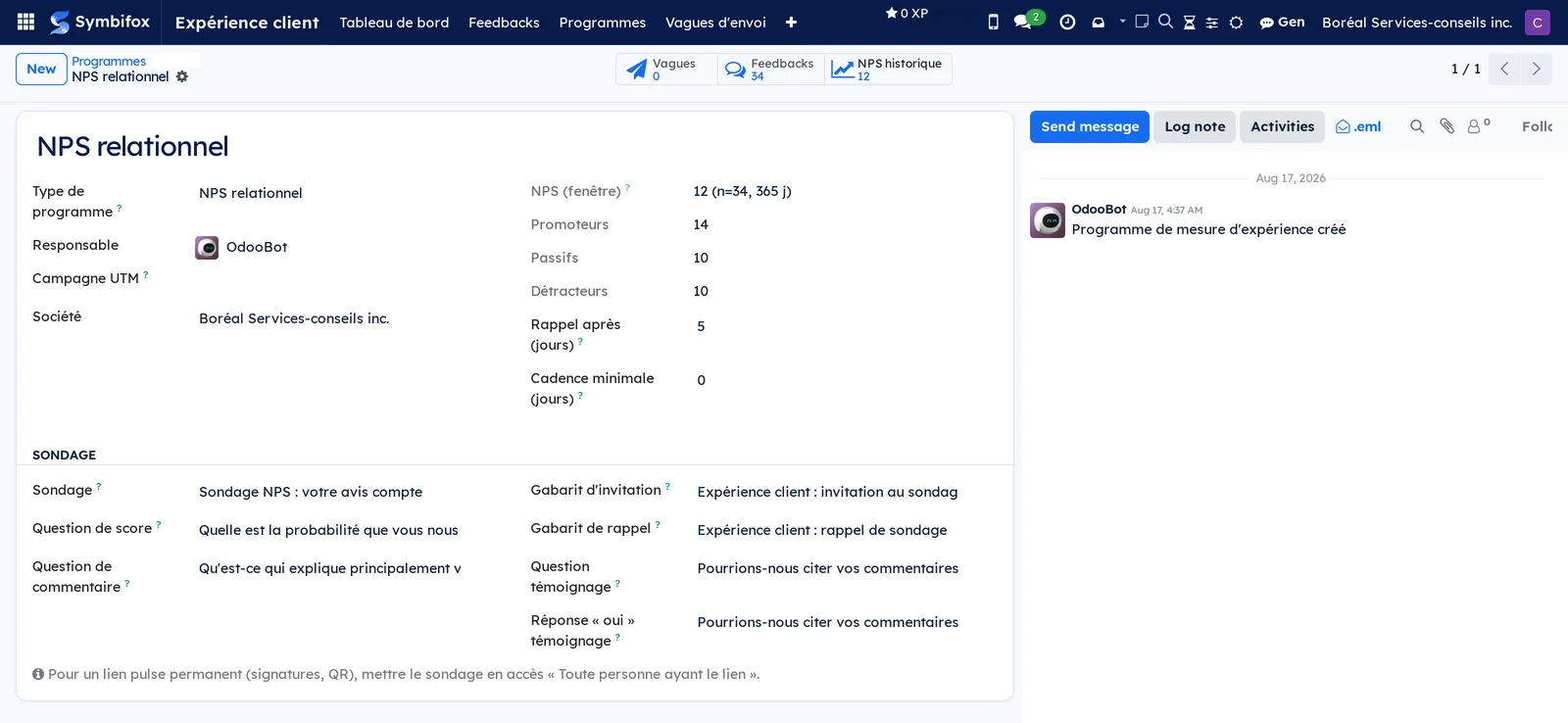
- Enter the Nom (name) and choose the Type de programme (program type): NPS relationnel (relational NPS), CSAT transactionnel (transactional CSAT), Pulse continu (continuous pulse) or Feedback interne (360) (internal feedback, 360).
- In Sondage (survey), select the questionnaire. If needed, set Question de score (score question), Question de commentaire (comment question), Question témoignage (testimonial question), Réponse “oui” témoignage (testimonial “yes” answer) and Réponse “oui, sans recontacter” (“yes, no need to contact me” answer).
- Select the Gabarit d'invitation (invitation template) and, if you want a separate reminder message, the Gabarit de rappel (reminder template).
- Enter Rappel après (jours) (reminder after, in days), “0” for no reminder, and the program's own Cadence minimale (jours) (minimum cadence, in days). “90” suits a relational NPS, “30” a transactional one.
- Optional: select a Campagne UTM (UTM campaign) to attribute responses to a campaign.
- Select Save.
The program shows its shortcut buttons at the top of the form, Vagues (waves), Feedbacks and NPS historique (historical NPS), along with its score over the rolling window once ten responses are in.
Launch a send wave#
A wave invites a batch of contacts and tracks their responses. You prepare it, test it, then send it.
Prerequisites: an active program and, for the test, a Contact de test in the settings.
- Go to Expérience client › Vagues d'envoi and select New.
- Enter the Nom and select the Programme; the Campagne UTM fills in from the program and stays editable.
- Optional: enter a Date limite de réponse (response deadline); the survey will refuse responses after that date.
- In the Destinataires tab, add the contacts to invite.
- Select Envoyer un essai to receive the real invitation at your test contact.
- Select Envoyer les invitations.
The wave moves to Envoyée. Each recipient receives an invitation with a personal link. Those without an email address are skipped and listed in the chatter (the message thread at the bottom of the form), as are those a safeguard set aside. The Invitations tab shows the status of each response; Invités (invited), Réponses complétées (completed responses), Taux de réponse (%) (response rate) and Score NPS (NPS score) update as responses come in.
Send reminders, add recipients and close a wave#
After the send, the wave remains a live file until you close it.
- Go to Expérience client › Vagues d'envoi and open the wave in the Envoyée state.
- To remind non-respondents without waiting for the automatic reminder, select Envoyer un rappel (send a reminder).
- To invite contacts added after the send, complete the Destinataires tab, then select Inviter les nouveaux destinataires (invite the new recipients).
- To end the collection, select Fermer (close); Rouvrir (reopen) cancels the closing.
Dernier rappel (last reminder) records the date of the reminder. A wave whose deadline has passed closes on its own during the daily maintenance.
Resend the invitation to one person#
A client deleted the invitation, or never received it. Send it again without touching the rest of the wave.
- Go to Expérience client › Vagues d'envoi and open the wave in the Envoyée state.
- In the Invitations tab, find the recipient's line and select Renvoyer (resend).
- Confirm.
The recipient gets the invitation again, with the same response link. Nobody else is reached: the counters, the collective reminder and the pause between two requests do not move, and the resend is logged in the wave's chatter. The button refuses a recipient who has already answered, a wave that is closed or past its deadline, and a contact without an email address, blocked or excluded from surveys.
Exclude an account from all surveys#
Some accounts must never receive a request for feedback: a client in a dispute, a partner who is not a client, an account you promised not to write to. The exclusion is your organization's decision about that account.
Prerequisite: be an Opérateur (operator) or Gestionnaire (manager) of Customer experience; nobody else can set or lift an exclusion.
- Go to Contacts and open the account's record (preferably the company).
- In the Expérience client tab, check Ne jamais solliciter (Expérience client) (never solicit).
- Enter the Motif de l'exclusion CX (reason for the exclusion), for whoever prepares the next wave.
- Select Save.
Exclu le (excluded on) and Exclu par (excluded by) fill in by themselves, and the change is logged in the record's chatter, so the reason is visible to every employee: keep it factual. The account receives nothing more: waves, requests after a meeting or a lost opportunity, project ratings, ticket satisfaction. Set on a company, the exclusion covers all its contacts, including those created later; their record then shows a warning that points to the company. Uncheck the box to lift the exclusion.
Handle a detractor (closed loop)#
A client who gives 6 or less out of 10, or under 3 out of 5, expects a reaction. The application turns that reaction into an activity; carrying it out is up to you.
- Go to Expérience client › Feedbacks and, in the filters, select À rappeler (boucle fermée) (to call back, closed loop).
- Open the feedback entry and read the Commentaire and the Thèmes.
- Select Démarrer le suivi (start follow-up): the state changes to Suivi en cours (follow-up in progress).
- Contact the client, then record the exchange in the chatter.
- Select Marquer traité (mark as handled).
The feedback moves to Traité (handled) and leaves the tile and the digest. Remettre à nouveau (reset to new) brings the entry back to Nouveau if the follow-up must resume. With the Helpdesk bridge, Créer un ticket de suivi (create a follow-up ticket) opens a linked ticket in the Plaintes (complaints) team.
Record and handle a complaint#
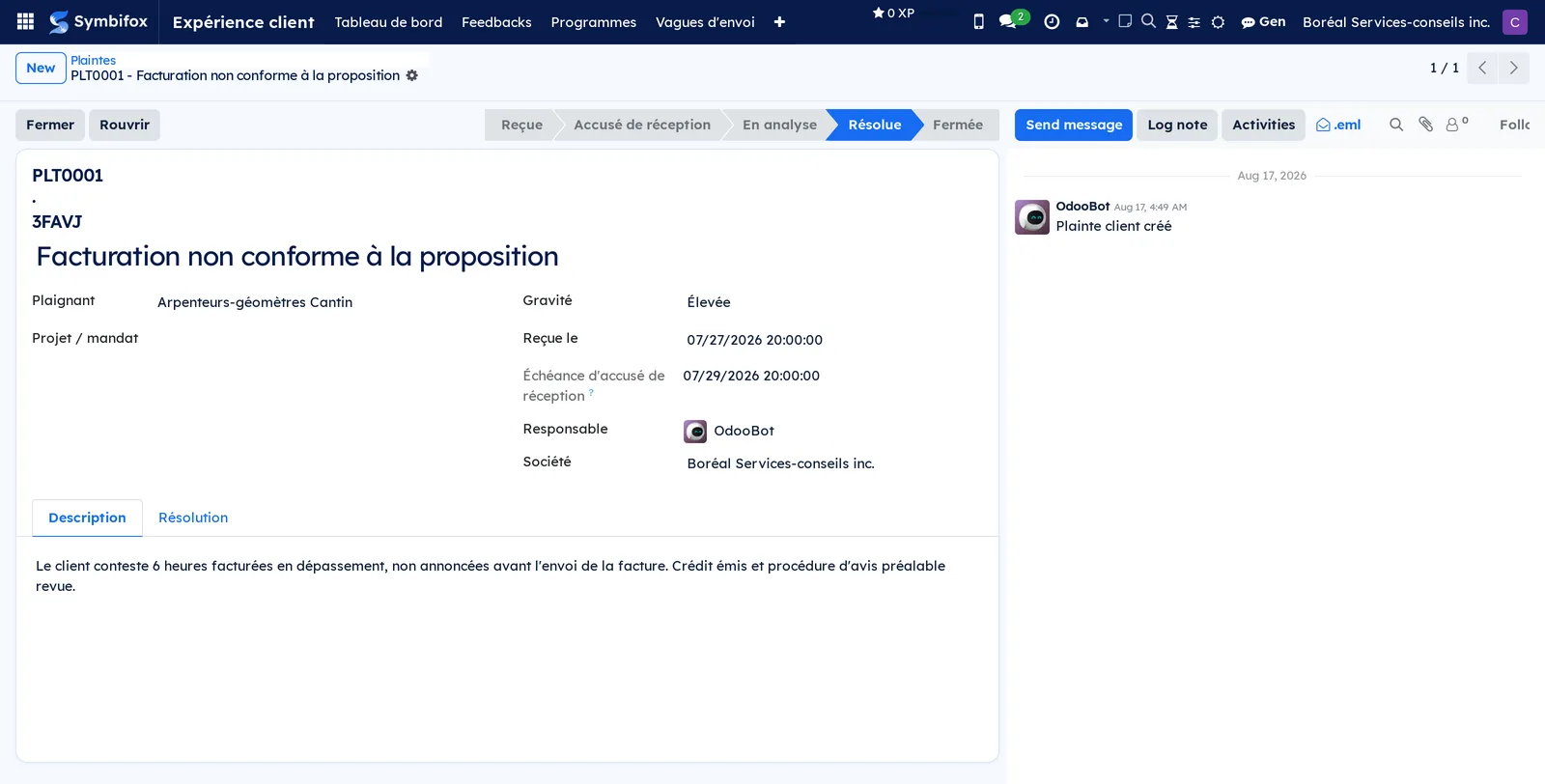
A complaint goes through five stages: receipt, acknowledgement, analysis, resolution, and closing with a check of the complainant's satisfaction.
- Go to Expérience client › Plaintes and select New.
- Enter the Objet (subject) and select the Plaignant (complainant). If there is no contact record, enter Nom du contact (contact name) and Courriel du contact (contact email) instead. Then set the Gravité (severity), Faible (low), Moyenne (medium), Élevée (high) or Critique (critical), and the Responsable (owner).
- In the Description tab, describe the complaint, then select Save. The Échéance d'accusé de réception (acknowledgement due date) is calculated from the delay in the settings.
- Select Accuser réception (acknowledge receipt): the complainant receives the acknowledgement email with their Code de confirmation (confirmation code), and AR envoyé le (acknowledgement sent on) fills in.
- Select Démarrer l'analyse (start the analysis), then, in the Résolution (resolution) tab, enter Cause fondamentale (root cause), Action corrective (corrective action) and Résolution.
- Select Marquer résolue (mark as resolved).
- Once the complainant is informed, select Fermer. After confirming it with them, check Plaignant satisfait du traitement (complainant satisfied with the handling).
The complaint shows Délai d'AR (h) (acknowledgement time, in hours) and Délai de résolution (j) (resolution time, in days), two ISO 10002 indicators. Rouvrir brings a closed file back to analysis. With the Helpdesk bridge, Créer un ticket (create a ticket) opens a linked ticket in the Plaintes team.
Collect and publish a testimonial#
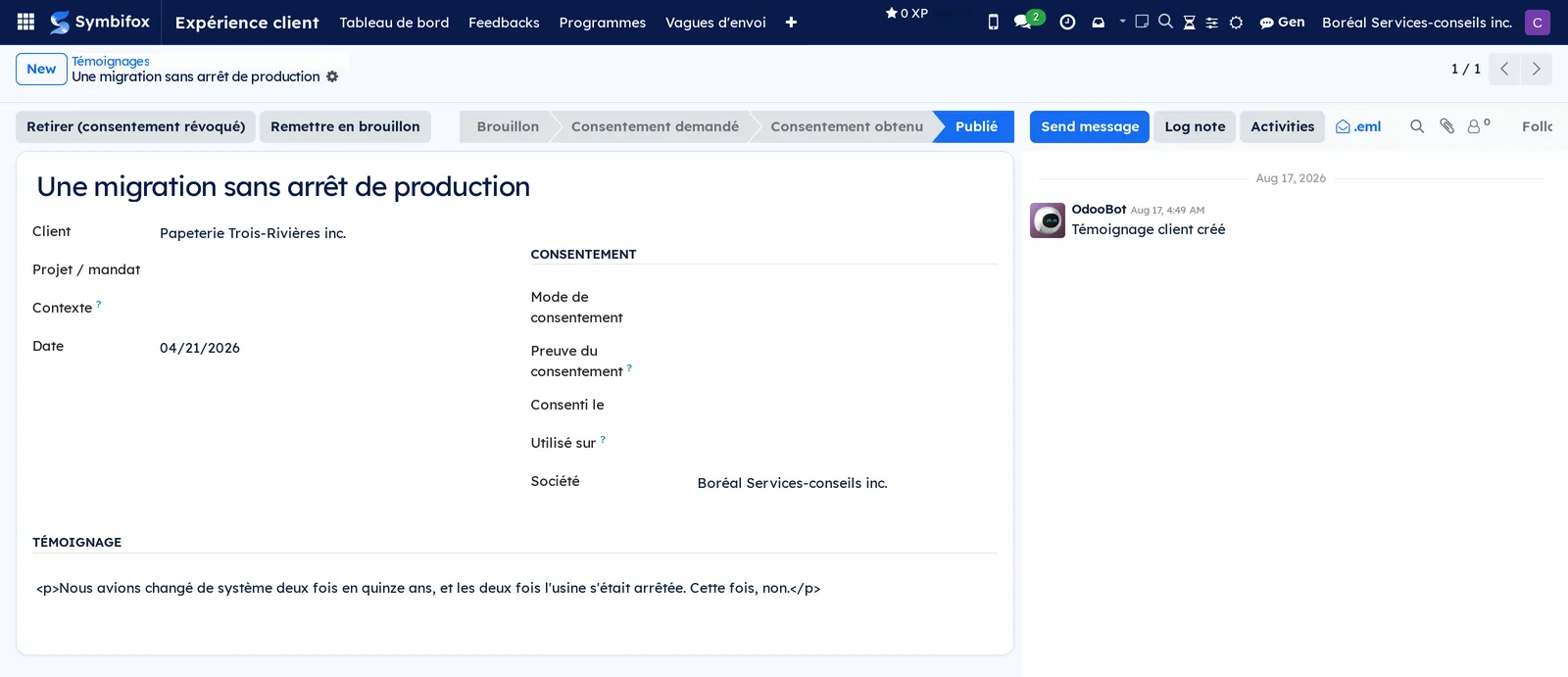
A testimonial starts from a feedback entry whose respondent agreed to be quoted, or from direct entry. Nothing is published without recorded consent.
The NPS survey provided asks “Could we quote your comments as a testimonial?” and offers two ways to say yes:
- Yes, you may quote me with my name, title and organization, no need to contact me: this is the consent itself. The testimonial is created right away in the Consentement obtenu (consent obtained) state, with the Sondage (case cochée par le répondant) (survey, box ticked by the respondent) consent method and the survey answer as proof, and an activity invites you to publish it. Go straight to step 6 below.
- Yes, contact me to confirm: the feedback only becomes a candidate. Write to the respondent, then follow the steps below.
The box only counts as consent when the answer arrives the way a client's does: through a wave that invited that contact, and through their personal invitation link. An answer entered by an employee, or outside any wave, stays a mere candidate. A detractor, or a dissatisfied rating, is never quoted without a conversation first, and neither is a respondent who ticks the box but leaves no comment: they all follow the second path.
- Go to Expérience client › Feedbacks, select the Candidats témoignage filter and open the feedback entry.
- Select Créer un témoignage (create a testimonial): a draft picks up the comment, the client and the engagement.
- Adjust the Titre (title), the Témoignage (testimonial) and the Contexte (context).
- Get the client's agreement, then choose the Mode de consentement (consent method), Verbal, Écrit (courriel, lettre) (written, email or letter) or Sondage (case cochée par le répondant) (survey), and enter the Preuve du consentement (proof of consent).
- Select Consentement obtenu (consent obtained).
- Reread the quote, select Publier (publish), then in Utilisé sur (used on) enter the places where the quote appears (website, proposal, LinkedIn page).
The testimonial moves to Publié (published) with its date. Refusé par le client (refused by the client) files it without further action. Retirer (consentement révoqué) (withdraw, consent revoked) removes it everywhere and reminds you of the places listed in Utilisé sur. Remettre en brouillon (reset to draft) restarts the cycle. With the Privacy bridge, Demander le consentement (Loi 25) (request consent, Law 25) sends a formal request to the client. Law 25 is Québec's Act respecting the protection of personal information in the private sector. Vérifier le consentement (check consent) then aligns the testimonial's state with the answer received.
Share a permanent survey link (pulse)#
A pulse program collects feedback continuously, without waves, through a permanent link placed in your email signatures or on a poster.
Prerequisite: in Surveys, the program's survey has its access set to “Anyone with the link”.
- Go to Expérience client › Programmes and open the program.
- In the Pulse (lien public permanent) (pulse, permanent public link) section, copy the URL publique (pulse) (public URL, pulse).
- For an email signature, copy the Extrait HTML pour signature (HTML snippet for a signature) and paste it as is.
- For a poster or a counter, select Télécharger le QR code (download the QR code).
Responses received through this link join the register under the Sondage channel, attached to the program.
Run an internal feedback round (360)#
An internal program applies the wave mechanics to a team member rather than to a service. It is reserved for the Gestionnaire group.
- Go to Expérience client › Vagues d'envoi and select New.
- Select the “Rétroaction 360” program in Programme.
- In Personne évaluée (person assessed), select the person the feedback is about. Leave it empty for a pulse about the organization as a whole.
- Add the respondents in the Destinataires tab and select Envoyer les invitations.
The Résultat 360 (360 result) shortcut button shows the average received by the person assessed, hidden below three responses. Entries are filed under the person assessed, never under the respondent. Summaries are grouped by wave, so two rounds about the same person do not mix.
Invite contacts without email by SMS#
The SMS bridge reaches wave recipients who have no email address but do have a phone number.
Prerequisites: the Survey invitations by SMS option and a Sending SMS line in the settings.
- Go to Expérience client › Vagues d'envoi and open the sent wave.
- Select Invite by SMS.
Up to five recipients receive their personal link by text message each time you select it, to respect the provider's daily cap. Repeat the action as needed; the safeguards apply.
Exclude open loops from a mass mailing#
The Email Marketing bridge keeps you from sending a promotion to a client you are trying to win back.
- Go to Email Marketing and open the mass mailing.
- Check Exclude open CX loops.
- Send as usual.
At send time, recipients whose contact has unhandled feedback to call back or an open complaint are removed from the list, whether the list is a mailing list or contacts. Cleared, the option changes nothing in the usual behaviour.
Analyze comments with AI#
The AI analysis module reads the comment of a feedback entry and draws from it a sentiment, a one-sentence summary and up to five themes. It goes through the AI bridge, the service that connects Symbifox to the AI model, and the comment text is sent to that model.
Prerequisites: the module installed and the AI bridge running (see Gen, the assistant).
- Go to Expérience client › Feedbacks and open a feedback entry that has a Commentaire.
- Select Analyser (IA) (analyze, AI).
- Read the Analyse IA (AI analysis) notice that appears, then the internal note in the chatter.
Sentiment (IA) (sentiment, AI), shown as Positif (positive), Neutre (neutral) or Négatif (negative), and Résumé (IA) (summary, AI) appear in the same block as the score and the Catégorie NPS. The themes picked are added to Thèmes. The internal note repeats the sentiment, the themes and the summary. Nothing is sent to the client. The button appears only on a feedback entry that has a comment, and you can run it again.
To have the analysis run on its own, check Analyse IA automatique des verbatims in Expérience client › Configuration › Paramètres. Every day, up to twenty comments received in the last thirty days, and not yet analyzed, go through the analysis. In Feedbacks, the Sentiment négatif (IA) (negative sentiment, AI) filter isolates the comments to read first, and Non analysés (IA) (not analyzed, AI) those still waiting.
Analyze the results#
Two screens serve analysis: the dashboard for the overall picture, the analysis screen for digging deeper.
- Go to Expérience client › Tableau de bord (dashboard) and choose the period.
- Read the NPS with its response count, satisfaction, open complaints and response rate, then the monthly trends and the themes.
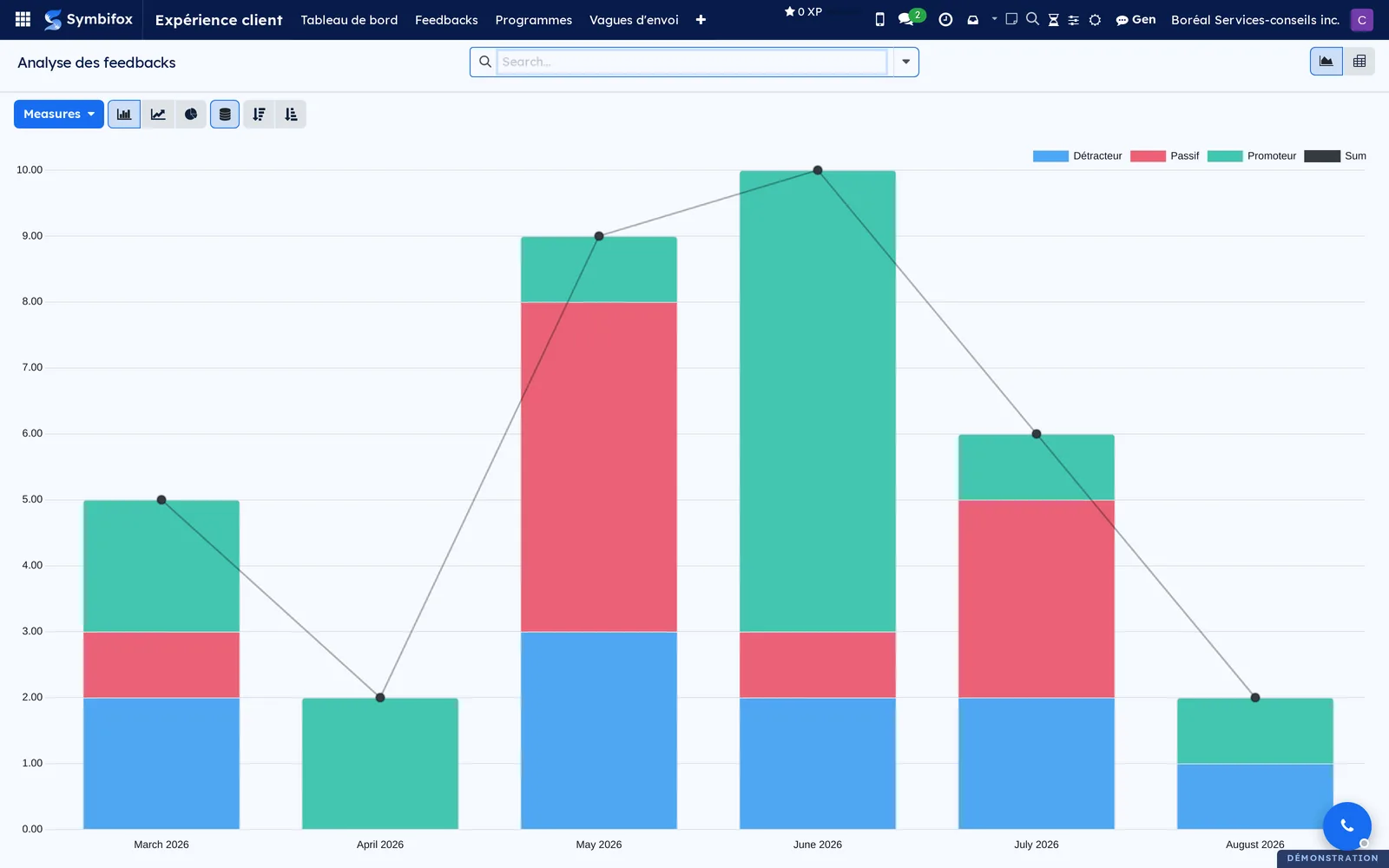
- For a precise cross-analysis, go to Expérience client › Analyse (analysis), switch to the pivot view and group by Programme, Thème (theme) or Mois (month).
The Thèmes are the axis of the outer loop. Review them periodically in the pivot view to spot recurring causes and feed your corrective actions.
The menus, one by one#
Expérience client › Tableau de bord: the home screen. A period selector, then NPS (with the response count), satisfaction, open complaints and response rate, monthly trends and themes. It is management's weekly reading.
Expérience client › Feedbacks: the unified register, as a list by default (34 entries on the demo). Columns for contact, date, type, channel, score, NPS category, program, engagement, owner and state. Kanban, graph and pivot views are available. In kanban, the edge of each card shows the feedback entry's colour, which an automatic colour rule can set, by theme or by channel for instance. Useful filters: Détracteurs (detractors), Promoteurs (promoters), À traiter (to handle), À rappeler (boucle fermée), Candidats témoignage, Mes suivis (my follow-ups). Groupings: Type, Programme, Contact, Mois and Thème. The AI analysis module adds the Sentiment (IA) column, the Sentiment négatif (IA) and Non analysés (IA) filters, and the Sentiment (IA) grouping.
Expérience client › Programmes: the list of programs (2 on the demo) with the type, survey, owner, number of waves, number of feedback entries and NPS. Filter: Archivés (archived); grouping by Type.

Expérience client › Vagues d'envoi: the list of waves with the program, state, send date, invited, completed responses, rate and NPS. It is empty on the demo: the help text on screen sums up the principle, one personal link per recipient and an automatic reminder to non-respondents. Filters: Brouillons (drafts) and Envoyées (sent); grouping by Programme, Personne évaluée and État (state).
Expérience client › Plaintes: the complaint register (4 on the demo) with the number, subject, complainant, severity, date received, acknowledgement due date, owner and state. Filters: Ouvertes (open), Accusé de réception en retard (acknowledgement overdue), Mes plaintes (my complaints); grouping by État, Gravité and Plaignant.

Expérience client › Témoignages (testimonials): the list of testimonials (3 on the demo) with the client, date, consent method, state and places of use. Filters: Publiables (publishable), Publiés (published), En attente de consentement (awaiting consent); grouping by État and Client.
Expérience client › Analyse: the same feedback, in graph and pivot views only, for cross-analysis by program, theme, month or NPS category.
Expérience client › Configuration: a grouping menu, visible to the Gestionnaire group only.
Expérience client › Configuration › Paramètres: the settings page described in Settings, with the options added by the bridge modules.
Reference#
Fields of the Feedback form#
| Field | Description | Required or default |
|---|---|---|
| Contact | Client the feedback comes from. | |
| Date | Date of the feedback. | Required |
| Type | NPS, Satisfaction (CSAT), Commentaire or Interne (360) (internal, 360). | Required, Commentaire |
| Canal | Sondage, Évaluation par courriel (email rating), Saisie manuelle, Rencontre or Autre. | Required, Saisie manuelle |
| Note and Note sur | Score received and its maximum (10 for an NPS, 5 for a rating). | |
| Catégorie NPS (NPS category) | Promoteur (promoter), Passif (passive) or Détracteur (detractor), calculated from the score. | Calculated |
| Commentaire | The client's words. | |
| Sentiment (IA) and Résumé (IA) | With the AI analysis module: the comment's sentiment (Positif, Neutre or Négatif) and a one-sentence summary. | Filled in by the analysis |
| Thèmes | Recurring causes; the same list as for complaints. | |
| Programme, Vague (wave), Réponse au sondage (survey response), Évaluation d'origine (source rating) | Origin of the feedback when it comes from a survey or a rating. | Filled in automatically |
| Projet / mandat | Engagement concerned. | |
| Responsable du suivi | Receives the closed-loop activity. | |
| Personne évaluée | On an internal (360) entry, the person the entry is about. | |
| État | Nouveau, Suivi en cours or Traité. | Required, Nouveau |
| À rappeler | Checked for a detractor or a dissatisfied client; this is what the tile and the digest watch. | Calculated |
| Candidat témoignage (testimonial candidate) | The respondent agrees to be quoted. | |
| Citation autorisée sans recontact (quote allowed without contact) | The respondent consented in the survey itself; the testimonial was created consented. | Filled in automatically |
| Témoignage | Testimonial created from this feedback. |
Fields of the Program form#
| Field | Description | Required or default |
|---|---|---|
| Nom | Program name. | Required |
| Type de programme | NPS relationnel, CSAT transactionnel, Pulse continu or Feedback interne (360). | Required, NPS relationnel |
| Sondage | Questionnaire from the Surveys application; the score question must be a Scale question. | Required |
| Question de score | Scale question that feeds the score; if empty, the first question of that type is used. | |
| Question de commentaire | Text question whose answer becomes the comment. | |
| Question témoignage and Réponse “oui” témoignage | Single-choice question that asks permission to quote, and the choice that counts as “yes, contact me”. | |
| Réponse “oui, sans recontacter” (“yes, no need to contact me” answer) | The choice that counts as consent: the testimonial is created consented, the answer standing as proof. Its wording must say how the respondent will be named. | |
| Gabarit d'invitation and Gabarit de rappel | Invitation and reminder emails; without a reminder template, the invitation is sent again. | Templates provided |
| Campagne UTM | Campaign assigned to waves by default. | |
| Responsable | Program owner. | |
| Rappel après (jours) | Delay before the automatic reminder; “0” for none. | |
| Cadence minimale (jours) | The program's own pause between two requests; “0” applies the global setting. | |
| Masquer le répondant (360) | On an internal program, keeps the respondent out of the register. | Checked |
| URL publique (pulse) and Extrait HTML pour signature | Permanent link and snippet to paste, when the survey has public access. | Calculated |
| Promoteurs, Passifs (passives), Détracteurs, Score NPS (historique) (NPS score, historical), NPS (fenêtre) (NPS, window) | Counters and scores; the window score is hidden below ten responses. | Calculated |
Fields of the Send wave form#
| Field | Description | Required or default |
|---|---|---|
| Nom | Wave name. | Required |
| Programme | Program whose survey is sent. | Required |
| État | Brouillon (draft), Envoyée or Fermée (closed). | Required, Brouillon |
| Destinataires | Contacts to invite; those without email are skipped and listed in the chatter. | |
| Personne évaluée | On an internal program, the person the feedback is about. Refused on any other type. | |
| Campagne UTM | Taken from the program, editable. | |
| Date limite de réponse | After this date, the survey refuses responses. | |
| Envoyée le (sent on) and Dernier rappel | Dates of the send and of the last reminder. | Filled in automatically |
| Invités, Réponses complétées, Taux de réponse (%), Score NPS | Wave counters. | Calculated |
| Résultat 360 | Average received by the person assessed, hidden below three responses. | Calculated |
Fields of the Complaint form#
| Field | Description | Required or default |
|---|---|---|
| Numéro (interne) | Internal sequence, never given to the complainant. | Automatic |
| Code de confirmation | Non-sequential reference sent in the acknowledgement. | Automatic |
| Objet | Summary of the complaint. | Required |
| Plaignant, Nom du contact, Courriel du contact | Contact record, or name and email if there is none. | |
| Gravité | Faible, Moyenne, Élevée or Critique. | Required, Moyenne |
| État | Reçue (received), Accusé de réception (acknowledged), En analyse (under analysis), Résolue (resolved) or Fermée (closed). | Required, Reçue |
| Reçue le (received on) | Date and time of receipt. | Required |
| Échéance d'accusé de réception and AR envoyé le | Due date calculated from the settings, and actual date of the acknowledgement. | Calculated |
| Délai d'AR (h) and Délai de résolution (j) | ISO 10002 indicators. | Calculated |
| Résolue le (resolved on) | Date of the resolution. | Automatic |
| Plaignant satisfait du traitement | Check, after closing, of satisfaction with the handling (not with the product). | |
| Description and Résolution | Tabs for the complaint and its response. | Description required |
| Thèmes, Cause fondamentale, Action corrective | Analysis of the cause and measure taken to prevent a repeat. | |
| Projet / mandat, Responsable, Feedback d'origine (source feedback) | Links to other records. |
Reports and exports#
The Analyse screen offers the graph and pivot views over the whole register, exportable like any Symbifox view (see Common actions in every application). The Tableau de bord gives the reading by period. A program's Télécharger le QR code produces an image to print. This application provides no PDF report.
Automations#
- Wave maintenance, daily: closes waves whose deadline has passed, reminds non-respondents after the program's delay, and reinvites contacts a safeguard had set aside once their pause is over.
- Complaints without acknowledgement, daily: warns the owner when the acknowledgement due date is near or past.
- Closed loop: for every detractor or dissatisfied rating, a follow-up activity goes to the owner, with the deadline set in the settings.
- Rating ingestion: every rating received by email (project tasks, for example) is copied into the register.
- Testimonial candidates: a five-day activity is created when a respondent agrees to be quoted, if the option is on.
- Post-closing check: when a complaint is closed, a satisfaction follow-up activity is scheduled.
- AI analysis of verbatims, daily, if Analyse IA automatique des verbatims is checked: analyzes up to twenty comments not yet analyzed, received in the last thirty days. The newest go first. The batch stops if the AI bridge does not answer, and resumes the next day.
- Request safeguards: every feedback request, wherever it comes from, checks the per-contact pause, the blocklist, the “Ne pas contacter” list and any collections in progress. A contact set aside is noted in the chatter and picked up later, never deleted, so as not to bias the sample.
Public pages and portal#
/cx/unsubscribe/…: signed unsubscribe link, at the foot of every feedback request email. A contact who opens it joins the email blocklist, which every safeguard respects./temoignages: public page that shows testimonials in the Publié state (quote, client name and company), filtered on the website's company. No website menu is added; you choose where to link the page. A withdrawn testimonial disappears immediately./my/feedback: the My feedback page of the client portal. The signed-in client sees their company's feedback (date, type, score, comment, never internal entries). They can leave a free comment, recorded under the Autre channel.
Modules that extend this application#
The following bridges also install automatically as soon as the neighbouring application is present; none sends anything to the client unless an option is turned on.
The next module does not install automatically: an administrator installs it once the AI bridge is running.
Three other bridges, to Meetings, CRM and Appointments, are described in their own chapters: Meetings, CRM and Appointments.
Understanding#
Why the score hides below ten responses. Three responses do not make a trend. Below ten responses, the margin of error of an NPS exceeds twenty points: showing the number would amount to dressing up chance. The response count is always shown next to the score, and the rolling window (365 days by default) is stated. The same rule, tightened to three responses, applies to the average of a 360 feedback round, because the population is smaller.
Why the safeguards postpone instead of deleting. If a wave permanently removed contacts who were asked recently, the sample would drift toward clients you rarely ask. The application notes them in the chatter, and the daily maintenance reinvites them once the pause is over. Internal programs are exempt from these safeguards: the request budget is a client-facing notion.
Why the NPS does not go through five-star ratings. Odoo's email ratings go from 0 to 5. The NPS lives in the application's own register, fed by the survey's Scale question, which allows the 0 to 10 score directly. The two worlds meet in the register, where each entry keeps its channel and its maximum.
Why a complaint carries two numbers. The internal number is sequential and used for filing. The confirmation code, not sequential, is the only one given to the complainant: a number that would reveal how many complaints you receive has no place in a client email.
Why publishing a testimonial is locked. Publishing a client's quote without proof of their agreement exposes you. The testimonial reaches the Publié state only after Consentement obtenu, and withdrawing consent makes it disappear wherever rendering is dynamic. With the Privacy module, the proof is the consent request itself, and an expiry withdraws the testimonial without intervention.
Why a 360 feedback invitation has no unsubscribe link. Unsubscribing leads to the email blocklist. Adding an employee to it would also block the client mail addressed to them.
Why the AI analysis works without tools. A comment is written by a third party, and it may contain instructions aimed at the AI. The analysis therefore goes through a bridge endpoint reserved for this task: a single pass, no tools, a bounded answer (sentiment, summary, themes). Symbifox checks it again before writing anything. A comment that tries to give orders has nothing to act on. The link to the bridge is local, but the model that reads the comment is a hosted AI model, and the text is sent to it. That is why the daily analysis is off by default.
What the AI analysis writes, and what it leaves alone. The model receives the list of themes in use, including those of tickets when the Helpdesk (tickets) application is installed. The same irritant thus carries the same name on both sides. The themes picked are added to those of the feedback entry, never removed, and an unknown theme is created. A bridge outage blocks nothing: the feedback entry gets an internal note and can be analyzed later. An unreadable answer is noted the same way, changes no field, and the daily run does not go back to it.
Limits. The application does not replace the survey tool: the questionnaire is built in Surveys. The bridge modules install only if the neighbouring application is present, and most of their sends stay off until a manager turns them on. The QR code download depends on a library installed on the server; its absence prevents nothing else.
Troubleshooting#
| Symptom | Likely cause | Fix |
|---|---|---|
| The NPS shows “n trop petit” (n too small) instead of a score. | Fewer than ten responses in the rolling window. | Wait for more responses or widen Fenêtre NPS in the settings. |
| A recipient did not receive the wave invitation. | Contact without email, on the blocklist, on the “Ne pas contacter” list, in collections, or asked less than thirty days ago. | Read the wave's chatter: a postponed contact will be reinvited by the daily maintenance. In the other cases, correct the contact record. |
| Envoyer un essai does not send. | No Contact de test in the settings. | Select your record in Contact de test, then try again. |
| Publier stays unavailable on a testimonial. | Consent is not on record. | Select Consentement obtenu, or Demander le consentement (Loi 25) with the Privacy bridge. |
| Marquer résolue is refused on a complaint. | Cause fondamentale or Action corrective is empty. | Fill in both in the Résolution tab. |
| You cannot enter a Personne évaluée on a wave. | The program is not of type Feedback interne (360). | Choose the internal program, or leave it empty. |
| URL publique (pulse) is empty on a program. | The survey's access is not “Anyone with the link”. | Change the survey's access in Surveys. |
| A handled feedback entry reappears with an activity. | A new response from the same client created a new entry. | Handle the new entry; the old one stays Traité. |
| A feedback entry's chatter shows the note “Analyse IA non effectuée” (AI analysis not done) or “réponse illisible” (unreadable answer). | The AI bridge was unavailable, did not answer, or its answer could not be read. | Select Analyser (IA) later. After an outage, the daily run resumes on its own; after an unreadable answer, it does not. If the outage lasts, have your administrator check the AI bridge. |
See also#
- Surveys: build the questionnaire and its Scale question.
- Contacts: contact records, their email and their request history.
- Helpdesk (tickets): the Plaintes team and linked tickets.
- Privacy (Law 25 and other frameworks): formal consents and the “Ne pas contacter” list.
- Email Marketing and Link Tracker: mass mailings and the exclusion of open loops.
- My desk, Dashboard and Progress: the customer experience tile.
- Subscriptions: recurring revenue at risk.
- Meetings, CRM and Appointments: feedback requests after a meeting, a lost opportunity or an appointment.