

Part 3 · Projects, time and knowledge
Nextcloud and Collabora
Browse, preview and share your Nextcloud files with your own account, find each client's folder and edit documents online.
Watch it
The Nextcloud application brings your files to where the work already happens: the folder tree of a project shows on the project record, the tree of a task on the task, and a full file browser lives in the main menu. It is meant for anyone who spends the day between a document folder and the tracking of an engagement. You browse, preview, upload, move and share without changing windows, with your own Nextcloud account. The files themselves stay on your Nextcloud: Symbifox never copies them into itself. The application also knows which folder is each client's, creates it from your template when needed and files the attachments of a thread into it.
Overview#
Nextcloud is a file server your organization hosts, on its own premises or with its hosting provider. Symbifox does not replace it: it connects to it, reads its folder tree and acts on it for you.
Three doors lead to the same files:
- the Fichiers Nextcloud (Nextcloud files) tab on the record of a project or a task, limited to the folder of that record, and present only once the project has a folder, its own or its client's;
- the Nextcloud application in the main menu, a full browser that starts from a root folder set once and for all;
- the launcher in the system tray, the Nextcloud logo, which slides the browser open over the record you are looking at.
The browser comes in two panes: the folder tree on the left, the content of the current folder on the right, with a breadcrumb to go back up. The columns sort by name, type, modification date and size, folders always staying at the top. A document opens in preview without leaving Symbifox, or directly in Nextcloud when it is an office document to edit.
Everyone with their own account. The browser does not borrow a shared account: each person connects their own Nextcloud account once, and Symbifox then acts on their behalf. You therefore see exactly what Nextcloud lets you see, no more and no less, and share links, uploads and the Nextcloud activity log carry your name.
One folder per client. If your organization keeps its files in one Nextcloud folder per client, you link that folder to the company once. Its contacts show the same folder, a project takes a subfolder of it and a task follows its project. For a new client, a button copies your folder template. This feature stays dormant until the clients root is set: no tab and no button appears.
On the Boréal demo, no connection is configured: the Nextcloud application and its launcher therefore do not appear in the main menu yet. Client folders are not set up there either, and no screenshot in this chapter shows them.
The connection to Nextcloud is the same one the knowledge base documents use: you set it once, and both use it. A Knowledge base document can therefore keep its life cycle, its versions and its acknowledgements in Symbifox while its file lives on Nextcloud.
What sets the Symbifox approach apart: no Nextcloud file is duplicated in Symbifox. Where a classic attachment creates a second copy that ages on its own, the browser shows the real state of the server. And every action is bounded: the folder of the record, under the root folder, and nothing else.
Configuration#
Access and permissions#
Two rights, in Settings, on the user's record:
- Navigateur Nextcloud (Nextcloud browser): opens Nextcloud in the main menu, the Fichiers Nextcloud tab of projects and tasks, the Dossier Nextcloud tab of companies and the system tray launcher. It also allows linking, creating and removing client folders. This is the right to give everyone.
- Access to the configuration is reserved for administration: only an administrator sees Nextcloud › Configuration and Nextcloud › Connexions (connections).
The right opens the door; your Nextcloud account decides what lies behind it. On first use, each person connects their account from the browser; until they do, the browser shows nothing but the invitation to connect.
Permissions do not stop there. Before listing the folder of a project, the application checks that you have the right to read that project, and it finds the folder from the record itself. A person without access to the engagement does not reach its files, even knowing the path.
Settings#
Everything is set on a connection record, in Base de connaissances (knowledge base) > Configuration › Nextcloud Documents. Once the connection is ready, the same screen also opens from Nextcloud › Configuration. On the demo, this screen is empty and invites you to create the connection.
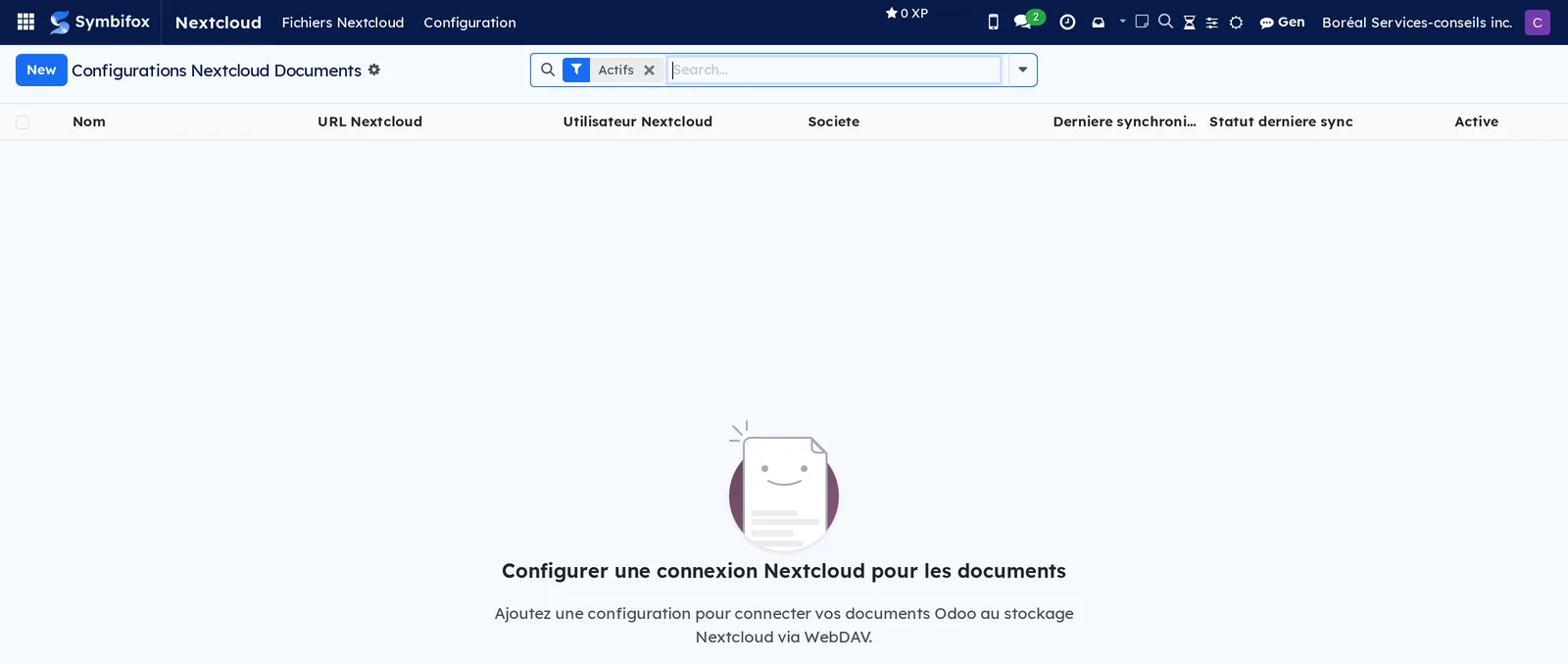
The record holds the address of the server, the access path to the files, the service account and its app password, which is stored encrypted. The service account is used only for exchanges that happen without a person, such as the daily monitoring of knowledge base documents: the browser always acts with the account of the person signed in. Tester la connexion (test the connection) checks it all before you go off to work.
Then come the settings of the browser itself and of client folders:
- Prefixe racine (navigateur) (root prefix, browser): the folder beyond which nothing can be reached, for example the folder of your organization. Until it is set, the Nextcloud application and its launcher appear to no one.
- Racine des dossiers clients (clients root): the Nextcloud folder that holds one folder per client, for example
/Organization/(Clients)/. It must sit under the root prefix. Until it is set, the client folders feature stays dormant. - Sous-dossier des projets (projects subfolder): the name of the subfolder, inside each client folder, that holds one folder per project. It is
(PROJETS)to begin with. Left empty, projects are chosen directly in the client's folder. - Gabarit de dossier client (client folder template): the folder copied to create a new client's folder, for example
/Organization/(Clients)/(DOSSIER TYPE). Without a template, the create button does not appear. - Nom d'un nouveau dossier client (new client folder name): the name pattern,
{NNN} - {client}to begin with.{NNN}becomes the next number, on three digits at least, and{client}the name of the company. - Exiger l'identifiant de la personne (require the person's login): when someone connects their account, the login or email address of the approved Nextcloud account must match the login of their Symbifox user, which only administration can change. On by default; turn it off only if your Symbifox logins and Nextcloud accounts share nothing.
- Extensions ouvrant Nextcloud (extensions that open Nextcloud): the file types whose opening leads to Nextcloud rather than to the built-in preview. This setting is what sends your office documents to the online editor.
- Couleur des dossiers (folder colour): the colour of the folder icons in the browser.
- Largeur du panneau (%) (panel width) and Hauteur du panneau (%) (panel height): the starting size of the panel opened by the launcher. Each person can then resize it, and their preference wins.
- Expiration des partages (jours) (share expiry, in days) and Mot de passe sur les partages (password on shares): the default behaviour of the links created from the browser.
Online editing is set elsewhere, in Settings, on the Collabora Online page: the address of the editing server and its security settings on one side, and on the other the Discovery lifetime, in seconds, with Clear the cache now so you do not have to wait after a server upgrade.
Base data#
Four things to prepare before working:
- the share presets (Prereglages de partage): an internal preset (read and write, for a colleague) and an external preset (read only, with expiry and password, for a client). These are the ones that appear when you create a link;
- the Nextcloud folder of each project, entered in the project's Settings tab, or given by its client's folder. It is what fills the Fichiers Nextcloud tab. A task inherits the folder of its project, and can also carry its own Sous-dossier Nextcloud (tache) (Nextcloud subfolder, task);
- the client folders, if your organization keeps one per client: the root, the template and the projects subfolder are set on the connection, then each company is linked to its folder;
- the shares in Nextcloud: the root folder and the project folders are read in each person's Nextcloud, so they must sit at the same place there. Share the top folder with the team, or use a Nextcloud team folder, rather than sharing subfolders one by one.
Getting started#
This walkthrough connects Symbifox to a Nextcloud, then opens the folder of a Boréal engagement from its record.
- Go to Base de connaissances › Configuration › Nextcloud Documents and select New.
- Enter a Nom (name), the URL Nextcloud (Nextcloud URL) of your server, the Chemin WebDAV (WebDAV path), the Utilisateur Nextcloud (Nextcloud user) of the service account and its Mot de passe d'application (app password).
- Select Tester la connexion: a message confirms that the server answers.
- Enter the Prefixe racine (navigateur), for example the folder of the organization, then select Save.
- Go to Project › Projects, open an engagement and, in the Settings tab, enter its Dossier Nextcloud (Nextcloud folder).
- Open the Fichiers Nextcloud tab of the project and select Connecter mon Nextcloud (connect my Nextcloud), then grant access in the Nextcloud window and close it: the folder tree appears.
- Drag a file from your computer onto the list: it uploads to the right place.
The file is on your Nextcloud, uploaded under your name, visible from the record of the engagement and from the browser under Nextcloud. The sections that follow show the everyday actions.
Common tasks#
Connect your Nextcloud account#
Once per person: after that, the browser remembers your connection.
- Open the Fichiers Nextcloud tab of a project, or Nextcloud › Fichiers Nextcloud.
- On the Connectez votre Nextcloud (connect your Nextcloud) card, select Connecter mon Nextcloud.
- In the Nextcloud window that opens, sign in as usual, single sign-on included.
- Select Grant access, then close the Nextcloud window.
- Come back to Symbifox: the card gives way to your files.
Your name appears at the top right of the browser. In Nextcloud, the access is listed under Settings › Security, in Devices & sessions, under the names of Symbifox and your organization.
Disconnect your Nextcloud account#
To take away Symbifox's access to your files, on this computer and on every other.
- Open the browser.
- At the top right, next to your name, select the disconnect icon.
- Confirm with Deconnecter (disconnect).
The browser returns to the connection card, and the access given to Symbifox also disappears from your Nextcloud.
Browse the folder of a project or a task#
The folder comes to the record, rather than the other way around.
- Open the project or the task, in Project.
- Open the Fichiers Nextcloud tab.
- In the tree on the left, expand the folder you want; its content appears on the right.
- Use the breadcrumb to go back up, and the column headers to sort by name, type, modification date or size.
- For all your folders, outside any engagement, go to Nextcloud › Fichiers Nextcloud instead.
You see the real state of the server, not a copy. Folders stay grouped at the top of the list, whatever the sort.
To find a file without knowing where it sits, type at least three characters in the Filtrer ou chercher… (filter or search) box: the search then covers every folder under the record's folder, or under the root folder in the browser. It covers names only, ignoring case and accents, and shows the 100 most recent results. Below three characters, the box filters the current folder. Revenir au dossier (back to the folder) closes the search.
Link a Nextcloud folder to a company#
Once per client: the folder already exists in Nextcloud, you only have to tell Symbifox.
- Open the record of the company, in Contacts.
- Open the Dossier Nextcloud tab.
- Select Rattacher un dossier Nextcloud (link a Nextcloud folder).
- Find the client's folder: the closest names come first, with their Ressemblance (%) (similarity).
- Select Choisir (choose) on the line you want.
The tab then shows the folder in the browser, and the company's contacts show the same one. A folder already linked to another client stays in the list, greyed out, marked Déjà rattaché à (already linked to): it cannot be chosen.
Symbifox only sorts the offer: you always choose. It sets aside numbers, accents and legal words such as "inc" or "ltée", and reads the name of the company, of its contacts and of its projects. A company can have several folders: the first in the list, which you reorder with the handle, is the one the tab and the contacts show.
Create the folder of a new client#
For a client that has no folder yet: Symbifox copies your template, subfolders included.
- Open the record of the company, Dossier Nextcloud tab.
- Select Créer le dossier client (create the client folder). The button appears only if the company has no folder and a template is set.
- Read the proposed name in Nom du dossier (folder name) and correct it if needed. The number follows the highest one already there, folders made by hand included, and the company's name is cleaned of the characters Windows refuses.
- Check Dans (in), the clients root, and Copie de (copy of), the template. Then select Créer (create).
The template is copied as it is, with your account, then the folder is linked to the company. Symbifox never copies over an existing folder: if a folder already has that name, or if the client already has one, a message says so and the creation stops. Link the existing folder instead. Nextcloud decides here too: without write permission in the clients root, the copy is refused.
Choose the folder of a project#
A project takes its client's folder by default. You say which one when the client has several, or when the project has its own subfolder.
- Open the project, in Project, then the Fichiers Nextcloud tab.
- Read Dossier client (client folder): the project takes the client's first folder, and keeps your choice if the client has several.
- Select Choisir le dossier du projet (choose the project's folder). The list offers the client's folders and the subfolders of their
(PROJETS)folder. - Select Choisir on the line you want: Sous-dossier du projet (project subfolder) fills in.
You can also type Sous-dossier du projet by hand, relative to the client's folder, for example (PROJETS)/001 - Implantation. Left empty, the project opens the client's folder. A folder typed in the project's Settings tab wins over all this, and the task follows its project. If the client changes, or if its folder is removed from the list, the project's subfolder is cleared: it belonged to the previous folder.
Preview a document#
A preview saves the detour through the downloads folder.
- In the file list, select the name of the file.
- For an image, a PDF or a text file, the preview opens over the screen.
- Close the preview to return to the list.
The preview is served by Symbifox, not by an outside service. A file of another type downloads instead of being shown.
Upload a file#
Two possible actions, depending on what you have at hand.
- Go to the destination folder.
- Select Televerser (upload), then choose one or more files.
- Or drag the files from your computer directly onto the list.
- Wait for the transfer to finish: the files appear in the list.
The files pass through Symbifox before reaching Nextcloud: convenient for working documents, less so for a video of several gigabytes, which is better deposited directly in Nextcloud.
Organize, rename and delete files#
The browser does the tidying up without another window being opened.
- Select Nouveau dossier (new folder) to create a folder in the current folder.
- To rename an item, open its context menu and choose to rename it.
- To move a file, drag it onto the destination folder, in the list or in the tree.
- To delete an item, open its context menu and choose to delete it.
The changes apply on Nextcloud: what you see elsewhere, in the desktop application or in the Nextcloud web interface, changes too.
Edit a document online#
A text, a spreadsheet or a presentation opens in a full editor, hosted on your infrastructure.
- In the file list, select an office document.
- The document opens in Nextcloud, in a new tab, with its online editor.
- Edit the document: saving happens in place, in the original file.
- Return to the Symbifox tab and refresh the list to see the new modification date.
There is no copy to download and no copy to deposit again. The file types concerned are set in Extensions ouvrant Nextcloud: a type missing from this list opens in preview.
Share a file by link#
The link is created where the file lives, not in another tab.
- Open the context menu of the file and choose to create a share link.
- Read the Partages existants (existing shares) list: a share already in place saves you creating a second one.
- Under Nouveau partage (new share), choose the preset: internal for a colleague, external for a client or a partner.
- If needed, adjust the expiry.
- Copy the link you get and send it.
- When the preset protects the link with a password, give that password through a channel other than the link itself.
The link points to your Nextcloud: the file never leaves your server, and the recipient has no account to create. The permissions of the link are decided by the server, not by your browser. In the file list, a badge marks what is already shared; the same window removes a share with Retirer ce partage (remove this share). For a colleague who already has access to the file in Nextcloud, Copier le lien interne (copy the internal link), on each row, is enough: that link creates no share. The root folder, the browser's or a record's, is never shared publicly.
Insert a Nextcloud link in a message#
To cite a file in a record's discussion thread without attaching it.
- Open the area for writing a message or a note, at the bottom of the record.
- Select the cloud icon, Insérer un lien Nextcloud (insert a Nextcloud link).
- In the browser that opens, select a file, or Insérer (insert) for a folder.
- Under Quel lien mettre dans le message ? (which link to put in the message?), choose Lien interne (internal link) or a share based on a preset.
- Send the message.
The link appears in the message. An internal link opens only for someone who already has access to the file in Nextcloud, and creates nothing. A share's password is never inserted in the message: it is shown apart, to be sent separately.
Find the files cited in a thread#
To see at a glance which Nextcloud files a record cites and what has become of their shares.
- Open the record.
- In the discussion thread's bar, select the cloud icon, Fichiers Nextcloud liés dans ce fil (Nextcloud files linked in this thread).
- Read the État (state) column: file found or not, share expiry, password.
- Optional: select Retirer ce partage to revoke a cited share.
The list is read again from the messages each time it opens, 200 most recent links at most, and Relire (reread) refreshes it. Nothing is stored separately. A share can be removed only if Nextcloud lets you delete it.
File the attachments of a thread in the client's folder#
To keep, in the client's folder, the files received by email, without downloading and uploading them again.
- Open the record: a task, a project, a company, any record that has a discussion thread.
- In the thread's bar, select the folder icon, Classer des pièces au dossier client (file attachments in the client folder).
- Tick the attachments to file, 50 at most at a time. The list gives their date and size.
- On the right, the browser opens on the record's folder. Go to the subfolder you want. A record with no client folder says so: choose where to copy.
- Select Copier (copy), whose label gives the number of attachments and the destination folder.
The attachments are copied to Nextcloud and also stay in Symbifox: the thread keeps its attachments. A file with the name of one already there overwrites nothing, it takes a number, like Devis (2).pdf. A file over 64 MB stays in Symbifox, marked "trop volumineuse" (too large), and is better deposited directly in Nextcloud. A note in the thread says what went where; it is left out when you cannot write in that thread or your record has no email address, but the copy still happens.
Link a file to the knowledge base#
A document found in its context is worth more than a well-filed file.
- Open the context menu of the file and choose to link it.
- Choose the matrix item to attach it to.
- Select Save.
The file joins the decision or the requirement it documents, in the Knowledge base, without a copy being made. Where Odoo's Knowledge application is installed, the link can also point to an article.
Open the browser over your work#
To drop or find a file without leaving the record you are looking at.
- In the system tray, at the top right, select the Nextcloud logo.
- The browser slides open over the current screen, on the record's folder when it has one: company, contact, project, task, or any record whose project or client has one. Otherwise, or if the folder cannot be read, it reopens where you left it.
- Resize the panel: your preference is kept for the next times.
- To continue in a full page, select Ouvrir en pleine page (open as a full page) in the panel header.
- To close it, select the logo again, click outside the panel or press Escape.
It is the same browser, with the same account, as the one under Nextcloud. An office document still opens in Nextcloud, in a tab.
Remove a person's access#
For administration, when someone leaves the organization or changes role.
- Go to Nextcloud › Connexions.
- Find the person's line: their Nextcloud account, the configuration and the connection date.
- Delete the line.
The access also disappears from the person's Nextcloud. Archiving their Symbifox user, or changing their login, has the same effect for all their connections.
The menus, one by one#
Nextcloud: the menu of the application, with no screen of its own. It appears only to the people who have the Navigateur Nextcloud right, and only when an active connection carries a root prefix.
Nextcloud › Fichiers Nextcloud: the standalone browser. Its toolbar carries a refresh button, Televerser, Nouveau dossier and the Filtrer ou chercher… (filter or search) box, which narrows the list as you type, then searches every folder from three characters on. In service, the screen splits into two panes: the tree on the left, the content of the folder on the right, with your name and the disconnect icon at the right of the toolbar. As long as your account is not connected, the screen shows only the Connectez votre Nextcloud card.
Nextcloud › Dossiers clients (client folders): the list of linked folders, one line per folder, with the client, the name of the folder and its path. You correct a path, remove a link and group by client there. Removing a line deletes nothing in Nextcloud.
Nextcloud › Configuration: the Nextcloud connections, reserved for administration. The list shows the name, the address of the server, the service account, the company, and the date and result of the last synchronization. It is the same screen as Base de connaissances (knowledge base) > Configuration › Nextcloud Documents: a single connection serves both applications.
Nextcloud › Connexions: the list of people who connected their account, reserved for administration. It shows the person, their name and login in Nextcloud, the configuration, the state and the connection date. A line can be neither created nor edited; deleting one removes the access.
Reference#
Fields of the Nextcloud connection form#
| Field | Description | Required or default |
|---|---|---|
| Nom | The name of the connection | Required |
| URL Nextcloud | The address of the server; an encrypted connection is required | Required |
| Chemin WebDAV | The access path to the files on the server | Required |
| Utilisateur Nextcloud | The service account, used for exchanges made without a person; the browser acts with each person's own account | Required |
| Mot de passe d'application | The app password of the service account, stored encrypted | Optional, required in practice |
| Prefixe racine (navigateur) | The folder beyond which nothing can be reached | Required for the application and its launcher to appear |
| Racine des dossiers clients | The Nextcloud folder that holds one folder per client, under the root prefix | Optional; without it, client folders stay dormant |
| Sous-dossier des projets | The subfolder of each client folder that holds one folder per project | (PROJETS) |
| Gabarit de dossier client | The folder copied to create a new client's folder | Optional; without it, no creation from Symbifox |
| Nom d'un nouveau dossier client | The name pattern: {NNN} for the next number, {client} for the company's name |
{NNN} - {client} |
| Autres adresses de ce Nextcloud (other addresses of this Nextcloud) | The other names under which the same Nextcloud is reached, separated by commas, so that links written with them are recognized in threads | Optional |
| Exiger l'identifiant de la personne | Refuses the connection of a Nextcloud account that does not match the person's login | On |
| Extensions ouvrant Nextcloud | The file types that open in the online editor | Optional |
| Couleur des dossiers | The colour of the folder icons | Anthracite |
| Largeur du panneau (%), Hauteur du panneau (%) | The starting size of the launcher window | Starting values; each person's preference wins |
| Expiration des partages (jours) | The default duration of a public link; zero for no expiry | Optional |
| Mot de passe sur les partages | Protects each public link with a generated password | Optional |
| Derniere synchronisation, Statut derniere sync, Message derniere sync | The result of the last exchange with the server | Calculated |
Fields of the Share preset form#
| Field | Description | Required or default |
|---|---|---|
| Configuration | The connection the preset belongs to | Required |
| Acces | What the link allows: read, or read and write | Required |
| Expiration (jours) | The duration of the link; zero for no expiry | Optional |
| Protege par mot de passe | Generates a random password for the link | Optional |
Fields of the Client folders list#
| Field | Description | Required or default |
|---|---|---|
| Client | The company the folder is linked to | Required |
| Dossier | The name of the folder, taken from its path | Calculated |
| Chemin Nextcloud | The location of the folder in Nextcloud | Required |
Fields of the Nextcloud connections list#
| Field | Description | Required or default |
|---|---|---|
| Personne | The Symbifox user who connected their account | Filled at connection |
| Nom dans Nextcloud, Identifiant Nextcloud | The approved Nextcloud account | Filled at connection |
| Configuration | The Nextcloud connection concerned | Filled at connection |
| Etat | Waiting for approval, or connected | Calculated |
| Connecte le | The date of the last approval | Calculated |
Reports and exports#
The application produces no printable report. A file downloads from its record or from the preview, and is shared through a link pointing to your Nextcloud. For a versioned document, with its life cycle and its acknowledgements, see Knowledge base.
Automations#
The browser starts nothing by itself: everything happens at the moment you act, creating a client folder and filing the attachments of a thread included. Two mechanisms do work in the background, however.
The monitoring of knowledge base documents runs every day: when a file linked to a document has changed on Nextcloud, a draft version and an activity are created for its owner. Nothing is imported on its own, because a deposited file is not yet a classified document.
Archiving a user, or changing their login, immediately removes their connections, and their access on the Nextcloud side. Changing the server address likewise removes everyone's connections: each person connects again to the new server. A connection request nobody approves expires after twenty minutes.
The online editor, for its part, keeps the technical information of the editing server in memory for a configurable duration, rather than asking for it at each opening. The duration exists for a reason: after a server upgrade, information kept indefinitely would lead to a path that has disappeared.
Public pages and portal#
The application publishes no public page. The four addresses it serves, for preview and download, answer only to people who are signed in and authorized, and on verified paths. The share links, for their part, are public, but they are produced and served by your Nextcloud: Symbifox only asks for them.
Modules that extend this application#
Understanding#
The file does not move. Symbifox keeps no copy of the content: it holds the path, reads the information of the file and acts on the server at your request. This avoids the classic situation where the attachment of a record and the file in the shared folder tell two different stories. There is one exception, deliberate and at your command: the attachment of a thread that you file in a client's folder is copied to Nextcloud, and also stays in Symbifox.
A client's folder is chosen, not guessed. Symbifox sorts the folders from closest to furthest, but a person does the linking. Linking grants no right: Nextcloud, with your account, always decides what you see.
Everyone with their own account, and Nextcloud decides. The browser acts with the account of the person signed in: Nextcloud's shares and permissions decide, not a copy of those rules inside Symbifox. A colleague without access to a folder does not see it, even from the record of a project they can read. The other side: a shared folder arrives at the root of the person receiving it, under its share name. The paths set in Symbifox must therefore exist at the same place for everyone, hence the advice to share the top folder.
Every action is bounded twice. The reachable path is derived from the open record, never from what the browser sends, and it must stay under the root prefix of the connection. A path that tries to climb higher is refused. That is why the application disappears until the root prefix is set: without it, there would be no boundary at all.
A granted access does not switch itself off. Nextcloud issues Symbifox an app password made for this use, and never passes it your password. That app password does not expire: it stops when you disconnect, when administration removes the connection, when your Symbifox user is archived, when the server address changes in the configuration, or when you revoke it in Nextcloud. Disabling your account in your organization's single sign-on is not enough to cut it.
The preview is served by Symbifox, and without the right to execute. A file received from a third party could hold code meant to run in the page. The preview serves it with the type the server announces, and forbids any execution: a booby-trapped file is shown, it does not act.
The editor opens beside, not inside. Nextcloud refuses to be displayed inside another page, for security. The browser therefore reads the files itself to display them, and an office document opens in a new tab. It is not a shortcut, it is the only honest way to proceed.
Fixing without rewriting. The online editor is free software, maintained by its original publisher. The Symbifox fixes are applied on top, without copying its code: you keep the updates of the one and the corrections of the other. Copying the connector would have meant redoing each of its corrections by hand, including those that touch access rights.
The limits. Files pass through Symbifox on upload, which bounds their size: very large files are better deposited directly in Nextcloud. Filing the attachments of a thread copies 50 at a time, 64 MB at most each. Search reads names, not file content. A name containing a percent sequence, such as “A%2012.odt”, appears in the list but refuses every action, with a message: without that refusal, the action would have targeted another file. Rename it in Nextcloud. Attaching to a knowledge article exists only if Odoo's Knowledge application is installed; otherwise, the file links to a matrix item. And online editing assumes that the editing server recognizes the domain of your Symbifox, which is set on the server side.
Troubleshooting#
| Symptom | Likely cause | Fix |
|---|---|---|
| Nextcloud and the launcher do not appear | The Navigateur Nextcloud right is missing, or no active connection carries a root prefix | Ask for the right; on the administration side, set up the connection in Base de connaissances › Configuration › Nextcloud Documents |
| The Nextcloud window shows "The received state has expired" | Old Nextcloud sign-in cookies remain in your browser | Clear the cookies and site data of your Nextcloud, or sign in to Nextcloud first, then try again |
| Symbifox says the approved account does not match your login | The Nextcloud window was signed in to another account | Sign in to Nextcloud with your own account, then try again |
| The browser says the folder cannot be found or is not shared with you | The folder does not exist at the same place in your Nextcloud | Ask for the top folder to be shared with you, or use a team folder |
| The connection card comes back mentioning a revoked access | The access was removed in Nextcloud | Connect your account again |
| The Fichiers Nextcloud tab does not appear on a project or a task | Neither the project nor its client has a Nextcloud folder | Link a folder to the client, or enter it in the Settings tab of the project; tasks inherit it |
| The Dossier Nextcloud tab does not appear on a company | No clients root is set, or the connection is inactive or has no root prefix | On the administration side, set the Racine des dossiers clients on the connection |
| The Créer le dossier client button does not appear | The company already has a folder, or no template is set | Set the Gabarit de dossier client on the connection |
| The creation says a folder already exists | A folder already has that name, or already exists for this client | Check its content, then link it with Rattacher un dossier Nextcloud |
| An office document opens in preview instead of the editor | Its extension is not in the list that leads to Nextcloud | Add it to Extensions ouvrant Nextcloud |
| The editor leads to a path that no longer exists, after an upgrade | The information of the editing server is still in memory | In Settings, on the Collabora Online page, select Clear the cache now |
See also#
- Knowledge base: the versioned documents whose files live on Nextcloud.
- Contacts: the company's record, where a client's folder is linked.
- Project: the Nextcloud folder of an engagement, and the files tab on projects and tasks.
- Settings and brand identity: the settings page of online editing.
- Secure transfers: when a share link is not enough and the send must be supervised.
- Common actions in every application: lists, filters, attachments, system tray.