

Part 1 · Communicating and meeting
SMS, calls and SIP phone
Exchange text messages from Symbifox, archive the texts and calls from your cell phone, and place calls from a built-in softphone.
Watch it
The SMS & Calls application brings together three things that used to live on a cell phone: the text messages you exchange with clients, your device's call history, and the handset itself. You write and receive SMS and MMS from a built-in messaging screen, import years of Android backups, and file any exchange in the client's record. It is for the people who handle part of their client relationship by text or by phone: advisers, assistants, account managers.
Overview#
Four concepts are enough. A line is a phone number assigned to a person in the organization: the number that messages leave from and arrive at. A conversation groups everything exchanged with one number: messages on one side, calls on the other. A link is the trace of a message or a call posted to the chatter of a record, such as a task or a ticket (the chatter is the message thread at the bottom of a form). A thread marked Confidentiel (confidential) leaves the lists and searches and stays reserved to the person who holds it.
Everything here belongs to someone. A line has an owner, and the conversations held on that line are the owner's data. The owner can open the line to colleagues. They can then write from that number and read what went through it, without seeing any of the owner's other lines. The call log is never shared: it comes from the device, not from the line.
The application connects with several others. Numbers attach to records in Contacts, and linking a conversation to a record writes the number on it. An exchange can be posted to the chatter of a task in Project, a ticket in Helpdesk (tickets) or any record that has a chatter. A missed call can create a callback activity. And calls placed to the targets of an Outreach campaign become interactions there, with no data entry.
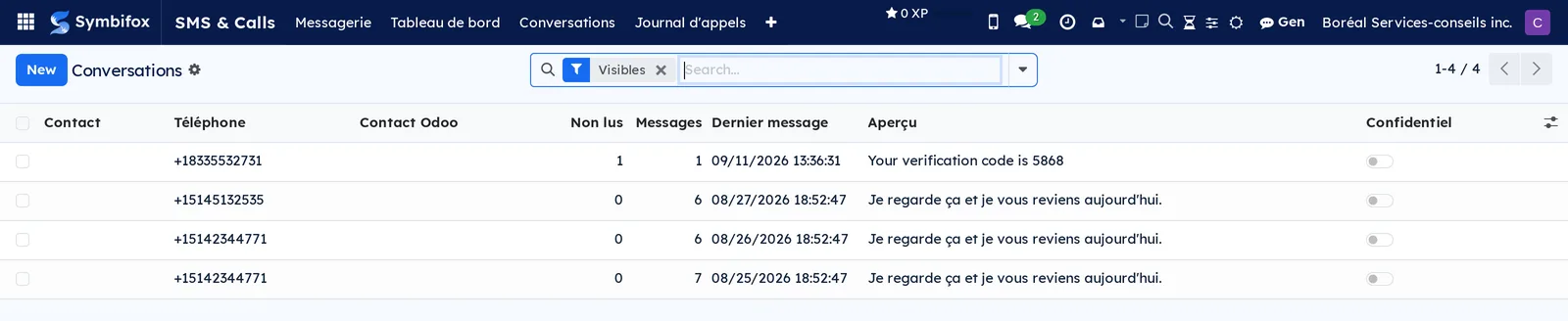
The conversation list is the application's most telling screen: one thread per number, with the message count, the last message received and its preview.
Configuration#
Access and permissions#
Four groups, set on each person's record in Settings › Users.
| Group | What it opens |
|---|---|
| Utilisateur SMS (SMS user) | The SMS & Calls menu and the Messagerie (messaging) screen. The person sees their own conversations, their own calls and their own dashboard. |
| Gestionnaire SMS (SMS manager) | Everything above, plus the Configuration menu (lines, devices, settings) and access to all data for administration. |
| Utilisateur du téléphone (phone user) | The softphone in the top bar, provided the person's record has an extension. |
| Gestionnaire du téléphone (phone manager) | Everything above, plus the phone settings and read access to the extension password. |
Settings#
Two settings pages, both reserved for administrators.
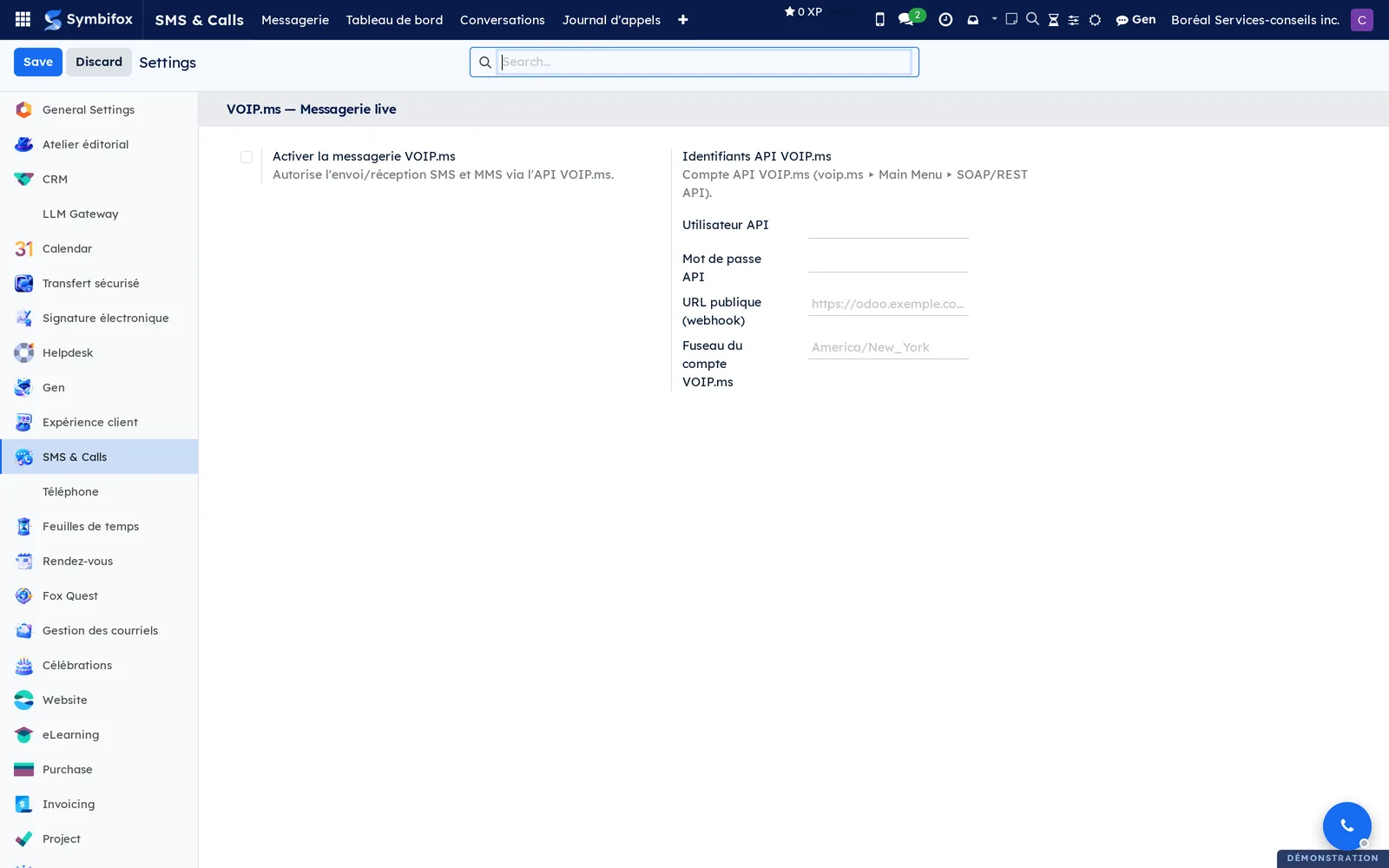
Settings › SMS & Calls holds live messaging. Activer la messagerie VOIP.ms (turn on VOIP.ms messaging) allows sending and receiving. Next come the service account's user name and password (Utilisateur API and Mot de passe API). Then the public address of your Symbifox, without which the provider does not know where to deliver incoming messages. Last, the time zone the provider uses to date its messages. On the demo, messaging is turned off: the conversations you see there come from an import.
Settings › Téléphone (phone) holds the softphone: the phone server's host name and the audio relay service key. Then comes a Composition par le PBX (PBX dialling) block for calls requested from a mobile phone: host, port, user, password, Trunk sortant (outbound trunk), Afficheur sortant (outbound caller ID) and Contexte de composition (dialling context). Tester le lien (test the link) authenticates with the server and disconnects without dialling anything. A last block, Réveil par push (push wake), makes the mobile app ring even when it is closed: tick Activer le réveil (enable wake) and enter the Jeton partagé avec le PBX (token shared with the PBX), the same secret as on the phone server. Without a token, the wake is refused. Turning off text notifications does not turn off the ringing: they are two separate switches.
Base data#
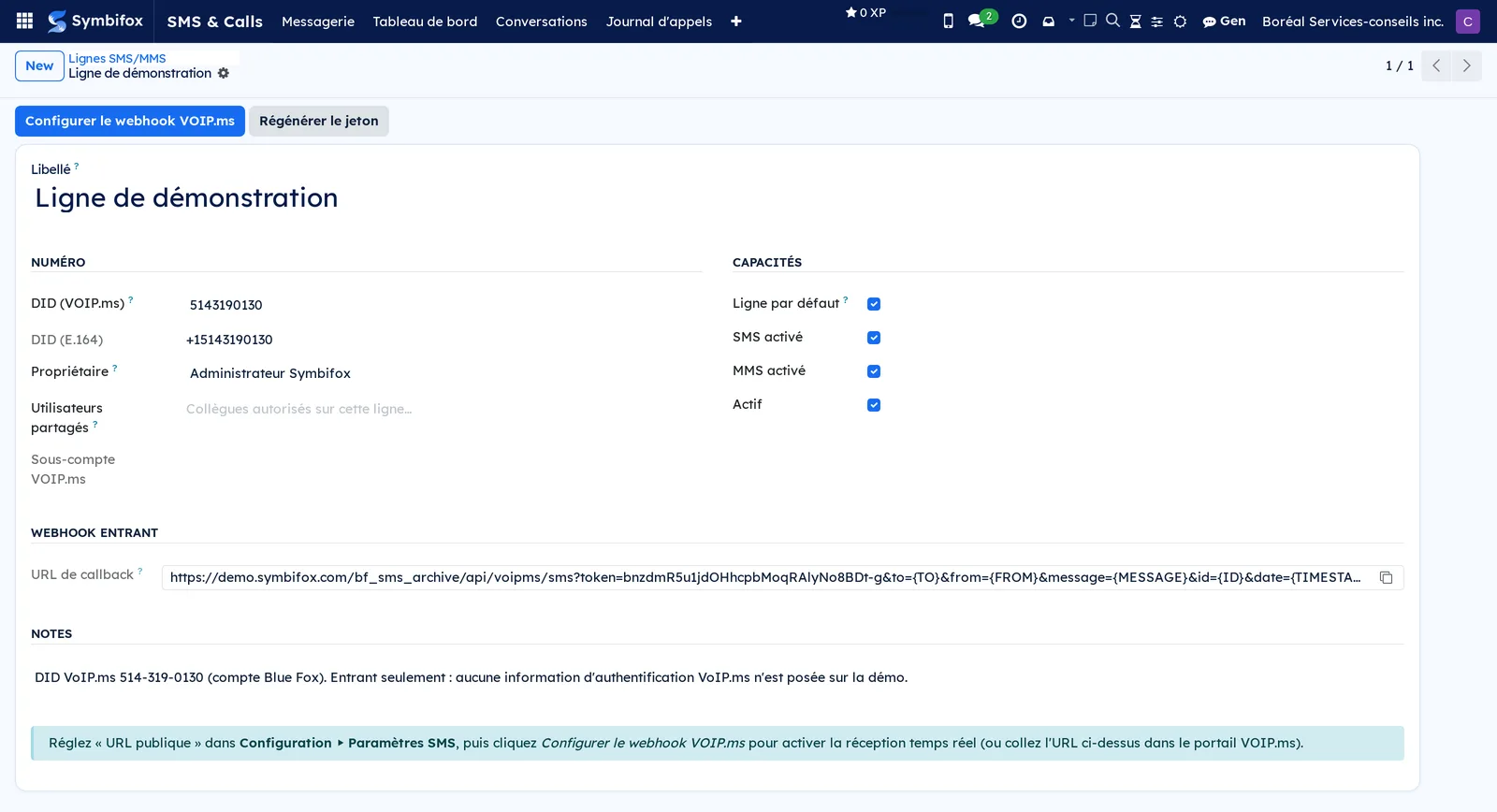
Before you send a first text, you need a line: a number, its owner, and the callback address set at the provider so that incoming messages arrive. The demo contains a single line, named “Ligne de démonstration” (demo line).
To receive the texts and calls of an Android cell phone in real time, register the device in Appareils Android (Android devices): Symbifox generates a token that you enter in the relay app. For the softphone, open the person's record in Settings › Users, Téléphone tab. Enter their Poste SIP (SIP extension) and Mot de passe SIP (SIP password), then check Téléphone activé (phone enabled). The extension must exist on the phone server. The application uses extensions; it does not create them, unless the provisioning module is installed (see Modules that extend this application).
Getting started#
This walkthrough finds a text exchange with a Boréal client and files it in the client's record, without sending anything.
Read the conversation and link it to the client:
- Open SMS & Calls. The dashboard opens.
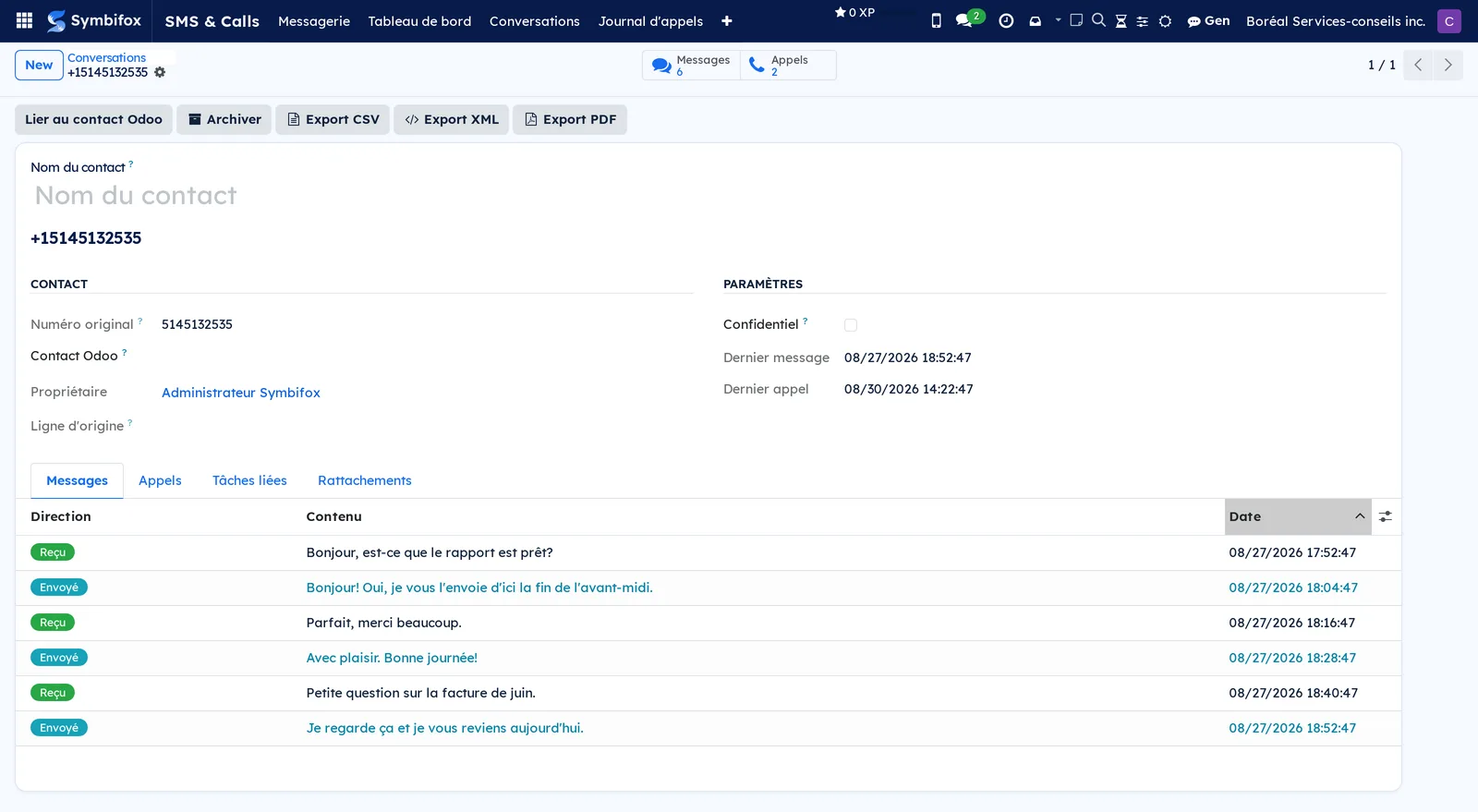
- Open Conversations, then the “+15145132535” thread.
- Read the Messages tab: six alternating messages, each marked Reçu (received) or Envoyé (sent), with its date.
- Open the Appels (calls) tab: the two calls with this number are listed.
- Select Lier au contact Odoo (link to Odoo contact), then choose the client's record. The number is written on that record.
The form brings together both sides of one number, with the shortcut buttons at the top of the form counting messages and calls.
File the exchange in the record:
- Open SMS & Calls › Rechercher (search).
- Check the messages to file.
- Select Actions › Poster sur une fiche (post to a record).
- In Fiche (record), search for the target task or ticket by name.
- Select Poster sur la fiche (post to the record).
A single note, containing all the checked messages, appears in the record's chatter. Each message keeps track of where it was posted.
Common tasks#
Write a text from the messaging screen#
The messaging screen is the everyday workspace: a column of conversations on the left, the exchange on the right.
- Open SMS & Calls › Messagerie.
- Select the compose button at the top of the left column.
- Search for the recipient by name, or enter their number.
- If your organization has several numbers, check the proposed sending line.
- Enter the message, attach an image if needed, then send.
The message appears in the thread with its delivery status. A counter in the top bar flags incoming messages you have not read yet.
Link a conversation to a contact#
A thread without a contact is just a number. Linking it gives it a name everywhere.
- Open the conversation.
- Select Lier au contact Odoo.
- Choose the existing record, or create one from the search.
The name replaces the number in the lists. The number is also written in the record's mobile field, unless the record already has one. In that case nothing is overwritten, and a note in the contact's chatter records the number observed.
Post texts or calls to a record#
This is the action that takes the conversation out of the messaging screen and puts it on file.
- Open SMS & Calls › Rechercher, or Journal d'appels (call log) for calls.
- Check the rows to file.
- Select Actions › Poster sur une fiche.
- In Fiche, search for the destination by name, number or address.
- If the destination is a task, you can also check Lier aussi la(les) conversation(s) à cette tâche (also link the conversations to this task) and Envoyer aussi les prochains messages à cette tâche (also send future messages to this task).
- Select Poster sur la fiche.
A single consolidated note is posted, however many items you checked. The same message can target several records: each one gets its own note. Posting the same selection to the same record again refreshes the link instead of stacking a second one.
Remove a link#
- Open SMS & Calls › Rattachements (links).
- Find the row to undo, then select the cancel action.
The link disappears. The chatter note goes with it, but only if no other link still points to it: a note covering five messages survives until the fifth removal.
Mark a conversation confidential#
Some exchanges should not circulate, even on a shared line.
- Open the conversation.
- Check Confidentiel.
The thread leaves the default lists and the searches, and becomes visible to its owner alone. The conversation list also has a Confidentiel column and a Visibles (visible) filter.
Import an Android backup#
Exports from the SMS Backup & Restore app come in all at once, messages and call logs included.
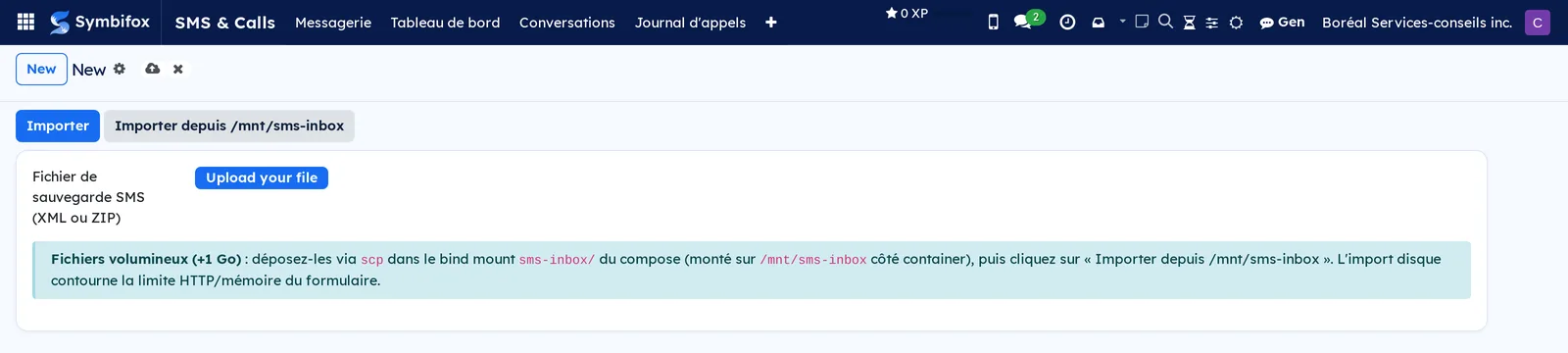
- Open SMS & Calls › Importer (import).
- Select Charger votre fichier (upload your file) and choose the export, in XML or ZIP format.
- Select Importer.
The result appears on the spot: the number of messages and calls created. Symbifox tells a message export from a call export by itself, groups everything by number, and skips what is already in your conversations. The same text received by two people goes in for each of them.
Check the call log#
- Open SMS & Calls › Journal d'appels.
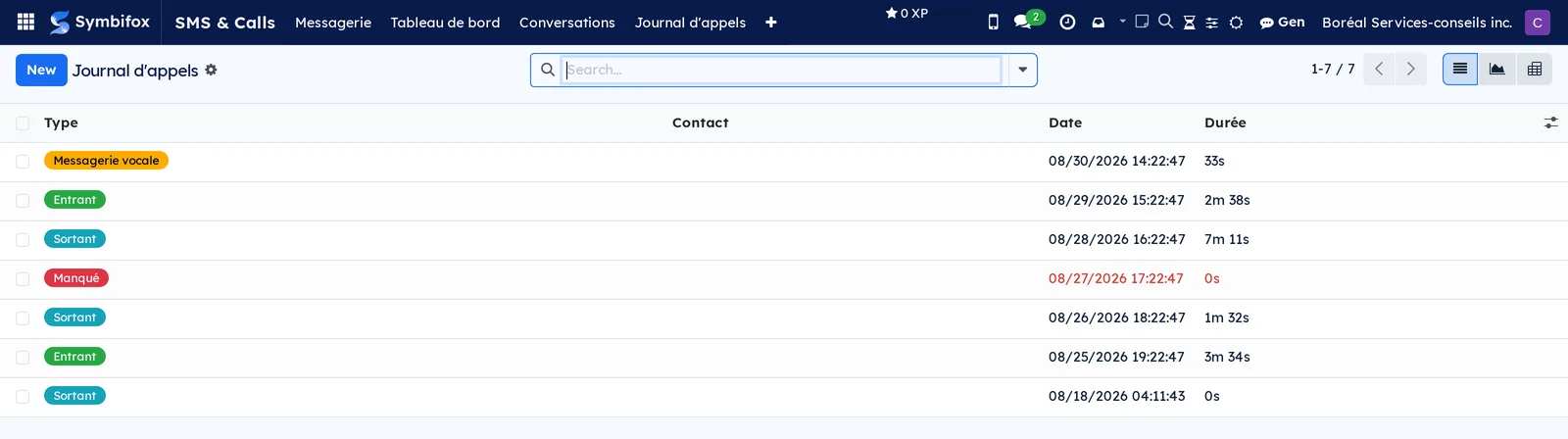
- Read each call's Type: Entrant (incoming), Sortant (outgoing), Manqué (missed), Messagerie vocale (voicemail), Rejeté (rejected) or Bloqué (blocked), each with its own colour.
- To analyze volumes, switch to the graph or pivot view.
Durations are written the way you read them, from “33s” to “7m 11s”. A missed call shows in red, with zero duration. A number that has only exchanged calls does not clutter the messenger: its conversation is created archived, and a new call does not bring it back. When the audio recording exists, the call's record links to the file, which is stored outside Symbifox.
Export a conversation#
Three formats, depending on the use.
- Open the conversation.
- Select Export PDF for a document in your branding, Export CSV for a spreadsheet, or Export XML to take the history elsewhere.
The PDF shows the exchange as speech bubbles, with your company's colours and logo. From the Rechercher list, Actions › Exporter en CSV and Actions › Exporter en XML (export to CSV, export to XML) do the same for a selection of messages.
Archive a conversation#
A closed thread clutters the messaging screen without adding anything.
- Open the conversation.
- Select Archiver (archive).
The thread leaves the current lists. Désarchiver (unarchive) brings it back. Nothing is deleted.
Share a line with a colleague#
Two people sometimes answer the same business number.
- Open SMS & Calls › Configuration › Lignes SMS/MMS (SMS/MMS lines), then the line.
- Add the people in Utilisateurs partagés (shared users).
From then on, they write from this number and read the conversations held on it. They cannot rename the line, change its owner, take over a thread or lift a confidential flag. Threads marked Confidentiel stay invisible to them, and the dashboard counts nothing more for them. If the owner already holds, with a number, a thread the colleague cannot read, the colleague writing from the shared line gets their own thread for that number, without seeing anything of the other. Arrival notifications follow the same boundary: they go out according to the line the message travelled on.
Turn on live reception for a line#
Prerequisite: the public address of your Symbifox is filled in under Settings › SMS & Calls.
- Open the line in Configuration › Lignes SMS/MMS.
- Make sure SMS activé and MMS activé (SMS enabled, MMS enabled) are checked.
- Select the button that sets the callback address at the provider. Otherwise, copy the URL de callback (callback URL) and paste it in the provider's portal.
Incoming texts then arrive in the messaging screen without delay.
Register an Android device#
- Open SMS & Calls › Configuration › Appareils Android, then select New.
- Enter a recognizable name and choose the Propriétaire (owner).
- Enter the generated token in the relay app installed on the device.
The screen then shows the last synchronization and the number of entries received. Régénérer le token (regenerate the token) cuts off access for the previous device. The token is also refused, each time the device sends, while its Propriétaire is archived or only has portal access.
Call from the softphone#
Prerequisite: you belong to the Utilisateur du téléphone group and your record has an extension.
- Select the round call button at the bottom right of the screen.
- Dial the number on the keypad, or search for the person by name.
- Start the call, then mute or hang up from the panel.
An incoming call shows the caller's name and a link to their record. Any phone number displayed in Symbifox can be dialled in one step. Every call goes into the call log. A missed call creates a callback activity if the person left that option checked on their record.
Read the dashboard#
- Open SMS & Calls › Tableau de bord (dashboard).
- Choose the period at the top right: three months, six months, one year, two years, all, or custom dates.
- Select a card to open the matching list.
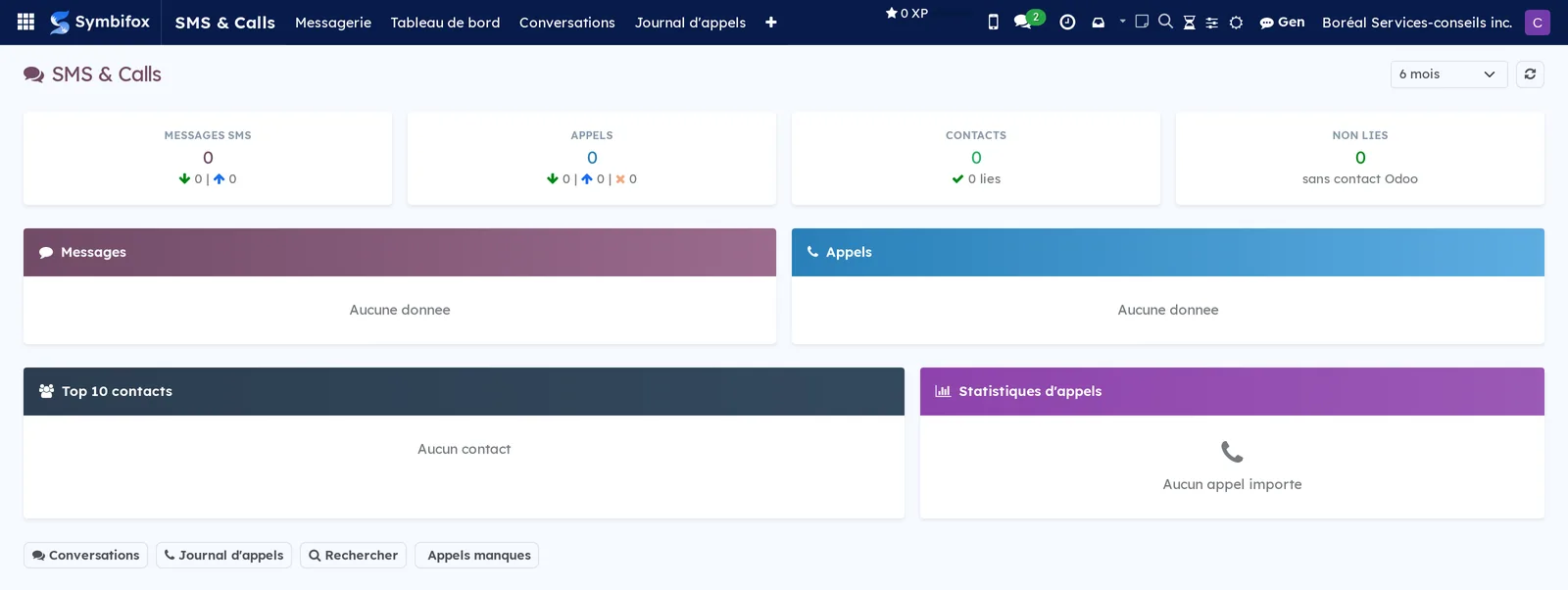
Four cards give the messages, the calls, the linked contacts and the threads without a contact. Below them come the monthly volume, the ten most active contacts and the call statistics: average duration, total talk time, longest call and missed call rate.
The menus, one by one#
SMS & Calls: the main menu, visible from the Utilisateur SMS group up.
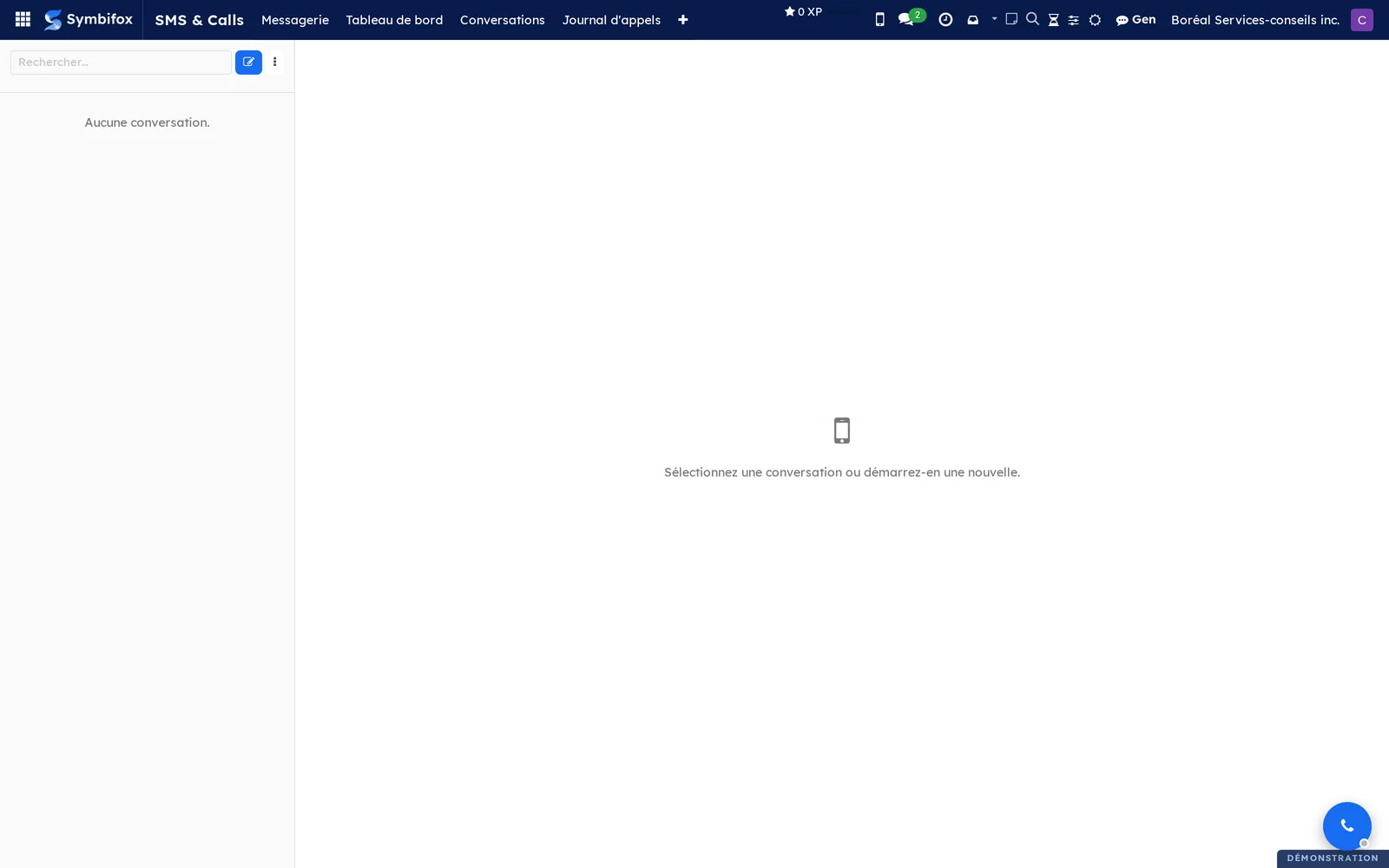
SMS & Calls › Messagerie: the conversation workspace, in two columns. On the left, the search, the compose button and the thread list; on the right, the selected exchange. On the demo, the left column is empty for the capture account and the right panel invites you to select or start a conversation.
SMS & Calls › Tableau de bord: the application's home screen, described in Read the dashboard.
SMS & Calls › Conversations: the thread list, one thread per number, under the Visibles filter. Columns: Contact, Téléphone, Contact Odoo (Odoo contact), Non lus (unread), Messages, Dernier message (last message), Aperçu (preview), Confidentiel. Four threads on the demo. The form opens the Messages, Appels, Tâches liées (linked tasks) and Rattachements tabs.
SMS & Calls › Journal d'appels: the archived calls, as a list (columns Type, Contact, Date, Durée (duration)), with graph and pivot views. Seven calls on the demo, including one missed call and one voicemail.
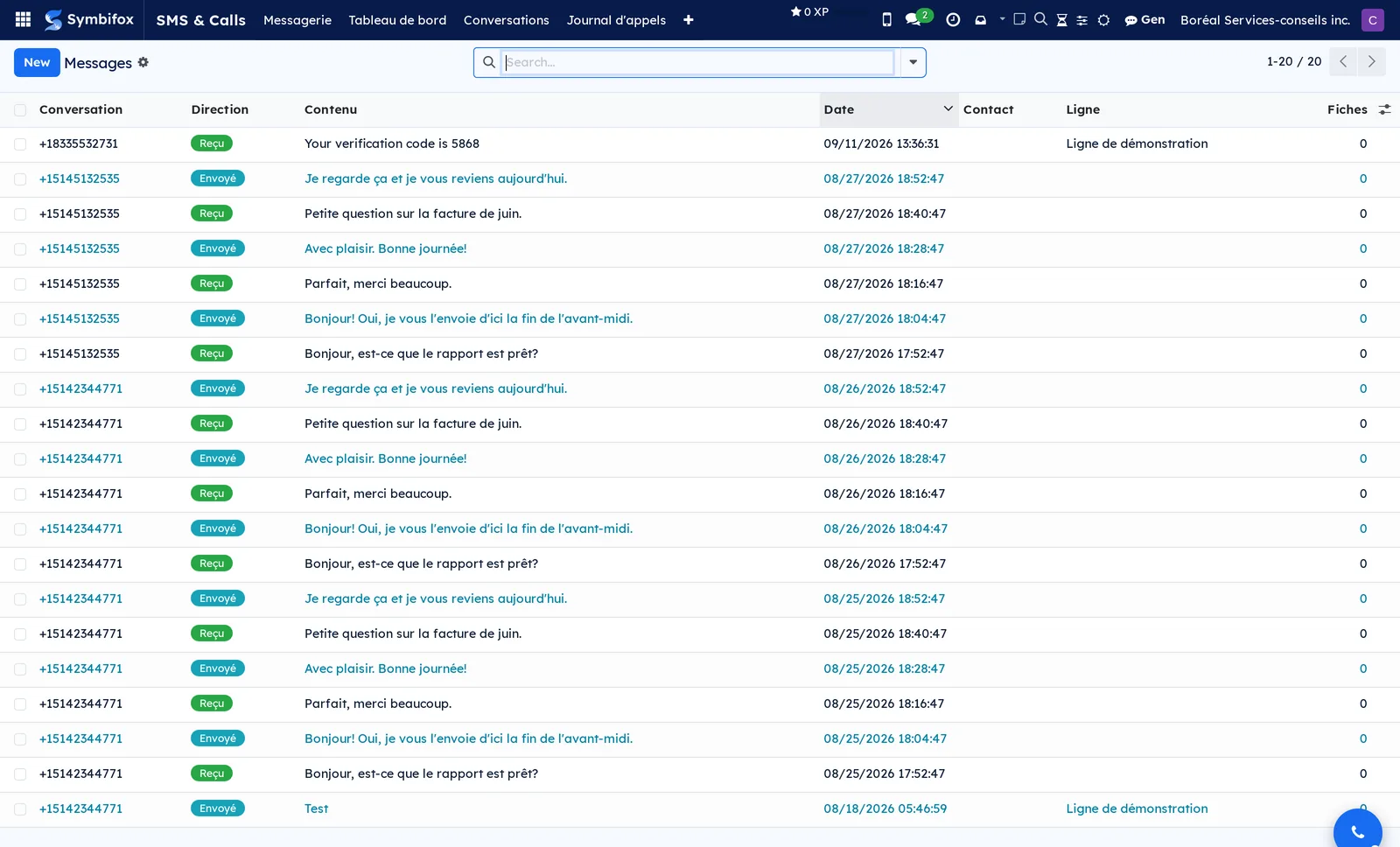
SMS & Calls › Rechercher: all messages, not grouped by thread (columns Conversation, Direction, Contenu (content), Date, Contact, Ligne (line), Fiches (records)). Twenty messages on the demo. This is the screen for full-text search and bulk actions.
SMS & Calls › Rattachements: the list of messages and calls posted to a record, with the target record and the person who posted them. None on the demo; the empty screen explains where a link comes from.
SMS & Calls › Importer: the backup import dialog, described in Import an Android backup.
SMS & Calls › Configuration: grouping menu, reserved for the Gestionnaire SMS group.
SMS & Calls › Configuration › Paramètres SMS (SMS settings): the live messaging settings page, described in Settings.
SMS & Calls › Configuration › Lignes SMS/MMS: the organization's numbers, their owner and their sharing. One line on the demo. The empty screen explains that a line assigns a number to a person.
SMS & Calls › Configuration › Appareils Android: the devices allowed to push messages and calls in real time. None on the demo; the empty screen gives the steps to follow.
Reference#
Fields of the Conversation form#
| Field | Description | Required or default |
|---|---|---|
| Téléphone (E.164) | Normalized number used as the grouping key. | Required |
| Numéro original (original number) | Number as it appeared in the imported file. | Computed |
| Nom du contact (contact name) | Last known name, taken from the device. | Optional |
| Contact Odoo | Contacts record associated with the number. | Optional |
| Propriétaire | Person the conversation belongs to. | Required |
| Ligne d'origine (origin line) | Line on which the thread started; it decides the sharing. | Optional |
| Confidentiel | Reserves the thread to its owner, even on a shared line. | Cleared |
| Épinglé (pinned) | Keeps the thread at the top of the messaging screen. | Cleared |
| Dernier message, Dernier appel, Nombre de messages, Nombre d'appels, Non lus, Aperçu | Activity markers for the thread: last message, last call, message count, call count, unread, preview. | Computed |
| Tâches liées, Suivi dans les tâches (followed in tasks) | Linked tasks, and the tasks that future messages are relayed to. | Optional |
Fields of a message#
| Field | Description | Required or default |
|---|---|---|
| Direction | Reçu, Envoyé or Brouillon (received, sent, draft). | Required |
| Contenu, Date, MMS | Text, time, and whether there are attachments. | Date required |
| Ligne, Envoyé par (sent by) | Number used, and the person who wrote the message on a shared line. | For live messages |
| État de livraison (delivery status) | En file, Envoyé, Échec or Reçu (queued, sent, failed, received), for outgoing messages. | Computed |
| Lu (read), Fiches | Whether an incoming message was read, and the number of target records. | Computed |
Fields of the Ligne SMS/MMS form#
| Field | Description | Required or default |
|---|---|---|
| Libellé (label) | Readable name of the line. | Required |
| DID (VOIP.ms), DID (E.164) | The number, as it appears at the provider and in international format. | The first is required |
| Propriétaire | Person the line's messages are attributed to. | Required |
| Utilisateurs partagés, Partagée (shared) | Colleagues allowed on the line, and the sharing indicator. | Empty |
| Ligne par défaut (default line), SMS activé, MMS activé, Actif (active) | Capabilities and default sending choice. | Checked on the demo |
| URL de callback, Jeton (token) | Delivery address for incoming messages, and its secret. | Generated at creation |
| Sous-compte VOIP.ms (VOIP.ms sub-account), Notes | Administration markers. | Optional |
Fields of the Téléphone tab on a user record#
| Field | Description | Required or default |
|---|---|---|
| Poste SIP | Extension number registered on the phone server. | Optional |
| Mot de passe SIP | Extension secret, encrypted at rest; leave it empty to keep it unchanged. | Optional |
| Téléphone activé | Shows the softphone for this person. | Cleared |
| Créer une activité sur appel manqué (create an activity on missed call) | Raises a callback activity after an unanswered call. | Checked |
| Numéro de rappel (callback number) | Number the server rings for a call requested from the mobile app. | Empty; the record's mobile number is then used |
Reports and exports#
- Conversation SMS (PDF) (SMS conversation): the complete exchange of a thread, as bubbles, with your company's colours and logo, image attachments included.
- SMS sélectionnés (PDF) (selected SMS): the same layout for a selection made in Rechercher.
- Export CSV: date, direction, contact, text and whether there is an attachment.
- Export XML: the Android backup format, to take the history elsewhere.
- Any list can be exported with Actions › Export (see Common actions in every application).
Automations#
- Every ten minutes, backup files placed in the server's inbox folder are imported, without going through the browser.
- Every fifteen minutes, a watched Nextcloud folder is checked the same way (see Nextcloud and Collabora).
- A safety net can reread recent messages at the provider every two minutes and reconcile anything missing. It is inactive by default and never creates duplicates.
- After an import, threads whose number matches an existing record link to it by themselves.
- A message that arrives in a followed conversation is relayed to the chatter of each followed task. An archived task is skipped without being removed from the list.
- Archiving a person immediately cuts off their paired phones: the server refuses the mobile app, which erases the data it keeps. A phone that has not reached the server for thirty days, a setting the administration can change, erases its own data. The Android relay phone token of a person who is archived, or moved to portal access, is refused too for as long as that lasts.
- Every thirty minutes, calls placed to the targets of an outreach campaign become interactions (see Modules that extend this application).
Public pages and portal#
No page is visited by clients. There are only two service addresses: one for messages from the provider, the other for messages from an authorized Android device. Both require the secret generated by Symbifox. The mobile app pairs through a regular session, after a consent page that shows the account, the device and the access requested, where nothing happens without Allow. It then receives its notifications, encrypted, through browser or device push (see Mobile apps and browser extension).
Modules that extend this application#
The softphone is the first addition: it turns the top bar into a handset.
The second saves you from creating extensions by hand, one at a time.
The third connects the phone to outreach campaigns.
Understanding#
Data belongs to someone. A text with a client looks like a business email, but it arrives on a personal device and quickly touches private life. Hence the choice to assign each line and each conversation to a person rather than to a common pool. Sharing a line is the only door. It is explicit, and it stops at what went through the shared number. The dashboard follows the same rule: showing a colleague the volume of messages they may not read would amount to describing those messages.
One message can live in several places. A complaint received by text sometimes concerns a task, a ticket and a client record. Rather than choosing, the application records one link per destination, each with its own note. Undoing a link removes the note only when nothing else points to it. Otherwise, one removal would erase the context of four other messages.
Nothing comes in twice. Each message and each call carries a fingerprint computed from the number, the date and the content. Reimporting the same backup produces no duplicates, so importing again is harmless when in doubt. Conversely, the Envoyé status does not prove receipt: it says the provider accepted the message, and the phone network offers nothing better.
The softphone uses extensions. It plugs into an existing phone server; it does not configure that server, unless you install the provisioning module. Calls requested from a mobile go through the server, which first rings the device and then dials the other party. That is what lets you call a client from any phone without showing your personal number. In return, the server does not report the duration of these calls. Emergency numbers stay outside this path, because the address tied to the business number is the office's.
Troubleshooting#
| Symptom | Likely cause | Fix |
|---|---|---|
| The Messagerie is empty although conversations exist. | The threads belong to someone else, or to a line that is not shared with you. | Ask the owner to add you to the line's Utilisateurs partagés. |
| A sent text stays at Échec (failed). | Messaging not turned on, service account credentials missing, or line inactive. | Check Settings › SMS & Calls, then SMS activé on the line. |
| Incoming texts never arrive. | The callback address is not set at the provider, or the public address is missing from the settings. | Enter the public address, then set the callback address again from the line's record. |
| The dashboard shows zeros. | It counts only your own exchanges, over the chosen period. | Widen the period. To see everything, go through the Gestionnaire SMS group. |
| The import stops on a large file. | Uploading through the browser has a size limit. | Have the file placed in the server's inbox folder, then run the disk import. |
| The call button does not appear. | The Utilisateur du téléphone group is missing, or Téléphone activé is cleared on the record. | Have the group added, then fill in the Téléphone tab of the record. |
| The phone stays red and does not register. | Wrong extension or password, or the extension does not exist on the phone server. | Have a phone manager check the Poste SIP. |
| A call placed from the mobile app is logged with zero duration. | The phone server does not report the duration of calls it sets up itself. | No fix: the record of the request is the only information available. |
See also#
- Contacts: the records that numbers attach to.
- Project and Helpdesk (tickets): the files where messages and calls are posted.
- Outreach: the campaigns that turn your calls into interactions.
- Discuss and Email: the two other conversation channels.
- Mobile apps and browser extension, Nextcloud and Collabora, Common actions in every application.