

Part 3 · Projects, time and knowledge
Hour bank
Sell prepaid blocks of hours or bill hours after the fact, track their use through timesheets, draft the invoice from the bank, get alerted before they run out, and show the balance to the client.
Watch it
The Banque d'heures (hour bank) application keeps count of hour packages sold in advance. It is for people who manage recurring mandates and bill in blocks rather than monthly: a client buys ten, twenty or forty hours, the team uses them, and the balance calculates itself. The concrete result is an accurate balance at all times, a report ready to send, and an alert before the package runs dry. The client, for their part, checks their remaining hours in their client portal, without writing to anyone. The same record also serves accounts billed after the fact, and it drafts the invoice itself: the right hours, at the client's rate, as a draft to review.
Overview#
An hour bank is one record per client, not an accounting account. It says which projects draw on the package, which invoices top it up, and what the balance is right now.
The calculation fits in one sentence: the balance is the sum of credits and adjustments, minus the sum of debits.
| Movement | Where it comes from |
|---|---|
| Debit | Each timesheet line entered on one of the included projects. |
| Credit | Each posted customer invoice line, filtered by company, by billing partner and by product. |
| Adjustment | A manual entry, positive or negative, for what the other two miss: a goodwill credit, a correction, a discount. |
The home screen is the list of banks, one per client, with their balance.

Boréal keeps four. Three are prepaid packages, for Clinique dentaire Rosemont, Métallurgie Beauce-Sud and Papeterie Trois-Rivières, and their balance is positive: purchased hours remain. The fourth, for Groupe immobilier Vaudreuil, is a post-paid account: its negative balance, minus 209.75 hours, is what the client owes for the current month, and it is what the generated invoice proposes.
The application depends on two others: debits come from Timesheets, credits from Invoicing. It changes neither: it only reads them.
Configuration#
Access and permissions#
This application has no access level of its own. It uses the Project level, on the line of the same name in the user form.
| Level | What it opens |
|---|---|
| Project, User | View the hour banks and their balance. |
| Project, Administrator | Create and edit banks, enter adjustments, produce and send reports, set up alert thresholds. |
| Portal | A client sees their own bank in their client portal, and nothing else. |
The Générer la facture (generate the invoice) button also requires the right to invoice: the Billing level of Accounting, or higher. Someone with that right who is not a Project administrator can generate a bank's invoice, even though they cannot edit the bank itself.
The client is recognized by their commercial contact: a person linked to a company sees that company's bank.
Settings#
There is no general configuration screen. Everything is set on each bank, in the five tabs of its form. Two background tasks run on their own; the reference describes them.
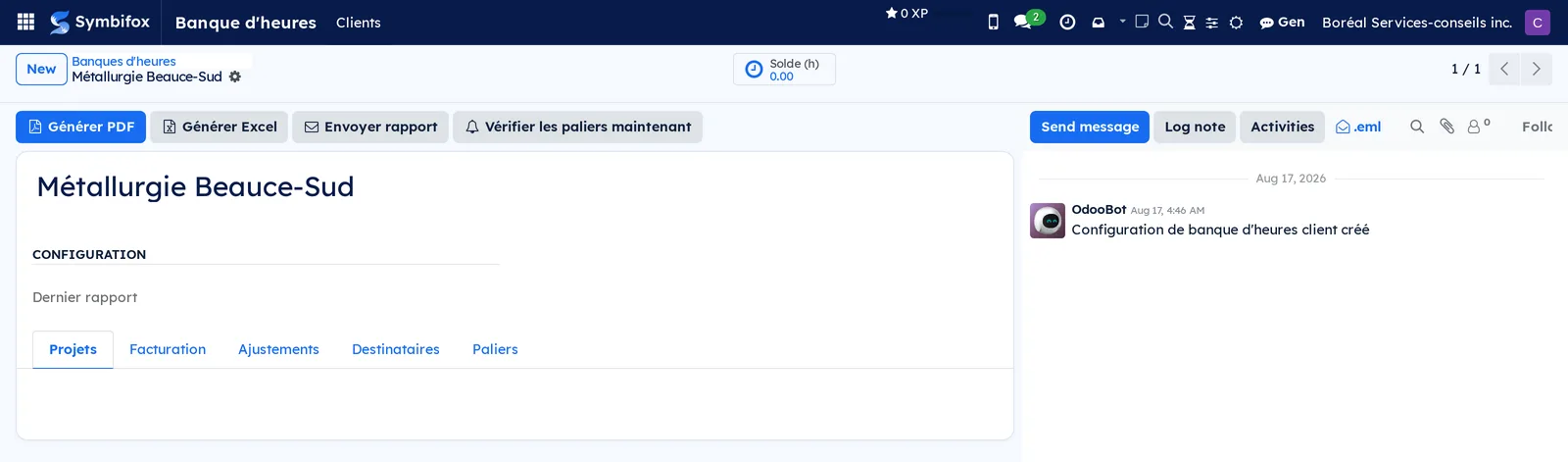
| Tab | What you set there |
|---|---|
| Projets (projects) | The projects whose hours draw on the package. Without a project, the balance stays at zero. |
| Facturation (invoicing) | What counts as a credit: company filter, billing partners, product filter, invoices added by hand. Then, under Facture générée depuis la banque (invoice generated from the bank), how the invoice is drafted: the mode, the block, the product, the rate and the split by project. |
| Ajustements (adjustments) | Manual entries, plus or minus. |
| Destinataires (recipients) | The people who receive the report, and how often it is sent automatically. |
| Paliers (thresholds) | The thresholds that trigger an alert, and who it goes to. |
Base data#
Before creating a bank, gather:
- the client's contact, with their email address;
- the mandate's projects, which accept hours (see Project);
- the product or products used to bill blocks of hours, if you plan to filter credits by product;
- the people the report and the alerts must go to.
Getting started#
This walkthrough opens a bank for a Boréal client and produces a first report from it.
- Open Banque d'heures › Clients. Boréal's four banks are displayed.
- Select New, then choose Métallurgie Beauce-Sud in Client.
- In the Projets tab, add this client's managed services mandate.
- In the Destinataires tab, add the person at the client who receives the report.
- Select Save. The Solde (h) (balance, in hours) shortcut button at the top of the form immediately shows the calculated balance.
- Select Générer PDF (generate PDF).
Result: a report downloads, in Boréal's colours, with the detail of movements from newest to oldest, the summary by project and the monthly overview. The balance at the top of the document is the one on the shortcut button.
Common tasks#
Create an hour bank for a client#
One bank per client is enough, even if the client has several mandates: the included projects define what gets used.
- Go to Banque d'heures › Clients.
- Select New.
- Choose the Client.
- In the Projets tab, add the projects whose hours draw on the package.
- In the Destinataires tab, add the people who will receive the report.
- Select Save.
Result: the bank appears in the list with its balance. Until a project is linked, the balance stays at 0.00 hours.
Choose the invoices that top up the package#
By default, all the client's posted invoices credit the bank. Three filters, independent of each other, narrow this count.
- Open the bank and go to the Facturation tab.
- In Filtre sociétés (company filter), keep all companies, or choose the ones to include, or the ones to exclude.
- In Partenaires de facturation (billing partners), name the contacts invoices are issued to, if they are not issued to the commercial contact.
- In Filtre produits (product filter), keep all lines, or limit the credit to hour block products, or exclude certain products.
- In Factures additionnelles (additional invoices), add by hand an invoice that no filter catches.
- Select Save.
Result: the balance recalculates at once. The report now shows only the invoices kept, each with its number and its hours.
Set up the invoice generated from the bank#
These settings are the defaults of the Générer la facture wizard. You set them once per bank.
- Open the bank and go to the Facturation tab, group Facture générée depuis la banque.
- In Mode de facturation (billing mode), choose Postpayé : facturer les heures consommées (post-paid, bill the hours used) for an account billed after the fact, or Prépayé : facturer une tranche d'heures (prepaid, bill a block of hours) for a package sold in advance.
- For prepaid, enter the Tranche (h) (block): the number of hours sold at each renewal.
- Choose the Produit facturé (invoiced product). The list only offers the products the bank counts as credit, according to the Filtre produits (product filter).
- Enter the client's Taux horaire (hourly rate), if it is not already filled in.
- For post-paid, tick Ventiler par projet (split by project) if the client wants one line per project rather than a single line for the period.
- Select Save.
Result: the bank is ready to draft its invoice. After the module update, the product and rate of existing banks were taken from their last counted invoice, when it was an hourly product; the mode, for its part, is post-paid everywhere until you change it.
Generate a bank's invoice#
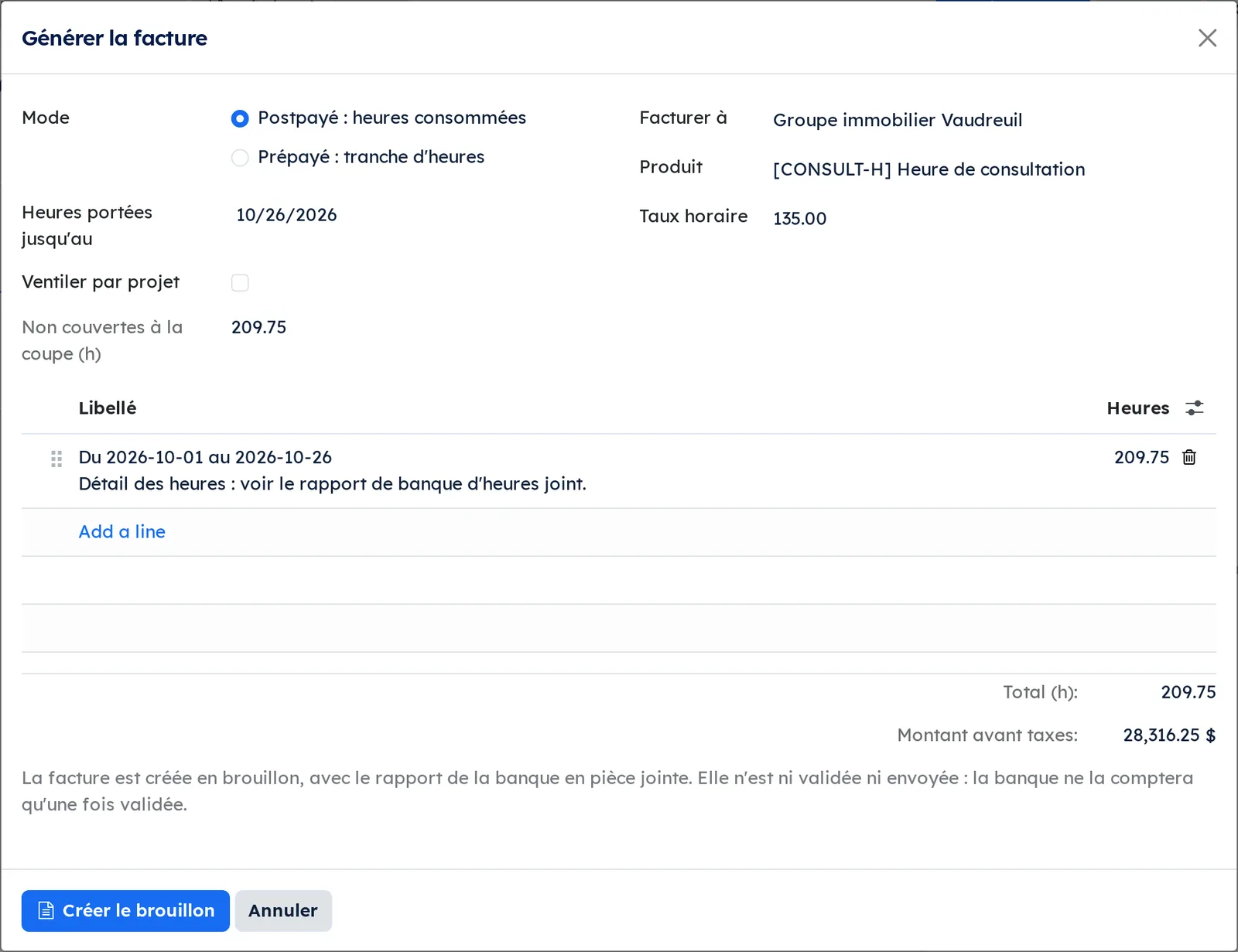
The wizard works out the hours to bill and drafts an invoice. It posts nothing and sends nothing.
- Open the bank and select Générer la facture.
- Check the Mode proposed by the bank.
- For post-paid, adjust Heures portées jusqu'au (hours logged up to) if needed: only the hours entered up to that date count.
- For prepaid, adjust the Tranche (h) if needed.
- Check Facturer à (bill to), the Produit (product) and the Taux horaire, prefilled from the bank and its last invoice.
- Review the lines: change a Libellé (label) or the Heures (hours), tick or untick Ventiler par projet.
- Select Créer le brouillon (create the draft).
Result: the draft invoice opens on screen, with the bank's report attached, and a note in the bank's discussion thread records it. Review it, post it and send it yourself from Invoicing. On the demo, the Groupe immobilier Vaudreuil bank proposes 209.75 hours at $135, or $28,316.25 before taxes.
Add a manual adjustment#
An adjustment corrects what neither the hours nor the invoices say: a goodwill credit, an old entry error, a transfer between mandates.
- Open the bank and go to the Ajustements tab.
- Select Add a line.
- Enter the Date.
- Enter the Heures (hours): a positive value credits, a negative value debits.
- Enter the Description, which will appear as is in the report and on the portal.
- Select Save.
Result: the balance moves by the amount entered. The line takes its place in the report detail, with the adjustment label in place of the project.
Produce a bank's report#
Two formats come out of the same calculation: a document to send and a workbook to analyze.
- Open the bank.
- Select Générer PDF for the document.
- Or select Générer Excel (generate Excel) for the workbook.
Result: the file downloads. The document shows the detail of movements from newest to oldest, with credits in green, then the summary by project and the monthly overview. The workbook has four sheets: timesheets, summary by project, monthly overview and what remains to be invoiced.
Send the report by email#
Sending assembles the document, the workbook and an email in the company's colours, in a single action.
- Open the bank and select Envoyer rapport (send report). The dialog opens with the recipients already filled in.
- Add or remove Destinataires.
- Adjust the Sujet (subject) and the Corps du message (message body).
- Optional: select Prévisualiser PDF (preview PDF) to reread the document before sending.
- Select Envoyer (send).
Result: the email goes out with the document and the workbook attached, and the Dernier rapport (last report) date updates on the record. The sending is logged in the bank's chatter, the message thread at the bottom of the form.
The email speaks for your company: its name, logo, website and colours. Its footer carries the tagline entered in Tagline de marque (courriels) (brand tagline for emails) and only the links the company has declared, Lien politique de confidentialité (courriels) (privacy policy link) and Lien conditions (courriels) (terms link) (see Settings and brand identity). A link that is not declared does not appear: no link is made up from the website.
Schedule automatic sending#
When the rhythm is steady, sending happens on its own and you no longer have to think about it.
- Open the bank and go to the Destinataires tab.
- Check that the recipients are the right ones.
- Check Envoi automatique (automatic sending).
- Choose the Fréquence d'envoi (sending frequency): weekly, every two weeks or monthly.
- Select Save.
Result: the Auto column is checked in the list of banks. The automatic email is signed with the company's name. Sending goes out on Monday for the weekly rhythm, every other Monday for the two-week rhythm, and on the first day of the month for the monthly rhythm.
Set a threshold alert#
The alert warns you before the package runs dry, so the top-up arrives in time. Three modes exist, and they are mutually exclusive.
- Open the bank and go to the Paliers tab.
- In Mode de palier (threshold mode), choose Heures non facturées (unbilled hours), % du budget alloué (percentage of allocated budget) or Solde résiduel sous seuil (remaining balance below threshold).
- For the percentage mode, enter the Budget alloué (h) (allocated budget, in hours).
- In Paliers à surveiller (thresholds to watch), add one line per threshold, with its value and its Libellé (label).
- Optional: name Destinataires des alertes (alert recipients) other than the report's.
- Leave Notifier les followers internes (notify internal followers) checked so the team is notified too.
- Select Save, then Vérifier les paliers maintenant (check thresholds now).
Result: a message tells you how many thresholds just triggered. Each trigger sends an email with the workbook attached, signed with the company's name, and leaves a trace in the history.
Review alerts already sent#
The history says what was sent, when, to whom and on which measure.
- Open the bank.
- Select the Alertes envoyées (alerts sent) shortcut button at the top of the form.
- Open a line to see the mode, the threshold value, the measured value, the recipients and the attached workbook.
Result: the list of sendings, which you can filter by mode and by bank. Nothing can be changed there: it is a trace, not a draft.
Let the client track their balance#
The client has nothing to ask for: their balance is in their client portal, with the detail and both files.
- Make sure the client's contact has portal access (see Contacts).
- Ask them to open their client portal.
- They select the Banque d'heures card, then their bank.
Result: they see the balance, the table of movements and the summary by project, and they download the document or the workbook themselves. They see only their own company's bank.
The menus, one by one#
Banque d'heures: a grouping menu, which carries the application's name and opens no screen.
Banque d'heures › Clients: the list of banks, one per client, with the columns Client, Solde (h), Auto and Dernier rapport. Boréal has four. The search filters on the client and separates active records from archived ones. This is the application's home screen, shown in the Overview; a bank's form opens when you select its line.
The alert history has no menu entry: you reach it through the Alertes envoyées shortcut button on a bank's form.
Reference#
Fields of the hour bank form#
| Field | Description | Required or default |
|---|---|---|
| Nom (name) | The record's title. | Empty; the client's name then identifies it |
| Client | The client whose package is tracked. | Required |
| Projets inclus (included projects) | The projects whose hours draw on the package. | Empty; without a project, no debit |
| Filtre sociétés, Sociétés (companies) | Restricts crediting invoices to certain companies, or excludes them. | All companies |
| Partenaires de facturation | The contacts invoices are issued to, if not the commercial contact. | Empty |
| Filtre produits, Produits (products) | Restricts the credit to certain invoice lines, or excludes them. | All lines |
| Factures additionnelles | Invoices added by hand to the credit calculation. | Empty |
| Mode de facturation | Post-paid, the hours used, or prepaid, a block of hours. Default for the wizard. | Post-paid |
| Tranche (h) | The hours billed at each renewal, for prepaid. | Empty |
| Produit facturé | The product of the generated invoice lines. Only products the bank counts are accepted. | Empty; taken from the last counted invoice on update |
| Taux horaire | The unit price of the generated lines, never the catalogue price. | Empty; taken from the last counted invoice on update |
| Ventiler par projet | One line per project rather than a single line for the period. Can be changed in the wizard. | Unticked |
| Ajustements manuels (manual adjustments) | Positive or negative entries outside hours and invoices. | Empty |
| Destinataires du rapport (report recipients) | The people who receive the periodic report. | Empty |
| Envoi automatique | Turns on periodic sending of the report. | Cleared |
| Fréquence d'envoi | Weekly, every two weeks or monthly. | Weekly |
| Solde actuel (current balance) | The calculated balance, also shown as a shortcut button. | Computed |
| Dernier rapport | Date and time of the last sending. | Empty |
| Mode de palier | The chosen alert mode, or none. | Désactivé (deactivated) |
| Budget alloué (h) | The reference for the percentage mode. Changing this value re-arms all thresholds. | Empty |
| Destinataires des alertes | Recipients specific to alerts. | Empty; the report recipients are then used |
| Notifier les followers internes | Also posts the alert in the chatter, for the team. | Checked |
Fields of a notification threshold#
| Field | Description | Required or default |
|---|---|---|
| Seuil (threshold) | Hours for the Heures non facturées and Solde résiduel sous seuil modes, a percentage from 0 to 100 for the % du budget alloué mode. A negative value sets the threshold below zero, which is useful on a postpaid account. | Required; zero is refused |
| Libellé | The text that identifies the threshold in the alert and in the history. | Empty |
| Armé (armed) | Shows that the threshold is ready to trigger. | Computed |
| Dernier déclenchement (last triggered) | Date and time of this threshold's last sending. | Empty |
Fields of the Envoyer rapport dialog#
| Field | Description | Required or default |
|---|---|---|
| Banque d'heures | The record the report comes from. | Taken from the open record |
| Destinataires | The people the email is addressed to. | The report recipients |
| Sujet | The email's subject line. | Filled in from the client's name |
| Corps du message | The text of the email, which you can edit before sending. | Filled in by the email template |
Fields of the Générer la facture wizard#
| Field | Description | Required or default |
|---|---|---|
| Mode | Post-paid, the hours used, or prepaid, a block of hours. | The bank's mode |
| Heures portées jusqu'au | For post-paid, the cut-off date: hours entered after it do not count. | Today |
| Tranche (h) | For prepaid, the hours of the single line. | The bank's block |
| Ventiler par projet | For post-paid, one line per project or a single line. | The bank's setting |
| Facturer à | The invoice contact. Only contacts the bank counts are offered. | The contact of the last counted invoice, else the client |
| Produit | The product of the lines. | The bank's product, else that of the last counted invoice |
| Taux horaire | The unit price. | The bank's rate, else that of the last counted invoice on this product |
| Non couvertes à la coupe (h) | The hours that neither posted invoices nor adjustments cover, at the cut-off date. | Computed |
| Déjà en brouillon (h) | The hours already in a draft the bank will count; they are taken off the lines. | Computed; shown when there are any |
| Libellé, Heures | The text and quantity of each line, editable. The product name is added to the label on the invoice. | Computed |
| Total (h), Montant avant taxes | The total of the lines and its amount at the rate entered. | Computed |
Fields of a manual adjustment#
| Field | Description | Required or default |
|---|---|---|
| Date | The date under which the adjustment is placed in the detail. | Today |
| Heures | Positive to credit, negative to debit. | Required |
| Description | The label shown in the report and on the portal. | Required |
Reports and exports#
- État des banques d'heures (hour bank statement): the printable document, in the company's colours, with the detail of movements, the credits in green, the summary by project and the monthly overview. Its columns are the date, the hours, the running balance, the description, the project and the task. Hours are written with the decimal separator of the client's language (16,20 in French), and the Dernière mise à jour (last update) is dated in the client's time, without seconds: the time zone on their record, else the default time zone, never that of the person who sends it.
- Workbook: four sheets, namely the timesheets, the summary by project, the monthly overview and what remains to be invoiced.
- You can get both files from the form's buttons as well as from the sending email, and the client downloads them from their portal.
Automations#
- Report sending: one check per day. The banks sent are those whose automatic sending is checked and whose rhythm falls on that day: Monday for weekly, every other Monday for the two-week rhythm, the first of the month for monthly.
- Threshold check: also once a day, a little later. For each bank whose mode is not deactivated, each armed threshold whose measure reaches its value sends its alert, with the workbook attached.
- Re-arming: a threshold does not trigger again until the situation has changed. A new posted invoice re-arms the unbilled hours mode, a budget change re-arms the percentage mode, and the balance rising back above the threshold re-arms the balance mode.
- Installing or updating the module sends nothing: the threshold mode is deactivated by default on all banks.
- The generated invoice is never posted or sent automatically: it stays a draft until you act.
Public pages and portal#
- A client signed in to their portal sees the Banque d'heures card and, behind it, the list of their banks.
- The detail page shows the balance, the table of movements and the summary by project, with hours written in the client's language and the last update time without seconds.
- Two download links provide the document and the workbook, in the same version as yours.
- None of these pages is public: they require a portal account linked to the right client.
Modules that extend this application#
Understanding#
The balance is not a bank account. Nothing is debited or credited anywhere: the figure is recalculated at every display from the hours, the invoices and the adjustments. Correcting a timesheet from three weeks ago therefore changes today's balance. That is intended: the balance tells the truth of the moment, not the history of an entry.
Hours debit, invoices credit. Logging time bills nothing, and invoicing a block uses nothing. That separation keeps the tracking honest. An invoice raises the balance on the day it is posted, not the day it is paid, and an hour entered lowers it on the day of the work.
A prepaid package and a postpaid account are two uses of the same tool. With a package, the client buys in advance; the balance starts from a positive number and goes down. With a postpaid account, the client buys nothing in advance; hours accumulate as debt and each invoice brings the balance back toward zero. In that second case, a threshold set below zero, for example at minus twelve hours, alerts when the debt exceeds twelve hours, and re-arms at the next invoice. The alert then speaks of debt, and that is the word the client reads in the email subject.
Why a below-zero threshold beats unbilled hours. The unbilled hours mode counts only from the last posted invoice. Hours that an invoice did not cover therefore fall out of the measure, and the alert arrives late by that remainder. The balance threshold, on the other hand, starts from the real balance.
A draft does not count yet. The bank only credits an invoice once it is posted. An invoice generated and left as a draft therefore does not change the balance: that is why the wizard itself deducts the hours of the bank's drafts, so it never proposes the same hours twice.
The hours billed are the most recent ones. Credits, posted invoices, positive adjustments, then drafts, cover the oldest hours first. What is left to bill, and its split by project, therefore comes from the most recent hours. A negative timesheet correction gives its hours back to the calculation, like a credit.
A threshold only speaks up once. As long as nothing changes in the situation that caused the alert, it does not go out again. That is what spares you the same warning every morning. The flip side is that a threshold armed at the wrong time stays silent until the next re-arming: the manual check is there precisely to get ahead of it.
A trace, not an editable log. Each alert leaves a record with the mode, the threshold, the measured value, the recipients and the attached file. Nothing can be deleted or corrected there, so that the question “why wasn't I warned?” always has an answer you can verify.
Troubleshooting#
| Symptom | Likely cause | Fix |
|---|---|---|
| The balance stays at 0.00 even though the team entered hours. | No project is linked in the Projets tab. | Add the mandate's projects, then reopen the record. |
| An invoice does not appear as a credit. | It is not posted, or a company, partner or product filter excludes it. | Post the invoice, widen the filters in the Facturation tab, or add it in Factures additionnelles. |
| The automatic report never went out. | Envoi automatique is cleared, or no recipient is named. | Check the box, choose the frequency and add at least one recipient. |
| No alert goes out despite a low balance. | The threshold mode is still deactivated, or the threshold has not been re-armed since it last triggered. | Choose a mode, then select Vérifier les paliers maintenant to see what triggers. |
| A burst of alerts goes out at once. | Several thresholds already crossed were activated at the same time. | Deactivate the lines and reactivate them one by one, or let the first wave pass. |
| A threshold refuses to save with the value zero. | Zero is refused, so that a line saved by mistake does not alert at the first empty balance. | Enter a value: positive for a floor above zero, negative for a postpaid account. |
| The email footer has neither a privacy link nor terms. | The company has declared neither link. | Enter Lien politique de confidentialité (courriels) and Lien conditions (courriels) in the settings. |
| The Générer la facture button does not appear. | You lack the right to invoice. | Ask for the Billing level of Accounting. |
| The wizard proposes zero hours, and Créer le brouillon says there is nothing to bill. | All hours up to the cut-off date are covered, or already in a draft. | Move the cut-off date, or post or delete the draft named in the banner. |
| The chosen product is refused. | The bank's Filtre produits does not count it: the posted invoice would not reduce the balance. | Choose a product from the filter, or add it to the filter. |
| The generated invoice did not reduce the balance. | It is still a draft. | Post it in Invoicing. |
| The client does not see their bank in their portal. | Their contact has no portal access, or is not linked to the right company. | Create the portal access and check the link in Contacts. |
See also#
- Timesheets: the hours that draw on the package.
- Invoicing: the invoices that top it up.
- Project: the projects included in a bank and turning on time tracking.
- Contacts: portal access for clients who check their balance.
- Settings and brand identity: the logo and colours of the reports.