
Part 4 · Finance
Purchase
Request a price, place a purchase order, follow the receipt and create the vendor bill without retyping a single line.
The Purchase application keeps track of what you order from vendors, from the request for quotation to the bill. It is for the person who orders equipment, licences or subcontracting, and for the person who approves the expense before it commits the organization. What you get: a single document that goes through approval, receipt and billing, without the amount being retyped three times. No Symbifox module is added to it: it is the Odoo application, as is.
Overview#
A purchase always follows the same document. It is called a request for quotation (RFQ) until it is accepted, then a purchase order once confirmed: it is the same document, changing state. It carries a vendor, a deadline, lines (product, quantity, unit, price) and a total.
Three states set the pace of the work. RFQ: the document is being prepared or has been sent to the vendor. Purchase Order: the agreement is made and the expense is committed. Locked or Cancelled: the file is closed. Along the way, the billing status says what remains to be billed: nothing to bill, waiting bills, or fully billed.
The application is not accounting. It prepares the vendor bill, which lives in Invoicing, and that is where the money is recorded. Nor does it manage inventory itself (the Inventory application, installed on the demo, is not described in this guide): Bill Control decides whether you bill the ordered quantities or the received quantities, and the second option assumes someone validates the receipt (see Receive the goods, below).
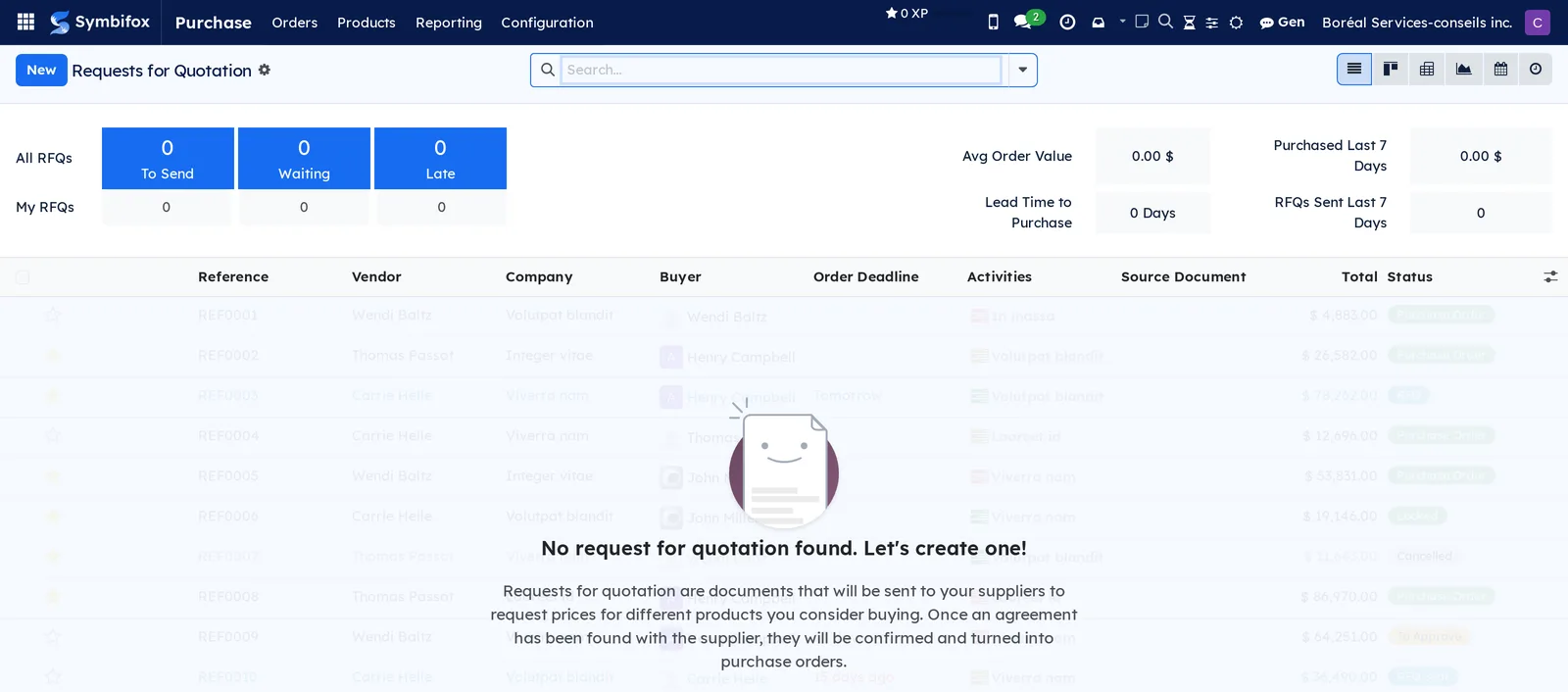
The entry screen is the list of requests for quotation, topped with tiles that count what is to send, waiting and late, with the average order value and the purchase lead time.
Configuration#
Access and permissions#
You grant access in Settings › Users & Companies › Users, Purchase section. There are two levels: User creates, sends and confirms requests for quotation; Administrator adds the Configuration menu, products, units of measure and settings. When purchase order approval is turned on, only the designated managers can confirm an order above the set amount.
Settings#
The Purchase › Configuration › Settings menu opens the application's section. On the Boréal demo, only Receipt Reminder is checked, and bill control is set to received quantities.
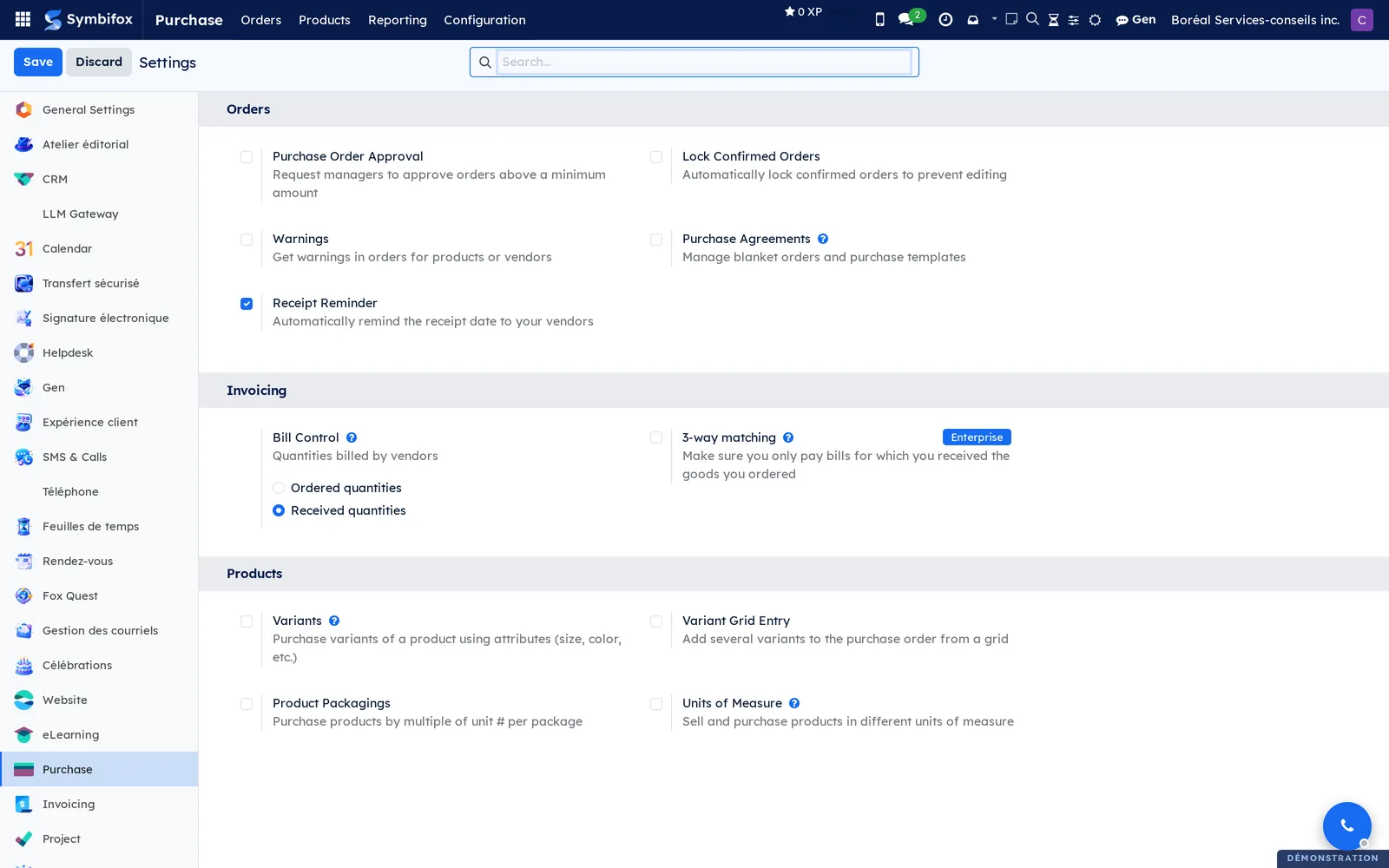
| Setting | Effect |
|---|---|
| Purchase Order Approval | Requires a manager's approval above an amount you set. |
| Lock Confirmed Orders | Locks the order as soon as it is confirmed, so it can no longer be edited. |
| Warnings | Shows a message set on a vendor record or a product when you order. |
| Purchase Agreements | Opens blanket orders and calls for tenders. |
| Receipt Reminder | Sends the vendor a reminder of the promised receipt date. |
| Bill Control | Ordered quantities bills what was ordered, Received quantities what was received. |
| 3-way matching | Cross-checks order, receipt and bill. Reserved for Odoo Enterprise, so it has no effect here. |
| Variants, Variant Grid Entry | Buying products that come in sizes, colours or formats. |
| Product Packagings | Buying in multiples, for example a box of twelve. |
| Units of Measure | Allows buying in a unit different from the sales unit. |
Base data#
Before the first order, three things must exist. The vendors, in Contacts: a record with an email address, otherwise the request for quotation does not go out. The purchasable products, with their expense account and purchase taxes: that is what saves you from retyping the same lines. The product categories, three on the demo, which carry the default accounts for a whole group of products.
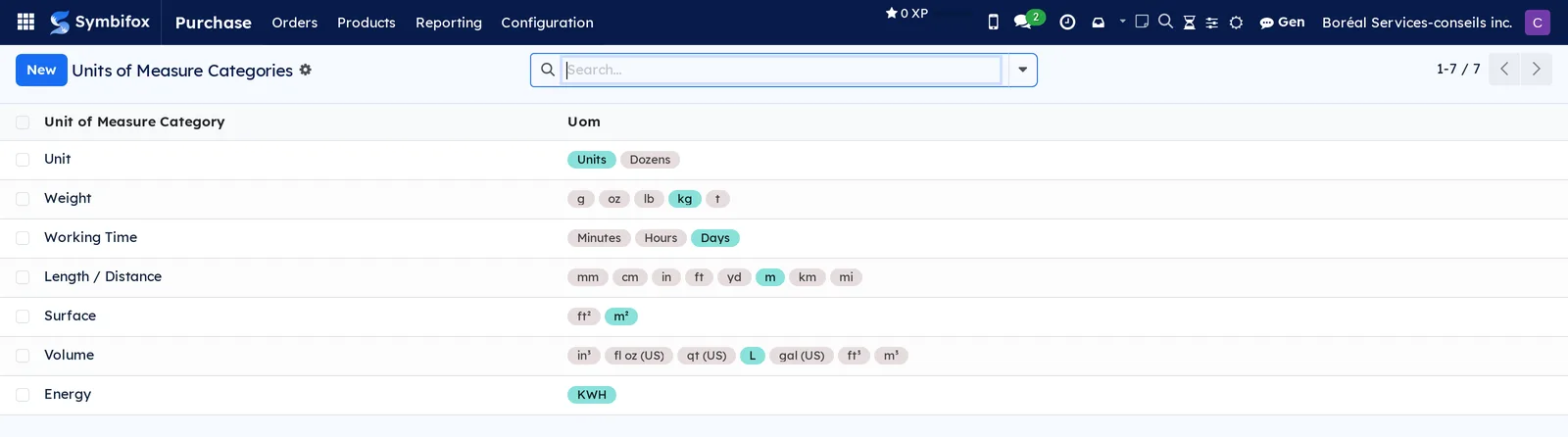
If you buy by the kilogram or by the day, also check the units of measure categories: seven on the demo, including Working Time, Weight and Volume.
Getting started#
This walkthrough orders a subcontracting service on the Boréal demo, from the request for quotation to the bill.
- Open Purchase › Orders › Requests for Quotation, then select New.
- In Vendor, choose the record you want.
- Check the Order Deadline, that is, the date by which you expect the answer.
- In the Products tab, select Add a product, choose the product, then adjust the Quantity and the Unit Price.
- Select Send by Email, review the message, then confirm the sending.
- When the vendor agrees, select Confirm Order.
- Select Create Bill to prepare the vendor bill.
Result: the document has changed from a request for quotation to a purchase order, it carries a final reference, and a draft vendor bill waits in Invoicing with the same lines and the same taxes.
Common tasks#
Compare several offers#
For a purchase that matters, you ask several vendors for the same price and compare the answers.
- Open Purchase › Orders › Requests for Quotation.
- Create one request for quotation per vendor, with the same lines.
- Send each one by email.
- Enter the prices received on each request's lines.
- Group the list by Vendor to compare the totals.
- Confirm the one you choose, then cancel the others.
Result: the chosen request becomes a purchase order; the others remain viewable in the cancelled state, which documents the decision.
Confirm an order#
Confirmation commits the organization: it sets the reference, the date and the amount.
- Open the request for quotation in Purchase › Orders › Requests for Quotation.
- Check the lines, the taxes and the Expected Arrival.
- Select Confirm Order.
Result: the document now appears in Purchase Orders, with a Billing Status of “Nothing to Bill” until a bill is created.
Receive the goods#
For a good, confirming the order creates a receipt in the Inventory application. The receipt says what has arrived, and therefore what gets billed.
- Open the order in Purchase › Orders › Purchase Orders.
- Select Receive Products.
- Check the Quantity that arrived on each line and correct it for a partial delivery.
- Select Validate. If part of it is missing, choose Create Backorder to wait for the rest, or No Backorder to close the receipt.
Result: the Received column of the order lines fills in by itself, and Create Bill offers the received quantities.
Get a large order approved#
When approval is turned on, an order above the set amount waits for approval.
Before you start: Purchase Order Approval is checked in the settings, with its amount.
- Create the request for quotation as usual.
- Select Confirm Order: the document moves to “To Approve”.
- Let the manager know, or let the activity created notify them.
- The manager opens the document and selects Approve Order.
Result: the order becomes a purchase order. Without approval, it stays pending and commits nothing.
Create the vendor bill#
The bill takes over the order, which avoids retyping and ensures both documents say the same thing.
- Open the purchase order in Purchase › Orders › Purchase Orders.
- Select Create Bill.
- On the draft bill, enter the Bill Reference given by the vendor.
- Check the Bill Date and the amounts against the document you received.
- Select Confirm.
Result: the bill is posted, and the purchase order's Billing Status changes to “Fully Billed”. Payment then happens in Invoicing.
Add a purchasable product#
A product serves the order as much as the bill: it carries the price, the expense account and the purchase taxes.
- Open Purchase › Products › Products, then select New.
- Enter the Product Name and check Purchase.
- Choose the Product Category.
- Enter the Cost and check the Purchase Taxes.
- In the Purchase tab, add the vendor or vendors and their price.
- Save.
Result: the product is now offered in order lines, with its price and taxes.
Keep a vendor's prices#
A vendor pricelist records the negotiated price, its currency, its minimum quantity and its validity period.
- Open Purchase › Configuration › Vendor Pricelists, then select New.
- Choose the Vendor and the Product.
- Enter the Price, the minimum Quantity and the Delivery Lead Time.
- Fill in the Validity dates if the price is guaranteed for a period.
- Save.
Result: the price fills in by itself on the order line as soon as this vendor and this product are chosen.
Analyze purchases#
The purchase report answers “who do we spend with, and how much?”
- Open Purchase › Reporting › Purchase.
- Choose the measure in Measures, for example the untaxed total.
- Group by Vendor, by product or by month.
- Switch between the graph and the pivot table.
- Export if needed.
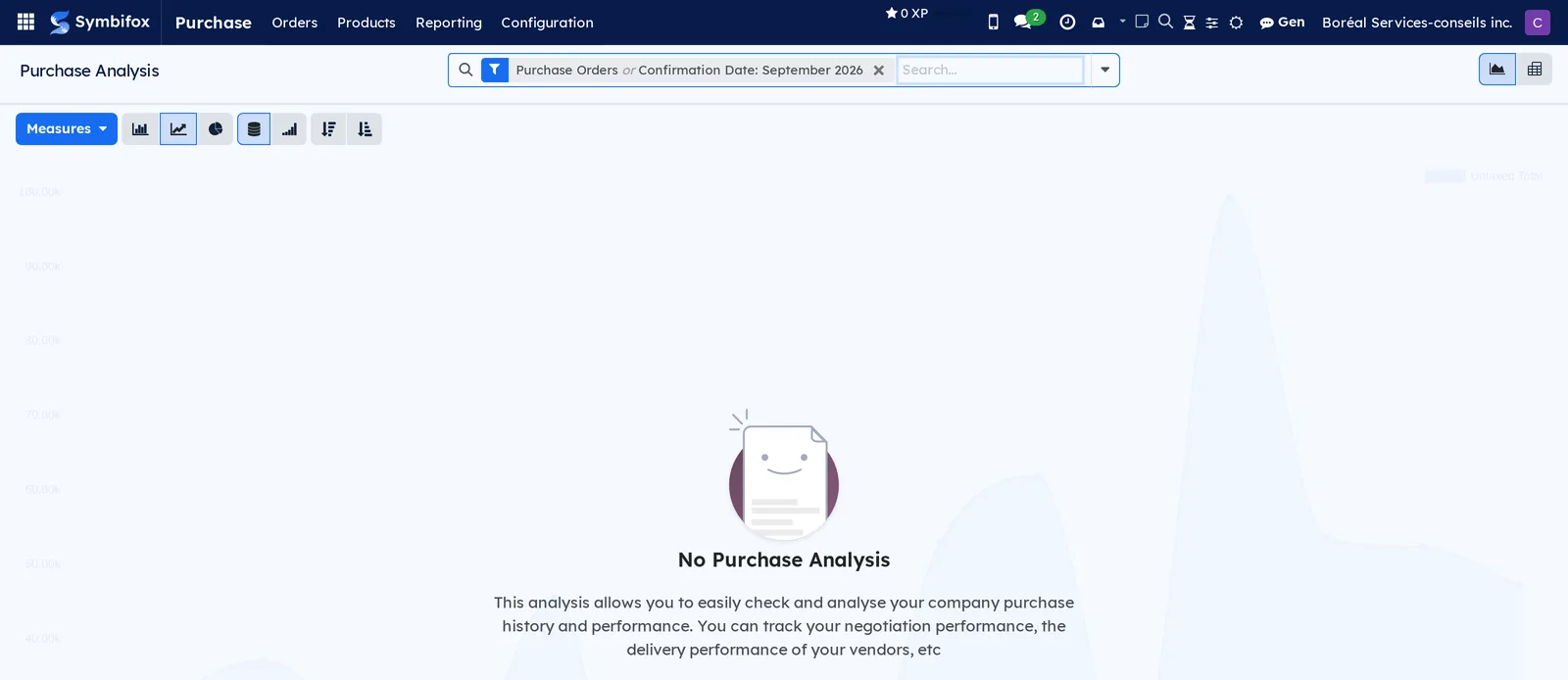
Result: a total per axis, exportable to a spreadsheet. The Purchase Orders filter is applied in advance to leave out unconfirmed requests for quotation.
The menus, one by one#
The main menu has four entries: Orders, Products, Reporting and Configuration. All four are grouping menus.
Purchase › Orders: grouping menu for purchase documents.
Purchase › Orders › Requests for Quotation: requests not yet confirmed, with the Reference, Vendor, Company, Buyer, Order Deadline, Activities, Source Document, Total and Status. The tiles at the top count what is to send, waiting and late. List, kanban, pivot, graph, calendar and activity views.
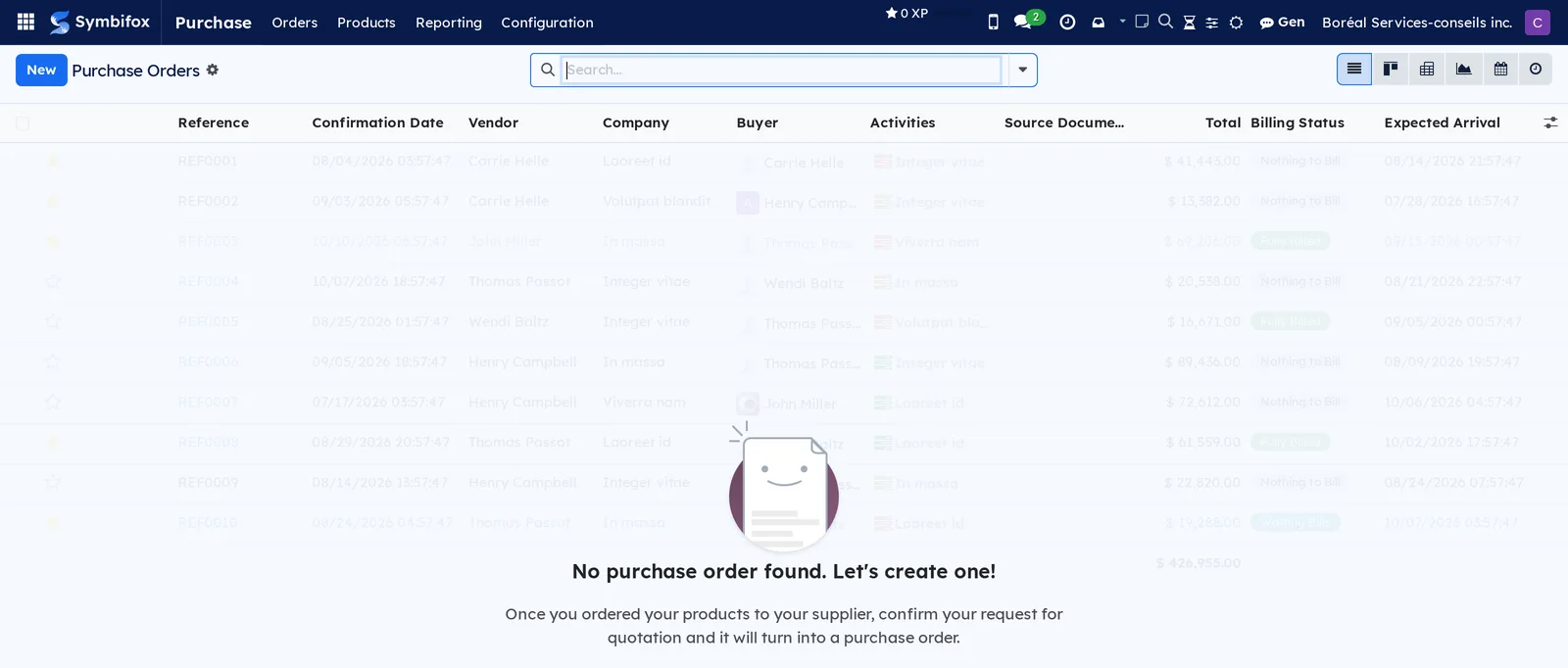
Purchase › Orders › Purchase Orders: confirmed orders, with the Confirmation Date, the Billing Status and the Expected Arrival in addition. This is the screen for tracking commitments.
Purchase › Orders › Vendors: the vendor directory, one hundred records on the demo, as cards. Same content as Contacts, filtered on vendors.
Purchase › Products: grouping menu for the catalogue.
Purchase › Products › Products: purchasable products, as cards, with their internal reference and price. The Purchase filter is applied in advance, which leaves out products used only for sales.

Purchase › Products › Product Variants: the variations of one product (size, colour, format), one line per variant. Not applicable until variants are turned on.
Purchase › Reporting: grouping menu for reports.
Purchase › Reporting › Purchase: the purchase report as a graph or pivot table. Empty on the demo: the help text reminds you that it tracks vendors' negotiation and delivery performance.
Purchase › Configuration: grouping menu, for administrators only.
Purchase › Configuration › Settings: the settings described under Configuration.
Purchase › Configuration › Vendor Pricelists: prices negotiated by vendor and by product. Empty on the demo.
Purchase › Configuration › Products: grouping menu for the catalogue.
Purchase › Configuration › Products › Attributes: the characteristics that generate variants. Empty on the demo.
Purchase › Configuration › Products › Product Categories: the demo's three categories, which carry the products' default accounts.
Purchase › Configuration › Units of Measures: grouping menu for units.
Purchase › Configuration › Units of Measures › Units of Measure Categories: the demo's seven categories, with the units in each: Unit, Weight, Working Time, Length / Distance, Surface, Volume and Energy. The category's reference unit is highlighted.
Reference#
Fields of the Purchase Order form#
| Field | Description | Required or default |
|---|---|---|
| Vendor | Recipient of the order; sets the currency, taxes and lead time. | Required |
| Vendor Reference | The order number at the vendor's end. | Empty |
| Order Deadline | Date by which the answer is expected. | Today's date |
| Expected Arrival | Promised receipt date, computed with the vendor's lead time. | Computed |
| Buyer | Person responsible for the order. | The signed-in person |
| Company | Company making the purchase. | Current company |
| Products tab | Product, description, quantity, unit, unit price, taxes, subtotal. | At least one line |
| Status | RFQ, to approve, purchase order, locked, cancelled. | RFQ |
| Billing Status | Nothing to bill, waiting bills, fully billed. | Computed |
Fields of the Vendor Pricelist form#
| Field | Description | Required or default |
|---|---|---|
| Vendor | Vendor record that grants the price. | Required |
| Product | Product concerned. | Required |
| Vendor Product Code | Reference used by the vendor; helps find the product on their bill. | Empty |
| Quantity | Minimum quantity from which the price applies. | 0 |
| Price | Negotiated unit price. | $0.00 |
| Delivery Lead Time | Number of days between the order and the receipt. | 0 |
| Validity | Start and end dates of the price guarantee. | Empty |
Reports and exports#
The purchase order prints as a PDF with the organization's branding and is sent by email from the document. The Purchase report offers graph and pivot views, exportable to a spreadsheet. Lists export as everywhere else: see Common actions in every application.
Automations#
Two mechanisms work on their own, both conditional. The Receipt Reminder, checked on the demo, sends the vendor a reminder email before the promised arrival date, and their reply comes back to the order's chatter (the message thread at the bottom of the form). Locking confirmed orders, if turned on, closes the document as soon as it is confirmed. Nothing else goes out unless a person triggered it.
Public pages and portal#
The vendor who receives a request for quotation by email can open it in the portal, view the lines and confirm the receipt date. They see only their own documents. See Customer experience.
Modules that extend this application#
No Symbifox module changes the Purchase application: it ships as Odoo publishes it. Two neighbouring applications extend it, however, each in its own chapter: reading vendor bills from PDF, described in Invoicing, and recurring commitments counted in a budget, described in Operating budgets.
Understanding#
One document, two names. The request for quotation and the purchase order are not two documents: they are the same one, before and after the agreement. This avoids copying and keeps the negotiation history attached to the final order.
Why bill received quantities. Paying for what was ordered assumes everything arrives. Paying for what was received assumes someone confirms the receipt, which takes one more step but avoids paying for a partial delivery at the full price. The Boréal demo is set to received quantities for goods; its services are billed on ordered quantities.
Three-way matching is not available. Automatic cross-checking between order, receipt and bill belongs to Odoo Enterprise. The setting appears on screen with its label, and it does nothing. Control by received quantities fills much of the same role.
Purchase is not inventory. Purchase itself keeps no warehouse and no stock: the expected arrival is an expected date, not a movement of goods. The Inventory application is also installed on the demo, but this guide does not describe it yet. For a good, the receipt is validated in Inventory (see Receive the goods); for a service, the received quantity is entered on the line.
The price comes from the vendor record, not from chance. When a vendor pricelist exists for the product, it feeds the line. Without one, the product's cost is used. A price retyped on every order ends up drifting from what was negotiated.
Troubleshooting#
| Symptom | Likely cause | Fix |
|---|---|---|
| Send by Email fails. | The vendor record has no email address. | Fill in the address in Contacts, then send again. |
| The order stays at “To Approve”. | Purchase order approval is on and the amount exceeds the threshold. | Have a manager approve it, or adjust the amount in the settings. |
| Create Bill offers no lines. | Bill control is set to received quantities and nothing has been received yet. | Validate the receipt with Receive Products, or switch the setting to ordered quantities. |
| The negotiated price does not fill in on the line. | No vendor pricelist for this vendor and product pair, or its validity period has passed. | Create or extend the line in Vendor Pricelists. |
| A confirmed order can no longer be edited. | Locking of confirmed orders is turned on. | Select Unlock, make the correction, then lock it again. |
| The product you are looking for does not appear in the list. | Its Purchase checkbox is cleared. | Open the product and check Purchase. |
| The purchase report stays empty. | No confirmed order in the period, or the date filter is too narrow. | Remove the date filter, or confirm at least one order. |
See also#
- Invoicing: the vendor bill, its payment and its automatic reading.
- Expenses: costs paid up front by a person, which do not go through an order.
- Operating budgets: the commitment counted before the bill arrives.
- Contacts: vendor records and their addresses.
- Customer experience: the portal where the vendor views their documents.
- Common actions in every application: chatter, activities, exports.