

Part 3 · Projects, time and knowledge
Project
Organize engagements into projects and tasks, track their progress by stage and by state, and log work as the day goes on.
Watch it
The Project application breaks an engagement into tasks, assigns them to people and tracks their progress through to delivery. It serves the whole team: the person doing the work keeps their tasks there, and the person coordinating reads the state of the engagement. The concrete result is an up-to-date board for each project, where every task shows who owns it, when it is due and where it stands. Symbifox adds waiting states, time slots, duplicate merging, time logging from the chatter (the message thread at the bottom of every form) and work categories.
Overview#
A project groups the tasks of one engagement, often for a given customer. A task is a unit of work: a title, one or more assignees, a deadline, a description and a chatter. Each project has its own stages, the columns of the kanban board (for example “To Do”, “In Progress”, “Done”). A task's state is separate from its stage: it says whether the task is moving, waiting for an answer, approved, done or cancelled. At Boréal, projects follow engagements such as the IT overhaul at Clinique dentaire Rosemont or the audit of Métallurgie Beauce-Sud.
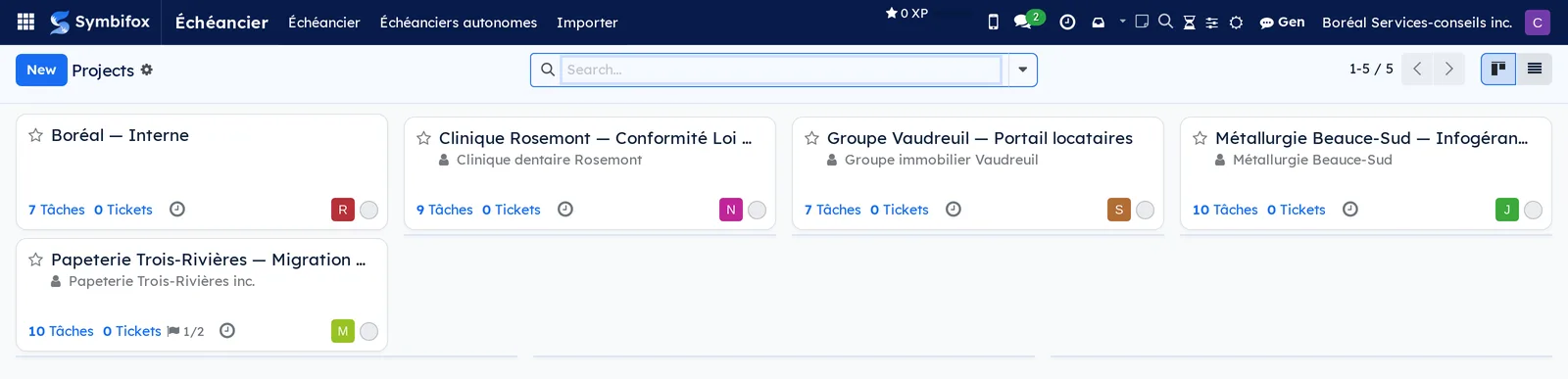
The project board is the application's home screen: one card per project, with the number of tasks and the status indicator of the latest update.
Project works with several other applications. Hours logged on a task feed Timesheets and, for customers on a prepaid package, Hour bank. Task start dates and deadlines draw the Schedule (Gantt). Reports from Meetings attach to a project. Activities scheduled on a task appear in Calendar.
What Symbifox adds to the base application comes down to eight building blocks. There are two waiting states (customer or third party) and an indicative time slot on each task. A dialog merges duplicate tasks without losing anything, and an automatic notice goes out when a blocked task is freed. A checkbox logs time together with a note, federation shares tasks between two Symbifox instances, and work categories classify the work. Free colours, finally, mark tags, projects and tasks.
A work category classifies work by its nature rather than by its project: client engagements, administration, business development. It is a project tag ticked as a category. Projects, tasks, timesheet lines, meeting reports, Gen conversations, notes and emails then each carry the category that applies to them, with nothing more to enter. You can then filter, group and export by category, for example to find out how many hours went to business development. At Boréal, three categories share the hours: “Client engagements”, “Administration” and “Business development”. Setting them up is described in Work categories.
Tags and projects take a free colour: any shade, rather than one of Odoo's twelve colours. You choose a project's colour in Color, on its form, next to the tags: its kanban card shows it, and the meeting calendars sorted by project pick it up. Tasks can take the colour of their tags through an automatic rule: see Colour tasks by their tags. On a tag or a project, Displayed color opens My color, which only you see. The order in which Symbifox picks the displayed colour is explained in To-do, Notepad and Timer.
Configuration#
Access and permissions#
Permissions are granted in Settings › Users & Companies › Users, on the Project line of each person's user form.
| Level | What it opens |
|---|---|
| User | See the projects the person takes part in, create and edit tasks, log hours, merge tasks. |
| Administrator | Everything above, plus create projects, define stages, tags and settings, share a project, federate a task, make a tag a work category. |
| Portal | A customer sees the tasks of the project shared with them, from their customer portal. |
Time slot configuration (names, colours, suggested times) is reserved for Symbifox administrators. Each person sets their own slot times on their user form.
Settings#
Go to Project › Configuration › Settings to turn on the features that affect all tasks.
| Setting | Effect |
|---|---|
| Sub-tasks | A task can contain other tasks, with a Sub-tasks tab on its form. |
| Recurring Tasks | A task can repeat at a fixed interval. |
| Task Dependencies | A task can be blocked by another. This is the prerequisite for the unblock notice. |
| Unblock notices without assignee | When an unblocked task has nobody assigned, the project manager receives the notice. On by default. |
| Game plan by Gen | The unblock notice waits for a game plan written by Gen, about three minutes, then leaves. Off by default, and shown only where Gen is installed and the Symbifox administrator has allowed it. |
| Milestones | A project carries dated milestones that tasks attach to. |
| Project Stages | Projects themselves are sorted by stage on the project board. |
| Customer Ratings | The customer receives a rating request when a task reaches a given stage. |
| Timesheets | Tasks accept hours. See Timesheets. |
Each project can then turn off, for itself alone, timesheets, dependencies, milestones, recurrence or ratings in the Settings tab of its form.
Base data#
Before you start, create or check:
- projects, with their customer and their task stages (each project has its own; the demo has 117 in total);
- project stages, if you sort projects by stage (Boréal has four);
- tags, to classify projects and tasks by theme (the demo has three, all of them work categories);
- activity types and activity plans, used for scheduled follow-ups on tasks;
- time slots, shipped with four values: Morning (9:00), Midday (12:00), End of day (16:00) and After hours (19:00). An administrator can rename, recolour (a free colour, which the badge on cards shows as is; on a slot's form, Displayed color opens My color, a shade only you see) or extend them in Settings › Technical › Time slots, in developer mode.
Work categories#
A tag becomes a work category through a checkbox. A tag already in use can become one: the projects and tasks that carry it are classified at once.
- Go to Project › Configuration › Tags. The list is edited in place, without opening a form.
- Select the tag's row, or add one with New.
- Check Work category.
- If needed, add the Category order column through the optional columns menu, then enter a number. When a record carries two category tags, the lower value wins.
- Select Save.
Result: the box shows as checked in the Work category column, and every record attached to that tag takes the category. On a tag carried by many projects, checking or clearing the box updates all their records in one go, which can take a while.
Boréal's tag list holds three categories, with their order.

Only Project administrators check or clear Work category, change the Category order or delete a category. Everyone else can still create and rename tags, and delete those that are not categories.
Getting started#
This walkthrough creates a first project at Boréal and takes one task all the way to closure, with its time logged.
- Open Project. The project board appears.
- Select New, enter “Email migration, Clinique dentaire Rosemont” as the name, choose the customer, then select Create. The project's task board opens, empty.
- Add three stages by entering their names in Add column: “To Do”, “In Progress”, “Done”.
- In the “To Do” column, select the plus sign, enter “Inventory the mailboxes” and confirm. A card appears.
- Open the card. In Assignees, choose Camille Tremblay; in Deadline, enter tomorrow's date; in Time slot, choose Morning. The deadline time changes to 9:00.
- Drag the card to “In Progress”. Once the work is done, open the task, select Log note in the chatter, enter “Inventory done, 14 mailboxes”, check Time, select 30m, then post the note.
- In the form header, set the state to Done.
Result: the task is closed, the note and its half-hour appear in the task's Timesheets tab, and the project shows one done task on its board.
Common tasks#
Create a project#
A project opens a task space for an engagement, with its stages and its customer. It requires the Project Administrator level.
- Go to Project › Projects.
- Select New.
- Enter the project name and choose the Customer.
- Select Create. The project's task board opens.
- Open the project form from the card's menu, then, in the Settings tab, check or clear Timesheets, Task Dependencies, Milestones and Recurring Tasks to suit the engagement.
- In Visibility, choose who sees the project: invited people only, all internal users, or portal customers as well.
Result: the project appears on the project board, with zero tasks and the customer shown on its card.
Create a task#
A task records a unit of work and the person who owns it.
- Go to Project › Projects and open the project.
- In the column you want, select the plus sign, enter the title and confirm. For the full form, open the card instead.
- In Assignees, choose one or more people.
- Enter the Deadline, then, if needed, the Time slot and the Tags.
- In the Description tab, describe the expected work.
- Select Save.
Result: the card shows the assignees' avatars, the deadline and the time slot badge, and the assignees receive a notification.
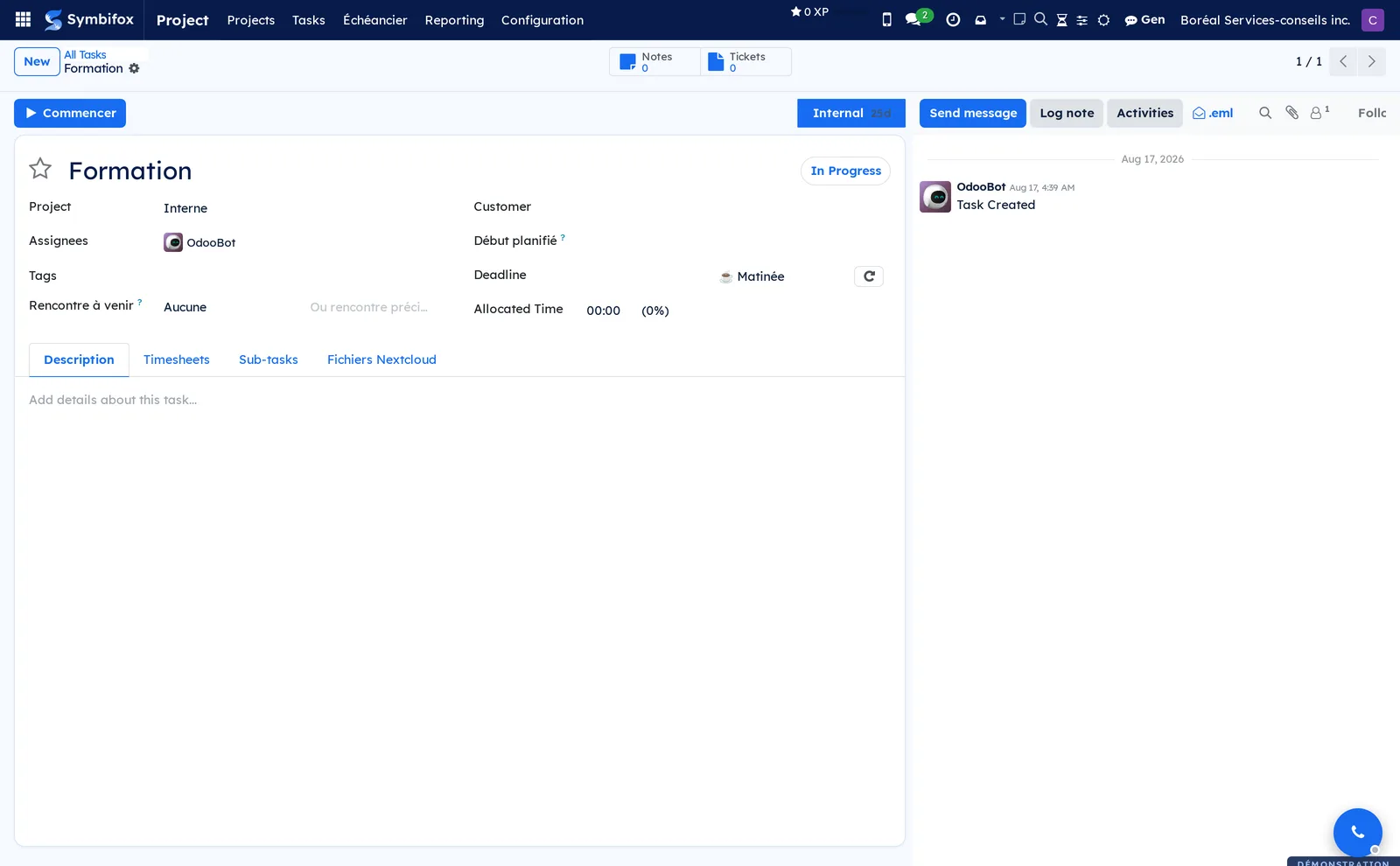
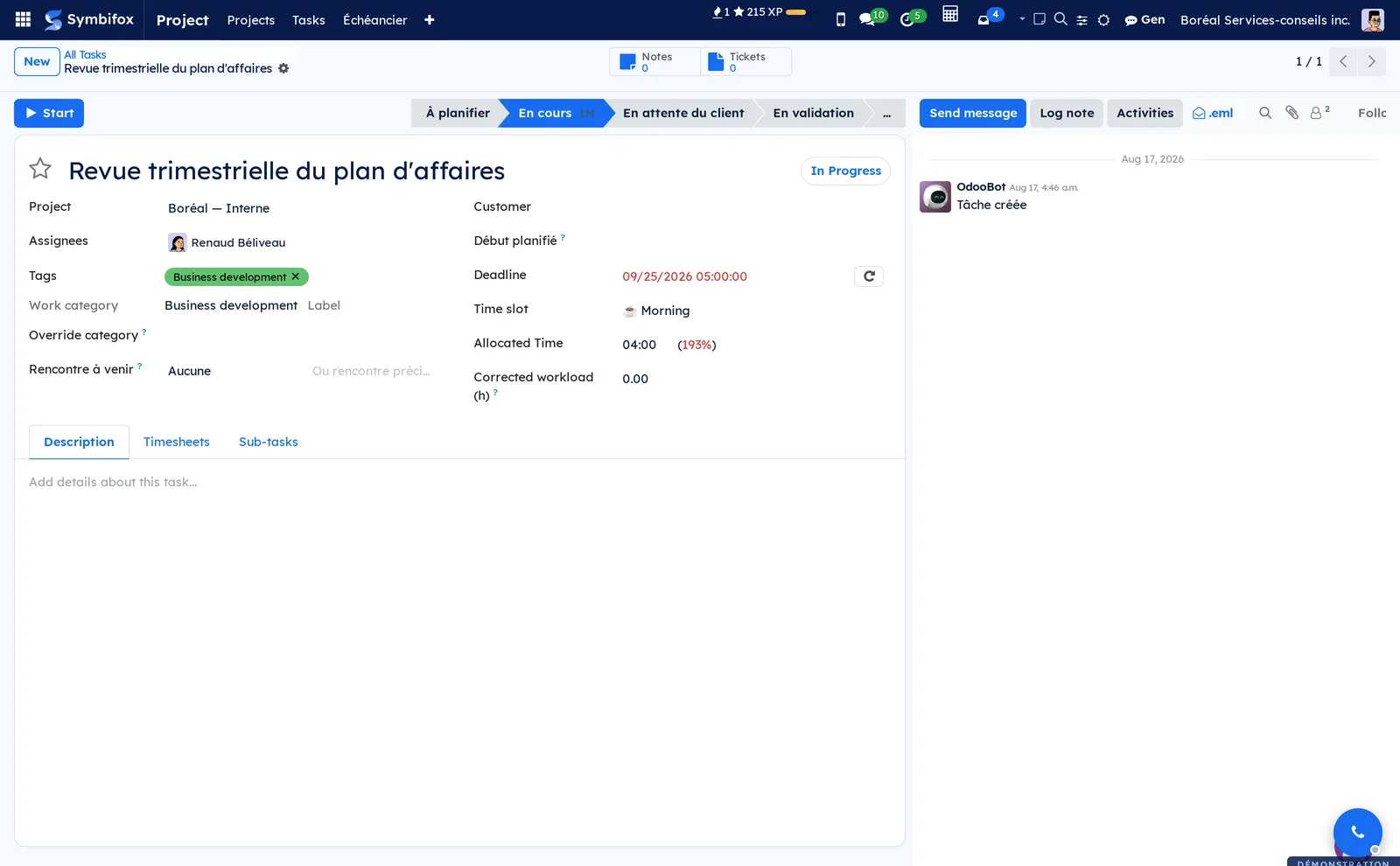
Here is the form of a Boréal task, with its tabs and its chatter.
Move a task forward#
A task moves forward in two ways: by its stage (the column) and by its state (the coloured circle in the header).
- Go to Project › Tasks › My Tasks.
- Drag the card to the next column to change its stage.
- To change the state, select the state circle on the card or in the form header.
- Choose In Progress, Changes Requested, Approved, Done or Cancelled.
Result: the state colour changes on the card, and the chatter records the change with its author and time.
Mark a task as waiting for the customer or a third party#
When a task cannot move until an outside answer arrives, its state says so instead of falsely staying “in progress”.
- Open the task from Project › Tasks › My Tasks.
- Select the state circle in the header.
- Choose Attente - Client (waiting on customer) if the ball is in the customer's court, or Attente - Externe (waiting on third party) if it is with a supplier or partner.
- If needed, schedule a follow-up activity in the chatter.
Result: the card takes on the colour of the waiting state. Group the list by state to keep your morning follow-up list.
Schedule a task in a time slot#
The time slot sets the time of day when a task gets done, on top of its due date.
- Open the task.
- Enter the Deadline first, if it is empty.
- In Time slot, choose Morning, Midday, End of day or After hours.
- Select Save.
Result: the deadline time is rewritten to the slot's time (the day stays), and the card carries a coloured badge with the slot's icon. On the All Tasks board, each column's progress bar is split by time slot; select a segment to filter the column.
Set your own slot times#
Slot times are suggestions from the administrator. Anyone can substitute their own, for example 8:00 for the morning.
- Go to Settings › Users & Companies › Users and open your user form.
- Open the Time slots tab.
- Select Add a line, choose the Time slot and enter My time.
- Select Save.
Result: tasks you place in that slot now take your time, not the suggested one. Only one line per slot is allowed.
Split a task into sub-tasks#
A sub-task is a full task attached to a parent task, which lets you share a large piece of work among several people. Prerequisite: Sub-tasks turned on in the settings.
- Open the parent task.
- Open the Sub-tasks tab.
- Select Add a line, then enter the title, the assignee and the deadline.
- Repeat for each sub-task, then select Save.
Result: the shortcut buttons at the top of the parent task's form include one with the number of sub-tasks, and each sub-task shows its parent task on its form.
Block a task with another#
A dependency says that a task cannot start before another one is done. Prerequisite: Task Dependencies turned on in the settings and on the project.
- Open the task that must wait.
- Open the Blocked By tab.
- Select Add a line and choose the task or tasks that come before it.
- Select Save.
Result: the task moves to the Waiting state as long as the tasks blocking it are open. As soon as the last one is done or cancelled, or the link is removed, the task goes back to In Progress and its assignees receive an unblock notice.
Make a task recurring#
A recurring task recreates itself at a fixed interval, for example a monthly backup check. Prerequisite: Recurring Tasks turned on.
- Open the task.
- Check Recurrent.
- Choose the interval (every n days, weeks, months or years) and, if needed, the end date of the repetition.
- Select Save.
Result: when the task is done, the next one is created with the next deadline, and the header shows the number of occurrences already created.
Merge duplicate tasks#
Two people open the same request, then an email creates a third task: the dialog merges these tasks by moving their content into the one you keep. You must be able to edit each of the selected tasks.
- Go to Project › Tasks › All Tasks and switch to list view.
- Check the tasks to merge (at least two).
- Select Actions › Merge the tasks. The dialog opens with the checked tasks in Tasks to merge.
- In Destination, choose Into an existing task or Into a new task.
- Depending on the case, choose the Task to keep, or enter the New task title and its Project.
- If needed, adjust the Assignees of the kept task.
- Select Merge.
Result: the kept task receives the others' messages, notes and emails, scheduled activities, followers, attachments, timesheets, ratings, calendar events, dependencies and sub-tasks. The other tasks are archived and emptied of everything except system messages (stage changes), which stay behind as a trace.
Log time from the chatter#
An internal note and its duration are entered in one step, without going through the timesheets tab. Prerequisites: the project accepts timesheets, and your account is linked to an employee record.
- Open the task.
- In the chatter, select Log note.
- Enter the note.
- Check Time, then enter the hours and minutes, or select 5m, 15m, 30m or 1h.
- Post the note.
Result: the note is posted and a line appears in the task's Timesheets tab, in your name, dated today, with the note text as its description (500 characters at most) and the duration entered.
Track a milestone#
A milestone is a key project date (delivery, go-live) that tasks attach to. Prerequisite: Milestones turned on in the settings and on the project.
- Go to Project › Projects and open the project form.
- Select the Milestones shortcut button at the top of the form.
- Select New, enter the name and the Deadline, then save.
- On each task concerned, choose the milestone in Milestone.
Result: the milestone shows the share of its tasks that are done, and it appears as a possible grouping in the Schedule (Gantt).
Share a project with a customer#
Sharing gives the customer portal access to a project's tasks, without an internal account.
- Go to Project › Projects.
- Open the project card's menu and select Share.
- Choose the contacts and the level: read-only, or edit.
- Select Send.
Result: the customer receives an email with the link, and the project appears in their customer portal. See Contacts to create portal accounts.
Request a rating from the customer#
The rating measures customer satisfaction at a given stage, through an email with three faces. Prerequisite: Customer Ratings turned on.
- Open the project form, Settings tab.
- Check Customer Ratings and choose how often requests go out.
- Go to Project › Configuration › Task Stages and open the stage that triggers the request.
- Choose the Rating Email Template and save.
Result: when a task enters that stage, the project's customer receives the email; their answers build up in Project › Reporting › Customer Ratings.
Analyze tasks#
The analysis report breaks tasks down by project, person, stage or state, as a pivot table or a graph.
- Go to Project › Reporting › Tasks Analysis.
- Select the pivot or graph view.
- Choose the measures (number of tasks, allocated hours, hours spent) and the groupings.
- To keep the configuration, open Favorites and save the search.
Result: a table you can export to a spreadsheet with Export All, using the actions described in Common actions in every application.
Colour tasks by their tags#
An automatic rule gives each task the colour of one of its tags, so that business development, for example, stands out at a glance. Prerequisite: administration rights, which open the rules menu. The rules themselves are described in To-do, Notepad and Timer.
- Go to Settings › Colors › Automatic rules and select New.
- Enter the Name, then choose “Task” in Model and “Tags” in Criterion.
- Under Colors, select Add a line, choose the tag in Record and its shade in Color. Add one line per tag.
- Drag the lines into the order you want: on a task that carries several tags, the highest line wins.
- To colour only the tasks tagged “Business development”, for example, check Listed values only. Without it, a task with no listed tag takes the colour of its tags.
- Save.
Result: the edge of each matching task's kanban card takes the colour, and the tag badges show their free colour in the kanban, the list and the task form. A task coloured by hand, through its card's menu, keeps its colour as long as no rule colours it.
Federate a task with a partner#
Federation places a copy of a task in the Symbifox of a customer or partner, without opening an account for them on yours. Pairing, the other shared objects and the receiving side are described in Federation. Prerequisites: the administrators of both instances have paired them, and the project names the peer in Pairs de fédération (federation peers).
- Open the task, or check several tasks in list view.
- On the task, choose the peer in Fédéré avec (federated with). In a list, select Actions › Fédérer avec… (federate with), choose the Pair (peer), then select Fédérer (federate).
- Optional: in Destinataire chez le pair (recipient at the peer), propose a person you know at the partner.
- Follow the mirror from Fédération (federation) > Tâches fédérées (federated tasks).
- To stop sharing, clear Fédéré avec or select Actions › Retirer de la fédération (remove from federation).
Result: on the peer's side, the task appears in a closed project. It goes to the proposed person if the peer has matched them to an account, otherwise to the person the peer designated to receive everything. The recipient is a proposal: changing it later posts a note at the peer, without reassigning the task. The name, the plain-text description, the due day, the priority, the state, the messages and small attachments travel both ways. Removing the share archives the mirror; nothing is ever deleted on the other side.
View hours by work category#
Grouping by category splits hours by the nature of the work, across all projects. Prerequisite: at least one tag checked as a work category.
- Go to Timesheets › Reporting › Timesheets › By Project.
- Open the search bar's drop-down list.
- Under Group By, choose Work category.
- If needed, add a period filter.
- Select a category's plus sign to expand it, for example by Project or by Employee.
Result: one row per category, with its total hours. At Boréal, client engagements total 28,576:15 hours, administration 6,127:30 and business development 21:42.
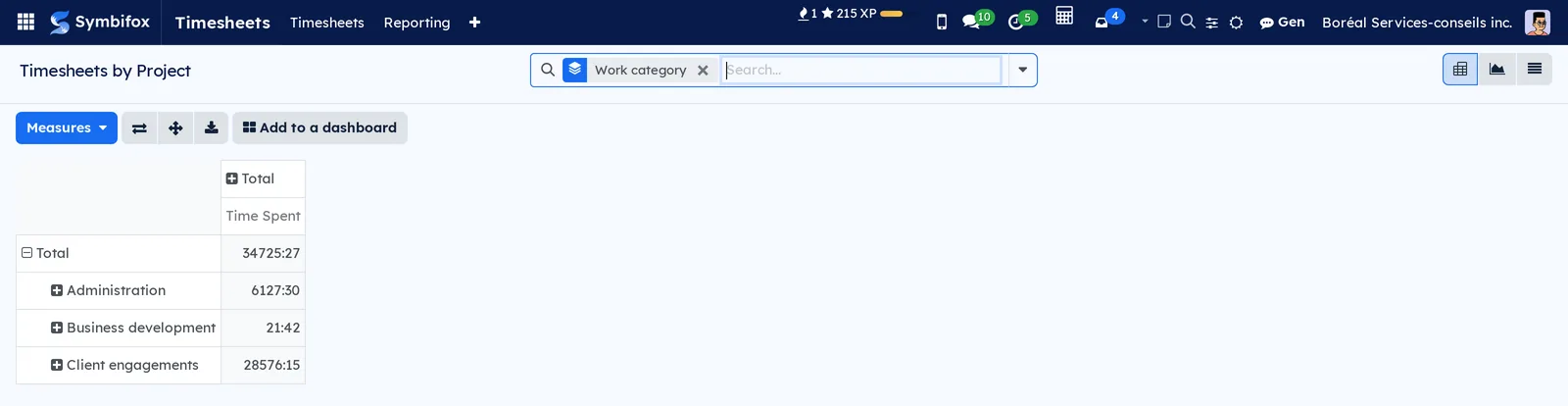
The same Work category filter and grouping exist in the search of projects, tasks, meeting reports, Gen conversations, notes and emails. Their lists offer the column through the optional columns menu.
Override a record's category#
A record can belong to a different category from the one Symbifox finds for it: a task in a client project that is really used to prepare a proposal, for example.
- Open the record: project, task, timesheet line, meeting report, Gen conversation, note or email.
- In Override category, choose the category. Only tags checked as categories are offered.
- Select Save.
Result: Work category shows the chosen category, and its origin becomes “Overridden”. Clear Override category to go back to the category Symbifox found.
On Boréal's “Revue trimestrielle du plan d'affaires” task (quarterly business plan review), nothing is overridden: the category comes from the task's tag.
Recompute the categories#
Categories follow changes to tags, projects and tasks on their own. There is one exception: a Gen conversation, a note or an email attached to something other than a task or a project, such as a meeting report, reads that record's category when it is attached, not when that category changes later. A weekly scheduled action, “Work categories: recompute”, catches these gaps. A Project administrator can run it ahead of time.
- Go to Project › Configuration › Tags.
- Select Recompute categories.
Result: a notice says the categories are being recomputed in the background; on a large database this takes a few minutes. If the scheduled action is turned off, the recompute runs right away and the notice gives the number of records updated.
The menus, one by one#
Project › Projects: the kanban board of projects, one card per project with the customer, the number of tasks and the status indicator. It is the application's home screen. Two entries carry this name on the demo: one groups projects by stage, the other does not. Only the one that matches the Project Stages setting is displayed. List, form, calendar and activity views are also available. Each card shows the project's colour, when it has one.
Project › Tasks: grouping menu.
Project › Tasks › My Tasks: your open tasks, across all projects, in kanban by stage. This is the everyday working screen.
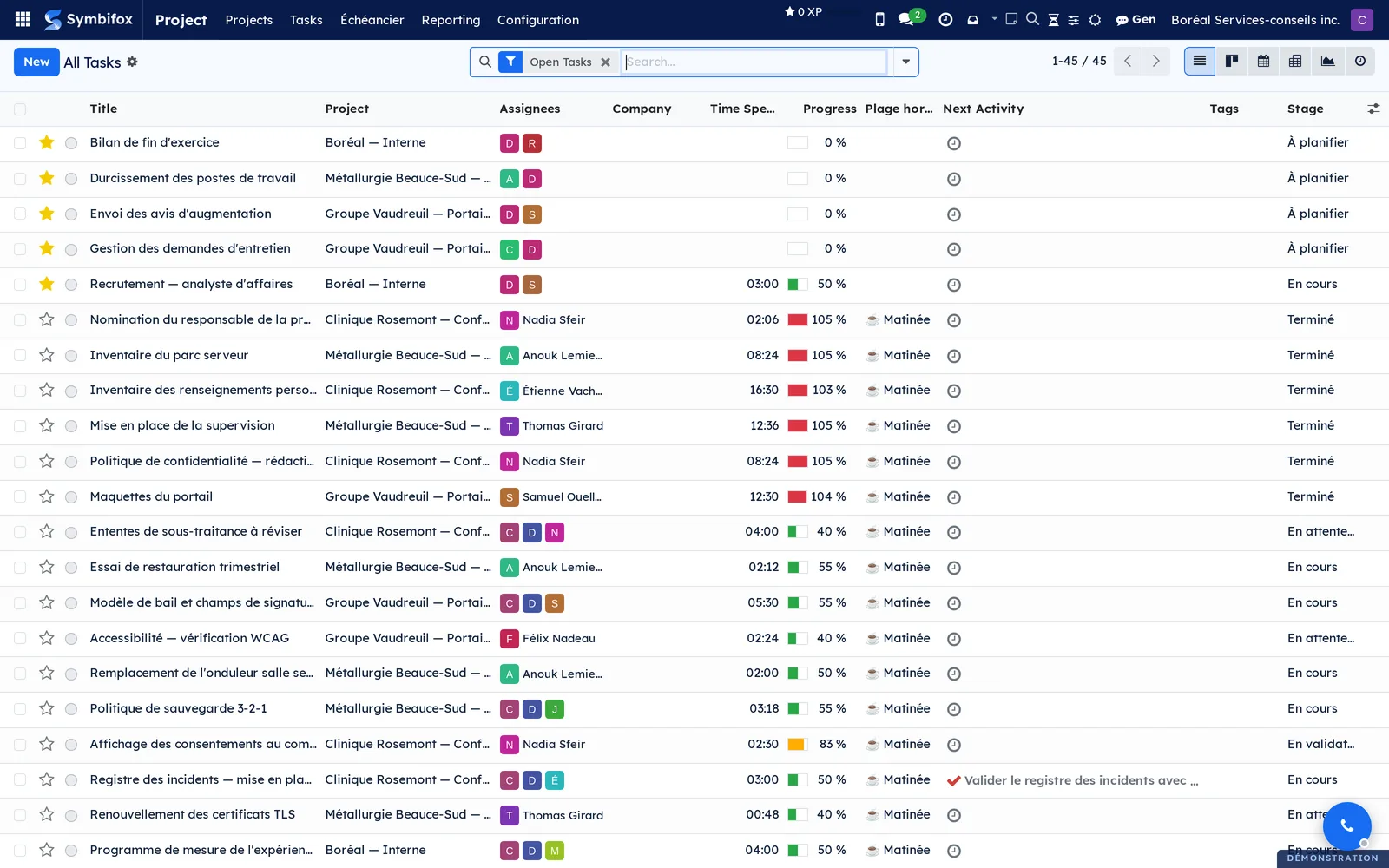
Project › Tasks › All Tasks: Boréal's 47 open tasks, in a list by default, with the title, project, assignees, deadline, stage and state columns. Useful filters: by state (including the two waiting states), by time slot, by tag, Sans début planifié (no planned start). In kanban, the column progress bar is split by time slot.
Project › Échéancier (schedule): the Gantt schedule of the chosen project. See Schedule (Gantt).
Project › Reporting: grouping menu.
Project › Reporting › Tasks Analysis: pivot table and graph on tasks, by project, person, stage, state or deadline.
Project › Reporting › Customer Ratings: ratings received by email, in kanban. Empty on the demo as long as no stage sends a request.
Project › Configuration: grouping menu.
Project › Configuration › Settings: the settings described in Configuration.
Project › Configuration › Projects: projects in list view, to manage them in bulk (archive, export, change the manager). Two entries carry this name, for the same reason as under Projects.
Project › Configuration › Project Stages: the four stages of projects themselves, which you can reorder in the list.
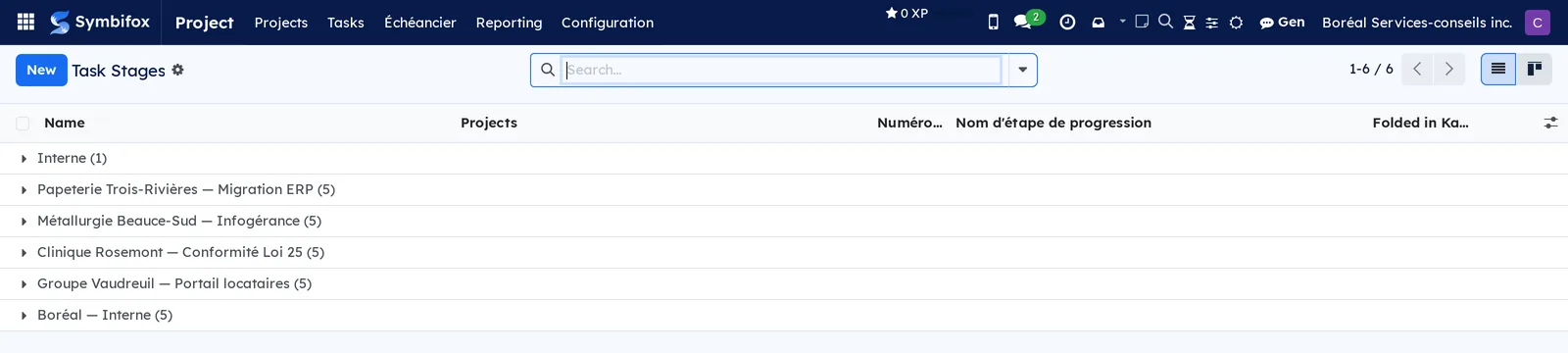
Project › Configuration › Task Stages: every task stage of every project (117 on the demo), with the project each one belongs to, automatic folding in kanban and the rating email template.
Project › Configuration › Tags: the tags of projects and tasks, in a list edited in place, with each tag's name, colour and Work category checkbox, and the Recompute categories button reserved for Project administrators. The demo's three tags are all work categories: see Work categories. The Work categories filter keeps only those. The Own color column takes a free colour, the same for the whole team. A tag's form also carries Displayed color, which opens My color; on a task or project form, selecting a tag badge opens My color the same way.
Project › Configuration › Activity Types: the 24 activity types (call, email, meeting, to-do), with their default delay and their next action.
Project › Configuration › Activity Plans: two plans that create a series of activities on a task in one go (for example an onboarding plan).
Reference#
Fields of the Task form#
| Field | Description | Required or default |
|---|---|---|
| Title | The task name. | Required |
| Project | The project that holds the task and provides its stages. | Required for a task to show on a board |
| Assignees | The people doing the task. | Empty |
| Tags | Free classification by theme. | Empty |
| Work category | The category found for the task, read-only, followed by its origin: Overridden, Label or Project. | That of its tags, otherwise that of its project |
| Override category | A category chosen by hand, which wins over all others. | Empty |
| Deadline | Due date and time. | Empty |
| Time slot | Morning, Midday, End of day or After hours; rewrites the deadline time. | Slot closest to the current time |
| Début planifié | Start date of the work, used by the schedule. | Empty (the schedule then estimates the date) |
| Priority | The star, which moves the task up. | Normal |
| State | In Progress, Changes Requested, Approved, Done, Cancelled, Waiting, Attente - Client, Attente - Externe. | In Progress |
| Milestone | The project milestone the task contributes to. | Empty |
| Recurrent | Turns on repetition and its settings. | Cleared |
| Fédéré avec | The Symbifox peer where the task has a mirror. | Empty; offered only if the project names a peer |
| Destinataire chez le pair | The person proposed at the partner, among your contacts from their organization. | Empty |
| Description | The expected work, in rich text. | Empty |
Fields of the Project form#
| Field | Description | Required or default |
|---|---|---|
| Name | The project name. | Required |
| Customer | The contact for whom the engagement is carried out. | Empty |
| Project Manager | The person who coordinates. | The person who creates the project |
| Stage | The project's stage on the project board. | First stage |
| Visibility | Invited people, all internal users, or portal. | Internal users |
| Timesheets | Tasks accept hours. | Checked |
| Task Dependencies, Milestones, Recurring Tasks, Customer Ratings | Turns each feature on for this project. | According to the general settings |
| Pairs de fédération | The peers with whom this project's tasks can be federated. | Empty (no federation) |
| Work category, Override category | The project's category, taken from its tags, and the overriding category if needed. The project's tasks without a category tag inherit it. | Empty as long as none of the project's tags is a category |
| Color, Displayed color | The project's free colour, for the whole team, shown on its card and in the meeting calendars sorted by project; Displayed color says which colour you see and opens My color. | Empty |
| Regroupement de l'échéancier (schedule grouping) | The grouping used when the schedule opens. | Étape du projet (project stage) |
Fields of the Merge the tasks dialog#
| Field | Description | Required or default |
|---|---|---|
| Tasks to merge | The tasks checked in the list. | Required, at least two |
| Destination | Keep an existing task, or create a new task. | Required |
| Task to keep | The task that receives all the content. | Required if the destination is an existing task |
| New task title, Project | The task created to receive the content. | Required if the destination is a new task |
| Assignees | The assignees of the kept task after the merge. | Those of the kept task |
Fields of the Time slot form#
| Field | Description | Required or default |
|---|---|---|
| Name | The label shown (Morning, Midday…). | Required |
| Code | Stable identifier; only the four shipped codes feed the kanban progress bar. | Required |
| Icon | The icon shown on the badge; ten icons are converted to emoji in lists. | Empty |
| Colour | Badge colour, from the standard palette. | Depends on the slot |
| Suggested time | The time applied to the deadline. When empty, nothing is forced. | 9:00, 12:00, 16:00 or 19:00 |
Reports and exports#
- Tasks Analysis: pivot table and graph, with spreadsheet export.
- Customer Ratings: kanban, list, pivot and graph views of the answers.
- Any task list exports through Actions › Export or Export All.
- A project's schedule exports to PDF, PNG, SVG, spreadsheet and Microsoft Project file: see Schedule (Gantt).
- Work category: a filter and a grouping in the search, an optional column in the lists, and a field available to the pivot table, the graph and the export, on projects, tasks, timesheets, meeting reports, Gen conversations, notes and emails.
Automations#
- Unblock notice: as soon as a blocked task goes back to in progress, by inbox or email according to each person's preference. The person who closes the blocker also receives it if they are assigned. With nobody assigned, the project manager receives it, if the setting is on. With the game plan, the notice waits about three minutes for the plan, and the scheduled action “Unblock notices: send what waited too long for the game plan” sends, every two minutes, whatever waited too long.
- Time slot: on save, the deadline time is aligned with the slot, in the person's time zone. On creation, the slot closest to the current time is suggested.
- Recurrence: the next task is created when the previous one is done.
- Ratings: the email goes out when the task enters the configured stage.
- Work categories: the category follows changes to tags, to the checkbox, to the order, to projects and to tasks on its own. The “Work categories: recompute” scheduled action runs once a week, in batches, over every classified record, and writes only what differs.
- Colours: the colour of a task coloured by a rule is computed on display, for each person. It follows tag changes on its own, and nothing is written on the task.
- Federation: messages to the peer leave an outbox every two minutes. They are retried with an increasing delay if the peer does not answer, and abandoned after twenty attempts. The content of an abandoned message is erased a week later. Received identifiers are purged daily.
Public pages and portal#
- The customer portal (My account) shows the projects and tasks shared with the contact, read-only or editable depending on the share. Free colours change nothing there: project sharing keeps Odoo's usual display.
- Federation exposes three addresses under
/federation/v1/(pairing, connection test, reception), used only from instance to instance, with a signature on every message. They do not open in a browser.
Modules that extend this application#
Six modules extend Project. The first adds two waiting states.
The second adds time slots.
The third merges duplicates.
The fourth sends the unblock notice.
The fifth logs time from the chatter.
The last one shares tasks between instances.
Seven modules classify work by category. The first sets categories on projects and tasks.
The other six carry categories into other applications, and install themselves when that application is present. The first of them covers timesheets.
The next one covers Gen conversations.
The next one brings the category into the Gen cockpit.
The next one covers notes.
The next one covers meeting reports.
The last one covers emails.
A final module, apart from the categories, colours tags, projects and tasks.
Understanding#
Stage and state do not say the same thing. The stage is the board column, specific to each project, and it describes the workflow. The state is shared by all tasks and describes the situation: moving, waiting, finished. That is why Symbifox's waiting states add no column: they join the state selector and leave your boards intact.
Waiting is not blocked. Symbifox sets the Waiting state itself when an open dependency blocks the task, and removes it automatically when the task is freed. The Attente - Client and Attente - Externe states are set by hand and signal that an answer is missing. A board that tells the two apart gives an honest picture of the workload.
The time slot changes the time, never the day. Choosing End of day on a task due on the 14th sets the deadline to 16:00 on the 14th, in your time zone. Without a deadline, the slot is purely indicative. On an activity, it never changes the date: an activity has no time. The shipped times are suggestions; a person's own time always wins.
Merging means moving. Archiving a duplicate task leaves its conversation and its hours stranded. The merge dialog moves everything that matters to the kept task, then archives the rest. System messages (stage changes, field tracking) deliberately stay on the archived task, as a record of what happened there. Tasks that depended on a merged task now depend on the kept task.
The unblock notice fires only on a transition. The module watches for a task moving from Waiting to In Progress, whether because the last blocking task closes or because the link is removed. Installing the module triggers no notice on existing tasks.
The notice names only what you can open. A blocking task filed in a project the notified person cannot see is neither named nor linked: the notice only says how many other tasks are involved. The game plan follows the same rule.
The game plan is an option. When Game plan by Gen is on, the notice waits: Gen reads the task as the notified person sees it (its description, its latest messages, its activities, the tasks that unblocked it and the ones it unblocks next), with no other access, then writes a “Situation” of three points at most and one to three “Next actions”. The text arrives as plain text, with no link or address, and a line carrying a North American phone number is dropped. A message from outside can at most skew its content: read the plan before acting on it. If the plan is not ready after about three minutes, the notice leaves without it and says so.
Time from the chatter is an ordinary timesheet. The line created follows the usual timesheet permissions, under your employee record. The note itself stays a plain internal note, with no mark and no notification.
Federation shares little, by design. It carries neither hours, nor internal notes (unless the peer chose that for its own side), nor tags, nor the customer. A message that starts with 🔒 or “[privé]” stays with its author. The state flips as it crosses: “Attente - Client” on your side reads “In Progress” on the customer's side, and a task they finish comes back to you as “In Progress”. Without the waiting states module, the standard Waiting state plays this role.
The category is found, not entered. Symbifox looks for a record's category in this order, and the first one found wins: the category overridden on the record; its own category tags, for a project or a task; its task, then its project, for a timesheet line or a meeting report; the record it is linked to, for a Gen conversation, a note or an email. The origin shown next to the category says which one applied: “Overridden”, “Label”, “Task”, “Project” or “Linked record”. The category found cannot be changed by hand or by an import: only Override category changes it.
One category per record, by design. A pivot table that counted the same hour in two categories would give a wrong total. When a record carries two category tags, the one with the lower Category order wins.
Classifying is not editing. When only its category changes, a record keeps the date and the author of its last update. Ticking a tag on a project therefore does not make all its tasks, notes and emails look modified: lists sorted by last update do not move, and a note edited at the same moment on the phone is not mistaken for a conflict.
A linked record reveals nothing. A Gen conversation, a note or an email follows the category of the record it is linked to only if its owner can read that record. The owner is the person set on the conversation, note or email, otherwise the person who created it. Linking a note to a task you cannot open therefore reveals neither its category nor that it exists.
The rule colours, the task keeps its colour. A task coloured by hand, through its card's menu, keeps that colour as long as no rule colours it. As soon as a rule finds a colour for it, the rule's colour shows; remove the tag or the rule's line, and the hand-picked colour comes back, since the rule wrote nothing on the task.
Troubleshooting#
| Symptom | Likely cause | Fix |
|---|---|---|
| The Time slot field does not change the deadline time. | The deadline is empty, or the slot has neither a suggested time nor a personal time. | Enter the deadline first, then check the slot's time in Time slots or on your user form. |
| A slot added by the administrator does not appear in the kanban progress bar. | The bar only knows the four shipped slots. | Use the filter or the grouping by slot for that slot. |
| No unblock notice arrives. | Dependencies are not turned on, or the task never went through Waiting. | Turn on Task Dependencies in the settings and on the project, then check the person's notification preference. |
| A task with nobody assigned gets unblocked, and nobody is told. | Unblock notices without assignee is off, or the project has no manager. | Turn the setting on in the Project settings, or name a manager on the project. |
| The Game plan by Gen setting does not appear. | Gen is not installed, or the Symbifox administrator has not allowed it on your instance. | Ask the Symbifox administrator. |
| The notice says Gen could not prepare a game plan. | The plan was not ready in time, or Gen's service did not answer. | Nothing to fix: the notice left without a plan. Open the task and ask Gen for a brief if needed. |
| The note is posted, but an error says the time was not recorded. | The project does not accept timesheets, or your account is not linked to an employee record. | Check Timesheets on the project; ask an administrator to link your account to your record in Employees. |
| The Time box is checked, but nothing happens. | The duration is zero. | Enter a duration or choose a shortcut before posting the note. |
| Merge the tasks is missing from the Actions menu. | You are in kanban view, or you cannot edit one of the checked tasks. | Switch to list view and check only tasks you can edit. |
| The Fédéré avec field does not appear on the task. | The project names no peer in Pairs de fédération. | Ask a project administrator to add the peer to the project. |
| A done task has disappeared from the board. | The views filter on open tasks. | Remove the default filter in the search bar. |
| A Gen conversation, a note or an email linked to a meeting report keeps the old category after a change to that report's project. | A record linked to something other than a task or a project reads the category when the link is made, then at the weekly recompute. | Wait for the week's recompute, or ask a Project administrator to select Recompute categories. |
| Override category does not offer the tag you want, or checking Work category is refused. | The tag is not a category, and only Project administrators make one. | Ask a Project administrator to check Work category in Project › Configuration › Tags. |
| A task does not take its tag's colour. | No rule colours tasks, Listed values only is checked with no line for that tag, or a higher line wins. | Ask the administration to review the rule in Settings › Colors › Automatic rules. |