

Part 5 · People and team
Fox Quest (gamification)
Experience points, levels, badges, daily challenges and rewards earned on real work: take on the challenges, claim a reward and adjust the rules.
Watch it

Fox Quest turns the work done in Symbifox into visible progress. Each hour entered, each task completed and each ticket resolved earns experience points. These points raise your level, unlock badges and can be exchanged for rewards that your organization defines itself. Each working day adds three small challenges. The whole team can check its progress; managers adjust the rules and the challenges, grant badges and approve claims. The result: recognition of real work, with no extra data entry.
Overview#
Fox Quest rests on six notions.
- Experience points, shown as XP on screen: the application's currency. Each recognized action adds an amount set by a rule.
- The level: a tier reached when your XP total passes a threshold. Ten fox-themed levels run from Renardeau (fox cub, 0 XP) to Kitsune (20,000 XP). Each has its title (Louveteau, Éclaireur, Pisteur, and so on up to Kitsune).
- The badge: a distinction earned by reaching a milestone (first timesheet, 50 tasks completed, 500 XP) or granted by hand by a manager. Badges fall into six categories and five rarities (common, uncommon, rare, epic, legendary).
- The streak, which the screen also calls constance (consistency): the number of consecutive working days on which you earned XP. A weekend, a public holiday, time off or a declared absence pauses it without breaking it.
- The daily challenge: a small goal drawn from what you can do that day (close two tasks, log time, resolve a ticket). Three challenges per working day; each one completed earns a stamp, and five stamps fill a card that pays a bonus.
- The reward: a real benefit (time off, perk, recognition) that you obtain by spending XP. The request is called a claim.
XP is therefore counted two ways. XP total is everything you have earned: it sets your level, your rank and the threshold badges. Solde XP (XP balance) is what you have left to spend: a reward comes out of the balance and never costs you a level.
Fox Quest asks nothing of anyone. It watches what happens in Timesheets, Project, Helpdesk (tickets), Knowledge base, Meetings, Email and Hosting management. It also watches the chatter (the message thread at the bottom of each form) and activities, then credits points according to the rules in place. Each gain appears in a log, with the record that produced it.
Only your own actions count toward the streak, the challenges and the caught-up fox: an action by you, made in your browser. A task closed by a colleague, an automatic rule, an outside script or a support session seeing Odoo in your place does credit the XP when a rule says so, but does not count as your action.
Odoo already includes badges and challenges attached to the Employees application. Fox Quest is independent of them: it has its own badges, levels and rewards, and it is the one the Boréal demo uses.
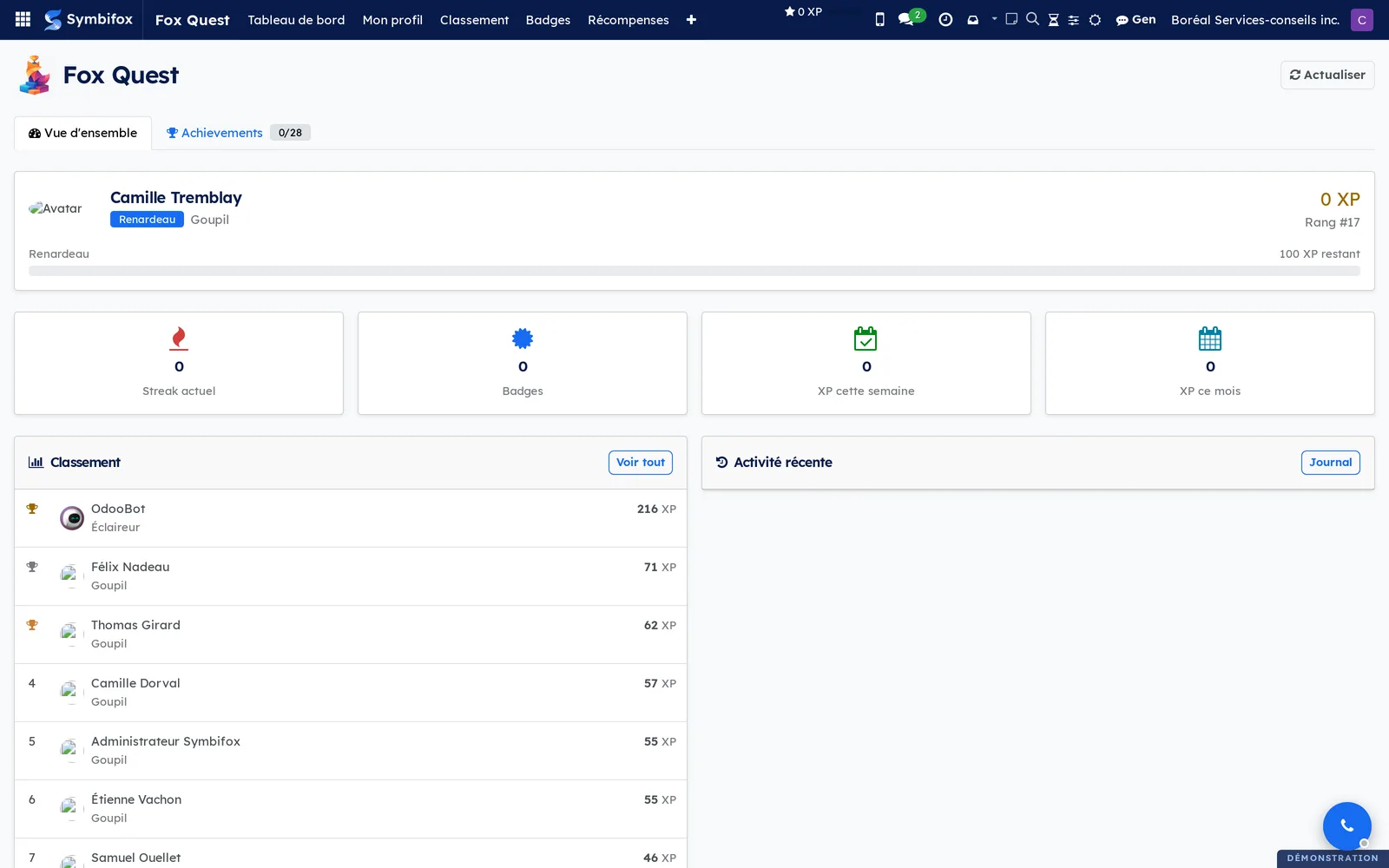
The application's home screen gathers everything on one page. It shows the profile card (avatar, level, title, worn title, rank, XP balance, total XP and progress bar), the Défis du jour (daily challenges) with their stamp card, the Prochains objectifs (next goals) and the row of statistics (current streak, number of badges, XP this week and this month). It also shows the À jour aujourd'hui (caught up today) card, the top ten leaderboard, the latest badges earned, the recent activity and the organization's overall statistics. When the organization offers streak time off, a Congés de constance (streak time off) card joins them.
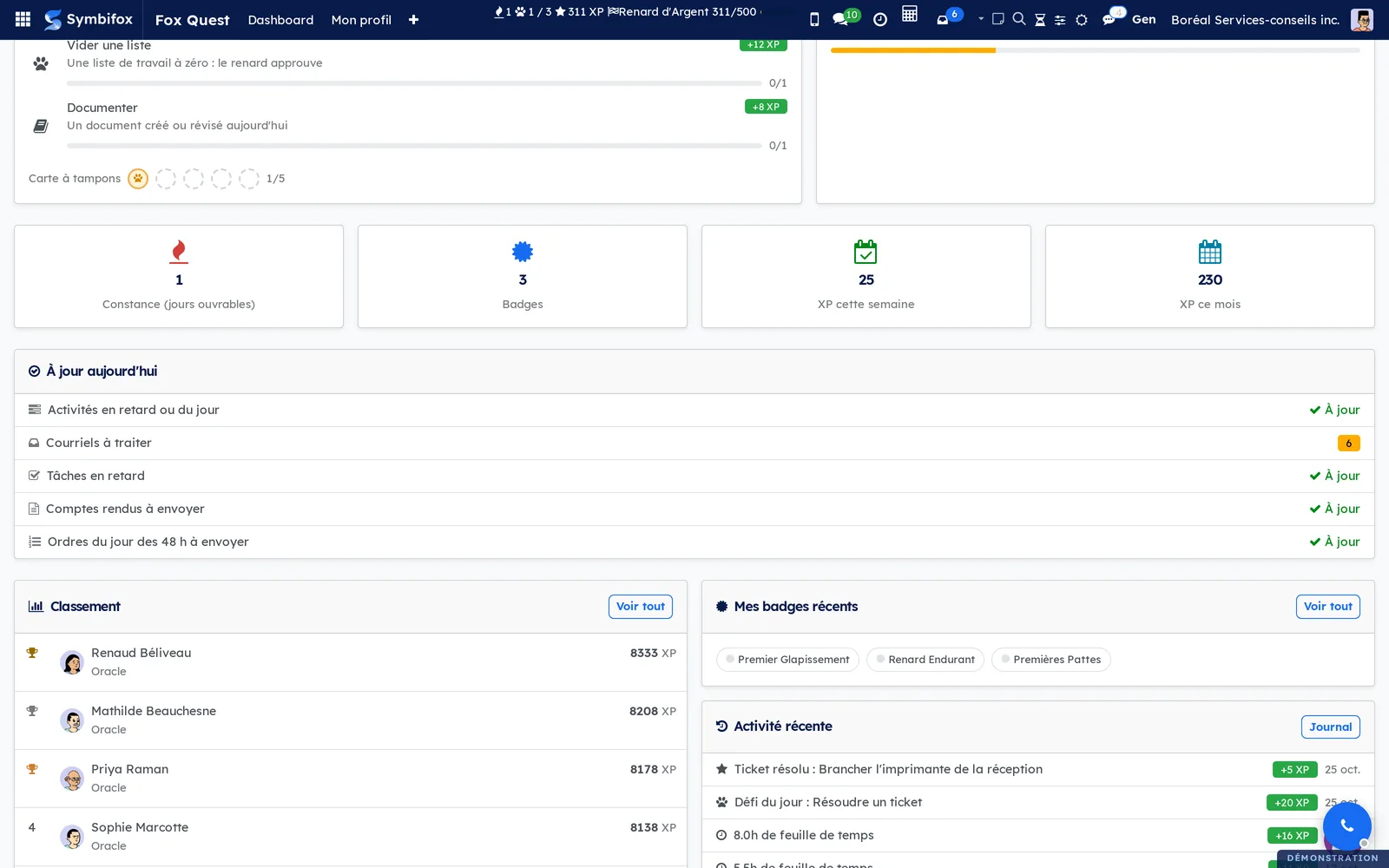
Further down, the À jour aujourd'hui card shows where you stand on five work lists, followed by the leaderboard, the recent badges and the recent activity.
A strip also sits in the Symbifox top bar, next to the notification icons: current streak, daily challenges completed (for example 1/3), total XP and next goal. It shows your progress without opening the application. When you earn a badge or a level, an animated window highlights it in the browser.
Configuration#
Access and permissions#
Fox Quest defines two groups. You choose them in the Fox Quest section of a user's form (Settings › Users & Companies › Users).
| Group | What it opens |
|---|---|
| Utilisateur (user) | Given automatically to every internal user. Dashboard, profile, leaderboard, badges, catalogue, the person's own claims and own XP log. Everyone reads all profiles (the leaderboard depends on it), but edits none, not even their own: the showcase and the worn title are chosen from the dashboard. Everyone alone reads their own daily challenges. |
| Gestionnaire (manager) | Everything above, plus Toutes les réclamations (all claims) and the Configuration menu (including Défis du jour). Also the right to read all transactions and all claims, and the Fox Quest section of the settings. Managers do not read other people's challenges, enroll nobody in streak time off and do not approve their own request. |
On the demo, Camille Tremblay is a manager: all the menus described here are visible to her.
Settings#
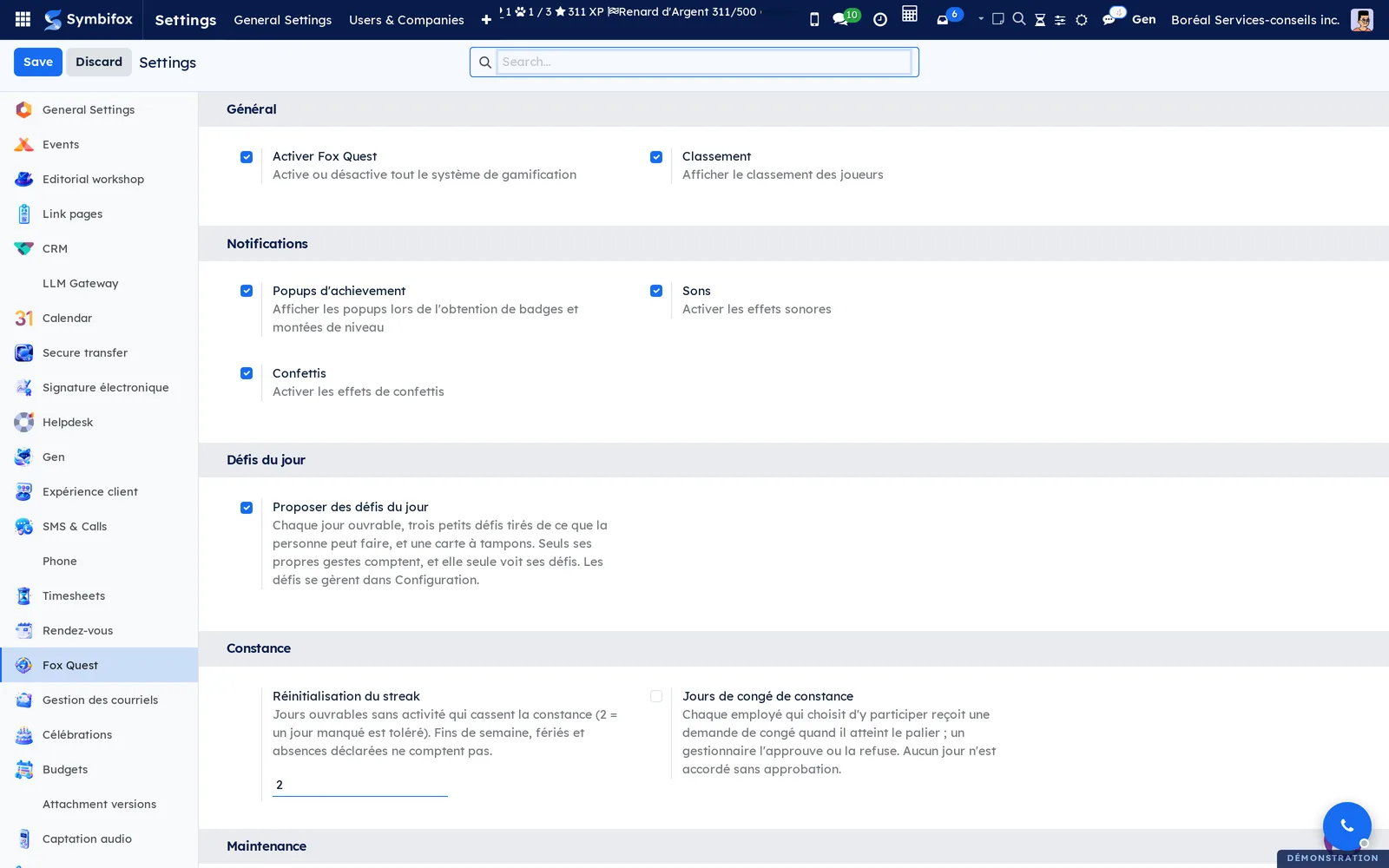
Open Settings, then the Fox Quest section. It has five blocks: Général (general), Notifications, Défis du jour (daily challenges), Constance (streak) and Maintenance.
| Setting | Effect |
|---|---|
| Activer Fox Quest (turn on Fox Quest) | Master switch. When cleared, no points are awarded anywhere. |
| Classement (leaderboard) | Reserved: the leaderboard always shows, and this setting has no effect for now. |
| Popups d'achievement (achievement pop-ups) | Animated windows when a badge or a level is earned. |
| Sons (sounds) | Reserved: no sound effect plays for now. |
| Confettis (confetti) | Reserved: no effect for now. |
| Proposer des défis du jour (offer daily challenges) | Offers the three challenges and the stamp card on each working day. When cleared, they disappear from the screen; the catalogue stays under Configuration. |
| Réinitialisation du streak (streak reset) | Working days without activity that break the streak (2 by default: one missed day is tolerated). Weekends, public holidays and declared absences do not count. |
| Jours de congé de constance (streak time-off days) | Offers time off earned by the streak (cleared by default). When checked, it opens Palier (jours ouvrables de constance) (the step, in working days of streak, 60 by default), Jours de congé par palier (days granted per step, 1) and Plafond par année civile (yearly cap, 5). A zero or an empty field restores the default: to cap nothing, enter a large number. |
The screenshot shows the blocks in order.
Base data#
Installation creates ten levels, six badge categories, twenty-eight badges, twenty-seven XP rules, twelve daily challenges and one reward, the streak time-off day, which stays out of the catalogue until you turn the setting on. The Boréal demo has two more rules, brought by a neighbouring module. Before launch, four checks are enough.
- Review the rules in Fox Quest › Configuration › Règles XP (XP rules) and turn off those that do not match how you work.
- Go through Tous les badges (all badges) and remove the ones that do not suit you.
- Create at least one reward in Gérer les récompenses (manage rewards): without a catalogue, XP buys nothing.
- Review the twelve challenges in Configuration › Défis du jour and archive the ones that do not fit.
Getting started#
This walkthrough runs on the Boréal demo, signed in as Camille Tremblay.
- Open Fox Quest. The Tableau de bord (dashboard) appears: Camille's profile card, her daily challenges, her next goals, her recent badges and the team leaderboard.
- Read the Défis du jour card: three challenges, each with its progress bar and its XP gain, then the Carte à tampons (stamp card).
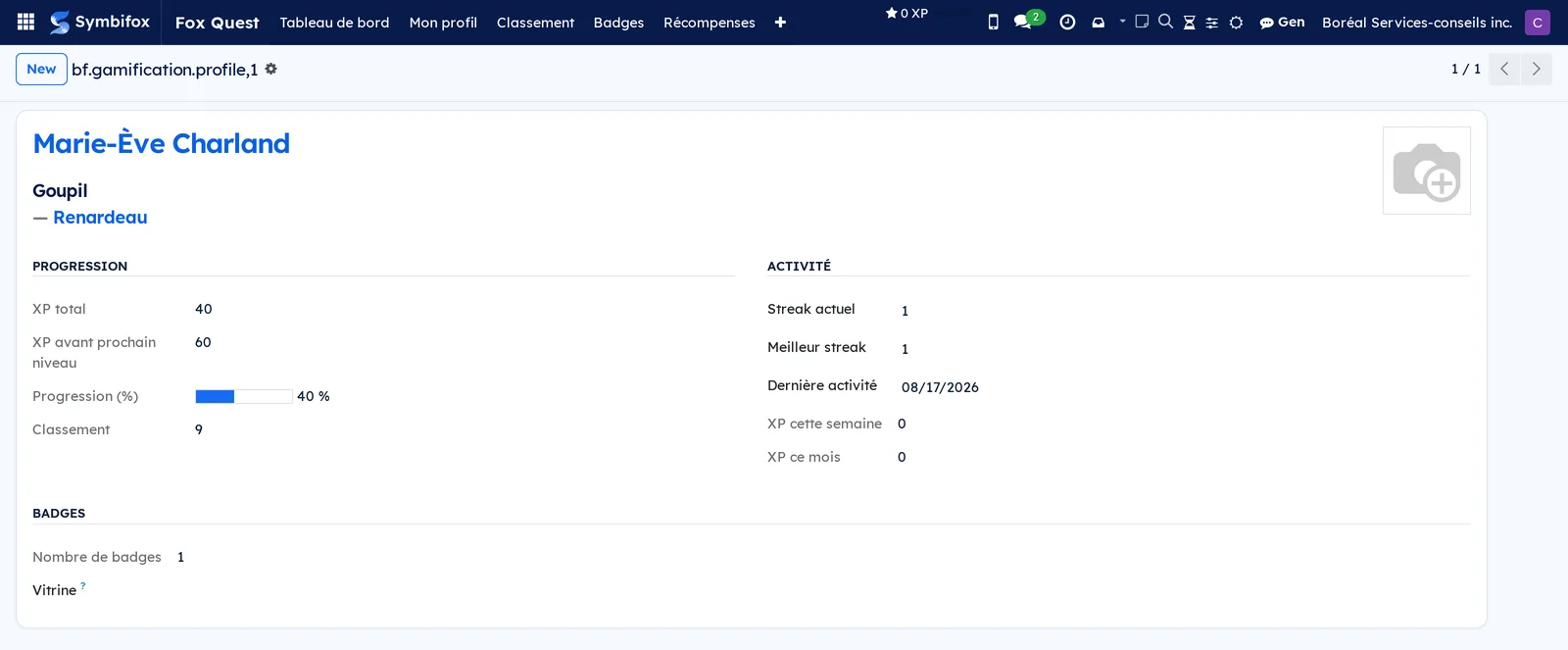
- Go to Mon profil (my profile). The form shows the level reached, the XP balance, the XP missing before the next level and the list of badges earned.
- Go back to the Tableau de bord, Achievements tab, and pin an earned badge with its star.
- Go to Classement (leaderboard). The list ranks the demo's nineteen profiles by total XP, with each person's level and title.
- Open Timesheets and enter one hour on a project task.
- Come back to Fox Quest › Activité (activity) > Journal XP (XP log). A new “1.0h de feuille de temps” (timesheet hour) line credits 2 XP, with the timesheet as its reference.
- Look at the top bar: the XP total has moved. You have gone around the loop: a real action, a rule, a recorded gain.
Common tasks#
Check your progress#
The dashboard is the daily entry point. It answers at a glance “where am I” and “where is the team”.
- Go to Fox Quest › Tableau de bord.
- Read the profile card: level, title, rank in the team, XP balance under the rank, total XP and progress bar toward the next level.
- Look at the row of statistics: current streak (in working days), number of badges, XP earned this week and this month.
- Go through the top ten leaderboard, the six latest badges earned and the recent activity, meaning the eight latest gains.
The dashboard recomputes each time you open it; there is no report to produce.
Take on the daily challenges#
Each working day, Fox Quest offers three small challenges drawn from what you can do that day. The first one is worth double.
- Go to Fox Quest › Tableau de bord. The Défis du jour card lists the three challenges, with their progress bar and their XP gain.
- Do your usual work: close a task, enter time, resolve a ticket. The bar moves when the action counts.
- When a challenge is completed, it is struck through, a stamp is added to the Carte à tampons and the fox tells you in a notification.
- At the fifth stamp, the card pays an XP bonus, then starts over from zero.
The three challenges are drawn on your first look of the day, from the top bar or the dashboard. On a rest day (weekend, public holiday, time off, declared absence), the card shows “Jour de repos” (rest day) and the challenges return on the next working day.
Follow your next goals and wear a title#
The Prochains objectifs (next goals) card shows the three badges closest to being earned, with their counter and their XP. A title is the name of a badge you earned, shown under your name.
- On the Tableau de bord, read the Prochains objectifs card: for example “Queue de Feu, 3/7”, with its bar. Tous les badges opens the catalogue.
- To wear a title, open the Titre (title) list on the profile card and choose one of your badges.
- Choose Aucun titre (no title) to remove it.
A hidden badge or a manual badge does not appear there, for lack of a counter or to keep the surprise. The worn title shows under your name in the dashboard leaderboard. Nobody wears a badge they did not earn, and a support session cannot change it.
See where you stand on your work lists#
The À jour aujourd'hui card tracks five lists: overdue or due-today activities, emails to process, overdue tasks, meeting reports to send and agendas to send for the next 48 hours.
- Open the Tableau de bord and find the À jour aujourd'hui card, under the row of statistics.
- Read each line: “À jour” (caught up) in green, or the number of items left.
- Handle the items as usual: reply, do the activity, close the overdue task, send the report.
- When your own action empties a list, a fox appears and a small XP bonus is credited. All five lists empty at once earn a bigger celebration.
The fox comes once a day per list. For a task, only closing an overdue task counts, not postponing it. It follows the Popups d'achievement setting; when Odoo's effects are off, a plain notification replaces it.
Choose the badges in your showcase#
The showcase puts forward, on your profile, the badges that matter most to you.
- Go to Fox Quest › Tableau de bord.
- Select the Achievements tab, then the Obtenus (earned) filter if needed.
- On an earned badge, select the Épingler (pin) star. Select it again to take the badge out of the showcase.
The showcase holds five badges at most. The pinned badges appear on the profile card and in Mon profil. That form is read-only: XP, balance, level and streak compute themselves.
Check the leaderboard#
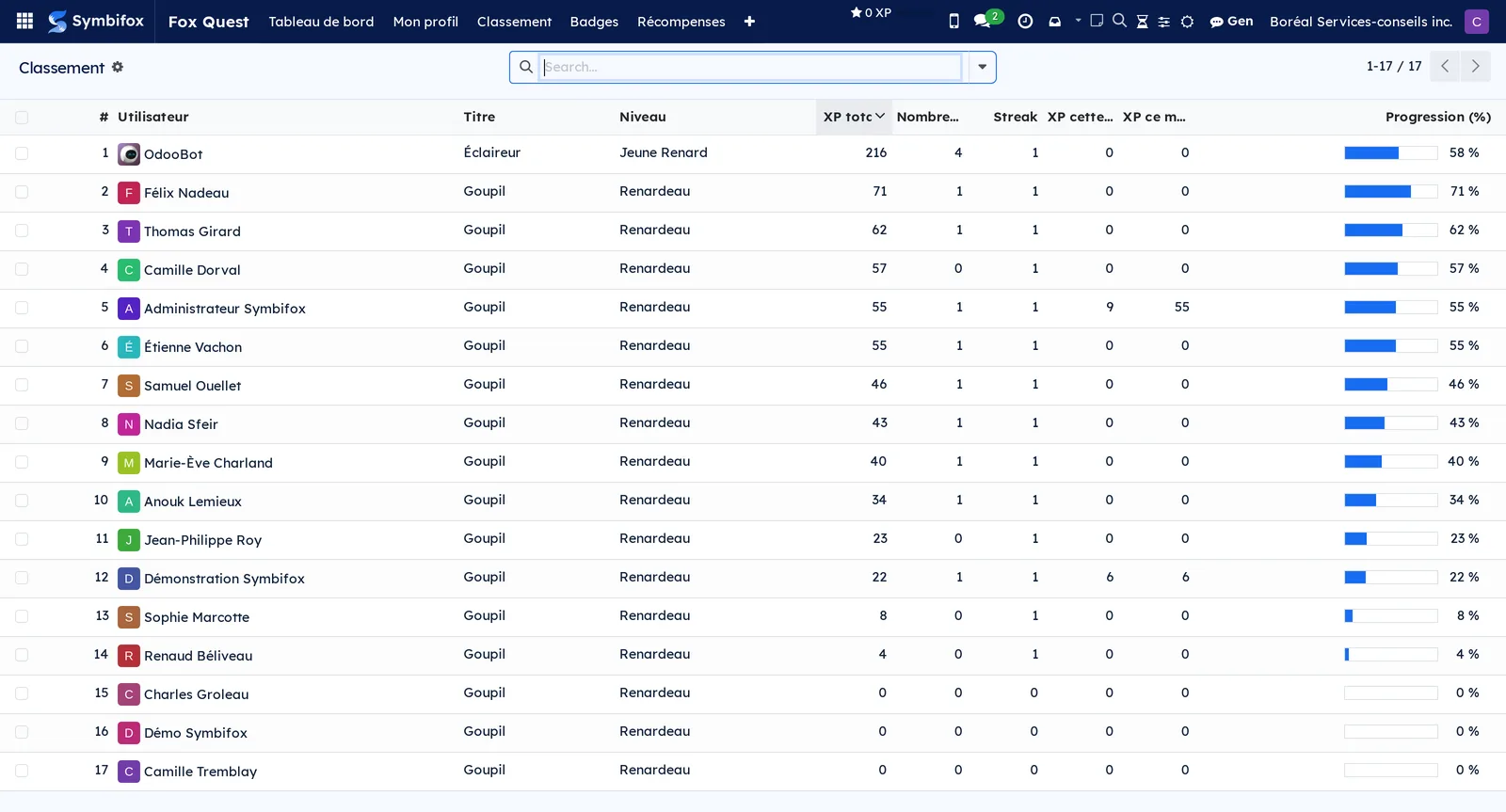
The leaderboard ranks all profiles by total XP. It is visible to everyone: the Classement setting is reserved and does not hide it.
- Go to Fox Quest › Classement.
- Read the list: rank, person, level, title, total XP, streak.
- Open a profile to see its badges and showcase.
You can read other people's profiles, and edit none, not even your own.
Explore badges and their conditions#
Knowing what unlocks a badge helps you choose where to put your effort.
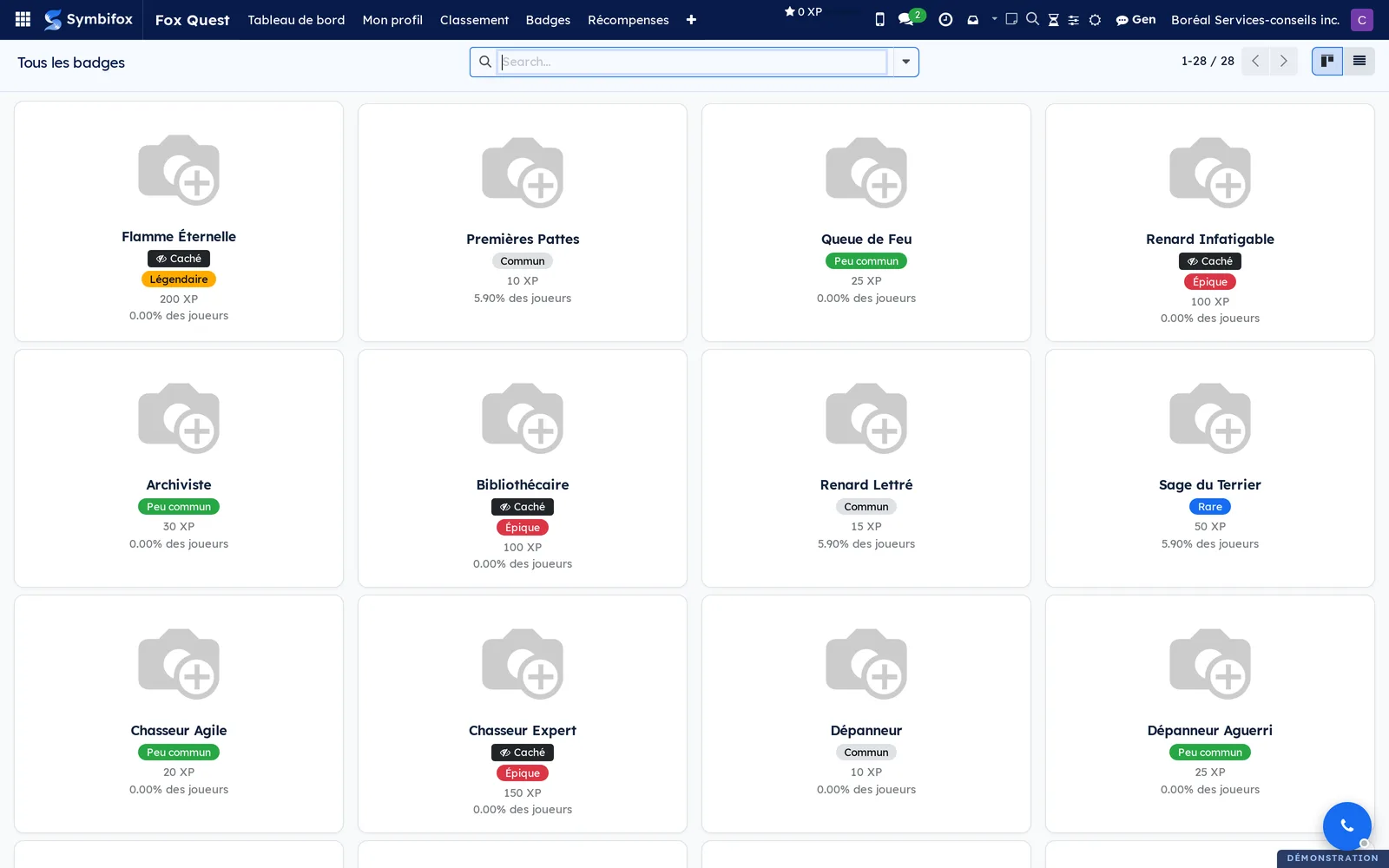
- Go to Fox Quest › Badges › Tous les badges. The cards are grouped by category: La Chasse (the hunt), Le Terrier (the burrow), La Meute (the pack), La Tanière (the den), Les Étoiles (the stars) and Le Glapissement (the yelp).
- Open a badge to read its description, its rarity, the XP it earns and its condition type.
- For your own badges, go to Mes badges (my badges). The list gives the date earned and, for a badge granted by hand, who granted it and their note.
- For all badges awarded in the organization, go to Historique (history).
A badge marked hidden reveals neither its name nor its description until you earn it; only its locked image shows.
Follow your XP log#
The log records each gain and each expense, with the originating record.
- Go to Fox Quest › Activité › Journal XP.
- Read each line: date, amount, source, description and reference (a timesheet, task, ticket, meeting report, email, badge or claim).
- Group or filter by source to understand where your points come from.
A manager sees everyone's transactions; other people see only their own.
Claim a reward#
When your XP balance covers the cost of a reward in the catalogue, you can claim it.
- Go to Fox Quest › Récompenses (rewards) > Catalogue.
- Open the reward you want and check its XP cost, its stock and the limit per person.
- Claim it from its form. The cost comes off your XP balance right away; your total XP and your level do not move.
- Follow the request in Mes réclamations (my claims): it stays pending until a manager decides.
If the claim is refused, the XP goes back to your balance in full. On the Boréal demo, the catalogue holds only the three avatar part packs described below.
Unlock avatar parts#
When your organization picked a character as its avatar style, decorative parts are bought with XP, in packs: hats and bold cuts, sunglasses, silly expressions. What says who you are stays free: hair textures, head coverings, glasses, beards and colours.
- Select your avatar, then My avatar. Your Fox Quest balance shows under the title.
- Select a thumbnail marked with a padlock to try it on. The preview shows it, and Save stays greyed out.
- Select the Unlock offer, which names the pack and its price: the price comes off your balance.
- Select Save.
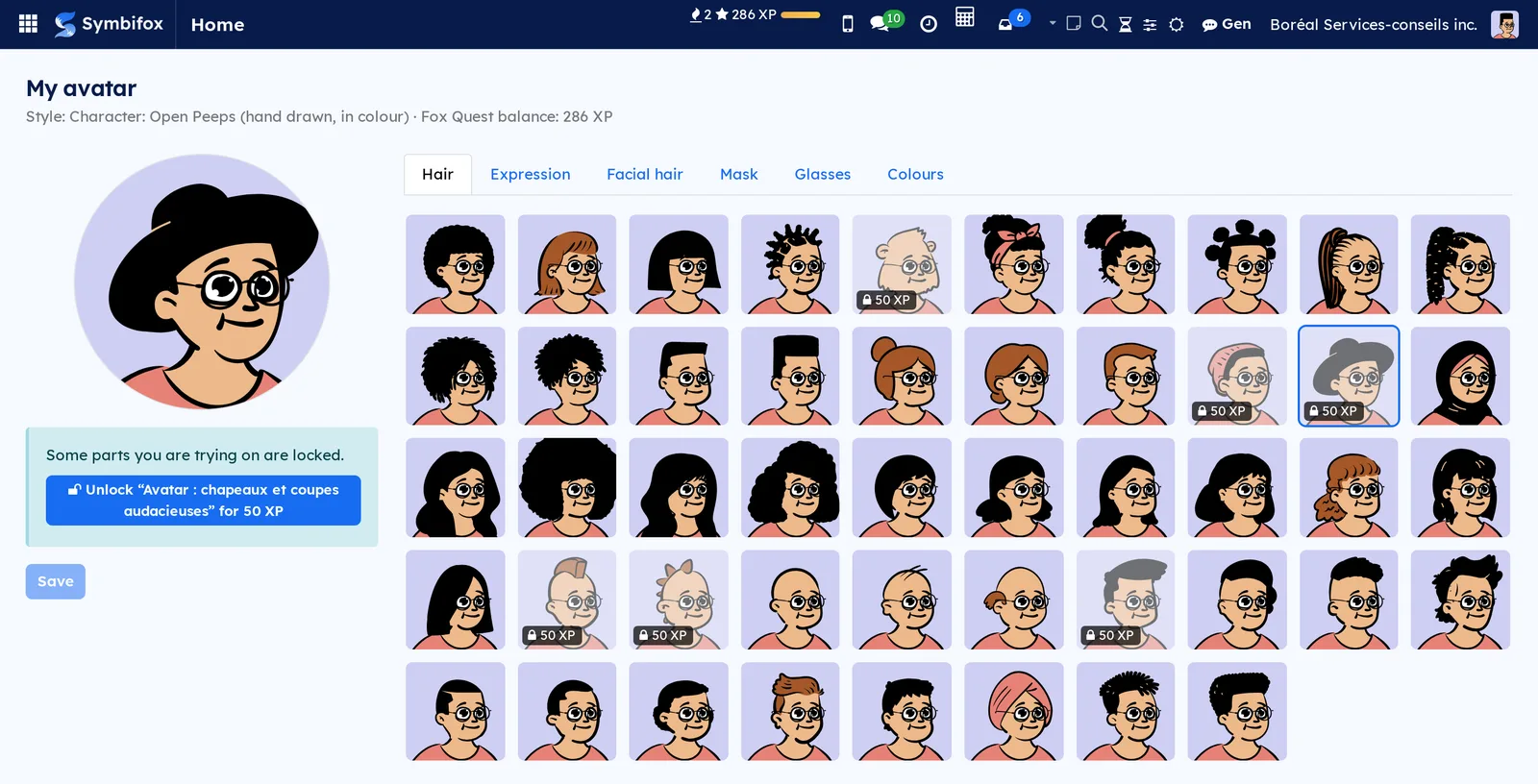
A pack waits for no approval: it is approved as soon as it is claimed, and each person can take it only once.
Take part in streak time off#
When your organization offers it, the Congés de constance (streak time off) card appears next to À jour aujourd'hui. A day counts when, on a working day of your calendar, you do at least one action that earns XP.
- Read the card: the step, what is counted and what others can see.
- Select Participer (take part). Nobody can do it in your place, not even a manager.
- Follow the Vers le prochain congé (toward the next time off) bar. Each working day of streak moves it forward; a broken streak sets it back to zero, and an absence declared afterwards restores it.
- At the step, a request goes to a manager. It appears under Vos demandes (your requests), with its state.
- To withdraw, select Retirer ma participation (withdraw my participation): the counter stops, and the requests already open stay to be decided.
Your colleagues see neither your participation nor your progress. Fox Quest managers see them, and so does the person who decides on your requests.
Create a reward#
Managers only. A reward describes a real benefit and the price in XP to obtain it.
- Go to Fox Quest › Configuration › Gérer les récompenses, then select New.
- Enter the Nom (name) and choose the Catégorie (category): time off, perk, recognition or custom.
- Enter the Coût XP (XP cost).
- Optional: limit the Stock and the Limite par utilisateur (limit per user); 0 means unlimited in both cases.
- On the Description tab, describe the reward and add an image.
- Check Disponible (available) and select Save.
The reward appears in everyone's Catalogue.
Process a claim#
Managers only. Each claim awaits a decision, then a confirmation that the benefit was delivered.
- Go to Fox Quest › Récompenses › Toutes les réclamations.
- Open a pending claim: person, reward, XP spent, claim date.
- Select Approuver (approve) to grant it, or Refuser (refuse) and enter the Raison du refus (reason for refusal).
- Once the benefit is actually delivered (the day off taken, the card handed over), select Consommer (mark as redeemed).
A refusal returns the XP to the person. The state moves from pending to approved, then redeemed, or else to refused.
Offer streak time off#
Managers only. The offer is off until you turn it on.
- Open Settings, Fox Quest section, Constance block.
- Check Jours de congé de constance.
- Set Palier (jours ouvrables de constance), Jours de congé par palier and Plafond par année civile.
- Select Save.
Each person then chooses to take part from their dashboard. Clearing the setting stops the offer; the requests already open stay.
Decide on a streak time-off request#
Managers only. When a person reaches the step, the “Journée de congé (constance)” request opens as pending and an activity goes to their manager: the one on their employee record if they manage Fox Quest, otherwise a Fox Quest manager, otherwise an administrator other than the person.
- Open the activity, or go to Fox Quest › Récompenses › Toutes les réclamations.
- Open the request and check the person and the number of days.
- Select Approuver (approve) or Refuser (refuse).
Nobody approves their own request, and a request cannot be deleted. With Odoo's Time Off module, an approved request becomes an allocation of the Type de congé (leave type) chosen in the Settings: validated at once if you have that right in Time Off, otherwise it waits for a time off officer.
Grant a badge by hand#
Manual badges are earned only through a manager's decision: a helping hand noticed, an initiative, a hard file brought to a close.
- Go to Fox Quest › Configuration › Attribuer un badge (grant a badge).
- In Utilisateurs (users), select one or more people.
- Select the Badge.
- Optional: enter a Message personnalisé (custom message), which will appear in the animated window.
- Leave Déclencher l'animation (trigger the animation) checked, so that each person sees the window at their next action.
- Select Attribuer (grant).
The badge appears in each person's Mes badges, with your name in Accordé par (granted by), and the badge's XP is credited.
Adjust an XP rule#
Managers only. Rules decide how much each action is worth, and you change them with no technical work.
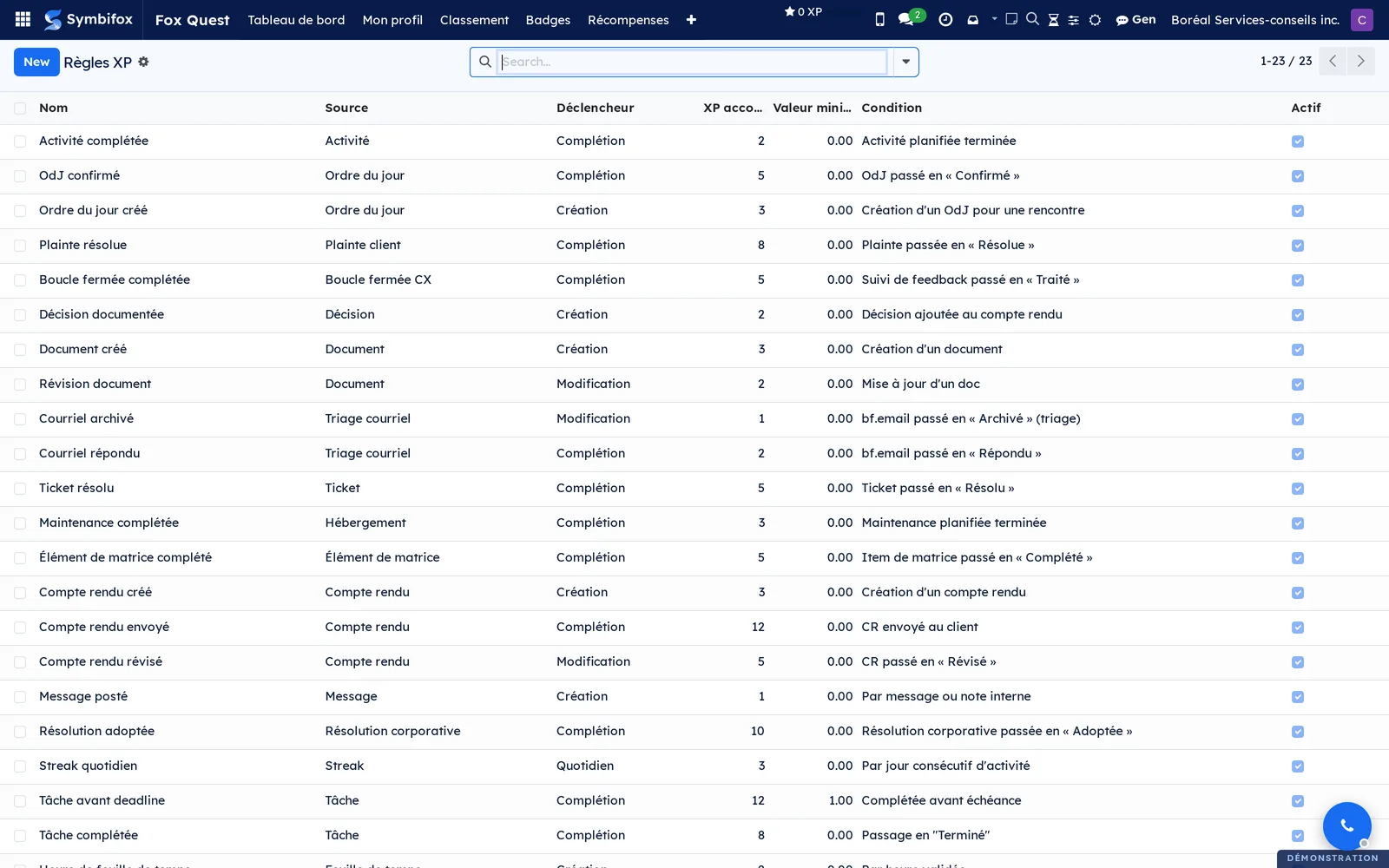
- Go to Fox Quest › Configuration › Règles XP.
- Find the rule by its Nom, its Source and its Déclencheur (trigger). Sources are timesheet, task, document, message, ticket, activity, streak, meeting, email, on time, caught up and daily challenge.
- Change XP accordé (XP awarded) directly in the list.
- For a conditional rule, adjust Valeur minimum (minimum value), for example the six billable hours that make a productive day.
- Clear Actif (active) to suspend a rule without deleting it.
The change applies to future actions; past gains stay as they are in the log. A daily challenge is offered only if an active rule pays its source: suspending every rule of a source removes its challenges from the draws.
Adjust the daily challenges#
Managers only. The catalogue ships twelve challenges; you rename them, rebalance them or add more.
- Go to Fox Quest › Configuration › Défis du jour.
- Change in the list the Nom (name), the Description, the Nombre de gestes (number of actions) to do and the XP accordé (XP awarded, from 0 to 500).
- For a new challenge, select New, then choose the Geste compté (action counted: task, timesheet, ticket, meeting report and so on) and, if needed, the Modèle requis (required model).
- Clear Actif to take a challenge out of the draws. A challenge already offered is archived, not deleted.
The change applies to the days ahead: challenges already drawn today keep their target and their gain. A challenge is offered only to people who can write the record it needs.
Create or edit a badge#
Managers only. A badge is defined by its visual, its rarity and the condition for earning it.
- Go to Fox Quest › Badges › Tous les badges, then select New or open an existing badge.
- Enter the Nom, the Description, the Image and the Image verrouillée (locked image, shown until the badge is earned).
- Choose the Catégorie, the Rareté (rarity) and the Récompense XP (XP reward).
- Choose the Type de condition (condition type). Manual means granted by a manager; automatic means a number of records reached. Threshold means that a profile value, such as total XP, reaches the Seuil (threshold).
- Check Unique if the badge can be earned only once, and Caché (hidden) to keep it secret until it is earned.
- Choose the Effet visuel (visual effect) of the animated window and, if needed, a Message popup (pop-up message).
- Select Save.
The Modèle surveillé (watched model), Domaine de filtrage (filter domain) and Champ utilisateur (user field) fields describe what an automatic badge counts. Copy an existing badge of the same kind rather than starting from scratch.
Adapt levels and categories#
Managers only. Level thresholds and badge categories are ordinary lists.
- Go to Fox Quest › Configuration › Niveaux (levels).
- Open a level to change its Nom, its Titre (title), its XP minimum (minimum XP), its icon or its colour (a free colour), or add a level with New.
- Open Catégories de badges (badge categories) to rename a category, change its icon or its free colour, or create one. On a level's or a category's form, Couleur affichée (displayed colour) opens My color, a shade only you see; anyone may do that.
- Select Save.
Levels recompute from the new thresholds at each person's next XP gain.
Reset progress to zero#
Administrators only, to close a trial period before the real start.
- Open Settings, Fox Quest section.
- Select Réinitialiser toute la progression.
- Confirm.
All profiles start again at zero XP, with no badges, streaks, stamps, worn titles or claims, except streak time-off requests. The rules, badges, challenges and rewards themselves stay in place.
The menus, one by one#
Fox Quest › Tableau de bord: the application's home page, described in the overview. Profile card, daily challenges, next goals, statistics, caught-up card, streak time off, top ten leaderboard, latest badges, recent activity and overall statistics.
Fox Quest › Mon profil: your profile as a form. Total XP, level and title, XP before the next level, progress as a percentage, current and best streak (Streak actuel, Meilleur streak), last activity, badges earned, showcase, rank, XP this week and this month, and the XP balance. The form is read-only.
Fox Quest › Classement: the list of the demo's nineteen profiles, ranked by total XP, with avatar, level, title, XP balance and streak. Opening a line shows the person's profile.
Fox Quest › Badges: a grouping menu for the three entries that follow.
Fox Quest › Badges › Tous les badges: the demo's 28 badges as cards, grouped by category, with rarity and XP. List and form views are available. Managers create and edit badges here.
Fox Quest › Badges › Mes badges: the list of badges you have earned, with the date, who granted each one and the note when the grant was manual.
Fox Quest › Badges › Historique: the same list for the whole organization (107 badges earned on the demo), most recent first. Useful to see who earned what this week.
Fox Quest › Récompenses: a grouping menu for the three entries that follow.
Fox Quest › Récompenses › Catalogue: the available rewards, as cards, with their XP cost. Empty on the demo.
Fox Quest › Récompenses › Mes réclamations: your reward requests and their state. Empty on the demo.
Fox Quest › Récompenses › Toutes les réclamations: managers only. All requests, with Approuver, Refuser and Consommer on each form. Empty on the demo.
Fox Quest › Activité: a grouping menu.
Fox Quest › Activité › Journal XP: the list of transactions, filtered on your own when it opens (35 for Camille on the demo), with date, person, amount, source, description and reference. Filter or group by source; a manager clears the filter to see everyone's and can group by person.

Fox Quest › Configuration: a grouping menu, managers only.
Fox Quest › Configuration › Niveaux: the ten levels, with sequence, minimum XP and title.
Fox Quest › Configuration › Catégories de badges: the six categories, with icon, colour and linked badges.
Fox Quest › Configuration › Règles XP: the demo's 29 rules, editable in the list.
Fox Quest › Configuration › Gérer les récompenses: the reward management list, available or not, with the number of claims for each.
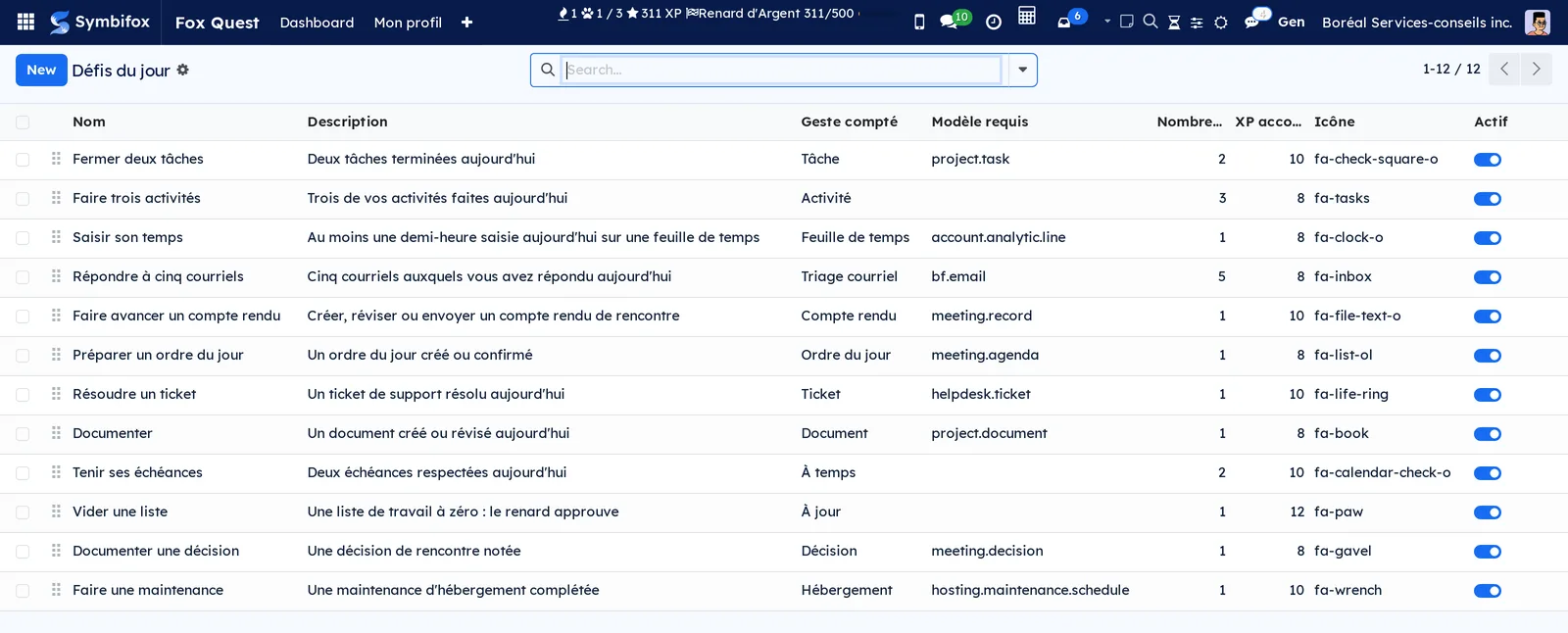
Fox Quest › Configuration › Défis du jour: the twelve challenges that ship, editable in the list: name, description, action counted, required model, number of actions, XP awarded, icon and the Actif box.
Fox Quest › Configuration › Attribuer un badge: the manual grant dialog, described in the tasks.
Reference#
Fields of the Fox Quest profile form#
| Field | Description | Required or default |
|---|---|---|
| Utilisateur | The person the profile describes. | Required, one profile per person |
| Avatar | The image shown in the leaderboard and on the dashboard. | The account's image |
| XP total (total XP) | All the XP earned. Rewards take nothing away from it. | Computed |
| Solde XP (XP balance) | XP earned minus the rewards claimed: what is left to spend. | Computed |
| Niveau (level), Titre | Tier reached and the title that goes with it. | Computed from the thresholds |
| XP avant prochain niveau (XP before the next level), Progression (%) (progress) | What is missing for the next tier. | Computed |
| Streak actuel (current streak), Meilleur streak (best streak) | Consecutive active working days, current and record. | Computed |
| Dernière activité (last activity) | Date of the last gain. | Computed |
| Badges obtenus (badges earned), Nombre de badges (number of badges) | The badges awarded to the person. | Computed |
| Vitrine | Up to five badges pinned to the profile, from the dashboard's Achievements tab. | Optional |
| Classement | Rank by total XP. | Computed |
| XP cette semaine (XP this week), XP ce mois (XP this month) | Gains for the period. | Computed |
Fields of the badge form#
| Field | Description | Required or default |
|---|---|---|
| Nom, Description | What the badge highlights. | Name required |
| Image, Image verrouillée | Visual once earned, and visual until then. | Optional |
| Catégorie | One of the six categories. | Optional |
| Récompense XP | XP credited when earned. | 0 |
| Rareté | Common, uncommon, rare, epic, legendary. | Required |
| Type de condition | Manual, automatic or threshold. | Required |
| Modèle surveillé, Domaine de filtrage, Champ utilisateur, Seuil | What an automatic badge counts, and from what number. | Depends on the type |
| Champ de seuil (threshold field) | Profile value compared with the threshold (threshold badge). | Depends on the type |
| Unique | Can be earned only once. | Checked |
| Actif | When cleared, the badge is no longer awarded. | Checked |
| Caché | Name and description hidden until earned. | Cleared |
| Effet visuel, Son (sound), Message popup | Styling of the animated window. | Optional |
| Nombre d'obtentions (times earned), Rareté (%) (rarity) | How many people have it, and their share of the team. | Computed |
Fields of the reward form#
| Field | Description | Required or default |
|---|---|---|
| Nom | The label shown in the catalogue. | Required |
| Description, Image | Description tab: what the person gets. | Optional |
| Coût XP | Price in XP. | Required |
| Catégorie | Time off, perk, recognition or custom. | Required |
| Disponible | When checked, the reward appears in the catalogue. | Checked |
| Stock | Number of units; 0 means unlimited. | 0 |
| Limite par utilisateur | Claims allowed per person; 0 means unlimited. | 0 |
| Actif | When cleared, the reward is archived. | Checked |
| Réclamations (claims) | Number of requests received. | Computed |
| Avatar style, Avatar parts, Parts | For an avatar part pack: the style it targets, the parts it unlocks and how many. | Optional |
Fields of the XP rule form#
| Field | Description | Required or default |
|---|---|---|
| Nom | The label that appears in the log. | Required |
| Source | The application or record type watched. | Required |
| Déclencheur | The moment that triggers the gain: creation, completion, daily. | Required |
| XP accordé | Amount credited. | Required |
| Condition, Modèle (model), Valeur minimum | Details for conditional rules (the hours of a productive day, for example). | Optional |
| Actif | When cleared, the rule is suspended. | Checked |
Reports and exports#
Fox Quest prints no report. The log, the leaderboard and the badge history are lists: they export to a spreadsheet with the common export action, described in Common actions in every application.
Automations#
- XP is credited at the moment of the action, according to the active rules, as long as Activer Fox Quest is checked.
- The level recomputes with each gain; crossing a threshold triggers the animated window.
- Automatic and threshold badges are checked at each XP gain, then once every six hours for everyone.
- The streak is recomputed from the XP history: at the first action of each day, once a day for everyone, and whenever a time off or a declared absence changes. An absence declared afterwards restores it.
- The three daily challenges are drawn at the day's first look, on a working day of the person, with no scheduled job.
- When your action empties a work list, the fox appears, once a day per list.
- At the streak step, the time-off request opens by itself, within the yearly cap.
- When the module is installed or updated, the last 96 hours of work are credited retroactively, so that nobody starts from zero.
- A claim refusal returns the XP to the balance immediately.
- An avatar part pack is approved as soon as it is claimed.
Public pages and portal#
Fox Quest has no public page and no portal: everything happens between internal users.
Modules that extend this application#
For everything else, the flow runs the other way: other applications feed Fox Quest, depending on the modules present. Meetings, agendas and decisions come from Meetings, and emails from Email. Documents and matrix items come from Knowledge base, maintenance tasks from Hosting management, and tickets from Helpdesk (tickets).
Understanding#
Why real work, and nothing else. Fox Quest rewards neither logins nor clicks. Only actions that leave a business trace (a timesheet, a closed task, a resolved ticket, a meeting report) earn points. That is what keeps the program from ringing false.
A gain never blocks the action that produces it. If awarding fails for any reason, the timesheet or task is saved anyway; only the point is missing. The Activer Fox Quest switch turns everything off in one move, without uninstalling anything.
Who receives a task's XP. When a task is completed, the first assignee receives the points. For a ticket, the points go to the assignee or, failing that, to the person who created it. A message counts only if it is a comment or an internal note with content: automatic notifications earn nothing. The productive day is credited only once per day, whatever the number of timesheets. A time line shorter than half an hour earns nothing: an hour is worth 2 XP, rounded down.
Why a badge can arrive late. Automatic badges are checked at each XP gain, then every six hours. A milestone reached by another path (an import, for example) can therefore wait for the next check.
The streak. It counts consecutive working days on which you earned XP, in your own time zone. A working day is a day worked in your work calendar, neither a public holiday, nor time off, nor covered by a declared absence. Those days pause the streak without breaking it, and Réinitialisation du streak (2 by default) tolerates one missed working day. A validated time off or an absence declared afterwards repairs the streak instead of leaving it broken.
Your action, not someone else's. A day of streak, a daily challenge and the caught-up fox count only if the XP comes from an action by you, made in your browser. A task closed by a colleague, an email sorting rule, a service account, an outside script or a support session seeing Odoo in your place credits the XP, but makes neither a day of streak nor a challenge. The same goes for what the mailbox processes by itself when you synchronize. That is what keeps the streak honest.
Daily challenges. The draw depends on the person and the day: it is the same everywhere, and it does not repeat yesterday while other challenges remain. It offers only what you can accomplish: an active XP rule must pay the challenge's source, and you must be able to write the record it needs. A challenge is frozen at the draw, so editing the catalogue changes tomorrow, not today. Nobody else reads your challenges, not even a manager.
The leaderboard is visible to everyone. Each profile can be read by the whole team, or the leaderboard could not exist. The Classement setting is reserved: it hides nothing for now.
The log does not lie. Each transaction keeps its amount, its source and the originating record; a claim appears as an expense. A profile's total is always the sum of its log.
Reserved settings. Classement, Sons and Confettis appear in the Settings but have no effect in this version.
Troubleshooting#
| Symptom | Probable cause | Fix |
|---|---|---|
| Nobody earns points any more. | Activer Fox Quest is cleared. | Open Settings, Fox Quest section, and check it. |
| A closed task earned nothing. | The task has no assignee, or it was moved to a stage that is not folded. | Assign the task before closing it; check the stage in Project. |
| The “50 tâches terminées” (50 tasks completed) badge is slow to arrive. | The automatic badge check runs every six hours. | Wait for the next check, or grant the badge by hand. |
| The streak dropped to zero. | More missed working days than Réinitialisation du streak tolerates, or the absence was not declared. | Declare the absence in Contacts: the streak repairs itself. Raise the setting if needed. |
| No daily challenge appears. | It is a rest day (weekend, holiday, time off, declared absence), Proposer des défis du jour is cleared, or no active XP rule pays the challenges' sources. | Wait for the next working day, check the setting, or reactivate the rules concerned. |
| A challenge does not move. | The action is not yours (task closed by a colleague, automatic rule, outside script), or the XP rule of its source is suspended. | Do the action yourself in the browser; check the rule in Règles XP. |
| A refused claim did not return the XP. | The claim was cancelled some other way than with Refuser. | Always use Refuser on the claim's form. |
| Neither fox nor animated window. | Popups d'achievement is cleared, the manual grant was made without Déclencher l'animation, or the list was emptied by an automatic rule or a colleague. | Check the setting; redo the grant with the animation. The fox returns once a day per list. |
See also#
- Timesheets, Project, Helpdesk (tickets) and Meetings: the main sources of points.
- Employees: Odoo's badges and challenges, independent of Fox Quest.
- Contacts: declared absences, which pause the streak.
- My desk, Dashboard and Progress: the Symbifox home screen, where the XP counter is always visible.
- Common actions in every application: filters, grouping and exporting lists.