

Part 0 · Getting started with Symbifox
Common actions in every application
The views, search, the actions for creating and archiving, exporting, the chatter and activities, shared by every Symbifox application.
Watch it
Every Symbifox application shows its data with the same views, the same search bar and the same chatter (the message thread attached to a record). This chapter describes these actions once; the application chapters do not come back to them. It is for anyone who works in Symbifox, whatever their role. It also presents the Symbifox modules that refine these actions: bulk notes, chronological chatter, attachment versions, activities linked to the calendar, cancelling an activity with a note, and recurrence anchoring.
The views and moving from one to another#
Each screen opens on a command bar: at the left, New and the screen title; in the centre, the search bar; at the right, the record counter, the page arrows and the view switcher. The switcher is a row of icons. The active view is highlighted. The views offered depend on the screen: three for the ticket list, six for the CRM pipeline. You change view by selecting its icon, without losing your filters.
The list view#
The list view shows one record per row and one field per column. The Helpdesk ticket list gives an example on the demo.
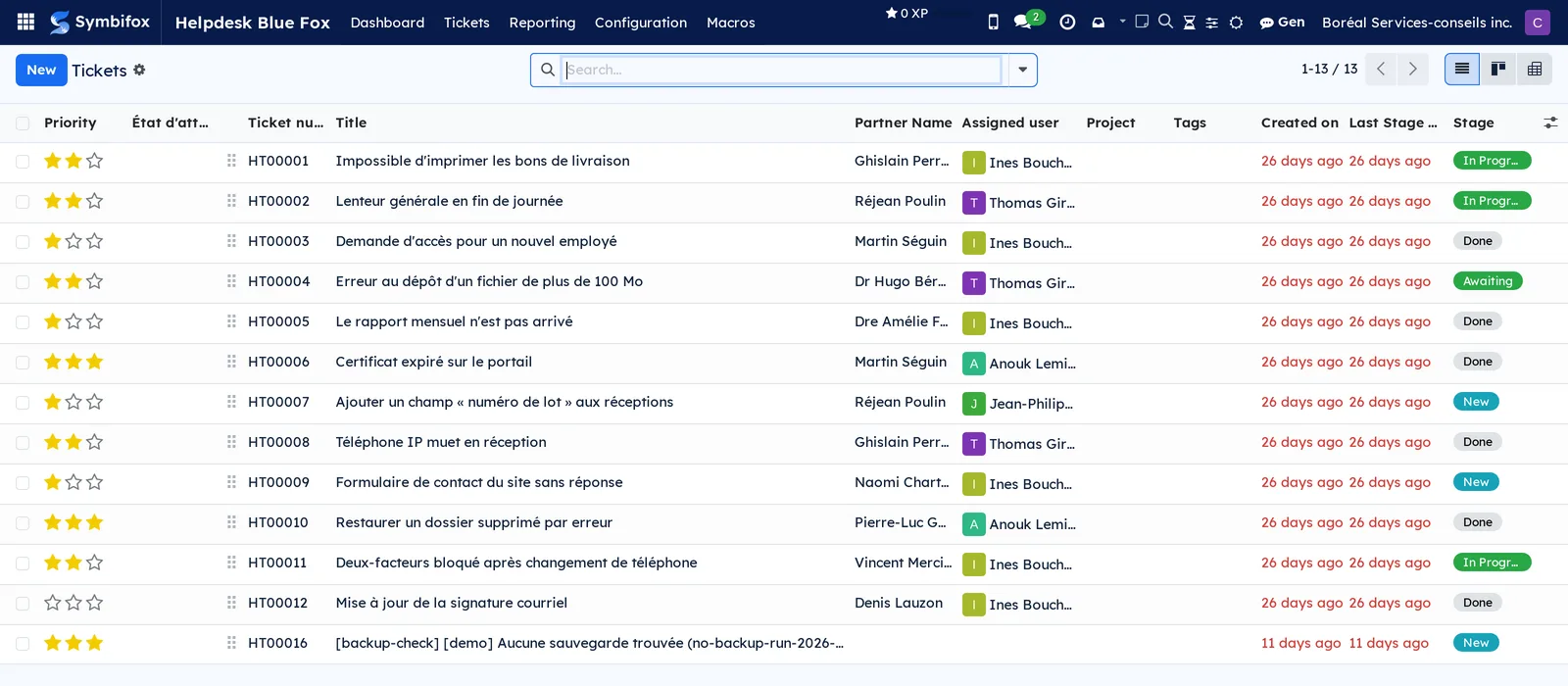
What you do there:
- Select a column header to sort; select it again to reverse the order.
- Select the settings icon at the far end of the header to show or hide columns.
- Check the box at the start of a row to select a record; check the header box to select the whole page. Actions then appears above the list.
- Select a row to open the form. Some lists can be edited in place: the cell becomes an input area.
- A grouping (see Filter and group) turns the list into expandable groups, with a count and totals per group.
The kanban view#
The kanban view shows each record as a card. Without grouping, the cards form a grid, as in Contacts. Grouped by stage, they form columns, as in the CRM pipeline.
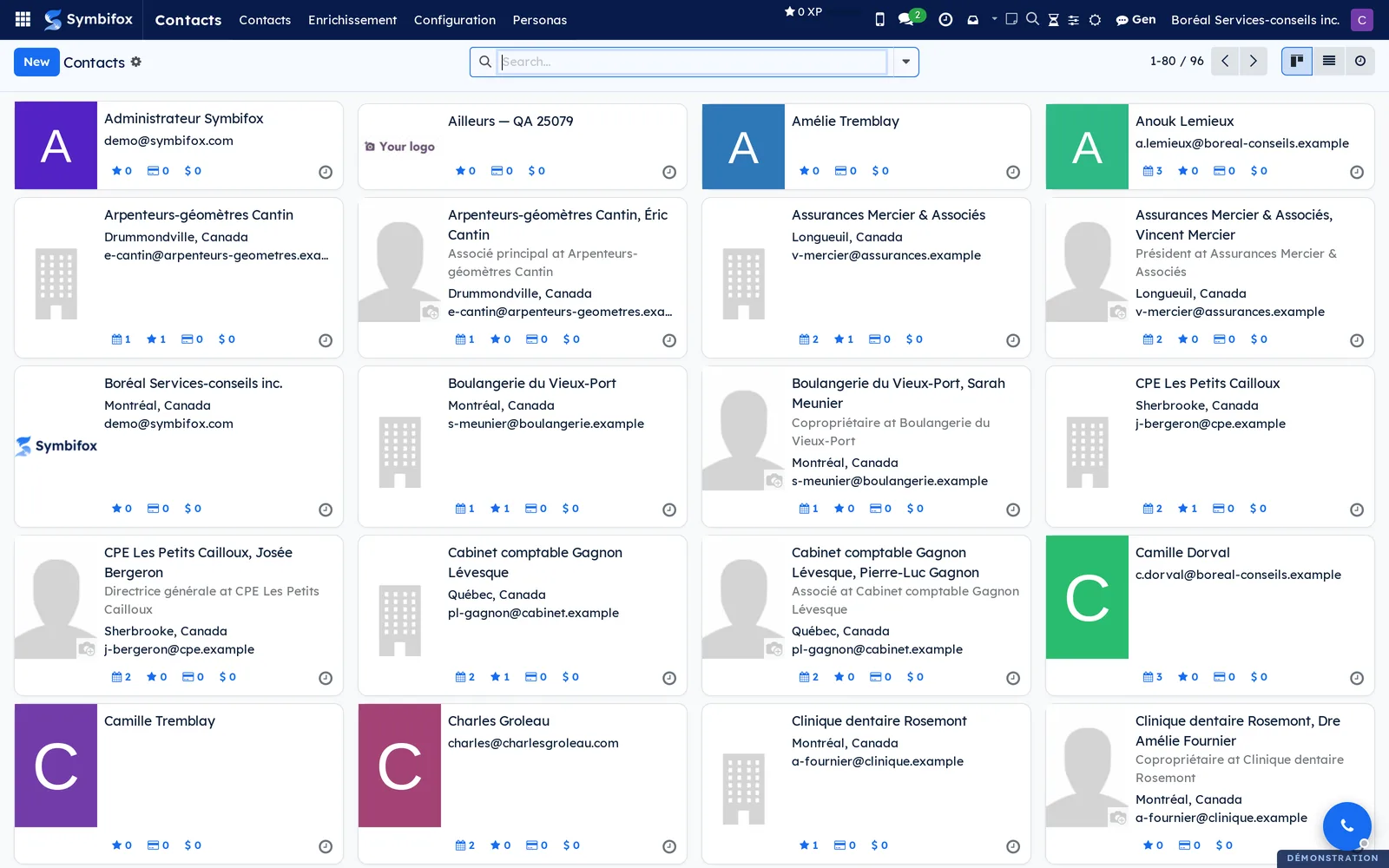
In a kanban by columns, drag a card from one column to another to change its stage. The + sign at the top of a column creates a record directly in that stage: you enter a title and confirm. + Stage, at the right of the columns, adds a stage. The CRM pipeline shows the structure on the demo.
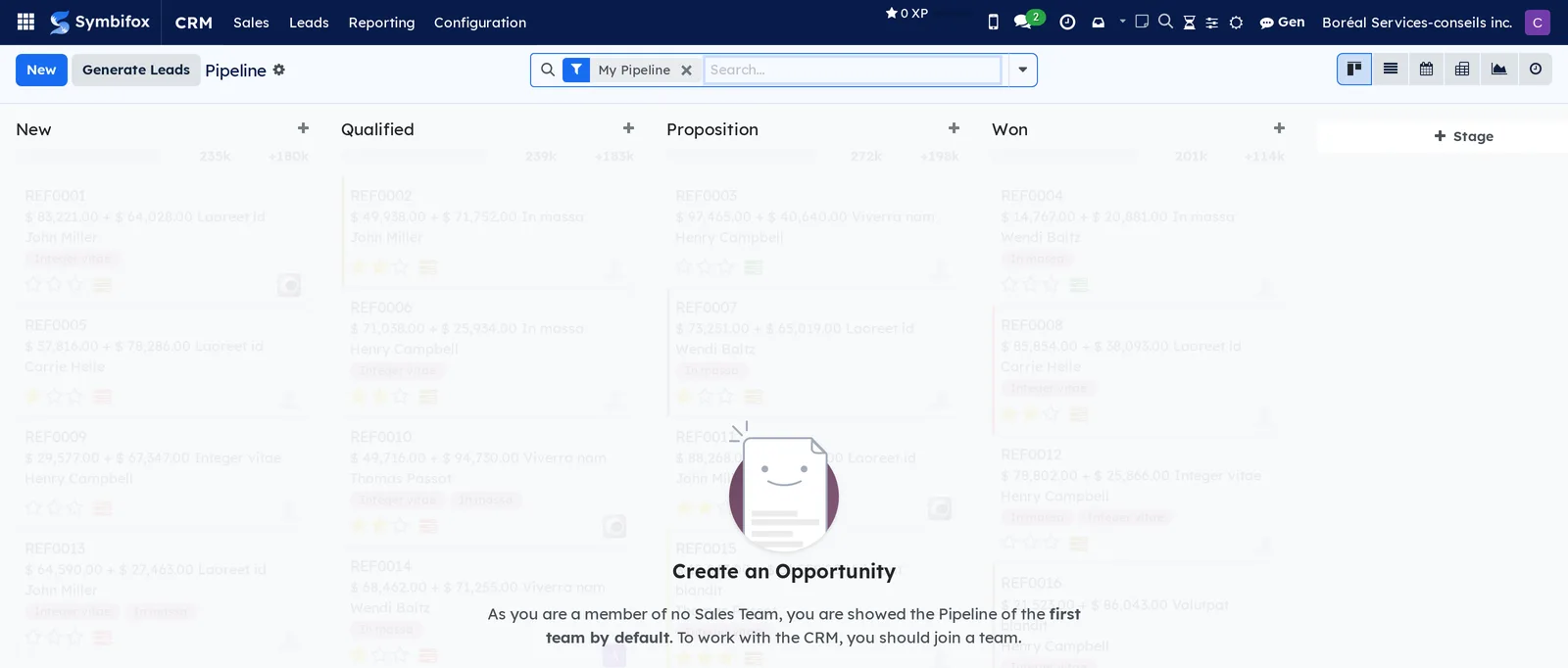
On the cards, the small clock shows the state of scheduled activities: green when everything is still ahead, orange on the day itself, red when overdue.
The form view#
The form is the complete record sheet. At the top, the breadcrumb reminds you where you come from; the arrows at the right move to the previous or next record in the list. An expense from the demo shows the usual layout.
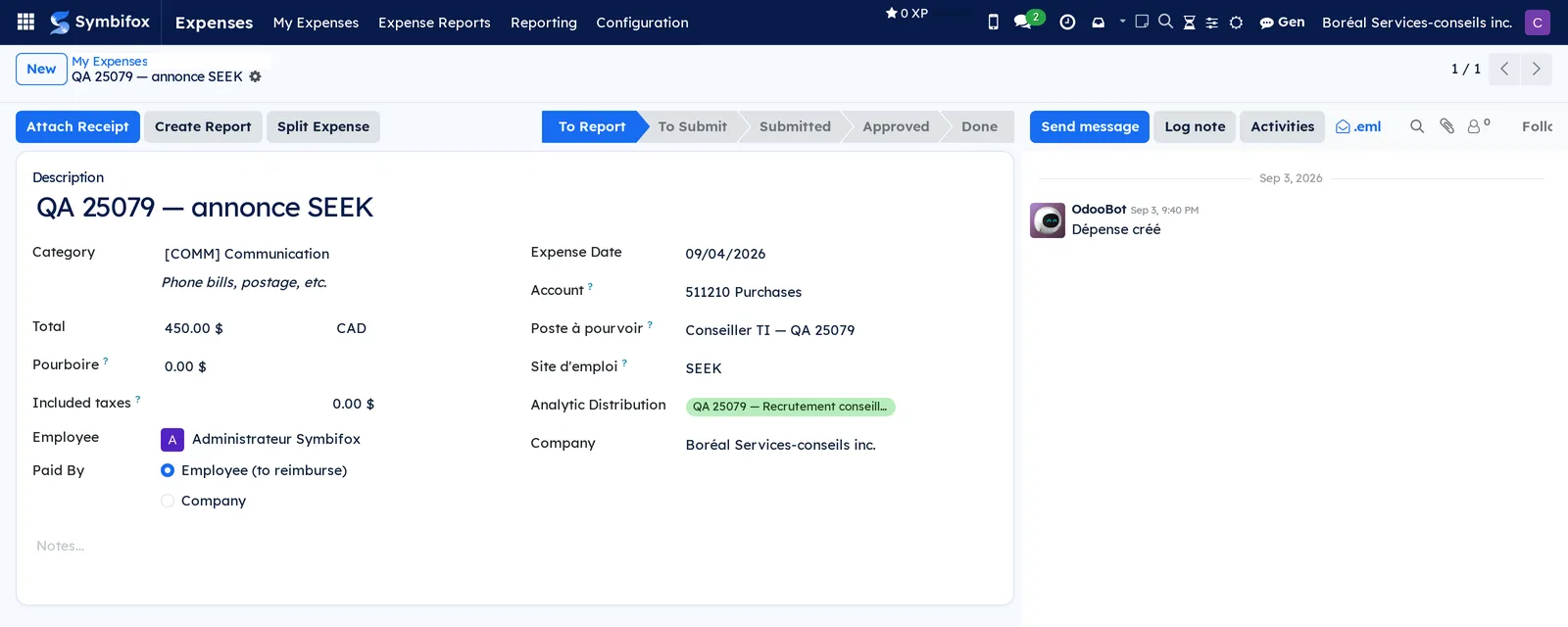
The elements to know:
- The action buttons sit at the top left of the form (Attach Receipt and Create Report in this example).
- The status bar, at the top right, shows where the record stands. On many screens, selecting a stage is enough to move to it.
- The gear icon next to the title opens the record's action menu: Duplicate, Archive, Delete, and sometimes Export or actions specific to the application.
- The shortcut buttons at the top of the form, when there are any, lead to the linked records (a project's tasks, a contact's invoices).
- Symbifox saves the record as soon as you leave it. The save icon near the breadcrumb forces the save; the icon next to it discards the changes in progress.
- The chatter takes the right-hand column on a large screen, and moves below the form on a narrow screen.
The calendar view#
The calendar view places dated records on a grid. The demo's Calendar uses it for meetings.
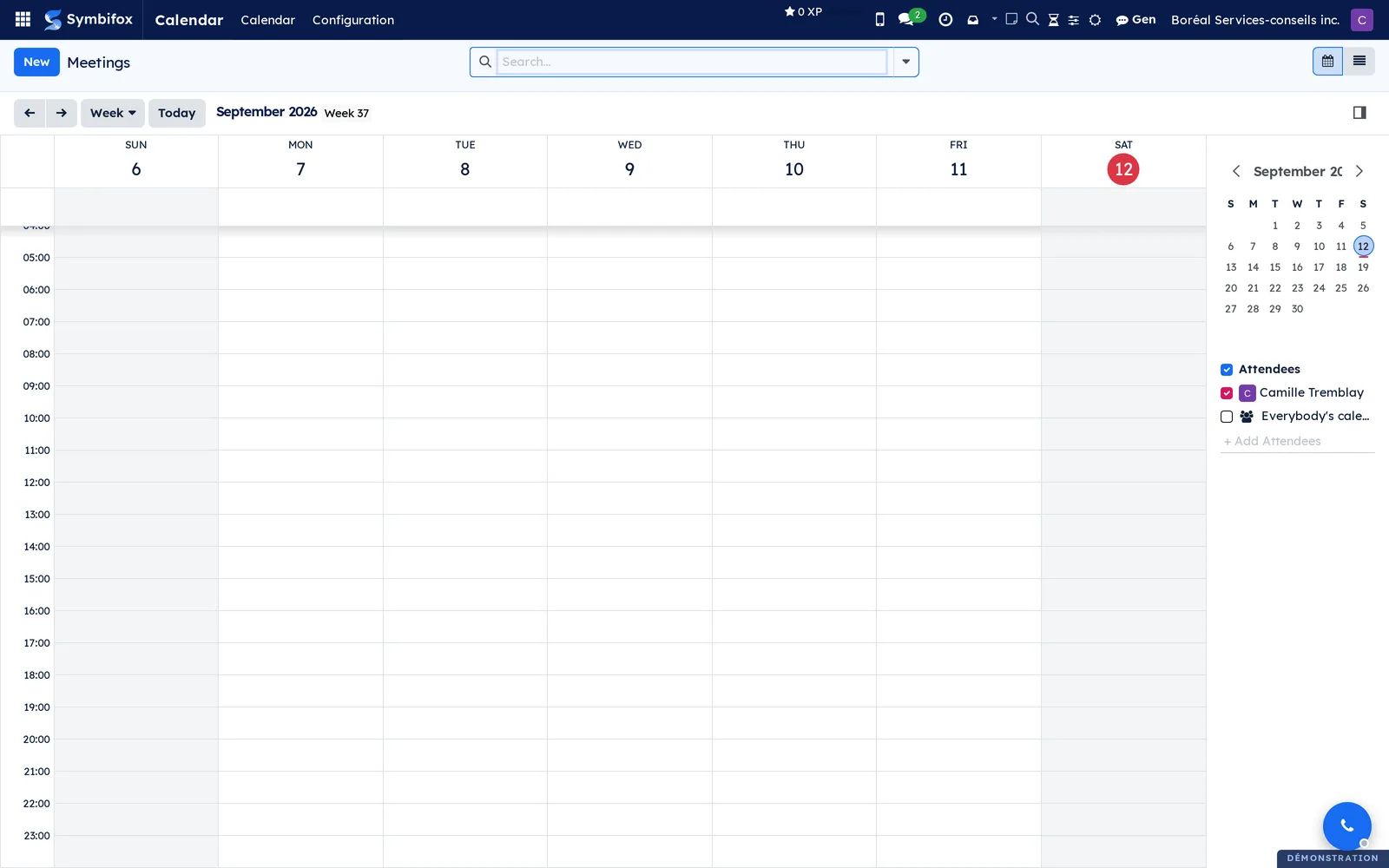
Week opens the choice of scale (day, week, month, year); the arrows and Today move the period. Select an empty slot to create a record on that date; drag a record to move it. The right-hand panel holds a mini calendar and checkboxes that filter the display, by attendee on this screen.
The graph view#
The graph view plots a measure along one or two groupings. The CRM pipeline analysis shows the amount of opportunities by stage, stacked by month.
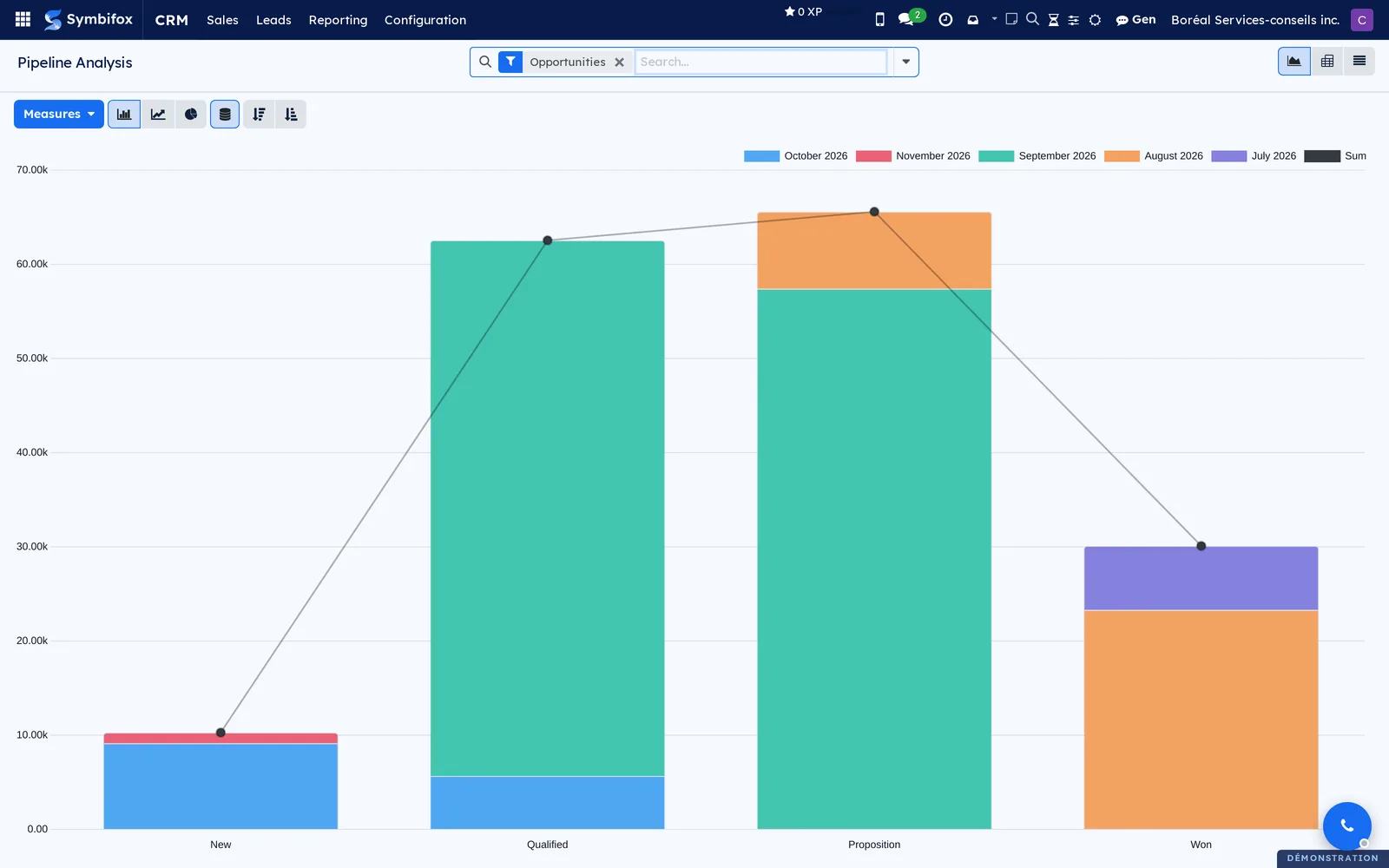
Measures chooses the value plotted. The neighbouring icons change the chart type (bars, line, pie), stack the series or not, and sort by value. Hover over a bar to read its exact value.
The pivot view#
The pivot view crosses two groupings and shows a measure in each cell. Select a row or column header to expand it by another field, or to collapse it. The icons in the bar swap the axes, expand everything and download the table in spreadsheet format.
The activity view#
The activity view shows one row per record and one column per activity type (call, email, meeting, to-do). Each cell takes the colour of the most urgent activity: green ahead, orange today, red overdue. Select an empty cell to schedule an activity without opening the record. In the view switcher, its icon is a clock.
Search, filter, group and save favourites#
The search bar does three things: search for text, filter and group. Each active criterion appears in the bar as a facet, with an x to remove it. The Open facet on the To-do screen and My Pipeline in the CRM are filters applied by default.
Search for text#
- Enter a word in the search bar. A list offers the fields to search in (Search Title for: …, Search Customer for: …).
- Select the line you want, or confirm to take the first one.
The result appears at once. A second word adds a facet: the two conditions apply together.
Filter and group#
- Select the arrow at the right of the search bar. A panel opens with three columns: Filters, Group By and Favorites.
- In Filters, check one or more predefined filters. Two filters from the same block combine with “or”; filters from different blocks combine with “and”.
- For a condition that does not exist, select Add Custom Filter, choose a field, an operator and a value, then confirm.
- In Group By, check a field. The list folds into groups; the kanban reorganizes into columns; the graph and the pivot take the field as a dimension.
- For a second level of grouping, check another field: the order of the facets gives the order of the levels.
Save a search#
A search you redo every week deserves a favourite.
- Apply the filters, the grouping and the text you want.
- Open the search panel and, in Favorites, select Save current search.
- Enter a name.
- Check Default filter so that this screen always opens this way for you.
- Check Shared so that your colleagues see this favourite.
- Confirm.
The favourite appears in the Favorites column, with a trash icon to remove it.
Create, edit, duplicate, archive and delete#
Create and edit#
New opens an empty form. In a kanban by columns, a column's + creates the record in place, with the title alone. In some lists, Add a line at the bottom of the list creates a row without leaving the screen. Once the record is open, type directly in the fields: there is no “edit” mode to turn on. A required field left empty blocks the save and is flagged in red.
Duplicate#
- Open the record to copy.
- Select the gear icon next to the title, then Duplicate.
A copy opens, carrying the same name followed by “(copy)”. The linked documents (messages, attachments, invoices) are not copied; only the fields of the record are.
Archive and unarchive#
Archiving removes a record from the lists without destroying it. History, invoices and links stay intact.
- On the form, select the gear icon, then Archive. On a list, check the rows you want, then select Actions › Archive.
- To find an archived record, open the search panel and check the Archived filter.
- Open the record, then select the gear icon and Unarchive.
Archiving a record also removes its pending activities. Each one leaves a cancellation note in the chatter, so that what was planned stays on record: see Cancel an activity.
Delete#
- On the form, select the gear icon, then Delete. On a list, check the rows, then select Actions › Delete.
- Confirm.
Deletion is permanent. Symbifox refuses it when other records depend on this one, for example a posted invoice or a contact that has invoices. In that case, archive.
Export and import#
Export a selection#
- Open the list view of the screen you want and apply your filters.
- Check the rows to export, or the header box for the whole page. For every page, then select Select all.
- Select Actions › Export.
- In the export dialog, check I want to update data (import-compatible export) if the file is to be reimported later.
- Choose the format, XLSX or CSV.
- In the left column, search for the fields and add them to the right column; reorder them if needed.
- Select Export.
The file downloads. The list of fields can be saved under a name, to be used again at the next export. To export the whole screen without checking anything, select the gear icon next to the list title, then Export All.
Import records#
Importing creates or updates records from a spreadsheet file.
- Open the list view of the screen you want.
- Select the gear icon next to the title, then Import records.
- Select Upload Data File and choose an XLSX or CSV file whose first row carries the column titles.
- Check the proposed match between each column of the file and a Symbifox field; correct the columns that were not recognized, or ignore them.
- Select Test. Symbifox flags the faulty rows (unknown value, empty required field) without writing anything.
- Correct the file or the matching, then select Import.
The records appear in the list. A file obtained through an “import-compatible” export carries an external identifier column: when reimported, it updates the existing records instead of creating new ones.
The chatter#
The chatter accompanies most records: contacts, tasks, tickets, invoices, opportunities, meeting reports. It keeps, in order, everything said and done on the record: messages sent, internal notes, stage changes, attachments, activities. Its bar carries three buttons, Send message, Log note and Activities, then icons: search in the chatter, the paperclip for attachments, and the followers with their count.
Internal notes and sent messages#
A note posted with Log note stays internal: only people who have an account in Symbifox see it, and nobody receives an email, except a person mentioned with @. A message posted with Send message goes out by email to all the record's followers and to the recipients you add. An external contact then receives an email; their reply comes back into the chatter, under the original message. The two kinds are told apart on screen by their background colour. When in doubt, choose Log note.
The composer accepts formatting, @ mentions, emojis and attachments. The expand icon opens the composer full screen, with the subject, the recipients, the email templates and the Send Later option. A scheduled message shows at the top of the chatter until its time, with the Send Now, edit and cancel commands.
The full-screen composer also shows, under Abonnés de la fiche (the record's followers), the people who will receive the message simply because they follow the record. They are all there to begin with: a send you do not touch goes out exactly as it did before. Removing a chip takes that person out of this one send, without unsubscribing them from the record; adding someone makes them a recipient in their own right, named in the To header. This is the place to check who will actually read a message before it goes.
After several exchanges with a client, email programs stack the subject prefixes (“Re: Re: Re:”). Symbifox brings them back to a single one.
Followers#
A record's followers receive its messages and its notifications, according to their personal preference: by email, or in the Symbifox inbox. Symbifox automatically subscribes the person who creates the record, the person it is assigned to, and the people who write on it.
- In the chatter, select the followers icon (the number shows how many there are).
- Select Add Followers, choose people, then confirm.
- To set what a person receives, select the edit icon next to their name and check the message types you want.
- To remove a person, select the x next to their name.
On the demo, a record's followers can only be team members: an external contact added by mistake is removed on its own.
A record hidden from you, such as a colleague's personal note or private email, is hidden from its followers list too: you cannot see who follows it. If you open a record that is not yours by mistake, the refusal message no longer gives its name.
To keep a client informed, add them as the recipient of a message rather than as a follower, or give them portal access (see Contacts).
When an incoming email cannot be attached to any record (misconfigured address, refused sender), Odoo usually answers the sender with a non-delivery notice. Symbifox does not.
Attachments#
The paperclip in the chatter opens the list of files attached to the record. You can also drag a file onto the chatter, or attach a file to a message as you write it. Each file can be previewed, downloaded and removed from this list. Images and PDFs open in a viewer.
When an attached file is replaced (by an online office editor, by a manual upload or by a robot), Symbifox can keep the previous state.
A rewrite with identical content creates no version. A version is visible only to a person who can read the original file.
Chronological order of the chatter#
Out of the box, Odoo sorts the chatter by insertion order. An email imported after the fact (an archive, a forwarded file, a supplier receipt) therefore rose to the top of the chatter, even if it dated from January. Symbifox sorts the chatter by the actual date of the messages.
If an imported email lost its original date, you can have it recovered.
- Open the record concerned.
- Select the gear icon next to the title, then Reorder this chatter by date.
A notification says how many messages were redated. Symbifox rereads the date header quoted in the body of the messages; the action can be run again without risk.
Add the same note to several records#
Marking “followed up” or “checked” on thirty records takes one operation from the list.
- Open the list view and check the records you want.
- Select Actions › Add a note (in bulk).
- The dialog recalls the model and the number of records selected. Enter the text in Content.
- Leave Post type on Internal note (log). For a message that notifies the followers, choose Message (notifies followers) and check the confirmation box.
- Select Post.
A notification gives the number of notes posted and, where applicable, the records refused for lack of permissions.
Choose the record that receives content#
Several Symbifox dialogs ask which record to send content to: a Notepad note to redirect, an email to import into a chatter, an SMS to file. They share the same input area.
- In the target record area, enter a name, an invoice number or an identifier, or paste the address of a Symbifox page.
- The results are grouped by kind of record, with an icon and a line of context; closed records are struck through.
- If the text you entered matches a record exactly, that record appears first, under Exact reference.
- Select the record.
Scheduled activities and their link to the calendar#
An activity is a dated reminder, assigned to a person, attached to a record: call a client back, send a quote, hold a meeting. The standard types are Email, Call, Meeting, To-Do and Upload Document; administrators can create others. The number of activities waiting for you shows on the clock icon in the top bar, across all applications.
Schedule an activity#
- Open the record and, in the chatter, select Activities.
- Choose the Activity Type.
- Enter a Summary, adjust the Due Date and the person in Assigned to.
- If needed, add details in the text area.
- Select Schedule.
The activity appears at the top of the chatter, with its date in green, orange or red according to urgency. From a list or a kanban, the clock icon of the row or of the card opens the same dialog.
Mark an activity as done#
- In the chatter, on the activity, select Mark Done.
- If needed, enter a follow-up comment and confirm, or select Done & Schedule Next to chain on to the next activity.
The activity moves into the chatter history with your comment. An activity of the Meeting type opens the Calendar to create the event, and closes when the meeting takes place.
Cancel an activity#
An activity that no longer applies is cancelled from the chatter. Before removing it, Symbifox asks whether the cancellation should leave a trace.
- In the chatter, on the activity, select Cancel.
- In the Cancel the activity window, enter a reason if you wish.
- Select Cancel and log a note to keep a trace, or Discard without a trace to remove it as if it had never existed.
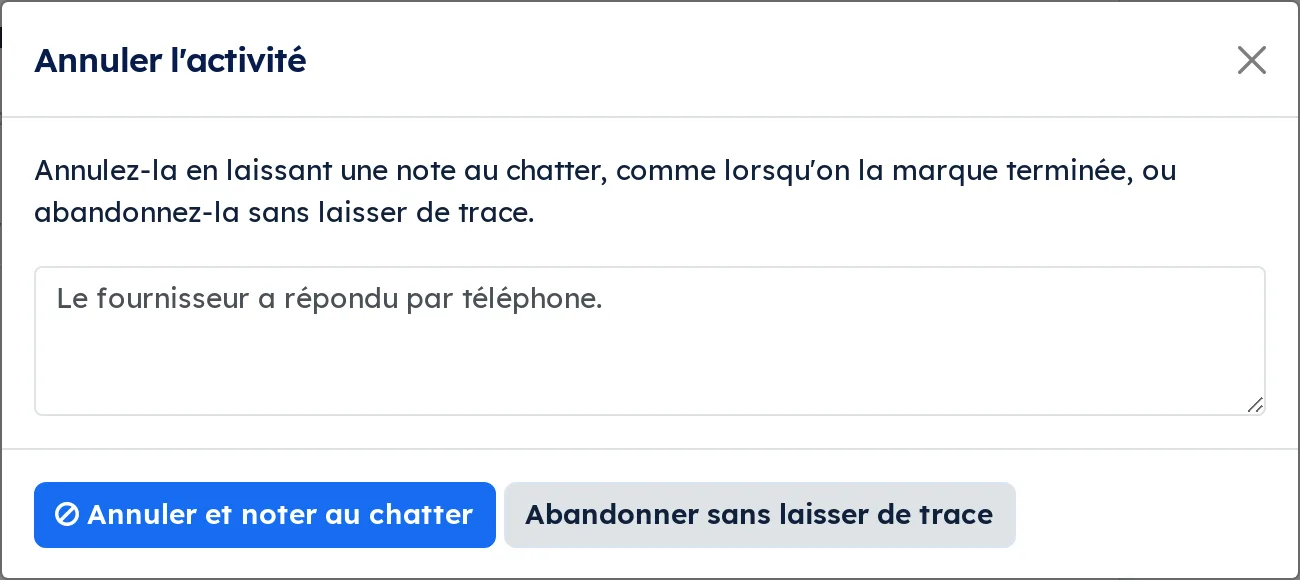
The cancellation note follows the model of the one left by Mark Done, under a “no entry” icon: the activity's type and summary, the person it was assigned to if that is not you, its due date, its original note and your reason. The activity's attachments move to the note. Closing the window without choosing keeps the activity. The same choice is offered from the clock icon of a list or kanban and from the activity view.
When a record is archived, for instance an opportunity marked lost or the tasks of a project being archived, each of its pending activities leaves a note marked Cancelled automatically. An activity already done and kept in the history is never noted.
Link an activity to a meeting already in the calendar#
Odoo creates a new meeting every time a Meeting activity is scheduled. Yet the meeting often already exists: booked through a booking page, synchronized from another calendar, sent by a third party. Symbifox lets you point to it.
- Open the record and select Activities.
- Choose the Meeting type.
- In Calendar event, select the existing meeting. Start, End, Location and Sync source fill in on their own.
- Select Schedule.
The activity shows the time and the place of the meeting. On the calendar event, the Linked activities tab lists the activities that point to it. Marking the activity done closes it against this meeting, without creating a second one.
Task recurrence#
A Project task can repeat: check Recurrent on the task, choose the interval (days, weeks, months, years) and, if needed, an end date. When the task is closed, Symbifox creates the next occurrence. The question is where to count the interval from.
Out of the box, the next due date always starts from the old due date. Closing a weekly task three days early brings nothing forward; closing it three weeks late pushes nothing back, and a neglected series piles up occurrences that are already late at birth. Symbifox adds a choice per series.
- Open the recurring task in Project.
- In the recurrence settings, choose the value of Compute the next deadline: From the deadline (the original behaviour) or From the closing date.
- Save.
In From the closing date mode, the next occurrence starts from the actual moment of closing plus the interval. Closing early brings the next one forward; closing late pushes it back by as much, with no catching up. Subtasks keep their offset from the main task, and a series with an end date stops on the right date.
Keep From the deadline for anything tied to a fixed date: an anniversary, a regulatory filing, monthly rent. Reserve From the closing date for routines where only the spacing matters: cleaning, backup, routine follow-up.
Troubleshooting#
| Symptom | Likely cause | Fix |
|---|---|---|
| A client contact added to the followers disappears after a few minutes. | The follower cleanup removes anyone without an internal account. | Add the contact as the recipient of the message, or give them portal access. |
| A cancellation note appears although nobody cancelled the activity. | The record was archived, for instance an opportunity marked lost: its pending activities are noted automatically. | Nothing to fix; the note keeps a trace of what was planned. Unarchive the record and schedule the activity again if it still applies. |
| An imported email shows at the top of the chatter although it is old. | Its original date was lost during the import. | On the record, select the gear icon, then Reorder this chatter by date. |
| Export does not appear in Actions. | Your account does not have the export permission. | Ask administrators to add your account to the export group. |
| Delete is refused with an error message. | Other records depend on this one. | Archive the record instead. |
| No version appears for a replaced file. | Retention is turned off, the extension is not in the list, or the content was identical. | Check the settings in Settings; an identical replacement creates nothing. |
| A recurring task is born already late. | The series counts from the old due date and has fallen behind. | Move the series to From the closing date. |
| A sender says they wrote to the organization, but nothing arrived on a record and they received no notice. | The receiving address is misconfigured; the non-delivery notice is suppressed by design. | Administrators check the alias in Settings › Technical › Email › Aliases, and the server log. |
See also#
- Signing in and finding your way: the top bar, the application menu, universal search.
- Email: importing emails into the chatters, and mailbox monitoring.
- Calendar: meetings, synchronization and reminders.
- Project: tasks, their stages and their recurrence.
- To-do, Notepad and Timer: quick notes and turning them into activities.
- Contacts: the portal and the access given to clients.
- Settings and brand identity: the permission groups, including export.