

Part 1 · Communicating and meeting
Discuss
Symbifox's internal messaging: team channels, direct messages, the notification inbox, mentions, attachments, canned responses and built-in video calls.
Discuss is Symbifox's internal messaging. It brings together team channels, direct messages between colleagues, video calls and the inbox of notifications that the other applications send you. Anyone with an internal account uses it, from the assistant to the accountant, to exchange without leaving their work. The result: conversations stay in Symbifox, next to the records they are about.
Overview#
Discuss rests on a few notions. A channel is a team conversation with a name (“it-projects”, “accounting”) that gathers its members. A direct message is a private conversation with one or more people. The Discuss inbox holds no email: it receives notifications, that is, the mentions aimed at you and the messages posted on the records you follow (a task, a ticket, a contact). Starred gathers the messages you marked as to do, and History keeps the ones you have already read.
Emails live in the Email application. The chatter at the bottom of each record, the message thread where messages are posted, is described in Common actions in every application. Any message posted there with a mention arrives in your Discuss inbox. Symbifox adds no screen to Discuss, but its top bar places email, calls and SMS next to the message counter, so that every communication channel is one gesture away.
Discuss is not in the application grid: you open it with the speech bubble in the top bar, which shows the number of unread messages. The paths in this chapter, such as Discuss › Configuration, start from there.
The demo's home screen shows the sidebar and an inbox that is up to date.
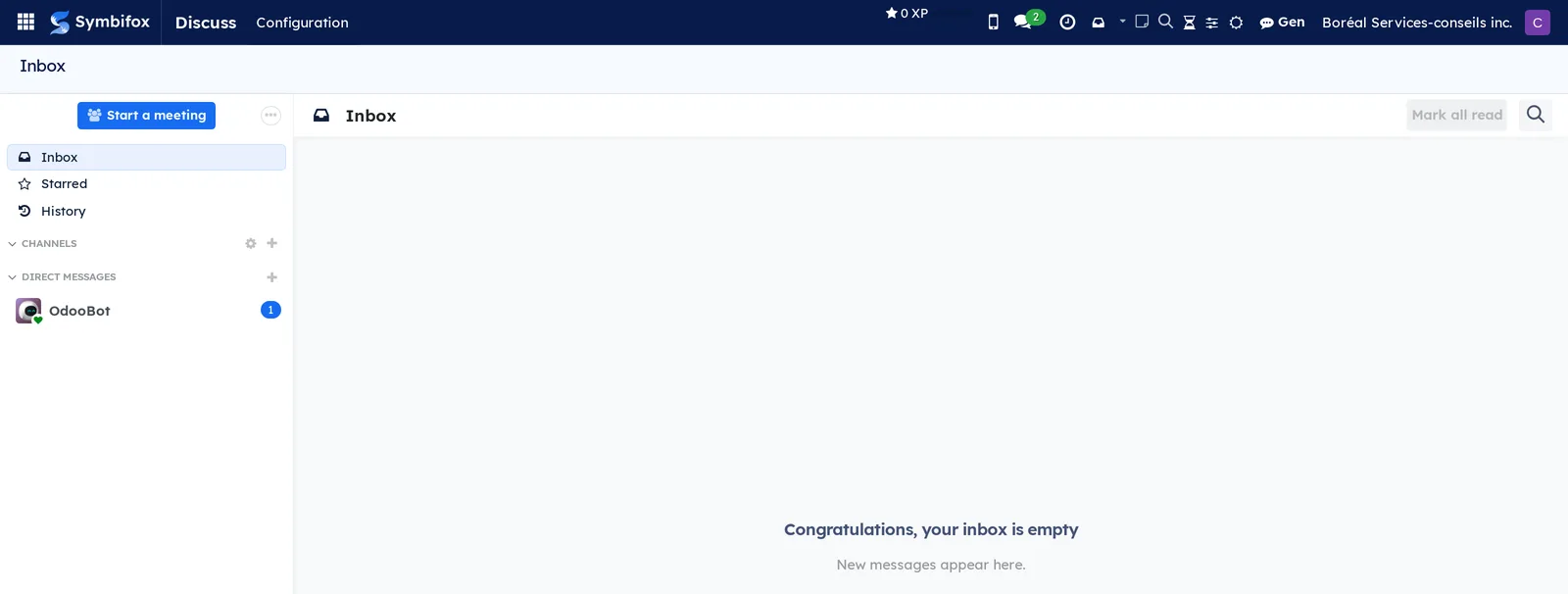
In the sidebar, Start a meeting opens a video call on the spot. Under CHANNELS, the gear lists the channels you can join and the plus sign creates one. Under DIRECT MESSAGES, the plus sign starts a conversation. The direct message with OdooBot, Odoo's welcome assistant, carries a badge here: one message is still unread.
Configuration#
Access and permissions#
Discuss is open to every internal user, with no access group to assign. A person who has only portal access (a client, for example) does not enter: they receive by email the messages posted on the records they follow. A channel can be reserved for one access group with its Authorized Group setting; other people do not see it in the channel list.
Settings#
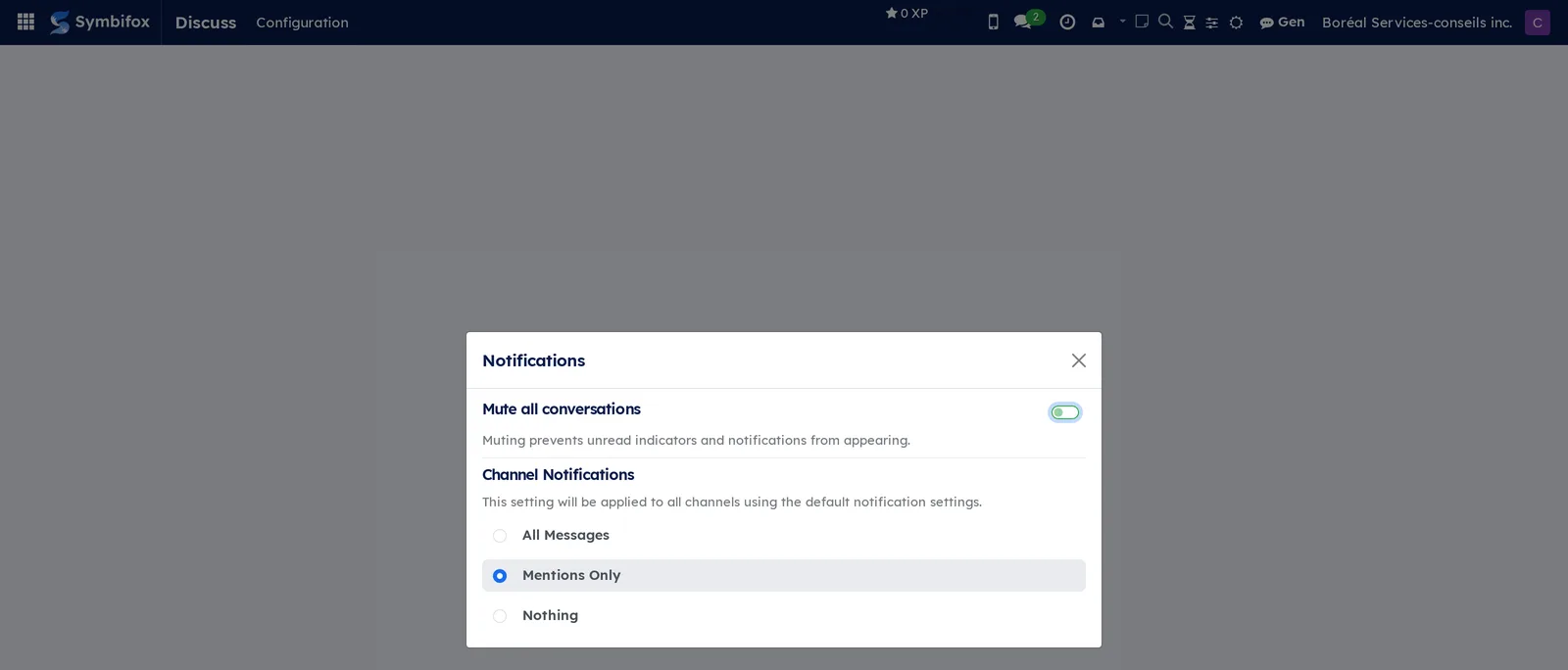
Your personal settings are under Discuss › Configuration. Notifications sets what alerts you to a message: muting all conversations, and the default level for channels (All Messages, Mentions Only or Nothing). Voice & Video sets the microphone and the camera for calls. Finally, your profile (your avatar in the top bar, then My Profile, Preferences tab) carries the Notification preference: handle notifications in Symbifox, or receive them by email.
Base data#
Nothing is required before you start exchanging. Two things are worth preparing: a few channels that follow how the team is organized (one per department or per long-running project), and Canned Responses for the sentences you type ten times a day. See Create a channel and Create a canned response.
Getting started#
This walkthrough creates a first channel at Boréal Services-conseils, posts a message in it and finds the message again in the starred list.
- Open Discuss. The inbox appears.
- In the sidebar, under CHANNELS, select the plus sign, enter “it-projects” and confirm. The channel opens, and you are its first member.
- In the composer at the bottom of the screen, enter “Welcome to the IT projects channel.”, then press Enter. The message appears in the channel.
- Enter a second message that starts with “@”, then the first letters of a colleague's name. Select the name in the list offered and finish your sentence. The person mentioned receives a notification in their own inbox, even if they are not a member of the channel.
- Hover over your first message and select the star, Mark as Todo.
- Open Starred in the sidebar: the message is there.
- Go back to Inbox. When a colleague replies and mentions you, the reply appears here, with a counter on the Discuss icon in the top bar.
Result: Boréal has a team channel, a posted message, a mention sent and a reminder in the starred list.
Common tasks#
Create a channel#
A channel serves a team or a topic that lasts; it stays readable by every new member.
- Open Discuss.
- Under CHANNELS, select the plus sign.
- Enter the channel name and confirm.
- In the channel header, select the members icon to invite colleagues.
- Optional: select the channel name in the header to give it a description.
Result: the channel appears in your sidebar and in the sidebar of each invited member.
Join or leave a channel#
You browse open channels from the sidebar.
- Open Discuss.
- Under CHANNELS, select the gear. The list of channels appears, each with its number of members.
- Select Join on the channel you want.
- To leave, open the channel, go to its settings in the header and select Leave Channel.
Result: the channel appears in or disappears from your sidebar. Your past messages stay in it.
Send a direct message#
A direct message stays between the people it brings together.
- Open Discuss.
- Under DIRECT MESSAGES, select the plus sign.
- Enter a colleague's name and select it. For a conversation with several people, add other names before confirming.
- Enter your message and press Enter.
Result: the conversation appears under DIRECT MESSAGES, and the green dot next to the avatar shows whether the person is online.
Mention a person or a channel#
A mention draws a person's attention, or points a conversation to a channel.
- In a conversation's composer, enter “@” followed by the first letters of a name.
- Select the person in the list. Their name is inserted, highlighted.
- To point to a channel, enter “#” and the first letters of its name, then select it.
- Finish your message and press Enter.
Result: the person mentioned receives a notification in their Discuss inbox, and a link to the channel is inserted in the message.
Attach a file or a voice message#
An attachment or a short recording sometimes replaces a long paragraph.
- In a conversation, select the paper clip in the composer.
- Choose one or more files on your device. They appear as thumbnails above the composer.
- For a voice message, select the microphone, speak, then stop the recording.
- Press Enter to send.
Result: the file or the recording appears in the message; a file downloads in one gesture from the conversation.
React to a message, edit it or delete it#
A message's actions appear when you hover over it.
- Hover over the message.
- Select the smiley face to add a reaction, then the emoji you want.
- For your own messages, open the actions menu and select Edit or Delete.
- After an edit, press Enter to save.
Result: the reaction is added under the message; an edited message is marked “edited”.
Mark a message as to do, or pin it#
The star creates a personal reminder; the pin highlights a message for the whole channel.
- Hover over the message.
- Select the star, Mark as Todo. The message joins Starred.
- To pin it, open the actions menu and select Pin.
- To find a channel's pinned messages, select the pin icon in the header.
Result: your starred messages concern only you; pinned messages are visible to every member of the channel.
Work through the notification inbox#
The inbox receives mentions and messages from the records you follow. It empties as you read it.
- Go to Discuss › Inbox.
- Read each notification. The title of the originating record is a link to it.
- Select the check mark, Mark as Read, on a notification to remove it.
- To remove everything at once, select Mark all read in the header.
Result: the inbox shows “Congratulations, your inbox is empty”, and the counter in the top bar disappears. Notifications you have read stay available in History.
Chat from any application#
You do not need to open Discuss to answer a colleague.
- In the Symbifox top bar, select the Discuss speech bubble. The counter shows the number of unread messages.
- Select a conversation in the list, or enter a name to start one.
- A chat window opens at the bottom of the screen, over the application in use.
- Enter your message and press Enter.
Result: the window stays open while you keep working; it folds or closes in one gesture.
Start a video call#
Calls are held inside Symbifox, with no extra software.
- Open Discuss.
- For an immediate call, select Start a meeting. A call channel is created and the meeting opens.
- To call in an existing conversation, open it and select the phone or camera icon in its header.
- During the call, turn the microphone and camera on or off, or share your screen, from the call buttons.
- To end the call, select the red end-call button.
Result: the members of the conversation see the call in progress and join it from the header. The microphone and camera settings are under Configuration › Voice & Video.
Set a channel's notifications#
A talkative channel can alert you to mentions only.
- Open the channel.
- In its header, open the channel settings.
- Under Notifications, choose All Messages, Mentions Only or Nothing.
- To make this choice the default for all your channels, go to Discuss › Configuration › Notifications and make the same choice there.
Result: the counter in the top bar rises only for what you kept.
Create a canned response#
A canned response inserts a prepared text when you type a shortcut preceded by a colon.
- Go to Discuss › Configuration › Canned Responses.
- Select New.
- Enter the Shortcut (“thanks”) and the Substitution (“Thanks for your message, I will get back to you by tomorrow.”).
- Optional: enter a Description and, to share the response, choose the Authorized Groups.
- Select Save.
Result: in any conversation, enter “:thanks” and select the suggestion. The text replaces the shortcut and stays editable before you send it.
Search in a conversation#
Each channel and each conversation has its own search.
- Open the conversation.
- Select the magnifier in its header.
- Enter a word and confirm.
- Select a result to go to the message in its context.
Result: matching messages appear in a panel, the most recent first.
The menus, one by one#
Discuss: the main screen. The sidebar carries Start a meeting, then Inbox, Starred, History, the CHANNELS section (gear to browse, plus sign to create) and the DIRECT MESSAGES section. The rest of the screen shows the conversation chosen. On opening, that is the notification inbox, with the Mark all read button and a magnifier. This is the chapter's main screenshot, shown in the overview.
Discuss › Configuration: a grouping menu for the three settings that follow.
Discuss › Configuration › Notifications: a dialog with two settings. Mute all conversations removes every indicator and every unread notification. Channel Notifications sets the default behaviour of channels, between All Messages, Mentions Only and Nothing. On the demo, the default is Mentions Only.
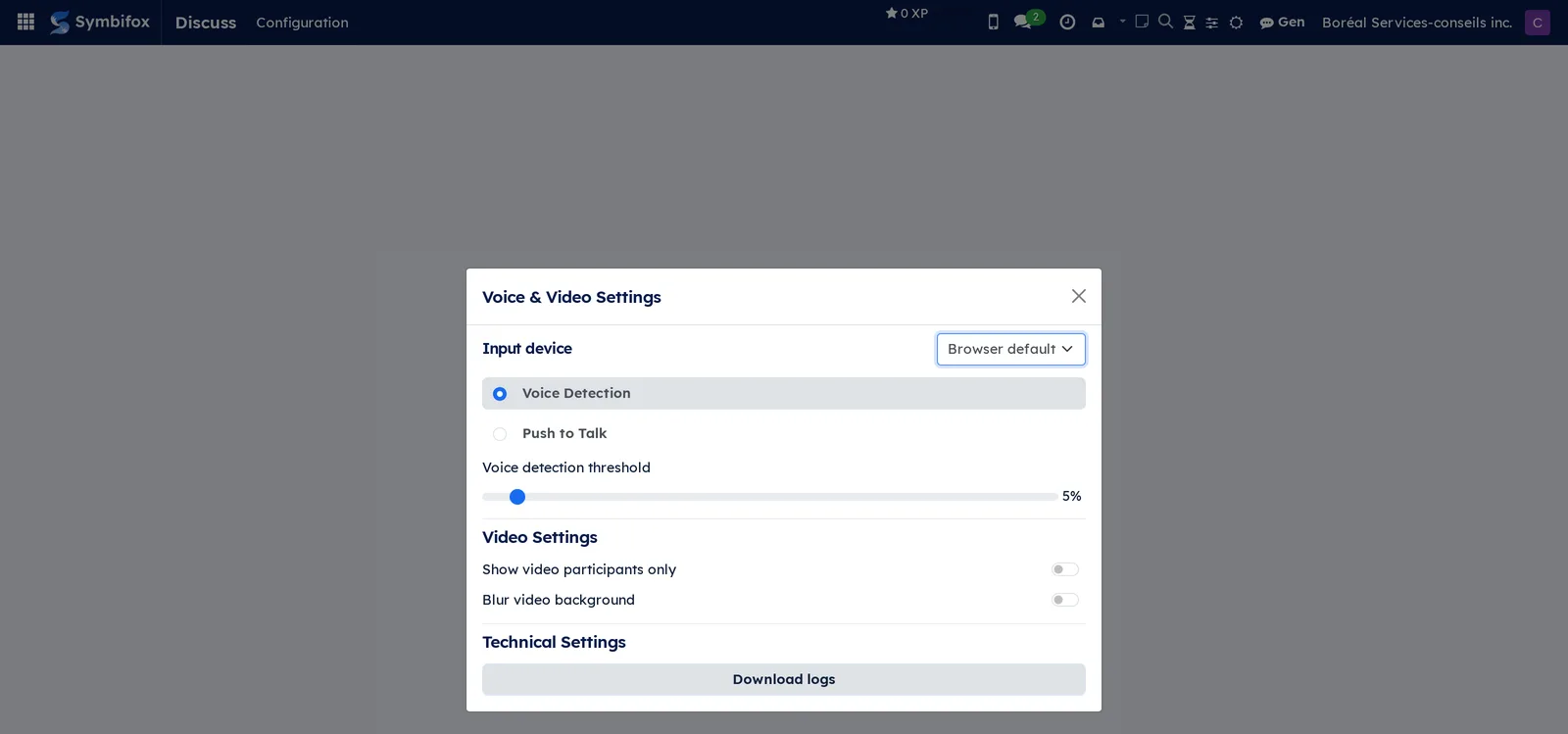
Discuss › Configuration › Voice & Video: the Voice & Video Settings dialog. Input device chooses the microphone (Browser default on the demo). Two modes exclude each other: Voice Detection, with its Voice detection threshold adjustable as a percentage, and Push to Talk. Under Video Settings, two switches: Show video participants only and Blur video background. Under Technical Settings, Download logs produces a file that helps technical support with a call problem.
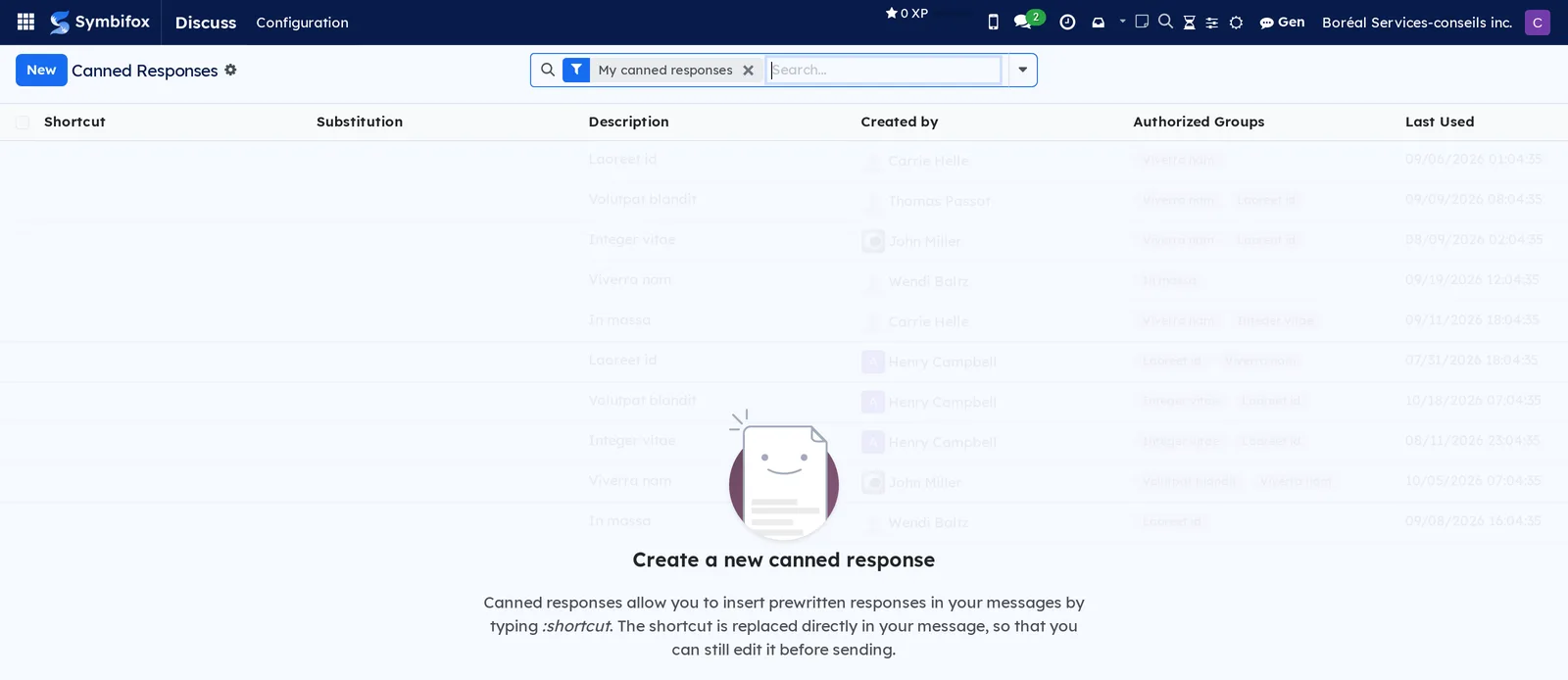
Discuss › Configuration › Canned Responses: a list with the Shortcut, Substitution, Description, Created by, Authorized Groups and Last Used columns, filtered on My canned responses. On the demo, the capture account owns none: the screen shows the creation help, which recalls that a shortcut is typed after a colon and stays editable before sending. The form of a response is the m95_form.png screenshot.
Reference#
Fields of the canned response form#
| Field | Description | Required or default |
|---|---|---|
| Shortcut | The word to type after a colon in a composer. | Required |
| Substitution | The text that replaces the shortcut. | Required |
| Description | A note for you, not shown in messages. | Optional |
| Authorized Groups | The access groups that can also use the response. Empty, the response stays personal. | Optional |
| Last Used | Date of last use, updated on its own. | Computed |
Fields of a channel's settings#
| Field | Description | Required or default |
|---|---|---|
| Name | The name shown in the sidebar and in mentions with “#”. | Required |
| Description | A sentence saying what the channel is for. | Optional |
| Authorized Group | Reserves the channel for the members of an access group. | Optional, open to all by default |
| Notifications | What the channel alerts you to: all messages, mentions or nothing. | The default set under Configuration |
Reports and exports#
Discuss has no report. A file attached to a message downloads from the conversation, and Download logs (under Voice & Video) exports the technical logs of a call.
Automations#
When your profile's Notification preference is set to email, every message that mentions you or touches a record you follow also reaches you by email. Set to Symbifox, everything stays in the Discuss inbox. The counter in the top bar updates without reloading the page. A direct message received while you are offline waits for you in the conversation, with its badge.
Public pages and portal#
Discuss has no public page and no portal screen.
Modules that extend this application#
No Symbifox module adds a screen to Discuss itself. Two modules extend the chatter of records, which Discuss shares with every application; they are documented in the Email chapter.
The second module deals with importing emails received elsewhere.
Understanding#
The Discuss inbox and the chatter of records are one and the same mechanism. A message posted on a task with a mention is first a message of the task, and the inbox shows only a reflection of it. Marking it as read therefore erases it from nowhere: it stays on the record.
Channels and direct messages, on the other hand, belong to no record. That is what makes them handy for a quick question, and unsuitable for a decision that concerns a client. Such a decision belongs in the chatter of the task or the project, where the team will look for it. The rule of thumb at Boréal fits in one sentence: we chat in channels, we decide on records.
Video calls run in the browser, with no software to install. Their quality depends on each participant's connection, and a self-hosted organization must make sure its server is reachable for voice and video (see Settings and brand identity). A call channel created by Start a meeting stays in the list after the call, with its messages.
Canned responses and notification settings are personal. A response becomes shared only if it is given an authorized group; a channel's notifications are set per person, never for the whole team.
Troubleshooting#
| Symptom | Probable cause | Fix |
|---|---|---|
| No notification arrives, even for a mention. | Mute all conversations is on. | Go to Discuss › Configuration › Notifications and turn muting off. |
| A channel no longer alerts you to anything. | Its notifications are set to Nothing, or the general default is Mentions Only. | Open the channel settings and choose All Messages. |
| Nobody hears you during a call. | The wrong microphone is chosen, or Push to Talk mode is on. | Go to Voice & Video, choose the right Input device and check the mode. The browser must also have permission to use the microphone. |
| A shortcut offers no canned response. | The response belongs to another person and has no authorized group, or the colon is missing. | Enter “:” then the shortcut; otherwise ask the owner to add your group in Authorized Groups. |
| A channel has disappeared from the sidebar. | You left it, or it is reserved for a group you no longer belong to. | Under CHANNELS, select the gear and join the channel again; if it is not listed, ask its administrator. |
| The counter in the top bar does not go down. | Notifications are still unread in the inbox. | Open Inbox and select Mark all read. |
See also#
- Common actions in every application, for the chatter, followers and activities.
- Email, for the email inbox and the buttons added to the chatter.
- Meetings, to prepare and document a team meeting.
- SMS, calls and SIP phone, for phone calls and text messages.
- Calendar, to invite attendees to a scheduled meeting.