

Part 7 · Platform, hosting and artificial intelligence
Gen, the assistant
Chat with the Gen assistant inside Symbifox, from the side panel or the full-width page, and set the frame for what it does.
Watch it
Gen is the Symbifox assistant. You ask it a question in plain language, it searches your records, it answers, and it acts: it opens a task, writes to the file, corrects a record. It serves the whole team, from any screen, through a panel that opens on the right or through a full-width page. The artificial intelligence model is reached from your server, with the organization's key: nothing goes through a third-party service chosen on your behalf.
Overview#
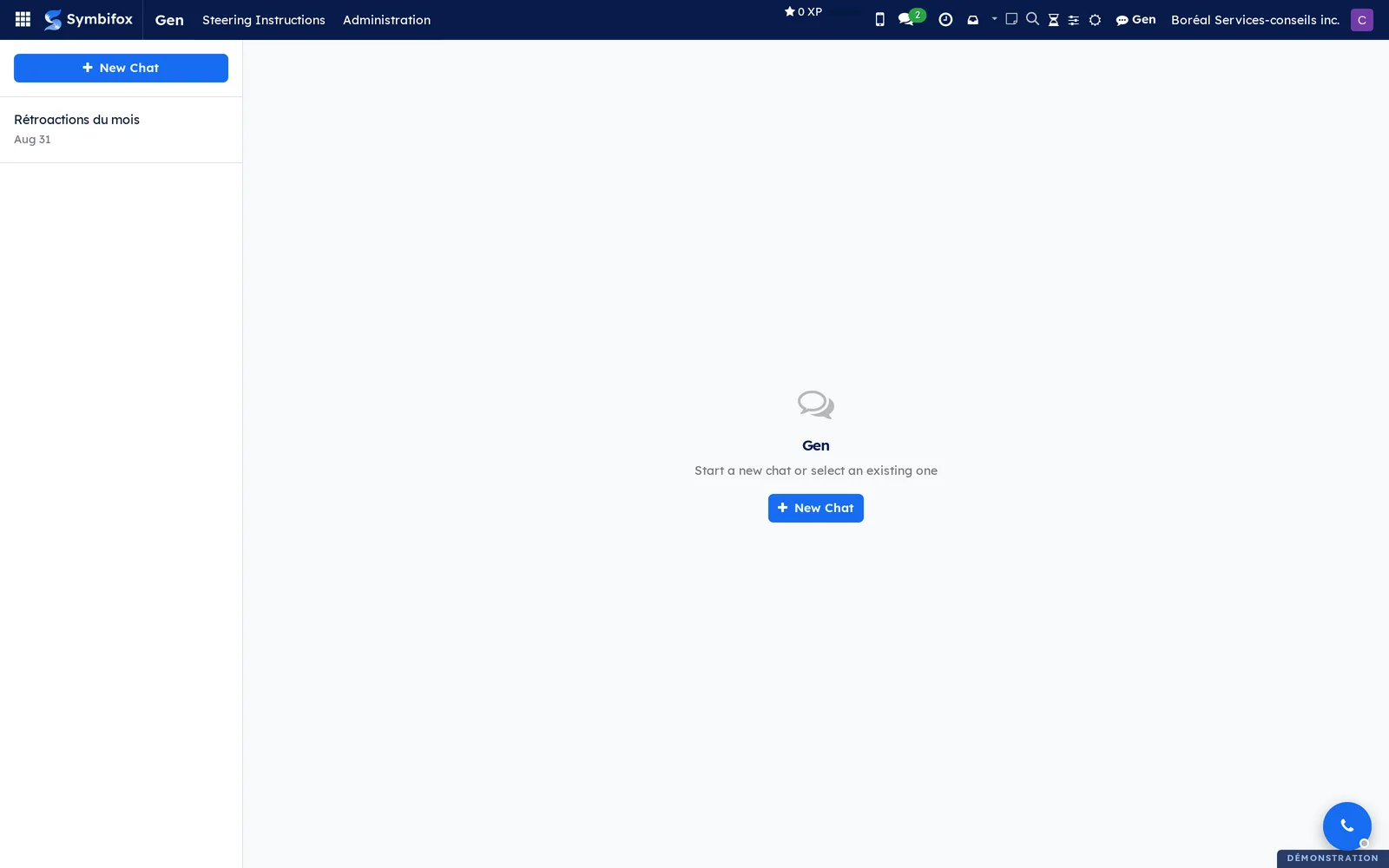
Two places give access to the same assistant. The Gen button of the top bar opens a side panel, which follows the record you are reading. The Gen entry of the main menu opens a full-width page, with all your conversations on the left. Both offer the same actions: search, rename, archive, reread an archived conversation, write while Gen is working. Both also follow dark mode when you turn it on, and the assistant's bubble takes on a tint of the organization's primary colour.
A conversation can also start from another application. In Email, 🪄 Envoyer vers Gen (send to Gen) opens a conversation linked to the email and has the situation update written in it in the background, without making you leave the inbox. An email that already has an active conversation gets that one back instead of opening a second one. The conversation then shows among the others, with the email's pill.
Here is that page on the Boréal demo.
Five notions structure the application.
- Conversation: an ongoing exchange with the assistant. It carries a title, belongs to the person who opened it and keeps its messages.
- Linked record: a conversation opened from the panel remembers the record you were reading. Opened on that record, the panel shows its whole history, archived conversations included; the full-width page shows all your active conversations. In both lists, a blue pill names that record and opens it in one click. At the top of the screen, the Gen icon carries a badge too: on a record, the number of your conversations about that record, archived ones included; elsewhere, the number of your active conversations.
- Steering instruction: a short directive the assistant follows in all its answers, or only on one type of record.
- Turn: one question and answer round trip. It is the unit the administration counts, in tokens, in duration and in equivalent cost, and the one the counters at the top of a conversation add up.
- Step: what the assistant does during a turn, such as reading a task or searching the mailbox.
What sets this approach apart: the assistant writes in Symbifox, on your real data, not on a copy exported elsewhere. When a personal key is set for your account, it writes under your identity: a task it opens carries your name in the history. Without that key, it writes under your organization's service account, and that is the name the history shows.
Configuration#
Access and permissions#
Chat is open to anyone who has an internal account: no particular group is required, and the Gen entry and the top bar button show for everyone. Each person sees only their own conversations.
The Administration submenu appears only to the people who hold the Settings level of Symbifox administration rights. That is where the screens live that show everyone's conversations, their consumption and the Claude accounts that pay for it. Other people's chat does not depend on them.
Settings#
The settings are in Settings › General Settings, Gen section. Eleven things are set there.
- Gen Assistant turns the assistant on. Cleared, the entry and the button disappear.
- Live streaming writes the answer as it is produced. Turned off, the answer arrives in one block at the end.
- Conversations aim to close, cleared at first: at the end of each turn, Gen judges where the conversation's own work stands and offers to archive it once that work is done (see Rename or archive a conversation).
- Proactive brief gives a situation update when a record opens: the first time the panel opens on a record that has no conversation yet, archived ones included, the assistant reads the record, its chatter (the message thread at the bottom of a form) and its latest activity, then opens with a status update and suggested next steps, without waiting for a question.
- Model is the artificial intelligence model used.
- Max Turns is the maximum number of steps the assistant can chain for a single message. The higher it is, the more complex requests succeed, and the longer they take.
- API Key (optional) is the organization's application programming interface key. When set, it is your subscription to the model provider, and it belongs to you: exchanges are billed by use to your account, not to the host's. Left empty, the assistant goes through the server's Claude account (see Monitor the Claude accounts).
- Response Timeout is the delay after which an answer that does not arrive is abandoned.
- The Counters block decides who sees the counters: one group for the plan windows, one for the conversation's tokens, one for the cost at API rates. Left empty, every internal user sees them. Each person then picks the ones they show (see Read a conversation's counters).
- Plan paying for Gen, in the Plan block, appears when the service that talks to the model offers it: another Claude account then pays the turns of the users listed, or of everyone. The change applies from the next turn.
- Gen's personality, in the Personality block, sets how the assistant speaks (see Set Gen's personality).
Base data#
Nothing is required to start. An organization that wants to frame the assistant's tone and habits sets its personality and writes a few steering instructions, described in Write a steering instruction.
Claude accounts are not created by hand: they register themselves at the first consumption reading sent by the server.
Getting started#
This walkthrough asks the assistant a first question about a record of the Boréal demo.
- Go to Contacts and open the Clinique dentaire Rosemont record.
- In the top bar, select Gen.
- Read the status update the assistant writes by itself, and the label that recalls the current record.
- Enter a question in the box at the bottom, for example “Which invoices of this client are still unpaid?”.
- Send the question.
- Watch the answer being written, with the status line naming the current step and the elapsed time.
- Close the panel with the Escape key.
The conversation is kept. When you reopen the panel from the same record, you find it again; when you open the full-width page, it is there among all your conversations.
Common tasks#
Ask a question from a record#
The side panel serves to work without leaving the current screen.
- Open the record you want, in any application.
- In the top bar, select Gen.
- Enter your question.
- Send it.
During the turn, a status line and a timer show under the answer in progress. The line names the current step, such as “Reading the task”, then shows “Gen is writing” while the answer is written. While the assistant thinks, the line draws a fox phrase, such as “Gen is sniffing out the trail”, in the language of the conversation: a conversation held in French shows them in French, even under an English interface.
The steps fold into a counter at the top of the bubble, “4 steps” for example, which you expand to read them again. When the service that talks to the model is up to date, a step shows the description Gen writes for its command. Otherwise, it keeps a generic label, such as “Running a check”.
You can leave the screen, reload the page or open another conversation during a turn: the answer carries on at the server and is saved. In the list, a small spinning wheel marks the conversation where “Gen is answering”. When you come back to it, the screen picks the turn up where it stands, and the timer counts from the start of the turn. A reopened panel also picks up a turn started elsewhere: the full-width page, the phone, 🪄 Envoyer vers Gen or another tab. Arrêter (stop) interrupts the turn of the conversation on screen, and only that one.
A question sent during a turn, with the Enter key, slips into that turn instead of starting a second one. Its bubble reads “Queued: Gen will read this when it comes up for air.” until Gen has read it. If the turn ends first, the question goes back into the input area.
When too many screens follow the same answer live, the latest one shows “Too many screens follow this answer. It will appear here.”: the turn carries on, and the answer resumes on that screen as soon as a place frees up.
The panel closes with the Escape key, with the close button, or by selecting the greyed-out area beside it.
Ask for an action rather than an answer#
The assistant writes in Symbifox: that is what sets it apart from a summary.
- Open the panel from the record concerned.
- Phrase the request as an instruction, for example “Open a follow-up task for Monday and assign it to me”.
- Send it.
- Expand the step counter at the top of the answer to see what the assistant read and wrote.
- Open the record created or changed to check it.
The change carries your name in the record's history. An email, for its part, is prepared as a draft: nothing goes out until you have read it over and sent it. The step counter stays with the answer while the conversation is on screen; it is not brought back when you reopen the conversation.
Rename or archive a conversation#
A readable list of conversations is kept in two actions, on the full-width page as in the panel.
- Go to Gen, or open the side panel.
- In the list, find the conversation.
- To rename it, select the pencil on its row, or its title twice. Enter the new name, then confirm.
- To put it away, select the archive icon on its row.
- To take an archive back, select Undo in the “Conversation archived.” notification, within five seconds.
A name you give by hand is never rewritten by automatic titling. A conversation where Gen is still answering cannot be archived: the “Gen is still answering in this conversation.” notification says so. An archived conversation leaves the list without disappearing: see Find a conversation, archived ones included.
When Conversations aim to close is ticked, Gen helps you tidy up. It judges the conversation's own work, not that of the whole file. Once what the conversation had to do is done and what follows lives elsewhere (a draft in the chatter, an activity, a deadline, a reminder), it calls the conversation finished. The conversation then shows 📥 in the list, and a bar under the exchange asks “Everything seems done. Archive this conversation?”, with Archive and Not yet.
An answer that ends on a question, a choice or an offer to act keeps the conversation waiting for you. Next steps Gen could take on its own count as an offer too: a briefing that ends on “Next actions” waits for your reply instead of calling itself done. So does a draft shown only in the conversation, to be approved there. Development work not yet deployed and verified is still work left. A conversation that has been dormant for a while shows a moon and gets the same offer. The To follow button, at the top of the list, keeps only the conversations waiting for an action from you. Nothing is archived without your action.
Find a conversation, archived ones included#
An archived conversation can be reread and taken up again, and search covers both lists.
- Go to Gen, or open the side panel.
- Enter a few words in Search conversations. Each word must appear in the title or in a message.
- To search the archived conversations, select Show archived under the search box. In the panel opened on a record, choose All first.
- Open the conversation to reread it. The notice “Archived conversation. Writing here reopens it.” shows under the exchange.
- To bring it back among the active ones, select Restore in the notice, or the undo arrow on its row.
Writing in an archived conversation reopens it too. On a record, the panel needs no Show archived: its archived conversations follow the active ones, greyed out, with the archive icon, whose tooltip gives the date. Select Show archived again to return to the active conversations. An administrator also finds every conversation in All Sessions.
Find the record a conversation is linked to#
A conversation opened from a record keeps its link to it. The list shows it in two ways.
- Go to Gen, or open the side panel.
- Look for the blue pill: to the right of the date on the full-width page, under the title in the panel. It gives the record's type and name, for example "Task · Renovate the waiting room".
- Select the pill to open the record. With Ctrl, it opens in another tab. The conversation itself does not open.
- To read the list by record rather than by title, select Records at the top of the list. Titles returns to the original view.
- To see the other label on a single row, select the two-arrow icon on that row.
The choice between Titles and Records is kept on your account, so it follows you from one computer to the next. Flipping a single row lasts only while the screen is open, and changing the overall choice resets every row. A conversation with no linked record has neither pill nor arrows, and keeps its title, greyed out, in Records mode. The same goes when the record has been deleted or you are not allowed to read it: the list does not reveal that it exists.
Post a conversation to a task#
When an exchange has produced a decision, it belongs in the file rather than in a private thread.
- Open the conversation in the full-width page.
- Select the share to a task.
- Search for the task by its name.
- Choose it and confirm.
The conversation is posted as an internal note in the task's chatter. It stays readable there by the project team, even if the conversation is archived afterwards.
Read a conversation's counters#
At the top of each conversation, a line of counters says where the Claude plan stands and what the conversation has used.
- Open a conversation, on the full-width page or in the panel.
- Read Session and Week: the share used of the plan's two windows, the five-hour one and the weekly one, followed by the time left before each resets, for example “Week 70 % · 3 d 4 h”.
- Hover over either one to read the exact time of the reset and the time of the reading.
- Then read the conversation's total: its new tokens and its equivalent cost.
- Hover over that total for the detail: number of turns, new tokens, total processed including reread context.
- For an immediate reading of the plan, select ↻ (Refresh the counters).
- To choose what shows, select ⚙ (Choose the counters), then tick or clear Session, Week, Conversation tokens and Cost at API rates. Your choice follows you from one computer to the next and to the phone, and it also applies to the label under each answer.
A window turns orange at 80% and red at 95%. Under each answer, a label also gives what that turn used, and it stays after a reload. The plan does not show when no reading is available, nor on an instance that uses its own application programming interface key, billed by use: only the conversation's total shows then. The plan is shown to internal users only. A counter the settings reserve for a group you are not in shows neither in the line nor in the ⚙ menu. When your account is switched to another plan, the line shows the one paying for your turns.
Set Gen's personality#
The personality sets how the assistant speaks on your instance, for everyone. You need the Settings level of administration rights.
- Go to Settings › General Settings, Gen section.
- In the Personality block, find Gen's personality.
- Describe the assistant's name, tu or vous (informal or formal address), the default language, the length of answers and how it presents itself.
- Keep the text under 2,000 characters.
- Save.
The text applies from the next message, in the browser as in the mobile app, and comes before the steering instructions. Beyond 2,000 characters, saving is refused rather than the text being cut without your knowing. Left empty, the field lets the assistant speak in its usual way.
Write a steering instruction#
A steering instruction is a house rule the assistant follows without anyone having to repeat it.
- Go to Gen › Steering Instructions.
- Select New.
- Enter a short Title, which serves only to find the instruction again.
- In Instruction, write the directive the way you would say it to a colleague.
- Choose the Scope: Every conversation or One record type.
- Leave the Owner empty so that the instruction holds for everyone, or name a person so that it holds only for them.
- Save.
The instruction applies from the next conversation on. Keep one idea per instruction: two rules in the same text soon contradict each other.
The form shows Block usage: the size of the block the assistant receives for this audience, against a ceiling of 4,000 characters. If the instruction makes the block overflow, the Over the steering ceiling warning appears before you even save. Shorten, archive, or drag the instruction higher in the list: the last ones are the ones left out.

Check that the instructions are consistent#
Beyond a handful of instructions, two of them end up saying neighbouring, or opposite, things.
- Go to Gen › Steering Instructions.
- Check the instructions to examine, or check none of them to take them all.
- Select Check Coherence in the Actions menu.
- Read the report: it opens on the space your global block of instructions takes up, then flags near duplicates and contradictions.
- Correct or turn off the instructions involved.
The report changes nothing by itself: it flags, you decide. An instruction is turned off by clearing Active, which withdraws it from the composition without deleting it.
Follow the organization's conversations#
The administration screens serve to understand what is going on, not to read over people's shoulders.
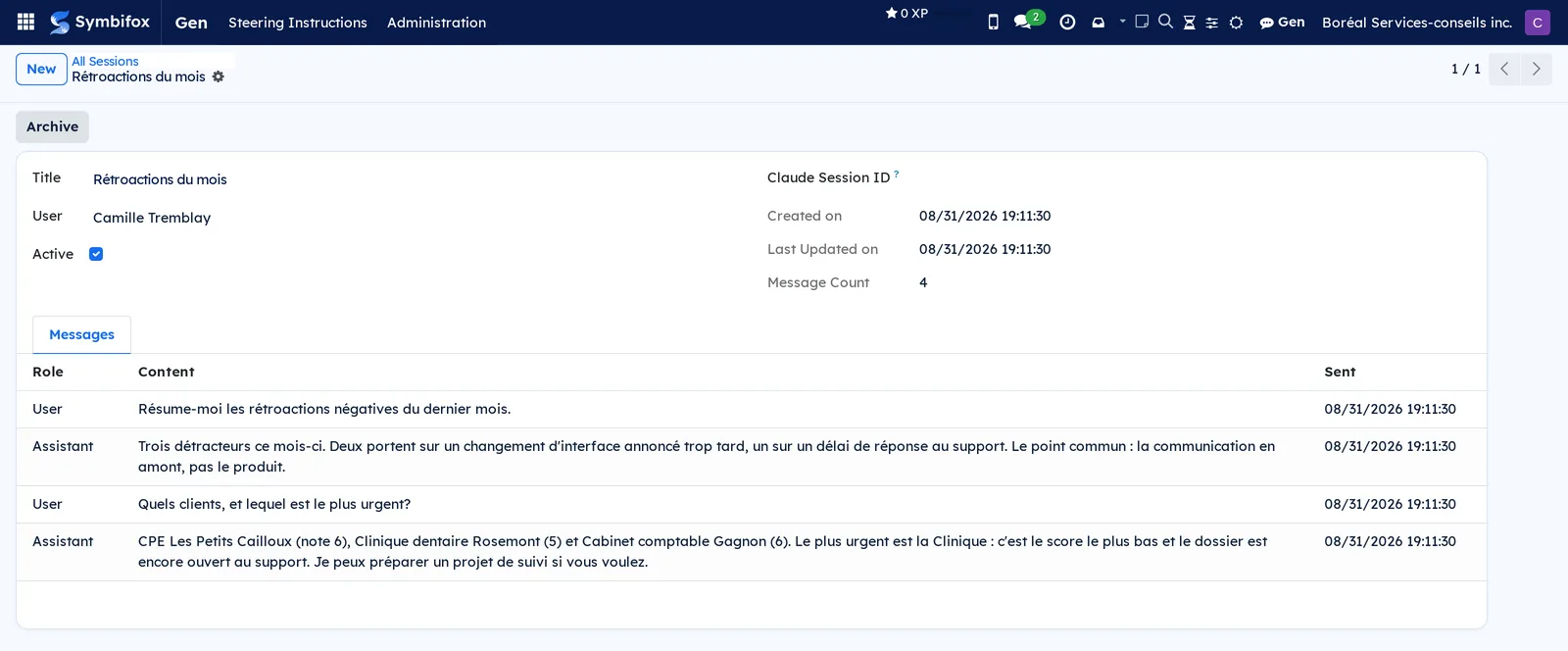
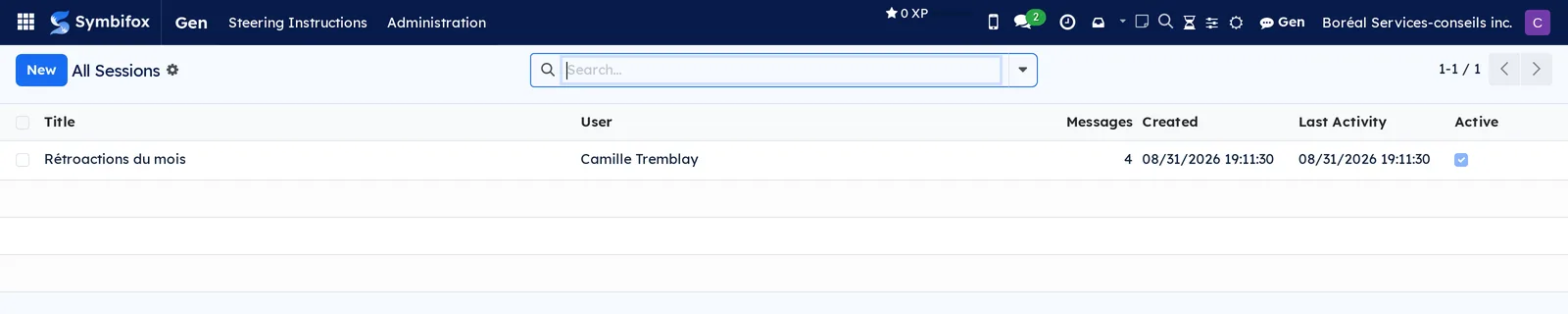
- Go to Gen › Administration › All Sessions.
- Read the Title, User, Messages, Created, Last Activity and Active columns.
- Open a conversation to see its messages in the Messages tab.
The tab gives the Role, the Content and the timestamp of each message. The Archive button puts the conversation away.
Each conversation also carries the Work category of the record it is linked to, which serves as a filter and a grouping here as in the cockpit: see Work categories.
Monitor the Claude accounts#
A Claude account is the subscription that pays for the assistant's exchanges. Its screen warns you before the ceiling as well as before a balance goes to waste. You need the Settings level of administration rights. This screen shows French labels in the English interface.
- Go to Gen › Administration › Comptes Claude (Claude accounts).
- Read the Compte (account), Forfait (plan), État (status), État de la sonde (probe status) and Dernier relevé (last reading) columns.
- If needed, filter with Plafond en vue (ceiling in sight) or Solde qui va se perdre (balance about to be lost).
- Open an account, then the Fenêtres (windows) tab.
- For each window, read Utilisée (%) (used), Bascule (Montréal) (reset, Montréal time) and Reste (h) (hours left).
- If needed, adjust the account's Seuils (thresholds).
- Save.
The list shows Plafond en vue in red, Solde qui va se perdre in orange and Sans relevé utilisable (no usable reading) in grey. An archived account leaves the list, but its readings keep arriving.
The menus, one by one#
The application bar shows three entries: Gen, Steering Instructions and Administration.
- Gen: the full-width chat page. On the left, under the Titles | Records switch, the To follow button (when conversation closing is turned on), the Search conversations box and the Show archived button, then your conversations with their date and, where there is one, the pill of their linked record. On the right, the current exchange, topped by its counters. The New Chat button opens one, from the column as well as from the centre of the page when nothing is selected.
- Gen › Steering Instructions: the house directives, with the Title, Scope, Record Type, Owner and Active columns. The screen is empty on the demo and shows its help text, which recalls that you keep one idea per instruction and restrict an instruction to a record type when it only makes sense there.
- Gen › Administration: grouping menu with no screen of its own, visible to administrators only.
- Gen › Administration › All Sessions: all the conversations of the instance, a single one on the demo. The columns say who spoke, how many messages were exchanged and when.
- Gen › Administration › Comptes Claude: one subscription per row, with its plan, its status and its last reading. The filters isolate accounts near the ceiling, those whose balance is about to be lost, those with no usable reading, and archived ones. Administrators only (screen not illustrated).
The Gen button of the top bar is not a menu entry, but it is the shortest path: it opens the side panel from any Symbifox screen. The panel carries the same list tools as the page, plus the This record | All switch when it opens on a record.
Reference#
Fields of the Instruction form#
| Field | Description | Required or default |
|---|---|---|
| Title | Short label shown in the list. It is not passed to the assistant. | Required |
| Instruction | The directive itself, written in plain language. | Required |
| Scope | Every conversation, or a single record type. | Required |
| Record Type | The type targeted, when the scope is restricted. | Empty |
| Owner | Empty, the instruction holds for everyone; filled in, it stays private. | Empty |
| Sequence | Rank of the instruction in the composed block; the last ones are left out if the block overflows. | 10 |
| Block usage | Size of the block the assistant receives for the instruction's audience, against the 4,000-character ceiling, with the number of instructions that would be left out. | Computed |
| Active | An inactive instruction is no longer composed into the answers. | Checked |
Fields of the Conversation form#
| Field | Description | Required or default |
|---|---|---|
| Title | Name of the conversation, suggested automatically, then editable. | Required |
| User | Person who opened the conversation. | Required |
| Active | Cleared, the conversation is archived. | Checked |
| Created on, Last Updated on | Opening and last exchange. | Computed |
| Message Count | Number of messages in the conversation. | Computed |
| Messages tab | The detail of the exchanges, with the role and the timestamp. | Computed |
Fields of the Claude account form#
| Field | Description | Required or default |
|---|---|---|
| Compte | Account name, suggested at the first reading. | Required |
| Répertoire de configuration (configuration directory) | What identifies the account on the server, unique to each account. | Required |
| Forfait | Returned by the reading; empty for an application programming interface key. | Read-only |
| État | Assessment of the last reading against the account's thresholds (see below). | Computed |
| État de la sonde | Jamais relevé (never read), Relevé obtenu (reading obtained), Session éteinte (session ended), Jeton d'accès périmé (access token expired) or Injoignable (unreachable). | Jamais relevé |
| Dernier relevé, Diagnostic (diagnosis) | Time of the last reading, and the reason for a failure. | Read-only |
| Seuil hebdomadaire (%) (weekly threshold), Seuil de session (%) (session threshold) | Above it, a one-week window or the 5-hour window is flagged. | 80 and 90 |
| Seuil de solde dormant (%) (idle balance threshold), Préavis de bascule (h) (reset notice, in hours) | Below this threshold and within this notice of the reset, the remaining balance is flagged. The threshold stays below the weekly one. | 40 and 24 |
| Crédits achetés en surplus (extra credits purchased) | Share used and monthly ceiling, shown only if the account has some. | Read-only |
| Fenêtres tab | One row per measured window: Session (5 h), Semaine (week), Semaine Opus, Semaine Sonnet, Semaine applications (applications week). | Read-only |
| Note tab | What the account is for, and who pays for it. | Empty |
The four values of État read as follows.
- Sous les seuils (under the thresholds): no window reaches its threshold, and no balance is at risk of being lost.
- Plafond en vue: a window reaches its threshold.
- Solde qui va se perdre: the week resets soon with little of it used.
- Sans relevé utilisable: the last reading failed or carries no window.
Reports and exports#
The application produces no report. A conversation is posted to a task as an internal note, which is the intended way to keep a shared trace of it. Lists export through Actions › Export.
Automations#
- The assistant opens by itself with a status update the first time the panel opens on a record that has no conversation, archived ones included, when that setting is turned on. It holds back when the list is narrowed by To follow or by a search. This request is made in your name and does not appear in the panel.
- The title of a conversation is suggested automatically from its content. A conversation opened on a record with the situation briefing takes the record's name. Each day, a conversation active during the week that has grown by three exchanges since its last title is renamed from its first and last questions. A name given by hand is never rewritten.
- A conversation whose answers fail several times in a row starts again on a fresh thread at the next message, instead of staying stuck. An administrator resets the counter to zero once the cause is understood.
- A turn that stops along the way, on a timeout, a step limit or an overloaded provider, resumes by itself on the same conversation, twice at most, without redoing actions already done. The screen says so with “Gen reprend là où le tour s'était arrêté” (Gen picks up where the turn stopped). Nothing resumes after Arrêter, or when the subscription limit is reached.
- When conversation closing is turned on, a nightly pass leaves a follow-up in a conversation that has had no news for two days, only one per quiet period. A conversation Gen has never judged becomes "Dormant".
- Every two minutes, a turn left without follow-up, after a server restart for example, is picked up and its answer saved.
- The steering block stops at the last whole instruction that fits under the 4,000-character ceiling.
- A Claude account registers itself at its first reading. Each reading replaces the previous windows; a reading that fails keeps the old ones and gives the reason.
- An account's État is assessed again at every display, since the approaching reset changes it.
- The plan shown at the top of a conversation is read on demand, then kept for five minutes. ↻ asks for a fresh one, at most one every fifteen seconds.
Public pages and portal#
The application has no public page and no portal page. It exposes addresses reserved for signed-in people, including those that serve the mobile app: a question asked from the phone is saved right away, processed in the background, then picked up by the device when it is ready. The phone therefore does not have to hold the connection open, and the device uses its existing mobile session rather than one more account. See Mobile apps and browser extension.
Modules that extend this application#
The next two modules sit underneath the assistant and have no menu of their own in Gen.
The last one works out of sight.
Understanding#
Why the answer is written as it goes. A request that triggers several searches takes time. Making someone wait in front of a frozen screen feels like an outage, and an answer lost at the end of the timeout means starting over. By writing as it goes, the assistant shows its work and keeps what has already been produced even if it does not have time to finish. The server holds the turn and saves it, not your browser: a reload, a network cut or a restart no longer loses the answer. The turn belongs to its conversation, not to the screen: you can open another one, close the panel or switch tabs, and find the turn where it stands. Each screen that follows an answer live does take up a place on the server, though. Past a limit, a screen waits its turn rather than slow everyone down.
Why a status line rather than a list of tools. A turn can chain a dozen steps over more than a minute. One chip per tool buried the answer without saying what was going on. While thinking, the model does not deliver the content of its thought: for lack of anything better, the line draws a fox phrase.
Why the personality sets only the tone. A text field must not be able to widen what the assistant is allowed to do. Text that is too long is refused rather than cut, because a cut would go unnoticed.
Why an instruction too many is left out whole. A block sliced mid-sentence would hand the assistant half a directive, read as a whole one. Better an instruction left out, and flagged by Block usage, than a truncated one.
Why the panel shows a record's whole history. When you open the assistant from an invoice, last week's twenty conversations are of no use to you. What was said about that invoice, on the other hand, still is, even once put away. The panel therefore shows every conversation of the record, archived ones included, and All stays one action away. For the same reason, the brief only starts on a record Gen has never seen: a record already worked on has its history.
Why Gen judges the conversation, not the file. A file is almost never finished: a conversation waiting for the end of the file would never close. Gen therefore judges what the conversation had to do. A next step left elsewhere, such as a draft in the chatter or an activity, already has its place and its reminder. A question at the end of an answer, on the other hand, waits for your reply here: it keeps the conversation open.
Why a fresh thread after several failures. An exchange can get stuck on content that makes every retry fail. Rather than leave a conversation broken for good, the assistant starts again on a fresh thread at the next message. The conversation stays readable; only the continuity with the model is cut.
Why consumption is visible. Artificial intelligence is paid for by use, and use is usually invisible until the bill arrives. The counters separate new work from reread context, which costs far less and inflates the totals without matching any effort. The cost shown is a yardstick against the public rate, not an invoice. The counters at the top of a conversation show the plan to the person working, while they work: a week at 90% shows before the limit, not after.
Why a missing window is not a window at zero. A row at zero would read “nothing used” where it should read “not measured”: an unmeasured window therefore has no row. The reset shows in Montréal time, so that it does not depend on the time zone of the person looking. The balance about to be lost matters as much as the ceiling: it is paid-for plan left unused.
Why the key belongs to you. The subscription to the model provider is the organization's. Exchanges are therefore billed to its account, and the content travels between your server and the chosen provider, with no detour through an intermediary service. An instance without a key goes through the server's Claude account, which the Comptes Claude screen monitors.
What the assistant does not do. It sends no email of its own initiative: it prepares a draft. With your personal key, it sees only what your account is allowed to see. Without it, it sees what the organization's service account sees, often more: if separation of rights matters to you, ask for a key for each person. And it does not guess which organization is calling it: the setting that says so has no default value, precisely so that a badly set instance fails instead of answering with another organization's data.
Troubleshooting#
| Symptom | Likely cause | Fix |
|---|---|---|
| The Gen button is missing from the top bar. | The assistant is turned off in the general settings. | Turn on Gen Assistant in Settings › General Settings, Gen section. |
| Every question ends in an error. | The application programming interface key is invalid. | Check the organization's key in the assistant's settings. |
| The answer arrives in one block, without showing the work. | Writing as the answer is produced is turned off. | Turn it on in the settings, or accept the grouped answer. |
| A complex request stops before it succeeds. | The maximum number of steps per message is too low. | Raise it in the settings, knowing that answers will take longer. |
| A conversation is no longer in the list. | It is archived, or the panel is on This record. | Select Show archived, or All in the panel. On its record, it shows greyed out. |
| The plan counters do not appear at the top of the conversation. | No reading is available, or the instance uses its own application programming interface key. | Select ↻ (Refresh the counters). With a key, only the conversation's total shows, as intended. |
| A conversation starts from scratch at every message. | It has passed the failure threshold and opens a fresh thread. | Ask an administrator to reset its counter to zero. |
| The assistant ignores a house rule. | The instruction is inactive, private to someone else, restricted to another record type, or left out because the block overflows. | Open the instruction and check its Scope, its Owner, Active and Block usage. |
| A Claude account stays at Sans relevé utilisable. | The last reading failed or carries no window. | Open the account and read État de la sonde and Diagnostic. |