

Part 1 · Communicating and meeting
Calendar
The team's calendar: schedule and cancel meetings, type your work blocks, share your calendar and show an Outlook or Google calendar in it.
Watch it


The Calendar application keeps each person's schedule and the team's. You schedule a meeting there, invite attendees, open a video room and see who has answered. It serves everyone, from management setting up a steering committee to the assistant booking a customer call. The concrete result: a meeting that exists in one place for Symbifox, for everyone's personal calendar and for the guest who receives it in their own mailbox.
Overview#
A meeting is a calendar event: a subject, a time slot, attendees, a location or a video call address. Each attendee answers the invitation, and their answer (yes, maybe, no, awaiting) is counted on the form. Alongside that answer sits the meeting status, which says whether the meeting itself is going ahead: tentative, confirmed or cancelled. The two are independent, since a confirmed meeting can include guests who have backed out.
Symbifox takes Odoo's calendar and adds four things. Invitations carry the calendar file that recipients add to their own calendar, plus a link to their invitation page, and they are written in the guests' language. A meeting is cancelled instead of deleted, which notifies guests and frees the slot without erasing the record. A Nextcloud Talk video room opens in one step, next to the Odoo room. Finally, the calendar syncs both ways with Nextcloud and Google, and you can view it from the mobile app.
Three more additions change how the calendar is read and shown. A work block is a typed block of time (focus, production, meeting slot or catch-up) with its own pictogram and colour. Sharing sets what each colleague sees of your meetings, at four levels, and opens your calendar to someone outside the company through a read-only link. External calendars work the other way round: the calendar Outlook or Google publishes shows up in yours, read only, and its busy times close your booking slots.
The application borders several others. A meeting's preparation, agenda and report live in Meetings. Slots that customers book themselves come from Appointments. Time off entered in the calendar turns on the out-of-office reply in Email, and a meeting in progress also arms notification silencing there.
Here is the demo calendar, in week view.
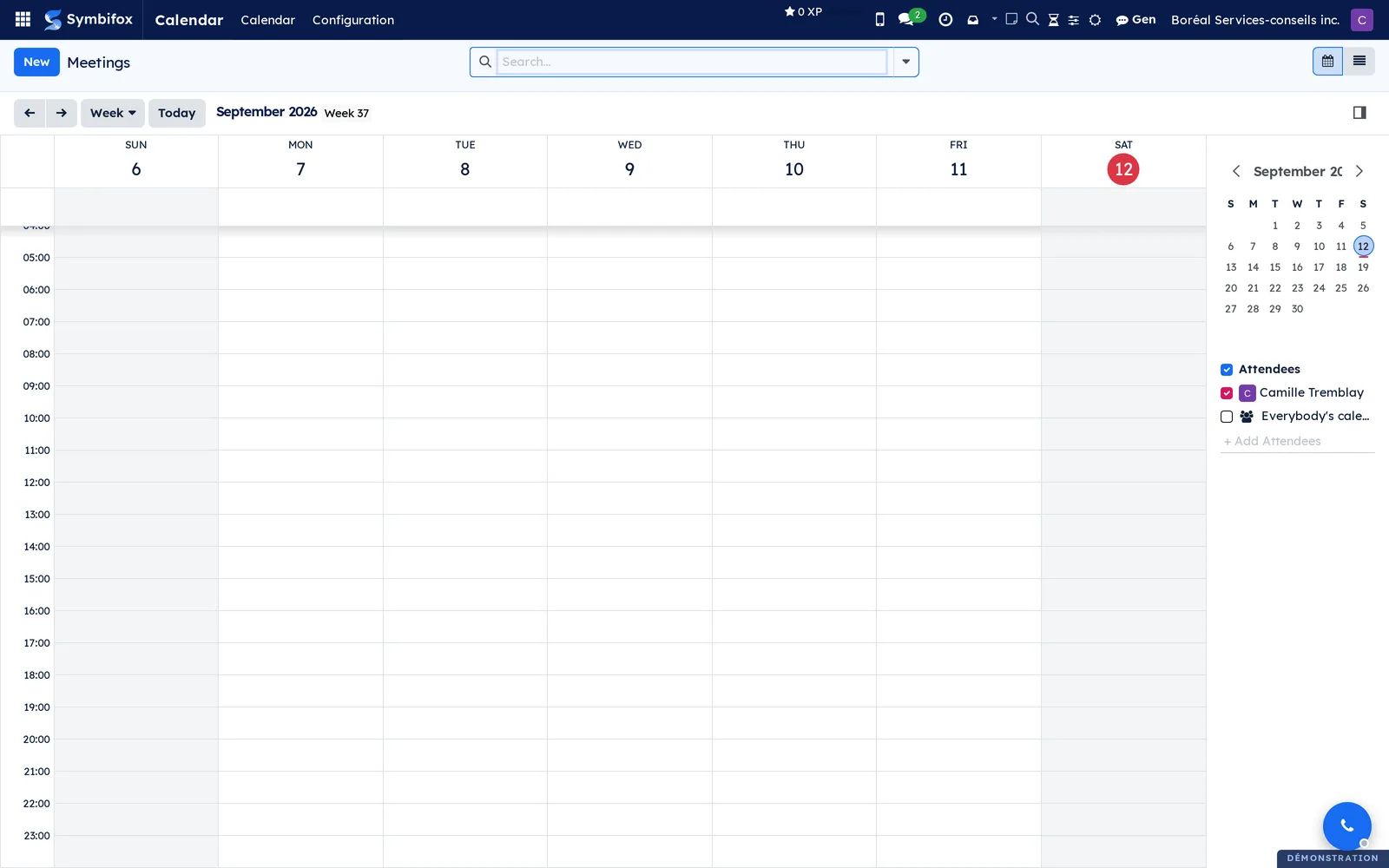
In the toolbar, the arrows and Today move the period, and the Week selector switches to day, month or year. The buttons at the top of the screen switch between the grid and the list view. The side panel holds the month mini-calendar and the Attendees section. Your own calendar is checked there, Everybody's calendars adds the team's, and Add Attendees overlays one person's calendar. Further down, the Calendars section lists your calendars, each in its own color, including those with no meeting in the period shown. Unchecking one hides its meetings without deleting anything. These are the calendars that Thunderbird, Apple and DAVx5 see (see Calendar and contacts in your apps). You create a meeting by dragging the mouse over a slot, or with New.
Configuration#
Access and permissions#
Anyone with an internal session has a calendar and sees colleagues' calendars overlaid. What they see depends on the level each colleague grants them: Availability only, Titles and locations, All details or Edit. The default is All details, Odoo's usual behaviour, so nothing changes until someone sets up sharing. A private meeting shows only its time slot at every level, and a person invited to a meeting always sees all of it.
The Calendar: see every calendar in full group ignores these levels, except for private meetings. It is meant for technical accounts only, such as the one that processes meeting reports. Administrators also get the All calendar links menu, an inventory of everything shared outside the company.
Sync and video room settings are reserved for general administrators, under Settings. The list of remote calendars is kept in the technical settings, where each configuration names the person who owns the calendar.
Settings#
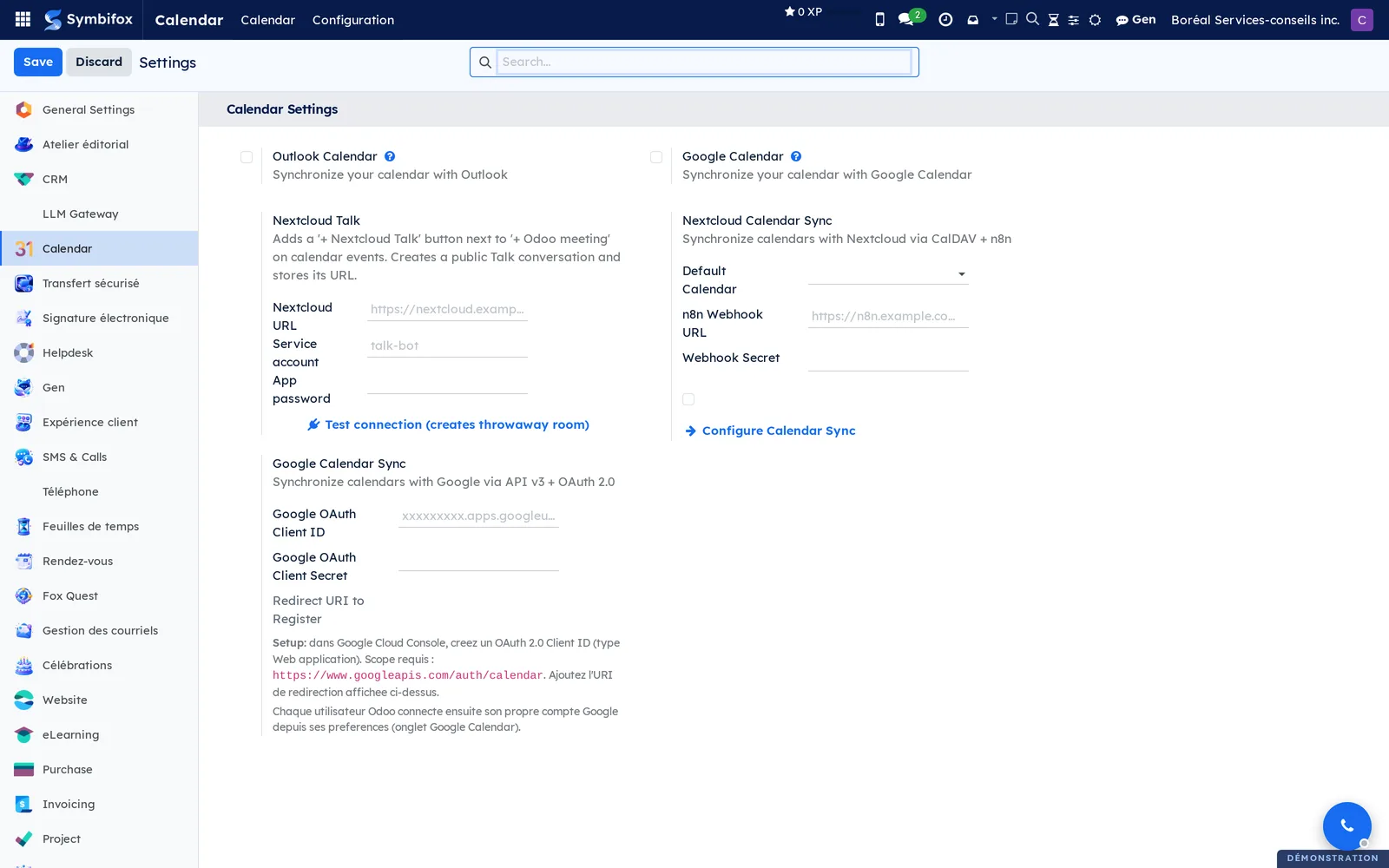
Go to Calendar › Configuration › Settings. The top of the screen shows the two syncs shipped with Odoo, Outlook Calendar and Google Calendar. Below them, three blocks come from Symbifox.
Nextcloud Talk asks for your Nextcloud address, the service account that creates rooms and its app password. Test connection (creates throwaway room) creates a disposable room to check everything before use. Nextcloud Calendar Sync sets the default calendar that receives meetings created in Symbifox, along with the relay address and its secret. It also opens the list of calendars through Configure Calendar Sync. Google Calendar Sync takes the authorization client's ID and secret, and shows the redirect address to register with Google. Each person then connects their own account from their preferences.
One setting is personal. On your My Profile form, below Calendar Default Privacy, the Colleagues see my calendar field sets the level granted to every colleague who has no share of their own. It offers Availability only, Titles and locations or All details.
Base data#
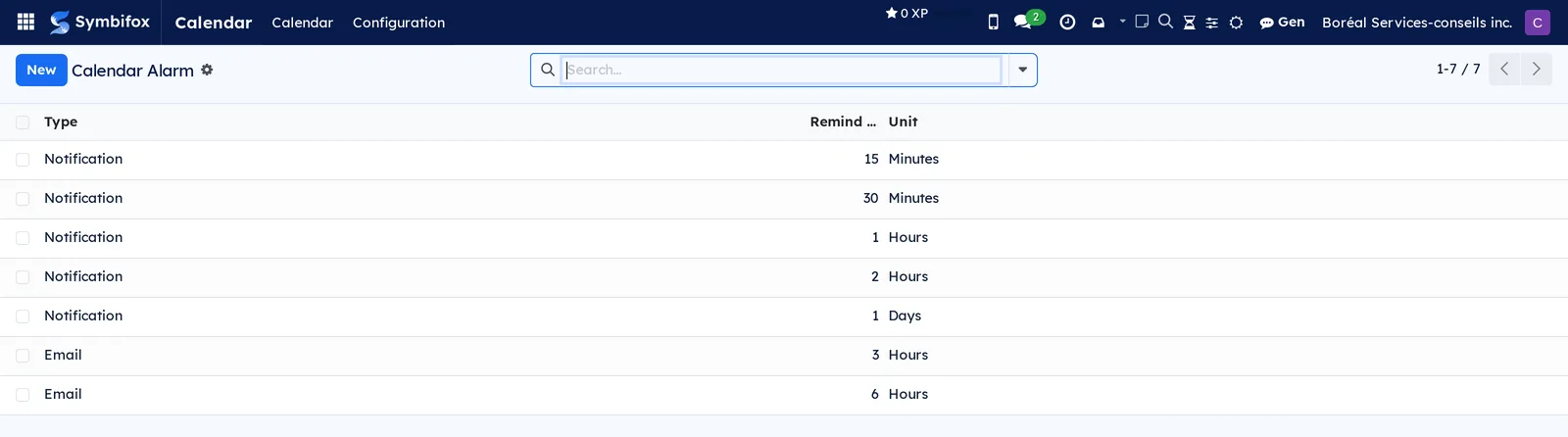
Reminders are the only data to prepare before you start. Seven are shipped: five on-screen notifications (fifteen minutes, thirty minutes, one hour, two hours, one day) and two emails (three hours, six hours). Add one if your organization wants another, for example the evening before.
Work block types ship with the work blocks module: Focus 🎯, Production 🔨, Meeting slot 🤝 and Catch-up 🔁, named in the language of whoever installs the module. Each one is a tag marked Work block, set up under Settings › Technical › Calendar › Meeting Types, in developer mode: Pictogram, colour, Shown as (busy or available), the Privacy given to new blocks and the Block order. A tag with the same name that already exists at installation, from Nextcloud for instance, is reused rather than duplicated. Rename the types as you like: only the name changes.
Two kinds of data are optional. Tags classify meetings and colour them in the grid. Remote calendars are declared once per person and per synced calendar; see Connect a Nextcloud calendar.
Getting started#
This walkthrough schedules a steering committee at Boréal Services-conseils, gives it a video room and sends the invitation to the attendees.
- Open Calendar › Calendar. The current week appears.
- Drag the mouse over the slot you want, enter “Steering committee” and open the full form.
- Check the Start and Duration, then enter the Location if needed.
- In Attendees, add the people to invite.
- Under Videocall URL, select Nextcloud Talk or Odoo meeting. The room address fills in on its own.
- In Reminders, choose a notification, for example fifteen minutes before.
- Save, then select the email invitation button above the attendee list, and send the proposed message.
Result: the meeting fills the slot in your grid and in each attendee's grid. The answer count shows zero yes, zero maybe and zero no, plus the number of guests awaiting. Each guest receives an invitation they can add to their own calendar and answer.
Common tasks#
Schedule a meeting#
Quick create is enough for a slot; the full form is for when there are guests.
- Open Calendar › Calendar.
- Drag the mouse over the slot, or select New.
- Enter the subject. For a meeting that needs neither an agenda nor follow-up, turn on Sans ordre du jour formel (no formal agenda) or Exclure du tableau de bord (exclude from dashboard) in the quick create. Then open the full form with Plus d'options (more options): both choices carry over.
- Fill in the Start, the Duration or All Day, the Location and the Description.
- Optional: choose the Privacy and add Tags.
- Save.
Result: the meeting appears in the grid, in the colour of its source calendar.
Book a work block#
A work block is booked like a meeting, with a type on top.
- Open Calendar › Calendar.
- Drag the mouse over the time to book.
- In the quick create, select the type from the buttons at the top: Focus, Production, Meeting slot or Catch-up.
- Keep the suggested title, or type your own, for example "Annual report writing".
- Save.
Result: the block appears in the grid with its type's pictogram before the title, in its type's colour. It also takes the type's availability: busy for focus, production and catch-up, available for a meeting slot. Select the chosen button again to remove the type. On an existing meeting, the Work block field of the form makes the same choice.
Invite attendees and send the invitation#
The invitation sent from Symbifox carries the calendar file and, when there is only one outside guest, a link to their answer page.
- Open the meeting.
- In Attendees, enter the name or address of each person to invite.
- Save.
- Select EMAIL. The composer opens on a pre-written message, in the company's colours.
- Review, adjust if needed, then send.
Result: each guest receives a message in their language, with the meeting as an attached file. The answer count updates as they reply.
Send the invitation by text message#
A short reminder works better by text for someone you cannot reach by email.
- Open the meeting.
- Select SMS.
- Review the proposed message: title, date, time and link, kept within the length of a single text.
- Send.
Result: attendees with a mobile number receive the text. See SMS, calls and SIP phone for the rest of text messaging.
Nudge a guest who has not shown up#
When someone is missing, a brief note beats a phone call.
- Open the meeting in progress.
- Select POKE.
- Review the proposed message, which mainly restates where to join the meeting.
- Send.
Result: guests receive a short note, in their language. No calendar file is attached: the meeting has not changed, and attaching one would read as a reschedule.
Open a video room#
Two rooms are available: Odoo's and Nextcloud Talk's.
- Open the meeting, or the quick create window.
- Under Videocall URL, select Odoo meeting or Nextcloud Talk.
- The room address fills in the field. Save.
Result: the address travels in invitations and reminders; each attendee joins the room by following it. The Talk room is public: anyone who has the address can enter.
Set a meeting's status#
The status says whether the meeting is going ahead, regardless of what guests have answered.
- Open the meeting, or select its tile in the grid.
- Set the Status: Tentative while it is not certain, Confirmed once it is settled.
- Save.
Result: a tentative meeting appears hatched in the grid, which sets it apart at a glance. A meeting without a status carries no mark: Symbifox never assumes a confirmation that nobody gave.
Cancel a meeting#
Deleting a meeting notifies nobody and leaves it in each guest's calendar. Cancelling does the three useful things at once.
- Open the meeting and select Cancel the meeting.
- Enter a reason if needed.
- Read the list of guests who would be notified: it excludes the organizer and people without an address.
- Check Send a cancellation notice if you want to write to the guests. The box starts cleared.
- Select Cancel the meeting.
Result: the tile stays in place, struck through, and the slot becomes free again for booking. The notice removes the entry from guests' calendars instead of redrawing it. Delete becomes available again on a meeting that is already cancelled. The dialog's Move to trash checkbox also takes the meeting out of the calendar, see Calendar trash.
Respond to an invitation#
Your answer is for the organizer, and it travels all the way to their calendar.
- Open the meeting from your grid.
- Under the attendee list, give your answer: yes, maybe or no.
- An outside guest instead follows the link in their invitation and answers from the invitation page.
Result: the answer count updates on the form. Declining does not remove the meeting from your grid.
Move or extend a meeting#
A drag in the grid is enough, but on its own it notifies nobody: the meeting waits for you to do it.
- Drag the tile to its new slot, or pull its edge to lengthen it.
- Confirm the scope if the meeting is recurring.
- Open the meeting. A banner says “This meeting has changed since the guests were last written to.”
- Select Tell the guests.
- Review the changes, shown before and after, and the list of guests who will receive the notice.
- Select Send the notice.
Result: each guest receives, in their language, a notice comparing what they had with what now applies: start, end, title, place, room link. The attached calendar file carries the same identity as the invitation, so their calendar moves the entry instead of adding a second one. Two moves in a row make a single notice, and a meeting put back where it was needs none.
Hold slots to move a meeting#
When a guest asks to move a meeting, keep a few backup times while you wait for their answer. Each held slot stays tied to its meeting.
- Open the meeting and select Hold slots. The calendar opens on its week, titled "Hold slots:" followed by the meeting's name.
- Click a time to keep in the grid, then select Create. The slot takes the meeting's name, behind an arrow, and its length.
- Repeat for each time to offer.
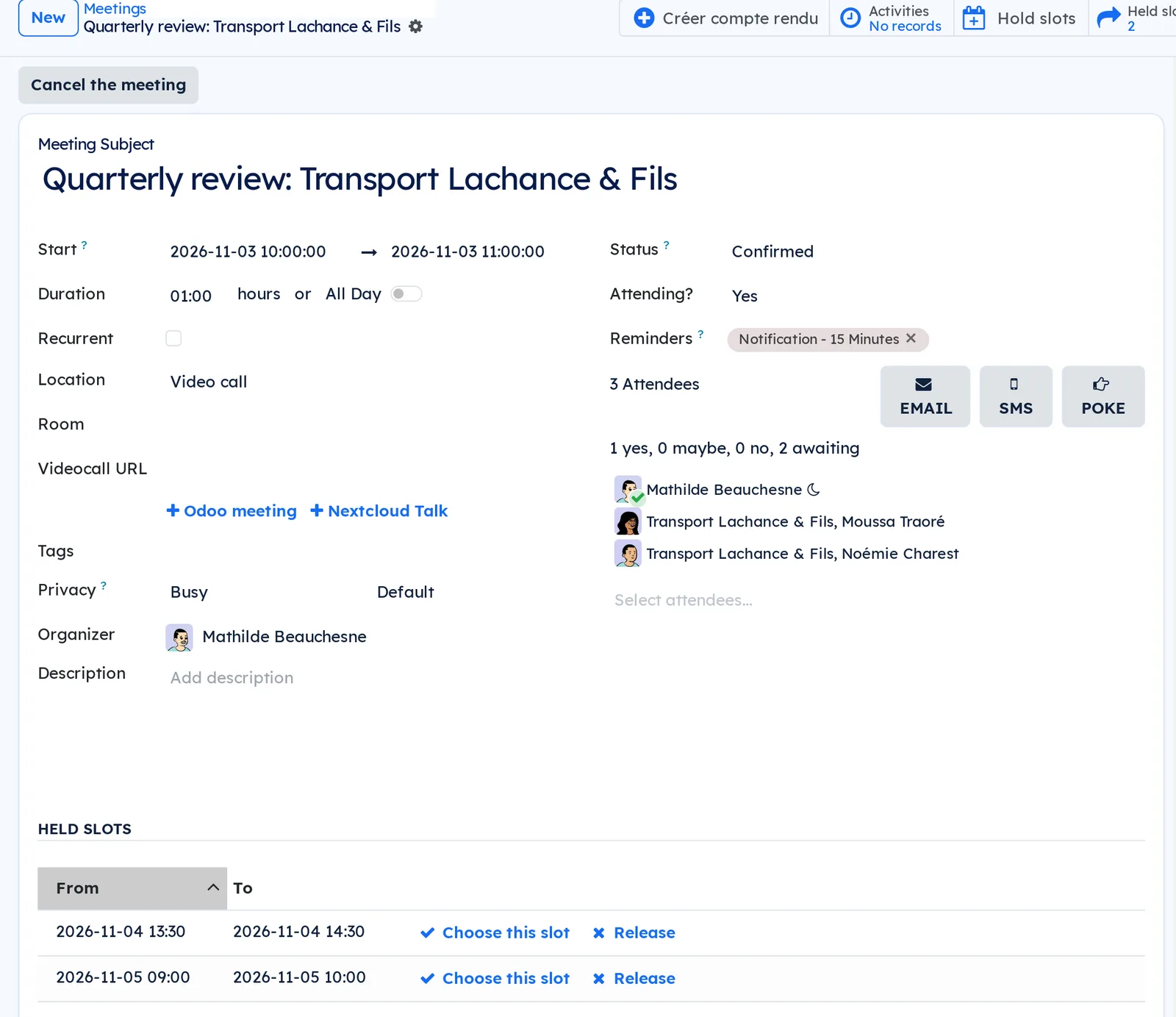
- Once the guest has chosen, select Choose this slot on the right slot, from its popover in the calendar or from the meeting's Held slots section.
Result: the meeting takes the slot's place, with its length, guests, agenda and room link, and all its slots are released. For one date of a series, only that date moves. To give a time back without choosing, select Release next to the slot.
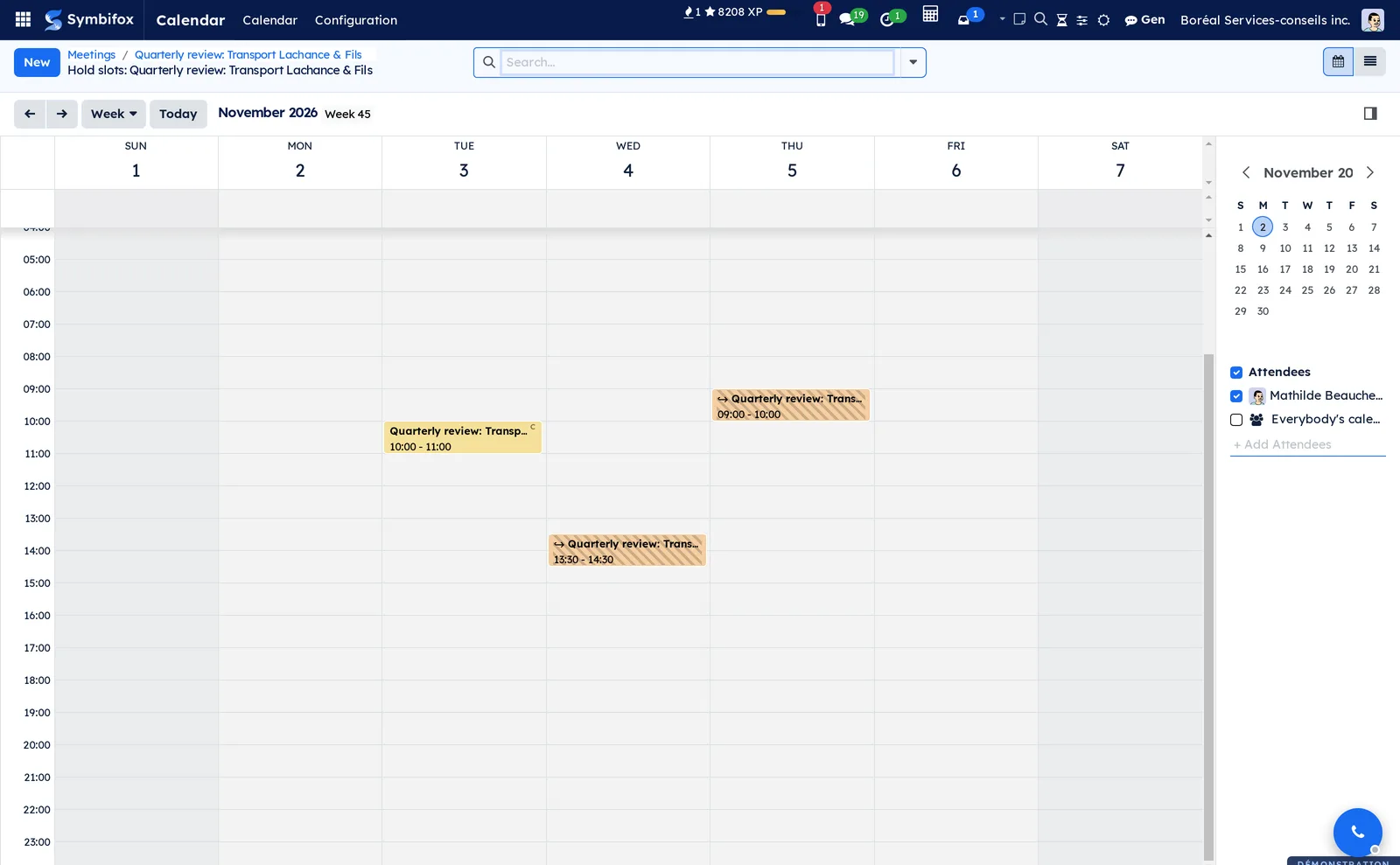
A held slot is hatched, in a colour of its own. It counts as busy, so online booking offers it to nobody, and it invites nobody: only the organizer is on it.
Choose what colleagues see of your calendar#
The level is set for all colleagues at once, then colleague by colleague.
- Select your avatar, then My Profile.
- In Colleagues see my calendar, choose the level granted to everyone, then save.
- Go to Calendar › Sharing › Share my calendar.
- Select New, then pick the colleague under Shared with and their Level.
- Save.
Result: the colleague sees your meetings at the chosen level. At Availability only, a "Busy" block. At Titles and locations, the title, the location and the work block type, without description, attendees, tags, attachments or video call link. At All details, everything. Edit also lets them change your meetings as if they were invited. Below All details, they can neither change nor delete the meeting. On their side, the Calendars shared with me menu tells them what each colleague grants them.
Share your calendar with someone outside#
A link gives someone outside the company a read-only view of your calendar, with no account to create.
- Go to Calendar › Sharing › Links to my calendar, then select New.
- In Shared with, enter who the link is for, for example "Accounting firm".
- Choose the Level: Availability only, Titles and locations or All details.
- Optional: adjust Expires on, Days in the past and Days ahead.
- Save. The Addresses to send appear.
- Copy the right address and send it to the person.
Result: the person sees your calendar at the chosen level. Subscription (iCalendar) is added in Outlook, Google Calendar, Apple Calendar or Thunderbird, which refresh it on their own schedule (several hours for Outlook). Subscription (webcal) is the same address, which Apple Calendar and some phones open directly. Availability (free/busy) gives busy times only. Web page shows the next four weeks to anyone without a calendar application.
Extend, renew or revoke a link#
A link expires 90 days after it is created. An activity reminds you seven days before.
- Go to Calendar › Sharing › Links to my calendar, then open the link.
- Read the Accesses tab: every opening is listed, with its date, kind, address and the software that made it.
- Select Extend 90 days if the link is still in use.
- Select New address if the address has travelled further than intended, then send the new one.
- Select Revoke to close the link for good.
Result: after New address or Revoke, the old address stops answering at once, and the link's chatter records it. A revoked link stays in the list, marked Revoked.
Show an Outlook or Google calendar in yours#
Your meetings with a client often live in their Outlook, or in your own Google calendar. Subscribe to the address that calendar publishes. In Outlook, publish the calendar first through "Settings", "Calendar", "Shared calendars", "Publish a calendar", then copy the ICS link.
- Go to Calendar › External calendars, then select New.
- Name the calendar, for example "Main client (Outlook)".
- Paste the address into Published address.
- Optional: set Privacy of imported events, Also import free events, Import locations and Refresh every (minutes).
- Save, then select Refresh now.
Result: the state turns to Up to date, and the Events shortcut button at the top of the form counts what was imported. The events appear in your grid, read only: they are changed in the other calendar, never here. Their busy times close your online booking slots. A series arrives expanded, date by date.
Create a recurring meeting#
A committee that meets every week is entered once.
- Open the meeting and check Recurrent.
- Choose the repetition and its end.
- Save.
- To change a single date later, open the occurrence and choose the scope offered.
Result: all occurrences appear in the grid. An occurrence pulled out of its series remembers the slot it held, which lets guests' calendars move the right one.
Set up reminders#
Reminders are shared across the whole database, but you choose them meeting by meeting.
- To add a reminder to the shared list, go to Calendar › Configuration › Reminders, then select New.
- Choose the type, notification or email, then the delay and its unit.
- Save.
- On a meeting, select the reminders you want in the Reminders field.
Result: each attendee receives the notification at the chosen delay. On a phone, you can snooze the notification or mark it as seen from the mobile app.
Prepare the agenda and the report#
Preparation starts from the meeting itself and continues in another application.
- Open the meeting.
- Select Créer OdJ (create agenda) to open a linked agenda, or Créer compte rendu (create report) to open the meeting report.
- Optional: in the preparation section, set the Responsable de l'OdJ (agenda owner) and the Responsable du CR (report owner), or check Sans ordre du jour formel (no formal agenda).
Result: the meeting links directly to its two documents. Writing, sending and tracking them are described in Meetings.
Connect a Nextcloud calendar#
Sync works both ways: what is created on one side appears on the other.
- Go to Calendar › Configuration › Settings, then select Configure Calendar Sync.
- Select New and name the configuration.
- Fill in the Nextcloud address, the calendar path, the account and its app password.
- Set the person who owns the calendar and choose the sync direction.
- Select Test Connection, then Pull from Remote.
- Save.
Result: meetings from the remote calendar appear in Symbifox, in the chosen colour, and those created here go to Nextcloud. What you change here afterwards, the time, the title or the status, goes there too, even for a single date of a series, and reminders set on a phone stay. A sync pass catches up on differences every fifteen minutes.
Connect your Google calendar#
Each person connects their own account, once an administrator has registered the authorization. Nothing syncs until the administration has also created the synchronization of your calendar with Google, on the same screen as for Nextcloud (see above).
- Select your avatar, then My Profile, then the Google Calendar tab.
- Select Connecter Google Calendar (connect Google Calendar).
- Allow access in Google's window.
- Optional: enter your other Google addresses in the field provided, so that Google does not send your own invitations back to you.
Result: your Google calendar and Symbifox's stay in step. Deconnecter (disconnect) cuts the link from Symbifox; removing the authorization completely is done in your Google account.
View your calendar on a phone#
The Symbifox mobile app has a calendar tab and a tasks tab.
- Open the mobile app and go to the calendar tab.
- Choose day view or week view.
- Open a meeting to see its agenda and report, confirm your attendance or add a guest.
- On a reminder, snooze it or mark it as seen.
- To create a meeting, tap the add button. The No formal agenda and Off the dashboard chips exempt it from the moment it is created.
Result: both reminder actions and your answer to the invitation go back to Symbifox. The calendar reloads every time you come back to the screen, then every minute; a meeting created or moved on the desktop appears right away when the server notice is on (see the module below). The badge on the grid gives the number of deadlines for each day, without cluttering the hours. See Mobile apps and browser extension.
The menus, one by one#
Calendar: the application. It has only two entries, the grid and the configuration.
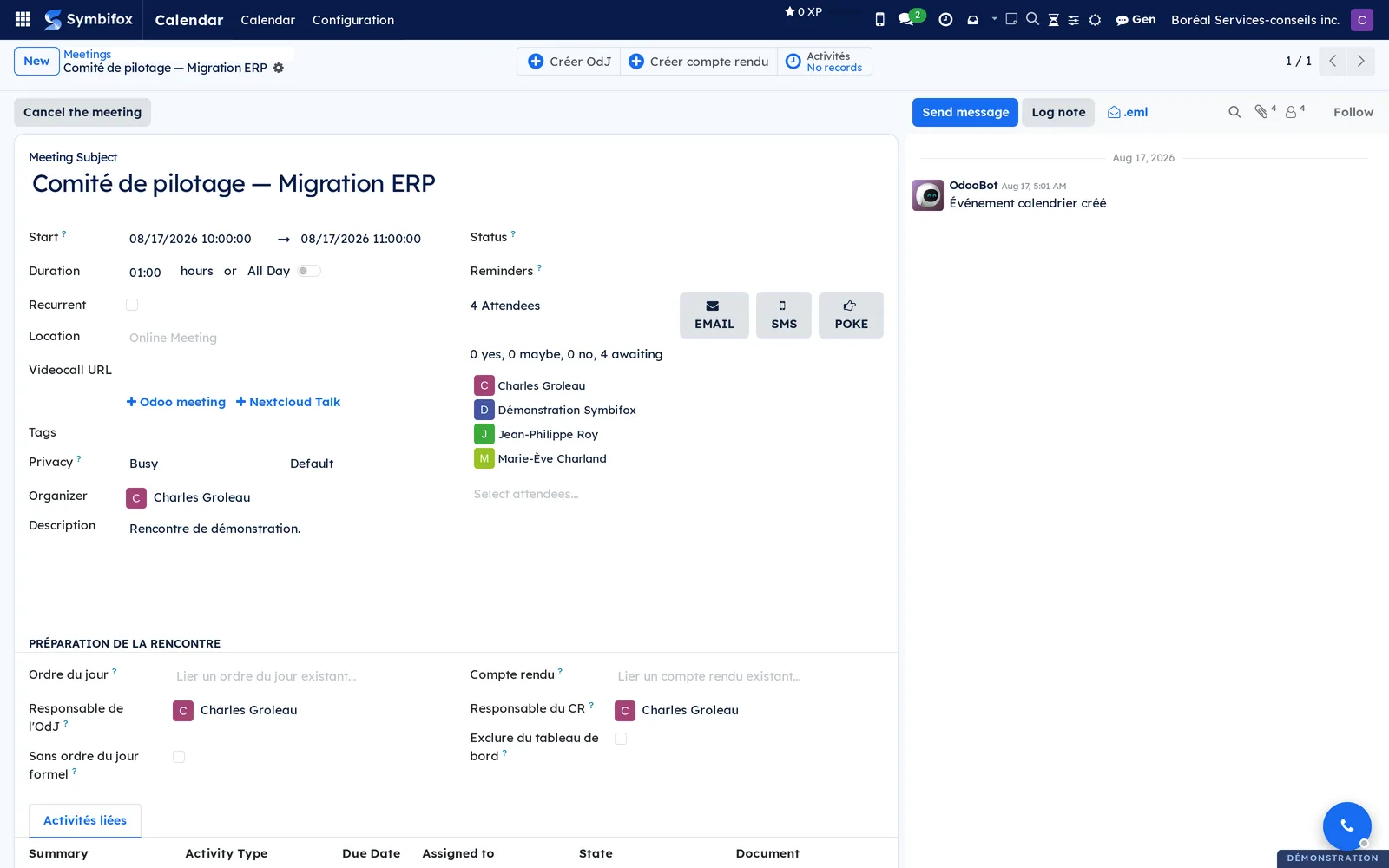
Calendar › Calendar: the Meetings grid, described in the overview. You switch between day, week, month and year, and between grid and list. The side panel filters by attendee and, further down, by calendar for apps. At the top of a meeting form are Créer OdJ, Créer compte rendu and the Activities counter, then Cancel the meeting, preceded by Tell the guests when the meeting has changed since the guests were last written to. The body brings together the subject, schedule, recurrence, location, video call address with its two room buttons, tags, privacy, organizer and description. Beside it are the status, the reminders, the attendees with the three buttons EMAIL, SMS and POKE, and the answer count. Further down come the meeting preparation section and the linked activities.
Calendar › Sharing: the grouping entry for sharing. It has no screen of its own.
Calendar › Sharing › Share my calendar: your shares with colleagues, one line per colleague, with the Shared with and Level columns.
Calendar › Sharing › Calendars shared with me: the same list seen from the other side, read only: whose calendar, and at which level.
Calendar › Sharing › Links to my calendar: your links to people outside, active and revoked. A link's form has Extend 90 days, New address and Revoke at the top, then the level, the expiry date, what the link covers, the Addresses to send and the Accesses tab.
Calendar › Sharing › All calendar links: administrators only. Every link on every calendar, read only and without its addresses, with its access log.
Calendar › External calendars: your subscriptions to calendars published elsewhere, with their state and last read. The form has Refresh now and the Events shortcut button.
Calendar › Configuration: the grouping entry for the settings. Selecting it directly reopens the meetings grid (screenshot m134.png).
Calendar › Configuration › Calendars for apps: your calendars as Thunderbird, Apple Calendar and DAVx5 see them, each in its colour. They have their own chapter, Calendar and contacts in your apps.
Calendar › Configuration › Address books for apps: administrators only. The contact address books served to the same apps, and the tags the company address book leaves out. Same chapter.
Calendar › Configuration › Settings: the Calendar Settings page, shown earlier. It brings together Odoo's two syncs and Symbifox's three blocks.
Calendar › Configuration › Reminders: the Calendar Alarm list, with the Type column, the delay and the Unit. The seven shipped reminders appear there: five on-screen notifications and two emails. A reminder's form is screenshot m136_form.png.
Calendar › Trash: the meetings deleted or archived, with Restore and Delete for good. It has its own chapter, Calendar trash.
Reference#
Fields of the Meeting form#
| Field | Description | Required or default |
|---|---|---|
| Meeting Subject | The title shown in the grid and in the invitation. | Required |
| Start, Duration | The time slot. All Day replaces the duration. | Required |
| Recurrent | Opens the repetition settings and their end. | Cleared |
| Location | A place or an address. The part recognized as a web address becomes a link. | Optional |
| Videocall URL | The room address, typed in or set by one of the two buttons. | Optional |
| Work block | The block type: focus, production, meeting slot or catch-up. It sets the tag of the same name. | Empty |
| Tags | Classify the meeting; each carries its free colour. | Optional |
| Privacy | Public, private or per the organization's default; combines with the displayed availability. | Default |
| Organizer | The person who owns the meeting. | The person who creates it |
| Status | Whether the meeting is going ahead: tentative, confirmed or cancelled. Separate from the guests' answers. | Empty |
| Cancellation reason | Why the meeting is not happening; shown to guests only if a notice is sent. | Optional |
| Reminders | Notifications chosen from the shared list. | Empty |
| Attendees | The people invited, with the count of their answers. | The organizer |
| Description | The text included in the invitation. | Optional |
Fields of a synced calendar configuration#
| Field | Description | Required or default |
|---|---|---|
| Calendar Name | The configuration's name in Symbifox. | Required |
| Remote service (badge at the top of the form) | Nextcloud or Google. | Required |
| Nextcloud URL, CalDAV Path | The server address and the calendar path. | Required for Nextcloud |
| Nextcloud User, App Password | The calendar account and its app password, stored encrypted. | Required for Nextcloud |
| Google Calendar ID | The target calendar at Google. | Required for Google |
| Calendar Owner (Odoo) | The person in whose calendar the meetings appear. | Required |
| Sync Direction | The allowed direction: one way, the other, or both. | Required |
| Odoo Color | The colour of meetings that come from this calendar. | Optional |
| Last Sync, Last Sync Status | The timestamp and result of the last pass. | Computed |
| Shown by default in calendar links | New sharing links show this calendar. | Cleared |
Fields of the Calendar sharing link form#
| Field | Description | Required or default |
|---|---|---|
| Shared with | Who the link is for, for your own records. | Required |
| Level | What the link shows: availability only, titles and locations, or all details. | Availability only |
| Expires on | After this date, the link no longer answers. | In 90 days |
| Days in the past, Days ahead | The period the link covers. | 30 and 180 |
| Calendars | The Nextcloud calendars the link shows; empty means all of them. | Those shown by default |
| Events not in a Nextcloud calendar | Also shows meetings that exist only in Symbifox. | Checked |
| Addresses to send | Subscription (iCalendar), Subscription (webcal), Availability (free/busy) and Web page. Only you can see them. | Computed |
Fields of the External calendar form#
| Field | Description | Required or default |
|---|---|---|
| Name | The calendar's name in your grid. | Required |
| Published address | The address the other calendar publishes. Only you can see it, since it gives access to that calendar. | Required |
| Own color | The colour of its events in your grid. | Empty |
| Privacy of imported events | Private: colleagues and sharing links only see "Busy". | Private |
| Also import free events | Without it, only busy events are imported. | Cleared |
| Import locations | Brings in the events' locations. | Cleared |
| Refresh every (minutes) | How often it is read, at least every fifteen minutes. | 60 |
| Past Days, Future Days | The period imported. | 7 and 180 |
| Last Fetch | When the calendar was last read; the state shows Never read, Up to date or Error. | Computed |
Reports and exports#
The application prints no report. It produces a calendar file, attached to invitations and cancellation notices, which opens in any calendar software. The list view exports to a spreadsheet like any Symbifox list.
Automations#
Remote calendars are polled every fifteen minutes, and a full pass runs every six hours to catch anything missed. In the other direction, a meeting created or edited in Symbifox goes to the remote calendar on save. Reminders go out at the chosen delay. A meeting moved from another calendar (Nextcloud, Google, a phone) notifies its guests on its own only if an administrator has turned this automatic sending on, which is off at first; otherwise it joins the Guests not told filter. On phones, two checks every minute pick up snoozed reminders and push notifications to the device. Finally, a meeting in progress can turn on notification silencing by itself and, for time off, the out-of-office reply. Both are described in Email.
Each external calendar is read every hour by default, and never more often than every fifteen minutes. Every day, an activity warns you seven days before one of your links expires, once per expiry date. The access log of links is kept for one year by default, then erased.
Public pages and portal#
One public page exists: the invitation page, where an outside guest sees the meeting and answers without signing in. Its address identifies the invited person, so it must not be passed on. A second address handles the return from Google authorization and is never opened by hand.
Each sharing link carries three public addresses, filtered by the server according to the link's level: the subscription (with its webcal variant), the availability and the web page of the next four weeks. Search engines are told not to index them, and every opening is recorded in the link's Accesses tab.
Modules that extend this application#
Eleven modules complete Odoo's calendar. The first handles invitations and cancellation.
The second opens video rooms outside Odoo.
The third brings the calendar to phones.
The fourth connects the calendar to outside services.
Another keeps backup times to move a meeting.
The next ones type work blocks and share the calendar.
Sharing comes in three modules.
With the Nextcloud sync, a bridge sets the scope of links.
External calendars have their own module.
A last bridge links external calendars to the out-of-office reply.
Understanding#
The most important point is the meeting's identity. A calendar invitation carries an identifier, and that is how the recipient's software recognizes the meeting. Without a stable identifier, each send describes an unknown meeting. The recipient then gains one more copy instead of seeing the one they already have move. So Symbifox sets a lasting identifier on each meeting and reuses it for every later send. Where a remote calendar has already assigned one, its identifier wins: a single meeting cannot have two identities.
Alongside the identifier, a revision counts changes. It moves forward only on a material change, meaning the time, the place or the title. It also travels to Nextcloud, so a calendar program can tell which of two versions is the newer one. A typo fixed in the description is not a reschedule. Bumping the revision for it would train guests' calendars to ask for their answer again for nothing.
Cancellation exists because deletion notifies nobody. Three effects happen together. The meeting is marked cancelled and its tile stays in place, because a calendar that loses the entry can no longer answer “what was I supposed to do at ten?”. Availability goes back to free, which truly returns the slot to booking. And an optional notice tells the guests. The notice starts cleared because a sent message cannot be recalled. Setting the status by hand has the same effect on availability, including when the cancellation comes from outside calendar software.
Meeting status and guest answers are two different things. A tentative meeting is hatched in the grid rather than faded. Odoo already dims every meeting awaiting an answer, which is almost an entire calendar, so a paler shade would have gone unnoticed.
The answer page link appears only with a single outside guest, because the link acts as an identity. Given to a group, the first person to open it would answer for everyone. Likewise, the invitation is written in the guests' language when they share one, and in the organizer's otherwise, because a single message goes out to the whole list.
On the sync side, every write carries a mark of its origin, which stops a meeting from bouncing endlessly between the two calendars. A meeting that disappears from the remote calendar is removed here: one from Nextcloud goes to the trash, where it can be restored, one from Google is erased. Pushed meetings carry their time zone; otherwise they would shift in the reader's calendar. A meeting already in Nextcloud is never rewritten wholesale from Symbifox: its calendar file is read back, only the properties that changed are replaced, and it goes back. Reminders set on a phone and whatever other software added there survive. A date moved within a series becomes an exception of that series, a deleted date is excluded from it, and the series itself does not move. Finally, tasks from Project do not appear in the calendar grid. Their deadlines are too numerous and would cover the meetings; the mobile app shows only their count per day.
A held slot is an ordinary meeting, tied to the one it would replace. It is tentative, hence the hatching, and busy, because a backup time a client could book online would not really be held. It invites nobody: guests only hear about the meeting itself, once the choice is made. It takes its meeting's privacy, since it carries its name. Choosing a slot amounts to moving the meeting onto it, which is why dragging the meeting onto one of its slots, here or in Nextcloud, releases the others too.
A work block is an ordinary meeting marked with a type tag. That is why the type travels to Nextcloud and phones as a category, and comes back the same way. A meeting slot is available rather than busy, because its job is to open time for bookings, not to close it; see Appointments.
Sharing between colleagues is a display mask, not a security boundary. It hides fields in the grid, forms, names, attendees and the chatter, as Odoo already does for a private meeting. A colleague can still learn that a meeting with a given title exists by searching for it, and some dashboards show real titles. Whatever must stay secret is marked Private.
An outside link, on the other hand, is filtered on the server: a link at Availability only contains no title, even if someone reads its file. It never shows attendees, who are third parties, nor the video call link, which gives access to the meeting, nor tags, where a client's name often lives; only the work block type goes through. Your "Only internal users" meetings appear at the link's level: creating the link is the decision to show them to that person. Meetings a colleague organizes follow the privacy that colleague gave them, and declined invitations are left out.
Outlook cannot edit a calendar hosted anywhere but at Microsoft, since no open protocol lets it. The two calendars are therefore linked both ways by subscription: Outlook subscribes to your link, and Symbifox subscribes to the calendar Outlook publishes. A specific meeting goes from one side to the other by invitation.
An external calendar event is private by default, because you do not know what the other calendar wrote in it. It is read only, because a change made here would be overwritten at the next read. It carries no reminder and no agenda: it only says you are busy.
Troubleshooting#
| Symptom | Likely cause | Fix |
|---|---|---|
| The guest received the message, but nothing was added to their calendar. | The invitation was sent from another screen, without the calendar file. | Open the meeting and select the email invitation button above the attendee list. |
| A moved meeting shows up twice in the guest's calendar. | Their calendar received two invitations with different identities, one of them from before the stable identifier existed. | Ask the guest to delete the old entry, then send the invitation again from the meeting. |
| The Talk room button produces no address. | The Nextcloud address, the service account or its password is missing. | Go to Calendar › Configuration › Settings, fill in the three fields, then select Test connection (creates throwaway room). |
| Cancel the meeting is not offered in the popover. | The meeting is recurring, or it is already cancelled. | On a series, open the meeting and select Cancel the meeting: the dialog asks for the scope. On a meeting already cancelled, Delete is available again. |
| The slot stays busy after a cancellation. | The status was changed without going through cancellation, and availability stayed busy. | Open the meeting and set its availability to free. |
| A meeting created in Nextcloud does not appear. | The sync pass has not run yet, or the configuration is in error. | Open the calendar's configuration, read the result of the last pass and select Pull from Remote. |
| Google sends an invitation back to the organizer. | Another address of the Google account is not declared. | In My Profile, Google Calendar tab, add your other Google addresses. |
| A "Not sent to Nextcloud" notice appears after a change. | Nextcloud did not answer, or the meeting no longer has the expected shape there. | Make the same change in Nextcloud, or try again later. |
| A colleague still sees the details of your meetings. | They are invited to those meetings, or a share grants them All details. | Check Share my calendar and your level in My Profile; mark Private whatever must stay secret. |
| The person does not see a recent meeting in Outlook. | Outlook refreshes a subscription on its own schedule, often several hours. | Wait for the refresh, or send them the Web page, which is always current. |
| An external calendar stays in Error. | The address is not public, not https, or does not return a calendar. | Publish the calendar again in Outlook, paste its ICS link again and select Refresh now. |
| A held slot stays in the calendar after its meeting moved. | The meeting was moved somewhere other than one of its slots. | Open the meeting and select Release next to each slot, or let the nightly clean-up remove it once its time has passed. |
See also#
- Meetings, for the agenda, the report and decision tracking.
- Calendar trash, to recover a meeting that was deleted or archived.
- Calendar and contacts in your apps, to connect Thunderbird, Apple or an Android phone directly to Symbifox.
- Appointments, for the slots customers book themselves.
- Email, for received invitations, out-of-office and notification silencing.
- Discuss, for video calls started outside the calendar.
- SMS, calls and SIP phone, for sending text messages.
- Nextcloud and Collabora, for the service that hosts calendars and Talk rooms.
- Mobile apps and browser extension, for the calendar on your phone.