

Part 1 · Communicating and meeting
Each person's email inside Symbifox: personal accounts, a unified inbox, sorting rules, filing to records, out-of-office replies and signatures per company.
Watch it
The Email application, shown on screen as Courriels (emails), brings your mailbox into Symbifox. Each person connects their own addresses, reads their inbox, replies, and files a conversation in the record of the client, project or invoice it concerns. It serves everyone who handles mail every day: management, assistants, advisors, accounting. The practical result: no more copying and pasting between an email program and Symbifox, and a client history that builds itself one exchange at a time.
Overview#
The inbox brings two sources together in a single list. The first is your IMAP email account: Symbifox checks your server every five minutes and creates one line per message. The second is Symbifox itself: any email sent from a chatter, or received through the organization's mail gateway, also appears there. The chatter is the message thread at the bottom of each form. The two sources meet on the unique identifier every message carries, so the same exchange never appears twice.
The account also reads your server's "Sent" folder. A message sent from Thunderbird or a phone leaves a copy there, and that copy enters the inbox like a message sent from Symbifox. Filing the copy in another folder on the server marks it done. Only a folder named "Sent" is followed this way: the copies in a sent folder with another name, such as "Sent Items", are born done.
Three notions come up everywhere. Filing attaches an email to the chatter of a record: the task, ticket, contact, opportunity or invoice it is about. Traité (done) takes a line out of the inbox without deleting anything: the email stays available, it counts in the statistics, and Remettre en boîte (back to inbox) brings it back. Reporté (snoozed) does the same for a length of time you choose.
An account belongs to one person only: nobody else sees the messages it retrieves, not even an ordinary administrator. This is what sets the Symbifox approach apart from a shared mailbox. Everyone keeps their own mail, and the client file receives what concerns it.
The records you file emails in come from Contacts, Project, CRM, Helpdesk (tickets) and Invoicing. The buttons added to the chatter work everywhere, see Common actions in every application. Internal messages stay in Discuss.
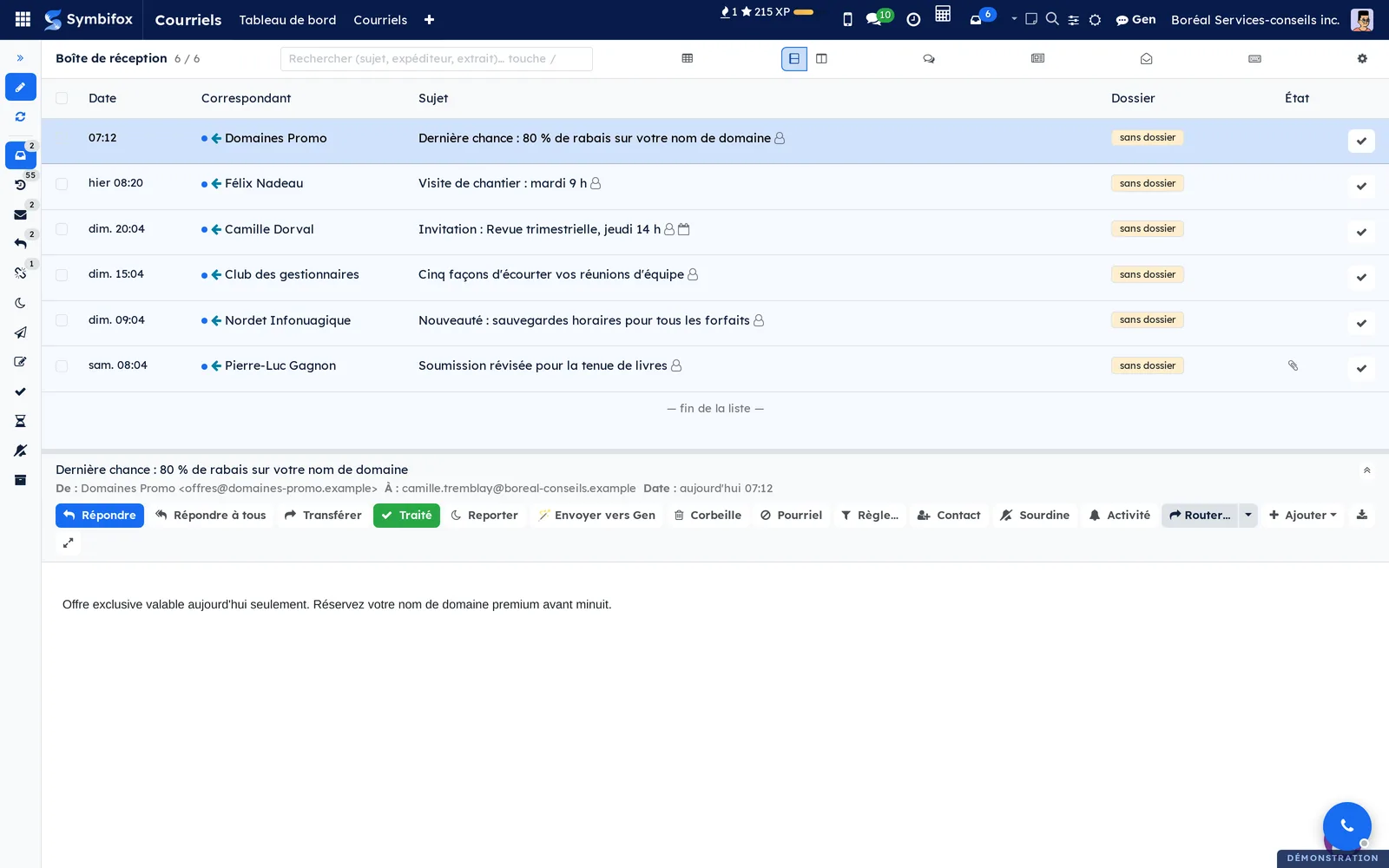
Here is the application's home screen on the Boréal Services-conseils demo.
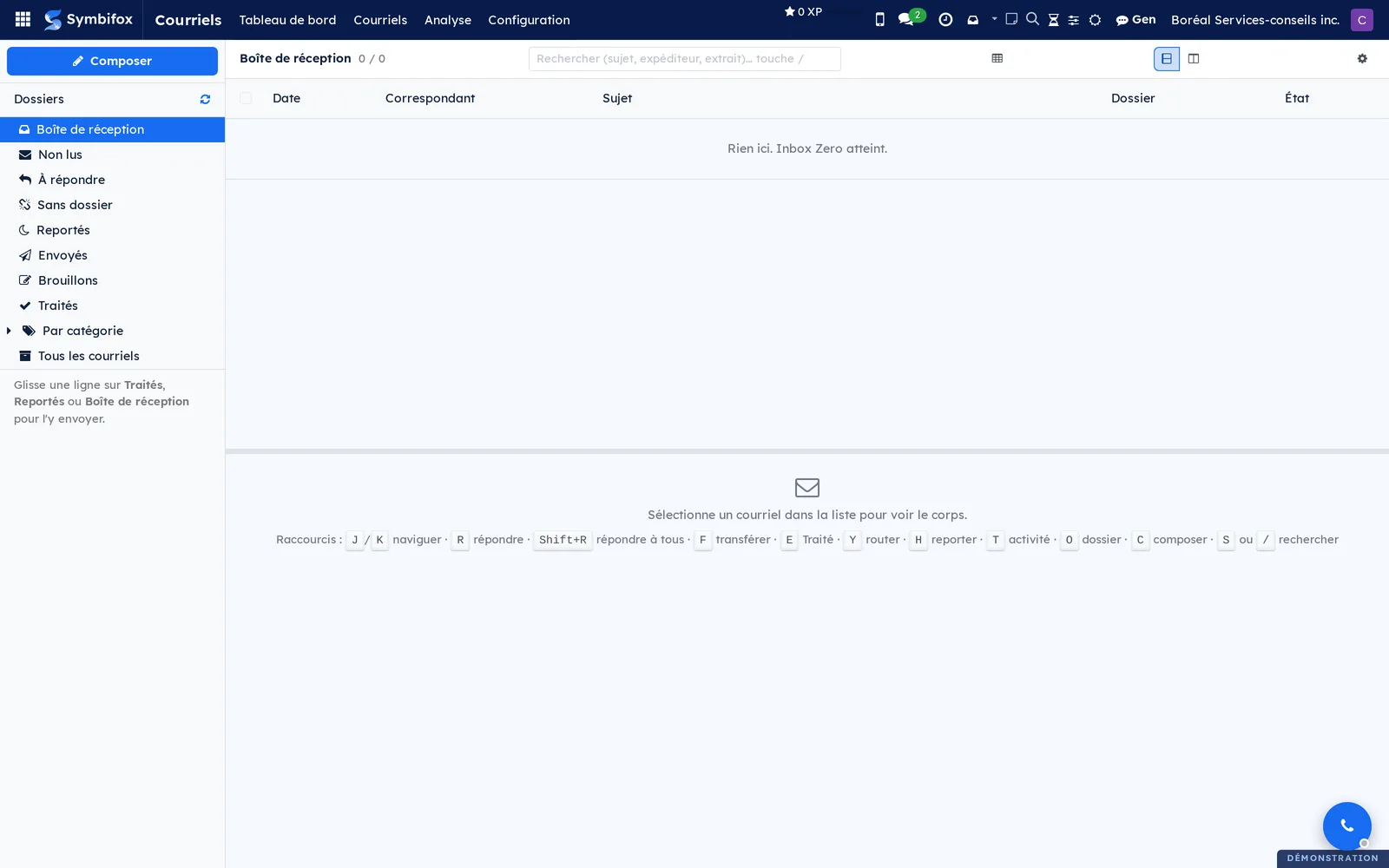
On the left, the Dossiers (folders) column holds Boîte de réception (inbox), Non lus (unread), À répondre (to answer), Sans dossier (not filed), Reportés (snoozed), Envoyés (sent), Brouillons (drafts), Traités (done), a Par catégorie (by category) grouping, Relance à faire (to chase), Sourdine (muted) and Tous les courriels (all emails). Drag a line onto Traités, Reportés or Boîte de réception to move it there. At the top, Composer (compose) opens the editor, and the magnifying glass searches the subject, sender and excerpt. The reading pane fills the bottom of the screen and lists the keyboard shortcuts. On the demo, the capture account's inbox is empty.
When old emails are waiting for a decision, an À décider (to decide) folder also appears, just before Non lus. The double arrow to the right of Dossiers folds the column into a strip of icons, see Fold the folder column.
Configuration#
Access and permissions#
Anyone who signs in as an internal user sees the application and can connect their accounts. Email lines are filtered by owner: you see only your own. The same applies to your accounts, your sending identities, your rules and your absences. These items stay with their owner: nobody can hand them over to a colleague, except an email administrator.
A single group is added, Administrateur (tous les courriels) (administrator, all emails). It opens the Tous les courriels (admin) entry, a read-only view of the whole organization's mail, as well as Import initial (initial import) and Avis retenus (held notifications). It also lets you verify a sending identity, write a rule for the whole organization and authorize forwarding outside the organization. A red banner tops every record viewed with this group. This group also opens Autorités (pourriel) (spam authorities), the list of bodies that receive complaints.
Signature templates, and importing email files outside a chatter, are reserved for general administrators, under Settings. The same goes for the two advanced rule conditions, Champ du contact (avancé) (contact field, advanced) and Domaine Odoo (avancé) (Odoo domain, advanced): only a general administrator can create, modify or copy them. The House absence messages follow the same rule: everyone can read them, only a general administrator can change them.
Settings#
The shared settings are in Settings › General Settings, in the email block. Dossiers IMAP dans la boîte de réception (IMAP folders in the inbox) adds your server's real folders under the inbox. Fraîcheur de l'arborescence (folder tree freshness) sets how many minutes the retrieved folder list is reused before Symbifox asks for it again. Où vit la signature (where the signature lives) chooses between a signature written into the draft when the editor opens and one added only at sending. Avis à l'arrivée d'un courriel (new email notification) and Mode “ne pas déranger” (do not disturb mode) allow, for the whole database, the on-screen notification and silence during meetings. Both are cleared at first, and each person then sets their own. Bloquer les images distantes à la lecture (block remote images when reading), ticked at first, holds back images hosted by the sender until someone asks for them. It is the organization's default: each person can choose otherwise in their preferences and allow senders one by one, see Allow images from chosen senders.
The same screen sets up the top bar button: what it opens (a panel over the current screen, or the full page), and its initial width and height. The signature part, finally, holds the template per company, enforcement, propagation, brand elements and the confidentiality notice.
Plaintes de pourriel (spam complaints) adds to the Signaler (report) dialog the option of filing a complaint with an authority. Once ticked, it asks for the project where complaints wait, each one as a draft on a task per sender. The old-mail guard has no screen: the system parameter bf_email.ingest_max_age_days sets the age beyond which an email that suddenly appears on the server waits in À décider. It is thirty days to start with, and 0 turns the guard off.
Base data#
Three things are worth preparing. One email account per person, see Add an email account. Sending identities: one is created for the address on your user record and one per connected account, so you only add those that match no retrieved mailbox. Only the identity whose address is your sign-in login starts out verified, provided nobody else holds it. The others wait for an email administrator to verify them. Finally, a few automatic rules, quicker to set up from the recipe catalogue than to write one by one.
Two items are optional: recipient groups, which replace a distribution list, and an absence Message type (template message), used as the pattern whenever the calendar shows you on leave. Without a template message, the House absence messages are used instead: read them over once after installation, since they go out under each person's name.
For complaints, three authorities are shipped: the CRTC (spam, by email), the United States FTC (spam, through its web form) and the APWG (phishing, by email). An email administrator adds, removes or reorders them under Courriels › Configuration › Autorités (pourriel).
Getting started#
This walkthrough connects an address at Boréal Services-conseils, checks the server a first time, then files an email in the record it belongs to.
- Go to Courriels › Configuration › Mes comptes IMAP (my IMAP accounts), then select New.
- Enter the account Nom (name), for example “Coordination”, then the Serveur IMAP (IMAP server), Port IMAP (IMAP port), Utilisateur IMAP (IMAP user) and Mot de passe IMAP (IMAP password).
- Select Tester la connexion (test connection). The status changes to Connecté (connected) and the number of messages in the inbox folder appears.
- Select Synchroniser maintenant (synchronize now), then save.
- Go to Courriels › Courriels › Boîte de réception. The retrieved messages appear, newest first.
- Open an email, select Lier à un dossier (link to a record), search for the target record by name or number, then select Importer (import).
- Select Traiter (mark as done). The line leaves the inbox.
Result: the email appears in the record's chatter, with its date and attachments, visible to the team. Your inbox is one line shorter.
Common tasks#
Add an email account#
Each person connects their own addresses. An account retrieves the inbox folder and the sent folder.
- Go to Courriels › Configuration › Ajouter une boîte courriel (add a mailbox).
- Enter your address. Leave Nom de la boîte (mailbox name) empty to reuse the address.
- Select Détecter (detect).
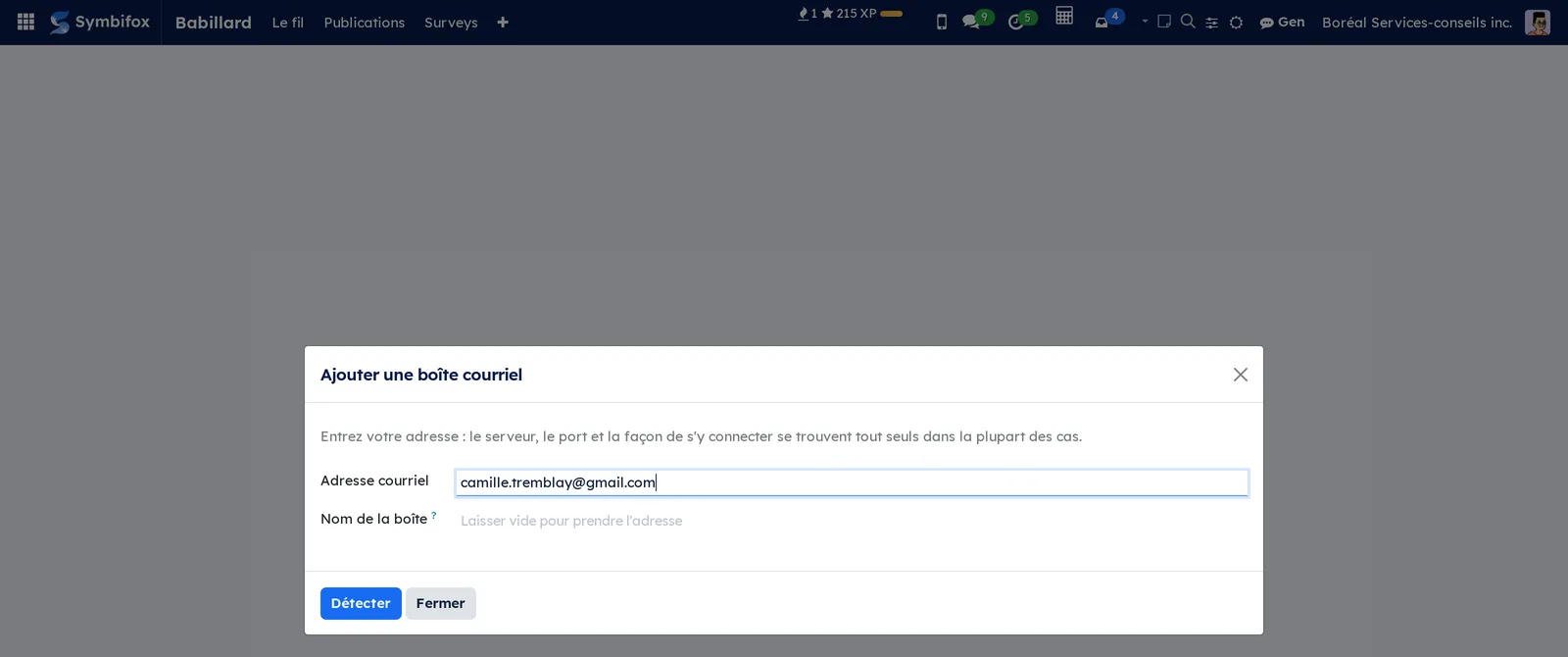
The wizard looks for the server, the port and the way in: first the configuration your domain publishes, then the Thunderbird public database, then the domain's service records, then its incoming mail server, and as a last resort a probe of the usual names. Across fifty-three measured domains, it resolved forty-nine.
- Check what it proposes, enter the password, then select Brancher (connect).
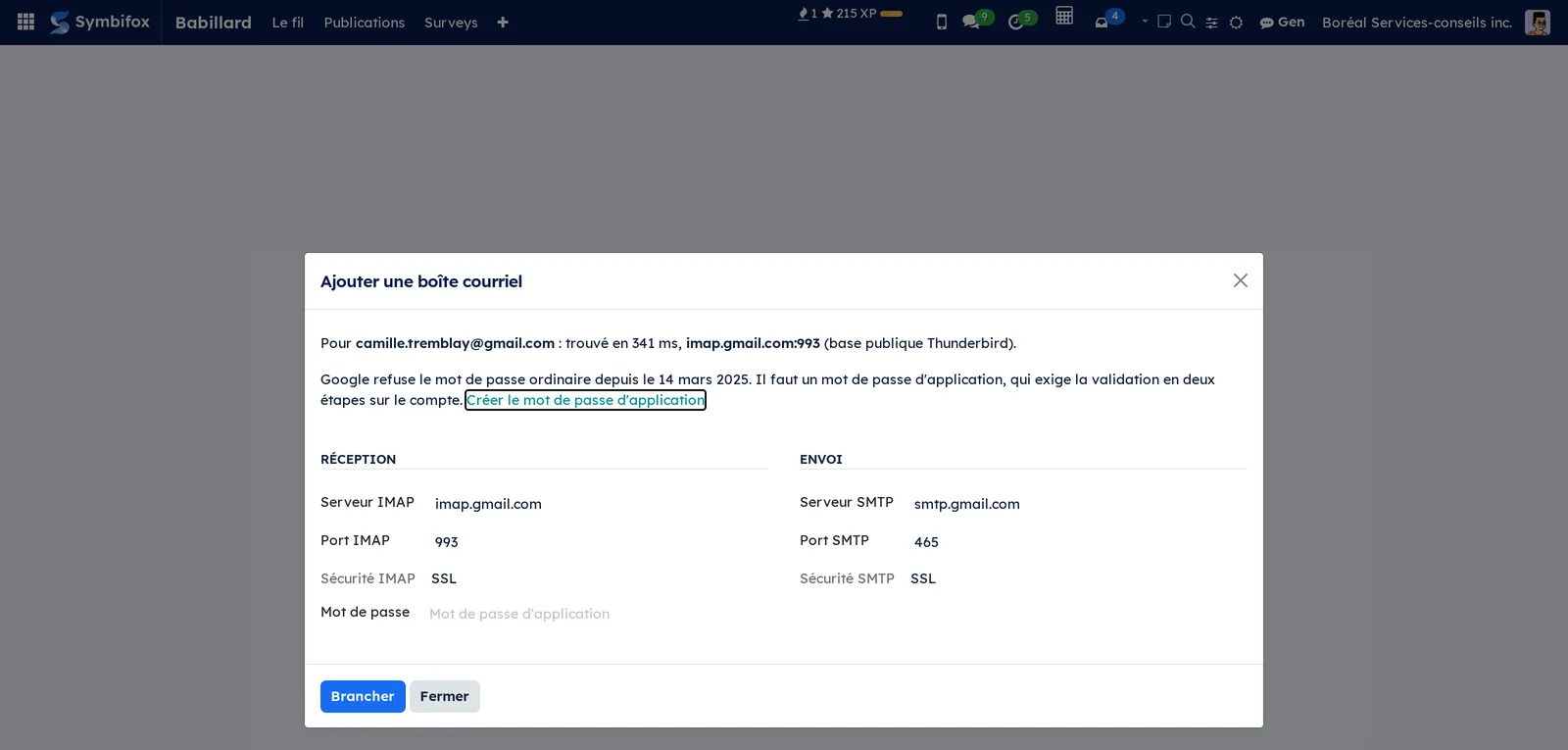
Result: the connection is tried before anything is written. If it succeeds, the account, the sending identity and the outgoing server are created in one go, and the account changes to Connecté. If it fails, the wizard says what the server actually answered and creates nothing.
Two settings are deliberately cautious at creation. The account does not rearrange your mailbox on the server, and its first retrieval only goes back seven days. Both can be changed afterwards, and reaching further back is done through Import initial on the account form.
Connect a Microsoft 365 or Outlook.com mailbox#
Microsoft no longer accepts any password over IMAP, neither the account password nor an app password: its server answers "Basic authentication is disabled". The only way in is OAuth 2.0 consent, given in a Microsoft window.
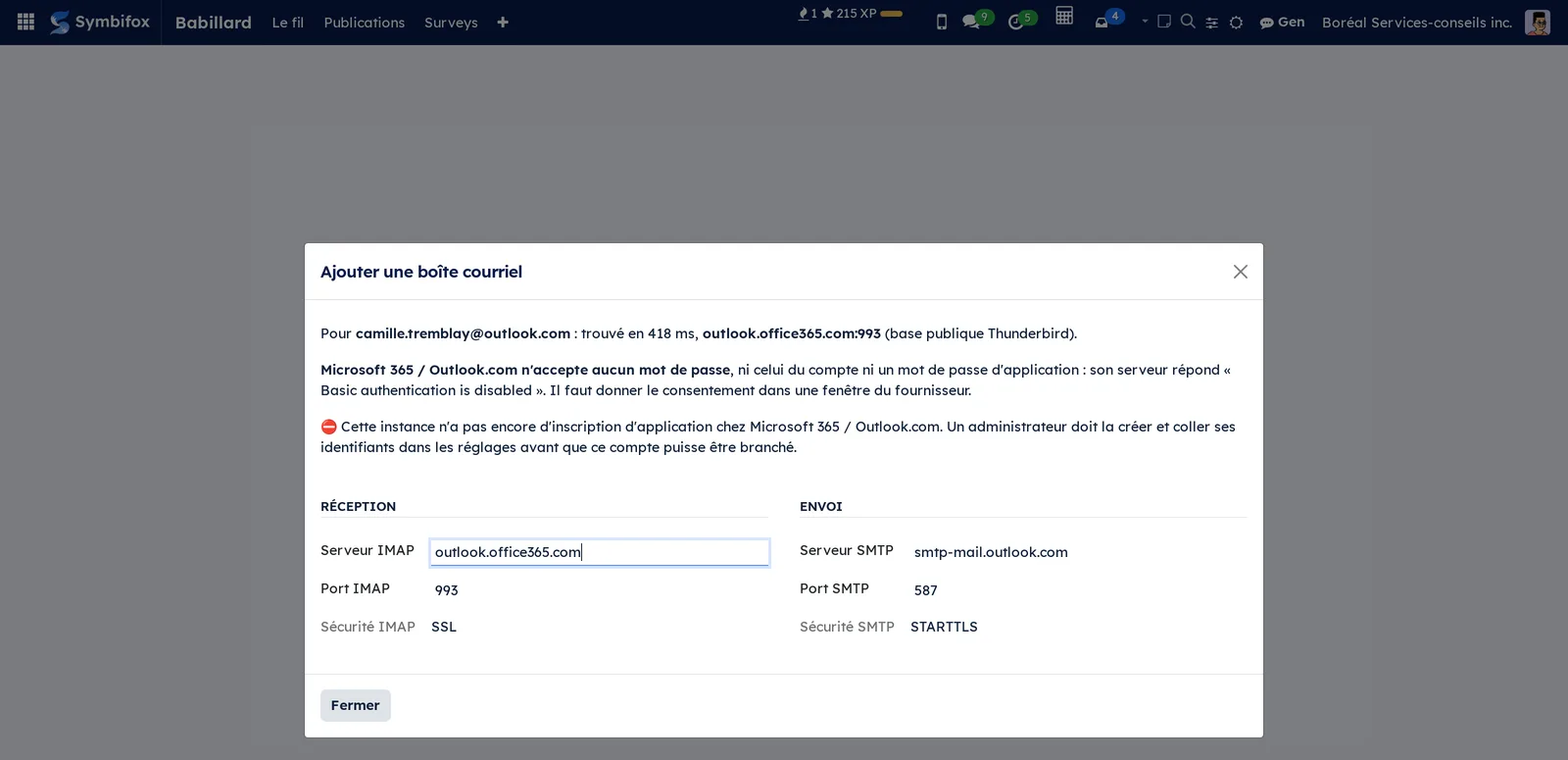
The wizard recognises these addresses and says so. Before they can be connected, someone in charge has to register Symbifox with Microsoft, once for the whole organisation.
- Go to Paramètres › Gestion des courriels › Comptes OAuth.
- Copy the URL de retour à déclarer (redirect URL to declare).
- In your organisation's Microsoft Entra portal, create an application registration, paste that URL as the redirect URL, and grant the delegated permissions
IMAP.AccessAsUser.All,SMTP.Sendandoffline_access. - Come back here, paste the application id and secret, then Save.
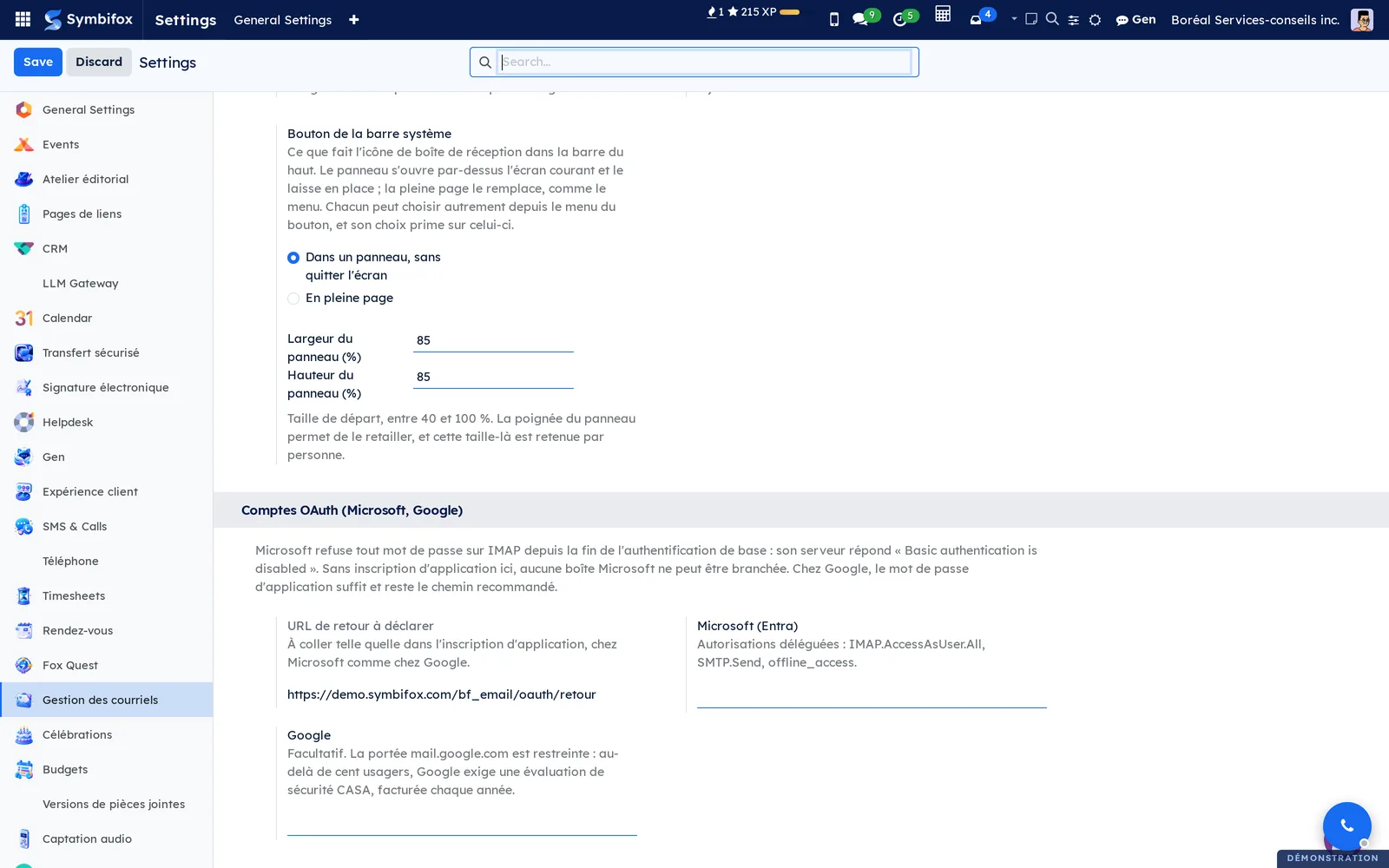
Result: the Lier le compte chez le fournisseur (link the account) button appears in the wizard, and each person gives their own consent for their own mailbox.
Add an account by hand#
Four domains out of fifty-three publish no configuration at all. The wizard says so and lets you enter the server yourself; your provider gives it in its help pages.
- After Détecter, fill in Serveur IMAP, Port IMAP and the password.
- Optional: fill in the sending server and port.
- Select Brancher.
The full form is still available under Courriels › Configuration › Mes comptes IMAP: use it to review an existing account, to enter Alias additionnels, or to fetch the server's folders.
Set an account's notifications and archiving#
An account also defines what happens when an email arrives, and what happens to the message on the server when you mark it done.
- Open the account under Courriels › Configuration › Mes comptes IMAP.
- Choose the Avis à l'arrivée (arrival notification): Aucun avis (none), Avis éphémère (brief, eight seconds) or Avis persistant (persistent, thirty seconds).
- Optional: name the Dossiers à avis persistant (folders with persistent notifications), choose the Couleur de l'avis (notification colour), check Taire les envois en masse (mute bulk mail) and set the Report rapide (minutes) (quick snooze).
- To have archiving follow on the server, check Archivage bilatéral (two-way archiving) and enter the Dossier d'archives IMAP (IMAP archive folder).
- Save.
Result: the notification appears in the account's colour, and marking an email done also moves it to the archive folder on your server.
Work through the inbox#
You empty the inbox from the reading pane, without opening each message as a full page.
- Open Courriels › Courriels › Boîte de réception.
- Place the reading pane on the right or at the bottom, with the two buttons at the top of the list.
- Select an email. Its body appears in the pane, and the line changes to Lu (read).
- Select Traité to take it out of the inbox, or Reporter (snooze) to see it again later. The next email loads immediately.
Result: the list moves forward on its own, and the counter on the top bar button goes down as you go.
Fold the folder column#
The folder column shrinks to a strip of icons, leaving its width to the list.
- Open the inbox.
- Select the double left arrow to the right of Dossiers, or press
[. - To open it again, select the double right arrow at the top of the strip, or press
[again.
Result: each folder becomes an icon, with its counter as a badge, and its name shows on hover. Composer and the retrieval button stay at the top of the strip, and you can still drag a line onto an icon to move it there. The choice is remembered in this browser, separately for the full page and for the top bar panel.
File an email in a record#
Filing an email makes it visible to the team in the record it belongs to: this is the central action of the application.
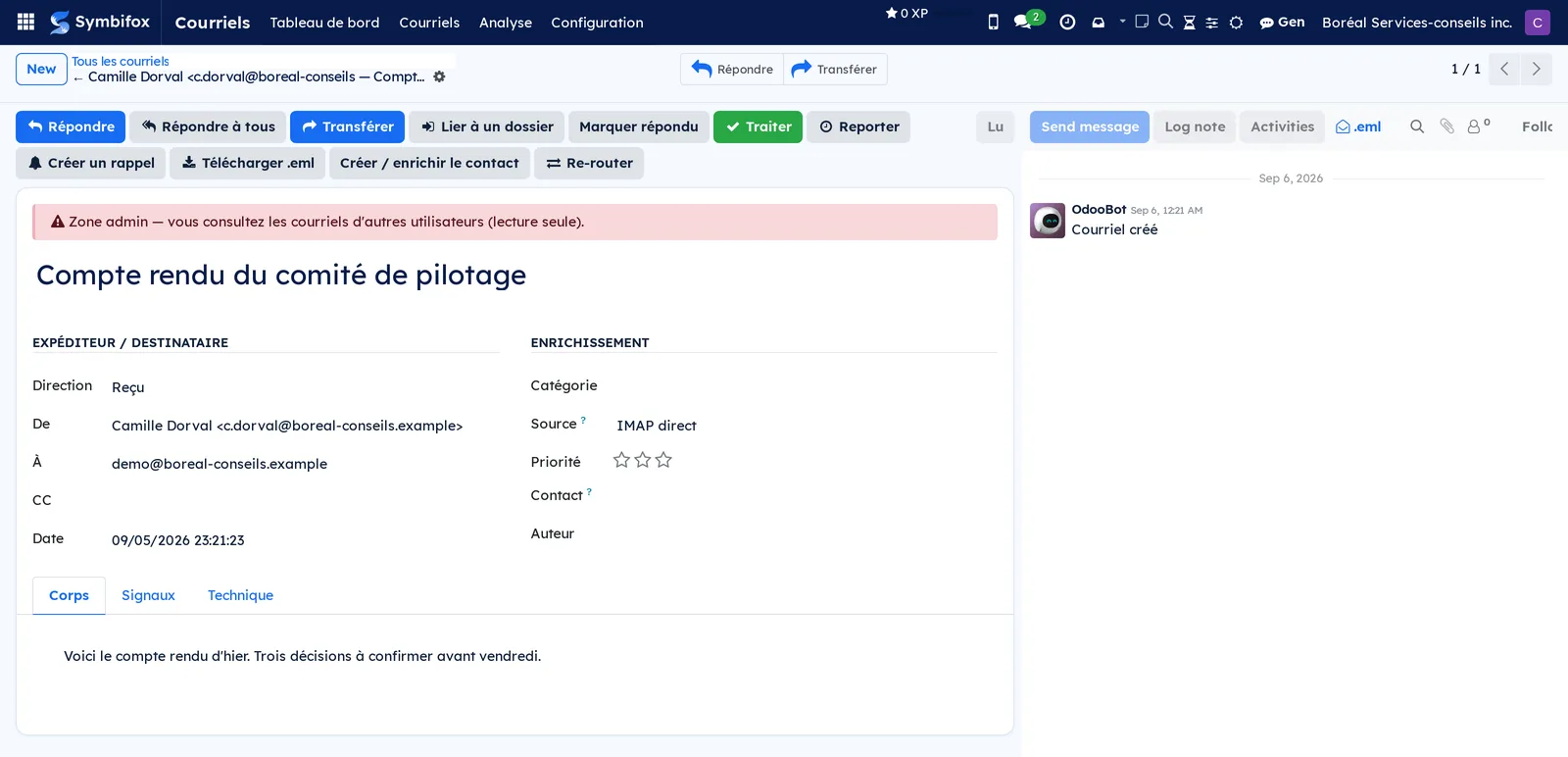
- Open the email from the inbox.
- Select Lier à un dossier.
- In Dossier cible (target record), search for the record by name, number or shortcut, or paste its Symbifox address.
- Optional: check Marquer traité après import (mark done after import) and Marquer comme répondu (mark as answered).
- Select Importer.
Result: the message appears in the record's chatter, at its original date, looking like an email: a blue bubble, or a green one if you wrote it. It is still an internal note: no email goes out, and the record's followers are not notified. Filing a trace is not writing to someone.
The filed email also takes the record's Work category, which serves as a filter and a grouping in email lists: see Work categories.
File several emails at once#
When twenty or so messages are waiting, Symbifox proposes where each one goes and you only decide the doubtful cases.
- Open Courriels › Courriels › Tous les courriels and check the lines to file.
- Open the Actions menu and select Deviner et importer (guess and import).
- Review the preview: it separates high-confidence proposals from those to check, and each line shows its target.
- Correct what needs correcting, then select Confirmer le routage (confirm routing).
Result: each email joins its record, and the number of lines processed appears at the bottom of the dialog.
Create a record from an email#
A message can create the record it is missing, and be filed there in the same step.
- Open the email.
- Open the Actions menu and choose the record to create: project task, helpdesk ticket, lead, customer invoice, vendor bill or expense.
- Fill in the few fields requested, then save.
Result: the record exists, and the email is already in its chatter instead of being copied into its description. For an unknown correspondent, Créer / enrichir le contact (create or enrich the contact) creates the contact record the same way.
Reply, reply all or forward#
These three actions work the same for an email retrieved from your server and for a message that started in a record.
- Open the email.
- Select Répondre (reply), Répondre à tous (reply all) or Transférer (forward).
- Check the address proposed in De (from), write your message, then send.
Result: if the email was filed in a record, the reply is added to that record's chatter. Otherwise it is filed on the correspondent's contact record. A forward carries the original attachments.
Write an email and choose your identity#
A sending identity is an address you can write on behalf of, with its own signature.
- Open Courriels and select Composer.
- In De, choose the identity you want. Only verified identities are offered. Changing the address of a verified identity removes its verification.
- Enter the recipients. For a group, enter its name: its members expand.
- Write the message, then send.
Result: the recipient sees the name and address of the chosen identity, and the matching signature, shown under the body while you write.
Schedule a send or keep a draft#
An email written this evening can go out tomorrow morning, or wait for your go-ahead.
- In the editor, write your message.
- To delay it, open the sending options and choose the date and time.
- To keep it without a date, select Enregistrer comme brouillon (save as draft).
- Find both under Courriels › Courriels › Brouillons planifiés (scheduled drafts), where Envoyer maintenant (send now) sends at once.
Result: a delayed email goes out on its own at the set time. A draft never leaves without an action from you.
Snooze an email#
A message you cannot deal with now leaves the inbox and comes back at the time you choose.
- In the list or the reading pane, select Reporter.
- Choose a preset: Dans 1 heure (in 1 hour), Dans 3 heures (in 3 hours), Ce soir (18h) (this evening, 6 p.m.), Demain matin (8h) (tomorrow morning, 8 a.m.), Lundi prochain (8h) (next Monday, 8 a.m.), or Date personnalisée (custom date).
- Select Reporter.
Result: the line leaves the inbox and moves to Reportés. When the time comes, it returns on its own and flags itself again.
Correct a misfiled email#
An email filed in the wrong record moves without being sent to anyone again.
- Open the misfiled email and select Reroute.
- If a suggestion appears, select Apply the suggestion. Otherwise, search for the right record in Target.
- Select Reroute.
Result: the message changes chatter. No email is sent again, and no follower is notified.
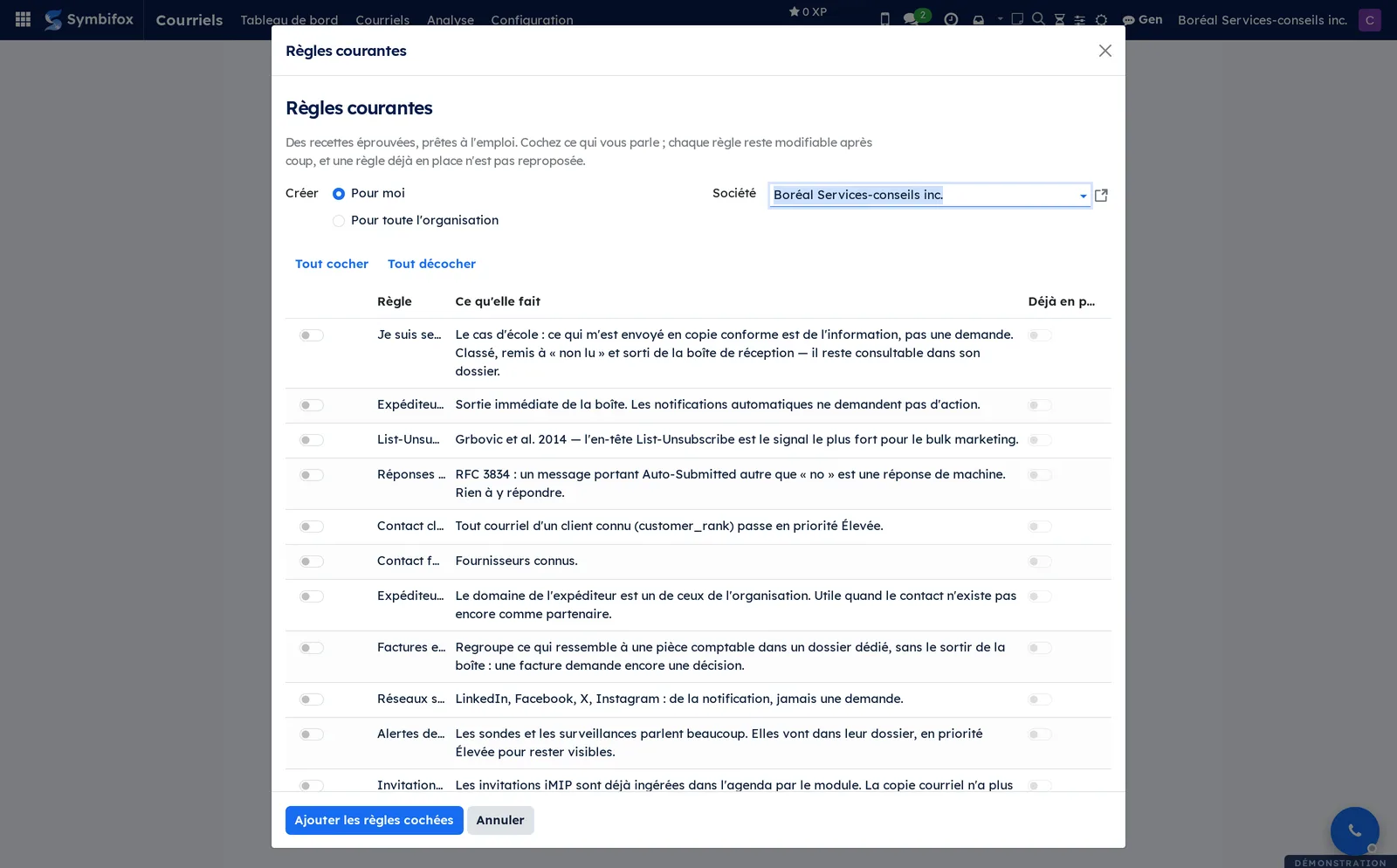
Add common rules#
The catalogue offers a dozen proven recipes, including one that takes out of the inbox everything you are only copied on.
- Go to Courriels › Configuration › Règles courantes (common rules).
- Choose Pour moi (for me) or Pour toute l'organisation (for the whole organization).
- Check the recipes you want. Those already in place are greyed out.
- Check Appliquer aux courriels déjà reçus (apply to emails already received) so the inbox changes right away.
- Select Ajouter les règles cochées (add the checked rules).
Result: the rules appear under Règles automatiques (automatic rules), where each one stays editable.
Write a rule and test it#
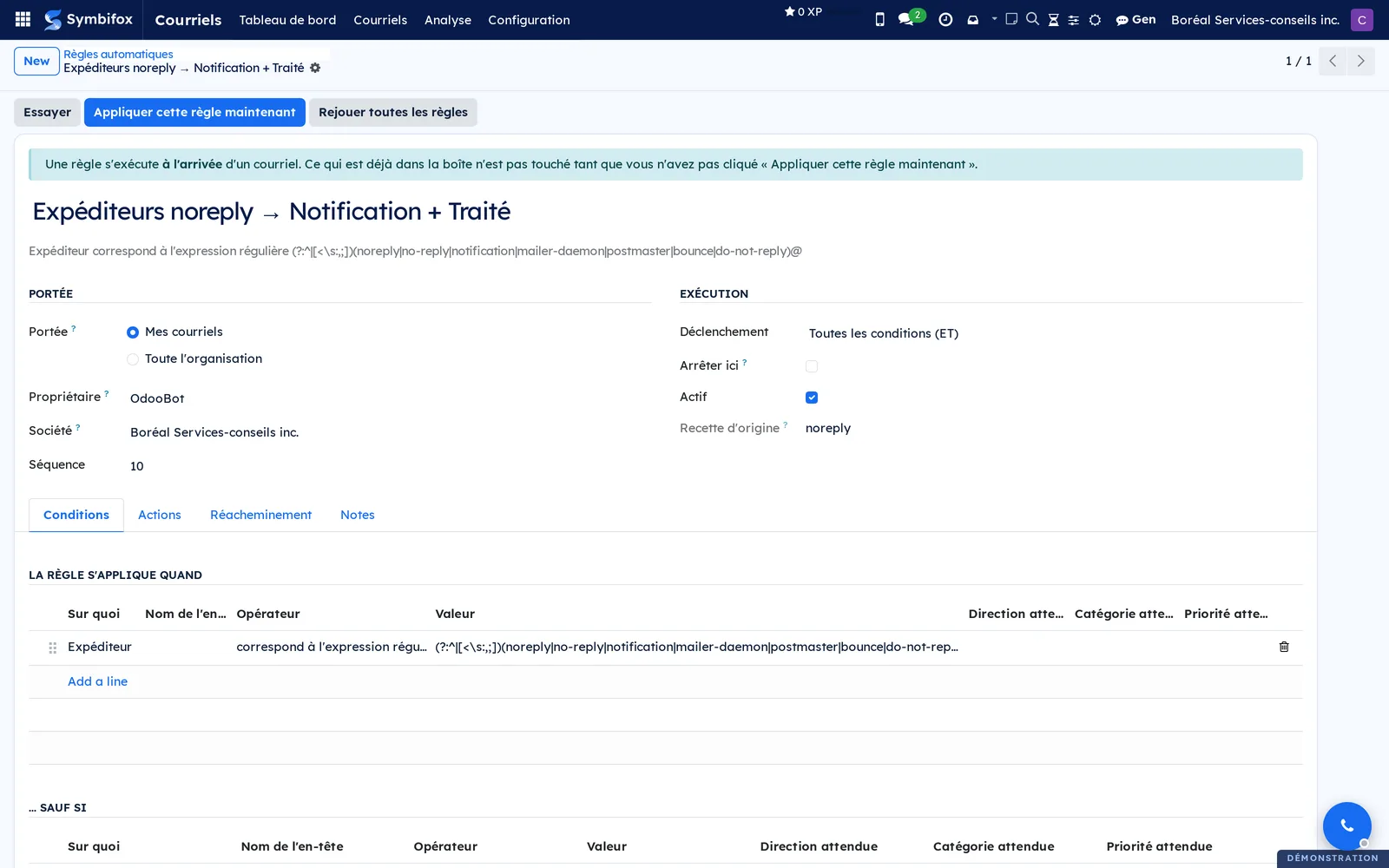
A rule is a list of conditions, minus a list of exceptions, followed by actions.
- Go to Courriels › Configuration › Règles automatiques, then select New.
- Name the rule, then choose the Portée (scope) and the Déclenchement (trigger: all conditions, or at least one).
- In the Conditions tab, add a line: what the test looks at, the operator, the value. Add exceptions if needed.
- In the Actions tab, choose what the rule does: category, priority, contact, destination folder, removal from the inbox, snooze, forward to a person.
- Save, then select Essayer (try). The list of messages the rule would catch appears, and nothing changes.
- Select Appliquer cette règle maintenant (apply this rule now) to run it on those messages.
Result: from now on, the rule runs when each email arrives, in the order of its sequence.
Forward emails automatically#
A rule can send an email on to another address, for example while someone covers for you.
- Open the rule, then the Réacheminement (forwarding) tab.
- Enter the addresses in Réacheminer à (forward to), separated by commas.
- Optional: check Réacheminer aussi mes envois (also forward my sent mail). For an address outside the organization, ask an administrator to check Autoriser hors de l'organisation (allow outside the organization).
- Save.
Result: the email goes out again from your own address, with the original sender as the reply-to address. Each send, and each refusal with its reason, is recorded in the automatic sending log.
Declare an absence#
The out-of-office responder writes once per correspondent, never to mailing lists or machine-generated messages.
- Go to Courriels › Configuration › Réponses d'absence (out-of-office replies), then select New.
- Enter a Motif (reason), for example “Summer holidays”, then the Du (from) and Au (to) dates.
- Add one or more message lines: one per audience, the last one without a condition serving everyone.
- Optional: name the Relève (backup person) and check Confier les courriels à la relève (hand emails to the backup), Joindre mes liens rapides (include my quick links) or Refuser les invitations reçues pendant l'absence (decline invitations received during the absence).
- Select Voir ce que recevrait quelqu'un (see what someone would receive), then save.
Result: the responder turns on at the start date and turns off at the end. Terminer maintenant (end now) stops it earlier without erasing its history.
Silence notifications during a meeting#
Do not disturb mode holds notifications instead of discarding them, and hands them back in a single summary.
- Go to Courriels › Configuration › Ne pas déranger (do not disturb), then open the Ne pas déranger tab.
- Choose a duration: 15 minutes, 30 minutes, 1 heure (1 hour), Indéfiniment (indefinitely) or Jusqu'à la fin de la rencontre (until the end of the meeting).
- Optional: check Me faire taire pendant mes rencontres (silence me during my meetings), and set your Heures calmes (quiet hours) with their time zone.
- Save.
Result: no notification appears while the mode is on. Me déranger quand même (disturb me anyway) takes back control, for a demonstration or an on-call shift.
Find an old email on the server#
Three screens fetch what is not yet in Symbifox, depending on how much you need.
- To search a folder, go to Courriels › Courriels › Navigateur IMAP (IMAP browser), choose the account and the folder, then select Charger / rafraîchir (load or refresh).
- Select a message, then Aperçu (preview), Ingérer (ingest) or Ingérer + router (ingest and route).
- For a whole folder, go to Courriels › Configuration › Rattrapage IMAP (Archives) (IMAP catch-up), name the folder, set the date range and select Lancer le rattrapage (start the catch-up). A complete import at installation goes through Import initial instead.
Result: the messages join your inbox. Running any of these screens again never creates a duplicate.
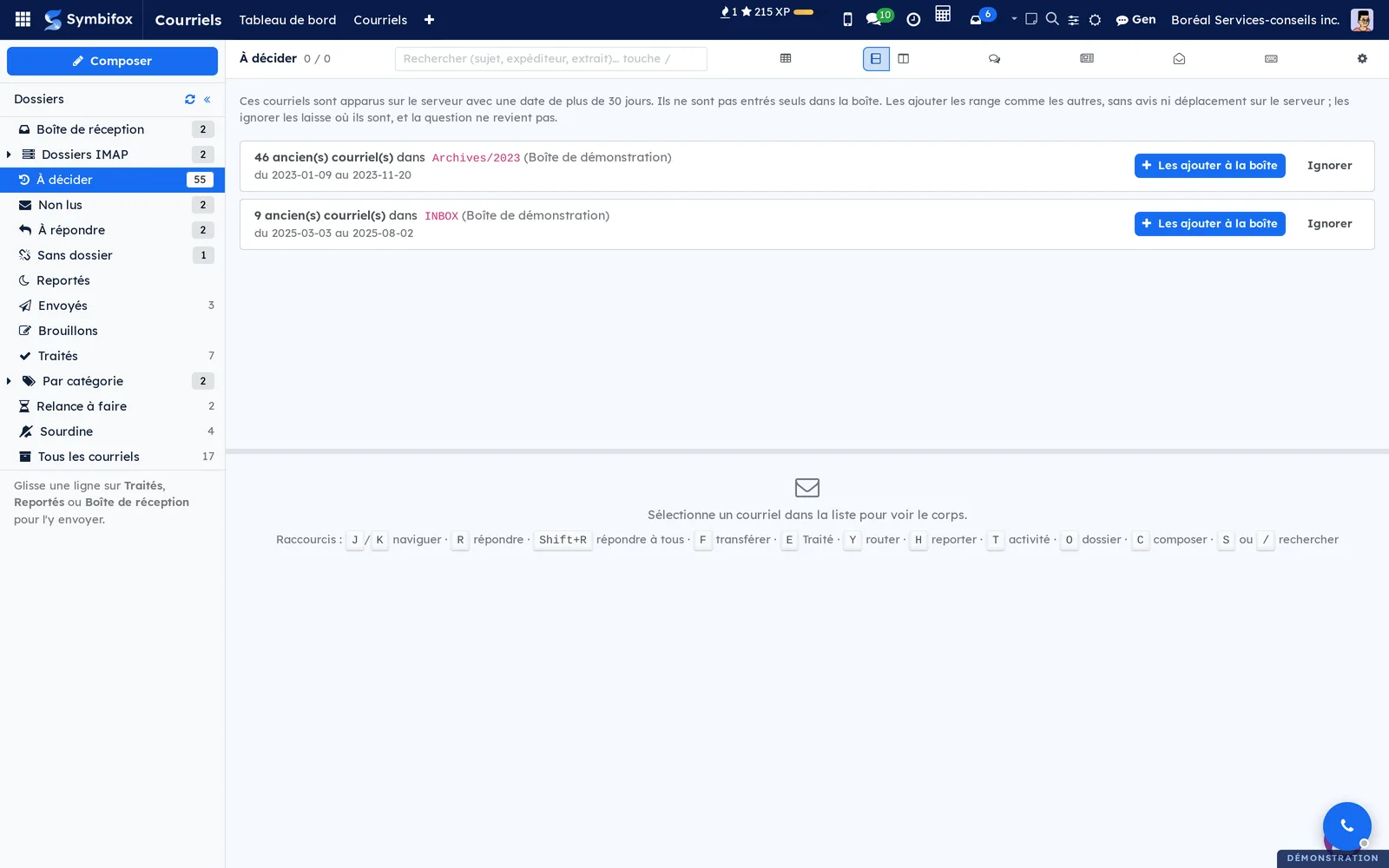
Decide what to do with old emails#
When emails dated more than thirty days back suddenly appear on the server, for instance after an old archive was moved in the webmail, Symbifox does not let them into the inbox on their own. They wait for your decision, in batches.
- In the Anciens courriels (old emails) notice, or in the À décider folder of the left column, read the batch: the number of emails, the server folder, the account and the period.
- Select Les ajouter à la boîte (add them to the inbox) to let them in, or Ignorer (ignore) to leave them on the server.
Result: once added, the emails come in like the others within moments, with no arrival notice; your rules file them in Symbifox without moving or forwarding anything. Once ignored, they stay where they are, and the question does not come back for them. The À décider folder disappears when nothing is waiting.
Import saved emails into a record#
An exchange held outside Symbifox goes into a record from saved email files.
- Open the target record and find its chatter.
- Select the .eml button, then choose one or more files.
- Select Import.
Result: the messages are added to the chatter in the order of their sending dates, with their attachments. The report states, file by file, what was imported, skipped as a duplicate or refused. Nobody is notified.
Create a recipient group#
A group replaces a distribution list: you enter its name in the editor and it expands into its members.
- Go to Courriels › Configuration › Groupes de destinataires (recipient groups), then select New.
- Name the group and choose Verser dans (put in): À (To), Cc or Cci (Bcc).
- In the Membres (members) tab, add the contacts one by one.
- Optional: in the Filtre dynamique (dynamic filter) tab, set a filter on contacts to add everyone who matches it. Check Partagé avec l'équipe (shared with the team) to make the group visible to everyone.
- Save.
Result: you use the group name like a recipient. A large group placed in Cci keeps everyone from seeing the others' addresses.
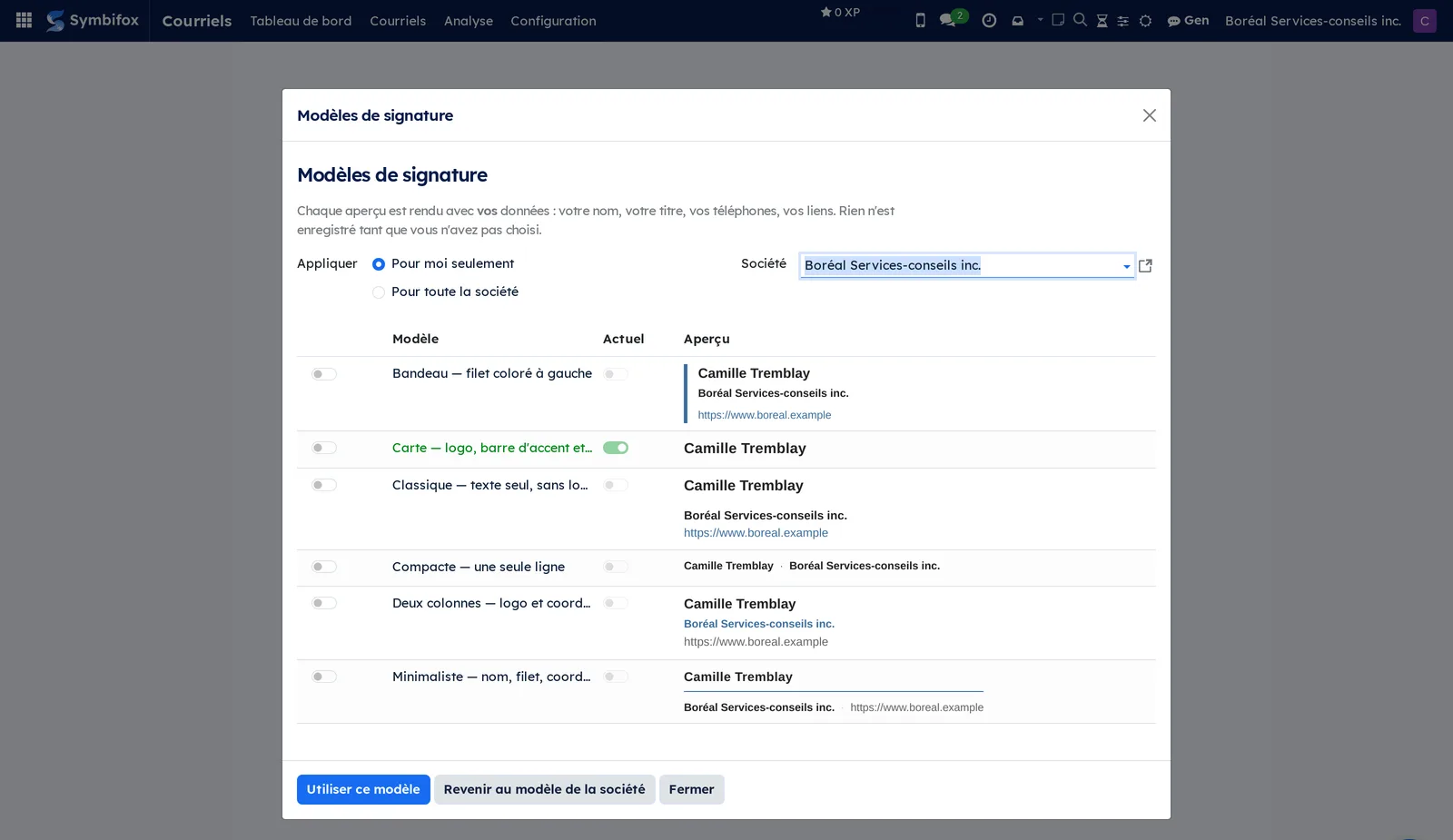
Choose your email signature#
Your signature is rendered from a template and your user record: nothing to paste in by hand.
- Go to Courriels › Configuration › Modèles de signature (signature models).
- Browse the six models: Carte (card), Classique (classic), Compacte (compact), Bandeau (banner), Minimaliste (minimalist) and Deux colonnes (two columns). Each preview is rendered with your own details.
- Check the one that suits you, then select Utiliser ce modèle (use this model). Revenir au modèle de la société (back to the company model) restores the shared choice.
Result: your signature is regenerated immediately. Pronouns, displayed title and your quick links are set under Ma signature courriel (my email signature).
Enforce the company signature#
An organization that wants identical signatures locks them with one setting.
- Go to Settings › General Settings, in the email block.
- Choose the company's Gabarit de signature courriel (email signature template).
- Fill in the brand elements: logo, width, colours, font, toll-free number, brand signature, confidentiality notice.
- Check Imposer la signature (enforce the signature) and Propager les changements (propagate changes), then select Appliquer à tout le monde (apply to everyone).
Result: each person receives the company signature, and the field becomes read-only in their preferences. General administrators remain free to set their own.
Search a message by its content#
Search reads the whole body of a message, and accepts keywords that narrow the result.
- Open Courriels › Courriels › Boîte de réception.
- Select the search field, or press
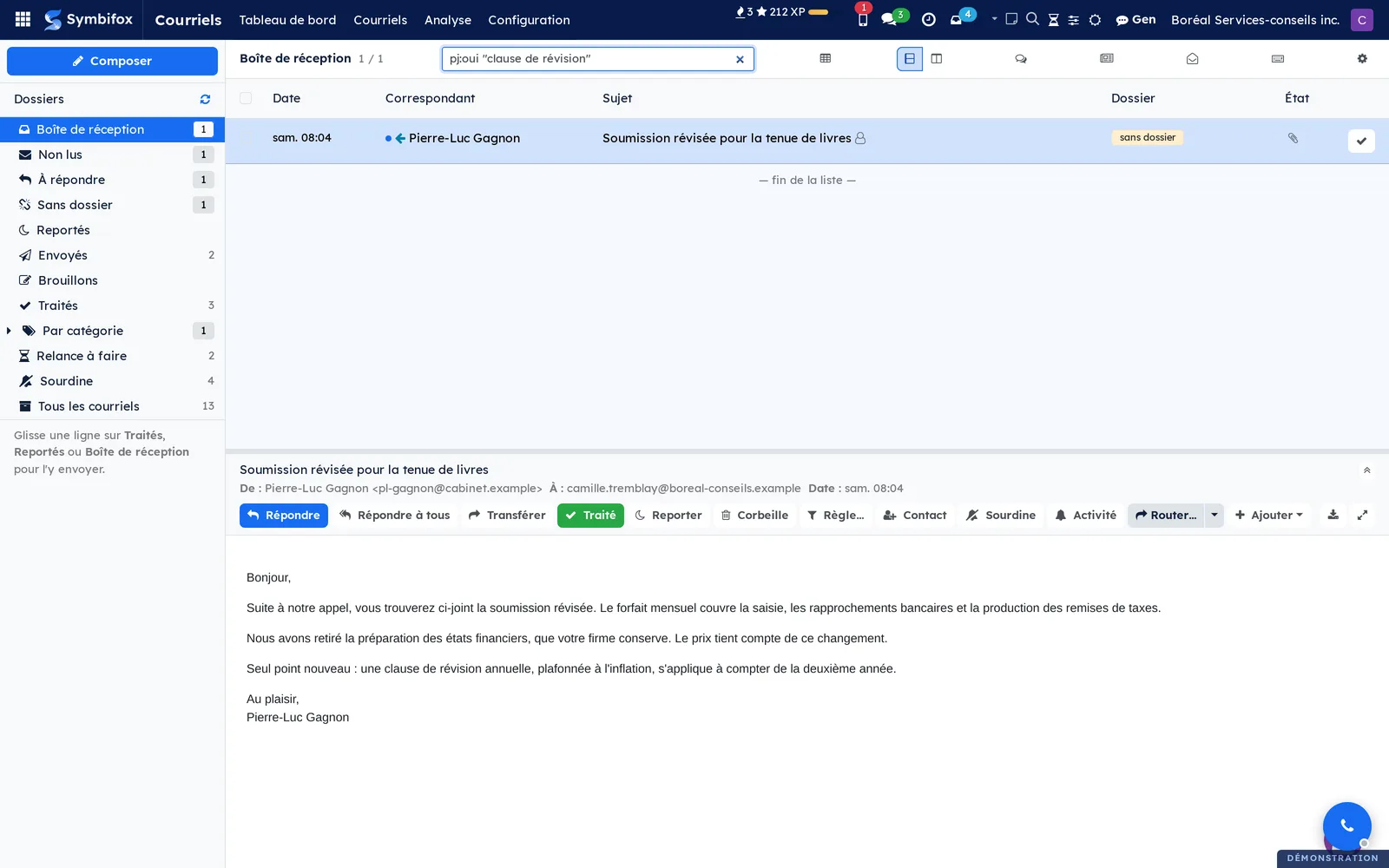
Sor/. - Type a word: it is searched in the subject, the sender, the recipients and the body.
- Add keywords to narrow it down:
from:,to:,cc:,subject:,body:,record:,contact:,folder:,cat:,has:attachment,before:2026-01-31,after:2026-01-31,is:unread,is:notice. - For an exact phrase, put it in quotes.
Result: terms stack and narrow the list. "from:smith has:attachment before:2026-06-01" returns only that correspondent's messages, with an attachment, received before that date.
See a contact's emails#
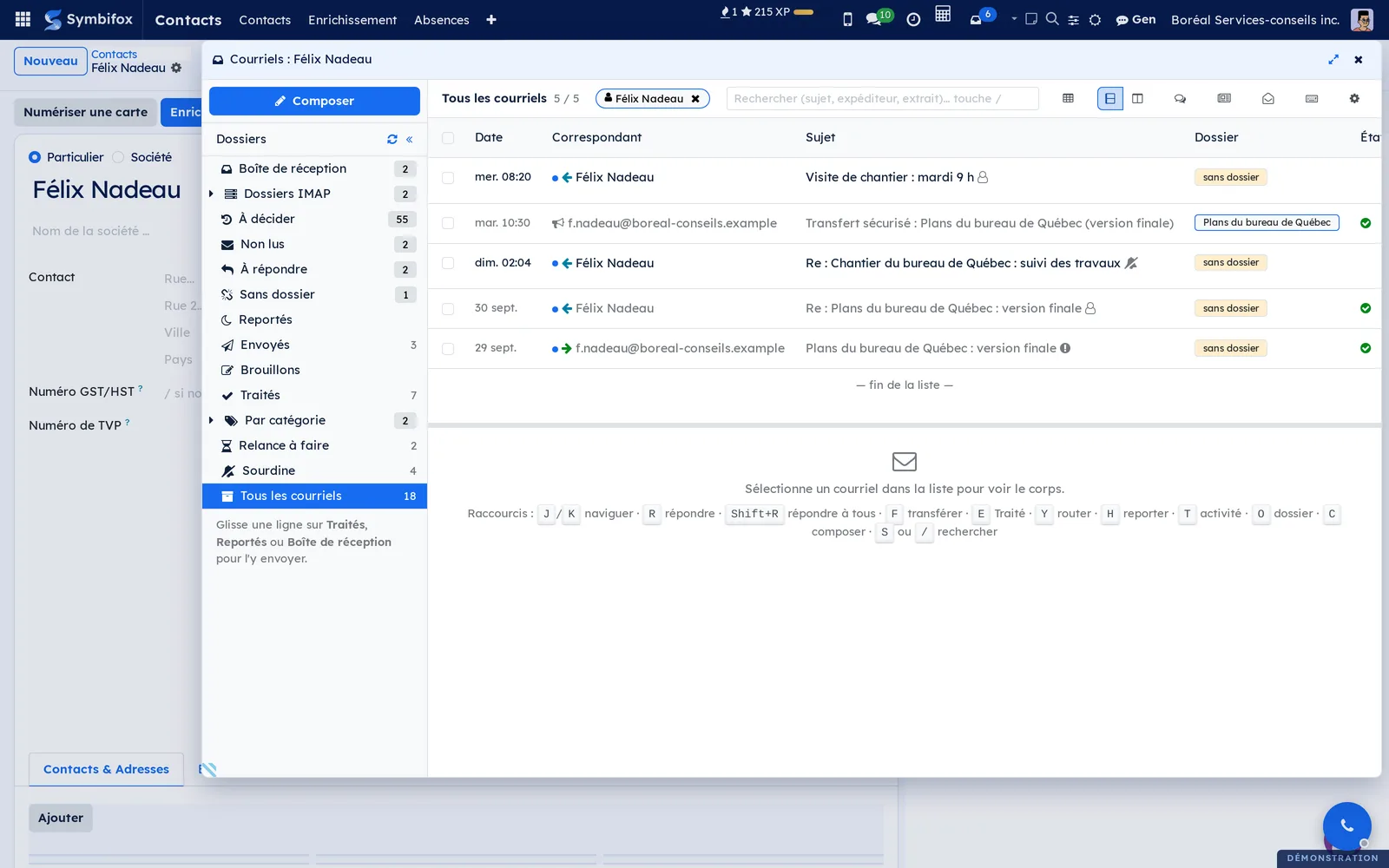
From a contact's record, the Courriels (emails) button opens your inbox filtered on that person.
- Open the contact's record in Contacts.
- Select Courriels, first in the row of buttons. It shows how many emails were found.
Result: the inbox panel opens over the record, on Tous les courriels, with a tag bearing the contact's name. It shows the received, sent and done emails where the person writes, receives or is copied, as well as those attached to their record. The automatic emails Symbifox sent them (invitations, secure transfers, surveys, signatures, reports) are added too, as lines marked with a megaphone: one click shows the email that left, attachments included. On a company's record, the emails of its people are added. Remove the tag with one click to get back to the whole inbox.
Mute a thread#
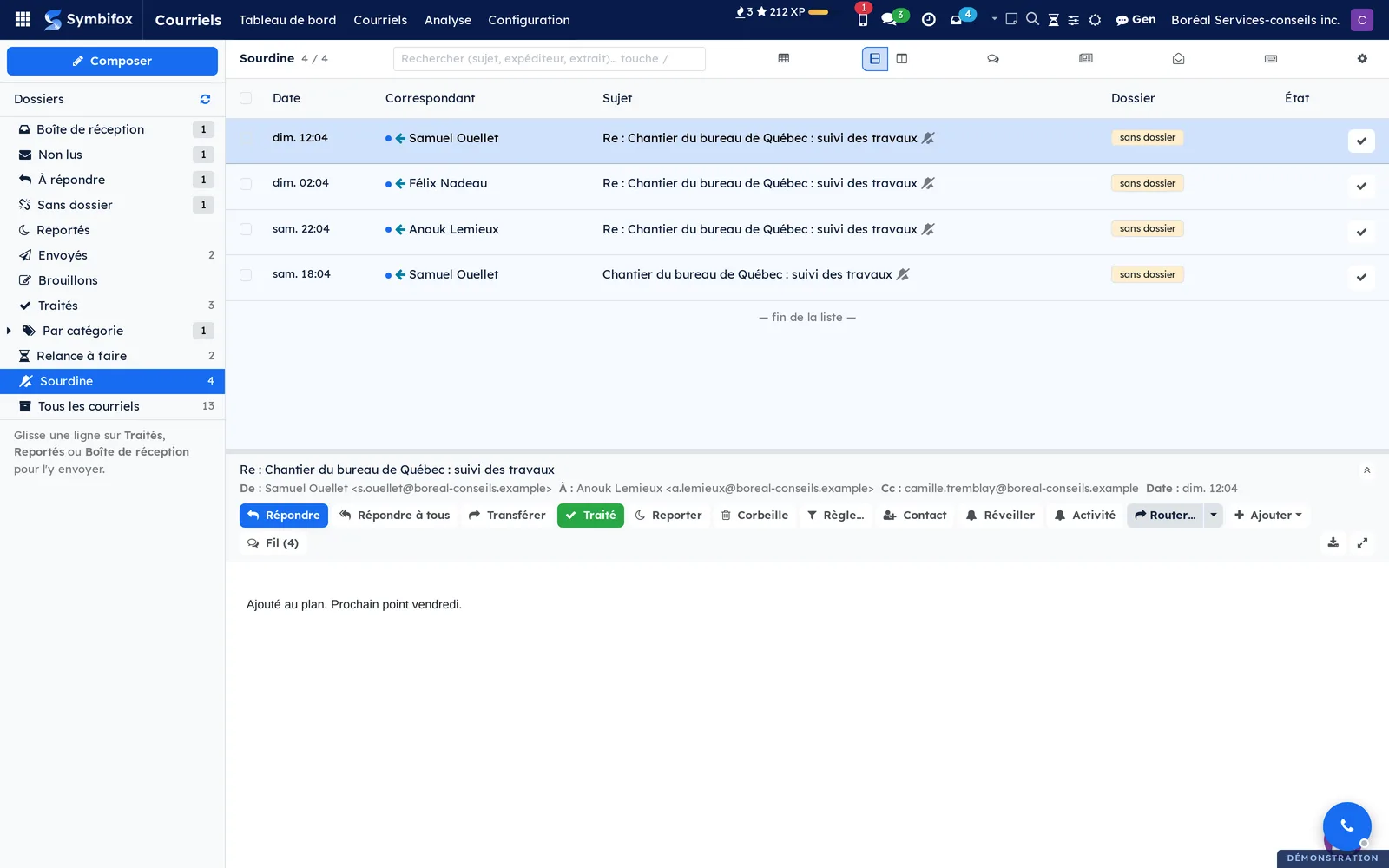
A rule sets a sender aside. Muting sets one conversation aside, without dropping the rest.
- Open the message in the reading pane.
- Select Sourdine (mute), or press
M. - To come back to it, open the Sourdine folder in the left column and select Réveiller (wake up).
Result: the thread leaves the inbox and stops counting in the badge. Messages joining it later arrive already silent. Nothing is deleted and nothing is marked as read.
Chase a send that got no answer#
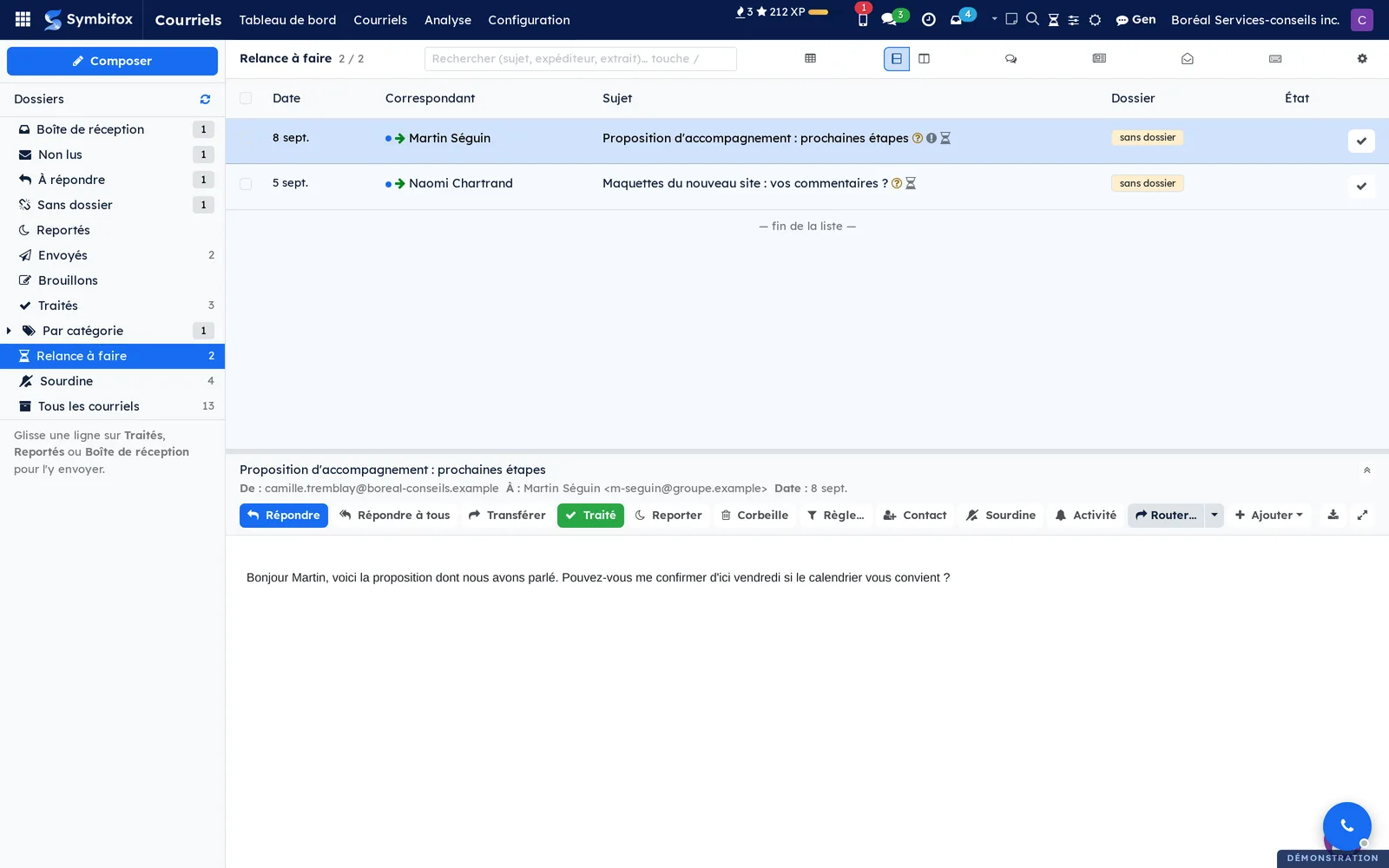
The Relance à faire (to chase) folder gathers the threads where you wrote the last word.
- Open Courriels › Courriels › Boîte de réception.
- Select Relance à faire in the left column.
- Open a thread, then reply or snooze it.
- If the thread expects no answer, select Pas de relance (no follow-up) in the reading pane. For several threads, tick them and select Pas de relance in the selection bar.
Result: the list keeps only the exchanges nobody has answered for at least five days (the default), oldest first. Pas de relance takes the thread out of this folder without taking it out of the inbox. Traité and the trash take it out of both the inbox and this folder. Remettre en boîte undoes the action: the thread comes back to the inbox and, if it still expects an answer, to this folder, without waiting for the next calculation.
Writing again in the thread can bring it back to Relance à faire. On the other hand, a message you send into a thread that is already done is born done: a simple thank-you does not bring the thread back to the inbox. A reply you receive always does.
Send an email to Gen#
This action hands an email to the Gen assistant without leaving the inbox: Gen opens a conversation about the email and writes a briefing in it while you carry on.
Prerequisite: the Gen assistant is installed, turned on and open to your account. Otherwise, the button is not offered.
- Open the email in the reading pane.
- Select 🪄 Envoyer vers Gen (send to Gen).
- For several emails, tick them in the list, ten at most, then select 🪄 Envoyer vers Gen in the selection bar.
- In the notification that appears, select Ouvrir (open) to read the conversation, or let the notification close.
Result: each email gets its own conversation, linked to it, and the briefing is written there in the background. The email stays in the inbox. An email that already has an active conversation does not get a second one: the notification says so, and Ouvrir leads to the existing conversation. What follows happens in Gen, the assistant.
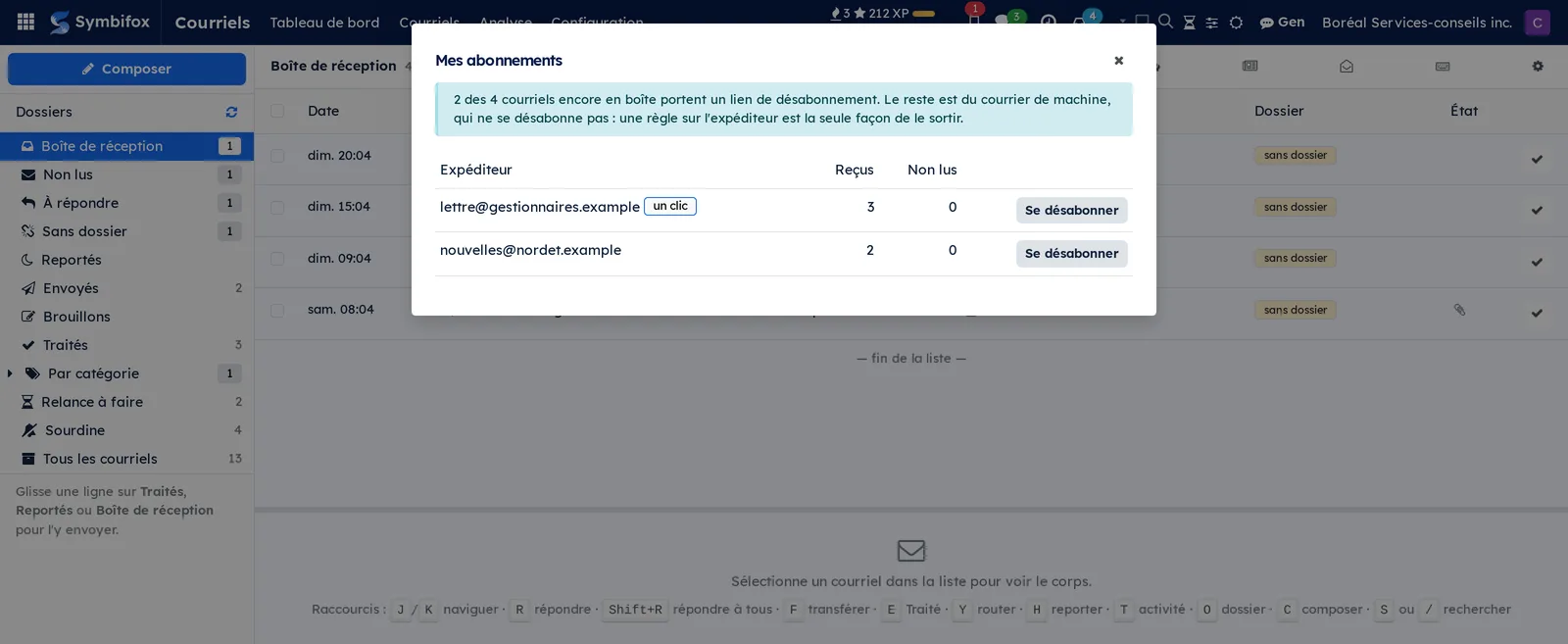
Unsubscribe from a newsletter#
When the sender declares it in the headers, unsubscribing takes a button.
- Open the message in the reading pane.
- If an Unsubscribe banner appears above the body, select it.
- To see every subscription at once, select the newspaper icon above the list.
Result: the request goes out and the message leaves the inbox. The sender may take a few days to apply it.
Report spam or phishing#
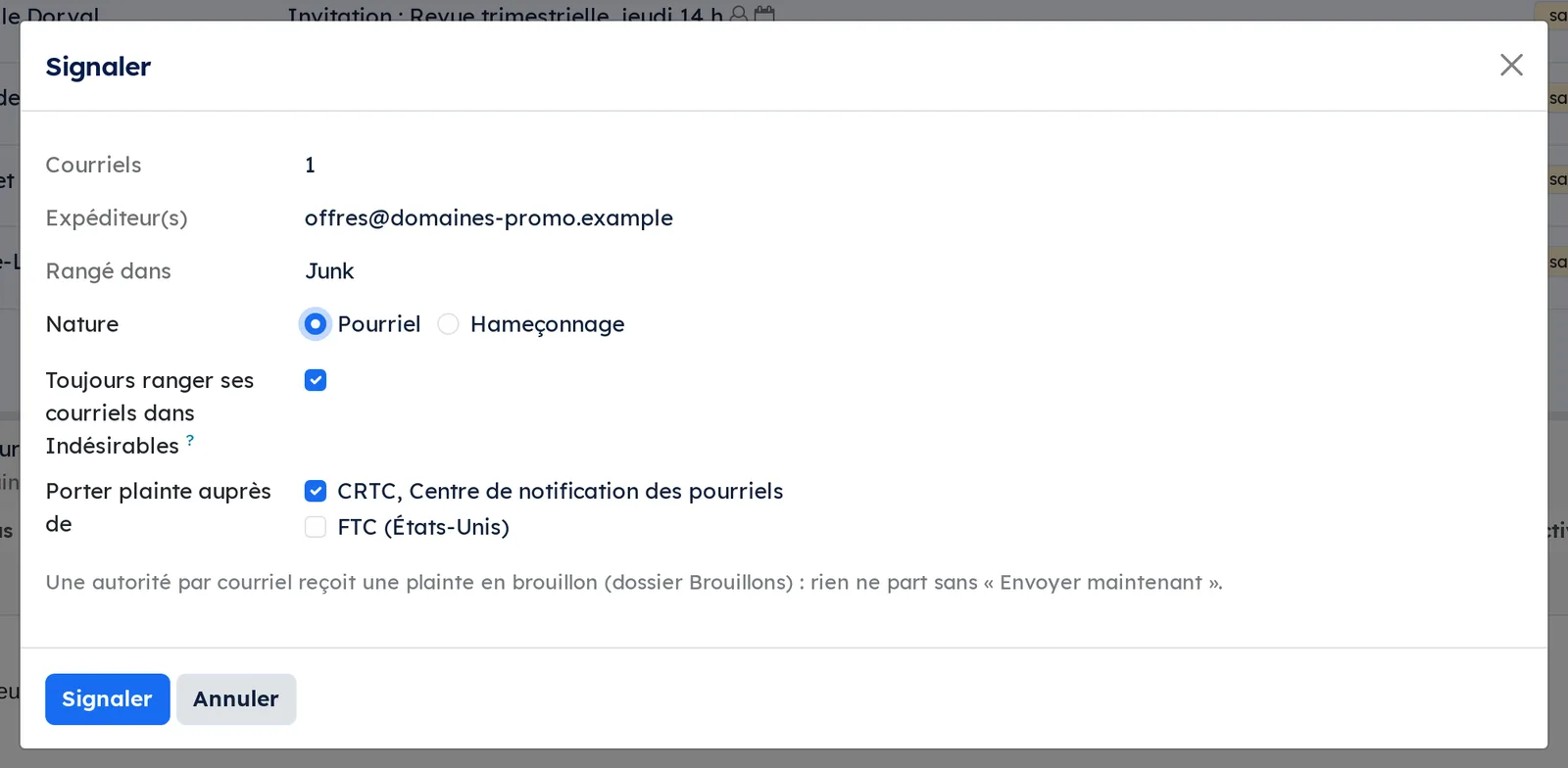
An unwanted email leaves the inbox for the server's Junk folder. If you wish, the sender's next emails take the same path, and a complaint is prepared for an authority.
- Select the email in the list, or tick several.
- Select Pourriel (spam), in the reading pane or in the selection bar, or press
!. - In the Signaler (report) dialog, read Rangé dans (filed in): this is the server folder that will receive the message.
- Choose the Nature (kind): Pourriel for mail you never asked for, Hameçonnage (phishing) for an attempted fraud.
- For spam, tick Toujours ranger ses courriels dans Indésirables (always file their mail in Junk) if this sender should never show up in the inbox again.
- If complaints are turned on and a single email is reported, tick the authorities to notify under Porter plainte auprès de (file a complaint with).
- Select Signaler.
Result: the email leaves the inbox and joins the server's Junk folder. The ticked box created a rule named "Indésirables :" followed by the address, listed among your automatic rules. For an authority reached by email, such as the CRTC, a complaint waits as a draft with the original message attached: it appears in Brouillons (drafts) and only leaves with Envoyer maintenant (send now). For an authority that works through a web form, such as the FTC, the dialog gives the form's link and the text to paste into it.
Show a message's images#
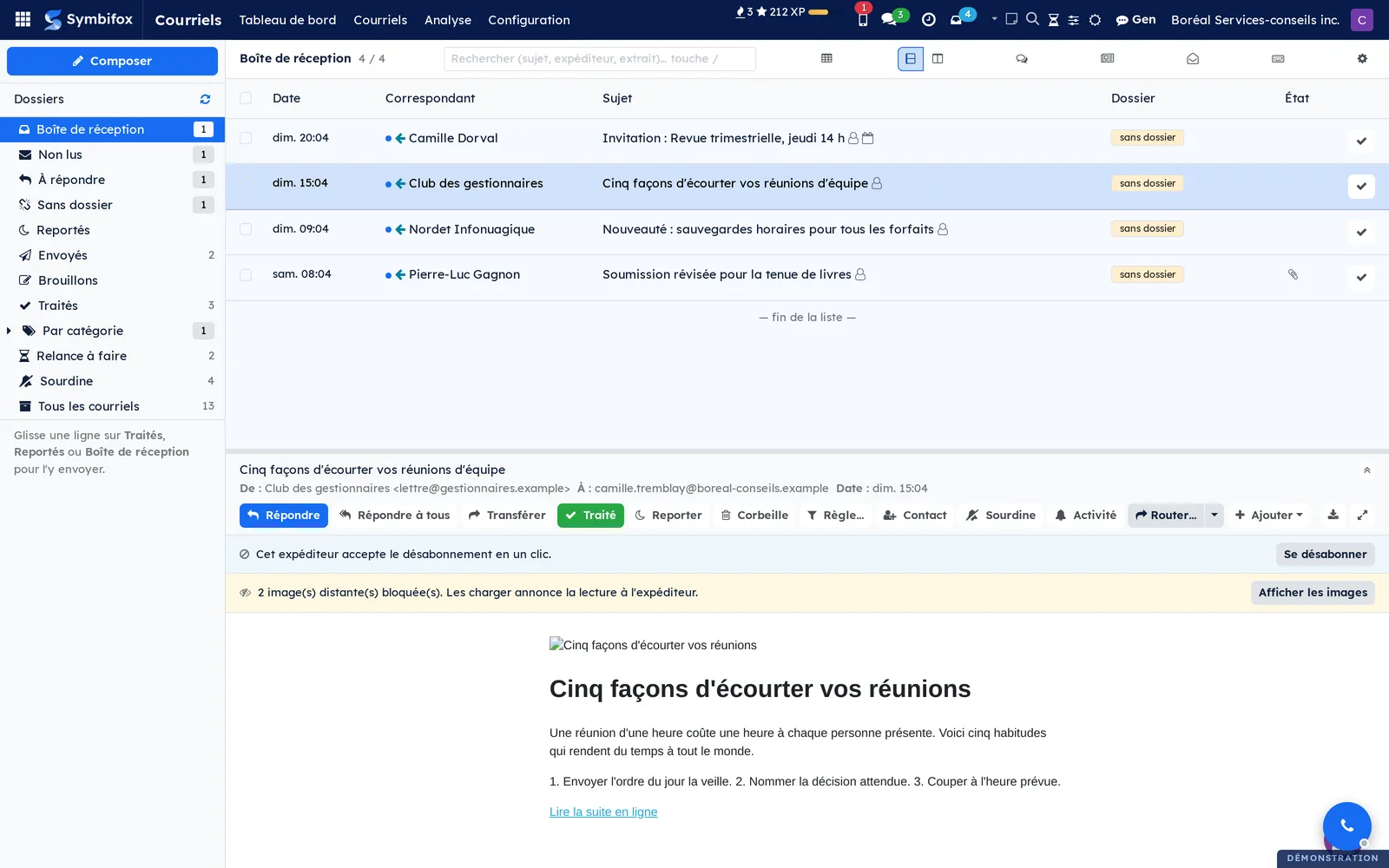
By default, images hosted by the sender are held back until you ask for them.
- Open the message. A banner says how many images it wanted to load.
- Select Afficher les images (show images).
Result: the images appear, for that message only. The next message starts again with its images held back, unless its sender is among your allowed images.
Allow images from chosen senders#
A trusted sender should not have to be unblocked message after message: a personal list takes care of it.
- Open a message whose images are held back.
- In the banner, select Toujours pour cet expéditeur (always for this sender), or the button next to it that names the sender's domain, to cover all its addresses.
- To review the list or remove a line, go to Courriels › Configuration › Images autorisées (allowed images).
Result: images from that sender, or from any address in the domain and its subdomains, show as soon as the message opens, in the reading pane, in the form and in the Navigateur IMAP (IMAP browser). A thin strip says why, with Ne plus afficher automatiquement (stop showing automatically), which removes the sender and any domain that covers it. The domain button is not offered for public webmail such as gmail.com: allowing that domain would mean allowing anyone. Those addresses are allowed one at a time.
Choose when images show#
The organization's setting applies to anyone who has not chosen. Each person can replace it for themselves.
- Go to Courriels › Configuration › Ne pas déranger, then open the Preferences tab.
- In the Courriels block, under Images distantes des courriels (remote images in emails), choose Selon le réglage de l'entreprise (follow the company setting), Toujours afficher (always show) or Toujours bloquer (always block).
- Save.
Result: your choice applies wherever you read an email. Toujours bloquer also ignores your allowed senders, and Toujours afficher makes them unnecessary.
Clean up the inbox#
An assistant clears out what has been dormant for a long time, after telling you how much.
- Go to Courriels › Configuration › Faire le ménage (clean up).
- Set Plus vieux que (jours) (older than, in days), and leave the sparing of messages that ask a question ticked.
- Read the count and the preview of the oldest ones.
- Select Traiter ces courriels (mark these emails done).
Result: the messages leave the inbox. Nothing is deleted, and Remettre en boîte undoes the action.
Read by conversation#
Folding groups the messages of one thread on a single row.
- Open the inbox.
- Select the speech-bubble icon, at the top right of the list.
Result: each row carries the thread's latest message and the number of messages in it. The choice is remembered between sessions.
Use the keyboard#
Shortcuts cover reading, replying and filing.
- Open the inbox.
- Press
?to open the shortcut grid.
Result: J and K navigate, R replies, Shift+R replies to all, F forwards, E handles, H snoozes, M mutes, Y routes, T creates an activity, O opens the record, C composes, Z undoes the last action, ! reports spam, [ folds the folder column, Shift+U marks the folder as read, S or / searches.
The menus, one by one#
Courriels: the home screen, described in the overview. The left column is for navigation, the central list holds the emails, and the reading pane shows the body of the selected message.
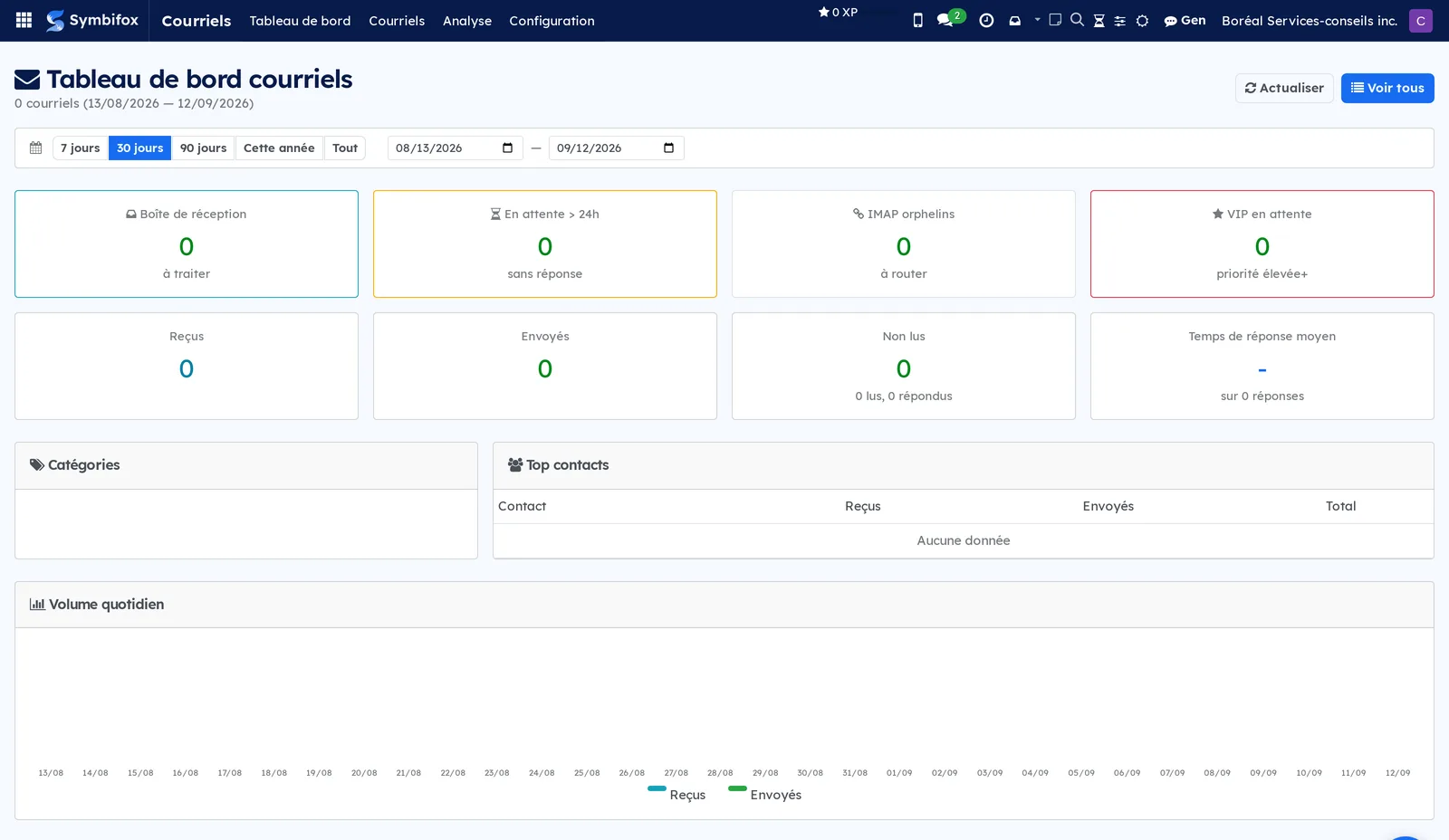
Courriels › Tableau de bord (dashboard): the figures for your mail. Four highlighted tiles: Boîte de réception (to process), En attente > 24h (waiting over 24 hours without a reply), IMAP orphelins (orphan IMAP messages, to route) and VIP en attente (VIPs waiting, high priority and above). Four secondary tiles cover received, sent and unread mail, and the average response time. Below come the breakdown by Catégories (categories), the Top contacts ranking and the Volume quotidien (daily volume) curve. You choose the period in one step, from seven days to the whole year, or by entering two dates.
Courriels › Courriels: the menu grouping the seven screens that follow.
Courriels › Courriels › Boîte de réception: the same inbox as the home screen, reached from the menu (screenshot m416.png).
Courriels › Courriels › Boîte de réception (liste) (inbox, list): the same inbox as a standard Odoo list view, with filters, groupings (including grouping by thread), export, and the graph and pivot views. The help shown on an empty inbox reminds you that marking a line done keeps its status.
Courriels › Courriels › Tous les courriels: all your mail, inbox and archives together, filtered by default on Mes courriels (my emails). The columns are Direction, Date, Contact, De, Objet (subject), Enregistrement (record), Catégorie (category), Source and Statut (status), followed by the two line actions Importer and Traiter. At the top, Synchroniser maintenant checks the accounts without waiting for the next round.
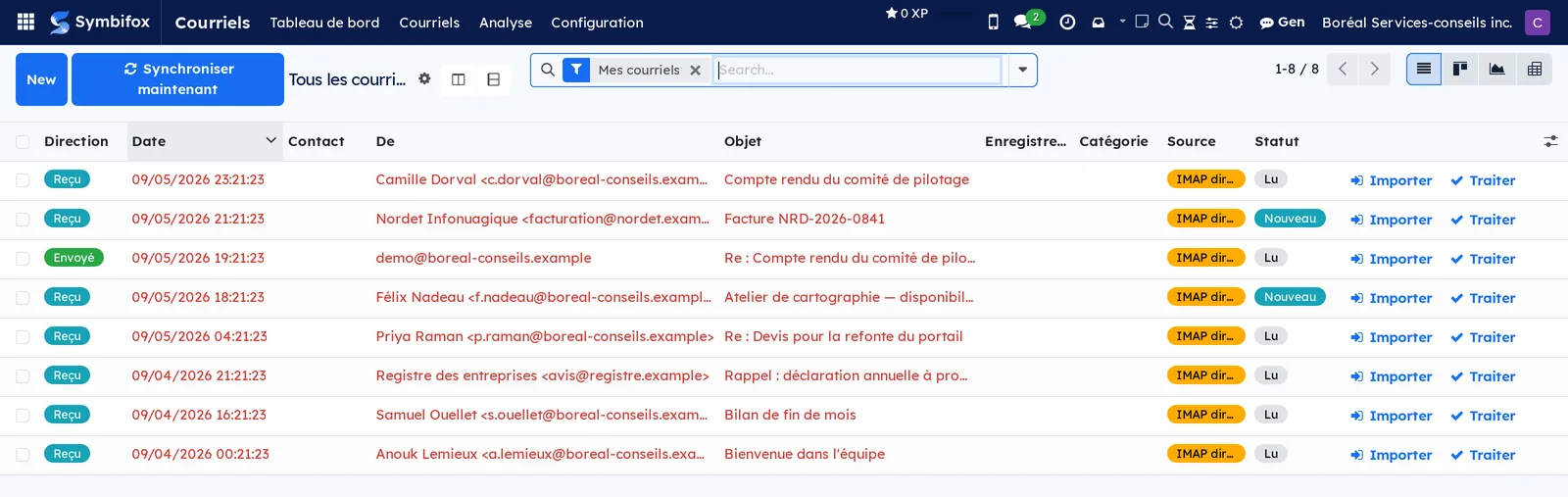
Courriels › Courriels › Tous les courriels (admin): the same screen, without the owner filter, reserved for the Administrateur (tous les courriels) group. Records opened from this screen carry a red banner and can be read but not changed.
Courriels › Courriels › Traités: the emails taken out of the inbox. This is where you find a message closed too quickly, to put it back in the inbox.
Courriels › Courriels › Brouillons planifiés: emails and notes put on hold from any chatter. Each line offers Envoyer maintenant and Ouvrir l'enregistrement (open the record). The screen is empty on the demo.
Courriels › Courriels › Navigateur IMAP: a two-pane view of your server, beyond what Symbifox has already retrieved. The Dossiers IMAP (IMAP folders) column refreshes with a button, and the central list gives date, sender, subject and status. On the demo, the capture account's inbox folder is empty.
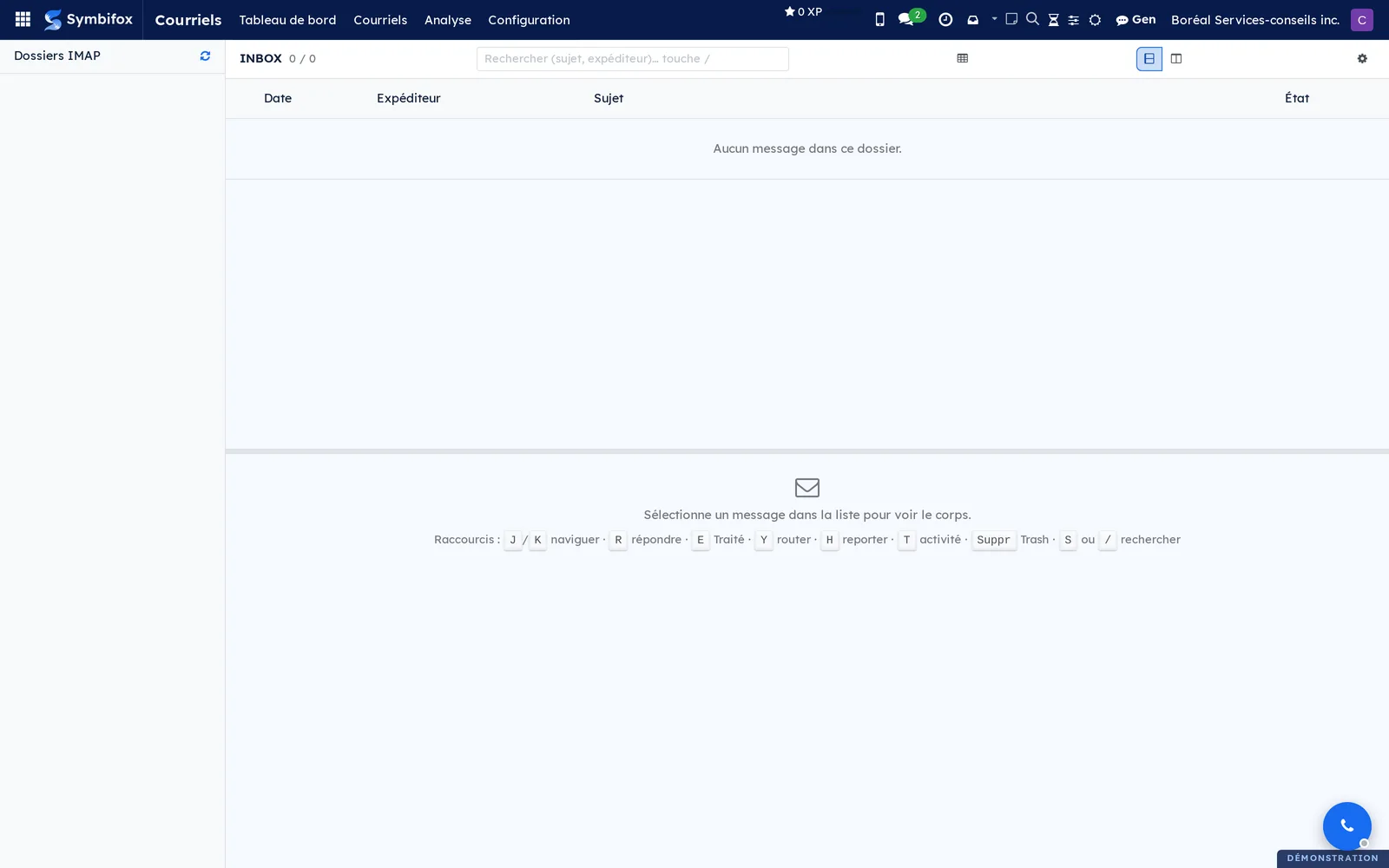
Courriels › Analyse (reporting): the menu grouping the two reporting screens.
Courriels › Analyse › Volume: the graph of email volume, to break down by date, direction, category or contact.
Courriels › Analyse › Tableau croisé (pivot table): the same data as a pivot table, exportable to a spreadsheet.
Courriels › Configuration: the menu grouping the entries that follow.
Courriels › Configuration › Mes comptes IMAP: the list of your accounts, with the columns Nom, Utilisateur IMAP, Serveur IMAP, Port IMAP, État (status), Dernière synchro (last sync) and Actif (active). The form holds Tester la connexion, Synchroniser maintenant and Relever les dossiers. An account that belongs to someone else does not open: Symbifox answers with an access error. Turning an account off with its Actif switch stops its retrieval and takes its emails out of the work lists, see Understanding; the Inactifs (inactive) filter finds it again.
Courriels › Configuration › Mes identités d'expédition (my sending identities): the addresses you can write on behalf of. The columns are Nom affiché (display name), Adresse (address), Par défaut (default), Vérifiée (verified) and Délivrabilité (deliverability). The last one warns you when no outgoing server declares the address in its sender filter. The form has a Signature tab.
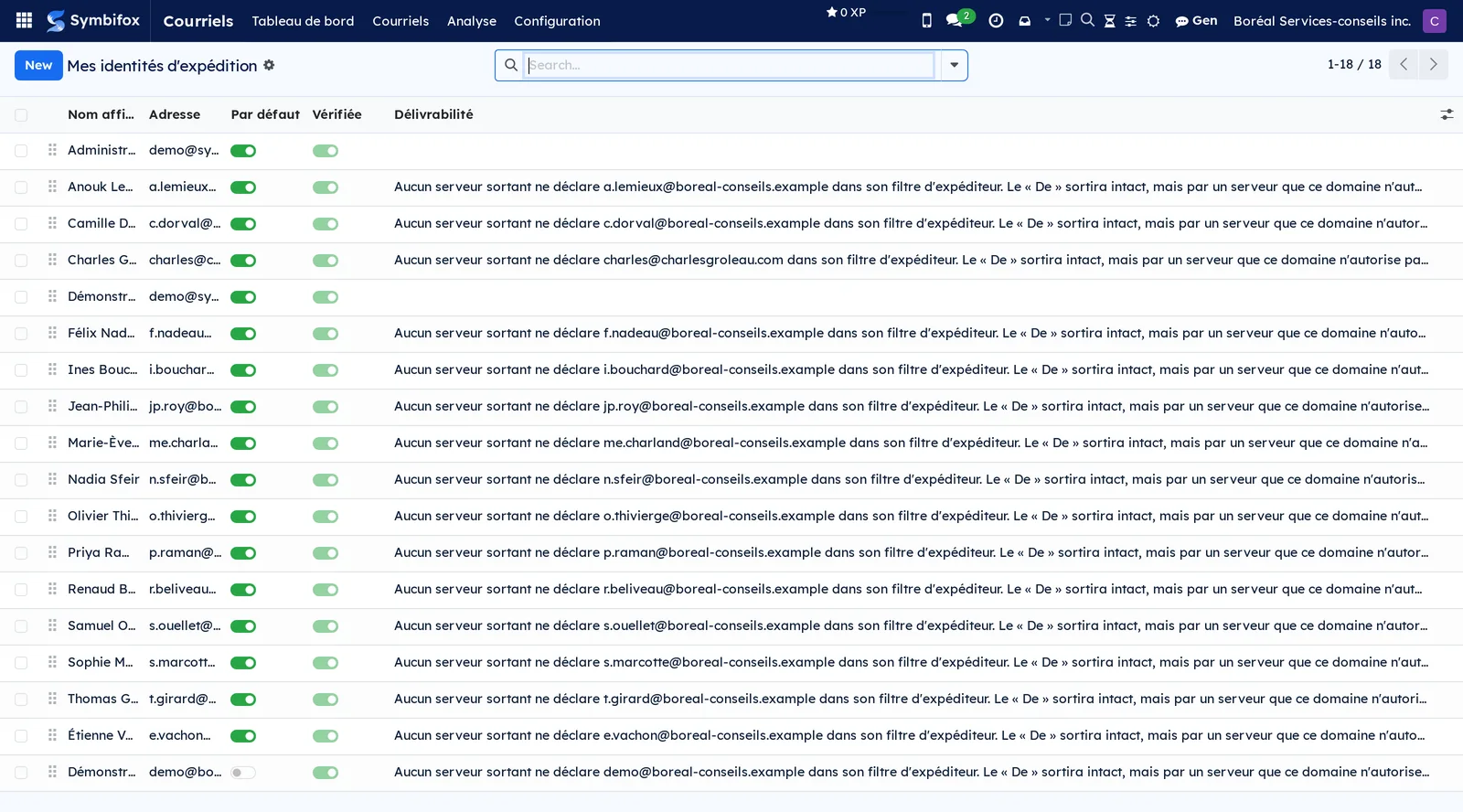
Courriels › Configuration › Groupes de destinataires: your recipient lists, with their members and their filter. The screen is empty on the demo, with the help text comparing a group to a distribution list.
Courriels › Configuration › Ne pas déranger: your preferences record, opened on the Ne pas déranger tab. It holds the duration buttons, activation by meetings, the quiet hours and their time zone.
Courriels › Configuration › Synchroniser maintenant: a command, not a screen. It immediately checks all your active accounts.
Courriels › Configuration › I'm away: the same dialog as Contacts › I'm away, offered where you read your mail. It records your absence (dates, stand-in, message tone), shows the text that will go out and arms the responder for the period. The gesture is described in the Contacts chapter, under Declare myself away, and answer in my place.
Courriels › Configuration › Réponses d'absence: your absence periods and their messages. The form holds the Messages and Ce qui ne partira pas (what will not be sent) tabs, plus Voir ce que recevrait quelqu'un and Terminer maintenant. The screen is empty on the demo.
Courriels › Configuration › Règles automatiques: your sorting rules, in the order they run. The columns are Nom, Résumé (summary), Ce qu'elle fait (what it does), Portée, Réacheminement and Actif. Drag lines to reorder them. The demo has eight, set up at installation, covering automatic senders, the unsubscribe header, client contacts and suppliers.
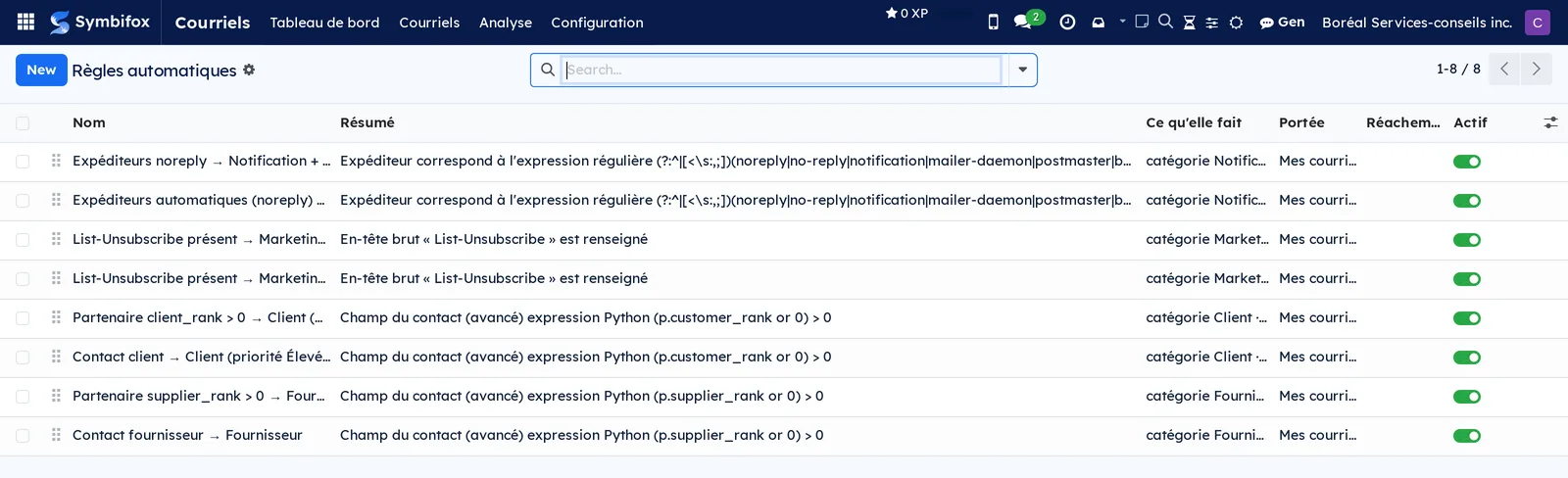
Courriels › Configuration › House absence messages: the organisation's default absence messages, reserved for general administrators. The list shows the Tone and the Audience of each message. Two are provided at installation, I reply more slowly, which announces a delay, and I am out of the office, which announces an absence, both for Everyone. The form holds the Message and, separately, the Stand-in sentence, added only when a stand-in is named. These texts are used when someone goes away without having written their own template message, which keeps priority. Without any text, no responder arms, and the empty screen says so.
Courriels › Configuration › Règles courantes: the catalogue of ready-to-use recipes, described in Add common rules.
Courriels › Configuration › Journal des envois automatiques (automatic sending log): one line per forward and per out-of-office reply, with the recipient, the result (queued, skipped, failed) and the reason when there is one. The screen is empty on the demo.
Courriels › Configuration › Images autorisées (allowed images): your senders and domains whose images show automatically. The columns are Portée (scope: Expéditeur or Domaine, sender or domain), Adresse ou domaine (address or domain) and Depuis (since); the Expéditeurs and Domaines filters separate the two. The list fills up mostly from an email's banner, see Allow images from chosen senders. Each person sees only their own.
Courriels › Configuration › Import initial: the dialog that imports a mail history between two dates, in batches, reserved for administrators. A single button, Lancer l'import (start the import).
Courriels › Configuration › Avis retenus (ne pas déranger): what the silent mode held back, waiting for the summary when it ends. The screen is empty on the demo and reserved for the email administrators group.
Courriels › Configuration › Rattrapage IMAP (Archives): the dialog that sweeps a historical folder on your server, with its date range and batch size. One button, Lancer le rattrapage.
Courriels › Configuration › Autorités (pourriel) (spam authorities): the bodies that receive complaints, reserved for the Administrateur (tous les courriels) group. The columns are Autorité (authority), Pays (country), Canal (channel: Courriel or Formulaire web), Adresse (address), Lien du formulaire (form link), Pourriel and Hameçonnage; these last two say for which kind the authority is offered in the Signaler dialog. The handle on each line sets the display order.

Courriels › Configuration › Modèles de signature: the gallery of six models, each previewed with your details, and the choice between Pour moi seulement (for me only) and Pour toute la société (for the whole company). Shown earlier, in Choose your email signature.
Courriels › Configuration › Ma signature courriel: your preferences record, opened on the Signature section. There you set the Pronoms (pronouns), the Titre affiché (displayed title) and Reprendre les liens (reuse the links), which includes the company's quick links or not. The Preferences, Ne pas déranger, Account Security, Devices and Google Calendar tabs remain available.
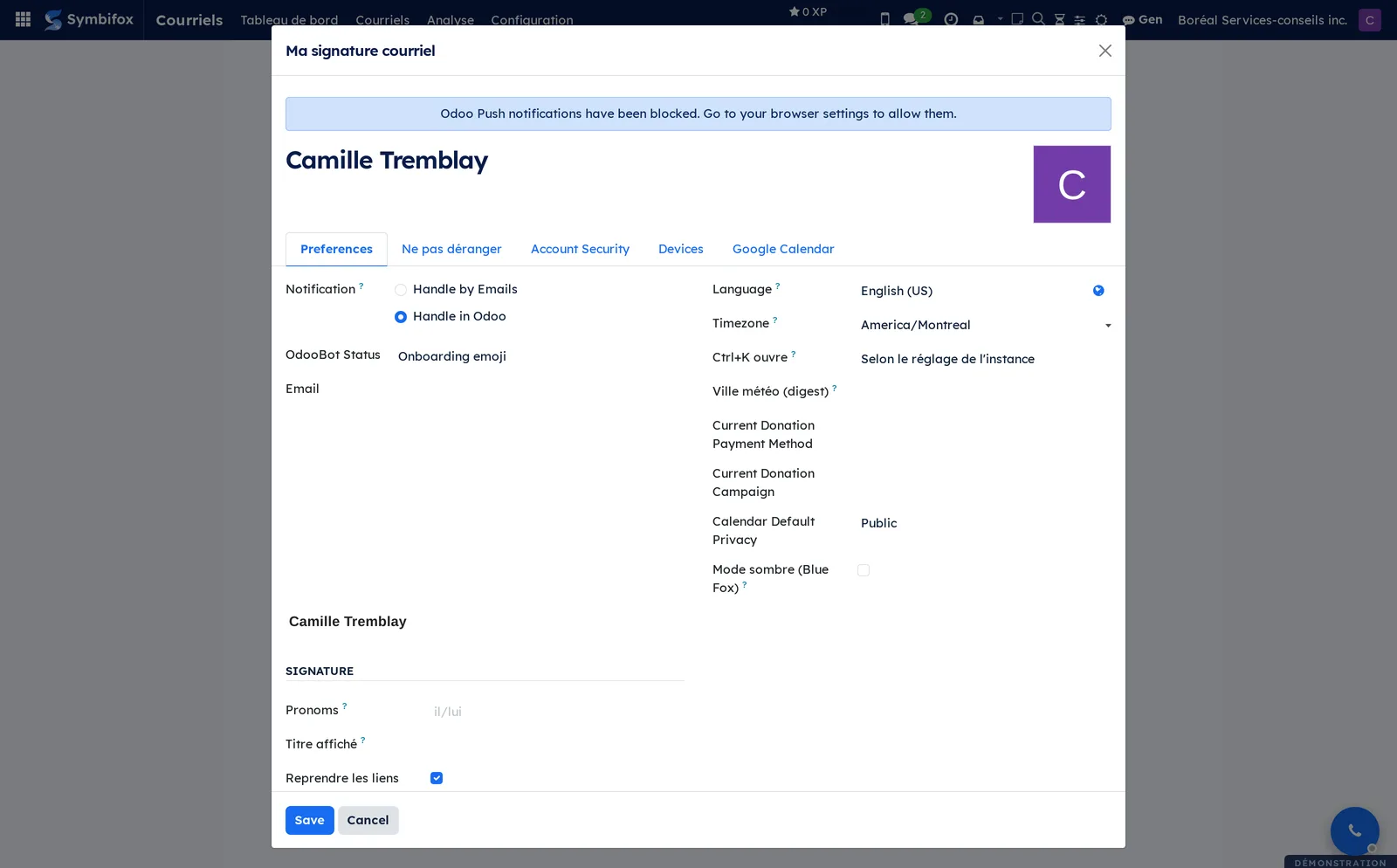
Courriels › Configuration › Liens rapides de signature (signature quick links): the links shown at the foot of the signature, with their label, emoji, destination and click count when they go through a trackable short link. The screen is empty on the demo. Provisionner les liens rapides (provision the quick links) creates one per person, from their appointment page and their upload page.
Courriels › Configuration › Gabarits de signature (signature templates): the templates marked as signature blocks, reserved for general administrators. Saving a template regenerates the signatures it controls.
Reference#
Fields of the Courriel form#
| Field | Description | Required or default |
|---|---|---|
| Date | Date the message was sent or received. | Required |
| Direction | Reçu (received) or Envoyé (sent), deduced from the author and the source folder. | Required |
| De, À, CC, Objet | From, To, Cc and Subject: the addresses and subject as they appear in the message header. | Taken from the message |
| Source | Mail gateway, chatter, or direct retrieval from the server. | Computed |
| Catégorie | Client, Interne (internal), Fournisseur (supplier), Notification or Marketing. | Set by a rule, editable |
| Priorité | Priority: Normal, Faible (low), Élevée (high) or Urgente (urgent). | Normal |
| Statut | Nouveau (new), Lu (read) or Répondu (answered). | Nouveau |
| Traité | Done: taken out of the inbox; the status stays unchanged. | Cleared |
| Reporté jusqu'à | Snoozed until: the date the email returns to the inbox. | Empty |
| Contact | The correspondent: the sender for a received message, the recipient for a sent one. | Guessed, editable |
| Enregistrement | The record the email is filed in. | Empty until filed |
| Temps de réponse (h) | Response time: hours between receipt and the first reply. | Computed |
Fields of the Compte courriel IMAP form#
| Field | Description | Required or default |
|---|---|---|
| Nom | The label shown on your screens (“Coordination”, “Personal”). | Required |
| Propriétaire | Owner: the only person who will see this account's emails. | Required, you |
| Serveur IMAP, Port IMAP | The server host and port. Encrypted connections only. | Required, port 993 |
| Utilisateur IMAP, Mot de passe IMAP | The sign-in address and its app password. | Required |
| Alias additionnels | Your other addresses, used as sorting signals. | Optional |
| Société | Company stamped on retrieved messages; it does not restrict access. | Your company |
| Boîte de réception distincte | Separate inbox: gives the account its own entry under the inbox. | Cleared |
| Avis à l'arrivée | No notification, brief notification or persistent notification. | Required |
| Archivage bilatéral, Dossier d'archives IMAP | Marking an email done also moves it on the server. | Cleared |
| État, Dernière erreur | Brouillon (draft), Connecté or Erreur (error), with the details of the last failure. | Computed |
Fields of the Règle automatique form#
| Field | Description | Required or default |
|---|---|---|
| Nom | What the rule does, in plain words. | Required |
| Séquence | Run order; the first rule that claims a target wins. | 10 |
| Portée | Mes courriels (my emails) or the whole organization. The second is reserved for administrators. | Mes courriels |
| Déclenchement | All conditions, or at least one. | All conditions |
| Conditions, Exceptions | The tests to meet, and those that cancel the rule. | At least one condition |
| Actions | Category, priority, contact, read or unread, folder, removal from the inbox, snooze, forward to a person. | At least one action |
| Réacheminer à | The addresses to forward the email to. | Empty |
| Arrêter ici | Stop here: the following rules are not evaluated. | Cleared |
| Sans effet | No effect: flags a rule that triggers without doing anything. | Computed |
Fields of the Réponse d'absence form#
| Field | Description | Required or default |
|---|---|---|
| Motif | For you, not for the sender (“Conference”). | Required |
| Du, Au | The period covered. | Required except on a template message |
| Message type | Template message: replies to nobody, and serves as the pattern for absences detected in the calendar. | Cleared |
| Messages | One message per audience; the line without a condition serves everyone. | At least one |
| Relève, Confier les courriels à la relève | The person to contact instead, and the transfer of records into their inbox. | Optional, cleared |
| Une réponse par expéditeur tous les | One reply per sender every so many days. The standard recommends seven. | 7 |
| Refuser les invitations reçues pendant l'absence | Marks your attendance as declined; the event itself is not touched. | Cleared |
Reports and exports#
The application prints no report. You retrieve an email with Télécharger .eml (download .eml), and Extraire les pièces jointes (extract attachments) turns the files of a retrieved message into attachments you can link elsewhere. The graph and pivot views export to a spreadsheet, like any list view. The automatic sending log is viewed on screen and exported the same way.
Automations#
Account retrieval and the mirroring of messages created in Symbifox run every five minutes. So does the mirror that reflects the real state of the inbox folder, wakes snoozed emails and marks done a sent copy filed on the server. A reconciliation fills gaps every six hours, and copying done messages back to the server runs every hour. Each day, Symbifox recalculates each correspondent's usual response time over thirty days and repoints the signature quick links. Each night, it completes the original headers of emails that did not have them yet. Every six hours, it attaches orphan messages to the only open task or ticket of their correspondent. Absences are detected in the calendar every half hour, invitations falling within an absence are declined every hour, and the forwarding log is purged once a week, after one hundred and eighty days.
Rules, on the other hand, do not run in the background: they run when an email arrives. This is why the screens offer Appliquer cette règle maintenant and Rejouer toutes les règles (replay all rules).
Two jobs follow an action rather than a clock: adding a batch decided in À décider, and filing on the server the emails marked done from the inbox. Each starts within a second, then runs again on its own, once a day for the first and once an hour for the second.
Public pages and portal#
The application has no public page and no portal screen. It does expose a surface reserved for the Symbifox mobile app, which repeats the same actions on a phone: read, reply, attach a file, mark done, snooze and file. In conversation view, marking a row read on the phone marks its whole thread, up to the last message the list was showing. See Mobile apps and browser extension.
Modules that extend this application#
The application rests on one main module; four others build on it. The first adds permanent access to the inbox, wherever you are in Symbifox.
The second corrects missed filing.
The third brings into Symbifox exchanges held elsewhere.
The fourth manages signatures and sending per company.
Understanding#
The most structuring choice is the personal account. A shared mailbox mixes responsibilities: when everyone writes from the same address, nobody knows who replied anymore. Here, each person connects their address with their own credentials, and access filters on the owner. This is also why an administrator who views the organization's mail does so read-only, under a visible banner.
Deduplication relies on the message's unique identifier. When an email retrieved from the server later finds its counterpart in a chatter, the existing line is enriched rather than doubled, and the internal version wins. An organization that already used the Symbifox mail gateway therefore does not see its inbox double in size.
Rules run when an email arrives, never as a permanent sweep. A rule added today does not touch yesterday's inbox until you apply it. Two safeguards frame how rules are written. A rule without a condition never triggers, because the other reading would make it act on the whole inbox. A rule without an action is flagged, because a rule that silently does nothing is worse than one that fails. Moving to a server folder requires two-way archiving on the account: without it, the record would announce a move that never happened.
Automatic forwarding always leaves from your address, never from the original sender's, which would fail the servers' authenticity checks. Machine replies are never relayed, and a message already stamped by this database does not loop back out. Your own addresses are never a destination, and an address outside the organization needs an administrator's authorization. Each send, like each refusal, leaves a trace in the log.
The arrival notification never lasts more than thirty seconds, across all windows, and the countdown starts when the server sends it, not when it appears. An email from the same thread, or from the same sender with the same subject (leaving aside “Re:” and “Fwd:”), merges into the notification already on screen instead of stacking a second one. The latest arrival speaks for the group, and Traité (done) or Reporter (snooze) acts on every email still to handle. An email filed elsewhere in the meantime is left alone. On-screen meeting reminders, which the application also handles, follow the same idea: a meeting with two reminders shows a single notification, the second replacing the first. Silent mode discards nothing: what it holds back is returned in a single summary when it ends. Newsletters interrupt nobody. The test is the unsubscribe header rather than the category, which is corrected by hand and would get a real client wrong.
Signatures are written into each person's user record, not calculated on the fly, because that field is what Odoo, the editor and the other modules read. Changing a template therefore regenerates the signatures it controls, and propagation can be turned off per company. On a database with several companies, one rendering is kept per company, and an email sent from a record picks the right one. The confidentiality notice travels with the signature. It appears where the signature appears, so not at the bottom of a short unsigned reply.
An image hosted by the sender tells them that the message was read, when, and from which address. Holding back therefore covers every remote image, including one called by a style or a background, not only the visible pictures. Allowed images follow the person reading, not the mailbox owner. They give way when the sender is uncertain: a tracker can borrow the name of a trusted correspondent, and only the message's authentication shows that it did not.
Turning an account off does more than stop its retrieval. Its emails leave the work lists: Boîte de réception, Non lus, À répondre, Sans dossier, Reportés and Relance à faire, as well as the top bar badge, the phone and the dashboard. Nothing is erased: Traités, Envoyés, Tous les courriels and the categories keep the history, and turning the account back on brings its emails back. No action opens a connection to that server any more: marking an old email from a removed mailbox done no longer moves it there. Mail born in Symbifox belongs to no account and is not affected.
Your own sent messages never go back to the server's inbox folder. Remettre en boîte brings them back to the Symbifox inbox only, whatever folder they were filed in, and they stay there.
The old-mail guard answers a specific case: an old archive moved in the webmail, or a restored folder, suddenly brings up hundreds of messages that retrieval would take for new mail, with their notices and their rules. Only automatic retrieval is guarded; what you go and fetch yourself comes in as is. A message already known is never held, and an ignored batch does not come back.
A message's original headers feed the unsubscribe banner, the bulk-mail signal and the sender's local time. They are now gathered for emails that came through the organization's mail gateway or were born in a chatter too: from the original that Symbifox keeps, or when their copy is met on your server. A rule condition on a header still ignores those emails, on purpose: otherwise the unsubscribe rule would have marked done emails already filed in a record.
Automatic emails (invitation, secure transfer, survey, signature, report) go through no mailbox: Symbifox captures them as it sends them, just before deleting them, and turns them into notices. A notice is born read and done, never enters the inbox, Envoyés, Traités or the phone, triggers no rule and cannot be reported as spam. You find it in Tous les courriels, under a contact's filter and with is:notice. When Symbifox deletes the email after sending it, as with a signature invitation or a survey, the notice keeps only its envelope: the access link it carried is not kept. Newsletters do not create any, given their volume.
Reporting never creates a folder on the server. It looks for the folder the server marks as junk, then for a common name (Junk, Spam, Indésirables, Pourriels). Failing that, the email leaves the inbox without moving on the server, and the dialog says so before you confirm. An email filed in a record cannot be reported from the inbox, since it now belongs to that record, and neither can a sent email: blocking would target your own correspondent.
Two limits are worth knowing. Imported email files must be in the standard format; the files some email programs produce do not open. And this inbox does not replace the one in Discuss, which only shows internal notifications.
Troubleshooting#
| Symptom | Likely cause | Fix |
|---|---|---|
| No email arrives after adding an account. | The account is in error, or the first retrieval has not run yet. | Open the account, read the Dernière erreur (last error), correct the app password, then select Tester la connexion and Synchroniser maintenant. |
| A new rule changes nothing in the inbox. | Rules run when an email arrives. | Open the rule, select Essayer, then Appliquer cette règle maintenant. |
| A rule announces a destination folder, but the message does not move on the server. | The account does not have two-way archiving. | Open the account, check Archivage bilatéral and enter the Dossier d'archives IMAP. |
| A folder created in webmail does not appear. | The folder list is still the one from the last retrieval. | On the account, select Relever les dossiers, or Relever mes dossiers maintenant (fetch my folders now) in Settings. |
| The email was filed in the wrong record. | The proposed or chosen target was wrong. | Open the email, select Reroute, and choose the right record. Nothing is sent again. |
| The signature cannot be changed in the preferences. | The company enforces its signature. | Change models under Modèles de signature if the company allows it; otherwise, see an administrator. |
| No notification appears when an email arrives. | Notifications are turned off for the database, set to Aucun avis on the account, or silent mode is on. | Check the general setting in Settings, then the account's Avis à l'arrivée, then the Ne pas déranger tab in your preferences. |
| A colleague's account refuses to open. | Each account is private to its owner. | Open your own accounts. For an overall view, ask for the Administrateur (tous les courriels) group. |
| An account's emails have disappeared from the inbox and the badge. | The account has been turned off. | In Mes comptes IMAP, apply the Inactifs filter, then turn the account's Actif switch back on. Its emails come back with nothing lost. |
| An email marked done comes back to the inbox, with a notice. | The server did not answer when the message was being filed. | Open the account and read the Dernière erreur (last error), then mark the email done again. |
| Old emails that reached the server do not come into the inbox. | They are older than the guard's threshold and are waiting for a decision. | Open À décider, then Les ajouter à la boîte. |
| Signaler reports "aucun dossier Indésirables connu" (no known Junk folder). | The server has no junk folder, or the folder list is out of date. | Create the folder in the webmail, then select Relever les dossiers on the account. Symbifox does not create it. |
| Porter plainte auprès de is not offered. | Complaints are not turned on, or several emails are selected. | Turn on Plaintes de pourriel in Settings, then report one email at a time. |
| Pourriel refuses an email. | The email is filed in a record, or it is a sent email. | Take it out of the record with Reroute; a sent email cannot be reported. |
See also#
- Discuss, for internal messages and the notification inbox.
- Common actions in every application, for the chatter, followers and activities.
- Calendar, for invitations, reminders and absence detection in the calendar.
- Contacts, for the records an email is attached to.
- Helpdesk (tickets) and Project, for records created from an email.
- Settings and brand identity, for the brand elements of signatures.
- Mobile apps and browser extension, for the inbox on a phone.