
Part 1 · Communicating and meeting
Letters
Write official letters in your company's image, with a locked letterhead, templates, reusable text blocks and one letter per recipient.
Watch it
The Letters application produces the official documents your organization signs and mails: confirmations, formal notices, attestations, job offers. You write only the text. The logo, colours, contact details, signatory and footer come from your company record and do not drift from one letter to the next. One template and a list of recipients produce as many personalized letters, each as a PDF, ready to print or send by email. It serves management, administration and human resources.
Overview#
A letter brings together a sender (your company), a recipient taken from Contacts, a date, a salutation, a body and a closing. It receives a reference when it is finalized and goes through three states: Draft, Finalized and Sent. While it is a draft, everything can be changed. Once it is finalized, the recipient's name and address are frozen as they were that day.
Three objects prepared in advance do most of the work. A letter template holds a standard subject and body, with merge fields that Symbifox replaces with the recipient's values when you apply it. A text block is a reusable paragraph, filed by category and called up by a shortcut, that you insert at the start or end of the body. Finally, the letterhead decides how the page is dressed: five layouts, from the dark banner to pre-printed paper.
What sets the Symbifox approach apart fits in one sentence: the page design is locked. A letter's author chooses the layout, not the colours or the logo, and each company in the instance issues its letters in its own image. The shared visual settings are made in Settings and brand identity.
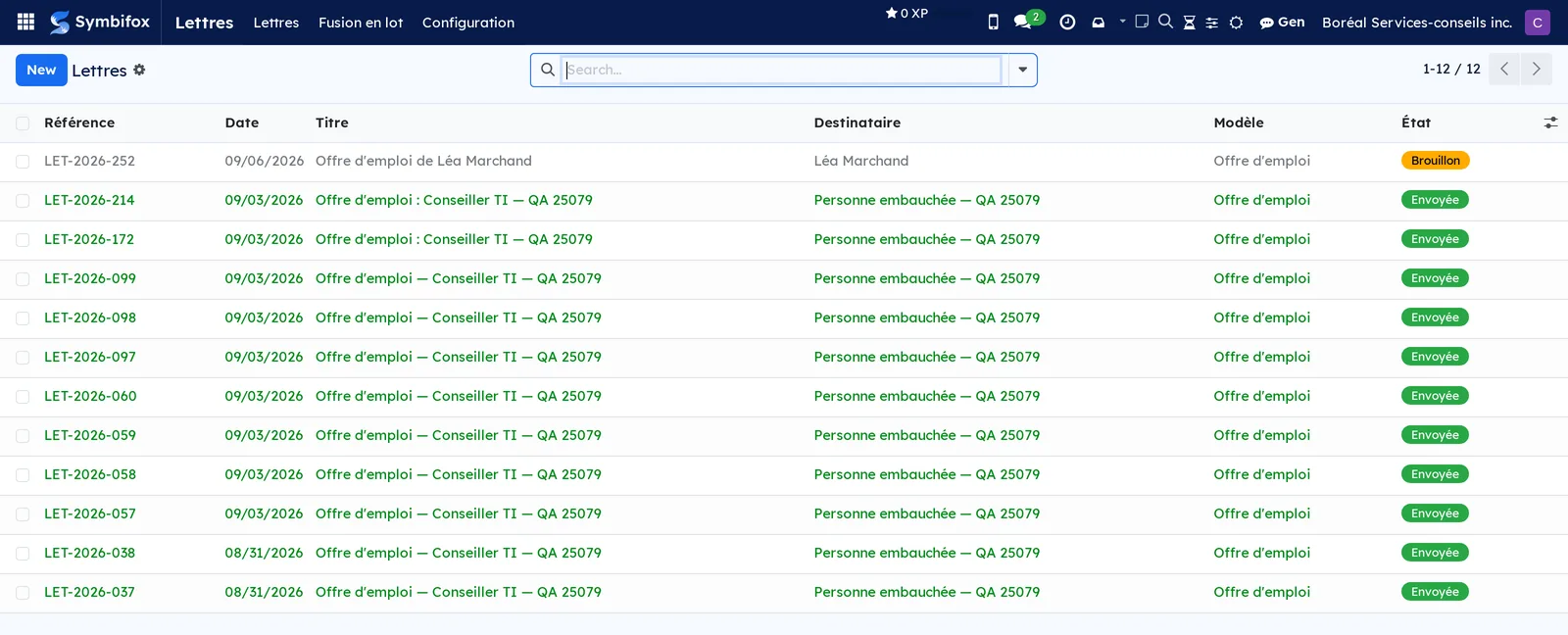
The list of letters is the application's home screen: one line per document, with its reference, recipient, applied template and state.
Configuration#
Access and permissions#
Anyone with an internal account can write, edit and send a letter: it is an ordinary office task. A single group is added, set in Settings › Users & Companies › Users.
| Group | What it opens |
|---|---|
| No particular group | The Letters menu, writing, batch merge, PDFs and sending by email. |
| Manager (Letter Writer) | The Configuration menu: letter templates and text blocks. The page design is set on the company record. |
When several companies share the instance, each person sees only the letters and blocks of the companies they have access to. Job offers also follow a specific rule, described in Understanding.
Settings#
You set the page design once and for all on the company record, in Settings › Users & Companies › Companies, on the Letters tab.
| Setting | Role |
|---|---|
| Default letterhead | Layout applied to new letters, from the five in the table below. |
| Letterhead note | Short line under the company name in generated letterheads: company tagline, business number. |
| Letter footer | Content at the bottom of the page. If left empty, the company name and address are used. |
| Letterhead image (PNG/JPG) | Letterhead as an image, used as the page background. |
| Letterhead PDF | Letterhead as a PDF, onto which the letter body is stamped page by page. |
| Body top margin (mm), Body bottom margin (mm) | Text offsets for layouts without a generated letterhead. |
| Default signatory, Signatory title, Signature image | Signature block at the bottom of the letter. If the title is left empty, it is taken from the contact record. |
The five layouts:
| Letterhead | What it gives |
|---|---|
| Dark banner (generated) | Dark band with logo, brand colours, contact details, letterhead line and footer. |
| Understated classic (generated) | Same content, in a light version, separated by a rule. |
| Uploaded image (PNG/JPG) | The company letterhead as the page background. |
| Uploaded PDF (overlay) | The body stamped on each page of the PDF letterhead, in vector quality. |
| No letterhead (pre-printed paper) | No design; the text is offset to print on paper that already has a letterhead. |
Base data#
Prepare three things before the first letter: at least one template for your recurring mail, the text blocks for your usual wording, and the company's letterhead or signature block. Recipients come from Contacts: a record with a complete address saves you retyping anything.
Getting started#
This walkthrough writes a letter to Clinique dentaire Rosemont, a Boréal client, from the demo template.
- Open Letters › Letters, then select New.
- In Recipient, choose “Clinique dentaire Rosemont”. The title fills in by itself.
- In Template, choose “Lettre générale” (general letter), then select Apply template. The standard subject and body appear, with the merge fields already replaced.
- Replace the paragraph in square brackets with your text, and adjust the Salutation and the closing.
- Select Insert a text block, choose “Disponibilité pour échanger” (available to talk), leave the position at At the end of the body, then select Insert.
- Select PDF preview to check the layout.
- Select Finalize. The reference is assigned and the recipient's address is frozen.
All that remains is to send it. Send by email opens a pre-filled message with the PDF attached. Mark as sent closes the cycle for a letter handed over in person or mailed.
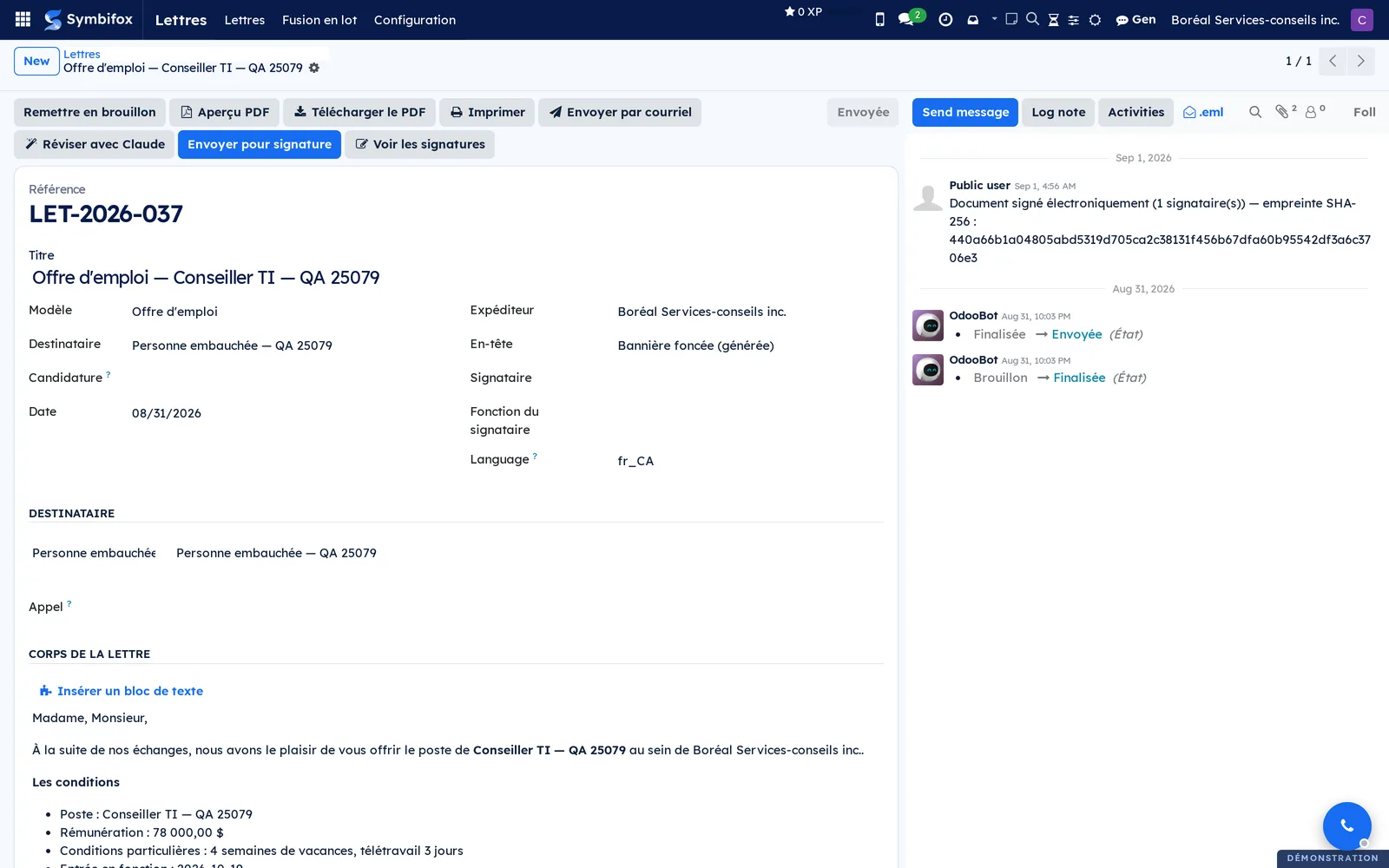
The form of a demo letter shows the header buttons and the structure of the document.
Common tasks#
Write a letter#
- Open Letters › Letters, then select New.
- Choose the Recipient. The Title fills in by itself, in the letter's Language, and stays editable.
- Check the Sender, the Date and the Letterhead.
- Enter the Salutation, the body and the closing.
- Optional: choose a Signatory and their Signatory title, which replace the company's.
- Select Save.
The letter stays in Draft and can be changed freely. Until you retype it, the title follows a change of recipient; a title typed by hand is kept.
Apply a template#
A template brings the subject, the standard body and suggested blocks.
- Open the draft letter and choose the Template.
- Select Apply template.
The body is replaced with the template's, merge fields filled with the recipient's values, and the title takes the template's subject. If a value is missing from the recipient's record, Symbifox flags it without blocking: the letter is highlighted in the list until you complete it.
Insert a text block#
- Open the draft letter.
- Select Insert a text block.
- Choose the Text block; its content appears as a preview.
- Choose the Position: At the end of the body or At the start of the body.
- Select Insert.
The paragraph joins the body, with its own merge fields already replaced.
Produce and print the PDF#
- Open the letter.
- Select PDF preview to open it in the browser, or Download PDF to save it.
- Select Print to use the usual print dialog.
The document comes out in US Letter format, with the chosen layout.
Send the letter by email#
- Open the letter, then select Send by email.
- Check the Recipients, the Email subject and the Message.
- Leave Attach PDF checked, unless you have a reason not to.
- Optional: select Preview PDF for a last look.
- Select Send.
The suggested message is written in the letter's language, like its title. The email leaves in a company-branded layout, PDF attached, and the letter changes to Sent.
Change a letter's state#
- On a draft, select Finalize: the reference is assigned and the recipient frozen.
- On a finalized letter delivered other than by email, select Mark as sent.
- To correct a letter already finalized, select Reset to draft.
Each change of state is recorded in the letter's chatter, the message thread at the bottom of the form.
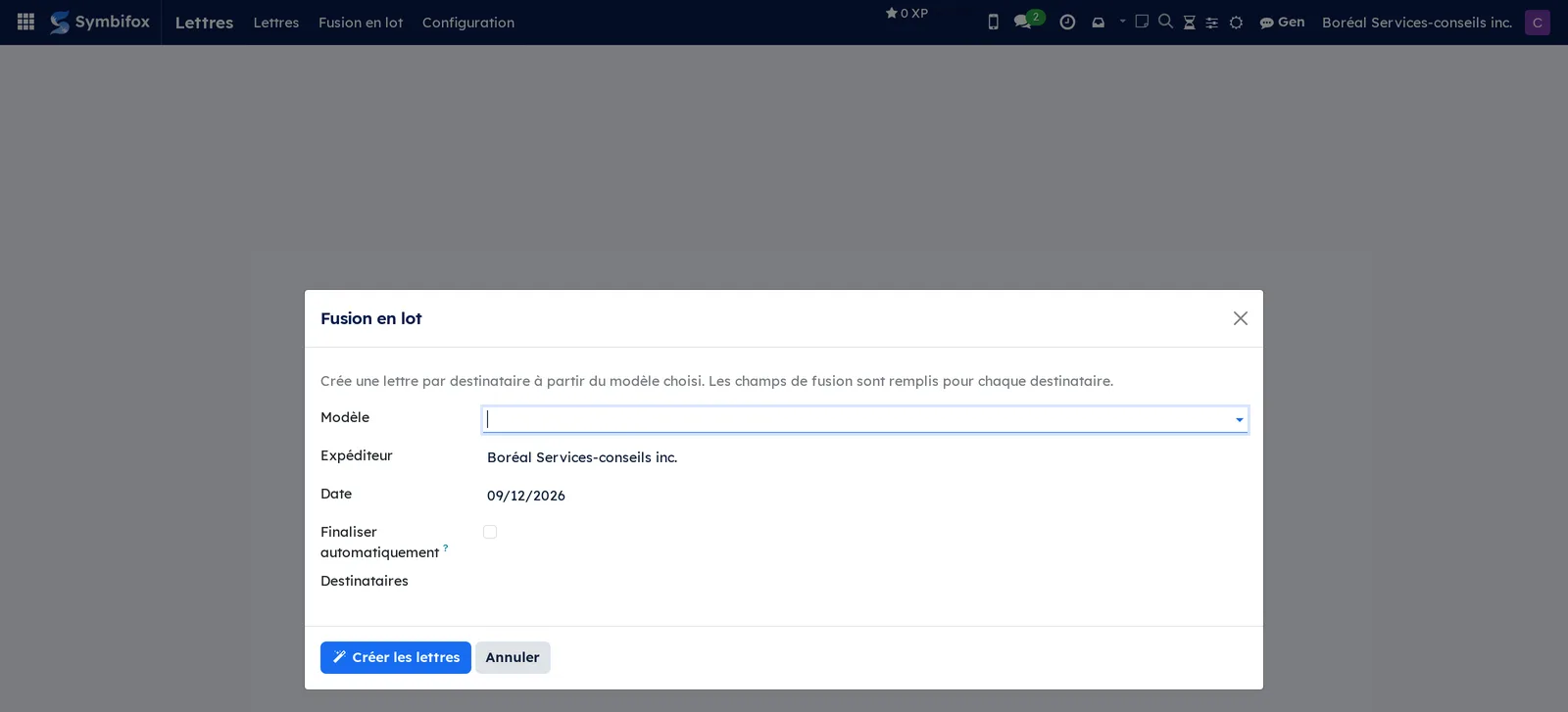
Produce one letter per recipient#
One template, a list of people, as many personalized PDFs.
- Open Letters › Bulk merge.
- Choose the Template.
- Check the Sender and the Date.
- Add the Recipients.
- Optional: check Finalize automatically so each letter comes out already finalized.
- Select Create the letters.
Symbifox opens the list of letters created, one per recipient, each with its own values.
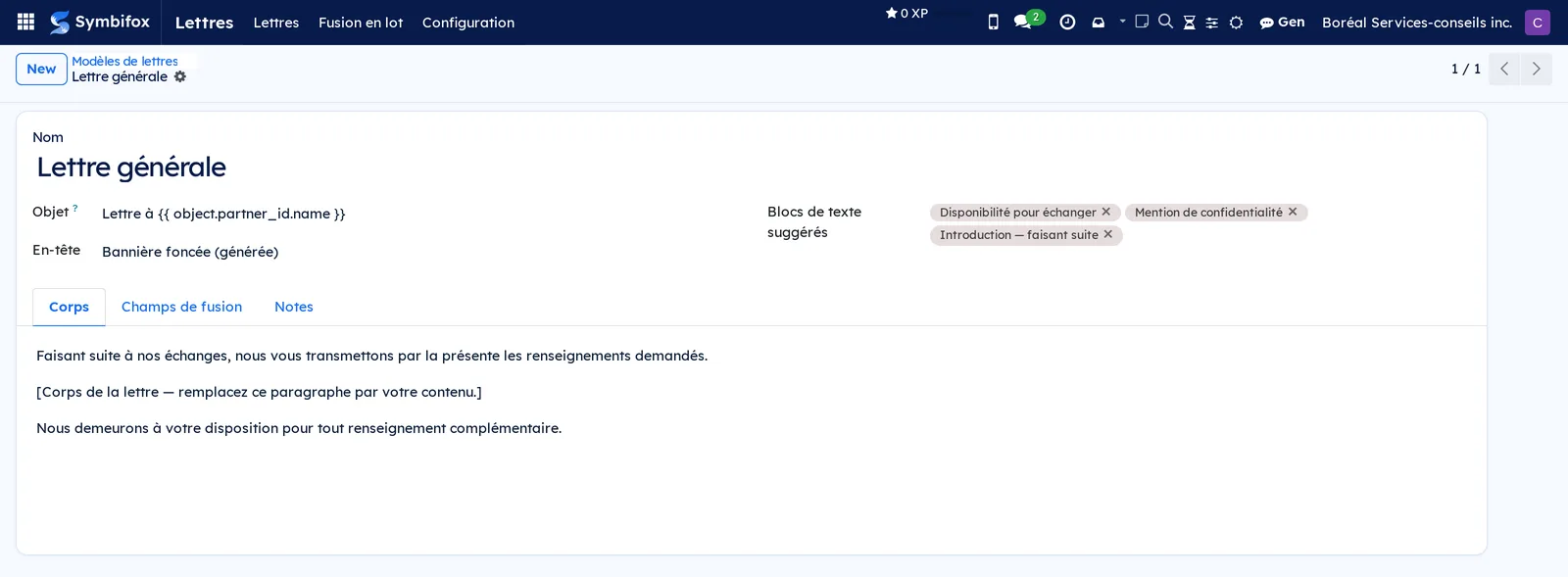
Create a letter template#
Prerequisite: belong to the Manager group.
- Open Letters › Configuration › Letter templates, then select New.
- Enter the Name and the Subject, which becomes the title of the letters produced.
- Choose the Letterhead applied by default.
- In the Body tab, write the standard text and place your merge fields; the Merge fields tab lists them.
- In Suggested text blocks, add the paragraphs this kind of letter often calls for.
- Select Save.
Create a text block#
- Open Letters › Configuration › Text blocks, then select New.
- Enter the Name, a short Shortcut and a Category.
- Write the Content, including merge fields if the paragraph names the recipient.
- Leave the Company empty to share the block across all companies.
- Select Save.
Write a job offer from an application#
Prerequisite: the proposed terms are recorded on the application; without them, the button refuses to act.
- Open the application in Recruitment.
- Select Rédiger l'offre (write the offer).
- Review the letter that opens as a draft: position, salary, special conditions and start date are already there.
- Adjust the text, then select Finalize.
The letter stays linked to the application, and a shortcut button at the top of the application counts the letters produced. To have it signed, select Envoyer pour signature (send for signature), see Electronic signatures.
Have the assistant review a draft#
- Open the draft letter.
- Select Review with Claude.
The assistant opens with the letter in context and suggests a review. The button appears only if the assistant is installed, see Gen, the assistant.
Archive a letter#
- Open the letter, select the gear icon, then Archive.
The letter leaves the current lists; the archived filter brings it back. Nothing is deleted.
The menus, one by one#
Letters: the main menu, open to anyone with an internal account.
Letters › Letters: the list of letters (columns Reference, Date, Title, Recipient, Template, State) and their form. Thirteen letters on the demo: mandate confirmations, contract renewal notices, an end of mandate, general letters, and two drafts, one of them a job offer addressed to Léa Marchand. On an empty screen, the help text invites you to write your first letter.
Letters › Bulk merge: the dialog that produces one letter per recipient, described in Produce one letter per recipient.
Letters › Configuration: grouping menu, reserved for the Manager group.
Letters › Configuration › Letter templates: the list of templates (columns Name, Subject, Letterhead). Five on the demo: “Avis de renouvellement de contrat” (contract renewal notice), “Confirmation de mandat” (mandate confirmation) and “Fin de mandat et remise des livrables” (end of mandate) with the understated classic letterhead, “Lettre générale” and “Offre d'emploi” (job offer) with the dark banner.

Letters › Configuration › Text blocks: the library of reusable paragraphs (columns Name, Shortcut, Category), which you reorder by dragging. Three on the demo, filed under “Ouverture” (opening), “Clôture” (closing) and “Mentions” (notices).

Reference#
Fields of the Letter form#
| Field | Description | Required or default |
|---|---|---|
| Title | Working name of the letter; fills in as soon as a recipient is chosen. | Required |
| Reference | Unique number assigned at finalization. | Automatic |
| State | Draft, Finalized or Sent. | Draft |
| Sender | Issuing company, whose identity dresses the page. | Required |
| Recipient | Contacts record the letter is addressed to. | Required |
| Recipient name, Recipient address | Recipient's name and address, frozen at finalization. | Taken from the contact |
| Date | Date shown on the letter. | Today |
| Language | Language of the automatic title and of the sending message. | The recipient's, else yours |
| Salutation | Salutation at the top of the body. | Optional |
| Body | The text, the only element the author fully controls. | Optional |
| Complimentary close | Closing formula. | Optional |
| Template | Template applied, if any. | Optional |
| Letterhead | One of the five layouts. | The company's |
| Signatory, Signatory title | Signature block specific to this letter. | The company's |
| Letterhead preview, Latest PDF | Thumbnail of the letterhead and last document produced. | Computed |
Fields of a letter template#
| Field | Description | Required or default |
|---|---|---|
| Name | Template name in the selection list. | Required |
| Subject | Default title of the letters produced; accepts merge fields. | Optional |
| Body | Standard text, with its merge fields. Cleaned on save, like an email template: formatting and merge fields stay, scripts are removed. | Optional |
| Letterhead | Layout imposed on letters created from the template. | Required |
| Suggested text blocks | Paragraphs offered first when inserting. | Optional |
| Internal description | A note saying what the template is for; it does not appear on the letter. | Optional |
Fields of a text block#
| Field | Description | Required or default |
|---|---|---|
| Name | Title of the block. | Required |
| Shortcut | Short code to find it quickly. | Optional |
| Category | Free grouping in the list. | Optional |
| Content | The paragraph, including merge fields. Cleaned on save, like a template body. | Optional |
| Company | If left empty, the block serves all companies. | Empty |
Reports and exports#
- Letter: the document PDF, produced by PDF preview, Download PDF or Print, and attached to the sending email.
- The list of letters exports with Actions › Export (see Common actions in every application).
Automations#
The application does nothing on its own: no letter leaves without an action from someone. Two conveniences aside: the title fills in as soon as a recipient is chosen, in that recipient's language when it is installed, and the recipient's details freeze at finalization.
Public pages and portal#
None. A letter is read as a PDF, never on a web page. To have the document signed online, use Electronic signatures.
Modules that extend this application#
A single satellite module, and it fills a gap: the job offer.
A letter can also be signed online: the Envoyer pour signature and Voir les signatures (view signatures) buttons on a job offer come from Electronic signatures, which documents them.
Understanding#
The page design is locked, and that is the point. An official letter commits the organization. Letting each person compose their own letterhead means accepting that the logo ages at different speeds from one workstation to the next. Here, the author chooses one layout out of five and writes the text; the rest comes from the company record, for all letters at once.
Merge fields must stay simple paths. Symbifox allows more elaborate expressions only to people who have the right to edit email templates. So that any manager can adjust a letter template, the set of allowed fields has been fixed, and it includes only direct references: the recipient, their company, the date, the reference, the signatory, and for an offer, the application. A field written otherwise, with a fallback value for example, will make rendering fail for an ordinary user. Rely on the template's Merge fields tab.
The offer template belongs to you. An upgrade of the module never rewrites the text of the “Offre d'emploi” template: what an organization has rewritten stays its own. The trade-off is deliberate: an improvement to the original text does not reach instances already installed.
An offer is not read like other letters. Anyone with an internal account can read letters, whereas the salary offered to a candidate is reserved for recruiters. Two rules therefore combine: an ordinary employee sees letters linked to no application, and a recruiter sees everything. A letters manager who is not a recruiter loses access to offers, deletion included. This is intentional.
The module refuses an offer without terms. An application with no salary and no special condition has nothing to offer. The button raises a message rather than producing a letter that would announce a salary of zero. Likewise, a letter is addressed to someone: without a contact on the application, the button says where to add that contact instead of creating one for you.
Image and PDF are not equivalent. In image mode, the letterhead dresses the first page only. For a letter of several pages, prefer the uploaded PDF, which stamps the body on each page and keeps vector quality when printed.
Troubleshooting#
| Symptom | Likely cause | Fix |
|---|---|---|
| The Configuration menu does not appear. | You are not in the letters Manager group. | Ask to be added to the group, or have a manager edit the template. |
| The letter is highlighted in the list. | A merge field did not find its value on the recipient. | Complete the contact record, then apply the template again. |
| Applying the template shows an error about templates. | The template contains a field outside the allowed set. | Have the template corrected so it keeps only the fields listed in the Merge fields tab. |
| Rédiger l'offre refuses to act. | The application has no salary or special condition, or no contact. | Record the terms on the application, and link a contact to it. |
| A recruiter can no longer find an offer they wrote. | The account lost its recruitment group. | Restore the group: without it, letters linked to an application are out of reach. |
| The letterhead covers only the first page. | Uploaded image (PNG/JPG) layout on a letter of several pages. | Upload the letterhead as a PDF and choose Uploaded PDF (overlay). |
| The text overlaps the pre-printed paper. | Body margins are wrong for this paper. | Adjust Body top margin (mm) and Body bottom margin (mm) on the company record. |
| The body you entered has disappeared. | A template was applied after writing. | Select Reset to draft if needed, rewrite, and apply the template first next time. |
See also#
- Contacts: the records that recipients and signatories come from.
- Recruitment: the applications a job offer starts from.
- Electronic signatures: having a letter signed online.
- Settings and brand identity: the logo, colours and contact details that dress the page.
- Email, Gen, the assistant, Common actions in every application.