

Part 2 · Clients, sales and relationships
Contacts
The shared Symbifox address book, its company and person records, their AI enrichment, the relationship persona, contact absences, the responder that arms itself from an absence, and Nextcloud synchronization.
Watch it



The Contacts application is your organization's shared address book: companies, people, suppliers and partners each have a record there. Every other application links to it: an opportunity, an invoice, a ticket or a meeting always points to a contact. Symbifox adds four things: record enrichment by artificial intelligence, a relationship profile per contact (the persona), contact absences and your own, and synchronization with Nextcloud. This chapter is for anyone who keeps records up to date, and for the managers who configure these additions.
Overview#
A contact record describes either a company or a person. A person can be linked to a company: they then appear in the company's Contacts & Addresses tab and take its address. Each record has a chatter, the message thread at the bottom of the form, where emails, internal notes and activities accumulate.
Tags are free keywords that segment the address book. The Secteur d'activité (industry) classifies a company according to a provided classification.
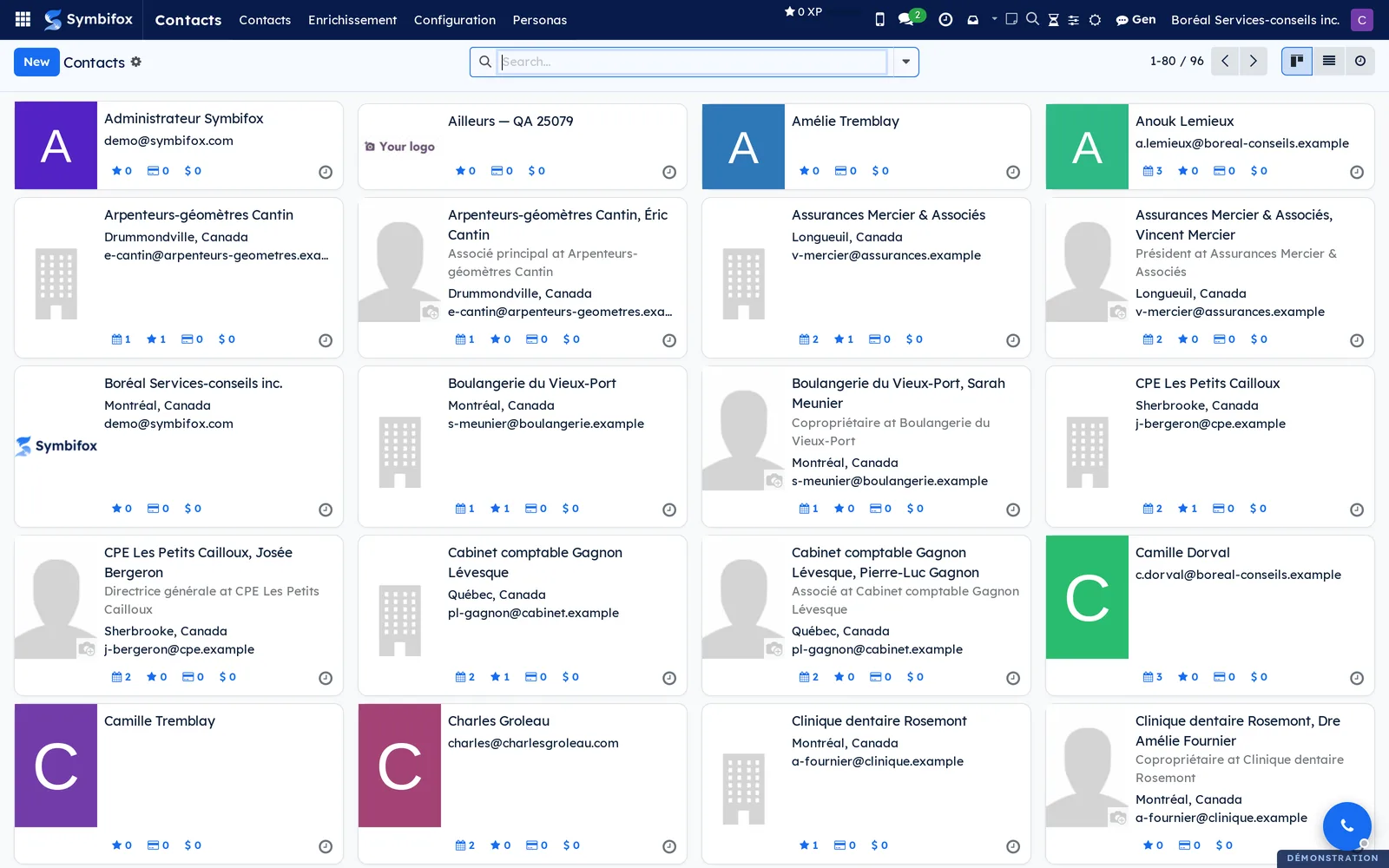
The home screen is a kanban view: one card per record, with the city, email, job position and small activity counters. On the Boréal demo, companies and people sit side by side in alphabetical order.
Symbifox adds four sets of features to this base application:
- The Enrichment menu: scan a business card, import a vCard file, detect duplicates. On each record, buttons complete the contact details from the signatures of received emails, from the website, from a LinkedIn search for a person, or from Gen's online search for a company. A Completeness score flags the records that need completing.
- The Personas menu: what to know before writing to a contact. It holds the form of address (the informal French “tu” or the formal “vous”), greetings, the people to copy and the people never to copy, payment behaviour, and a relationship measured on the mail actually exchanged.
- The Absences, Proposed absences, Seed a known shutdown and Read mail already received menus: know that a contact is away before you write to them, text them or call them. And the I'm away menu for your own absence, which arms your responder for the period and switches it off at the end.
- Synchronization with a Nextcloud address book (CardDAV), configured in Settings, with no menu in Contacts.
The CRM draws its customers from here (see CRM), Invoicing its partners and Project the clients of its engagements. The Email application creates or enriches a contact from a received message (see Email). Outreach sets a Ne plus démarcher (do not contact again) flag on the record (see Outreach). Privacy keeps consent preferences there (see Privacy (Law 25 and other frameworks)). Law 25 is Québec's Act respecting the protection of personal information in the private sector.
Configuration#
Access and permissions#
Every internal user can consult the address book. Creating or editing a record requires the Contact Creation right, granted on the user's form (see Settings and brand identity). The Symbifox modules add their own groups:
- Contact Enrichment opens Contacts › Enrichment › Scan a card and the mobile scanning page. That page also checks the Contact Creation right. The same group can run Complete with Gen and read the suggestion; each user sets Companies completed by Gen in My Profile.
- Utilisateur persona (persona user) opens the Personas entries and the Persona tab of records. Gestionnaire persona (persona manager) adds Catégories (categories) and the persona's Détails personnels (personal details) tab.
- Everyone can read the Nextcloud synchronization; only administrators can configure it.
Settings#
Contacts has no settings menu of its own on the demo. Two settings concern it, in Settings:
- Clé hook ntfy (dégradation persona) (ntfy hook key, persona degradation) receives the key of the notification service to alert when a relationship switches to “dégradée” (degraded). When it is empty, no alert goes out.
- The Nextcloud Contacts Sync section of General Settings holds Enable Nextcloud Contacts Sync Cron, Sync Interval (minutes) and Default Address Book. Configure Nextcloud Address Books opens the address books. These labels are in English in both interface languages.
Reading cards, signatures and websites goes through the server's Claude account, the same one as the assistant (see Gen, the assistant): there is nothing to set in Contacts. If that service does not answer, the enrichment buttons show a message and write nothing.
Base data#
Before you start, go through Contacts › Configuration:
- Contact Tags: empty on the demo. Create your segmentation tags and, if you synchronize with Nextcloud, an exclusion tag.
- Contact Titles, Industries, Countries and Fed. States are provided. There is nothing to create, except an industry that is missing.
- Banks and Bank Accounts: only if you pay suppliers by transfer.
Under Contacts › Personas › Catégories, five communication categories are delivered: Facturation (billing), Support, Technique (technical), Juridique (legal) and Social. They label a copy rule; they do not decide when it applies. An address book must also exist on the Nextcloud side before the first synchronization.
Getting started#
This walkthrough creates the record of a new contact person at Clinique dentaire Rosemont, classifies it, checks its completeness and opens its persona.
- Go to Contacts › Contacts. The kanban view shows Boréal's records.
- Select New. A blank form opens.
- Leave the type on Individual and enter “Marc Lavoie” as the name.
- In the company field, enter “Clinique dentaire Rosemont” and select the existing record. The clinic's address is copied over.
- Enter the job position “Administrative assistant”, an email and a phone number.
- Under Tags, enter “Client” and create the tag on the fly.
- Save the record. Completeness shows the share of contact details filled in.
- Select the shortcut button Persona at the top of the form. Symbifox creates Marc's relationship profile and opens it on the Communication tab.
- Set the Addressing Style to Vouvoiement (the formal “vous”) and save.
Result: Marc's record exists, linked to the clinic and tagged, with a completeness score and a persona ready to guide your emails. In the kanban view, his card appears with his job position.
Common tasks#
Create a company and its contact people#
Create the company first; its contact people are then linked to it and inherit its address.
- Go to Contacts › Contacts and select New.
- Select the Company type and enter the name.
- Enter the address, phone, email and website. In the Sales & Purchase tab, choose the Secteur d'activité.
- In the Contacts & Addresses tab, select Add and enter the first contact person: name, job position, email, phone.
- Repeat for each person, then save.
Result: the people carry the company name before their own, as in “Clinique dentaire Rosemont, Dre Amélie Fournier”. A delivery address is entered in the same place, by choosing that address type.
Scan a business card#
Back from a trade show, a photo of a card is enough: the AI reads the image and proposes the record. Prerequisites: the Contact Enrichment group and the assistant's service running (see Gen, the assistant).
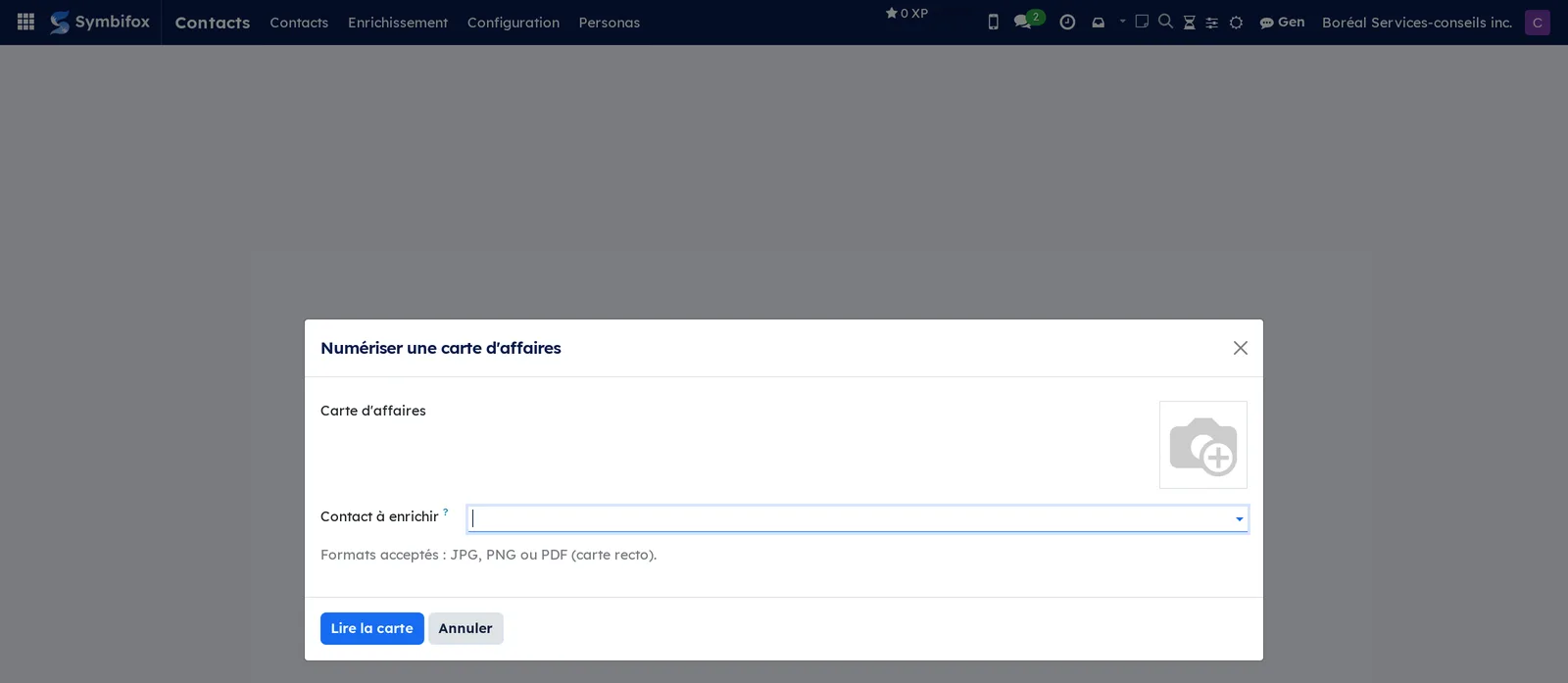
- Go to Contacts › Enrichment › Scan a card. The Scan a business card dialog opens.
- Under Business card, upload the photo or the file (JPG, PNG or PDF, front side).
- Optional: in Contact to enrich, choose an existing record that the card should complete.
- Select Read the card. Name, job position, company, email, phones, website and address fill in. Text read and Confidence show what the AI saw.
- If an existing contact is detected by email, name or domain, it appears in Existing contact detected. In Action, choose to create a record or to update that one.
- Correct if needed, then select Save the contact.
Result: the record opens, the card is attached in its chatter and each added field is logged there. The same action, Scan a card, is available at the top of a record, with Contact to enrich already filled in.
Scan a card from a phone#
At a trade show or on a visit, the same scanning lives on a mobile page, with no app to install. The page opens on its tiles, one per permitted gesture, and the card is the first of them.
- On the phone, open your Symbifox address followed by
/scan, sign in, then select Business card. - Optional: accept the browser's offer to add the page to the home screen.
- Select the photo capture. The phone's camera opens; the page asks for no camera permission.
- Review the proposed fields, correct them if needed, then save.
Result: the record is created or updated as from the desktop, because the page drives the same dialog. The photo is reduced before it is sent. The same page carries two other tiles, an invoice and a document, described in Mobile apps and browser extension.
Enrich a record from email signatures#
The missing phone number or title often hides in a signature. Prerequisite: emails from this correspondent archived in the Email application.
- Open the record to complete.
- To apply directly, select Enrich now (signatures). Only empty fields are filled in.
- To review before writing, select Enrich (review) instead. The Enrich a contact dialog opens.
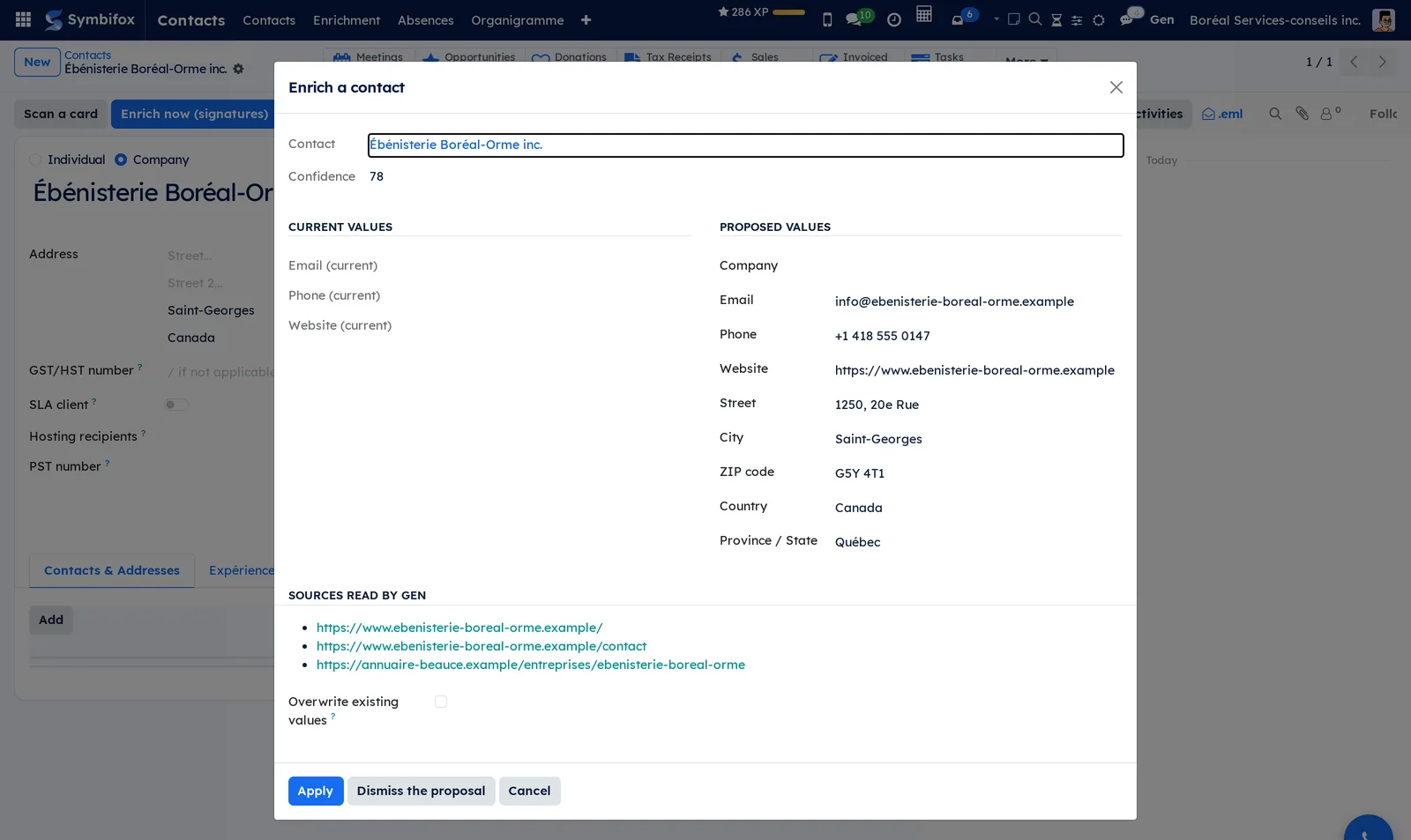
- Select Analyze. The Current values group shows the record; the Proposed values group shows what the signatures contain.
- Optional: check Overwrite existing values to also replace what is already entered.
- Select Apply.
Result: the added fields appear on the record, and a note in the chatter specifies what was written. For an email received from a stranger, Create / enrich the contact in the Email application creates the record, then runs the same analysis. See Email.
Enrich several records in bulk#
An address book imported from an old system often arrives half empty. Bulk enrichment processes the records in the background.
- Go to Contacts › Contacts and switch to the list view.
- Check the records to complete.
- Select Actions › Enrich from email signatures.
- Come back later: the records are completed over successive automatic runs, every 30 minutes.
Result: each processed record carries its new fields and a note in its chatter. Queued for enrichment is cleared once the record has been processed. If the assistant's service does not answer, the queue stops in an error state without blocking anything else.
Complete a company from its website#
For a company where you have only the name or the domain, a web search fills in the address, phone and description. Prerequisite: Gen configured with web search (see Gen, the assistant).
- Open the company's record and check that Website is filled in.
- Select Enrich (website).
- Review the record once the search is finished.
Result: empty fields are filled in; nothing already entered is replaced. This function explores the web, whereas reading a card or a signature only reads the image or the text it is given.
Let Gen complete a company#
A company created in a hurry often has nothing but a name. Gen looks it up online and suggests its website, main phone number, general email and address. Only companies are searched, never a person. Prerequisites: the Contact Enrichment group and Gen configured with web search (see Gen, the assistant).
- Create the company and save it. If it has no address or phone number, the search starts on its own, and a blue banner says so at the top of the record. On an existing record, select Complete with Gen instead.
- Wait about a minute. A notification tells you when the result is ready.
- Reload the record, then select See Gen's proposal. The Enrich a contact dialog opens, with each value found and the Sources read by Gen.
- Correct a value if needed, then select Apply. To turn it all down, select Dismiss the proposal.
Result: only empty fields are filled in, unless you tick Overwrite existing values. A note in the chatter names the person who asked for the search and the sources read. If Gen finds nothing reliable, a yellow banner says so and nothing is written.
What Gen does with a company you create is set in My Profile, in the Companies completed by Gen field:
- Propose the values to me (I confirm): the default, described above.
- Fill in the empty fields: Gen writes the empty fields on its own when its confidence is high enough, and notes it in the chatter. Below that level, it suggests.
- Do nothing on creation: only the Complete with Gen button starts a search.
When Odoo's autocomplete suggests a company and your database has no enrichment credits, Odoo shows “Gen will complete this company with an online search after you save it.” instead of the invitation to buy credits. The suggestion keeps its name; Gen completes the rest after saving.
Find a person's LinkedIn profile#
LinkedIn closes its pages to programs, so no tool can read a profile page directly. The module therefore offers two separate lanes: a free search that finds the profile, and a paid reading of a profile whose address you already hold. Only people are searched, never a company. Prerequisites: the Contact Enrichment group and the assistant's service (see Gen, the assistant); the paid reading also needs a RocketReach account set up on that service.
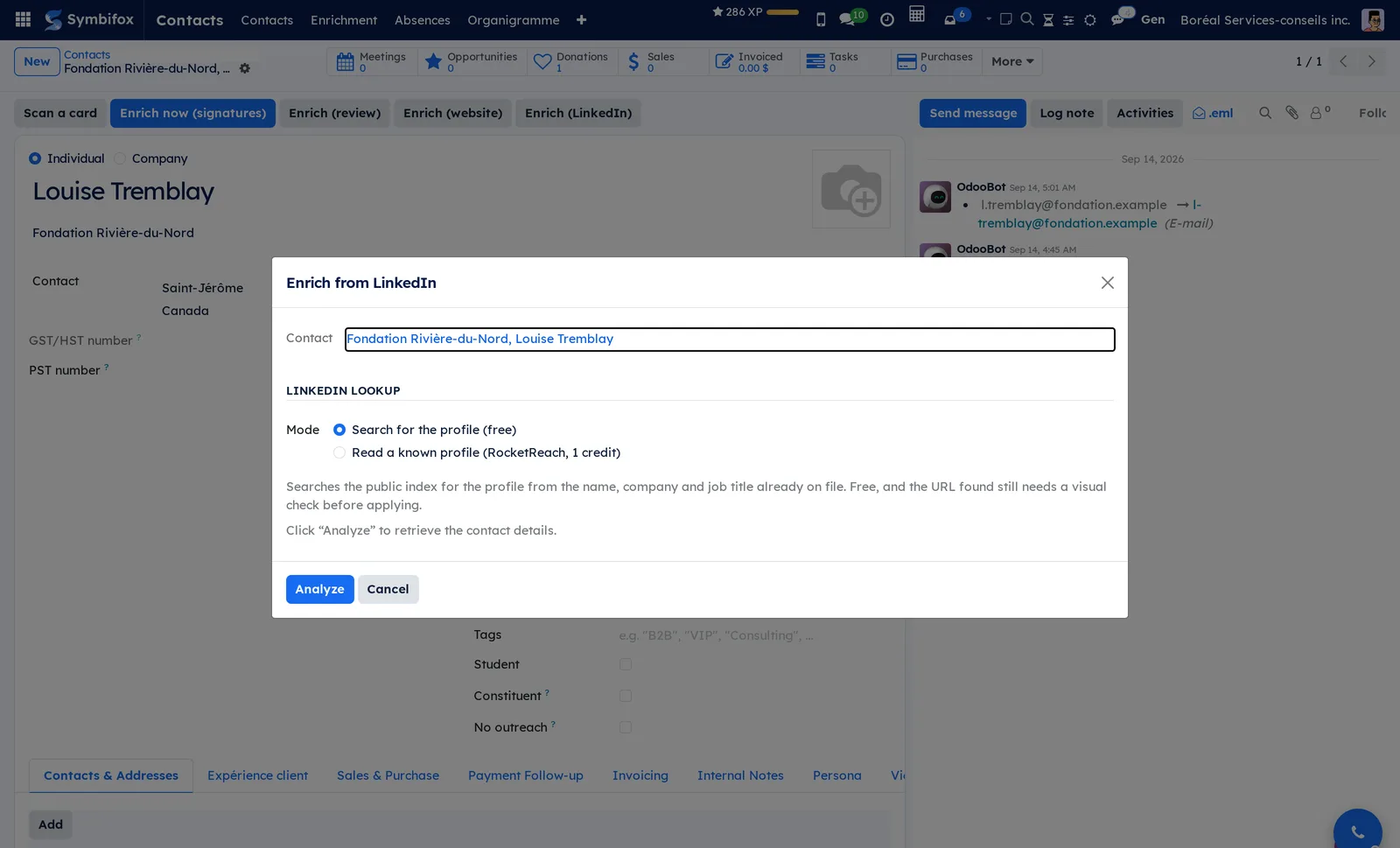
- Open the person's record and select Enrich (LinkedIn). The Enrich from LinkedIn dialog opens on Mode.
- Keep Search for the profile (free) to look the person up from the name, company and job title already on the record. To read a profile whose address you hold, choose Read a known profile (RocketReach, 1 credit) and paste the address under Profile URL. When the record already has a LinkedIn profile, this second mode opens already filled in.
- Select Analyze. The Current values group shows the record; Proposed values shows the job title, company, website and LinkedIn profile found. Other profiles found lists the namesakes the search set aside.
- Open the proposed profile address and check by eye that it is the right person.
- Optional: to also read the professional email and phone, select Read the profile (1 credit) and confirm the warning. Each reading uses one RocketReach credit.
- Select Apply.
Result: only empty fields are filled in, unless you tick Overwrite existing values. A note in the chatter gives the source, “LinkedIn search” or “LinkedIn profile (RocketReach)”. The profile address is kept in the LinkedIn profile field, under Website on the record, and keys the later readings.
Only workplace details are kept: name, job title, employer, the employer's website and the profile address. The email and phone come only from the paid reading, only when it marks them as professional, and never an address at a consumer provider (Gmail, Outlook and the like). A mobile number, a personal email, a city, a country or a home address is never proposed.
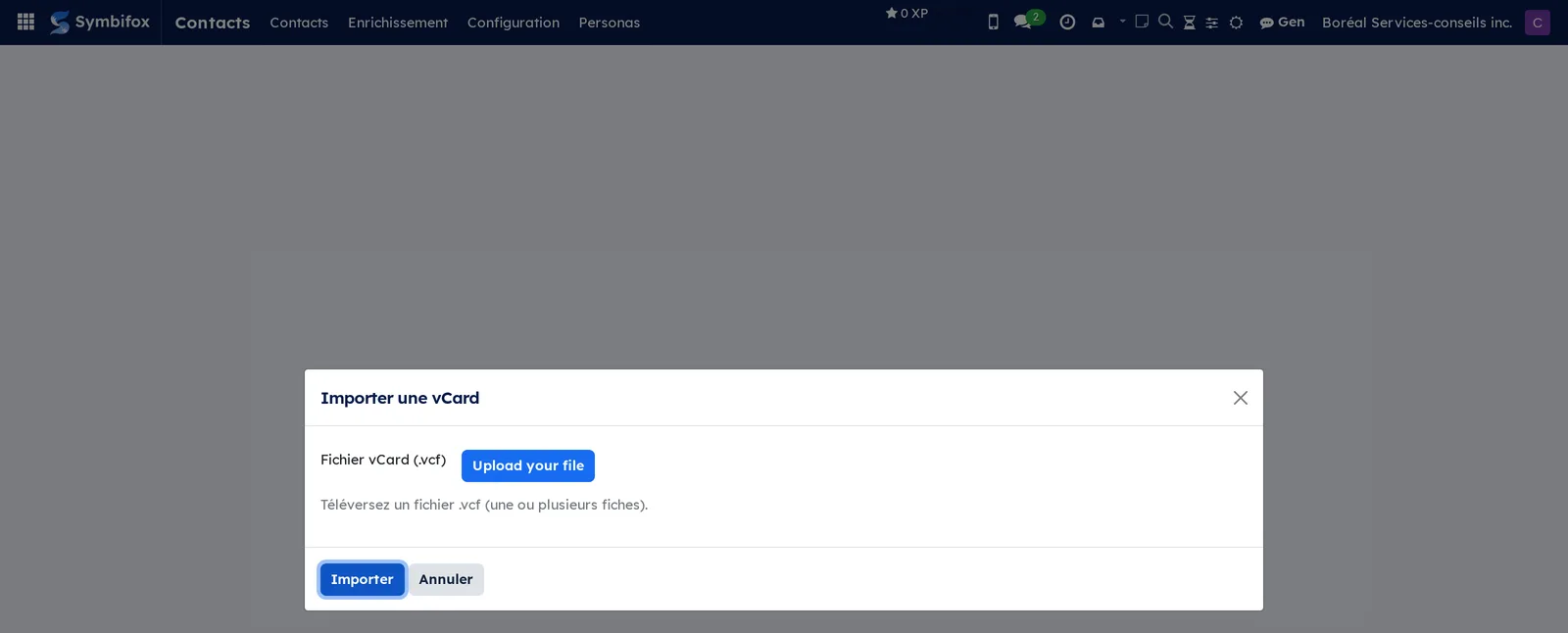
Import a vCard file#
A vCard file (.vcf) exported from a phone, from Outlook or from a Google account contains one or more records.
- Go to Contacts › Enrichment › Import a vCard.
- Select Upload your file and choose the .vcf file.
- Select Import.
Result: one record per card read, with photo, notes and address when the file includes them. An unreadable card is counted and skipped. A company already in the address book becomes the parent company.
Detect and merge duplicates#
The same person entered twice skews follow-ups and reports. The detector finds duplicate records by email and by normalized name.
- Go to Contacts › Enrichment › Find duplicates.
- Select Run the detection. One line per group appears, with the shared Key, the Reason, the Count and the Contacts concerned.
- On a line, select View / merge. The list of that group's records opens.
- Check the records to combine, then select Actions › Merge.
- Choose the record to keep and confirm.
- Select Close when all groups are handled.
Result: a single record remains per person, and the emails, activities and documents of the absorbed records are attached to it. The detector flags; you decide.
Maintain a contact's persona#
The persona gathers what to know before writing to someone: how to address them, whom to copy, what they asked for, how they pay. Prerequisite: the Utilisateur persona group.
- Open the contact's record and select the shortcut button Persona. The persona opens, created if needed.
- At the top of the form, choose the form of address, the greeting (“Bonjour Jean”), the closing formula and the language.
- In À savoir avant d'écrire (what to know before writing), note what cannot be guessed: the address to use, a preference for attachments rather than links, the reason you are on first-name terms. That text is repeated as is in the composer banner and in the context handed to Gen.
- Under Ton (tone), note the tone you observe from the person and your own towards them.
- Under Payeur (payer), read the average payment delay, recomputed daily from the invoices.
- Under Connaissances partagées (shared knowledge), select Lier les éléments de matrice to attach the knowledge-base items shared with this contact.
- Save.
Result: the persona carries what you know, and the composer banner will bring it back when you write. The Lancer Claude /persona refresh button opens Gen with the instruction to reread recent exchanges (see Gen, the assistant); the /persona button on the contact record does the same.
Read the relationship, measured on your mail#
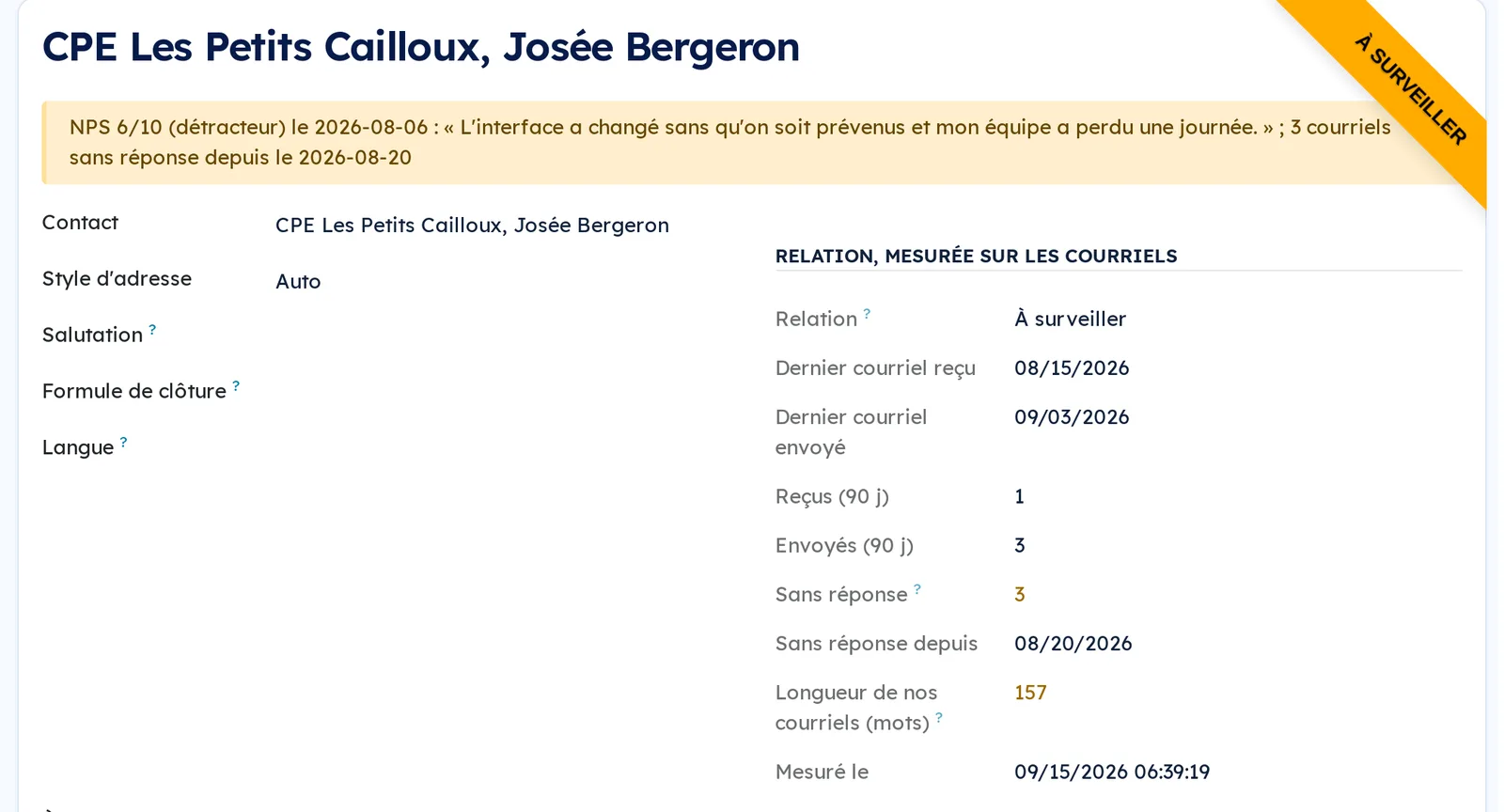
The persona guesses nothing: it reads the mail exchanged, every day.
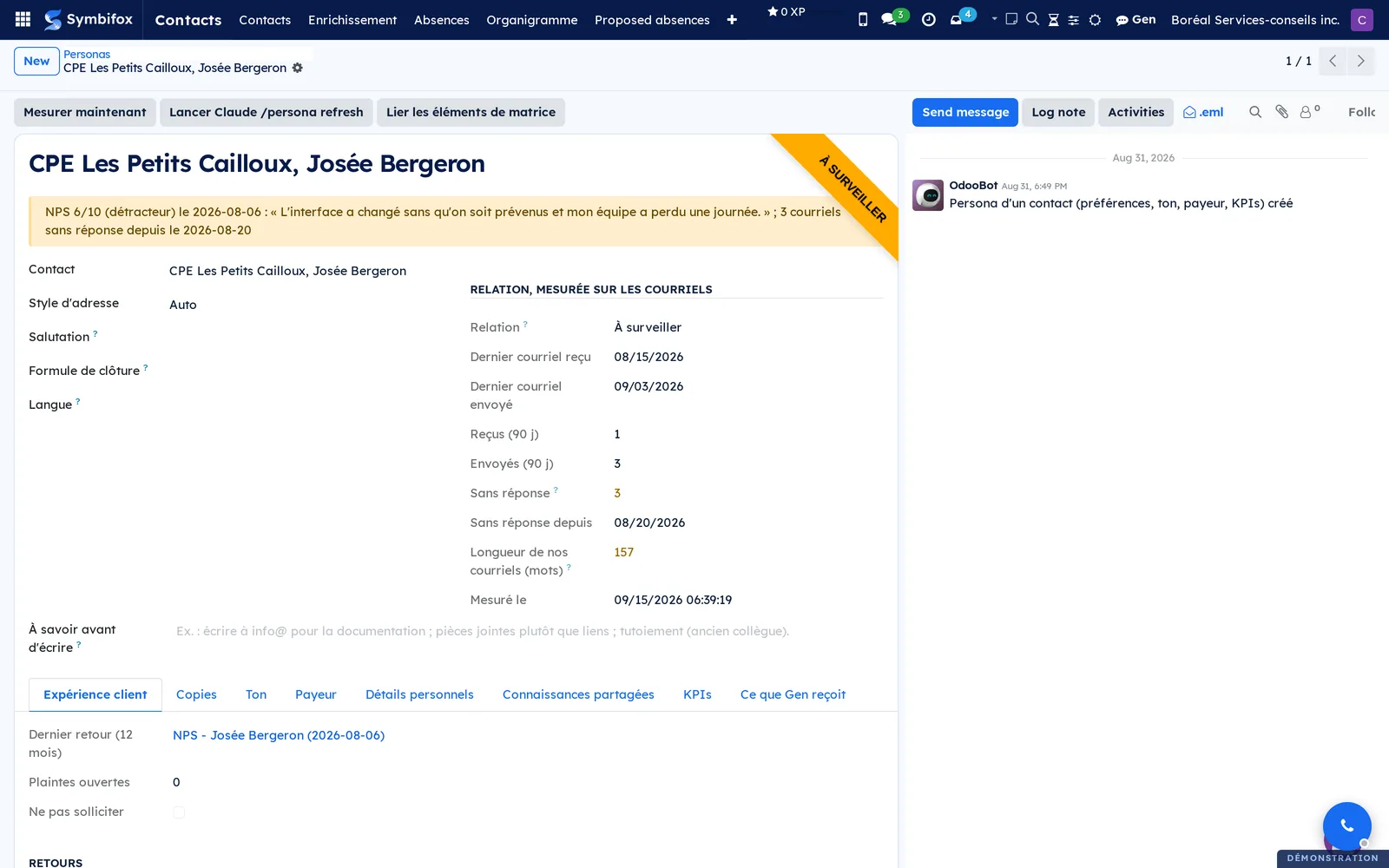
- Open the persona and look at the Relation, mesurée sur les courriels (relationship, measured on the mail) group.
- Dernier courriel reçu and Dernier courriel envoyé (last message received and sent) place the last exchange each way.
- Sans réponse (unanswered) counts your messages sent since the person's last one, and Sans réponse depuis gives the date of the first of them.
- Longueur de nos courriels (length of our messages) gives the median of your last ten messages to this contact, with quotes, signature and link addresses excluded.
- To recompute without waiting for tomorrow's pass, select Mesurer maintenant (measure now).
- That median also goes to Gen, as a ceiling: it drafts a message no longer than what this person is used to receiving from you, and shorter still when your mail to them runs long.
Result: the relationship state follows those facts. It turns to À surveiller (to watch) when at least two of your messages have been waiting for a reply for at least a fortnight, and the reason is spelled out beside it. An engagement that ends well ends quietly: traffic going down, on its own, degrades nothing.
Write to a contact in the right tone#
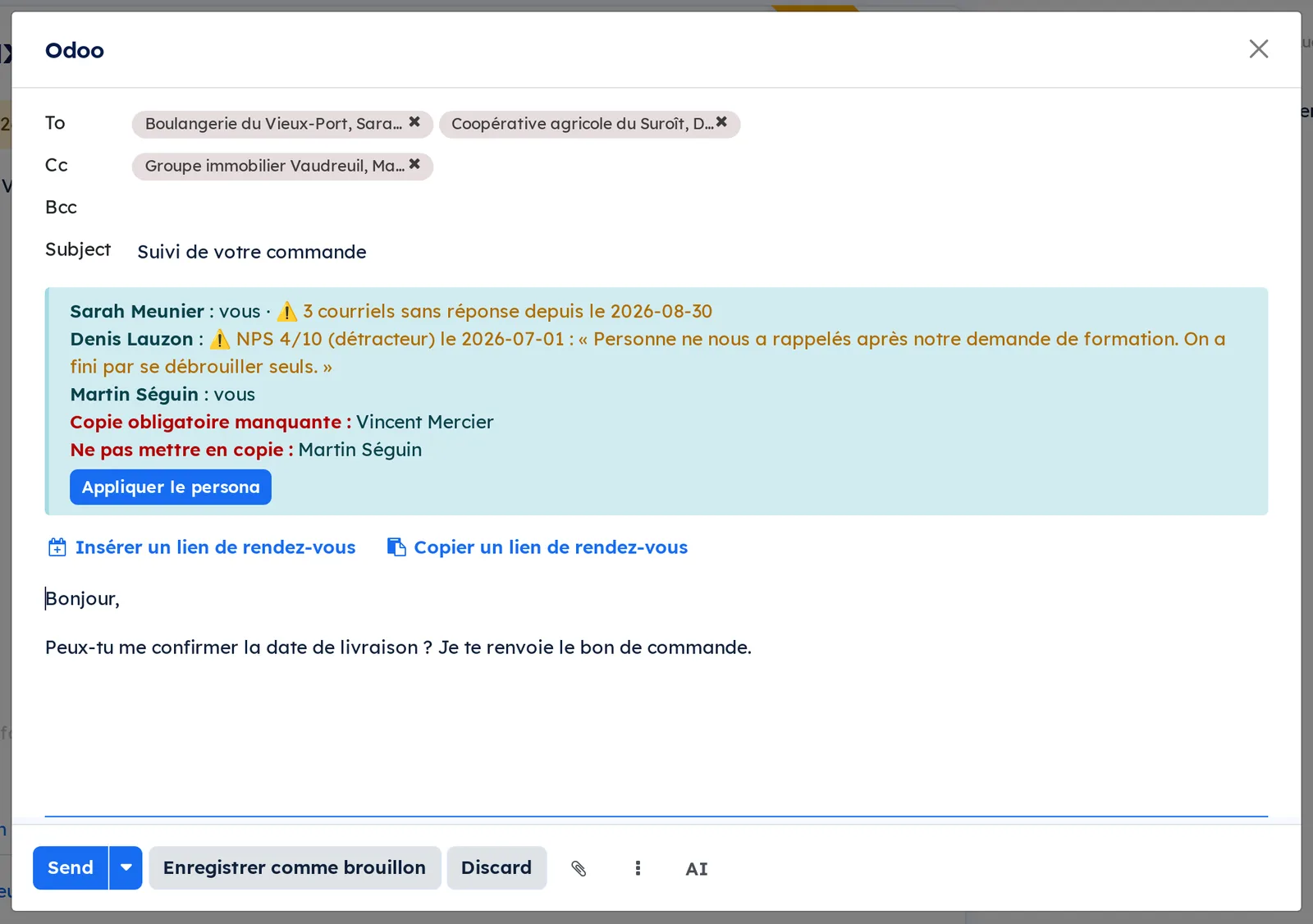
As you write, the banner reads the recipients of the message, not the record you started from.
- From a contact record, a task, an opportunity or a ticket, open the email composer.
- Read the banner: one line per recipient who has a persona, in To as well as in Cc, with their register, greeting, closing and what to know before writing to them.
- Select Appliquer le persona (apply persona).
- Complete the message, then send.
Result: when the message has a single recipient to greet, the greeting goes on top and the closing at the end. Mandatory copies are added in the Cc field, people who asked not to be copied are removed, and the composer reopens so you see the result.
Define who to copy#
Some people want their accountant copied on everything; others have asked never to be copied again. The persona holds both.
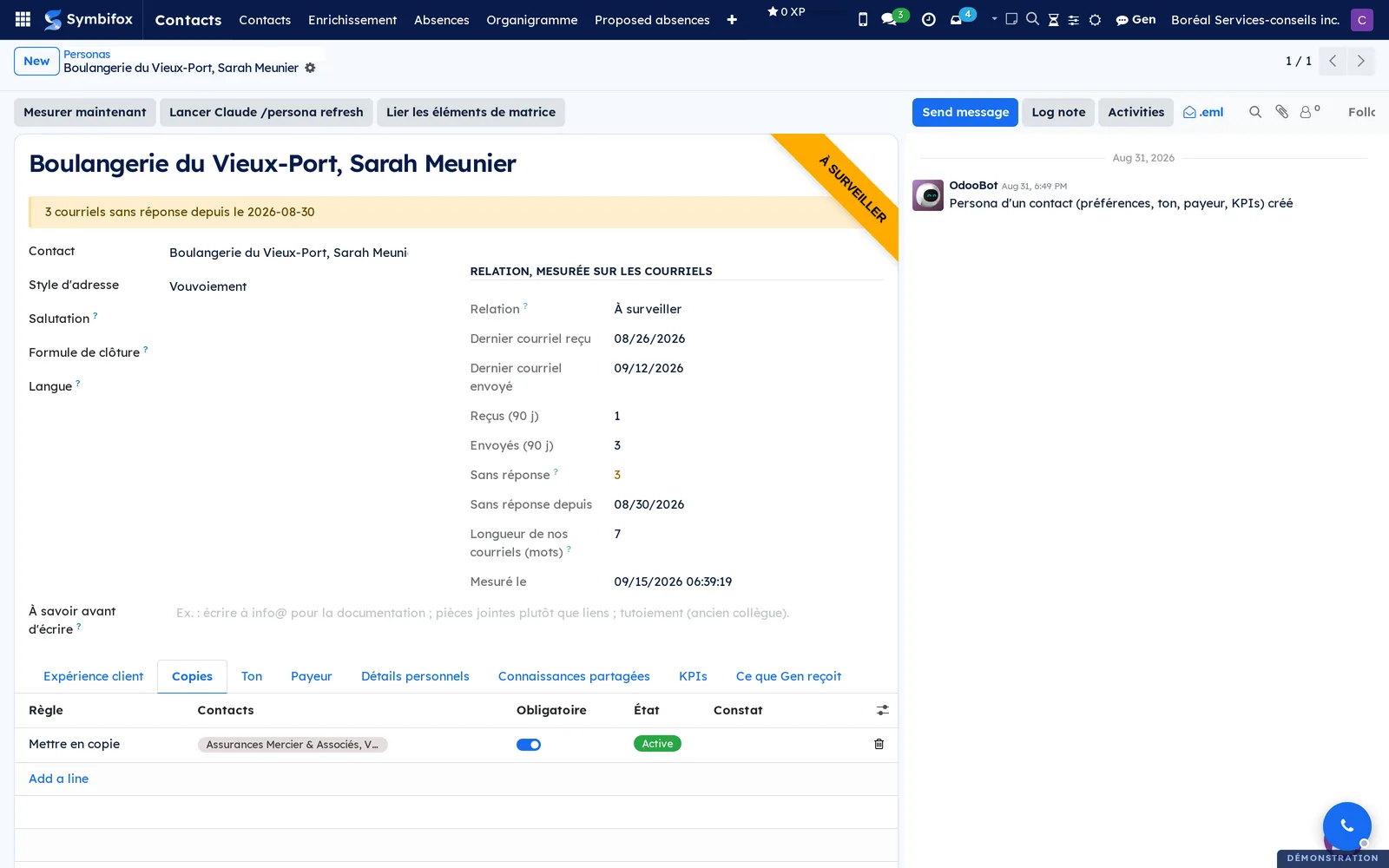
- Open the contact's persona and the Copies tab.
- Add a line and choose the rule: Mettre en copie (copy in) or Ne jamais mettre en copie (never copy).
- Under Contacts, choose the people concerned.
- For a copy that must never be forgotten, tick Obligatoire (mandatory). Without it, the copy is a reminder rather than a requirement.
- Save.
Result: next time you write, the banner flags a missing mandatory copy or a person to remove, in red, and Appliquer le persona does it. A rule applies whatever the message is about: the category is only a label.
Confirm the copy rules proposed to you#
Every week, Symbifox reads the messages actually sent and proposes a rule when someone accompanies a contact at least four times, and on at least half of them.
- Open Contacts › Personas › Règles de copie (copy rules). The Suggérées (suggested) filter is on.
- Read the Constat (evidence) column: how many of your messages to this contact carried that person, and how many carried them in copy.
- Select Confirmer to apply it, or Rejeter to reject it.
Result: a confirmed rule acts in the composer from the next message on. A rejected one is never proposed again. Nothing applies until someone decides: a habit is not a rule.

See what the contact said about their experience#
When the customer-experience module is installed, the persona also carries the contact's own answers (see Customer experience).
- Open the persona and the Expérience client tab.
- Dernier retour (12 mois) (last feedback) gives the latest score with its comment; Plaintes ouvertes (open complaints) counts those still open; Ne pas solliciter (do not solicit) says whether the contact is excluded from surveys.
- The Retours and Plaintes lists show the full history.
Result: a low score or a detractor puts the relationship to watch, an open complaint puts it degraded, with the reason spelled out, and the composer banner shows it at the moment you write to the person.
Synchronize contacts with Nextcloud#
Symbifox records can feed a Nextcloud address book, and through it the phones that subscribe to it. Prerequisites: administrator access and a Nextcloud app password.
- Go to Contacts › Configuration › Contact Tags and create the exclusion tag (“No Nextcloud sync”).
- Go to Settings › General Settings, section Nextcloud Contacts Sync, then select Configure Nextcloud Address Books.
- Select New and enter Address Book Name, Nextcloud URL, CardDAV Path, Nextcloud User and App Password.
- Choose the Sync Direction and the Exclusion Tag created in step 1, then save.
- Select Test Connection. A message confirms access to the address book.
- Select Push to Nextcloud, or Pull from Nextcloud if Nextcloud is the source.
- Go back to Settings and turn on Enable Nextcloud Contacts Sync Cron.
Result: Synced Contacts, Last Sync and Last Sync Status fill in. From then on, any record changed in Symbifox goes back to Nextcloud at the next run, and a deleted record disappears from the Nextcloud address book.
Archive, duplicate or export records#
In the list and in the form, Actions groups the maintenance actions for the address book.
- Go to Contacts › Contacts, in the list view, and check one or more records.
- Select Actions, then the action you want. Archive removes the record from lists without deleting it, Duplicate copies it, Delete erases it and Export produces a file with the columns you choose.
- Confirm if Symbifox asks.
Result: an archived record stays linked to its invoices and can be found with the archived filter. The entry Ajouter à une campagne de démarchage (add to an outreach campaign) is described in Outreach.
Record a contact's absence#
Open the record, go to the Absences tab and add a line.
From and To bound the period, and To is the last day away, inclusive. If your correspondent writes "back on 4 May", fill in Back on instead: the module corrects To by itself. The two fields correct each other, because a one-day slip would put the banner on screen the very morning they are back.
Pick the Nature (Holiday, Leave, Shutdown, Training or conference, Other) and above all the Stand-in, the person covering. That is half the value of the record: a warning that redirects beats a warning that tells you to wait. When the stand-in has no record, write it in plain text under Stand-in (text): an address, a number, "the front desk".
The end date is mandatory. An absence with no return would leave a warning lit indefinitely.
Reminder on return, ticked by default, schedules a "Check in on their return" activity for the day after they are back, recalling the subject of your last exchange.
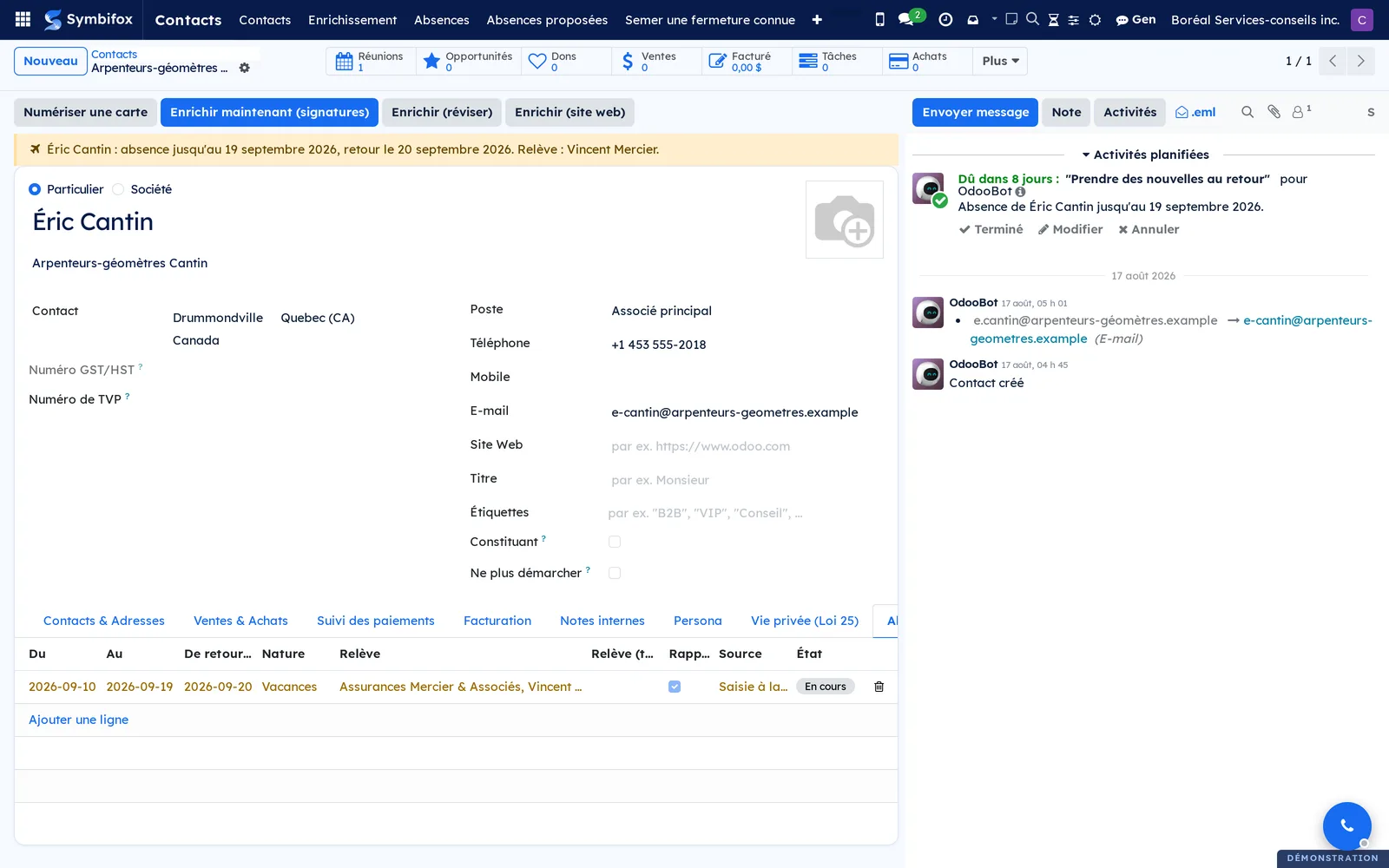
If they come back early, open the absence and click Back early: the warning goes out the same day.
Flag a company shutdown#
Record the absence on the company rather than on a person, with the Shutdown nature. It then warns for every one of its contacts, and the banner says "closed" rather than "away". Untick Applies to every contact of the company for an absence that only concerns the company record itself.
Seed a known shutdown#
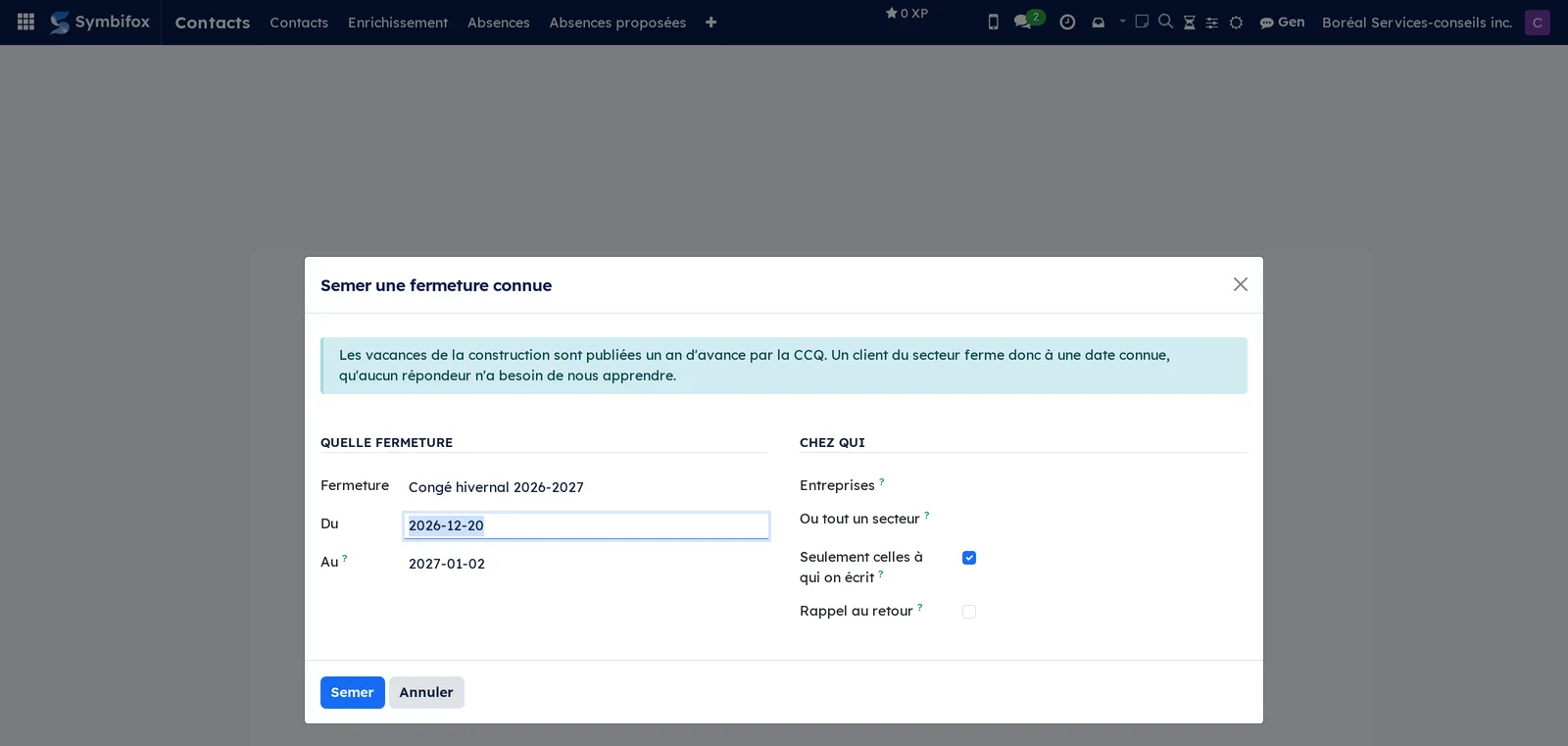
A trade's collective holidays can be recorded ahead. Seed a known shutdown applies one period to the companies you name, or to every company in an industry. Québec's construction holiday dates ship with the module, and the one proposed is never already past.
Leave Only those you actually write to ticked to skip companies with neither a contact nor an email address. A period already known is never doubled.
Decide on a proposed absence#
Your correspondents often announce their own absence, through an automatic reply. The module reads the ones arriving in the unified mailbox, takes the period out of them and proposes it under Proposed absences. One click accepts it and creates the absence, one click rejects it.
When a proposal arrives with no period, fill in the dates before accepting, or reject it. The envelope on the row opens the original email if you want to read it again.

Read the mail already received runs that reading over the mail already in place. It is the one-off move to make right after installation.
Read absences from a hand-kept calendar#
Before there is a module, people note their clients' holidays somewhere, often in a hand-kept Nextcloud calendar. That calendar can be read, and what it announces joins the Proposed absences.
- Go to Contacts › Absence calendars, then select New.
- Under Where to read, give a Name for yourself (for example "Client holidays"), pick the Nextcloud connection already in place for calendar synchronization, and enter the Calendar identifier as it shows in the calendar's address.
- Under What to read, keep Look back (days) and Look ahead (days) as they are to start with, and pick the Default nature.
- On the Shortcuts tab, add one line per nickname or set of initials used in the calendar: what is Written in the calendar, and the contact it means.
- Select Read now.
Result: the Last read section gives the count of what was found and names the entries it did not recognise, with their title. The absences found wait under Proposed absences, where you accept or reject them like the others.
The module understands both shapes of a real calendar. A lone entry on the day of departure ("First name - Company") is proposed without a return date, to be completed before accepting. A pair, "Holiday - First name Last name" then "Back from holiday First name", gives the period from the departure to the day before the return. A return only closes the departure that most closely precedes it, and never one more than seventy days back.
See who is away this week#
The Absences menu lists running and upcoming periods. The This week filter also catches those that started earlier, and the calendar view shows the same month differently. In the contacts list, an absent person's row is tinted, and an optional Away until column gives the date.

Declare myself away, and answer in my place#
The I'm away menu records your absence and arms your responder in one gesture. Fill in the period, the nature, and the person covering for you.
Message tone picks between the two texts the module ships: I reply more slowly, which announces a delay, and I am out of the office, which announces an absence. The first is the default, and rarely by accident: a message announcing an absence while you keep answering works against you.
What will go out shows the text before it is armed. That is your only chance to read it, since nobody receives their own outgoing mail. The return date and your name are filled in at send time, in the correspondent's language.
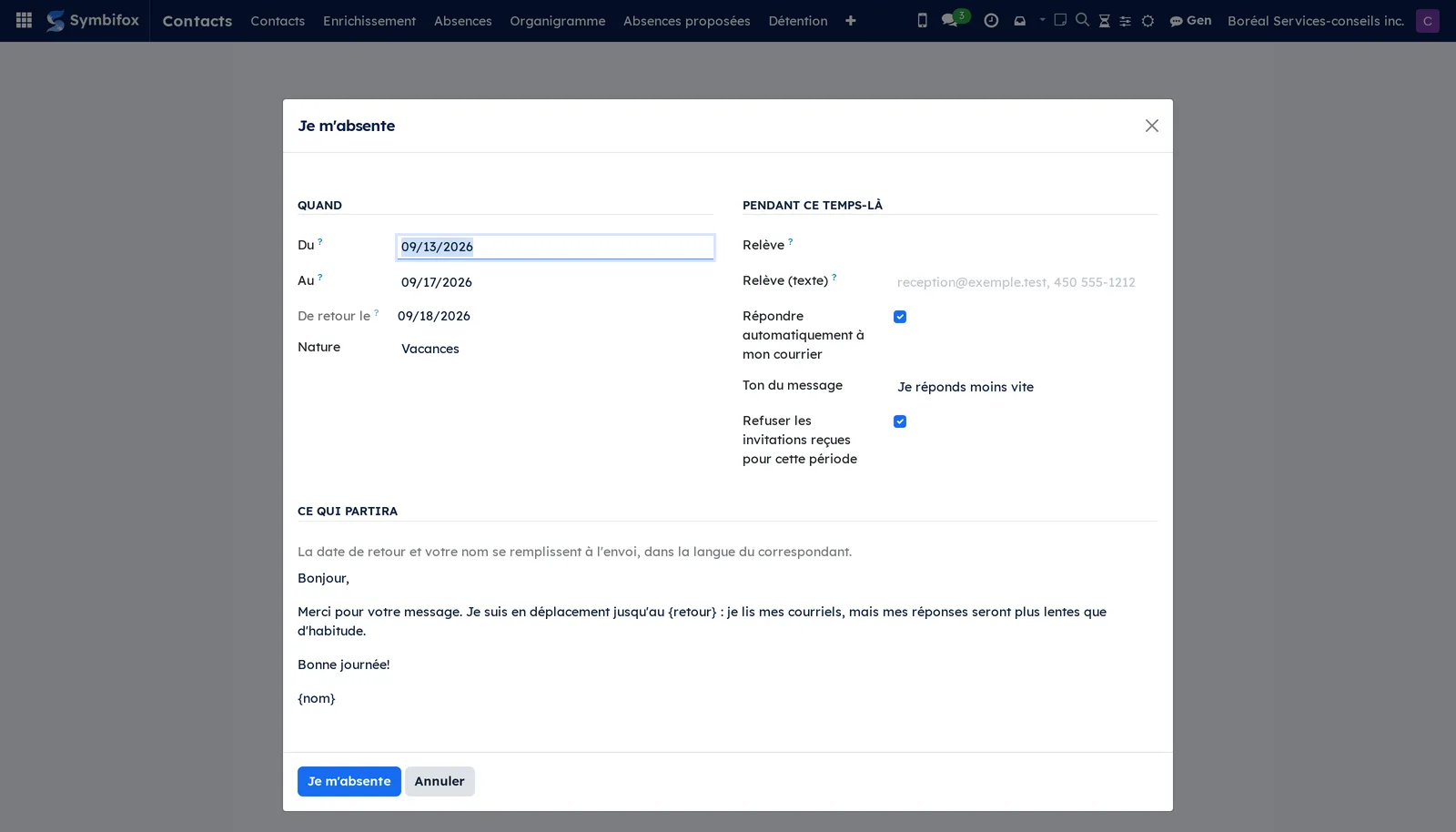
If you tick Decline invitations received for this period, your answer to invitations falling inside it becomes "declined". The event itself is never modified or deleted: only your own answer is.
The same thing can be done from an absence already recorded: open it and tick Reply automatically while away. The group only appears for someone in your organisation, that is, a record a user is attached to. The View responder button leads to the period created and to its send log.
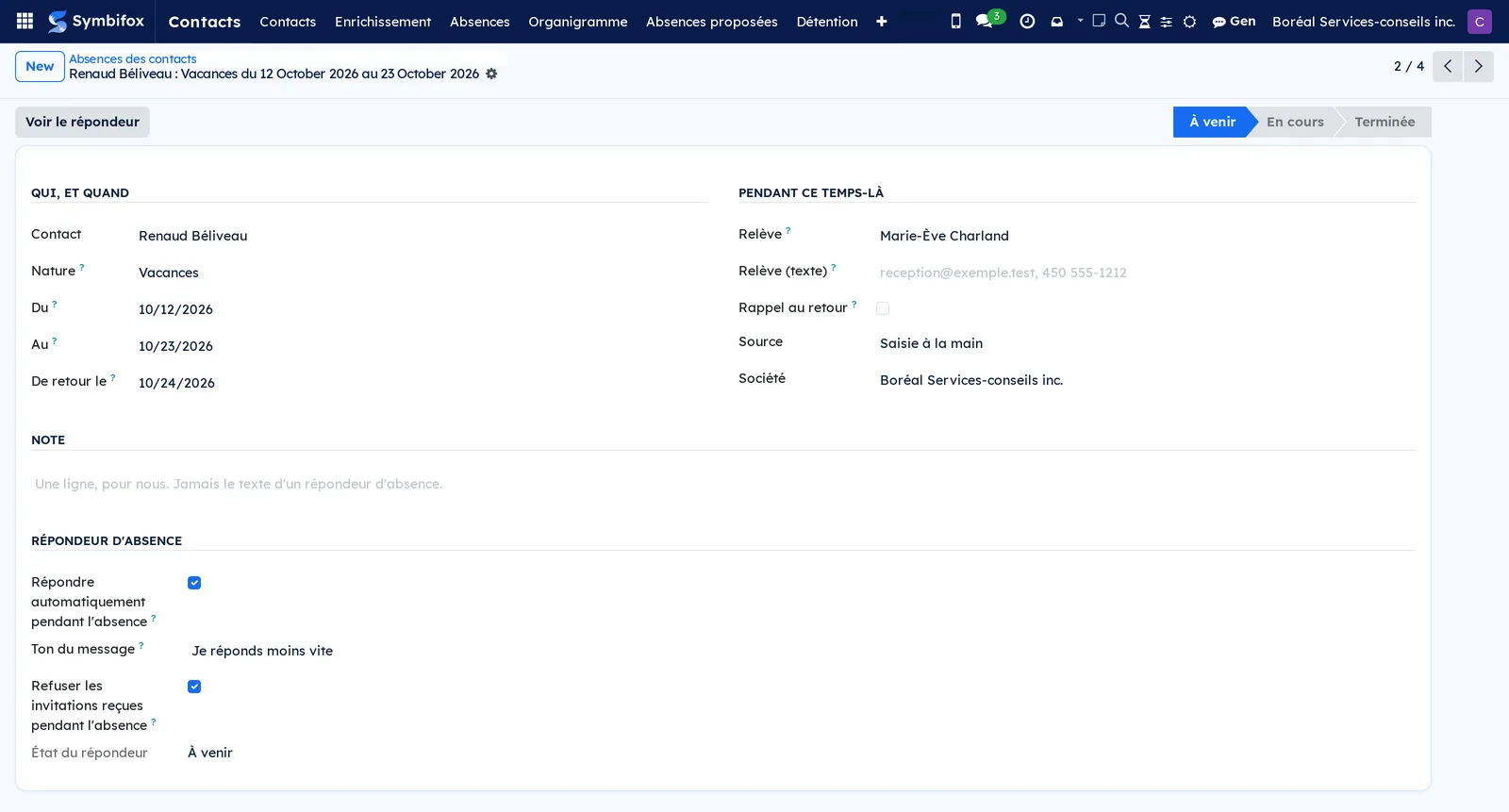
Worth knowing. Anyone may record a colleague's absence; arming their responder is another matter. An automatic message goes out under their name, from their mailbox: that box belongs to them, or to an email administrator.
No text, nothing arms: if the house messages have been deleted and you have not written your own, the screen refuses and says so. An empty template sent to a client costs more than a silence.
The menus, one by one#
Contacts › Contacts: the kanban view of the address book, with New and the search. Cards can be grouped by company, tag or industry. The provided filters distinguish people, companies, customers and suppliers, and one filter isolates incomplete records. The form holds the enrichment buttons, the shortcut button Persona and the Persona tab (screenshot m141_form.png).
Contacts › Enrichment: a grouping menu for the three dialogs below.
Contacts › Absence calendars: the hand-kept calendars the module reads again, with their connection, their default nature, their last read and its result. The button on the row reads again right away.
Contacts › Organigramme (org chart): the hierarchy view of the people who are part of a chain of command, with the name, the role and the company on each card. It is described in the Org charts chapter.
Contacts › Détention (ownership): the list of ownership links recorded between companies and holders, with their share and their source. It is also described in the Org charts chapter.
Contacts › I'm away: the dialog that records your own absence and arms your responder. The same gesture is offered in the email application, under Configuration.
Contacts › Enrichment › Scan a card: the Scan a business card dialog, reserved for the Contact Enrichment group.
Contacts › Enrichment › Import a vCard: the dialog for importing a .vcf file.
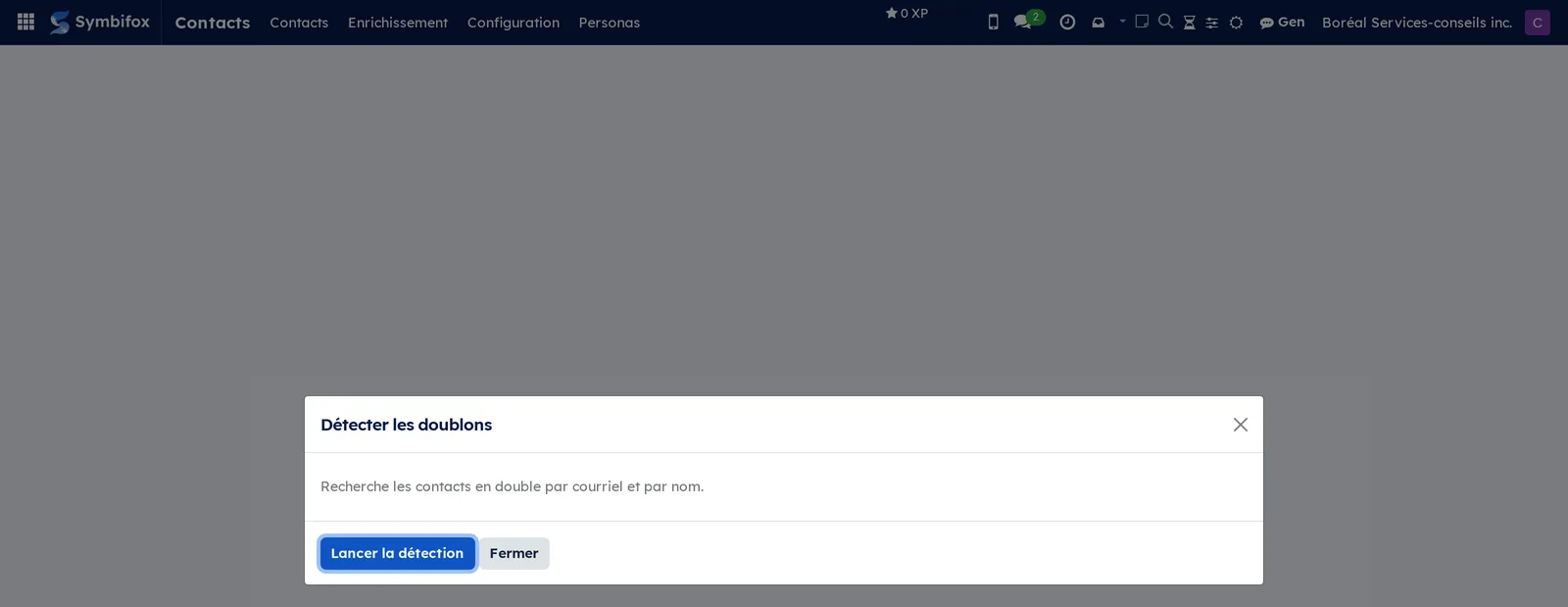
Contacts › Enrichment › Find duplicates: the detection dialog, with Run the detection and Close.
Contacts › Configuration: a grouping menu for the base data.
Contacts › Configuration › Contact Tags: the list of tags, empty on the demo, with name, colour and parent tag.
Contacts › Configuration › Contact Titles: the five provided titles, with their abbreviation.
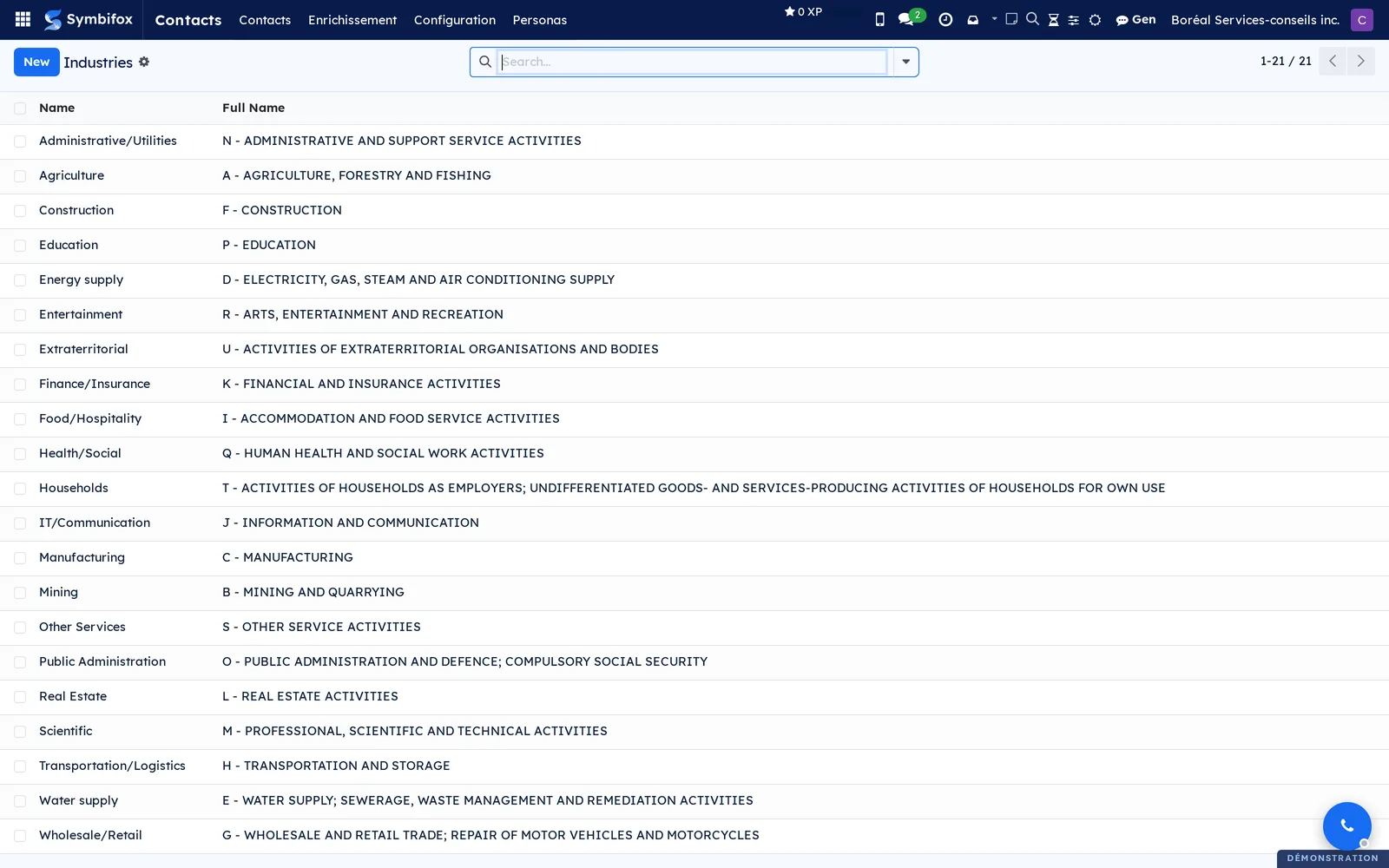
Contacts › Configuration › Industries: the 21 provided industries, with the Name and Full Name columns. The full name repeats the official title from the classification.
Contacts › Configuration › Localization: a grouping menu.
Contacts › Configuration › Localization › Countries: the 250 provided countries, with code and currency.
Contacts › Configuration › Localization › Fed. States: the provinces, states and regions of each country.
Contacts › Configuration › Localization › Country Group: groupings of countries (six provided).
Contacts › Configuration › Bank Accounts: a grouping menu.
Contacts › Configuration › Bank Accounts › Banks: the financial institutions (one on the demo).
Contacts › Configuration › Bank Accounts › Bank Accounts: the accounts linked to contacts, empty on the demo.
Contacts › Personas: a grouping menu, visible to the Utilisateur persona group.
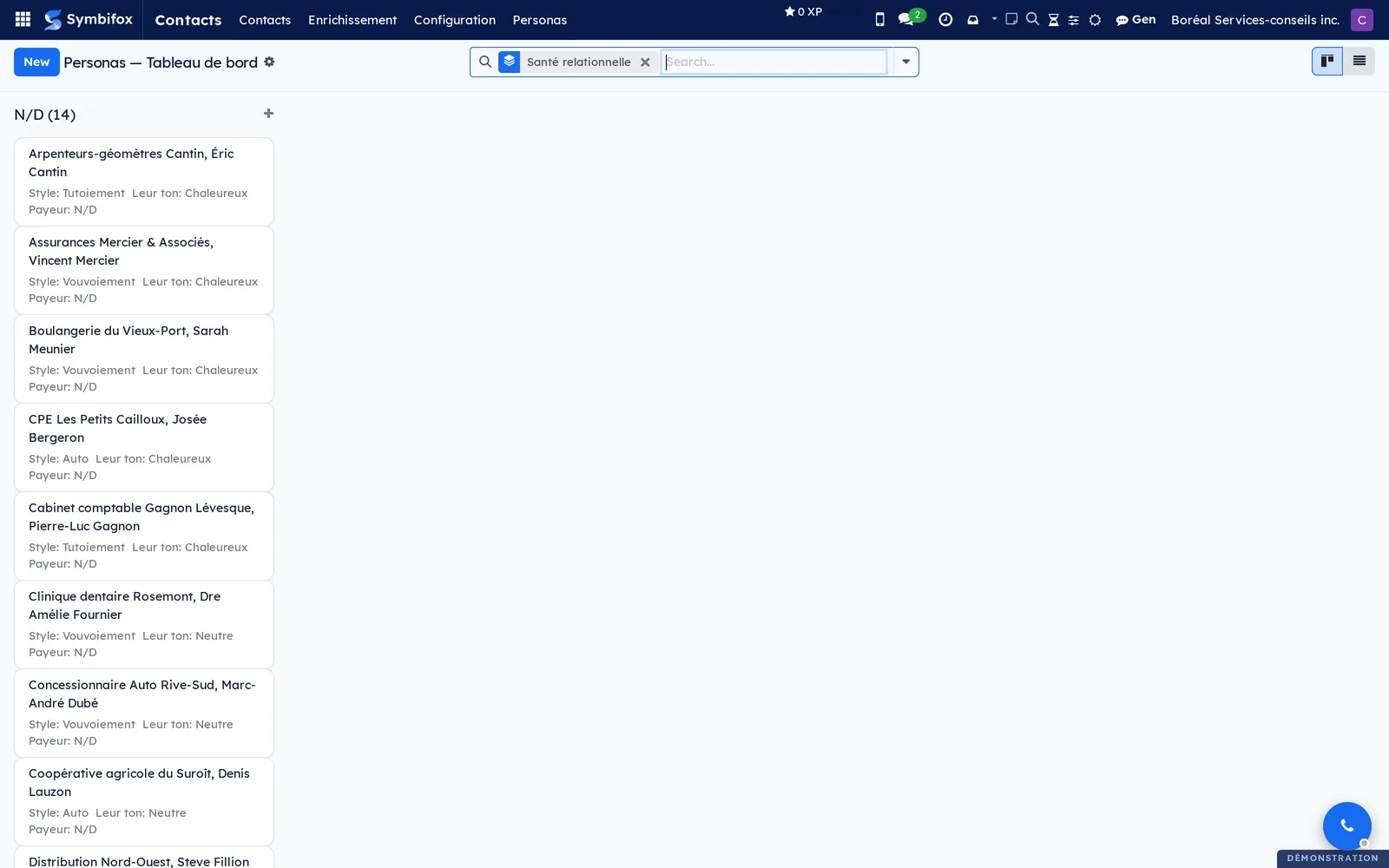
Contacts › Personas › Tableau de bord: a kanban view of the personas, grouped by relationship health (Santé relationnelle on screen). Each card gives the addressing style, the contact's tone and the payer. On an empty screen, the help text invites you to run the automatic seeding or to create a persona by hand.
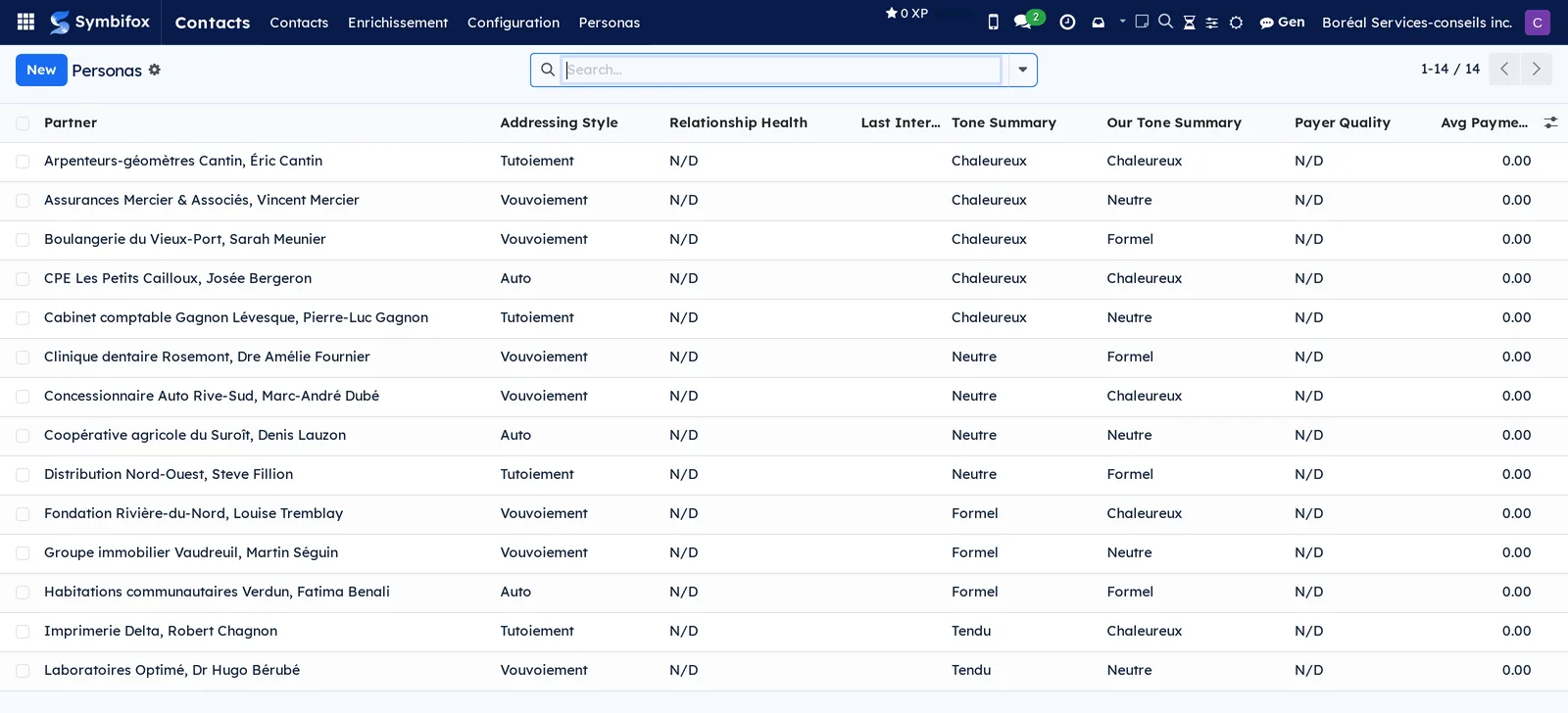
Contacts › Personas › Personas: the same information as a list, with the columns Contact, Style d'adresse (form of address), Relation (relationship), Pourquoi (why), Dernier échange (last exchange), Sans réponse (unanswered) and Payeur (payer). The Pourquoi column carries the sentence that explains the state, and sorts like the others. Headers and values are in French: Tutoiement (informal “tu”), Vouvoiement (formal “vous”), Saine (healthy), À surveiller (to watch), Dégradée (degraded).
Contacts › Personas › Règles de copie (copy rules): every copy rule, across all personas, with the columns Persona, Règle (rule), Contacts, Obligatoire (mandatory), État (state) and Constat (evidence). The Suggérées filter is on when the screen opens; Confirmer and Rejeter act on the line.
Contacts › Personas › Catégories: the list of communication categories (Catégorie, Code, Couleur, a free colour, Couleur affichée, which opens My color, and Active), reserved for managers. You can reorder the five delivered categories by dragging them.
Reference#
Fields of the Contact form#
| Field | Description | Required or default |
|---|---|---|
| Name | Name of the company or the person | Required |
| Individual / Company | Record type | Individual |
| Company (parent) | The company's record, for a person | Optional |
| Address, Phone, Mobile, Email, Website | Contact details; a person's address follows their company's | Optional |
| Job Position, Title, Language, Tags, Secteur d'activité | Classification of the record | Optional |
| Completeness | Percentage of contact details filled in | Computed |
| Queued for enrichment | Checked by the bulk action, cleared after processing | Cleared |
| Completion by Gen, Gen's proposal, Gen's message | Status of a company's online search, suggested values, reason for a failure; they show through the banners and the See Gen's proposal button, not as fields on the form | Filled in by Gen |
| LinkedIn profile | Address of the person's profile, found by the search and kept to key the later readings | Optional |
| Persona, Résumé persona | Relationship profile and its summary | Created on first access |
| Ne plus démarcher | Set by Outreach when the person refuses solicitation | Cleared |
| Nextcloud Address Book, Contact Sync Source, Last Contact Sync | Linked address book, origin of the record, last synchronization | Filled in by the synchronization |
Fields of the Scan a business card dialog#
| Field | Description | Required or default |
|---|---|---|
| Business card | Image or PDF of the card, front side | Required to read the card |
| Contact to enrich | Existing record that the card updates | Optional |
| Full name, First name, Last name, Job title, Company | Identity read, editable | Filled in by the reading |
| Email, Phone, Mobile, Website, Street, City, ZIP code, Country | Contact details read | Filled in by the reading |
| Text read, Confidence | Raw transcription and confidence index | Read-only |
| Existing contact detected | Record found by email, name or domain | Computed |
| Action | Create a new contact or Update the detected contact | Create a new contact |
Fields of the Persona form#
| Field | Description | Required or default |
|---|---|---|
| Style d'adresse (form of address) | Tutoiement, Vouvoiement or Auto | Auto |
| Salutation, Formule de clôture (greeting, closing) | Texts placed by Appliquer le persona | Optional |
| À savoir avant d'écrire (what to know before writing) | What cannot be guessed; repeated as is in the banner and to Gen | Optional |
| Leur ton envers nous, Notre ton envers eux (their tone, our tone) | The tone observed each way, with notes | Not assessed |
| Payeur, Délai moyen de paiement (payer, average delay) | Payer behaviour; the delay is recalculated every day | Computed |
| Relation, Pourquoi (relationship, why) | The state of the relationship and the reason for it | Measured daily |
| Dernier courriel reçu, Dernier courriel envoyé, Reçus (90 j), Envoyés (90 j) | The exchanges, each way | Measured daily |
| Sans réponse, Sans réponse depuis (unanswered, since) | Your messages left without a reply, and the date of the first | Measured daily |
| Longueur de nos courriels (mots) (length of ours, words) | Median of your last ten messages to this contact | Measured daily |
| Règles de copie (copy rules) | People to copy, or never to copy | Optional |
| Détails personnels | Family, hobbies, milestones; managers only | Optional |
| Éléments partagés avec le contact (items shared with the contact) | Linked knowledge base items | Optional |
| KPIs | Indicators specific to the contact | Optional |
Fields of the Nextcloud Address Book form#
| Field | Description | Required or default |
|---|---|---|
| Address Book Name | Name of the configuration | Required |
| Nextcloud URL | Base address of the Nextcloud server | Required |
| CardDAV Path | Path of the address book, such as /remote.php/dav/addressbooks/users/<user>/contacts/ |
Required |
| Nextcloud User, App Password | Nextcloud account and app password, encrypted on save | Required |
| Sync Direction | Bidirectional, Odoo → NC (Symbifox to Nextcloud) or NC → Odoo (the reverse) | Odoo → NC |
| Exclusion Tag | Tag whose holders are never synchronized | Required |
Reports and exports#
The application provides no printed report. The list view exports through Actions › Export, with a choice of columns. Personas can be grouped and filtered in the list and kanban views. Importing goes through the standard importer of the list view, or through Import a vCard.
Automations#
- Every 30 minutes, the records queued by Enrich from email signatures are processed in batches, without replacing an entered value.
- Every day, the facts of the relationship are measured again on the archived mail: last exchange each way, messages left unanswered, median length of yours. The state of the relationship and its reason follow from them; a switch to “dégradée” triggers the alert.
- Every day, each persona's average payment delay is recalculated. Tones not assessed for more than six months are marked for refresh.
- Every week, the mail sent over the last six months is read again, and a copy rule is proposed when someone accompanies a contact at least four times and on at least half of those messages. The proposal waits for a decision.
- Every month, a persona is seeded for every active person without a profile, from at least three messages exchanged over the last 90 days. Companies, role mailboxes and your own addresses are left out.
- Every day, if you turn it on (it is off at installation), a “Réévaluer le persona” (reassess the persona) activity is created on stale but active personas.
- Every six hours, each absence calendar is read again, and what it announces joins the proposed absences.
- Every 15 minutes, if the setting is on, the Nextcloud synchronization pushes changed records and pulls new ones. A full resynchronization every six hours also exists, off at installation.
Public pages and portal#
The /scan page is reserved for signed-in users. Its Business card tile appears only to those who hold the Contact Enrichment group and the Contact Creation right; the other tiles each answer to the right behind their own gesture. It installs on a phone's home screen and captures the card with the camera. Its manifest and its installation script are public, because a browser requests them without being signed in; they contain nothing private. Contacts exposes nothing on the customer portal.
Modules that extend this application#
The persona relies on Invoicing (payment delay) and on the knowledge base (shared items); both must be installed.
The Nextcloud synchronization depends on no other Symbifox module; it talks directly to the Nextcloud server.
Two other modules add fields to the record without belonging to this chapter. Outreach adds Ne plus démarcher (see Outreach). Privacy keeps consent preferences there (see Privacy (Law 25 and other frameworks)).
Understanding#
Enrichment adds; it does not undo. A value already entered is never replaced, unless you check Overwrite existing values. Each addition is logged in the chatter with its origin. You can therefore run enrichment on the whole address book without fear of losing a correction made by hand.
The AI reads data, not instructions. The content of a card or an email is treated as material to extract, never as an instruction. Calls go through the assistant's service, so through the server's Claude account: the image of a card, the text of a signature or the address of a website are sent to the model provider (Claude). Website enrichment also requires an autonomous web search, handled by Gen. The LinkedIn search sends the person's name, company and job title to that web search; the paid reading sends the profile address to RocketReach, a third party.
Why a mobile page rather than an app. Scanning a card takes ten seconds and needs neither notifications nor offline work. An installable page costs an address to open, not an app store listing.
The persona tracks two tones. It distinguishes the person's tone toward you, read in the emails you receive from them, from yours toward them. A tone not reassessed for six months is marked stale.
The relationship is measured on your mail, not on how much of it there is. An engagement that ends well ends quietly: a drop in traffic says nothing. What does say something is a message sent and left unanswered, a low score on the last survey, an open complaint. With no archived mail for a contact, the state stays “N/D” (not available), and the record says so rather than inventing a trend.
A habit is not a rule. The copy rules proposed every week do nothing until they are confirmed. Someone is often copied without having to be copied always, and the module has no business deciding for you; it shows the evidence and waits.
Seeding targets people. It creates profiles only for people with real activity; a new address book stays without personas until the first exchanges. A company can carry a persona, but it is created by hand.
Synchronization treats Symbifox as the reference. By default, every record goes to Nextcloud, except those with the exclusion tag. A push recreates the records missing from Nextcloud and deletes the cards that match nothing in Symbifox. On the way back, a card is matched to an existing record by its email before a new one is created. An unchanged record is skipped.
Limits to know. The duplicate detector compares the email and the normalized name, so two records with two emails and two spellings will not be found. The vCard reader handles the common dialects (Apple, Android, Outlook, Google).
Where the warning shows, and why it blocks nothing#
An absence is only useful if it shows at the moment of the move. The banner appears on the contact record, on the discussion thread of any record that has one (a task, an opportunity, a ticket), in the email composer window, in an SMS conversation header and in the softphone panel. Beyond three absent recipients it names three and counts the rest.
It never blocks a send. Writing to someone on holiday is often exactly what you want, so that the message is waiting for them. When it is not, the Schedule for their return button files the message with deferred sends, for the morning after they are back: nobody wants to be the first message in a full mailbox.
Recording an absence is not arming a responder#
The two gestures live in the same place and do not carry the same weight. Noting that a colleague is away is an ordinary part of keeping client relationships: anyone may do it, and that is deliberate. Arming their responder means writing to clients under their name, from their mailbox, while they are not there to read what goes out. So the module separates the two permissions: the box belongs to the holder or to an email administrator, and the screen says so rather than greying it out in silence.
Why a learned absence is proposed rather than written#
One automatic reply in three carries no readable date, and the net that recognises them sometimes catches a service message. A wrong record would be worse than an empty one: a warning that gets it wrong ends up ignored, and it takes the accurate ones down with it. So the module proposes, and a person decides.
Job application acknowledgements, which carry the same kind of subject without being absences, are recognised and set aside.
None of the automatic reply's text is copied onto the record: the module keeps the period, the nature and at most a stand-in. The original message stays in the unified mailbox under its own retention rules. The list of natures carries no health reason either, because an absence is personal information you keep to a minimum.
Troubleshooting#
| Symptom | Likely cause | Fix |
|---|---|---|
| Read the card shows a message and fills in nothing | The assistant's service does not answer | Check that it is running (see Gen, the assistant), then try again |
The Business card tile is missing from /scan |
The user lacks one of the two required rights | Grant the Contact Enrichment group and the Contact Creation right |
| Enrich now (signatures) changes nothing | No email received from this correspondent is archived, or the fields are already filled in | Check the Email application; to replace values, use Enrich (review) and check Overwrite existing values |
| The blue banner “Gen is searching for this company online” stays on | The search is still running, or the record has not been reloaded | Reload the record after a minute or two; a notification arrives at the end |
| Gen suggests nothing for a chain with several branches | Several addresses answer to the same name | Add the city to the record, then select Complete with Gen |
| Read the profile (1 credit) or the LinkedIn search ends on a “Search failed” message | The address is not a personal LinkedIn profile (a /in/ address), the service holds no RocketReach key, or its daily ceiling of paid readings is reached |
Check the address; otherwise ask whoever runs the assistant's service |
| Bulk records stay Queued for enrichment | The automatic task stopped in error | Restore the assistant's service; the queue resumes at the next run |
| Contacts disappeared from the Nextcloud address book | A push deleted the cards with no match in Symbifox | Recreate them in Symbifox, or synchronize to a dedicated Nextcloud address book |
| Read now answers "Pick the Nextcloud connection before reading the calendar." | The calendar was set up without a connection | Pick the Nextcloud connection under Where to read, then read again |
| A calendar entry is reported as "Not recognised" | Its name matches no contact, or several | Add a line under Shortcuts that ties it to the right contact |
| Test Connection fails | Inexact CardDAV path, or revoked app password | Copy the path again from Nextcloud's Contacts app and create a new app password |
| The composer banner says nothing about a recipient | Neither that person nor their company has a persona | Open their record and select Persona; the profile is created on the way |
| A Suggérée rule copies no one | A proposal does nothing until it is confirmed | Open Contacts › Personas › Règles de copie and select Confirmer |
| The relationship stays N/D | No mail exchanged with this contact is archived in Symbifox | The facts are read from the discussion threads; the state appears with the first exchanges. Mesurer maintenant recomputes without waiting |
See also#
- CRM: customers and opportunities.
- Outreach: campaigns and Ne plus démarcher.
- Email: create or enrich a contact from a received message.
- Gen, the assistant: the assistant's service (Claude account) and the /persona instruction.
- Knowledge base: the persona's shared items.
- Nextcloud and Collabora: address books and app passwords.
- Privacy (Law 25 and other frameworks): consent and contact preferences.
- Mobile apps and browser extension: the scanning page and its three tiles, on the phone.
- Common actions in every application: chatter, activities, import, export.