

Part 7 · Platform, hosting and artificial intelligence
Fleet updates
Track the update state of every machine in the fleet, read its agent's reports, and order updates applied remotely.
A fleet machine accumulates pending packages, an installed kernel it has not booted yet, an end of support that is approaching and a disk that fills up. This chapter covers the five screens that make all of it visible, machine by machine, and the order that applies updates without opening a session on the machine. It is for the person who runs the fleet, for their own organization or for clients. The goal: no machine ever goes quiet without someone knowing.
Overview#
These screens live inside the Hosting management application, under Hébergement › Infrastructure › Parc client (hosting, infrastructure, client fleet). They add to the fleet inventory rather than replace it: a machine remains a fleet record, with its warranty, serial number and assigned user.
Five notions are enough to read every screen.
- Machine: the physical object, the one with a serial number and a warranty. That is the fleet record.
- System: one installation on that machine. A dual-boot laptop carries two systems, and each has its own kernel, its own package manager and its own backlog.
- Agent: the small program installed on the machine. It measures the state and files it in Symbifox, then asks whether an order is waiting for it.
- Report: one timestamped measurement, with the detail of the packages pending at that moment.
- Order: a request to apply updates on one system, dropped into a queue that the agent comes to empty. The screens call it an update job.
A machine's state is the worst of its systems. A laptop whose Linux side is up to date and whose other side has not spoken for six days is not up to date: it is silent.
Here is the overview screen on the Boréal demo, grouped by state.
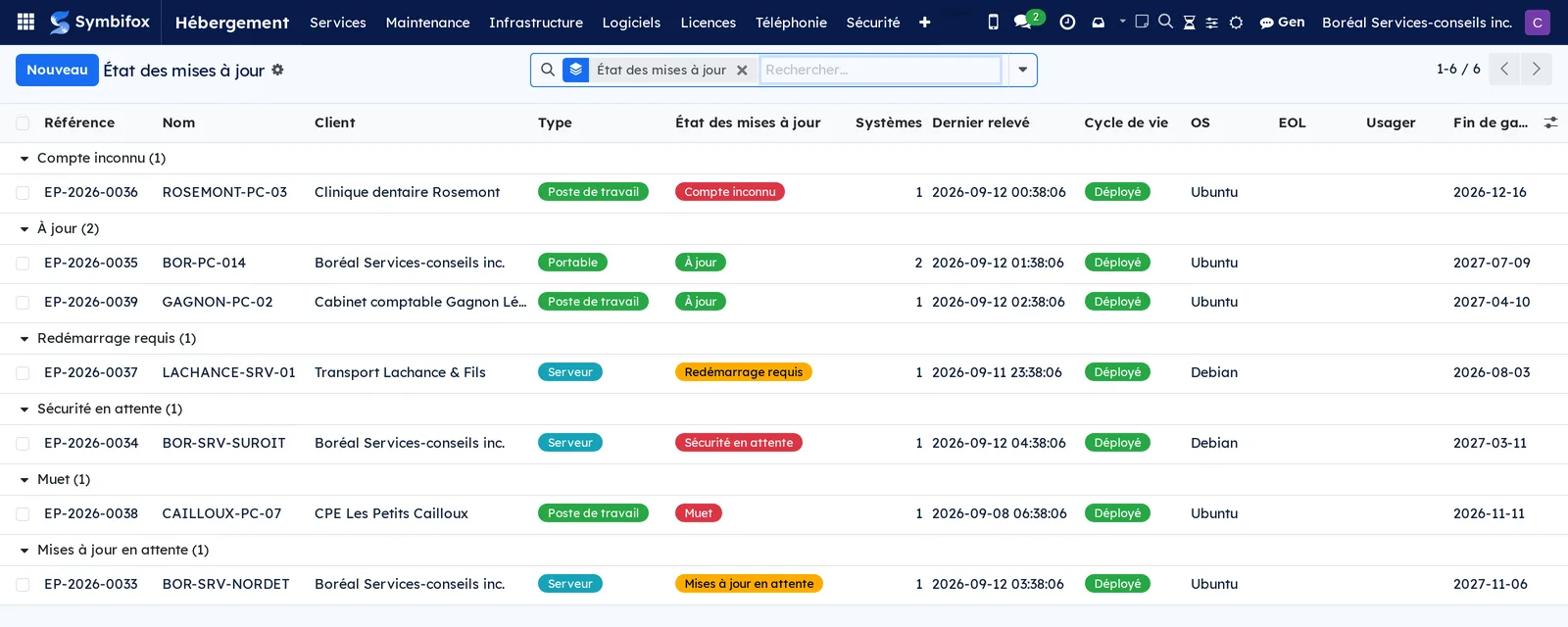
What sets the approach apart: a missing report is an alert, never a silence. A machine that stops talking flips after forty-eight hours into a state that shows up in red, exactly like a machine two hundred packages behind. And a package count is never displayed without the date of the report that produced it, because a zero from three weeks ago does not mean what a zero from today means.
Configuration#
Access and rights#
The two groups of the hosting application also govern these screens.
| Group | What it opens |
|---|---|
| Utilisateur d'hébergement (hosting user) | View machine states, systems, reports and orders, for the clients whose services the organization manages. |
| Gestionnaire d'hébergement (hosting manager) | In addition: generate an enrolment code, revoke an agent, create an order and pull it from the queue. |
The enrolment code is readable only at the second level. That is deliberate: it is valid for one machine, and for thirty minutes it grants the right to file reports.
Settings#
There is nothing to set in Symbifox. The cadences are fixed, and the only decision that matters is taken on the machine itself, not here: remote application stays closed until a consent file has been placed by hand on the machine.
Base data#
Only one thing has to exist first: the machine's record. The agent never creates a fleet record, it only fills in one that a person created. If the machine is not in the fleet yet, create it under Hébergement › Infrastructure › Parc client › Tous les postes (all devices).
Getting started#
This walkthrough installs the agent on a machine and takes you to its first report.
- Go to Hébergement › Infrastructure › Parc client › Tous les postes and open the machine to track.
- Open the Updates tab.
- Select Generate an enrollment code. A notification shows the code. It lasts thirty minutes, and covers one system.
- On the machine, as an administrator, run the installer shipped with the module, passing it your Symbifox address and that code.
- The installation drops the agent, exchanges the code for a token specific to that machine, then takes a first report.
- Come back to the record. The Updates tab shows the state, the date of the last report and the number of systems.
- Go to Hébergement › Infrastructure › Parc client › Tracked systems to see the system that just appeared.
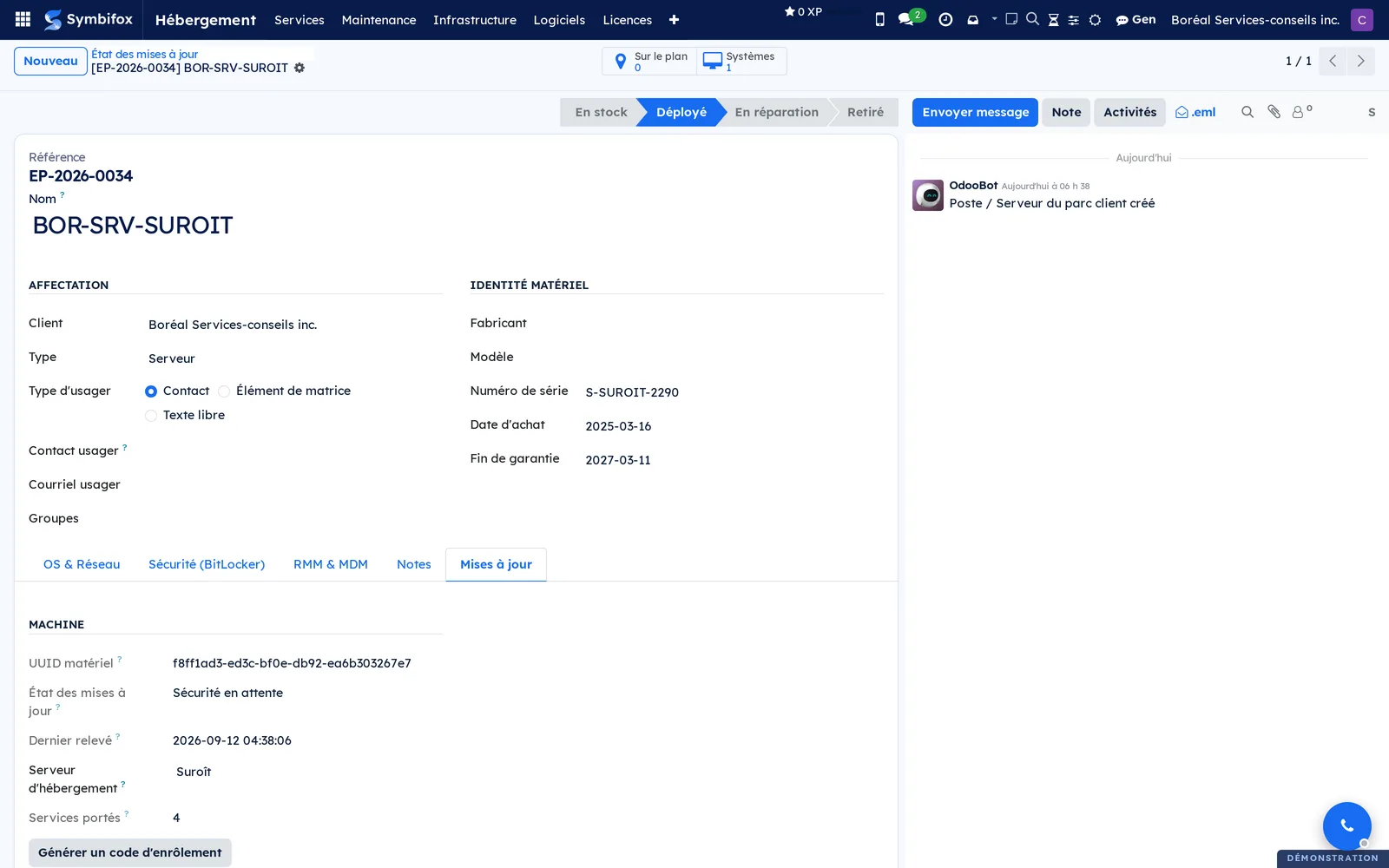
Here is the Updates tab of one of Boréal's servers, once the agent is in place.
Common tasks#
Read the fleet state on one screen#
This screen answers one question: where to look first.
- Go to Hébergement › Infrastructure › Parc client › Update status.
- Leave the grouping by state in place.
- Open the Security updates pending, Silent and Unknown count groups before the others.
- Open a machine to see its systems.
Machines without an agent do not appear here: this screen shows only what is tracked.
Watch the fleet from the dashboard#
The IT fleet card sums up the fleet in four numbers, without opening the hosting application.
- Open Tableau de bord (dashboard) in the main bar.
- Find the IT fleet card, right after the hosting card. Its title carries the number of tracked systems.
- Read the four lines in order: Silent (48 h), Unknown count, Security updates pending, Reboot required.
- Select a line to open the systems in that state, or the card's title to open the systems that need a look.
Each number counts exactly the list its click opens. The first two lines come first because they are the ones saying that nobody is measuring any more. The card's footer gives the time of the latest report, in your time zone; when there is no report yet, it says so in red, because a zero without a date reads like a zero from today.
Follow systems rather than machines#
A machine aggregates, a system measures. When you are after the cause rather than the alert, switch to systems.
- Go to Hébergement › Infrastructure › Parc client › Tracked systems.
- Keep the grouping by machine, so both sides of a dual boot read together.
- Add the Change since previous report column if you are following how a backlog grows.
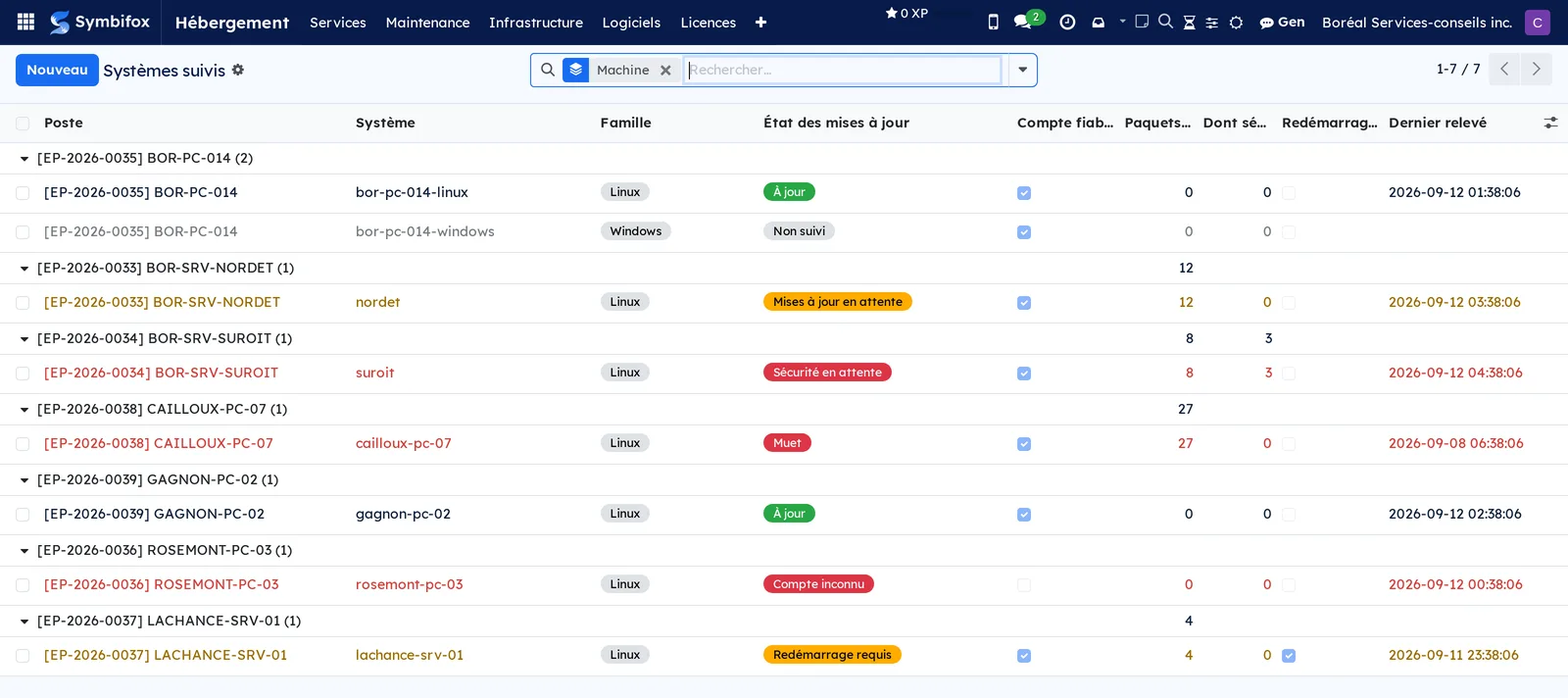
On the demo, machine BOR-PC-014 carries two systems: the Linux side, up to date, and the Windows side, Not tracked, for want of an agent.
Spot what needs a decision#
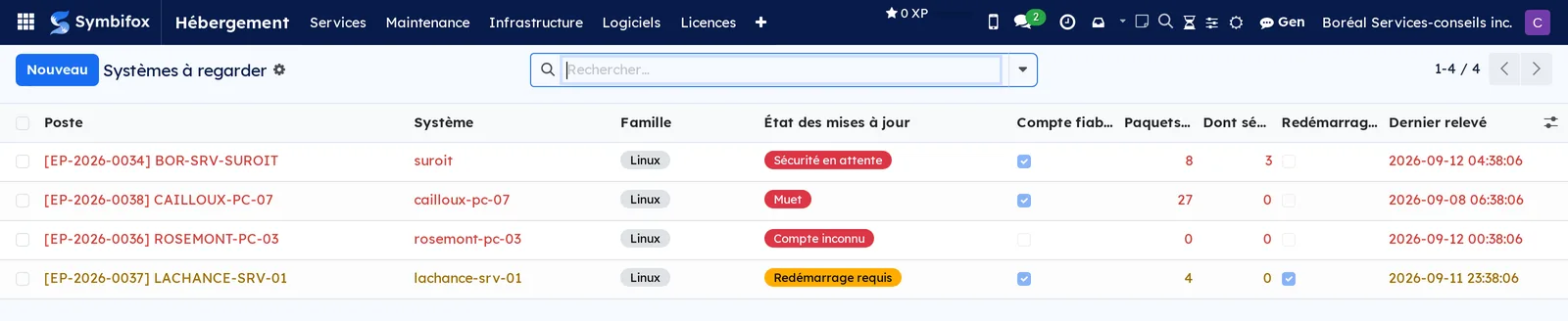
- Go to Hébergement › Infrastructure › Parc client › Systems to check.
- Work the list from the top. It keeps only the systems that are silent, whose count is unknown, that await a security fix or that await a reboot.
This list is empty when all is well. It is the only screen in this chapter whose emptiness is good news.
Read a report and its packages#
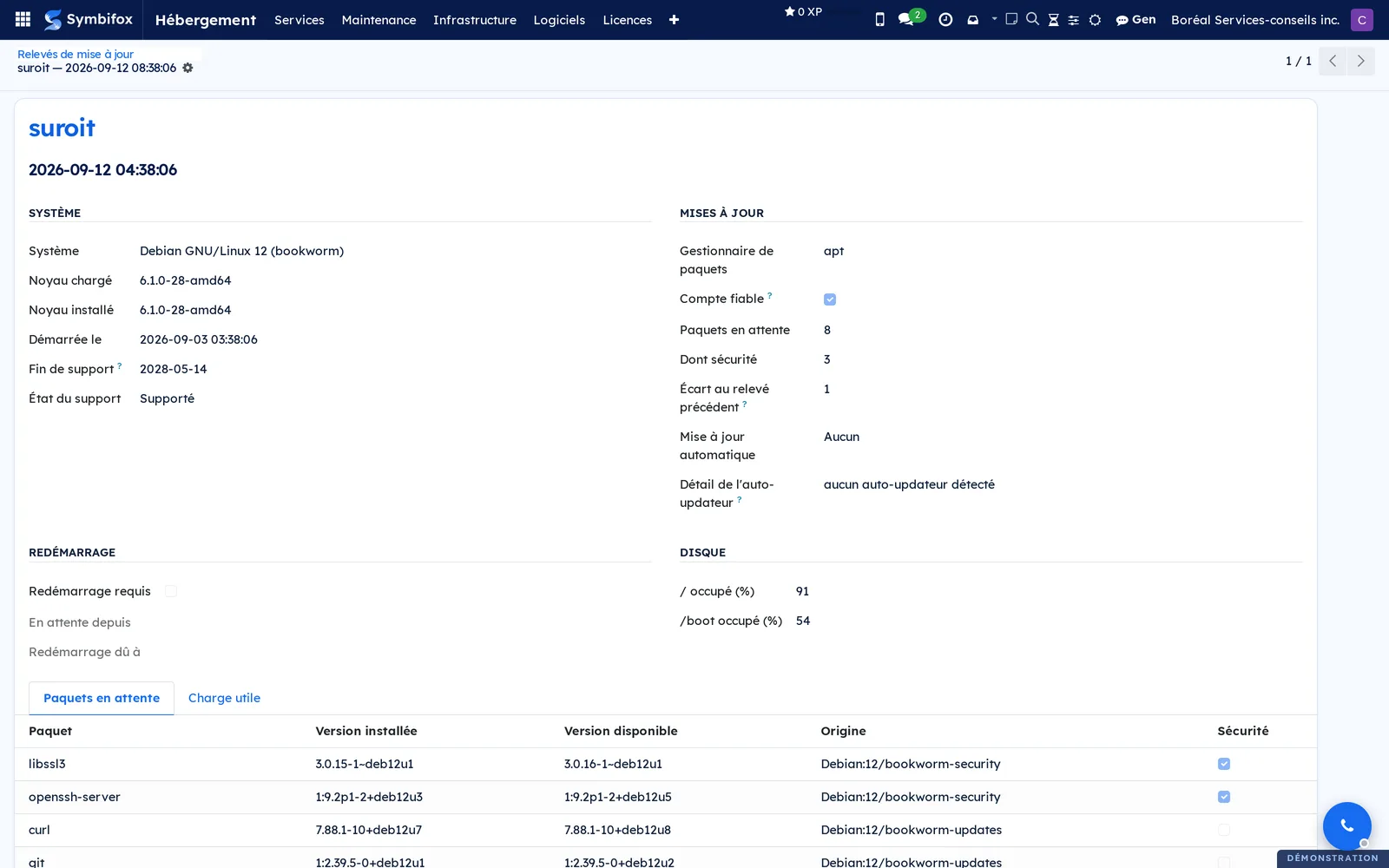
A report says what the machine measured, to the second, and what was still pending at that moment.
- Go to Hébergement › Infrastructure › Parc client › Update reports.
- Open the report you want, or go through a system's Reports tab.
- Read the Updates block for the count, the Reboot block for the kernel, the Disk block for the room left.
- Open the Pending packages tab for the detail, name by name.
Allow remote application on a machine#
Three consents are needed, and all three are required: a person creates the order, the server checks that the machine has declared its agreement, and the machine checks its own consent file at the moment of acting.
- On the machine, as an administrator, create the consent file.
- Enable the regular poll, so the agent comes and asks whether it has an order.
- Wait for the next report.
- On the system's record, check that Remote apply allowed is ticked and that a blue banner says so.
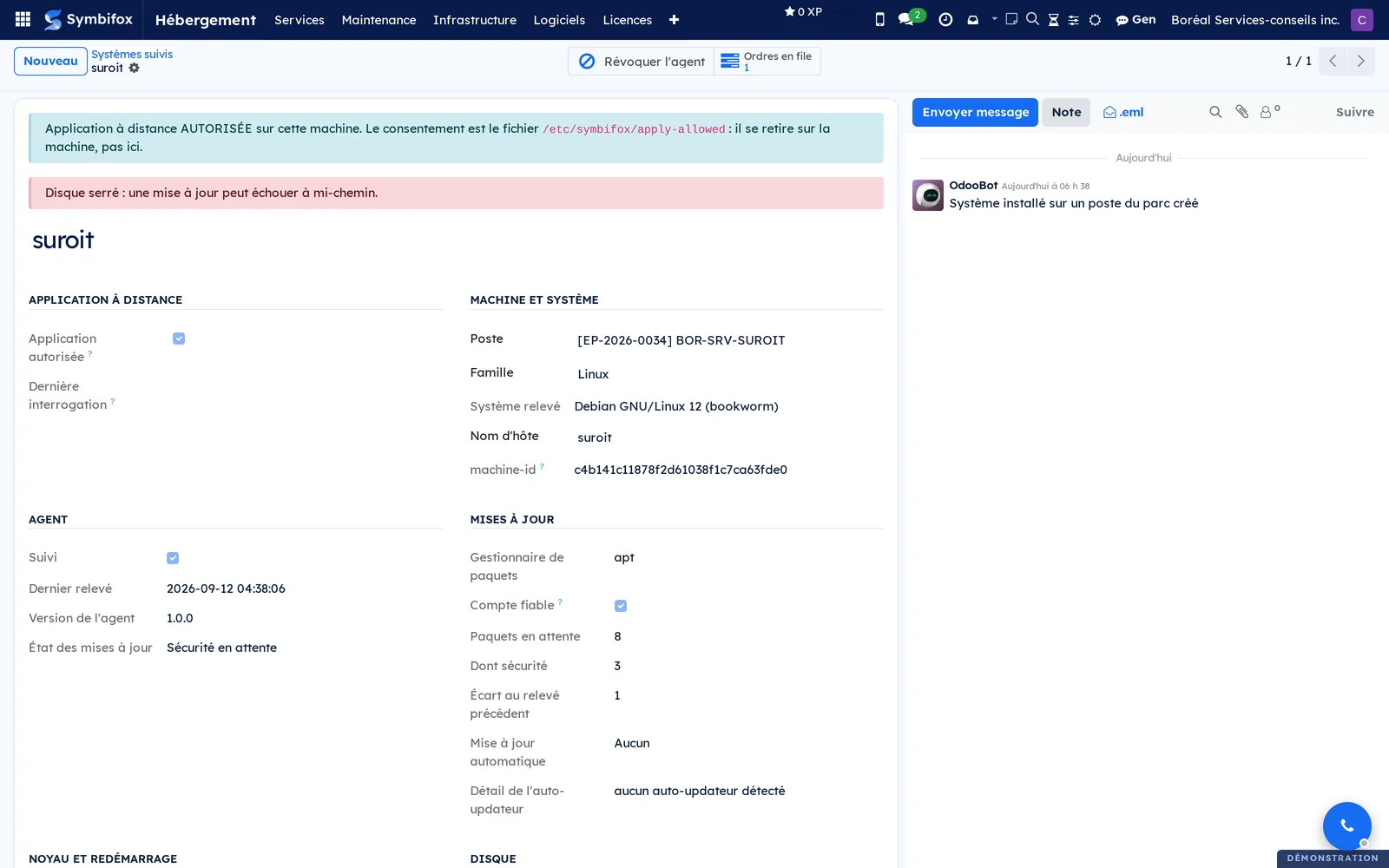
To close it again, delete the file on the machine. The effect is immediate: the agent turns the next order down, and Symbifox withdraws the authorization from the record as soon as it hears about that refusal.
Order updates applied#
Prerequisite: the system must be tracked and must have declared its consent.
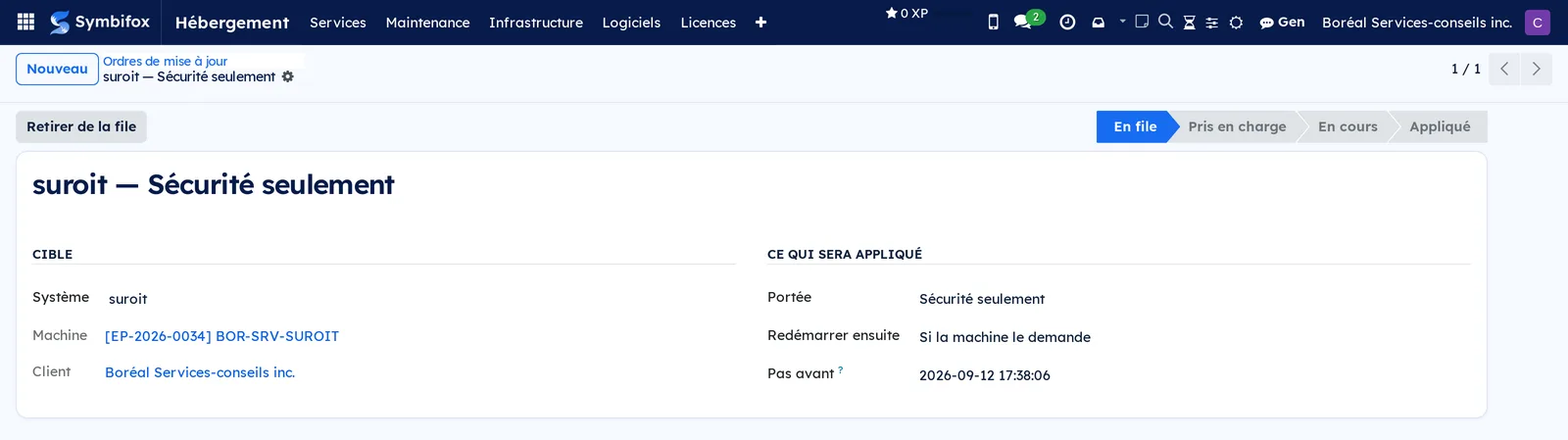
- Go to Hébergement › Infrastructure › Parc client › Update jobs, then select New.
- Choose the System to target.
- Choose the Scope: Security only, All updates, Named packages or Reboot only.
- For Named packages, enter the names separated by spaces or commas.
- Choose Reboot afterwards: Never, If the machine requires it or Always.
- Fill in Not before to hold the order until a quiet hour, or leave it empty for straight away.
- Save. The order joins the queue and the machine will take it at its next poll.
Pull an order from the queue#
- Open the order while it is still Queued or Claimed.
- Select Remove from queue.
- Check that the order moves to Expired and that the reason is recorded.
An order that has already been applied cannot be pulled: it happened.
Make sense of a refused order#
An order that fails always carries the machine's own words, in the Outcome block.
- Open the order in state Failed.
- Read the Exit code and the Machine output.
- Act on the machine, then create a new order if needed.
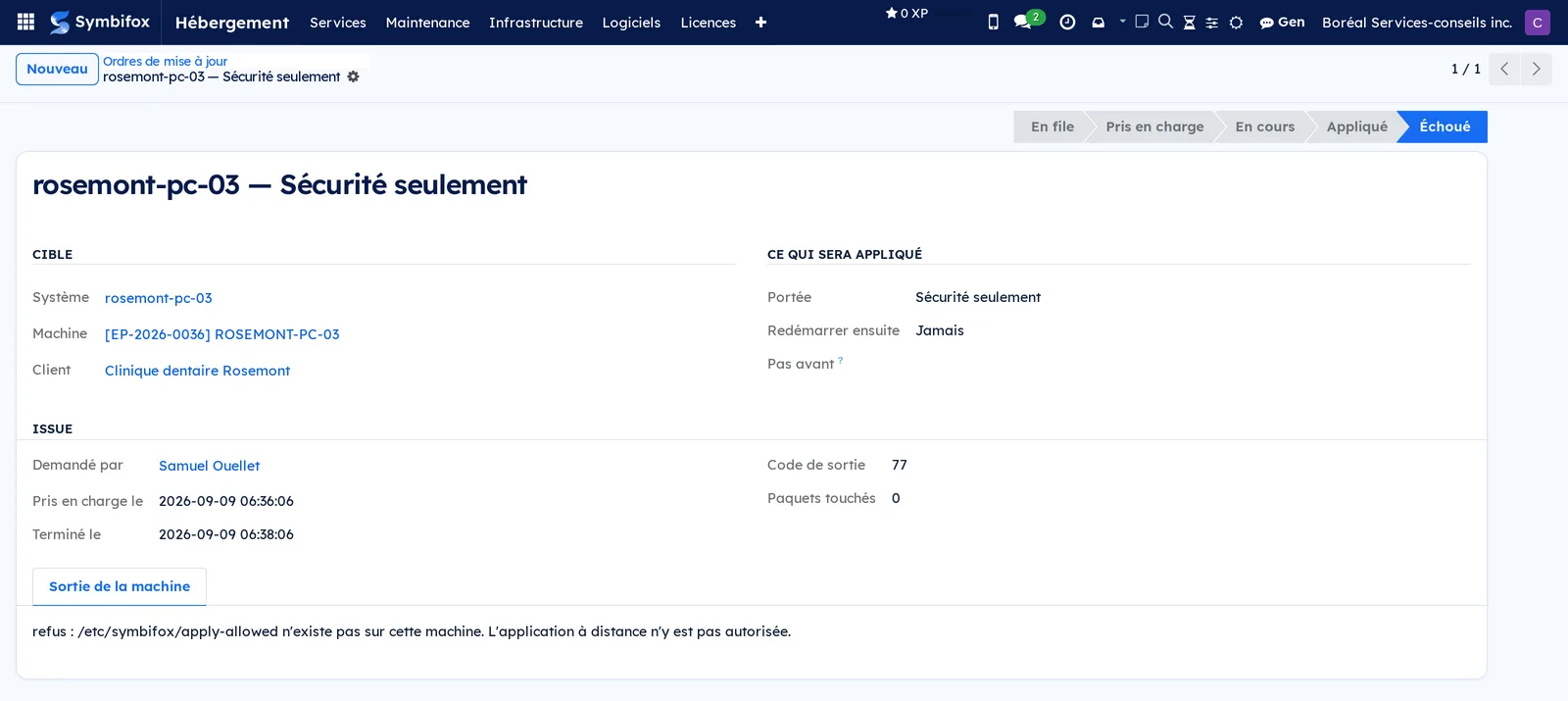
On the demo, the Clinique dentaire Rosemont workstation refused because its consent file does not exist. The order went out, the machine said no, and the refusal is written down.
Revoke a system's agent#
- Open the system under Tracked systems.
- Select Revoke agent and confirm.
- That agent's next report will be refused, and the system stops being tracked.
Use this when a machine leaves the fleet or changes hands. Putting it back in service takes a new enrolment code.
Schedule maintenance on a machine#
A scheduled maintenance could target a hosted service, never a machine. It can now target a machine, and even one side of a dual boot.
- Go to Hébergement › Maintenance › Tous les horaires (all schedules), then select New.
- Choose the Correctifs de sécurité (security patches) type.
- Fill in the Fleet endpoint, and the Target system if the work concerns one side only.
- Choose the frequency and the first due date, then save.
The client on the record follows from the machine, and the list's Target column names the machine. The work joins the other deadlines in the hosting application: the dashboard's maintenance counters, the En retard (overdue) and Cette semaine (this week) lists, and the summary email, which names the machine. It drops out once the machine is archived or retired from the fleet.
The menus, one by one#
The five entries live under Hébergement › Infrastructure › Parc client, after the inventory screens.
- Hébergement › Infrastructure › Parc client › Update status: the list of tracked machines, grouped by state. Useful columns: the reference, the client, the number of Systems, the Update status as a pill and the Last report. This is the chapter's entry screen.
- Hébergement › Infrastructure › Parc client › Tracked systems: one system per row, grouped by machine, with the package count, the security share, the reboot flag and the date of the last report. Red rows need a decision, amber rows need attention.
- Hébergement › Infrastructure › Parc client › Systems to check: the same list, reduced to systems that are silent, whose count is unknown, or that await security fixes or a reboot.
- Hébergement › Infrastructure › Parc client › Update reports: the full history, newest first, across every system. The filters by system and by date serve to follow how a backlog grows.
- Hébergement › Infrastructure › Parc client › Update jobs: the queue and its history, with each order's state, what it targeted and what it changed.

Reference#
Fields on the System form#
| Field | Description | Required or default |
|---|---|---|
| System | The name of the installation, not of the machine. | Required |
| Endpoint | The fleet record that carries this system. | Required |
| OS family | Linux, Windows, macOS or other. | Linux by default |
| Reported system | The operating system as the machine declares it. | Reported, read-only |
| machine-id | The installation's identity, read at enrolment. Two systems cannot share it. | Reported, read-only |
| Tracked | Ticked as long as a valid agent is in place. | Ticked at enrolment |
| Remote apply allowed | The consent file existed at the last report. | Unticked by default |
| Last report | Timestamp of the agent's last filing. | Reported |
| Reliable count | Unticked when the package manager did not answer. | Ticked when the measurement worked |
| Pending packages and Pending security packages | What the machine counted. | Reported |
| Change since previous report | The change since the previous measurement. | Computed |
| Automatic updates | The auto-updater's mode, never merely its presence. | Reported |
| Running kernel and Installed kernel | Two separate fields. The gap between them reveals a pending reboot. | Reported |
| / used (%) and /boot used (%) | Disk usage, following the system tool's own convention. | Reported |
| End of support and Support status | Read on the machine, never guessed. A rolling-release system has no date, and that is the information. | Reported |
Fields on the Update order form#
| Field | Description | Required or default |
|---|---|---|
| System | The target. An order targets a system, never a machine. | Required |
| Scope | Security only, all updates, named packages, reboot only. | Security only |
| Packages | The names targeted, for the named-packages scope. | Required in that case |
| Reboot afterwards | Never, if the machine asks for it, always. | Never |
| Not before | The order is not handed over before this date. | Empty, so straight away |
| Requested by | The person who created the order. | The current user |
| State | Queued, claimed, running, applied, failed, expired. | Queued |
| Exit code, Packages changed, Machine output | What the machine reported. | Reported at the end |
Reports and exports#
No printed report. The five screens export like every Symbifox list, and a report's Payload tab keeps the raw measurement exactly as the machine sent it.
Automations#
Three mechanisms run on their own, and a fourth comes from a satellite module.
| What happens on its own | How often |
|---|---|
| Systems that have not spoken for forty-eight hours flip to Silent. | Every four hours |
| Reports older than ninety days are deleted. | Once a day |
| Orders nobody has executed for seven days move to Expired. | Every six hours |
| A section of the daily digest summarizes the fleet state. | Once a day |
On the machine side, the agent reports once a day and on waking, and polls the queue every minute wherever consent exists.
Public pages and portal#
No portal page. The module exposes token-protected filing addresses that only the agent uses: the token authenticates a machine, never a person, and it can do nothing but file a report on the record it names.
Modules that extend this application#
The section stays quiet when all is well: a paragraph that repeats every morning that all is well stops being read. But a silent system always brings it out, with an opening sentence recalling that a missing report is not good news. It is read as each recipient: someone without access to hosting gets no section, and someone limited to some clients only sees those clients' systems.
Understanding#
Why the machine talks and the centre listens. Symbifox has no route into the fleet machines, and wants none. The agent files its reports and asks whether it has an order. That settles three things at once: machines you cannot reach from outside, the laptop that is only on part of the time, and the attack surface, since a compromised instance holds no key into the fleet.
Why three consents. The first is the person who creates the order. The second is the server, which refuses to hand an order to a machine that has not declared its agreement. The third is the machine itself, and it is the only one that truly counts: it is local, placed by hand, and withdrawn without going through Symbifox. The first two catch an operating mistake, the third protects the machine even if Symbifox falls into the wrong hands.
Why a count is never guessed. After a successful application, the counters on display are still the ones from before: the agent reports the outcome of the order, not a fresh measurement. Rather than subtract an estimate, the record shows a warning saying its figures predate the order. A recent agent files a report right after and the warning clears within seconds; an older agent leaves the gap open until the next daily run.
Why a count can read as unknown. When the package manager does not answer, the machine does not return zero: it says it could not count, and the state becomes Unknown count. That is the difference between a healthy machine and a machine whose tooling is broken, and it is exactly the kind of failure an all-green board usually hides.
What a report does not do. It does not refresh the machine's package index: it reads what the machine already knows. On a machine whose index has not been refreshed for weeks, the count is that many weeks old, and keeping it current is the job of the local auto-updater, whose mode is reported for that very reason.
Which systems are covered. The agent covers the package managers of the common Linux distributions. A Windows side can exist as a system record, and it then reads Not tracked: it counts in the inventory, not in the monitoring. Saying so is better than implying a coverage that does not exist.
Troubleshooting#
| Symptom | Likely cause | Fix |
|---|---|---|
| A machine turns Silent although it is running. | Its agent no longer files reports: machine off, timer stopped, token revoked. | Check the machine, then enrol it again if the token was revoked. |
| A system reads Unknown count. | The package manager did not answer at the time of the report. | Open a session on the machine and refresh the index by hand to see the error. |
| Enrolment fails saying the machine is already in the fleet. | Another record already carries the same hardware identifier. | Find the twin record, decide which to keep, then archive the other. |
| An order stays Queued and never goes out. | The regular poll is not enabled on the machine, or consent is missing there. | Check the consent file and the poll on the machine. |
| An order comes back Failed with a refusal message. | The machine refused for want of local consent. | Place the file on the machine, wait for the next report, then create a new order. |
| The counters have not moved after a successful application. | No report has been filed since the order. | Wait for the next report. The warning on the record says the figures predate it. |
| A machine does not appear under Update status. | No agent is installed on it, so it is not tracked. | Generate an enrolment code from its fleet record. |
| The button that generates a code is not there. | The account lacks the hosting management group. | Have the group added in the user's access rights. |
| The IT fleet card is missing from the Tableau de bord. | The account has no access to hosting, or the module predates the card. | Have the hosting user group added, or update the module. |
| The IT fleet card reads Data not available. | Reading the reports failed when the page loaded. | Reload the page; if the message comes back, have the server log read. |
| The fleet section is missing from the morning digest. | No system is silent, pending or of unknown count, or the recipient has no access to hosting. | Nothing to fix in the first case: the section stays quiet when all is well. |