

Part 0 · Getting started with Symbifox
Signing in and finding your way
Signing in, the home screen, the application menu, the top bar, universal search, your preferences and switching between companies.
Watch it

This chapter covers your first ten minutes in Symbifox: opening a session, understanding the screen that greets you, finding an application, searching for anything from a keyboard shortcut, and adjusting the tool to suit you. It is for anyone who receives an account, whatever their job. The actions it describes are then used in every application. Once you have read it, nothing around the screens should surprise you.
Signing in and out#
Your organization gives you the address of your instance. It opens in any up-to-date browser, on a computer as on a phone.
- Open your instance's address in your browser.
- Enter your email address and your password.
- Confirm.
Symbifox opens your start screen, Home for most accounts. If you have forgotten your password, the reset link below the form sends you an email; if that email does not arrive, your administrators can send you a new invitation. If your organization has handed authentication to an identity provider, an extra button appears below the form and takes you to that provider's page.
Two-factor authentication is optional, and you set it up from your account rather than from the sign-in form.
- Select your avatar, at the top right, then My Profile.
- Open the Account Security tab.
- Select Enable two-factor authentication and enter your password to confirm.
- Read the code displayed with your authenticator application, then enter the six-digit code it produces.
- Confirm.
At later sign-ins, Symbifox asks for this code after the password. Keep the backup codes you are offered somewhere other than the device that produces the codes.
To close your session, select your avatar, then Log out. Closing the tab is not enough: the session stays open until it expires, which matters on a shared computer.
The home screen#
Home does not ask which application you want to open. It answers another question: what needs you. The top banner greets you by first name, shows today's date and, under the GEN badge, a sentence that sums up the most pressing item. Below, the signals are arranged in bands, according to who is blocked.
Here is Camille Tremblay's screen on an October morning, on the Boréal database.
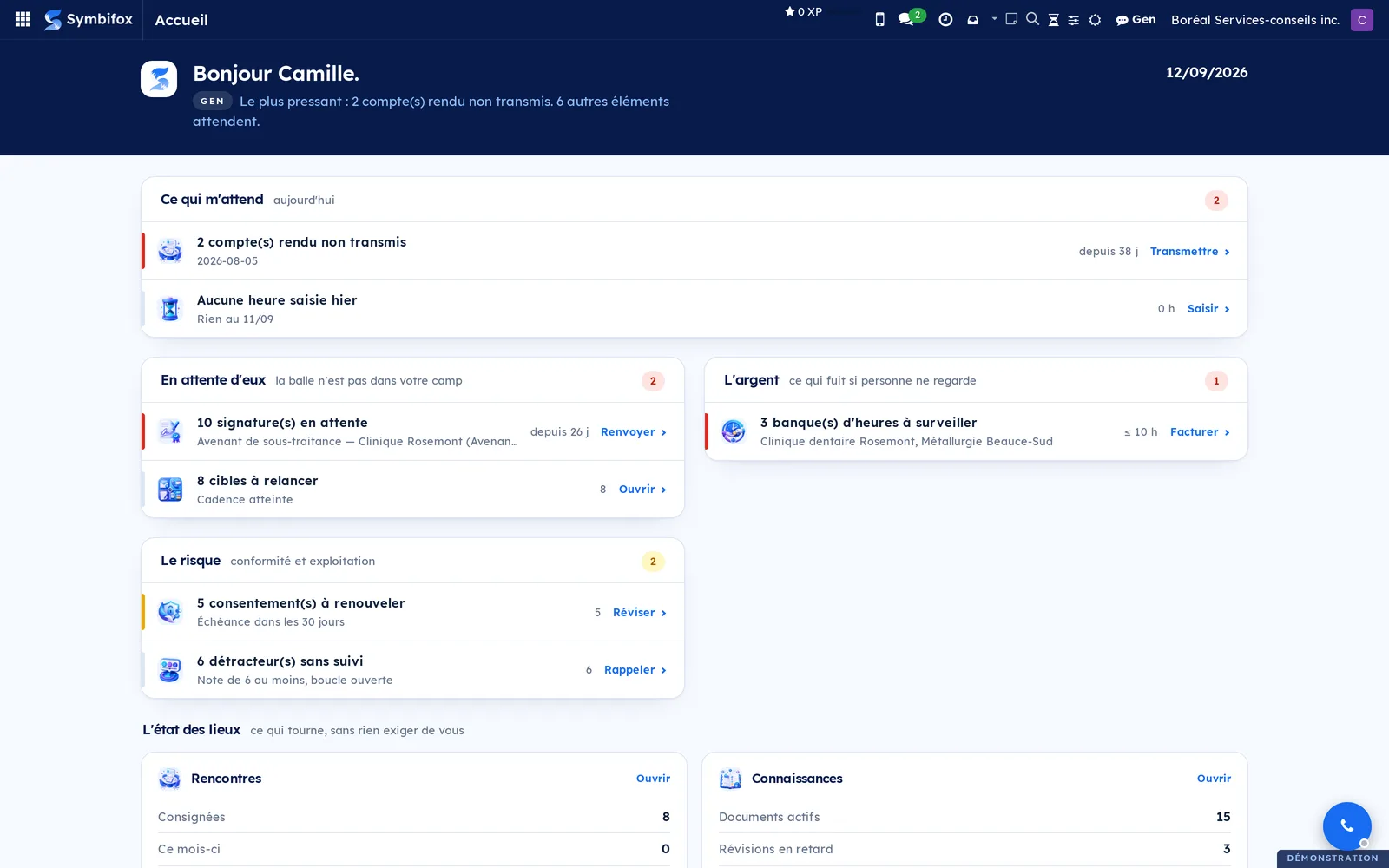
Read the bands from left to right and from top to bottom.
- What's waiting for me, today: your meetings of the day, your overdue activities, your due tasks, your inbox, the meeting reports never sent and yesterday with no timesheet.
- Waiting on them, where the ball is not in your court: mandates stalled with a client or a third party, signature requests sent and never opened, secure transfers nearing expiry, outreach targets whose cadence is reached.
- Money, what leaks if no one is watching: hour banks that have fallen below the threshold they declare themselves.
- Risk, compliance and operations: consents to renew, services in trouble, unhappy clients whose loop is still open.
- Where things stand, what runs without asking anything of you: read-only panels on meetings, knowledge and hosting.
Each line carries a title, a detail below it, a figure or a delay on the right, then the action that resolves it: Send, Log, Resend, Open, Invoice, Review, Call back. Select that action and the matching filtered list opens; no figure on this screen leads nowhere. A coloured stripe to the left of the line marks urgency: red for what is overdue, amber for what is becoming so.
Applications stay one shortcut away, through the menu described in the next section.
The application menu#
The grid of squares, at the far left of the top bar, opens the application menu: a panel of icons with their names, in several columns, which scrolls if the list is long. The cursor is already in the search field when the panel opens.
- Select the grid of squares, at the top left.
- Type the first letters of the application's name.
- Press Enter to open the first match, or select an icon.
The search tolerates typing mistakes and ranks by relevance. It clears as soon as an application is chosen, so that the next time the menu is complete and the field is empty.
The icons of standard Odoo applications are restyled in Symbifox colours, which gives a grid of a single tone together with the in-house applications. One absence sometimes surprises: Discuss is not in the grid, because its icon already sits in the top bar.
The top bar#
The top bar is the same on every screen. On the left: the application grid, the Symbifox logo, then the name of the open application in bold and its own menus. On the right, a row of icons that belong to your account, not to the application displayed.
- 0 XP: your points count, described in Fox Quest (gamification).
- A phone: your paired mobile devices.
- A speech bubble, with the number of unread messages: Discuss.
- A clock: the number of scheduled activities waiting for you, across all applications.
- A calculator: a calculation panel that keeps your history, also opened with the Alt+Shift+C shortcut from any screen. See To-do, Notepad and Timer.
- An envelope with an arrow: the watch on your email boxes, described in Email.
- A note: the notepad, to jot down an idea without leaving the screen.
- A magnifying glass: universal search.
- An hourglass: the timer that counts the time spent on a task.
- Sliders: the preferences of the bar itself.
- A sun or a moon: dark mode.
- Gen: the assistant, described in Gen, the assistant.
- The name of the active company, here “Boréal Services-conseils inc.”.
- Your avatar: My Profile, Shortcuts and Log out.
On a well-stocked database, this row gets long. Each person chooses what to keep.
- Select the sliders icon, in the top bar.
- In the Show in the bar list, clear the icons you do not use.
- Check again the ones you want back. The list stays open while you go through it.
The icons disappear and come back at once, without any page reload.
Dark mode switches with one action, through the sun or the moon. The theme covers views, windows, menus and the chatter (the message thread at the bottom of a form), including the body of displayed emails, whose colours written for white paper are brought back to readable values. Your choice is saved to your account: it applies as soon as the page loads, on all your devices.
Universal search#
A shortcut opens a bar that searches the whole instance: Ctrl+K, or Cmd+K on a Mac. The magnifying glass in the top bar opens the same thing.
- Press Ctrl+K.
- Type at least two characters.
- Move through the results with the arrow keys.
- Press Enter to open the record, or Ctrl+Enter to open it in a new browser tab.
The bar covers nearly twenty-five kinds of records: contacts and companies, leads and opportunities, projects and tasks, meetings and agendas, emails, SMS and calls, invoices, signature requests, secure transfers, knowledge matrices, resolutions, articles, products, documents, hosting services, helpdesk tickets, calendar events and blog posts. Results are grouped by category, each with a line of context, for example the project and stage of a task. Open records come first; closed files drop to the end of their group, greyed out and struck through. You see only what your permissions let you read.
The Backspace key on an empty field brings back Odoo's command list, and the usual prefixes remain available to search for a menu, a person or a channel. What the shortcut opens by default is decided in two places: an instance setting, and your own preference, which always wins.
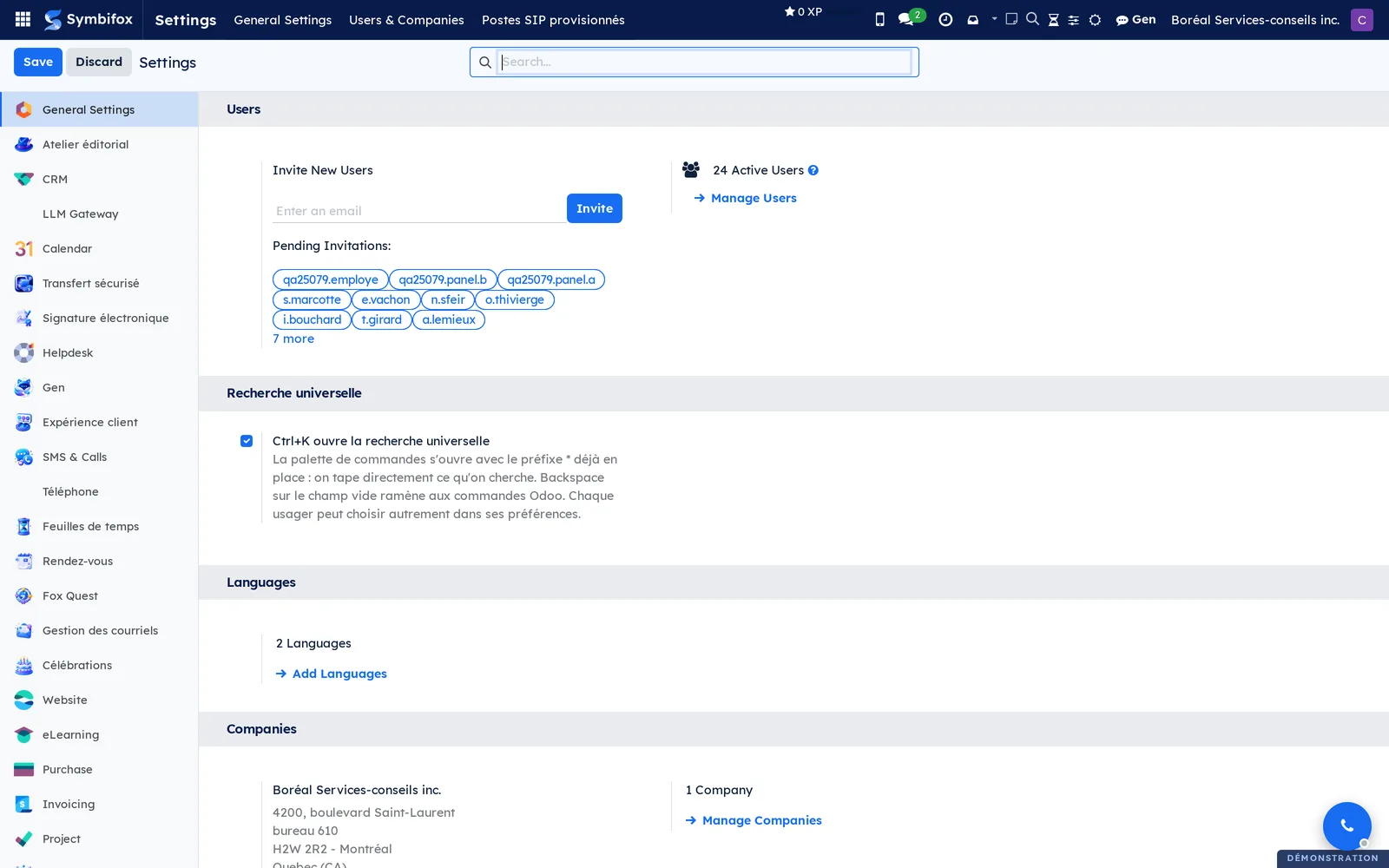
In the Preferences tab of your profile, the Ctrl+K opens choice accepts three values: Per the instance setting, Universal search (*) or The Odoo commands. Saving your preferences reloads the page, and the change takes effect at once.
Your preferences#
Your avatar, then My Profile, opens the window of your personal settings, in the Preferences tab. They concern only you.
- Select your avatar, then My Profile, and open the Preferences tab.
- Set the interface Language and your Timezone.
- Enter your Signature, the one added at the bottom of your outgoing emails.
- Choose how you receive notifications: by email, or in your Symbifox inbox.
- If needed, set dark mode and what the search shortcut opens.
- Select Save.
The timezone deserves a look: it decides the time at which your meetings are displayed, and the bounds of the day the home screen treats as today. A wrong timezone shifts appointments by a few hours without any message pointing it out.
The overall look, on the other hand, belongs to the company rather than to you. Font, brand colours, logo and favicon are set once for the whole organization, and appear both on screen and in the PDF reports sent to clients.
Your avatar#
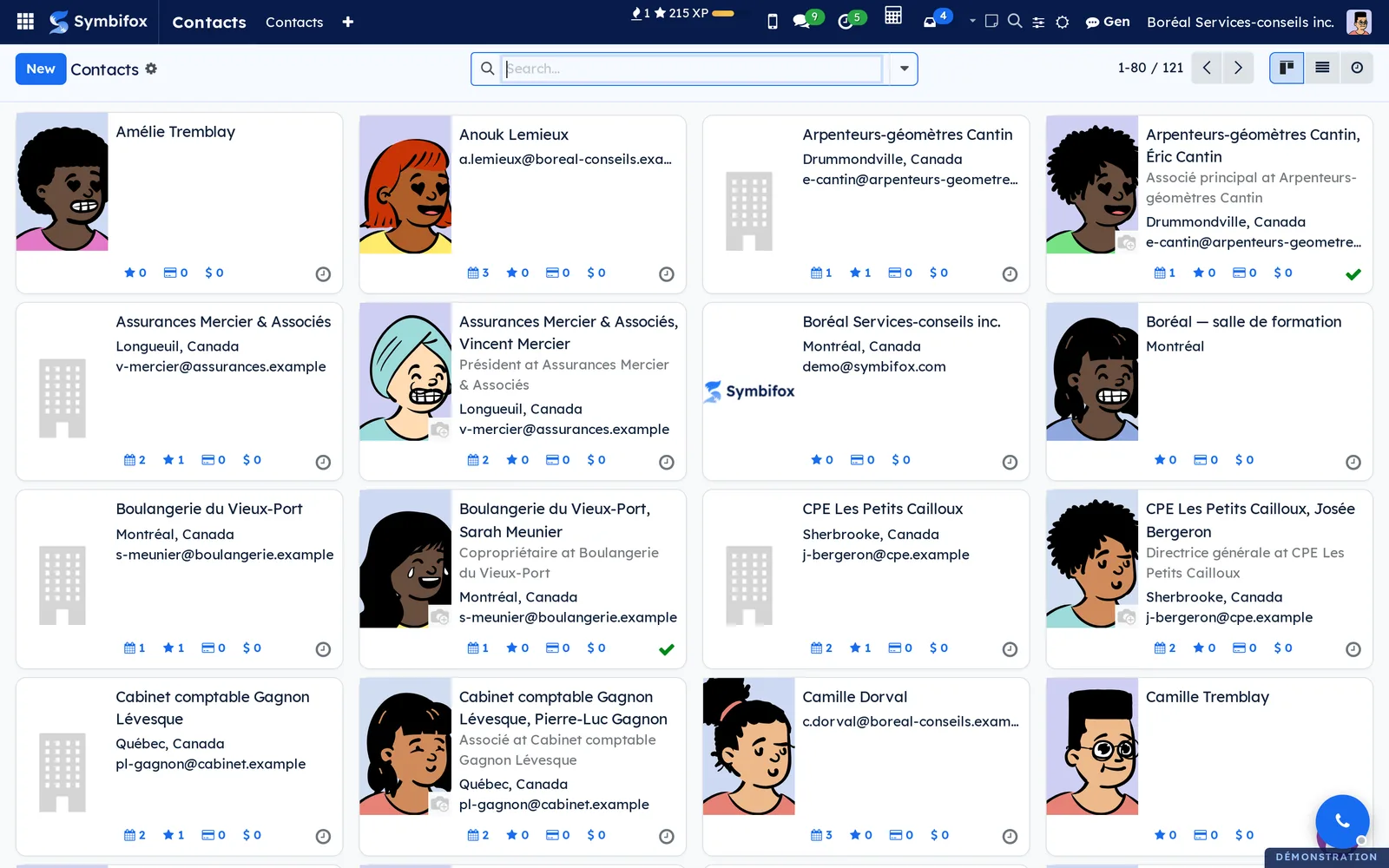
Everyone has an avatar, even without a photo. Symbifox draws it from the name, in the style your organization picked: initials in the house colours, or a character. The same person always gets the same one. Contacts without a picture get one too, instead of the grey silhouette; companies and addresses keep their icon.
When the style is a character, My avatar appears in your avatar's menu and lets you build your own.
- Select your avatar, top right, then My avatar.
- Go through the tabs: Hair, Expression, Facial hair, Mask, Glasses, then Colours.
- Select a thumbnail. Each one shows your avatar wearing that part, and the preview on the left follows.
- Select Save. Your avatar changes everywhere, and on your employee record too if it carried a drawn avatar.
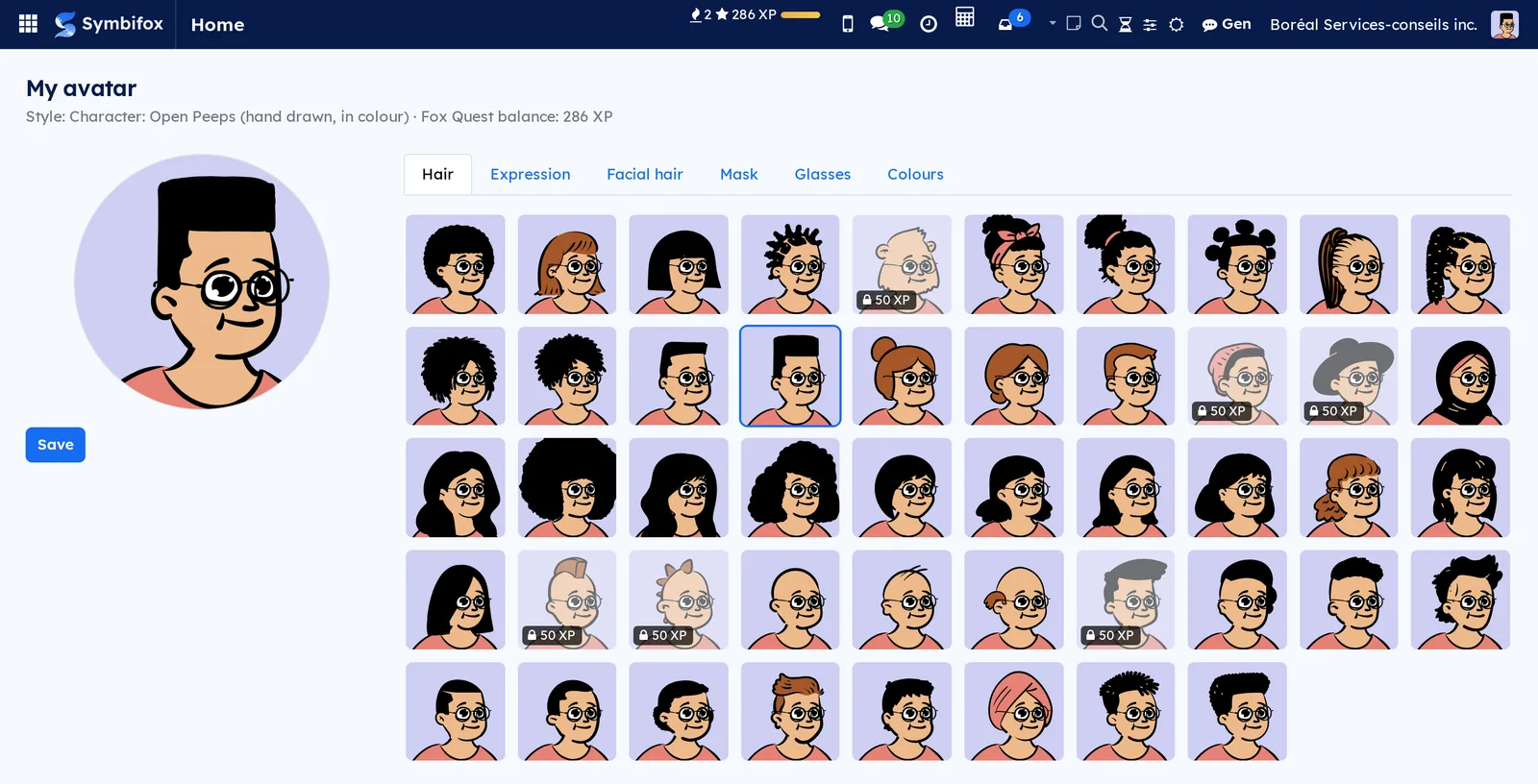
Start over forgets your choices and brings back the avatar drawn from your name. A part marked with a padlock and an XP price is unlocked through Fox Quest: see Unlock avatar parts.
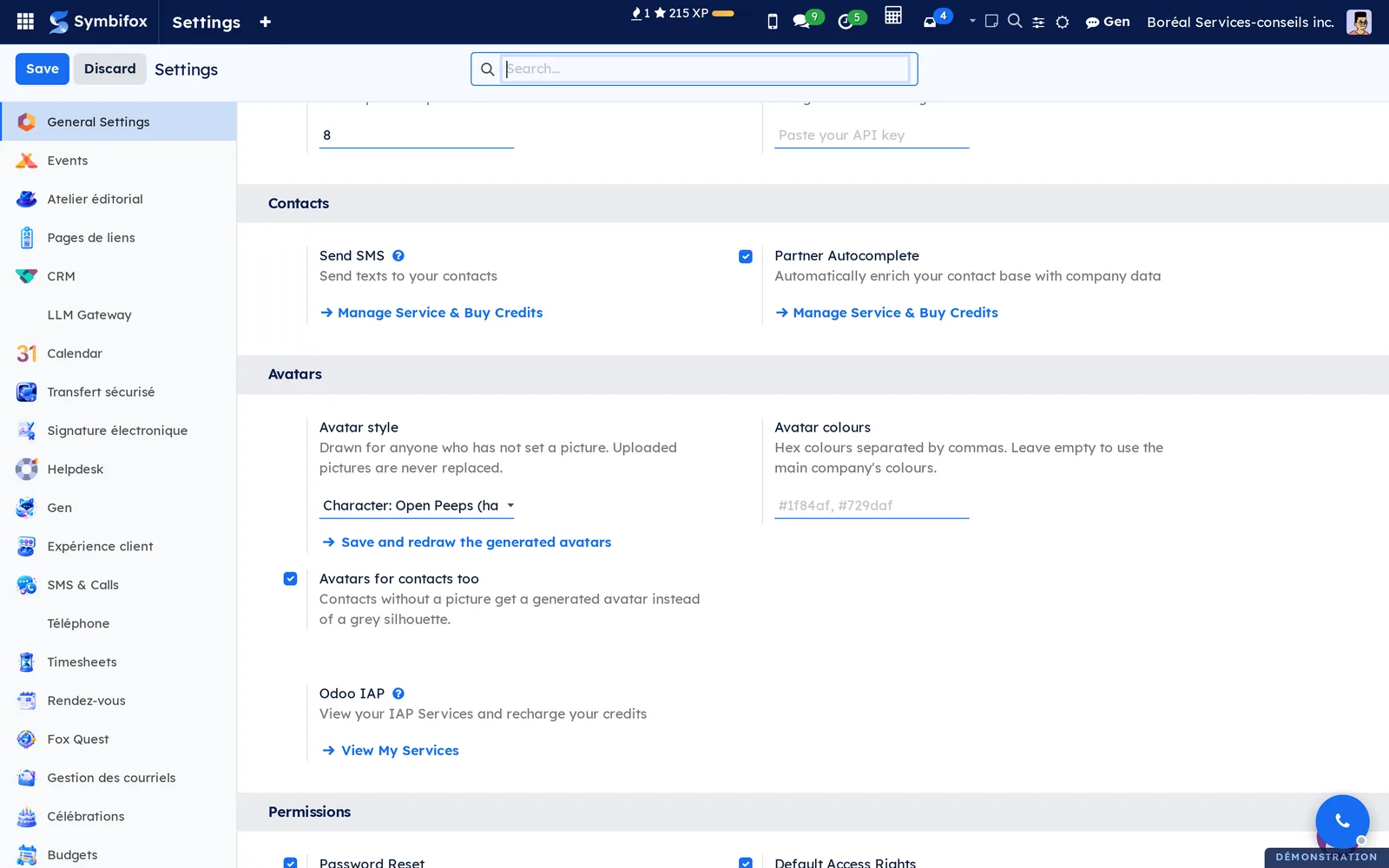
The whole organization's style is set in Settings › General Settings, Avatars section: Avatar style, Avatar colours (empty means the main company's colours) and Avatars for contacts too. Changing the style redraws every drawn avatar; an uploaded photo is never touched.
Several companies#
The name shown at the right of the top bar is the name of the active company. When your account has access to only one company, that name is a simple label: Boréal Services-conseils inc. is alone on the demonstration database. When you have access to several companies, that name becomes a switcher: each company has a checkbox, and the screens show only the data of the companies checked.
Two distinct actions meet there. Checking several companies widens what you see. Selecting the name of one company makes it active, which means the records you create belong to it. If in doubt before creating an invoice or a contact, first check which company is active.
Symbifox on a phone#
The whole interface adapts to a narrow screen: the application menu, the views and the forms all render there, and the chatter moves below the form instead of staying to its right. For daily use on the go, Blue Fox also publishes Android applications that carry the calendar, tasks, emails, text messages and one-time codes. Their installation and pairing are described in Mobile apps and browser extension.
Troubleshooting#
| Symptom | Likely cause | Fix |
|---|---|---|
| The home screen is almost empty. | Bands with no content disappear and no line shows zero. | Nothing to do: nothing is waiting for you. |
| The home screen shows an error message and offers to try again. | Reading the data failed. | Try again; if the message persists, tell your administrators. |
| Ctrl+K opens the command list instead of the search. | Your personal preference or the instance setting points to Odoo commands. | Change the Ctrl+K opens choice in the Preferences tab of your profile. |
| An icon has disappeared from the top bar. | It is hidden in your bar preferences. | Select the sliders icon and check it again in Show in the bar. |
| Meeting times are off by a few hours. | The timezone in your profile does not match where you are. | Correct the Timezone in the Preferences tab of your profile. |
| Your tabs sign out at random even though nothing has changed. | The instance answers to several addresses and each one opens its own session. | Ask your administrators to set the shared domain. |
| A record you created does not appear in a colleague's list. | It was created in a company other than the one they are looking at. | Check the active company at the time of creation. |
See also#
- Common actions in every application: the views, filter search, the chatter and activities.
- My desk, Dashboard and Progress: the other summary screens.
- To-do, Notepad and Timer: the notepad, the calculator and the timer in the top bar, and your to-dos.
- Mobile apps and browser extension: Symbifox on an Android phone.
- Settings and brand identity: accounts, permission groups, branding and instance settings.
- Gen, the assistant: the sentence in the home banner and the rest of the assistant.