
Part 0 · Getting started with Symbifox
My desk, Dashboard and Progress
Build a multi-pane desk, read the unified dashboard, and follow client mandates, with their client portal and the documents clients deposit there.
Watch it
Three screens let you see your day and your organization at a glance. My desk builds screens with several panes, specific to each person. The Tableau de bord (dashboard), now the Les chiffres (the figures) section of Accueil (home), brings together the figures of invoicing, hosting, knowledge and privacy that your access rights let you read. Progress follows, mandate by mandate, how client engagements are advancing and the hours consumed; it also opens a page where the client follows their mandate and deposits the documents you ask for. Spreadsheet dashboards and BI reports have their own chapter, BI dashboards and reports. This chapter is for the whole team for the first two, and above all for mandate leads for the third.
Overview#
A desk is a named layout that shows several Symbifox screens side by side: your activities, your tasks, your mailbox, your calendar. Each pane of the desk points to an existing screen and keeps its own search bar, view switcher and favourites. You create as many desks as you have contexts (the morning, support, a project), each with its name, its layout and, if you wish, a keyboard shortcut or a time slot. Desks are personal: a colleague's desks do not show in your list.
The Tableau de bord no longer has a menu of its own: its figure tiles form the Les chiffres section, at the bottom of the Accueil screen described in Signing in and finding your way, below the state-of-play panels. There you read the revenue of the last twelve months, vendor bills to pay, bank reconciliation and drafts to validate, then, depending on the modules installed, the state of hosting, of knowledge matrices and of privacy consents. Each tile follows the access rights of the person reading it: outside those rights, it does not appear. Other modules graft their own cards onto it.
Progress builds on project stages: each numbered stage becomes a step in a linear progression. The internal page shows all current mandates, with the stage reached, the hours consumed against the budget and the next deadline. The client follows their mandate on the client portal: a page opened by a private address, with no account. There they see the steps you show them and the instruction for the current step, and they deposit the documents you ask for. Each document received joins the stage's task, on file.
Configuration#
Access and permissions#
My desk and the home screen figures are open to every internal user; Progress, to Project users. Four nuances:
- My desks lists only your own desks. A person in the administration group sees everyone's desks, so that they can troubleshoot.
- Progress requires at least the User level of Project; without it, the menu does not show. The list shows the active projects you can read in Project, in every company you work in: a private project you do not follow is not in it, nor in the tiles.
- Only the Project Administrator level publishes a mandate's client portal, copies its address, issues a new one or unpublishes it. Other users see the Client portal tab and the deposited documents of the projects they can read, but not the buttons.
- The Tableau de bord tiles follow the access rights of the person reading them. Revenue over twelve months, vendor bills to pay and bank reconciliation require, in the Accounting section of the user form, the Billing level or higher, or the Read-only level. The hosting tile requires the right to read services; the knowledge tile, the right to read documents, and its credential lines stay empty without access to the credential vault. Outside your rights, a tile is absent.
Settings#
No setting in Settings for these menus. A desk's settings are on its form; those of the progression are on the project stages (see Prepare a project for Progression).
Document deposits on the client portal have two limits: 25 MB per file and 30 deposits per hour for the same project, by default. Technical administration sets them in the system parameters.
Base data#
- For My desk: at least one desk, created by you. The demo contains one, but it belongs to an account other than Camille Tremblay's, hence the No desk message when it opens.
- For Progress: projects whose stages carry a progression step number. On installation, Symbifox tries to number the existing stages from their names; check the result in Project › Configuration › Stages.
- For the client portal: a customer on the project, whose contact form carries the right language, and, if you expect documents, the documents declared on the stages (see Ask the client for documents).
- For Tableau de bord: nothing. The tiles fill with the data already entered in invoicing, in hosting and elsewhere.
Getting started#
Camille Tremblay builds her morning desk: her activities on the left, her to-dos on the right, her calendar at the bottom.
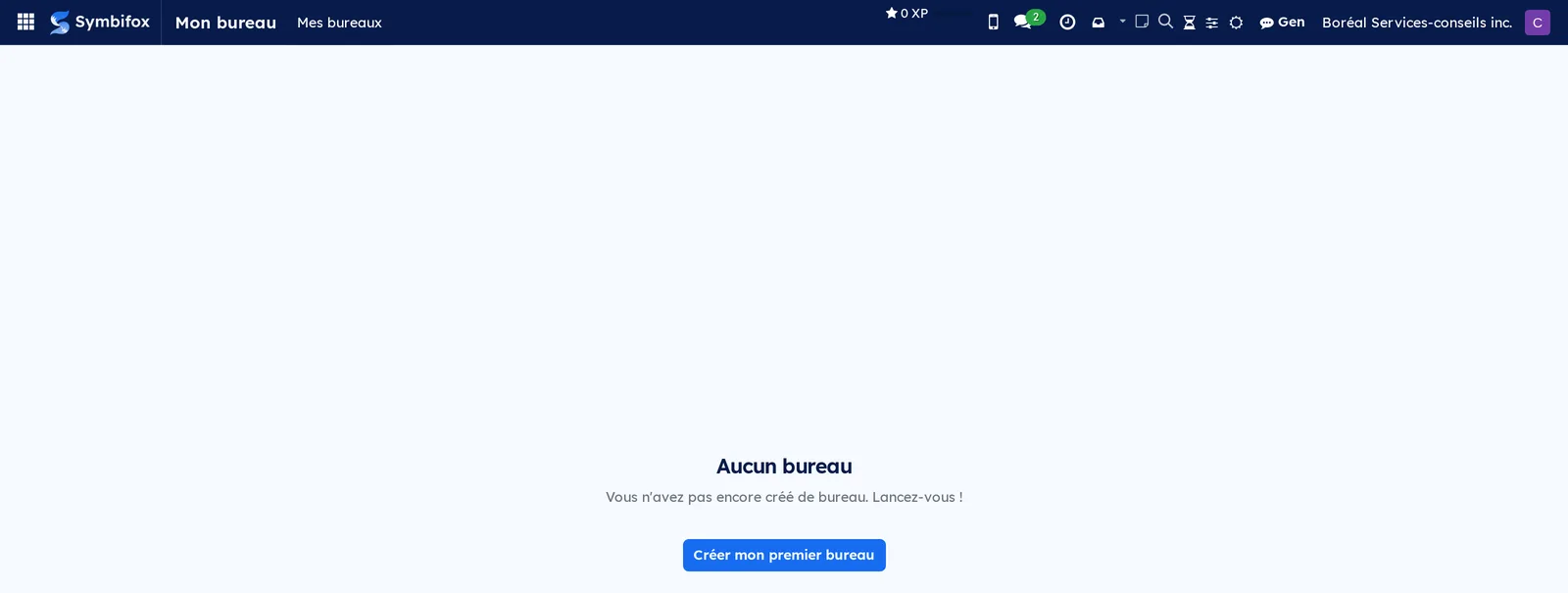
- Go to My desk. The screen shows No desk.
- Select Create my first desk. A desk form opens.
- Enter the name “Morning”.
- In Layout, choose Two top + one bottom.
- In the Panes tab, add three lines: one for the top left slot with the “My Activities” action, one for the top right slot with the “To-dos” action, one for the bottom slot with the “Meetings” action in calendar view.
- Save, then select Open the desk.
- In the desk, select the star of the sidebar, or go back to the form and select Set as default.
The desk opens with its three panes. From now on, My desk shows it directly, and each pane works like the original screen: search, filters, change of view, creation.
Common tasks#
Create a desk#
You create one desk per work context.
- Go to My desk › My desks.
- Select New.
- Enter a name in the first field.
- Choose the layout in Layout: a single pane, two columns, two on top and one below, one on top and two below, four quadrants or three rows.
- In the Panes tab, add one line per pane (see Compose the panes of a desk).
- Save.
The desk appears in the My desks list and in the desk sidebar.

Compose the panes of a desk#
Each pane shows an existing screen, in the view of your choice.
- Open the desk in My desk › My desks, Panes tab.
- Add a line and choose the slot in the layout (top left, bottom, row 2…). A slot that is foreign to the layout is refused.
- Choose the action, that is, the screen to show: “My Activities”, “To-dos”, “Tickets”, “Meetings”, or any other Symbifox screen you can open. The picker offers only those.
- Choose the view type (Kanban, list, calendar, pivot, graph, activity). Only the views offered by the screen are accepted.
- Set the weight, from 1 to 4: the higher it is, the bigger the pane compared with its neighbours.
- Optional: enter a display name, an extra filter or an extra context; these last two fields expect a technical expression and are reserved to the administration.
- Save.
When the desk opens, each pane loads with its screen.
Work in a desk#
An open desk works like several screens side by side.
- Go to My desk. The default desk, or the one of the current time slot, opens.
- In a pane, use the search bar, the filters and the favourites as in the original screen (see Common actions in every application).
- Select an icon of the pane's view switcher to change views.
- Select a record to open it full screen; the breadcrumb brings you back to the desk.
- Select the pane's create button to create a record in that screen.
- Select the pane's reload icon to refresh it alone.
The layout save button remembers the view chosen in each pane; without it, the desk reopens in the views set on its form. The favourites saved in a pane belong to the original screen: they are also available outside the desk.
Move from one desk to another#
- In a desk, select the menu icon (three lines) of the desk bar to show or hide the sidebar.
- In the sidebar, select the desk you want. The star marks the default desk; a badge recalls the keyboard shortcut if there is one.
Your choice to show the sidebar or not is remembered in your browser.
Set the default desk and a time slot#
Only one desk per person is the default desk. A desk can also take over at certain hours.
- Go to My desk › My desks and open the desk.
- Select Set as default. The button also exists on the row of the list.
- Optional: in Active When, choose At any time, Morning (5:00 to 12:00), Afternoon (12:00 to 18:00), Evening (18:00 to midnight) or Night (midnight to 5:00).
- Save.
When My desk opens, Symbifox first opens the desk whose time slot covers the current hour, otherwise the default desk, otherwise the first one of the list.
Assign a keyboard shortcut to a desk#
- Open the desk in My desk › My desks.
- In Keyboard shortcut, enter a combination, for example “alt+1” or “shift+g”.
- Save.
The shortcut opens this desk from any Symbifox screen. Two of your desks cannot carry the same shortcut.
Duplicate a desk#
Useful to try another arrangement without losing the original one.
- Go to My desk › My desks.
- On the desk's row, select Duplicate. The button also exists on the form.
A copy of the desk and of its panes is created in your name. A person from the administration can thus duplicate a colleague's desk for themselves, then adjust it.
Archive a desk#
- Open the desk and select the gear icon, then Archive.
The desk disappears from the sidebar. The archived filter of the list finds it again and lets you unarchive it.
Read the Tableau de bord#
- Go to Accueil and scroll down to the Les chiffres section.
- Go through the tiles. Each tile carries a figure and a label; select it to open the matching list in the application concerned.
A missing tile means that the corresponding module is not installed, or that your access rights do not let you read its data (see Access and permissions). A tile that shows “Données non disponibles” (data not available) signals a read error on that area alone, without blocking the others. A tile at 0 means there is nothing to show. On the demo, the captured screen shows the Erreur de chargement (loading error) banner with the Réessayer (retry) button; see Troubleshooting.
Prepare a project for Progression#
The progression is read from the project's stages. Each numbered stage becomes a step.
- Go to Project › Configuration › Stages and open a stage.
- Enter the Progression step number: 1 for the first, 2 for the next, and so on. Leave 0 for a stage to exclude from the progression.
- Optional: enter a short Progression step name, such as “Kickoff” or “Initial audit”. Left empty, the name of the stage is used.
- Check Visible on client portal to show the stage to the client; clear it for an internal stage (review, invoicing).
- If needed, enter a Client instruction, the instruction shown to the client when the mandate reaches this stage (“Upload your X and Y forms”).
- Save, and repeat for each stage of the project.
The project appears in Progress with its sequence of stages. To ask the client for documents at a stage, see Ask the client for documents.
Follow mandates in Progression#
- Go to Progress.
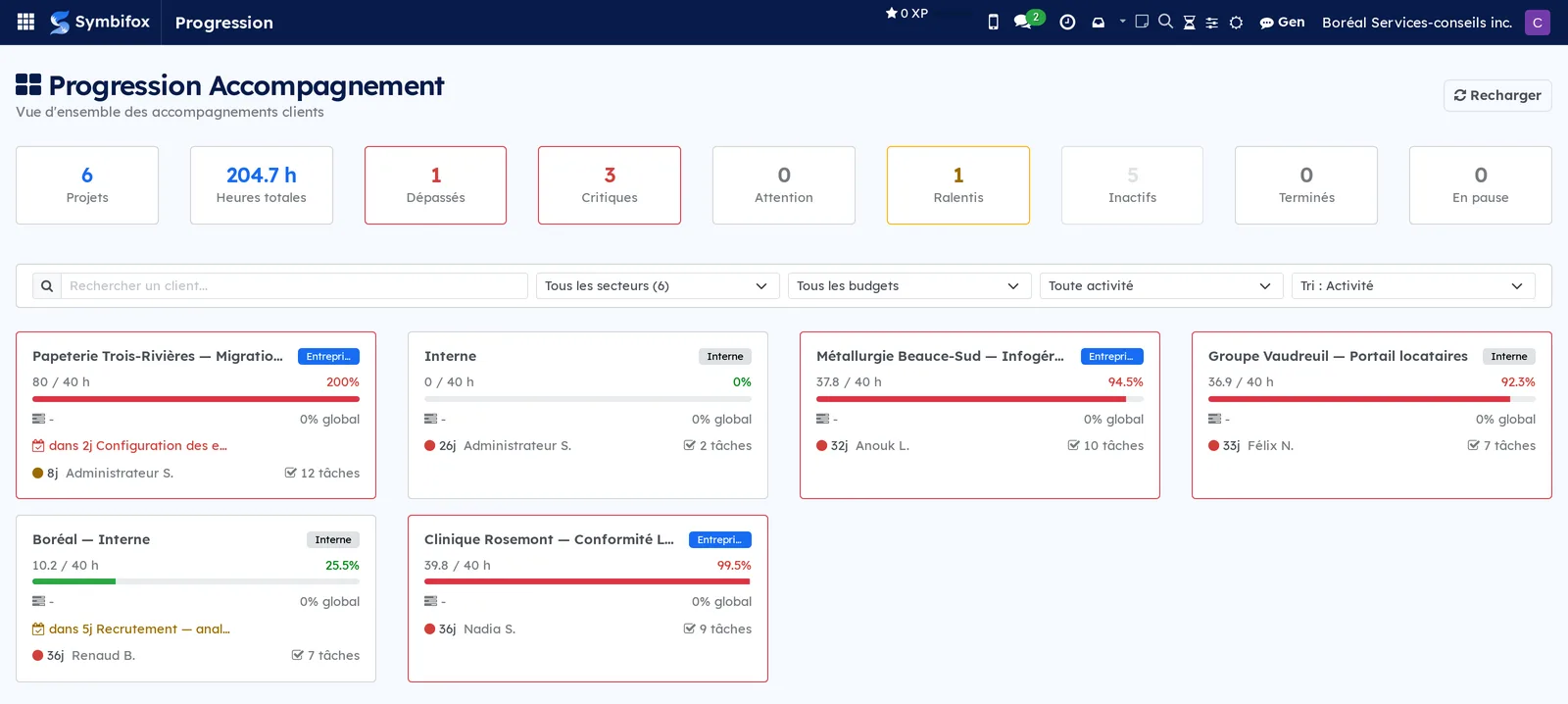
- Read the tiles at the top: number of projects, total hours, then the projects Over budget, Critical, Budget warning, Slowing, Inactive, Completed and Paused.
- Filter with Search for a client..., All sectors, All budgets and All activity; change the order with Sort: Activity.
- On a card, read the hours consumed against the budget (for example “1559 / 2200 h”, 70.9%), the progress bar, the overall percentage of progress through the stages, the next deadline and the number of tasks. A project with no allocated hours shows its hours alone, with No budget instead of the percentage and no bar.
- Select a card to open the detail of the mandate: the full sequence of stages, the stage reached, the tasks and the hours.
- Select Reload after an entry made elsewhere.
To list the mandates that have no budget, choose No budget in All budgets. They count in none of the Over budget, Critical and Budget warning tiles.
The red frame of a card signals a mandate over budget or critical; the badge beside the name gives the sector deduced from the project's name (business, internal, CPE childcare centre, non-profit, school).
Publish a mandate's client portal#
The client portal shows the client how their mandate is advancing, with no account or password. You need the Project Administrator level, and a project prepared for Progression.
- Go to Project › Projects and open the project form from its card's menu.
- Check the project's Customer: the page displays in the language of that contact.
- Open the Client portal tab.
- Select Publish. The Client portal published box becomes checked.
- Select Copy the address. The Client portal address notification shows the full address, in the form
/progression/…, and stays on screen. - Copy that address and send it to the client, for example in an email.
The client opens their page with that address alone. Symbifox does not write to them: you are the one who gives it.
Replace or close the portal address#
An address sent to the wrong person can be replaced; a finished mandate can be closed.
- Open the project form, Client portal tab.
- To change the address, select New address, then confirm the message “The current address will stop working. Continue?”.
- To close the page instead, select Unpublish.
The old address answers “not found” at once. After New address, select Copy the address and send the new one. After Unpublish, Publish reopens the page at the same address as before. An archived project also closes its page.
Ask the client for documents#
A stage can ask the client for documents: a piece of ID, financial statements, a signed form. The list applies to every mandate that goes through that stage.
- Go to Project › Configuration › Stages and open the stage.
- In the Documents the client deposits on the portal block, add a line.
- In Document, enter the name of the document, for example “Piece of ID”.
- If needed, enter what you expect in Instructions to the client (“Both sides, all pages, less than 3 months old”).
- Clear Required for an optional document.
- Drag the lines into display order, then save.
When the mandate reaches the stage, its documents show on the client's page, each with the To send badge and a Send button. They stay available once the stage is done; those of upcoming stages do not show. An optional document carries the “(optional)” mention.
Find the documents the client deposited#
Each file deposited becomes an attachment of the stage's task, with an internal note in the task's chatter (the message thread at the bottom of the form).
- Open the project form, Client portal tab.
- Read the list of deposits, most recent first: Deposited on, Document, File name, Task and File.
- If needed, show the optional Size (bytes), SHA-256 and IP address columns.
- Open the task shown: the file is attached to it, under the note “Document deposited by the client on the portal” in the chatter.
The document goes to the first open task of the project in the document's stage. When that stage has no open task, it goes to the project form, and the Task column stays empty. A second deposit of the same document is added to the first without replacing it; on the client's page, the badge turns to Received and the button becomes Send another version.
The menus, one by one#
My desk: opens your default desk, or the one of the current time slot. Without a desk in your name, the screen shows No desk and the Create my first desk button.
My desk › My desks: the list of your desks, with the Name, Layout, Active When, Keyboard shortcut and Is Default columns, and on each row the Open and Duplicate buttons. The form carries the Open the desk, Set as default and Duplicate buttons, and the Panes tab. Form screenshot: m556_form.png.
Tableau de bord: this menu no longer exists. Its tiles form the Les chiffres section of Accueil, described in Read the Tableau de bord. The screenshot below shows the former screen, with a loading error.

Progress: the Engagement progress page, with its tiles, its filters, its sort order and its project cards. No submenu.
Reference#
Fields of the desk form#
| Field | Description | Required or default |
|---|---|---|
| Name | Name of the desk, shown in the sidebar. | Required |
| Layout | Layout: one pane, two columns, two on top and one below, one on top and two below, four quadrants, three rows. | Two top + one bottom |
| Active When | Time slot during which this desk takes precedence over the default desk. | At any time |
| Keyboard shortcut | Combination that opens the desk from any screen. Empty: no shortcut. Unique per person. | Empty |
| Is Default | Desk opened by default. Only one per person. | Cleared |
| Panes tab: slot | Position of the pane in the layout; must exist in the chosen layout. | Required |
| Panes tab: action | Symbifox screen shown in the pane. | Required |
| Panes tab: view type | Opening view of the pane; must be offered by the screen. | First view of the screen |
| Panes tab: weight | Relative size of the pane, from 1 (normal) to 4. | 1 |
| Panes tab: display name, extra filter and extra context | Replacement title; technical expressions added to the screen, validated by the server. | Empty |
Fields of the Task Stage form (added for Progression)#
| Field | Description | Required or default |
|---|---|---|
| Progression step number | Rank of the stage in the mandate's linear progression. 0 excludes the stage from the display. | 0 |
| Progression step name | Short label shown in the sequence. Left empty, the name of the stage is used. | Empty |
| Visible on client portal | The stage is shown to the client on the portal. | Cleared |
| Client instruction | Instruction shown to the client when the mandate reaches this stage. | Empty |
| Documents the client deposits on the portal: Document | Name of the expected document, shown to the client. | Required |
| Documents the client deposits on the portal: Instructions to the client | Detail shown under the document, at current and completed steps. | Empty |
| Documents the client deposits on the portal: Required | Cleared, the document carries the “(optional)” mention on the page. | Checked |
Fields of the Project form (Client portal tab)#
| Field | Description | Required or default |
|---|---|---|
| Client portal published | The client's page answers. Checked by Publish and cleared by Unpublish, read-only. | Cleared |
| Publish, Copy the address, New address, Unpublish | Buttons reserved to the Project Administrator level. The last three show only once the portal is published. | Not applicable |
| List of deposits | One deposit per line: Deposited on, Document, File name, Task, File; as optional columns, Size (bytes), SHA-256 and IP address. Read-only. | Empty |
| List of deposits, with secure transfer | Storage column (Attachment, S3 storage or Purged), Kept until column, and Download button for a file kept in the storage. | Attachment |
Reports and exports#
No printable report in these three menus. The tiles of the Tableau de bord and of Progress lead to the lists of the applications concerned, from which exporting works as everywhere (see Common actions in every application).
Automations#
- When My desk opens, Symbifox chooses the desk of the current time slot, otherwise the default desk, otherwise the first one.
- The Tableau de bord recalculates its tiles each time it opens. Each tile is read separately: the failure of one does not prevent the others.
- Progress files each project in a sector according to its name, and calculates on each opening the hours consumed, the progress through the stages and the status (over budget, critical, slowing, inactive…).
- When the progression is installed, the existing stages receive a number and a label from a table of keywords; the operation can be run again without creating duplicates.
- As soon as a client deposits a document on the portal, the file is attached to the stage's task. An internal note is logged in its chatter, in the client's language. No email goes out, neither to the client nor to the team.
- With secure transfer, a daily pass deletes from the storage the large files that are due and the uploads abandoned for 24 hours.
Public pages and portal#
The client portal page opens at the /progression/… address that Copy the address gives, with no account or password. It carries your company's logo and name, the project's name and the client's. One line places the mandate: the rank and name of the current step, or “All steps of this mandate are completed.”, or “This mandate has not started yet.”.
Then come the stages checked Visible on client portal, each marked Done, In progress or Upcoming. Several project stages that carry the same number make a single step. The current step shows a bar, the share of its tasks closed, then, under What we need from you, its Client instruction. Under the completed and current steps come the expected documents, with their instructions, their To send or Received badge and the Send button. After each deposit, the page comes back to the document with a message, “Thank you, your document has been received.” or the reason for the refusal. A note at the bottom recalls that the address is personal.
The page shows no task name, no assignee, no hours, no internal stage and no document of an upcoming step. Without any visible step, it shows “The progression of this mandate is not available yet.”. From a phone, the deposit form accepts a photo or a PDF already on the device. Accepted types: PDF, images (JPEG, PNG, HEIC, WebP, TIFF) and office documents (Word, Excel, OpenDocument, RTF, text, CSV).
Modules that extend this application#
The Tableau de bord accepts other cards of the same kind.
The hosting, knowledge matrix and privacy tiles show by themselves when the Hosting management, Knowledge base and Privacy (Law 25 and other frameworks) applications are installed; they are not separate modules.
The Parc informatique (IT fleet) card, which sums up the update state of the tracked machines, shows after the hosting card when the fleet updates module is installed. See Fleet updates.
Document deposits on the client portal have a companion module too.
Understanding#
Why Camille sees a desk in the list, but “No desk” when it opens. Each person sees only their own desks, except the administration, which sees them all. The demo's desk belongs to another account; Camille sees it in My desks because she administers, but My desk only looks for hers. Duplicate makes her a copy in her name.
One default desk, one shortcut per combination. The database checks both rules: a second default desk, or two desks with the same shortcut, are refused on save.
The time slot comes before the default desk. This is intended: the morning desk opens in the morning even if another one is marked as default. Leave At any time on the desks that do not depend on the hour.
Panes take up the access rights of the screens. A pane shows only what the original screen would show you; a desk grants no extra access.
The Tableau de bord does not depend on the modules it shows. It installs on a database that has neither hosting, nor knowledge, nor privacy, and shows only the invoicing tiles there. A tile disappears when its module is absent, or when the person reading has no right to read its data; it says “Données non disponibles” when the read failed; it shows 0 when there is nothing. Three different states, so that an outage is never taken for an absence. What is not yours is not broken: a tile outside your rights therefore announces no error. The accounting tiles read the ledger directly, without the rules that limit a person to their own invoices; that is why they require an accounting level rather than the mere right to read an invoice.
The Tableau de bord is no longer the front door. An earlier version imposed this page on everyone as the opening screen. Since version 18.0.1.2.0, the opening screen is the home page, and each person's own setting is respected. The home page then absorbed the tiles themselves: two screens answered the same question from the same data, and only one remains.
The Progress calculation stores nothing. It reads the numbered stages, the tasks and the timesheets. The hours percentage compares the time entered with the project's hour budget; the overall percentage averages the steps that have tasks, each measured by the share of its tasks closed. A project with no numbered stage stays at 0% overall.
No invented budget. A mandate's budget is the number of hours allocated to its project. A project without any has “no budget”: no percentage, no bar, no budget warning. Before version 18.0.2.4.3, Progress assumed 40 hours for such a project, and every mandate without a budget looked over budget.
The current step is the first one with an open task. On the client's page, the steps before it are done and those after it are upcoming. A step with no task at all therefore does not hold the mandate back: it counts as done as soon as a later step is in progress. When no task is open any more, the whole mandate is done.
The portal has its own address, and every refusal looks the same. The portal's address is not that of ordinary project sharing, which also opens task descriptions. Unknown or archived project, wrong address, unpublished portal: the answer is always “not found”, so that a visitor cannot guess that a project exists. Search engines do not index the page. The server checks publication, not only the screen: a user without the Project Administrator level cannot get around it.
The page speaks the client's language. It takes the language of the project customer's contact form, when that language is installed. Step names, instructions and document names follow, if they have been translated; so does the note logged on a deposit.
No email, no following. A deposit is logged as an internal note, in the name of the mandate's customer. The client does not become a follower of the task: a reply from the team therefore does not reach them by email, with a link to a task they have no business reading. The reverse holds too: nobody is told about a deposit.
A trace of every deposit. Each deposit keeps the file name, its size, its SHA-256 fingerprint, the date and the IP address of the upload. A new version is added without erasing the previous one. The file name is cleaned of any path and of the characters that could disguise its extension. Deposits are read like their project: a user does not see those of a private project they do not follow, nor those of another company.
Large files, with secure transfer. Without the companion module, a file goes through Symbifox and stays capped at 25 MB by default. With it, the file goes straight to the storage, which lifts that cap. Up to 100 MB, Symbifox reads it back, files it like an ordinary deposit and deletes it from the storage. Above that, reading it whole would be too heavy: it stays in the storage, for the longest retention that secure transfer allows, then it is deleted. Download it before the Kept until date if you must keep it on file.
Troubleshooting#
| Symptom | Likely cause | Fix |
|---|---|---|
| My desk shows No desk while My desks lists one. | The desk belongs to someone else; you see it because you administer. | Select Duplicate on that desk, or create your own. |
| Saving a desk is refused. | Two of your desks are set as default, or carry the same shortcut, or a pane targets a slot absent from the layout. | Correct the faulty desk, then save again. |
| A pane stays empty or refuses the chosen view. | The view type is not offered by that screen. | Choose a view of the original screen (Kanban, list, calendar…). |
| The desk always reopens in the same view, despite your changes. | The layout was not saved. | Select the layout save button in the desk bar. |
| The Les chiffres section shows Erreur de chargement. | A read failed, often after an update or a passing outage. | Select Réessayer. If the banner persists, the administration checks the server log. |
| An expected tile is missing from the Tableau de bord. | Your access rights do not let you read its data, or the corresponding module is not installed, or a field it reads is absent. | For the accounting tiles, ask for the Billing or Read-only level of the Accounting section; for the others, the right to read the application concerned. Otherwise, check the installation of the application. |
| The Progress menu does not show, or a link to the page shows “The progression dashboard is reserved to project users.”. | Your user form has no level in the Project section. | Ask the administration for the User level of Project. |
| A mandate shows No budget although it has a quote. | No hours are allocated to the project. | Enter the allocated hours on the project form, then select Reload. |
| A project does not appear in Progress, or stays at 0% overall. | Its stages have no Progression step number, it is archived, or it is private and you do not follow it. | Number the stages in Project › Configuration › Stages; for a private project, ask to be added to its followers. |
| The client does not see a step or a document on the portal. | The Visible on client portal box is cleared, the stage has no number, or the document belongs to an upcoming step. | Check the box and number the stage; the document will show when the mandate reaches its step. |
| The portal address answers “not found”. | The portal was unpublished, a New address replaced the old one, or the project is archived. | In the Client portal tab, publish again or select Copy the address, then send the address in force. |
| The client reads “This type of file is not accepted. Send a PDF, a photo or an office document.” | The file is neither a PDF, nor an image, nor an accepted office document (a compressed archive, for example). | Ask the client to export it as a PDF or to photograph it. |
| The client reads “The file is too large”, with the maximum in MB. | The file exceeds the limit, 25 MB by default without secure transfer. | Ask for a lighter version, or have technical administration raise the limit. |
| The client reads “Too many documents sent in the last hour. Try again later.” | The project received 30 deposits in the hour, the default limit, all clients together. | Wait for the next hour. This limit protects the page against looping uploads. |
| With secure transfer, the client reads “The file could not be sent. Try again.” or “The file could not be stored. Try again later.”. | The storage refuses the portal's address, or it is misconfigured or unreachable. | The administration adds the portal's address to the storage's allowed origins, then selects Configurer le bucket S3 in secure transfer. |
See also#
- Signing in and finding your way: the home page and the top bar.
- Common actions in every application: views, filters and favourites, taken up as they are in the panes.
- To-do, Notepad and Timer: the screens most often placed in a desk.
- Project: the project stages the progression relies on.
- Timesheets: the hours the progression compares with the budget.
- Secure transfers: the storage that large files from the client portal go through.
- Invoicing: the source of the Tableau de bord's accounting tiles.
- BI dashboards and reports: spreadsheet dashboards, named measures and interactive reports.