

Part 2 · Clients, sales and relationships
Helpdesk (tickets)
Receive, sort and resolve support requests in a ticket queue linked to projects, the hour bank and the client portal.
Watch it
The Helpdesk application receives support requests, from clients and from your team alike, and tracks them in a single ticket queue, from receipt to resolution. Each ticket belongs to a team, moves from stage to stage, carries a priority and service deadlines, and can be linked to a project, to its knowledge matrix and to the client's hour bank. A branded public form, a client portal and branded emails replace scattered exchanges. Each team turns on what it needs: acknowledgement of receipt, reminders, survey, AI triage, alerts.
Overview#
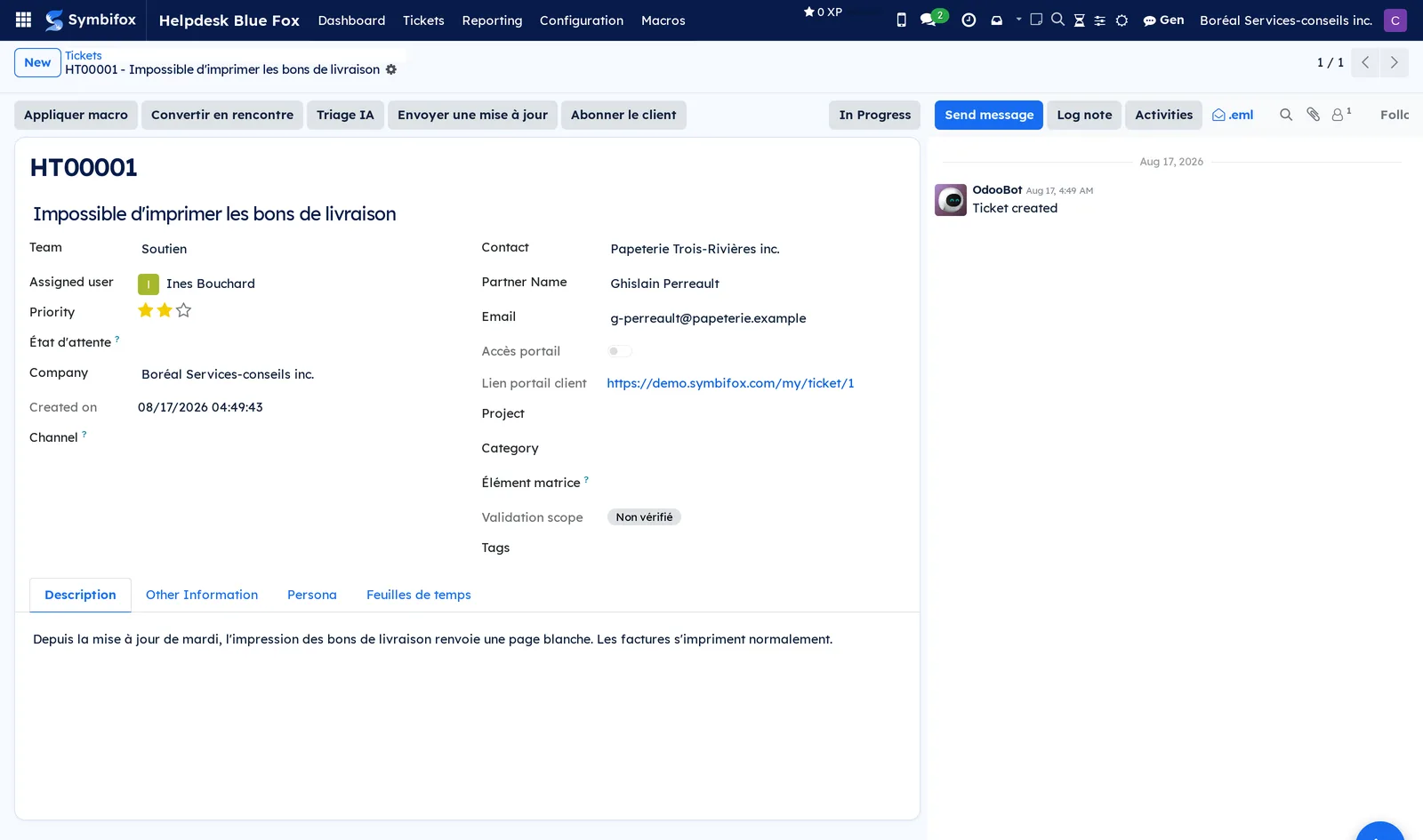
A ticket (the French interface also says “billet”) is a numbered request, HT00001 for example, with a title, a description, a contact (the person or organization asking), an assigned user and a priority from zero to three stars. It belongs to a team: the Boréal demo has two, Soutien (support) and Plaintes (complaints). It moves through stages: New, In Progress, Awaiting, then Done, Cancelled or Rejected, three closing stages that send an email to the requester. It also carries a channel (Web, Email, Phone, Other, Expérience client), a category and tags.
On top of this Odoo base, Symbifox adds several layers, all set team by team:
- tracking the work: an État d'attente (waiting state) independent of the stage, a link to a project and to the hour bank, and service deadlines (SLA, service level agreement) counted on business hours;
- the agent's workspace: the File de mes équipes (my teams' queue), macros with variables and actions, the Client 360 tab, live presence and keyboard shortcuts;
- the client's journey: a clear status on the portal, the acknowledgement of receipt, reminders, the satisfaction survey and a public help centre;
- emails: a branded thread, a stable subject, English for English-speaking clients, and notifications each person sets;
- decision support: AI triage, guard words, spike alerts and the week's themes;
- with a companion module, duplicates, merging and parent incidents.
The links lead to Project, Timesheets, Hour bank, Knowledge base, Meetings, Contacts and Customer experience.
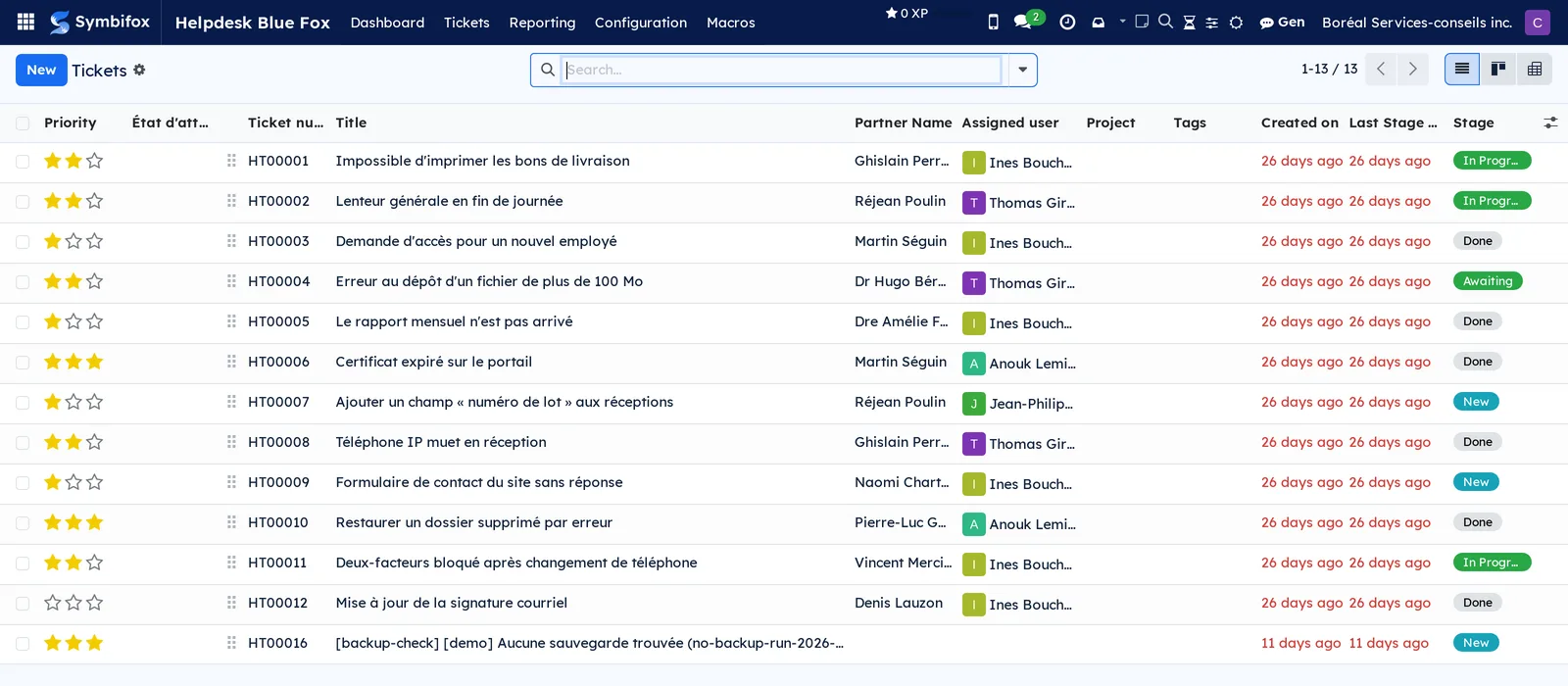
The list of all tickets is the most telling view. In the demo, it shows 63 tickets with the priority, waiting state, État SLA (SLA status: Respecté, met, or Dépassé, breached, for closed tickets), number, title, partner, assigned user, project, tag, dates and stage.
Configuration#
Access and permissions#
The application has four levels, set on each person's form in Settings › Users: personal tickets, team tickets, all tickets, and manager.
- Personal tickets: the person sees the tickets assigned to them and opens their full form. The Helpdesk header buttons added by Symbifox are not offered to them.
- Team tickets: adds the tickets of their teams and those with no team, the Attente client (waiting for client), Appliquer macro (apply macro), Triage IA (AI triage), Envoyer une mise à jour (send an update), Abonner le client (subscribe the client), Créer un article d'aide (create a help article) and Rattacher à un incident (link to an incident) buttons, the triage log, the duplicate banner, and the Articles d'aide (help articles), Macros (read-only) and Mes notifications (my notifications) menus.
- All tickets: every ticket, and the right to merge: only this person sees Fusionner (merge) in the duplicate banner.
- Manager: also opens the Reporting and Configuration menus, creates macros, sees everyone's notification preferences and can remove the company from a help article.
Other roles open specific parts of the ticket. The Persona tab, searching by persona and the greeting variable in macros are reserved for the persona role (see Contacts). The Feuilles de temps (timesheets) tab requires timesheet access. Convertir en rencontre (convert to meeting) and the Rencontres (meetings) button require meeting access. In Client 360, overdue invoices only show to people who can read invoices.
Applying a macro or asking for a triage requires the right to edit the ticket: another team's ticket refuses both. Surveys, the triage log and spike alerts follow ticket visibility, and each company sees only its own articles, themes and surveys.
A client with portal access sees their own tickets and can submit a new one there. The portal no longer shows them internal information: persona, hour bank, logged time, triage, guard words, internal deadlines, reminders and Client 360 counters. Only the first-response deadline stays visible, since the portal announces it.
Settings#
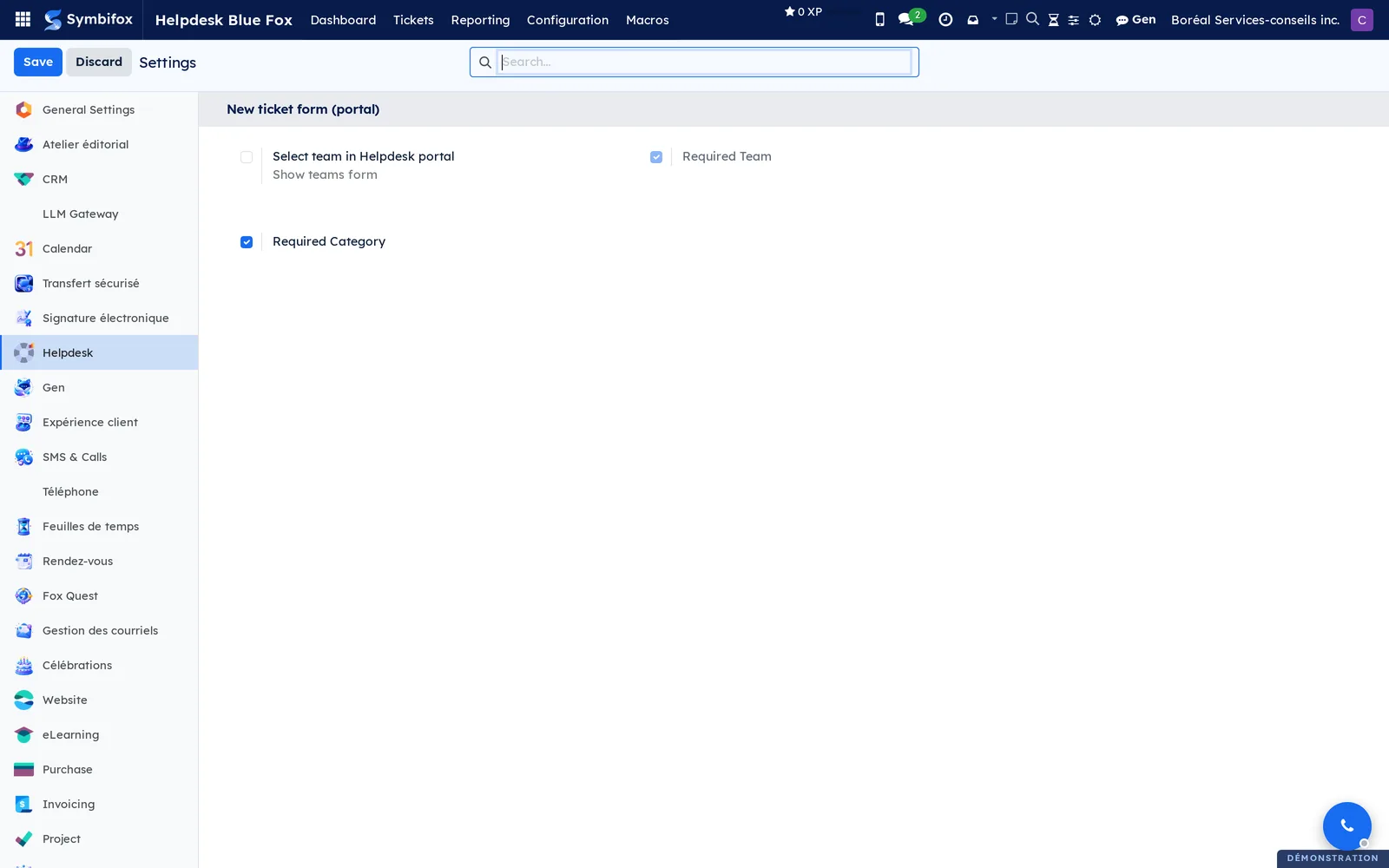
Under Helpdesk › Configuration › Settings, the New ticket form (portal) section sets up the form that a client signed in to the portal sees. It holds Select team in Helpdesk portal (shows the team selector), Required Team and Required Category, checked in the demo.
Most of the setup happens on each team's form, in five tabs:
| Tab | What it sets |
|---|---|
| Formulaire public (public form) | The team's no-account form, its address and its text. |
| SLA et étiquettes automatiques (SLA and automatic tags) | Service deadlines, business hours, the acknowledgement of receipt and tagging rules. |
| Relances (reminders) | Reminders to a client who does not reply, then the announced closing. |
| IA et alertes (AI and alerts) | Automatic triage, guard words and spike alerts. |
| Banque d'heures et alertes (hour bank and alerts) | The hour bank, the critical ticket alert and the satisfaction survey. |
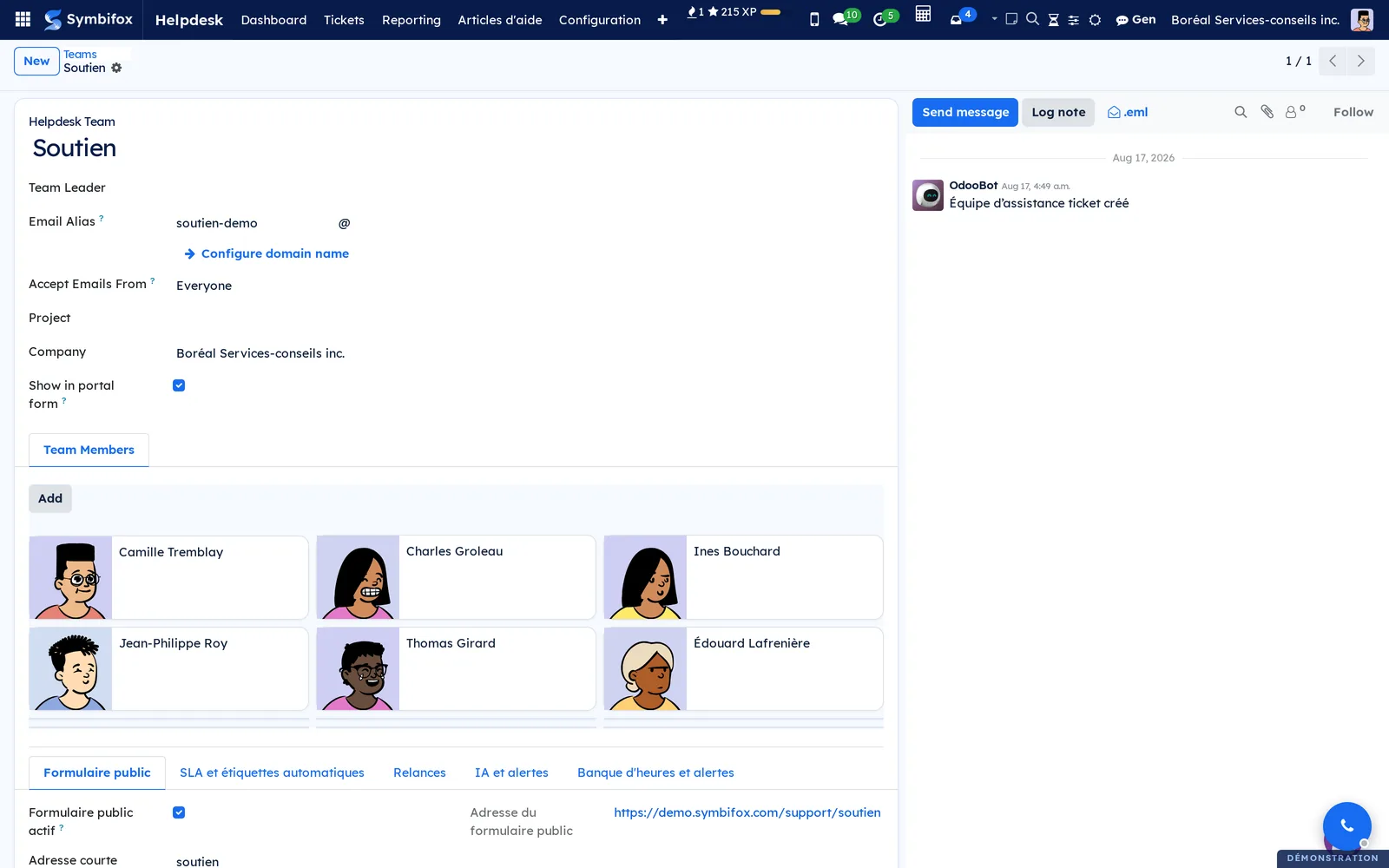
In the demo, the Soutien team has six members and its public form is active, at /support/soutien.
Three settings belong to your administrator, once per installation. Triage and themes go through the AI service connected to Symbifox (see Gen, the assistant): that service must be running and reachable. The address of the push notification relay is also set at that level, as is the list of guard words.
Base data#
Before you receive tickets, create or check:
- the teams (Configuration › Teams), with their members and the tabs above;
- the company's working schedule, or the team's, if deadlines are counted in business hours;
- the stages (six in the demo), their closing email and, if needed, their Libellé côté client (client-facing label);
- the channels, categories and tags: triage only suggests categories that exist;
- the macros for frequent replies, and the help articles (Articles d'aide) for questions that keep coming back;
- the client's hour bank in Hour bank, if support time is deducted from it.
Getting started#
This walkthrough handles a call from Clinique dentaire Rosemont: its network printer no longer responds.
- Open Helpdesk › Tickets › Tous les billets (all tickets), then select New.
- Enter the title “Network printer not responding”, then choose the Soutien team and the contact Clinique dentaire Rosemont.
- Choose the “Phone” channel, give it two priority stars and describe the problem in Description.
- Select Assign to me, then Save. The ticket gets its number and the New stage.
- Move the ticket to In Progress in the form's stage bar.
- In the chatter (the message thread at the bottom of the form), select Send message to tell the clinic you are on it. This public message counts as the first response.
- Once the printer works again, open the Feuilles de temps tab, enter the time spent, then move the ticket to Done.
The clinic receives the closing email, which invites it to reply if the problem comes back. If the team sends a satisfaction survey, it follows. In the demo, ticket HT00064 is waiting on the client: its header offers Fin de l'attente, and its tabs run from Description to Feuilles de temps.
Common tasks#
Create a ticket#
You create a ticket by hand when the request arrives by phone, in person or through an email you pass on.
- Open Helpdesk › Tickets › Tous les billets, then select New.
- Enter the Title and the Description.
- Choose the Team, then the Partner; the partner's name and email carry over.
- Set the Priority, the Channel, the Category and the Tags.
- Select Save.
The ticket appears in the team's queue at the New stage, with its number. If the team acknowledges receipt for this channel, the client receives the acknowledgement.
Work from my teams' queue#
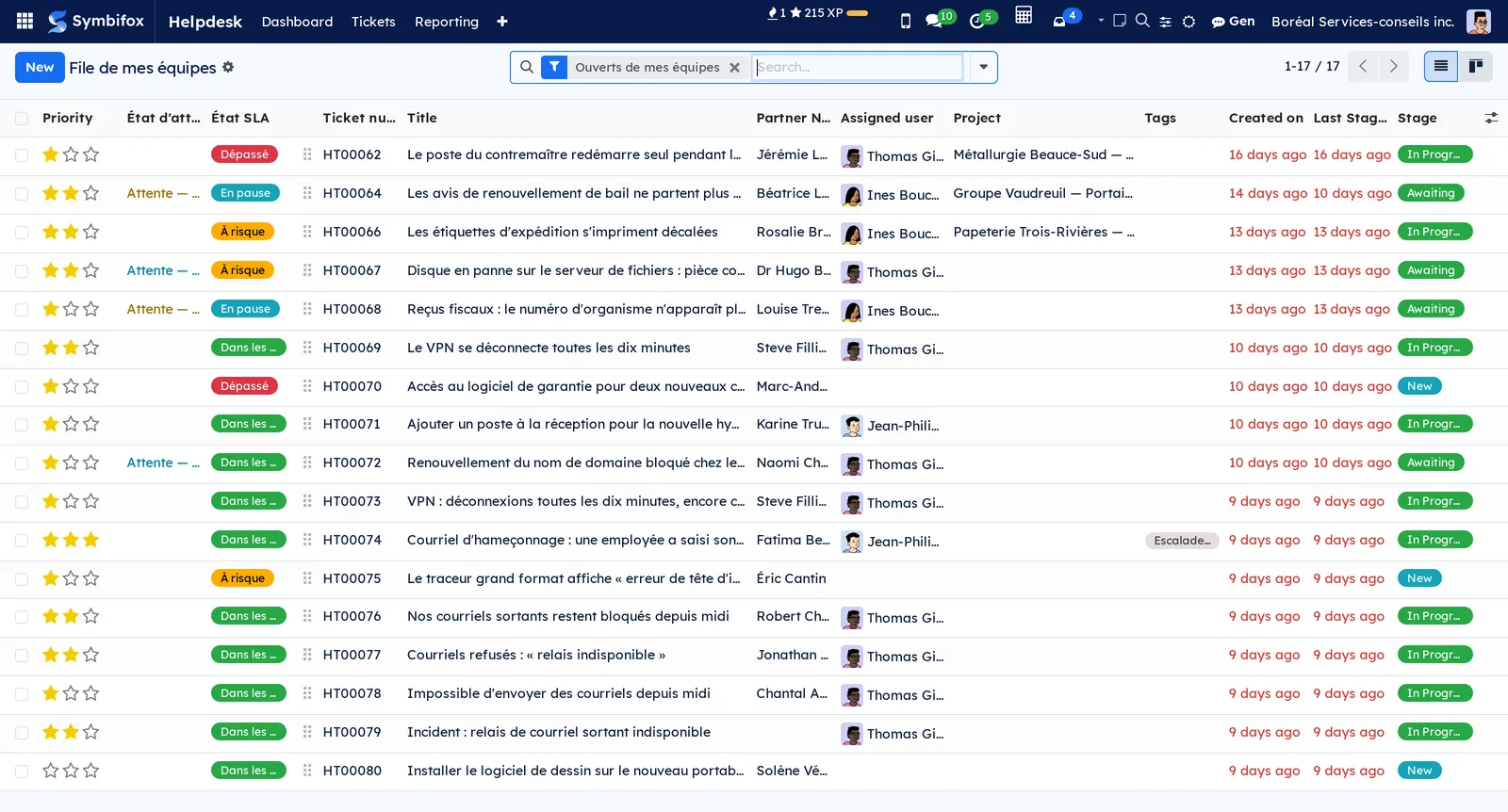
The queue gathers the open tickets of your teams, with the nearest resolution deadline at the top.
- Open Helpdesk › Tickets › File de mes équipes.
- If needed, add a filter: En attente (waiting), SLA à risque ou dépassé (SLA at risk or breached) or Résolus récemment (recently resolved, last seven days).
- Open the first ticket in the list.
The Ouverts de mes équipes (open in my teams) filter is set by default. The same filters, plus SLA à risque (SLA at risk), SLA dépassé (SLA breached), SLA en pause (SLA paused) and the État SLA grouping, work in every ticket list. In the demo, the queue holds 17 tickets, with their SLA status in colour.
Assign a ticket and move it forward#
The dashboard flags unassigned and unattended tickets; assigning is the first triage step.
- Open the ticket from the queue, or select its card in Helpdesk › Tickets › My Tickets.
- Select Assign to me, or choose the person in Assigned user.
- Adjust the Priority: three stars flag a critical ticket.
- Drag the card to the stage you want in the kanban, or select the stage in the form's stage bar.
The Stage column and the last update date change at once. If a colleague has the same ticket open, a banner says so at the top of the form: “Ines Bouchard consulte aussi ce billet.” (Ines Bouchard is also viewing this ticket).
Put a ticket on hold for the client or a third party#
When the ball is in the client's or a vendor's court, the ticket leaves your active pile without changing stage.
- Open the ticket.
- To wait on the client, select Attente client.
- To wait on a vendor, choose the external wait in État d'attente, then select Save.
The state appears in the État d'attente column and works as a filter. While the ticket waits on the client, the resolution clock stops and the État SLA changes to En pause (paused). A reply from the client, by email or on the portal, ends the wait on its own; Fin de l'attente (end the wait) ends it by hand.
Track service deadlines#
A team with service deadlines (SLA) gives each ticket two due dates, counted on its business hours.
- Open the ticket.
- Read Échéance première réponse (first response due), Échéance résolution (resolution due) and Première réponse (first response).
- Read the État SLA: Dans les délais (on track), À risque (at risk), En pause, Dépassé (breached) or Respecté (met).
A SLA à risque banner appears when less than a quarter of the allotted time is left. A SLA première réponse dépassé (first response SLA breached) or SLA résolution dépassé (resolution SLA breached) banner appears when a deadline slips, and a follow-up activity is scheduled once. Heures en pause (SLA) (paused hours) adds up the time spent waiting on the client, which pushes back the resolution deadline.
Reply with a macro#
A macro is a ready-made reply, restricted to certain teams or not, that can also move the ticket forward.
- Open the ticket and select Appliquer macro.
- In the Appliquer une macro (apply a macro) dialog, choose the macro.
- Reread the message: the variables are already replaced with the client's name, the number, the deadline or the portal link.
- Correct the text as needed, and check Note interne (internal note) if it must not go to the client.
- Check the announced Actions (stage, tags, assignment, waiting state), then select Appliquer (apply).
The message goes to the client, or is posted as an internal note, and the actions apply to the ticket. If you empty the message, only the actions apply.
Send an update to the client#
The update email carries your branding and the ticket number, and it never goes out without your review.
- Open the ticket and select Envoyer une mise à jour.
- In the composer, prefilled with the update template, replace the text in square brackets with the actual progress.
- Select Send.
The email goes to the ticket's contact and stays in the chatter. As long as the template's bracketed text is still there, the composer refuses to send.
Give the client access to their ticket#
A client with portal access finds their ticket at the address shown on the form.
- Open the ticket and read Accès portail (portal access) and Lien portail client (client portal link).
- Select Abonner le client so the client receives the thread's messages without an invitation email.
- Send the client the portal link in your next update.
The client follows progress on the portal, in your colours, and can reply there. The portal shows them a clear status rather than the internal stage name: “Votre réponse est attendue” (your reply is expected), “En attente d'un tiers” (waiting on a third party), or the promised first-response date. Statut côté client (client-facing status) shows on the form what the client sees.
View Client 360#
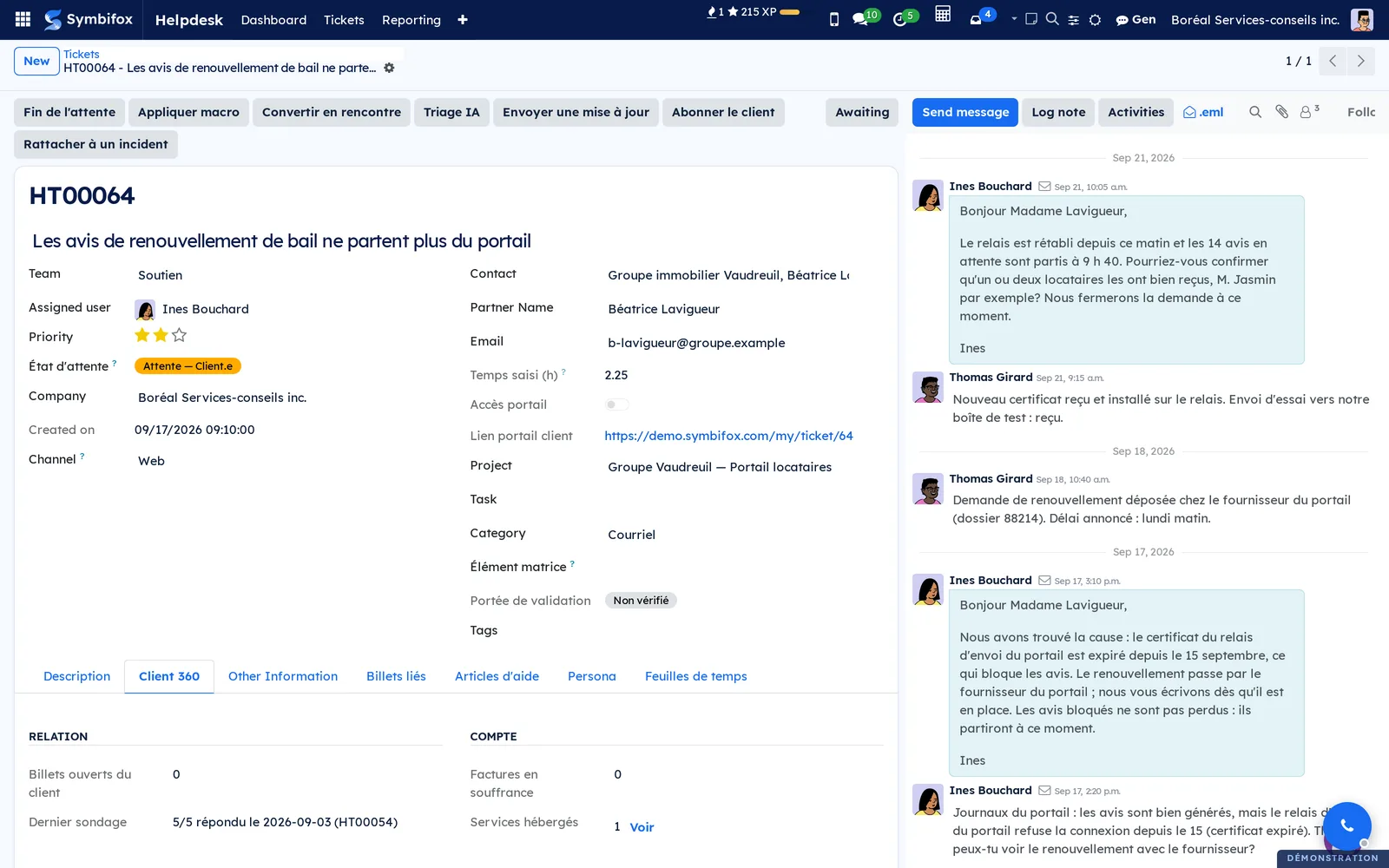
The Client 360 tab sums up the relationship with the contact's organization, without leaving the ticket.
- Open the ticket and its Client 360 tab.
- Read Billets ouverts du client (client's open tickets), Solde banque (h) (bank balance) and Dernier sondage (last survey) in the Relation box.
- Read Factures en souffrance (overdue invoices), Montant en souffrance (overdue amount) and Services hébergés (hosted services) in the Compte (account) box.
- Browse the Derniers billets du client (client's latest tickets), or select Tous les billets du client (all the client's tickets).
The figures are counted with your permissions: only the tickets you can see, and the invoices of the companies you work in. Voir (view) opens the client's hosted services (see Hosting management). In the demo, ticket HT00064 shows the client's last survey, rated 5 out of 5 on an earlier ticket.
Log time spent on a ticket#
Time logged on a ticket lands on the ticket's project, so it is deducted from the team's hour bank.
- Open the ticket and its Feuilles de temps tab.
- Add a line: date, description, duration.
- Select Save.
Temps total (h) (total time) updates, along with Temps saisi (h) (time logged) and Solde banque (h) at the top of the form. A banner flags a low balance for this client.
Link a ticket to a project and the knowledge matrix#
The project link charges the time to the right engagement; the matrix link checks that the request falls within the engagement's scope.
- Open the ticket.
- Choose the Project and, if needed, the Task.
- Choose the matching Élément matrice (matrix item) in the project's matrix.
- Select Save.
Portée de validation (scope check) shows Dans le scope (in scope), Élément en attente (item pending), Hors scope (out of scope) or Non vérifié (not checked), and Matrice (matrix) names the item's matrix. You can link only an item you are allowed to read.
Convert a ticket into a meeting#
When the request calls for a meeting, create the meeting report from the ticket.
- Open the ticket and select Convertir en rencontre.
- Complete the draft report, prefilled with the ticket title, in Meetings.
The ticket counts its meeting reports in the Rencontres button, and the report keeps its Ticket d'origine (source ticket).
Ask for an AI triage#
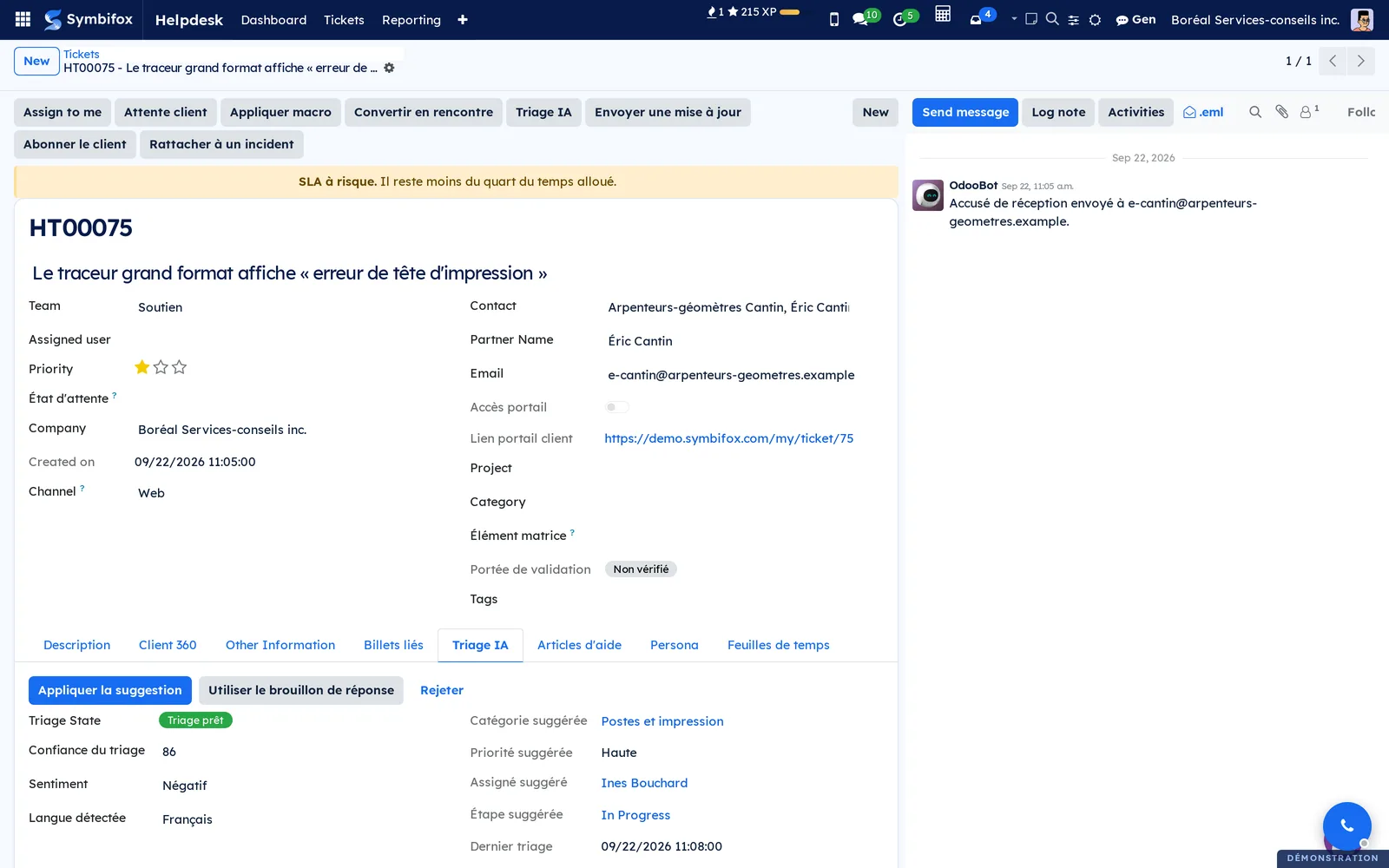
Triage proposes a category, a priority, a stage, a person and a draft first reply; it changes nothing by itself.
- Open the ticket and select Triage IA, then confirm.
- Open the Triage IA tab and read the suggestions, the Confiance du triage (triage confidence), the Sentiment and the Langue détectée (detected language).
- Select Appliquer la suggestion (apply the suggestion), clear what you do not keep, then select Appliquer.
- To reply, select Utiliser le brouillon de réponse (use the draft reply): the composer opens, and nothing goes out before Send.
- If nothing fits, select Rejeter (reject).
Only allowed stages, members and categories can be proposed: a suggestion outside those lists is dropped. The draft is written in the ticket's language. Each outcome (accepted, modified, rejected) is recorded in Issues du triage (triage outcomes). If the AI service cannot be reached, a window says so and the ticket stays untouched; a temporary error is noted in the tab, and you can try again. In the demo, ticket HT00075 carries a ready suggestion, with a confidence of 86.
View the contact's persona card#
The persona card sums up how to address the contact: style, greeting, tone and payment reliability. The tab is reserved for the persona role.
- Open the ticket and its Persona tab.
- Read Style d'adresse (form of address), Salutation préférée (preferred greeting), Formule de clôture (closing line), Ton du contact (contact's tone), Notre ton (our tone) and Qualité de paiement (payment reliability).
- Select Ouvrir la fiche persona (open the persona card) to edit it, or Créer maintenant (create now) if the contact does not have one yet.
These cues help before you write an update or apply a macro.
Close a ticket#
Closing sends the stage's closing email, then, depending on the team, the satisfaction survey.
- Open the ticket and check that the solution is recorded in the chatter.
- Move the ticket to Done, Cancelled or Rejected.
The contact receives the branded “Demande fermée” (request closed) email, in their language, which invites them to reply to reopen the request. A survey that goes out at the very moment of closing replaces this email. When the survey comes back, Note de satisfaction (satisfaction rating) shows it on the ticket.
Create a help article from a closed ticket#
A question solved once can serve every client after that.
- Open a closed ticket and select Créer un article d'aide.
- Reread the draft, taken from the client's description and the team's last public reply.
- Remove anything that identifies the client, then select Save.
The article stays unpublished, visible to the ticket's team only, until you publish it (see Publish a help centre). The ticket's Articles d'aide tab keeps the articles that concern it.
Spot a duplicate and merge two tickets#
With the merge module, Symbifox looks at creation for similar open tickets from the last seven days: same contact, same address or same organization.
- Open the ticket that carries the Doublon possible. (possible duplicate) banner.
- Compare the Sujet (subject), Contact and Ressemblance (%) (similarity) of the suggested ticket.
- Same contact, same request: select Fusionner. The oldest ticket is kept.
- Same cause, different requester: select Incident.
- Otherwise, select Pas un doublon (not a duplicate).
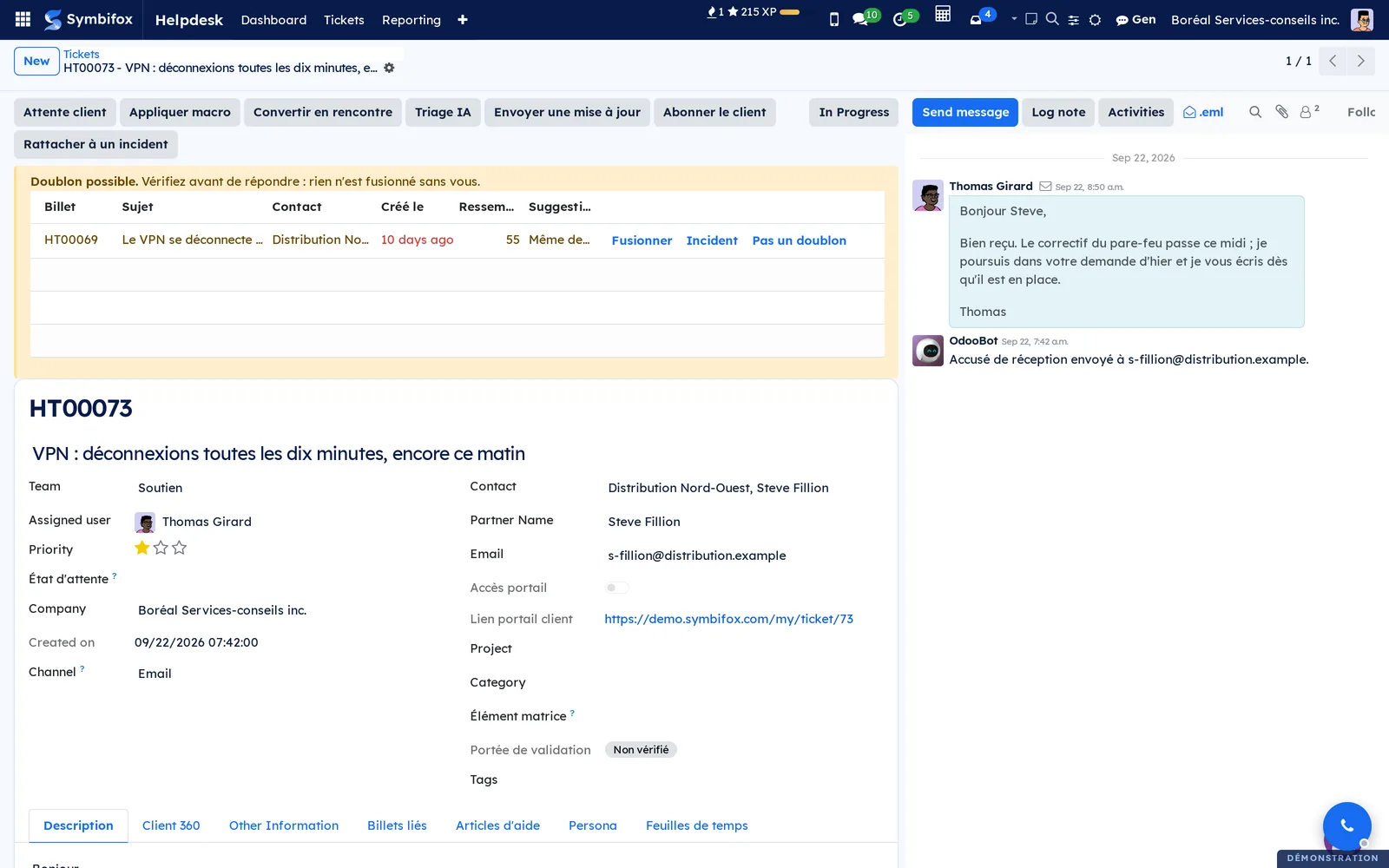
After a merge, the merged ticket carries a banner that points to the kept ticket, and the kept one counts its Fusionnés (merged). To merge without a suggestion, select the tickets in the list, then Actions › Merge Helpdesk Tickets. In the demo, ticket HT00073 suggests HT00069, from the same contact, at 55% similarity.
Group tickets under an incident and answer them at once#
An outage hits several clients: each keeps their ticket, and a parent ticket carries the incident. This also comes from the merge module.
- In Helpdesk › Tickets › Tous les billets, check the affected tickets.
- Select Actions › Rattacher à un incident.
- Choose Nouvel incident (new incident) and enter the Titre de l'incident (incident title), or choose an Incident existant (existing incident).
- Select Rattacher (link).
- Once the cause is found, open the incident and select Répondre aux billets de l'incident (reply to the incident's tickets).
- Write the Message au client (message to the client) and, if needed, check Fermer les billets en même temps (close the tickets at the same time), with the Étape de fermeture (closing stage).
- Select Envoyer (send).
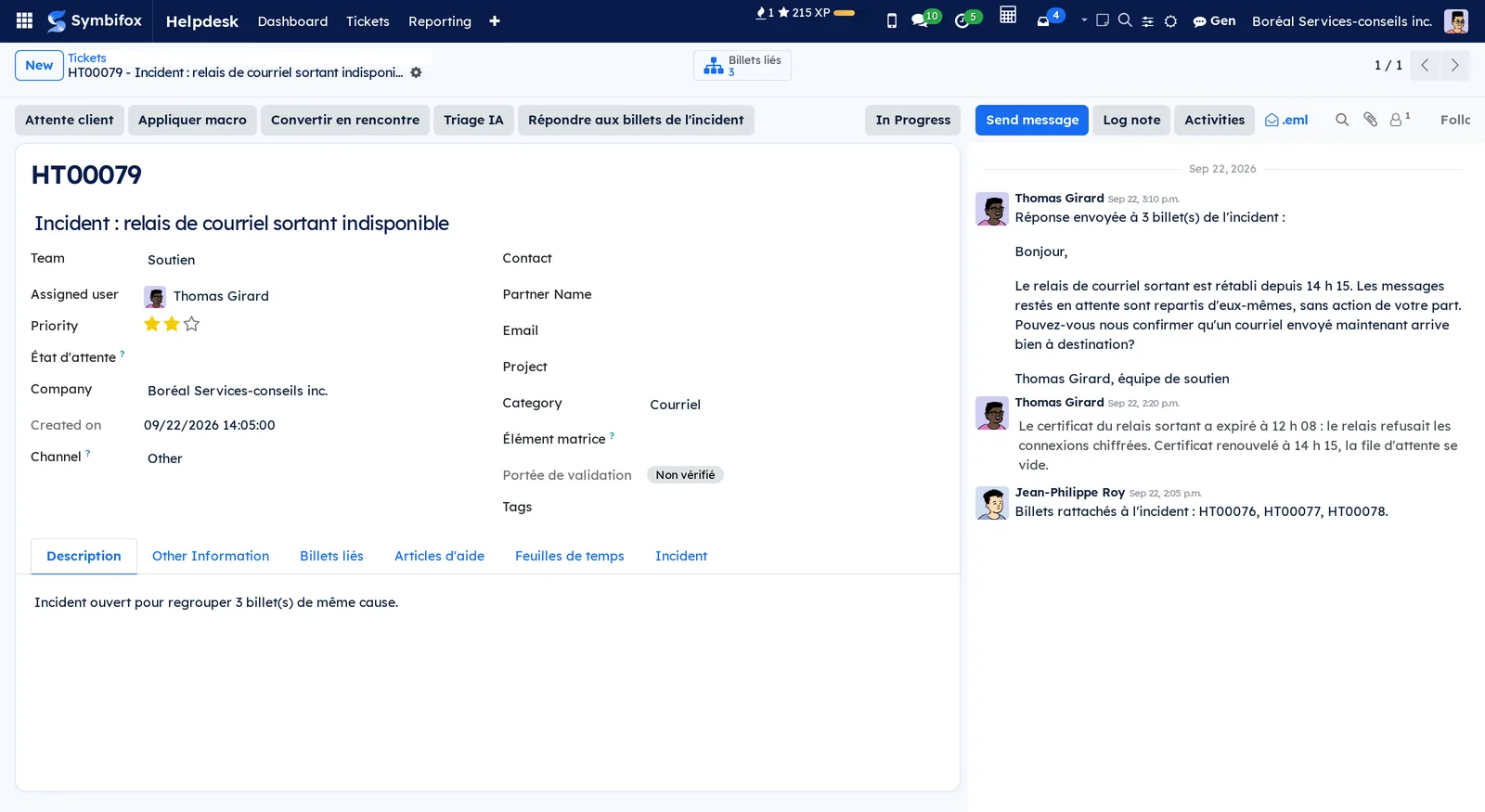
The message goes out on each open ticket of the incident, in each client's own thread: no client sees the others. A summary note stays on the incident. From a single ticket, Rattacher à un incident does the same. In the demo, incident HT00079 groups three tickets, and its chatter keeps the grouped reply.
Choose your agent notifications#
Each agent decides, event by event, how and when the Helpdesk notifies them.
- Open Helpdesk › Mes notifications.
- Add a line and choose the Événement (event): new ticket in your teams, ticket assigned to you, client reply, SLA at risk, SLA breached.
- Choose the Canal (channel): Odoo (boîte de réception) (Odoo inbox), Courriel (email), ntfy (téléphone) (ntfy, phone) or Aucune notification (none).
- Choose Quand (when): Tout de suite (immediately), Condensé toutes les heures (hourly digest) or Condensé quotidien (daily digest).
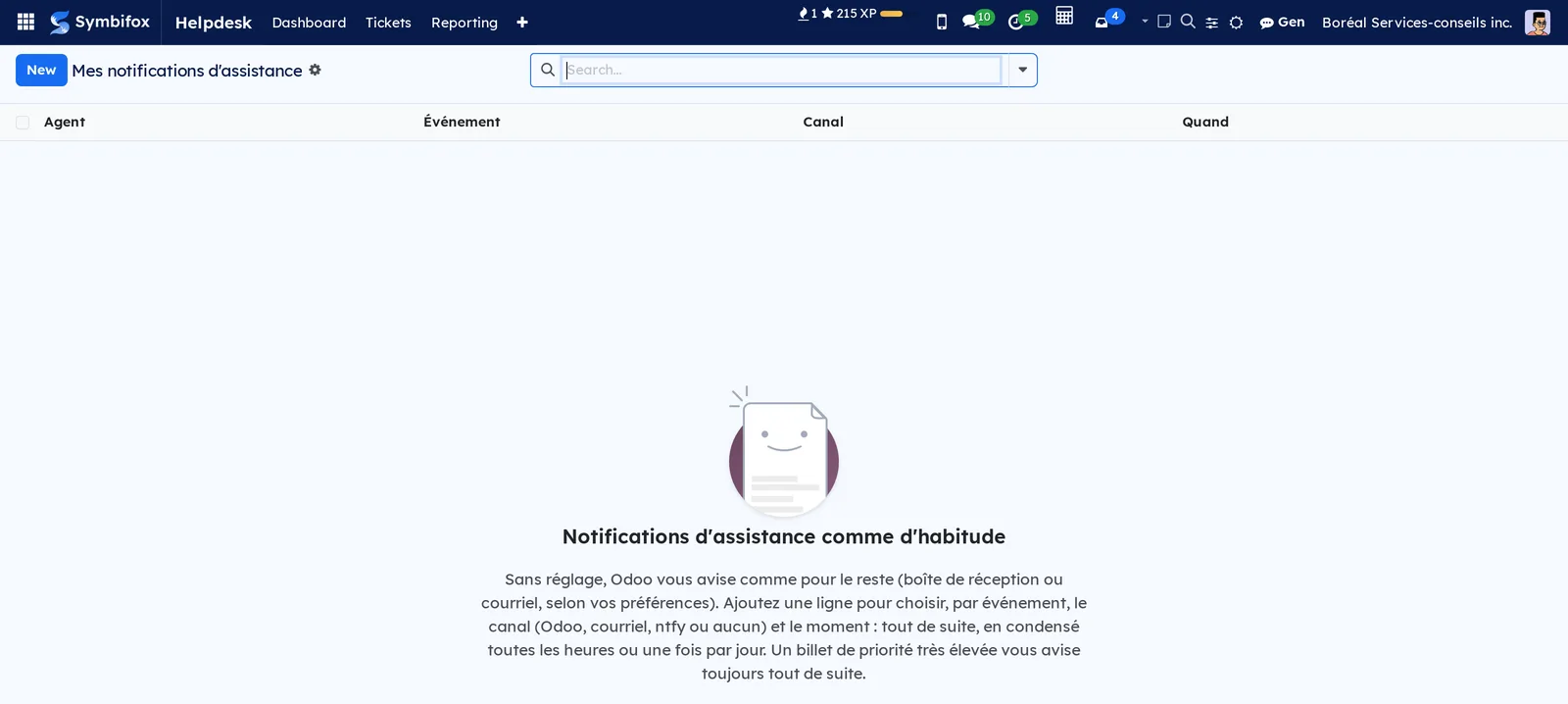
With no line, you are notified as before. A very high priority ticket always notifies you immediately. If the ntfy relay is missing, the notice lands in your Odoo inbox. In the demo, the list is empty and its help text says so.
Set a client's emails#
A client chooses to receive each reply or a daily summary, and can stop the emails of one request.
- Open the contact's form (a person, not a company) in Contacts.
- In Mises à jour d'assistance (helpdesk updates), choose À chaque réponse (with each reply) or Résumé quotidien (daily summary).
- Select Save.
The summary goes out once a day, after 8 a.m. in the contact's time zone. The client makes the same choice on the portal, above their ticket list. Each reply also carries a link to stop the emails of that request; Courriels coupés pour (emails stopped for) names those contacts on the ticket.
Open a public support form#
Each team can expose a branded form, with no account or password, at /support/<slug>.
- Open Helpdesk › Configuration › Teams, then the team.
- In the Formulaire public tab, enter the Adresse courte (slug) (short address) and check Formulaire public actif (public form active).
- Write the Contenu du formulaire (form content) and the Message de confirmation (confirmation message).
- Optional: choose the Étiquettes du formulaire public (public form tags) offered to the visitor, their Libellé du choix d'étiquette (tag selector label) and Choix d'étiquette obligatoire (tag required).
- Select Save, then open the address shown in Adresse du formulaire public (public form address).
Each submission creates a ticket in the team, on the Web channel, marked with the chosen tag, and the visitor sees the thank-you page. While they type their subject, the form suggests published help articles.
Set service deadlines and automatic tagging#
Service deadlines (SLA) set the time for a first response and for resolution; tagging rules add a tag based on the text of the request.
- Open the team and its SLA et étiquettes automatiques tab.
- In the SLA box, enter the first response deadline and the resolution deadline, in hours; 0 turns the deadline off.
- Choose the Horaire d'affaires (SLA) (business hours); left empty, deadlines run day and night.
- In Règles auto-tag (auto-tag rules), add a line: the Regex (i) expression to look for in the subject and description, and the Tag à appliquer (tag to apply).
- Select Save.
Each new ticket gets its deadlines, counted in working hours of the schedule, leaves included. The company's schedule is offered by default.
Set up the acknowledgement of receipt#
The acknowledgement confirms receipt, gives the request number and says when to expect an answer.
- Open the team and its SLA et étiquettes automatiques tab.
- In Accusé de réception pour (acknowledgement for), choose the channels concerned (Web, Email, and so on).
- Enter the Horaire annoncé au client (hours announced to the client), or leave it empty to announce the schedule summary (Annoncé au client).
- Optional: write a notice in Avis temporaire dans l'accusé (congés, fort volume) (temporary notice: holidays, high volume) and choose Avis affiché jusqu'au (notice shown until).
- Select Save.
Each new ticket from those channels receives an acknowledgement, once, with the first-response deadline and the portal link if the client has access. Accusé de réception envoyé (acknowledgement sent) keeps its date, and an internal note records it. No acknowledgement goes to a closed ticket, to the team's or the company's address, or more than five times an hour to the same address.
Turn on reminders for a client on hold#
A ticket that has waited on the client for days ends up reminded, then closed, without anyone having to think of it.
- Open the team and its Relances tab.
- Check Relancer le client en attente (remind the waiting client).
- Adjust Première relance après (jours) (first reminder after, days), Deuxième relance après (jours) (second reminder after) and Fermeture après (jours) (closing after): 3, 4 and 3 by default.
- Choose the Étape de fermeture; left empty, the agent receives an activity instead.
- Select Save.
The days are business days if the team has a schedule. A public reply from an agent restarts the cycle; an internal note does not. The automatic closing sends no survey, and a reply from the client reopens the request. On a ticket, Sans relance automatique (no automatic reminder) excludes it, and Prochaine relance (next reminder) and Relances envoyées (reminders sent) follow the cycle.
Set up the satisfaction survey#
The one-question survey asks for a rating from one to five, right in the email.
- Open the team and its Banque d'heures et alertes tab.
- In Satisfaction, choose Sondage d'une question (one-question survey).
- Adjust Envoi après (h) (send after, hours; 24 by default) and Réponse acceptée pendant (jours) (answer accepted for, days; 28 by default).
- Optional: check Question d'effort (CES) (effort question, customer effort score), and choose the person for Suivi des notes négatives (low rating follow-up).
- Select Save.
The survey goes out once per ticket, unless the ticket was reopened in the meantime. A rating of one or two creates a follow-up activity for the designated person, or for the ticket's agent. The Sondage (module Sondages) (survey through the Surveys app) mode keeps the former sending through Surveys, at closing, with the chosen Sondage CSAT (CSAT survey).
Turn on automatic triage, guard words and spike alerts#
These three settings work as tickets arrive; only the first one goes through AI.
- Open the team and its IA et alertes tab.
- Check Triage IA automatique (automatic AI triage) so a suggestion awaits each new ticket.
- Check Mots de garde (guard words) to spot emergencies by their vocabulary.
- Check Alerte de pic (spike alert), then set Pic mesuré par (spike measured by), Seuil (billets) (threshold, tickets) and Fenêtre (heures) (window, hours).
- Select Save.
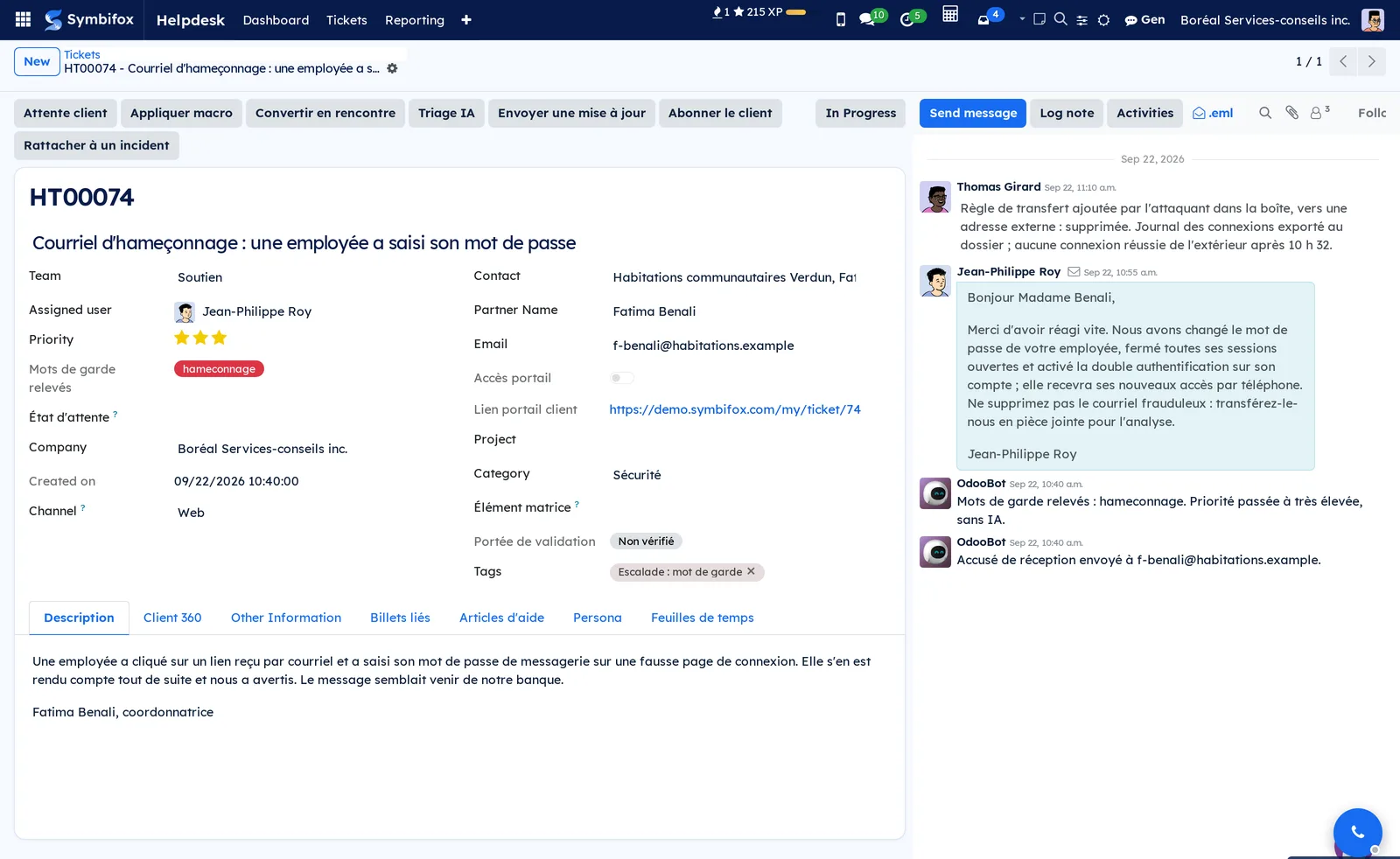
A ticket that contains a guard word (general outage, ransomware, phishing, data breach, and so on) goes to very high priority, receives an escalation tag and an internal note, and triggers the ntfy alert if the team has it checked; Mots de garde relevés (guard words found) names them. A spike alert notifies the team members when too many tickets arrive from the same organization, or the same category, within the chosen window. In the demo, ticket HT00074 shows what a guard word produces.
Link a team to an hour bank and to alerts#
The hour bank balance shows on every ticket of the team, and a critical ticket triggers a push notification.
- Open the team and its Banque d'heures et alertes tab.
- Choose the Banque d'heures (hour bank) and the Seuil de solde bas (h) (low balance threshold).
- Check Alerte ntfy des billets critiques (ntfy alert for critical tickets) and choose the Priorité minimale pour ntfy (minimum priority for ntfy): High or Very High.
- Select Save.
The team's tickets show Banque d'heures and Solde banque (h), and take the bank's project when they have none. A ticket created at, or raised to, the chosen priority sends the notification.
Create a macro#
You write a macro once and reuse it on every ticket, or only on those of certain teams.
- Open Helpdesk › Macros, then select New.
- Enter the Name and the Contenu (content), with the variables you want, for example “{{ prenom }}” or “{{ echeance }}”.
- Optional: limit the Équipes applicables (applicable teams); left empty, the macro works everywhere.
- In Actions à l'application (actions when applied), check Note interne, M'assigner le billet (assign the ticket to me), or choose Passer à l'étape (move to stage), Ajouter les étiquettes (add tags) and État d'attente.
- Select Save.
The Variables disponibles (available variables) box lists the nine variables: “{{ client }}”, “{{ prenom }}” (first name), “{{ salutation }}”, “{{ numero }}” (number), “{{ sujet }}” (subject), “{{ agent }}”, “{{ equipe }}” (team), “{{ portail }}” (portal) and “{{ echeance }}” (deadline). An unknown variable stays visible as is in the dialog.
Publish a help centre#
The public help centre answers frequent questions before they become tickets.
- Open Helpdesk › Articles d'aide, then select New.
- Enter the title, the Résumé (summary), the Mots-clés (keywords) and the content: the problem, then the solution, step by step.
- Optional: limit the Équipes (teams); left empty, the article serves them all.
- Check Publié (published), then select Save.
- Add a link to
/aideon your website: no menu is created by default.
The article appears under /aide, in the search and in the forms' suggestions. Lectures (views), Utile (helpful) and Pas utile (not helpful) measure its use.
Give stages a label for the client#
The portal can show “Received” or “Solved” rather than the working name of a stage.
- Open Helpdesk › Configuration › Stages, then the stage.
- Enter the Libellé côté client; left empty, the portal shows the stage name.
- Select Save.
The portal shows this label in the list, on the ticket page and in the stage filter.
Colour tickets by their tags#
An automatic rule gives each ticket the colour of one of its tags, the same way as tasks in Project. Prerequisite: administration rights.
- Go to Settings › Colors › Automatic rules and select New.
- Enter the Name, then choose “Helpdesk Ticket” in Model and “Tags” in Criterion.
- Under Colors, select Add a line, choose the tag in Record and its shade in Color. Without lines, each ticket takes its tag's own colour.
- Drag the lines into the order you want: on a ticket that carries several tags, the highest line wins.
- Save.
Result: in the kanban, the edge of each targeted ticket's card takes the colour.
The menus, one by one#
Helpdesk: the main menu.
Helpdesk › Dashboard: one card per team, in kanban. In the demo, Plaintes and Soutien, each with a To Do button (17 for Soutien) and the Unassigned, Unattended and High Priority counters. Kanban, list and pivot views. This is the morning screen: it shows where the orphan tickets are.

Helpdesk › Tickets: a grouping menu.
Helpdesk › Tickets › File de mes équipes: the open tickets of your teams, with the nearest resolution deadline at the top. See Work from my teams' queue.
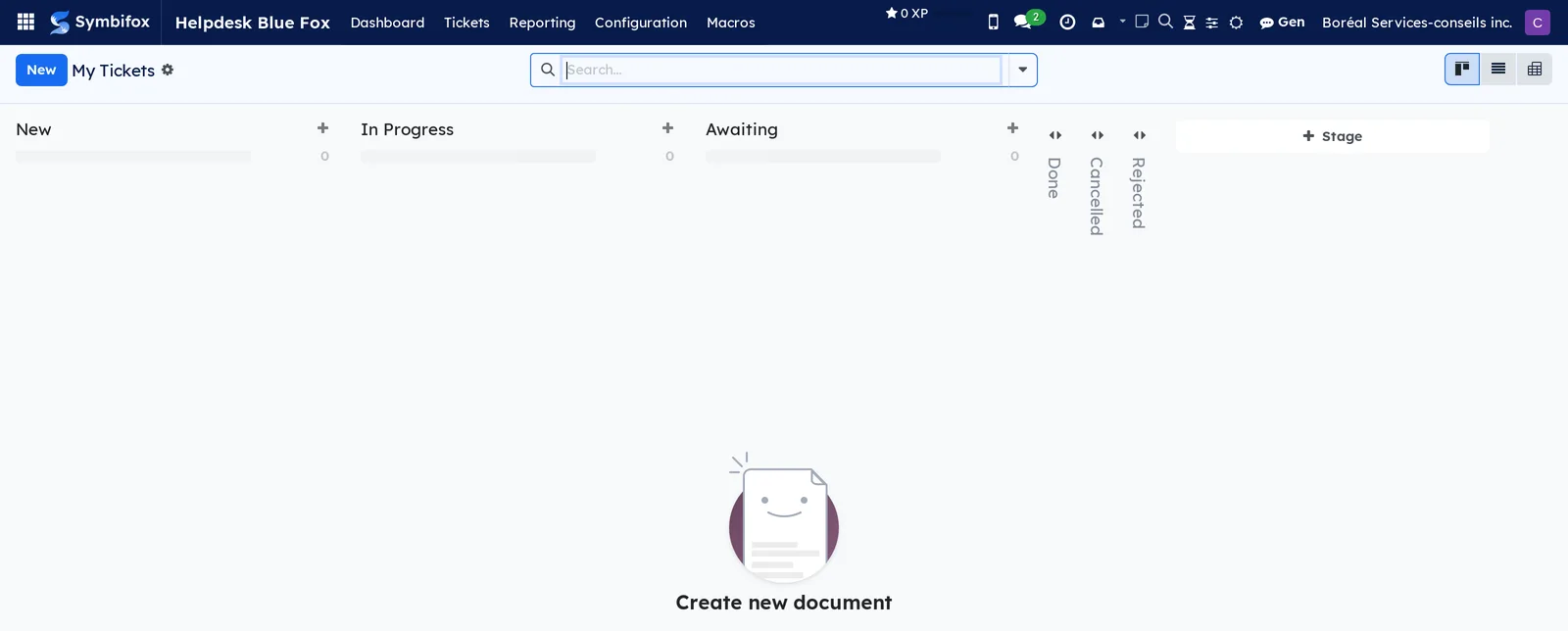
Helpdesk › Tickets › My Tickets: the tickets assigned to you, in a kanban by stage: New, In Progress, Awaiting, then Done, Cancelled and Rejected, folded. Stage adds a column. In the demo, Camille has none. Kanban, list, pivot and form views.
Helpdesk › Tickets › Tous les billets: the list of all tickets your permissions let you see, described in Overview. Group by team, stage, SLA status or assigned user, and filter on the waiting state. With the merge module, the Actions menu offers Rattacher à un incident and merging.
Helpdesk › Reporting: a grouping menu, for managers only.
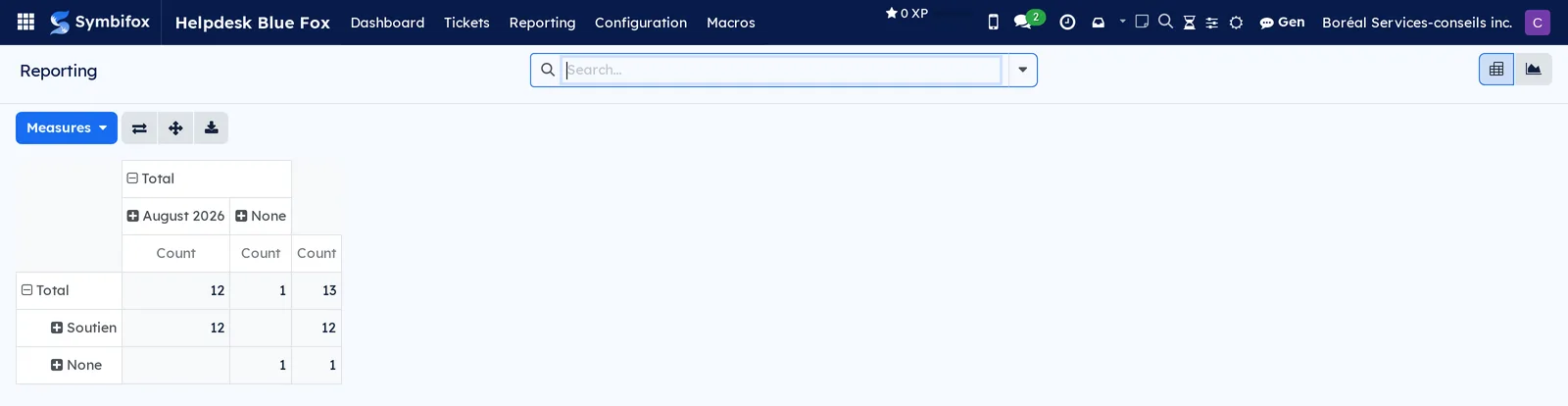
Helpdesk › Reporting › Tickets: a pivot table of tickets, with teams in rows and creation months in columns. Measures changes the indicator, and buttons flip the axes, expand everything and download. A graph view is also available.
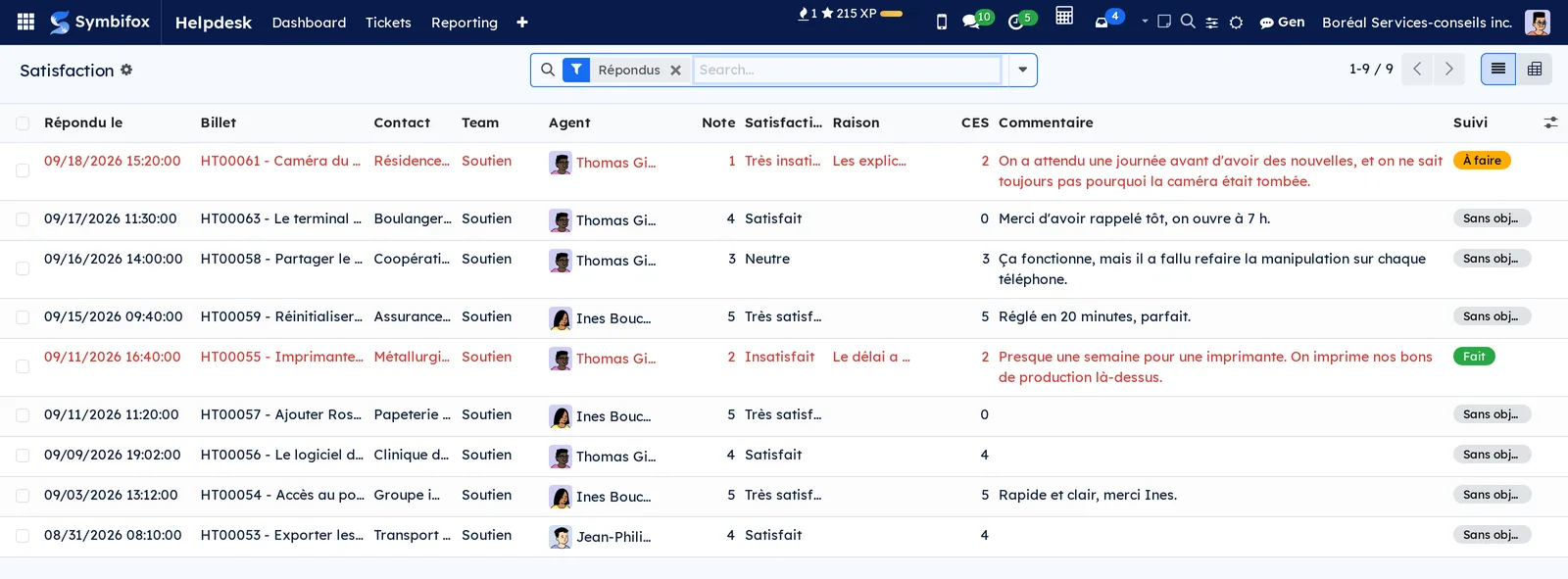
Helpdesk › Reporting › Satisfaction: the answers to one-question surveys, with Note (rating), Raison (reason), CES, Commentaire (comment) and Suivi (follow-up), as a list or a pivot table by team and month. Filters Notes négatives (low ratings), Suivi à faire (follow-up to do) and 90 derniers jours (last 90 days). Low ratings show in red.
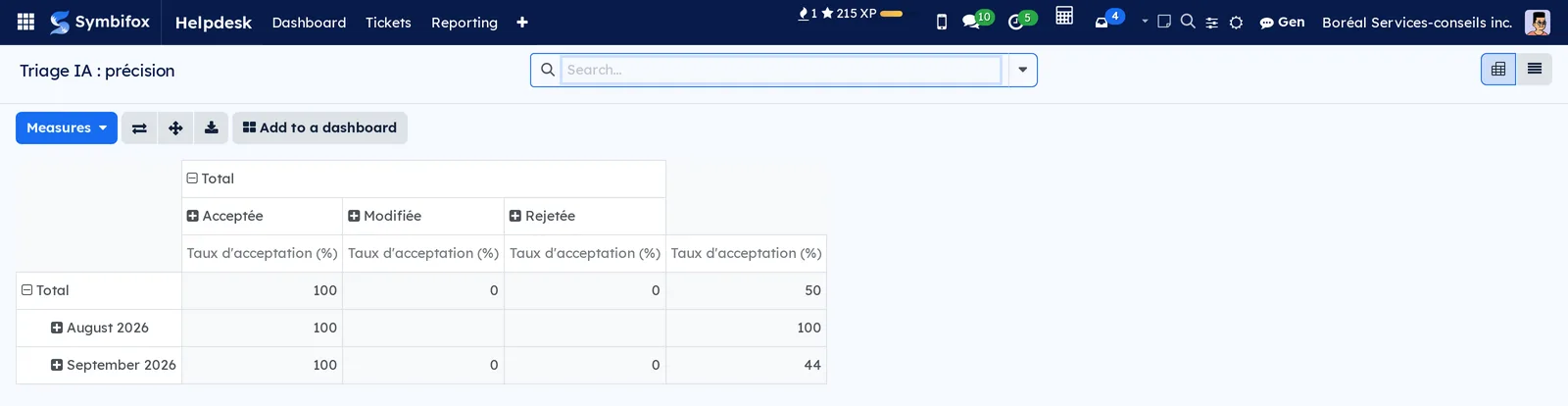
Helpdesk › Reporting › Triage IA: the Triage IA : précision (AI triage accuracy) report, which crosses months and outcomes (Acceptée, Modifiée, Rejetée: accepted, modified, rejected) and measures the Taux d'acceptation (%) (acceptance rate). Each suggestion's Tranche de confiance (confidence band) serves as a grouping.
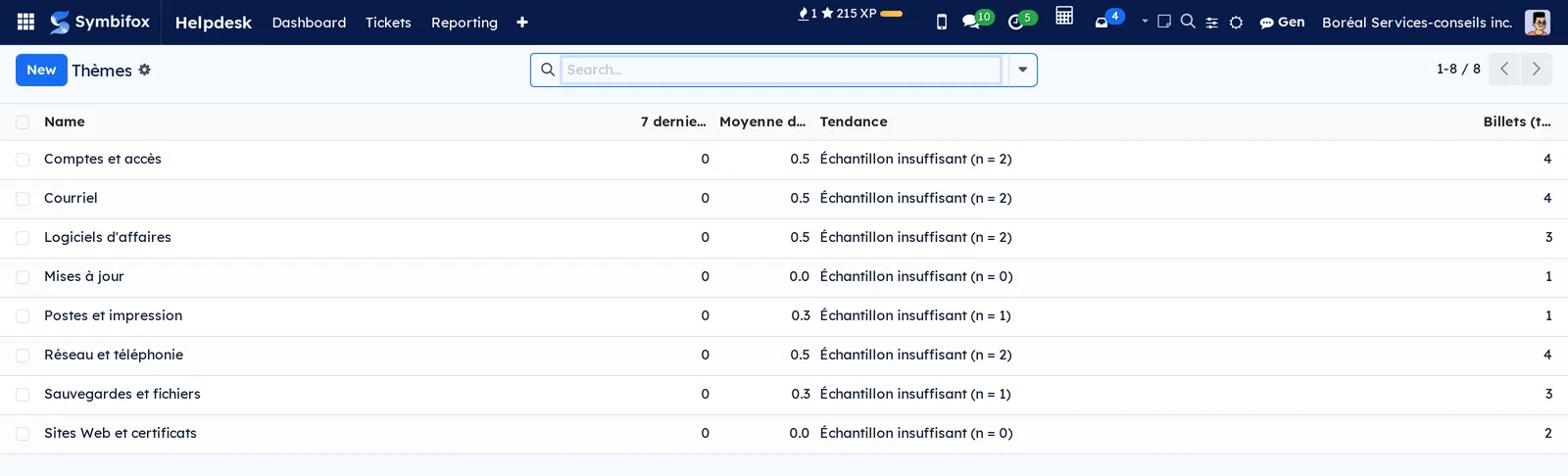
Helpdesk › Reporting › Thèmes (themes): the week's themes, with 7 derniers jours (last 7 days), Moyenne des 4 semaines d'avant (average of the previous 4 weeks), Tendance (trend) and Billets (total) (tickets, total). A trend shows only from ten tickets: in the demo, all eight themes show an insufficient sample.
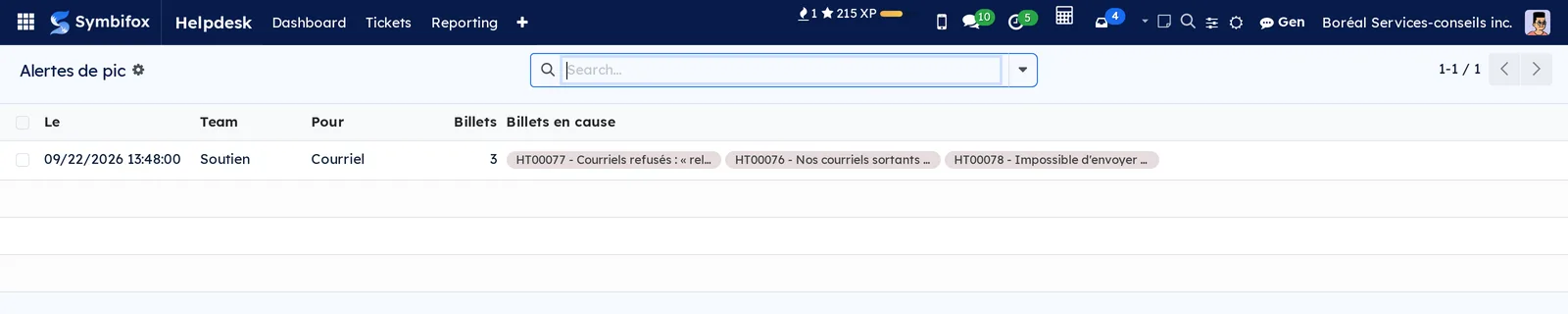
Helpdesk › Reporting › Alertes de pic (spike alerts): each alert, with the team, the organization or category concerned (Pour, for), the number of Billets (tickets) and the Billets en cause (tickets involved).
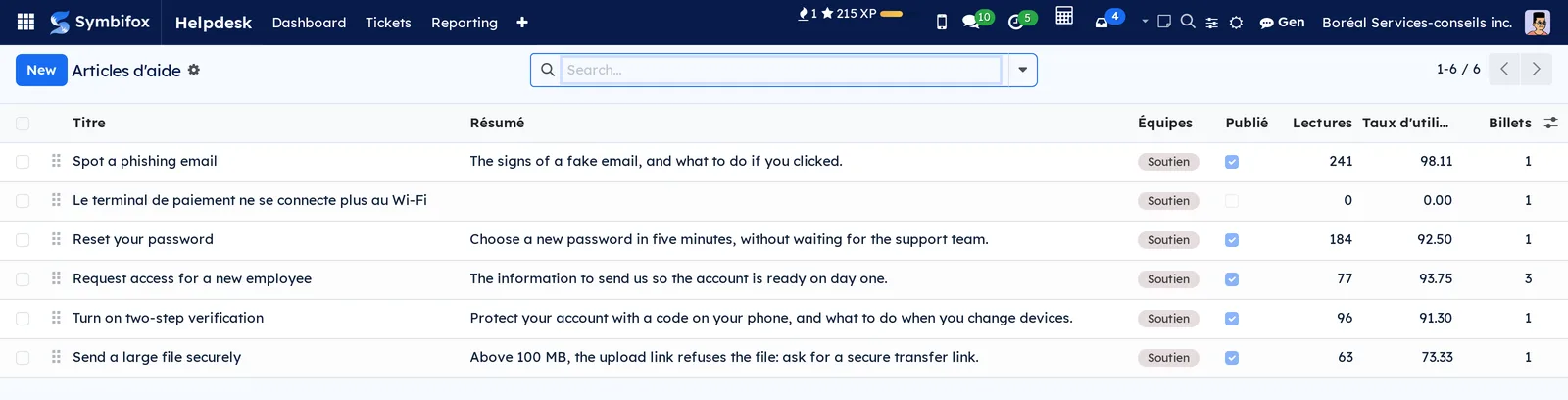
Helpdesk › Articles d'aide: the help centre articles, with Publié, Lectures, Taux d'utilité (%) (helpfulness rate) and Billets. Filters Publiés (published), Non publiés (unpublished) and Archivés (archived). In the demo, six articles, one of them a draft.
Helpdesk › Configuration: a grouping menu, for managers only.
Helpdesk › Configuration › Settings: the page described in Settings.
Helpdesk › Configuration › Channels: the list of incoming channels, which you can reorder. In the demo: Web, Email, Phone, Other and Expérience client. The acknowledgement of receipt is chosen per channel.
Helpdesk › Configuration › Categories: the list of ticket categories. The category is required on the portal form when Required Category is checked, and triage suggests only these categories.
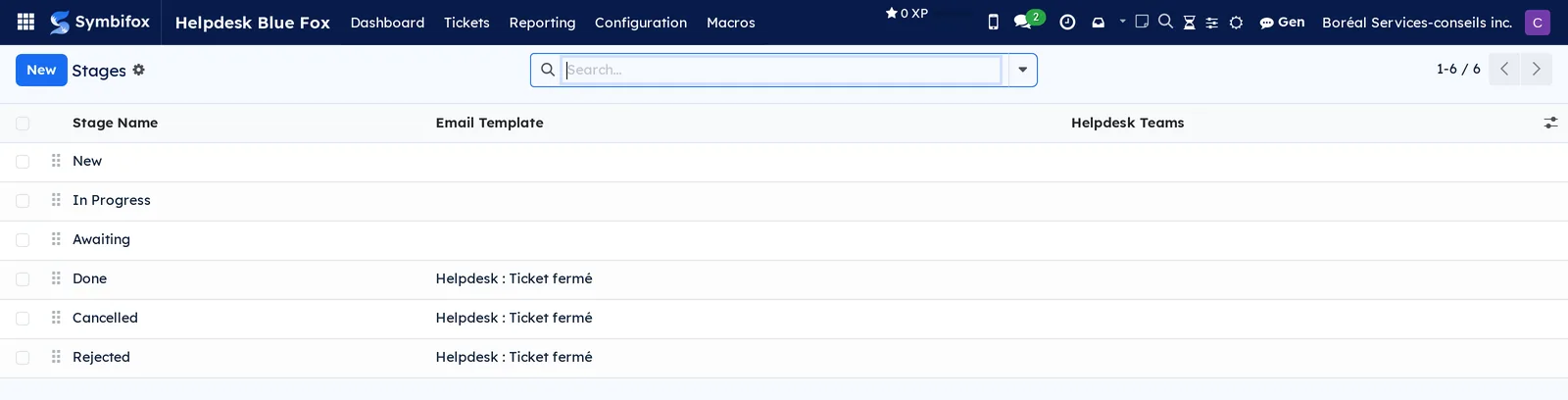
Helpdesk › Configuration › Stages: the stages, with Stage Name, Email Template and Helpdesk Teams (empty means all). In the demo, Done, Cancelled and Rejected send “Helpdesk : Demande fermée”. A stage's form carries the Libellé côté client.
Helpdesk › Configuration › Teams: the list of teams, with Name, Category and four ticket counters. The form carries the five tabs described in Settings.

Helpdesk › Configuration › Ticket Tags: the list of tags, each with its free colour (Own color), which its badges show on the ticket form, list and kanban. Tagging rules, macros and the public form's selector use these tags.
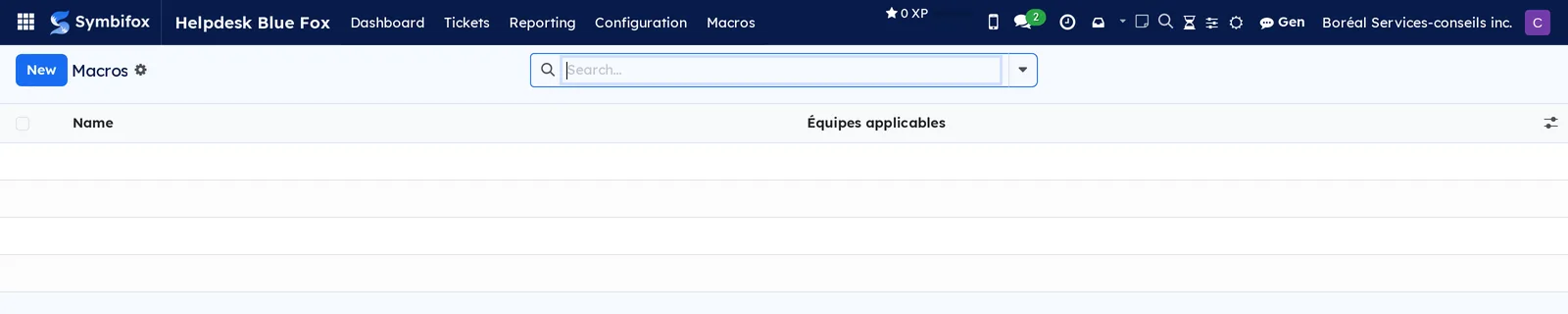
Helpdesk › Macros: the list of ready-made replies, with Name and Équipes applicables. In the demo, eight macros, two of them reserved for the Soutien team. Only managers create them.
Helpdesk › Mes notifications: your notification preferences, one line per event, with Événement, Canal and Quand. Managers also see the Agent column and everyone's preferences. The screen is shown in Choose your agent notifications.
Reference#
Fields of the Helpdesk Ticket form#
| Field | Description | Required or default |
|---|---|---|
| Ticket number | Number assigned at creation. | Automatic |
| Title, Description | Subject and details of the request. | Title required |
| Team, Assigned user | Team responsible and person in charge. | Optional |
| Partner, Partner Name, email | Who is asking; the name and email carry over from the contact's form. | Optional |
| Priority | Zero to three stars. | Zero |
| Stage | Current stage; the closing date is set at a closing stage. | New |
| Channel, Category, Tags | Where the request came from and how it is classified. | Optional |
| État d'attente | Waiting on the client or on an external party, independent of the stage. | Empty |
| Mots de garde relevés, Thème (theme) | Emergency words found in the request, and the week's theme. | Calculated |
| Project, Task | Engagement the time is charged to. | Project of the team's bank |
| Banque d'heures, Solde banque (h), Temps saisi (h) | The team's bank, its balance and the time logged on the ticket. | Calculated |
| Accès portail, Lien portail client, Statut côté client | Client access, the ticket's address on the portal and the status the client reads there. | Calculated |
| Échéance première réponse, Échéance résolution, Première réponse | Service deadlines and the date of the first public response. | Calculated |
| État SLA, Heures en pause (SLA) | Where the deadlines stand, and time spent waiting on the client. | Calculated |
| Accusé de réception envoyé | Date of the acknowledgement of receipt. | Empty |
| Sans relance automatique, Prochaine relance, Relances envoyées, Fermé faute de réponse (closed for lack of reply) | Reminder cycle for a client on hold. | Cleared |
| Courriels coupés pour | Contacts who no longer receive this ticket's replies by email. | Empty |
| Note de satisfaction, Réponse CSAT (CSAT response), État CSAT (CSAT status) | Result of the one-question survey, or of the Surveys app survey. | Calculated |
| Élément matrice, Matrice, Portée de validation | Link to the matrix and alignment with the engagement's scope. | Non vérifié |
| Rencontres | Meeting reports created from the ticket. | Calculated |
| Suggestion IA (AI suggestion), Dernier triage (last triage), Issues du triage | Result, date and outcomes of triages. | Empty |
| Persona and its six cues | Communication cues taken from the contact's persona card. | Persona role |
Fields of the Team form#
| Field | Description | Required or default |
|---|---|---|
| Name, Category | The team's identity. | Name required |
| Adresse courte (slug), Formulaire public actif, Adresse du formulaire public | Identifier in the public address, activation and resulting address. | Taken from the name; turned off |
| Contenu du formulaire, Message de confirmation | Text above the form and after submission. | Optional |
| Étiquettes du formulaire public, Libellé du choix d'étiquette, Choix d'étiquette obligatoire | Tag selector offered to the visitor. | “Département” |
| SLA deadlines (first response, resolution, in hours), Horaire d'affaires (SLA) | Service deadlines and the schedule they are counted on. | 0 = none; company schedule |
| Accusé de réception pour, Horaire annoncé au client, Avis affiché jusqu'au | Channels that get the acknowledgement, announced hours and temporary notice. | No channel |
| Règles auto-tag (Regex (i), Tag à appliquer) | Tag added at creation based on the text of the request. | None |
| Relancer le client en attente, delays in days, Étape de fermeture | Reminders, then the announced closing. | Cleared; 3, 4 and 3 days |
| Triage IA automatique, Mots de garde, Alerte de pic | Sorting help as tickets arrive. | Cleared |
| Banque d'heures, Seuil de solde bas (h) | Linked hour bank and alert threshold. | 5 h |
| Alerte ntfy des billets critiques, Priorité minimale pour ntfy | Push notification for critical tickets, from High or Very High. | Cleared; Very High |
| Satisfaction and its settings, Sondage CSAT | Survey mode and its delays. | Aucun sondage (no survey) |
Fields of the Macro form#
| Field | Description | Required or default |
|---|---|---|
| Name | Name of the macro in the dialog. | Required |
| Contenu | Text of the reply, with its variables. | Required |
| Équipes applicables | Teams where the macro is offered; empty = all. | Empty |
| Note interne | Posts the content as an internal note rather than a reply to the client. | Cleared |
| Passer à l'étape, Ajouter les étiquettes, M'assigner le billet, État d'attente | Actions applied with the reply. | Ne pas changer (do not change) |
Fields of the Help Article form#
| Field | Description | Required or default |
|---|---|---|
| Title, Résumé, Mots-clés | What the search weighs, in that order, before the content. | Title required |
| Adresse (address) | The end of the /aide/<slug> address. |
Taken from the title |
| Publié | Makes the article visible in the help centre. | Cleared |
| Équipes | Teams whose forms suggest the article. | All |
| Billet d'origine (source ticket) | Ticket the draft came from. | Empty |
| Lectures, Utile, Pas utile, Taux d'utilité (%) | Measured use, bots excluded. | Calculated |
Reports and exports#
- Reporting › Tickets: pivot table and graph, with a spreadsheet download.
- Reporting › Satisfaction, Triage IA, Thèmes and Alertes de pic: the reports described in The menus, one by one.
- Dashboard: the counters per team, also in list and pivot views.
- Ticket lists export like any list (see Common actions in every application).
- A Helpdesk tile (open, unassigned, critical and waiting tickets, by team) appears in My desk, Dashboard and Progress.
- The morning digest can carry an Assistance (helpdesk) section: see To-do, Notepad and Timer and the module callout below.
Automations#
- When a ticket is created: tagging rules add their tags, deadlines are calculated, guard words are looked for and possible duplicates are suggested.
- Acknowledgement of receipt: once per ticket, for the channels the team chose.
- Automatic triage: new tickets of the teams that checked it go through a queue processed every ten minutes. If the service is missing, the queue waits.
- Every hour: deadline status is recalculated, and an activity is scheduled once on a late ticket.
- Every hour: reminders and announced closings go out, scheduled surveys are sent, and clients' daily summaries and agents' digests go out at their time.
- Every week: the closed tickets of teams with automatic triage are sorted into themes.
- A ticket created at, or raised to, the threshold priority sends a push notification, if the team has it checked; a spike of tickets notifies the team once per window.
- When a ticket reaches a closing stage: the “Demande fermée” email goes out, unless a survey goes out at the same moment.
- A reply from the client ends the wait; an out-of-office reply ends nothing and reopens nothing.
- Automatic replies, bulk mailings and bounces received by email do not open a ticket. A message whose subject carries “[HT00042]” joins that ticket if it comes from the client or a follower.
- Time logged on a ticket is charged to the ticket's project and deducted from the hour bank.
Public pages and portal#
/support/<slug>: the team's public form, in your colours, with article suggestions, and its thank-you page./aideand/aide/<slug>: the help centre, with its search (accents and small words are ignored), its articles and the question “Cet article vous a-t-il aidé ?” (was this article helpful?). Published articles appear in the site map./my/ticket/…: the ticket on the client portal, in your colours, with its status, its message thread and the button to stop or resume this request's emails. The client's ticket list carries the “with each reply” or “in a daily summary” choice.- The survey link opens a page where the clicked rating is preselected; only submitting the form records it. The client adds a reason and a comment there.
- The unsubscribe link at the foot of a reply opens a confirmation page; only its button stops the emails.
- The portal and the public form target level AA of the Web Content Accessibility Guidelines (WCAG 2.1 and 2.2): visible keyboard focus, errors announced to screen readers, display at 320 pixels wide without horizontal scrolling.
Modules that extend this application#
The base application is the Odoo Community Association (OCA) helpdesk, with its extension that links a ticket to a project and a task. Symbifox adds its own layer.
Duplicates, merging and incidents come from a companion module, to install only if you want them.
The Helpdesk section of the morning digest comes from a bridge that installs itself when both the digest and the Helpdesk are present.
Complaints collected in Customer experience join the same queue.
Logging time from the chatter comes from a module shared with Projects.
Understanding#
A community base, a Symbifox layer. Tickets, teams, stages, channels, categories and tags come from the OCA helpdesk. Symbifox does not change its logic; it connects it to its own building blocks. Most labels it adds are written in French and stay French on the English screen; the chatter's time box and the colour fields read in English. A few labels stay in English on the French screen: High and Very High of the ntfy threshold, and the OCA merge action.
Why the waiting state is not a stage. A stage says where your work stands; the waiting state says who you are waiting for. Keeping them apart keeps the kanban honest: an In Progress ticket that waits on the client stays in progress, but leaves the pile of what you can do today.
Why the clock stops when the client must reply. The resolution deadline measures your work. Time spent waiting on the client therefore pushes it back by as much. The first response never pauses: a client who writes expects a first sign, whatever happens next.
What goes out on its own, and what waits for a click. The macro opens in a dialog, the update in a composer, and triage only suggests. The automatic sends (acknowledgement, reminders, announced closing, survey, daily summary) are all set per team or per contact, and none is active at installation.
A triage that invents nothing. The ticket is text written by a third party. It therefore goes to a single pass with no tools and no access to Symbifox, not to the Gen assistant. The stages, members and categories travel with it: a value missing from those lists is dropped rather than shown, since a suggestion is meant to be applied quickly. The accuracy report tells whether it deserves that trust. Guard words and spike alerts never call the AI.
A vocabulary shared with Customer experience. Helpdesk themes and customer comment themes are offered to each other: the same irritant carries the same name on both sides.
Why the survey records nothing on click. Email filters open every link to inspect it. A rating recorded on click would often be a robot's. The link therefore opens a page, and only submitting the form counts. Unsubscribing follows the same rule.
A subject that no longer moves. The thread subject is set at creation: “[HT00042]” followed by the original subject. Renaming the ticket during triage no longer breaks the client's thread. An email program that groups by subject may open a new thread, once, for a request already in progress.
Emails in the client's language. The language used is the contact's, else the language of the form they filled, else the company's. Templates, the announced deadline and the business hours follow it, in French or English. Colours come from the company's brand, with a contrast computed to stay readable.
Merge or incident. Merging is for the same request sent twice by the same client: only one ticket survives. An incident is for one cause that affects several requesters: each keeps their ticket, their thread and their privacy, and the grouped reply goes out in each thread separately.
Why the time lands on the project. The hour bank is deducted by project. A time line logged on a ticket is therefore posted to the ticket's project, which avoids any double entry and shrinks the balance in plain sight of the team.
The public form and its safeguards. A form open to everyone is a target: hence the trap field, the email check, the limits on attachments and the cap of five submissions per address every ten minutes. Anything beyond that gets the same thank-you page, so the bot learns nothing and a visitor in a hurry is not confused.
What Abonner le client does. It adds the contact to the ticket's followers without sending an invitation, unlike the usual way of adding a follower. The client then receives the thread's messages, not the internal notes.
Troubleshooting#
| Symptom | Likely cause | Fix |
|---|---|---|
| A ticket's card does not take its tag's colour | No rule colours tickets, Listed values only is ticked with no line for that tag, or a higher line wins | Ask the administration to review the rule in Settings › Colors › Automatic rules |
The /support/<slug> address returns a page-not-found error. |
Formulaire public actif is cleared, or Adresse courte (slug) is empty. | On the team, fill in the short address and check Formulaire public actif. |
| The client says they received no acknowledgement of receipt. | The ticket's channel is not in Accusé de réception pour, or five acknowledgements already went to that address within the hour. | Add the channel on the team; for the ticket concerned, send an update. |
| Triage IA opens a window saying the service cannot be reached. | The AI service is not running, or is not connected to this installation. | Ask your administrator to check the service and the setting the window names; the rest of the Helpdesk works without it. |
| Logged time does not reduce the bank balance. | The ticket has no Project, or the team has no Banque d'heures. | Link the ticket to the bank's project and the team to its bank. |
| The Persona or Feuilles de temps tab, or the Convertir en rencontre button, is missing from the ticket. | Your account lacks the persona role, timesheet access or meeting access. | Ask your administrator for the role you need; the rest of the ticket opens without it. |
| Fusionner does not appear in the duplicate banner. | Your level is not “all tickets”, or the two tickets do not have the same contact. | Ask for the right level, or select Incident for two different requesters. |
| The client no longer receives our replies. | They stopped the emails of the request, or chose the daily summary. | Check Courriels coupés pour and Mises à jour d'assistance; a request for information always reaches them. |
| Neither reminders nor survey go out. | The team did not check Relancer le client en attente, or its Satisfaction is set to Aucun sondage; the ticket may have been reopened or excluded, or the contact blocked by a solicitation safeguard. | Set up the team, check Sans relance automatique on the ticket, and read the note in the chatter. |
See also#
- Project, Timesheets and Hour bank: where support time goes.
- Knowledge base: the matrix that says whether a request falls within the engagement's scope.
- Meetings: the meeting report created from a ticket.
- Contacts: a contact's persona card and email preference.
- Surveys: the former satisfaction survey mode.
- Customer experience: complaints that become tickets, and shared themes.
- Hosting management: the hosted services that Client 360 counts.
- Gen, the assistant: the AI service that triage borrows.
- To-do, Notepad and Timer: the morning digest and its Helpdesk section.
- My desk, Dashboard and Progress: the tickets tile.
- Common actions in every application: kanban, lists, filters, chatter.