

Part 1 · Communicating and meeting
Appointments
Publish booking pages fed by your real availability, send personal booking links, poll a group for a time, and manage property visits.
Watch it


The Rendez-vous (appointments) application lets your clients choose their own time slot, within your real availability, with no back-and-forth by email. It is for anyone who receives meeting requests: consultants, assistants, support technicians, brokers. The concrete result is a confirmed booking, entered in both calendars, with its confirmation, its reminders and its video conference link. Symbifox adds public booking pages, personal links, the availability poll and property visits.
Overview#
A booking is a meeting requested by someone and held by you. It comes from an appointment type, which carries everything that repeats: the duration, the location, the calendar consulted, the emails sent, the form the requester fills in. A resource is whatever must be free for the meeting to happen: a person, a room, a vehicle. A resource combination groups what must be free at the same time, and an availability calendar says which hours of the week are open. A time slot offered to a visitor is therefore the result of a calculation: the availability calendar opens the range, the combination confirms it, and your calendar removes it as soon as it is taken.
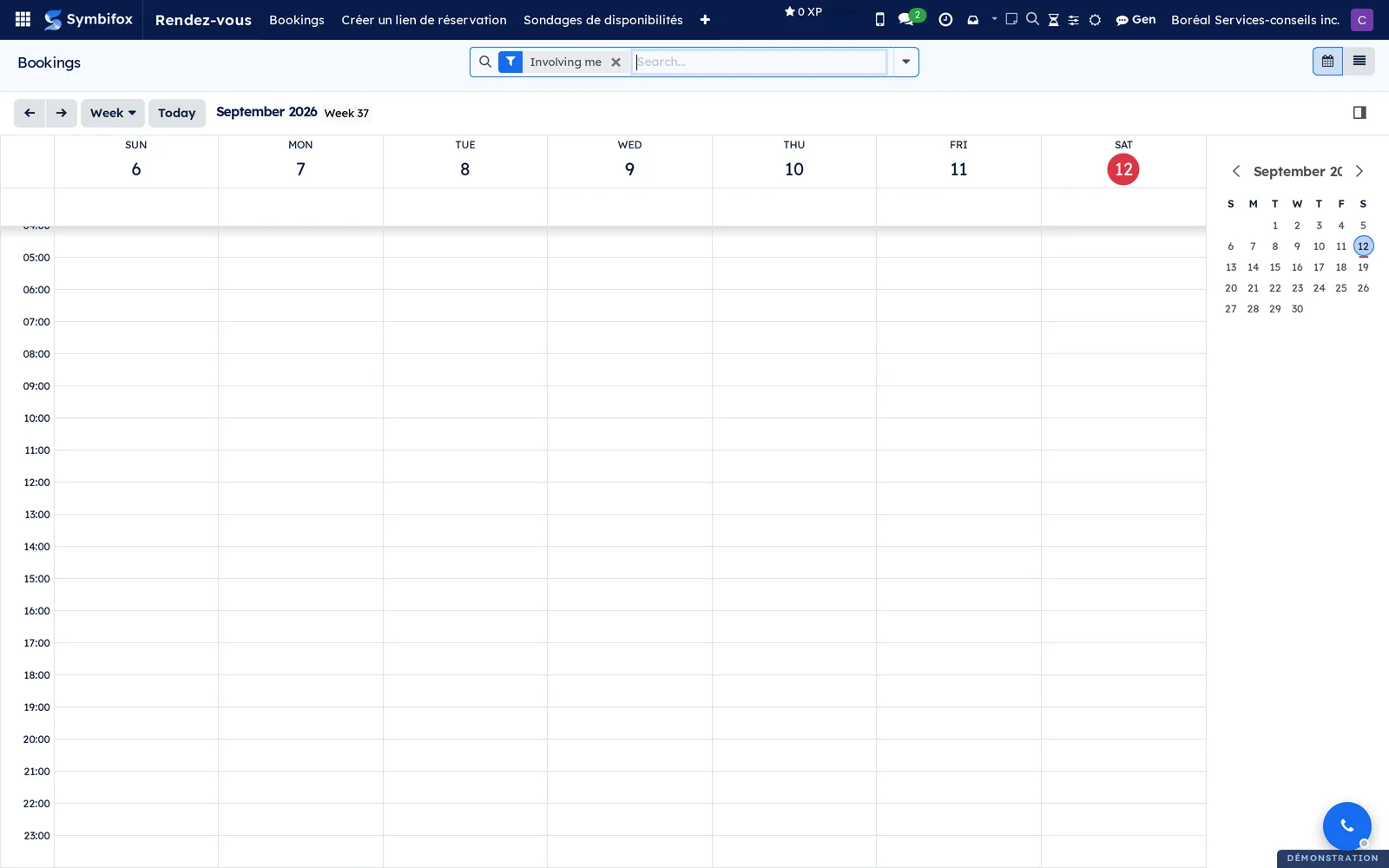
The application's home screen is the bookings calendar, filtered by default on the bookings that involve you.
Appointments works with several applications. Each confirmed booking places an event in Calendar and sends its invitation. That event carries the Rendez-vous quick access button, which reopens the booking, even a cancelled one. The requester becomes a record in Contacts, with their language and organization. An appointment type can open a task in Project. The consents requested along the way are those of Privacy (Law 25 and other frameworks). Law 25 is Québec's Act respecting the protection of personal information in the private sector. The rating request that follows the meeting belongs to Customer experience, and the booking link placed in a campaign comes from Outreach.
What Symbifox adds to the base application fits in five building blocks: public booking pages on your domain, single-use personal booking links, an availability poll that replaces the email back-and-forth, a bridge to post-meeting feedback, and a property visit module built for the obligations of a real estate broker in Québec.
Configuration#
Access and permissions#
Permissions are granted in Settings › Users & Companies › Users, on the Rendez-vous line of each person's user form.
| Level | What it opens |
|---|---|
| User | View and create bookings, send a personal link, open an availability poll, cancel a booking. |
| Manager | Everything above, plus create appointment types, resources, combinations and availability calendars, and change a booking after the client's change deadline has passed. Only this level can move a booking outside the hours offered to clients. |
| No account | The visitor who books, answers a poll or cancels from their email never needs an account: everything goes through links that act as access tokens. |
The property visit module adds its own two levels, Courtier (broker) and Gestionnaire (manager): the first shows properties and keeps the register, the second corrects a register that is already closed.
Settings#
Appointment emails no longer carry styling of their own. Their header, logo, colours, footer and legal links come from the Identité de marque (brand identity) section of Settings › General Settings, for the company of the appointment type: see Set up the brand identity.
The application's own settings are in Settings, under the Rendez-vous entry in the left column, which only the manager level sees.
| Setting | Effect |
|---|---|
| Type par défaut (default type), under Liens de rendez-vous (appointment links) | The type used by the appointment link button in the email composer and on the contact form. Without it, the first public type listed is used. |
| Couleur principale de marque (rendez-vous) (main brand colour), Couleur foncée de marque (rendez-vous) (dark brand colour) | The accents and dark banners of the public booking and confirmation pages. Emails use the company's brand colours instead. |
| URL de la politique de confidentialité (rendez-vous) (privacy policy URL) | The link in the consent checkboxes of the public form. Emails no longer read it. |
| Nom de marque (rendez-vous) (brand name) | The name that follows the "x" in the title of each booking and its calendar event, and the one named in the consent checkboxes of the public form. Defaults to the company name. |
| Courriel de soutien (rendez-vous) (support email), Téléphone de soutien (affichage) (support phone, display), Téléphone de soutien (format E.164) (support phone, international format) | The contact sentence in emails, which invites the client to reach you. The sample values shipped by default are never quoted: the company's email and phone take their place. With nothing to quote, the sentence disappears. |
| URL du logo (rendez-vous) (logo URL), Site web de marque (rendez-vous) (brand website), Slogan de marque (rendez-vous) (brand slogan), URL des conditions d'utilisation (rendez-vous) (terms of use URL) | No longer read by appointment emails or pages. The logo and slogan still serve, when nothing else is set, on Secure transfers pages. |
| Domaine Jitsi (Jitsi domain), URL de base Nextcloud Talk (Nextcloud Talk base URL), Utilisateur (user), Mot de passe (password), Modérateurs des salles Talk (Talk room moderators) | Video conferencing. Without a named moderator account, the room has only the bot as a participant and the host joins as a guest. |
| Feedback after an appointment | Sends a three-emoji rating request once the meeting is over. Turned off by default. This setting is under the Expérience client (customer experience) entry. |
Automatic sending of consent requests is also off by default. It is an email that goes to a client with no one in the loop, so it is turned on database by database, through a system parameter. Asking for consent on the spot, on the confirmation page, does not depend on this setting.
The colours of the property visit calendar are set separately, by the administration, in Settings › Colors › Automatic rules: see Show a property.
Base data#
Before opening a booking page, create or check:
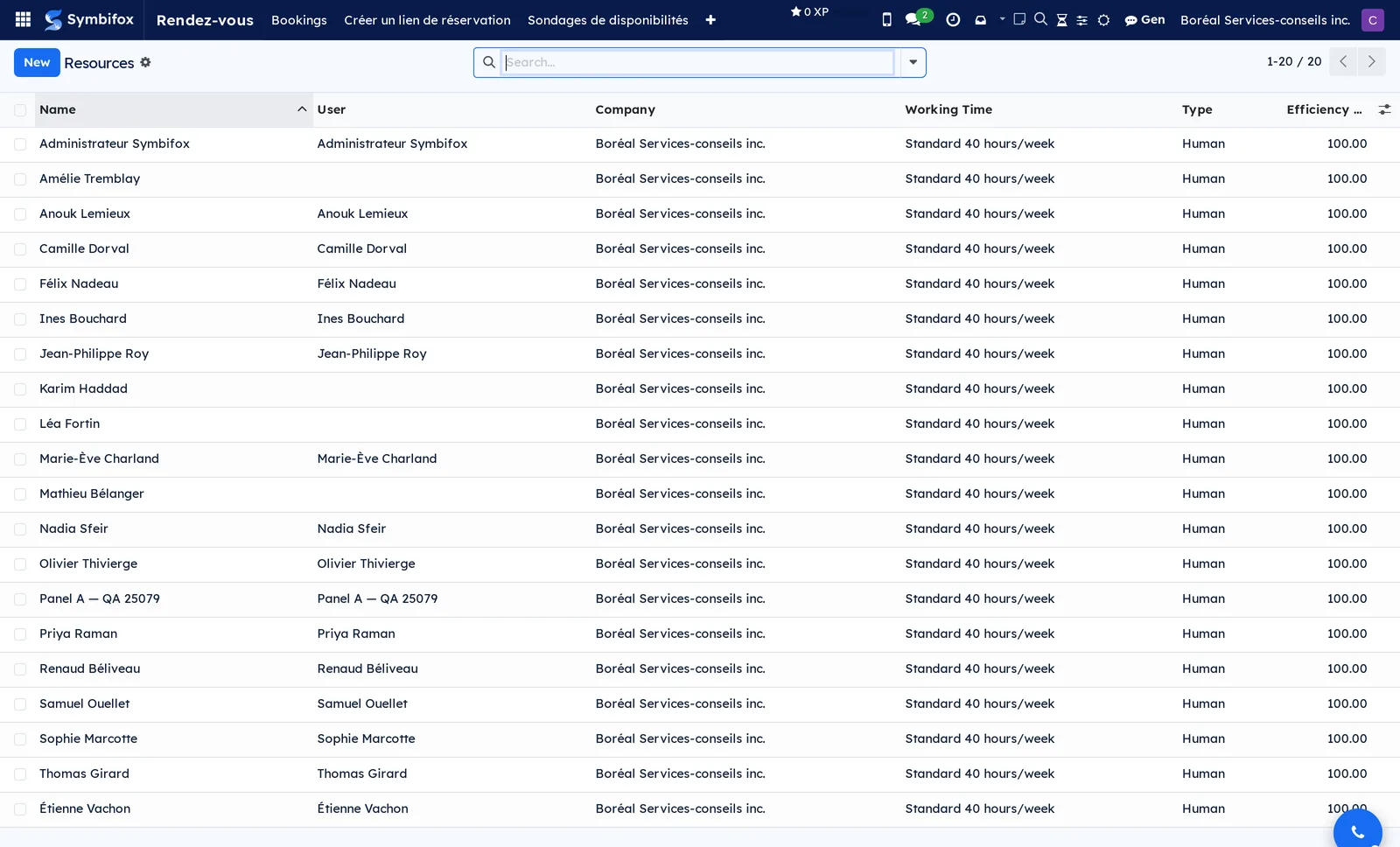
- the resources, one per person or room that can be booked (the demo has 20, all human, all on the standard working time);
- the availability calendars, which open the hours of the week;
- the resource combinations, if a meeting requires several resources free at the same time;
- the appointment types, one per service offered;
- the consent notices, if your meetings are recorded or if you offer the newsletter;
- the “Prise de rendez-vous” (appointment booking) purpose and the “RDV-001” retention rule, delivered with the module in Privacy (Law 25 and other frameworks): the rule anonymizes a booking three years after the meeting, and its duration is what counts.
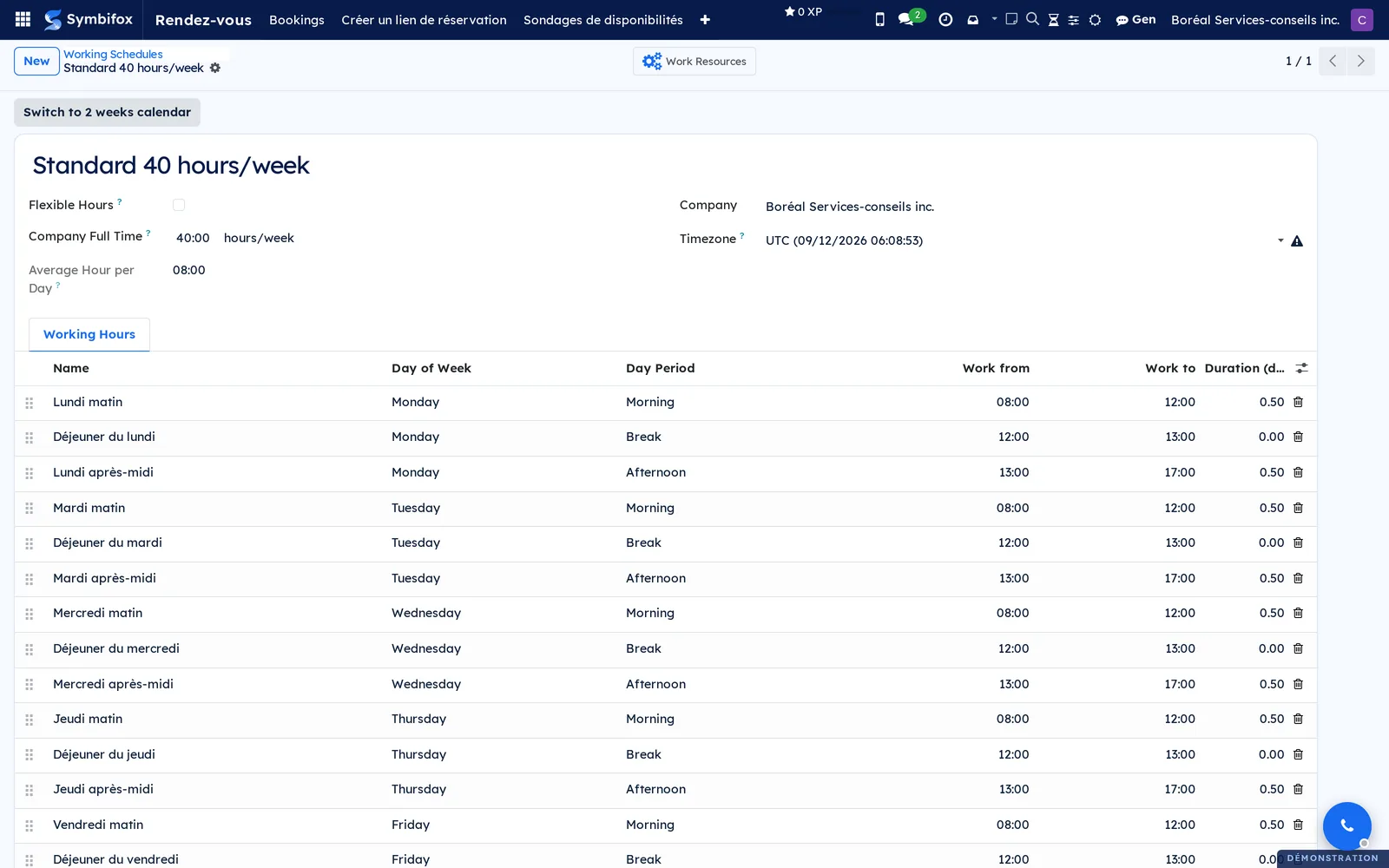
The calendar delivered with a new database deserves a look: its Timezone stays at UTC until someone changes it, and every offered time shifts accordingly.
Getting started#
This walkthrough publishes a first appointment type at Boréal, then takes a booking on it the way a visitor would.
- Go to Rendez-vous › Types, then select New.
- Enter “Discovery call” as the name and 0.50 as the Durée (heures) (duration in hours), then choose the organization's Calendrier de disponibilité (availability calendar).
- In Combinaisons de ressources disponibles (available resource combinations), add a line and choose the resource Camille Tremblay.
- Check Page publique accessible (public page accessible) and Lister sur la page d'accueil (list on the home page), then enter “discovery-call” in Identifiant URL (slug) (URL identifier).
- Enter 2 in Préavis minimum avant réservation (heures) (minimum notice before booking, in hours), so that no slot is offered within the next two hours.
- In the Champs du formulaire (form fields) tab, add a “Subject of the call” field of type text, and check Obligatoire (required).
- In the Courriels planifiés (scheduled emails) tab, add a line: trigger before the appointment, 24-hour delay, email channel, and the one-day reminder template.
- Save, then select Page publique (public page) and book a slot as a client would.
Result: the booking appears under Rendez-vous › Bookings, the confirmation goes to the requester with its calendar attachment, the slot disappears from the public page, and the reminder is scheduled for the day before.
Common tasks#
Create an appointment type#
An appointment type describes a service you offer: its duration, its rules and its emails. It requires the Manager level.
- Go to Rendez-vous › Types and select New.
- Enter the name, the Durée (heures) and the Calendrier de disponibilité.
- Fill in Intervalle entre les créneaux (heures) (interval between slots, in hours), which spaces the offered start times, and Durées proposées (minutes) (offered durations) if the visitor chooses the length.
- In Combinaisons de ressources disponibles, add the combinations that can host this type.
- Enter Préavis minimum avant réservation (heures) and Délai limite de modification/annulation (heures) (deadline for changes or cancellation, in hours).
- Choose the Fournisseur de vidéoconférence (video conference provider), or enter a Lieu (location) for an in-person meeting.
- Select Save.
Result: the type appears in the list with its duration and publication status, and you can now choose it for personal links and polls.
Build the intake form#
The intake form is what the person fills in before choosing a slot. You receive it with the booking.
- Open the appointment type and go to the Champs du formulaire tab.
- Add a line, enter the question's Libellé (label) and choose the Type de champ (field type). For a drop-down list, enter the Options (une par ligne) (options, one per line).
- Check Obligatoire for the questions you need answered to prepare the meeting.
- Choose the Catégorie de RP (personal information category): the kind of personal information the question collects. An email or phone question arrives set to “Identification (nom, NAS, courriel)” (identification).
- Enter a Texte indicatif (hint text) for questions whose expected answer is not obvious.
- Optional: check Demander le nom de l'organisation (ask for the organization name) to add the company field to the form.
- Select Save.
Result: each requester's answers can be read on their booking. They also appear in the calendar event description if you checked Les invités voient les réponses du formulaire (guests see the form answers). Above the questions, one banner counts those without a category, and another those that collect sensitive information, marked in the Renseignement sensible (sensitive information) column: ask yourself whether the meeting really needs it.
Publish the public page and share it#
A public page exists for a published type. You share it by its address, and you can withdraw it just as fast.
- Open the appointment type.
- Check Page publique accessible.
- Enter the Identifiant URL (slug), which becomes the end of the address.
- Check Lister sur la page d'accueil so the type appears in the home page list, or leave it cleared for a type reachable by direct link only.
- Optional: fill in the Description publique (public description), the Image publique (public image) and the Couleur d'accent (accent colour).
- Select Save, then Page publique to check how it looks.
- Copy the address shown in URL publique (public URL) and send it.
Result: the page lists the slots calculated from your real availability, in the visitor's timezone.
Send a personal booking link#
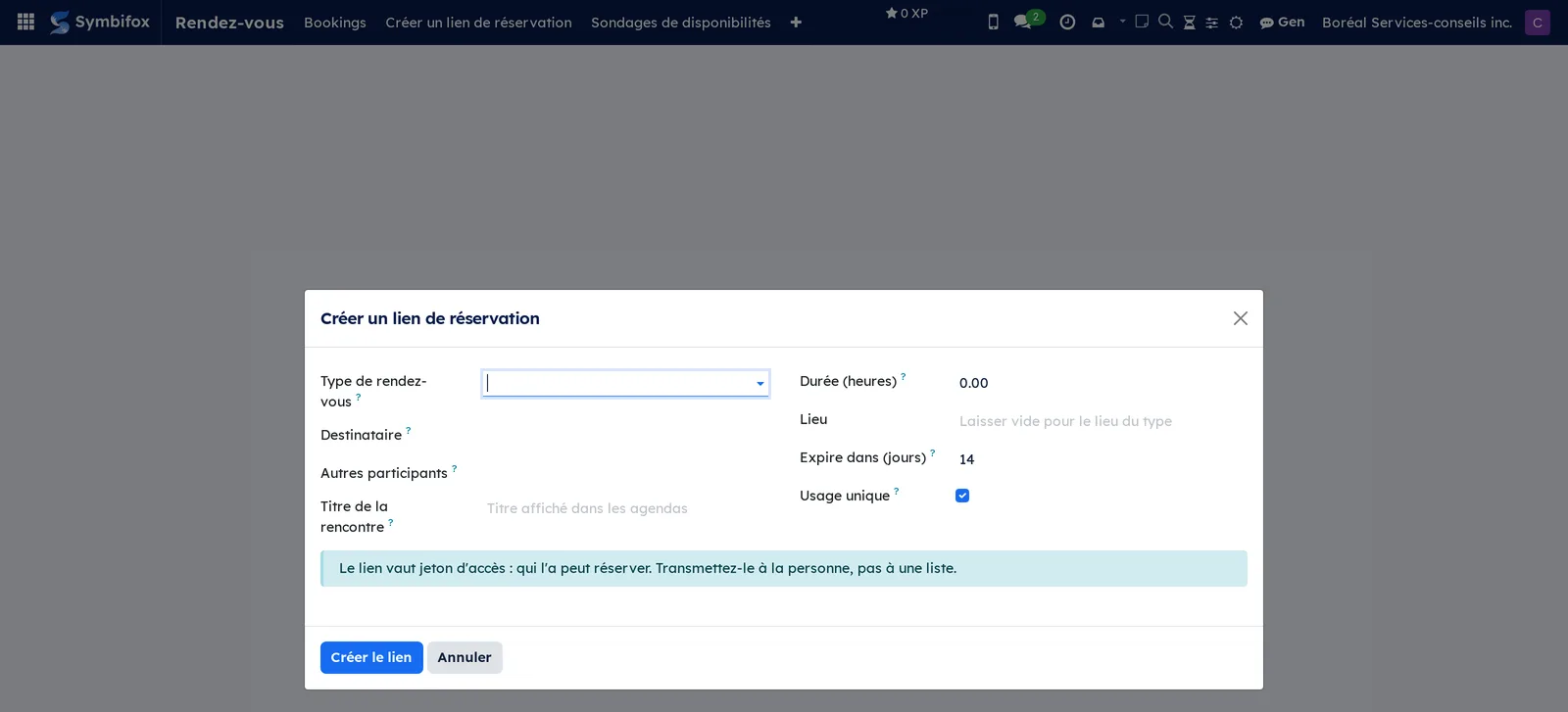
A personal link is meant for one named person: they choose their slot, and you keep control of the title, the duration and the expiry date.
- Go to Rendez-vous › Créer un lien de réservation (create a booking link).
- Choose the Type de rendez-vous (appointment type) and the Destinataire (recipient).
- Optional: add Autres participants (other participants), who will receive the invitation without choosing the date.
- Correct the Titre de la rencontre (meeting title) if the type name does not describe the real subject.
- Enter Expire dans (jours) (expires in, days), or 0 for a link that never expires, and clear Usage unique (single use) if the person may come back to the link later.
- Select Créer le lien (create the link), then copy the Lien à transmettre (link to send).
- Optional: select Créer un autre lien (create another link) to continue without going back through the menu.
Result: the booking exists as pending, with no date, and the person sets the date themselves. An expired or already used link opens a page that says so.
Put an appointment link in an email#
You can create the same link without leaving an email draft or a contact record.
- Open the contact and select Send message, or open the composer from a record's chatter (the message thread at the bottom of a form).
- Write your message.
- Select Insérer un lien de rendez-vous (insert an appointment link) to place the link in the body, before the signature.
- Or select Copier un lien de rendez-vous (copy an appointment link) to display it below the message, ready to be copied by hand.
- Send the email.
Result: one link is created per message, and the composer stays open on the current draft. The contact form carries the same button, Lien de rendez-vous (appointment link), for times when you are not writing right away.
Open slots outside working hours#
A meeting slot opens for booking a time your availability calendar keeps closed, a Saturday morning for example.
- Open Calendar › Calendar.
- Drag the mouse over the time to open.
- In the quick create, select Meeting slot.
- Save.
Result: the booking pages where you are a resource offer that time, on top of your working hours and those of the appointment type. A busy event placed on the slot closes the part it covers, as anywhere else. Outside online booking (timesheets, leave, payroll), a meeting slot does not count as working time. See Calendar.
Schedule confirmations, reminders and follow-ups#
Each appointment type carries its own series of emails, before and after the meeting.
- Open the appointment type and go to the Courriels planifiés tab.
- Add a line and choose the Déclencheur (trigger): before or after the meeting.
- Enter the Délai (heures) (delay, in hours).
- Choose the Canal (channel): email, SMS, or both.
- Choose the Modèle de courriel (email template), which is always required, even on an SMS channel.
- For an SMS, enter the Message SMS (SMS message): a single segment, 150 characters at most.
- Select Save.
Result: the messages go out on their own, in fifteen-minute passes. Each email names the meeting by its full title, the one the organizer's calendar shows and the calendar attachment carries, not by the type name alone. If an SMS cannot go out, for lack of a number or because the carrier refuses it, the email replaces it: a reminder is never dropped silently.
Track and confirm a booking#
A booking record brings together the requester, their answers, their guests and their consent status.
- Go to Rendez-vous › Bookings and open the booking, or switch to list view to filter.
- Check the requester, the date and the resource combination selected.
- Select Confirm. The video conference room is created and the attendees are set.
- Optional: select Voir l'origine (see the origin) to open the poll or campaign the booking came from.
- Optional: select Demander le consentement (request consent) if the consent status is missing.
- Optional: select Renvoyer les invitations (resend the invitations) to resend the confirmation and its calendar attachment, in each reader's language and timezone.
- Optional: to move the meeting, change the Début (start) on the booking, or drag the event in the calendar. Both gestures are equivalent.
Result: the booking moves to the confirmed state, the calendar event carries the room link, and each attendee has received their invitation. A move keeps the resource already selected. Outside the hours offered to clients, only a manager can move the meeting; anyone else gets a refusal that gives the reason.
Cancel an appointment and notify the person#
A cancellation made in Symbifox notifies no one unless you ask it to.
- Open the booking and select Cancel.
- Enter the Raison (reason), which stays on file and is repeated in the notice.
- Check Envoyer un avis d'annulation (send a cancellation notice) if the person must be told.
- Check Prévenir aussi l'organisateur (also notify the organizer) if someone other than you must be warned.
- Select Annuler le rendez-vous (cancel the appointment).
Result: the booking moves to the cancelled state, and the event stays in the calendar, struck through and marked free. The slot is offered again on the public page.
Manage additional guests#
A requester can add other people, but nothing is sent to them until the requester confirms from their own inbox.
- Open the appointment type and check Permettre d'inviter d'autres personnes (allow inviting other people).
- Enter a cap in Invités additionnels au maximum (maximum additional guests).
- Decide whether Les invités voient les réponses du formulaire.
- On a booking, read the guests tab and the État des invités (guest status) column: while it shows a pending state, no invitation has gone out.
- Optional: confirm or remove guests from the booking, which has the same effect as the link the requester received.
Result: confirmed addresses receive the calendar invitation; the others never enter the address book.
Open an availability poll#
A poll helps when several people must agree on a time. You offer ranges that are already free, and each person answers yes, if need be, or no.
- Go to Rendez-vous › Availability polls and select New.
- Enter the Subject, then choose the Appointment type and the Response deadline.
- Choose Who proposes the slots: you, a guest who starts the grid, or everyone.
- In the Participants tab, add the people and check Attendance required for those without whom the meeting does not happen.
- Select Propose free slots, then remove from the Proposed slots tab what you do not want to offer.
- Choose the Calendar hold: visible, or an actual reservation of the ranges.
- Select Open voting.
Result: each participant receives their personal link and answers from their phone, in their own timezone. The count of slots that are still viable updates with every answer.
Set the meeting when closing a poll#
A poll becomes a meeting only on the day you decide.
- Open the poll and select Close voting so that no one else can answer.
- Select Schedule the meeting. A choice opens, ranked from the best slot to the worst, with who answered what.
- Check the Chosen slot, preselected on the highest-ranked one, and change it if needed.
- Select Schedule the meeting.
- Optional: when you already know which slot you want, select Schedule the meeting here from that slot's line instead.
Result: a real booking is born from the poll, with its calendar event, its calendar attachment, its video conference room and its reminders. Each participant receives their confirmation, in their own timezone.
Show a property#
A listing describes an address to visit; the module then builds the appointment type, the calendar, the resource and the combinations. Prerequisite: the property visit module, which adds the Visites de propriétés (property visits) menu.
- Go to Rendez-vous › Visites de propriétés › Inscriptions (listings) and select New.
- Enter the Adresse (address), the Nature (property type) and the Occupation (occupancy) of the dwelling.
- Add the Vendeurs (sellers), the Courtiers autorisés (authorized brokers) and, for a rented dwelling, the Locataire (tenant).
- In the Plages offertes (offered ranges) tab, enter the times given by the seller, then check the Fuseau horaire (timezone).
- In the Règles de visite (visit rules) tab, choose the Mode de confirmation (confirmation mode), check Vérifier l'identité des visiteurs (verify visitors' identity) and Demander si la personne est représentée (ask whether the person is represented), and fill in the Consignes de visite (visit instructions) and the Accès à la propriété (property access).
- Select Mettre en ligne (put online), then Voir la page de réservation (see the booking page) to check.
- Optional: select Feuille d'inscription sur place (on-site sign-in sheet) to get the page to place behind a QR code during an open house.
Result: requests arrive in the Registre des visites (visit register). There, the Accepter (accept), Refuser (decline), Constater l'arrivée (record arrival), Constater le départ (record departure), Personne ne s'est présenté (no-show) and Consigner la vérification (log the check) buttons move the visit along. Property access is sent only on confirmation.
The Registre des visites also opens in calendar view. Each visit there takes the colour of its Inscription (listing), through the rule “Visites selon l'inscription” (visits by listing), provided by default. With no line in the rule, the calendar keeps its usual look. To give a listing a colour, add a line to the rule with that colour: its visits then show as a softened background, like Odoo's usual colours, with text that stays readable. The rule is kept in Settings › Colors › Automatic rules; To-do, Notepad and Timer covers rules in detail.
The menus, one by one#
Rendez-vous › Bookings: the bookings calendar, by week, with the Involving me filter applied by default. No booking is recorded on the demo, so the grid is empty. The list view, available at the top right, lets you filter by state, type or consent. This is the application's home screen.
Rendez-vous › Créer un lien de réservation: the dialog that creates a personal link, described in Send a personal booking link. It opens in a window, with no list behind it.
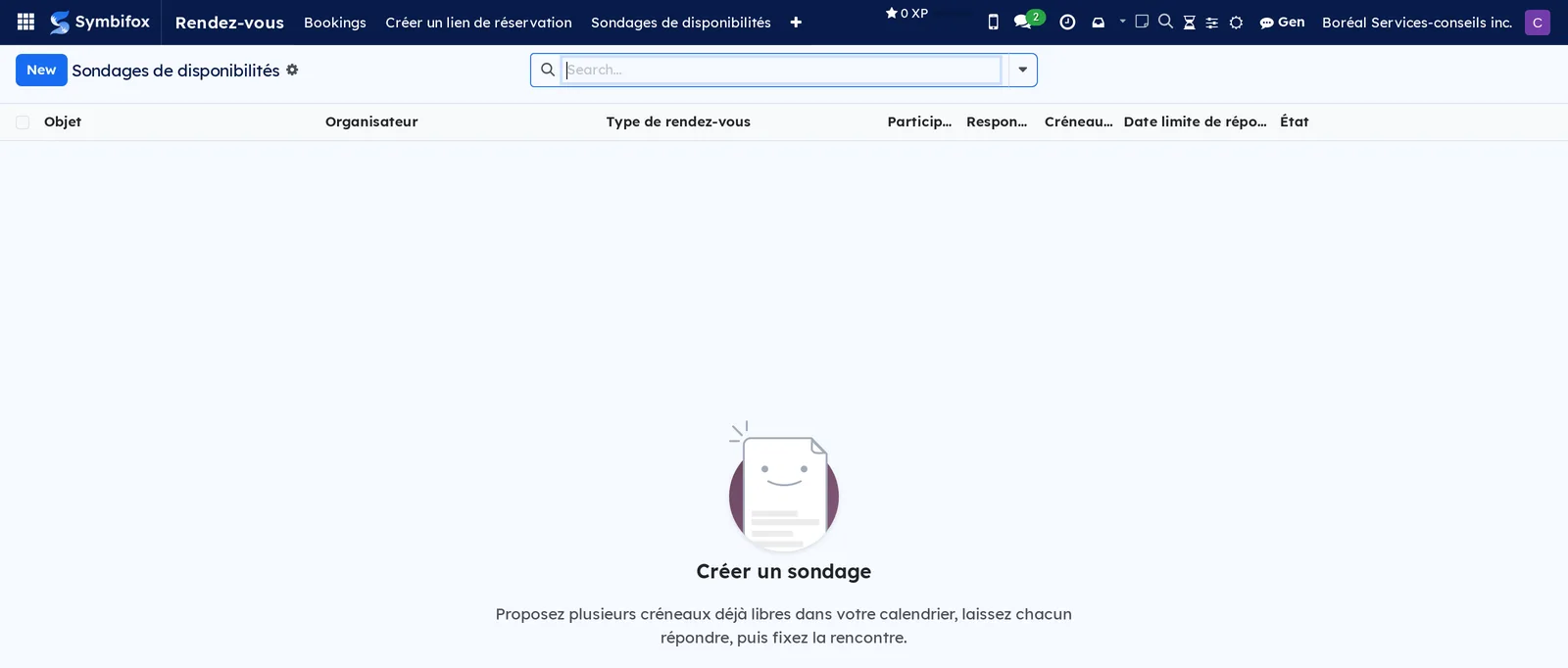
Rendez-vous › Availability polls: open and closed polls, in a list, with the subject, organizer, appointment type, number of participants, slots still viable, deadline and state. Empty on the demo, the screen invites you to create the first one.
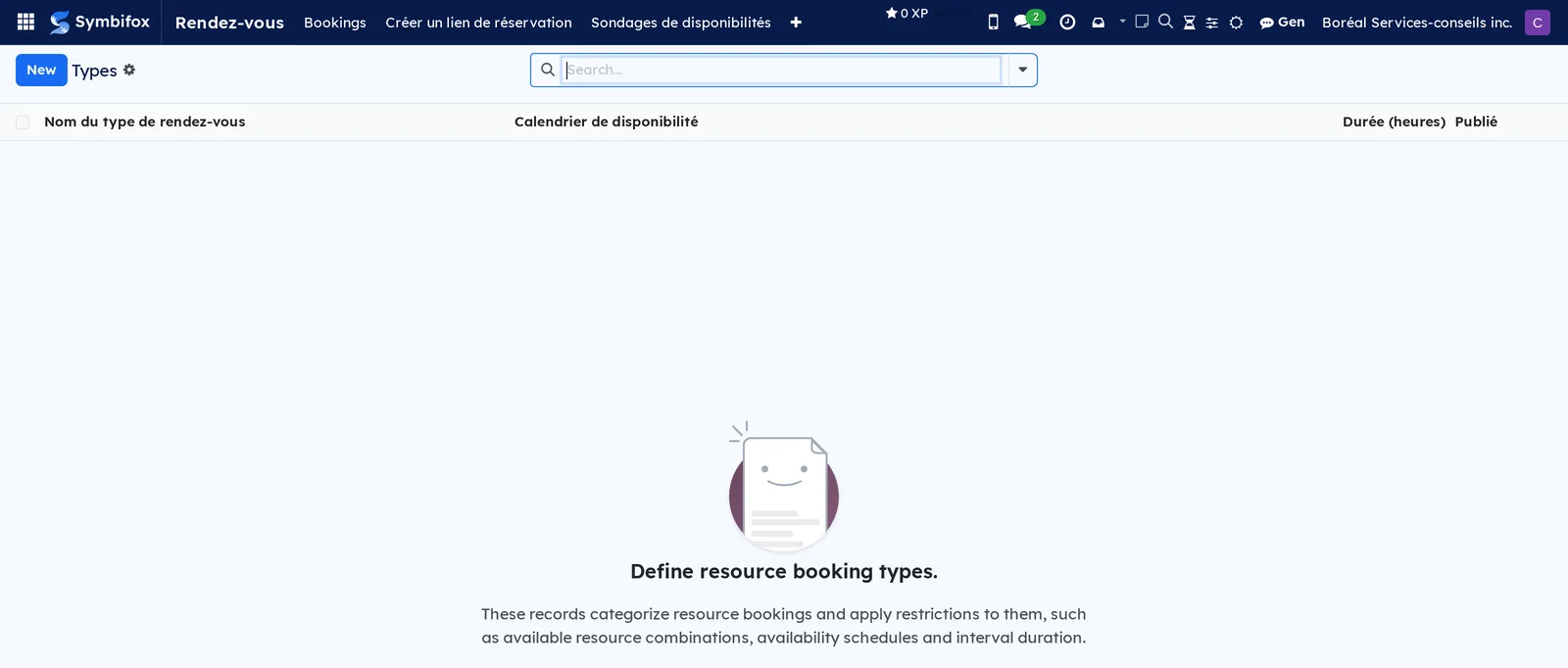
Rendez-vous › Types: appointment types, in a list, with the name, availability calendar, duration and the Publié (published) box. Empty on the demo, the screen still shows its original help text, which is in English.
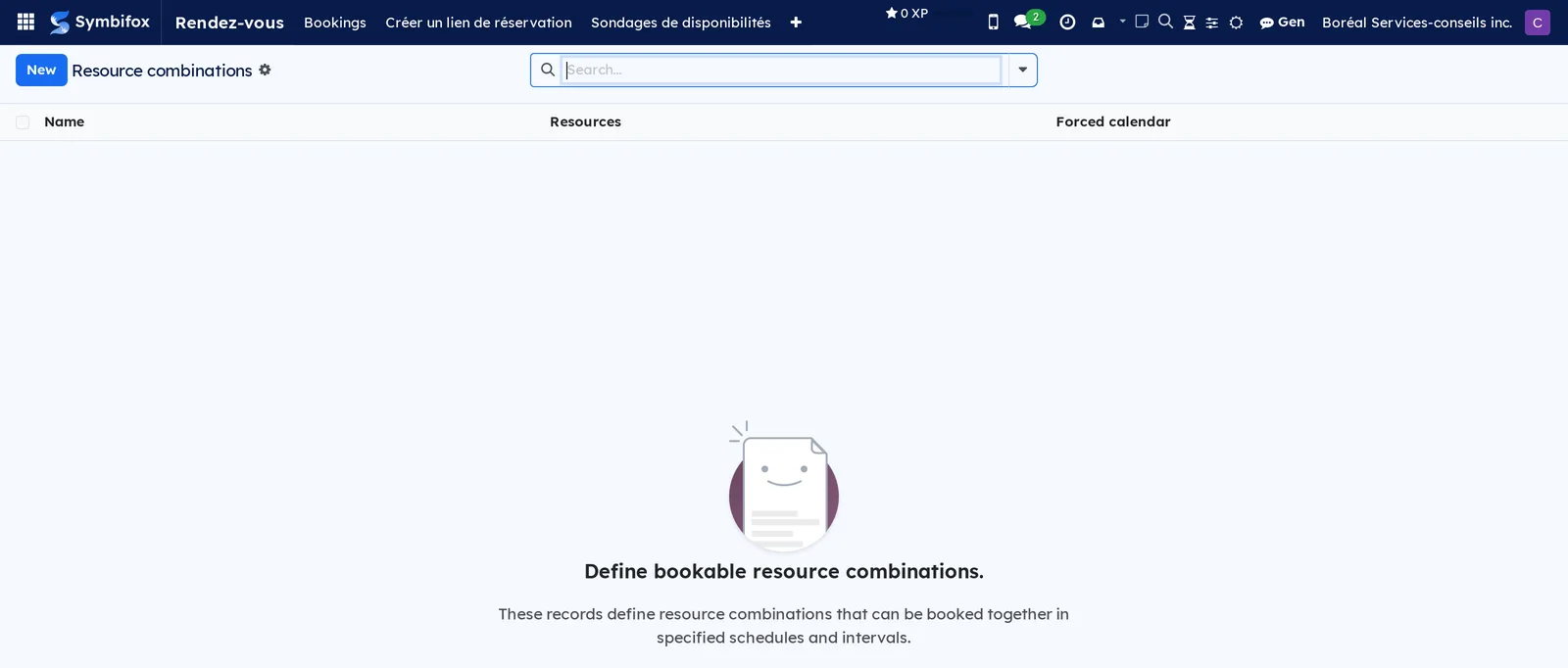
Rendez-vous › Combinations: resource combinations that can be booked together, with their name, their resources and the forced calendar. Empty on the demo.
Rendez-vous › Configuration: a grouping menu.
Rendez-vous › Configuration › Resources: Boréal's 20 resources, in a list, with the name, linked user, company, working time, type and efficiency factor. All are human and follow the standard working time.
Rendez-vous › Configuration › Working Schedules: the availability calendars. The demo has only one, the organization's. Its form carries the working hours day by day, the timezone, and the switch to a two-week calendar.
Rendez-vous › Configuration › Resource Time Off: absences that remove hours from a calendar, as a list or a calendar. Empty on the demo. This is where you declare a week of vacation, rather than changing everyone's calendar.
Reference#
Fields of the appointment type form#
| Field | Description | Required or default |
|---|---|---|
| Nom du type de rendez-vous (appointment type name) | The service offered, as the visitor reads it. | Required |
| Durée (heures) | The length of a meeting. | Required |
| Intervalle entre les créneaux (heures) | The spacing between two offered start times. | Required |
| Calendrier de disponibilité | The hours of the week when this type is offered. | Empty (the company calendar is then used) |
| Combinaisons de ressources disponibles | What must be free to hold the meeting. | Empty |
| Attribution des ressources (resource assignment) | Automatic choice of the combination, or a forced choice. | Automatic |
| Page publique accessible | Activates the public address. | Cleared |
| Lister sur la page d'accueil | Shows the type in the public list. | Cleared |
| Identifiant URL (slug) | The end of the public address. | Empty |
| Préavis minimum avant réservation (heures) | No slot is offered sooner than this notice. | 0 |
| Délai limite de modification/annulation (heures) | After this deadline, the client can no longer move their meeting. | 0 |
| Durées proposées (minutes) | The lengths the visitor can choose from, separated by commas. | Empty (the fixed duration applies) |
| Fournisseur de vidéoconférence, Lieu | Where the meeting takes place. | Depends on the configuration |
| Demander le nom de l'organisation | Adds a company field to the public form. | Cleared |
| Permettre d'inviter d'autres personnes, Invités additionnels au maximum | Opens the guest field and caps it. | Cleared |
| Demander le consentement d'enregistrement (ask for recording consent), Modèle de consentement (consent template) | Adds the recording consent box and the notice that carries it. | Cleared |
| Offrir l'inscription à l'infolettre (offer newsletter signup), Modèle de consentement infolettre (newsletter consent template) | Adds a signup box, never pre-checked. | Cleared |
| Envoyer un accusé de réception | Writes to the requester as soon as the form is submitted. | Cleared |
| Projet associé | The project where tasks arising from the meeting are created. | Empty |
Fields of the booking form#
| Field | Description | Required or default |
|---|---|---|
| Nom de la réservation (booking name) | The title carried by the calendar event. | Computed from the type and the requester |
| Type de rendez-vous | The service booked. | Required |
| Demandeur(s) (requesters) | The person or people who booked. | Required |
| Organisateur (organizer) | The person who hosts. | You |
| Début, Fin, Durée (heures) (start, end, duration) | The chosen slot. | Empty until the person has chosen |
| Combinaison de ressources (resource combination) | What is held for this meeting. | Assigned automatically |
| État (state) | Draft, scheduled, confirmed, cancelled. | Draft |
| Consentement à l'enregistrement (recording consent) | On file, requested, refused or missing. | Missing |
| Fuseau horaire du visiteur (visitor's timezone) | The timezone detected at booking time. | The browser's |
| Le lien expire le, Lien à usage unique, État du lien (link expiry, single-use link, link status) | The life of a personal link. | Set by the dialog |
| Raison de l'annulation (cancellation reason) | What was entered at cancellation. | Empty |
| Origine, Référence d'origine (origin, origin reference) | The mechanism the booking came from: poll, personal link, campaign. | Empty for a public booking |
Fields of the Créer un lien de réservation dialog#
| Field | Description | Required or default |
|---|---|---|
| Type de rendez-vous | Determines the availability, the duration, the room and the emails. | Required |
| Destinataire | The person who will choose the slot. | Required |
| Autres participants | Guests who receive the invitation without choosing the date. | Empty |
| Titre de la rencontre | What appears in both calendars. | Prefilled from the type and the organization |
| Durée (heures) | Overrides the type's duration. | Empty |
| Lieu | Overrides the type's location. | Empty |
| Expire dans (jours) | 0 for a link that never expires. | 14 |
| Usage unique | The link works only once. | Checked |
Fields of the availability poll form#
| Field | Description | Required or default |
|---|---|---|
| Subject | The title the participants read. | Required |
| Organizer | The person whose calendar supplies the slots. | You |
| Appointment type | What drives the duration and everything that follows the closing. | Required |
| Who proposes the slots | You, a guest who starts the grid, or everyone. | You |
| Maximum number of slots, Slots per person | The caps that keep the overlap readable. | Depends on the poll |
| Response deadline | After this time, automatic closing applies. | Empty |
| Calendar hold | Visible, or an actual reservation of the ranges. | Visible |
| Send invitations on opening | When cleared, opening the poll writes to no one. | Checked |
| Open sign-up link, Max. sign-ups, Allowed domains | The door open to people you do not know in advance, and its safeguards. | Cleared |
| Show everyone's answers | Shows who answered what on the voting page. | Checked |
| Message to participants | Shown at the top of the voting page. | Empty |
Reports and exports#
- You can export the lists of bookings, types, resources and polls with Actions › Export.
- Every confirmation and every resent invitation carries a calendar attachment that the reader adds to their own calendar.
- The report of a meeting held on an appointment belongs to Meetings.
Automations#
- Sending scheduled emails: every fifteen minutes. Reminders and follow-ups scheduled on the type go out in this pass. A booking that fails is isolated and logged, without stopping the sending for the others.
- Reminders bounded on both sides: a “two hours before” reminder does not go out within the minute for a booking made inside its own window, and a catch-up pass does not replay a reminder from the day before.
- Cleaning up orphan events: once a day, past calendar events whose booking no longer exists are removed.
- Repairing video conference rooms: every fifteen minutes, meetings that fell back on a backup link get their dedicated room back as soon as the service responds.
- Poll reminders and closing: every six hours, two reminders go to people who have not answered, at two and five days, then expired polls are closed. This task ships turned off: it writes to third parties, so you turn it on deliberately, once the emails have been proofread.
- Closing past visits: every hour, with the feedback request that follows.
- Post-meeting rating: a three-emoji request goes to the contact, only once per appointment, if the setting is turned on and the person has not been asked recently.
- Anonymizing expired bookings: each night, a booking whose meeting took place more than three years ago is anonymized, under the “RDV-001” rule. Each one leaves an entry in the destruction register, without the old name.
Public pages and portal#
- The booking home page lists the published and listed types. Each type then has its own page, at an address built on its identifier.
- After submitting the form, the requester chooses a slot, then reaches their confirmation page. There they see their meeting, and can move or cancel it while the deadline allows. These pages, opened by the booking's link, are not indexed by search engines, and their title only uses what the visitor typed.
- The confirmation and the reminders carry a Reschedule this appointment link, which reopens the slot picker. It is offered only while a move is still possible: active booking, meeting still ahead, change deadline not passed. After a move, the requester receives a notice showing the old and new time, and the organizer an email announcing a moved appointment, not a new booking.
- Cancellation links and guest confirmation links travel by email. Opening them never acts: the page asks first, and only the answer given on the page decides.
- The availability poll has a voting page per participant, an open sign-up page, and a six-digit code sent when a self-registered person wants to change their answers.
- The visit module adds three token pages: the seller's decision, the on-site sign-in sheet and the post-visit feedback.
- The client portal shows a Bookings tile, where the client finds their bookings.
Modules that extend this application#
Understanding#
Your calendar closes slots, wherever it comes from. A busy event removes its time from the booking pages, whether it was created in Symbifox, in Nextcloud or in an external calendar you subscribe to, such as Outlook. A meeting slot, on the other hand, is available: it opens time instead of closing it, even on a day your availability calendar leaves empty.
A cancellation keeps its calendar event. The event stays where it is, struck through and marked free, rather than being deleted. It is the marking, not a deletion, that frees the slot. Your calendar thus keeps a trace of a range that was held and then given up.
Opening a link decides nothing. Cancellation and guest confirmation links go out by email and by calendar invitation. Antivirus software and link previews follow them on their own. That is why opening the address shows a page that asks, and why only the answer given on that page acts.
A token page shows only what the visitor typed. The public form finds the contact by the address typed in, with no proof that the visitor owns it. The pages opened by the booking's link, and the name of its video room, therefore carry a title built on what the visitor typed: the organization typed, otherwise the name typed. The calendar, the emails, which are sent to the address, and the calendar attachment keep the full title, as do the pages of a personal link or of a booking made by the team. For the same reason, that link no longer opens the booking page of the client portal, nor its chatter: it leads to the booking pages, and only a signed-in person with access to the booking keeps the portal.
Guests are confirmed with a key. The link that confirms guests travels in the email sent to the requester's address, and only that link carries the key that confirms them. The booking's link alone can no longer send invitations: without the key, a neutral page says nothing about the booking.
A booking is anonymized three years after the meeting. Booking an appointment is a declared purpose: no consent is asked, since organizing the meeting the person just requested is the very reason for the collection. When the period ends, the answers, the guests, the title, the links, and the chatter of the booking and of its event disappear, and the attendees become “Personne anonymisée” (anonymized person). A confirmed booking stays confirmed. The type, the organizer, the resources, the date, the duration and the state remain for statistics, and a banner shows the date of the anonymization. The copy already sent to Nextcloud or Google receives the anonymized version. Contact records, their consents and the meeting report follow their own rules. A destruction campaign or request refuses to anonymize a booking, since its generic action would archive without removing anything.
Consent never blocks the meeting. It says what you are allowed to do with the meeting. A booking without consent still takes place; it simply must not be recorded. A refusal is an answer: it is kept, it is not asked again, and it cancels nothing. The question is asked wherever there is a page to ask it, and goes by email when there is none, for example for a booking entered by hand.
Times follow the visitor. The timezone used is first the person's browser, then the type's display window, then the organization's calendar. Their contact record comes last, because that field is rarely filled in by the person it describes. The detected timezone stays on the booking, so the grid, the confirmation page, the emails and the calendar attachment all show the same time.
A personal link is reused, not duplicated. If the person books through the public page instead of following their link, their link is the one reused. The title you wrote stays, and no second meeting appears next to it. A personal link rarely travels alone, since the signature of the same email often carries the public link.
The poll does not freeze your calendar. The proposed slots come from your real availability, and the hold placed on each one is visible without blocking: public bookings keep coming in during the vote. The level that really reserves exists, but it then closes every chosen range, which is not what you want most of the time. A slot stops being viable as soon as a required person answers no, and its hold is released at once.
Closing does not invent a parallel path. Setting the meeting calls exactly what an ordinary booking does: calendar event, attachment, video conference room, reminders. The poll is only a front placed before the same engine.
Emails carry the brand of the type's company. A booking belongs to no company; its appointment type does. Each email, whether it leaves from a public page or a scheduled task, therefore takes that company's logo, colours and footer. A database with several companies thus writes to each client in the name of the company that receives them.
Visits follow rules that are not yours. The register closes the moment arrival is recorded, because a document that can be edited afterwards is worthless on the day it is needed. Identity is logged, never copied. And the 24-hour notice for a rented dwelling is a matter of public order: no one can waive it in advance.
Troubleshooting#
| Symptom | Likely cause | Fix |
|---|---|---|
| The public page offers no slots. | The minimum notice rules out everything close, or no combination is free on the selected calendar. | Reduce the notice, and check the type's combinations and the resources' time off. |
| The offered times are off by several hours. | The availability calendar is still on UTC, as on a new database. | Open the calendar and correct its Timezone. |
| The public address says the page does not exist. | Page publique accessible is cleared, or the URL identifier has changed. | Check the box and verify the identifier on the type. |
| The type is published but missing from the home page. | Lister sur la page d'accueil is cleared, which is the setting for a type reachable by link only. | Check the box, or send the direct address. |
| The SMS reminder never went out. | No number on file, a carrier refusal, or no SMS sending module installed. | Nothing is lost: the email took over. Complete the contact's number for next time. |
| The client says they never received their invitation. | The portal's generic share was used instead of resending the invitation. | Select Renvoyer les invitations on the booking. |
| Additional guests received nothing. | The requester has not confirmed the list from their inbox. | Follow up with the requester, or confirm the guests from the booking. |
| The poll reminds no one and does not close on its own. | The reminder and closing task ships turned off. | Have a manager turn it on, once the emails have been proofread. |