

Part 2 · Clients, sales and relationships
Outreach
Outreach campaigns by phone, email and letter, their follow-up cadence, overdue targets, replies detected automatically and do-not-contact requests.
Watch it

The Démarchage (outreach) application runs prospecting campaigns by phone, email and letter on a list of targets. It is for the people who prospect and for those who coordinate a campaign for the team or for a client. Each target carries the date of its next contact, computed from the campaign's cadence. The screen shows at all times who is overdue, who has never been reached and who has replied. A do-not-contact request, for its part, applies to every campaign, current and future.
Overview#
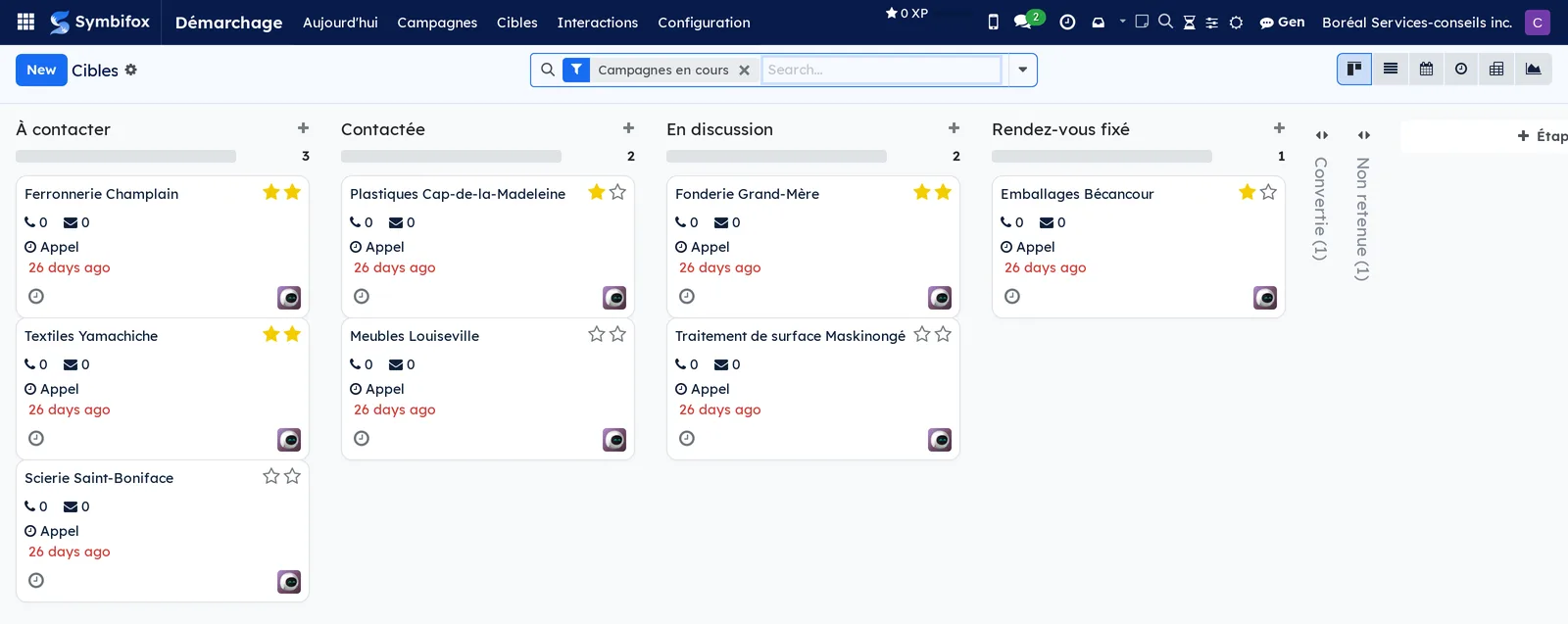
A campaign groups a list of targets, a follow-up cadence and the tracking of each prospect until it closes. A target is one prospect: an organization or a person, with a contact person, contact details and a history. An interaction is a logged contact (call, email, letter, text message or meeting), with its direction, its result and a summary. Each target moves through stages in a kanban view, from À contacter (to contact) to Convertie (converted) or Non retenue (not retained).
The cadence belongs to the campaign; it is not a discipline that each person keeps in mind. For each channel, it sets how many contacts to make per target and at what interval. From there, Symbifox computes a next call, a next email and a next letter for each target. It keeps the nearest one as the Prochaine action (next action). This date feeds the Aujourd'hui (today) menu, the Relances en retard (overdue follow-ups) list, the calendar and the reminders.
The main view is the targets kanban: one column per stage, and one card per target. Each card shows its call and email counters, its next action and, in red, how late it is.
Démarchage connects to several applications. Its targets come from Contacts or from a file; a qualified target becomes a CRM opportunity with its full history. An email received from a target in Email becomes an incoming interaction. Calls made with the Symbifox phone and booked appointments are also recorded automatically. These two bridges are described in SMS, calls and SIP phone and Appointments. Letters are merged with Letters. Before each solicitation, Démarchage checks the consent register of Privacy (Law 25 and other frameworks); Law 25 is Québec's Act respecting the protection of personal information in the private sector.
Configuration#
Access and permissions#
Two groups control access. Utilisateur (user) opens the application and lets the person run campaigns. Gestionnaire (manager) adds the Configuration menu, deletion and Lever l'exclusion (lift the exclusion). Campaigns, targets and interactions are separated by company: a user sees only those of their own companies.
Settings#
The application has no entry in Settings: you set everything on the campaign itself, cadence and follow-up rules included. The bridges to Emails, the phone and appointments install automatically as soon as the other application is present, with no setting.
Only the colours of the follow-up calendar are set outside the application, by the administration, in Settings › Colors › Automatic rules: see The menus, one by one.
Base data#
- Étapes (stages): six come with the application. They are À contacter, Contactée (contacted), En discussion (in discussion), Rendez-vous fixé (meeting booked), Convertie (type Gagnée, won) and Non retenue (type Abandonnée, lost). The last two close the target and are folded in the kanban.
- Étiquettes (tags): empty on the demo; create them to segment your targets (sector, size, origin).
- One Modèle de courriel (email template) per campaign, written on the “Cible de démarchage” model, for Envoyer le courriel (send the email).
- One Type de rendez-vous (appointment type) per campaign, if you want bookings to move targets forward (see Appointments).
Getting started#
This walkthrough opens the demo campaign, logs a first call on a target and watches the cadence recompute.
- Go to Démarchage › Campagnes (campaigns). The Manufacturiers de la Mauricie campaign is En cours (in progress), with 10 targets and 8 overdue follow-ups.
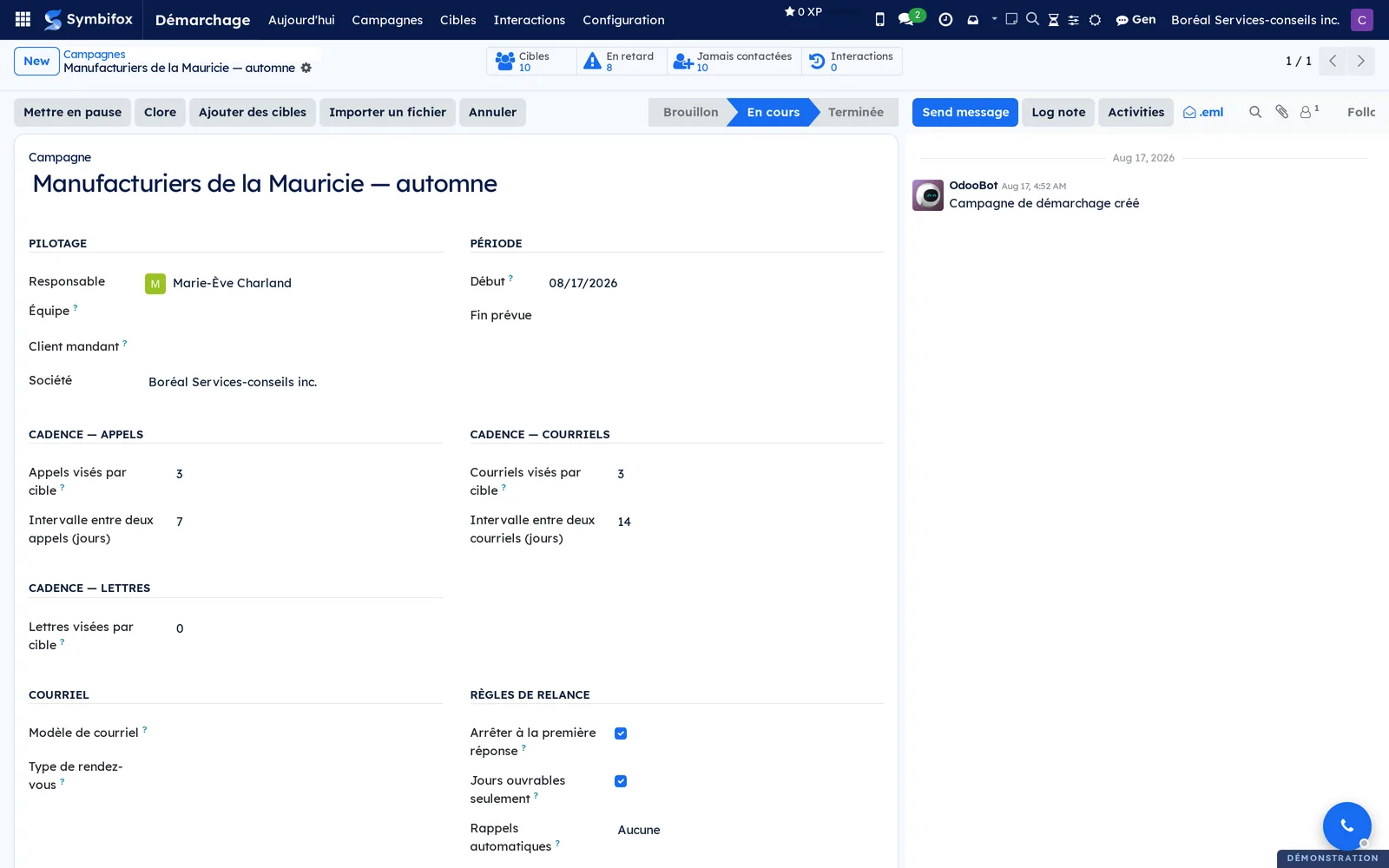
- Open it. The Cibles (targets), En retard (overdue), Jamais contactées (never contacted) and Interactions shortcut buttons at the top of the form sum up its status. The cadence plans 3 calls 7 days apart and 3 emails 14 days apart.
- Select the Cibles shortcut button and open “Scierie Saint-Boniface”. Its Prochaine action is a call, in red: it has been due since the campaign started.
- Select Journaliser un appel (log a call). The Journaliser un contact de démarchage (log an outreach contact) dialog opens, with the type and direction already set.
- Choose the Résultat (result), and enter the Durée (min) (duration, in minutes) and a Résumé (summary). In Déplacer à l'étape (move to stage), choose Contactée.
- Select Journaliser (log).
- Look at the form: Appels (calls) goes to 1, Dernier contact (last contact) is filled in and Prochain appel (next call) moves seven days later.
Result: the target has left the À contacter column. The interaction appears on the Interactions tab and in Démarchage › Interactions. The target no longer shows in Relances en retard until its next due date.
Common tasks#
Create a campaign and set its cadence#
You set up a campaign once; after that, the cadence keeps the schedule for the whole team.
- Go to Démarchage › Campagnes and select New.
- Enter the name and the Responsable (owner). If needed, add the Équipe (team), whose members receive new targets in turn. Add the Client mandant (client of record) if you run the campaign for a client.
- Enter the Début (start): the date on which every target never contacted becomes due.
- Set the cadences: Appels visés par cible (target calls per target) and Intervalle entre deux appels (jours) (days between two calls), and likewise for emails and letters. A quota of 0 turns the channel off.
- Check Arrêter à la première réponse (stop at the first reply) and Jours ouvrables seulement (business days only) as your rules require. Then choose the Rappels automatiques (automatic reminders).
- Under Notes et argumentaire (notes and pitch), enter the opening line and the frequent objections; they show on each target during the call.
- Select Save, then select Démarrer (start).
Result: the campaign moves from Brouillon (draft) to En cours, and the targets you add become due from the start date.
The campaign form brings together management, period, cadences per channel and follow-up rules.
Add targets from contacts#
You draw targets from the contact book, either from the campaign or from the contact list.
- Open the campaign and select Ajouter des cibles (add targets). From Contacts, check records instead and select Actions › Ajouter à une campagne de démarchage (add to an outreach campaign).
- Check the Campagne (campaign) and choose the Contacts.
- Enter the Source (trade show, purchased list, referral); it is copied to each target.
- Choose the Attribution (assignment): to the team in turn, or to one person in Attribuer à (assign to).
- Leave Ignorer les doublons (skip duplicates) checked, then select Ajouter (add).
Result: one target per contact, in the À contacter column, with the contact details copied. A contact already in the campaign, by email or phone number, is not created again. A contact who has refused solicitation is rejected.
Import a list of targets from a file#
Outreach lists often arrive as spreadsheets. The standard importer does the work, with the campaign already chosen.
- Open the campaign and select Importer un fichier (import a file).
- Upload the XLSX or CSV file.
- Match the file's columns to the target's fields (name, contact person, email, phone).
- Test, then import.
Result: the targets appear in the campaign. Phone numbers are normalized to international format, duplicate emails or numbers are set aside, and excluded contacts are rejected.
Work through today's follow-ups#
The Aujourd'hui menu is the daily workstation: it shows only your due targets.
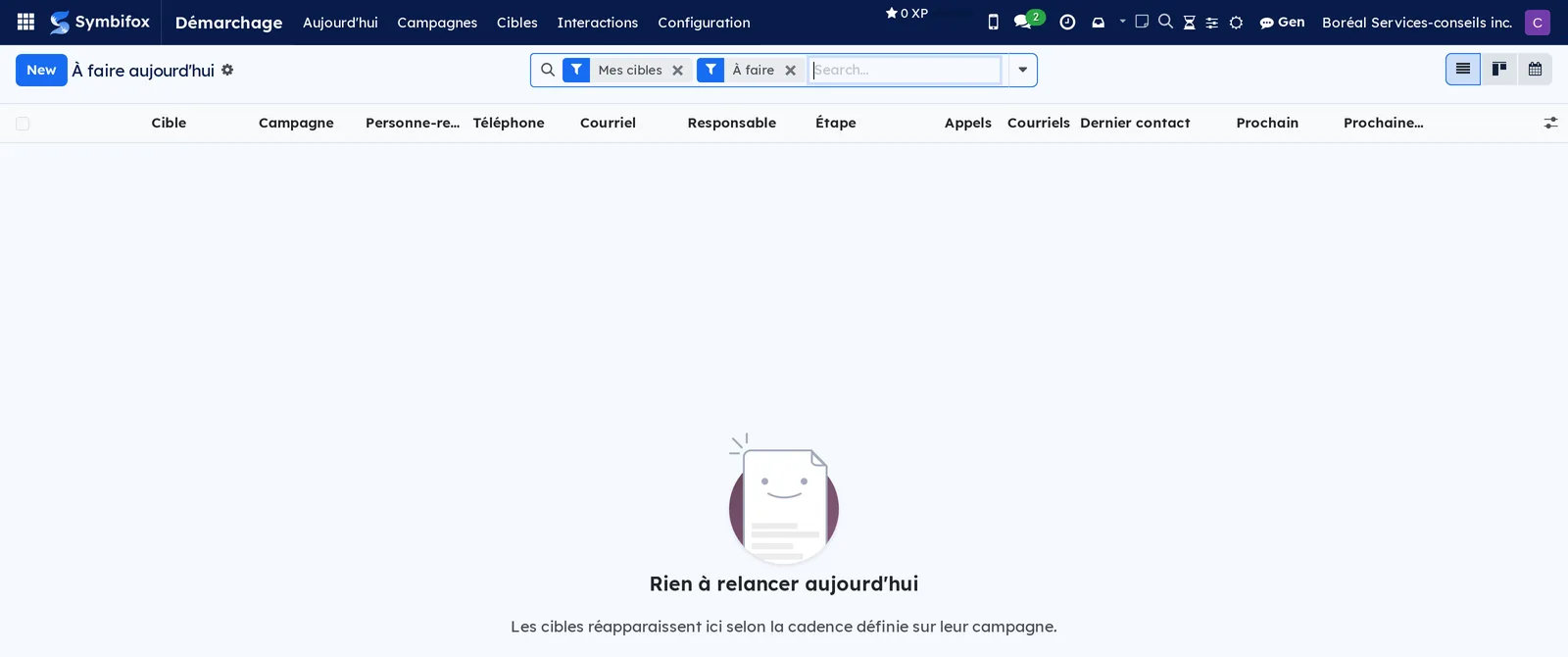
- Go to Démarchage › Aujourd'hui. The Mes cibles (my targets) and À faire (to do) filters are already applied.
- Open the first target. The Argumentaire (pitch) tab recalls the campaign's opening line.
- Select the phone number to call from the Symbifox phone, or dial it yourself.
- Log the contact (see Log a call, an email or a letter).
- Move on to the next target.
Result: each target you handle leaves the list until its next due date. When the list is empty, the screen shows “Rien à relancer aujourd'hui” (nothing to follow up today).
Log a call, an email or a letter#
Each logged contact pushes back the next follow-up; without a log, the cadence does not move.
- Open the target and select Journaliser un appel, Journaliser un courriel (log an email) or Journaliser une lettre (log a letter). From a list, check several targets to log the same contact in one go.
- Check the Date, the Type and the Sens (direction: outgoing or incoming).
- Choose the Résultat. If the person replied, check Réponse de la cible (target replied) in the log.
- Enter the Durée (min) for a call, a Résumé and, if needed, Détails (details).
- Optional: choose Déplacer à l'étape, or a Motif de clôture (closing reason) if the target closes. If the person asks to be called back later, enter Repousser de (jours) (postpone by, in days).
- Select Journaliser.
Result: the Appels, Courriels (emails) or Lettres (letters) counters go up, Dernier contact updates and the next dates are recomputed. A first interaction takes the target out of the À contacter stage.
Send the campaign email#
The campaign email goes out from the target, with its fields filled in, and logs itself. Prerequisite: a Modèle de courriel on the campaign. On the demo, the campaign has none and the button does not appear.
- Open the target and select Envoyer le courriel. For a batch send, check targets in a list and select Actions › Envoyer le courriel de campagne (send the campaign email).
- Reread the proposed message; the name, the contact person and the campaign are already filled in.
- Send.
Result: an “outgoing email” interaction is logged on each target and the email counter goes up. A target that is excluded, or whose consent was withdrawn, is refused outright at send time.
Prepare letters#
For a campaign that mails paper, you merge letters in a batch from the target list. Prerequisite: the Letters application is installed.
- Go to Démarchage › Cibles › Toutes les cibles (all targets), in list view, and check the targets to write to.
- Select Actions › Préparer les lettres (prepare the letters).
- Complete the merge in Letters, then print.
Result: targets that had no contact record yet get one, since the merge works on contacts. Then log the mailing with Journaliser une lettre.
Move a target forward and close it#
Stages show where each target stands; the two closing stages stop the cadence.
- Go to Démarchage › Cibles › Toutes les cibles.
- Drag the card to the column you want, or choose the stage in the form's status bar.
- To close the target, drag it to Convertie or Non retenue. You can also set the stage and the Motif de clôture from the log dialog.
Result: a target in a stage of type Gagnée or Abandonnée no longer appears among overdue targets or in Aujourd'hui. The closing columns are folded in the kanban.
Postpone a follow-up#
A person asks to be called back after their vacation: the cadence shifts without being suspended.
- Open the target.
- Enter a date in Ne pas relancer avant (do not follow up before), then select Save. From the log dialog, enter Repousser de (jours) instead.
Result: the Prochaine action moves to that date, and the target leaves the today and overdue lists until then.
Record a do-not-contact request#
When a person asks not to be solicited again, the refusal must apply everywhere and leave proof.
- Open the target and select Ne plus contacter (do not contact). The same button exists on a contact record; from a list, check several targets.
- In Motif (reason), enter what the person asked for, in their own words.
- Choose Reçue par (received by: call, email and so on) and leave Journaliser l'interaction (log the interaction) checked.
- Select Ne plus contacter.
Result: the target is marked Exclue du démarchage (excluded from outreach). Its cadence stops, its pending activities are removed, and the refusal is recorded with who noted it, when and why. The contact record gets Ne plus démarcher (no more outreach): the person can no longer be added to any campaign, and email sending refuses them. Only a manager can select Lever l'exclusion, and that action is logged.
Convert a target into an opportunity#
When the target is qualified, it moves to the CRM pipeline with its full history.
- Open the target.
- If Contact Odoo (Odoo contact) is empty, select Créer le contact (create the contact). The record is created in Contacts and linked.
- Select Créer une opportunité (create an opportunity).
- Complete the opportunity in the CRM (expected revenue, closing date).
Result: the Opportunité (opportunity) button appears on the target. The opportunity carries Cible de démarchage (outreach target) and Campagne de démarchage (outreach campaign), so you can measure what outreach brings to the pipeline (see CRM).
Monitor a campaign#
The indicators recompute with each interaction, with nothing to compile.
- Go to Démarchage › Campagnes. Each card shows the state, the start date, the number of targets, calls and emails, the overdue count and the progress.
- Open the campaign. The Cibles, En retard, Jamais contactées and Interactions shortcut buttons open the matching lists.
- Read the rates: Couverture (%) (coverage: targets contacted at least once) and Taux de réponse (%) (reply rate). Also read Taux de conversion (%) (conversion rate: targets that reached a Gagnée stage) and Avancement (%) (progress: contacts made over contacts planned).
- To break the figures down, open Toutes les cibles or Interactions as a pivot table or a graph.
Result: a numeric reading of the campaign, by stage, by owner or by result.

Pause, close or reset a campaign to draft#
The campaign's state governs the cadence: once it is paused, closed or cancelled, no target is due any more.
- Open the campaign.
- Select Mettre en pause (pause) to suspend it, Clore (close) when the campaign is over, or Annuler (cancel) to abandon it.
- To resume a paused or cancelled campaign, select Remettre en brouillon (reset to draft), then Démarrer.
Result: the status bar moves from Brouillon to En cours, then to Terminée (finished). The today and overdue lists show only running campaigns.
Receive daily reminders#
A daily reminder keeps a due target from going unnoticed when nobody opens the Aujourd'hui menu.
- Open the campaign and choose Rappels automatiques: one activity per due target, a single activity on the campaign, or none.
- Select Save. Every day, the activities are created for the due contacts.
- To avoid waiting until tomorrow, select Générer les rappels du jour (generate today's reminders).
Result: the activities appear in the chatter of the campaign or of the targets, and in each owner's activities. The chatter is the message thread at the bottom of the form. For a large list, prefer the single reminder on the campaign.
The menus, one by one#
Démarchage › Aujourd'hui: the À faire aujourd'hui (to do today) list, filtered on Mes cibles and À faire. Its columns are Cible (target), Campagne, Personne-ressource (contact person), Téléphone (phone), Courriel, Responsable, Étape (stage), Appels, Courriels, Dernier contact and the next action. Kanban and calendar views are also available. The list is empty on the demo, because the targets are overdue, not due today.
Démarchage › Campagnes: the campaigns kanban, filtered on En cours. Each campaign has a card with its counters, its progress and the owner's avatar. Remove the filter to see draft or finished campaigns.
Démarchage › Cibles: a grouping menu.
Démarchage › Cibles › Toutes les cibles: the kanban by stage, filtered on Campagnes en cours (running campaigns). The built-in filters cover targets to do today, overdue, never contacted, replied, without reply, open, converted and do not contact. List, calendar, activity, pivot and graph views are available.
In calendar view, each target shows on the date of its next action, and the rule “Cibles selon le responsable” (targets by owner), provided by default, colours it by Responsable. An owner has no colour of their own: with no line for them in the rule, their targets keep the calendar's usual look. To give each owner a colour, add one line per person to the rule, with its colour. That person's targets then show as a softened background, like Odoo's usual colours, with text that stays readable. A target given a colour on its kanban card keeps that colour in the calendar as long as its owner has no line. The rule is kept in Settings › Colors › Automatic rules; To-do, Notepad and Timer covers rules in detail.
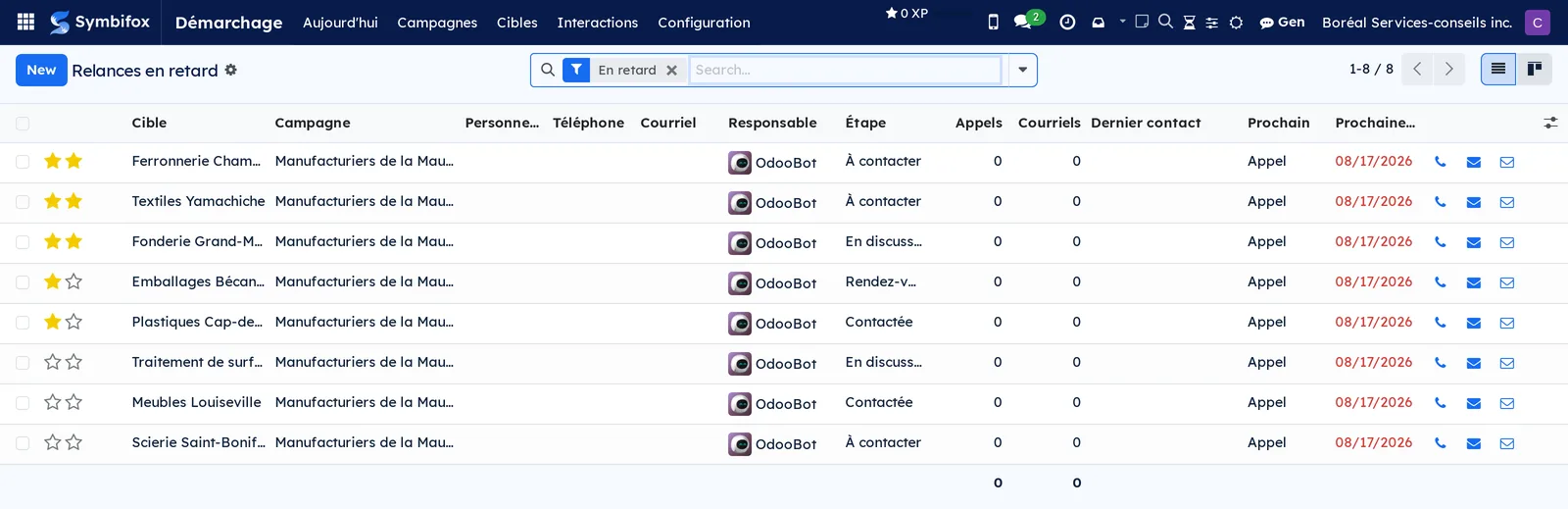
Démarchage › Cibles › Relances en retard: the list of targets whose next action is past. The date shows in red, with call and email icons at the end of the line. Eight on the demo.
Démarchage › Interactions: all logged interactions, with pivot and graph views. The columns are Date, Campagne, Cible, Type, Résultat, Résumé and Par (by). The list is empty on the demo; its help text notes that each call and email logged from a target appears here.
Démarchage › Configuration: a grouping menu, reserved for managers.
Démarchage › Configuration › Étapes: the list of stages, with the Étape, Type, Repliée (folded) and Campagnes columns. You can reorder it by dragging.
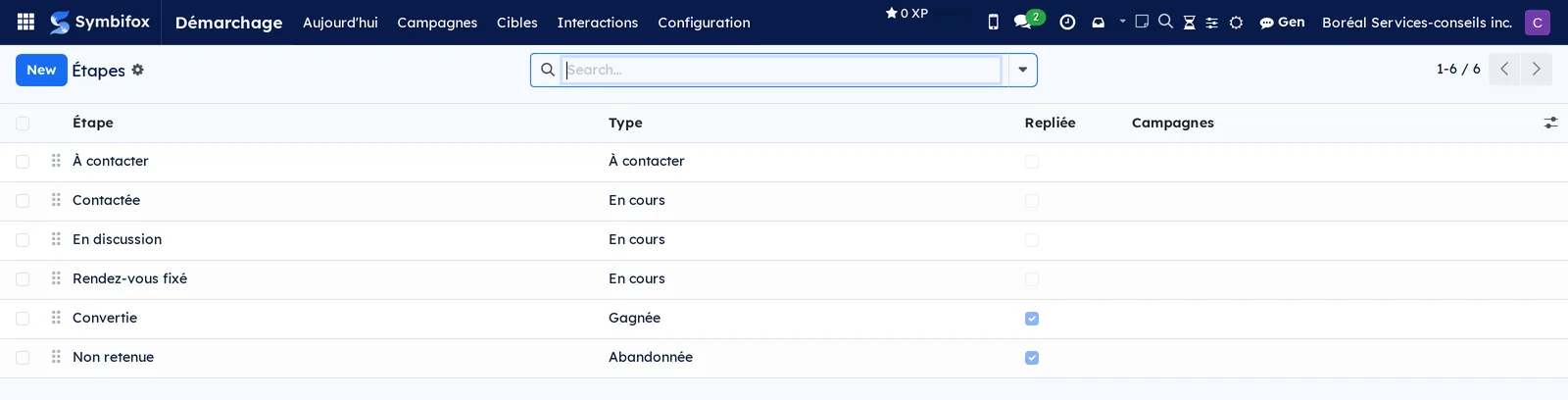
Démarchage › Configuration › Étiquettes: the list of tags, empty on the demo, with name and free colour. Campaigns carry a free colour too, which an automatic rule can set (Settings › Colors › Automatic rules): the edge of their card shows it.
Reference#
Fields of the campaign form#
| Field | Description | Required or default |
|---|---|---|
| Campagne | Name | Required |
| Responsable, Équipe, Client mandant, Société (company) | Management; the team receives new targets in turn | Current company |
| Début, Fin prévue (planned end) | Period; the start is the cadence's starting point | Optional |
| État (state) | Brouillon, En cours, Terminée (or paused, cancelled) | Brouillon |
| Appels visés par cible, Intervalle entre deux appels (jours) | Call cadence; 0 calls turns the channel off | Optional |
| Courriels visés par cible (target emails per target), Intervalle entre deux courriels (jours) (days between two emails) | Email cadence | Optional |
| Lettres visées par cible (target letters per target), Intervalle entre deux lettres (jours) (days between two letters) | Letter cadence | 0 letters |
| Modèle de courriel | Template offered by Envoyer le courriel, written on the “Cible de démarchage” model | Optional |
| Type de rendez-vous | Bookings that move targets forward (Appointments bridge) | Optional |
| Arrêter à la première réponse | A target that replies leaves the cadence | Cleared |
| Jours ouvrables seulement | Moves a Saturday or Sunday follow-up to Monday | Cleared |
| Rappels automatiques | Per target, on the campaign, or none | On the campaign |
| Étapes propres à la campagne (stages specific to the campaign) | Empty for the shared stages | Empty |
| Notes et argumentaire | Opening line and objections, visible on each target | Optional |
| Couverture, Taux de réponse, Taux de conversion, Avancement | Indicators computed when read | Computed |
Fields of the target form#
| Field | Description | Required or default |
|---|---|---|
| Cible | Organization solicited, or the person's name | Required |
| Campagne | The target's campaign | Required |
| Contact Odoo | Linked Contacts record; created by Créer le contact | Optional |
| Personne-ressource, Fonction (job title), Courriel, Téléphone, Cellulaire (mobile), Site web (website) | Contact details | Optional |
| Responsable, Priorité (priority), Source, Étiquettes | Tracking | Optional |
| Étape | Position in the kanban | First stage |
| Ne pas relancer avant | Postpones the next follow-up | Empty |
| Ne plus contacter, Exclusion demandée le (exclusion requested on), Exclusion notée par (exclusion noted by), Motif de l'exclusion (exclusion reason) | Do-not-contact request and its proof | Cleared |
| Appels, Courriels, Lettres, Dernier contact, A répondu (replied), Première réponse (first reply) | History computed from the interactions | Computed |
| Prochain appel, Prochain courriel (next email), Prochaine lettre (next letter), Prochaine action, Type de prochaine action (next action type) | Computed cadence | Computed |
| Opportunité | Opportunity created by Créer une opportunité | Empty |
| Exclue du démarchage | True if the target or its contact has refused | Computed |
Fields of the Journaliser un contact de démarchage dialog#
| Field | Description | Required or default |
|---|---|---|
| Cibles | One or more targets | Required |
| Date, Type, Sens, Résultat | The interaction; the type follows the button chosen | Now, call, outgoing |
| Durée (min), Résumé, Détails | Content of the exchange | Optional |
| Déplacer à l'étape | Empty to keep the current stage | Empty |
| Motif de clôture | If the target closes | Empty |
| Repousser de (jours) | Shifts the next follow-up; 0 = normal cadence | 0 |
Fields of the Ne plus contacter dialog#
| Field | Description | Required or default |
|---|---|---|
| Cibles, Contacts | Targets and records concerned | From the selection |
| Motif | The request, in the person's own words | Optional |
| Reçue par | Channel through which the refusal arrived | Call |
| Journaliser l'interaction | Records the refusal as an interaction | Checked |
Reports and exports#
Targets and interactions can be read as pivot tables and graphs: targets by stage and by owner, interactions by type, by result and by month. The pivot table downloads as a spreadsheet, and any list exports through Actions › Export. There is no printed report. Campaign counters are computed when read and cannot be sorted in a list.
Automations#
- Next contact dates recompute with each logged interaction and each cadence change, never according to the time of day: there is nothing to refresh.
- Every day, follow-up reminders are created according to the Rappels automatiques setting of each running campaign.
- Every 30 minutes, emails received in Emails are matched against active targets by normalized address. A match creates the incoming interaction, marks A répondu and stops the cadence if the campaign asks for it. The same email is never matched twice, and a first pass goes back no more than seven days.
- Calls made with the Symbifox phone become interactions with their real duration (see SMS, calls and SIP phone).
- A confirmed booking logs a meeting and moves the target to Rendez-vous fixé (see Appointments).
- When targets are added or imported, emails and numbers are normalized and duplicates set aside; excluded contacts are rejected.
- The first interaction takes the target out of the À contacter stage.
Public pages and portal#
Démarchage exposes no public page. The booking address shown on each target belongs to the Appointments chapter.
Modules that extend this application#
The Emails bridge installs automatically as soon as the Emails application is present.
Two other bridges install the same way and are described in their own chapters. Calls are logged from the phone (see SMS, calls and SIP phone). Booked appointments add the Type de rendez-vous field to the campaign (see Appointments). Letter merging needs no bridge: the button detects the Letters application if it is installed.
Understanding#
The cadence is computed, then stored. Each target has three independent dates: last call plus interval, and the same for emails and letters. With no contact yet, the target is due on the campaign's start date, or on the date it was added if that is later. Nothing is due once the channel's quota is reached. The Prochaine action is the nearest of the three dates. On a tie, the call comes before the email, and the email before the letter. These dates are written on the target and never depend on when you look, so filters and the calendar are always right.
Four things stop the cadence. A stage of type Gagnée or Abandonnée. A paused, closed or cancelled campaign. A reply from the target when Arrêter à la première réponse is checked. And Ne pas relancer avant, which shifts the cadence without suspending it. With Jours ouvrables seulement, a Saturday or Sunday follow-up slides to Monday.
The refusal applies everywhere, and the proof stays. Ne plus contacter marks the target and carries over to the contact record. It freezes the cadence, removes pending activities and records who noted the refusal, when and in what words. From then on, importing refuses this contact in any campaign, and so does email sending. This is what Canada's Anti-Spam Legislation (CASL) expects of an organization: a refusal handled once, for good.
Two checks, not one. The exclusion flag belongs to Démarchage: it is stored and filterable. The Privacy consent register is something else. Démarchage does not copy it; it checks it at the moment of acting, because a consent can be withdrawn at any time. A target can therefore be blocked without being marked excluded.
Duplicate detection looks at the email and the number. It does not stop at the linked contact. Two different records with the same normalized email, or the same number in international format, do not enter a campaign twice.
The bridges never log twice. Each bridge (emails, calls, appointments) moves a date marker forward and keeps a link to its source. Resetting the marker therefore creates no duplicate.
What repairs itself, and what does not. You can rename the six stages that come with the application, and an upgrade will not overwrite them; in return, a module fix does not update them either. Campaign counters cannot be sorted in a list: they are computed when read, to stay fast on large lists.
Troubleshooting#
| Symptom | Probable cause | Fix |
|---|---|---|
| A target does not appear in Aujourd'hui | Campaign in draft or paused, channel quota reached, target has replied, or Ne pas relancer avant is set | Check the campaign's state, the target's counters and its Ne pas relancer avant field |
| Envoyer le courriel does not appear on the target | The campaign has no Modèle de courriel | Choose a template on the campaign |
| Sending refuses a target | Excluded target, contact marked Ne plus démarcher, or consent withdrawn in Privacy | Respect the refusal; a manager can select Lever l'exclusion if the request was a mistake |
| A contact cannot be added to the campaign | Ne plus démarcher is checked on its record, or duplicate email or number | Check the record and the campaign; clear Ignorer les doublons only if you know exactly why |
| A reply received was not recognized | Sender address differs from the target's, email missing from Emails, target already closed, or message older than seven days when the bridge was installed | Log the email by hand with Journaliser un courriel and correct the target's email address |
| No daily reminder appears | Rappels automatiques set to “Aucune” (none) | Choose a reminder mode, then select Générer les rappels du jour |
| The counter columns cannot be sorted | Counters computed when read | Use the targets pivot table |
| Lever l'exclusion is missing | Reserved for the Gestionnaire group | Ask a manager |
See also#
- Contacts: the records that targets come from, and the Ne plus démarcher flag.
- CRM: the pipeline where converted targets end up.
- Email: the archive in which replies are recognized.
- SMS, calls and SIP phone: calling from the target and logging calls automatically.
- Appointments: the bookings that move targets forward.
- Letters: merging campaign letters.
- Privacy (Law 25 and other frameworks): the consent register checked before each solicitation.
- Common actions in every application: filters, import, activities and the chatter.