

Part 3 · Projects, time and knowledge
Process maps
Draw, validate, version and export BPMN process maps whose model lives in Symbifox, with the gaps to the target process.
Watch it
The Cartographies (process maps) application describes how a process runs in an organization: who does what, in what order, and what is exchanged. It is for people who run mapping workshops, for process owners and for anyone who must keep documentation current. The result is a living BPMN map, linked to a client and a project. You validate it, version it and export it at any time: as PDF, as BPMN 2.0 or for diagrams.net. The map stays in Symbifox: the file is only a rendering of it.
Overview#
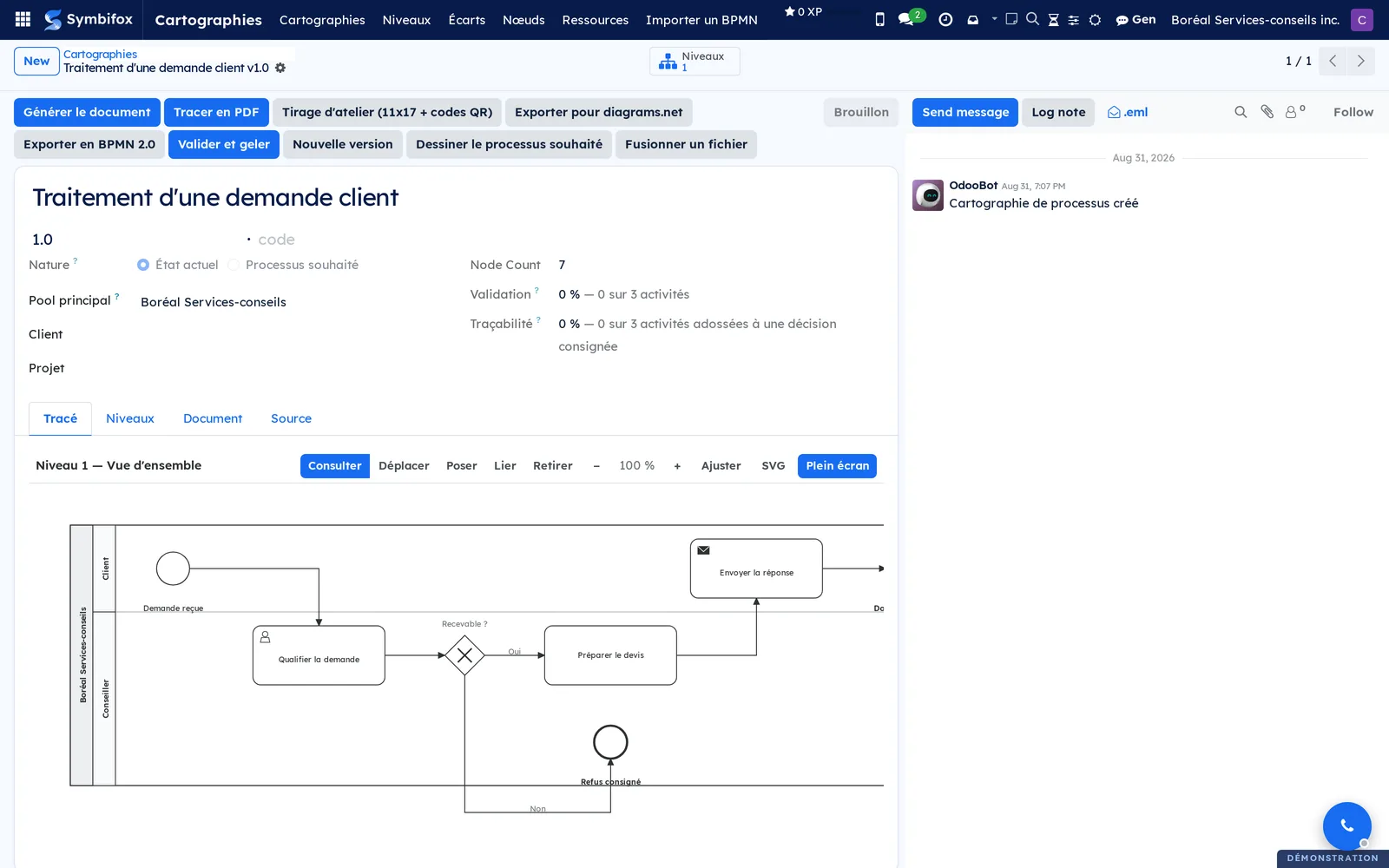
A process map describes one process in a given version. It has a name, a version number, a status (draft, validated) and a nature. The nature is either the current state (what happens today) or the target process (what should happen). A process map is linked to a client (see Contacts) and to a project (see Project).
A process map is divided into levels. Level 1 gives the overview; each collapsed sub-process on it opens its own page, at level 2 or 3. A level is a self-contained page, with its own layout.
Each level holds:
- the main pool, the organization that performs the process (by default, the one set on the process map);
- the lanes, one per performer (a role, a team, a person) inside the pool;
- the external pools, the participants whose inner workings you do not see (a client, a supplier, an agency);
- the nodes: activities, gateways, events, annotations and sub-processes;
- the sequence flows between two nodes, and the message flows between a node and an external participant.
Each node is a full record, with its own chatter (the message thread attached to a record), attachments (workshop photos, templates, screenshots) and activities. This is what keeps the map alive between two mapping sessions. A node also carries its validation register (validated by the owner, validated by a performer, disputed). It also carries its resources (procedure, sheet, video), which become QR codes on the printed map.
What sets the Symbifox approach apart: the model is the source of truth. The PDF, the BPMN file, the diagrams.net file and the on-screen drawing all come from the same geometry, computed from the records. There is nothing to keep in sync by hand. A file edited in a third-party editor comes back into the original map, gap by gap, instead of creating a copy.
The main screen is a process map's form, open on its Tracé (drawing) tab.
The steps of a map link back to what produced them. That is a decision recorded in a matrix item (see Knowledge base) and, through it, the report of the meeting where the decision was made (see Meetings). A versioned policy or procedure from the knowledge base can be attached to a step as a resource.
Configuration#
Access and permissions#
The application has two permission groups, in Settings, on the user form, in the Cartographie de processus (process mapping) section:
- Lecture (read): open the application, view process maps, levels, nodes and gaps, and comment on a step in its chatter. A person with read access can comment without being able to change the map.
- Gestion (manage): everything above, plus create and edit process maps, import a BPMN file, and validate and reopen a version.
Importer un BPMN (import a BPMN) appears only to members of the Gestion group.
Settings#
The application has no page in Settings. Settings are made map by map, on each level, in the Mise en page (layout) tab: column width, row height, lane margin, external pool height and grid step. Empty values are computed; a value you enter is an override that survives recalculation.
Base data#
Nothing needs to be created before you start. A process map stands on its own: its name, its version and its main pool. It helps to already have, in Symbifox, the client contact and the project to link the map to. For the deliverable, it also helps to have the people expected in the validation register.
Getting started#
This walkthrough creates a first process map at Boréal Services-conseils, draws one level and produces a PDF from it.
- Go to Cartographies › Cartographies and select New.
- In Processus (process), enter “New client onboarding”; in Version, enter “1.0”; in Pool principal (main pool), enter “Boréal Services-conseils”.
- Leave Nature set to the current state, then enter in Source where the map comes from, for example “Workshop of September 9 with the consulting team”.
- In the Niveaux (levels) tab, add a line: title “Overview”, code “N1”, level “Level 1”. Save.
- Open the level. In the Couloirs et participants (lanes and participants) tab, add two lanes, “Consultant” and “Assistant”, and an external pool “Client”, positioned at the top.
- In the Nœuds (nodes) tab, add a start event, three activities and an end event, each in its lane, increasing the Colonne (column) by one at each step.
- In the Flux (flows) tab, connect the nodes in order, from origin to target. Save.
- Go back to the Tracé tab: the map draws itself from what you just entered.
- On the process map form, select Tracer en PDF (plot as PDF). The PDF downloads, to scale, trimmed to the map.
You now have a one-level process map, drawn and exported. The tasks that follow show how to edit it on screen, validate it, version it and compare it.
Common tasks#
Create a process map#
A process map takes only a few fields; the drawing comes afterward, level by level.
- Go to Cartographies › Cartographies and select New.
- Enter Processus, Version and Pool principal.
- Choose the Nature: current state or target process.
- Optional: fill in Client, Projet (project) and Code (the prefix of exported identifiers).
- In Source, note where the map comes from and what was not done.
- Select Save.
The process map appears in the list, in draft status, with a validation rate of zero.
Draw a level#
A level is built in its tabs, without a drawing tool: lanes, participants, nodes and flows are lines.
- On the process map form, open the Niveaux tab and add or open a level.
- In Couloirs et participants, enter one lane per performer and one external pool per participant whose inside you do not see, with its Position.
- In Nœuds, add each step: its Couloir (lane), Type (activity, gateway, event, annotation, sub-process), Libellé (label), Colonne (progress) and Rangée (row, the offset within the lane).
- In Flux, connect the nodes: Origine (origin), Cible (target) and, at the exit of an exclusive gateway, the name of the Porte (gate).
- In Flux de message (message flows), describe each exchange with an external participant: Nœud (node), Participant externe (external participant), Sens (direction) and Message.
- For a sub-process, choose in Niveau déplié (expanded level) the page it opens.
- Select Save, then open the Tracé tab to check the drawing.
The drawing is recalculated at every save. The same page can be opened from several sub-processes: a shared sub-process does not have a single caller.
Edit the drawing on screen#
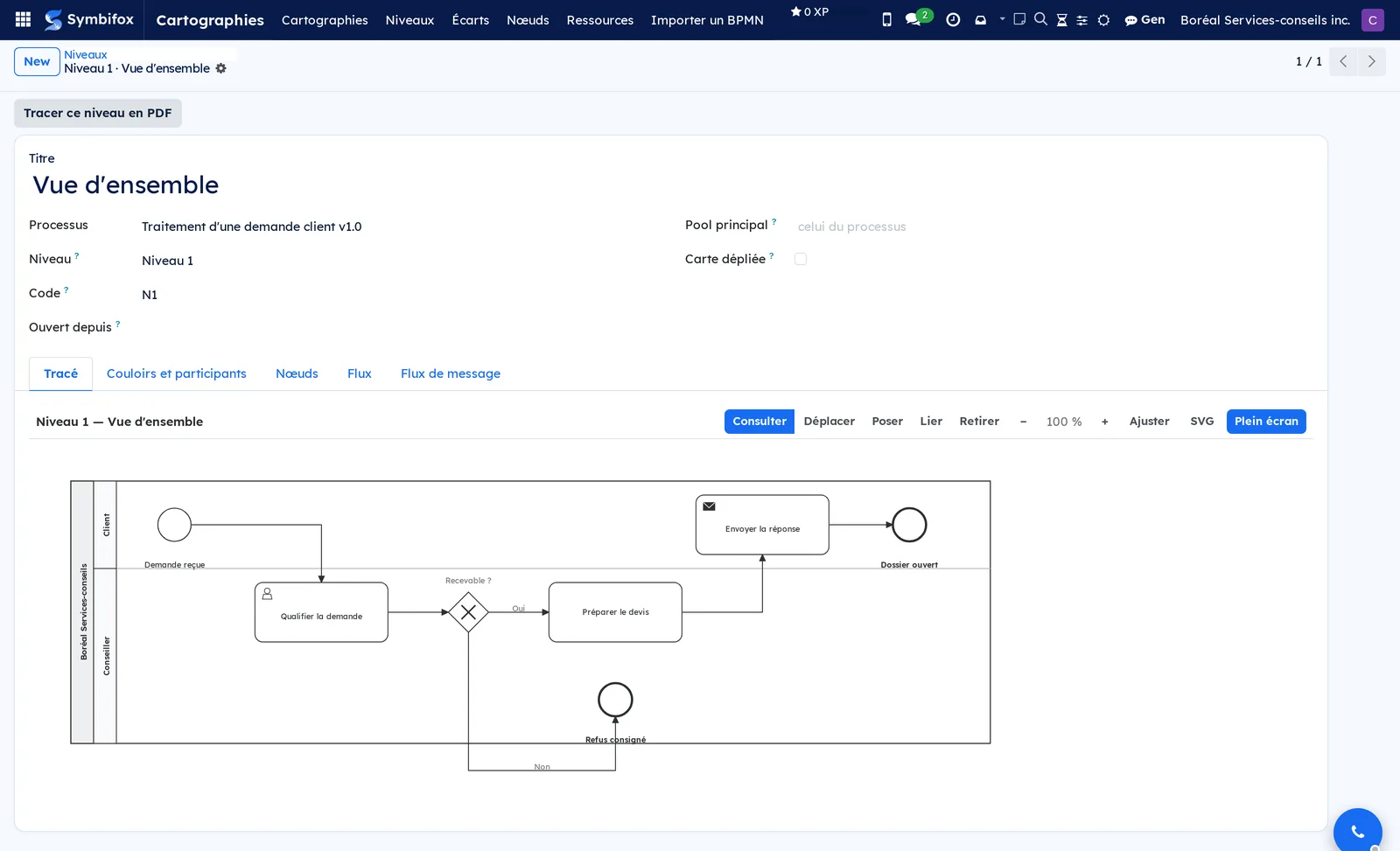
The Tracé tab does more than show the map. With write access, on a version that is not frozen, it lets you edit the map.
- Open the process map or the level, on the Tracé tab.
- Switch to full screen, then zoom with the buttons or with Ctrl and the mouse wheel; move the map by dragging it.
- Choose a tool: view, move, place, link or remove.
- With the move tool, drag a shape: it snaps to the model's grid.
- With the place tool, put a new step in a lane; with the link tool, connect two steps; with the remove tool, delete a shape.
- Select a shape with the view tool: a sub-process opens the page it expands, and any other node opens its form and its chatter.
Every action writes to the records: the list of nodes and flows reflects the drawing, and vice versa. The drawing can also be downloaded as SVG.
Document a step#
A step carries the substance of the map: workshop photos, templates, discussion, and the reason it exists.
- Go to Cartographies › Nœuds and open the step, or select it in the drawing.
- In the chatter, add your observations and attach the photos or documents gathered in the workshop.
- In the Pourquoi cette étape (why this step) tab, link the step to the Décisions et éléments de matrice (decisions and matrix items) that explain it. That means the decision that created it, the constraint it meets, and the question still open.
- If needed, schedule an activity for the person who must confirm the step.
The step becomes Tracée (traced) as soon as it rests on at least one recorded decision. The number of Rencontres (meetings) is deduced from the matrix items. You do not link a step to a meeting by hand: you link it to what was decided there. The shortcut buttons at the top of the form open the matrix items and meeting reports concerned.
Attach a resource to a step#
A procedure, a safety data sheet or a video attached to a step becomes a QR code on the printed map, for the person who does the work.
- Open the step, Ressources (resources) tab, and add a line.
- Enter the Libellé: what the person is looking for, not the file name.
- Choose the Genre (kind), then the source: a Fichier (file), an Adresse (address), or a Politique ou procédure (policy or procedure) from the knowledge base. A file is uploaded into the resource, or picked from those already attached to the step or the map. A file attached to another record is refused.
- Optional: add a Précision (detail), such as when to use it and what to remember.
- Check Critique (critical) for a safety instruction or a gesture to reproduce: it moves to the top on the printout.
- Select Save.
The resource opens where it lives. A policy or procedure linked from the knowledge base keeps its versions, approvals and distribution: the map connects to it without keeping a copy. Cartographies › Ressources lists every resource of every map.
Only what you can read yourself can be attached to a step: the QR code opens the resource without an account, for anyone holding the printed map. A file or a procedure outside your access rights is therefore refused when you save.
Validate the activities#
The validation register separates what is confirmed from what remains to be checked. It holds two independent sign-offs and a dispute flag.
- Open the step to validate.
- Check Validé par le propriétaire (validated by the owner) if the process owner confirms the step.
- Check Validé par un exécutant (validated by a performer) if a person who does the work confirms it.
- If someone says the step does not happen that way, check Contesté (disputed) and explain why in Remarque de validation (validation remark).
- Select Save.
The process map's Validation rate (the share of activities validated by the owner and by a performer) recalculates on its own. On the drawing, a dot marks each step: green when validated, amber when partly validated, red when disputed.
Validate and freeze a version#
A validated version can no longer be changed by mistake. Reopening it is deliberate, and it shows.
- Open the process map.
- Select Valider et geler (validate and freeze).
- To go back, select Rouvrir (reopen).
A frozen version can be read, exported and compared, but its content no longer moves (its metadata remain editable). The reopening is recorded in the chatter with the name of the person who did it. Freezing is what makes a map citable.
Create a new version#
Reworking a map does not mean overwriting the previous one.
- Open the version to start from.
- Select Nouvelle version (new version).
- Enter the new version number when prompted, then open the new map.
The new version keeps the same step codes and the same BPMN identifiers, without touching the original. Its validation register starts over at zero. A new version is revalidated rather than inheriting a confirmation that no longer applies. The two versions stay linked through Version précédente (previous version) and Versions suivantes (next versions).
Compare two versions#
What was added, removed, renamed or moved between two versions shows at a glance, without going through the map again.
- Open the most recent version and select Comparer (compare).
- In Comparer avec (compare with), choose the previous version, or the current state a target process was drawn from.
- Select Comparer.
The dialog shows the list of Écarts (gaps) and their count: additions, removals, renamings, and changes of lane, type or annotation tone. Steps are matched by their stable code, never by their name. For a visual rendering, Vue delta (PDF) (delta view) overlays the differences on the map.
Draw the target process and seed the gaps#
A target is drawn from a version of the current state, in a separate branch. The current state can then be remapped without detaching the target.
- Open the current-state map that serves as the starting point.
- Select Dessiner le processus souhaité (draw the target process). A new process map with the target process nature opens, with Dessinée d'après (drawn from) filled in.
- Edit the target: add, remove and move steps.
- On the target, select Semer les écarts (seed the gaps).
- Open the Écarts tab and complete each line: Intention, Gain attendu (expected gain), Effort, Responsable (person responsible), État (status).
- On a retained gap, select Créer la tâche (create the task) to push the change down to where the work is tracked.
Seeding runs the same comparison as the compare dialog. Each gap then carries what no calculation can deduce. A new seeding reconciles on a stable key: nothing written by hand is overwritten. A gap that no longer appears on the maps but was annotated stays, marked Caduc (obsolete). It does not disappear without anyone seeing it go. The Transformation rate measures the share of retained gaps that are done.
Export the map#
Four outputs, available at any time, all drawn from the same geometry.
- Open the process map.
- Select Tracer en PDF for the bare drawing, to scale, one level per page.
- Select Tirage d'atelier (11x17 + codes QR) (workshop print, 11x17 with QR codes) for a tabloid sheet, with one QR code per step that carries resources.
- Select Exporter pour diagrams.net (export for diagrams.net) to continue in diagrams.net, or Exporter en BPMN 2.0 (export as BPMN 2.0) for any editor that reads the standard.
- For a single level, open it and select Tracer ce niveau en PDF (plot this level as PDF).
Each file downloads. The diagrams.net format is the preferred target, because the editor is free software. BPMN 2.0 is read by BPMN editors in the broad sense.
Generate the deliverable document#
A map that says neither where it comes from, nor what it assumes, nor what it leaves out describes a sequence, not a performance. The document brings all of this together.
- Open the process map, Document tab.
- Enter Sous-titre du document (document subtitle), Pied de page du document (document footer) and Date du document (document date).
- In the deliverable's sections, add the assumptions, open questions and findings, each with its Intitulé (heading) and Corps (body).
- Add the lines of the validation register: the expected role as the heading, the person's name as the body.
- Select Générer le document (generate the document).
The PDF includes a cover with a legend, a table of contents, one level per page, the appendices, the validation register and the unfolded map. The prose lives on the map, so it freezes with its version. Regenerating after a drawing edit takes a single action. An empty section is refused, except in the validation register, which is meant to arrive blank.
Import a BPMN file#
An existing map comes in as it is, with its lanes, steps and links.
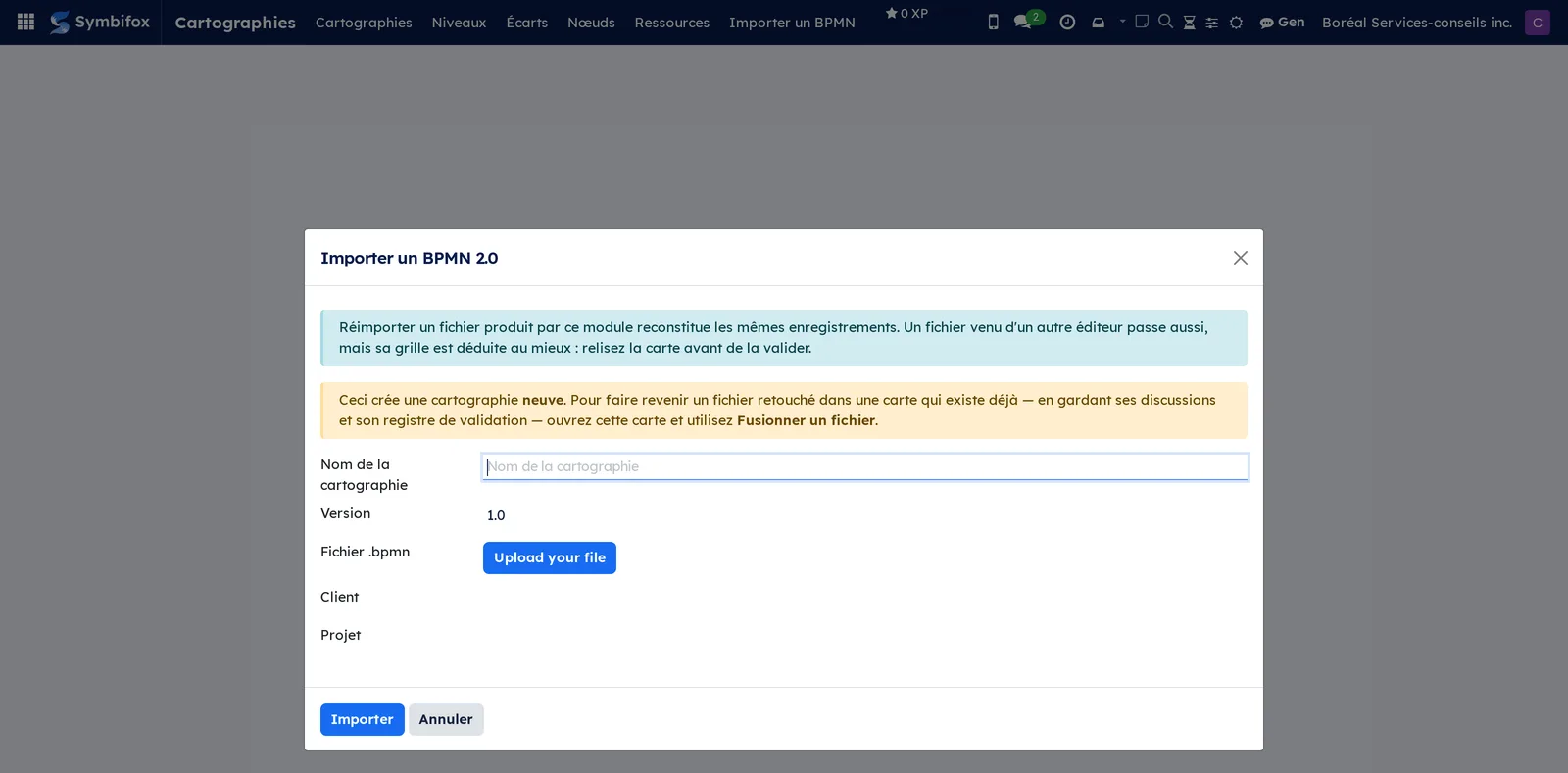
- Go to Cartographies › Importer un BPMN.
- Enter Nom de la cartographie (process map name) and Version.
- Upload the Fichier .bpmn (.bpmn file).
- Optional: choose Client and Projet.
- Select Importer (import).
The dialog summarizes Ce qui a été lu (what was read), then the new process map opens. A file produced by Symbifox reimports identically. A file from another editor also imports, with a grid position rebuilt from its layout: review it before you validate it.
An element the reader cannot place does not enter the map: an element with no shape in the file's graphical part, of a type the module does not draw, or drawn outside the process being read (inside an expanded sub-process, in another participant's process). The new map's chatter names it, with its reason and the links that touch it. Place it by hand, or fix it in the original editor before you reimport.
Merge an edited file#
A file edited in a third-party editor goes back into the map it came from, instead of landing beside it.
- Open the original process map and select Fusionner un fichier (merge a file).
- Upload the Fichier .bpmn and select Analyser (analyze).
- Read the list of proposed gaps: for each line, Ce qui change (what changes), Dans la carte (in the map), Dans le fichier (in the file).
- Set the Décision (decision) line by line, or use Tout appliquer (apply all), Tout ignorer (ignore all) or Ignorer les retraits (ignore removals).
- Select Appliquer ce qui est retenu (apply what is retained).
Only what was retained is written. Levels and nodes are recognized by their BPMN identifier, never by their name. A renaming reads as a renaming, and each step keeps its chatter, its attachments and its validation.
A file can also carry elements the reader cannot place. A warning names them above the list of gaps, even when that list is empty, and the merge report recorded in the map's chatter lists them again. The merge does not create them, and never proposes removing an element the file still carries without a shape.
The menus, one by one#
Cartographies: the application menu; it has no screen of its own.
Cartographies › Cartographies: the list of process maps, with the process, version, nature, client, project and status. It is the entry point for everything: open a map, export it, version it. The empty screen reminds you that the model is the truth, and that the PDF and the XML are only renderings of it.

Cartographies › Niveaux: every level of every map, with its title, code and process. Useful to find a specific page or to plot a single level as PDF.
Cartographies › Écarts: every seeded or entered gap, across all maps, with its kind, scope, intention, effort, person responsible, status and task. Grouping by target process gives the transformation plan of each target. Empty on the demo: the help text invites you to draw a target process from a current-state map, edit it, then seed the gaps.
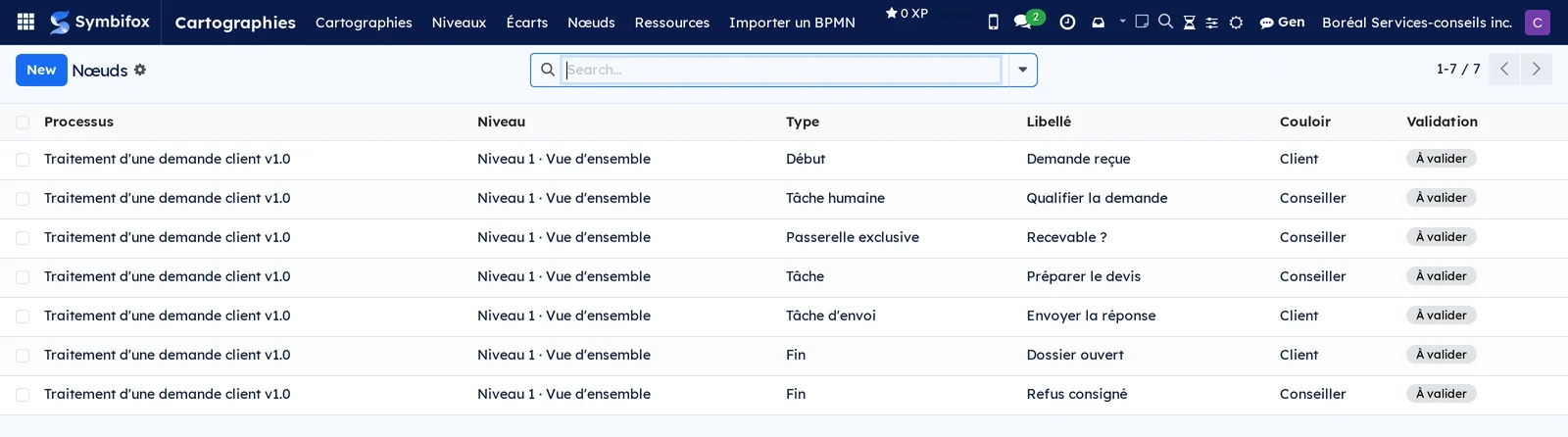
Cartographies › Nœuds: every step of every map, with its code, label, type, lane and validation. The filters on validation and dispute help you prepare a review session.
Cartographies › Ressources: every resource attached to a step, with its label, kind, step and process. Empty on the demo: the help text recalls that a procedure, a safety data sheet or a video attached to a step becomes a QR code on the printed map.
Cartographies › Importer un BPMN: the dialog for importing a BPMN 2.0 file, reserved for the Gestion group (see Import a BPMN file).
Reference#
Fields of the process map form#
| Field | Description | Required or default |
|---|---|---|
| Processus | The name of the process described | Required |
| Code | Prefix of the exported BPMN identifiers | Optional |
| Version | Version number or label | Required |
| État (status) | Draft or validated (frozen) | Draft |
| Pool principal | The organization that performs the process | Required |
| Client, Projet | The client and the project the map is linked to | Optional |
| Source | Where the map comes from, and what was not done | Optional, recommended |
| Nature | Current state or target process | Current state |
| Dessinée d'après | For a target process, the current-state version it is drawn from | Filled in by Dessiner le processus souhaité |
| Version précédente, Versions suivantes | The chain of versions | Filled in by Nouvelle version |
| Validation | Share of activities validated by the owner and by a performer | Computed |
| Traçabilité (traceability) | Share of activities that rest on at least one recorded decision | Computed |
| Transformation | Share of retained gaps that are done | Computed |
| Sous-titre, Pied de page, Date du document | The cover and the footer of the generated document | Optional; the footer repeats the first line of the source |
Fields of the level form#
| Field | Description | Required or default |
|---|---|---|
| Titre (title) | The page title | Required |
| Niveau (level) | Displayed label, for example “Level 2” | Optional |
| Code | Short identifier, unique within the process | Required |
| Identifiant BPMN (BPMN identifier) | Stable, never regenerated: it is what lets a reimport merge | Generated |
| Ouvert depuis (opened from) | The sub-processes that open this page | Computed |
| Pool principal | Empty: the process's own main pool applies | Optional |
| Carte dépliée (unfolded map) | Single page that gathers all the levels | Cleared |
| Largeur de colonne, Hauteur de rangée, Marge de couloir (column width, row height, lane margin) | The layout grid | Computed; a value is an override |
| Hauteur des pools externes (external pool height) | Empty: measured on the longest participant name | Computed; a value is an override |
| Pas de la grille (grid step) | What a move snaps to, as a fraction of a column and a row | 0.05 |
Fields of the node form#
| Field | Description | Required or default |
|---|---|---|
| Niveau, Couloir | The page and the lane of the step | Niveau required |
| Code | Stable code of the step within the process | Required |
| Identifiant BPMN | Stable, never regenerated | Generated |
| Libellé | The displayed text | Optional |
| Type | Activity, gateway, event, annotation, sub-process | Required |
| Ton (tone) | For an annotation only; two tones | Optional |
| Colonne, Rangée | The progress, and the offset within the lane | Optional |
| Largeur, Hauteur (width, height) | Override; empty means computed | Computed |
| Validé par le propriétaire, Validé par un exécutant, Contesté | The validation register | Cleared |
| Remarque de validation | The remark left at review | Optional |
| Niveau déplié | The page this sub-process opens | Optional |
| Décisions et éléments de matrice | What explains the step | Optional |
| Tracée | The step rests on at least one recorded decision | Computed |
| Ressources, Nombre de ressources, Dont critiques (resources, number of resources, of which critical) | The attached resources | Computed |
Fields of the gap form#
| Field | Description | Required or default |
|---|---|---|
| Processus souhaité, État actuel (target process, current state) | The two maps compared | Processus souhaité required |
| Genre, Portée (kind, scope) | What changes, and at what level (page, step, flow) | Required |
| Clé (key) | What lets a new seeding recognize this gap rather than create a twin | Required, generated at seeding |
| Écart (gap) | The description of the difference | Required |
| Provenance (origin) | Seeded (refreshed at the next seeding) or added by hand (never touched) | Required |
| Caduc | The gap no longer appears on the maps, but someone had written on it | Computed |
| Intention, Gain attendu, Effort, Responsable | The human part of the gap | Optional |
| État | Where the gap stands | Required |
| Tâche (task) | Where the change actually happens | Filled in by Créer la tâche |
Reports and exports#
- Tracer en PDF: the drawing, one level per page, at 1:1 scale, trimmed to the map.
- Tracer ce niveau en PDF: a single page, from the level form.
- Tirage d'atelier (11x17 + codes QR): a tabloid sheet, with one QR code per step that carries resources.
- Générer le document: the full deliverable (cover, legend, table of contents, levels, appendices, validation register, unfolded map).
- Vue delta (PDF): the differences between two versions, overlaid on the map.
- Exporter pour diagrams.net and Exporter en BPMN 2.0: the two exchange files.
- The on-screen drawing can also be downloaded as SVG.
All these renderings come from the same layout calculation. Text widths are measured with the Lexend font, whose metrics are fixed in the module.
Automations#
The application runs no scheduled task. Everything is recalculated when you save: the position of shapes, the height of annotations and of external pool headers, the validation, traceability and transformation rates, and a step's meeting count. The order of elements in exported files follows the order of the lines, which the editor keeps dense after every addition and every removal.
Public pages and portal#
Each step has a workshop page, the one the QR code on the workshop print opens. The address encoded in the QR code carries a token. The page opens without an account, for the person at the workstation, and gives access only to that step's resources. The node form lets you open this page to check it before printing.
Modules that extend this application#
No satellite module extends this application on the demo. The links with the knowledge base (decisions, policies and procedures attached to steps) and with meetings are part of the module itself.
Understanding#
The model is the source of truth. A map drawn in a diagramming tool is a picture: accurate on the day it is drawn, then less and less so. A map kept as records can be worked on between two sessions, discussed in a chatter, versioned, validated, compared and re-exported when someone needs a file. The four renderings (PDF, BPMN, diagrams.net, on-screen drawing) come from a single layout calculation: they cannot diverge.
Identifiers are stable. The BPMN identifiers of a level or a step are never regenerated. They are unique within the process, not across the whole database: an identifier only needs to be unique within its file, and a file is one process. This is what lets a merge recognize a renamed step, and lets a new version keep the codes of the previous one.
A human adjustment survives recalculation. The layout is computed, but any value you enter is an override that wins: a node's width or height, the external pool height, a column or a row. Maps loaded before these values became computable still export as they are.
A target is a branch, not a version. The target process is drawn from a specific snapshot of the current state, and that reference does not move when the current state is remapped. Gaps are calculated against that snapshot. Version comparison and gap seeding share the same matching mechanism.
Freezing protects, and reopening shows. A validated version becomes read-only in its content. Reopening it is allowed, but recorded: reopening silently would be worse than not freezing at all.
The way back is BPMN 2.0. Export to diagrams.net is the preferred output, because the editor is free software. But to come back into Symbifox you need a BPMN 2.0 file, and diagrams.net and Lucidchart do not produce one. Merging therefore serves BPMN editors in the strict sense.
The limits. The built-in editor works on the model's grid, not freehand. The drawing uses no third-party library: no watermark and no outside calls, but also no shapes other than the model's. A character missing from the font metrics makes the rendering fail and names the character. It does not guess a width and let the map drift silently.
Troubleshooting#
| Symptom | Likely cause | Fix |
|---|---|---|
| The merge proposes removing almost all the levels | The third-party editor re-exported only the open page | Select Ignorer les retraits before applying |
| The map can no longer be edited, in the tabs or in the drawing | The version is validated and frozen | Select Rouvrir; the reopening is recorded in the chatter |
| Importer un BPMN does not appear | You are in the Lecture group | Ask for the Gestion group |
| A reimport created a second map instead of updating the first one | The file went through Importer un BPMN rather than Fusionner un fichier | Open the original map and use Fusionner un fichier |
| The validation rate dropped back to zero | A new version was created; its register starts blank | Revalidate the activities of the new version |
| The transformation rate does not move | The gaps are still to be decided | Set the État of each gap: only retained gaps count |
| A step shows no meetings | Meetings are deduced from matrix items | Link the step to the recorded decision, in Pourquoi cette étape |
| The generated document refuses a section | A section of the deliverable is empty | Fill it in or remove it; only the validation register can stay empty |
| Saving a resource shows “ce fichier est rattaché à un autre dossier” (this file is attached to another record) | The file was attached somewhere other than the step or the map | Attach it to the step, or upload it directly into the resource |
| The QR code opens a “page not found” for a resource | Its file, linked before the current rule, belongs to another record | Upload the file into the resource again |
See also#
- Project: the project a process map is linked to, and the tasks created from gaps.
- Knowledge base: the matrix items that explain a step, and the policies and procedures attached as resources.
- Meetings: the reports of the meetings where decisions were made.
- Contacts: the client of a process map.
- Common actions in every application: lists, filters, chatter, activities.