
Part 6 · Security, compliance and privacy
OTP tokens
Keep your one-time codes in a personal vault encrypted in the browser, file them by client, and share them with your phone.
Watch it
The OTP tokens application stores the one-time codes that act as the second factor of your accounts. It is for anyone who holds credentials for themselves or for clients, and for the organization that wants to know what it holds without ever being able to read it. The vault is personal: each code's seed is encrypted in your browser, with a key derived from a passphrase that never leaves it. The result: your codes live in Symbifox, filed by client and by engagement, and the server remains unable to produce a single one.
Overview#
Two screens, two uses. My vault is the live screen: it opens with a passphrase, shows the codes, copies them, and closes by itself after five minutes without activity. The Inventory is the list in the Odoo sense: it is for filing, filtering and finding, never for producing a code.
A token is a protected account: an issuer, an account, a type, and the encrypted seed that produces the code. Two types exist: the code that changes every thirty seconds, and the counter-based code, which moves up one step with each use. A vault belongs to one person and one only; it holds the tokens, the enrolled passkeys and the recovery codes.
The principle of the module fits in one sentence: producing a code requires the seed in clear text, so that moment never happens on the server. Symbifox keeps only the encrypted data and a verifier, which lets it say “wrong passphrase” without knowing anything about the right one. The issuer and the account, on the other hand, stay readable on purpose: that is what makes searching, sorting and keeping the inventory possible.
Filing relies on two neighbouring applications. A token points to a Client in the Contacts application and to a Project. The contact's record and the project's record then count the tokens linked to them, through a shortcut button at the top of the form.
Configuration#
Access and permissions#
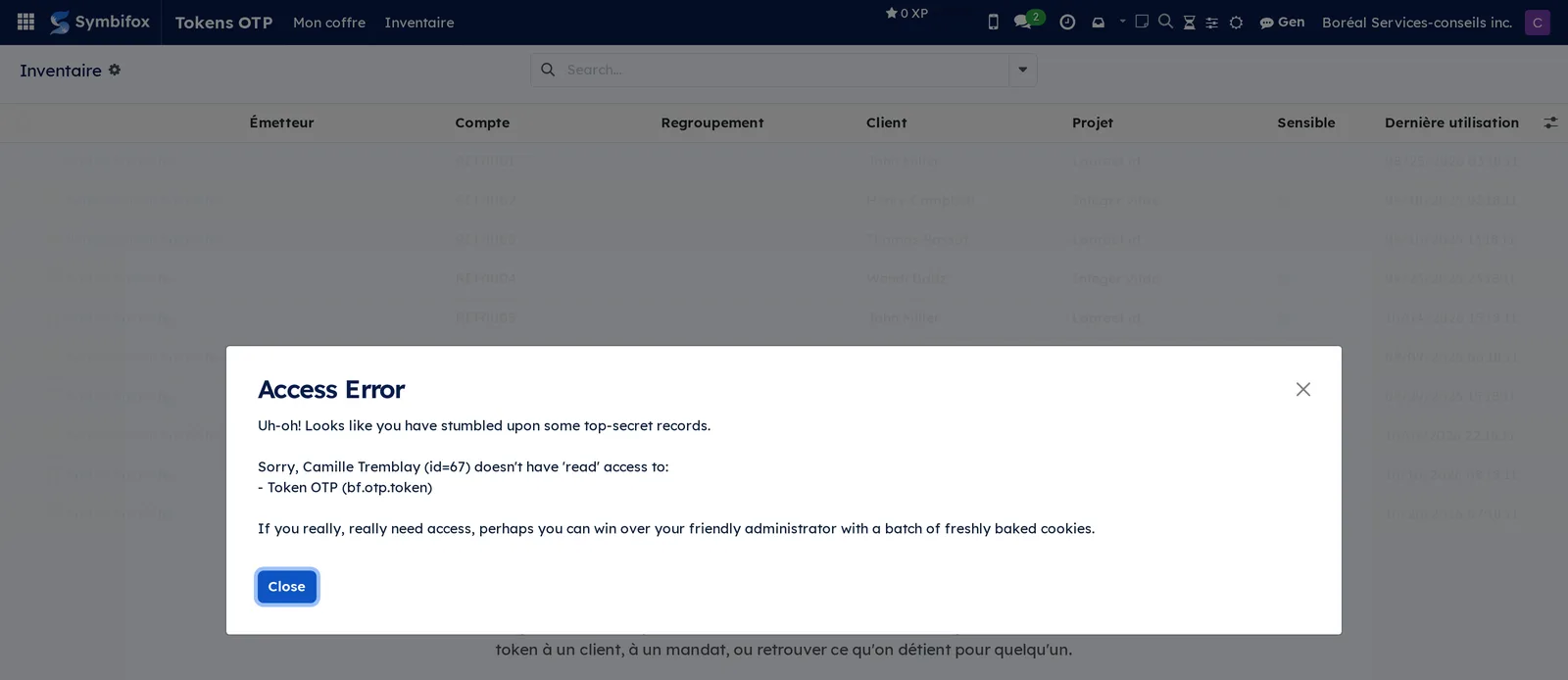
A single group exists, User. It opens the application, the person's vault and their inventory. It opens nothing that belongs to others: a rule limits each vault to its owner, and a person who tries to open someone else's token gets an access error, administrators included.
The vault requires a secure connection. Served without HTTPS, it refuses to work and says so in a banner, rather than failing field by field.
Settings#
The module adds no setting to the general Settings. Everything configurable belongs to the vault itself: the passphrase, the passkeys and the recovery codes, all three managed from My vault.
Base data#
Nothing needs to be created in advance, with three reservations. Choose your passphrase and keep it somewhere other than the service these codes protect. Decide on your groupings: with no label, the client serves as the grouping, and failing that the issuer, as soon as it holds more than one token. Finally, the clients and projects you will link your tokens to must exist in Contacts and in Project.
Getting started#
This walkthrough creates your vault and files a first code in it. It happens entirely in your browser, on an HTTPS address.
- Open OTP tokens › My vault.
- Enter the passphrase that will open this vault, then confirm it.
- Add a token by pasting the setup address the service gives you in place of its QR code, or by entering its details by hand.
- Check the proposed Issuer and Account, then save the token.
- Create a recovery code and store it offline, in an envelope or a safe.
- Open OTP tokens › Inventory and select the token you just created.
- Fill in Client, Project and Grouping, then save.
Result: the code appears in My vault and is copied in one step; the inventory shows who this token belongs to and for which engagement. The seed never left your browser other than encrypted.
Common tasks#
Add a token by hand#
The usual case is a service that shows a QR code without giving any text: it almost always offers a key to copy.
- Open OTP tokens › My vault and enter your passphrase.
- Ask to add a token, then choose manual entry.
- Enter the Issuer and the Account, then paste the key supplied by the service.
- Check the Type, the Algorithm, the Number of digits and the Period (s), in seconds.
- Save.
Result: the token appears in the vault and produces its code. The seed is encrypted before it is sent; the server receives only the encrypted data and its vector.
Find and copy a code#
A vault holding dozens of credentials is browsed with the keyboard, not the mouse.
- Open My vault and enter your passphrase.
- Type the first letters of the issuer or of the account.
- Press Enter to copy the code shown.
- Press Esc to close the vault.
Result: the code is on the clipboard and the token's last-used date is updated, which brings the credentials you really use back to the top.
File a token by client and by engagement#
Filing happens from the inventory, not from the vault: these fields do not touch the seed.
- Open OTP tokens › Inventory and select the token.
- Fill in Client and Project.
- If needed, enter a Grouping, for example “Production” or the name of a team.
- Check Sensitive so that the code stays hidden until someone asks for it.
- Save.
Result: the contact's record and the project's record count this token in their shortcut button, and the vault files it under its grouping.
Enrol a passkey#
A passkey opens the vault with a fingerprint, a face or a hardware key, instead of the passphrase.
- Open My vault and enter your passphrase.
- Open the passkeys panel and ask to add a device.
- Name the device, for example “laptop” or “yellow key”.
- Confirm with your passphrase.
- Touch the sensor or insert the key.
Result: the device now opens the vault. The vault key has not changed, so no seed was re-encrypted. Enrolment asks for the passphrase again on purpose, because adding a way to open a vault is confirmed by something you know.
Set a recovery code#
A passkey is tied to a device and to a domain. A recovery code fits in an envelope and outlives the laptop.
- Open My vault and enter your passphrase.
- Ask to create a recovery code.
- Say where it will be kept, for example “envelope in the safe”.
- Copy the code shown and store it offline right away.
Result: the code opens the vault just like the passphrase. It is shown once only and is never sent to the server: nothing anywhere makes it possible to find it again. Five codes at most per vault.
Import an existing vault#
The import recognizes the source from the content of the file, without you having to declare it.
- Open My vault and enter your passphrase.
- Ask to import, then choose the file: a Symbifox export, a Google Authenticator export or an export from the Nextcloud code manager.
- Enter the passphrase that protects that file, if it is encrypted.
- Confirm the import.
Result: the tokens enter your vault, decrypted and then re-encrypted in the page. The links come back by name, and only when the name designates a single client or a single project in the instance.
Export your vault#
The export is for moving to another instance or keeping an offline copy.
- Open My vault and enter your passphrase.
- Ask for the export.
- Choose a passphrase for the file itself, different from the vault's.
- Save the file produced.
Result: an encrypted file, readable on another instance since it does not depend on the vault key.
To move to another manager, a plain export exists too, and it deliberately costs three steps: unfold it at the bottom of the export panel, retype the vault passphrase, then write PLAINTEXT in the field provided. The file carries PLAINTEXT in its name, its own warning on the first line, and one otpauth:// address per code so another tool can read it back.
File away a token you rarely use#
A vault that lives accumulates accounts you open twice a year. The archive takes them out of the everyday list without destroying anything.
- Open My vault and enter your passphrase.
- On the token's card, select the archive icon.
- To find it again, type its name in the search, or open the Token archive panel from the top bar.
- To put it back in the list, select Bring back.
Result: the token leaves the everyday list, keeps its seed and still produces its codes from the archive panel. As soon as you search, it answers, in its own group headed In the archive. Filing crosses surfaces: archived here, archived on the phone and in the extension.
File a whole vault in one pass#
The three tidying fields stay empty on an imported vault, and nobody types hundreds of labels by hand.
- Open OTP tokens › Suggest a grouping, or select rows in the Inventory then Actions › Suggest a grouping.
- Read the proposed groups: the biggest comes first, with how many tokens it covers.
- Rename what you want, untick what you do not.
- Select File tokens.
Result: each group you keep becomes a Grouping label. The name comes from the domain of the address held in the account name, because that is what says under which identity the token was created; without an address, the issuer serves, and only when it carries more than one token. A token that already carries a label is never touched, even if it falls in a group you kept.
Remove a token without destroying it#
Removing is reversible; destroying is not, and takes two steps.
- Open My vault and enter your passphrase.
- Move the token to the trash.
- To bring it back, take it out of the trash; to erase it, confirm the destruction.
Result: a token in the trash no longer appears in the list of codes, keeps the date it was discarded, and nothing destroys it on its own.
Pair the mobile app#
The mobile app reads QR codes with the camera, which the browser on a computer does not do.
- Open Symbifox in your phone's browser and sign in.
- Open OTP tokens › My vault and ask to pair a device.
- Let the app take over, and name the device.
- Open your vault on the phone with your passphrase.
Result: the phone reads QR codes, encrypts the seed on the spot and sends it already sealed. Codes copied on the phone move up in the usage sort, and a counter-based code's counter advances where the code was produced. The rest of the mobile workflow is described in Mobile apps and browser extension.
Find what you hold for a client#
This is the question for the day someone leaves, or the day a client asks for an accounting.
- Open OTP tokens › Inventory.
- Group by Client, or enter the client's name in the search.
- Read the Last used column to spot dormant credentials.
Result: the list of what you hold for this client, with each token's project and grouping. The same count is available from the contact's record, through its shortcut button.
The menus, one by one#
OTP tokens › My vault: the vault screen, served in the page rather than by the server. It opens with the passphrase or with an enrolled passkey, shows the codes with the favourites first, and offers keyboard search, adding, import, export, passkeys, recovery codes, the archive and the trash. On the demo, served without HTTPS, it shows only a warning banner.

OTP tokens › Suggest a grouping: the assistant that reads your accounts and proposes filing labels. It shows, it lets you correct, and it writes only when asked.
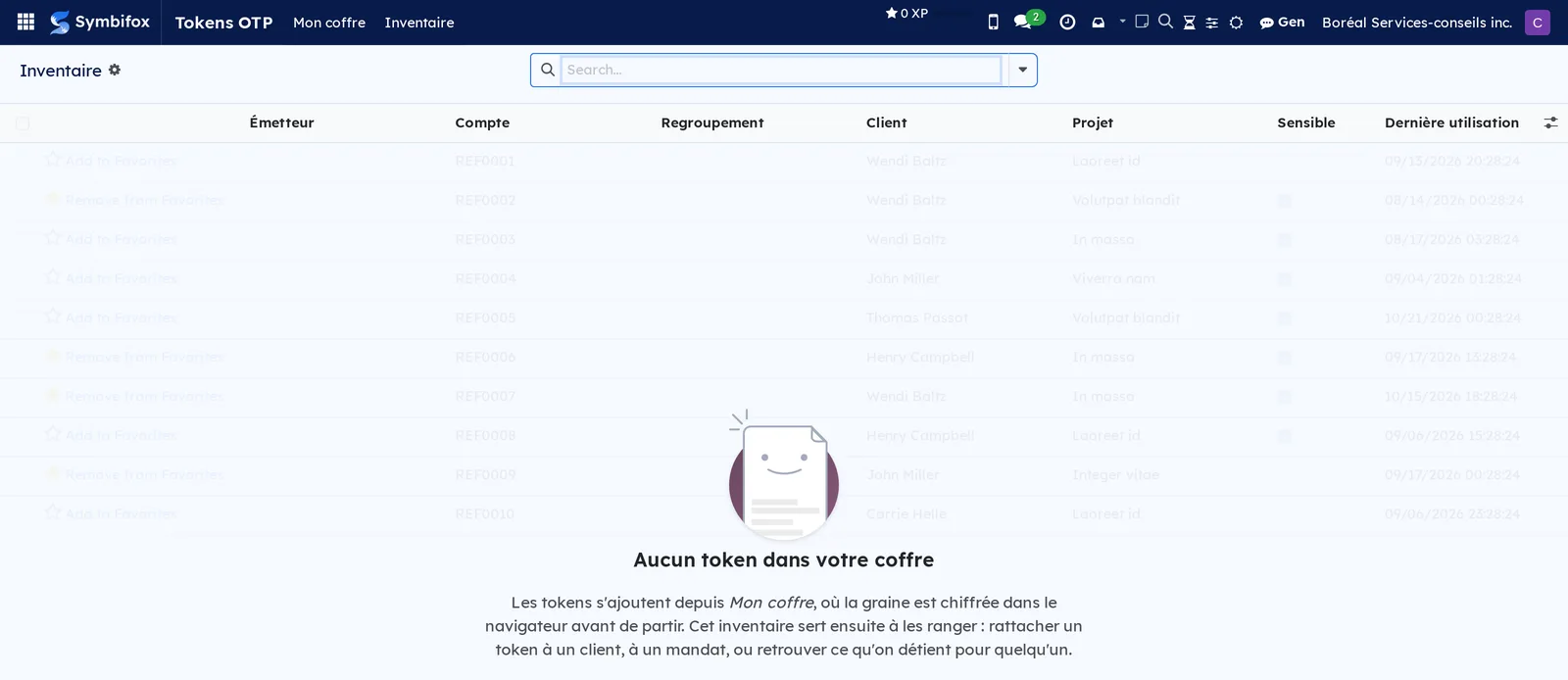
OTP tokens › Inventory: the list of the tokens in your vault, with the Issuer, Account, Grouping, Client, Project, Sensitive, Archived and Last used columns, plus the favourite star at the start of each row. Group by client or by project for an overview. It opens on the Not archived filter; the Archived tokens filter shows what sleeps there, and In the trash what is waiting to be destroyed. The screen stays empty as long as your vault is, and its help text reminds you that tokens are added from My vault: this inventory is for filing them, not for creating them.
Reference#
Fields of the Token form#
| Field | Description | Required or default |
|---|---|---|
| Account | The protected account, as the service names it | Required |
| Issuer | The service that issues the code | Optional |
| Type | Time-based code, or counter-based code | Required |
| Algorithm, Number of digits, Period (s) | The settings the service imposes | Taken from the setup address |
| Counter | Position of a counter-based code, advanced where the code is produced | Counter-based codes only |
| Client, Project | The link that files the token and feeds the counters on the records | Optional |
| Grouping | Free-form label; failing that, the client serves as the grouping | Optional |
| Favorite | Moves the token to the top, above the groupings | Cleared |
| Sensitive | The code stays hidden until someone asks for it, and is not copied by accident | Cleared |
| Archived | Takes the token out of the everyday list without destroying anything; it still produces its codes from the archive | Cleared |
| Archived on | Since when the token has been filed; nothing purges on its own | Set when archived |
| Last used | Set each time a code is copied; this is what brings useful credentials to the top | Computed |
| Encrypted seed, IV | The encrypted data produced by the browser; the server cannot read it | Required |
| Moved to trash | Since when the token has been removed; nothing destroys it on its own | Empty |
Reports and exports#
The application produces no printable report. The only file that leaves the vault is its encrypted export, protected by a passphrase chosen at export time. The inventory can otherwise be exported like any list in Symbifox, but it contains no readable seed.
Automations#
An hourly run clears device pairings that were left in progress. A paired phone that has made no call for 90 days is deactivated, and stays visible as revoked. On its side, the mobile app erases itself after thirty days without a successful contact with Symbifox. The rest happens in the page: the vault closes by itself after five minutes without activity, the last-used date is written each time a code is copied, and a counter-based code's counter advances where the code was produced, on the computer or on the phone.
Public pages and portal#
The module exposes no public page. The addresses it serves to the mobile app, for pairing, for enrolling a passkey and for recording a token, all require an open session. Only a branding probe answers before sign-in, and it returns nothing but the company name and two colours.
Modules that extend this application#
No satellite module is added to OTP tokens. The module does rely on the Project application, which provides the token's Project field, and on Contacts for the Client field; without them, filing loses its two axes. The counters that appear on a contact's record and on a project's record come from this module, and count only your own tokens.
Understanding#
Whoever produces, holds. A one-time code is computed from a seed in clear text. A service that produces your codes therefore holds your secrets, whatever it claims. This module moves the computation into your page: the server has neither the key nor anything to derive it from, and no encryption library is even loaded on its side.
Why no fingerprint of the passphrase is kept. Keeping a hash of the passphrase would give anyone who reads the database a better starting point than the encrypted data itself. Instead, the vault keeps a verifier: a known text, encrypted with the key, which makes it possible to say “wrong passphrase” without revealing anything about the right one.
Why the icons are bundled. Several hundred services have their icon inside the module. None is fetched from the web: the request would reveal to the service, and to anyone watching the network, the list of accounts you protect. Anything unrecognized gets a coloured badge computed from the name.
Why a passkey does not replace the passphrase. A passkey is tied to a device and to an origin: one enrolled on a domain will not open the vault from another, or from a browser extension. It seals a copy of the vault key; it does not replace it. The passphrase remains the fallback, and the recovery code is the only way to survive losing it.
Why the encrypted export remains the rule. A file of readable seeds forgotten in a downloads folder is an open vault that nobody remembers three months later. The default export is therefore encrypted, under a passphrase distinct from the vault's, so that it can be read elsewhere without depending on this instance. The plain export exists to move to another manager, and its three deliberate steps are there so that nobody ever produces it by accident.
What the module does not do. Sharing a token between two people does not exist: it would require envelope encryption, where each token's key is sealed for each recipient. Reading a QR code with the camera does not exist on a computer either; the mobile app takes care of that, and on a computer you paste the content of the code.
What happens when someone leaves. Archiving their account is enough: the phones paired with their vault are refused at their next call, and the app erases what it kept. A lost phone that no longer connects erases itself after thirty days, a delay the person who administers the instance can change. Symbifox keeps only a fingerprint of each device's token, never the token itself, and no token or vault can be moved into another person's vault.
What the server sees all the same. The issuer and the account are in clear text, on purpose: without them, no search, no sorting, no inventory. A person who administers the instance can therefore see that a token exists and remove it, but never read the code it produces.
Troubleshooting#
| Symptom | Likely cause | Fix |
|---|---|---|
| The “Encryption unavailable” banner replaces the vault | The page is served without a secure connection | Open Symbifox over HTTPS; browser encryption does not exist otherwise |
| The inventory is empty although colleagues have tokens | Each vault belongs to its owner alone | This is the expected behaviour; ask the person to produce their own inventory |
| The passphrase is refused | The vault's verifier does not match the passphrase entered | Check the keyboard layout; failing that, open the vault with a recovery code or a passkey |
| No way of opening the vault works | The passphrase is lost and no recovery code was set | The tokens are lost; create them again from each service, then set a recovery code |
| The passkey is not offered | It was enrolled on another domain or on another device | Open the vault with the passphrase, then enrol a passkey on this device |
| The vault closes while you are working | Automatic closing after five minutes without activity | Open it again; this is the intended behaviour, on every device |
| Some rows are refused on import | Clear-text seeds, duplicates or unreadable entries | Correct the source file; the module refuses rather than accepting in silence |
| The Project field cannot be found | The Project application is not installed | Install Project, or file the tokens by Client and Grouping |
See also#
- Mobile apps and browser extension: the app that reads QR codes and opens your vault on the phone.
- Contacts: the client record where the count of tokens held is read.
- Project: the engagement a token is linked to.
- Secure transfers: the one-time codes that protect a transfer, not to be confused with this vault.
- Security awareness: the training that goes with two-factor authentication.