

Part 7 · Platform, hosting and artificial intelligence
Hosting management
Inventory of servers, services, domains, licences and client devices, with the monitoring, maintenance and backups that go with them.
Watch it

The Hébergement (hosting) application keeps the inventory of everything an organization runs for its clients: servers, services, domain names, certificates, software and their versions, fleet devices, licence pools. It is for the person who answers when a service goes down or a client asks where their data lives. Each item is linked to its client, and the application watches deadlines for you. The goal: no date ever catches anyone by surprise.
Overview#
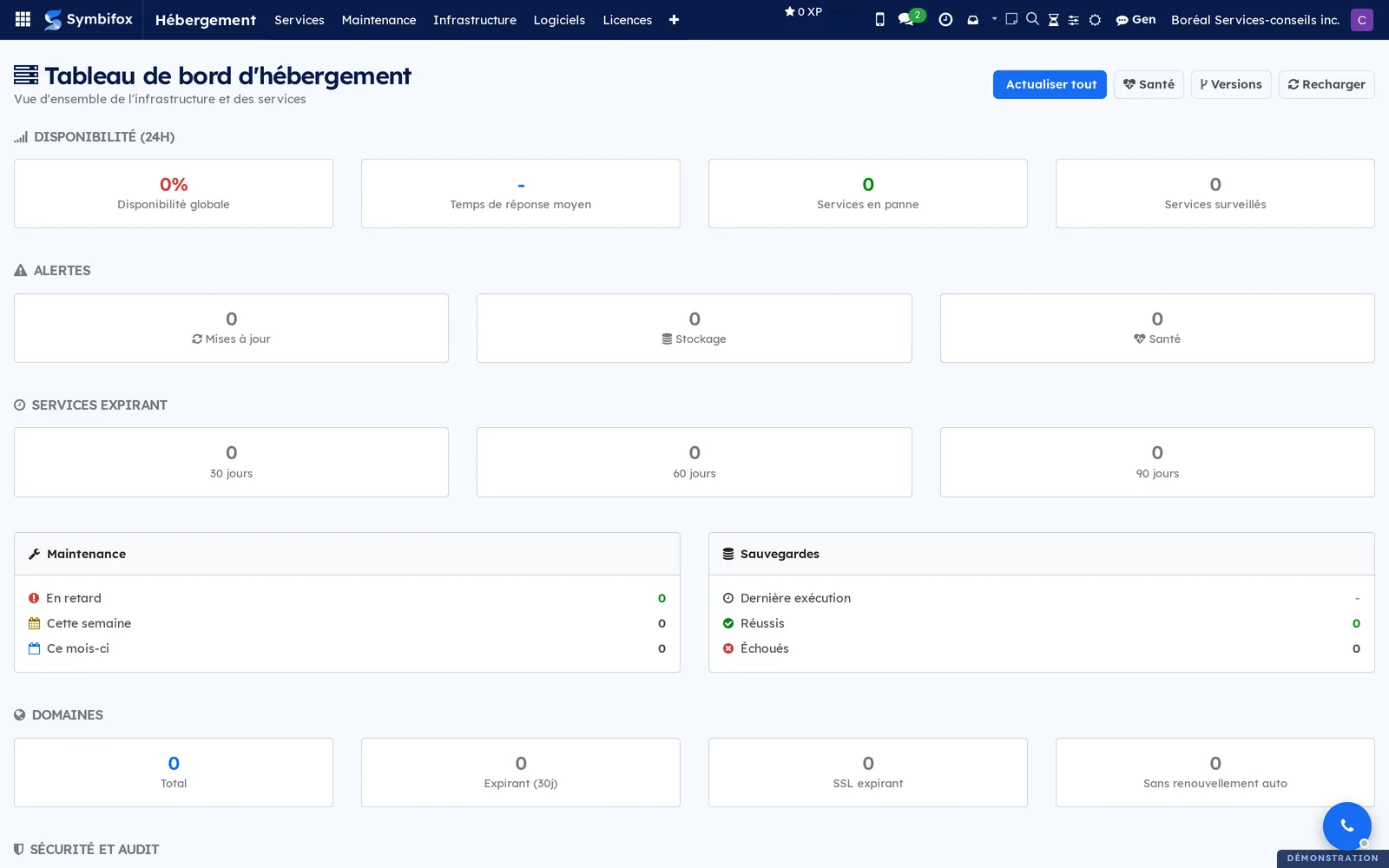
The application opens on the Tableau de bord d'hébergement (hosting dashboard), a page of counters rather than a list. It shows uptime over the last 24 hours, current alerts, services expiring within 30, 60 and 90 days, maintenance, backups, domains and security. Three buttons at the top rerun the checks: Santé (health), Versions and Actualiser tout (refresh all).
Here is that dashboard on the Boréal demo.
Seven concepts structure the application.
- Service: something you host for a client, such as a production Odoo instance or a Nextcloud space. It is the central record: it carries the client, the software, the version, the server, the URL, the quota, the dates and the state.
- Server: the machine, physical or virtual, that runs services.
- Software and version: the catalogue of what you host, with its latest known version and the support status of each version.
- Domain: a domain name, its registrar, its expiry date, its certificate and its email authentication policy.
- Fleet device: a machine at the client's site, tracked under a service agreement. It is distinct from a server, which belongs to your infrastructure.
- Licence pool: a batch of software keys or seats, bought once and then distributed among devices, clients or projects.
- Scheduled maintenance: a recurring upkeep task attached to a service, with its frequency and its next due date.
The application relies on others. A service's client is a record in Contacts, its billing goes through a contract in Subscriptions, and emails to clients use the brand identity set in Settings and brand identity.
What sets the approach apart: inventory and monitoring live in the same place as the client relationship. A service is not a line in an operations spreadsheet. It is a record linked to a contact, a contract and a chatter (the message thread at the bottom of a form).
Configuration#
Access and permissions#
Two groups exist, in the Access Rights tab of a user's form.
| Group | What it opens |
|---|---|
| Utilisateur d'hébergement (hosting user) | View and maintain services, servers, domains, devices, licences and maintenance. |
| Gestionnaire d'hébergement (hosting manager) | In addition: maintenance Modèles (templates), telephony Transactions and the whole Configuration menu. Licence keys and encryption recovery keys are readable only at this level. |
Settings#
Settings are made in Hébergement › Configuration › Paramètres (settings), a page of Symbifox's general settings. It holds the following sections.
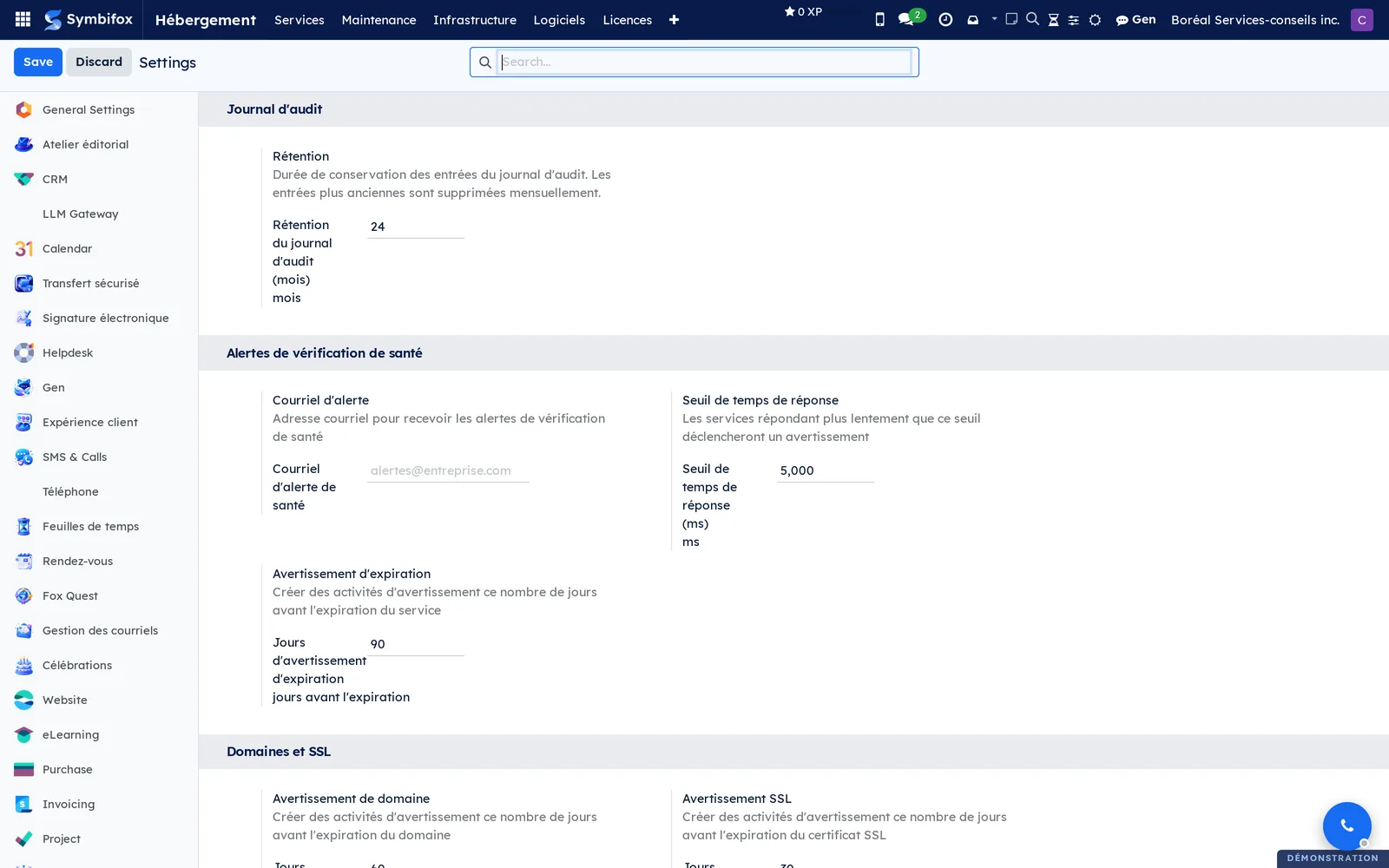
- Journal d'audit (audit log): how long entries are kept, in months.
- Alertes de vérification de santé (health check alerts): the address that receives alerts, the response time beyond which a service counts as slow, and how many days ahead expiry activities are created.
- Domaines et SSL (domains and SSL): the days of advance warning for domain and certificate expiry.
- Push notifications, with the server address, its token and its topic.
- The maintenance window: during the declared hours, health alerts are held back.
- Backup reports: scheduled or immediate sending, time, recipients, and the option to write only when there is a problem.
- External synchronizations: the device fleet, telephony and domains, each with its own test button, including Tester la connexion (test the connection) and Envoyer un rapport de test (send a test report).
Base data#
Before recording a first service, prepare three things: the Catalogue de logiciels (software catalogue), the Serveurs (servers) and, for automatic maintenance, the Modèles. Étiquettes de service (service tags) are optional and group services by use.
Getting started#
This walkthrough records a new service for Clinique dentaire Rosemont on the Boréal demo, then activates it.
- Go to Hébergement › Logiciels (software) > Catalogue de logiciels and check that the software you need is listed.
- Go to Hébergement › Infrastructure › Serveurs and check that the server that will run the service is listed.
- Go to Hébergement › Services › Tous les services (all services), then select New.
- Enter the Nom du service (service name), then choose the Client, the Logiciel (software) and the Environnement (environment).
- In the Connexion (connection) section, choose the Serveur (server) and enter the URL du serveur (server URL).
- In the Dates section, enter the Date de début (start date) and the Date d'expiration (expiry date).
- Select Activer (activate).
The state changes to Actif (active) in the status bar at the top, and the maintenance planned by the templates is created. A summary of what was just set up appears in the chatter.
Common tasks#
Monitor a service's health#
An active service is checked automatically according to its Nature du contrôle (kind of check), in the Connexion section of its form. Requête HTTP (HTTP request), the default, queries the URL du serveur (server URL). Réveil push du softphone (softphone push wake-up) tests the softphone's wake-up chain end to end, without ringing any device. Avis de modification de rendez-vous (appointment change notices) checks each day that every notice to guests actually went out. These last two kinds need no URL. You can also check a service on the spot.
- Go to Hébergement › Services › Services actifs (active services).
- Open the service.
- Select Vérifier maintenant (check now).
- Open the Santé tab to see the history of checks.
The État de santé (health status) shows En ligne (online), Dégradé (degraded), Hors ligne (offline) or Délai dépassé (timed out), and the uptime over the last 30 days is recalculated. A service's form shows its information, its version, its connection, its storage and its dates.
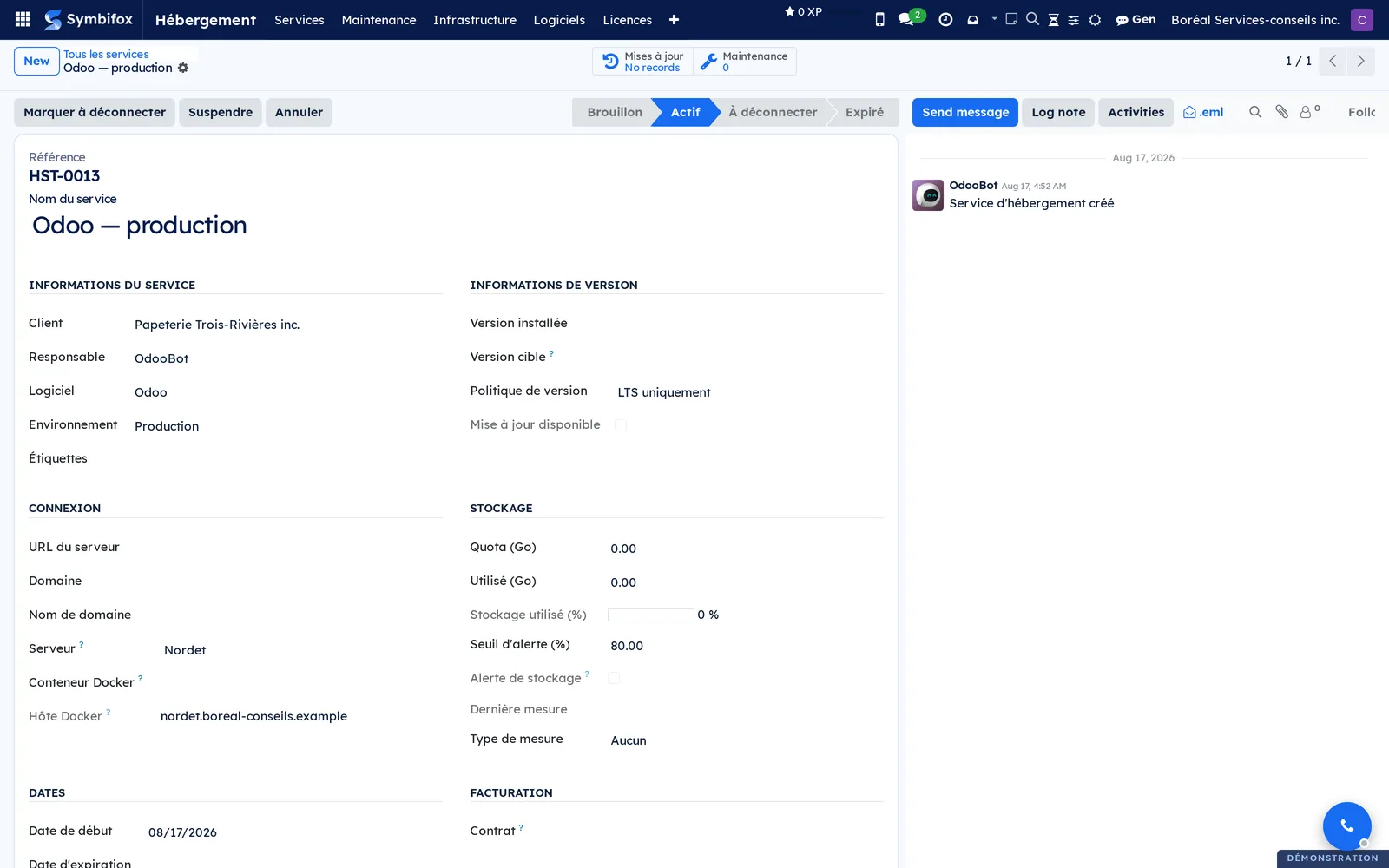
For a check other than Requête HTTP, choose a Projet des constats (findings project): a discrepancy opens a single task there, which later checks comment on instead of creating more. Left empty, the check alerts as usual without opening a task.
Mark a service for disconnection#
When a client confirms they are not renewing a service, record the decision rather than letting the expiry date pass silently.
- Open the service.
- Select Marquer à déconnecter (mark for disconnection).
- Enter the Date d'accusé (acknowledgement date) and the Motif (reason).
- Select Confirmer (confirm).
The state changes to À déconnecter (to disconnect) and the decision stays on record. The Reprendre le service (resume the service) button cancels this marking. On the demo, the email service of Microbrasserie Le Caribou is in this state.
Update a service to a new version#
The Mise à jour disponible (update available) column fills itself in when the catalogue knows a version newer than the one installed.
- Go to Hébergement › Services › Mises à jour disponibles (available updates).
- Open the service.
- Optional: select Vérifier la version Docker (check the Docker version) to read the version actually running.
- Perform the update on the server.
- Select Marquer comme mis à jour (mark as updated), or Mettre à jour vers la dernière version (update to the latest version) to target the newest version the Politique de version (version policy) allows.
The installed version changes, and a line is added to the Historique des mises à jour (update history) tab and to the menu of the same name.
Add software to the catalogue#
The catalogue says what you host and where the version numbers come from.
- Go to Hébergement › Logiciels › Catalogue de logiciels.
- Select New.
- Enter the Nom du logiciel (software name), the Code court (short code) and the Type.
- Choose the Méthode de vérification de version (version check method), then enter the matching repository.
- Select Vérifier les mises à jour (check for updates).
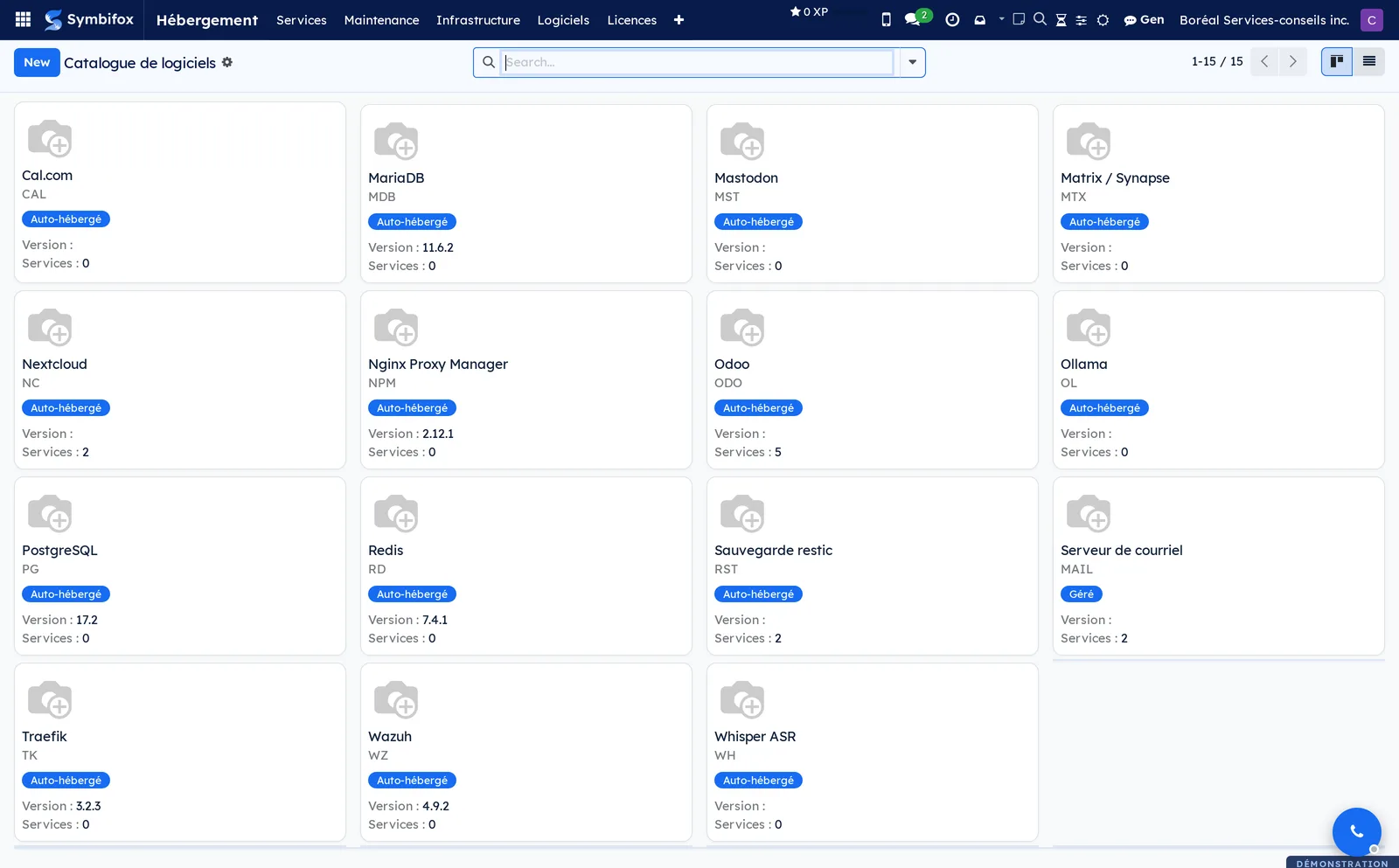
The Dernière version (latest version) and its date are filled in. The demo catalogue holds fifteen records, as cards, with the number of services that rely on each one.
Schedule recurring maintenance#
Scheduled maintenance reminds you of recurring upkeep, with no separate calendar to keep.
- Open the service.
- Select Ajouter une maintenance (add maintenance).
- Enter the Nom de la tâche (task name) and choose the Type de maintenance (maintenance type).
- Choose the Fréquence (frequency) and the person in Assigné à (assigned to).
- If needed, enter the Instructions.
- Save.
The Prochaine échéance (next due date) is calculated from the last run. Once the upkeep is done, open the maintenance and select Marquer comme fait (mark as done): the next date resets itself.
Create a maintenance template#
A template saves you from re-entering the same upkeep tasks for every new service.
- Go to Hébergement › Maintenance › Modèles.
- Select New.
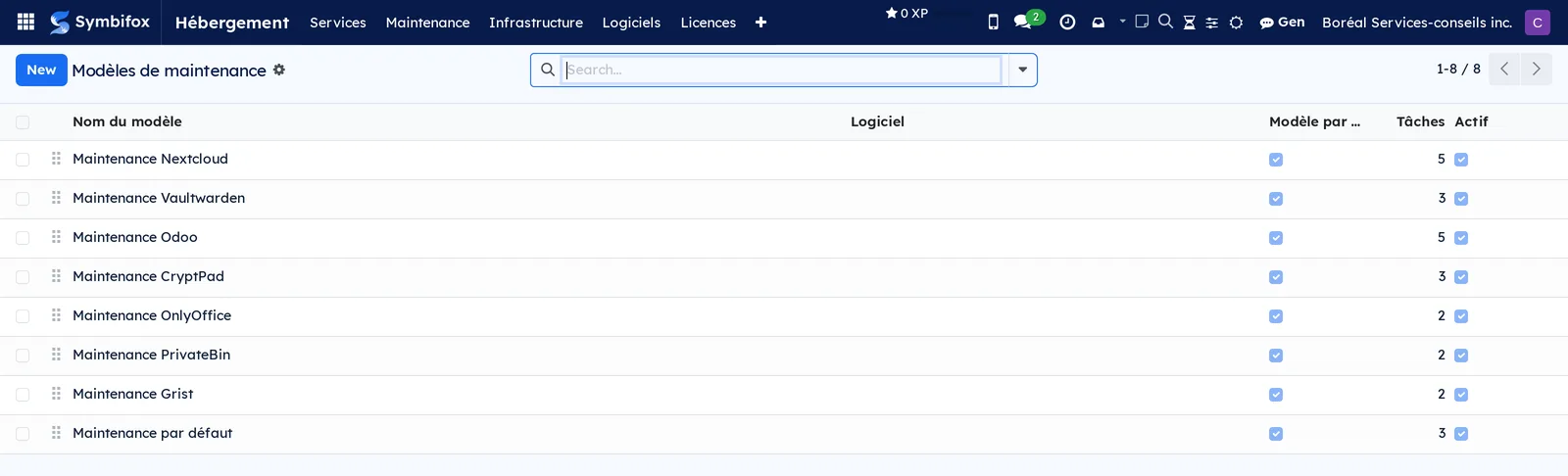
- Enter the Nom du modèle (template name), and choose the Logiciel if the template applies only to that software.
- In the Tâches de maintenance (maintenance tasks) tab, add one line per upkeep task, with its type and its frequency.
- Save.
When a service is activated, the applicable templates create its maintenance. The Appliquer les modèles (apply templates) button, on the service form, repeats this by hand. The demo ships with eight templates.
Record a server#
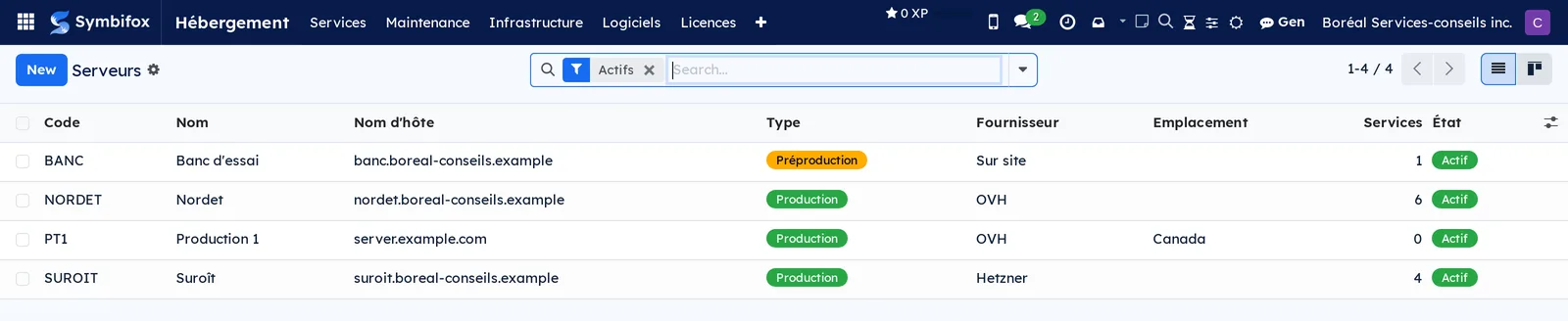
A server record tells you, in one line, what goes down if the machine restarts.
- Go to Hébergement › Infrastructure › Serveurs.
- Select New.
- Enter the Nom du serveur (server name), the Code and the Nom d'hôte (hostname).
- Choose the Type de serveur (server type), the Fournisseur (provider) and the Emplacement (location).
- Save.
The Services column counts what the machine runs. The Activer, Maintenance and Désactiver (deactivate) buttons change its state; the Services tab lists what it hosts.
Track a domain and its certificate#
A domain has two deadlines: the name itself and its certificate.
- Go to Hébergement › Infrastructure › Domaines (domains).
- Select New.
- Enter the Nom de domaine (domain name) and choose the Client.
- Enter the Registraire (registrar) and the Date d'expiration, and check Renouvellement automatique (automatic renewal) if it applies.
- In Type SSL (SSL type), choose where the certificate comes from, then enter its Expiration SSL (SSL expiry).
- Optional: in the DMARC tab, check DMARC suivi (DMARC tracked) and choose the Policy DMARC attendue (expected DMARC policy).
- Save.
The remaining days are calculated, and an activity is created as each deadline approaches. The Vérifier DMARC maintenant (check DMARC now) button rereads the domain's public record and writes any discrepancy to the chatter.
Add a device to a client's fleet#
The fleet tracks the machines of clients under a service agreement, which is not the same thing as your servers.
- Go to Contacts and open the client's record.
- Check Client sous SLA (client under SLA), then save.
- Go to Hébergement › Infrastructure › Parc client › Tous les postes (all devices).
- Select New.
- Enter the Nom (name), then choose the Client, the Type and the Cycle de vie (life cycle).
- Fill in the OS & Réseau (OS and network), Sécurité (BitLocker) (security) and RMM & MDM tabs according to what you track.
- Save.
The device appears in the Parc informatique (IT fleet) tab of the client's record. The Garantie expirante (expiring warranty) and OS en fin de support (end-of-support OS) menus will bring it up when the time comes.
Import a licence pool#
The import dialog saves you from entering dozens of keys by hand.
- Go to Hébergement › Licences › Importer un pool (import a pool).
- Upload the Fichier xlsx/ods (xlsx or ods file).
- Enter the Nom du pool (pool name), then choose the Type and the Propriétaire (owner).
- Select Importer (import).
A licence pool is created, with one seat per key in the file. In the Sièges (seats) tab, you assign each seat to a client, a device, a project or a free-text label.
Track backups#
Backups are not launched from Symbifox: they are reported to it. The backup scripts push their report, and the application files it.
- Go to Hébergement › Rapports (reports) > Sauvegardes (backups).
- Open today's run.
- Open the Détails des sauvegardes (backup details) tab to see the status service by service.
- Optional: select Envoyer le rapport (send the report) to send it to the configured recipients.
The run's État (state) sums up the day: all succeeded, succeeded with warnings, partial success or failed.
A client's cloud backups, for example those of its Microsoft 365 mailboxes made by a third-party backup product, are reported the same way, as one run per organization per night. To link them to a service, enter the Identifiant de sauvegarde infonuagique (cloud backup identifier) in the Sauvegarde infonuagique (cloud backup) tab of its form. That tab shows the date and result of the last backup, and the Sauvegardes M365 quick access button opens the service's runs. The Échecs infonuagiques (cloud failures) menu lists the failing mailboxes or sites, with the provider's error code; the backed-up content itself never reaches Symbifox.
Set up a summary email#
A summary brings the hosting status to recipients who do not open Symbifox every day.
- Go to Hébergement › Configuration › Courriels récapitulatifs (summary emails).
- Select New.
- Enter the Nom and choose the Destinataires (recipients).
- Choose the Fréquence.
- Check what the email must contain: expiring services, updates, storage alerts, health problems, planned maintenance.
- Save, then select Aperçu (preview) to see the content of the next sending.
The Envoyer maintenant (send now) button sends the summary without waiting for the next due date, which is mostly useful to check the recipient list.
Log a security event#
An incident is tracked from report to closure, with its impact and its resolution.
- Go to Hébergement › Sécurité (security) > Événements de sécurité (security events).
- Select New.
- Enter the Titre (title), then choose the Type and the Sévérité (severity).
- Choose the Services affectés (affected services) and the person in Assigné à.
- Describe the situation in the Description tab.
- Save.
The Investiguer (investigate), Atténuer (mitigate), Résoudre (resolve), Faux positif (false positive) and Rouvrir (reopen) buttons move the state forward. The Impact and Résolution (resolution) tabs collect the assessment and the closing notes.
Assess a security event for privacy#
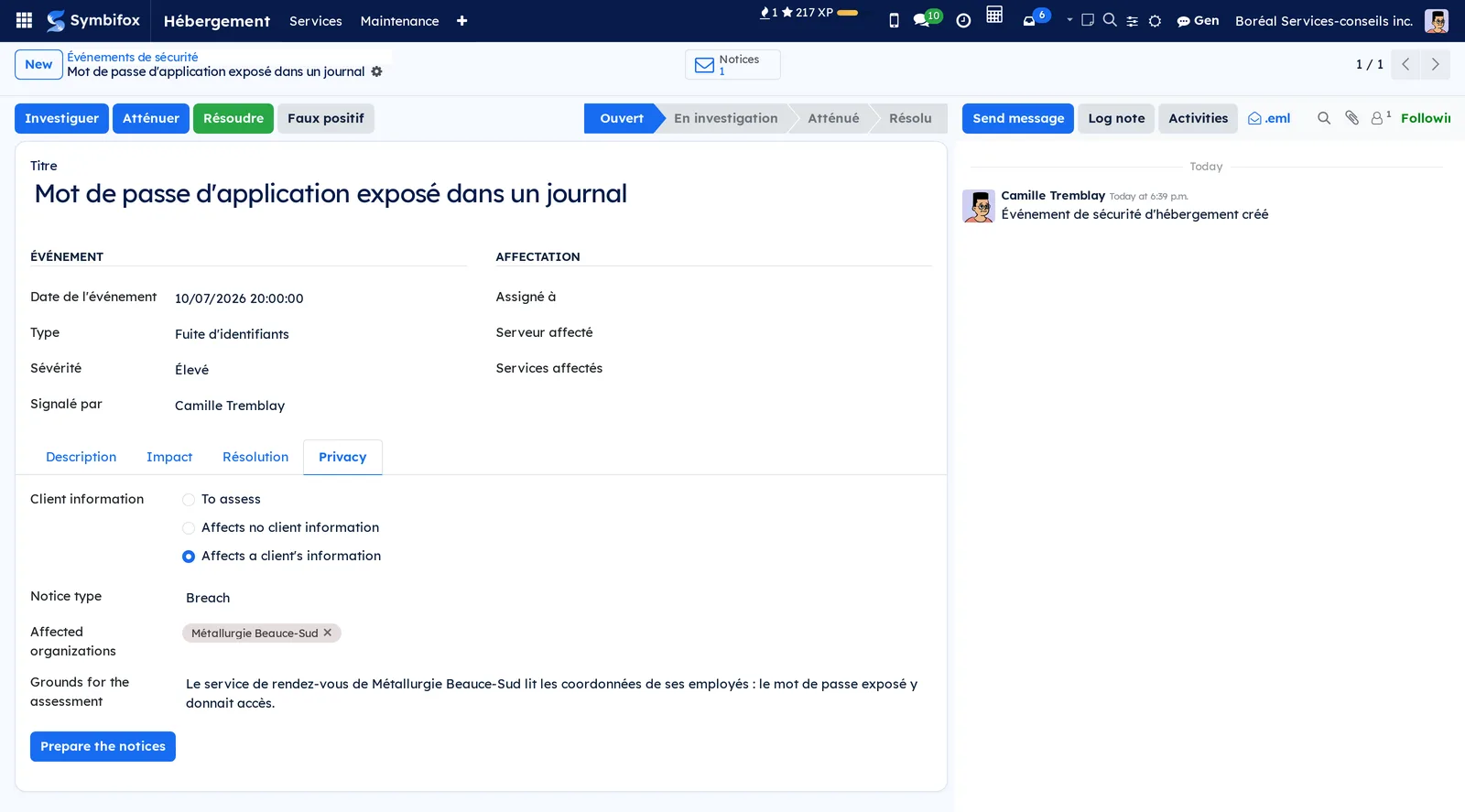
An event that affects a client's information means that client must be notified without delay. The Privacy tab records it and prepares the notices.
- Open the event and the Privacy tab.
- In Client information, choose "Affects a client's information" or "Affects no client information".
- Write the Grounds for the assessment, whichever way it goes.
- If the event affects clients, choose the Notice type and check the Affected organizations, proposed from the affected services.
- Select Prepare the notices.
Symbifox prepares one draft notice per affected organization, carrying over the event's circumstances, date and resolution. The Notices shortcut button counts and opens them. The notices are completed and sent as described in the Confidentiality incidents and breach notices chapter.
The menus, one by one#
The application bar shows Hébergement, Services, Maintenance, Infrastructure, Logiciels and Licences. The other entries sit under the plus sign at the end of the bar.
Hébergement#
- Hébergement: the dashboard described in Overview. Each counter leads to the matching filtered list.
Services#
- Hébergement › Services › Tous les services: the full list, eleven services on the demo, as a list or as cards. Columns: Référence (reference), Nom, Client, Logiciel, Version installée (installed version), Environnement, Stockage (storage), Date d'expiration, Jours restants (days left), État and Mise à jour disponible.
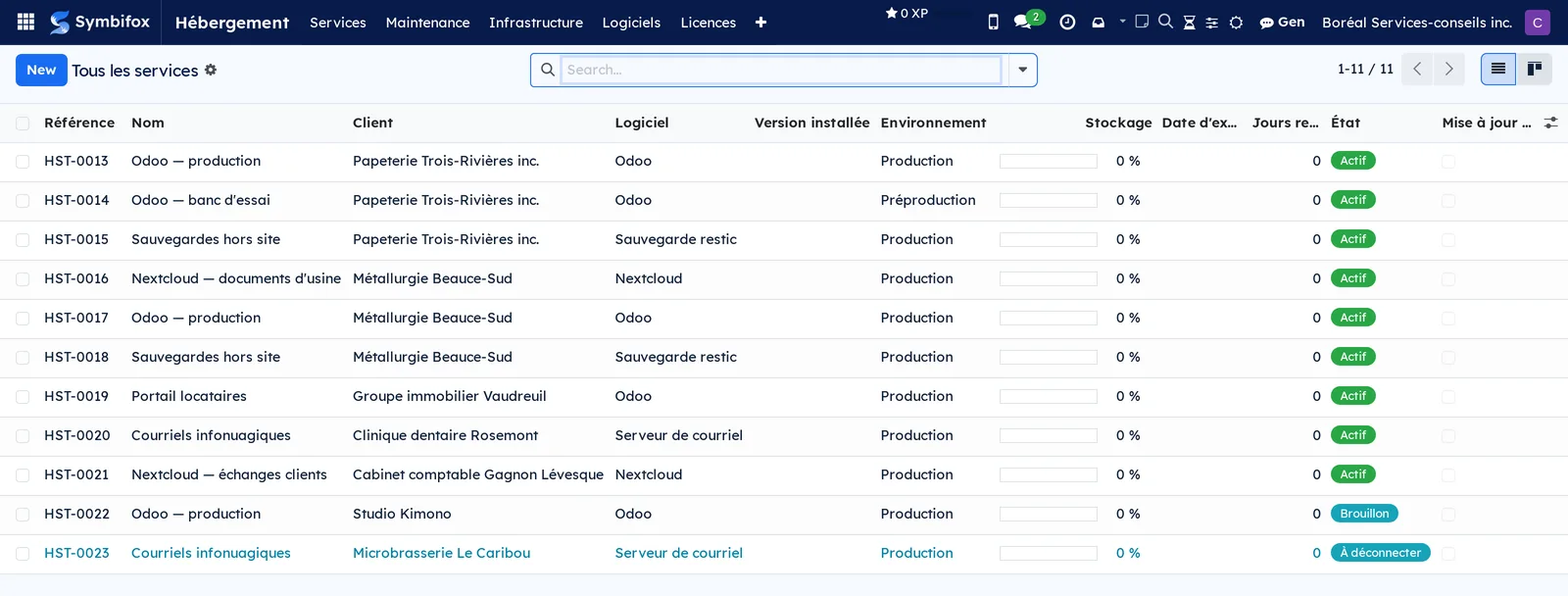
- Hébergement › Services › Services actifs: the same list, limited to services in operation. This is the daily work screen.
- Hébergement › Services › Expirant bientôt (expiring soon): services whose expiry date is approaching, sorted by urgency.
- Hébergement › Services › Mises à jour disponibles: services one version behind the catalogue.
Maintenance#
- Hébergement › Maintenance › Tous les horaires (all schedules): all scheduled maintenance, as a list, cards, a calendar or the activity view. None on the demo.
- Hébergement › Maintenance › En retard (overdue): maintenance whose due date has passed.
- Hébergement › Maintenance › Cette semaine (this week): maintenance due within seven days.
- Hébergement › Maintenance › Modèles: upkeep templates, reserved for the hosting manager. Eight on the demo.
Infrastructure#
- Hébergement › Infrastructure › Serveurs: the machines that run your services, four on the demo.
- Hébergement › Infrastructure › Domaines: domain names, with their registrar, their dates and their certificate.
- Hébergement › Infrastructure › Domaines expirant (expiring domains): domains whose name or certificate is reaching its deadline.
- Hébergement › Infrastructure › Rapports DMARC: the email authentication reports received for your domains. The empty screen states that no report has been ingested yet.
- Hébergement › Infrastructure › Parc client: a grouping menu with no screen of its own.
- Hébergement › Infrastructure › Parc client › Tous les postes: the machines of clients under a service agreement, as a list or as cards.
- Hébergement › Infrastructure › Parc client › Garantie expirante: devices whose warranty is running out.
- Hébergement › Infrastructure › Parc client › OS en fin de support: devices whose operating system is no longer supported.
- Hébergement › Infrastructure › Parc client › Postes retirés (retired devices): machines removed from the fleet, kept for the history.
- Hébergement › Infrastructure › Parc client › Groupes (mapping Action1) (groups, Action1 mapping): device groups, which link the machines reported by the external synchronization to the right client.
- Hébergement › Infrastructure › Parc client › État des mises à jour, Systèmes suivis, Systèmes à regarder, Relevés de mise à jour and Ordres de mise à jour: the five update-tracking screens, covered in Fleet updates.
Logiciels#
- Hébergement › Logiciels › Catalogue de logiciels: the fifteen software products tracked on the demo, as cards by default.
- Hébergement › Logiciels › Versions: the version history, with the release date, the support status and the migration notes.
Licences#
- Hébergement › Licences › Pools: licence pools, with the seats purchased, activated and available.
- Hébergement › Licences › Sièges libres (free seats): the seats still to be assigned.
- Hébergement › Licences › Expirant (≤ 90 j) (expiring within 90 days): pools to renew within three months.
- Hébergement › Licences › Sur-allocations (over-allocations): pools whose activations exceed the purchase. A cloud licence has no seats entered: choose its Produit infonuagique (cloud product) on the form, and it shows the Comptes utilisés (relevé) (accounts used, as reported), the Date du relevé (reading date) and the Saturée au dernier relevé (saturated at last reading) flag, as the provider reports them.
- Hébergement › Licences › Importer un pool: the import dialog described in Import a licence pool.
Téléphonie#
- Hébergement › Téléphonie › DID: phone numbers, with their client, their routing and their monthly cost.
- Hébergement › Téléphonie › Statistiques d'appels (call statistics): calls, as a pivot table and a graph, to break down minutes by client.
- Hébergement › Téléphonie › Transactions: the movements of the prepaid account, reserved for the hosting manager.
Sécurité#
- Hébergement › Sécurité › Journal d'audit: the trail of actions taken in the application. The screen opens on the 7 derniers jours (last 7 days) filter, with the columns Date, Utilisateur (user), Type d'action (action type), Catégorie (category), Nom de l'enregistrement (record name), Service, Description, Sévérité and Statut (status). Remove the filter to go further back.
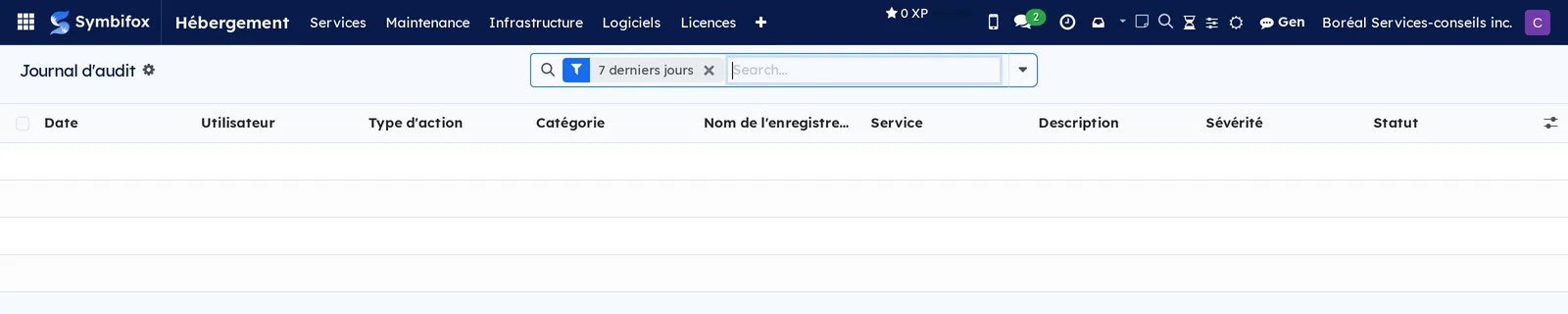
- Hébergement › Sécurité › Événements de sécurité: the logged incidents, with their severity and their state.
Rapports#
- Hébergement › Rapports › Tableau de bord (dashboard): the same screen as the application's main entry.
- Hébergement › Rapports › Historique des mises à jour: one line per update, with the version left, the version reached and the person who did it.
- Hébergement › Rapports › Vérifications de santé (health checks): the raw checks, with their response time and code.
- Hébergement › Rapports › Snapshots quotidiens (>30j) (daily snapshots, over 30 days): checks older than 30 days, summarized to one line per service per day.
- Hébergement › Rapports › Sauvegardes: the runs, with the number of services succeeded, with warnings, failed and skipped.
- Hébergement › Rapports › Dépôts Restic (Restic repositories): the backup destinations, their size, their last snapshot, their retention and the Périmé (stale) flag after 27 hours.
- Hébergement › Rapports › Snapshots Restic (Restic snapshots): the snapshots one by one, linked to their repository and their container.
- Hébergement › Rapports › Sauvegardes infonuagiques (cloud backups): one line per organization per night, with the Départ (start), Organisation, Service, the result, the number of applications En échec (failing) and the Durée (duration). The Pas propre (not clean), Avec des échecs (with failures) and Sans service (without service) filters isolate what needs a look.
- Hébergement › Rapports › Échecs infonuagiques (cloud failures): the failing items, one line per Personne ou site (person or site), with the Application, the Code and the Cause. The screen opens on the last 30 days, grouped by person or site.
- Hébergement › Rapports › Relevés infonuagiques (cloud readings): the provider's periodic readings, with the Comptes utilisés (accounts used), the Achetés (purchased) and Libres (free) accounts, the licence Expiration, the Erreurs (errors) and the Index libre (%) (free index). The Licence saturée (licence saturated) filter isolates readings where every purchased account is taken.
Configuration#
- Hébergement › Configuration › Étiquettes de service: the coloured tags that group services.
- Hébergement › Configuration › Courriels récapitulatifs: the periodic summaries and their recipients.
- Hébergement › Configuration › Rapports de sauvegarde (backup reports): the settings page for reports, opened on the section that concerns them.
- Hébergement › Configuration › Paramètres: the full settings page, described in Configuration.
Reference#
Fields of the service form#
| Field | Description | Required or default |
|---|---|---|
| Nom du service, Référence | Readable name and number assigned at creation. | Name required |
| Client, Logiciel | Contact the service runs for, and its catalogue record. | Required |
| Version installée, Version cible (target version) | Current and targeted versions. | Empty |
| Politique de version | Always the latest, LTS only, manual updates or frozen. | Required |
| Environnement | Production, staging, development or test. | Required |
| Nature du contrôle (kind of check) | HTTP request, softphone push wake-up or appointment change notices. | HTTP request |
| URL du serveur (server URL), Domaine (domain) | Address queried by the health checks. | Empty |
| Projet des constats (findings project) | Project where a non-HTTP check opens a task when it finds a discrepancy. | Empty |
| Identifiant de sauvegarde infonuagique (cloud backup identifier) | The organization's identifier at the backup product, which links its runs to the service. | Empty |
| Serveur, Conteneur Docker (Docker container) | Machine and container that run the service. | Empty |
| Quota de stockage (Go) (storage quota, GB), Seuil d'alerte (%) (alert threshold) | Space granted and the threshold that triggers the alert. | Threshold at 80 |
| Date de début, Date d'expiration | Start and end of the service. | Empty |
| État | Draft, active, to disconnect, expired, suspended or cancelled. | Draft |
| Contrat (contract), Étiquettes (tags) | Billing contract and free groupings. | Empty |
Fields of the server form#
| Field | Description | Required or default |
|---|---|---|
| Nom du serveur, Code | Friendly name and short identifier shown in lists. | Required |
| Nom d'hôte | Fully qualified name. | Required |
| Type de serveur | Production, staging or development. | Required |
| Fournisseur, Emplacement | Hosting provider and location of the machine. | Empty |
| Adresse IP (IP address), Utilisateur SSH (SSH user), Port SSH (SSH port) | Access details. | Empty |
| État | Active, maintenance or decommissioned. | Active |
Fields of the fleet device form#
| Field | Description | Required or default |
|---|---|---|
| Nom | Hostname, friendly name or inventory tag. | Required |
| Client | Contact who owns the machine. | Required |
| Type | Workstation, laptop, server, virtual machine, mobile or other. | Required |
| Cycle de vie | In stock, deployed, in repair or retired. | Required |
| Type d'usager (user type) | Contact, knowledge matrix item or free text. | Required |
| OS & Réseau, Sécurité (BitLocker) and RMM & MDM tabs | System and addresses, a recovery key reserved for managers, remote management. | Empty |
| Saisie manuelle prioritaire (manual entry takes priority) | Prevents the external synchronization from overwriting the record. | Cleared |
Reports and exports#
The application produces no PDF report. It produces two email sendings: the periodic summary and the backup report. Five client email templates are provided, which you choose from a service's chatter with Send message: general message, monthly report, maintenance notice, intervention report and welcome. They use the organization's logo and colours. You can export any list with Actions › Export, as elsewhere in Symbifox.
Automations#
- Active services that have a URL are checked every 30 minutes. A failure is retried within ten seconds before any alert, to rule out passing glitches. Softphone wake-up checks follow the same loop; the appointment notices check does its real work only once a day.
- Each cloud backup reported updates the date and result of the service's last backup. A backfill arriving out of order never moves them backwards.
- Catalogue versions are reread every day; the versions actually running in the containers, every six hours.
- Service, domain and certificate expiries are checked every day, and create an activity according to the days of advance warning set. A service past its date switches to the expired state.
- Health checks older than 30 days are summarized each night to one line per service per day, then removed from the detail.
- Backup reports received are sent every hour according to the chosen schedule, and repositories are linked to the matching services once a day.
- Email authentication reports are collected every six hours, as are the device fleet and telephony. Warranty and licence expiry alerts go out once a week.
- Due-date indicators are recalculated every hour, and old audit log entries are removed once a month according to the retention set.
Public pages and portal#
The application has no portal page. It exposes drop-off addresses, protected by a token, where operations scripts report their results: backup reports, the status of the backup watchdog, and reports on the creation of a new client space. That last one creates or updates the service, attaches the full log to the chatter and records the event in the audit log.
Modules that extend this application#
The bridge to breach notices installs itself along with the Vie privée application.
The application also relies on the brand identity for its client emails, on contracts for billing, and on a project's knowledge matrix to name a device's user.
Understanding#
Why a missing report counts as an alert. A machine that stops reporting switches after 48 hours into a state that shows up as overdue updates, not as a reassuring silence. A package count is never displayed without the date of the report that produced it. It reads “unknown count” rather than zero when the machine could not measure.
Why the machine talks and the centre listens. Symbifox has no path to the fleet machines, and wants none. The agent on the machine drops off its reports and asks whether there is an order for it. This settles three things at once: machines that cannot be reached from outside, the laptop that is on only part of the time, and the attack surface, since a compromised instance holds no access key to the fleet. Applying an update also requires three consents, including a file placed by hand on the machine itself. That is the one that holds, because it can be removed without going through Symbifox.
What monitoring does not tell you. A health check queries an address and reads its response. A service that answers correctly while no longer doing its job passes for alive. That is why scheduled maintenance exists alongside monitoring: on a fixed date, it has someone look at what no request measures.
Why backups are reported instead of launched. Backup scripts live on the servers, where they have access to the volumes and databases. Symbifox receives their report, files it and dates it. A repository's Périmé flag, after 27 hours without a snapshot, catches the most common case: a mechanism that stopped running without ever failing.
Why a console that answers does not prove a backup. The health check of a cloud backup product tells you that its console answers. It does not tell you that last night's backup ran, or that it succeeded. That is the question the Sauvegarde infonuagique tab answers, and it is why these runs have their own menus: a cloud night never passes for the latest run of your servers' backups. Likewise, a licence reading repeats the provider's figure, dated, without inventing seats to match it.
Troubleshooting#
| Symptom | Likely cause | Fix |
|---|---|---|
| An active service has no health check. | Its Nature du contrôle is Requête HTTP and its URL du serveur is empty. | Enter the address on the form, then select Vérifier maintenant. |
| A service is marked Dégradé even though it works. | The address answers with a code treated as an anomaly. | Add that code to the service's Codes HTTP acceptés (accepted HTTP codes). |
| No alert went out during an overnight outage. | The maintenance window covered the time of the outage. | Check its hours and its timezone in Hébergement › Configuration › Paramètres. |
| The Mise à jour disponible column stays empty. | The software has no check method, or its repository is entered incorrectly. | Open the software record and select Vérifier les mises à jour to read the error. |
| An activated service has no maintenance. | No template applies to its software and no default template is active. | Create the template, then select Appliquer les modèles. |
| The Parc client menu stays empty. | The external synchronization is inactive, or no device has been entered. | Turn on the synchronization, or create the devices by hand. |
| Cloud backups appear under the Sans service filter. | No service carries the organization's identifier at the provider. | Enter the Identifiant de sauvegarde infonuagique on the service form. |
| A backup repository is marked Périmé. | No snapshot has been dropped off there for more than 27 hours. | Check the backup mechanism on the server concerned. |