

Part 2 · Clients, sales and relationships
CRM
The Symbifox opportunity pipeline, its leads, activities, teams and reports, and the survey sent automatically when an opportunity is lost.
The CRM application tracks every business opportunity, from first contact to signature or refusal. It is for the people who sell and for management that wants to know what is coming. What you get: an up-to-date pipeline, scheduled follow-ups and forecasts you can read by month. Symbifox connects Customer Experience to it: a lost opportunity triggers a “why” survey, and a won opportunity enrols the client in an onboarding program.
Overview#
An opportunity is a sales file: a name, a customer, an expected revenue, a salesperson and an expected closing date. It moves from one stage to the next in the pipeline, a kanban view where each column is a stage. On the demo, the stages are New, Qualified, Proposition and Won. A lead is an opportunity not yet qualified; this intermediate level exists only if the Leads setting is turned on.
Each opportunity carries a probability of success, a priority (stars) and tags. Its activities are the calls, emails, meetings or tasks due on a given date. The chatter, the message thread at the bottom of the form, keeps the emails exchanged with the customer. Opportunities belong to a sales team, whose members share a pipeline.
The pipeline is the home screen. On the demo, Camille Tremblay is a member of no team. The screen therefore shows faded sample cards and a message: the first team's pipeline is shown by default.
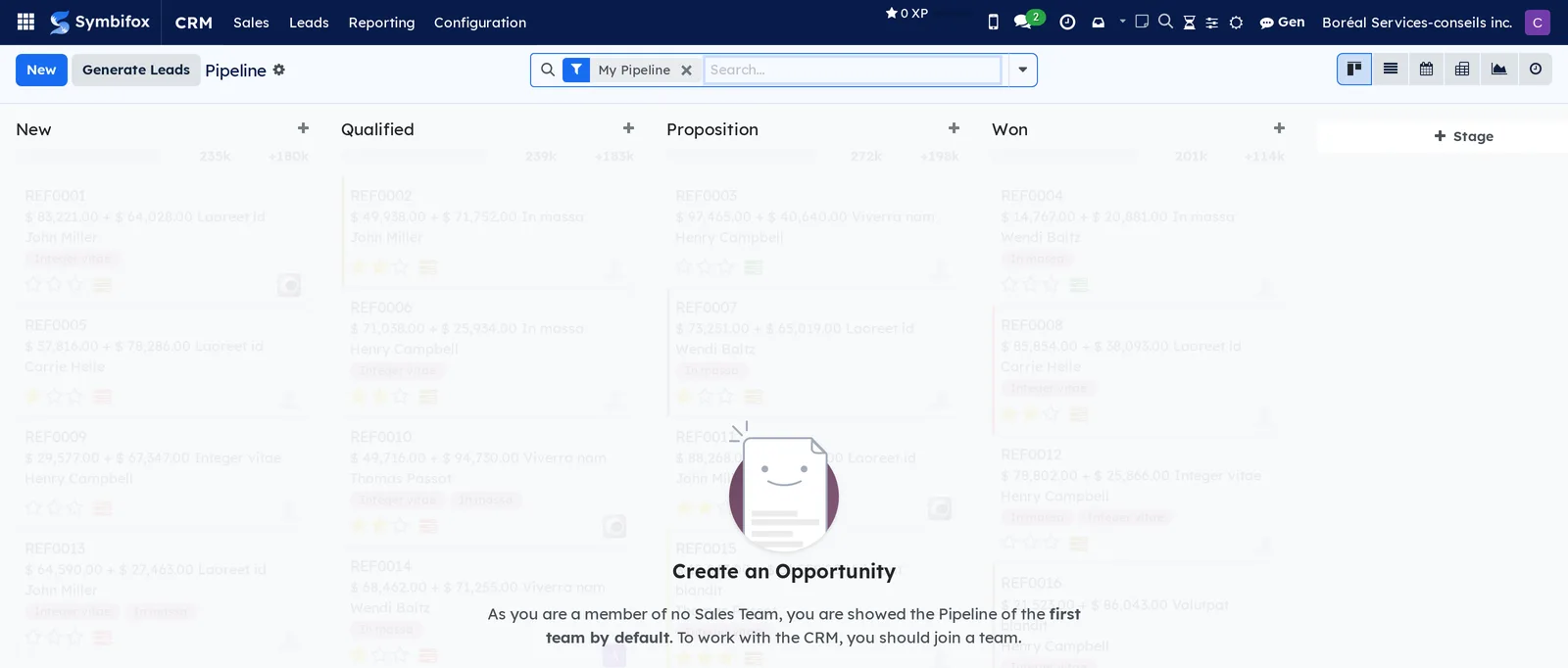
Symbifox adds two automations tied to the Customer Experience application (see Customer experience). When an opportunity is marked lost, the post-loss program's survey goes to the contact, once. When it is won, the customer joins the next wave of the onboarding program. Outreach creates opportunities from its qualified targets and records the originating campaign on each one (see Outreach). Customers come from Contacts, and the persona guides the tone of emails sent from the opportunity.
CRM tags take a free colour, and everyone can keep My color for a tag, which only they see. An automatic rule can also colour opportunities by their tags: the edge of their card in the pipeline then shows the colour. See Colour opportunities by their tags.
Configuration#
Access and permissions#
The application has three levels: the user who sees only their own opportunities, the user who sees everything, and the administrator. The administrator sets up stages, teams and settings. You choose these levels on the user's form, under Access Rights (see Settings and brand identity).
A second setting matters just as much: membership in a sales team, under CRM › Configuration › Teams Members. Without a team, My Pipeline stays empty and shows the message seen on the demo. The post-loss module adds no group.
Settings#
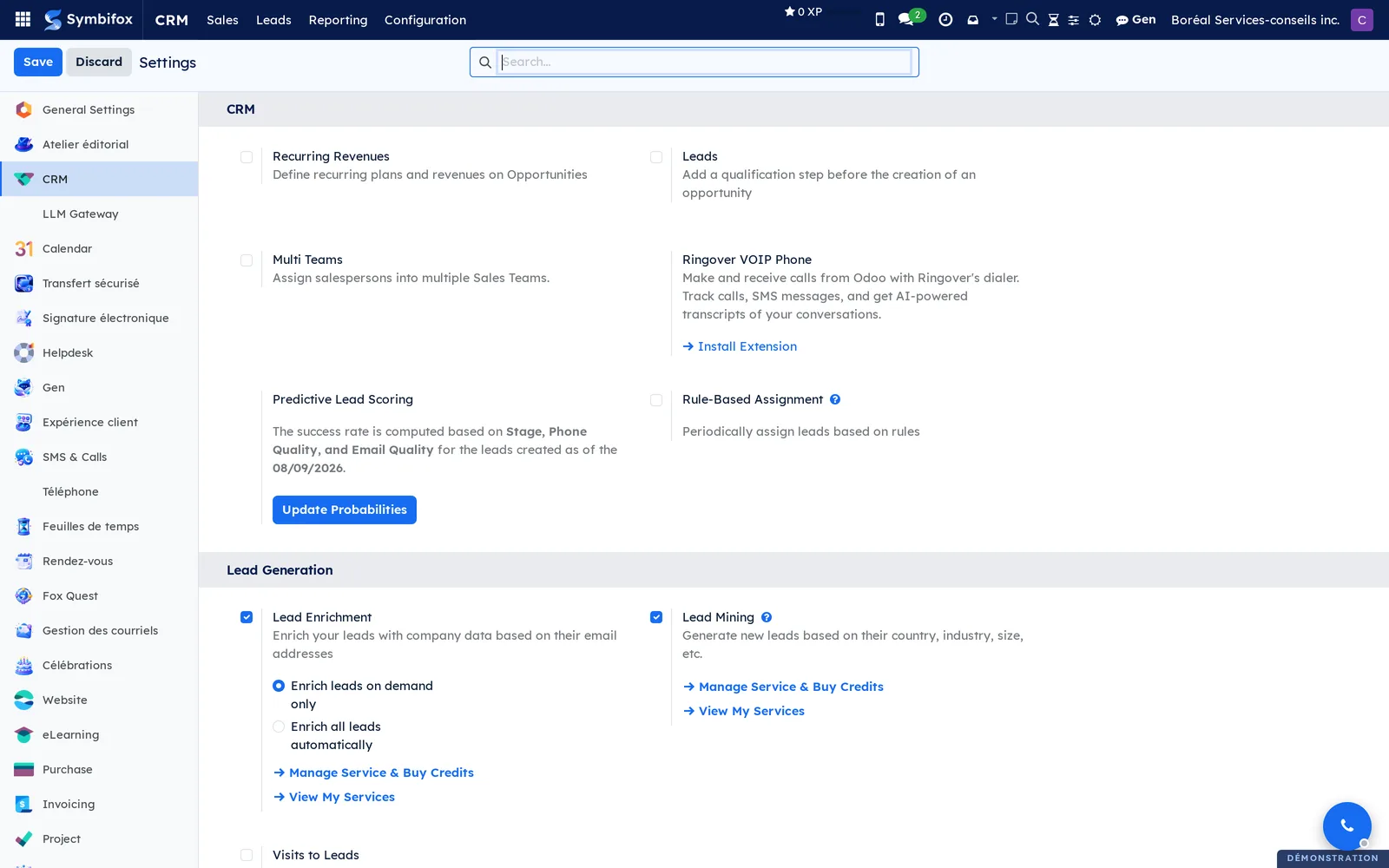
CRM › Configuration › Settings groups the application's settings:
- Leads adds the qualification step before the opportunity and makes the Leads menu appear.
- Recurring Revenues lets you enter a recurring plan and a monthly revenue on opportunities; you create the plans under Recurring Plans.
- Multi Teams allows a salesperson in several teams.
- Predictive Lead Scoring computes the probability of success from the stage and the quality of the phone number and email. Update Probabilities runs the calculation again.
- Rule-Based Assignment periodically distributes leads according to rules defined on each team.
- Under Lead Generation, Lead Enrichment and Lead Mining rely on Odoo online services paid for in credits. They are not part of Symbifox.
- Ringover VOIP Phone points to a third-party extension. Symbifox provides its own phone (see SMS, calls and SIP phone).
The two settings added by Symbifox are in Settings, Expérience client (customer experience) section, Boucle fermée (closed loop) block. Lost-deal survey (CRM) sets the program whose survey goes out when an opportunity is lost. NPS enrollment on won deals (CRM) sets the program that receives signed customers. When empty, each one is turned off.
Base data#
- Sales Teams: at least one, with its members. The demo shows one, Sales.
- Stages: the four stages provided are often enough; add more if your cycle needs them.
- Lost Reasons: three are provided; these are what the post-loss survey records.
- Tags: empty on the demo; create them to segment (service, sector, origin), each with its free colour.
- Activity Types and Activity Plans: provided; a plan chains several activities in one step.
- A program in Customer Experience, if you want the post-loss survey.
Getting started#
This walkthrough creates an opportunity for Métallurgie Beauce-Sud, schedules a follow-up and moves the file forward.
- Open CRM › Sales › My Pipeline. If the sales team message appears, remove the My Pipeline filter from the search bar; Boréal's twenty opportunities appear.
- In the New column, select +. A small form opens in the column.
- Enter “Cloud migration” as the name, “Métallurgie Beauce-Sud” as the customer and “25,000” as the expected revenue, then select Add.
- Open the card. Enter the Expected Closing date and give it one priority star.
- In the chatter, select Activities, choose Call, a due date two days out and a summary, then Schedule.
- Go back to the pipeline and drag the card to Qualified.
- Open CRM › Sales › My Activities: the scheduled call is there.
Result: the opportunity is in the pipeline at the Qualified stage. Its expected revenue adds to the column total, and an activity will remind you of the call.
Common tasks#
Create an opportunity#
Create an opportunity as soon as a request deserves follow-up, even a vague one.
- Open CRM › Sales › My Pipeline and select New.
- Enter the opportunity's name and the customer; a customer missing from your contacts is created along the way.
- Enter the Expected Revenue and the Expected Closing date.
- Choose the Salesperson and the Sales Team if Symbifox has not already set them.
- Add Tags, then save.
Result: the card appears in the New column; the expected revenue and the probability feed the totals and forecasts.
Qualify a lead and convert it#
With the Leads setting, incoming requests arrive first as leads; you decide which ones become opportunities.
- Open CRM › Leads.
- Open a lead and check the contact, the email and the phone number.
- Select Convert to Opportunity.
- Choose to create an opportunity or to merge with an existing opportunity for the same customer.
- Choose the salesperson and the team, then confirm.
Result: the lead becomes an opportunity in the pipeline and leaves the list of leads. On the demo, that list is empty: all twenty files are already opportunities.
Schedule and close an activity#
Activities are the memory of follow-ups: what remains to do, by whom and by when.
- Open the opportunity.
- In the chatter, select Activities.
- Choose the type (call, email, meeting, task), the due date, the assignee and a summary.
- Select Schedule, or Mark as Done if the action is already done.
- Once the action is done, select Mark Done on the activity; a field lets you chain the next one.
Result: the activity shows under the card in the pipeline, with a colour based on how late it is, and in My Activities. An activity plan applies a planned series of activities at once, set up under Configuration › Activities › Activity Plans.
Move an opportunity forward#
The pipeline reads from left to right; an opportunity changes stage by dragging.
- Open CRM › Sales › My Pipeline.
- Drag the card to the next stage's column. From the form, select the stage in the status bar instead.
- When the customer signs, open the opportunity and select Won.
Result: the probability follows the stage, and a won opportunity moves to the Won stage. If the NPS enrollment on won deals (CRM) setting names a program, the customer is added to that program's next draft wave, with nothing sent right away. The opportunity's chatter records it.
Mark an opportunity lost#
A documented loss is better than a forgotten file: the reason feeds the reports, and Symbifox asks the customer for their view.
- Open the opportunity.
- Select Lost.
- Choose a Lost Reason and, if needed, a comment, then confirm.
Result: the opportunity is archived with its reason and shows struck through in the pipeline if you display lost ones. If the Lost-deal survey (CRM) setting names a program, that program's survey goes to the contact. The chatter records the sending with the lost reason, or why nothing was sent. Restore puts the file back in the pipeline.
Create a quotation from an opportunity#
Once the need is defined, prepare the quotation from the file so it stays linked to the opportunity.
- Open the opportunity.
- Select New Quotation.
- Complete the quotation lines and send it to the customer.
Result: the quotation is linked to the opportunity by a shortcut button at the top of the form, and CRM › Sales › My Quotations lists yours. The demo has none.
Write to the customer from the opportunity#
The opportunity's chatter keeps the exchanges in the same place as the file.
- Open the opportunity and, in the chatter, select Send message.
- Check the recipients; the opportunity's customer is suggested.
- Select Appliquer le persona (apply the persona) to set the greeting and the people to copy. See Contacts.
- Write, attach files if needed, then send.
Result: the message and the customer's replies pile up in the chatter. Log note is for internal remarks, which the customer never sees.
Track forecasts by month#
The forecast answers management's question: how much do we sign this month, and next month?
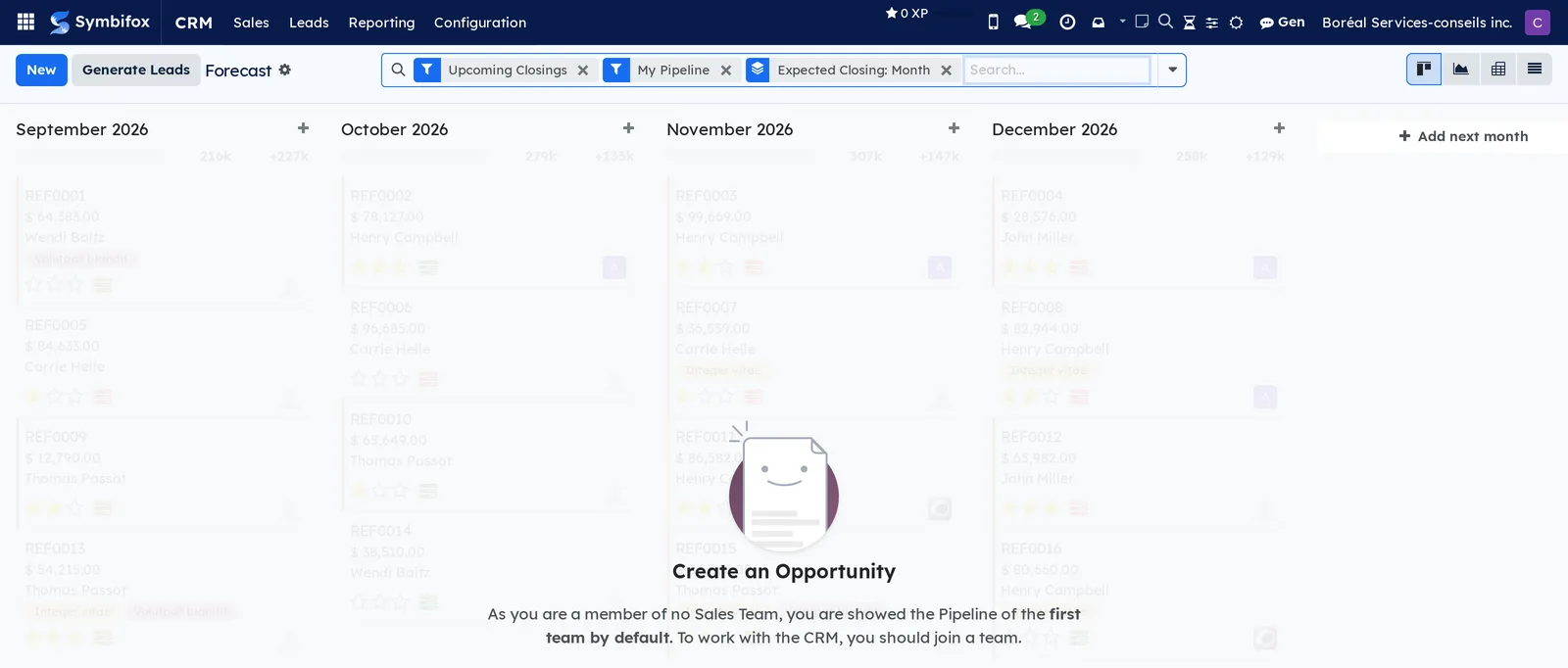
- Open CRM › Reporting › Forecast. The columns are the expected closing months.
- Drag a card to another month to correct its closing date.
- Select Add next month to extend the horizon.
- Remove the My Pipeline filter to see the whole team.
Result: each column totals the expected revenue and the revenue weighted by probability. The view also works as a graph and a pivot table.
The forecast uses the pipeline's cards, grouped by expected closing month.
Analyze the pipeline#
The reports measure the pipeline by stage, salesperson, month or tag.
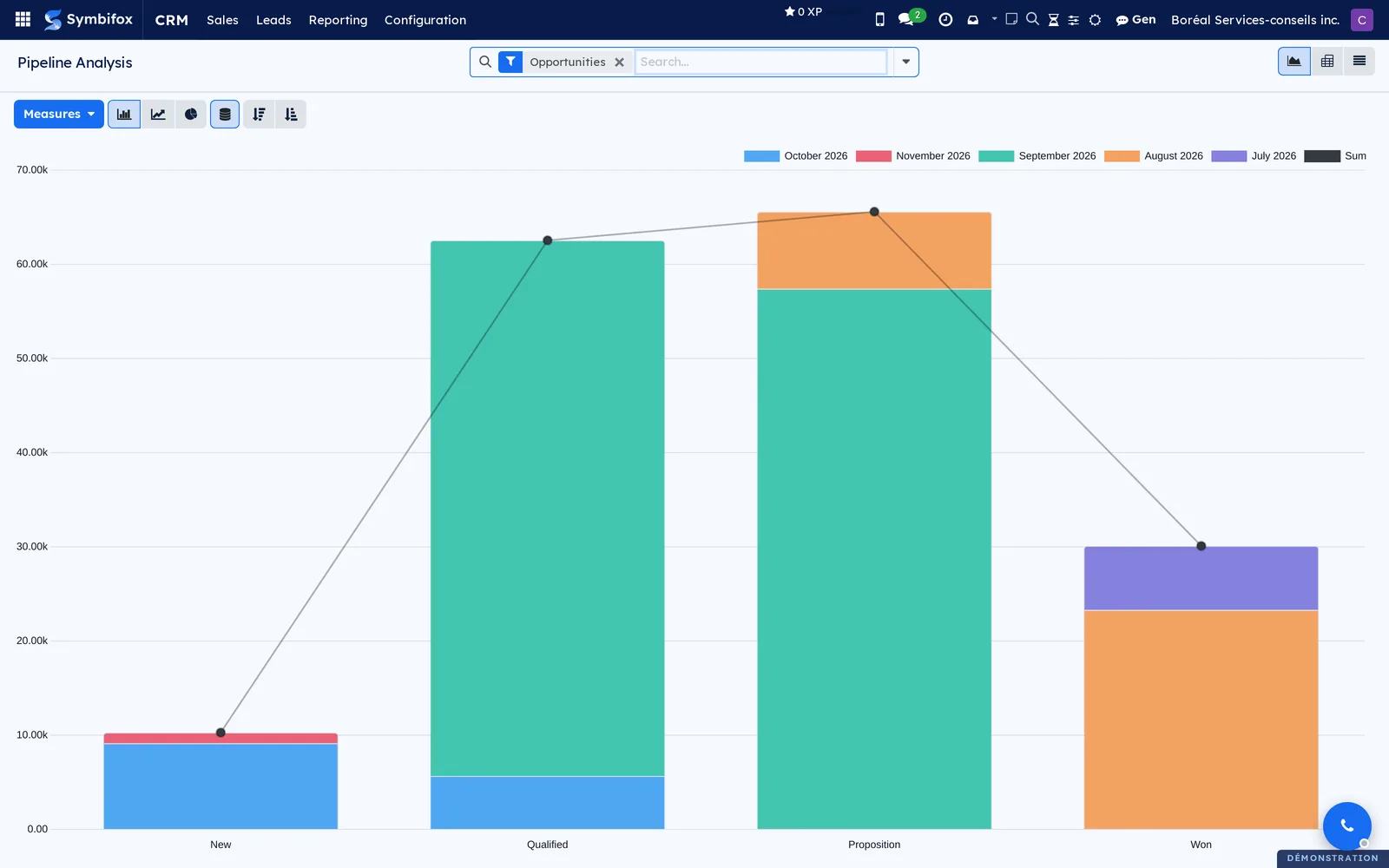
- Open CRM › Reporting › Pipeline. A bar graph appears, one bar per stage, stacked by month.
- Select Measures to change the value (expected revenue, prorated revenue, count).
- Switch to the pivot table to break down by salesperson and stage.
- Select a bar to open the list of opportunities it contains.
Result: a figure-based reading of the pipeline, exportable from the pivot table. Reporting › Leads does the same for leads, and Reporting › Activities counts completed activities by type and by person.
Manage teams and their members#
A team groups salespeople, a pipeline and targets.
- Open CRM › Configuration › Sales Teams and open the team, or select New.
- Enter the name, the team leader and, if needed, the email address that creates leads.
- In the members tab, add the salespeople.
- Save.
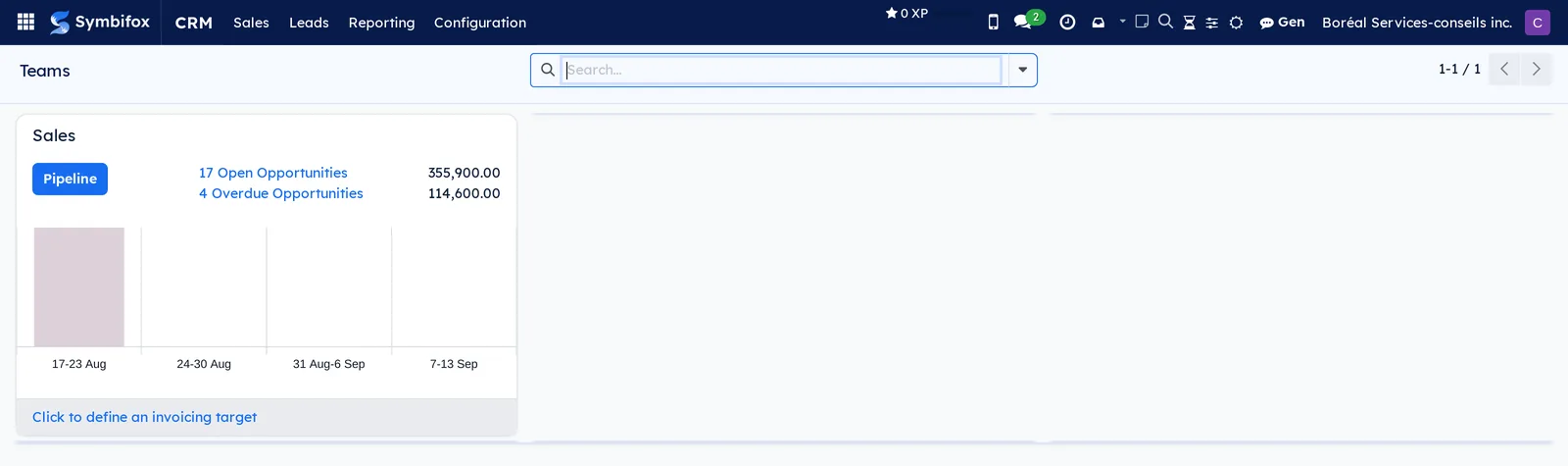
Result: members see the team under CRM › Sales › Teams, with the number of open and overdue opportunities and access to the Pipeline. Each membership also shows under Teams Members.
Generate leads through lead mining#
Generate Leads queries an Odoo online service to find companies by country, industry and size.
- Open CRM › Sales › My Pipeline and select Generate Leads.
- Enter the number of leads, the country, the industry and the size you want.
- Choose the team and the salesperson, then submit the request.
Result: the leads created carry a reference to the request, which you can view under Configuration › Lead Generation › Lead Mining Requests. The service requires Odoo credits; without credits, the request stays pending. For prospecting kept inside Symbifox, see Outreach instead.
Adjust stages, tags and lost reasons#
You set up the pipeline without code: stages, tags and lost reasons are simple lists.
- Open CRM › Configuration › Pipeline › Stages.
- Select New, enter the name, mark the stage as folded if it should fold in the kanban, and restrict it to a team if needed.
- Reorder the stages by dragging them in the list.
- Under Tags and Lost Reasons, add your values the same way.
Result: the new columns appear in the pipeline; + Stage, at the end of the kanban, also creates a stage on the fly.
Colour opportunities by their tags#
An automatic rule gives each opportunity the colour of one of its tags, the same way as tasks in Project. Prerequisite: administration rights. The rules are described in To-do, Notepad and Timer.
- Go to Settings › Colors › Automatic rules and select New.
- Enter the Name, then choose “Lead/Opportunity” in Model and “Tags” in Criterion.
- Under Colors, select Add a line, choose the tag in Record and its shade in Color. A line only forces a shade: without a line, the opportunity takes its tag's own colour.
- Drag the lines into the order you want: on an opportunity that carries several tags, the highest line wins.
- If needed, check Listed values only to colour only the opportunities that carry a listed tag. Without this box, an opportunity with no listed tag takes the colour of its tags.
- Save.
Result: in the pipeline, the edge of each matching opportunity's card takes the colour, and the tag badges show their free colour.
The menus, one by one#
CRM › Sales: grouping menu for daily work.
CRM › Sales › My Pipeline: the kanban of opportunities, filtered on your teams, with New and Generate Leads. The list, calendar, pivot, graph and activity views are next to the search bar. Cards are grouped by stage by default; you can group by salesperson or by tag.
CRM › Sales › My Activities: the list of opportunities that carry an activity assigned to you. Opportunity, Contact Name, Email, Expected Revenue, Expected MRR and Stage columns, with the activities to handle at the end of each line. Empty on the demo for Camille, with the help text “Looks like nothing is planned.”
CRM › Sales › My Quotations: the quotations created from your opportunities; empty on the demo.
CRM › Sales › Teams: one card per team, with the count of open and overdue opportunities, their amount, a weekly graph and the Pipeline button.
CRM › Sales › Customers: the Contacts records marked as customers, in the same kanban view.
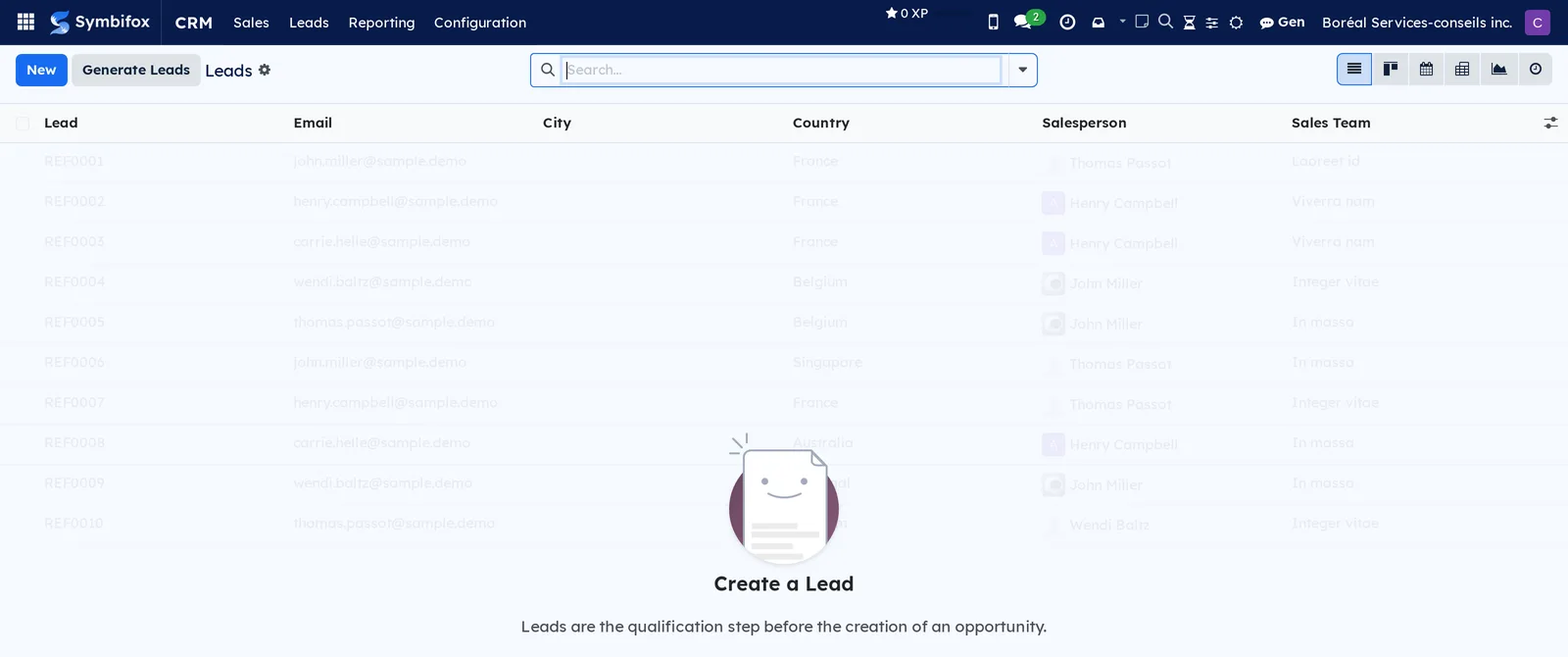
CRM › Leads: the list of leads to qualify, with the Lead, Email, City, Country, Salesperson and Sales Team columns. Empty on the demo; the help text reminds you that leads are the qualification step before the opportunity.
CRM › Import & Synchronize: grouping menu for lead import tools; its entries depend on the services turned on.
CRM › Reporting: grouping menu for reports.
CRM › Reporting › Forecast: the kanban of opportunities by expected closing month, described in the task of the same name.
CRM › Reporting › Pipeline: the graph of opportunities by stage, with Measures and the pivot and list views.
CRM › Reporting › Leads: the same report limited to leads.
CRM › Reporting › Activities: the count of completed activities, by type, salesperson and month; empty on the demo.
CRM › Configuration: the configuration menu, for the application's administrator only.
CRM › Configuration › Settings: the settings described under Configuration.
CRM › Configuration › Opportunities: grouping menu, with no screen of its own.
CRM › Configuration › Sales Teams: the list of teams and their form (leader, members, email alias, targets).
CRM › Configuration › Teams Members: one line per membership of a salesperson in a team; only one on the demo.
CRM › Configuration › Activities: grouping menu.
CRM › Configuration › Activities › Activity Types: the 24 types provided (call, email, meeting, task and those of other applications), with icon and default delay.
CRM › Configuration › Activities › Activity Plans: two plans provided; each chains activities with their delays and assignees.
CRM › Configuration › Recurring Plans: the recurring revenue plans (four provided: monthly, quarterly, yearly and so on), visible with the Recurring Revenues setting.
CRM › Configuration › Pipeline: grouping menu.
CRM › Configuration › Pipeline › Stages: the pipeline's four stages, which you can reorder.
CRM › Configuration › Pipeline › Tags: opportunity tags, empty on the demo. The Own color column takes a free colour, the same for the whole team. A tag's form also carries Displayed color, which opens My color; on an opportunity form, selecting a tag badge opens My color the same way.
CRM › Configuration › Pipeline › Lost Reasons: the three reasons provided.
CRM › Configuration › Lead Generation: grouping menu.
CRM › Configuration › Lead Generation › Lead Mining Requests: the history of requests made through Generate Leads; empty on the demo.
Reference#
Fields of the Opportunity form#
| Field | Description | Required or default |
|---|---|---|
| Opportunity | Name of the file | Required |
| Customer | Contacts record; created on the fly if missing | Optional |
| Expected Revenue | Amount hoped for at signature | 0 |
| Probability | Chance of success, as a percentage; follows the stage or predictive scoring | Computed |
| Expected Closing | Month of the forecast | Optional |
| Salesperson, Sales Team | Owner, and the team whose pipeline shows the file | Current user and their team |
| Priority | From zero to three stars | None |
| Tags | Free segmentation | Optional |
| Recurring Plan, Recurring Revenues | With Recurring Revenues: cadence and amount | Optional |
| Lost Reason | Set by Lost | Empty |
| Cible de démarchage, Campagne de démarchage | Origin of the file when it comes from an outreach campaign | Empty |
Fields of the Sales Team form#
| Field | Description | Required or default |
|---|---|---|
| Sales Team | Name | Required |
| Team Leader | User in charge | Optional |
| Members | The team's salespeople | Optional |
| Email Alias | Address where each email received creates a lead or an opportunity | Optional |
| Invoicing Target | Monthly target shown on the team's card | Empty |
Fields of the Stage form#
| Field | Description | Required or default |
|---|---|---|
| Stage Name | Column title | Required |
| Folded in Pipeline | Column folded by default | Cleared |
| Is Won Stage? | Marks the stage as a success | Cleared |
| Sales Team | Restricts the stage to one team | All |
| Requirements | Reminder shown for moving to this stage | Optional |
Reports and exports#
The four reports in the Reporting menu read as a graph, a pivot table and a list; the pivot table exports to a spreadsheet with its download button. Any list exports through Actions › Export. The CRM has no printed report of its own; the quotation prints from the order.
Automations#
- An opportunity marked lost sends the contact the survey of the program chosen in Lost-deal survey (CRM), once, if the contact was not asked recently; the lost reason is recorded in the chatter.
- An opportunity marked won adds the customer to the next draft wave of the program chosen in NPS enrollment on won deals (CRM); nothing goes out until that wave is launched.
- With Predictive Lead Scoring, the probability is recomputed automatically at every change of stage or contact details.
- With Rule-Based Assignment, leads are distributed among team members at regular intervals, according to each team's rule.
- An email received on a team's alias creates a lead or an opportunity; a reply from the customer attaches to the file.
- Overdue activities turn red on the cards and in My Activities.
- A colour rule on opportunities follows tag changes on its own; the colour is computed on display, and nothing is written on the opportunity.
Public pages and portal#
The CRM exposes no public page. Website forms that create leads are covered in the Website, blog and eLearning chapter.
Modules that extend this application#
A second module colours tags and opportunities.
Two other modules, documented elsewhere, place items in the CRM. Outreach adds Cible de démarchage (outreach target) and Campagne de démarchage (outreach campaign) on the opportunity, and the Créer une opportunité (create an opportunity) button on its targets (see Outreach). The persona adds Appliquer le persona in the email window (see Contacts).
Understanding#
The pipeline belongs to a team. The My Pipeline filter shows only your teams' opportunities. Without a membership, Symbifox shows the first team's pipeline as sample cards, as on the demo. The fix is to join a team, not to create opportunities outside any team.
Probability is not a promise. Without predictive scoring, it follows the probability set on each stage. With it, it is recomputed from the history of won and lost files since a given date. Either way, the forecast weights the expected revenue by this probability: a pipeline inflated with unlikely files stays modest in prorated revenue.
Why a survey on loss. The lost reason chosen by the salesperson says what they believe; the survey says what the customer thinks. The module sends the survey once per opportunity. It defers to the Customer Experience safeguard, which refuses to ask a contact surveyed recently. An empty program turns everything off, which is the state at installation.
Winning sends nothing right away. The signed customer is added to the onboarding program's next draft wave. You launch the wave when the time is right. That way, a customer signed on a Friday evening does not receive an onboarding questionnaire before the kickoff call.
Leads are optional. A small organization does very well without them: every request becomes an opportunity, even if it is lost early. The lead level is worth it when a volume of incoming requests must be sorted before it clutters the pipeline.
Lead generation services are not Symbifox. Enrichment and lead mining query Odoo online services paid for in credits. Symbifox leaves them available, but its own answer to prospecting is Outreach, which keeps the follow-up cadence in your database.
Troubleshooting#
| Symptom | Likely cause | Fix |
|---|---|---|
| My Pipeline shows faded cards and a message about the team | The user is a member of no sales team | Add them under Configuration › Teams Members, or remove the My Pipeline filter |
| The Leads menu does not appear | The Leads setting is turned off | Turn it on under Configuration › Settings and save |
| No survey goes out after Lost | Lost-deal survey (CRM) empty, contact without an email, or contact asked recently | Set the program in Settings, Expérience client section; check the customer's email and the chatter, which explains the refusal |
| Generate Leads produces nothing | Odoo credits used up or service not turned on | Check Lead Mining in the settings and the credit balance; or use Outreach |
| The signed customer receives nothing from the onboarding program | The program's wave is still in draft | Launch the wave in Customer Experience when the time is right |
| An opportunity has disappeared from the pipeline | It was marked lost, and therefore archived | Show lost opportunities with the search filter and select Restore |
| An opportunity's card does not take its tag's colour | No rule colours opportunities, Listed values only is checked with no line for that tag, or a higher line wins | Ask the administration to review the rule in Settings › Colors › Automatic rules |
See also#
- Contacts: customers, their enrichment and the persona.
- Outreach: prospecting with a cadence, and creating opportunities from a target.
- Customer experience: the programs, waves and surveys connected to the CRM.
- Calendar and Appointments: meetings and bookings linked to opportunities.
- SMS, calls and SIP phone: calling a customer from their file.
- Email Marketing and Link Tracker: mass mailings to leads and customers.
- Common actions in every application: chatter, activities, filters and export.