

Part 2 · Clients, sales and relationships
Electronic signatures
Have a PDF signed by one or more signers from Symbifox, with a public signing page, a sealed document, a certificate and an audit trail.
Watch it
The Signatures application gets a PDF signed without the document ever leaving Symbifox. You upload the document, name the signers and place the boxes to fill in. Each person receives a personal link and signs from a browser, with no account. At the end, Symbifox produces a sealed document, a signature certificate and an evidence log that no one can alter afterwards. The application serves anyone who needs quotes, agreements, invoices, resolutions, consents or offer letters signed.
Overview#
A signature request brings together a PDF, one or more signers and boxes placed on its pages. A box is an area that the signer fills in, or that Symbifox fills in for them: signature, initials, date, name, email, text, number, checkbox, one box per character, or choice list. Each signer receives a link of their own by email and needs no account. A request moves through a cycle of states: Brouillon (draft), Envoyée (sent), En cours (in progress), Signée (signed), Refusée (declined), Expirée (expired) or Annulée (cancelled).
When the last person has signed, Symbifox stamps the boxes, computes the hashes and applies the digital seal if one is configured. It then produces the Certificat de signature (signature certificate) and sends everyone the final document. The Piste de vérification (audit trail, the evidence log) records each event with its time, IP address and identity method. A public verification page lets anyone who holds the PDF check that it comes from you and has not changed.
The application lives under the Signatures menu, but you mostly meet it elsewhere. On a quote, purchase order, invoice, corporate resolution, consent or offer letter, one button creates the request: Send for signature on a quote, purchase order or resolution, Envoyer pour signature (send for signature) elsewhere. The signed document then lands in the record's chatter, the message thread at the bottom of the form (see Modules that extend this application). Signing is native, with no external service and no per-envelope fee. Every action leaves a trace designed to stand up before a third party (see Understanding).
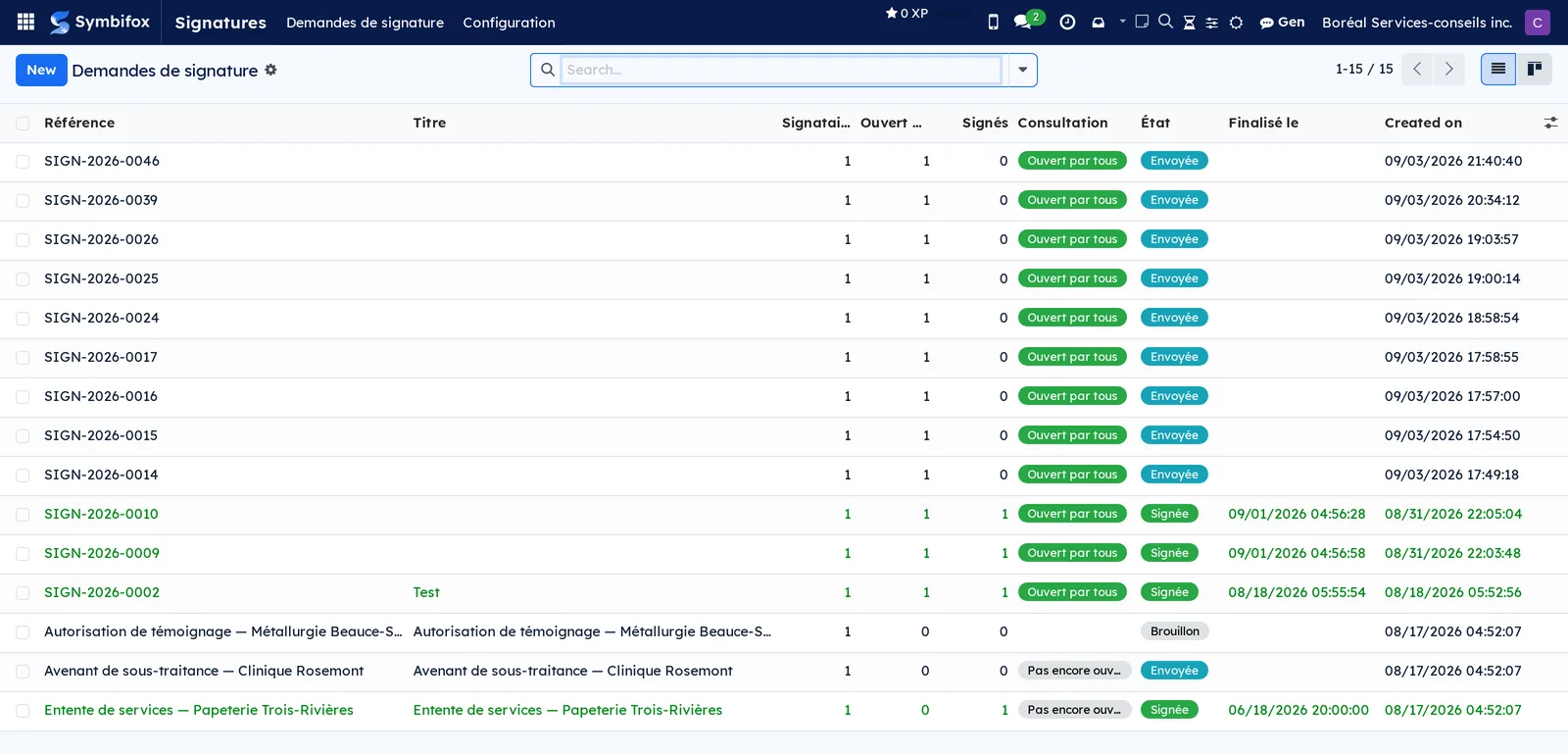
The list of requests is the application's home screen. On the Boréal demo, it shows fifteen requests. For each one, you see the reference, the title, the number of signers, how many opened and signed, the viewing status, the state and the completion date.
Configuration#
Access and permissions#
Two groups control access. You set them on each person's user form, under Settings › Users & Companies › Users, in the Signature électronique (electronic signature) category.
| Group | What it opens |
|---|---|
| Utilisateur (user) | The Signatures menu. The person creates requests and sees the ones they created, with their signers, boxes and log. |
| Gestionnaire (manager) | Everything above, plus the Configuration menu, all of the company's requests and the right to reveal a signer's personal link. |
When several companies share the instance, each person sees only the requests of the companies they can access.
Settings#
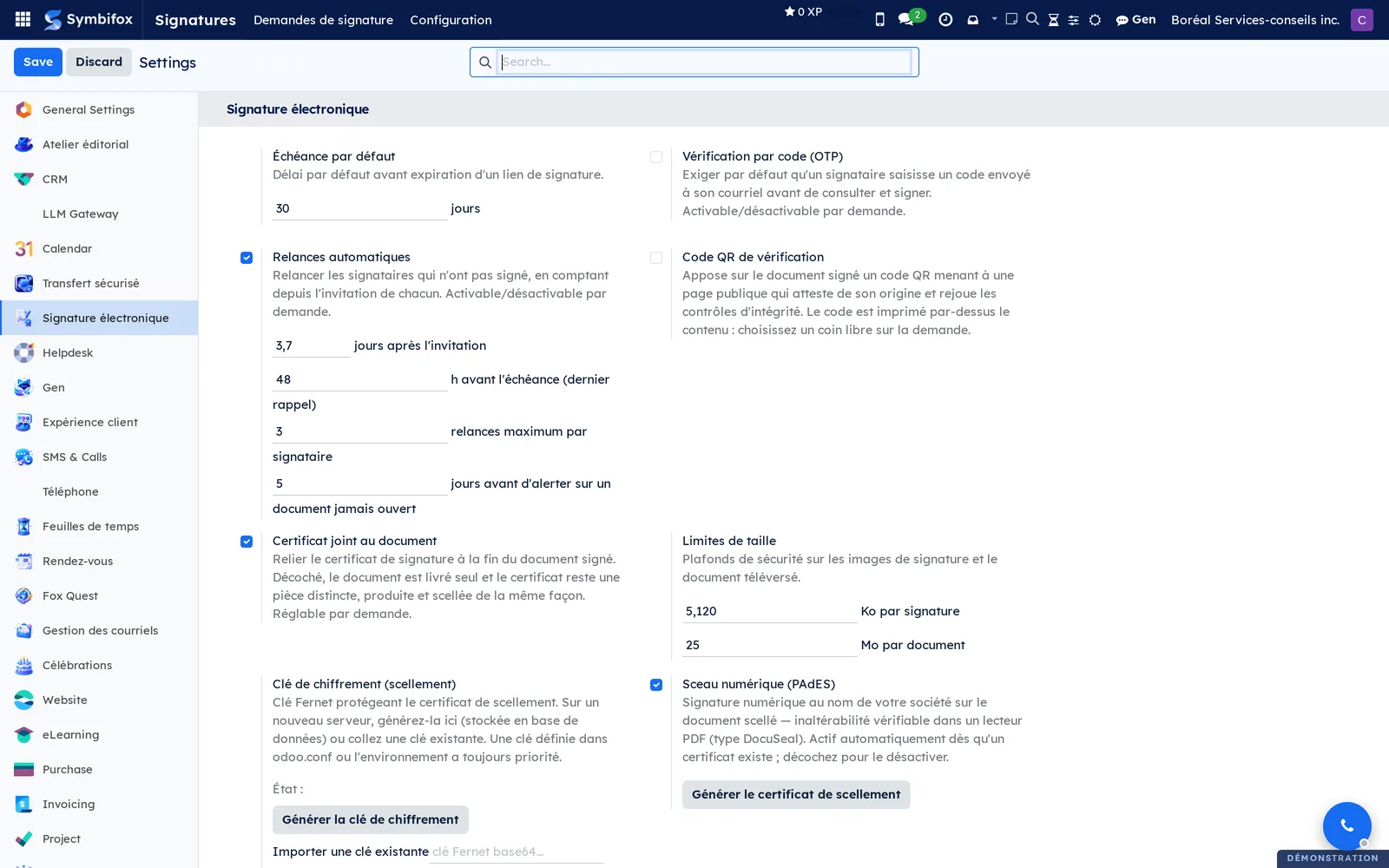
The settings are under Signatures › Configuration › Paramètres (settings), or under Settings › Signature électronique. They set the defaults for new requests; you can adjust most of them request by request.
| Setting | Purpose |
|---|---|
| Clé de chiffrement (scellement) (sealing encryption key), Générer la clé de chiffrement (generate the encryption key), Importer une clé existante (import an existing key) | Key that protects the sealing certificate. Generate it once on a new server, or paste it from another instance; leaving it empty keeps the current key. |
| Sceau numérique (PAdES) (digital seal), Générer le certificat de scellement (generate the sealing certificate) | A digital signature in your company's name on the final document: a PDF reader shows it as signed and unaltered. Active as soon as a sealing certificate exists. |
| Horodatage RFC 3161 (RFC 3161 timestamping), URL de l'autorité d'horodatage (TSA) (timestamp authority URL) | Date token requested from an external authority at sealing time. The default authority is free and requires no commitment; when the date matters, choose a commercial one. A failure does not block the signature. |
| Échéance par défaut (default deadline) | Number of days after which links stop working (30 on the demo). |
| Limites de taille (size limits) | Caps on submitted images and on the uploaded PDF, in KB per signature and in MB per document. |
| Vérification par code (OTP) (code verification) | Requires, by default, a code received by email before viewing and signing. |
| Code QR de vérification (verification QR code) | QR code that leads to the verification page. It prints over the content, so choose a free corner. |
| Relances automatiques (automatic reminders) | Reminders counted in days from each signer's invitation (comma-separated; empty means none). A last reminder, in hours before the deadline (0 turns it off). A cap on reminders per signer, all causes combined. A delay before warning about a document never opened, which is nearly always an email that does not arrive. On the demo: 3 and 7 days, 48 h, 3 reminders, 5 days. |
| Certificat joint au document (certificate attached to the document) | Certificate bound at the end of the signed PDF. When cleared, the certificate stays a separate file, with the same value. |
| Texte de consentement par défaut (default consent text) | Text that each signer accepts before signing. |
The page groups these settings under the Signature électronique heading, with the buttons that generate the key and the certificate.
Base data#
You need a PDF whose text is final, plus the name and email address of each signer (ideally a record in Contacts). For the seal, you need a sealing certificate generated in the settings. You save Modèles de pavés (box templates) from a request whose boxes are already placed, with or without its document. The application's four emails (invitation, reminder, signed document, refusal) carry the colours and logo set in Settings and brand identity.
Getting started#
This walkthrough gets a service agreement signed by Clinique dentaire Rosemont, a Boréal client, from a ready PDF.
Create and send the request:
- Go to Signatures › Demandes de signature (signature requests), then select New.
- Enter the title “Service agreement, Clinique dentaire Rosemont” and upload the PDF in Document (PDF).
- On the Signataires (signers) tab, add a line with the name and email address of the person who signs for the clinic.
- On the Disposition des pavés (box layout) tab, drag a Signature box, then a Date box, onto the page, and assign both to this signer.
- On the Consentement (consent) tab, reread the text the signer will have to accept.
- Select Save, then Envoyer pour signature. The state changes to Envoyée and the invitation goes out.
Sign and retrieve the document:
- The signer opens the link received, views the document, accepts the consent and draws or types a signature.
- On the request, the state changes to Signée and Finalisé le (completed on) fills in.
- Select Télécharger le document signé (download the signed document), then Certificat (certificate).
- Open the Piste de vérification tab: each event appears there with its time, IP address and identity method.
- Select Vérifier l'intégrité (verify integrity). Symbifox recomputes the log chain and the hashes, then displays the result.
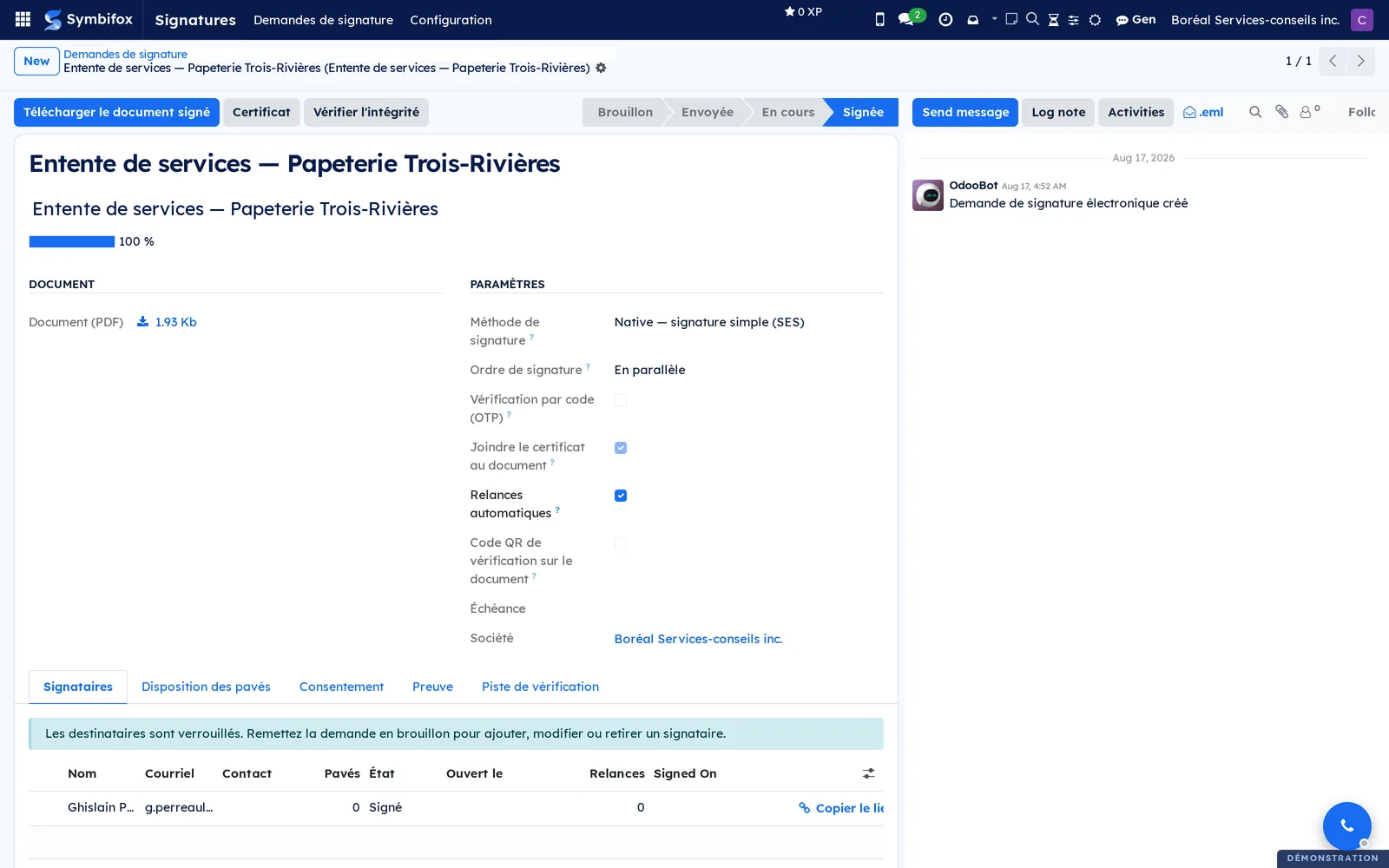
The form of a demo request shows the header buttons and the five tabs that this walkthrough goes through.
Common tasks#
Create a signature request#
A request always starts from a PDF; its options take their defaults from the settings.
- Go to Signatures › Demandes de signature, then select New.
- Enter a Titre (title). The Référence (reference) is assigned automatically and never changes.
- Upload the file in Document (PDF), or pick a template just above it in Partir d'un modèle (start from a template) to reuse its document and boxes (see Reuse a box layout).
- Choose the Ordre de signature (signing order): En parallèle (in parallel, everyone gets the link at the same time) or Séquentiel (sequential, each person in turn).
- Adjust the Échéance (deadline), the date after which links stop working.
- Check or clear Vérification par code (OTP), Code QR de vérification sur le document (verification QR code on the document), Relances automatiques and Joindre le certificat au document (attach the certificate to the document). The QR code comes with Position du code QR (QR code position) and Pages du code QR (QR code pages).
- Select Save.
The request is in Brouillon: signers and boxes stay editable until you send it.
Add signers#
Each signer has their own link and their own state.
- On the draft request, open the Signataires tab.
- Add a line and enter the Nom (name) and Courriel (email).
- Optional: choose the matching Contact.
- For sequential signing, set the Ordre (order) of each line.
- Repeat for each person, then select Save.
Each line shows the En attente (pending) state and gets a colour, which its boxes reuse.
Place the boxes on the document#
Boxes tell the signer where to sign, initial, date or fill in.
- On the draft request, open the Disposition des pavés tab.
- Choose a type: Signature, Paraphe (initials), Date, Texte (text), Nom, Courriel, Nombre (number), Case à cocher (checkbox), Cases par caractère (one box per character) or Liste de choix (choice list).
- Drag the box onto the page; the magnetic grid aligns it with its neighbours.
- In the properties bar, choose the Signataire (signer) and the Mode de remplissage (fill mode). The modes are Automatique (signataire / date de signature) (automatic, from the signer or the signing date), Valeur fixe (préparateur) (fixed value, set by the preparer) and Rempli par le signataire (filled in by the signer).
- As needed, check Obligatoire (required). For a per-character box, enter the Nombre de cases (number of boxes); for a choice list, enter one choice per line in Choix offerts (choices offered).
- If needed, duplicate a box or change its rank: by default, the presentation order follows the reading order.
- Select Save.
On the public page, the signer sees numbered markers in this order.
Reuse a box layout#
For a document that comes back often, save the layout. It remembers each box by signer rank, not by person. A form that is sent again as is can also keep its document in the template.
- On a request whose boxes are placed, open the Disposition des pavés tab.
- Select Enregistrer comme modèle (save as template) and name the template.
- At the next question, accept to keep the document in the template too, or decline to keep only the boxes.
- On a new request, pick the template in Partir d'un modèle, above Document (PDF). A template that keeps its document brings it in at once.
- On the Signataires tab, add as many signers as the template has ranks.
- Select Save. The boxes are laid out and assigned by rank.
While signers are missing, a note under the document says how many the template expects. The layout is applied only once: a box placed, moved or removed by hand, or sending the request, ends the wait, and a later save lays nothing out again. To keep fewer signers than the template has, select Appliquer (apply) on the Disposition des pavés tab instead: the boxes of the missing ranks are set aside, and Symbifox says so.
A PDF uploaded by hand is never replaced by a template's. Switching templates replaces the document a previous template brought, and removing the template removes that document. A saved template takes the request's company; only templates of that company, or with no company, are offered.
A template also works when the document does not always have the same number of pages, which is the case for an agreement whose scope changes from one mandate to the next. Each box carries a page anchor:
| Anchor | What it does |
|---|---|
| Page fixe (fixed page) | the box stays on the page number that was saved |
| Dernière page (last page) | the box lands on the last page of the target document, whatever its length |
That is what a signature block needs, since it is always at the end. When you save a template, Symbifox anchors to Dernière page the boxes that were on it, and leaves the others on Page fixe. A one-page document makes the two indistinguishable, so its boxes stay on Page fixe.
The anchor is resolved when the marks are stamped, not when the template is applied. If you replace the PDF after placing the boxes, the ones anchored to the last page follow the new document. A box that would point past the end blocks the send and Symbifox names it, rather than moving it without saying so.
A manager finds the templates under Signatures › Configuration › Modèles de pavés, where the Ancrage de la page column can be changed by hand if needed. A template's form also carries an optional Document (PDF) field, to add or remove the document afterwards.
Write the consent text#
- On the draft request, open the Consentement tab.
- Adapt the Texte de consentement (consent text), prefilled with the default text.
- Select Save.
The signer must check this text on the public page, and the Consentement donné (consent given) event is written to the log.
Send the request and track its progress#
Once sent, the request is locked: everyone signs the same document, with the same boxes.
- On the draft request, select Envoyer pour signature.
- Check that the state changes to Envoyée, then to En cours as signatures come in.
- In the list, follow Ouvert par (opened by), Signés (signed) and Consultation (viewing). Viewing reads Pas encore ouvert (not opened yet), Ouvert en partie (partly opened) or Ouvert par tous (opened by all).
- On the Signataires tab, read each person's État (state): En attente, Consulté (viewed), Signé (signed) or Refusé (declined). The line also shows the invitation, opening and reminder dates.
When the last signer has signed, the state changes to Signée and everyone receives the final document.
Remind a signer#
Automatic reminders follow the cadence set in the settings; you can also send a reminder manually.
- Open the request in progress.
- To remind everyone who can sign now, select Relancer les signataires (remind the signers).
- To remind one person, open the Signataires tab and select Relancer ce signataire (remind this signer) on their line.
Relances (reminders) and Dernière relance (last reminder) update and the email goes out. The Relances maximum par signataire (maximum reminders per signer) limit still applies.
Copy a signer's link#
The personal link is never shown to the requester, because it proves the signer's identity. A manager can reveal it, and the action is logged.
- On the Signataires tab, select Copier le lien (copy the link) on the line you want.
- Read the warning, then select Révéler le lien (reveal the link).
- Copy the Lien de signature (signing link), then select Fermer (close).
The Lien révélé (gestionnaire) (link revealed by a manager) event appears in the audit trail, with your name.
Sign a document received by link#
This is what the signer goes through.
- Open the link received by email. If code verification is on, enter the six-digit code received by email; a link lets you have the code sent again.
- View the document: numbered markers show the boxes to fill in, in order.
- Fill in each box. For the signature, draw with a finger or the mouse, type your name or upload an image.
- Check the consent, then submit.
- On the confirmation page, download your copy.
Once all signatures are in, everyone receives the sealed document and the certificate. If a person chooses to decline instead, the request changes to Refusée and the requester is notified.
Download the signed document and the certificate#
- Open a request in the Signée state.
- Select Télécharger le document signé.
- Select Certificat.
If Joindre le certificat au document was checked, the certificate also appears at the end of the signed PDF. It carries the verification link and a QR code.
Verify a request's integrity#
Verification recomputes everything rather than showing a stored verdict.
- Open the request and select Vérifier l'intégrité.
- Read the result, then open the Preuve (evidence) tab. It shows the SHA-256 hashes (original, timestamped content, sealed document) and Scellé numériquement (PAdES) (digitally sealed). It also shows Heure attestée (TSA) (attested time) and Autorité d'horodatage (TSA) (timestamp authority).
- Open the Piste de vérification tab to browse the events, each chained to the previous entry by its hash.
A negative result signals a break in the chain or damage to the stored document. Stop working on it and talk to your supervisor.
Share the verification link#
A third party who receives the document can check for themselves that it comes from you.
- On the signed request, open the Preuve tab.
- Select Partager le lien de vérification (share the verification link).
- In the prefilled composer, choose the recipient, then send.
The page discloses no email address and never serves the document.
Verify a copy from the public page#
Anyone who holds the PDF can compare it with the sealed original, without uploading anything.
- Open the verification link received, or scan the QR code printed on the document or the certificate.
- Read the reference, the date, the signers' names and the results recomputed for this visit.
- Drop your copy in the area provided. The browser computes the hash on the spot and compares it.
If the hashes differ, the page first names the legitimate causes (PDF saved again, scanned printout, certificate delivered separately) before it raises tampering. An older browser receives instead the commands to compute the hash itself.
Cancel a request or reset it to draft#
Remettre en brouillon appears on a cancelled, expired or declined request, never on a signed one. The request then starts again from a blank page.
- Open the request and select Annuler (cancel). The state changes to Annulée and the links stop working.
- Select Remettre en brouillon. Every signer goes back to En attente (pending), with a new personal link.
- Correct the document, the signers or the boxes.
- Select Envoyer pour signature. Each person receives their new link.
Anyone who had already signed must sign again: their signature, consent, verification code and the values they had entered are cleared. The Remise en brouillon (reset to draft) event enters the audit trail and names the signatures set aside; nothing is erased from the log. A deadline already past is cleared, and the next send sets a new one from the settings.
Send a record from another application for signature#
A quote, purchase order, invoice, resolution, consent or offer letter can be signed without going through the Signatures menu.
- Open the record in its application.
- Select Envoyer pour signature (on a consent, Signature maison, the in-house signature).
- The request opens as a draft, with the record rendered as a PDF. When the module knows the default signers, they are already there.
- Adjust the signers, place the boxes, then select Envoyer pour signature.
Once everyone has signed, the document lands in the record's chatter. A shortcut button at the top of the form counts the linked requests.
The menus, one by one#
Signatures: the main menu, visible from the Utilisateur group.
Signatures › Demandes de signature: the default list view, with a kanban view and the form. The columns are Référence, Titre, Signataires, Ouvert par, Signés, Consultation, État and Finalisé le. The demo holds fifteen requests, from Brouillon to Signée. On an empty screen, the help text sums up the steps: upload a PDF, add the signers, place the boxes and send the links.
Signatures › Configuration: a grouping menu, reserved for the Gestionnaire group.
Signatures › Configuration › Paramètres: the settings page described in Settings.
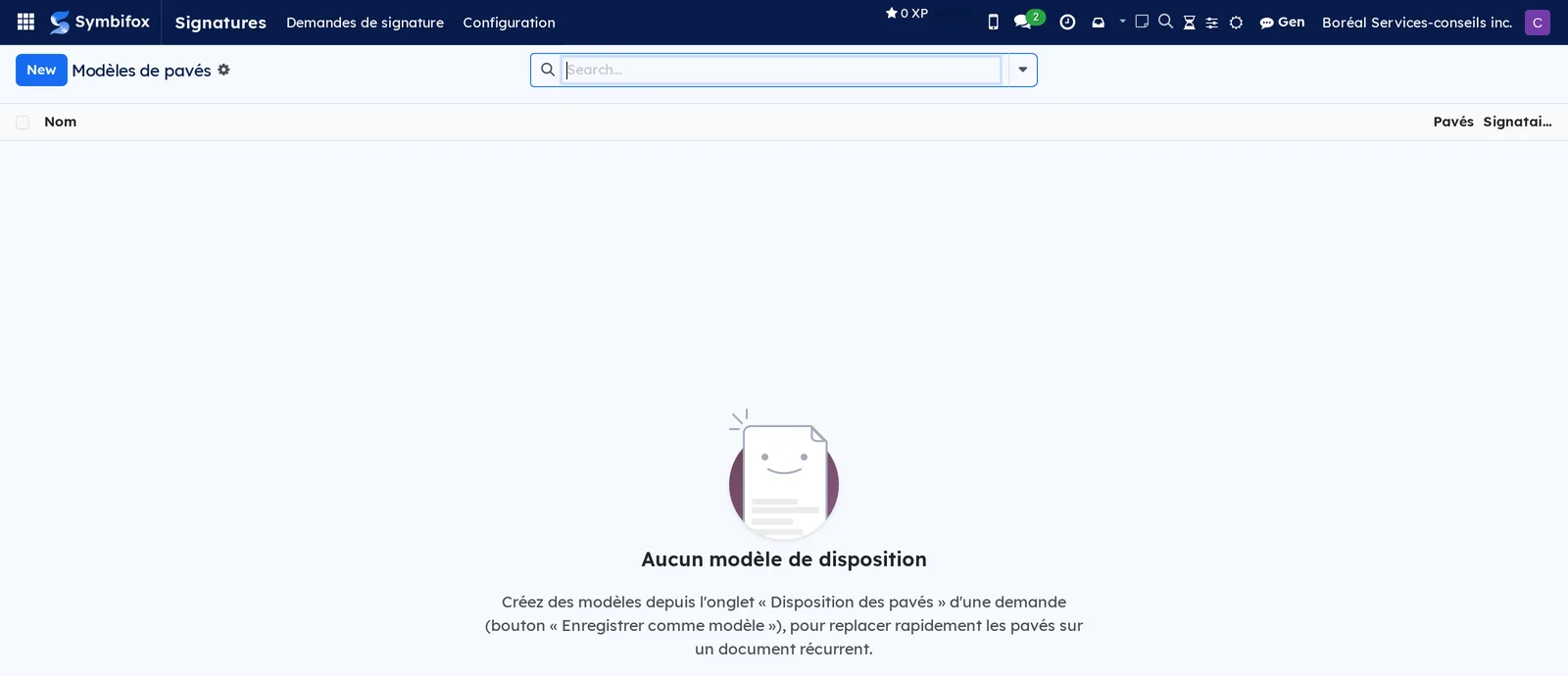
Signatures › Configuration › Modèles de pavés: the list of saved layouts, with the Nom, Pavés (boxes), Signataires and Document columns. The form carries the optional Document (PDF) and details each box with its Rang du signataire (signer rank, 0 for the first). The demo has none; the empty screen explains where templates come from.
Reference#
Fields of the signature request form#
| Field | Description | Required or default |
|---|---|---|
| Référence | Unique number assigned at creation. | Automatic |
| Titre | Friendly name to spot the document in the list. | Optional |
| État | Brouillon, Envoyée, En cours, Signée, Refusée, Expirée, Annulée. | Brouillon |
| Méthode de signature (signing method) | Simple electronic signature (SES), the only method offered. | Required |
| Ordre de signature | En parallèle or Séquentiel. | Required |
| Partir d'un modèle | Box template that brings its document, if it keeps one, and lays out its boxes once all its signers are added. | Empty |
| Document (PDF), Nom du fichier (file name) | The document to sign, uploaded or brought by the template. | Required to send |
| Échéance | Date after which the links expire. | From the settings |
| Société (company) | Issuing company, whose colours dress the page. | Required |
| Vérification par code (OTP), Relances automatiques, Joindre le certificat au document | Options described in Settings. | From the settings |
| Code QR de vérification sur le document, Position du code QR, Pages du code QR | QR code printed over the content, in a corner, on the last page, the first page or all pages. | From the settings; Bas gauche (bottom left); Dernière page (last page) |
| Texte de consentement | Text accepted by each signer. | From the settings |
| Consultation, Ouvert par, Dernière ouverture (last opened), Progression (%) (progress) | Who has opened the document, and the share of signatures received. | Computed |
| Document signé (signed document), Certificat de signature, Finalisé le | Files and time of completion. | Computed |
| Empreinte SHA-256 (original) (SHA-256 hash), (contenu horodaté) (timestamped content), (document scellé) (sealed document) | Hashes before signature, of the stamped content and of the final document. | Computed |
| Scellé numériquement (PAdES), Heure attestée (TSA), Autorité d'horodatage (TSA), Lien de vérification (verification link) | Presence of the seal, time attested by the authority, address of the verification page. | Computed |
Fields of a signer line#
| Field | Description | Required or default |
|---|---|---|
| Nom, Courriel | Identity of the signer and the address their link goes to. | Required |
| Contact | Linked Contacts record. | Optional |
| Ordre | Rank in sequential signing. | Order of entry |
| État | En attente, Consulté, Signé, Refusé. | En attente |
| Ouvert le (opened on), Dernière ouverture, Ouvertures (openings), Invité le (invited on), Relances, Dernière relance | Tracking of views, of the invitation and of reminders. | Computed |
| Adresse IP (IP address), Agent utilisateur (user agent), Signature, Paraphe | Origin of the signature and the images applied, repeated in the certificate. | Computed |
| Lien de signature | Personal link, visible to a manager only, after it is revealed. | Hidden |
Fields of a box#
| Field | Description | Required or default |
|---|---|---|
| Signataire | Person who fills in the box. | Required |
| Type, Page | One of the ten box types (see Place the boxes on the document) and the page it sits on. | Required |
| Mode de remplissage | Automatic, fixed value, or filled in by the signer. | Required |
| Obligatoire | For a box filled in by the signer, an entry is required. | Cleared |
| Valeur fixe / étiquette (fixed value or label) | Value set by the preparer, or the box's label. | Optional |
| Nombre de cases, Choix offerts | Boxes in a row (0 falls back to plain text); one choice per line for a list. | 0; empty |
Reports and exports#
- Certificat de signature: a branded PDF report, produced at completion and obtained with Certificat. It shows who signed, when and from which address, the hashes, the timestamp token if any, the verification link and its QR code.
- Télécharger le document signé: the final PDF, stamped and sealed.
- The list of requests exports like any list (see Common actions in every application).
Automations#
- Every day, requests past their deadline switch to Expirée and their links stop working.
- Every day, reminders go out according to Relancer après (jours) (remind after, in days), counted from each signer's invitation. They stay within the cap, with a last reminder before the deadline. In sequential mode, only the current signer is reminded. A note is added to the chatter when a person has still not opened the document after the set delay.
- At completion, Symbifox stamps the boxes and fills in the automatic ones (date, name, email). It requests the timestamp token and applies the seal as configured, produces the certificate and sends the final document to each signer.
- The invitation, reminder, verification code, signed document and refusal emails go out without intervention.
- For a record sent from another application, the signed document lands in its chatter as soon as everyone has signed.
Public pages and portal#
/sign/…: each signer's personal signing page, in your company's colours. It includes the screens for code verification, confirmation, refusal, waiting for one's turn and unavailability./sign/verify/…: the public verification page, open to anyone who holds the link or the QR code. It recomputes the evidence on each visit, shows no email address and never serves the document.
Modules that extend this application#
Each bridge adds a send-for-signature button to a record in another application and files the signed document in that record's chatter.
For purchases, the same action exists on the supplier side.
Accounting documents follow the same logic.
The corporate register gains resolutions signed by the right people.
Privacy consents get a third signing route, an internal one this time.
Finally, recruitment gets its offer letters signed on the branded letterhead that the person actually read.
Understanding#
A simple signature, instrumented. The module produces a simple electronic signature (SES), not an advanced or qualified signature in the European sense. Canada has no qualified regime, and notarial acts remain out of scope. What makes the signature enforceable is the evidence around it: explicit consent, a link between the signer and the document, and verifiable integrity. In Québec, an electronic signature is valid in principle (Civil Code, art. 2827), and the presumption of integrity (art. 2840) puts the burden on whoever challenges it. Courts have upheld an online signature on the strength of a certificate of completion, an audit trail and the context: the three artifacts that Symbifox produces.
The link and the lock. The basic proof of identity is control of the mailbox. If the link circulated freely, that proof would collapse, hence its logged disclosure. Code verification also proves that the mailbox was under the signer's control at signing time. Likewise, the request locks when sent so that everyone sees the same document; changing it afterwards would make the evidence contestable. For the same reason, a reset to draft sets aside the signatures already given: the PDF can change in draft, and a signature must never end up on a document its author has not seen.
The seal and the timestamp. The digital seal is a self-signed organization signature. It makes any alteration detectable in a PDF reader, but it does not certify your identity to a third party. Trusted timestamping adds a proof of date that does not depend on your server.
The verification page recomputes. A stored verdict could be forged along with everything else. The page redoes the calculations on each visit, and the drop area computes the hash in the visitor's browser: the page receives no file.
Reminders are capped. A request that harasses does more harm than a forgotten one. Hence the cap, the single reminder before the deadline and the “never opened” alert.
The bridges. Each bridge renders the record as a PDF at sending time, then files the result in its chatter. The recruitment bridge refuses a draft letter and never moves the application forward, because a signed offer is not a first day on the job. The privacy bridge does exactly what the two external services do, so that there is only one definition of “signed consent”. Two other bridges rely on Signatures. Customer experience asks the main signer for feedback once the document is sealed. Secure transfers can require a signed non-disclosure agreement before anyone accesses a transfer.
Troubleshooting#
| Symptom | Probable cause | Fix |
|---|---|---|
| Copier le lien does not appear on the signer's line. | You are not in the Gestionnaire group. | Ask a manager to reveal the link. |
| The signer says nothing arrived; Consultation stays at Pas encore ouvert. | Mistyped email address, or message in the junk folder. | Correct the address and send a reminder; as a last resort, a manager reveals the link. |
| The request changed to Expirée. | The Échéance has passed. | Select Remettre en brouillon, then send again: the past deadline is cleared and the send sets a new one. Anyone who had signed must sign again. |
| The PDF reader does not show the document as signed. | No sealing certificate existed at completion, or the seal was cleared. | In Paramètres, select Générer le certificat de scellement and leave Sceau numérique (PAdES) checked. |
| The certificate shows no trusted timestamp. | The call to the timestamp authority failed. | Check the URL de l'autorité d'horodatage (TSA) and outbound network access. |
| The verification page says the dropped copy does not match. | PDF saved again by a reader, scanned printout, or certificate delivered separately. | Drop the file as received, without opening and saving it first. |
| Partager le lien de vérification refuses to act. | The request was completed before the verification page existed. | Send the signature certificate, which carries the hashes. |
| Envoyer pour signature on an offer letter shows an error. | Draft letter, or a letterhead mode that requires a newer version of Signatures. | Finalize the letter; otherwise, upgrade Signatures or choose a generated letterhead. |
See also#
- Contacts: the records that signers come from.
- Invoicing, Purchase, Recruitment, Privacy (Law 25 and other frameworks), Knowledge base: the records that get signed.
- Customer experience and Secure transfers: two other bridges that rely on Signatures.
- Email, Settings and brand identity, Common actions in every application.