

Part 2 · Clients, sales and relationships
Surveys
Build questionnaires, share them by link or by invitation, collect the responses and the files received, then read the results.
The Surveys application serves to ask the same questions to many people and to draw a readable result from them: a client's satisfaction, feedback on a colleague, an eligibility form, a training quiz. You build the questionnaire, you share it by a link or by named invitation, and Symbifox files each response in a participation. It is Odoo's survey application, to which Symbifox adds one thing that was missing: the question that asks for a file.
Overview#
A survey brings together questions, possibly grouped in sections. Each question has a type that decides what the respondent sees: multiple choice, text box, numerical value, scale, date, matrix, or file upload. The choices offered by a closed question are suggested values, reusable and viewable on their own. A participation is one person's pass through the questionnaire, with the detail of their answers.
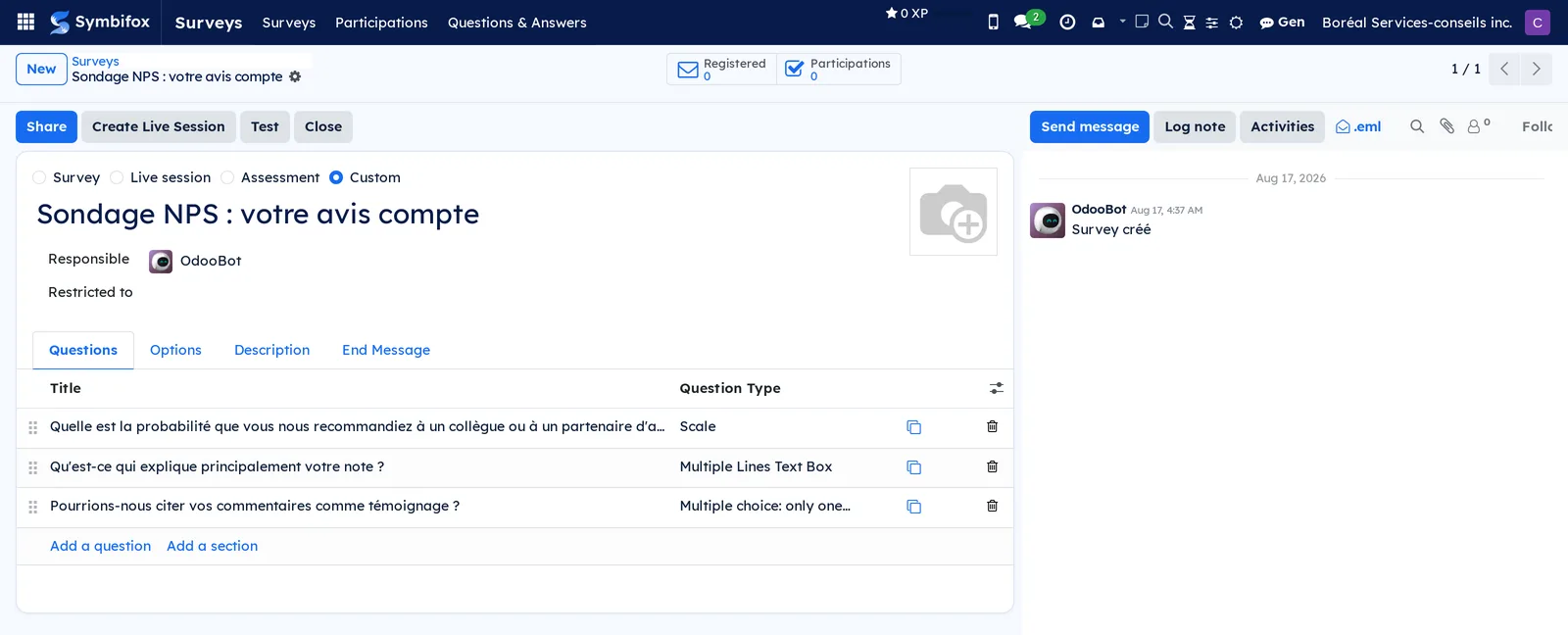
Four ways to use it, chosen at the top of the form: Survey for an ordinary questionnaire, Live session to run a group in the room question by question, Assessment for a score and a certification, Custom to set the options yourself.
The application crosses paths with several others. Invitations go out through Email; the respondents come from Contacts or from a public link open to all; the files deposited in a survey can join a project in Project. Client satisfaction measurement has its own tool, described in Customer experience: Surveys serves rather for the questionnaires you build yourself.
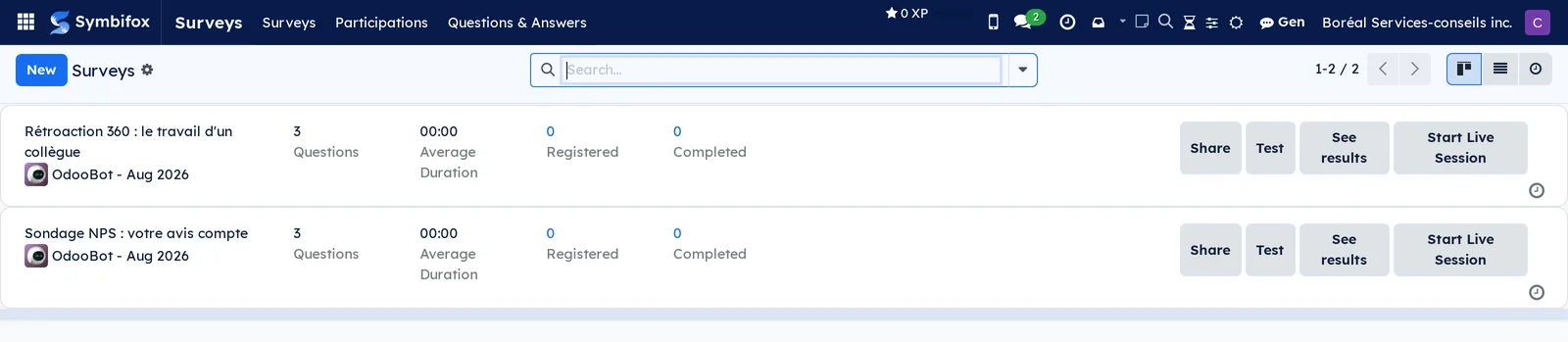
The home screen presents the surveys as cards, with their counters and their four everyday actions.
Configuration#
Access and permissions#
Two groups, set in Settings › Users, under the Surveys category.
| Group | What it opens |
|---|---|
| User | Surveys in the main menu. The person builds questionnaires, shares them and reads the results. |
| Administrator | Everything above, plus the surveys of the whole organization and the question and answer menus. |
A respondent needs no account: they receive a link. A survey can, however, require a signed-in session, which is set survey by survey.
Settings#
The application has no general settings page. Everything is decided questionnaire by questionnaire, in the survey's Options tab: the layout (all on one page, one page per section or one page per question), the display of progress, the time limit, the access mode and the obligation to sign in, the number of attempts, and the scoring when the survey serves as an assessment. At the top of the form, Restricted to limits the questionnaire to a group of people if needed.
Base data#
You need a survey and its questions, nothing more. Two questionnaires populate the demo: “Sondage NPS : votre avis compte” (NPS survey: your opinion counts) and “Rétroaction 360 : le travail d'un collègue” (360 feedback: a colleague's work), of three questions each. For a question that asks for a file, decide in advance the size accepted, the extensions allowed and the number of files. To pour those files into a working folder, you need an existing project.
Getting started#
This walkthrough takes the satisfaction survey of the demo, tests it, then puts it into circulation.
- Open Surveys › Surveys.
- Open “Sondage NPS : votre avis compte”. The three questions appear in the Questions tab.
- Select Test: the questionnaire opens as a respondent will see it, and the participation produced is marked as a test.
- Answer the three questions, then finish. The End Message is shown.
- Return to the survey and select Share to get the public link or send named invitations.
- Open See results to read the responses received, question by question.
The form of a demo survey shows the header, the four modes and the tabs this walkthrough goes through.
Common tasks#
Create a survey#
- Open Surveys › Surveys, then select New.
- Enter the title of the questionnaire.
- Choose the mode at the top of the form: Survey, Live session, Assessment or Custom.
- Check the Responsible.
- In the Questions tab, select Add a question and build the questionnaire.
- Open the End Message tab and write what the respondent will see once finished.
- Select Save.
The survey is ready to be tested, then shared.
Add a question#
- In the Questions tab of the survey, select Add a question.
- Enter the wording.
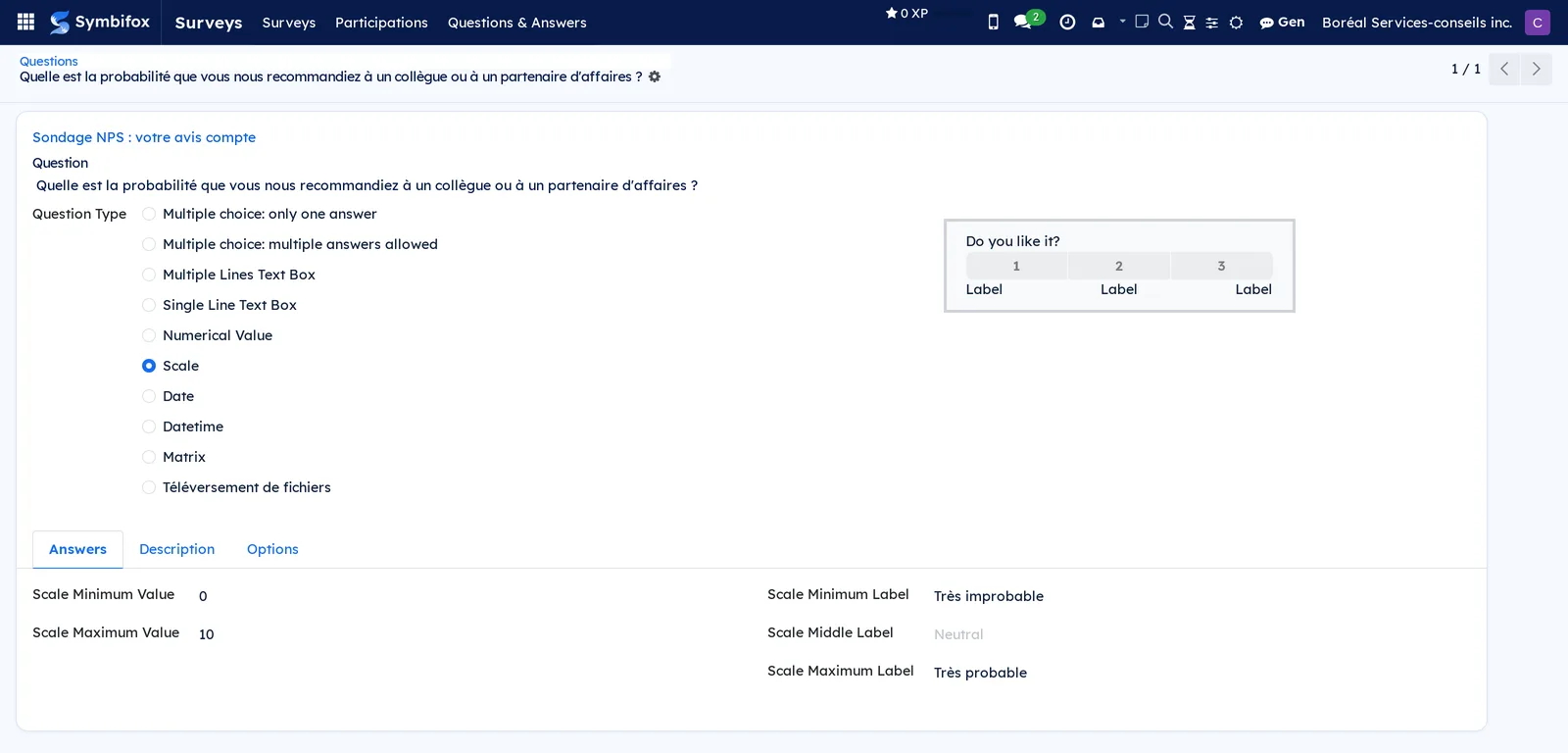
- Choose the Question Type.
- In the Answers tab, set what the type calls for: the choices offered, the bounds of a scale, the format expected.
- In the Options tab, mark the question mandatory if needed.
- Select Save.
To break up a long questionnaire, Add a section inserts an intermediate heading, which becomes a page if the layout provides for it.
Ask the respondent for a file#
A question can call for a document: a plan, proof of insurance, a résumé.
- Open the question, then choose the File upload type.
- Open the Upload tab.
- Set the Max size per file (MB).
- Enter the Allowed extensions, separated by commas and without the dot; leave empty to accept everything.
- Check Multiple files allowed if the question calls for several, then set the Max number of files, zero meaning unlimited.
- Select Save.
On the public page, the respondent chooses their files, sees them listed and can remove one before submitting their answers. Symbifox checks the size, the extension and the number at the moment of deposit, then again at the final submission.
Pour the files received into a project#
Rather than fetching the documents one by one from the participations, have them forwarded.
- Open the survey.
- Check Copy uploads to a project.
- Choose the Target project for uploads.
- Select Save.
As soon as a person finishes the questionnaire, the files they deposited are copied into this project. The original stays attached to the participation.
Share a survey#
- Open the survey, then select Share.
- For open distribution, copy the link proposed and send it.
- For named distribution, enter the recipients, adjust the message, then send.
Each named invitation produces a link of its own for the person, which lets you know who responded. The Registered counter follows the invitations, Participations the actual passes.
Run a live session#
For a meeting or a training session, the questionnaire moves at the facilitator's pace.
- Open the survey, then select Create Live Session.
- Project the code or the link shown; the participants join from their phones.
- Move through the questions one by one; the answers are shown live.
- Close the session at the end.
From the card view, Start Live Session resumes a session already open.
Read the results#
- Open the survey, then select See results.
- Go through the answers question by question: distributions for the closed questions, a list of the texts for the open questions.
- If needed, filter on a given answer to keep only the matching participations.
For the detail of one person, go to Surveys › Participations and open their record: the Uploads tab gathers the files they deposited.
Close a survey#
- Open the survey.
- Select Close.
The links stop collecting responses, and the results already received stay available.
The menus, one by one#
Surveys: the main menu of the application.
Surveys › Surveys: the questionnaires, as cards by default, with for each one the number of questions, the average duration, the registered, the completed and the Share, Test, See results and Start Live Session actions. Two surveys on the demo. The list and the activity calendar are reached through the view switchers.
Surveys › Participations: the passes through the questionnaires, as a list, as cards and as a form, with the state, the date and the person. No participation on the demo, the two surveys not having circulated yet.
Surveys › Questions & Answers: a grouping menu.
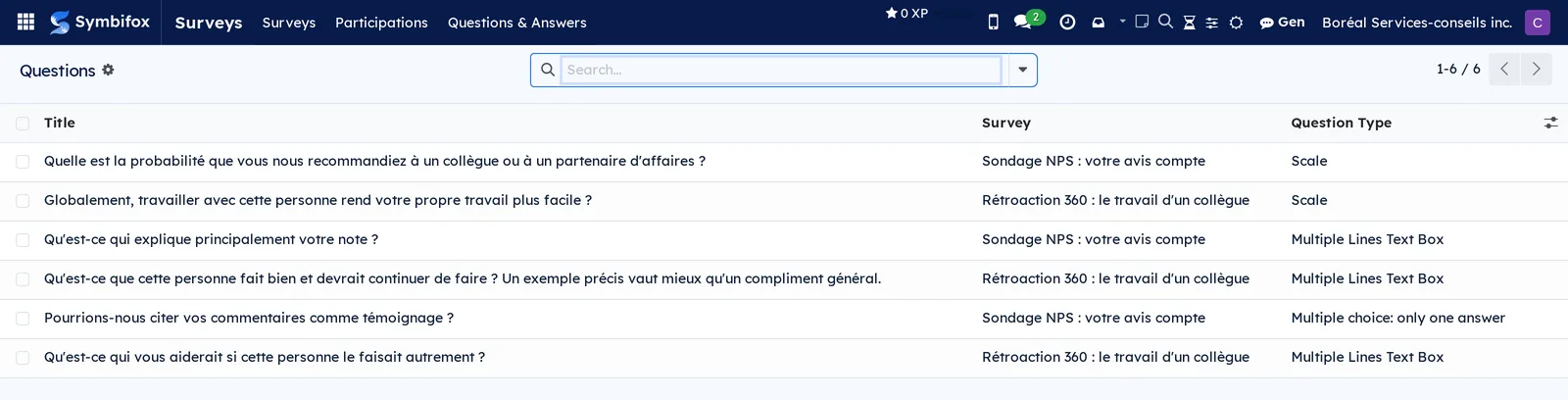
Surveys › Questions & Answers › Questions: all the questions of all the surveys (columns Title, Survey, Question Type). Six questions on the demo, of the scale, text box and multiple choice types. It is the handy screen for finding a wording from one questionnaire to another.
Surveys › Questions & Answers › Suggested Values: the choices offered by the closed questions, grouped by question. Two values on the demo, attached to the question about the testimonial.

Surveys › Questions & Answers › Detailed Answers: one line per answer given, all surveys combined. Empty on the demo. It is the raw material for a fine-grained analysis or an export.
Reference#
Fields of the Survey form#
| Field | Description | Required or default |
|---|---|---|
| Mode at the top of the form | Survey, Live session, Assessment or Custom; it sets several options at once. | Survey |
| Survey Title | Name of the questionnaire, seen by the respondent. | Required |
| Responsible | Person the survey belongs to. | You |
| Restricted to | Group of people allowed to respond. | Empty |
| Questions tab | The questions and the sections, reorderable by dragging. | Empty |
| Options tab | Layout, progress, time limit, access, attempts, scoring. | Depends on the mode |
| Description tab | Welcome text shown before the first question. | Optional |
| End Message tab | Text shown once the questionnaire is finished. | Optional |
| Copy uploads to a project, Target project for uploads | Copies the files received into a project at the end of the questionnaire. | Cleared |
Fields of the Question form#
| Field | Description | Required or default |
|---|---|---|
| Wording | The question as the respondent reads it. | Required |
| Question Type | Multiple choice with one or several answers, text box of one or several lines, numerical value, Scale, date, date and time, matrix, or File upload. | Required |
| Answers tab | The choices offered, or the bounds and labels of a scale. | Depends on the type |
| Description tab | Clarification shown under the wording. | Optional |
| Options tab | Mandatory answer, error message, display conditions. | Optional |
| Max size per file (MB) | Cap on each file deposited. | For the upload type |
| Allowed extensions | List separated by commas, without the dot; empty accepts everything. | Empty |
| Multiple files allowed, Max number of files | Allows several documents and caps their number; zero means unlimited. | Cleared; 0 |
Reports and exports#
- See results produces the analysis page, question by question, with the distributions and the texts received.
- The lists of participations, of questions and of detailed answers export through Actions › Export (see Common actions in every application).
- The files received download from the Uploads tab of a participation, or from the target project when the copy is active.
Automations#
The application acts little on its own. Two behaviours only: the participation of an invited person attaches to their invitation without intervention, and the files deposited are copied into the target project at the moment the questionnaire is finished, never before. A participation abandoned along the way triggers nothing. Each copy carries a description naming the questionnaire and the respondent. It is written in the language of the project's team (its manager's, else the company's), not in the respondent's.
Public pages and portal#
The questionnaire lives on a public page, reachable through the share link, without an account. The respondent sees the welcome text, the questions according to the layout chosen, the progress, then the end message. Upload questions add a file picker, the list of the documents deposited and a remove button, as long as the answers have not been submitted. A refused file (extension, size, number) is refused with a message in the page's language.
Modules that extend this application#
A single module from Symbifox, for one precise gap.
Understanding#
Why a question that asks for a file. An eligibility questionnaire, a quotation request, a claim form often call for a document. Without this question type, you have to write to the respondent afterward to ask for it, and nobody knows any more which document goes with which answer. Here, the file is attached to the answer, and it follows the participation.
The checks happen on both sides. The browser already limits what the respondent can choose, but nothing prevents anyone from going around a web page. The size, the extension, the mandatory answer and the number of files are therefore checked again by Symbifox at the deposit, then at the final submission of the questionnaire. A cap set at three stays three, even when the files are deposited in several goes.
The target project is designated by hand. It would have been convenient to guess the project from the respondent. That is precisely what must not be done: the document of one client poured into the folder of another is a leak. The survey therefore names its project, or copies nothing.
The foundation does the rest. Surveys is an Odoo application, taken as is. The modes, the scoring, the certifications, the live sessions and the invitations are its own; Symbifox does not touch them, which ensures that the habits formed elsewhere hold here.
A test is not a response. The Test action does create a participation, but marked as such: it lets you see exactly what a respondent sees without polluting the results. It is the right way to proofread a questionnaire before distribution.
Troubleshooting#
| Symptom | Likely cause | Fix |
|---|---|---|
| The File upload type does not appear in the list of types. | The corresponding module is not installed on this instance. | Have it installed by administration. |
| The respondent is refused at the moment of depositing a file. | Extension outside the list allowed, or file heavier than the cap. | Widen the Allowed extensions or the Max size per file (MB). |
| The respondent cannot add a second file. | Multiple files allowed is cleared, or the Max number of files is reached. | Check the option and raise the cap, or leave it at zero. |
| The files do not reach the project. | The questionnaire was not finished, or no target project is designated. | Check the Target project for uploads; an abandoned participation triggers nothing. |
| The results count fanciful answers. | Tests were run with Test. | Open Participations and delete the tests. |
| Nobody can open the link of the survey. | The survey was closed, or its access requires a signed-in session. | Reopen the survey with Reopen, or review the access mode in the Options tab. |
See also#
- Customer experience: satisfaction measurement with its own tooling, distinct from the questionnaires you build.
- Project: the folder where the files received land.
- Employees and Recruitment: internal feedback and selection questionnaires.
- Contacts, Email, Common actions in every application.