

Part 5 · People and team
Security awareness
Simulated phishing campaigns, per-person risk profiles, cybersecurity training, reporting of suspicious emails and removal of a malicious email from every mailbox.
Watch it
The Sensibilisation (security awareness) application trains your team to recognize phishing, then measures their progress. You send fake lure emails to your own colleagues and see who opens them, who follows the link and who reports them. Each person gets a risk profile and, when needed, a training course. Everyone has a way to report a suspicious email. When a real threat is confirmed, an authorized person removes the message from every mailbox in the organization. The application serves the person responsible for security, for campaigns and triage, and the whole team, for reporting and training.
Overview#
Seven concepts structure the application.
- The lure template (Modèle de leurre on screen): the fake email, with its subject, displayed sender, body, attachments and QR code. It also holds the page reached through the link, the educational page shown next and the course assigned on failure. You reuse a template from one campaign to the next.
- The campaign: a template sent to a group of people on a chosen date, spread over several days or not. Each recipient receives a unique link.
- The result: one line per person and per campaign. It records whether the email was sent and opened, whether the link was followed, whether the fake form was submitted and whether the person reported the lure.
- The risk profile: a per-person summary of all their campaigns, as a score from 0 to 100 and a level (low, moderate, high, critical). Recent failures weigh more than old ones, and a completed course lowers the score.
- The training assignment: the link between a person and a cybersecurity course from eLearning, with its due date and progress. It is the assignment of the Training register, which Sensibilisation installs along with it: the same record reads in both applications, and the course hours count there under the Sensibilisation à la cybersécurité (cybersecurity awareness) category.
- The report (Signalement on screen): a suspicious email reported by an employee. If it is one of your simulations, the person gets credit. Otherwise the report is triaged as a possible threat.
- The removal, shown as “clawback” on screen: once a threat is confirmed, the search for the message in every mailbox of the organization and its move to quarantine. You can restore it from there if needed.
Sensibilisation builds on applications you already know. Lures go out through the engine described in Email Marketing and Link Tracker. Courses come from the eLearning described in Website, blog and eLearning, and completed training joins each person's file in the Training register. A real report can open a ticket in Helpdesk (tickets). Each Contacts record shows its Niveau de risque (risk level), with two shortcut buttons at the top of the form: Tests d'hameçonnage (phishing tests) and Formations (training).
What sets the approach apart: the fake sign-in page never keeps what is typed into it. It records only that a submission happened and, if you turn it on, the length of the fields. Results are human resources data: only authorized people read them, and every landing page states that it is a simulation.
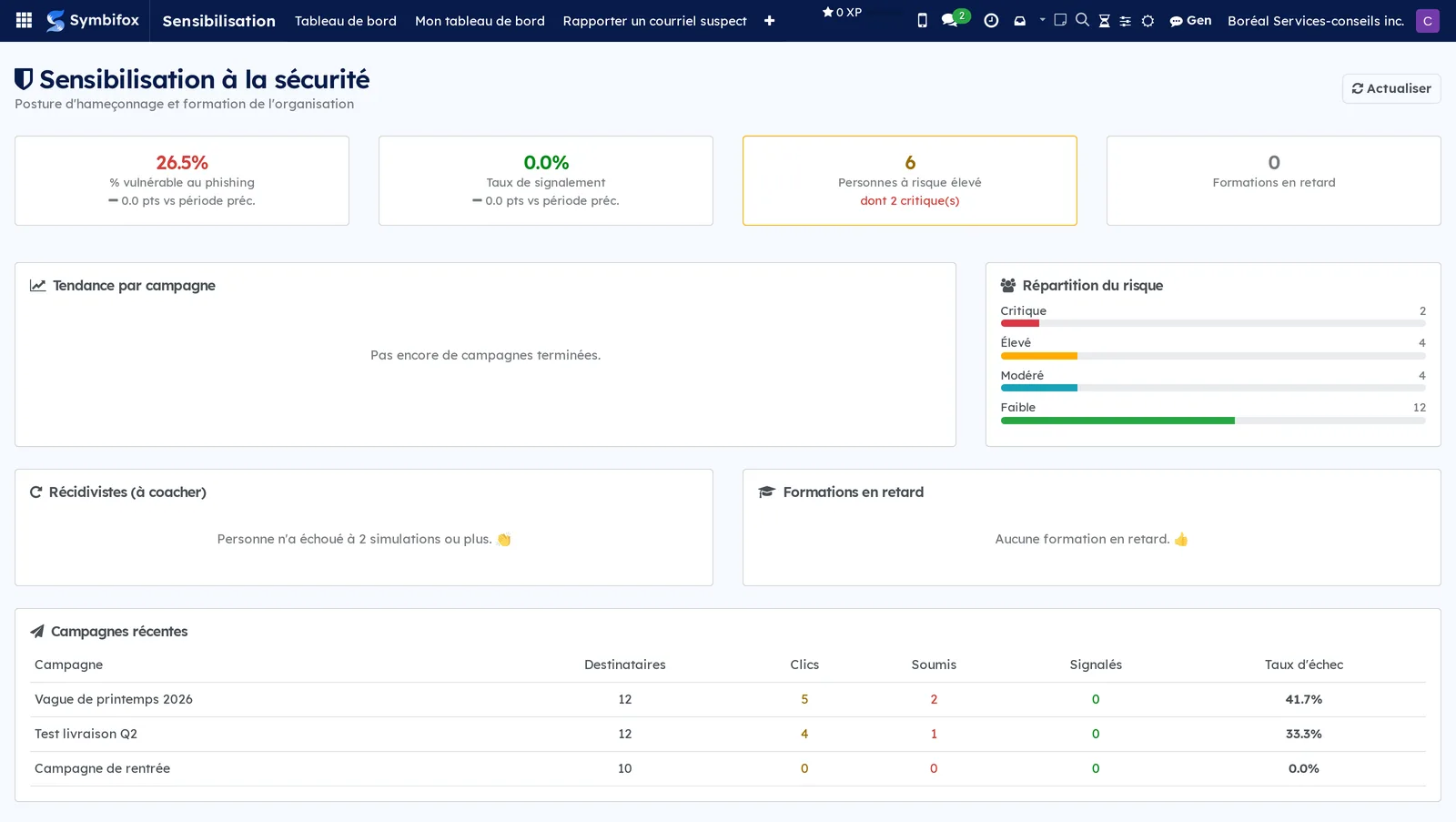
The organization dashboard opens the application for operators and managers. It shows the trend in the share of people who fall for the lure, the people caught more than once, overdue training and recent campaigns.
Configuration#
Access and permissions#
Three groups are available in the Sensibilisation à la sécurité section of a user's form (Settings › Users & Companies › Users). Each group includes the previous one.
| Group | What it opens |
|---|---|
| None (any internal user) | Mon tableau de bord (my dashboard) and Rapporter un courriel suspect (report a suspicious email). Nothing else: no campaigns, no scores of other people, no reports. |
| Opérateur (operator) | Tableau de bord (dashboard), Campagnes (campaigns: creation, preparation, launch and campaign results), Formation (training: assignments and courses), Signalements (reports). |
| Gestionnaire (manager) | Everything above, plus Résultats (results), Profils de risque (risk profiles), Retraits de courriel (email removals, read and preview) and Configuration (lure templates, connectors). Triages reports. |
| Purge courriel (clawback) (email purge) | The only group that runs and restores a removal. It is separate from manager on purpose: moving mail in every mailbox calls for a separate hat. |
On the demo, Camille Tremblay holds all three groups.
Settings#
The application has no section in Settings. Its settings are system parameters, set in developer mode by the person who administers Symbifox. They fall into three families.
- Score calculation: weight of a submission, a click, an open and a report; time window considered; reduction from a completed course; weight by lure difficulty; time allowed to finish a course; automatic creation of portal access for people without an account.
- Report triage: responsible person, helpdesk team that receives the ticket, instant alert on a phone, matching window against your simulations.
- Removal: mode (quarantine by default, or trash), quarantine folder name, search window by sender and subject, mandatory preview before running, message ceiling above which a manager must confirm.
Lures must reach the inbox, which means passing through the spam filter on purpose. Plan the following with the person who administers email. Use a dedicated Serveur d'envoi (sending server) on the campaign, and authorize that server in the sender domain's records. Add it to the allow list of the email gateway and of endpoint protection. Test on yourself before any send to a group.
Base data#
- A lure template: the demo provides three.
- A cybersecurity course in Formation › Cours (courses), if you want to assign training on failure. The demo has none.
- An email connector, if you plan to remove messages from mailboxes.
- Optional: mailing lists to target a whole department at once.
Getting started#
This walkthrough runs on the Boréal demo, signed in as Camille Tremblay: a campaign with a single target, yourself.
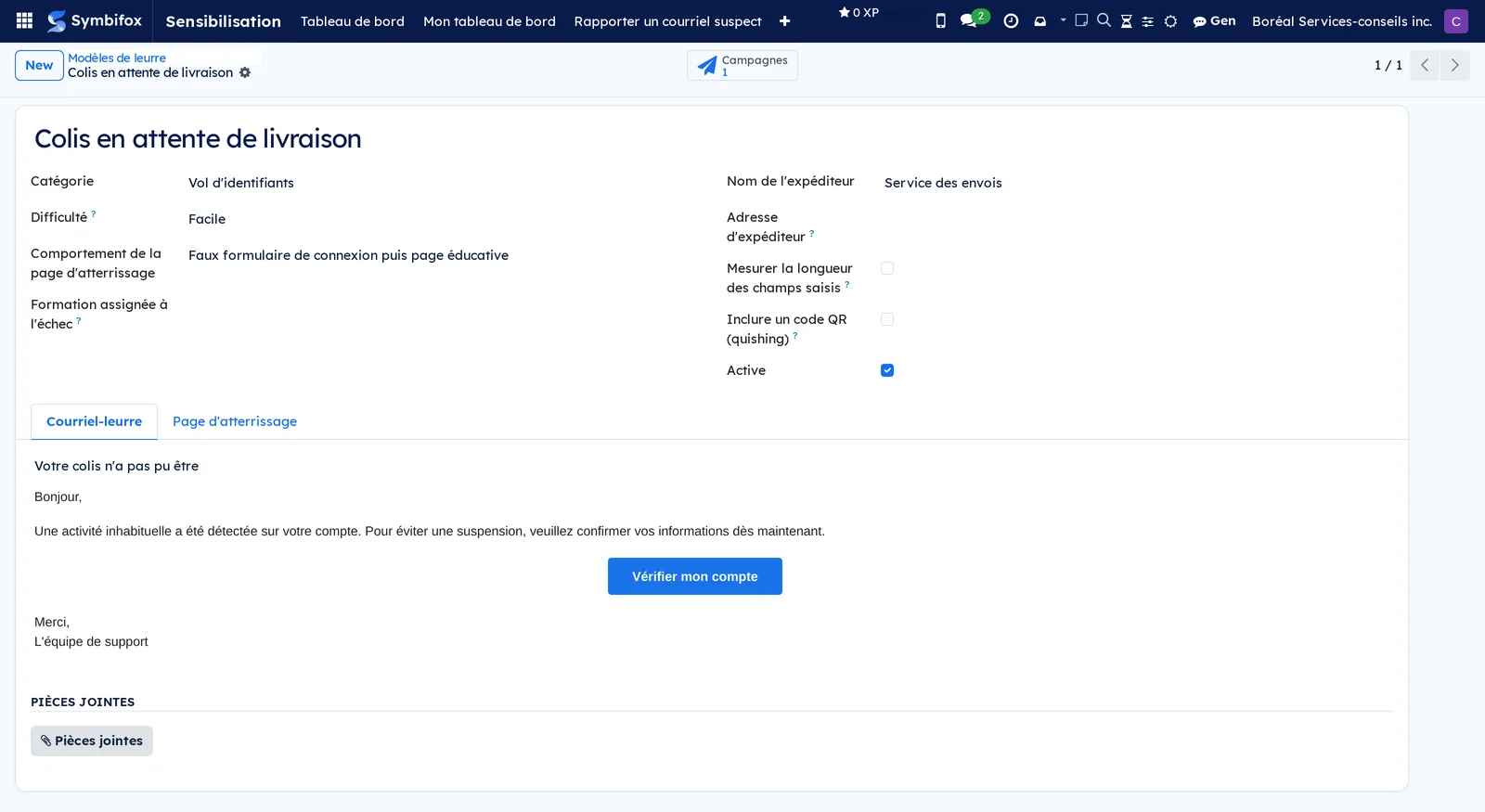
- Go to Sensibilisation › Configuration › Modèles de leurre (lure templates) and open one of the three templates. Read the Courriel-leurre (lure email) tab (subject, displayed sender, body), then the Page d'atterrissage (landing page) tab.
- Go to Campagnes and select New. Enter “Test on me” in Nom (name) and choose the Modèle de leurre.
- In Personnes ciblées (targeted people), select Camille Tremblay, then select Préparer (prepare). A result line is created for her, with her unique link.
- Select Lancer (launch). The lure goes to your mailbox.
- In your mailbox, open the email and follow its link. The fake page appears, then the educational page that states the simulation.
- Go back to the campaign: Envoyés (sent), Ouverts (opened) and Clics (clicks) have updated. The results shortcut button at the top of the form shows your line.
- Select Clôturer (close). You have just gone through the full cycle your team will go through.
Common tasks#
Create a lure template#
A template describes the trap and the lesson. Manager only.
- Go to Sensibilisation › Configuration › Modèles de leurre, then select New.
- Enter the Nom, and choose the Catégorie (category) and the Difficulté (difficulty). Failing an easy lure weighs more in the score than failing a hard one.
- In the Courriel-leurre tab, enter the displayed Sujet du courriel (email subject), Adresse d'expéditeur (sender address) and Nom de l'expéditeur (sender name), then the Corps du courriel (email body) with the trapped link. If needed, add Pièces jointes (attachments), or check Inclure un code QR (quishing) (include a QR code) to test scanning on a phone.
- In the Page d'atterrissage tab, choose the Comportement de la page d'atterrissage (landing page behaviour). For a fake form, also set the Titre de la fausse page (fake page title), the Habillage de la fausse page (fake page look) and the Libellé du bouton (button label).
- Optional: check Mesurer la longueur des champs saisis (measure the length of entered fields). Only the length is kept, never the value.
- Write the Page éducative (educational page). It must say that the email was an authorized simulation and explain the clues that should have raised suspicion.
- Choose the Formation assignée à l'échec (training assigned on failure), then select Save.
The template is ready. Its shortcut button Campagnes will count the campaigns that use it. On saving, the lure body is cleaned like an outgoing email: the tracked link, the styles and the formatting stay, scripts are removed.
Launch a simulated phishing campaign#
A campaign sends a lure to a group and tracks each person. Prerequisite: a lure template.
- Go to Sensibilisation › Campagnes, then select New.
- Enter the Nom and choose the Modèle de leurre.
- In the Destinataires (recipients) tab, select the Personnes ciblées or Listes de diffusion (mailing lists). The contacts of those lists join the targeted people.
- Check Assigner la formation à l'échec (assign training on failure) if you want automatic enrolment in the template's course.
- Select Préparer: one result line per recipient is created, each with its unique link.
- Select Lancer.
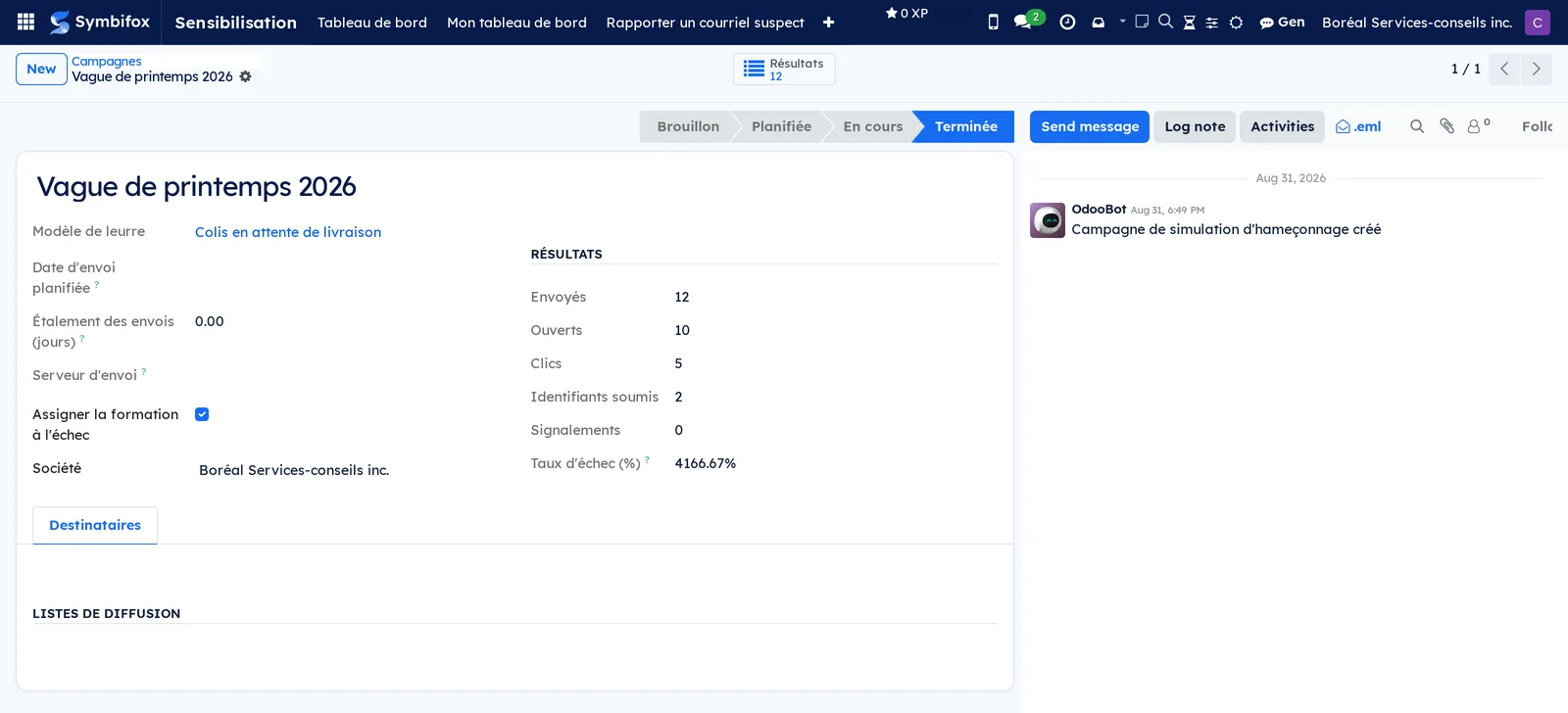
The lure goes out. The campaign moves to the in-progress state. The counters Destinataires, Envoyés, Ouverts, Clics, Identifiants soumis (credentials submitted), Signalements and Taux d'échec (%) (failure rate) fill in as events arrive.
Schedule and spread a campaign#
When everyone gets the lure at 9 a.m., the first person caught warns the others. Scheduling and spreading solve that.
- On the campaign, enter the Date d'envoi planifiée (scheduled send date).
- Enter the Étalement des envois (jours) (send spread, in days). Lures are spread at random over that window; 0 sends everything at once.
- Optional: choose a dedicated Serveur d'envoi rather than the default server.
- Select Préparer, then Save.
The campaign starts on its own on the set date: a scheduled task runs every thirty minutes. Each result carries its Envoi planifié (scheduled send) time, and lures are released when their time comes.
Track campaign results#
Results tell you who did what, and when. The overview is for managers; an operator sees the results of their own campaign.
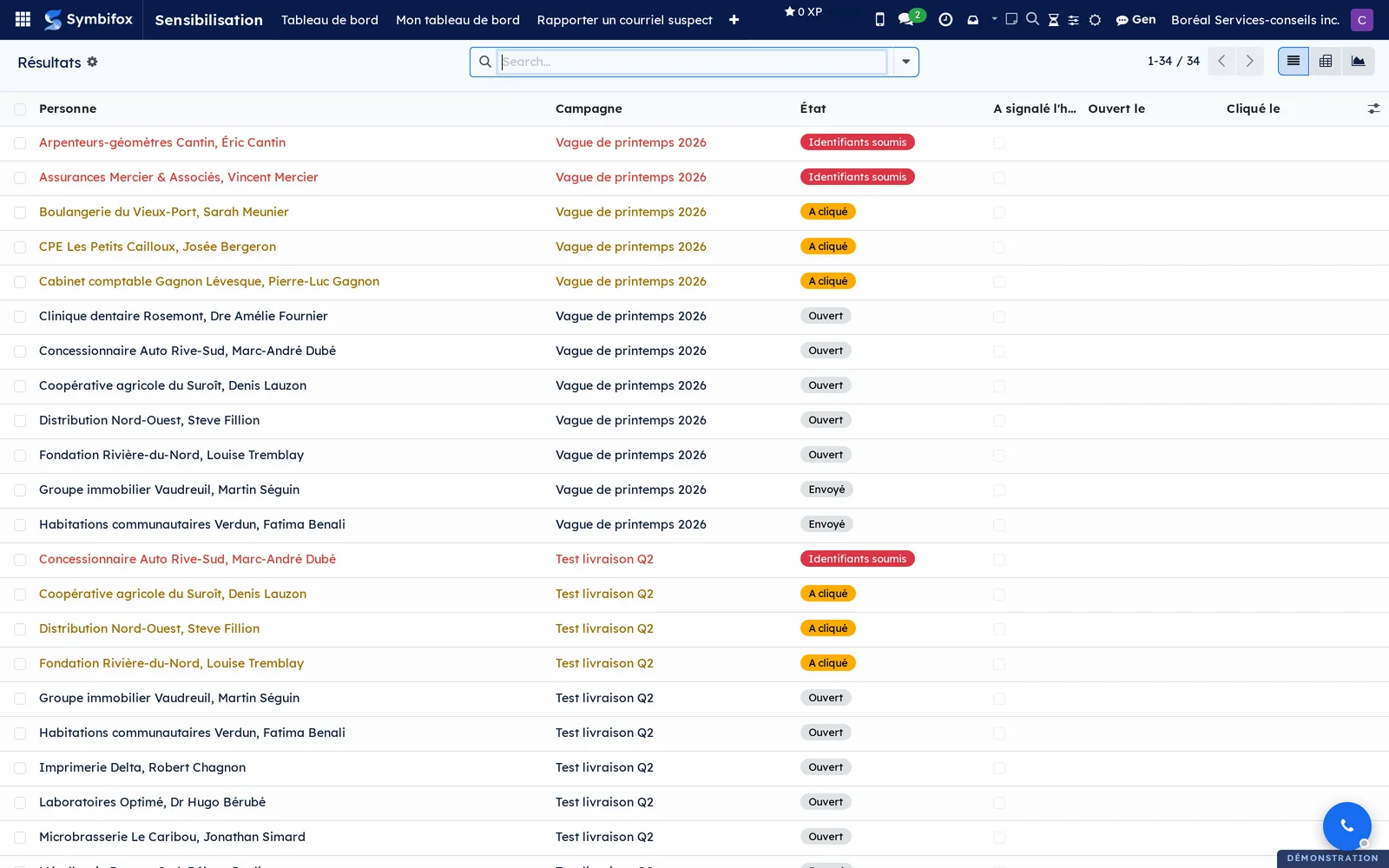
- Go to Sensibilisation › Résultats, or use the results shortcut button on the campaign.
- Read the list: person, campaign, state, dates of sending, opening, clicking, submitting and reporting, and bounce.
- Switch to the pivot or graph view to compare campaigns.
- Open a result for the detail: trapped link, assigned training, address and country of the click, device used.
- For a document to present, print the Rapport de campagne (campaign report) from the campaign's print menu.
Close, cancel or reset a campaign#
The top of a campaign form has three more buttons, depending on its state.
- Go to Sensibilisation › Campagnes and open the campaign.
- Select Clôturer when no more clicks are expected: the results are frozen.
- Select Annuler (cancel) to stop a campaign launched by mistake.
- Select Remettre en brouillon (reset to draft) to fix the target or the template before preparing again.
- Select Envoi de masse (mass mailing) to open the mailing as the email engine sees it, with its deliveries and bounces.
The campaign state changes at once; results already recorded remain.
View and recalculate a risk profile#
The risk profile sums up one person across all their campaigns. Manager only.
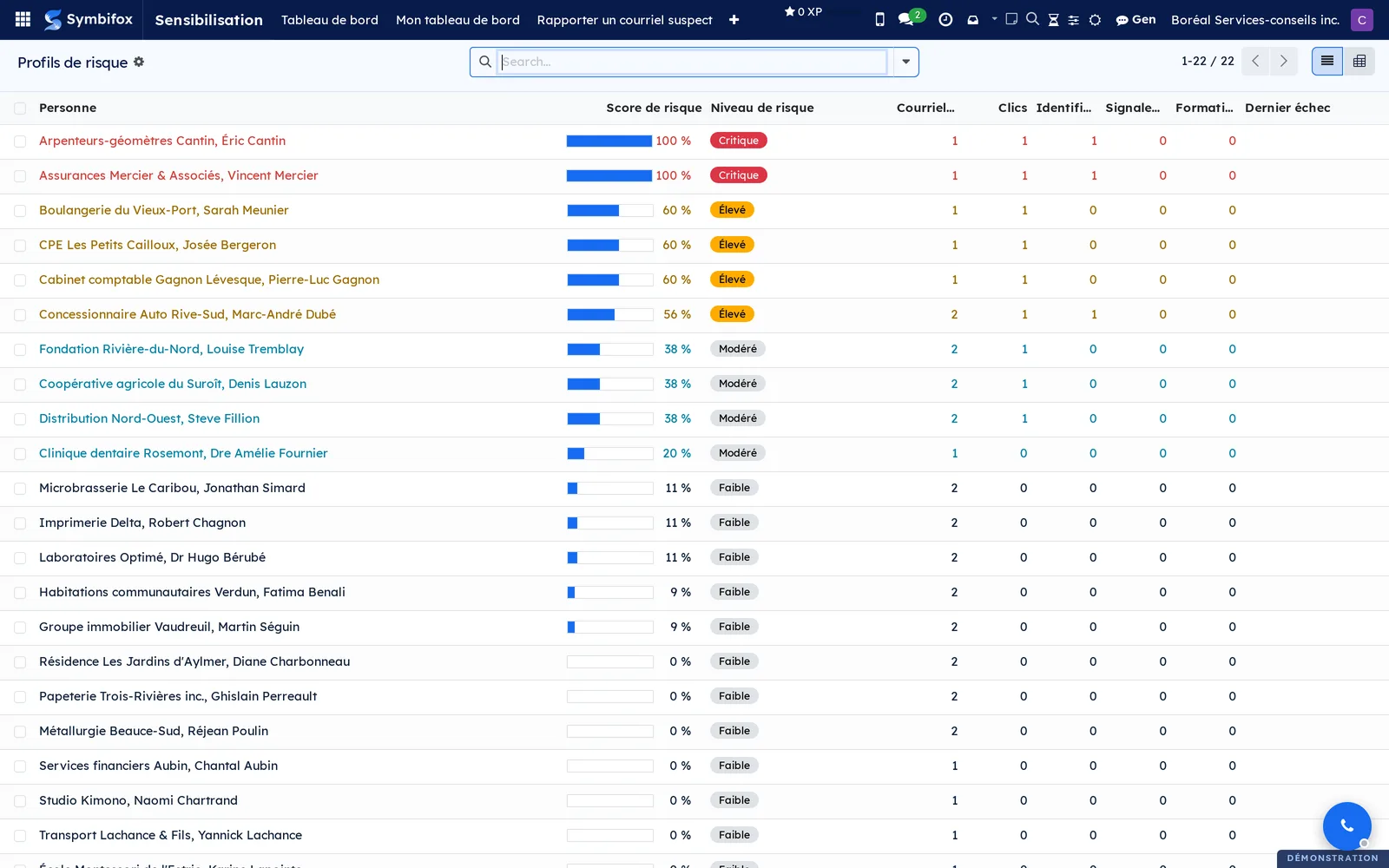
- Go to Sensibilisation › Profils de risque.
- Read the list: person, campaigns, emails received, opens, clicks, credentials submitted, reports, last test, last failure, training assigned and completed, score and risk level.
- Open a profile. Its shortcut buttons lead to the person's results and training.
- After a correction (a result removed, a course completed), select Recalculer le score (recalculate score).
The score is recalculated every night anyway. The pivot view compares risk levels by department.
Assign and track training#
An assignment is created automatically on failure, if the campaign calls for it. You can also create one by hand.
- Go to Sensibilisation › Formation › Assignations (assignments), then select New.
- Choose the Personne (person), the Cours (course) and an Échéance (due date).
- Select Inscrire (enrol): the person is enrolled in the course and receives the invitation by email.
- Track Statut au cours (course status), Avancement (%) (progress) and Complétée le (completed on), which mirror eLearning.
- Select Relancer (remind) to send the invitation again by email, or Ouvrir le cours (open course) to view it. The reminder also leaves you a to-do activity, for the follow-up.
The state follows eLearning: Assignée (assigned) on creation, Invitée (invited) when the person has no account yet, En cours (in progress) once enrolled, Faite (done) when the course is completed. Échec d'inscription (enrolment failed) flags an enrolment that eLearning refused; the reason is written in the chatter. An assignment whose due date has passed shows in red, and the En retard (overdue) filter finds it: being late is a date gone by, not a state.
A completed course lowers the risk score. Every day, the scheduled action picks up eLearning progress and, for each overdue course, creates a to-do activity for the person who assigned it. Nothing goes out on its own to the person who is late: reminding them is up to you.
The same assignment shows under Formation › Registre › Assignations (training > register > assignments), alongside training that has nothing to do with cybersecurity.
Prepare an awareness course#
Courses are eLearning courses, filtered for security awareness. The demo has none.
- Go to Sensibilisation › Formation › Cours.
- Select New and build the course like any eLearning course: sections, content, quizzes.
- Publish it, then link it to a lure template in Formation assignée à l'échec.
The course can then be chosen in assignments and in templates.
Report a suspicious email#
This is the action expected of everyone faced with a doubtful email. No special permission is needed.
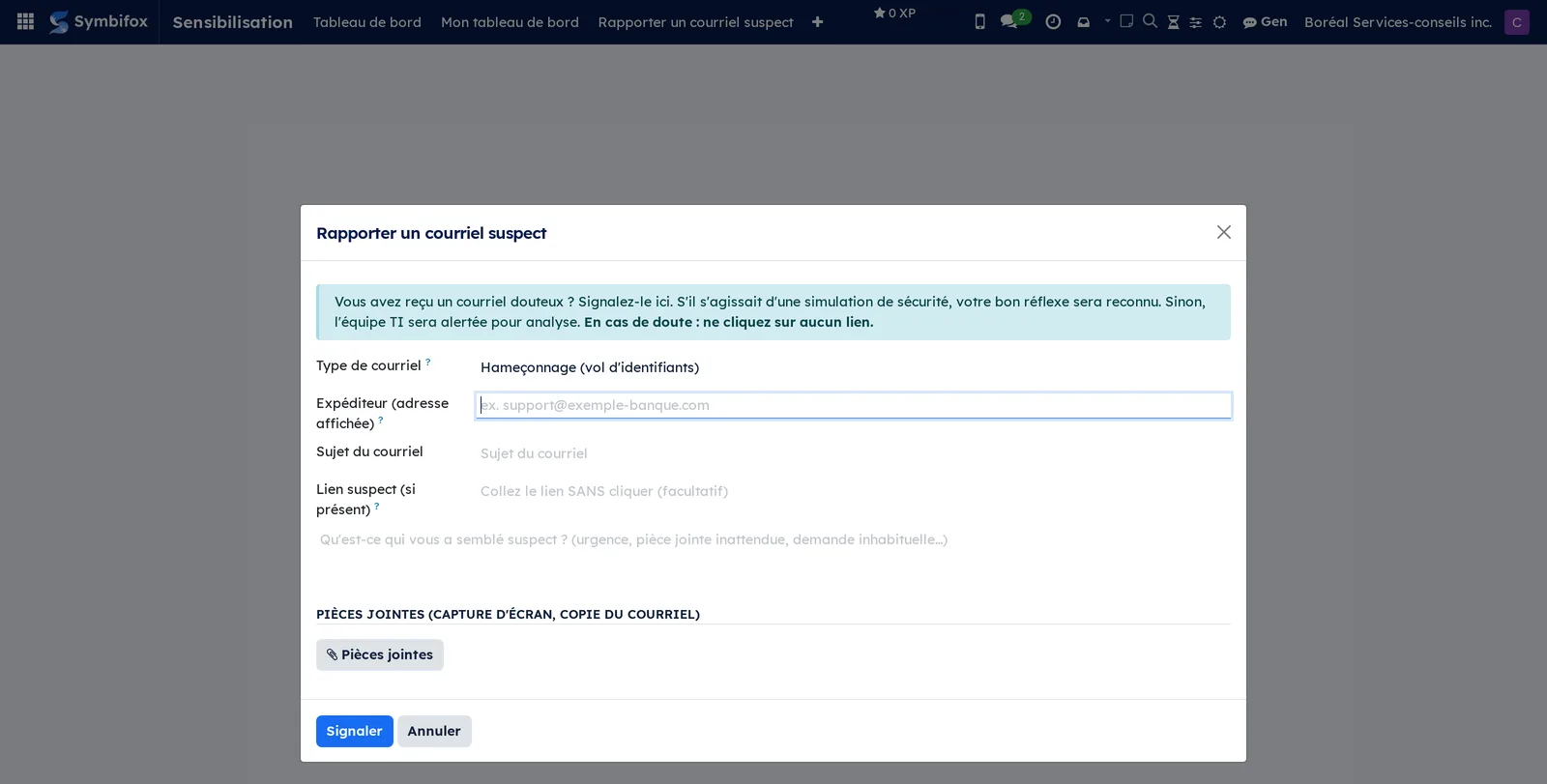
- Go to Sensibilisation › Rapporter un courriel suspect.
- Choose the Type de courriel (email type); if in doubt, “Autre / je ne suis pas certain” (other, not sure).
- Enter the Expéditeur (adresse affichée) (sender, displayed address) and the Sujet du courriel.
- Paste the Lien suspect (si présent) (suspicious link, if any) without following it.
- In Précisions (details), say what seemed odd: urgency, attachment, unusual request.
- In Pièces jointes, attach the original email as an .eml file; a screenshot also works.
- Select Signaler (report).
If the email was one of your simulations, you get credit and the result records it. Otherwise the person responsible receives an activity and, if needed, a ticket and an alert.
Triage a report#
Recognized simulations are filed automatically; real emails wait for a decision. Manager only.
- Go to Sensibilisation › Signalements.
- Open a report: who made it, when, the category, sender, subject, details, link, and the message identifier if an .eml was attached.
- Select Fausse alerte (false alarm) if the email is legitimate.
- Select Confirmer la menace (confirm threat) if the email is malicious.
- Optional: select Ticket Helpdesk to open a ticket in Helpdesk.
- To take the email out of mailboxes, select Retirer des boîtes (clawback) (remove from mailboxes). A prefilled removal operation opens.
The report's state changes; its removals are counted on the record.
Set up an email connector#
The connector gives the removal access to internal mailboxes. Manager only, together with the person who administers email.
- Go to Sensibilisation › Configuration › Connecteurs courriel (email connectors), then select New.
- Choose the Type: Microsoft 365 with an authorized application, or IMAP mailboxes with an app password per mailbox.
- Enter Hôte IMAP (IMAP host), Port IMAP (IMAP port), Dossier à balayer (folder to scan; the inbox by default) and Dossier de quarantaine (quarantine folder).
- For Microsoft 365, enter Tenant ID (Entra), Client ID (app Entra) and Secret client (client secret). The secret is encrypted and cannot be read back.
- Choose Boîtes ciblées (targeted mailboxes). For a manual list, enter Adresses (une par ligne) (addresses, one per line). For IMAP, declare each mailbox and its password in Boîtes déclarées (declared mailboxes).
- Select Tester la connexion (test connection).
The test connects to the first targeted mailbox and confirms that the removal will be able to get in.
Remove a malicious email from mailboxes#
Prerequisites: a report confirmed as a threat, a tested connector, and the Purge courriel (clawback) group to run the removal.
- From the report, select Retirer des boîtes (clawback), or go to Sensibilisation › Retraits de courriel and select New.
- Check the Stratégie (strategy): by exact Message-ID if the .eml was attached, otherwise by Expéditeur (sender) and Sujet (subject) starting from Reçu depuis (received since).
- Choose the Mode de retrait (removal mode): quarantine (a hidden folder in each mailbox) or trash. Both can be restored.
- Select Aperçu (sans retrait) (preview, no removal). Each scanned mailbox shows how many messages match.
- If the total exceeds the configured ceiling, a manager selects Confirmer le rayon élevé (confirm wide scope).
- Select Exécuter le retrait (run removal).
- To roll back, select Restaurer (annuler) (restore, undo). The messages return to the inbox.
Boîtes balayées (scanned mailboxes) lists each mailbox with its state, the messages Trouvés (found) and Retirés (removed), and any Erreur (error). An interrupted removal resumes on its own every five minutes.
View your own dashboard#
Each person sees their own resilience, and nothing of anyone else's.
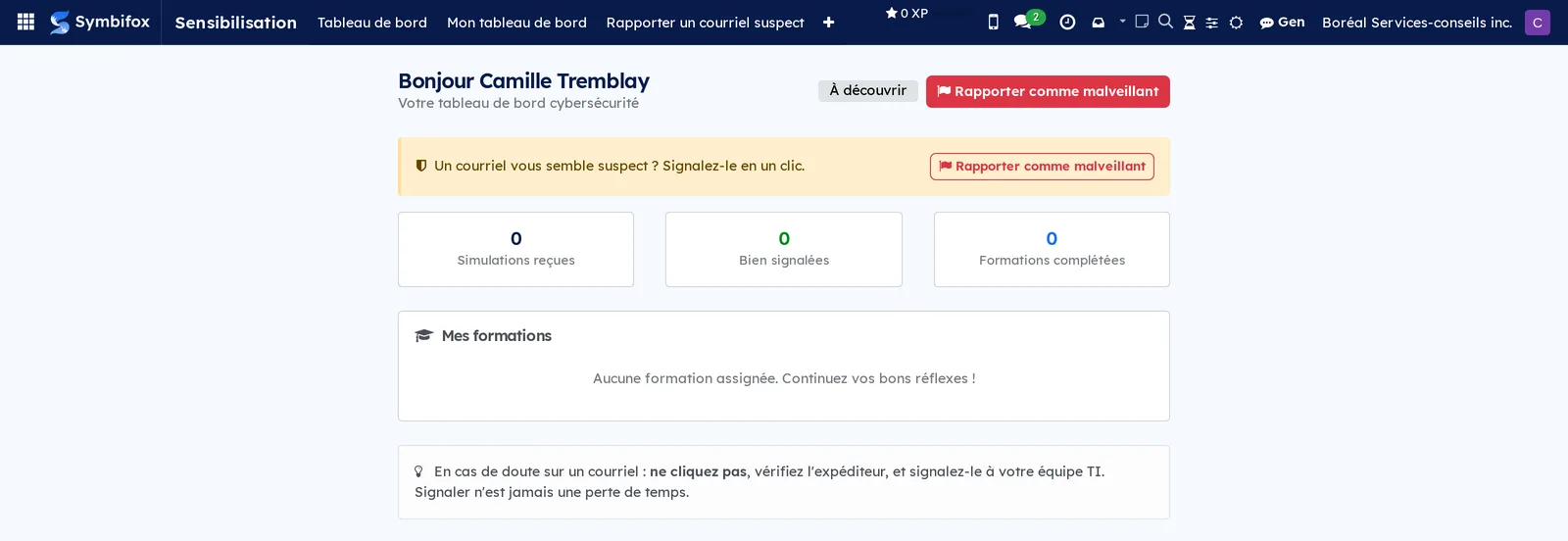
- Go to Sensibilisation › Mon tableau de bord.
- Read your tests received, your reactions and your assigned courses, with their progress.
- Open a course to continue it.
The screen is titled “Ma cybersécurité” (my cybersecurity) and needs no special permission.
The menus, one by one#
Sensibilisation › Tableau de bord: the organization view for operators and managers, described in the Overview.
Sensibilisation › Mon tableau de bord: the personal view, “Ma cybersécurité”, open to every internal user.
Sensibilisation › Rapporter un courriel suspect: the reporting dialog, open to every internal user.
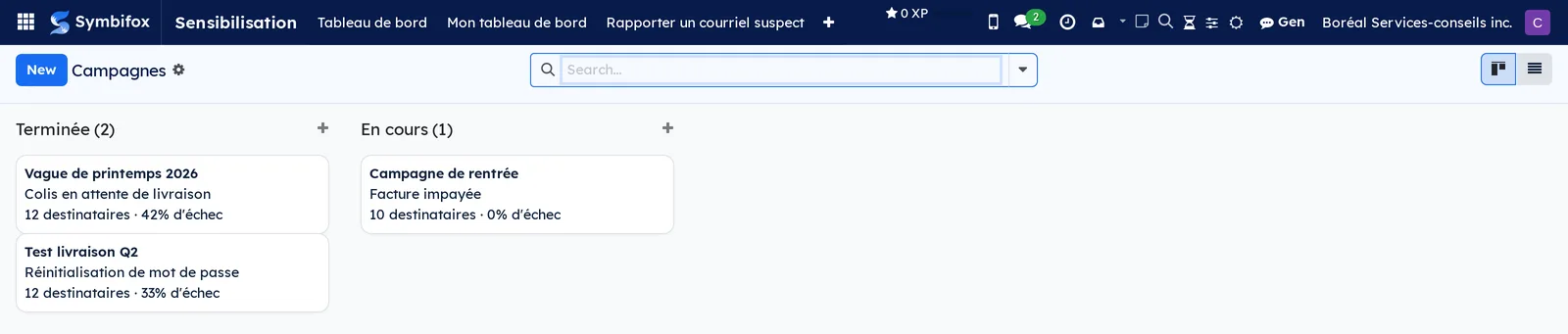
Sensibilisation › Campagnes: the demo's three campaigns, as cards by state, with list and form views. The empty screen invites you to launch your first campaign (“Lancez votre première campagne”).
Sensibilisation › Résultats: managers only. The demo's 34 results, as a list, pivot or graph, with filters by campaign, by state and by report.
Sensibilisation › Signalements: the emails reported by the team. Empty on the demo. The help text, in French on screen, says that emails reported by employees arrive here, that recognized simulations are filed automatically and that real emails must be triaged.
Sensibilisation › Retraits de courriel: managers only. The removal operations, with the detail by mailbox. Empty on the demo: “Aucun retrait” (no removals).
Sensibilisation › Profils de risque: managers only. The demo's 22 profiles, as a list or pivot, with score and level.
Sensibilisation › Formation: a grouping menu for the next two entries.
Sensibilisation › Formation › Assignations: assigned training, as a list, as cards by state or as a form. Empty on the demo.
Sensibilisation › Formation › Cours: the eLearning courses kept for security awareness. Empty on the demo.
Sensibilisation › Configuration: a grouping menu, managers only.
Sensibilisation › Configuration › Modèles de leurre: the demo's three templates, as a list and form. The empty screen invites you to create your first lure template (“Créez votre premier modèle de leurre”).
Sensibilisation › Configuration › Connecteurs courriel: the connectors to internal mailboxes. Empty on the demo.
Reference#
Fields of the Campaign form#
| Field | Description | Required or default |
|---|---|---|
| Nom | The campaign name. | Required |
| Société (company) | The company concerned. | Required, yours |
| État (state) | Draft, prepared, in progress, closed, cancelled. | Draft |
| Modèle de leurre | The fake email and its lesson. | Required |
| Personnes ciblées, Listes de diffusion | The recipients; contacts from the lists join the people. | At least one person before Préparer |
| Date d'envoi planifiée | If set, the scheduled task launches the campaign on that date. | Empty |
| Étalement des envois (jours) | Window for spreading the sends at random; 0 sends everything at once. | 0 |
| Serveur d'envoi | Outgoing mail server for the lures. | Empty, default server |
| Assigner la formation à l'échec | Enrols anyone who follows the link or submits in the template's course. | Cleared |
| Campagne UTM (UTM campaign), Envoi de masse | The email engine objects created at preparation. | Computed |
| Destinataires, Envoyés, Ouverts, Clics, Identifiants soumis, Signalements, Taux d'échec (%) | Campaign counters. The failure rate is the share of recipients who followed the link or submitted. | Computed |
Fields of the Lure template form#
| Field | Description | Required or default |
|---|---|---|
| Nom | The template name. | Required |
| Sujet du courriel | Lure subject, customizable per recipient. | Required |
| Adresse d'expéditeur, Nom de l'expéditeur | What the person sees as the sender. | Optional |
| Corps du courriel | The lure, with the trapped link. | Optional |
| Pièces jointes | Fake documents to open. | Optional |
| Inclure un code QR (quishing) | Adds a QR code that encodes the trapped link. | Cleared |
| Difficulté | Easy, medium, hard; weights the score. | Required |
| Catégorie | The type of lure. | Required |
| Comportement de la page d'atterrissage | What happens after the click: immediate lesson or fake form. | Required |
| Titre de la fausse page, Habillage de la fausse page, Libellé du bouton | The fake sign-in page. | Optional |
| Mesurer la longueur des champs saisis | Records the length, never the value. | Cleared |
| Page éducative | The learning moment shown after the click or the submission. | Optional |
| Formation assignée à l'échec | Course assigned to whoever follows the link or submits. | Optional |
Reports and exports#
The Rapport de campagne prints as a PDF from a campaign. Résultats and Profils de risque offer pivot and graph views. Every list exports to a spreadsheet through the common export action.
Automations#
- Every thirty minutes, campaigns whose scheduled date has arrived are launched, and bounces from running campaigns are matched.
- Each lure of a spread campaign leaves at its own time.
- Opens, clicks, submissions and reports from the lure are recorded instantly, by the public pages. A visit from a link-scanning tool counts neither as a click nor as a report.
- On a click or a submission, if the campaign calls for it, the training assignment is created. A person without an account receives portal access.
- Every night, risk scores are recalculated. Every day, course progress is carried over to the assignments, and each overdue assignment gives a to-do activity to the person who created it. The template “Sensibilisation : invitation à la formation” (training invitation) only goes out on enrolment and on a reminder.
- A report is matched against your simulations. Otherwise an activity, a ticket and an alert go out, depending on the settings.
- Every five minutes, an interrupted removal resumes where it stopped.
Public pages and portal#
Each recipient receives a unique link of the form /phish/…, which leads to the landing page. The same address followed by /submit receives the fake form, and /lesson shows the educational page. /open.png is the invisible image that records the open, and /report lets the person report the lure from the page. These pages always state that this is a simulation and that no credentials are stored.
Modules that extend this application#
No satellite module extends Sensibilisation on the demo. The application installs the Training register and its eLearning bridge along with it, which hold the assignments and count the course hours. It also relies on three standard applications: the mass mailing engine and link tracking for sending and measuring, eLearning for courses, and Helpdesk for tickets opened from a report.
Understanding#
Nothing typed is kept. The fake page records that a submission happened and, at most, the length of the fields. No column can hold a username or a password: this is a design guarantee, not a setting.
Why three groups. Knowing who clicked is a human resources matter; moving mail in every mailbox is a separate privilege. The Purge group is separate from manager, so the person who judges the threat is not necessarily the one who acts in the mailboxes.
How the score is calculated. A submission weighs more than a click, a click more than an open, and a report counts in the person's favour. A recent failure counts more than an old one, and missing an easy lure weighs more than missing a hard one. A completed course reduces the score. The weights are settings.
A scanning tool is not a person. Email gateways, antivirus software and link previews open every link in a message before its recipient does. Symbifox recognizes them by the browser they declare and records their visit neither as a click nor as a report: campaign results speak about people. It is a filter, not a proof: a tool that imitates a real browser still gets through. Opens, for their part, remain a partial signal.
Why the lure body is cleaned. A lure must imitate a real email, not run code. The body therefore gets the same cleaning as an outgoing Odoo email; older lures were cleaned once, in every language, when the module was updated.
Simulation or real threat. A report is compared with the results of your campaigns within a window of a few days. If it matches, the person gets credit and nothing else happens. Otherwise the report becomes a threat to triage.
A removal is reversible and bounded. The message goes to a quarantine folder, not the trash, and Restaurer (annuler) brings it back. A preview can be required before any run, and a message ceiling requires a manager's confirmation. Only Exécuter le retrait grants permission to act: the automatic resume refuses to act without it.
Exact identifier or heuristic. An .eml attached to the report provides the message's unique identifier, and the removal is exact. Without it, the search by sender and subject within a window of days is an approximation, hence the preview.
Why training requires an account. eLearning records progress only for a signed-in person. Portal access is therefore created for people without an account, if the setting allows it.
Troubleshooting#
| Symptom | Likely cause | Fix |
|---|---|---|
| Lures land in the junk folder, or do not arrive. | The sending server is not authorized for the sender domain, or the gateway blocks it. | Have the person who administers email authorize the server and the domain; test on yourself. |
| The campaign stays prepared although the date has passed. | The scheduled task runs every thirty minutes. | Wait for the next run, or select Lancer. |
| Opens are not counted. | The email client blocks remote images, so the open image does not load. | Rely on clicks and submissions; the open is a partial signal. |
| A click is attributed to no one. | The link in the body was not inserted with the expression given in the help text. | Fix the template's Corps du courriel, reset the campaign to draft and prepare it again. |
| Training stays “invited” with no progress. | The person has no account, or has not signed in. | Check that portal access was created; select Relancer. |
| Exécuter le retrait does not respond. | You lack the Purge courriel (clawback) group, the mandatory preview was not done, or the ceiling is exceeded without confirmation. | Run the preview; ask for the wide-scope confirmation; have a person in the Purge group run it. |
| Tester la connexion fails. | Wrong application identity or app password, or insufficient rights on the mailboxes. | Check the values with the person who administers email; enter the secret again. |
| A report of one of your simulations stayed “to triage”. | The report arrived outside the matching window. | Mark it Fausse alerte; correct the person's result by hand in Résultats. |
See also#
- Email Marketing and Link Tracker: the engine that sends and tracks the lures.
- Website, blog and eLearning: building the cybersecurity courses.
- Helpdesk (tickets): tickets opened from a report.
- Contacts: the risk level on each person's record.
- Training register: each person's training assignments and hours, cybersecurity included.
- Privacy (Law 25 and other frameworks): the framework to respect for internal security tests, including Law 25, Québec's Act respecting the protection of personal information in the private sector.