

Part 1 · Communicating and meeting
Meetings
Prepare the agenda, run the meeting, record decisions and attendance, then deliver a meeting report that the client finds in their portal.
Watch it

The Meetings application covers the whole life of a meeting: the agenda prepared and sent, the notes taken during the discussion, the decisions and attendance recorded, and the meeting report delivered to participants. It is for anyone who runs project or committee meetings: project managers, managers, assistants. What you get is a document in your colours, sent to the right people, with every decision tied to its project. A dashboard tells you at any time what remains to prepare and deliver.
Overview#
An agenda prepares an upcoming meeting: its objectives, its context, its topics with their duration and speaker, and the action items to discuss. A meeting report tells the story of the meeting held: the topics covered, the decisions with who made them, the attendance (present, absent, excused) and the transcript. Both are linked to the same calendar event and the same project. When you create a report from a meeting that already has an agenda, the two are linked and the project carries over, with nothing to retype.
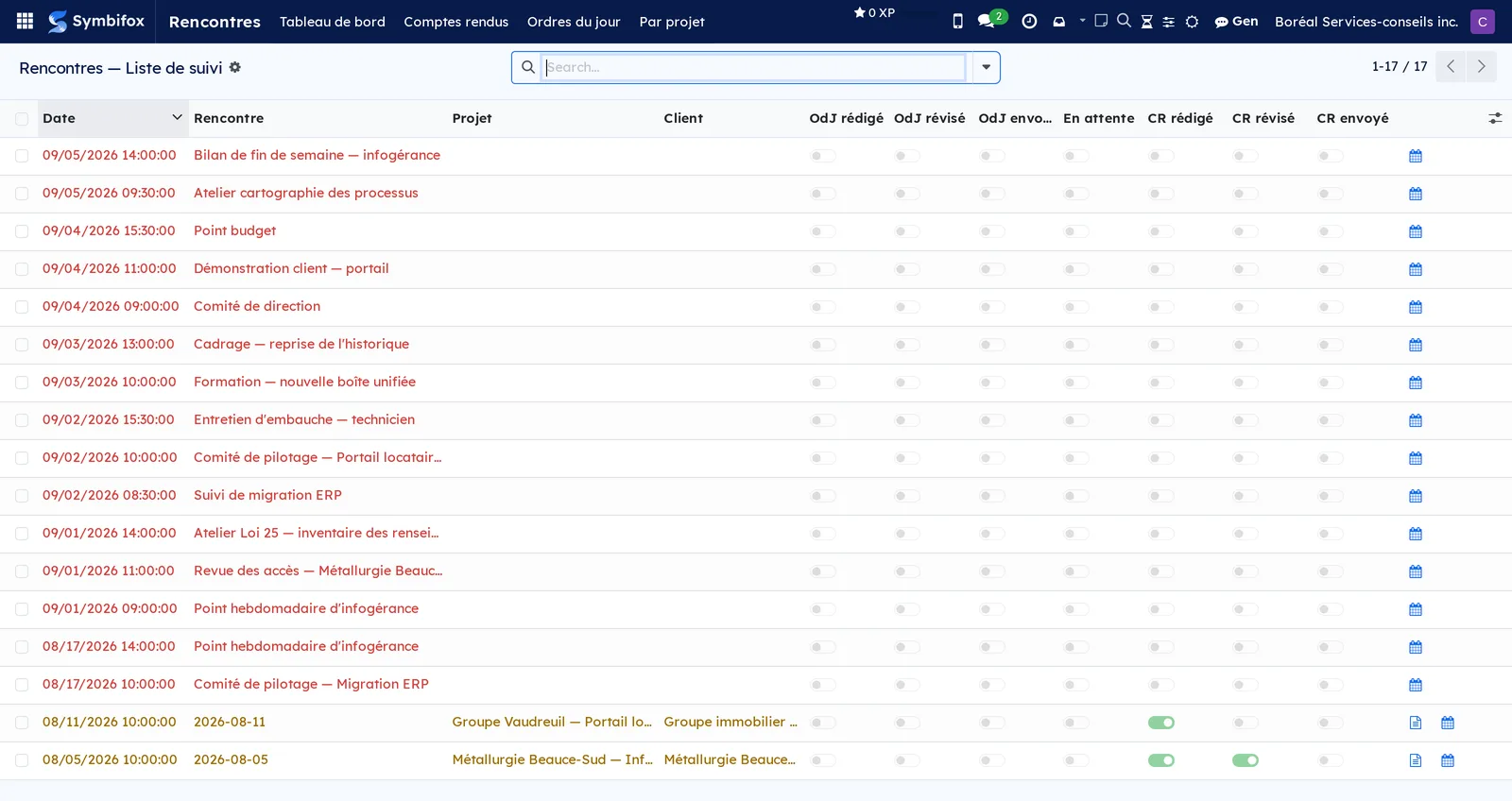
Tracking works by exception: every meeting is presumed to need an agenda and a report, and the tracking list shows, step by step, where each one stands.
Meetings works with several applications. Every agenda and every report belongs to a project in Project, and that project's open tasks can add themselves to the next meeting. The event comes from Calendar, which flags meetings that still have no agenda. Decisions flow into the knowledge matrices of Knowledge base. The assistant described in Gen, the assistant pre-fills an agenda and refines a meeting report. A meeting held on a self-service booking comes from Appointments. Finally, each meeting report carries the Work category of its project, which serves as a filter and a grouping: see Work categories.
What Symbifox adds here is not a module grafted onto an Odoo application: Meetings is a complete application that does not exist in Odoo Community. Four modules complete it: the meeting timer, the client portal, the link to archived calls, and the feedback request sent after delivery.
Configuration#
Access and permissions#
You grant access in Settings › Users & Companies › Users, on the Rencontres (meetings) line of each person's user form.
| Level | What it allows |
|---|---|
| User | View, create and edit agendas and meeting reports, send them, record attendance and decisions, read the dashboard. |
| Manager | Everything above, plus import a meeting report received from another organization and run the assistant's passes. |
| Portal | A client sees, in their portal, the meeting reports already sent to them. Nothing else. |
Settings#
These settings sit on the company, in Settings › Users & Companies › Companies.
| Setting | Effect |
|---|---|
| Logo Rencontres (meetings logo) | The logo placed on the dark banner of the application's documents and emails. Use a white monochrome version; without it, the regular logo is used. |
| Dire au destinataire ce qui a changé au renvoi (tell the recipient what changed on resend) | The default value of the checkbox of the same name on new agendas. Cleared by default. |
| Joindre la copie machine aux comptes rendus (attach the machine copy to meeting reports) | The default value of the checkbox that attaches to the email a copy another organization can import. Cleared by default. |
| Place du chronomètre de rencontre (meeting timer placement) | Au-dessus des onglets (above the tabs, the default): the timer stays in sight whatever tab is open, and follows you as you scroll. The Dans l'onglet Notes en direct option (in the live notes tab): it only shows with the notes. |
| Notes en direct (live notes) | Par sujet, en trois volets (per topic, in three panes, the default): topics on the left, the selected topic's notes in the middle, which feed the meeting report's points, and what the agenda says about the topic on the right. Un fil continu (a single running page): one notes area, which feeds the meeting report's summary. |
| Raffiner automatiquement les comptes rendus avec Gen (refine meeting reports with Gen automatically) | Offered when the assistant is installed, cleared by default. When ticked, the assistant reviews every draft delivered by meeting processing, then notifies the organizer, see Call on the assistant. |
| Taire l'avis d'assignation des tâches issues d'un compte rendu (silence the assignment notice for tasks from a meeting report) | Offered when the assistant is installed, cleared by default. When ticked, a task created with a meeting report does not send its assignee the assignment email; the assignee stays a follower. A later reassignment still notifies. |
Two more are set per person, on their user form: the Horizon des ordres du jour à préparer (horizon of agendas to prepare), in days ahead (90 at most), and the Horizon des comptes rendus en retard (horizon of overdue meeting reports), in days past (180 at most). They limit what the dashboard shows. Finally, Feedback after a meeting report, in General Settings, turns on the feedback request that follows a delivery.
The colour of agendas and meeting reports in calendar view is set elsewhere, by the administration, in Settings › Colors › Automatic rules. The Tous les comptes rendus menu, further down, gives the details.
Base data#
Before you prepare a first meeting, check:
- the projects, since an agenda requires one. The project's Settings tab carries a Comptes rendus (meeting reports) block: its Destinataires par défaut du compte rendu (default report recipients) are copied onto each of the project's meeting reports whose list is still empty;
- the calendar's event tags, which exempt a whole category of meetings at once (weekly team check-ins, work blocks) through the Sans ordre du jour formel (no formal agenda) and Exclure du tableau de bord (exclude from dashboard) checkboxes;
- the exclusions, if entire projects or entire contacts must never appear on the dashboard;
- the projects' knowledge matrices, if your decisions must flow into them.
Getting started#
This walkthrough prepares a follow-up meeting on one of Boréal's engagements, runs it, then delivers its report.
- Go to Calendar, open the meeting planned with the client and select Créer OdJ (create agenda). The agenda opens, linked to the event.
- Choose the Projet (project), check the Date and the Durée prévue (minutes) (planned duration), then enter the Objectifs (objectives).
- In the Sujets (topics) tab, add three lines: the topic, its Durée (min) (duration) and its Intervenant (speaker).
- Select Envoyer (send), check the recipients, then confirm. The agenda goes out with its document attached.
- On the day, open the agenda and select Démarrer la rencontre (start the meeting). The timer starts on the first topic, and each topic's notes open, pre-filled with its context.
- Take your notes in the middle of the Notes en direct (live notes) tab. When the discussion moves on, select Sujet suivant (next topic): the timer and the notes switch topic together. Add decisions as the discussion goes in the Décisions (decisions) tab.
- Select Créer le compte rendu (create the meeting report). The notes, decisions and linked tasks move to the report, which carries over the project and the event.
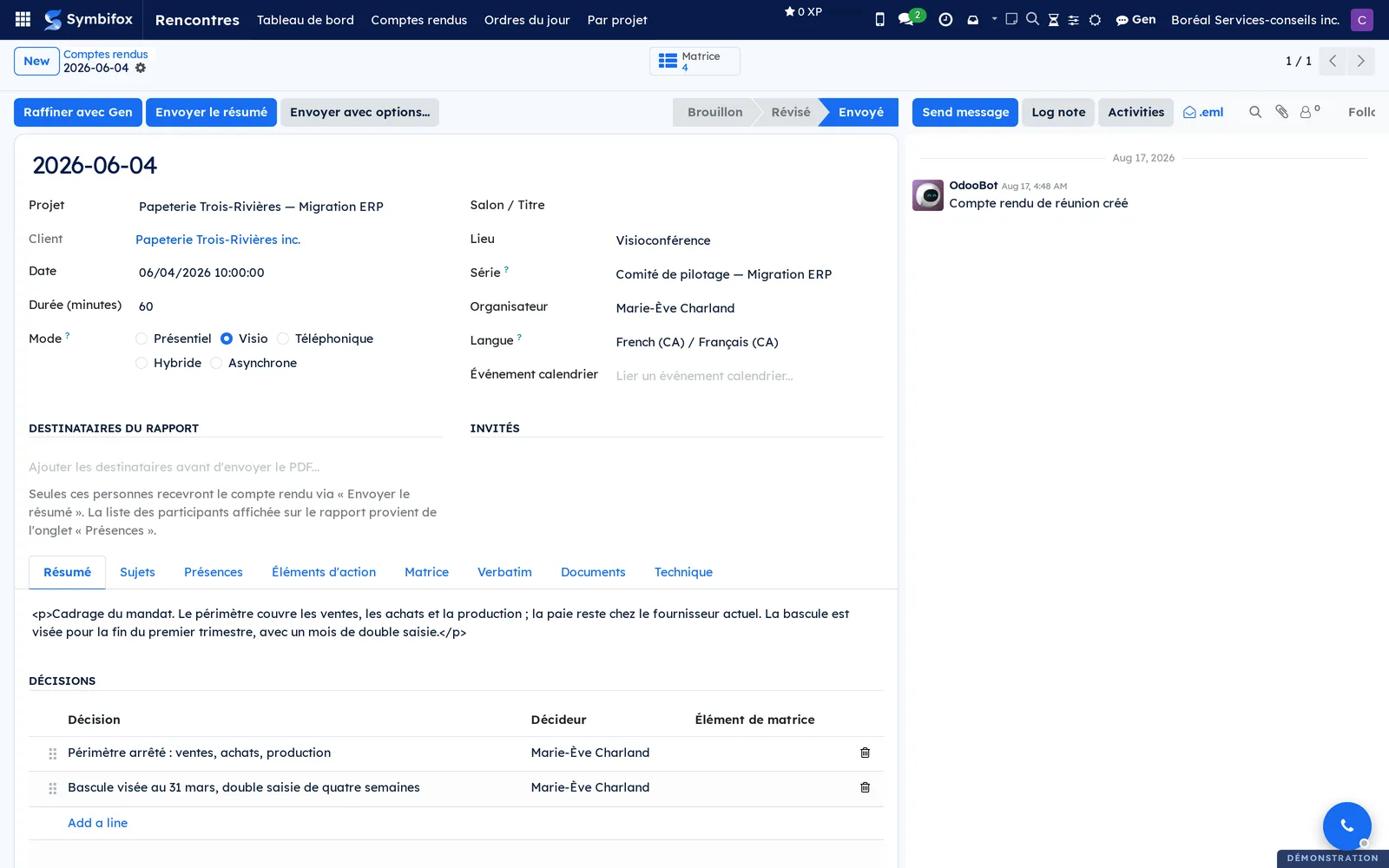
- Complete the Résumé exécutif (executive summary), select Importer présences (import attendance), add the Destinataires du rapport (report recipients), then select Marquer révisé (mark reviewed) and Envoyer le résumé (send the summary).
Result: the meeting report is sent with its document in your colours, the tracking list shows all seven steps completed, and the client finds the document in their portal.
Common tasks#
Prepare an agenda#
You prepare an agenda from the calendar meeting, which keeps the two linked, or from the application when no event exists yet.
- Go to Rencontres › Ordres du jour (agendas) > Tous les ordres du jour (all agendas) and select New.
- Enter the Titre (title), choose the Projet and the Date, and check the Client taken from the project.
- Choose the meeting's Mode and check the Langue (language), which controls the document and the email. It follows the client and the participants as long as you do not change it.
- Enter the Objectifs, the Contexte (context) and, if needed, the Préparation (preparation).
- In the Sujets tab, add one line per item, with its Durée (min), its Intervenant and its Notes / Contexte (notes and context).
- Optional: select Cloner depuis la série (clone from series) to reuse the last occurrence of a recurring meeting.
- Select Confirmer (confirm).
Result: the agenda moves to the confirmed state, its number of topics shows in the list, and you can print it with Imprimer PDF (print PDF).
Schedule the meeting from an agenda#
The agenda is often ready before the date is set. Once it is, the meeting is created from the agenda, with nothing to retype.
- Go to Calendrier and select a free slot in the grid.
- In the creation window, pick the agenda in Ordre du jour. Only agendas still to schedule appear there: draft or confirmed, with no meeting still standing.
- Check what was filled in: the title, the attendees, the end of the slot from the planned duration, the location or video link, and the description, made of the objectives and the accepted topics.
- Select Enregistrer & Fermer, or Plus d'options to complete the full form: the chosen agenda carries over.
Result: the meeting is created and linked to the agenda, which takes its date and duration. Attendees receive the invitation about half a minute after saving.
Postpone a meeting#
A meeting that does not happen on the planned date keeps its agenda for the next one.
- Open the agenda and select Reporter.
- Cancel or move the meeting itself in the calendar, if that is not done yet.
- Once the new date is known, schedule the meeting from the agenda, as described above.
Result: the agenda leaves its meeting and goes back to draft. It keeps its topics, its pinned tasks and its contribution link, and shows under the À planifier filter.
Add a task to discuss at the next meeting#
A project task can add itself to the agenda, so nobody has to remember it on the day.
- Go to Project › Tasks › All Tasks and open the task.
- To attach it to a specific meeting, choose the agenda in Rencontre à venir (upcoming meeting).
- For a flexible attachment, set Discuter à (discuss at) to the next eligible meeting, or to all of them while the task stays open.
- From a task list, select Actions › Discuter à la prochaine rencontre projet (discuss at the next project meeting) or Discuter à la prochaine rencontre client (discuss at the next client meeting) instead.
- On the task, select the Prochaine rencontre (next meeting) shortcut button to check where it will appear.
Result: the task appears in the agenda's Éléments d'action à discuter (action items to discuss) tab, in its document and in its email, and drops off by itself as soon as it is closed.
Send the agenda#
Sending does two things: it delivers the document, and it opens the window during which recipients can propose their items.
- Open the agenda and check the Destinataires (recipients). If empty, the participants receive the email.
- Optional: check Autoriser les contributions des destinataires (allow contributions from recipients) to include a proposal link in the email.
- In the Documents tab, check the Envoyé aux participants (sent to participants) box of each document. A document you add to the tab is ticked by default; untick anything that should stay internal.
- Select Envoyer to send directly, or Envoyer avec options… (send with options) to go through the email composer and add a message.
- Check the sending banner on the form: it shows whether the email actually left.
- If the agenda went out some other way, through an email program or by hand, select Marquer envoyé à la main (mark as sent manually).
Result: the sending state changes to sent, the departure date is recorded, and the content delivered is frozen as a reference point for comparison. The email and its document list the ticked documents, each with its link.
Collect and moderate proposed topics#
Between sending and confirmation, recipients can propose topics and notes from a token page, without an account.
- Open the sent agenda and read the counter of proposed topics awaiting review.
- Go to the Sujets tab: proposals show their origin and their author's name.
- Open a proposal and read its content.
- Select Accepter (accept) to add it to the official agenda, or Rejeter (reject) to keep it viewable but out of the document.
- Select Confirmer when preparation is over: the contribution window closes.
Result: only accepted topics appear in the document and the email; pending proposals never do.
Run the meeting#
On the day of the meeting, the agenda becomes your notebook, and the timer keeps time for you.
- Open the agenda and select Démarrer la rencontre. An agenda still in draft is confirmed along the way, and the timer starts on the first topic.
- Open the Notes en direct tab. Topics are on the left, in agenda order; the timer's topic carries a small clock. The selected topic's notes are in the middle. On the right, the À l'ordre du jour (on the agenda) pane shows, read-only, the topic's Notes / Contexte as the agenda prepared them.
- Write your notes in the middle, with the topic's detail in view. When the discussion goes back to an earlier topic, or spills over into another, select it on the left: its notes open and the timer is left alone.
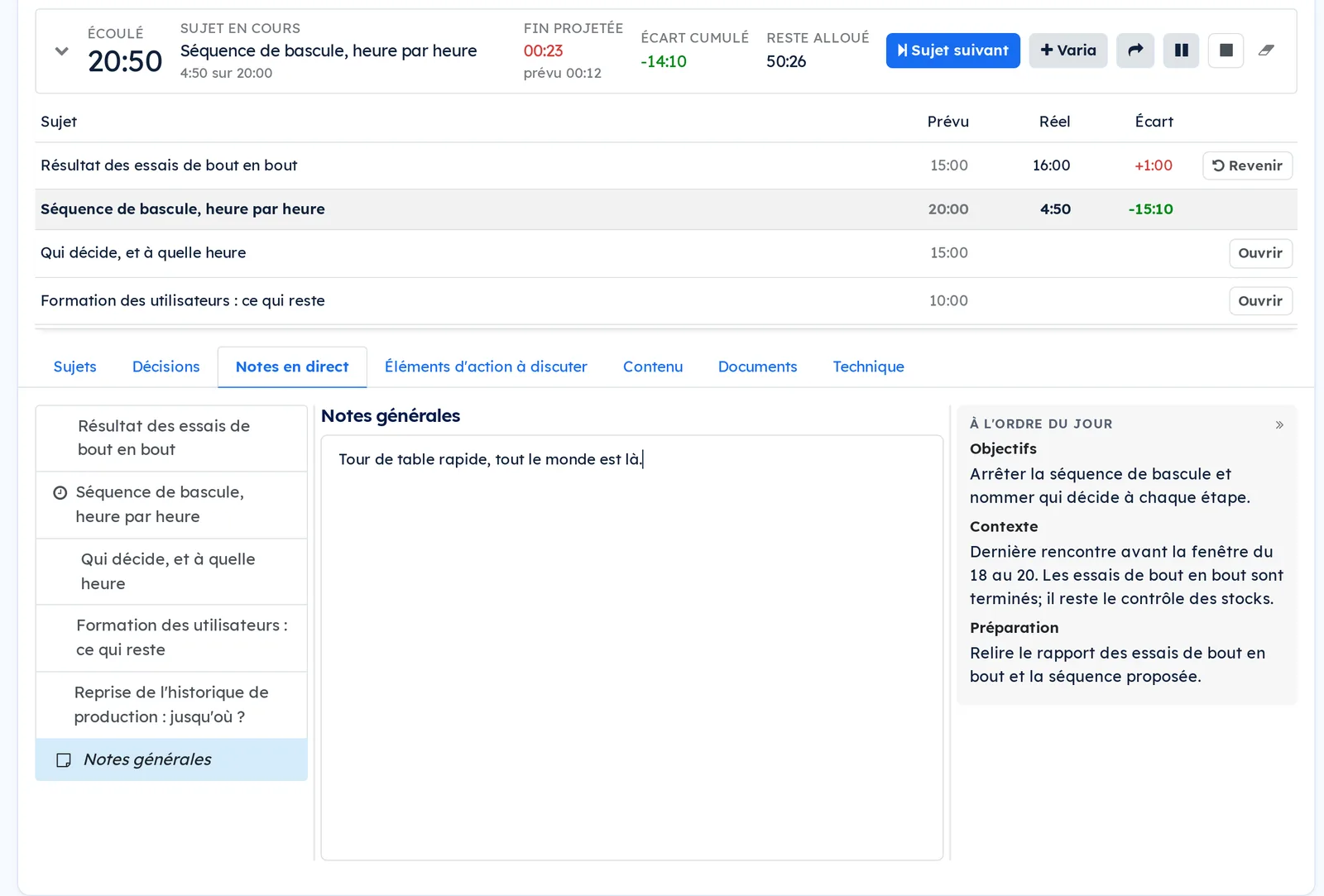
- Record anything that belongs to no topic, a round-table or an announcement, under Notes générales (general notes), at the bottom of the list. The right-hand pane then shows the agenda's objectives, context and preparation.
- In the Décisions tab, add one line per decision, with its Décideur (decision maker) and its Contexte.
- Optional: select Ajouter une action (add an action) to create a task attached to this meeting on the spot.
- At the end, select the timer's square button, Terminer la rencontre (end the meeting). The timer stops and the agenda moves to Terminé (done).
Result: none of this appears in the agenda's document. When you create the meeting report, each topic's notes become that topic's key points, the general notes become its summary, and the decisions carry over as they are.
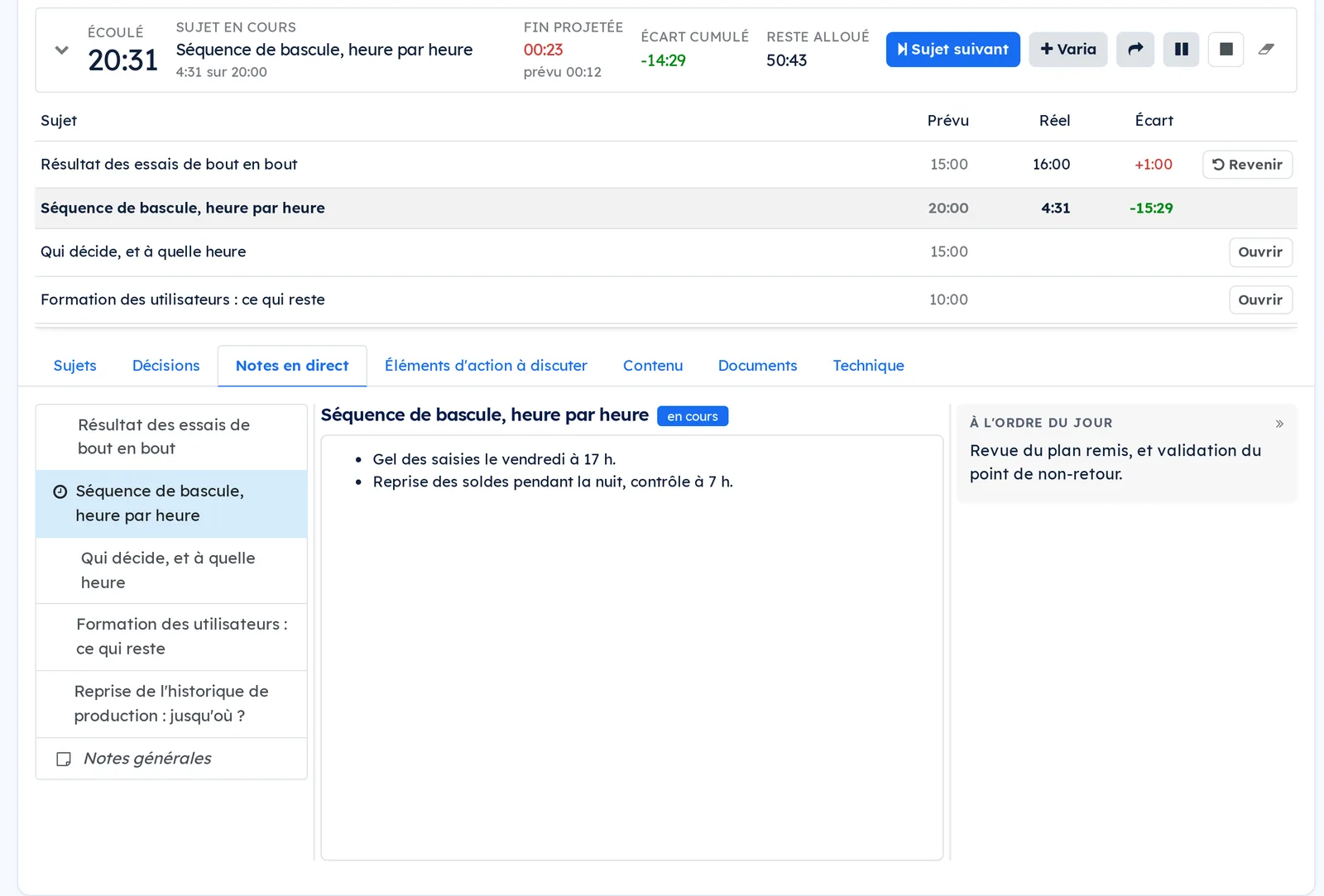
The two side panes resize. Drag the handle between a pane and the notes, or tab to it and adjust it with the arrow keys; a double-click restores the default width. The double arrow at the top of the À l'ordre du jour pane folds it away, and Afficher le détail (show the detail) brings it back. Your browser remembers these settings. When the screen is too narrow for three panes, for example with the chatter open on a laptop, or on a phone, the detail moves above the notes, cut to a few lines, and Voir tout (see all) expands it.
Keep time with the meeting timer#
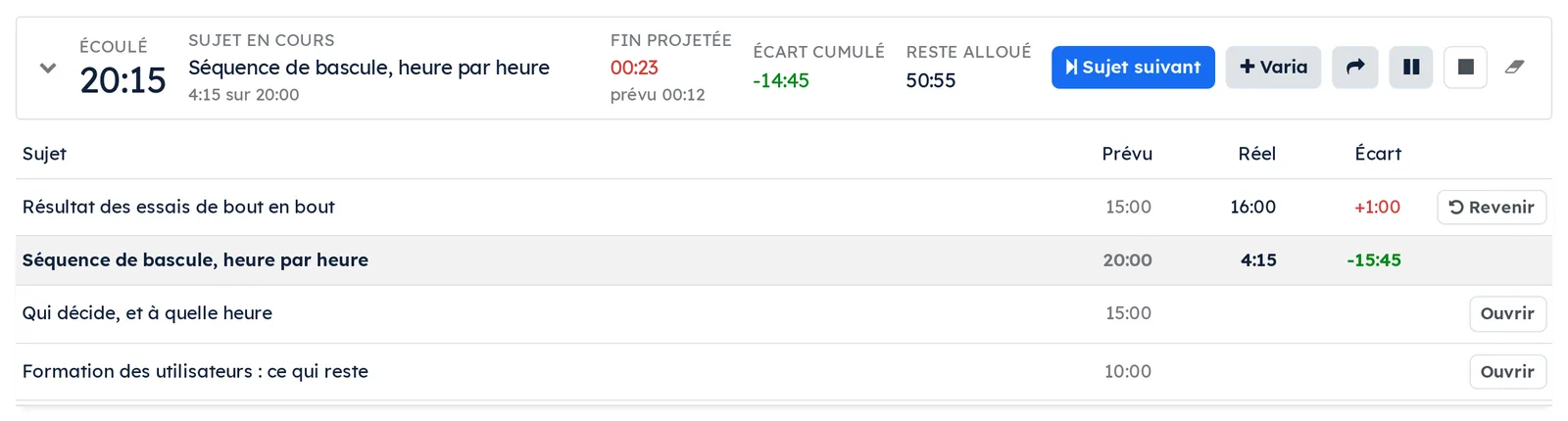
The timer splits the meeting into topics and compares each one with the time the agenda set aside for it. It reads at a glance, while you type.
- During the meeting, watch the Fin projetée (projected end), in red when it runs past the planned end shown under it: it is the time the meeting will end if the remaining topics take their planned time.
- When the discussion moves on, select Sujet suivant, or press Alt+Shift+S without leaving your notes.
- To go back to a topic already covered, select its line in the list, or its Revenir (go back) button. The time adds to what it already had, and the list counts the visits. A topic not yet reached opens the same way, with Ouvrir (open).
- For something nobody planned, select Varia, the button with a plus sign. The Varia topic is created at the end of the agenda the first time, and your notes open in it.
- To set aside a topic you will not cover, select the curved-arrow button, Passer (skip): the topic is marked skipped, and the time already spent stays with it.
- For a break, select the two-bar button, or press Alt+Shift+P; the same move resumes.
- When the timer takes up too much room, select the arrow on its left: it shrinks to a single row, and stays that way until you open it again.
Result: the meeting report prints a Time per agenda topic table, in the report's language, planned against actual, topics never reached included, and the agenda's chatter gets the same summary.
Create the meeting report and record the meeting#
The meeting report takes over everything the preparation and the discussion produced.
- Open the agenda and select Créer le compte rendu. From the calendar, Créer compte rendu (create meeting report) does the same thing.
- Complete the Résumé exécutif, which opens the document.
- In the Sujets tab, check the items covered and their Points clés (key points).
- In the Présences (attendance) tab, select Importer présences to bring in the event's guests, then set each Statut (status) and each Rôle (role).
- In the Éléments d'action (action items) tab, check the tasks that came out of the meeting and who owns them.
- Under the same list, check Tâches existantes discutées (existing tasks discussed): tasks that were already open before the meeting and that it talked about. They keep their own meeting report and appear in the document, the email and the portal beside the action items.
- In the Matrice (matrix) tab, link decisions to the items of the project's knowledge matrix.
- Select Marquer révisé.
Result: the meeting report moves to the reviewed state and waits for its recipients. Its decisions, attendance and action items can now be read in one place.
Send the meeting report#
Sending is what makes the meeting report exist for the client: it alone opens access in the portal.
- Open the meeting report and fill in the Destinataires du rapport, if they do not already come from the project. Without them, nothing is sent.
- Check the Langue: the document, its file name and the email go out in that language.
- Optional: check Joindre la copie lisible par la machine (attach the machine-readable copy) if the other party also runs their meetings in Symbifox.
- In the Documents tab, check the Envoyé aux participants box of each document to send with the report.
- Select Envoyer le résumé to send directly to the listed recipients, or Envoyer avec options… to go through the email composer.
- If the report was delivered outside Symbifox, select Marquer envoyé à la main, and Retirer l'envoi manuel (remove manual sending) if you did so by mistake.
Result: the email goes out with the document attached, the state changes to sent, the departure date is recorded, and the recipients find the meeting report in their client portal. The ticked documents are listed in it, each with its link.
Call on the assistant#
The assistant prepares an agenda and reviews a meeting report. Both passes are for managers only.
- On a draft agenda, select Pré-remplir avec Gen (pre-fill with Gen). The objectives, the context and a first list of topics fill in from the project and its history.
- Follow the progress on the form; if it fails, select Relancer le pré-remplissage (restart the pre-fill).
- On a meeting report, select Raffiner avec Gen (refine with Gen).
- In Points à regarder (points to check), enter what the pass should also check: known corrections, useful context.
- Select Lancer le raffinage (start refining).
Result: the pass is always complete; your instructions add to it without narrowing it. Read the result before you mark the meeting report reviewed: you are the one who signs it.
Import a meeting report received from another organization#
When the other party also runs their meetings in Symbifox, their email carries an importable copy: you bring it into your database without retyping anything.
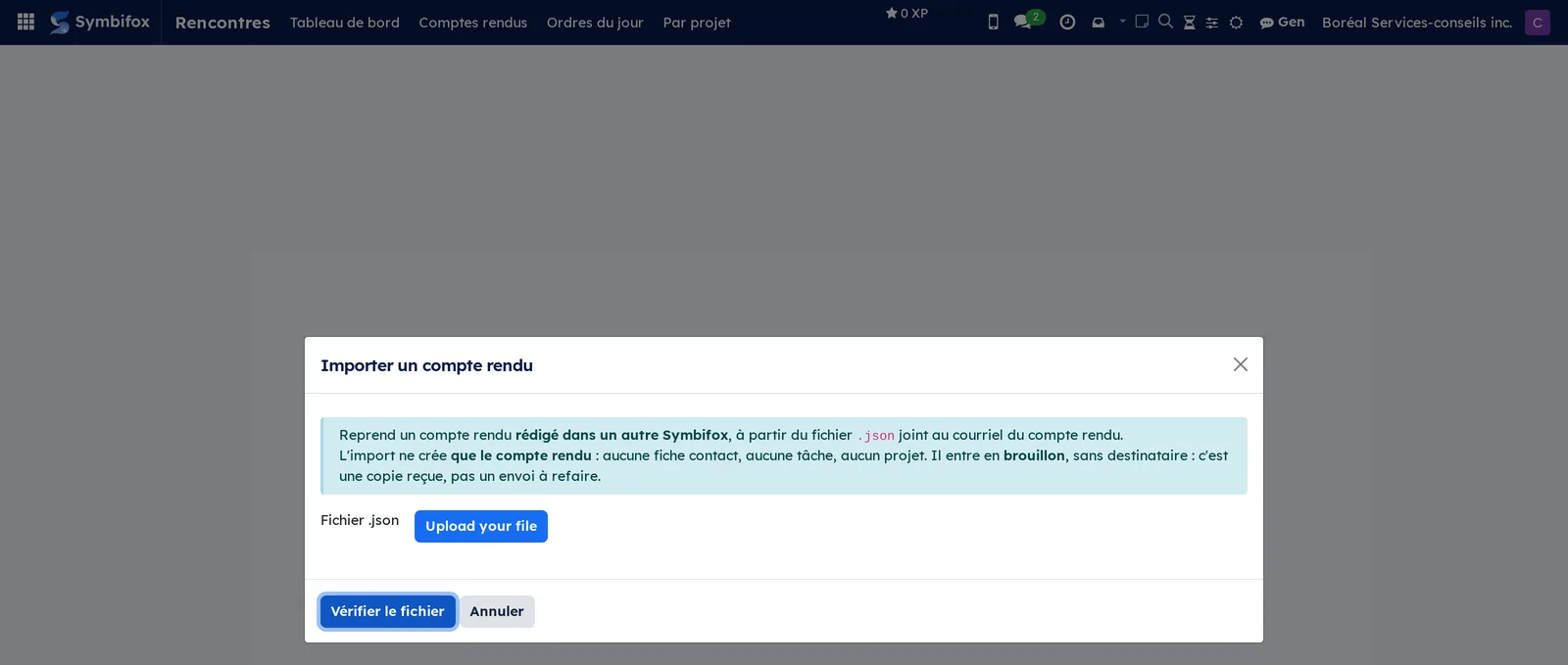
- Go to Rencontres › Comptes rendus (meeting reports) > Importer un compte rendu (import a meeting report).
- Select Charger votre fichier (upload your file) and choose the attachment you received.
- Select Vérifier le fichier (check the file). The content shows, and nothing is created yet.
- Optional: choose the Projet where the copy goes.
- Select Importer (import), or Importer quand même (import anyway) if the same meeting report was already imported.
Result: the meeting report arrives as a draft, with no recipient. The import creates no contact, no task and no project: it is a copy you received, not a delivery to repeat.
Keep the dashboard up to date#
The dashboard is only useful if it shows only the meetings that concern you.
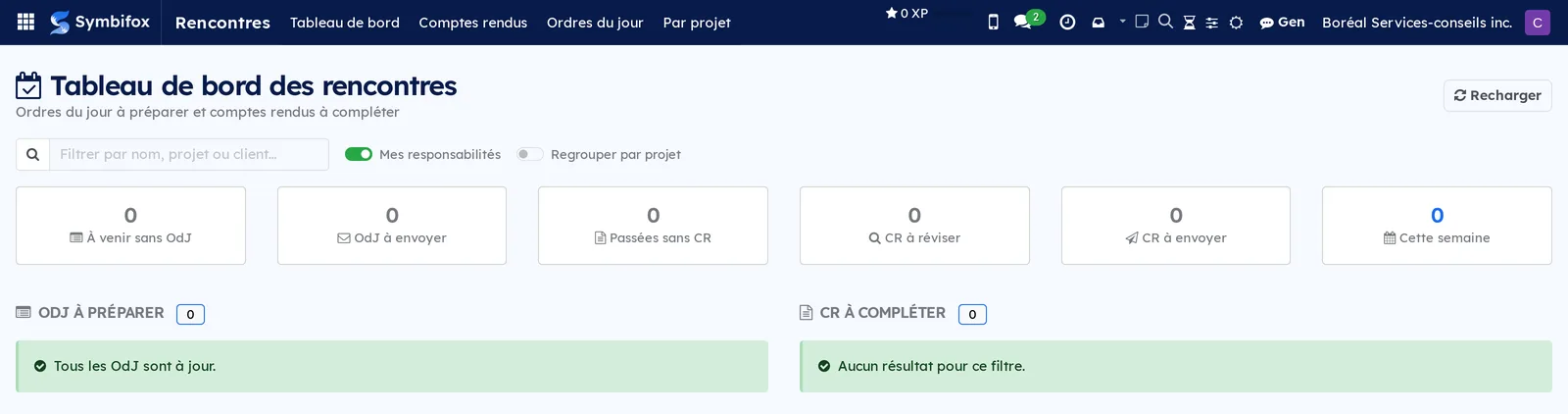
- Go to Rencontres › Tableau de bord (dashboard).
- Leave Mes responsabilités (my responsibilities) on to see only what you answer for, or turn it off to see the team.
- Turn on Regrouper par projet (group by project) when you follow several engagements.
- On a meeting's event, set the Responsable de l'OdJ (agenda owner) and the Responsable du CR (report owner) if the organizer is not the right person.
- To remove a meeting from tracking, check Exclure du tableau de bord on its event. To remove a whole engagement or contact, check the same box on the project or the contact.
Result: the six counters at the top and the two work columns count only what really remains to be done.
The menus, one by one#
Rencontres › Tableau de bord: the application's home screen. Six counters at the top (upcoming without an agenda, agendas to send, past meetings without a report, reports to review, reports to send, and the week's total), two columns below (agendas to prepare, meeting reports to complete), a filter field by name, project or client, and two switches. Everything is at zero on the demo, and the green banners say so.
Rencontres › Tableau de bord › Liste de suivi (tracking list): Boréal's 17 tracked meetings in a list, one line per meeting, with its date, title, project and client, then the seven steps as columns and shortcuts to the event and the meeting report. This is the view to open to spot at a glance what is lagging.
Rencontres › Tableau de bord › Exclusions: grouping menu.
Rencontres › Tableau de bord › Exclusions › Projets exclus (excluded projects): Boréal's six projects in a list, with the checkbox that removes their meetings from tracking.
Rencontres › Tableau de bord › Exclusions › Clients exclus (excluded clients): the contacts, with the same checkbox. Useful for an outside partner whose meetings are not yours to track.
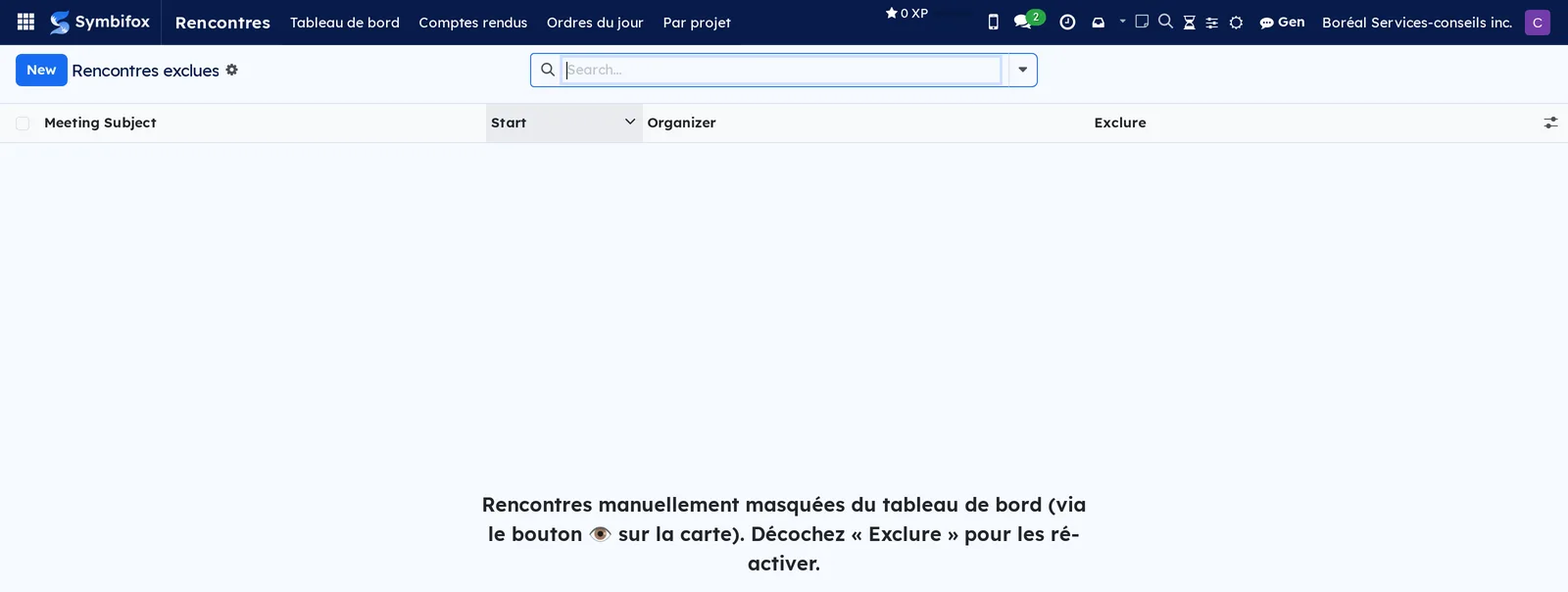
Rencontres › Tableau de bord › Exclusions › Rencontres exclues (excluded meetings): the meetings hidden one by one, with their subject, start and organizer. Empty on the demo; the screen reminds you to clear the box to bring them back.
Rencontres › Comptes rendus: grouping menu.
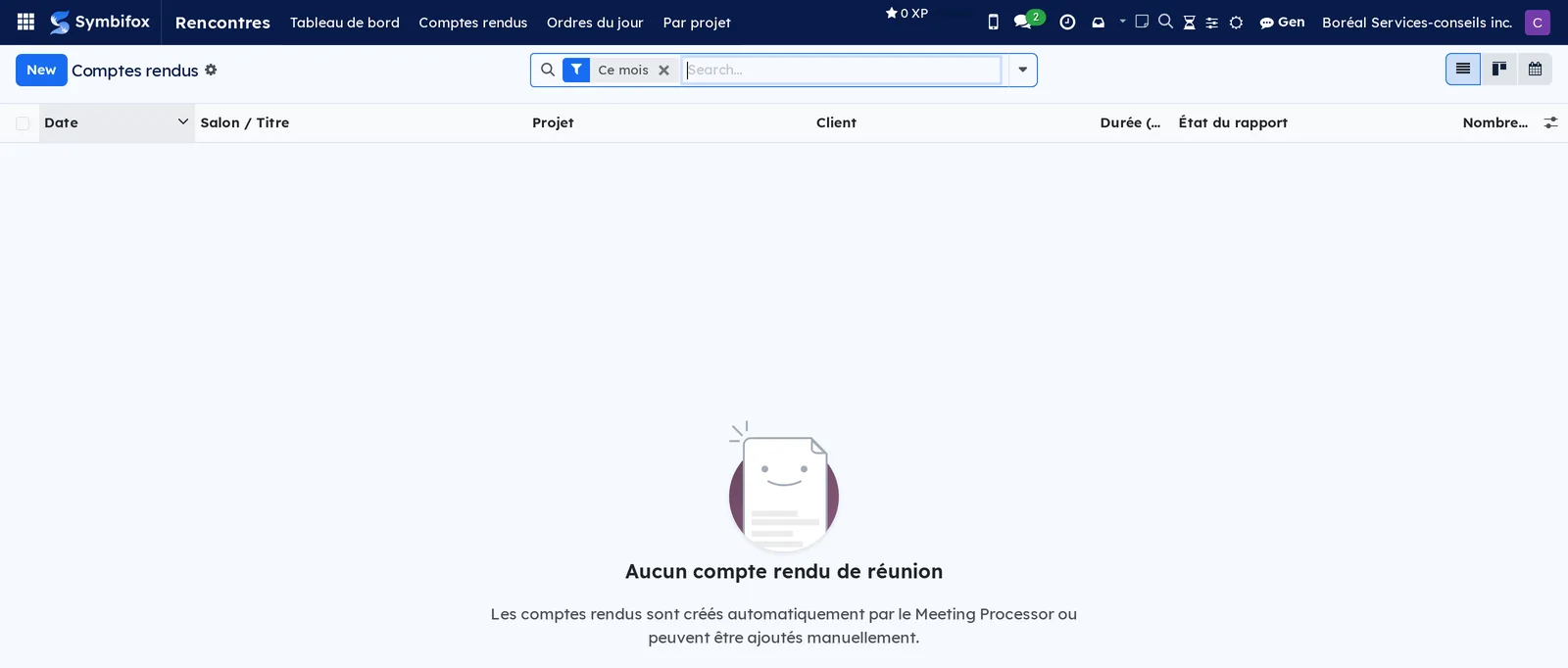
Rencontres › Comptes rendus › Tous les comptes rendus (all meeting reports): meeting reports in a list, with the date, the room or title, the project, the client, the duration, the report state and the number of tasks. Kanban and calendar views are available at the top of the screen. Watch for the Ce mois (this month) filter applied by default: on the demo, it empties the screen although eight meeting reports exist.
In calendar view, meeting reports and agendas take the colour of their project, from the Color field on the project form. Two rules provided by default handle this: “Ordres du jour selon le projet” (agendas by project) and “Comptes rendus selon le projet” (meeting reports by project). As long as the project has no colour, nothing changes on screen. Once it has one, the meeting shows it as a softened background, like Odoo's usual colours, with text that stays readable. You can also keep your own colour for a project, which applies to you only: My color, from Displayed color on its form. A line added to one of the rules, a value and a colour, overrides the project's colour for that calendar only. The rules are kept in Settings › Colors › Automatic rules; To-do, Notepad and Timer covers them in detail.
Rencontres › Comptes rendus › Brouillons (drafts): meeting reports that are neither reviewed nor sent, filtered on the draft state. The demo has one, on the tenant portal engagement of Groupe immobilier Vaudreuil.

Rencontres › Comptes rendus › Importer un compte rendu: the import dialog, for managers only. It opens as a window, with no list behind it.
Rencontres › Ordres du jour: grouping menu.
Rencontres › Ordres du jour › Aujourd'hui (today): agendas whose meeting falls today. Empty on the demo.
Rencontres › Ordres du jour › Tous les ordres du jour: the full list, with the date, title, project, client, planned duration, number of topics, tasks to discuss, state, sending state and sending date. Empty on the demo.
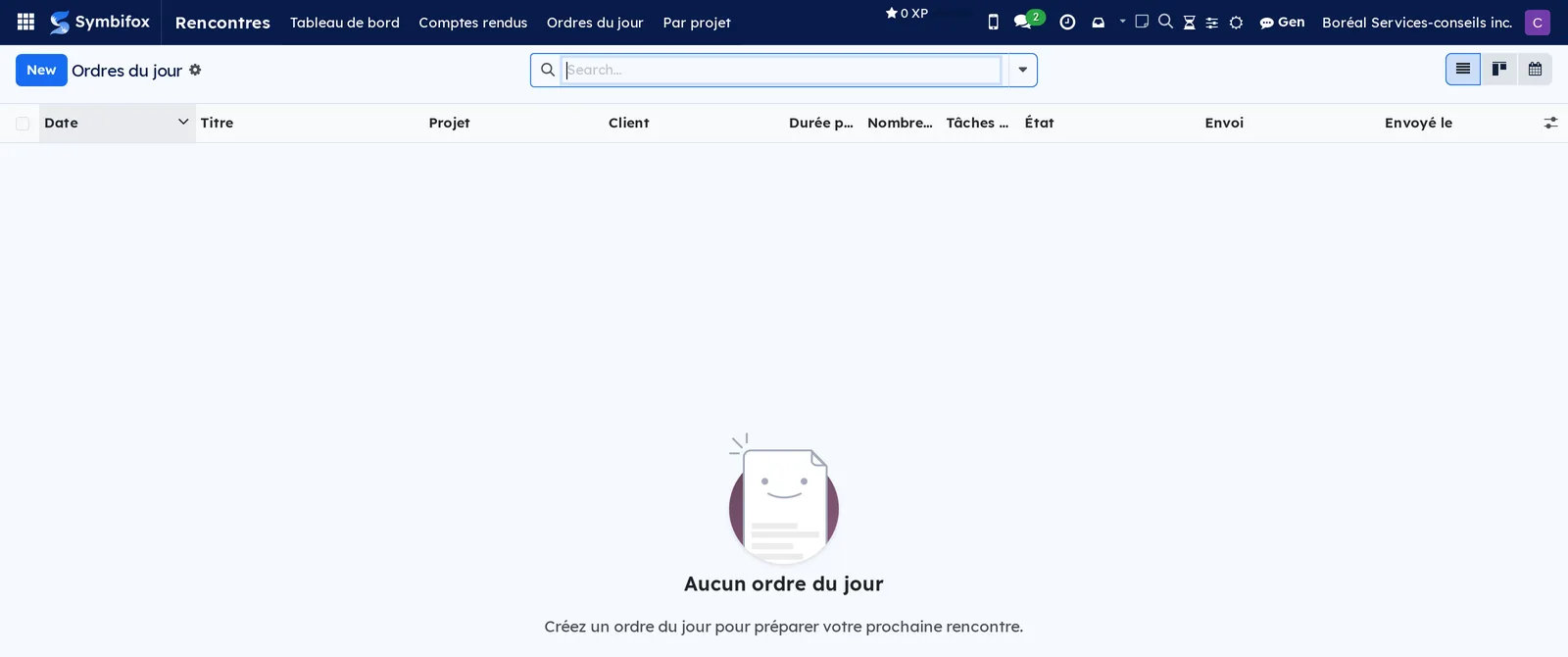
Rencontres › Ordres du jour › À venir (upcoming): agendas for upcoming meetings, in the same format.
Rencontres › Par projet (by project): meeting reports grouped by project, with the total duration of each group. On the demo, four engagements share eight meeting reports, from 40 to 180 minutes each.

Reference#
Fields of the Agenda form#
| Field | Description | Required or default |
|---|---|---|
| Titre | The meeting's name. | Empty |
| Projet | The engagement the meeting belongs to. | Required |
| Client | Taken from the project. | Empty |
| Date, Durée prévue (minutes), Lieu | When and where. | Date required |
| Mode | In person, video, phone, hybrid or asynchronous. | Required; carried over to the meeting report |
| Langue | Controls the document, its file name and the email. | Follows the client and the participants, see Understanding |
| Série | The name of a recurring meeting, which makes cloning possible. | Empty |
| Organisateur, Participants | Who runs it, who attends. | You as organizer |
| Objectifs, Contexte, Préparation | What the meeting must achieve, the current situation, the checklist. | Empty |
| Sujets | The items, with duration, speaker and context. | Empty |
| Éléments d'action à discuter | The open tasks attached to this meeting. | Resolved each time the form opens |
| Destinataires | Who receives the email. If empty, the participants receive it. | Empty |
| Autoriser les contributions des destinataires | Includes a proposal link in the email. | Cleared |
| Envoyer automatiquement à la confirmation | Sends the email as soon as the agenda is confirmed. | Cleared |
| Dire ce qui a changé depuis le dernier envoi | Adds to a resend a box listing the differences. | From the company |
| Notes en direct, Décisions en direct | What is captured during the meeting, moved to the meeting report. | Empty |
| État | Draft, confirmed, done, cancelled. | Draft |
| À planifier | Computed: draft or confirmed, with no meeting, or whose meeting is archived or cancelled. Used as a filter in the list. | Computed |
Fields of the Meeting report form#
| Field | Description | Required or default |
|---|---|---|
| Titre, Salon / Titre | The meeting's name and, if applicable, the room's. | Empty |
| Projet, Client, Société | What the meeting report is attached to. | Taken from the agenda |
| Date, Durée (minutes), Lieu | When, how long, where. | Date required |
| Mode | In person, video, phone, hybrid or asynchronous. | Video |
| Langue | Controls the document, its file name and the email. | Follows the client and the readers, see Understanding |
| Organisateur, Invités | Who ran it, who was invited. | Empty |
| Résumé exécutif | What opens the document. | Empty |
| Sujets, Décisions, Éléments d'action, Présences | The body of the meeting report. | Empty |
| Tâches existantes discutées | Tasks that were already open before the meeting and that it talked about. They keep their original meeting report and appear in the document, the email and the portal, without repeating an action item or showing a cancelled task. | Empty |
| Éléments de matrice | The linked knowledge matrix lines. | Empty |
| Transcription, Questions ouvertes | The transcript and what remains to be settled. | Empty |
| Destinataires du rapport | The only people the meeting report is sent to. | Empty |
| Joindre la copie lisible par la machine | Attaches to the email a copy that can be imported elsewhere. | From the company |
| État du rapport, Date d'envoi | Draft, reviewed, sent, and the actual departure. | Draft |
| Notes de révision | The reviewer's comments. | Empty |
| Copie reçue | For an imported meeting report: its origin and what could not be matched. | Empty |
Fields of the preparation on the calendar event#
| Field | Description | Required or default |
|---|---|---|
| Ordre du jour, Compte rendu | The two documents linked to this meeting; you can choose or detach them. The Ordre du jour field only offers agendas still to schedule, and also appears in the calendar's quick-create window. Linking an agenda gives it the meeting's date and duration. | Empty |
| Sans ordre du jour formel | Exempts the meeting from an agenda: no banner, no dashboard line. | Cleared |
| Exclure du tableau de bord | Hides the meeting from tracking without declaring it exempt. | Cleared |
| Responsable de l'OdJ, Responsable du CR | Who prepares, who writes. | The organizer |
| Étapes ignorées | The steps declared not required for this meeting. | Empty |
| Besoin d'un ordre du jour | Computed: upcoming meeting, without an agenda and not exempt. | Computed |
Fields of the Importer un compte rendu dialog#
| Field | Description | Required or default |
|---|---|---|
| Fichier | The importable copy attached to the meeting report's email. | Required |
| Contenu | What the file announces, shown after checking. | Computed |
| Projet | Where the copy goes. The original project travels only as text. | Empty |
| Déjà importé | The local meeting report created from the same file, if any. | Empty |
The meeting timer#
| Item | What it shows |
|---|---|
| Écoulé (elapsed) | Time run since the start, breaks excluded. |
| Sujet en cours (current topic) | The open topic, its time and its planned time, and the visit number when you come back to it. In red once the planned time is used up. |
| Fin projetée (projected end) | The end time if the rest goes as planned, with the planned end under it. In red when it runs past. |
| Écart cumulé (running difference) | Time taken over (plus sign) or under (minus sign) on the topics covered, current topic included. |
| Reste alloué (time left) | Planned time still to come, current topic included. |
| Sujet suivant (Alt+Shift+S) | Closes the current topic and opens the next one not yet reached. |
| Varia | Opens the Varia topic, created the first time. |
| Passer, pause (Alt+Shift+P), Terminer la rencontre | The icon buttons to the right of Varia. |
| Effacer le chronomètre (clear the timer) | The eraser: resets the timer. Meant only for a start made by mistake, since all the measured time is lost. |
Reports and exports#
- Agenda: a document in your colours, with the topics, their duration, their speaker, a section of actions to discuss and the list of documents that go out with it. You get it with Imprimer PDF, and it travels as an attachment to the sending email.
- Meeting report: a document in your colours, with the summary, topics, decisions, action items, open questions, attendance and the list of documents that go out with it. It is attached to the sending email.
- Machine-readable copy: a file attached to the meeting report's email, carrying exactly what the document shows. No transcript, no review notes, no attachment.
- Both documents render in their record's language, not in the language of whoever prints them. Their file name follows: “Agenda” and “Minutes” in English, “OdJ” and “CR” in French.
- Action deadlines print there as a date only, on the reader's day: the client's time zone, else the default time zone, never that of the person who sends. The minutes of the Time per agenda topic table are written the way the document's language writes them (“22.5 min” in English), with no “-0” for a gap rounded to zero.
- Lists of meeting reports and agendas export through Actions › Export.
Automations#
- Reminder for an unsent agenda: once a day, an activity due the same day is created for the person responsible when the meeting is within seven days and the agenda has not gone out. The reminder does not duplicate from one day to the next.
- Carry-over of tasks to discuss: tagged tasks move by themselves to the next eligible meeting; those attached to a cancelled agenda receive an activity.
- Sending reference point: at every actual departure, the content delivered is frozen. The form then flags what has changed since, topic by topic, and the documents added or removed.
- Propagation: creating a meeting report from a meeting that already has an agenda links the two and carries over the project, the language and the mode.
- Feedback after delivery: a three-emoji request goes to the project's partner when a meeting report is sent to them, if the setting is on and the person was not asked recently. Resending the meeting report does not trigger it again.
- Envoi automatique du compte rendu (automatic report sending): on a project where this box is ticked, the meeting report goes to its recipients on its own as soon as Gen's review judges it ready, and a note in the chatter records it. The box is unticked on every new project; keep it for a project whose meeting reports all go to the same person. A report with no recipient, or already sent, never goes out this way.
- Automatic review by the assistant: when the company asked for it, Gen's review starts on each draft delivered by meeting processing. Every fifteen minutes, a check declares lost a pass that stayed silent too long, and the organizer is told through their activity.
- Attachment visibility window: an attachment to a meeting can be readable only between two dates, around the meeting date.
- Documents sent with the email: the email and the document list the documents of the tab whose Envoyé aux participants box is ticked and whose window fits, at sending time. A link goes out as is; a file goes out as a link the recipient opens without an account.
Public pages and portal#
- Contribution page: the link in the agenda's email opens a page where the recipient proposes topics and leaves notes, without an account. It closes when the agenda is confirmed. An agenda born from an appointment opens this page as soon as the booking is made, without waiting for a send: see Appointments.
- Client portal: a tile leads to the meeting reports already sent to the person or their organization. The client reads them and downloads the document again, regenerated when read: it therefore reflects corrections made since sending.
- Agendas never appear in the client portal, and the transcript, review notes and live notes are never passed on there.
Modules that extend this application#
Understanding#
Tracking works by exception. A meeting with outside participants is presumed to need an agenda and a meeting report: it is not wanting one that you declare. On a real calendar, these exceptions are routine, starting with team check-ins and work blocks. That is why the exemption also exists on an event's tag, to settle a whole category at once. The tag's value is copied onto the meeting, never computed from it, so a single meeting stays editable on its own afterward.
Starting a send is not sending. Opening the email composer is enough to open the contribution window, and that timestamp proves nothing. The actual departure is recorded separately, after the email has left Symbifox. A composer opened and then closed therefore reads “Envoi non confirmé”, and only actual departures count for the daily reminder and the dashboard.
The reference point compares content, not timestamps. A simple “the record was written after sending” check fires almost every time, if only because starting the meeting writes to every topic without changing what recipients received. The frozen reference point therefore keeps the content delivered, and text bodies travel in it only as a fingerprint: it can tell that a context changed, never what it said. Topic names travel in plain text, otherwise no removal could be named.
The language follows the readers. A document is read in the language of those who receive it. The Langue of an agenda or a meeting report is therefore worked out in this order: the one you picked by hand, the project client's, then the external readers', meaning participants and recipients, plus attendees for a meeting report. Colleagues do not count. If all the readers share a language, it is theirs; if they are mixed, it is English. Failing that comes the organizer's, then the company's. The language follows the readers as they are added, until someone picks it by hand, and stops moving once the document is sent: the recipients received what they received.
The portal is an archive, not a disclosure. A meeting report appears there only if it was actually sent, with its departure date, and if the person is among the recipients. Attending a meeting is not enough: that criterion would reopen exactly the risk the recipient list rules out, a delivery nobody decided on.
Agendas stay out of the portal on purpose. They used to be there, and they were taken out: nothing proved that an agenda had actually gone out, so an internal agenda never sent became visible to a client who attended the meeting. They will come back when the sending marker is as reliable as the meeting report's.
The importable copy carries only what the document shows. No raw transcript, no review notes, no attachment. On arrival, the import matches only contacts that already exist, creates no contact or task, and files the meeting report as a draft, with no recipient: what reaches you is a copy you received, and it does not need to be sent again.
The timer measures against the plan, not a record. Meeting topics do not come back from one meeting to the next, so there is no best time and no average, only the time the agenda set aside. That is why the projected end is the number that matters: it tells you, while there is still time, whether the meeting will end on time. The running difference also counts the time left on the current topic as time gained; early in a long topic it can therefore show green while the projected end is red.
A quick round trip is not a visit. Going back within 90 seconds to the topic you just left undoes the Sujet suivant: the topic you left goes back to not yet reached, and the seconds spent on it return to the topic you were still discussing. Without this rule, a topic touched by mistake counted as covered, and its planned time turned into time gained.
Ending means ending. The timer's Terminer la rencontre button moves the agenda to Terminé, and the agenda's Terminer button, like Créer le compte rendu (create the meeting report), stops the timer. The status bar takes the agenda back to Confirmé (confirmed) if needed; the timer does not restart: a meeting cannot be played twice.
Documents take the colours of the document's company. The logo, colours and footer come from the company of the meeting's project, not from the one you are working under when you print. A project chosen after the meeting report was created also brings its brand. That is what lets a meeting of a secondary company come out right, including from an email sent automatically.
Only ticked documents go out. The Documents tab shows everything attached to the meeting, including files dropped into the chatter and the machine-readable copy. Only those whose Envoyé aux participants box is ticked go to the participants: a document added to the tab is ticked by default, a chatter attachment never is until you tick it. The window then decides when: Toujours visible (always visible) and Personnalisé (custom) go out with both the agenda and the report, Avant la rencontre (before the meeting) with the agenda only, Après la rencontre (after the meeting) with the report only, and Pendant la rencontre (during the meeting) never. A file goes out as a direct link the recipient opens without signing in: like any sharing link, it opens for whoever holds the email, and the window does not close it. In the client portal, the meeting report document, regenerated when read, lists the documents ticked at that moment.
Troubleshooting#
| Symptom | Likely cause | Fix |
|---|---|---|
| Tous les comptes rendus looks empty although reports exist. | The Ce mois filter is applied by default. | Remove it from the search bar. |
| The agenda's banner reads “Envoi non confirmé”. | The email composer was opened and then abandoned: no email left. | Select Envoyer again, or select Marquer envoyé à la main if it went out another way. |
| The client sees no meeting report in their portal. | They are not among the report recipients, or the state was set by hand without sending. | Add them to the recipients and send with the send button, which records the departure date. |
| The contribution link no longer works. | The agenda was confirmed: the contribution window is closed. | Set the agenda back to draft and send it again, or enter the topic yourself. |
| No change marker appears after an edit. | The agenda went out before a reference point was frozen, which the form flags. | Send it once more: the reference point is taken at that departure. |
| A meeting keeps coming back to the dashboard when it should not. | Neither the exemption nor the exclusion is set. | Check Sans ordre du jour formel or Exclure du tableau de bord, on the meeting or on its tag. |
| A document from the Documents tab is missing from the email. | Its Envoyé aux participants box is unticked, as it is for a file dropped into the chatter, or its window does not go out with that document. | Tick the box, or pick a window that fits: Avant la rencontre for the agenda, Après la rencontre for the meeting report. |
| The meeting report does not offer to link an archived call. | The Mode is not phone. | Set the mode to phone. |
| The timer does not show, or its buttons do nothing. | The browser tab was opened before a Symbifox update. | Reload the page. |
| A topic left too quickly counts as covered. | You went back after 90 seconds, or to a topic other than the one you had just left. | Go back to the right topic from its line: time keeps adding up where you are talking. |
| The agenda moved to Terminé with the timer. | Terminer la rencontre also ends the agenda. | Select Confirmé in the status bar. |
| Your notes do not show in the meeting report's points. | They were taken under Notes générales, or the company uses the single running page. | Take notes in the topic, in the middle pane; with the running page, they go to the summary. |
| The À l'ordre du jour pane is gone. | It was folded away, or the screen is too narrow and the detail moved above the notes. | Select Afficher le détail, to the right of the topic's title, or close the chatter to make room. |
| An agenda is missing from the meeting's Ordre du jour field. | It is done or cancelled, it still holds another meeting, or you do not follow its project. | Select Reporter to detach it from the other meeting, set it back to draft, or follow the project. |
| An agenda's date changed on its own. | It was linked to a meeting: it takes that meeting's date and duration, and the date in its title follows. | This is intended: move the meeting rather than the agenda. |
| The pre-fill or the refining never finishes. | The pass failed; the form gives the details. | Select Relancer le pré-remplissage or restart the refining; if it keeps failing, write the content by hand. |