

Part 0 · Getting started with Symbifox
To-do, Notepad and Timer
Personal to-dos, quick notes linked to records, the top bar calculator, the timesheet timer, and the daily digest email.
Watch it

Three menus help you run your own day: To-do for personal tasks with no project, Notepad for jotting something down without leaving the current screen, and Timer for capturing the time spent on tasks and posting it to a timesheet. Two more tools have no menu: the calculator, which opens from a top bar icon and keeps a history of your calculations, and the daily digest, a morning email that sums up what awaits each person. This chapter is for the whole team; the digest section concerns the administration above all.
Overview#
A to-do is a task that belongs to no project: something to do, for yourself, filed in personal stages (“This week”, “Later”). The day it grows, a to-do converts into a project task.
A note in the Notepad is formatted text, private by default, that you attach to one or more records: a contact, a quotation, a project, a ticket, any record that has a chatter (the message thread at the bottom of a form). You find it again through search, through its tags, through the pin, or from the linked record through the Notes shortcut button at the top of the form. A note turns into a dated activity or a project task without retyping the context. You can take one from any screen, through the note icon in the top bar. Each note can carry any colour you like, and the Notepad shows as Keep-style cards, as minimal rows or as a list, whichever you prefer.
The timer lives in the top bar, under the hourglass icon. You start it from a task, from a Kanban view or from the list of recent tasks; several timers can run at the same time. When you stop it, a dialog proposes the rounded duration and a description: confirming creates the timesheet line on the right task. The Timer menu opens the same thing as a full page, with the totals for the day and the week.
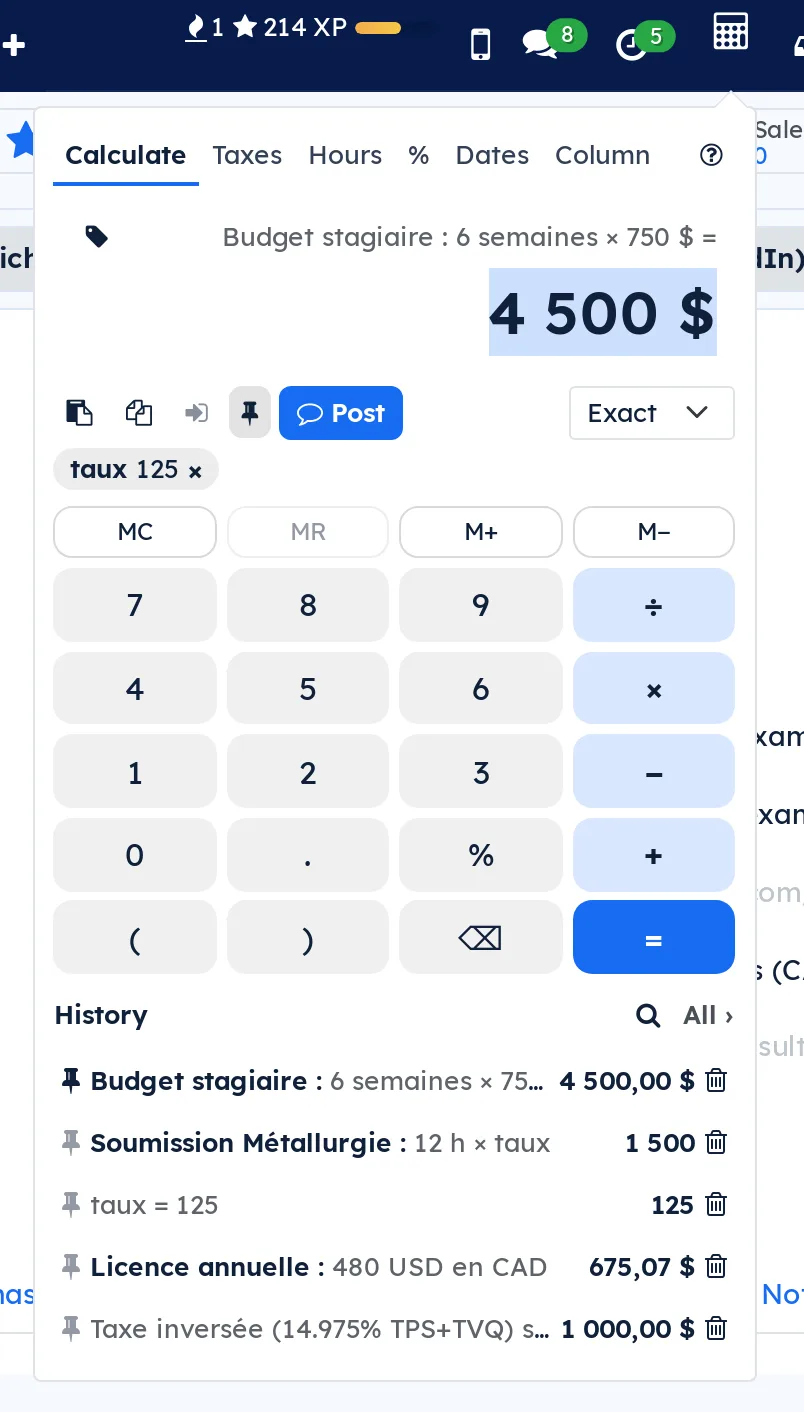
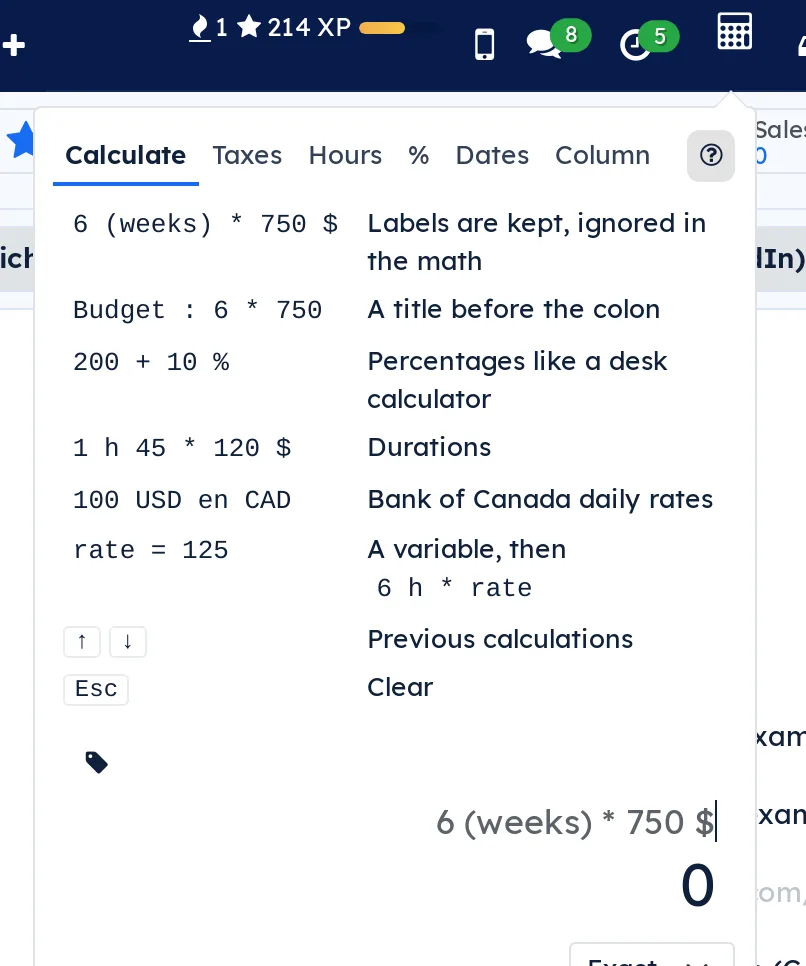
The calculator opens from the calculator icon in the top bar, or with the Alt+Shift+C shortcut, from any screen. It reads numbers the way you type them (“1,250.50”, “12.5”, and the French “1 250,50” too) and keeps the words you slip into the calculation: “6 (weeks) * 750 $” gives $4,500 and keeps “weeks”. Six tabs share the panel: Calculate, Taxes (with reverse tax), Hours, %, Dates and Column. Every calculation goes into your history, which nobody else sees. A calculation can be copied, inserted into a number field, or posted as an internal note to a record's chatter, with its details.
Here is the panel open on a contact's form, after reusing a pinned calculation from the history.
The daily digest is an email sent every morning at the chosen hour: today's events in your calendar, activities and tasks overdue or due today, a preview of the coming days, meetings to prepare, weather and a quote. You do not read it in Symbifox but in your mailbox; it is set up in the technical menus.
Configuration#
Access and permissions#
- To-do is open to every internal user. A to-do is visible only to the people assigned to it.
- Notepad is open to every internal user. A note is private: only its author sees it, unless she checks Shared, in which case the others read it without being able to edit it. A note grants no access to the linked records: a record you cannot read does not show.
- Note tags have an owner. A tag you create is yours: your colleagues neither see, rename nor delete it. The tags shipped with the Notepad, and those that existed before personal tags arrived, are shared with the whole team; only administrators edit or deactivate them. Administrators also see everyone's tags.
- Colours: everyone picks the colour of their notes, keeps their own swatches and gives a tag My color, which only they see. A tag's Company color, shared swatches and automatic rules need the administration group. Only administrators create, edit or run a rule, and see the Assign missing colors button. Nobody can turn their own colour into a Company color.
- The calculator is open to every internal user, never to the portal. Each person's history and variables can only be read by their author, administrators included. A calculation posted to a chatter then follows the access rights of the record that receives it, and posting requires the right to post on that record (usually, the right to edit it).
- Timer requires the Timesheets user access right, the same one needed to enter hours. Preset descriptions are edited with the Timesheets approver access right.
- The digest is configured with the administration group, in the technical menus.
Settings#
- Settings › Timesheets: Rounding mode, with No rounding, Always round or Round below a threshold; Rounding increment of 1, 5, 10 or 15 minutes; and Rounding threshold (minutes), visible only in threshold mode. By default, rounding always applies, in steps of 5 minutes.
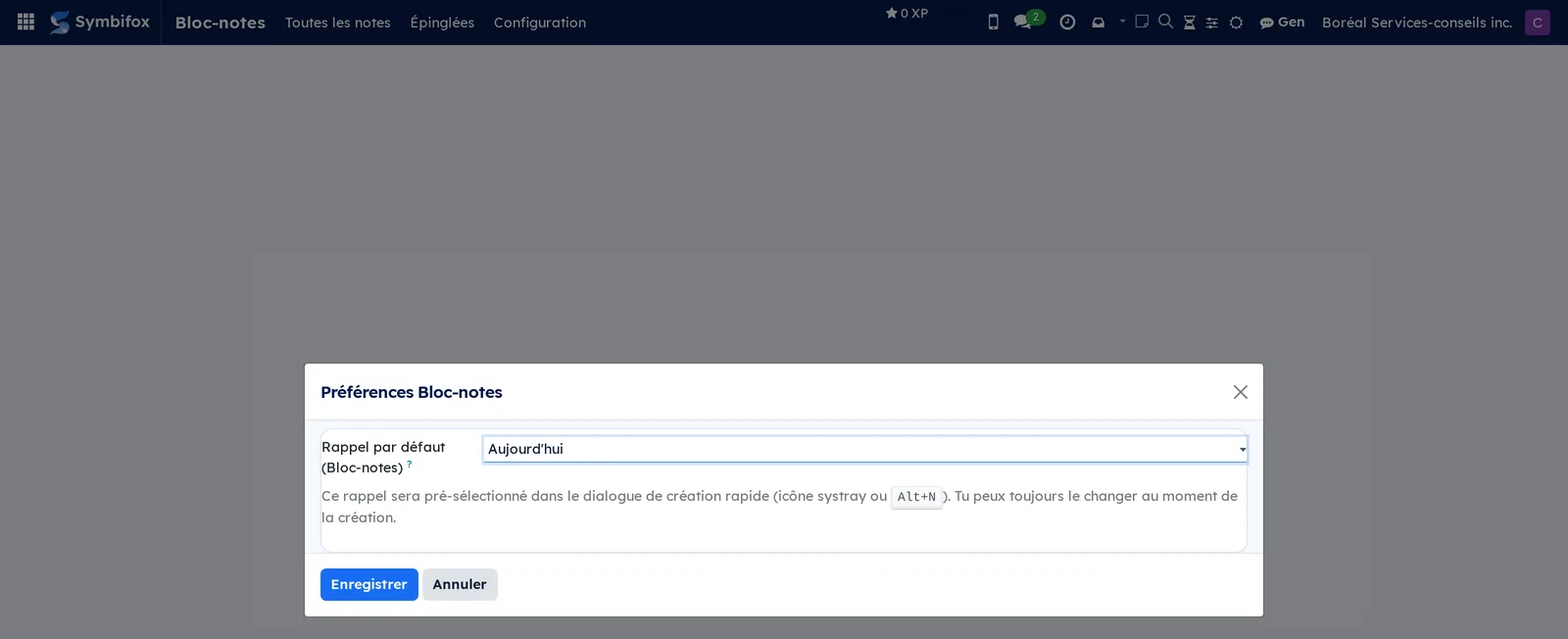
- Notepad › Configuration › My preferences: the Default reminder (Notepad) offered in the quick-create dialog, set to Today on the demo. Under Display: Notes layout (Cards, Minimal or List), Notes density (Comfortable or Compact), Note color shown as (Background or Stripe) and Group notes by color. The Notes page and Symbifox Mobile use the same settings.
- Settings › Colors › Swatches (administration): the company's shared swatches, which everyone finds in the picker. A swatch with no Owner is shared.
- Settings › Colors › Automatic rules (administration): the rules that colour the records of a model by a criterion, and the Assign missing colors button. See Colour records automatically by a criterion.
- The calculator has no page in Settings. Two system parameters, in developer mode, under Settings › Technical › Parameters › System Parameters, control its behaviour:
| Parameter | Default | Effect |
|---|---|---|
bf_calculator.history_days |
90 |
Number of days of history kept; beyond that, unpinned calculations are deleted. 0: never. |
bf_calculator.easter_holiday |
friday |
The Easter holiday the employer observes for business days: friday (Good Friday) or monday (Easter Monday). |
- On your user form: Weather city (digest), Weather latitude (digest) and Weather longitude (digest), to receive the weather of a city other than the digest's.
Base data#
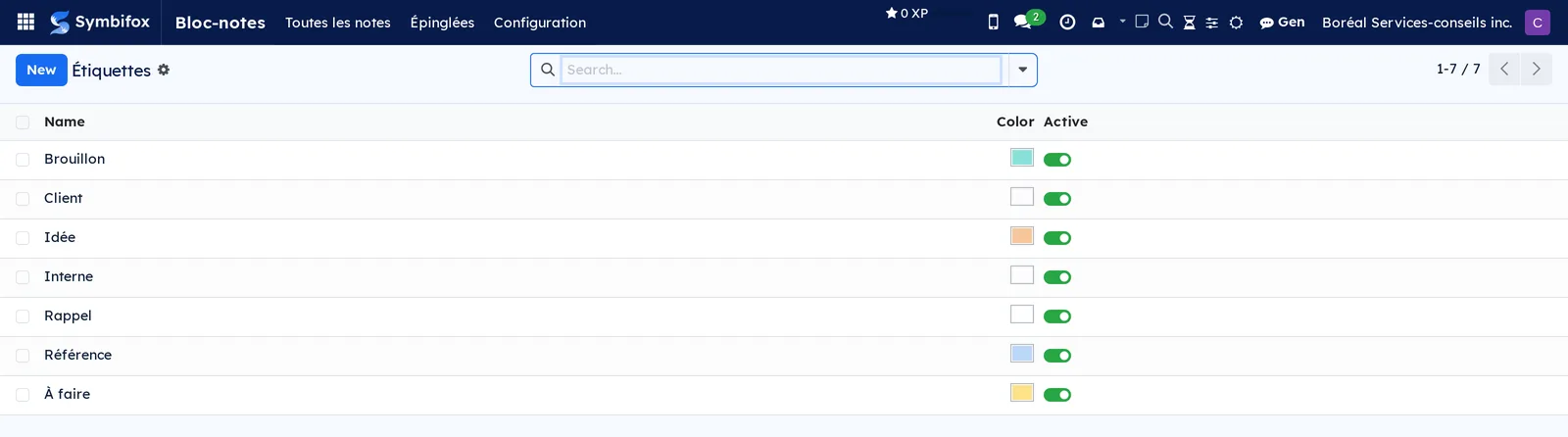
- The note tags, in Notepad › Configuration › Tags. The demo has seven. Four ship with the module: Draft, Idea, Reference and To do. Three were added on the demo and keep the name they were given: Client, Interne (internal) and Rappel (reminder). Shared tags serve the whole team; each person adds their own as needed, which belong to them alone (see Manage the note tags).
- The timer's preset descriptions, in Timesheets › Timesheets › Description presets. The demo has four: Développement, Réunion, Support and Révision (development, meeting, support, review).
- For the calculator's Taxes tab, nothing to create: it reads the sales taxes of your company's accounting (see Invoicing). With no usable sales tax, it offers Quebec (default rates): GST 5% and QST 9.975%.
- For the timer, tasks in projects where timesheets are turned on (see Project).
- For the digest, a configuration in Settings › Technical › Daily digest › Configuration. The demo has none; the 120 quotes ship with the module.
Getting started#
Camille Tremblay jots down an idea in the middle of her work, then turns it into a reminder on the client's record.
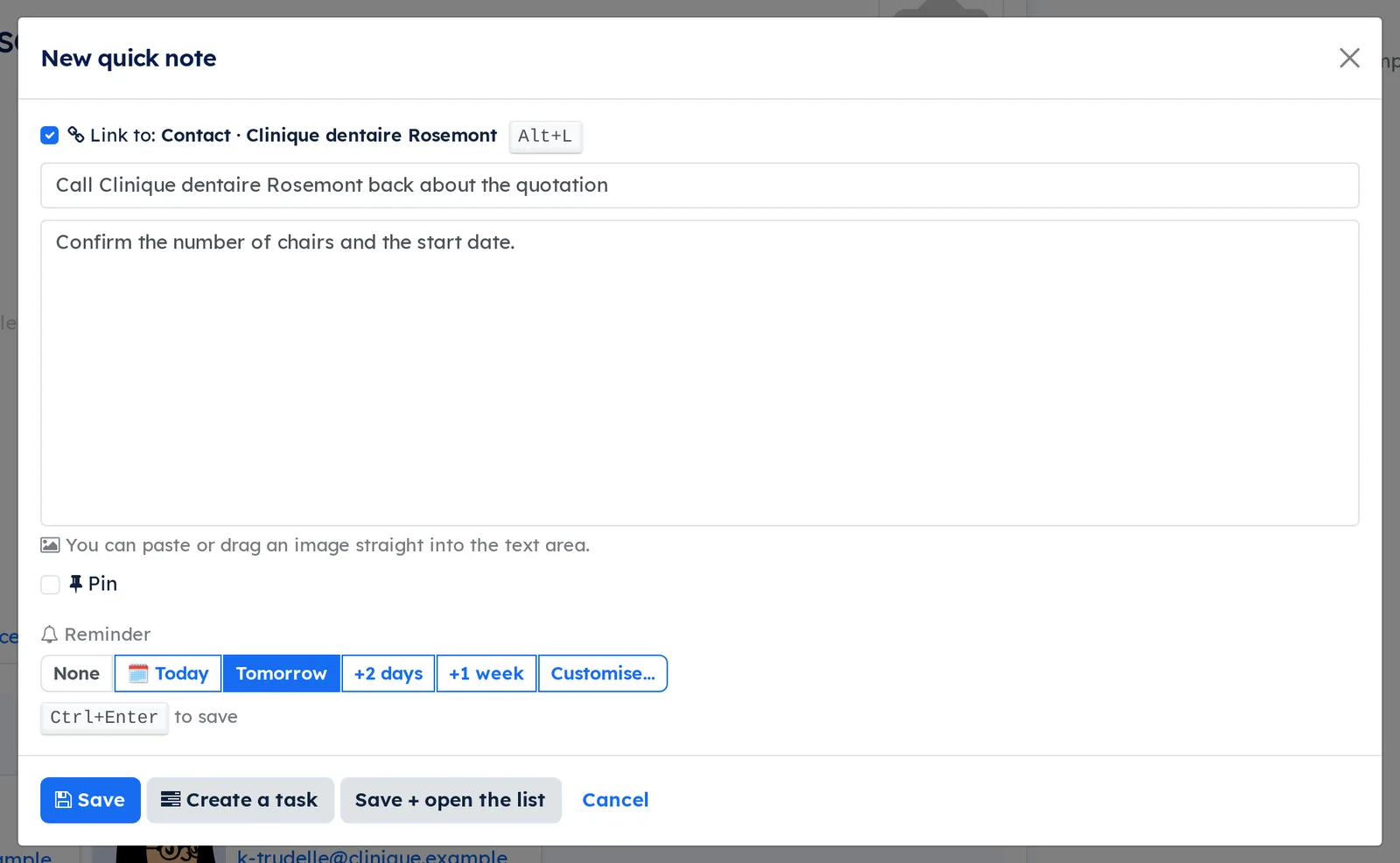
- Open the contact Clinique dentaire Rosemont, then select the note icon in the top bar. The quick-create dialog opens, with the Link to: Contact · Clinique dentaire Rosemont checkbox ticked.
- Enter the title “Call Clinique dentaire Rosemont back about the quotation” and one line of content.
- Leave Link to ticked: the note will be attached to the contact. Under Reminder, select Tomorrow.
- Save. The dialog closes; the current screen has not moved.
A To-Do activity, due tomorrow, is created on the Clinique dentaire Rosemont record, with the title of the note. It does not copy the note's content: it carries a "Note:" link followed by the title, which opens the note only for those who can read it. It appears in the contact's chatter, under the clock icon of the top bar, and the note's Activities shortcut button, under Notepad › All notes, finds it again.
Common tasks#
Create and organize your to-dos#
A to-do is a task without a project, filed in your personal stages.
- Go to To-do.
- In the stage pane, enter a name in Personal Stage… and select Add, for example “This week”.
- Select New, enter the title and save; or select the + of a column to create it in place.
- Drag the cards from one stage to another.
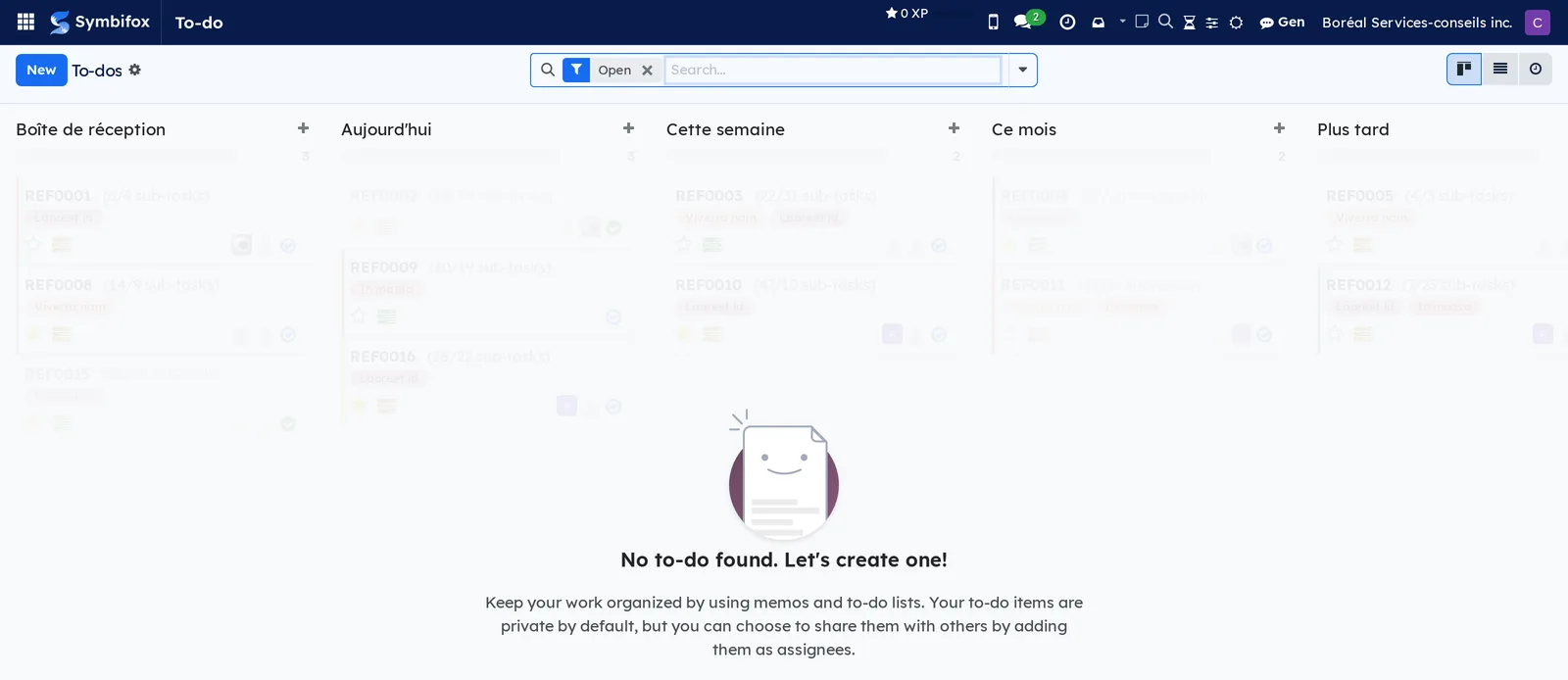
The Kanban view shows your stages as columns. The Open filter, applied by default, hides finished to-dos. Personal stages belong to you alone.
Finish a to-do#
- Open the to-do, or find it in the list.
- Change its state to Done, through the state indicator of the card, of the row or of the form.
The to-do drops out of the Open filter. Remove the Open facet from the search bar to see it again.
Convert a to-do into a project task#
When a to-do concerns the team, make it a task.
- Open the to-do.
- Select the gear icon beside the title, then Convert to Task.
- Choose the project and, if needed, the stage.
- Confirm.
The task opens in Project with the title, the description and the assignees of the to-do.
Take a quick note#
- From any screen, select the note icon in the top bar.
- Enter a title and the content; format it if needed (headings, lists, bold).
- Optional: paste or drag an image into the content; the file is attached and the image inserted.
- Check the Link to checkbox: if you were on a record (a contact, a task, an opportunity…), it names that record and is ticked. Untick it, or press Alt+L, to create the note without a link; the reminder then lands on the note itself.
- Choose the reminder offered, or keep the default one.
- Save.
The note is created in your name, private. Right-clicking the same icon opens the list of your notes.
On the phone, the Notes page and Symbifox Mobile open straight on the text field, and keep the note even without a network: see the Mobile apps chapter, section "Taking notes on your phone".
In the card view of the note pad, each card carries its quick actions without opening the note: Today and Tomorrow set a reminder, Task opens the conversion to a task, the link icon attaches the note to another record, and the box icon archives it.
Link a note to several records#
A note can concern a client, their quotation and their project at the same time.
- Open the note in Notepad › All notes.
- In the Links tab, add a line.
- In Form, enter a name or a number, or paste the address of a Symbifox page, then select the record among the results grouped by type.
- Drag the row handles to order the links; the first one is the Primary link.
- Save.
The Open button of the header leads to the primary record; the Linked to column of the list sums up the links. On each linked record, the Notes shortcut button counts the notes about it.
Pin, colour and tag a note#
- In the Kanban view, select the pin of the card to pin or unpin it; in the list, the toggle does the same. On the form, the buttons are Pin and Unpin.
- In the card's menu (the three dots), choose one of Odoo's twelve colours; for any other colour, see the next task.
- On the form, add Tags. A new name typed in the field creates a personal tag, which is yours alone.
Pinned notes have their own menu, Notepad › Pinned. The colour fills the card, or runs as a side stripe if you chose that in the layout.
Choose a note's colour#
- Open the note and select the Color field.
- Pick a colour from your swatches, one of Odoo's colours, or enter a free colour (a #RRGGBB code, or the hue picker).
- Optional: select Keep in my colors to find it at the top of the picker next time.
- No color removes the colour.
The card's text switches to light or dark to stay readable on the colour. A note coloured before this version keeps its colour, shown in the matching pastel.
Colour a tag for yourself or for everyone#
- On a note or a contact form, select a tag.
- Choose My color: the colour applies to you only, and your colleagues keep theirs.
- Administration only: choose Company color to give the colour to the whole team.
- Pick the colour in the picker, or Remove my color to go back to the team's colour.
Choose the Notepad layout#
- In Notepad › All notes, in the Kanban view, select the Layout button in the bar, next to the view switcher.
- Choose Cards (a masonry grid, Google Keep style), Minimal (one line per note, the colour as a stripe) or List (detailed rows).
- Tick Compact and Color as a stripe if you like.
The choice is saved on your account: the Notes page and Symbifox Mobile pick it up, unless you ticked On this device only on the phone. Grouping by colour is set in My preferences, or through Group By › Colour in the search.
Keep and share swatches#
- Your colours: every Keep in my colors adds the colour to your personal swatch, which only you see.
- The company's colours (administration): in Settings › Colors › Swatches, create a swatch with no Owner and add its colours. It shows for everyone in the picker, marked (shared), and only the administration can edit it.
Colour records automatically by a criterion#
An automatic rule colours the records of a model from the value of one of their fields: shifts by employee, tasks by their tags. It is an administration task. Every application with a calendar view already ships its own rule, which you can edit (see The menus, one by one).
- Go to Settings › Colors › Automatic rules, select New and enter the Name.
- Choose the Model. Only models that carry a free colour are offered.
- Choose the Criterion, the field that decides the colour: an employee, a project, a tag, a selection value…
- Add lines if needed: each one pairs a Value, or a Record for an employee or a tag, with a Color.
- Drag the lines to order them. When a record carries several values, such as a task with several tags, the highest line wins. A tag missing from the rule shows its own colour.
- Optional: check Listed values only to colour only the records whose value appears in the lines, for example only the tasks tagged “Business development”. The others keep their colour.
- Otherwise, choose a Fallback swatch if you like, then save.
The colour shows in calendar views, on the colour band of Kanban cards (tasks, opportunities, projects) and on tags. In a calendar, the event gets a softened background, like Odoo's usual colours, an edge in the full colour and text computed to stay readable. The detail popover and the filter legend follow suit.
With a Fallback swatch, a value created without a colour receives the least used shade of the swatch, written on its record: it will not move again. For values already in use, select Assign missing colors at the top of the saved rule. Without a swatch, the button draws from a default palette designed to stay distinct for colour-blind people.
A project's colour is set the same way, in the Color field of its form: the project's agendas and meeting reports pick it up. An archived rule no longer colours anything.
Give a note a due date#
- Open the note and enter a Due date.
- Save.
The note appears in the calendar view of All notes (the third icon of the view switcher) and, once the date has passed, under the Overdue filter. A note's due date is not an activity: nothing is created on the linked record.
Share a note#
- Open the note and check Shared.
- Save.
The other members of the team see it under the Shared filter. You alone can edit it. Your personal tags do not show for them: only shared tags travel with the shared note.
Convert a note into an activity#
A note linked to a record becomes a dated reminder on that record.
- Open the note.
- In the header, select Today, Tomorrow, +2 days or +1 week to create a To-Do activity with that due date right away.
- For more choice, select Customise…: set Type, Due date, Assigned to, Summary, the details and, if needed, the Target record, then select Create the activity.
One activity is created per linked record: a note linked to three tasks produces three activities. The quick buttons do not copy the note's content into the activity, which carries a "Note:" link followed by the title. Customise… prefills the details with the note's content: whatever you leave there goes into the activity, readable by anyone who reads the record. The note's Activities shortcut button finds them again. A record that does not accept activities (a calendar event, for example) is skipped.
Convert a note into a task#
- Open the note and select Convert to task.
- Check the Title and the Description, taken from the note.
- Choose the Project and, if needed, the Stage, a Parent task, the people in Assigned to, a Due date, Tags and a Client.
- Leave Link the note to the task checked to keep the trace; check Archive the note if it is no longer useful.
- Select Create the task.
The task opens if Open the task is checked. The note's Tasks shortcut button finds the tasks born from the note.
Reroute a note to another record#
A note attached to the wrong record moves without being copied.
- Open the note and select Reroute…; or, in the list or the Kanban view, check several notes and select Actions › Reroute to a record.
- In New record, search for the record by its name, its number or the address of its page.
- In Mode, choose Replace existing links or Add to existing links.
- Select Reroute, read the Result, then Close.
Only the links change: nothing is posted and nothing is sent. An archived note can be rerouted too.
Find your notes#
- Go to Notepad › All notes.
- Enter a word in the search bar, or open the search panel and check My notes, Pinned, Shared, Linked to a record or Overdue.
- Change views with the switcher: Kanban, list or calendar.
From a contact, a task, a project or an opportunity, the Notes shortcut button opens that record's notes directly.
A note linked to a record also carries that record's Work category, which serves as a filter and a grouping in the notes search: see Work categories.
Archive a note#
- Open the note and select Archive.
The note leaves the lists; the Archived filter finds it again, and Unarchive brings it back.
Manage the note tags#
Each person manages their own tags; shared tags are managed by the administration.
- Go to Notepad › Configuration › Tags. The list shows the shared tags and yours.
- Select New, enter the name and choose a colour. The tag is yours: your colleagues do not see it.
- To rename one of your tags, edit its row in place.
- To withdraw one of your tags from the choices without deleting it, turn off its toggle.
A shared tag can only be edited or deactivated with the administration group: for any other account, saving is refused. For a colour of your own on a shared tag, choose My color instead (see Colour a tag for yourself or for everyone).
Set the default reminder#
- Go to Notepad › Configuration › My preferences.
- In Default reminder (Notepad), choose the reminder offered at each quick creation.
- Select Save.
Make a calculation with the calculator#
The calculator handles everyday arithmetic without leaving the current screen.
- From any screen, select the calculator icon in the top bar, or press Alt+Shift+C. The panel opens on the Calculate tab.
- Type the calculation on the keyboard or the keypad, for example “6 (weeks) * 750 $”. The result shows live under the entry.
- Optional: select the tag icon (Add a title) and enter a title, for example “Intern budget”. You can also write it at the start of the calculation, followed by a colon.
- Optional: choose the rounding in the Exact list, “0.01”, “0.05” (cash payment) or “1”.
- Press Enter or select =.
The calculation goes into the panel's History, with its title and its words. The result stays in the field in large type, selected, ready for what comes next. The What can I type? help, the question mark icon, sums up what the calculator can read.
Continue from the result#
As on a desk calculator, the result stays in the field after =.
- Type an operator (“+”, “-”, “*”, “/”, “%”, “^”): the calculation continues from the result.
- Or type a digit: it replaces the result and starts a new calculation.
- To recall a previous calculation, press the up arrow, then the down arrow to come back.
- To clear everything, press Esc, or select the backspace key on the keypad to remove the last character.
You can also reuse a history line by clicking its text. A line's pin keeps it at the top of the history; a pinned line is never purged.
Use variables and memory#
A value that keeps coming back, an hourly rate for example, gets a name once.
- Enter “rate = 125” and press Enter. A rate 125 chip appears under the display.
- Use the name in a calculation: “12 h * rate”.
- Select the chip to insert its name into the entry, or its × to delete the variable.
- For memory, select M+ or M− to add or subtract the displayed result, MR to recall memory into the entry, MC to clear it.
Variables are yours alone and follow you from one session to the next. A word is a variable only where a number would go: in “6 weeks”, “weeks” stays a label.
Calculate taxes or find the amount before taxes#
Reverse tax starts from a total with taxes included and finds the amount before taxes: it is the default direction.
- Open the calculator and select the Taxes tab.
- Leave Total → before taxes selected, or choose Before taxes → total.
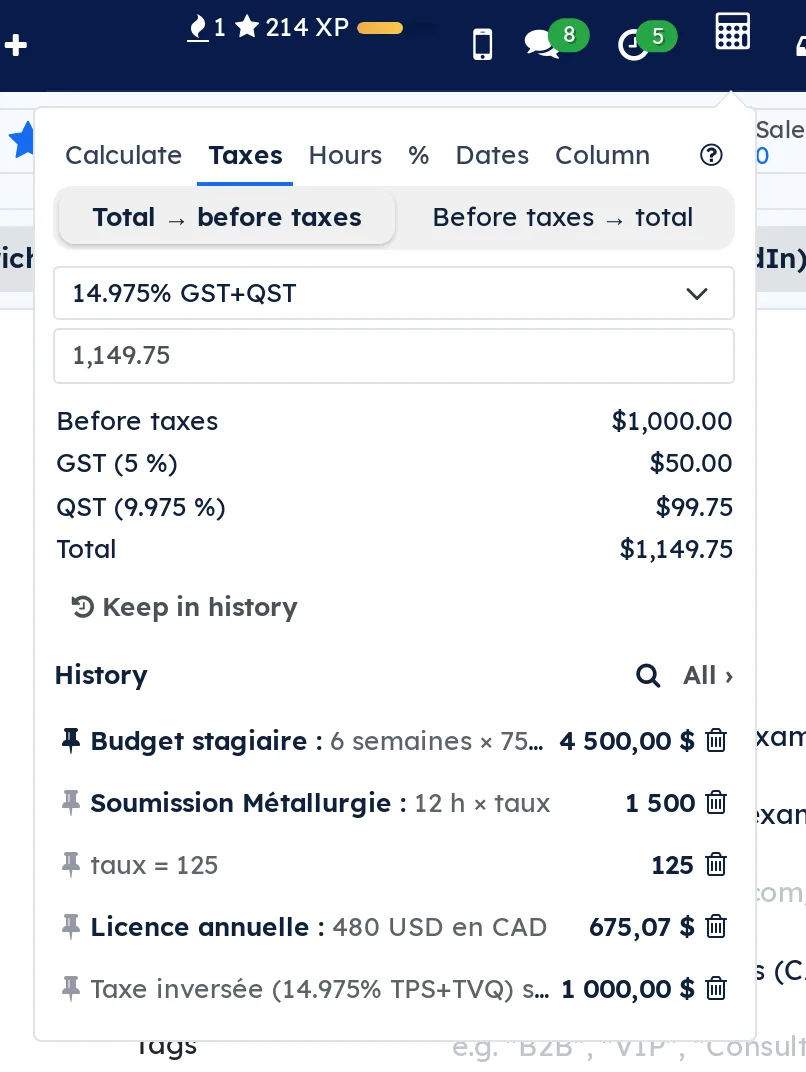
- Choose the tax combination in the list (for example 14.975% GST+QST on the demo).
- Enter the amount, for example “1,149.75”.
- Optional: select Keep in history, or press Enter, to keep the calculation.
The table details Before taxes, each tax with its rate, and the Total. Each tax is rounded to the cent, as on an invoice.
Convert a duration#
- Open the calculator and select the Hours tab.
- Enter a duration, for example “1 h 45”, “1.75” or “1 h 45 + 2 h 30”.
- Optional: press Enter to keep the calculation in the history.
The panel shows the duration in decimal hours and in hours and minutes, side by side. Durations also work in the Calculate tab: “1 h 45 * 120 $” gives $210.
Calculate a margin, a change or a discount#
- Open the calculator and select the % tab.
- Choose the calculation: Margin and markup, Change in %, Discount or Share of a total.
- Enter the two values asked for: Cost and Selling price, Old value and New value, Price and Discount (%), or Part and Total.
- Optional: select Keep in history.
Depending on the case, the table gives the Margin (on price), the Markup (on cost) and the Profit; the Change and the Difference; the Net price and the Discount; or the Share. In the Calculate tab, “200 + 10 %” gives 220 and “200 * 10 %” gives 20, as on a desk calculator.
Add up a pasted column#
- Copy a column of numbers from a spreadsheet or an email.
- Open the calculator, select the Column tab and paste into the text box.
- Optional: select Keep in history.
The table gives the Sum, Average, Count, Minimum and Maximum. An amount in parentheses, “(125.00)”, counts as negative. Cells that are not numbers, such as headers, are ignored and counted under the table.
Count business days#
- Open the calculator and select the Dates tab.
- Choose Date + days or Between two dates.
- Enter the start date, then the number of days or the end date.
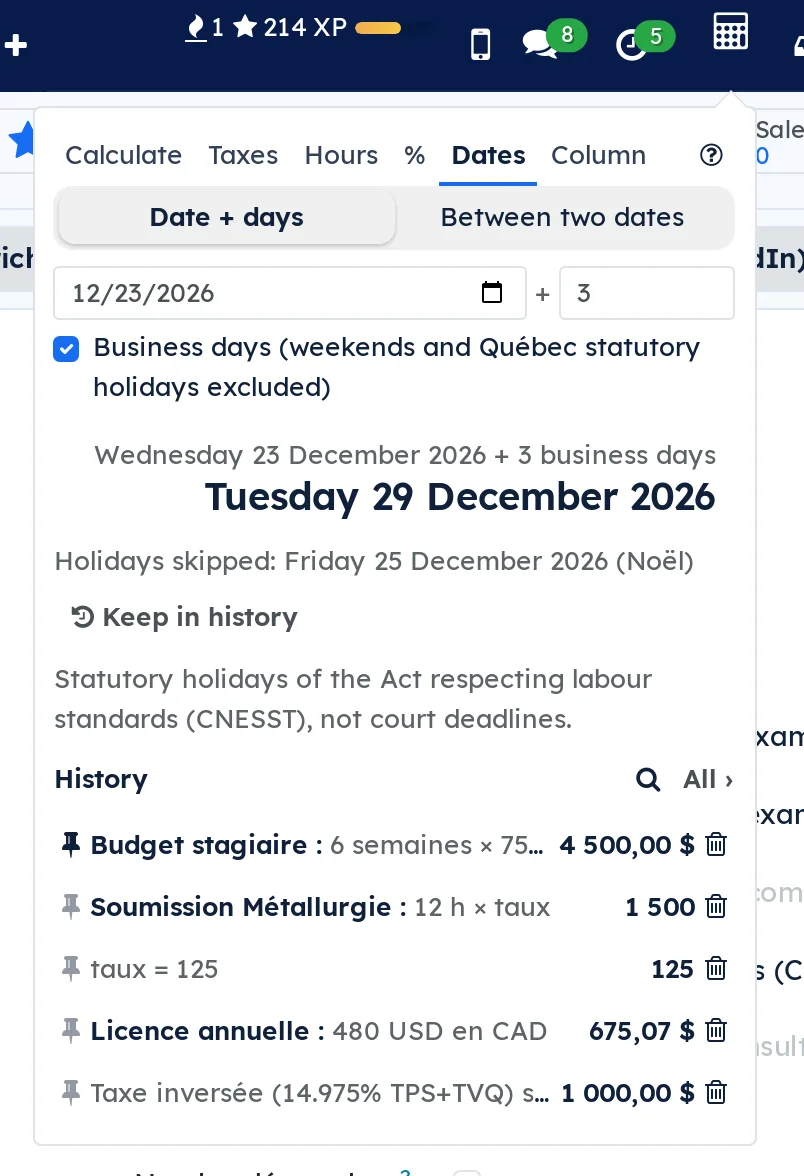
- Leave Business days (weekends and Québec statutory holidays excluded) checked, or clear it for calendar days.
- Optional: select Keep in history.
The result is spelled out, with the list of Holidays skipped. Between two dates, the table gives both the Calendar days and the Business days.
Convert a currency#
- In the Calculate tab, enter an amount with its currency code in capitals, followed by “en” (or “in”, “to”) and the target currency: “480 USD en CAD”.
- Press Enter.
The result is converted at the Bank of Canada's daily rate. The rate and its date show under the result and follow the calculation into the history, then into the chatter. Several currencies can be mixed in one calculation: “50 € + 20 US$ en $”.
Insert a result into a field#
- In a form, select the number field to fill in (a price, a quantity, hours).
- Open the calculator and make your calculation.
- Select the insert icon, to the right of the two copy icons; its tooltip names the target field.
The result is entered into the field, formatted for your language, and the panel closes. Save the form as usual. If no number field was selected first, the icon is greyed out. The two copy icons put on the clipboard the result alone, or the calculation with its result.
Post a calculation to the chatter#
A figure posted with its calculation explains itself: everyone sees where it comes from. The chatter is the message thread at the bottom of a form.
- Open the record that should receive the calculation, for example a contact.
- Open the calculator, make the calculation or reuse a history line.
- Select Post. The Post to a chatter dialog opens, with the open record already in Record.
- Optional: change the Record (by name, number or page address) and enter a Comment, a sentence placed above the calculation.
- Check the preview under Internal note, then select Post as internal note.
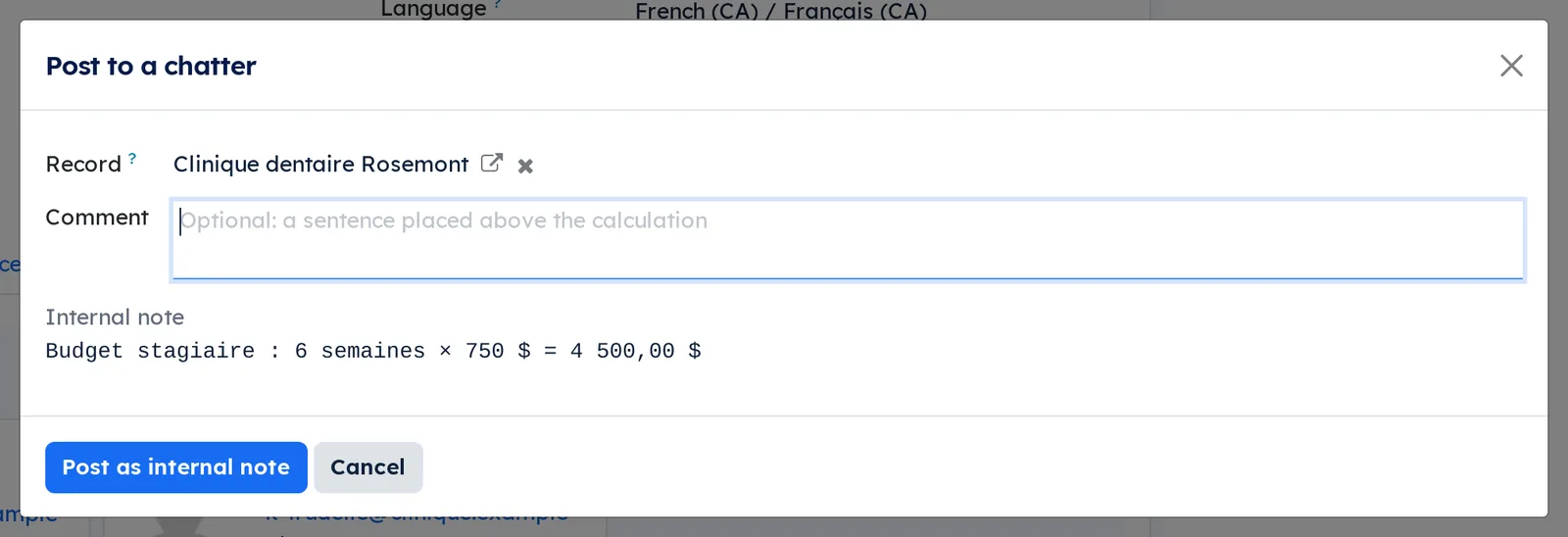
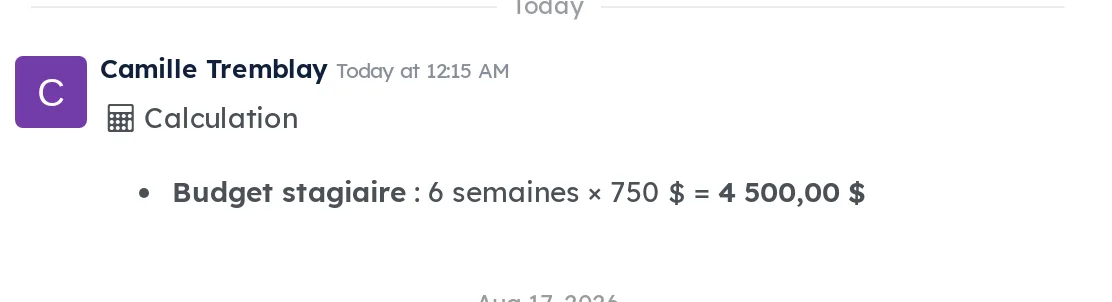
The calculation appears in the record's chatter, under your name, as an internal note: title, calculation, result in bold, and the exchange rate or rounding if there is one. No email is sent.
Find and manage your history#
- In the panel, select the magnifying glass icon of the History and enter a word from the title, the calculation or the result.
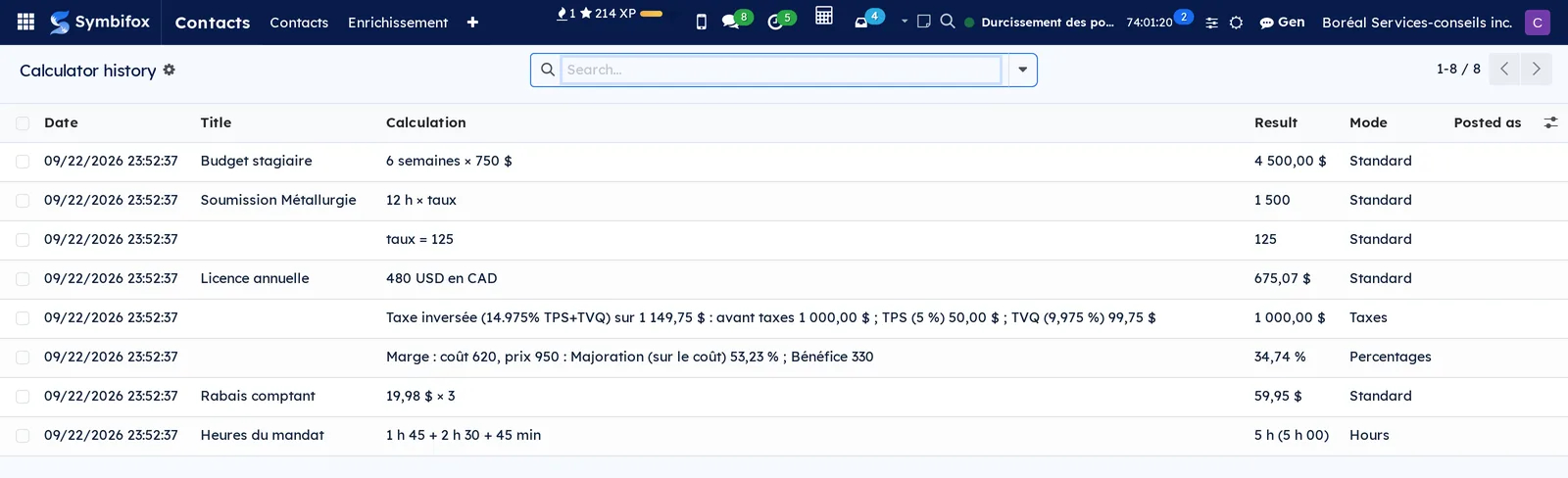
- To see everything, select All ›. The Calculator history screen opens.
- To post several calculations at once, check them in the list, then select Actions › Post to a chatter.
- To delete a line, select its trash can in the panel.
The list shows the Date, Title, Calculation, Result, Mode and Posted as, the message produced by a post. The Not posted and Posted to a chatter filters sort the lines, and Mode groups them.
Start a timer#
Four starting points, for the same result.
- On a task form, select Start in the header. Or, on a card of the tasks Kanban view, select the green play button.
- Or select the hourglass icon of the top bar, find the task in the list of recent tasks and select its play button.
- Or go to Timer, enter a name in Search for a task… and start from the result.
The hourglass icon becomes a pulsing green dot, with the name of the task and the elapsed time. The task's button becomes Stop. A second timer on the same task is refused.

Pause and resume#
- Open the top bar list through the hourglass icon.
- Beside the timer, select the pause button (orange). The time freezes and a Pause label shows.
- Select the resume button (green) to carry on from there.
The time accumulated before the pause is kept, over as many cycles as needed. When all your timers are paused, the icon shows a steady orange dot.
Stop a timer and create the timesheet#
- Select Stop on the task, or the red stop button beside the timer in the top bar list.
- In the dialog, read the elapsed time (Elapsed time from the top bar, Raw duration from the task form) and correct Hours and Minutes if needed; they are prefilled with the rounded duration.
- Select a preset description chip, or enter the Description; it is prefilled with the name of the task.
- Select Confirm.
A timesheet line is created on the project and the task, dated the day the timer first started, in your time zone, and the timer disappears. Delete erases the timer without entering anything; Cancel lets it run again, without losing the time already counted.
Time stops counting when you select Stop, not when you confirm: a stop dialog left open for an hour still proposes the duration at the moment of stopping.
Track several timers#
- Start a second timer on another task. A confirmation asks you the first time; check the option to stop seeing it.
- Open the list through the hourglass icon: each timer shows there with its time, coloured by duration (normal under one hour, orange between one and two hours, red beyond).
- Stop them one at a time: each has its own stop dialog and its own duration.
The bottom of the list shows your totals for the day and the week. The number of active timers appears on the icon.
Pin tasks in the timer#
- Open the list through the hourglass icon.
- Select the star of a recent task.
Pinned tasks move to the top of the list, even without a recent timesheet. Each person manages their own pins.
Manage the preset descriptions#
- Go to Timesheets › Timesheets › Description presets.
- Select New, enter the Name (the label of the chip) and the Text (what is inserted into the description), then save.
The chips are shared by the whole team; only timesheet approvers edit them.
Configure the daily digest#
- Go to Settings › Technical › Daily digest › Configuration and select New.
- Enter the Name and choose the Recipients.
- Set the Sending hour (0 to 23), evaluated in each recipient's time zone.
- In the Widgets tab, check the sections you want: Overdue activities, Today's activities, Overdue tasks, Today's tasks, Upcoming tasks with the number of Days ahead, Weather with the Weather city (default) and its coordinates, Inspiring quote, Meetings (agendas + minutes), Calendar events.
- Optional: choose a Company to count only its tasks.
- Save.
The next day, at the chosen hour, each recipient receives their digest. It is written in the language of their account (texts, dates, weather and quote) and carries the logo, name and email address of their company. The section of today's events, ticked by default, comes first: the meetings the person is invited to, except those they declined and those that are cancelled, in their time zone, with a Join link when the meeting has a web address. To check right away, select Test (me only), which sends only to you; Send now sends to all the recipients.
Manage the digest quotes#
- Go to Settings › Technical › Daily digest › Quotes.
- Add a line with the Quote and the Author, or turn off an existing quote.
Active quotes rotate at random, one per digest.
The menus, one by one#
To-do: your to-dos in a Kanban view, by personal stage, with the Personal Stage… box and the Open filter. Kanban, list and activity views; the form opens from a card. Empty on the demo for Camille.
Notepad: grouping menu.
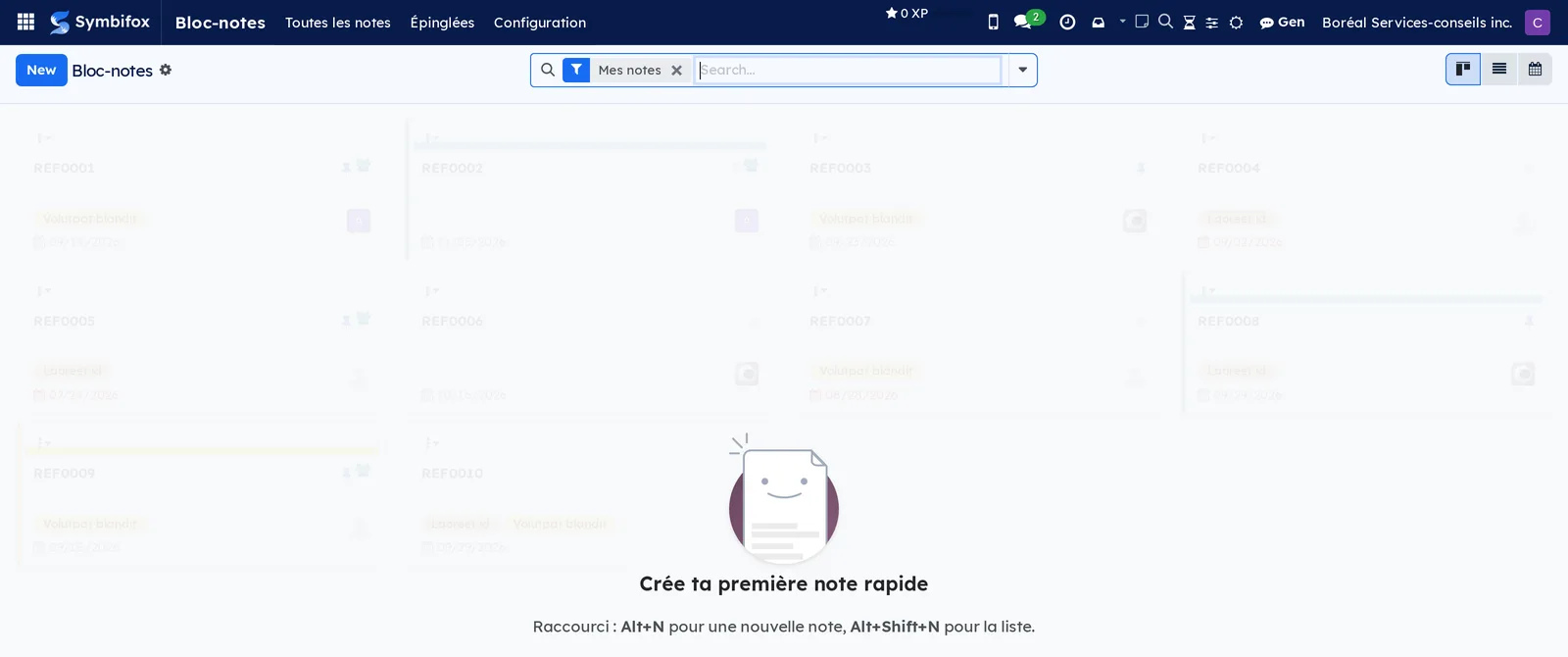
Notepad › All notes: your notes in a Kanban view, under the My notes filter; list and calendar views too. An empty screen shows the help text and the shortcuts. The demo's nine notes belong to other accounts and stay private. Form screenshot: m392_form.png.
Notepad › Pinned: the pinned notes, as a Kanban view or a list, under the Pinned filter.
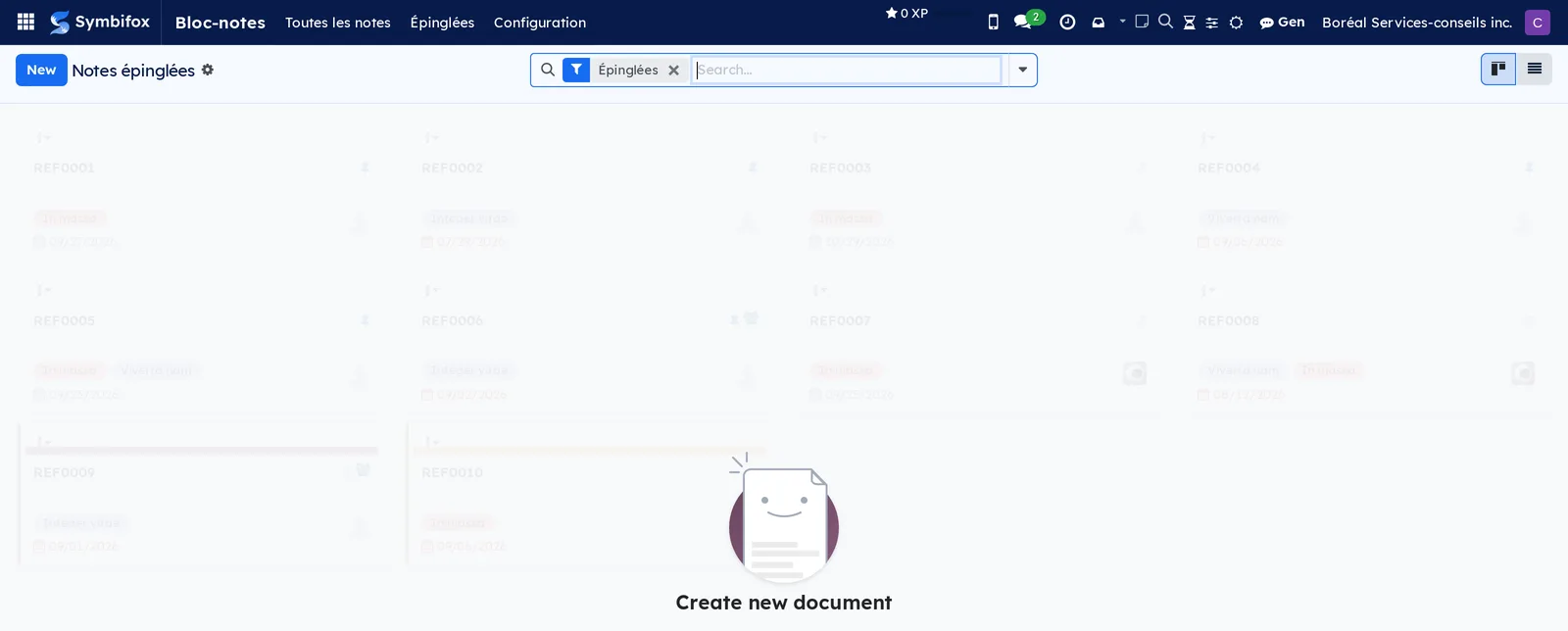
Notepad › Configuration: grouping menu.
Notepad › Configuration › Tags: the list of tags, editable in place, with the Name, Color and Active columns.
Notepad › Configuration › My preferences: the Notepad preferences dialog, with the Default reminder (Notepad) and the Display group (layout, density, colour as background or stripe, grouping by colour).
Settings › Colors › Swatches (administration): the swatches, personal and shared, with their colours.
Settings › Colors › Automatic rules (administration): the rules that give a colour by a criterion, with their Model, Criterion and Fallback swatch; the Active toggle archives a rule. Every application with a calendar view ships its own here, with the criterion it already used: “Ordres du jour selon le projet” and “Comptes rendus selon le projet” (agendas and meeting reports by project, in Meetings), “Entrées éditoriales selon le pilier” (editorial entries by pillar, in Editorial Workshop), “Cibles selon le responsable” (targets by owner, in Outreach), “Visites selon l'inscription” (property visits by listing, in Appointments) and “Shifts by employee” (in Shifts). Nothing changes on screen until a colour is set on the value. These rules can be edited or archived; see Colour records automatically by a criterion.
The calculator has no menu entry. The Calculator history screen opens from All › in the panel; it is a list with no New button, since calculations are born in the panel.
Timer: the page of running timers, with the today and this week totals, the Search for a task… field and, with no timer, the message No timer running. The menu only shows to timesheet users.
Reference#
Fields of the Note form#
| Field | Description | Required or default |
|---|---|---|
| Title | Title of the note. Left empty, it is taken from the beginning of the content. | Empty |
| Content | The content: formatted text, with images, in the Content tab. | Empty |
| Shared | The other internal users can read the note. | Cleared |
| Due date | Date that places the note on the calendar and under the Overdue filter. | Empty |
| Tags | Coloured note tags. Selecting a tag opens My color. | Empty |
| Color | The note's colour: a swatch, an Odoo colour or a free colour (#RRGGBB). | None |
| Author | Person who created the note, the only one who can edit it. | You, required |
| Links | Linked records, in the Links tab, which can be ordered. The first one is the Primary link. | Empty |
| Linked to | Summary of the links, shown in the list. | Computed |
| Activities created, Tasks created | Activities and tasks born from the note, behind the shortcut buttons. | Computed |
Fields of the Convert to task dialog#
| Field | Description | Required or default |
|---|---|---|
| Title | Title of the task. | Title of the note, required |
| Description | Description of the task. | Content of the note |
| Project | Destination project. | Required |
| Stage | Stage of the project. | First stage |
| Parent task | Creates the task as a subtask. | Empty |
| Assigned to | Assignees. | Empty |
| Due date | Due date and time. | Empty |
| Tags, Client | Tags and client of the task. | Empty |
| Link the note to the task | Adds the task to the note's links. | Checked |
| Archive the note | Archives the note after creation. | Cleared |
| Open the task | Opens the task created. | Checked |
Fields of the timer stop dialog#
| Field | Description | Required or default |
|---|---|---|
| Raw duration | Time actually elapsed, read-only. | Computed |
| Hours, Minutes | Duration to enter in the timesheet, editable. | Duration rounded per the settings |
| Description | Label of the timesheet line. | Name of the task |
| Preset | Preset description that replaces the description. | Empty |
Fields of the Daily digest form#
| Field | Description | Required or default |
|---|---|---|
| Name | Name of the configuration. | Required |
| Recipients | Users who receive the digest. | Empty |
| Sending hour | Hour, from 0 to 23, in each recipient's time zone. | 4 |
| Overdue activities, Today's activities, Overdue tasks, Today's tasks | Sections included. Widgets tab. | Checked |
| Upcoming tasks, Days ahead | Preview of the tasks of the coming days, from 1 to 7. | Depends on the configuration |
| Weather, Weather city (default), Latitude, Longitude | Weather of the day for the city given; Montréal by default. | Checked, Montréal |
| Inspiring quote | A quote drawn at random. | Checked |
| Meetings (agendas + minutes) | Upcoming meetings whose agenda is to be prepared, and meeting reports to complete. | Cleared |
| Company | Limits the tasks to this company. | Current company |
| Last sent | Date of the last sending. | Computed |
What the calculator can read#
| Entry | Result | What to know |
|---|---|---|
| “1,250.50”, “1 250,50”, “12.5” | 1,250.50; 12.5 | Decimal point or comma, spaces or commas as thousands separators. |
| “6 (weeks) * 750 $” | $4,500 | Words stay in the calculation, which ignores them. Units are not checked. |
| “Budget: 6 * 750” | 4,500, title “Budget” | What comes before the colon becomes the title. |
| “200 + 10 %”, “200 * 10 %” | 220; 20 | Desk calculator percentages. |
| “1 h 45 + 2 h 30”, “1 h 45 * 120 $” | 4.25 h (4 h 15); $210 | Hours and minutes; “min” is accepted. |
| “100 USD en CAD” | at the day's rate | Currency codes in capitals; Bank of Canada rates. |
| “rate = 125”, then “6 h * rate” | 750 | Personal variable, kept from one session to the next. |
| “2 ^ 10” | 1,024 | Power. Length, nested parentheses and the size of the result are capped. |
Reports and exports#
No report is specific to these menus. The Timer page shows the totals for the day and the week; confirmed hours appear in the reports of Timesheets. Notes, to-dos and the calculator history export from their list view, as everywhere.
Automations#
- A confirmed timer immediately creates a timesheet line on the task, for the employee linked to your account.
- The timer's list of recent tasks builds itself from your last ten tasks with a timesheet.
- Elapsed time counts from the start time: changing pages or closing the browser stops nothing.
- A note without a title receives a title taken from its content.
- A value created without a colour (an employee, a tag) receives, as soon as it is created, the least used shade of the Fallback swatch, when a rule that uses it as a criterion has one.
- Every day, calculator history older than the set duration (90 days by default) is deleted, except pinned lines.
- The calculator's exchange rates are fetched from the Bank of Canada by the first calculation that needs them, then kept for six hours. If the Bank does not answer, the last reading is used, and its date shows with the calculation.
- The digest is checked every hour and leaves at the chosen hour, once a day and per recipient, in each person's time zone. The weather comes from a public online service; the quote changes every day.
Public pages and portal#
No public page and no portal for these menus.
Modules that extend this application#
The timer also extends to the phone.
Understanding#
Why Camille's Notepad is empty. The demo's nine notes were written by other accounts and are not shared. A private note exists only for its author; the administration sees nothing of it either.
A note is not an activity. A note's due date warns nobody: it serves to sort the note and to see it on the calendar. For a reminder that counts, convert the note into an activity; it will then live on the linked record, with the other activities.
An activity does not copy the note. Anyone who reads a record also reads its activities: copying the body of a private note would have revealed it. The activity therefore carries a link to the note, which opens only for its readers. An activity placed on the note itself, with no linked record, keeps the content.
One activity per linked record. The conversion creates an activity on every record of the Links tab. Link the note to the single useful record before converting, or go through Customise… and its Target record.
Where the displayed colour comes from. A tag, a task or a shift takes the first colour found, from strongest to weakest. First My color, if you picked one, then the Company color. If an automatic rule targets that model, the first matching line of the rule comes next. Otherwise, the value's own colour, such as the one set on the doctor's form; otherwise, a colour from the Fallback swatch. Failing all that, the record shows its own colour. Two people can therefore see the same tag in two colours; a note, on the other hand, has a single colour for everyone.
A to-do is a task without a project. It uses the same form as Project tasks, with personal stages in place of the project's stages. Converting a to-do into a task amounts to giving it a project.
Why the timer is refused on a task. The Start button only appears if timesheets are turned on for the task's project and if your account has the timesheets group. A second timer on a task where yours is already running is refused.
What happens elsewhere shows within 30 seconds. The top bar and the Timer page reread your timers every 30 seconds, in the visible tab only. A tab left in the background rereads nothing, then catches up as soon as you return to it. A timer started or stopped in another tab or on the phone can therefore take up to 30 seconds to show. A task's Stop button does not wait for this delay: its dialog opens at once.
Rounding does not change the actual time. The stop dialog always shows the elapsed time; rounding only affects the proposed duration, which you can correct before confirming. In Round below a threshold mode, a duration above the threshold is proposed as it is.
A calculator history belongs to you alone. Neither a colleague nor the administration can read your calculations or your variables. What you post to a chatter, however, becomes visible to anyone who can read the record.
Posting means publishing an internal note. The calculation is published under your name, with your access rights: if you cannot post on the record, the post is refused. An internal note is not emailed to the record's followers. In the panel's history, a posted calculation carries a speech bubble icon.
Why reverse tax does not always land exactly. Each tax is rounded to the cent on the amount before taxes. In reverse, the amount before taxes absorbs the rounding cent to land exactly on the total you entered; when no amount gets there, the panel says so and gives the closest one.
Business days, not procedural deadlines. Business days exclude weekends and the eight statutory holidays of the Act respecting labour standards: New Year's Day, Good Friday or Easter Monday depending on the setting, National Patriots' Day, the Fête nationale, Canada Day, Labour Day, Thanksgiving and Christmas. The panel lists them by their French names. A court deadline follows other rules.
Calculating in fields already exists. In any Odoo number field, an entry that starts with “=” is calculated (“=12.5*2” gives 25). The calculator does not replace that; it adds the history, the labels, the taxes and posting.
The digest respects each person's time zone. Two recipients in two time zones receive the digest at the same local hour. Tasks hidden in their project are not detailed, but a link sums them up.
Troubleshooting#
| Symptom | Likely cause | Fix |
|---|---|---|
| Alt+N opens nothing. | The cursor is in a text field, or the browser intercepts the shortcut. | Select the note icon in the top bar. |
| My note got attached to the open record when I did not want it to. | The Link to checkbox is ticked by default when the dialog opens on a record. | Before saving, untick Link to (Alt+L). For a note already created, select Reroute… in the note. |
| A colleague cannot see my note. | The note is private. | Check Shared on the note. |
| On a shared note, a colleague does not see one of my tags. | It is a personal tag: only you can see it. | For what several people need to read, use a shared tag. |
| Editing or deactivating a tag is refused. | It is a shared tag, which only the administration manages. | Create your own tag, or ask the administration for the change. |
| A colleague does not see the colour I gave a tag. | You chose My color, which is yours alone. | Ask the administration for a Company color. |
| An automatic rule does not colour the expected calendar or card. | The rule is archived, or the value has no colour and the rule has no Fallback swatch. | Reactivate the rule; set the colour on the value's form, add a line or select Assign missing colors. |
| A task does not take the colour of the expected tag, or a calendar does not follow the rule. | A higher line of the rule matches another of its tags, or a My color set on the record wins over the rule. | Drag the line you want higher; choose Remove my color on the record. |
| The phone does not follow the layout chosen on the desktop. | On this device only is ticked in Symbifox Mobile. | In Layout, select Use my account's layout again. |
| Today or Tomorrow creates no activity. | The note is linked to no record, or the record does not accept activities. | Add a link to a contact, a task or an opportunity, then try again. |
| Start does not appear on a task. | Timesheets are not turned on for the project, or your account does not have the timesheets group. | Turn on timesheets for the project; ask the administration for the group. |
| The stop dialog does not appear. | Another browser window has taken charge of it. | Look at your other tabs, or wait five minutes: the duration does not change while you wait. |
| The proposed duration does not match the actual time. | Rounding is active. | Correct Hours and Minutes before confirming, or change the Rounding mode in Settings. |
| Post as internal note is refused with a message about the sender's email address. | Your profile has no email address; Odoo requires one to post in a chatter. | Add your address in your preferences, then post again. |
| The digest does not arrive. | You are not among the Recipients, the hour has not passed in your time zone, or the outgoing mail server is down. | Check the configuration and select Test (me only). |
See also#
- Common actions in every application: the activities, the chatter and the target record.
- Project: the tasks, the projects and turning on timesheets.
- Timesheets: the lines created by the timer and their reports.
- Invoicing: the sales taxes read by the calculator's Taxes tab.
- Mobile apps and browser extension: Symbifox Chronomètre, the timer on the phone.
- Calendar: where dated notes and meeting activities appear.
- Meetings: the agendas and meeting reports the digest recalls.
- My desk, Dashboard and Progress: placing your to-dos and your activities in a desk.