

Part 4 · Finance
Donations and fundraising
Track donors, structure fundraising into funds, campaigns and appeals, record donations and issue official receipts that meet CRA and Revenu Québec rules.
Watch it
The Fundraising application serves charities and non-profits. It keeps the donors, the fundraising structure, the donations received and the official receipts for income tax purposes. It is for the person who solicits, the person who records donations and the management team that tracks progress toward the goals. In practice: a donation recorded once produces its compliant receipt, goes out by email and is added to the fund and campaign totals. The Boréal demo is a consulting firm, not a charity, so this application's screens carry their settings there, but no donations.
Overview#
Fundraising is structured on four levels, from the broadest to the most specific. The fund says where the money goes (general fund, a fund dedicated to a project) and carries the analytic account that distributes the donation in the accounting. The campaign is the overall effort for a period, with its goal. The appeal is a specific effort within the campaign, for example a spring mailing. The package is a variant of that appeal, for example the printed envelope against the email: it is what tells you which of the two worked.
People are called constituents: donors, members and prospects together. A constituent is a contact record with the Constituent box checked. The record then gains a Philanthropy tab that carries the donation total, the first and last donation, the largest donation, the estimated capacity and the solicitation codes. Several constituents can be attached to the same household, so that two spouses do not count as two unrelated donors.
The donation is the central piece: a donor, a date, one or more amounts allocated to funds, and a payment method. Once validated, it produces its accounting entry and its tax receipt. The receipt is not an invoice. It is a separate document, numbered in a gap-free annual sequence, that carries every statement required by the Canada Revenue Agency (CRA).
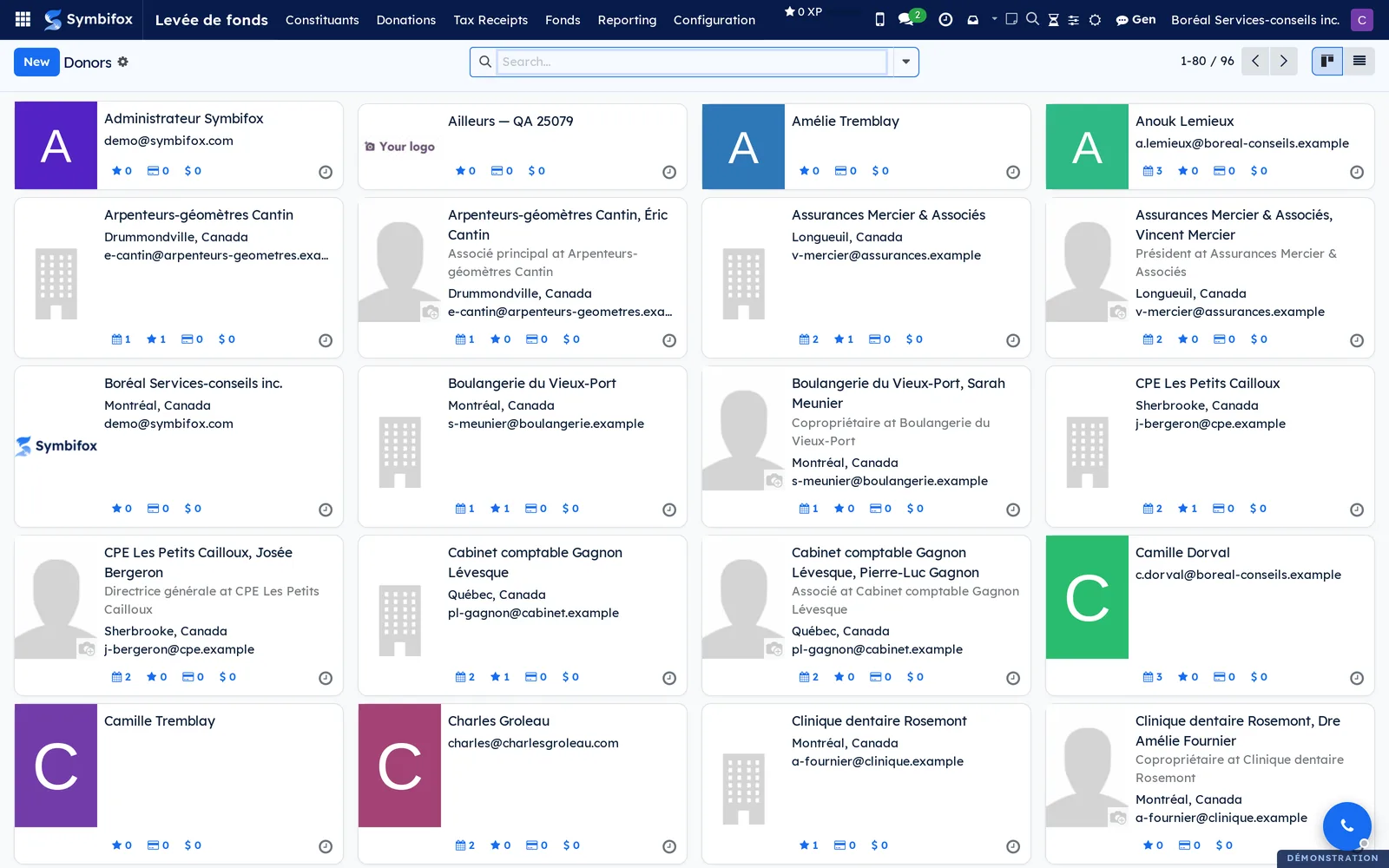
The first screen is the donor book, as cards: name, city, email, and four counters per record.
Configuration#
Access and permissions#
Permissions are granted in Settings › Users, in the Donation section.
| Level | What it opens |
|---|---|
| Viewer | View donations, constituents, receipts and reports |
| User | Record and validate donations, create funds and appeals, issue receipts, open a cheque count |
| Manager | Everything above, plus the settings, the campaigns and the solicitation codes |
Settings#
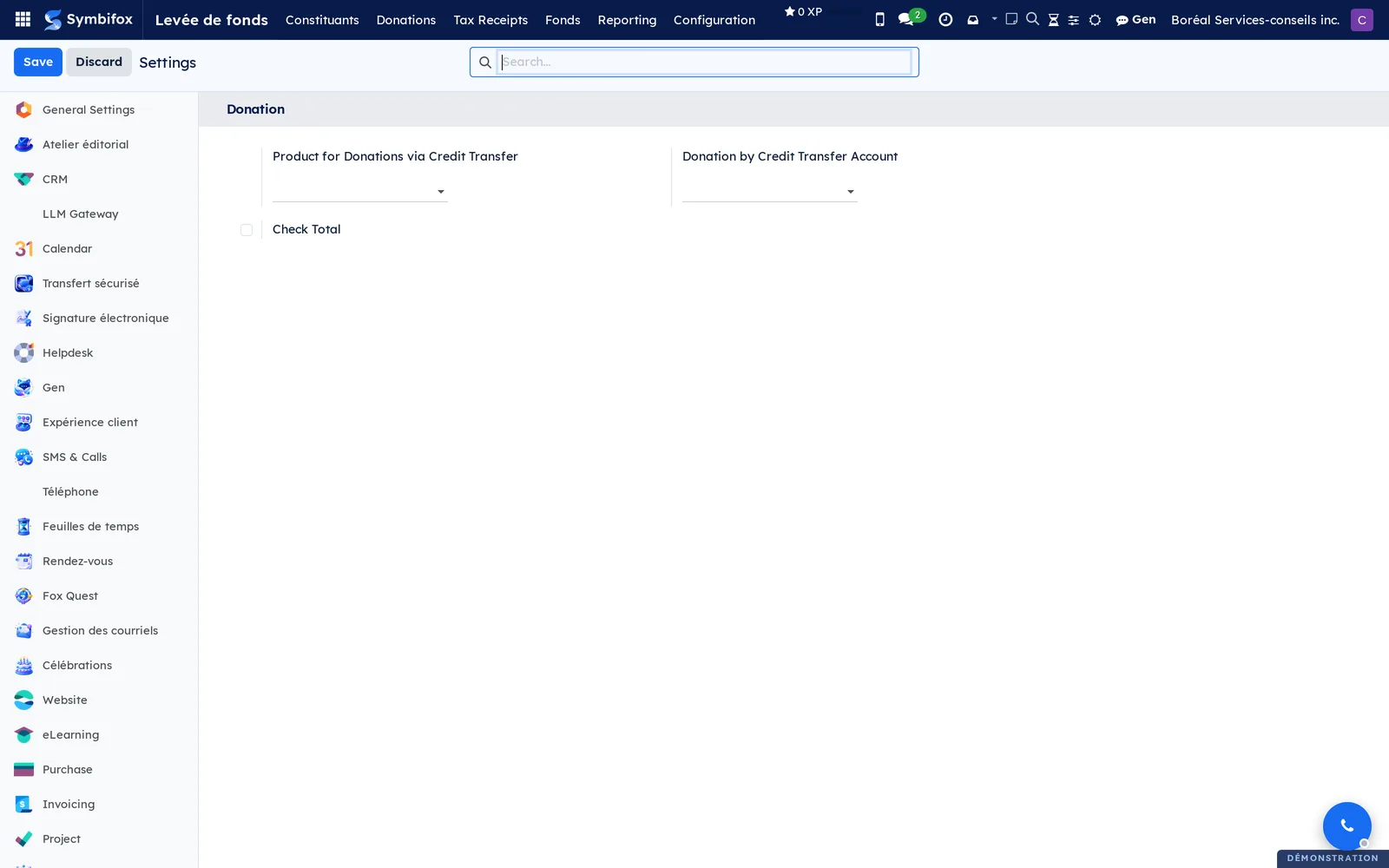
Fundraising › Configuration › Paramètres opens the application's section. It is short, and its labels are in English in this version, on the English and the French screens alike.
| Setting | Effect |
|---|---|
| Product for Donations via Credit Transfer | Product used for donations received by transfer, and for those the public form creates. Without it, the form cannot create a line. |
| Donation by Credit Transfer Account | Accounting account that receives these transfers. |
| Check Total | Requires the expected total to be entered, and refuses the donation if the lines do not reach it. Useful for batch entry. |
The statements on the official receipt are set elsewhere, on the organization's record, in Settings › Companies:
- the Numéro d'enregistrement (ARC) (CRA registration number), in BN/RR format;
- the Signataire autorisé (authorized signatory), their Titre (title) and their Signature;
- the Lieu de délivrance (place of issue) and its display box;
- the Afficher l'évaluateur (dons en nature) (show the appraiser, gifts in kind) box;
- the Adresse ARC (organismes de bienfaisance) (CRA address for charities).
Without a registration number, the receipt is not an official receipt.
Base data#
Six sets of data come before the first donation. The funds, at least one, each linked to its analytic account. The donation campaigns, with their goal and their dates. The appeals and their packages, if you want to measure the effect of each mailing. The donation products, six on the demo, which carry the income account. The payment methods, four on the demo. The solicitation codes, five on the demo: “Do not solicit”, “Do not call”, “Do not email”, “Do not mail” and “Deceased”.
Finally, add a thank-you letter template if you send a personalized note with your receipts.
Getting started#
This walkthrough records a $500 donation to the general fund and produces the official receipt for it.
- Open Fundraising › Donations › Donations, then select New.
- In Donor, choose the person's record, or create it.
- Check the Donation Date and choose the Payment Method.
- In the lines, choose the donation product and the Fund, then enter the amount.
- Optional: choose the Donation Campaign, the Appeal and the Package behind the donation.
- Select Validate.
Result: the donation is posted, a tax receipt is created with its serial number for the year, and the receipt goes out by email to the donor with the PDF attached. The totals of the fund, the campaign and the appeal rise by as much, and the donor's Philanthropy tab shows their new last donation.
Common tasks#
Register a constituent#
A donor is a contact first. The Constituent box is what brings them into fundraising.
- Open Contacts and the record you want, or create it.
- Check Constituent.
- Choose the Constituent type: individual, household, organization or foundation.
- Open the Philanthropy tab.
- If needed, fill in the Estimated giving capacity and the Wealth rating.
- Save.
Result: the record now appears in Fundraising › Constituents, and its Philanthropy tab fills in on its own as donations come in.
Group constituents into a household#
A couple who give together should not count as two unrelated donors.
- Create a contact record for the household and check Is a household.
- Open the record of each person in the household.
- In the Philanthropy tab, choose the Household you created.
- Save.
Result: the household record lists its Household members, and the analyses can group donations by household rather than by person.
Set a solicitation code#
A constituent who asks not to be solicited again must be excluded once and for all, whoever prepares the next mailing.
- Open the constituent's record, Philanthropy tab.
- In Solicit codes, add the code you want.
- Save.
Result: the Do not solicit box checks itself as soon as one of the codes excludes all solicitation. On the demo, those are “Do not solicit” and “Deceased”.
Create a fund#
The fund is the designation of the donation: it says where the money goes and how it is distributed in the accounting.
- Open Fundraising › Funds, then select New.
- Enter the Fund name and its Code.
- Choose the Fund type.
- Choose the Analytic account this fund's donations will be distributed to.
- Describe the fund in one or two sentences in Description.
- Save.
Result: the fund is offered on every donation line, and its record shows the Amount raised and the Number of donations as soon as the first donation arrives.
Set up a campaign, an appeal and a package#
The campaign carries the overall goal; the appeal and the package say what actually triggered the donation.
- Open Fundraising › Configuration › Donations › Donation Campaigns, then select New.
- Enter the name, the Goal and the End date.
- Open Fundraising › Configuration › Donations › Appeals, then select New.
- Enter the Appeal name, then choose the Campaign, the dates and the Goal.
- In the Packages tab, add one line per variant, for example the postal mailing and the email.
- Save.
Result: the campaign shows its Progress (%) and its Amount raised, both computed, and its Appeals tab lists its efforts. Each package counts its own amount raised.
Deduct the advantage received#
When the donor receives something in return, a meal or a ticket, only the difference is eligible for tax purposes.
- Open the donation in draft.
- Enter the Montant de l'avantage (amount of the advantage).
- Enter the Description de l'avantage (description of the advantage), for example “Benefit dinner, value of the meal”.
- Select Validate.
Result: the receipt carries the amount of the donation, the amount of the advantage and the Montant admissible (eligible amount), shown separately as the CRA requires.
Record a gift in kind#
A donated item is received at its fair market value, and the receipt must describe the item.
- Open the donation, then enter the Description du bien (don en nature) (description of the property, gift in kind).
- Select Validate.
- Open the receipt produced and check the Juste valeur marchande (fair market value).
- If your organization shows the appraiser, enter the Nom de l'évaluateur (appraiser's name) and their Adresse (address).
Result: the receipt carries the description of the item and its value. The appraiser appears only if the matching box is checked on the organization's record.
Produce cumulative annual receipts#
Several donations made in the same year can fit on a single receipt, which lightens the January mailing.
- Open Fundraising › Tax Receipts › Créer les reçus annuels (create annual receipts).
- Choose the year.
- Check the number of donors concerned.
- Start the creation.
Result: one cumulative receipt per donor, numbered in the sequence of the year, covering all their donations for the period. Donations that already received their own receipt are not taken twice.
Print receipts in batch#
For donors without an email address, the receipts come out as a single PDF to mail.
- Open Fundraising › Tax Receipts › Print Receipts.
- Choose the period and the receipts.
- Start the printing.
Result: a single PDF, one receipt per page, ready for the envelopes.
Cancel and reissue a receipt#
A wrong receipt is not deleted: the CRA requires cancelled receipts to be kept.
- Open the receipt in Fundraising › Tax Receipts › Donation Tax Receipts.
- Select Annuler le reçu (cancel the receipt).
- Enter the Motif d'annulation (reason for cancellation).
- Select Réémettre (reissue).
- Check the amounts on the new receipt, then send it to the donor.
Result: the cancelled receipt stays viewable, with its reason, and points to the one that replaces it. The new receipt carries a new serial number and names the receipt it replaces.
Find lapsed donors#
A donor who gave last year and not this year is the easiest to bring back.
- Open Fundraising › Constituents.
- Switch to list view.
- Apply the Lapsed (LYBUNT) filter.
- Add the Last donation and Total donations columns.
- Group by Wealth rating to sort the effort.
Result: the list of people to call back, sorted by what they have already given. Set aside those who carry a code that excludes solicitation.
Open the public donation form#
The website can receive donations without anyone entering them.
Prerequisite: a donation product set in the settings.
- Check that the donation product is indeed selected in Fundraising › Configuration › Paramètres.
- Open the
/donaddress of the site to check how the form looks. - Add the donation link or button yourself on the pages of your choice, in Website, blog and eLearning.
- Make a one-dollar test donation.
- Open the donation created in Fundraising › Donations › Donations, then select Validate.
Result: the test donation is created in the donor's name, matched by email or created from scratch, and its receipt goes out automatically on validation. No donation link is added to the site without your action: a consulting firm has no reason to show a donation button.
The menus, one by one#
The main menu has six entries: Constituents, Donations, Tax Receipts, Funds, Reporting and Configuration.
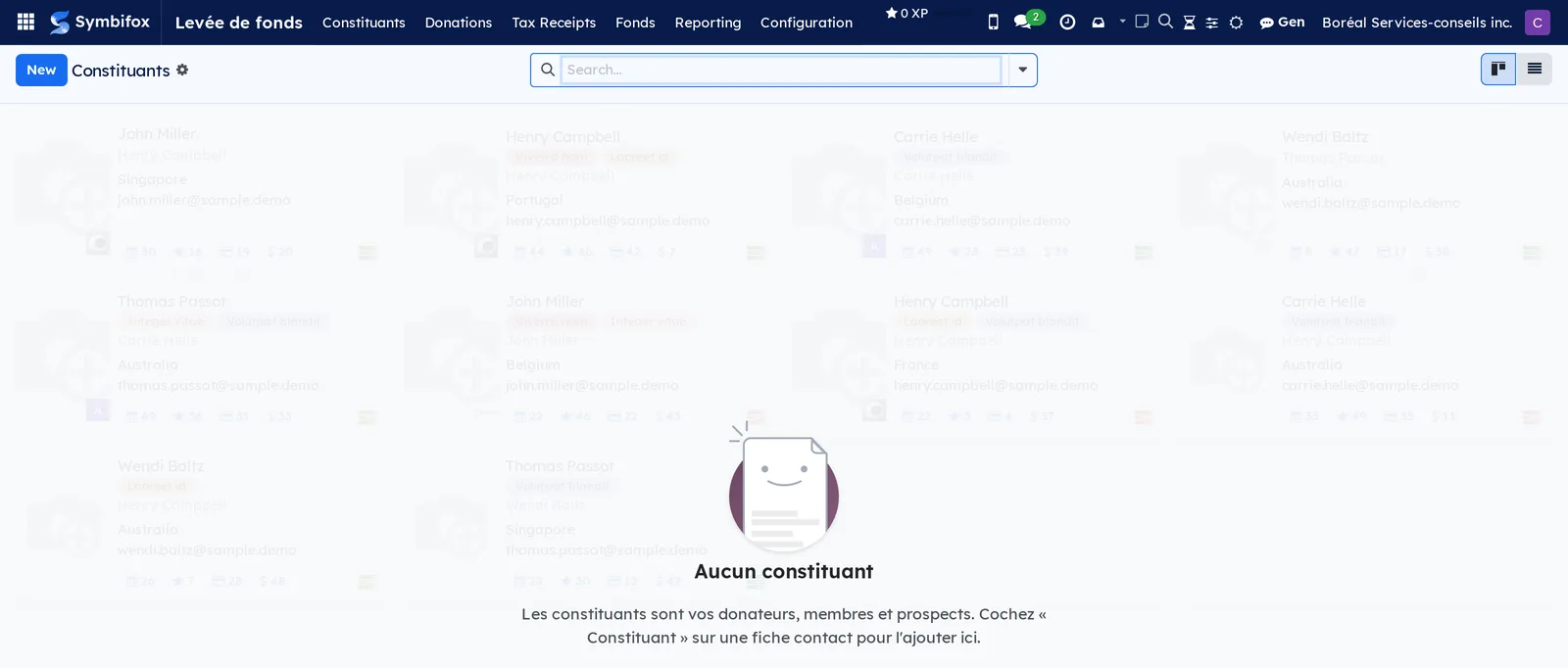
Fundraising › Constituents: the contact records checked Constituent, as cards or as a list. Checking Constituent on a contact record is enough to add it here. One record on the demo; on an empty screen, the help text recalls that constituents are your donors, members and prospects.
Fundraising › Donations: grouping menu for donations.
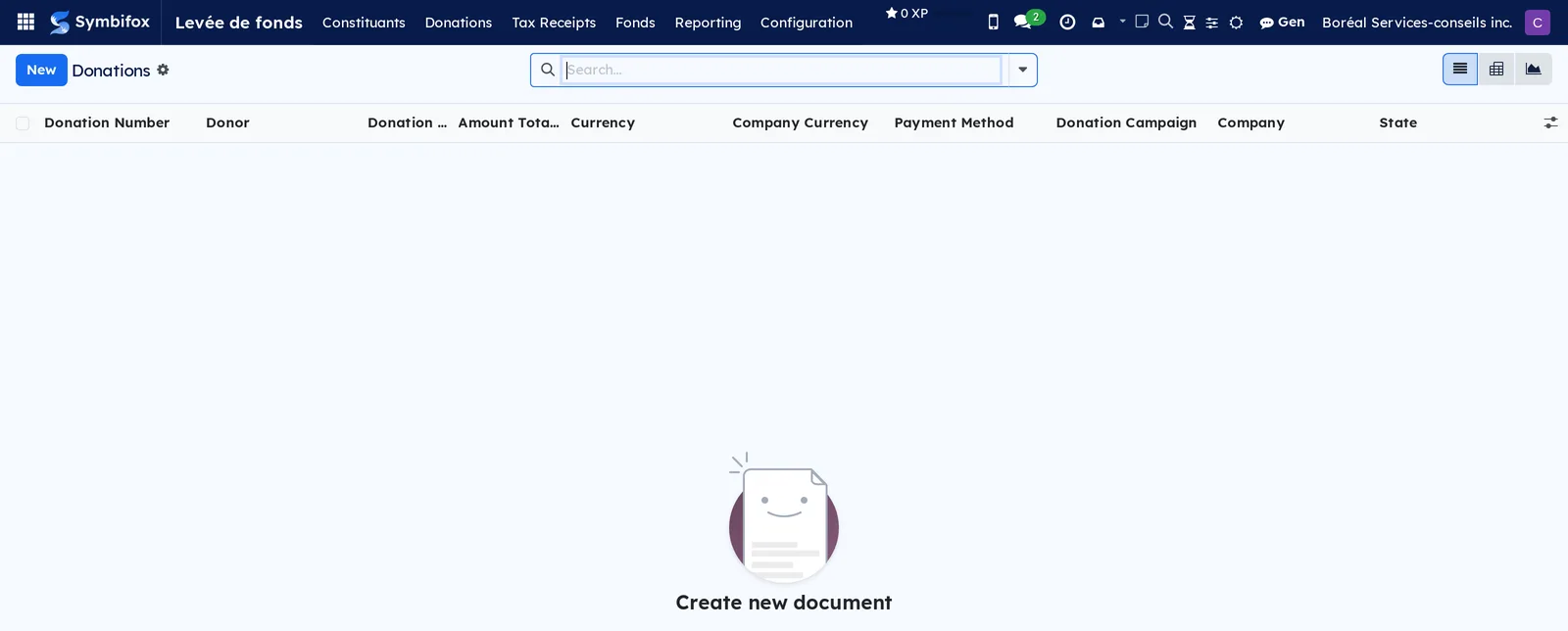
Fundraising › Donations › Donations: the list of donations, with the Donation Number, the Donor, the Donation Date, the Amount Total, the Currency, the Payment Method, the Donation Campaign, the Company and the State. List, form, pivot and graph views. This is the daily entry screen.
Fundraising › Donations › Dépouillement des chèques (cheque counts): the list of counts, filtered on En cours (in progress) when it opens, with the columns Dépouillement (count), Date du dépôt (deposit date), Nombre de chèques (number of cheques), Total des chèques (cheque total), Argent comptant (cash), Total du dépôt (deposit total) and État (status). A count is the pile of cheques and cash that will go to the bank as a single deposit. Attach the photos of the cheques to its chatter; Répartir les photos (distribute the photos) then turns each photo into a cheque, and Lire les chèques (read the cheques) extracts the drawer, the amount in figures and in words, the date, the number, the memo and the envelope number. The donor is found by their Numéro d'enveloppe (envelope number), then by a bank account already seen, then by name, which remains to be confirmed; no contact record is created. The allocation repeats the donor's last donation. No donation is created on reading: a cheque moves from À lire (to read) to À vérifier (to check) or Prêt (ready), discrepancies (amounts that do not match, a postdated or stale cheque, an uncertain reading) are accepted one by one, then Créer les dons prêts (create the ready donations) creates and validates the donations. Of the bank account, only the institution, the transit and the last four digits are kept. The screen opens at the User level; the Viewer level can consult it without changing anything.
Fundraising › Donations › Donors: the donor book, 187 records on the demo, as cards. Same content as Contacts.
Fundraising › Tax Receipts: grouping menu for receipts.
Fundraising › Tax Receipts › Donation Tax Receipts: the receipts issued, with the Receipt Number, the Donor, the Date, the Type, the Amount, the Montant admissible, the État (status), the Currency and the Print Date. Filter by status to find the cancelled receipts.
Fundraising › Tax Receipts › Print Receipts: the batch printing dialog. Its label is in English on both screens.
Fundraising › Tax Receipts › Créer les reçus annuels: the dialog that produces one cumulative receipt per donor for a year.
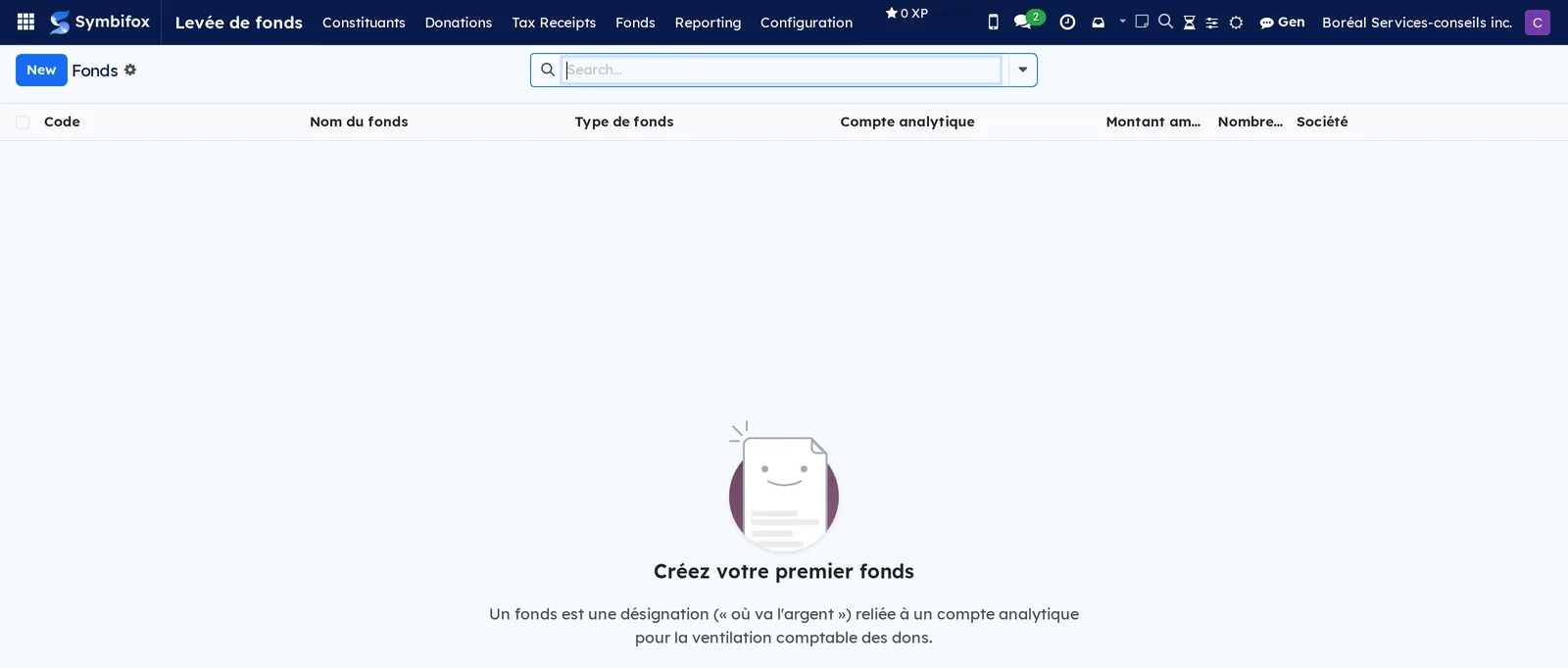
Fundraising › Funds: the fundraising funds, with the Code, the Fund name, the Fund type, the Analytic account, the Amount raised, the number of donations and the Company. Three funds on the demo: an endowment fund, the general fund and a restricted fund. On an empty screen, the help text recalls that a fund is a designation linked to an analytic account.
Fundraising › Reporting: grouping menu for reports.
Fundraising › Reporting › Donations Analysis: the donations as a pivot, a graph or a list. Used for totals by fund, by campaign, by month or by donor.
Fundraising › Configuration: grouping menu, reserved for managers.
Fundraising › Configuration › Paramètres: the settings described in Settings.
Fundraising › Configuration › Donations: grouping menu for the fundraising structure.
Fundraising › Configuration › Donations › Products: the six products of the demo, which carry the income account of the donation lines.
Fundraising › Configuration › Donations › Payment Methods: the four payment methods of the demo. The label is in English on both screens.
Fundraising › Configuration › Donations › Donation Campaigns: the campaigns, with their goal, their end date, their amount raised and their progress. Three on the demo.
Fundraising › Configuration › Donations › Appeals: the specific fundraising efforts inside a campaign. Empty on the demo: the help text gives a spring mailing as an example.
Fundraising › Configuration › Donations › Packages: the variants of an appeal, with their amount raised. Empty on the demo.
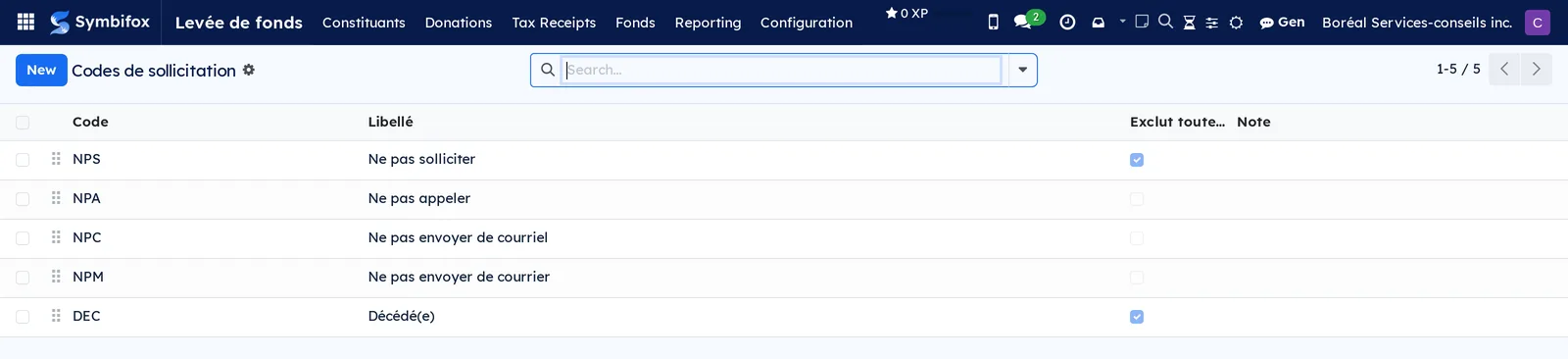
Fundraising › Configuration › Donations › Solicit codes: the five codes of the demo, with the Code, the Label, the Excludes all solicitation box and a Note. Two codes exclude all solicitation.
Fundraising › Configuration › Donations › Modèles de lettre de remerciement (thank-you letter templates): the templates for the note that accompanies receipts. Empty on the demo.
Reference#
Fields of the donation form#
| Field | Description | Required or default |
|---|---|---|
| Donor | Constituent who gives. | Required |
| Donation Date | Date the donation is received; sets the year of the receipt. | Today's date |
| Payment Method | How the money is collected. | Required |
| Donation Campaign | Campaign the donation belongs to. | Set by the appeal |
| Appeal, Package | Effort and variant behind the donation. | Empty |
| Montant de l'avantage, Description de l'avantage | Consideration received by the donor; reduces the eligible amount. | $0.00 |
| Description du bien (don en nature) | Donated property, carried onto the receipt. | Empty |
| Don en ligne (online donation) | Checked when the donation comes from the public form. | Cleared |
| Donation lines | Product, amount and Fund of each part of the donation. | At least one line |
| State | Draft, Done or Cancelled. | Draft |
Fields of the tax receipt form#
| Field | Description | Required or default |
|---|---|---|
| Receipt Number | Serial number in the annual sequence, with no gaps. | Assigned at issue |
| Donor, Date | Name and address carried from the donation, date of issue. | Taken from the donation |
| Amount | Amount received. | Taken from the donation |
| Montant de l'avantage | Value of the consideration. | $0.00 |
| Montant admissible | Amount received minus the advantage. | Computed |
| Don en nature (gift in kind) | Box that makes the property fields appear. | Cleared |
| Description du bien, Juste valeur marchande | Donated property and its value. | Empty |
| Nom de l'évaluateur, Adresse de l'évaluateur (appraiser's address) | Contact details of the property's appraiser. | Empty |
| État | Émis (issued) or Annulé (cancelled). | Émis |
| Motif d'annulation | Reason for the cancellation, required in order to cancel. | Empty |
| Remplace le reçu (replaces the receipt), Remplacé par (replaced by) | Replacement chain between receipts. | Empty |
Fields of the fund form#
| Field | Description | Required or default |
|---|---|---|
| Fund name | Designation the donor can read. | Required |
| Code | Short code, for the reports. | Empty |
| Fund type | Nature of the fund. | Required |
| Analytic account | Account this fund's donations are distributed to. | Empty |
| Description | What the fund finances, and what it does not. | Empty |
| Amount raised, Number of donations | Totals computed from the donation lines. | Computed |
Fields of the constituent's Philanthropy tab#
| Field | Description | Required or default |
|---|---|---|
| Constituent | Brings the record into fundraising. | Cleared |
| Constituent type | Individual, household, organization or foundation. | Individual |
| Is a household, Household, Household members | Family grouping of donors. | Empty |
| Solicit codes, Do not solicit | Contact preferences; the box checks itself according to the codes. | Empty |
| Total donations, Largest donation, First donation, Last donation | Summary of donations, recalculated with each donation. | Computed |
| Estimated giving capacity, Wealth rating, Major gift prospect | Assessment of potential, entered by hand. | Empty |
Reports and exports#
The official receipt prints as a PDF, in a layout of its own, in the colours of the organization and with the Symbifox typography. The Print Receipts dialog produces a single PDF for a batch. Donations Analysis offers the pivot, graph and list views, which export to a spreadsheet. Lists export as everywhere else: see Common actions in every application.
Automations#
Three things happen on their own. A validated donation produces its tax receipt and sends it by email, with the PDF attached, in a layout branded for the organization. The totals of the funds, campaigns, appeals and packages, along with the constituent's donation summary, are recalculated at every read: they are never copied. The Do not solicit box checks itself as soon as a code that excludes solicitation is set on the record.
Public pages and portal#
| Address | Access | Role |
|---|---|---|
/don |
Public | The donation form: name, email, address, amount and, if needed, the fund and the campaign |
/don/submit |
Public | Receives the form, which creates the donation in draft |
A donor who has an account sees, under My Account, their donations (number, date, campaign, amount, link to the receipt) and their official receipts, which they download themselves. Each page checks that the donor is viewing their own donations.
Modules that extend this application#
The application rests on the donation module from the Odoo community, which brings the donation, the tax receipt, the campaigns and the printing dialogs. Three Symbifox modules add to it.
Donor management and the fundraising structure come from the first one.
The official receipts come from the second one.
The public side comes from the third one.
Understanding#
A French receipt is enough federally and in Québec. A charity registered with the CRA has been recognized in Québec since 2016. A single receipt, in French, carrying the registration number, therefore satisfies both administrations. This is what sets these receipts apart from those of platforms designed for American rules.
The numbering cannot have gaps. The sequence restarts at one each year and skips no number: that is what makes the series verifiable. It is also why a wrong receipt is cancelled instead of deleted, and why cancelled receipts stay in the database, with their reason and their replacement chain.
The eligible amount is not the amount received. As soon as the donor receives a consideration, the receipt must show three amounts: what was given, what the advantage is worth, and the difference. Setting the advantage to zero for convenience makes the organization answerable for an overstated receipt.
The fund is not the campaign. The fund says where the money goes and leads to an analytic account; the campaign says where it comes from and measures an effort. The same $500 donation can belong to the general fund and to the fall campaign: both totals rise, without the money being counted twice in the books.
The receipt is not an invoice. It has its own standalone layout, in the colours of the organization, because a donor does not receive an invoice, and a recycled invoice template always forgets one required statement.
No donation button appears without your action. The form exists at its address, but no link is added to the site menu. The module also serves organizations that do not raise funds: their site has no reason to carry a donation button.
Troubleshooting#
| Symptom | Likely cause | Fix |
|---|---|---|
| A contact record does not appear in Constituents. | The Constituent box is cleared. | Open the record and check Constituent. |
| The receipt carries no registration number. | The Numéro d'enregistrement (ARC) is missing from the company record. | Fill it in in Settings › Companies, then reissue the receipt. |
| The public form refuses a donation. | No donation product is chosen in the settings. | Fill in Product for Donations via Credit Transfer. |
| The validated donation produced no receipt. | The donor has no address, or the donation is not eligible for a receipt. | Complete the donor's address, then reissue from the donation. |
| The receipt amount exceeds what the donor actually gave. | The advantage received was not entered. | Cancel the receipt, enter the Montant de l'avantage, then reissue. |
| A campaign total stays at zero. | The donations carry the appeal but not the campaign, or they are not validated. | Validate the donations; the appeal sets the campaign on its own. |
| Annuler le reçu is refused. | The Motif d'annulation is not entered. | Enter the reason, then cancel again. |
| A constituent receives a solicitation despite their request. | The code set is not one that excludes all solicitation. | Check the code's Excludes all solicitation box, or set “Do not solicit”. |
See also#
- Contacts: the records where Constituent is checked and where the Philanthropy tab lives.
- Invoicing: the accounting entries and the analytic accounts that the funds feed.
- Email Marketing and Link Tracker: sending appeals by email.
- Website, blog and eLearning: the page that carries the link to the donation form.
- Customer experience: the portal where the donor finds their receipts.
- Privacy (Law 25 and other frameworks): the consents attached to donors, under Québec's Act respecting the protection of personal information in the private sector.
- Common actions in every application: chatter, activities, exports.