
Part 6 · Security, compliance and privacy
Secure transfers
Send large files through a link that expires, keep the access log Law 25 requires, and open a data room under a confidentiality agreement.
Watch it
The Transferts sécurisés (secure transfers) application replaces the free service people fall back on when an attachment is refused. It is meant for anyone who sends documents to a client, and for the person who must later prove who received them. A send produces a dated link, a one-time code if you require one, and an access log that nothing rewrites. At the deadline, the files are erased from storage and the proof of what happened remains.
Overview#
A transfer is one send: a sender, recipients, a subject, a message, files, a deadline. It carries a reference such as “TR-2026-001” and a state that goes from draft to active, then to expired, purged or suspended. The share link holds a token that cannot be guessed; it stops working at the deadline. The recipient code is a one-time code sent by email or by SMS: until it is entered, neither the message nor the files are shown. A brand dresses the public page and the emails according to the domain the visitor arrives through. The access log records every event, from creation to purge.
Two transmission modes coexist. With named recipients, you know who you are writing to and each person gets their own link. With an open audience, the link targets no one: you distribute it, and each person who opens it declares their address, confirms it with a code, then enters. This is the data room mode, where the list of readers is not known in advance.
Two paths lead to depositing files, and they are not equivalent. From the public page, the browser uploads directly to storage: the bytes do not pass through Symbifox, which allows several gigabytes and resuming after an interruption. From the internal dialog, the files pass through Symbifox and therefore stay capped, at 25 MB by default.
Configuration#
Access and permissions#
| Group | What it opens |
|---|---|
| Utilisateur (user) | The application, the transfers, the visitors and the access log; sending from Symbifox |
| Gestionnaire (manager) | Everything above, plus Configuration, the immediate purge, reactivating a suspended transfer and sending under another identity |
The raw link is not displayed on the record: you read it through the Révéler le lien (reveal the link) dialog, which writes the reveal to the log. It is the only path provided within Symbifox, and it is reserved for managers.
Settings#
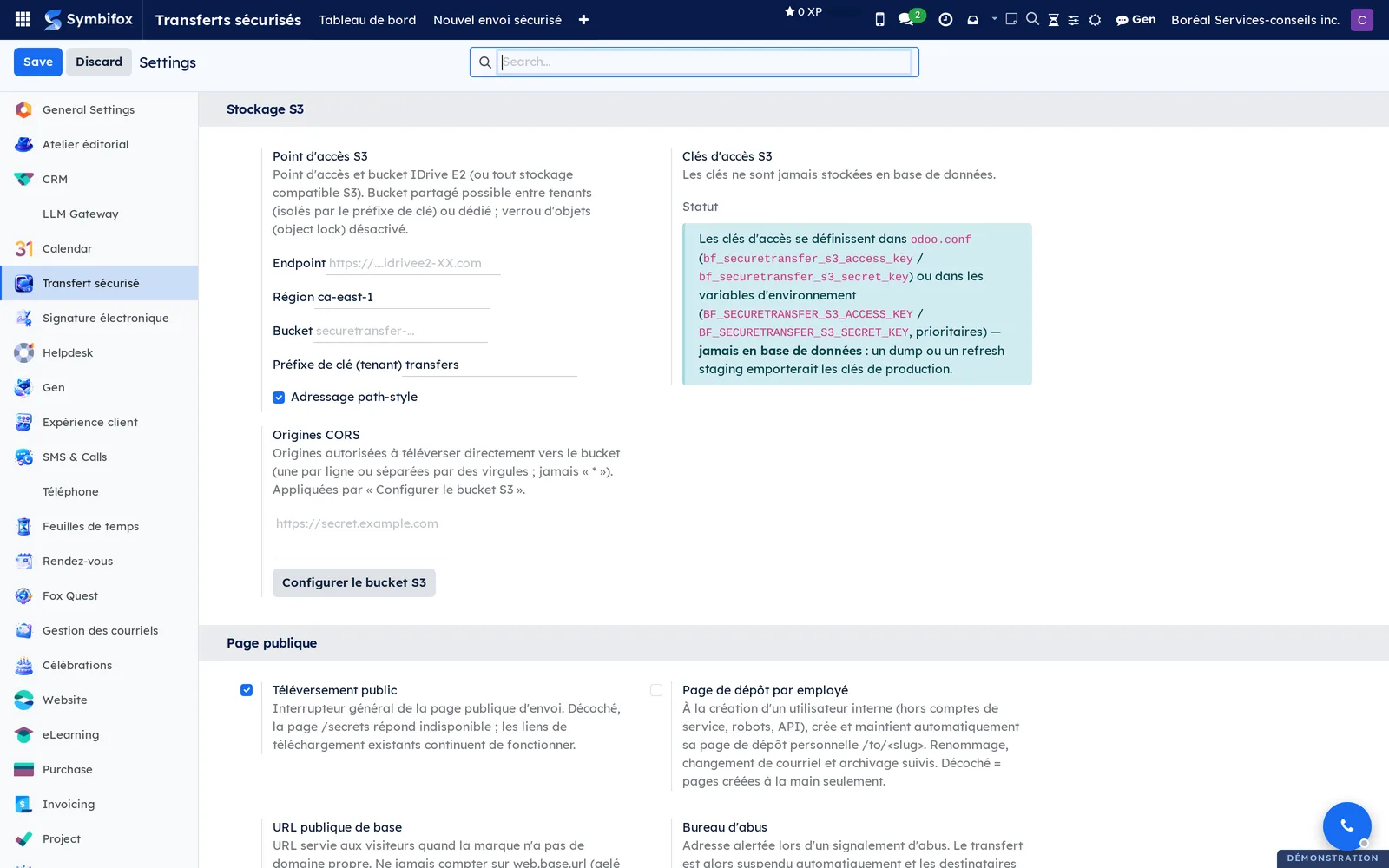
The settings for the instance are in Transferts sécurisés › Configuration › Paramètres (settings).
| Section | What you set there |
|---|---|
| Storage | The endpoint, the region, the bucket, the key prefix specific to this instance, and the origins allowed to upload. Configurer le bucket S3 (configure the S3 bucket) applies these origins and checks that storage responds. Access keys are never kept in the database. |
| Public page | Téléversement public (public upload) opens or closes the send page without uninstalling anything; Page de dépôt par employé (drop page per employee) maintains the personal page of each internal person; the abuse desk receives the details of the reports that suspend a transfer. |
| One-time codes | Sender confirmation by code, recipient confirmation by code, and code delivery by SMS with the number that sends it. |
| Allowed addresses | The senders and recipients authorized for the whole instance. A brand that carries its own list replaces this one. |
| Limits | The maximum size and retention per tier, the number of files, and the cap on attachments in the internal dialog. |
Base data#
At least one brand must exist: it supplies the logo, the colours, the limits and the domain of the link. The default brand serves any domain that matches no other. Then decide whether you open personal drop pages. If you plan data rooms, check Audience ouverte offerte (open audience offered) on the brand concerned and set a maximum number of visitors there.
Getting started#
This walkthrough sends a message held behind a code, from Symbifox, without touching the public page.
- Open Transferts sécurisés › Nouvel envoi sécurisé (new secure send).
- Choose the Destinataires (recipients) from the address book, or enter addresses in Autres courriels (other emails).
- Keep Canal du code (code channel) on “Courriel” (email), or choose “SMS” if the recipient's mobile number is known.
- Enter the Objet (subject), for example “IT audit report”, then the message to transmit.
- Select Fichiers (files) to attach documents, if needed.
- Adjust Disponible (jours) (available, in days) and, if required, the Mot de passe (optionnel) (password, optional).
- Select Envoyer (send).
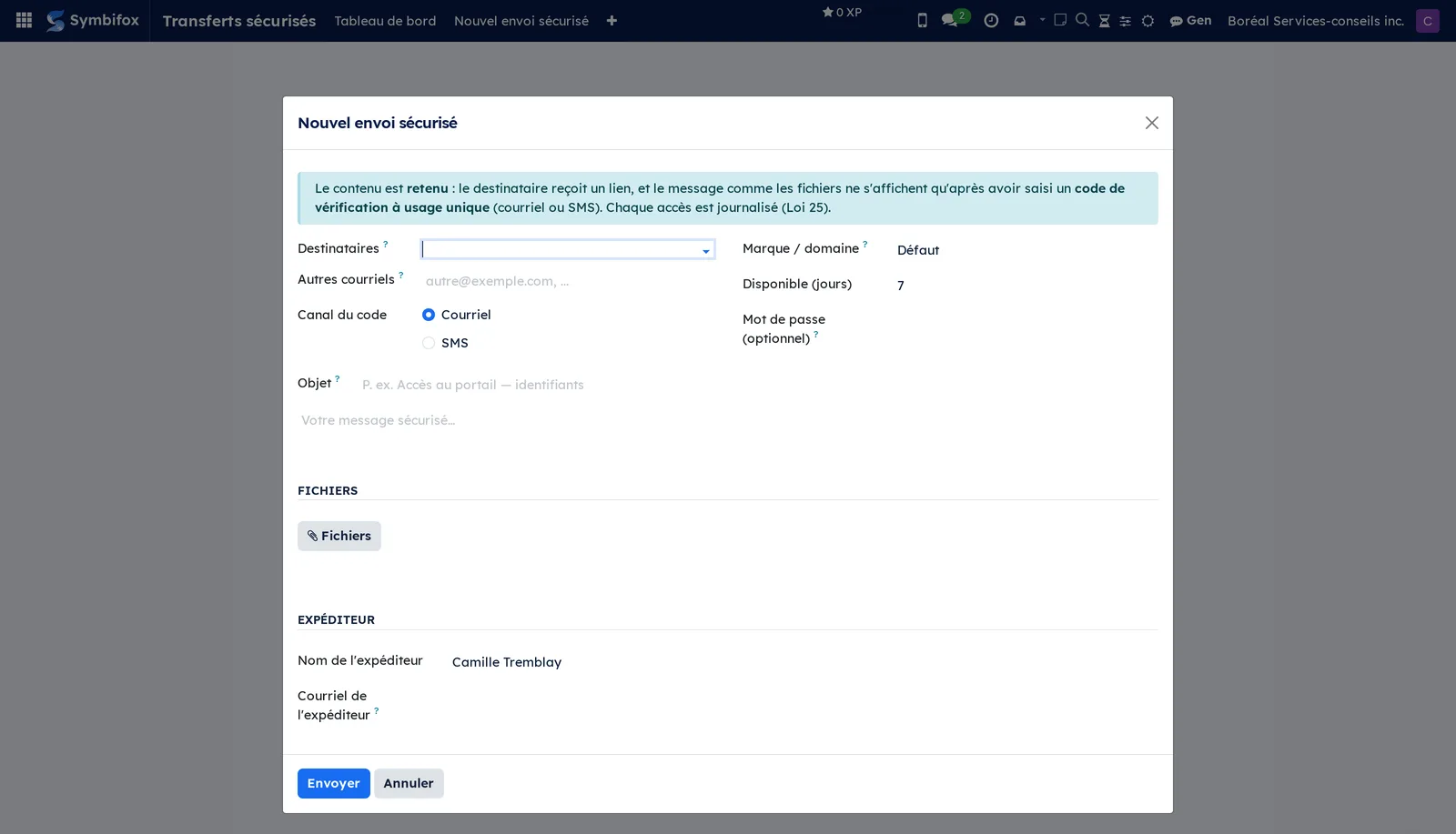
Result: an active transfer appears in Transferts (transfers), the recipient receives an email that holds only the subject and the link, and the log records the creation, then the send. The content will be shown only once the code is entered.
Common tasks#
Send large files from the public page#
This is the path to take beyond a few tens of megabytes, since the files do not pass through Symbifox.
- Open your brand's public send address in a browser.
- Enter your email, then the recipients' addresses.
- Drop the files in the area provided and wait for the upload to finish.
- Choose how long the files stay available and, if needed, a password.
- Check the recipient code request if the brand offers it.
- Send.
Result: the transfer appears in Transferts in the active state, and each recipient receives their own email.
Receive files through a drop page#
A drop page is a public page with a fixed recipient: whoever opens it can send only to that person.
- Open Transferts sécurisés › Configuration › Marques (brands), then select New.
- Enter the Nom (name) and the Identifiant de page (slug) (page identifier), for example “depot”.
- Fill in Destinataire unique (page de dépôt) (single recipient, drop page) with the address that will receive everything.
- If needed, enter the Nom affiché du destinataire (recipient display name).
- Select Save.
Result: the page answers at /to/depot, the recipient field is hidden there, and the server enforces the address on deposit as on send. Share this address rather than asking a client to email you an attachment.
Open a data room#
The link of an open audience names no one: you are the one who distributes it, and each visitor introduces themselves.
- Open Transferts sécurisés › Configuration › Marques and check Audience ouverte offerte on the brand concerned.
- Fill in Visiteurs max. (défaut) (maximum visitors, default) on the same brand.
- Open Transferts sécurisés › Nouveau lien à audience ouverte (new open-audience link).
- Enter the subject, the message and the files, as for a named send.
- Adjust Domaines admis (allowed domains), Visiteurs max. (maximum visitors) and Téléchargements par visiteur (downloads per visitor).
- Check M'aviser à chaque nouveau visiteur (notify me of each new visitor), then send.
Result: the link comes back to you, not to a list of recipients. Each person who opens it declares their address, receives a code, confirms it, then reaches the content. They then appear in Visiteurs (visitors).
Block a visitor#
An admitted identity can be cut off without closing the link or disturbing the others.
- Open Transferts sécurisés › Visiteurs.
- Check the person's line.
- Select Bloquer (block).
Result: the state of the line changes to blocked and the person opens nothing more. The line remains, because the log must keep track of what was viewed. Débloquer (unblock) reverses it.
Blocking also applies to a named recipient who confirmed their identity with a code: they appear on the transfer's Visiteurs (visitors) tab, and asking for a new code no longer lets them back in.
Require a recipient code after sending#
A transfer already on its way can be closed behind a code, without recalling the emails already delivered.
- Open the transfer in Transferts sécurisés › Transferts.
- Select Exiger un code du destinataire (require a recipient code).
Result: the link does not change, but the next opening asks for a code. The log records the event, and the link stops being masked in the chatter (the message thread at the bottom of the form), since it no longer opens anything on its own.
Resend the link to the recipients#
The intended case is the recipient who never received the email, or who deleted it.
- Open the transfer.
- Select Renvoyer le lien aux destinataires (resend the link to the recipients).
Result: the same link goes out again to the same addresses, and the log notes a new send. The transfer must still be active.
Extend the deadline#
The deadline is not edited by hand on the record: it goes through a dialog, which leaves a trace.
- Open the transfer.
- Select Prolonger l'échéance (extend the deadline).
- Choose the Nouvelle durée (new duration), counted from the send.
- Select Prolonger (extend).
Result: the new deadline shows on the record and the log records the extension. A transfer already purged cannot be extended: its files no longer exist.
Cut off a link and erase the files#
Two distinct actions, in this order: cut off access, then reclaim the space.
- Open the transfer.
- Select Expirer maintenant (expire now) to turn off the link at once.
- Select Purger les fichiers (purge the files) to erase the objects from storage without waiting for the daily pass.
Result: the link no longer answers and the files are erased. The metadata and the log remain: they are the proof that outlives the content.
Handle an abuse report#
A visitor can report a send from the public page, even before entering their code. What follows depends on the barriers they have passed.
- Open the "Signalement d'abus" (abuse report) activity assigned to you, or the transfer concerned.
- Read the Journal (log) tab to find the report, its timestamp and its reason.
- If the transfer is suspended and the report is unfounded, select Réactiver (reactivate).
- If the transfer stayed active and the report is founded, select Suspendre (abus) (suspend, abuse).
- For confirmed abuse, then select Purger les fichiers (purge the files).
Result: a report made by someone who passed the password and the recipient code, when the transfer requires them, suspends the transfer at once. The link turns off without anything being erased, a detailed email goes to the abuse desk, and a neutral notice goes to the recipients. A report made without that proof cuts nothing: it enters the log prefixed with "[non vérifié, à revoir]" (unverified, to review), with no email to the abuse desk and no notice to the recipients. In both cases, an activity is assigned to every manager. Reactivation restores access, within the limits of the original deadline.
Produce the access certificate#
The certificate is the document to attach when you must show a third party what was delivered, and to whom.
- Open the transfer.
- Select Vérifier l'intégrité (verify the integrity) and read the verdict shown.
- Select Certificat d'accès (PDF) (access certificate).
Result: a PDF in your colours, which recalculates the integrity of the log at print time, gives the sizes confirmed by the server, the timestamps in Coordinated Universal Time, and the way to redo the calculation yourself.
Export the log of a transfer#
The export serves when the proof must live outside Symbifox, in an audit file or with a third party.
- Open the transfer.
- Select Exporter le journal (CSV) (export the log).
Result: a downloaded file whose first line carries the integrity verdict of the chain, followed by all the events of the transfer.
Create a brand in your colours#
A brand links a domain, a look and limits. You set it once, and it then serves every send that goes through that domain.
- Open Transferts sécurisés › Configuration › Marques, then select New.
- Enter the Nom and the Domaine (domain), without scheme or port.
- Upload the Logo and the Favicon, then set the Couleur principale (main colour) and the Couleur foncée (dark colour).
- Adjust the limits: size per transfer, number of files, maximum retention.
- Check the options you want, among them Mot de passe autorisé (password allowed), Code destinataire offert (recipient code offered) and Filigrane au téléchargement (watermark on download).
- Select Configurer le domaine (CORS) (configure the domain) so that direct upload works from this domain.
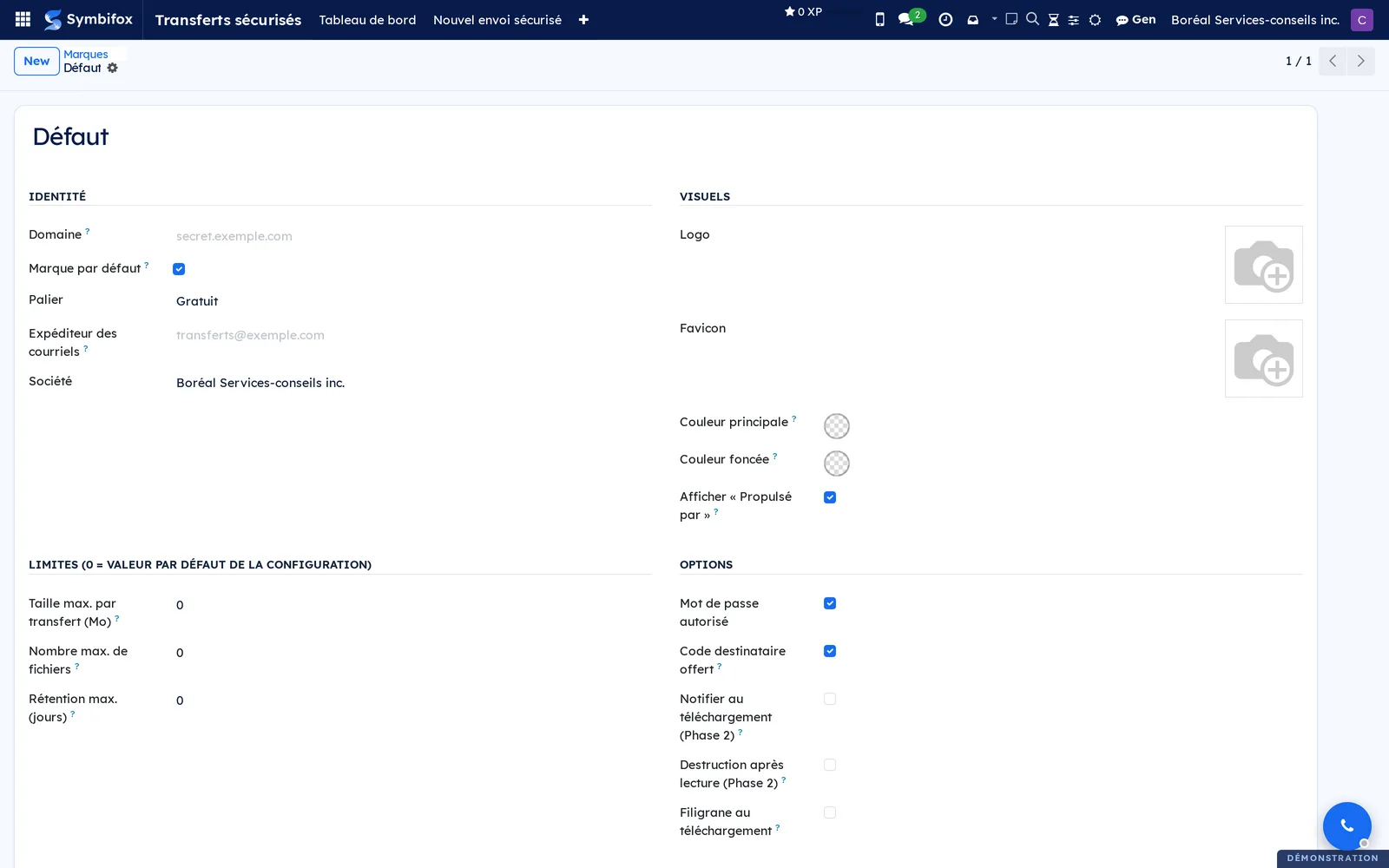
Result: the public page and the emails served under this domain take on this look. Clear Afficher “Propulsé par” (show “Powered by”) for a white-label brand.
Require a confidentiality agreement before access#
This task needs the bridge module described below. It places the signing of an agreement between the one-time code and the content.
- Open Transferts sécurisés › Configuration › Marques and select the brand.
- Upload the agreement as a PDF and check the signing requirement.
- If needed, enter the consent text, and choose a signature field template if the signature must be drawn on the pages.
- At send time, keep or remove the requirement in the dialog.
Result: each visitor signs their own copy, under the identity they have just confirmed, before the message, the files and the direct links open. Requiring an agreement also requires the recipient code: an anonymous signature would prove nothing.
The menus, one by one#
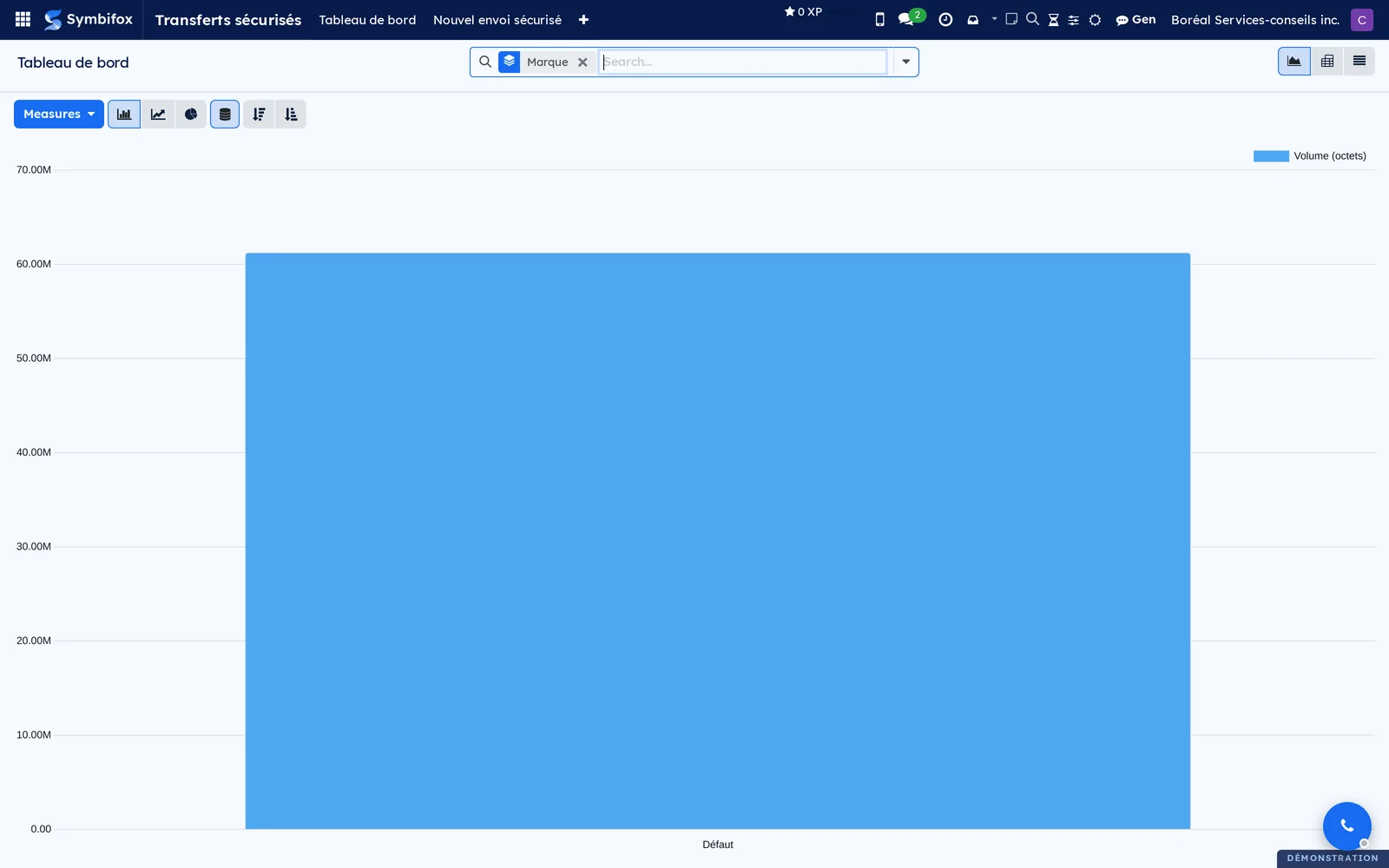
Transferts sécurisés › Tableau de bord (dashboard): a graph view of the volume stored and of the downloads, grouped by brand on opening. The icons in the corner switch to the pivot and list views; Measures changes what is measured.
Transferts sécurisés › Nouvel envoi sécurisé: the send dialog within Symbifox, described in Getting started. It composes a message, attaches files if needed, and holds the content behind a code.
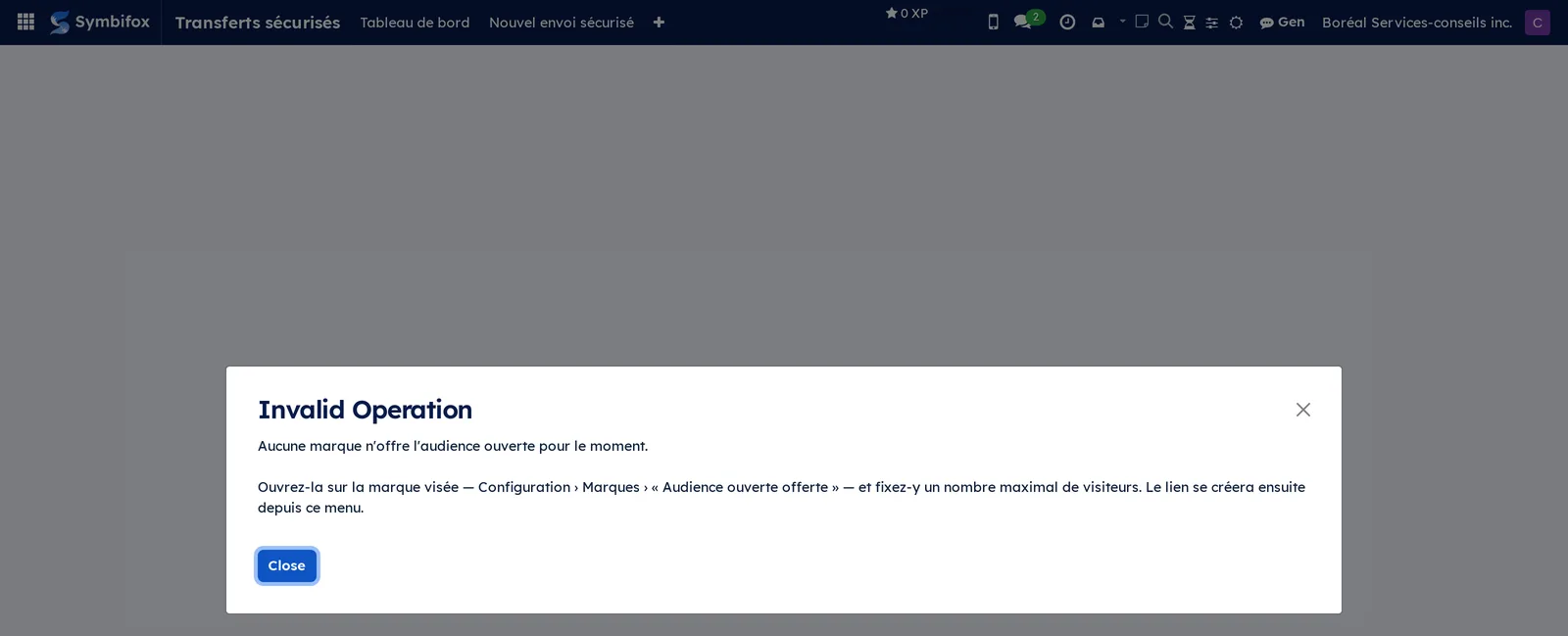
Transferts sécurisés › Nouveau lien à audience ouverte: the same dialog, in open-audience mode. On the Boréal demo, this menu answers with a refusal, for want of a brand that offers the open audience, and says what to check on the brand concerned.
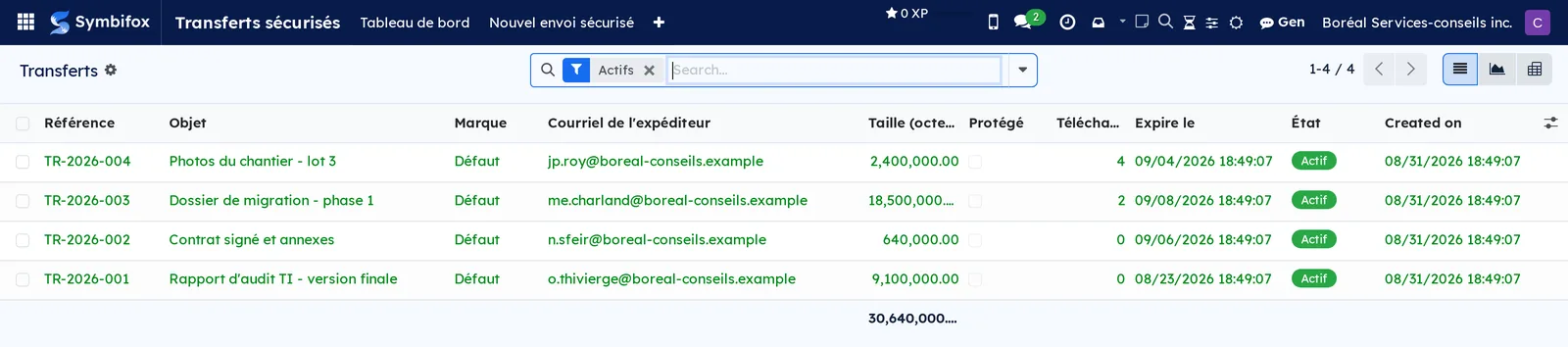
Transferts sécurisés › Transferts: the working list, filtered on “Actifs” (active) on opening. Columns Référence (reference), Objet, Marque (brand), Courriel de l'expéditeur (sender email), size, Protégé (protected), downloads, Expire le (expires on) and État (state), with the total bytes at the foot of the list. The graph and pivot views are reached from the icons in the corner.
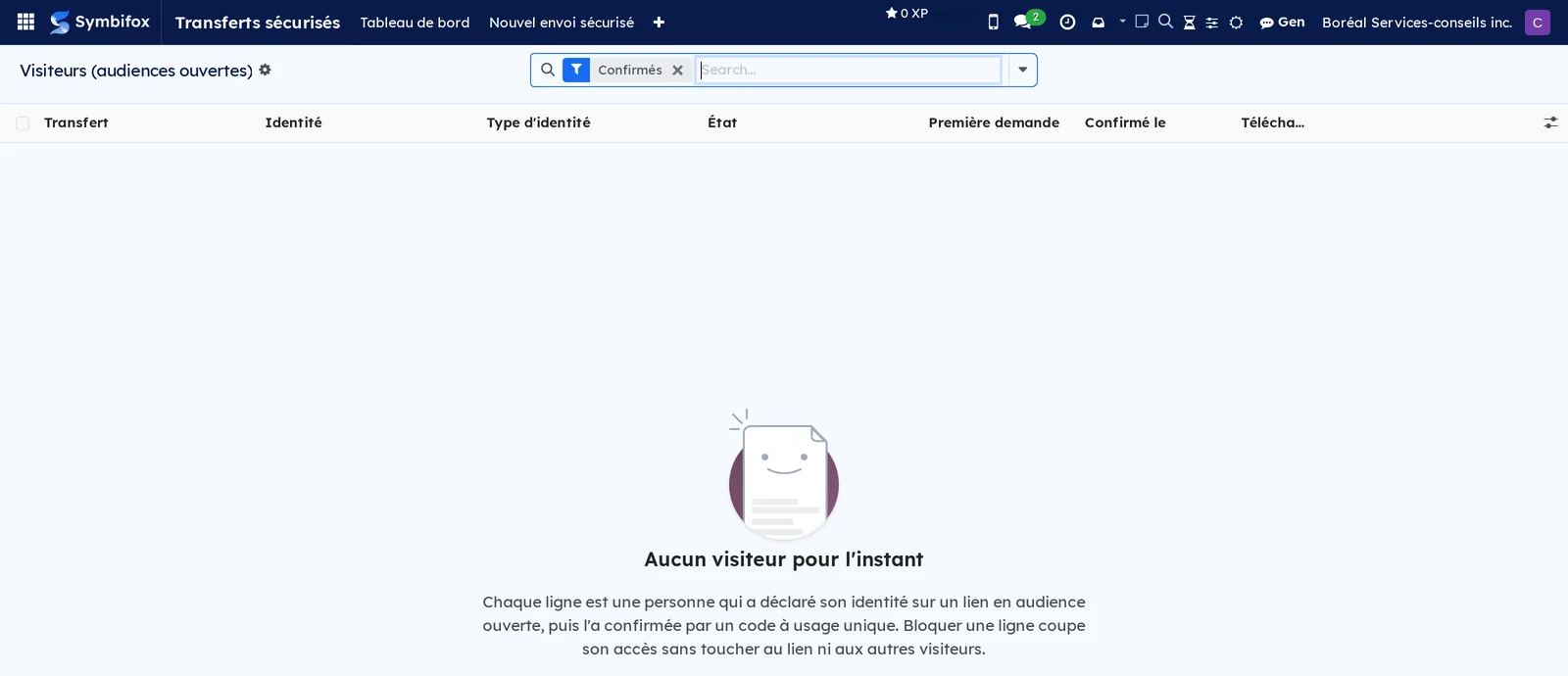
Transferts sécurisés › Visiteurs: the people admitted on an open-audience link, filtered on “Confirmés” (confirmed). Columns Transfert (transfer), Identité (identity), Type d'identité (identity type), État, Première demande (first request), Confirmé le (confirmed on) and downloads. The demo has none.
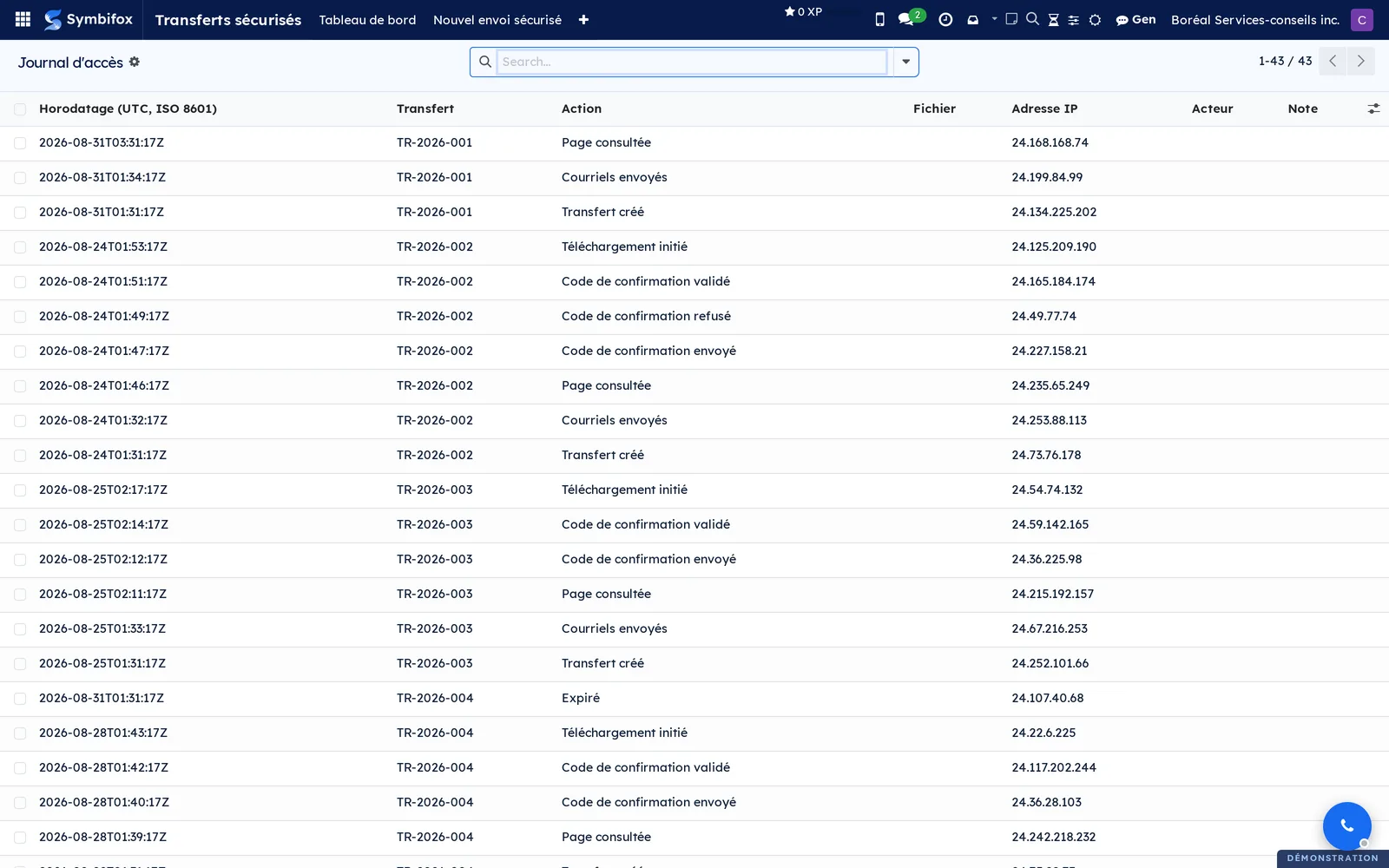
Transferts sécurisés › Journal d'accès (access log): every event of every transfer, newest first. Columns Horodatage (UTC, ISO 8601) (timestamp), Transfert, Action, Fichier (file), Adresse IP (IP address), Acteur (actor) and Note (note). This is the screen to open to answer “who saw what, and when”.
Transferts sécurisés › Configuration: a grouping menu, visible to managers only.
Transferts sécurisés › Configuration › Marques: the list of brands, with Nom, Domaine, Identifiant de page (slug), Dépôt vers (drop to), Palier (tier), Défaut (default), Propulsé par (powered by), Client and Actif (active). The demo has only one, the default brand, on the free tier.

Transferts sécurisés › Configuration › Préréglages de salle de données (data room presets): ready-made data room configurations, chosen in the sending dialog through the Préréglage (preset) field. The list, which can be reordered by dragging, shows the Nom (name), the Mode de transmission (sending mode), Disponible (jours) (available, days), Visiteurs max. (maximum visitors), Téléchargements par visiteur (downloads per visitor) and the Marque (brand). The module provides three, with no brand: Salle de données, standard (30 days, 25 visitors, 25 downloads each), audience large (wide audience: 30 days, 100 visitors, 10 downloads, no notice for each arrival) and confidentiel (confidential: 7 days, 10 visitors, 3 downloads). The form is divided into Portée (scope), Ce que le lien accorde (what the link grants), Qui peut entrer (who may enter) and Note. A brand left empty keeps the one chosen when sending. Two combinations are refused on saving: a brand that does not offer the open audience, and the SMS code together with a list of domains, since a mobile number has no domain.
Transferts sécurisés › Configuration › Paramètres: the Transfert sécurisé section of the settings, described in Configuration.
Reference#
Fields of the Transfer form#
| Field | Description | Required or default |
|---|---|---|
| Référence | Identifier of the transfer, such as “TR-2026-001” | Assigned |
| État | Draft, active, expired, deleted, cancelled or suspended | Set by the buttons |
| Marque | Look and domain of the link | Required |
| Nom de l'expéditeur, Courriel de l'expéditeur | Who sends, and who receives the confirmation | Email required at send |
| Destinataires | Comma-separated addresses, in named mode | Depends on the mode |
| Objet | One line that says what it is about; travels in clear text | Optional |
| Message | Text held behind the barrier, never interpreted as code | Optional |
| Langue | Language of the emails and of the page | Required |
| Mode de transmission | Named recipients, or open audience | “Destinataires nommés” (named recipients) |
| Exiger un code du destinataire, Code du destinataire | The identity barrier and where it comes from: this transfer, the instance setting, or the open audience | Cleared by default |
| Canal du code destinataire | Email or SMS; without a known mobile number, email takes over | “Courriel” |
| Protégé par mot de passe | An extra layer, never sent in the email | Cleared |
| Expire le, Rétention (jours) | End of the link's availability | Set at send |
| Téléchargements max., Téléchargements | Overall budget and actual count | 0 for unlimited |
| Domaines admis, Visiteurs max., Téléchargements par visiteur | The safeguards of an open audience | Taken from the brand |
| Notifier au téléchargement, Notifier à chaque nouveau visiteur | Notices to the sender | Cleared |
| Taille totale, Fichiers, Journal d'accès, Audience | The four tabs and counters of the transfer | Calculated |
Fields of the Nouvel envoi sécurisé form#
| Field | Description | Required or default |
|---|---|---|
| Marque / domaine | Look and domain of the link sent | Required |
| Destinataires | Contacts from the address book; their mobile number serves the SMS channel | Optional |
| Autres courriels | Addresses outside the address book, comma-separated | Optional |
| Objet | Everything the recipient will know before entering their code | Optional |
| Message sécurisé | Content held until the code is validated | Optional |
| Fichiers | Documents placed in storage, then removed from Symbifox | Capped by the settings |
| Canal du code | Email or SMS | “Courriel” |
| Disponible (jours) | Lifetime of the link | 7 |
| Mot de passe (optionnel) | To be given through another channel | Optional |
| Nom de l'expéditeur, Courriel de l'expéditeur | Identity of the send; only a manager can change it | Your account |
Fields of the Brand form#
| Field | Description | Required or default |
|---|---|---|
| Nom, Société | Identity of the brand | Required |
| Domaine | Bare host on which the brand is served | Empty for the default brand |
| Marque par défaut | Serves any domain without an explicit brand; only one at a time | One brand is |
| Palier | Free or paid | Required |
| Logo, Favicon, Couleur principale, Couleur foncée | The look of the pages and of the emails | Taken from the company if empty |
| Afficher “Propulsé par” | Mention in the page footer | Checked |
| Expéditeur des courriels | Sending address of this brand | Server sender if empty |
| Expéditeurs autorisés, Destinataires autorisés | Allowed addresses or domains; empty means no restriction | Empty |
| Identifiant de page (slug), Destinataire unique, Nom affiché du destinataire | What makes a drop page | Optional |
| Taille max., Nombre max. de fichiers, Rétention max. | Limits of the brand; zero takes the value from the settings | 0 |
| Mot de passe autorisé, Code destinataire offert, Audience ouverte offerte | What the sender can ask for from the public page | Depends on the brand |
| Domaines admis, Visiteurs max. (défaut), Code par SMS en audience ouverte | The default values of data rooms | Optional |
| Filigrane au téléchargement | Stamps the recipient's name and the time on each PDF | Cleared |
Fields of the Visitor form#
| Field | Description | Required or default |
|---|---|---|
| Transfert | The open-audience link where the person introduced themselves | Required |
| Type d'identité, Courriel, Mobile | What the person declared | Required |
| État | Code sent, confirmed or blocked | “Code envoyé” (code sent) |
| Première demande, Confirmé le, Dernier code envoyé | The chronology of the admission | Timestamped |
| Codes envoyés, SMS envoyés, Téléchargements | The counters of the person | Calculated |
| NDA, NDA signed on | The status of the confidentiality agreement, when one is required | Depends on the brand |
Reports and exports#
The module produces one printable report, the Certificat d'accès (PDF), and a CSV export of the log, both from the record of a transfer. The certificate recalculates the integrity verdict at print time rather than reusing a stored verdict.
Automations#
Five passes run on their own. Every day, transfers past their deadline move to expired and their files are erased from storage. Every hour, abandoned drafts are cleaned up, links are masked in the chatter of transfers that a code no longer protects, and composition attachments are purged. Every week, logs past their retention period are removed: it is the only path that ever erases a log entry. Suspension on a verified abuse report, for its part, is immediate and waits for no pass; an unverified report waits for a manager's decision.
Public pages and portal#
| Address | Access | Role |
|---|---|---|
/secrets |
Public | The public send page, which Téléversement public opens or closes |
/to/<identifier> |
Public | The page of a brand; with a fixed recipient, it is a drop page |
/s/<token> |
Public | The page of the transfer: password, code, message and files |
/s/<token>/nda |
Public | The confidentiality agreement to sign, showing nothing of the content |
An unknown, expired, purged or suspended token gets the same answer as a page that does not exist.
Modules that extend this application#
One bridge module adds a barrier between the one-time code and the content.
The Electronic signatures application provides the signing engine this bridge uses; it is described in the Electronic signatures chapter.
Understanding#
Why the bytes bypass Symbifox. On the public page, the browser deposits the files directly in storage, with an authorization signed for the occasion. A file of several gigabytes goes through, and an interruption resumes where it stopped. The internal dialog, for its part, routes the bytes through Symbifox, and that is why it stays capped.
Why the file cannot be replaced after the fact. At finalization, the size of each file is checked with storage and its fingerprint is pinned. This fingerprint is checked again before each download: an object replaced in the meantime does not download.
Why the link disappears from the chatter. The emails sent stay attached to the transfer, and the link appeared in them in clear text. It is masked as soon as the outgoing queue has delivered the email, except when a recipient code guards the content. An email still waiting is never touched, or it would go out with a dead link.
Why every dead link gets the same answer. Nonexistent, expired, purged, suspended: the answer is the same. An answer that differed by state would confirm to a stranger which links exist.
Why the log cannot be corrected. Each entry carries the fingerprint of the previous one. Removing or changing a line breaks the chain, and Vérifier l'intégrité says so. That is what gives the certificate its value: it does not ask to be trusted, it provides what you need to redo the calculation.
Why the watermark changes the download path. To stamp a PDF with the recipient's name, Symbifox must serve the bytes itself instead of redirecting to storage. The option applies only to PDFs; the other files keep the direct redirect.
Why an identity by mobile number cannot sign. A signature requires an email address. As soon as an agreement is required, identification by mobile number is removed from the page, rather than leading a visitor to a door they cannot pass through.
Why a report does not always suspend. Taking a link offline requires the same barrier as viewing it: the password, then the recipient code. Without that rule, the token alone was enough to cut off a protected transfer, and anyone who had seen the link go by could turn the send off. A report from someone still at the door is still received, because an unsolicited send is reported before the code arrives; it becomes a flag for the managers, not a suspension.
Why codes are counted per recipient. A given named recipient receives at most five codes per hour, at least one minute apart. The count is kept per recipient, not per IP address: a leaked link therefore cannot be used to flood their mailbox or mobile phone from changing addresses. Beyond that, the page answers as it would for an unknown address, and the log records the refusal.
Why the purge keeps the log. The files are erased at the deadline, which is the point. The metadata and the log remain: the proof of the delivery must outlive the content delivered, and that is what Law 25 expects. Law 25 is Québec's Act respecting the protection of personal information in the private sector.
Troubleshooting#
| Symptom | Likely cause | Fix |
|---|---|---|
| Nouveau lien à audience ouverte answers with a refusal | No brand offers the open audience | Check Audience ouverte offerte on the brand concerned and set Visiteurs max. (défaut) there |
| The upload fails on the public page | The arrival domain is not among the allowed origins of storage | Add the origin in the settings, then Configurer le bucket S3; on a brand, Configurer le domaine (CORS) |
| A send is refused although the address exists | A list of authorized senders or recipients excludes this address | Check the list of the brand, then the one in the settings that applies otherwise |
| The recipient says they received nothing | The email got lost, or the address held a typing error | Open the transfer and select Renvoyer le lien aux destinataires |
| The link no longer answers, though it was active the day before | The deadline has passed, and the daily pass purged the files | Create a new transfer; to avoid the case, extend before the deadline |
| The transfer moved to the suspended state on its own | A visitor who had passed the password and the code reported an abuse | Read the Journal tab, then Réactiver if the report is unfounded. A report marked "[non vérifié, à revoir]" suspends nothing: select Suspendre (abus) if it is founded |
| The code does not arrive by SMS | No mobile number known for this recipient, or the SMS channel is not connected | Email takes over; check the contact's number and the SMS setting in the settings |
| The agreement requirement is refused at send | No agreement is uploaded on the brand, or the SMS channel is requested | Upload the agreement as a PDF on the brand, and let the code go by email |
See also#
- Electronic signatures: the signing engine of the confidentiality agreement.
- Privacy (Law 25 and other frameworks): the retention and destruction of documents.
- Link pages: the personal page that publishes your drop page.
- Contacts: the address book the recipients and their numbers come from.
- Employees: the people for whom a drop page is created on its own.
- Settings and brand identity: the logo and the colours the brands take up.