
Part 6 · Security, compliance and privacy
Impersonation
See Symbifox exactly the way a colleague sees it, with a reason, a time limit, a journal and a notice to the person, without ever knowing their password.
Watch it
Impersonation lets you help someone by seeing their screen: their menus, their access rights, their preferences and their language. It is meant for whoever does support in the organization, and for the administrators who answer for it. The goal: understand "I can't see the pipeline" in a minute, without asking for a password and without leaving anything behind. Every session carries a reason, ends on its own and leaves a journal entry the person can reread.
Overview#
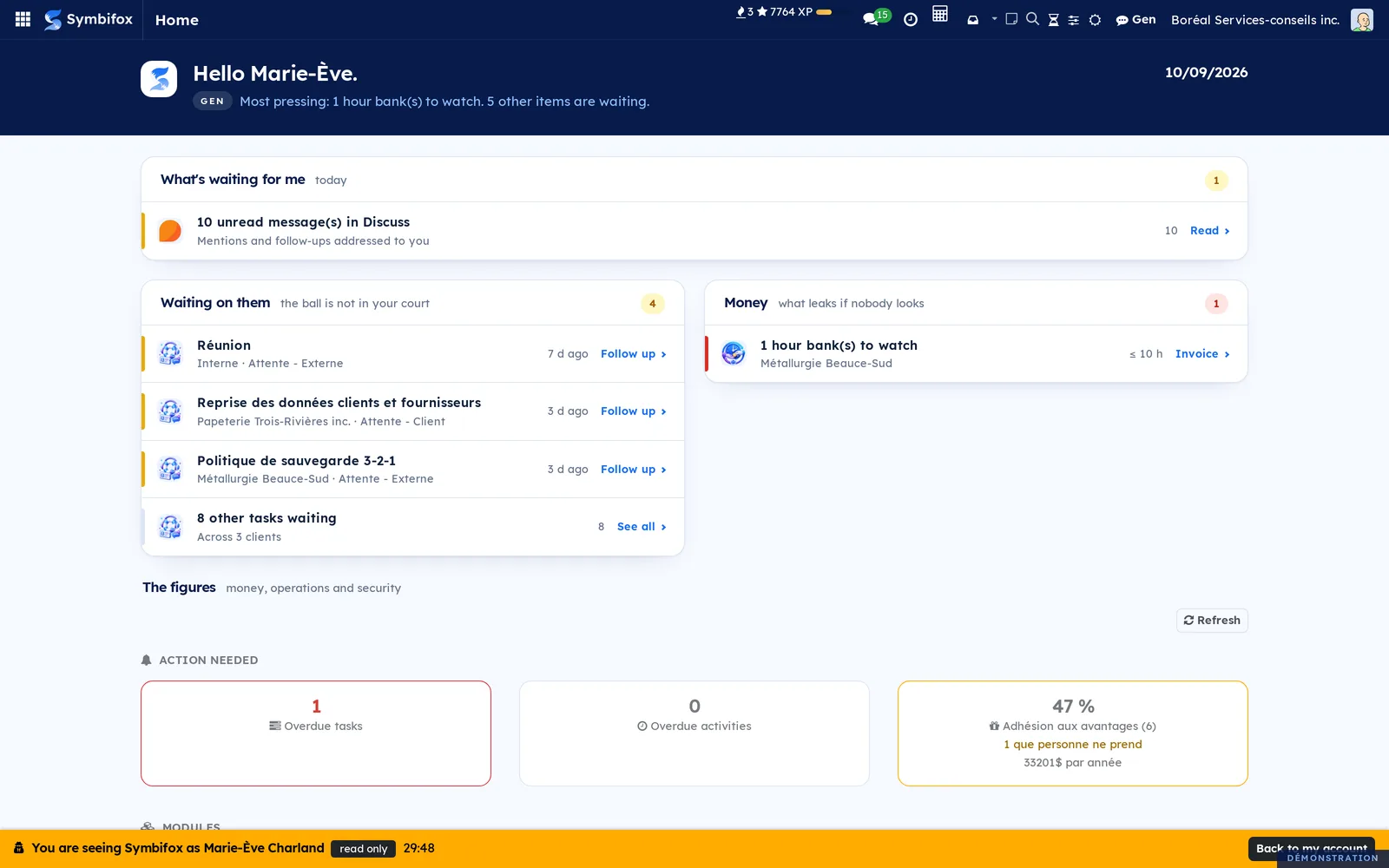
To impersonate is to open a Symbifox session as someone else. The menu, the apps, the records you can see and the language all become theirs. An orange bar stays at the bottom of the screen for the whole session, with the person's name, the mode, the time left and Back to my account.
Six ideas cover it.
- Person seen: the colleague whose screen you see. It must be an active internal account other than yours.
- Read only: the default mode. You look; nothing you do is kept.
- Read and write: a separate right that lets you act on the person's behalf. Every change is recorded under your name.
- Reason: why you are opening the session, at least ten characters long. The person can read it.
- Duration: the number of minutes after which the session ends by itself. Thirty by default, one hundred and twenty at most.
- Journal: one entry per session, showing who, when, why, for how long and what changed. No one can rewrite it.
Impersonation works with Odoo's access rights, never around them. Someone who is not an administrator can only see colleagues who have no more access rights than they do. Some data never shows, even to administrators: health records, the mood journal, the credentials vault and private Gen conversations. The Understanding section gives the full list.
Configuration#
Access and permissions#
Two groups sit in the Impersonation category of a user's record, on the Access Rights tab.
| Group | What it allows |
|---|---|
| Read only | See Symbifox as another internal user, keeping nothing of what you do there. |
| Read and write | Also act on that person's behalf. Every change is recorded in the journal. |
No one gets these rights at installation, administrators included, and neither does the admin account, which is often shared. They are granted by hand, one account at a time.
Who can be seen:
- an active internal account other than yours;
- not an account with Protected from impersonation checked on the Access Rights tab of its record (a technical account, an integration);
- for someone who is not an administrator: only people who have no access right they lack themselves;
- an administrator only if the setting allows it (see below).
What you can read in the journal depends on your role: administrators see every entry, you see the ones you opened, and the person seen sees the ones about them. The journal menu is for administrators only; the person seen reaches their entry through the link in the notice. Only administrators see the IP address the session was opened from.
Settings#
The settings live under Settings › General Settings, in the Impersonation block, below the default user rights.
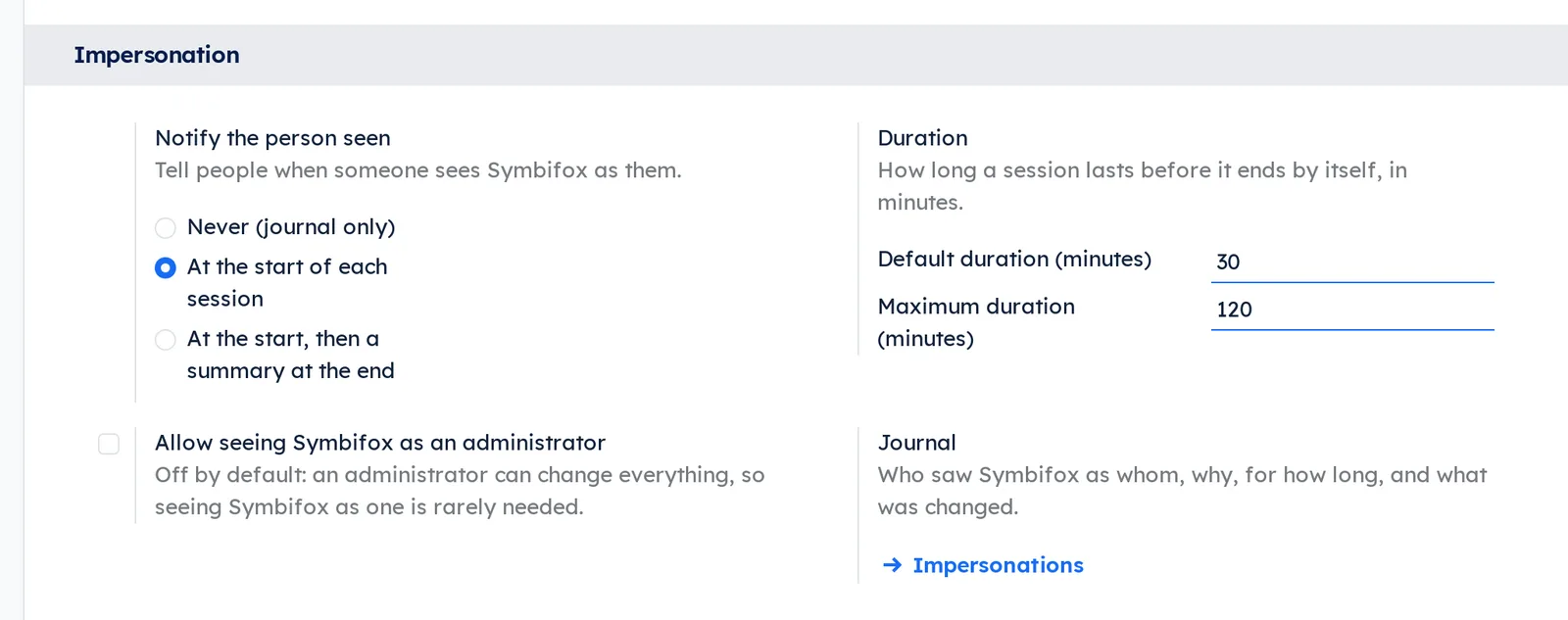
- Notify the person seen: Never (journal only), At the start of each session (the default) or At the start, then a summary at the end.
- Default duration (minutes) and Maximum duration (minutes): 30 and 120 out of the box. The default must stay between one minute and the maximum.
- Allow seeing Symbifox as an administrator: off by default. An administrator can already change everything, so seeing Symbifox as one is rarely needed.
- Journal: the Impersonations link opens the list of sessions.
Base data#
There is nothing to create before you start. Grant one of the two rights to the person who does support, and that is it.
Getting started#
Marie-Ève Charland writes that she can't see the pipeline for Métallurgie Beauce-Sud. Camille Tremblay, who has the right to impersonate, goes to see what she sees.
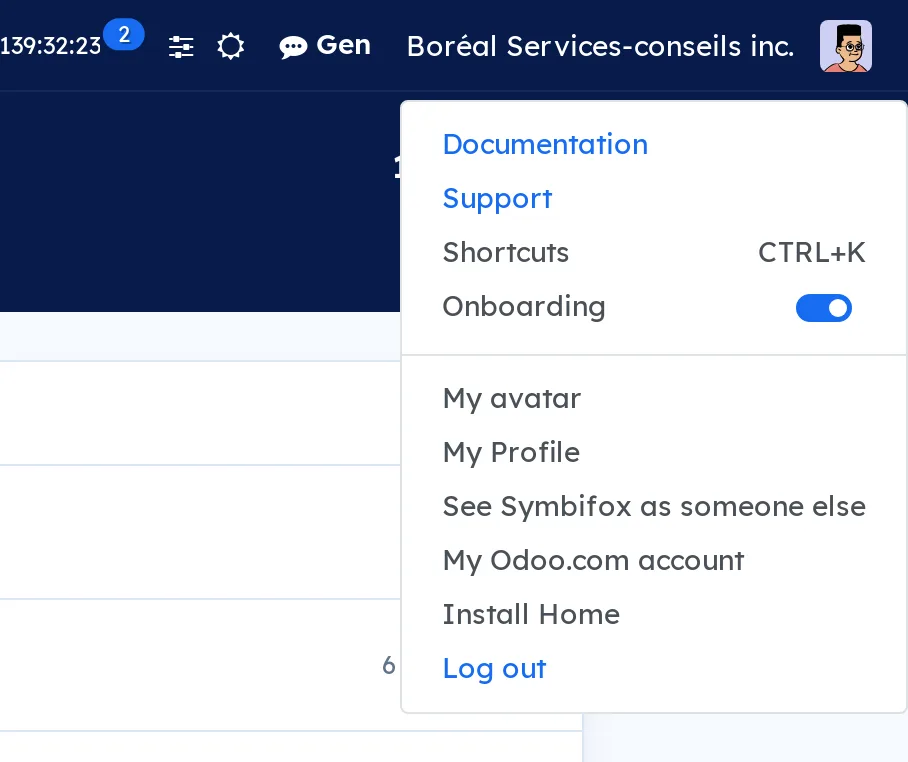
- Open your avatar menu at the top right, then select See Symbifox as someone else.
- In Person, enter “Marie-Ève” and select Marie-Ève Charland.
- In Reason, enter “Marie-Ève can't see the Métallurgie Beauce-Sud pipeline”.
- Leave Mode on Read only and Duration (minutes) at 30. The bottom of the dialog tells you whether the person will be notified.
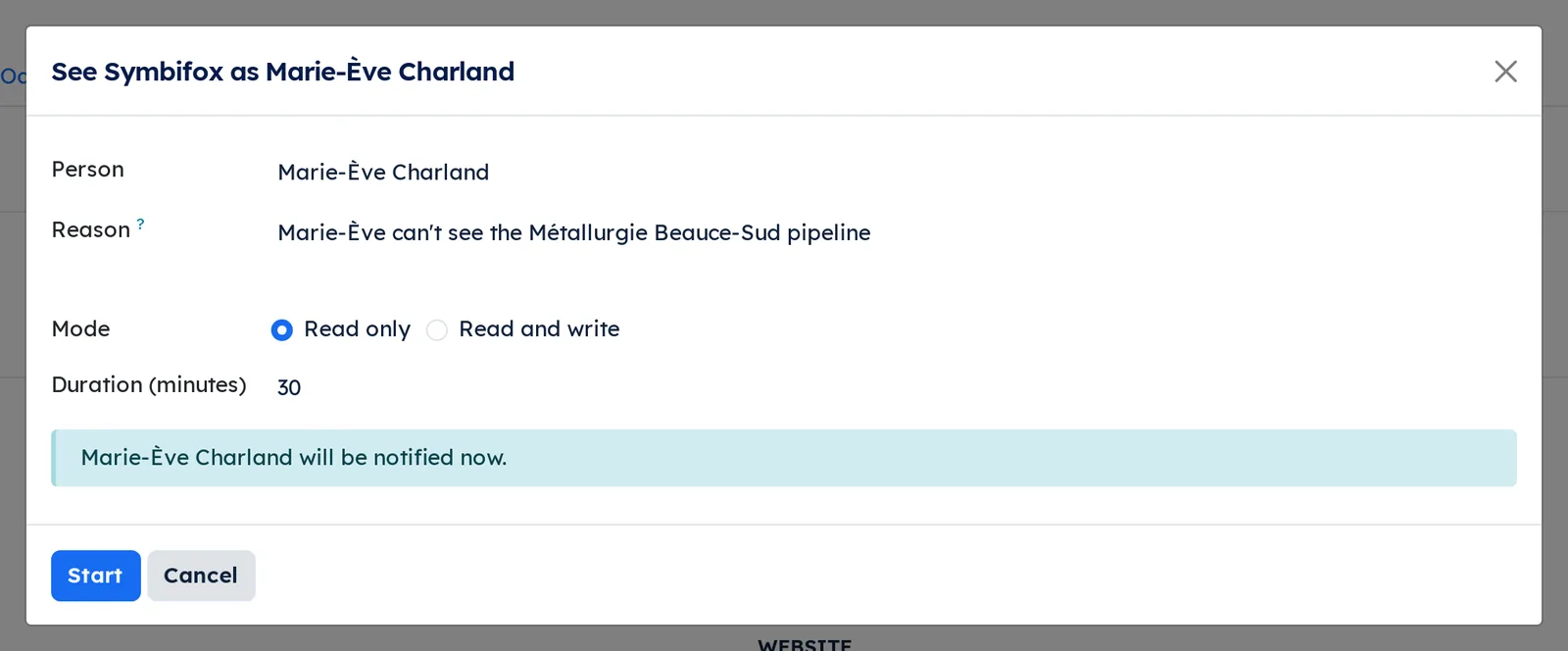
- Select Start. The page reloads on Marie-Ève's home page, in read only, with the bar at the bottom of the screen.
- Open the link to the Métallurgie Beauce-Sud opportunity that Marie-Ève received. Symbifox shows an access error: she has no Sales rights.
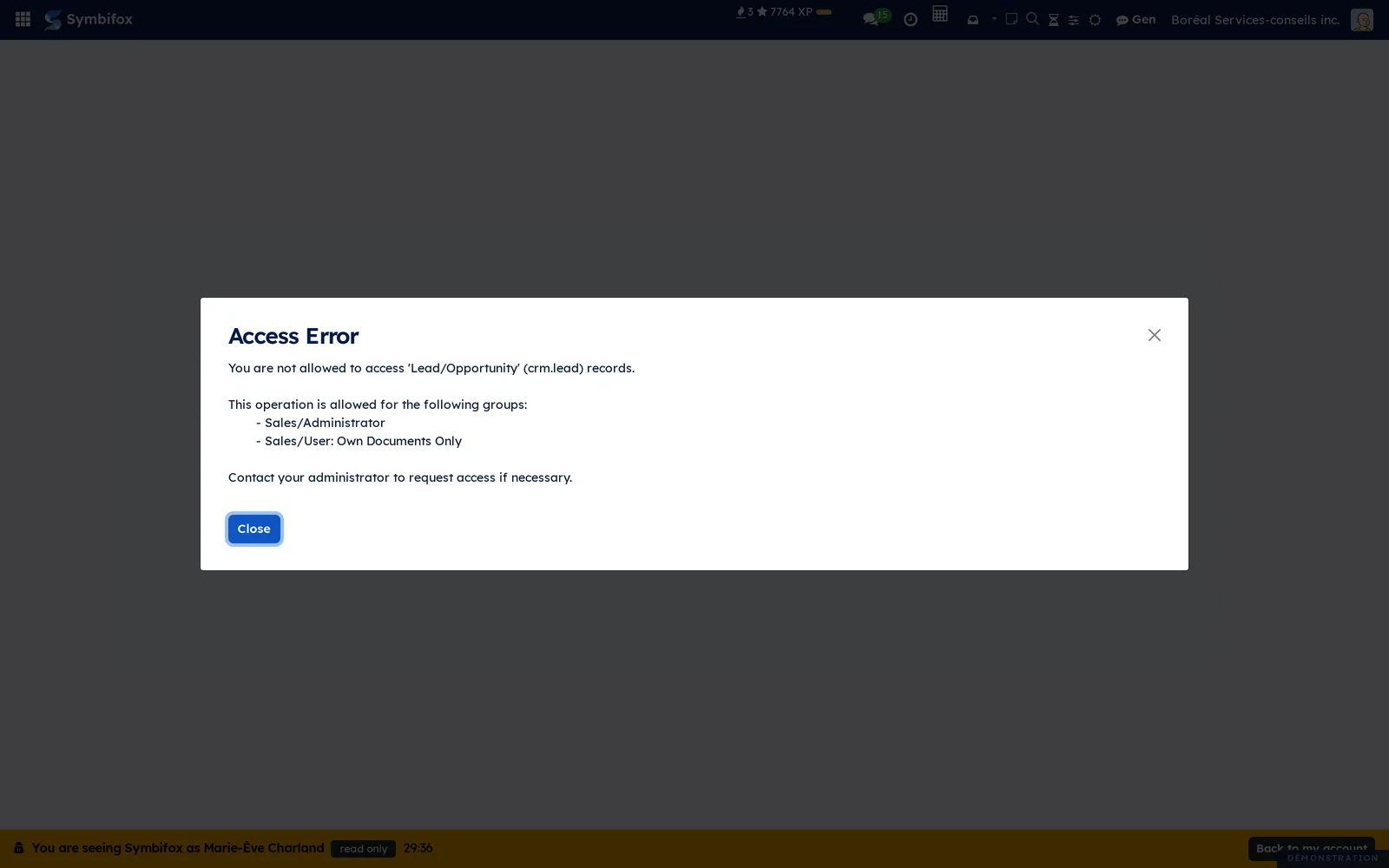
- Select Back to my account in the bar, then give her the Sales right she needs on her user record.
The diagnosis took a minute, and no password changed hands. The journal entry says who looked, why and for how long.
Common tasks#
Grant the right to impersonate#
Give the right to the person who does support, and to no one else.
- Go to Settings › Users & Companies › Users.
- Open the record of the person who will do support.
- On the Access Rights tab, in the Impersonation category, choose Read only or Read and write.
- Select Save.
The See Symbifox as someone else entry now shows in their avatar menu.
Protect an account from impersonation#
A technical account, an integration or a sensitive account can be taken off the list of people who can be seen.
- Go to Settings › Users & Companies › Users and open the account.
- On the Access Rights tab, check Protected from impersonation.
- Select Save.
The See Symbifox as this user button disappears from the record, and the dialog refuses that account with a message that says so.
Open a session from someone's record#
The user record carries a shortcut, handy when you are already on it.
- Go to Settings › Users & Companies › Users and open the person's record.
- Select See Symbifox as this user at the top of the form.
- Enter the Reason, then choose the Mode and the Duration (minutes).
- Select Start.
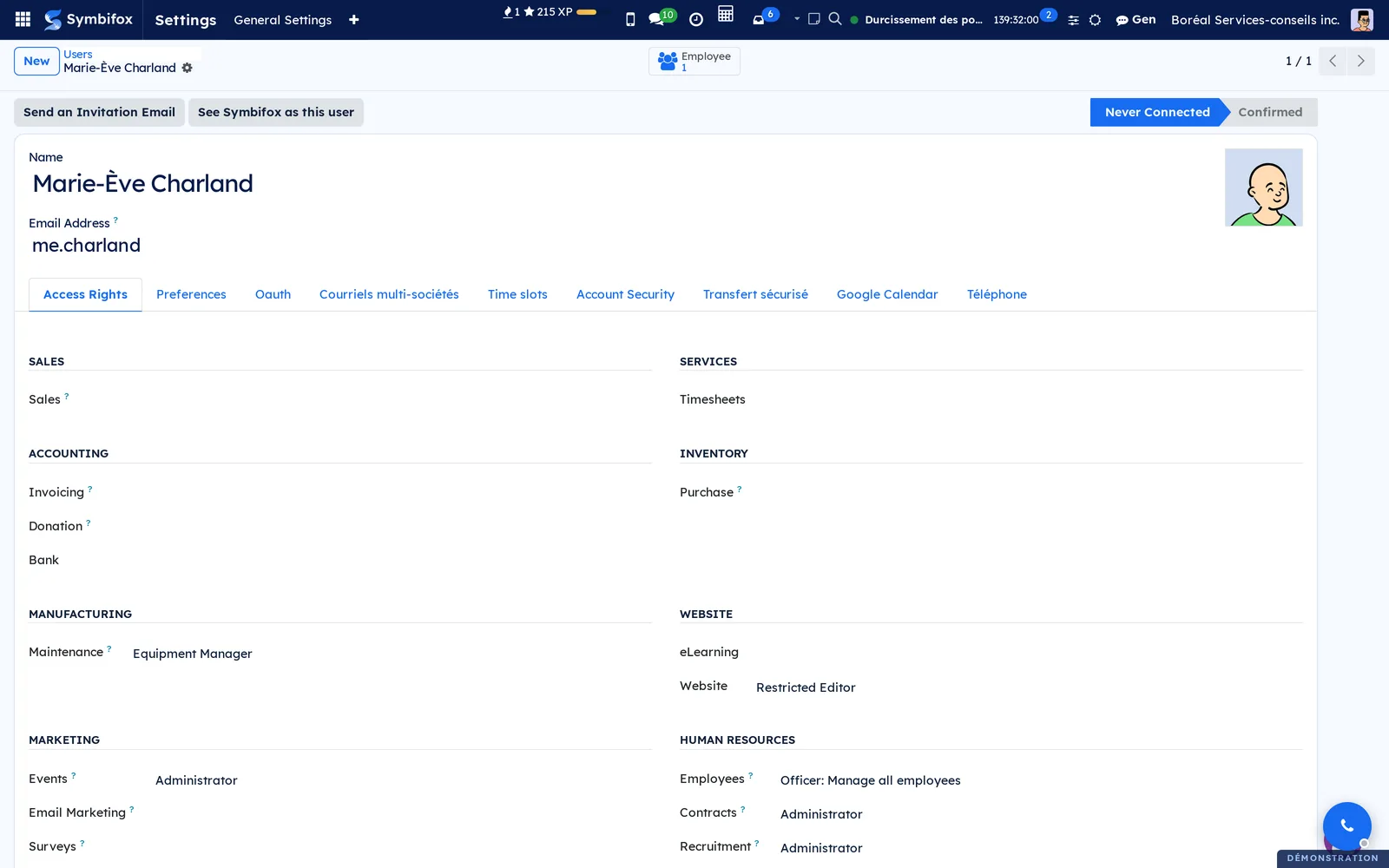
The dialog opens with the person already chosen. The button does not show on a portal account, an archived account or a protected account.
Act on the person's behalf#
You need the Read and write right.
- Open the dialog from your avatar menu or from the person's record.
- Set Mode to Read and write, then enter the reason.
- Select Start.
- Make the fix the way the person would: save, use a button, log an internal note.
- Select Back to my account.
What you create belongs to the person. Every change is recorded in the journal, including what automated processing does behind the scenes. A note logged during the session is signed with your name and linked to the journal.
Go back to your own account#
- Select Back to my account in the orange bar.
The page reloads on your own home page, and the journal entry closes with the reason Returned to own account. Your other open tabs dim for a moment with “Changing account, reloading…”, then reload on the right account.
Review a session in the journal#
The journal answers the question “who saw my screen, and what did they do?”. Its menu is for administrators only.
- Go to Settings › Users & Companies › Impersonations.
- Open the entry you want.
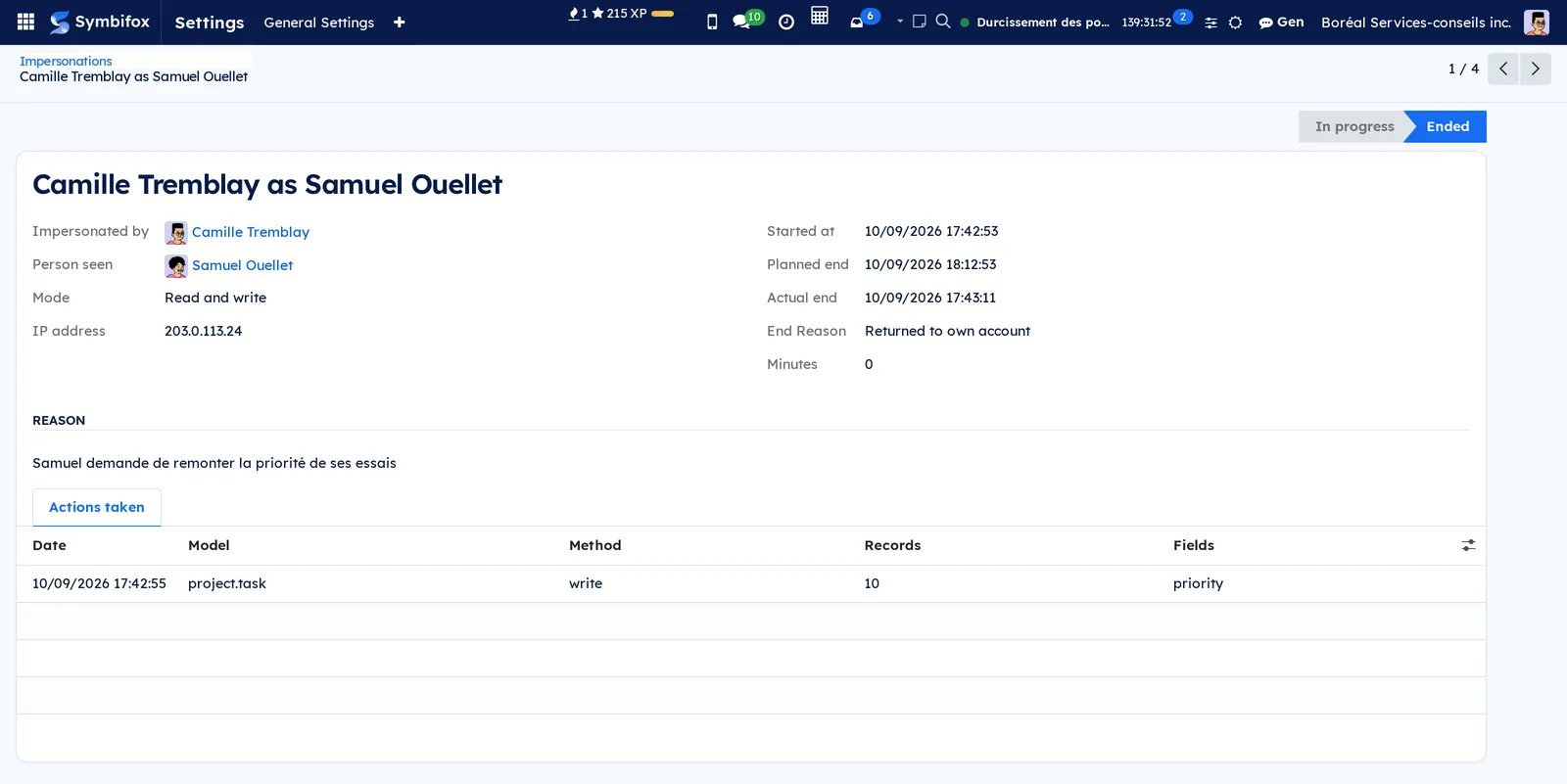
The Actions taken tab lists, for each change, the date, the model, the operation, the records touched and the fields changed. A read-only session has none.
End someone else's session#
For administrators only, for instance when a session was opened by mistake.
- Go to Settings › Users & Companies › Impersonations.
- Open the entry marked In progress.
- Select End this session.
The entry moves to Ended, with the reason Ended by an administrator. The person who was impersonating gets their own account back on their next request. A write they asked for at that very moment is refused, never replayed under their own name.
Set the notice to the person#
- Go to Settings › General Settings, Impersonation block.
- Under Notify the person seen, choose Never (journal only), At the start of each session or At the start, then a summary at the end.
- Select Save.
The notice tells the person who is seeing their screen, why and until when, in their language and time zone. The closing summary gives the length of the session and every record changed. Both link to the journal entry.
Allow seeing an administrator#
- Go to Settings › General Settings, Impersonation block.
- Check Allow seeing Symbifox as an administrator.
- Select Save.
Without this setting, the dialog refuses anyone with administrator rights. With it, only administrators can see them. Even then, rights and configuration never change during the session.
Find out who saw your screen#
Anyone can reread the sessions about them, even without any impersonation right.
- Open the link in the notice you received.
- Read the entry: who, when, why, for how long and the actions taken.
Only the person seen, the person who impersonated and administrators can see an entry. No one can change it.
The menus, one by one#
Impersonation has no app of its own. Its journal lives in the settings, and its main entry point is the avatar menu.
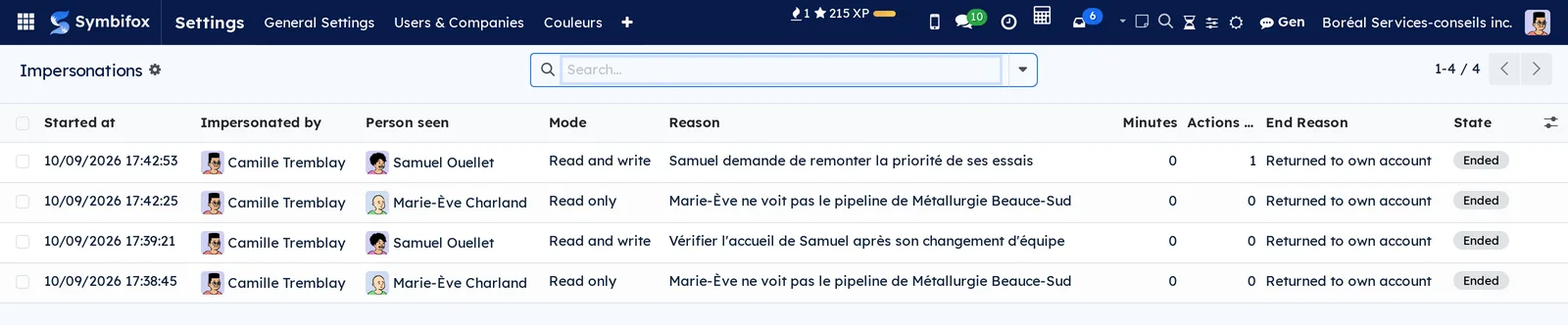
- Settings › Users & Companies › Impersonations: the list of sessions, newest first. Columns: Started at, Impersonated by, Person seen, Mode, Reason, Minutes, the number of actions, End Reason and State. The In progress, Read and write and Started at filters, and grouping by Impersonated by or Person seen, are what you need for an audit. This menu is for administrators only.
- Avatar menu > See Symbifox as someone else: opens the dialog. The entry only shows for people who have one of the two rights.
Reference#
Fields of the See Symbifox as form#
| Field | Description | Required or default |
|---|---|---|
| Person | The colleague whose screen you will see. | Required |
| Reason | Why you are opening the session. The person can read it. | Required, at least ten characters |
| Mode | Read only or Read and write. The second only shows if you have that right. | Read only |
| Duration (minutes) | How long before the session ends by itself. | The default duration from the settings, at most the maximum |
Fields of the Impersonation session form#
| Field | Description | Required or default |
|---|---|---|
| Impersonated by | The person who opened the session. | Set when the session opens |
| Person seen | The person whose screen was seen. | Set when the session opens |
| Mode | Read only or Read and write. | Set when the session opens |
| IP address | Where the session was opened from. Visible to administrators only. | Set when the session opens |
| Started at, Planned end, Actual end | When the session happened. | Set by Symbifox |
| End Reason | Returned to own account, Time limit reached, Logged out or Ended by an administrator. | Set when the session ends |
| Minutes | How long the session actually lasted. | Calculated |
| Reason | The reason entered at the start. | Set when the session opens |
| Actions taken | One line per change: date, model, operation, records, fields. | Write mode only |
Reports and exports#
Impersonation prints no report. The journal list filters, groups and exports like any Odoo list, for whoever can read it.
Automations#
- Every fifteen minutes, Symbifox closes the entries of sessions whose time ran out without another request, for instance a closed browser.
- When a session opens, and at the end if you set it that way, the person seen gets a notice. It leaves at once, never through the email queue: the opening notice is gone before the session begins.
- During an impersonation, a notification that Odoo would queue for later is sent right away, under the same rules, so it slips past no check.
Public pages and portal#
Impersonation has no public page and no portal. A portal account cannot be seen.
Modules that extend this application#
No module extends impersonation. It works the other way around: it protects data from several apps. Health records and the mood journal, the credentials vault, the phone and Gen, the assistant conversations stay out of reach during a session.
Understanding#
Why read only breaks nothing. Saving, a button, a note or an upload is refused, with a message that says why. Everything else runs, then anything that would have changed in the database is undone at the end of the request. Dashboards therefore open and calculate just as they do for the person. Opening a new email does not mark it as read on their side.
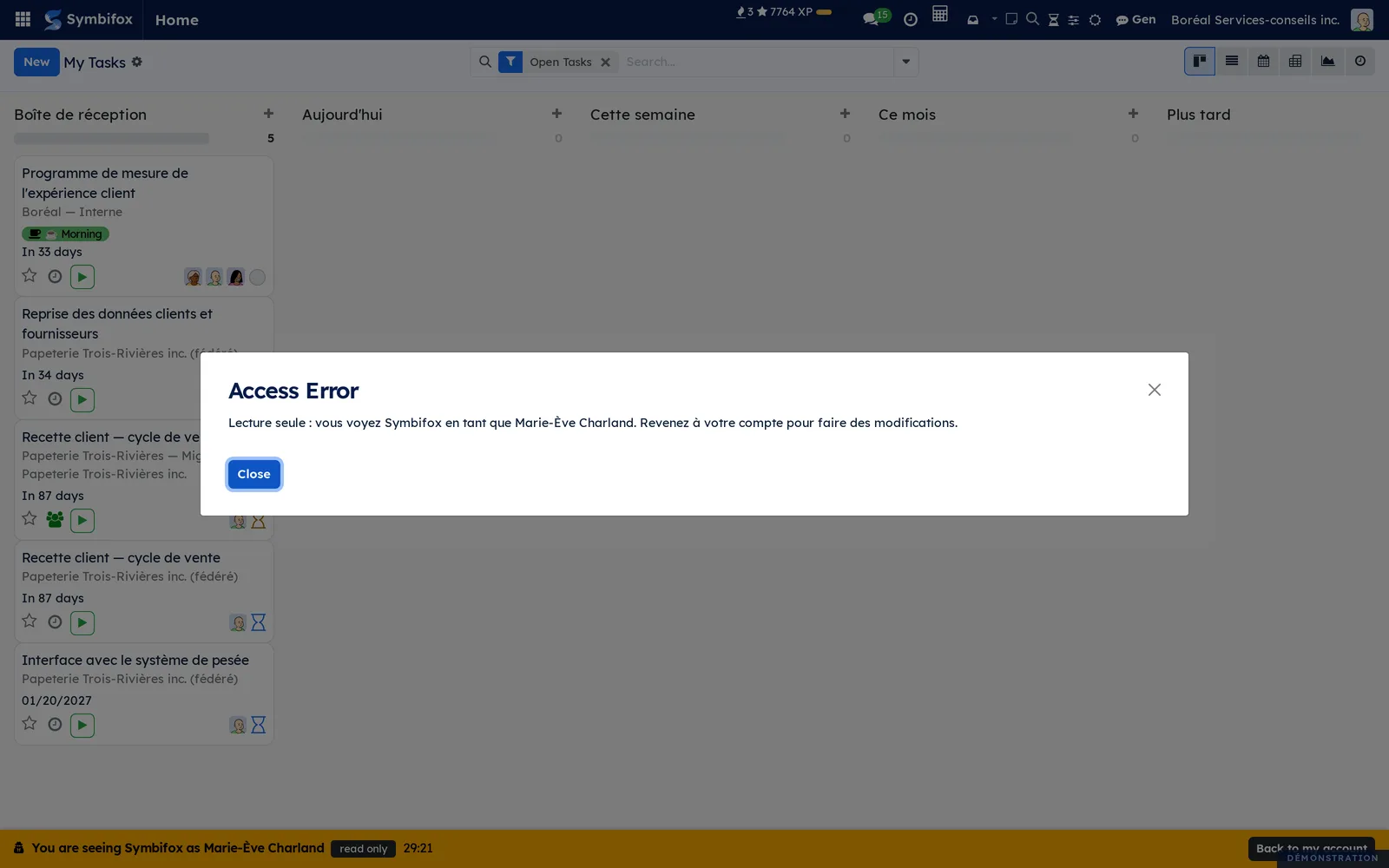
The person's language. During the session, Symbifox speaks the language of the person seen and shows their times. A message from the server, such as a refusal, therefore comes in their language: on the screenshot above, “Read only: you are seeing Symbifox as Marie-Ève Charland. Go back to your own account to make changes.” shows in French.
What never happens, in either mode. Nothing goes out: no email, no text message, no scheduled send, no newsletter, no message to recipients. The phone and Discuss calls are refused. No phone or account is paired in the person's name, since its token would outlive the session. The person's password, keys, two-factor authentication, login, access rights, email address and phone numbers never change, whatever the path. Neither do settings, rules or modules.
Private data. Health records, the mood journal, the credentials vault and private Gen conversations stay hidden, administrators included. So does everything attached to them (messages, activities, attachments). An access error about them names no record.
What is not covered. An administrator who runs code can still alter the journal, and uninstalling the module erases it. A network call that a read makes on its own (checking a mailbox, querying a service) is not undone. A module that writes through its own database connection escapes the read-only rollback.
Troubleshooting#
| Symptom | Likely cause | Fix |
|---|---|---|
| The See Symbifox as someone else entry is missing | Neither impersonation right | Grant Read only or Read and write on the user record. |
| “… has access rights you do not have” | The person has a right you lack | Ask an administrator to open the session. |
| “… is an administrator” | The person is an administrator and the setting is off | Check Allow seeing Symbifox as an administrator, if that is intended. |
| “… is protected from impersonation” | Protected from impersonation is checked | Remove the protection, or leave the account out of reach. |
| “Read only: you are seeing Symbifox as …” | A write during a read-only session | Go back to your account, or reopen the session in Read and write. |
| “Nothing is sent while you see Symbifox…” | A send, or a change a follower would be emailed about | Go back to your account to send it, or make the change yourself. |
| The session stopped on its own | Time ran out, or an administrator ended it | Open a new session if the work isn't done. |