

Part 6 · Security, compliance and privacy
Confidentiality incidents and breach notices
Notify a client of a breach of its information, prove it was received, and keep the incident register that Law 25 requires.
Watch it
Two obligations of Québec's Law 25 meet here. A provider that holds personal information for a client must notify that client's person in charge of the protection of personal information, without delay, of any breach, even an attempted one. The organization that receives the notice, or that discovers an incident itself, must assess it and record it in its register. This chapter is for the person in charge of the protection of personal information and for their manager. What you get: a notice that is dated, signed and frozen, an acknowledgement of receipt that holds up, and a register that tells you what it is still missing.
The breach notices are translated into English. The register and the Vie privée (privacy) application are not yet: their labels appear in French below, with a translation in parentheses the first time.
Overview#
The two sides do not use the same vocabulary, on purpose. The service provider (hosting provider, outsourcer, subcontractor) reports a breach or an attempt. The controller, the organization the information belongs to, decides whether it is a confidentiality incident. It then assesses the risk of serious injury with its privacy officer, notifies the Commission d'accès à l'information and the persons concerned if needed, and keeps its register. The notice carries the facts; the conclusion belongs to the controller.
A breach notice has a type, a stage and a status:
- three types: Breach (unauthorized access, use or disclosure, or loss), Targeted attempt (aimed at this client's information) and Periodic report of attempts (the attempts blocked on its infrastructure, grouped by category over a period);
- three stages: Initial notice, Update and Final notice;
- three statuses: Draft, Sent and Acknowledged.
Each notice has a number in the form AV-YYYY-NNNN and a version. An update keeps the number and takes the next version: "AV-2026-0005 v2" follows "AV-2026-0005 v1".
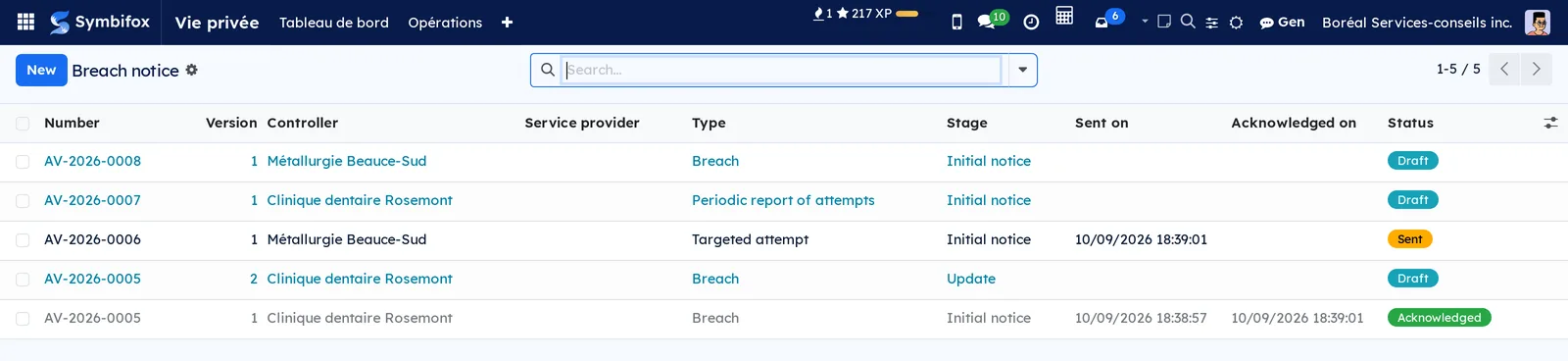
The list of notices shows the controller, the type, the stage, the sending and acknowledgement dates, and the status as a badge. Drafts appear in blue, superseded versions in grey.
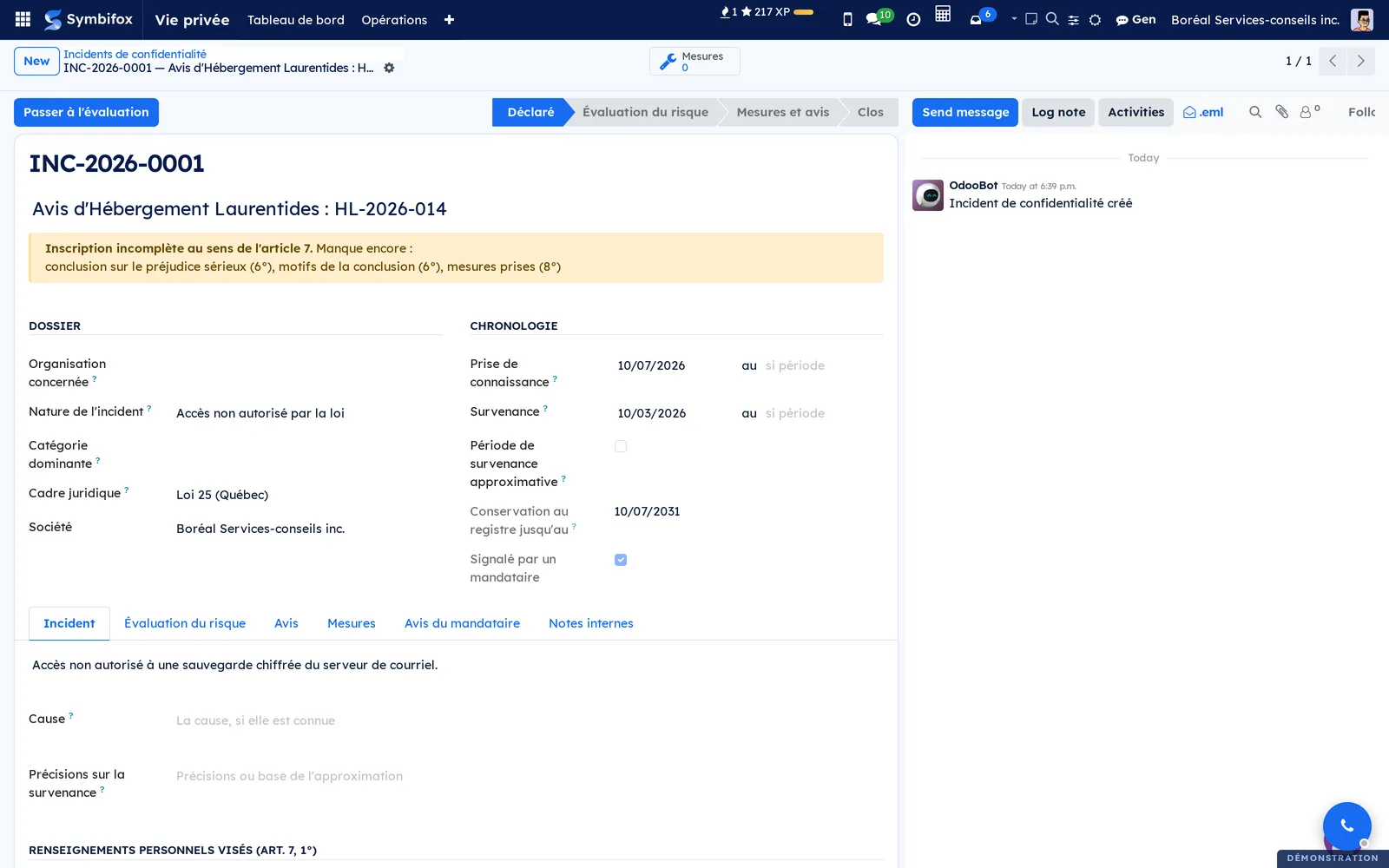
A register entry follows an incident from its declaration to its closure, through four states: Déclaré (declared), Évaluation du risque (risk assessment), Mesures et avis (measures and notices) and Clos (closed). It covers the eight items the regulation requires you to record, numbered 1° to 8°: the information involved, the circumstances, the occurrence, the awareness, the number of persons, the reasons for the conclusion on the risk, the dates of the notices and the measures taken. While an item is missing, a banner names it with its number. When everything is there, a Registre complet (register complete) ribbon tops the entry.
The two sides answer each other. When the client also has Symbifox and both instances are paired, the provider's notice lands in its register by itself (see Federation). Otherwise, the client records the notice it received in the Avis du mandataire (provider's notice) tab of its entry.
Configuration#
Access and permissions#
Both sides rely on the groups of the Vie privée application.
| Group | Breach notices | Incident register |
|---|---|---|
| Utilisateur vie privée (privacy user) | Read notices | Read, create and edit entries |
| Gestionnaire vie privée (privacy manager) | Draft, sign and send, prepare an update, re-arm acknowledgement codes | Same, plus the Mesures sur incidents (incident measures) menu |
| Responsable vie privée (privacy officer) | Acknowledge a notice received through federation | Delete an entry |
Changing an organization's privacy officer or receiving address also requires the Gestionnaire vie privée group: that choice decides where legal notices go. The official email template can only be changed by an administrator. The followers of a notice or of a register entry are visible to the privacy role only, within the record's company. On the portal, a client sees only the entries attached to its organization.
Settings#
There is no setting of its own. Notices are numbered AV-YYYY-NNNN and register entries INC-YYYY-NNNN; an entry's year is the year of its awareness date. The email goes out with the "Privacy: breach notice to the controller" template, which only an administrator can change. No deadline is coded: the law says "without delay" and "promptly", and an internal deadline is a matter for the contract between the provider and its client.
Base data#
A notice never goes to a guessed address. Before the first sending, designate on each client organization's form its privacy officer and its receiving address: see Designate an organization's privacy officer. Do the same for your own company, in the Vie privée group of its form under Settings › Users & Companies › Companies: its designated person receives the activity for a notice that arrives through federation and can acknowledge it. The Cadre juridique (legal framework) of a register entry comes from the company.
Getting started#
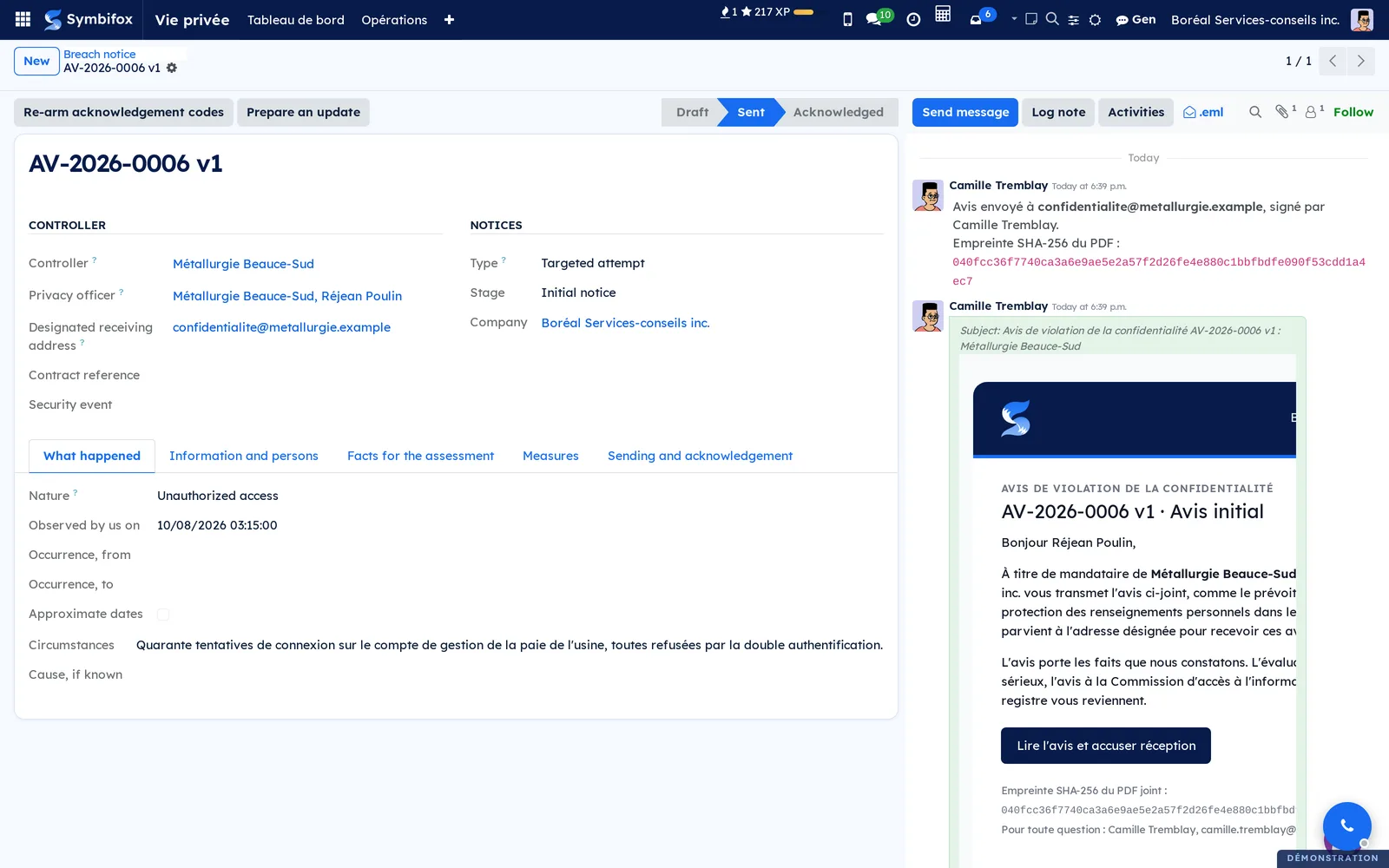
This walkthrough prepares and sends to Métallurgie Beauce-Sud a notice about an attempt aimed at its payroll account.
- Go to Vie privée › Opérations › Breach notices (service provider) and select New.
- In Controller, choose "Métallurgie Beauce-Sud". Privacy officer and Designated receiving address are filled in from the organization's form.
- In Type, choose "Targeted attempt"; leave Stage on "Initial notice".
- In the What happened tab, enter Observed by us on and the Circumstances.
- In the Measures tab, describe the Measures taken or planned, dated.
- Select Sign and send, read the warning and confirm.
The notice moves to Sent. The Re-arm acknowledgement codes and Prepare an update buttons replace Sign and send. The chatter keeps the email that went out and the sending note, with the PDF's fingerprint.
Common tasks#
Prepare a breach notice#
A draft can be corrected freely; sending is what freezes it.
- Go to Vie privée › Opérations › Breach notices (service provider) and select New.
- Choose the Controller, the Type and the Stage; add the Contract reference if needed.
- In What happened, fill in the Nature, the occurrence dates, Observed by us on, the Circumstances and the Cause, if known.
- In Information and persons, describe the Information involved by category, or explain Why they cannot be described yet; enter the number of Persons concerned and how many reside in Québec.
- In Facts for the assessment, choose Encryption and Data leaving, then add the Other facts useful to the assessment.
- In Measures, fill in the measures taken, those the persons could take, the authorities outside Québec that were notified, the police investigation and the third parties that can reduce the risk.
While the notice is a draft, a banner reminds you that it carries facts and never information that identifies a person. A list of affected accounts travels separately, through a secure transfer.
Sign and send a notice#
Sending signs the notice in your name, freezes its content and sends it to the designated address.
- Open the draft and check the Designated receiving address.
- Select Sign and send.
- Read the warning, then confirm.
Symbifox reads the designation on the organization's form again at the moment of sending. It produces the notice's PDF, calculates its SHA-256 fingerprint, and sends the email with the PDF attached and a link to read the notice and acknowledge receipt. The chatter receives a "Notice sent to" note, with the signer's name and the fingerprint. The Signer's title comes from the job position on your contact form.
Follow the acknowledgement of receipt#
A Sent notice waits for the designated person to acknowledge it.
- Go to Vie privée › Opérations › Breach notices (service provider).
- Apply the Awaiting acknowledgement filter.
- Open a notice and the Sending and acknowledgement tab.
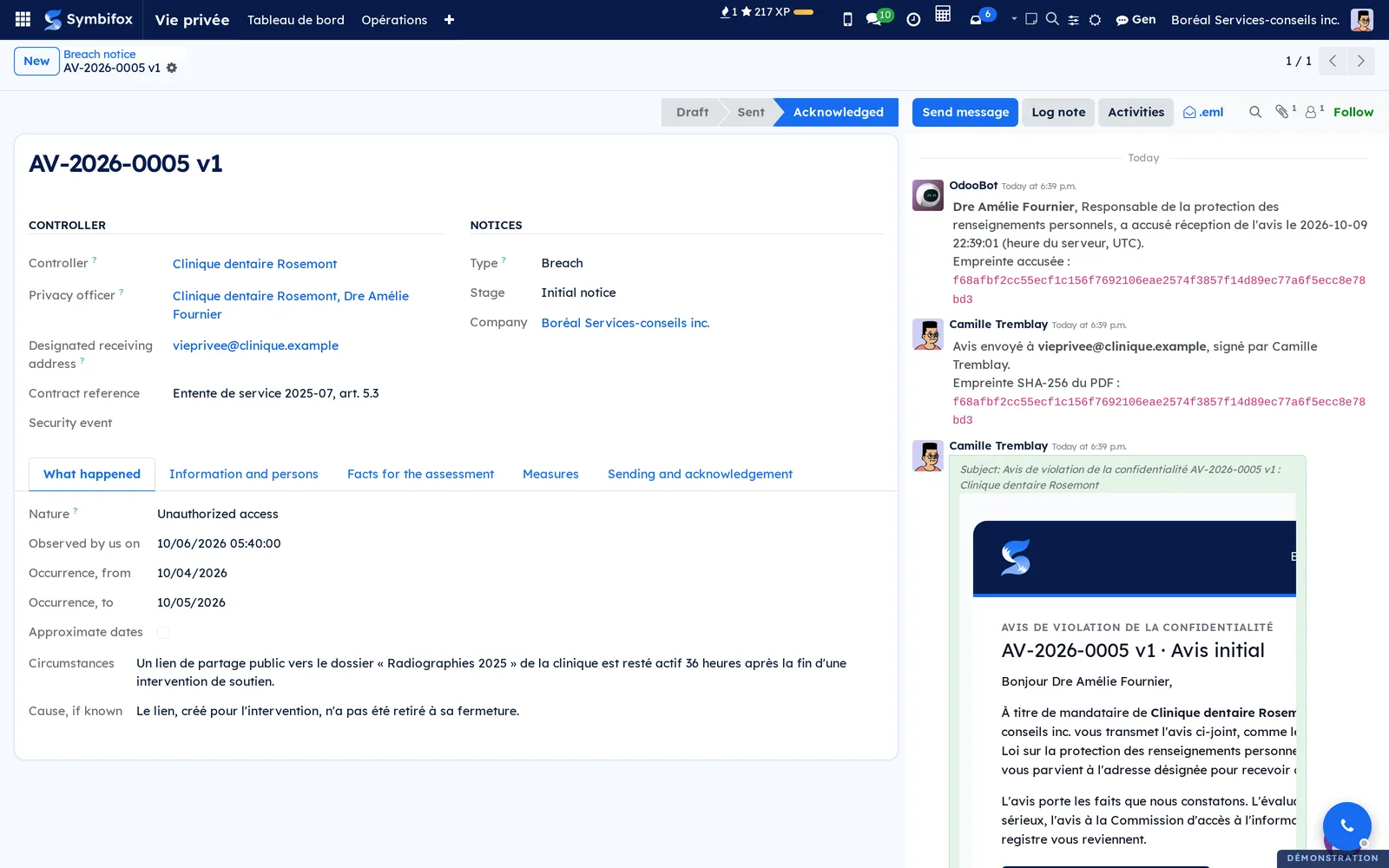
The Sending group shows Signed by, Sent on, Sent to, Email status, the PDF and its fingerprint. As soon as the notice is acknowledged, it moves to Acknowledged and the Acknowledgement group fills in: the date, the name, the title, the channel, the acknowledged fingerprint, the IP address and the browser. A note from OdooBot records it in the chatter, in server time.
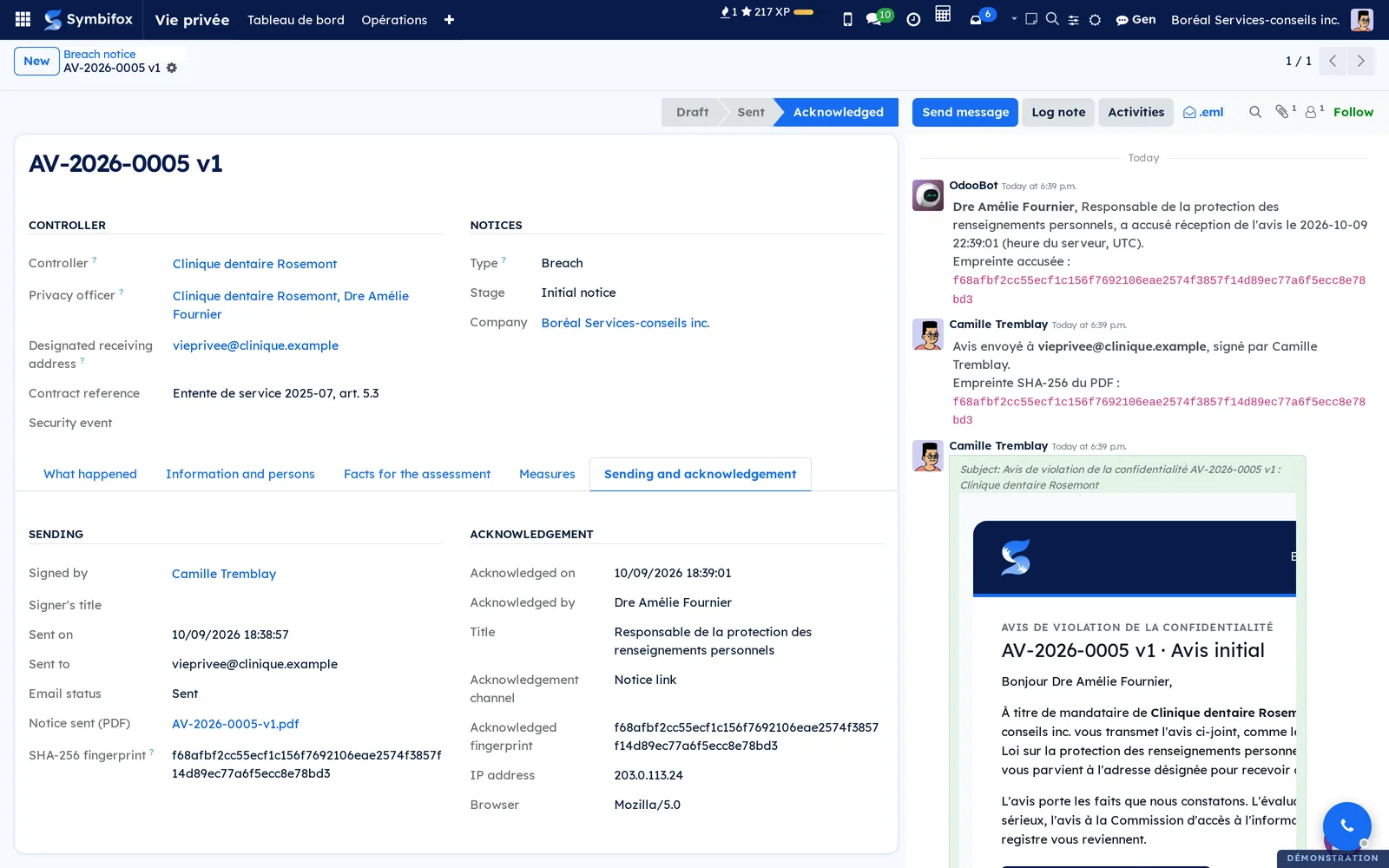
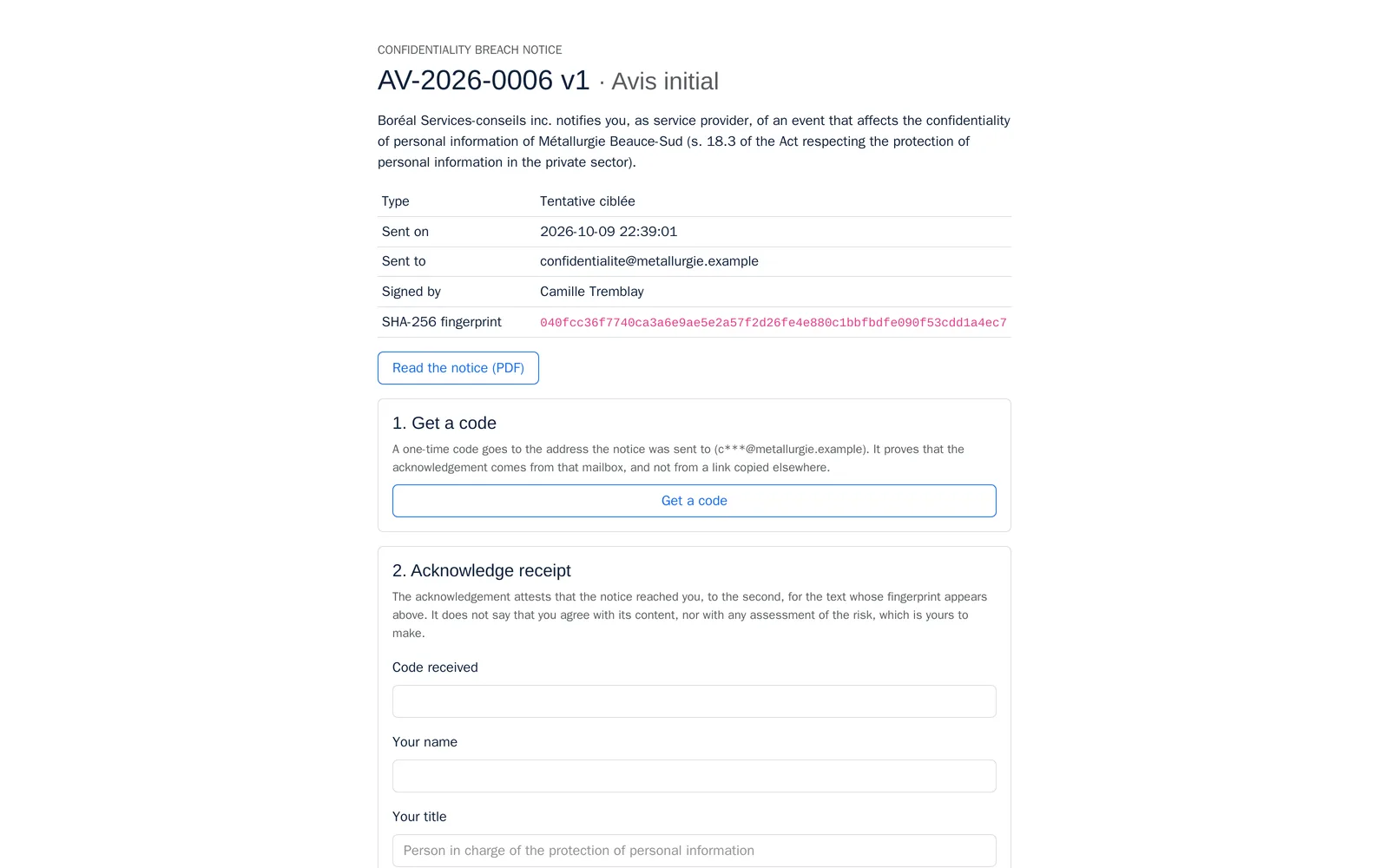
On the client's side, the designated person opens the link in the email. The page shows the notice and its fingerprint, but acknowledges nothing on its own. The person asks for a code, receives it at the designated address, then enters it with their name and title. The page is described under Public pages and portal.
Re-arm the acknowledgement codes#
A notice's link can travel: it comes back in every reply that quotes the email. Someone who holds it can use up the codes.
- Open the Sent notice.
- Select Re-arm acknowledgement codes and confirm.
The codes already sent no longer work, and the client can ask for new ones. An "Acknowledgement codes re-armed." note goes into the chatter.
Prepare an update#
A sent notice is never edited. A new fact, a correction or the conclusion of the investigation goes into the next version.
- Open the latest sent version of the notice.
- Select Prepare an update.
- Correct or complete the draft; set Stage to "Final notice" for the last version.
- Select Sign and send.
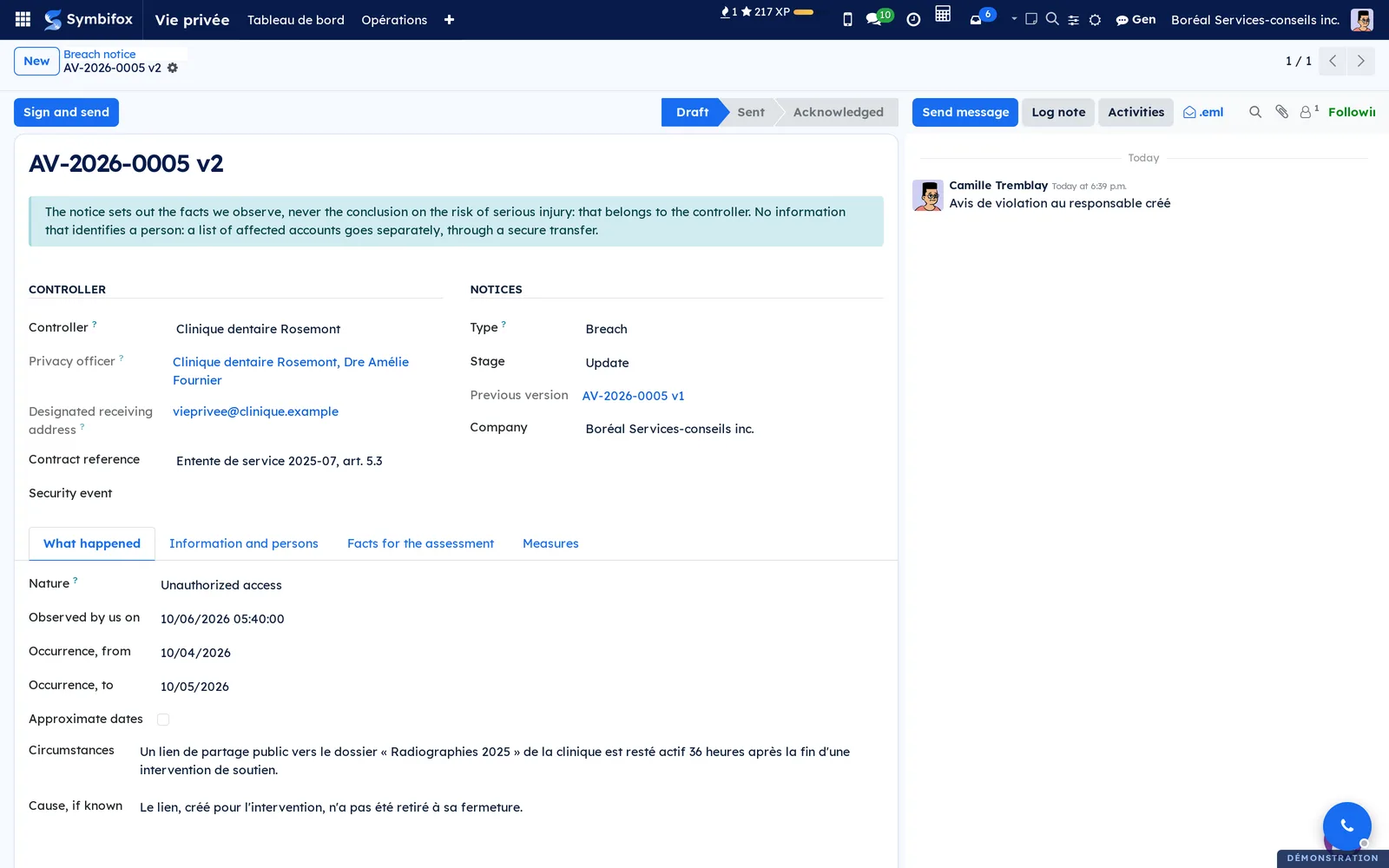
The update takes the content of the latest version, keeps the number, takes the next version and fills in Previous version. It reads the controller's designation again, since it may have changed, and keeps the same controller. If an update draft already exists, the button opens it instead of creating a second one.
Prepare a periodic report of attempts#
The Internet's background noise does not belong in a one-off notice. The attempts blocked on a client's infrastructure go into a report.
- Create a notice and choose the Type "Periodic report of attempts".
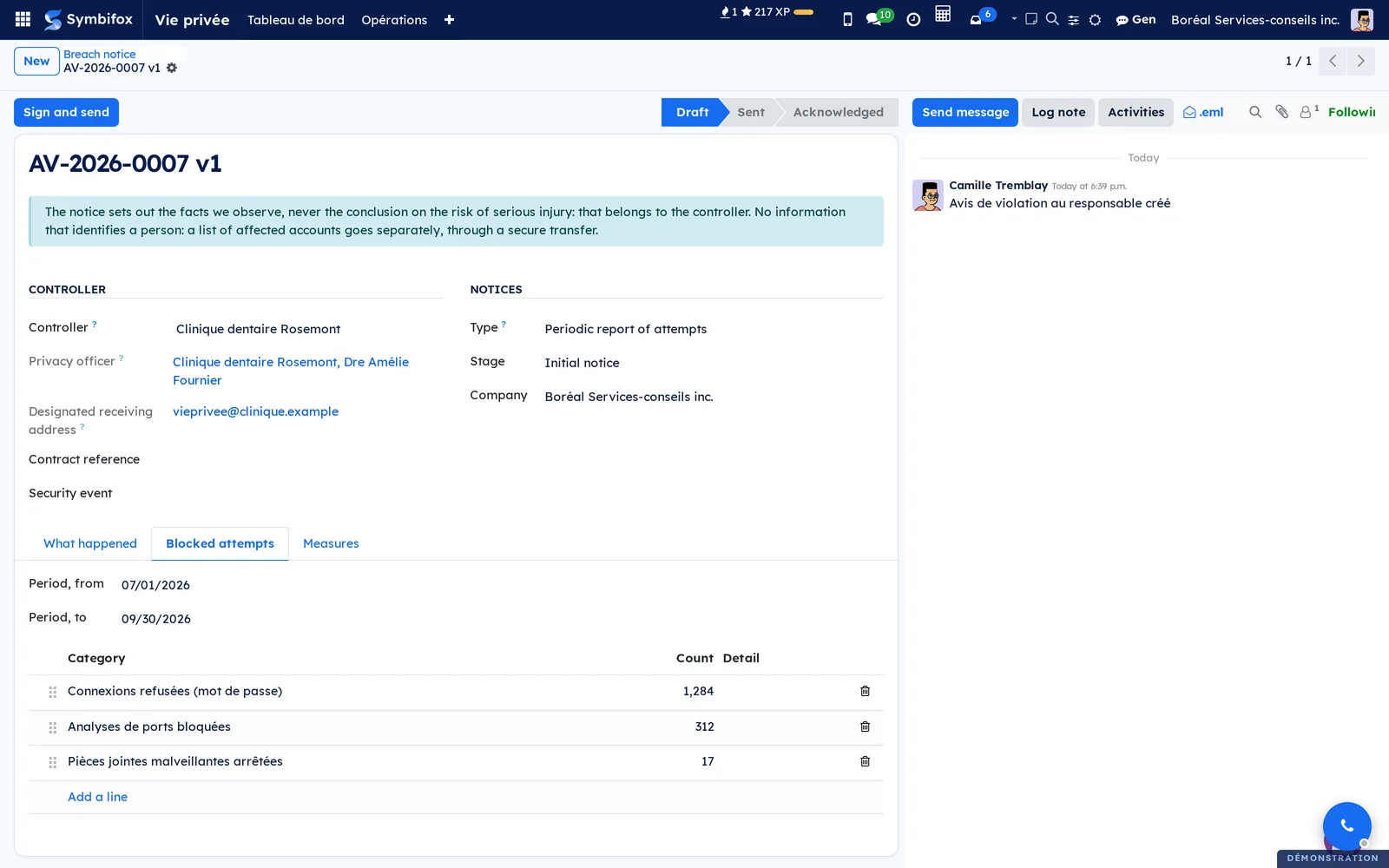
- In the Blocked attempts tab, enter Period, from and Period, to.
- Select Add a line and enter the Category, the Count and, if needed, a Detail.
- Repeat for each category, then fill in the Measures tab.
- Select Sign and send.
For a report, the information and assessment tabs disappear: it does not concern particular persons.
Prepare notices from a security event#
When the Hosting application is installed, a security event is assessed with regard to the clients' information. Once assessed, it prepares one draft per affected organization. The assessment is described in the Hosting management chapter.
- Go to Hébergement › Sécurité (security) > Événements de sécurité (security events) and open the event.
- In the Privacy tab, check the Affected organizations.
- Select Prepare the notices.
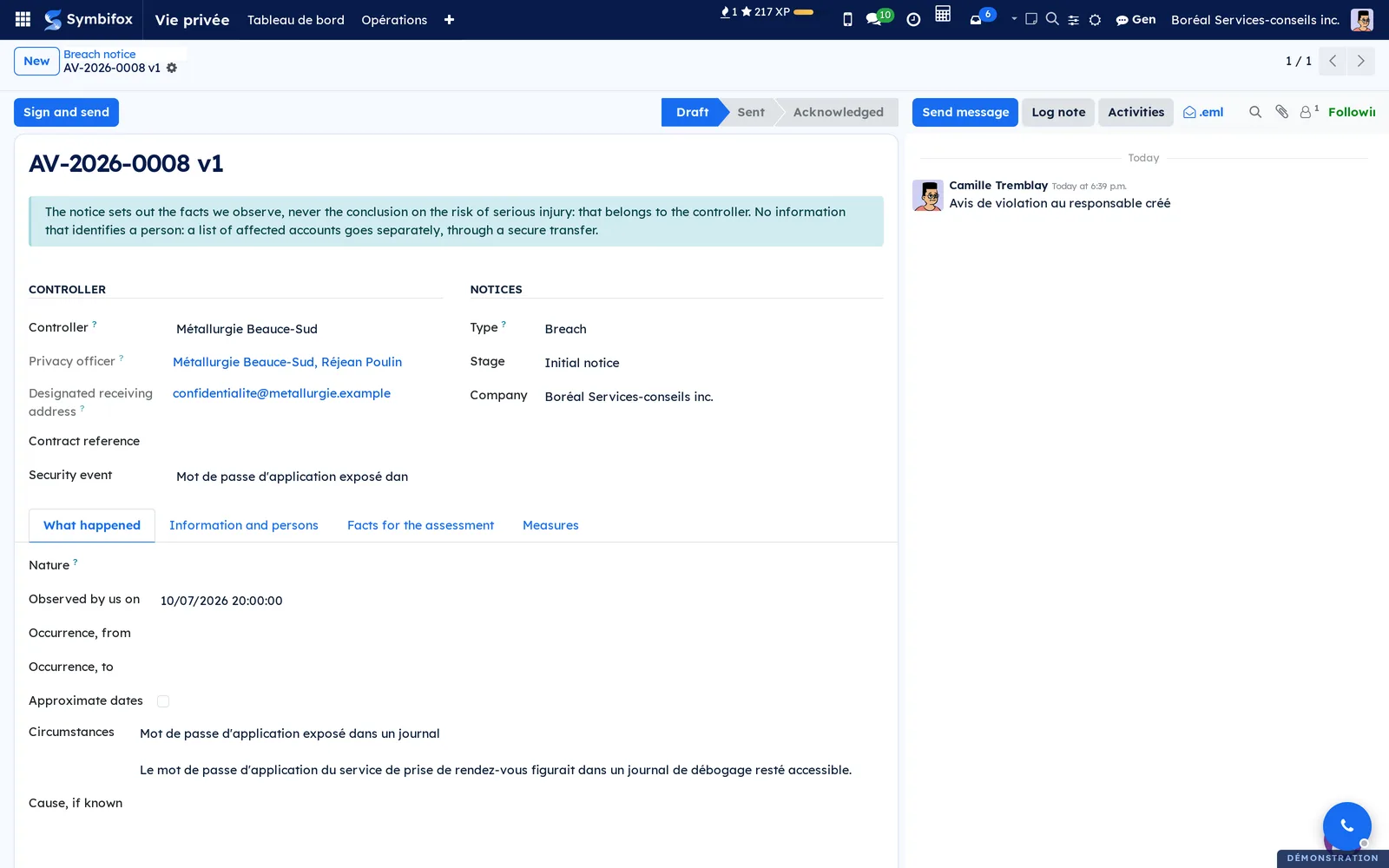
Each draft takes the event's title and description into the Circumstances, its date into Observed by us on and its resolution into the measures. The Security event field links the notice to its source. An organization that already has its notice for this event does not get a second one. Complete the Nature and the information involved, then send it like any other notice.
Record an incident in the register#
Every incident is recorded, including one that presents no risk of serious injury.
- Go to Vie privée › Opérations › Incidents de confidentialité (confidentiality incidents) and select New.
- Enter the Objet (subject), in one line.
- Choose the Organisation concernée (organization concerned) if you keep a client's register; leave it empty for your own register.
- Choose the Nature de l'incident (nature of the incident) and, if needed, the Catégorie dominante (main category).
- Enter the awareness and the occurrence, with an end date if it is a period.
- In the Incident tab, describe the circumstances, the information involved and the number of persons concerned.
- Select Passer à l'évaluation (move to assessment).
The entry receives an INC-YYYY-NNNN number. Conservation au registre jusqu'au (kept in the register until) is calculated five years after the awareness date. The yellow banner lists what is still missing, with the item number.
Assess the risk of serious injury#
The assessment weighs four factors and consults the privacy officer.
- Open the entry and the Évaluation du risque tab.
- Choose the Sensibilité des renseignements (sensitivity of the information) and the Probabilité d'utilisation préjudiciable (likelihood of injurious use).
- Fill in the four analyses: sensitivity, possible malicious uses, anticipated consequences and likelihood of use.
- Choose the Responsable de la protection des RP (privacy officer) consulted and the Date de consultation du responsable (date the officer was consulted).
- In Risque de préjudice sérieux (risk of serious injury), choose the value that starts with "Oui" (yes) or with "Non" (no).
- Write the reasons for the conclusion, then select Passer aux mesures et avis (move to measures and notices).
A "Oui" conclusion shows a red banner: the Commission and the persons concerned must be notified promptly. The row turns red in the list until the entry is closed.
Record the notices and the measures#
- In the Avis (notices) tab, check Commission avisée (Commission notified) and enter the Date de l'avis à la Commission (date of the notice to the Commission); add the Dernier complément transmis à la Commission (latest addition sent to the Commission) if applicable.
- For the persons, check Personnes concernées avisées (persons concerned notified), enter the date, the Personne-ressource (contact person), the Mesures suggérées aux personnes concernées (measures suggested to the persons concerned) and the Coordonnées à publier (contact details to publish).
- If an investigation requires postponing the notice to the persons, check the postponement box and give details.
- For a public notice, check Avis public donné (public notice given), then enter the date, the Motif de l'avis public (reason for the public notice) and its details.
- In the Mesures (measures) tab, select Add a line for each measure: name, nature, person responsible, due date, completion date and status.
- When the register is complete, select Clore l'incident (close the incident).
A measure has one of three natures: containment, mitigation or prevention. The Mesures shortcut button counts the entry's measures. Rouvrir (reopen) brings a closed entry back to the risk assessment.
Record a provider's notice#
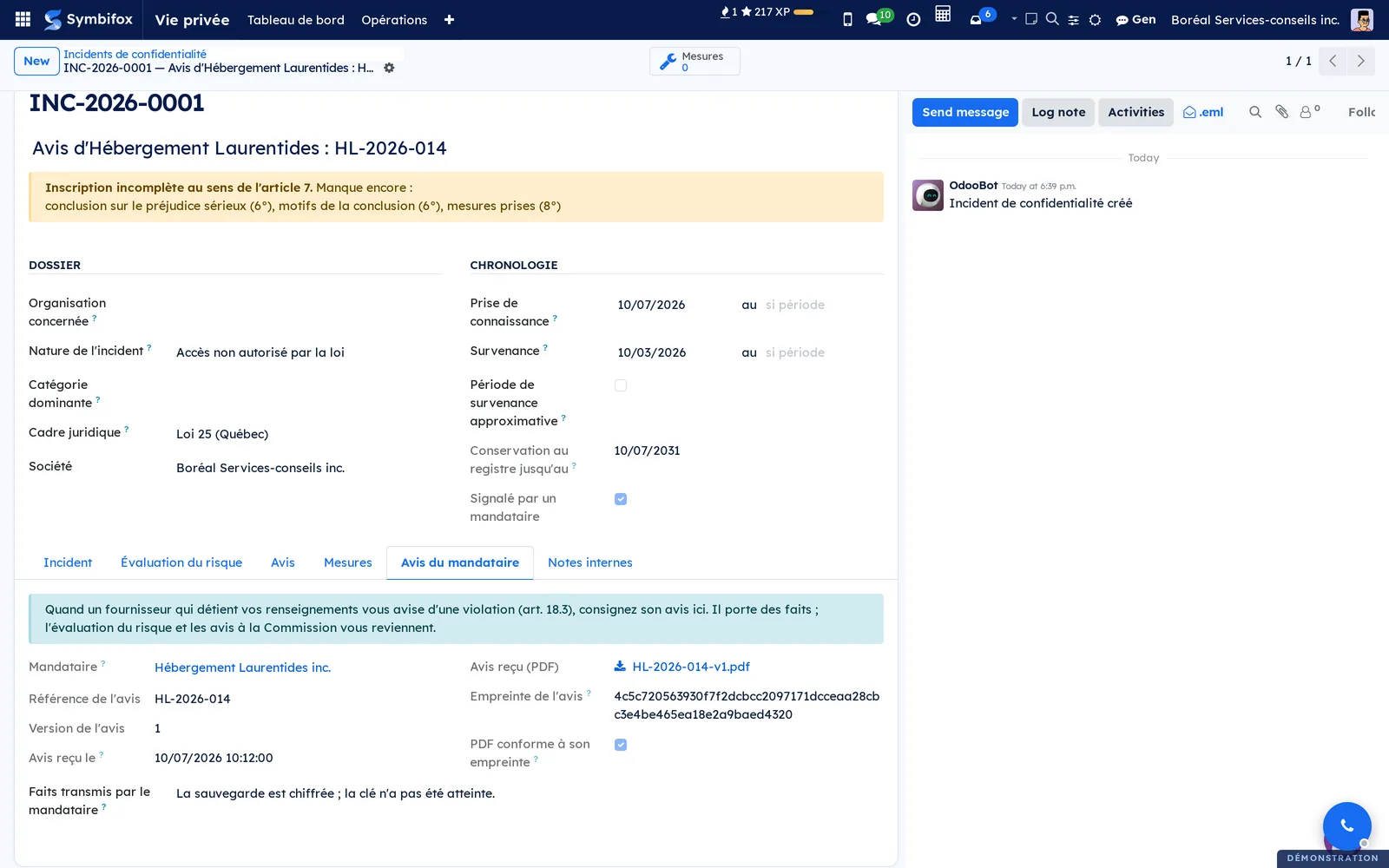
Your hosting provider or a subcontractor notified you by email. Its notice becomes an entry, with its provenance.
- Create the entry as above, with the date of receipt as the awareness date.
- In the Avis du mandataire tab, choose the Mandataire (service provider) and enter the Référence de l'avis (notice reference), its Version and Avis reçu le (notice received on).
- Upload the PDF you received in Avis reçu (PDF) (notice received, PDF).
- Summarize the Faits transmis par le mandataire (facts sent by the provider).
Empreinte de l'avis (notice fingerprint) is calculated from the file itself, and PDF conforme à son empreinte (PDF matches its fingerprint) checks it each time the entry opens. The Signalé par un mandataire (reported by a provider) box checks itself.
Receive a notice from a paired provider#
When your provider also has Symbifox and your instances are paired, its notice arrives on its own, in addition to the email.
- Open the "Breach notice received from" activity assigned to you, or go to Vie privée › Opérations › Breach notices (service provider) and apply the Received from a service provider filter.
- Open the notice in the Received state and read it, PDF included.
- Select Acknowledge receipt and confirm.
- Open the register entry that the banner names, and carry out the assessment.
The received notice is a mirror: it cannot be edited, and its next version will come from the provider. The register entry is created in the Déclaré state, with the facts, the awareness set to the time of receipt and the assessment left empty. An update from the provider follows the same entry without touching what you wrote in it.
The menus, one by one#
The three screens live under Vie privée › Opérations; the Privacy chapter lists the others.
Vie privée › Opérations › Incidents de confidentialité: the register, opened on the En cours (in progress) filter. Columns: Numéro (number), Objet, Organisation concernée, awareness, persons concerned (with their total), Risque de préjudice sérieux, Registre complet and État (status). The Risque à déterminer (risk to be determined), Inscription incomplète (incomplete entry) and Commission non avisée (Commission not notified) filters sort out the overdue work. Group by organization to read a register client by client.

Vie privée › Opérations › Breach notices (service provider): the notices issued and received, with no default filter. The Drafts, Awaiting acknowledgement and Acknowledged filters follow the status; Breaches, Attempts and Reports the type; Issued and Received from a service provider the direction. Group by notice to see every version of the same number. See the figure in the overview.
Vie privée › Opérations › Mesures sur incidents: every measure, across all incidents, with the incident, the nature, the person responsible, the due date, the completion date and the status. Managers only. Empty in the demo.
Reference#
Fields of the Breach notice form#
| Field | Description | Required or default |
|---|---|---|
| Controller | The organization whose information is affected | Required |
| Privacy officer, Designated receiving address | Taken from the organization's form, read again at sending | Filled in automatically |
| Contract reference | The service contract | Optional |
| Type, Stage | Breach, Targeted attempt or Report; Initial notice, Update or Final notice | Breach, Initial notice |
| Nature, Circumstances, Cause | The facts observed | Depends on the type |
| Occurrence, from and to, Approximate dates, Observed by us on | The timeline | Discovery required for sending |
| Information involved, Persons concerned | By category, never the information itself | Depends on the type |
| Encryption, Data leaving | The facts useful to the assessment, without the conclusion | Optional |
| Contact person | The person the client can reach | You |
| Signed by, Sent on, Sent to, SHA-256 fingerprint | The proof of sending | Filled in at sending |
| Acknowledged on, Acknowledged by, Acknowledged fingerprint | The proof of receipt | Filled in at acknowledgement |
Fields of the Incident de confidentialité form#
| Field | Description | Required or default |
|---|---|---|
| Objet | What happened, in one line | Required |
| Organisation concernée | The register that holds the incident; anchor for the portal | Empty for your own register |
| Nature de l'incident, Catégorie dominante | The four cases in the law; the category of information | Optional |
| Prise de connaissance (awareness), Survenance (occurrence) | A date or a period | Awareness: today |
| Renseignements visés inconnus | With the reason it is impossible | Cleared |
| Risque de préjudice sérieux | To be determined, Yes or No, with the reasons | To be determined |
| Commission avisée, Personnes concernées avisées, Avis public donné | The notices and their dates | Cleared |
| Conservation au registre jusqu'au | Five years after the awareness date | Calculated |
| Notes internes (internal notes) | Working notes, never on the portal | Empty |
Reports and exports#
The notice's PDF is produced at sending and only then: provider, controller, recipient, designated address, contract, then what happened, the information, the facts useful to the assessment, the blocked attempts, what is being done, the signature and the contact person. It is kept on the notice and is never rewritten, moved, published or deleted. The register exports like any Symbifox list; no template for the notice to the Commission or to the persons is produced yet, but their fields are there.
Automations#
Nothing runs on a schedule. When the designated person asks for a code, the email goes out without waiting for the next pass of the email queue. The banner of missing items and the Registre complet ribbon are recalculated on every save. When a notice is received through federation, an activity is assigned to your company's designated privacy officer, or to a member of the privacy role.
Public pages and portal#
The link in the email opens a public page, with no account, under the /privacy/breach/… address. It shows the type, the sending date and address, the signer, the fingerprint and a Read the notice (PDF) button. Acknowledging receipt takes two steps: Get a code, which goes to the address where the notice was sent, then Acknowledge receipt with the Code received, Your name, Your title and the confirmation box. The code has six digits, is valid for thirty minutes and works only once. Attempts per code, codes per notice and new requests are limited. If the stored PDF no longer matches its fingerprint, the page refuses the acknowledgement and says so.
The register also has three portal pages: /my/incidents (the organization's register), one page per entry, read-only, and /my/incidents/declarer (Déclarer un incident de confidentialité, report a confidentiality incident, seven fields). No entry is added to the portal: it is up to your instance to open it to its clients. Internal notes and the chatter never appear there.
Modules that extend this application#
The register itself is installed separately.
Three bridges install themselves when their application is present.
The text-message bridge closes a door rather than opening one.
The last bridge concerns email tracking (published module, not illustrated).
On the federation side, a bridge also prevents conversation.
Understanding#
Why the notice does not conclude. The provider sees the event, but only the controller knows the scope of its information and its obligations to the persons. So the notice gives what is needed to assess: nature, dates, categories, number, encryption, data leaving. The conclusion on serious injury belongs to the controller and its privacy officer.
Why a designated address, and never another one. A document is presumed received as soon as it becomes accessible at the address designated to receive it. So the notice goes neither to the organization's general email nor to the one on the privacy officer's contact form, which any contact manager can change. Without a designated address, nothing goes out.
Why a code on top of the link. Email filters open links by themselves, and a link comes back in every reply that quotes the message. So the page does nothing when it opens, and the acknowledgement requires a code sent to the designated address at that very moment. The acknowledgement keeps the server time to the second and the fingerprint that was seen; it says "received", not "agreed".
Why the notice's chatter is a register. Only the system and the people who can edit the notice write in it, whatever the path: note, email, resend, attachment, activity, reaction. Once the notice is sent, its messages are neither rewritten nor deleted, not even by a manager: you add a note that corrects them. Notifications only reach the people named on a message and the followers.
Why the register flags instead of blocking. An incident is handled in fits and starts; refusing an incomplete entry would lose information at the moment it arrives. The banner says what is missing, and item 6° works both ways: a "Non" needs its reasons as much as a "Oui". The five-year retention runs from the awareness date, not from the occurrence.
Why there is no countdown. The law says "without delay" to the provider and "promptly" to the controller, with no number of days. The module does not invent one.
Troubleshooting#
| Symptom | Likely cause | Fix |
|---|---|---|
| Sign and send refuses: "Before sending", followed by a list | A required item is missing, often the designated receiving address | Complete the notice or the designation on the organization's form, then send again |
| The receiving address stays empty on the draft | No designated address on the organization's form | Have a privacy manager designate it |
| A correction is refused on a sent notice | A sent notice is frozen | Select Prepare an update |
| Prepare an update is missing | The notice is a draft, a superseded version, or a received notice | Open the latest sent version; a received notice is updated by the provider |
| The client says they used up their codes | The link travelled, or there were too many attempts | Select Re-arm acknowledgement codes |
| The acknowledgement page refuses and mentions the fingerprint | The stored PDF no longer matches the sent notice | Do not acknowledge; contact the contact person |
| Another PDF is refused in Avis reçu (PDF) | That file is not the one of the recorded fingerprint | Enter the notice's higher version at the same time |
| Acknowledge receipt refuses: the PDF did not cross | The PDF exceeded the pairing's attachment cap | Acknowledge receipt through the link in the provider's email |
See also#
- Privacy (Law 25 and other frameworks): designating the privacy officer and the rest of the application.
- Hosting management: assessing a security event.
- Federation: the notice that reaches a paired client by itself.
- Secure transfers: sending a list of affected accounts.
- IT audit: the other half of compliance.