

Part 2 · Clients, sales and relationships
Org charts
The two org charts Symbifox draws from your contacts, a company's chain of command and a group's ownership structure, on screen and as a PDF.
Watch it
Two questions come up in every engagement, and neither has a natural place to live. First: inside your client's company, who reports to whom. Second: in the group it belongs to, who owns what. Symbifox answers both with two entries in the Contacts application, Organigramme (org chart) and Détention (ownership), fed by the records you already keep. This chapter is for anyone documenting a client organisation, and for the managers who record a group's structure.
Overview#
Both charts start in the same place: your address book. Nothing is typed twice, and nothing lives in a file on the side.
The first draws people. On a contact record, a Supérieur immédiat (immediate manager) field says who that person answers to. The field is deliberately separate from the company a contact is attached to: working somewhere and reporting to someone are two different facts, and merging them has a measurable cost, since attaching one record to another copies the parent's address onto it.
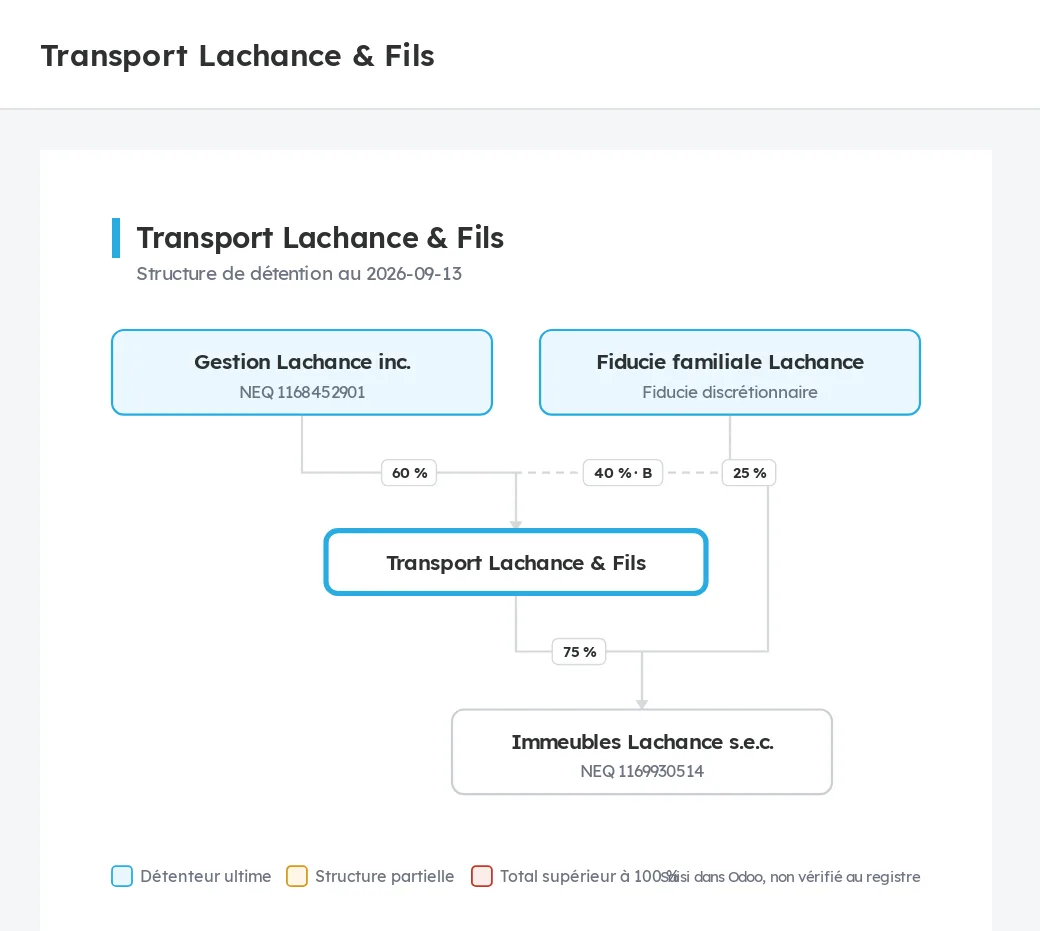
The second draws ownership. An ownership link ties a holder to a company held, and carries the percentage, the class of shares, the voting right, the effective date and the source of the information. The percentage lives on the link, never in the box: that is what separates ownership from hierarchy, since one company has several holders, each for a share.
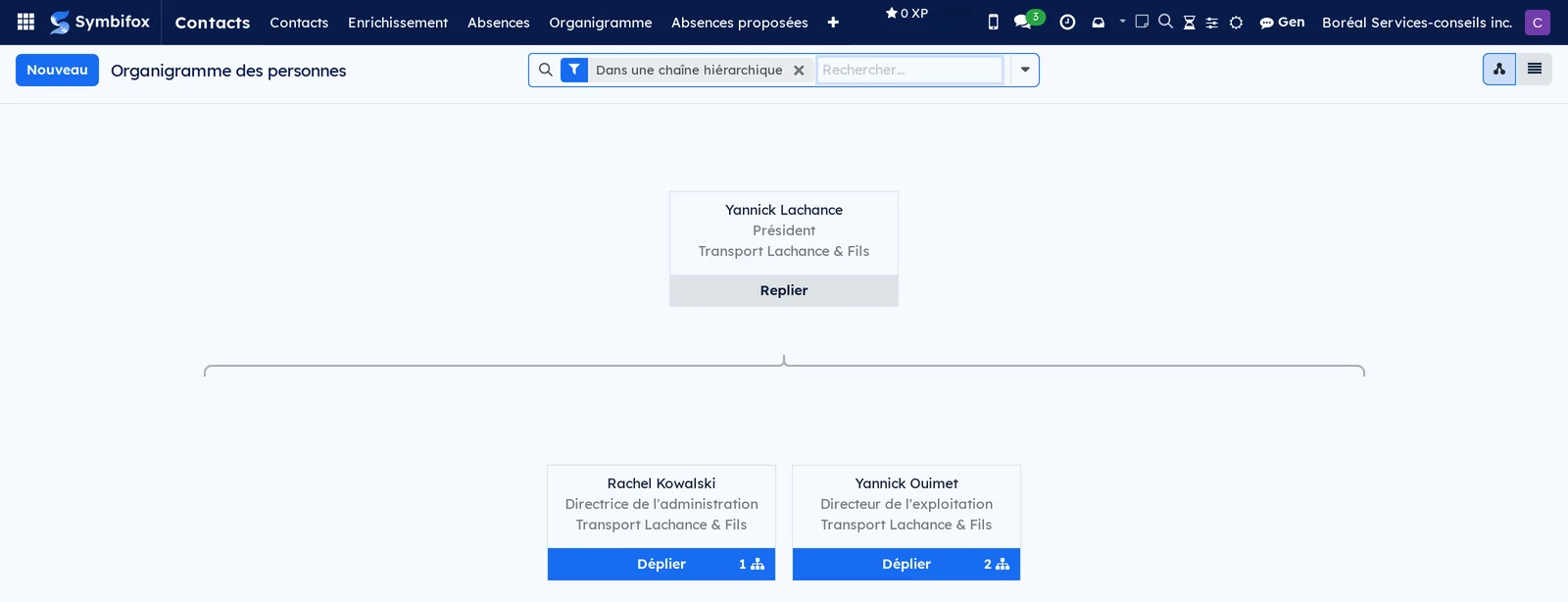
Both are read two ways. On screen, a view that folds and unfolds, where dragging a card changes who someone reports to. On paper, a vector drawing in your own colours, ready to print and hand over.
Configuration#
There is nothing to set up before you start. Both entries appear in the Contacts application as soon as the modules are installed, and the fields they add are filled in by hand, one record at a time.
Two settings still deserve your attention.
The first is the right to write. Everyone using Symbifox reads the ownership links of their own organisation, but only contact managers can create, correct or remove them. If someone on your team needs to record a structure, check that they carry that right in the user settings.
The second is the separation between companies. When your instance runs several, an ownership link belongs to the one that recorded it, and the others do not see it. The separation holds inside the drawing as well: a chart opened from another company does not carry links it has no right to read.
Getting started#
Start with one company, and with the people you already know.
Open a person's record in Contacts. Under their role, fill in Supérieur immédiat with the person they answer to. If that manager works for another company in the group, Symbifox flags it without blocking you: this is the ordinary case of a group providing shared services, and it had to be recordable.
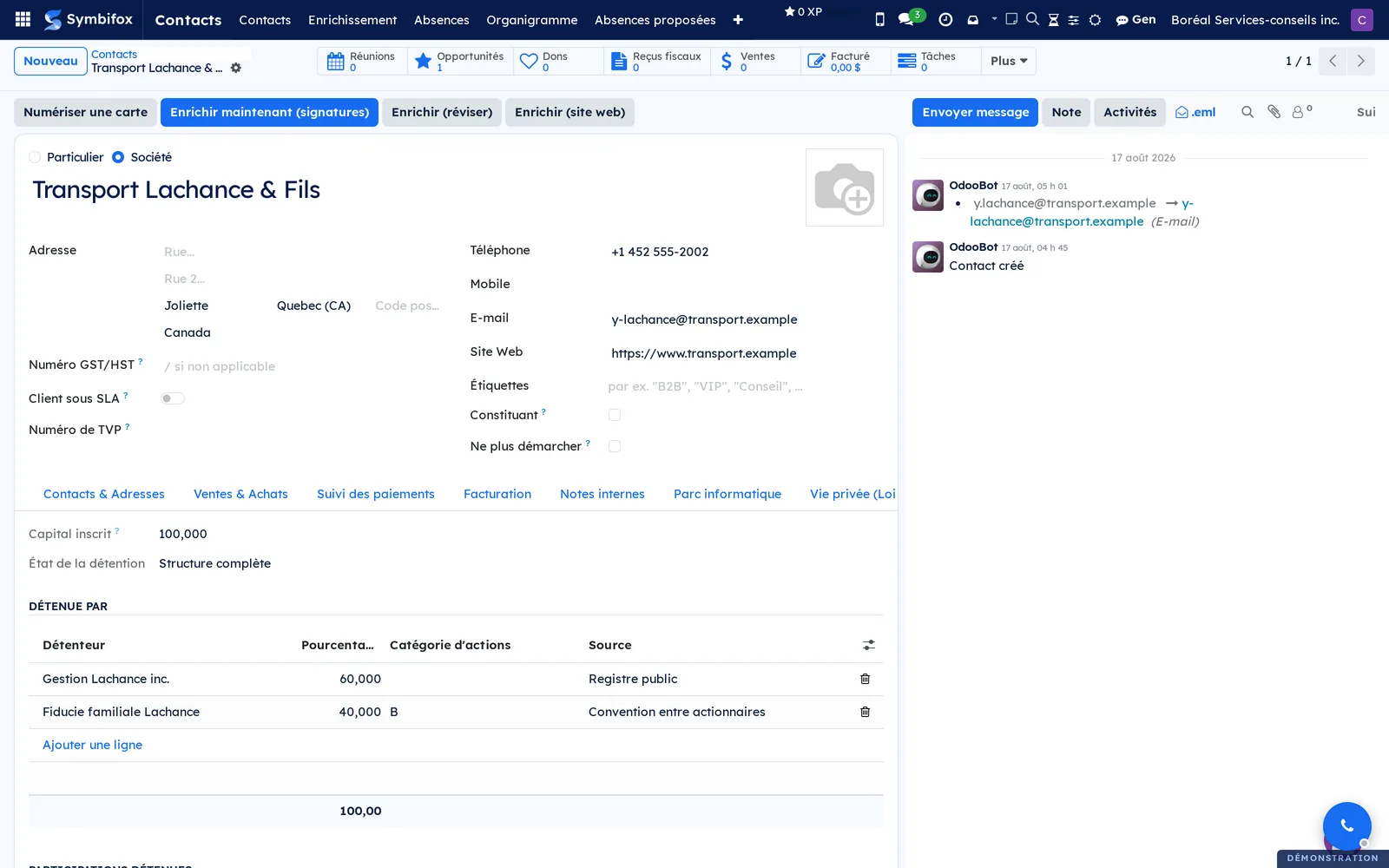
Repeat for three or four people, then open their company's record. Two shortcut buttons appear there as soon as there is something to show. Organigramme opens the people drawing; Détention opens the structure, which stays empty until you record a link.
For ownership, open the company that is held and its Détention tab. Under Détenue par (held by), add one line per holder, with their share. The total adds itself up and the state shows above it: complete structure, partial structure, or a total above one hundred.
Common tasks#
Draw a client company's org chart. Open its record, then the Organigramme button. The page shows every person attached to that company, plus the outside managers it needs to keep the chain standing. Those carry a different tint and their employer's name below their own.
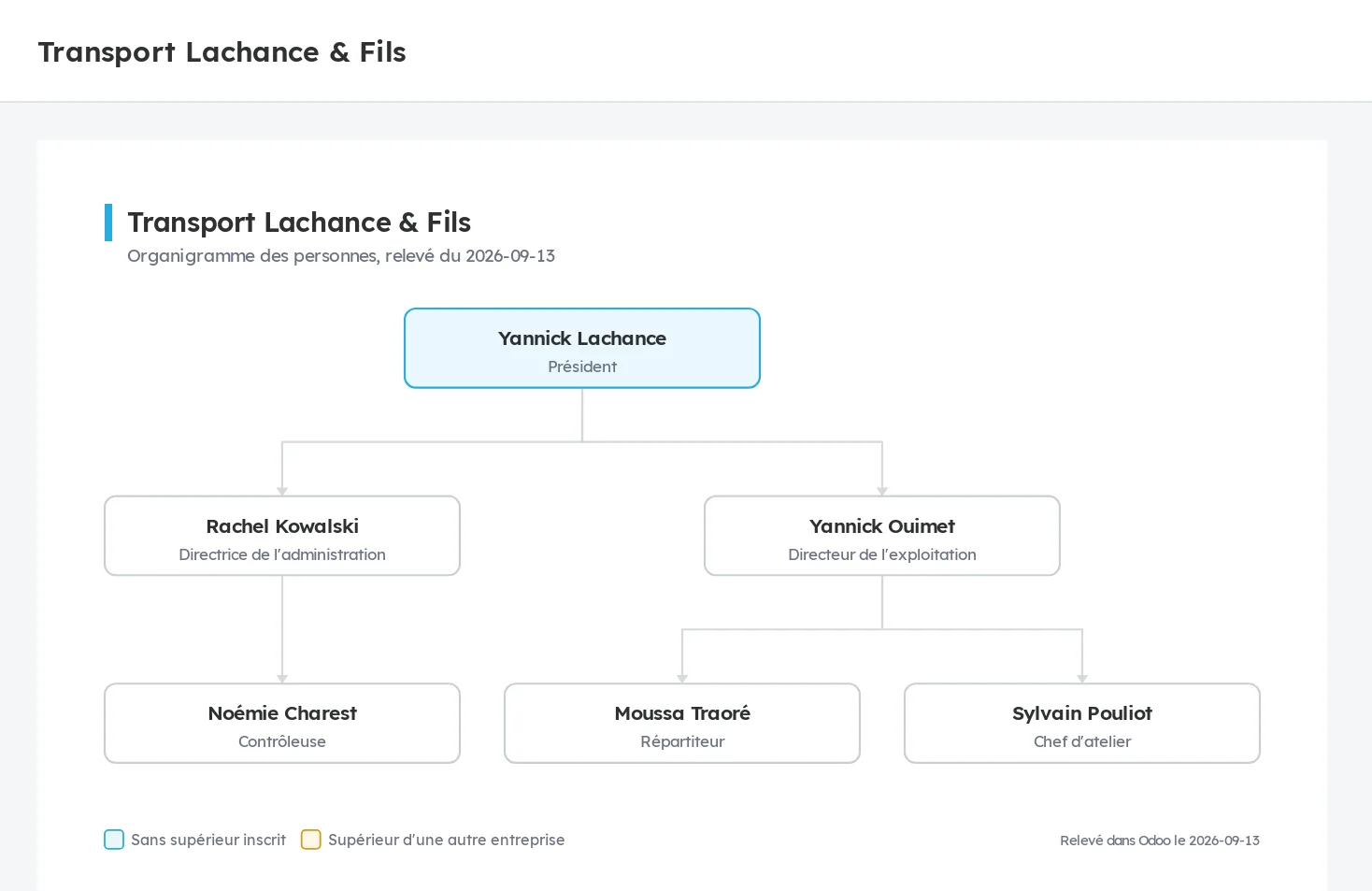
Hand the chart to the client. On the same page, the PDF button produces a vector drawing, set in Lexend, in your own colours. The text stays selectable, and each box links back to the matching record when the document is opened on a machine connected to your instance.
Reorganise without retyping. In the hierarchy view, dragging one card onto another changes who that person reports to. The record follows, and so does the drawing.
Record an ownership structure. Open the company held, the Détention tab, then add the holders. Fill in the class of shares when the structure distinguishes them, untick the voting right for a stake that has none, and choose the source: public registry, client statement, shareholders' agreement, or an estimate still to confirm. That last value exists precisely so you can record what you believe you know without giving it more weight than it has.
Date a share. An agreement signed today for next January is recorded today, with its effective date: it neither counts nor draws before that date. To replace a share, close the old line with an end date rather than stacking a second one on top.
See the whole group. From any company in the group, the Détention button walks up through holders and down through holdings. The company you started from carries a thick border, so you can find it again among the others.
The menus, one by one#
Contacts › Organigramme opens the hierarchy view on every person who is part of a chain of command. One filter opens it on those who are, and a second finds those still missing a manager. Each card carries the name, the role and the company, and unfolds as long as there is someone below.
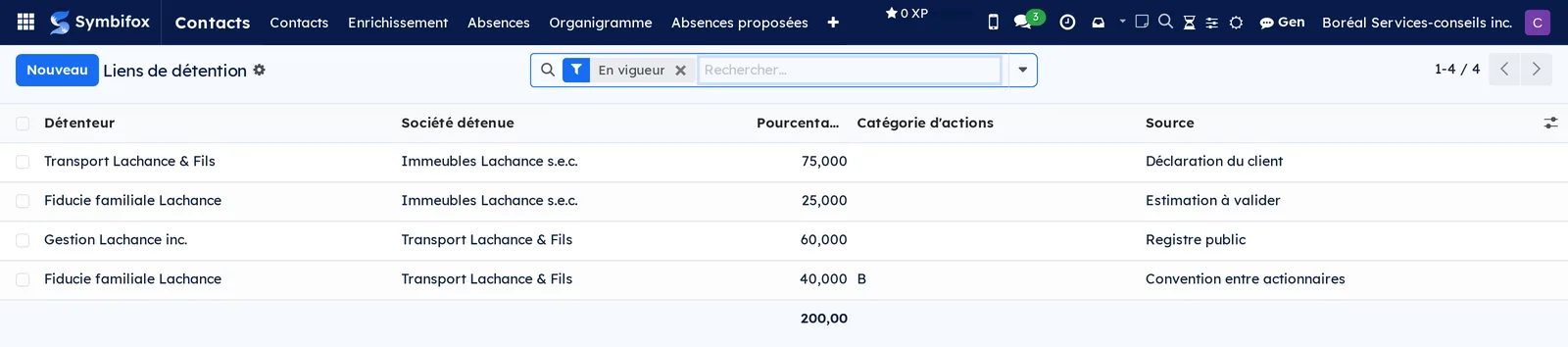
Contacts › Détention opens the list of recorded links, titled Liens de détention (ownership links). It groups by company held, by holder or by source, and filters on En vigueur (in force), À valider (to confirm) and Sans droit de vote (no voting right). This is the view to open when you want to read a whole structure rather than one company at a time.
Both entries live in the Contacts application because both charts are nothing more than a reading of the address book.
Reference#
Fields on a person. Supérieur immédiat points at another person, never at a company. A company has no manager, and a person does not report to a business: the company field says where they work. Nobody can report to themselves, directly or by walking up the chain.
Fields on an ownership link. The holder and the company held are required. The percentage sits between zero and one hundred. The class of shares is free text and stays empty when the structure does not distinguish them. The voting right is ticked by default. The two dates bound the validity. The source takes one of four values, and the note stays free text.
What is refused. A company does not hold itself. Neither does a closed loop: if A holds B which holds A, it almost always means holder and held were swapped. The same link recorded twice, for the same class and the same date, is refused rather than duplicated.
What is not required. A total of one hundred percent. A half-known structure is the normal case for a prospect, and refusing to record sixty percent until the other forty is known would mean recording nothing at all.
Modules that extend this application#
Understanding#
Why another field, when Odoo already attaches a contact to its company. Because that attachment says where the person works, and nothing else. Repurposing it to mean hierarchy has an effect nothing announces: the attached record receives its parent's address, silently, even when it is marked as a company. A dedicated field lets the company link, the address and the chain of command stay separate.
Why ownership is not a tree. A tree gives every node one parent. Ownership gives it several, each for a share, sometimes by class of shares and sometimes crossed. The information lives on the link rather than in the box, which is why Odoo's hierarchy view, built to follow a single link folded on itself, cannot draw it. Symbifox therefore draws ownership with its own engine, which lays companies out in levels and reserves a lane for links that skip one.
Why the employee org chart was not enough. Odoo ships one, and it is installed everywhere. It draws your employees. The people an engagement asks you to map are not your employees: they are your client's, and they live in the address book.
What the drawing does not claim to be. A share register. The structure recorded here is what you know, with the source behind each piece of it. It is not evidence, and the footer of every output says so.
Troubleshooting#
The Organigramme button does not appear on a record. It shows as soon as one person at that company has a manager recorded, or has someone below them. Until anyone has a chain, there is nothing to draw and the button stays hidden.
The drawing is empty. Check that the people are attached to the company you are looking at, and not to a subsidiary. A company's chart shows its own people; a subsidiary has its own.
A company appears in amber. Its recorded capital is below one hundred percent. This is not an error: the structure is partly known, and the drawing says so.
A company appears in red. The total is above one hundred percent. Look at the dates: a share that was replaced should be closed rather than doubled with a second line.
The drawing stops and the page says so. The structure continues beyond what one page can carry. Open the group from a company higher up, or read the list of links, which has no such limit.
A chart refuses to open. Past four hundred boxes the drawing is no longer legible, and Symbifox would rather tell you. Narrow the scope, for instance by starting from a subsidiary rather than the whole group.
See also#
The Contacts chapter for the address book itself, its company and person records, and their enrichment.
The Meetings chapter for what gets decided with the people the chart names.
The Settings and brand identity chapter for the colours that dress the PDF you hand over.