
Part 5 · People and team
NFC tags
Stick an NFC tag on a door, a laptop or an extinguisher, and bring a phone close to take a room, lend equipment, record attendance, do a patrol or fill in the checklist that becomes a register.
Watch it
A tag is a small NFC chip stuck on a door, a laptop, a file or a machine. Bring a phone close, and Symbifox performs the gesture attached to it: open a record, log a visit, take a room, lend a laptop, record attendance, tap a patrol checkpoint, report a problem. The application serves the person who prepares the tags and the whole team that taps them. The result: a field gesture that leaves a dated, signed record, without opening a computer.
Overview#
A tag carries only a short public code, never a password. It can be read from four centimetres and copied for a few cents: what you engrave is a poster, not a secret. Identity comes from elsewhere, and that is what separates the three ways to tap a tag.
| Door | Where identity comes from | For whom |
|---|---|---|
| The Symbifox Pastilles app | the phone, paired once with the person's account | the team, on Android |
| The browser | the Symbifox session already open | anyone with an account, on any phone |
| The signed tag | an NTAG 424 DNA chip that signs every read | a tag handed to someone without an account |
Each tag is attached to a gesture. The gesture says what happens, and it always runs with the rights of the person tapping: a record they may not see stays closed.
A tag can also ask for a checklist before it records: conforming or not for each item, a measured value, a choice, a sentence. That is what turns a round into a register: a timestamped pass proves someone came by, a filled-in checklist says what they saw.
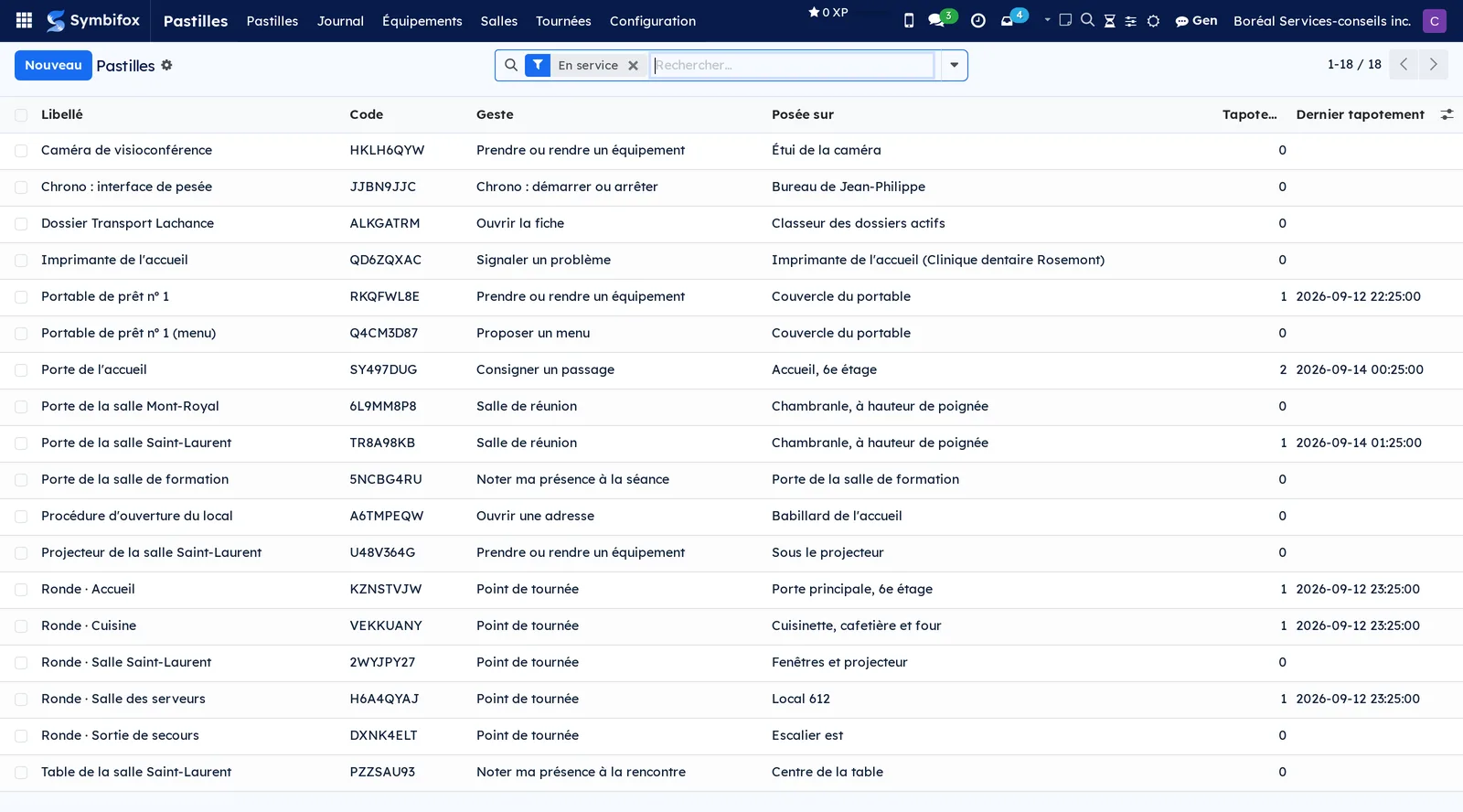
The Tags screen lists the organization's tags, with their gesture, where they are placed, the number of taps and the last one.
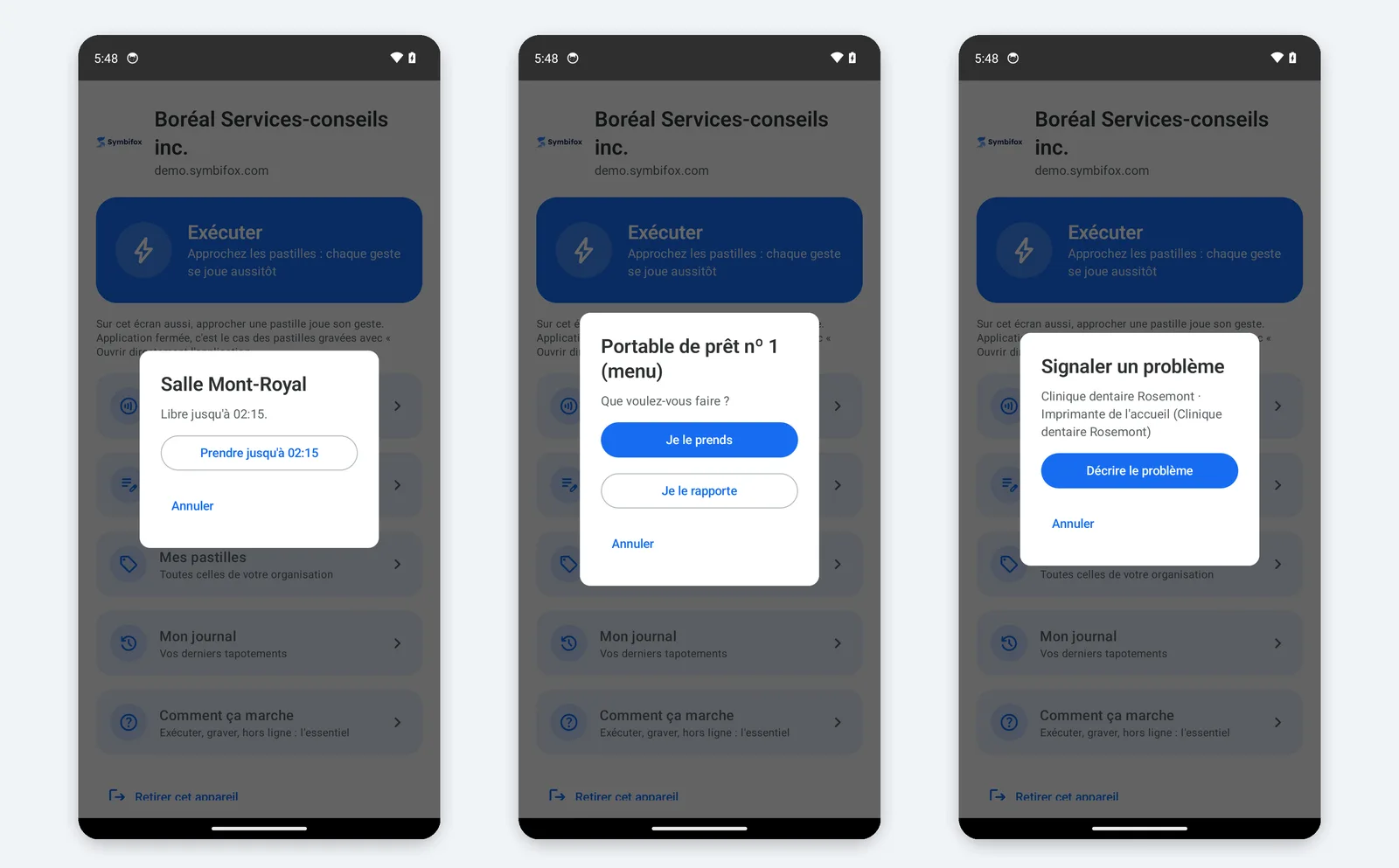
Three behaviours set Symbifox's approach apart. First, nothing acts when a link is merely opened: link previews, spam filters and security scanners open addresses nobody touched, so a gesture that changes data always goes through a confirmation page in the browser. When the tag asks for no confirmation, that page submits itself, which a link preview does not do. Second, a tag may ask a question instead of acting: a few buttons, sometimes a sentence to write, and nothing is done until you choose. Third, a tap without a network is not lost: the phone keeps it with its time and sends it when the network is back.
Here are three questions as the app asks them: a free room, a menu on a laptop, a problem to report.
Tags touch several applications: the timer in Timer, the Calendar for rooms, Helpdesk for tickets, Meetings and training for attendance.
Configuration#
Access and rights#
Two groups are offered in Settings › Users, category NFC tags:
| Group | What it opens |
|---|---|
| Use | Tap tags and read one's own taps. Every employee is a member. |
| Management | Create tags, choose gestures, read the whole log, remove a device, play gestures reserved for managers |
The Configuration menu only shows to members of the Management group. The gestures "Run a scheduled action" and "Run an action" are reserved for managers, even when offered in a menu.
Settings#
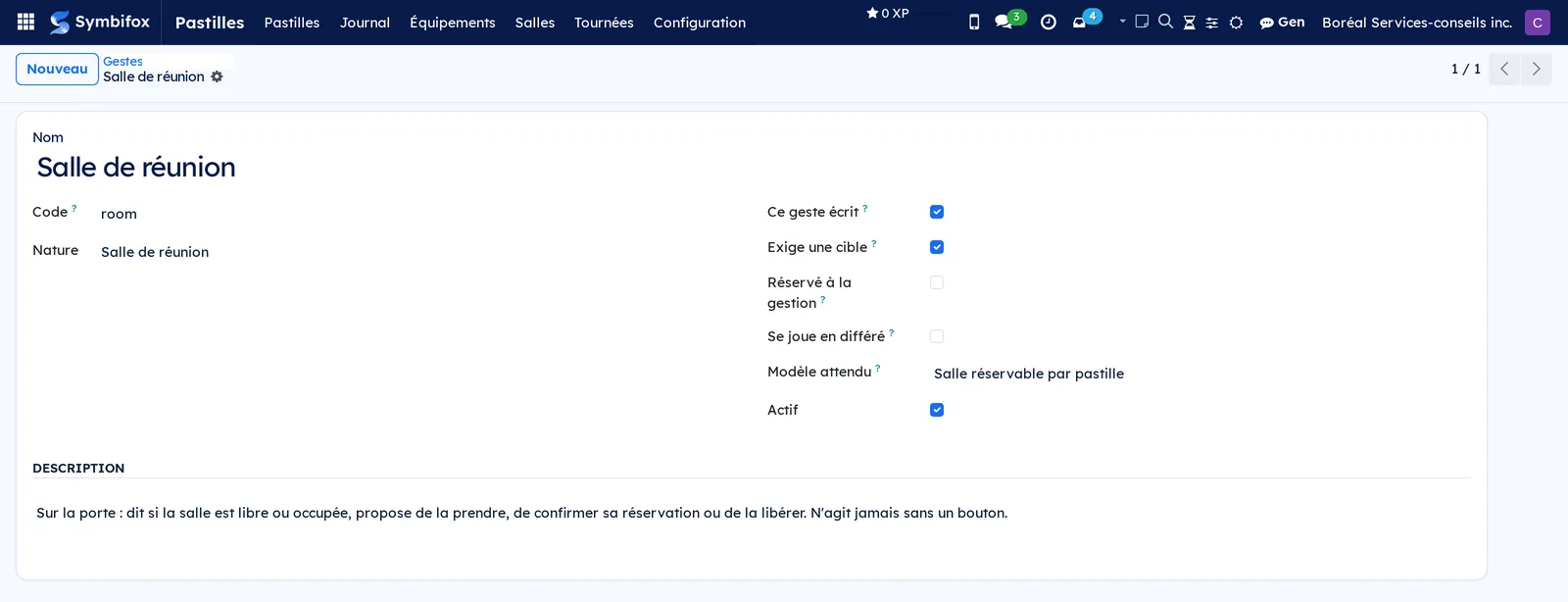
Gestures are set in Tags › Configuration › Gestures. For each one, three checkboxes decide its behaviour:
- This gesture writes: a gesture that changes data goes through a confirmation page when it comes through the browser. The page submits itself when the tag asks for no confirmation.
- Reserved for managers: only a manager can play it.
- Can be sent later: a tap made without a network and sent later is accepted, with the time recorded by the phone. Leave it unchecked for what only makes sense on site and right away, such as opening a record, starting a timer or taking a room.
Preferences#
Tags › Configuration › Settings holds what applies to the whole application. The page opens to members of the Manager group, without going through Symbifox's own Settings, which are reserved for system administration.
| Setting | What it decides | Default |
|---|---|---|
| Duplicate window (s) | Two identical taps by the same person inside this window perform the gesture once | 20 |
| Offline accepted up to (h) | The maximum age of a tap made without a network | 72 |
| Encryption key | Where the key that encrypts the signed chips' keys lives | In the database |
Record types#
Configuration › Record types decides what a tag may point to: a contact, a task, a project, and whatever you add. The same list serves the website and the app, and types that trigger processing (scheduled action, server action) are offered to managers only. Types a gesture requires by itself, such as the equipment of a loan, are added on their own.
Signed tag keys#
A signed tag (NTAG 424 DNA) proves every tap with two sixteen-byte AES keys, the same ones engraved in the chip.
- Go to Configuration › Settings, then Set or replace keys.
- Choose the company, paste both keys, then Set the keys.
The keys are encrypted on save and are never shown again, anywhere. The page says where the key that encrypts them lives: set outside the database, in the server configuration, it also protects against a copy of the database; set in the database, it only protects against reading on screen and through the API.
Checklists#
Configuration › Checklists describes what is checked at each reading: one item per line, with its expected answer (conforming or not, a value with its range, a choice, a text), the person who receives non-conformities and the expected cadence. Starter checklists ship with the module, flagged "To validate" when their content comes from a summary of a standard rather than from the standard itself: confirm them against the real equipment before using them.
Master data#
Depending on the gestures you use, first prepare what the tags will point to:
- the equipment to lend, in Tags › Equipment;
- the rooms, in Tags › Rooms;
- the rounds and their checkpoints, in Tags › Rounds;
- training sessions and their venue, in the Events application;
- the customer records that will receive tickets.
You also need blank NFC chips. NTAG213 stickers suit most uses; NTAG 424 DNA chips are for signed tags.
Getting started#
This walkthrough engraves a tag that logs a visit at the reception door, then taps it.
- Install the Symbifox Pastilles app on an Android phone, from the Symbifox F-Droid repository.
- Open the app and select your account, or enter your instance's address, then sign in on the page that opens. A page then asks you to allow Symbifox Pastilles to access your account: allow it only if you just started signing in from your phone.
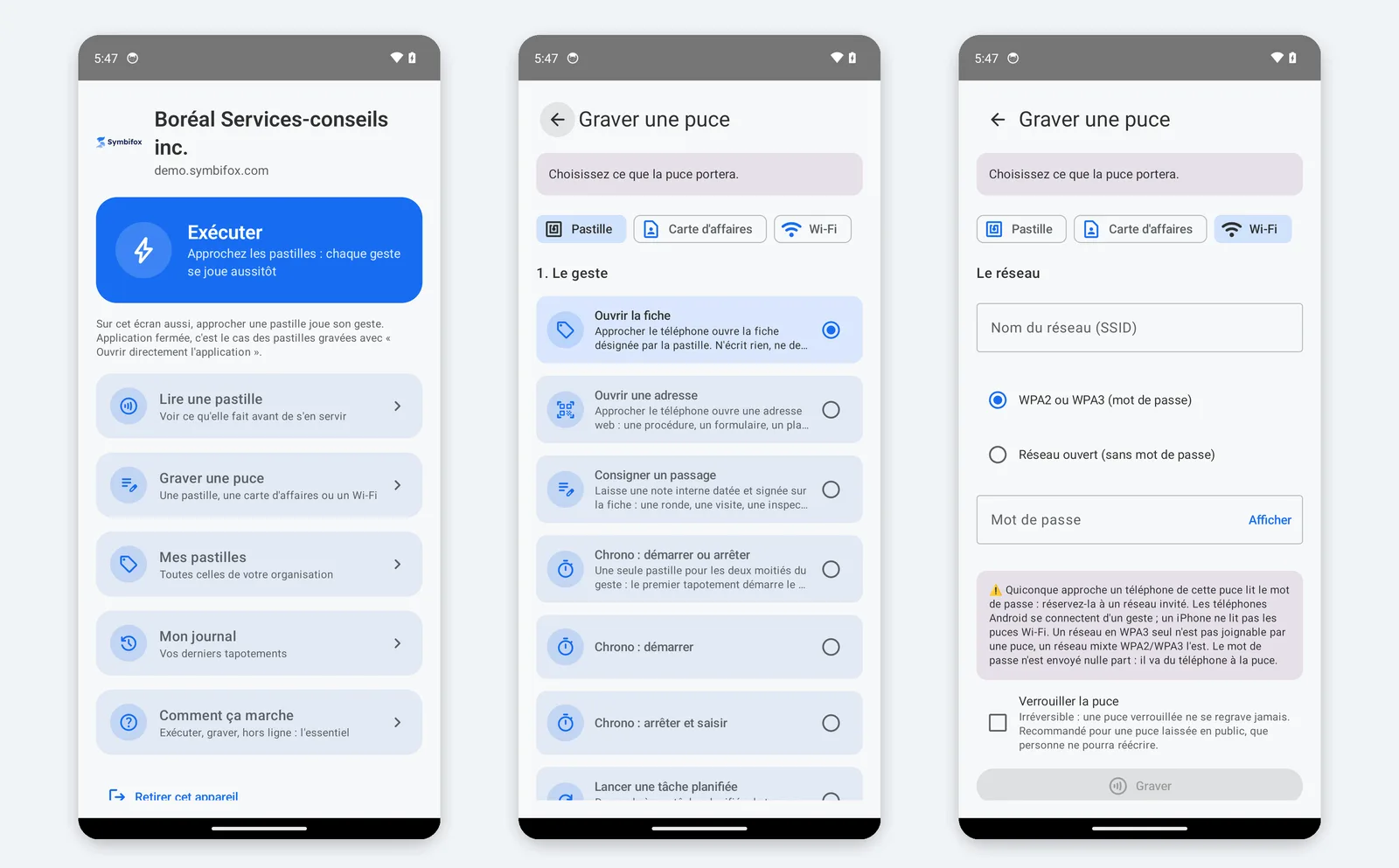
- Select Graver une puce (engrave a chip), then Pastille (tag).
- Select the gesture Log a visit, then search for the record "Boréal Services-conseils inc.".
- Enter the label "Reception door" and the place "Reception, 6th floor", then select Graver (engrave).
- Bring a blank chip close to the back of the phone and hold it still until the message "Gravée et vérifiée" (engraved and verified).
- Go back to the app's home screen and bring the tag close: the note "Visit recorded by tag" appears in the record's discussion thread.
The tag also appears in Tags › Tags, and the tap in Tags › Log.
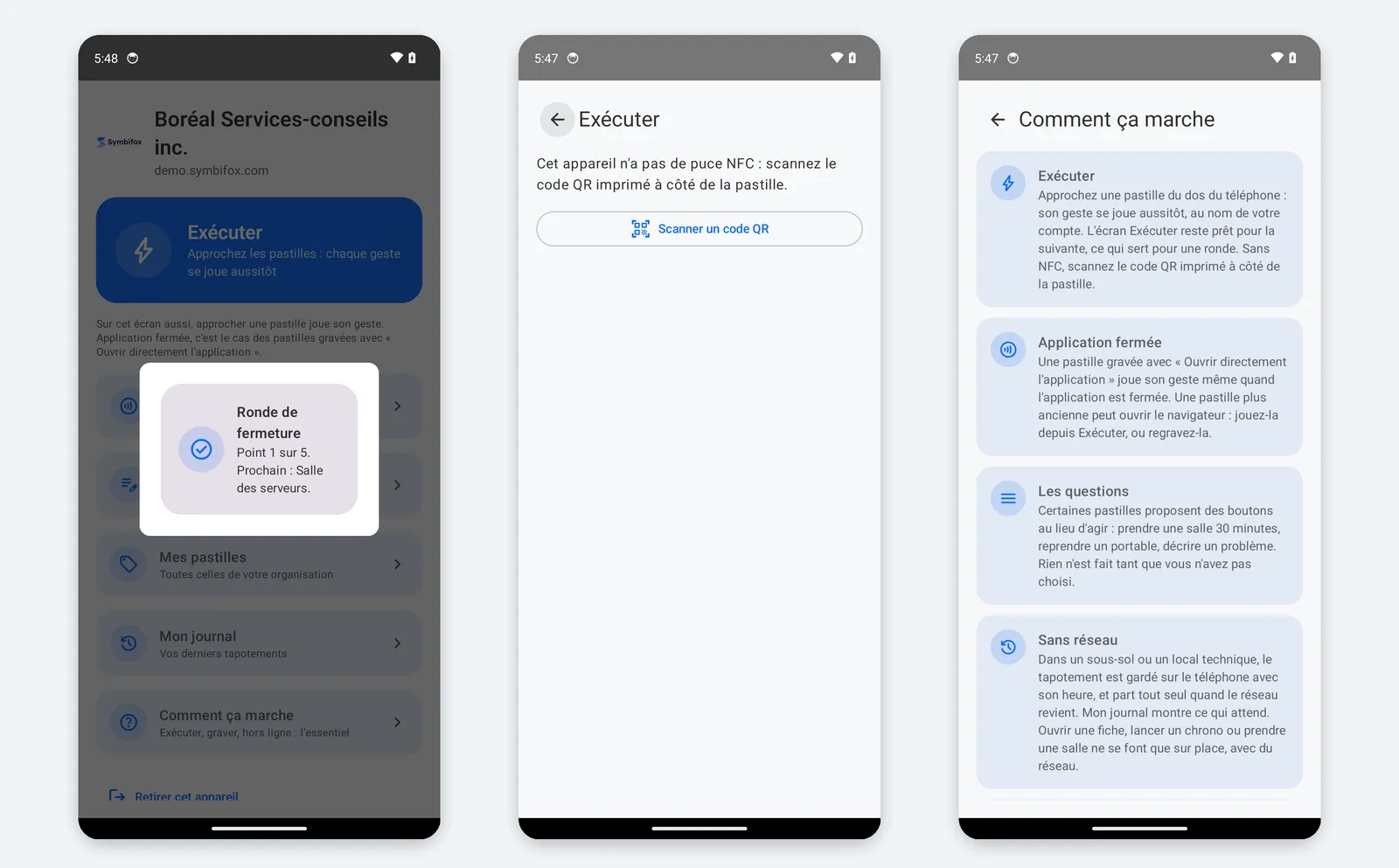
Once paired, the app's home screen leads to these screens.
Common tasks#
Engrave a tag#
Engraving creates the tag's record, then writes its address on the chip and reads it back to check.
- In the app, select Graver une puce, then Pastille.
- Choose a gesture. Depending on the gesture, the screen asks for a record, a web address or a text.
- Enter a label and the place where the tag will be stuck.
- Leave Ouvrir directement l'application (open the app directly) checked, so the tag plays its gesture even when the app is closed.
- Check Verrouiller la puce (lock the chip) only for a tag placed for good: the lock cannot be undone.
- Select Graver, then bring the chip close.
The message "Gravée et vérifiée" confirms that the chip reads back what was just written.
Engrave a signed chip#
An ordinary tag carries a public code: it can be copied for pennies. A signed chip signs every read with a key it never hands over, and each address it produces works only once: copied from a browser history, it replays nothing. That is what you need when the tag acts with no session behind it: a card given to someone who has no account, for instance.
You need an NTAG 424 DNA chip, an account in the Management group, and the company's keys must already be posted (Configuration › Réglages › Poser ou remplacer des clés).
- In the app, select Graver une puce, then Pastille, and fill the screen as you would for an ordinary tag.
- Check Puce signée (NTAG 424 DNA) (signed chip).
- Select Graver, then hold the chip against the phone for a few seconds without moving it.
The server runs the writing: the app only carries the commands to the chip. Your company's key therefore never travels down to a phone.
Two things to know before you start. Writing needs a connection, since every command comes from the server: at a desk that is nothing, on a site it needs planning. And a tag already written cannot be written again: its counter would start from zero, which would give previously captured addresses their validity back. A new chip, a new record.
Apply a template#
A template creates in one step what is usually laid out by hand: a round and its checkpoints, equipment and its tag, one tag per line.
- Go to Tags › Templates and open the one that fits.
- Select Apply this template.
- Write one line per tag, as “name ; place”.
- Select Create.
The screen then opens on the tags created, from where the labels print. Engraving happens from Mes pastilles (my tags) in the app.
Create tags in one step from existing records#
On equipment, a room or a round, Create the tag (or Create checkpoint tags) does the same work from records that already exist. In a list, tick several records then Create tags. A record that already has its tag for that gesture is skipped, and the screen says so.
Take a reading#
- Bring the phone close to the tag: the checklist appears.
- Answer each item. Fields marked with a star are required.
- Select Save the reading.
The reading joins Tags › Readings, with the time, the place and the name of whoever checked. Each non-conformity creates an activity for the person in charge of the checklist. With no network, a checklist already read once stays available on the phone, and the reading leaves when the network returns, with the time of the tap.
Record the correction of a non-conformity#
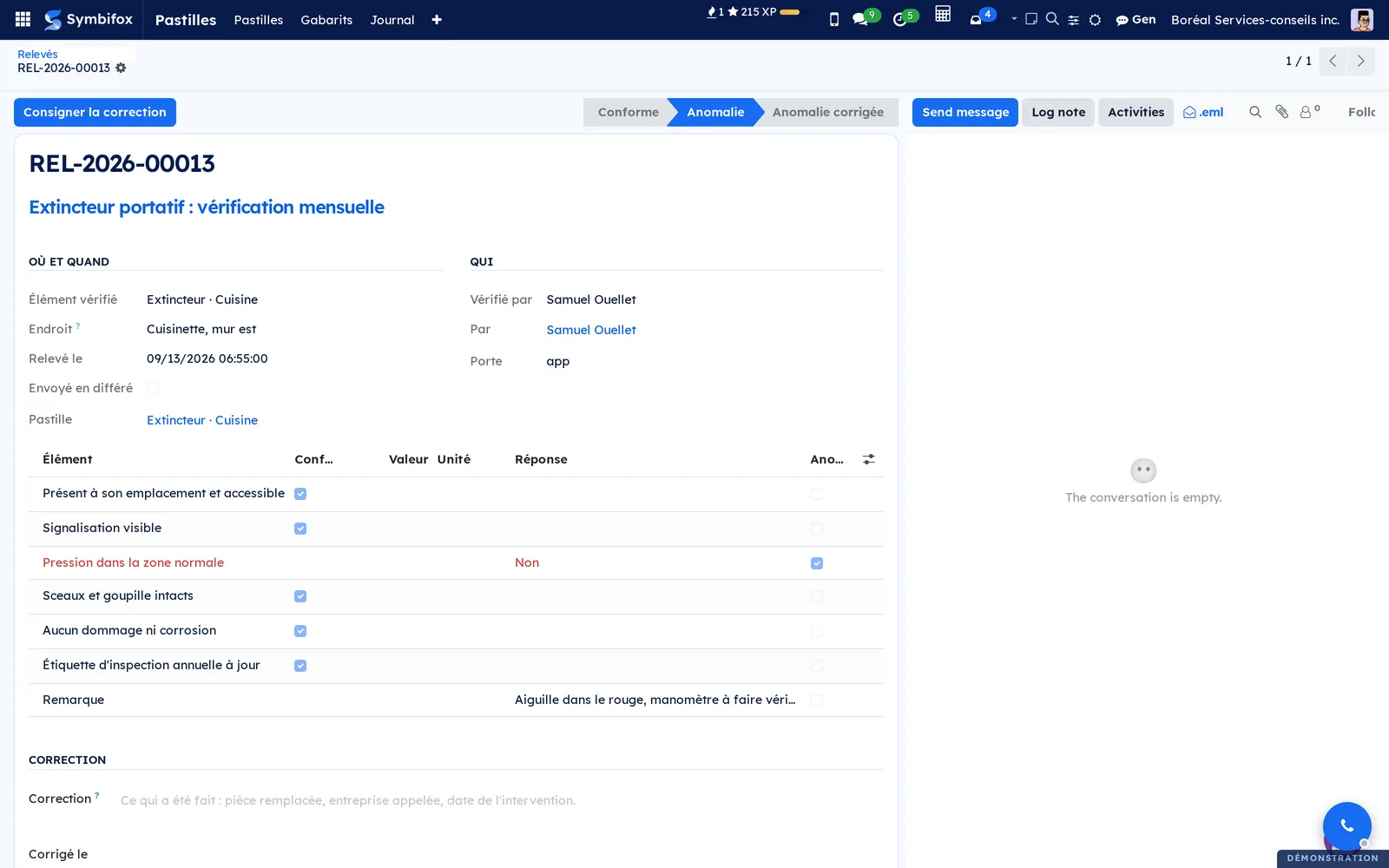
- Go to Tags › Readings and filter on Issues to correct.
- Open the reading, write what was done and the date.
- Select Log the correction.
A reading is never rewritten: its results stay exactly as they were entered, and it is the correction that is added. That is precisely what a register must carry.
Print a register#
- Go to Tags › Readings.
- Filter on the checklist and the period you want.
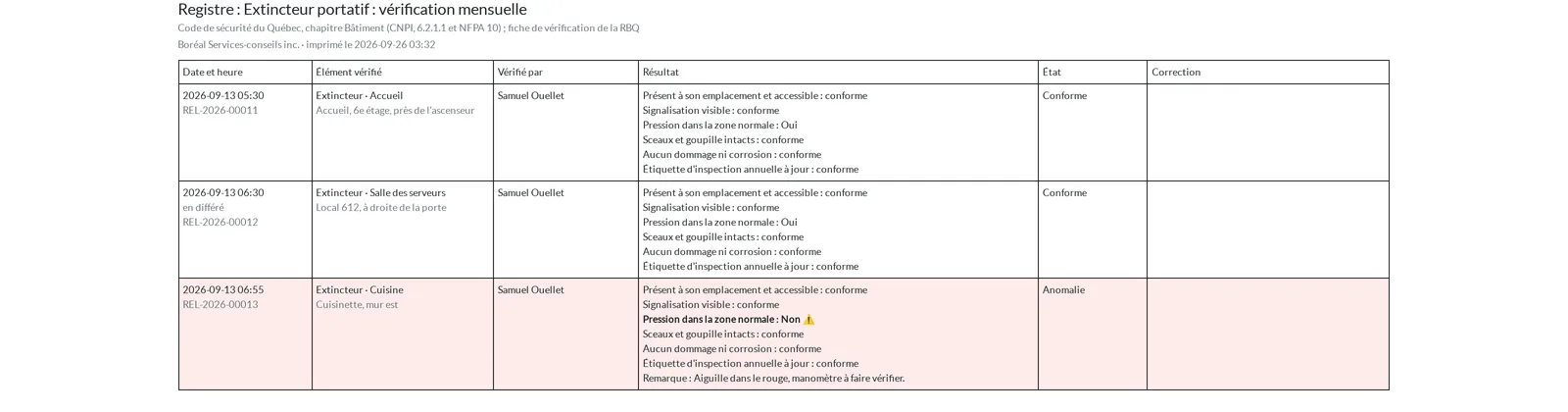
- Tick the readings, then Print › Reading register.
The register comes out with the columns of a paper register: date and time, item checked, person, result of each item, state, correction and its date.
Keep the padlock register#
For a keyed-alike padlock handed to people without an account:
- On the equipment, tick Handed out to people without an account.
- Tap the tag, name who receives it (name, phone, employer), then Hand out.
- On return, tap the tag and select It has been returned.
Print › Hand-out register, from the equipment list, produces the columns the regulation requires: padlock identification, person, phone, employer, time out, time in, and who handed it over.
Ask Gen from a tag#
When Gen is installed, a tag can hand it a job on the record it points to: prepare an agenda, refine minutes.
- Go to Configuration › Gen skills and select Refresh from Gen, then tick Allowed on this instance for what you authorize.
- Create a tag with the Ask Gen gesture, choose the skill and the record.
- Tap the tag, then select Start.
The phone does not wait: the request appears in Configuration › Gen requests, and an activity says when Gen has finished or failed. While a request is running on the same record, a new tap says where it stands.
Tap a series of tags#
The Exécuter screen keeps listening: each tag brought close plays its gesture right away, and the screen keeps the list of the series. It is the screen for a patrol or an inventory round.
- In the app, select Exécuter.
- Bring the tags close one after another.
- Answer the questions when a tag asks one.
On a phone without NFC, select Scanner un code QR (scan a QR code) and aim at the label printed next to the tag.
Prepare a menu on a tag#
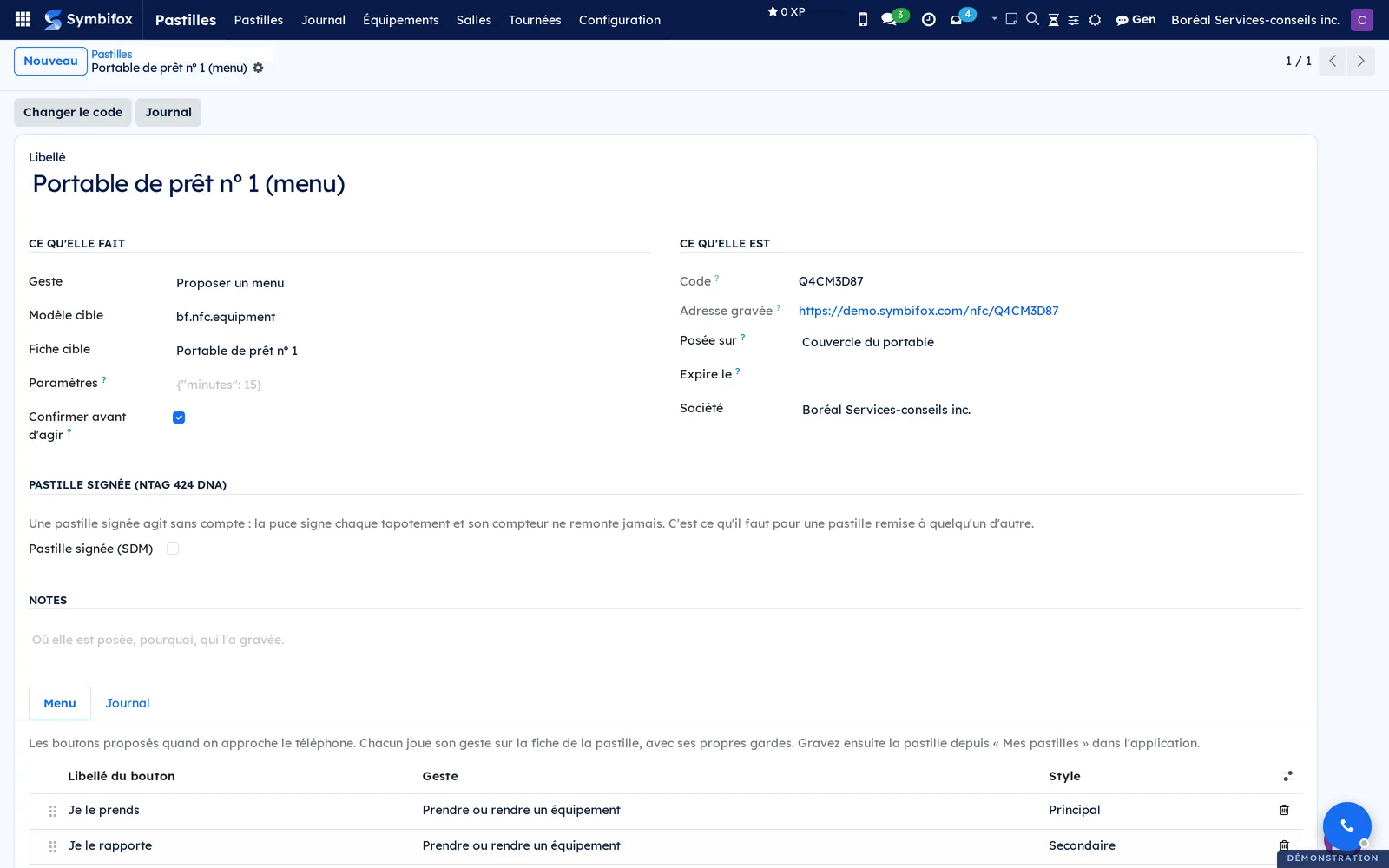
A menu offers a few buttons instead of a single gesture: "I'm taking it" and "I'm bringing it back" on a laptop, for example.
- Go to Tags › Tags and select New.
- Choose the gesture Offer a menu and the target record.
- In the Menu tab, add one line per button: its label, its gesture and its style.
- Save.
- In the app, open Mes pastilles (my tags), touch the tag, then engrave it on a chip.
All buttons act on the tag's record, and each keeps its gesture's safeguards.
Lend equipment#
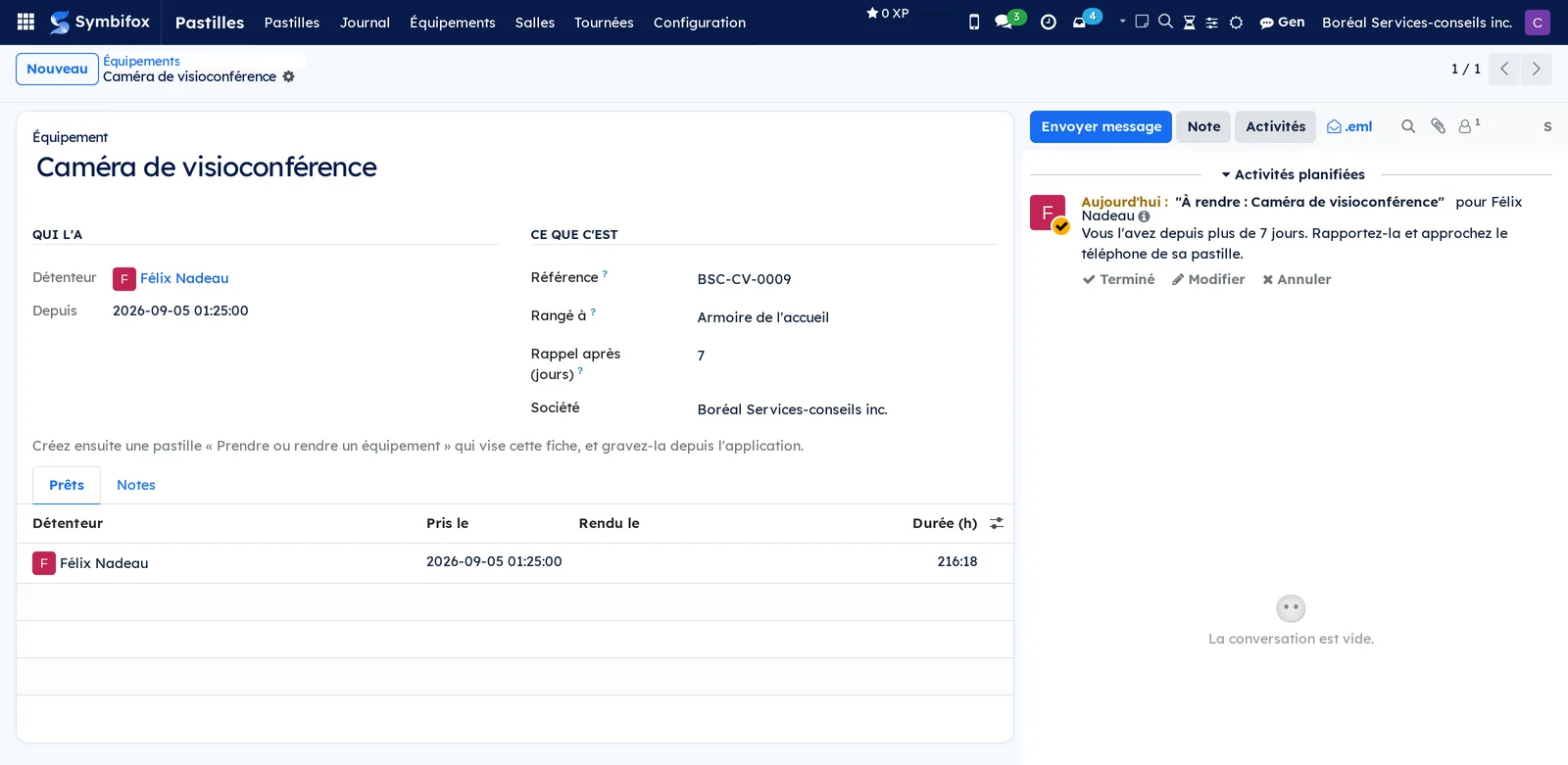
A "Take or return equipment" tag keeps the loan register with no button in the two usual cases.
- Go to Tags › Equipment and create the equipment, with the place where it is stored and the reminder delay.
- Create a tag with the gesture Take or return equipment pointing to that equipment, then engrave it.
- Bring the phone close: free, the equipment is yours; yours, it is returned.
If someone else has it, the screen names them and offers I'll take it anyway. Beyond the reminder delay, the person keeping it gets a "To return" activity.
Take a meeting room#
The door tag first says whether the room is free or taken, then offers to act. The first tap never takes anything.
- Bring the phone close to the door.
- Free, select Take 30 min or Take 1 h: the booking is created in the calendar, already confirmed.
- Booked by you and about to start, select I'm here.
- When leaving, bring the phone close again and select Release the room.
A booking nobody confirms within the room's delay loses its room: the event stays in the calendar, and a note says so.
Record attendance at a session or a meeting#
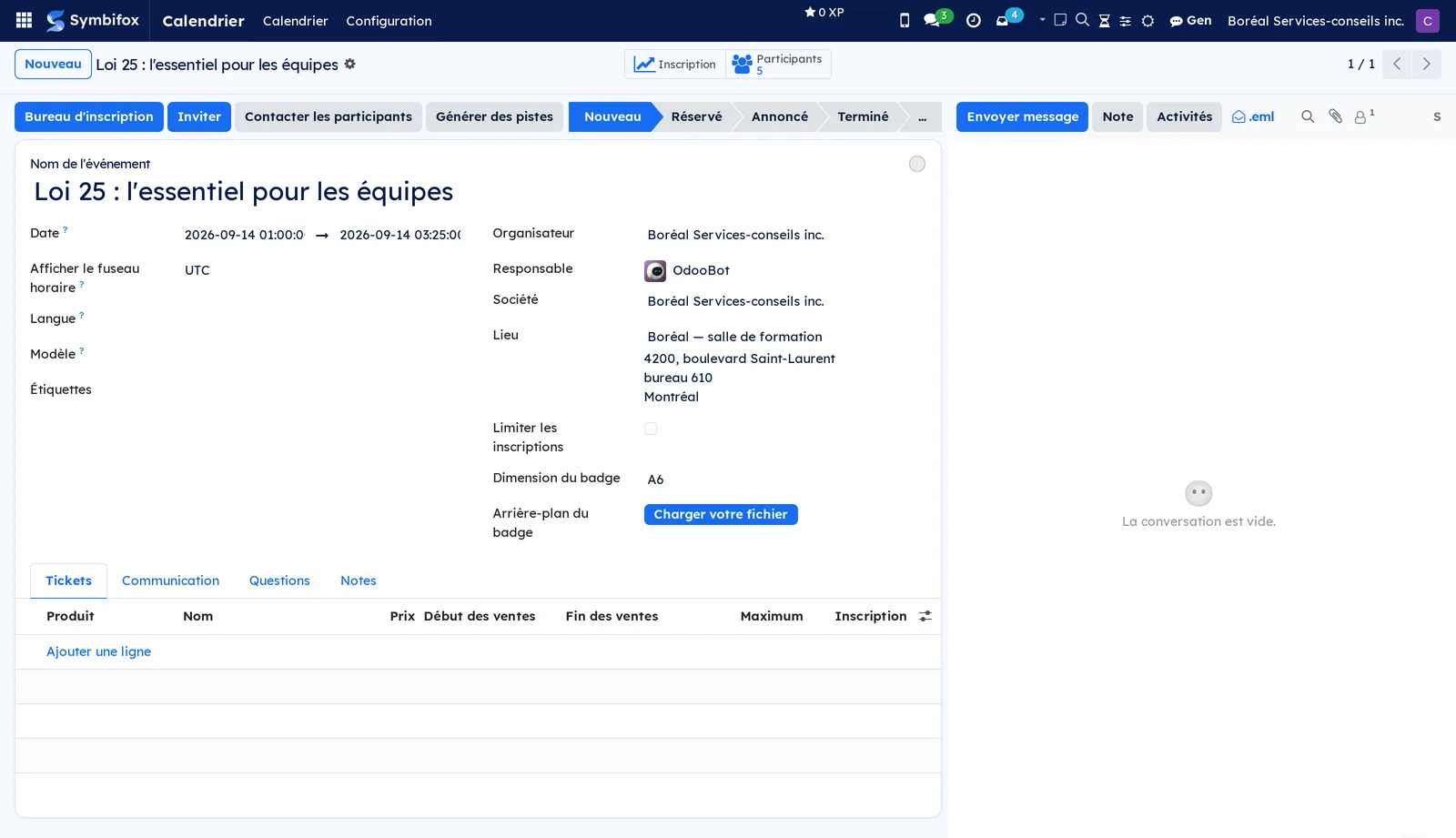
On the training room door, the tag records the person's attendance at the session in progress at that venue. On the meeting room table, it records attendance at the meeting in progress the person is invited to.
- Bring the phone close to the tag when arriving.
- If two sessions or two meetings are running at the same time, choose yours.
The registration becomes "Attended". Without a registration, one is created: this records who came, not only who had registered.
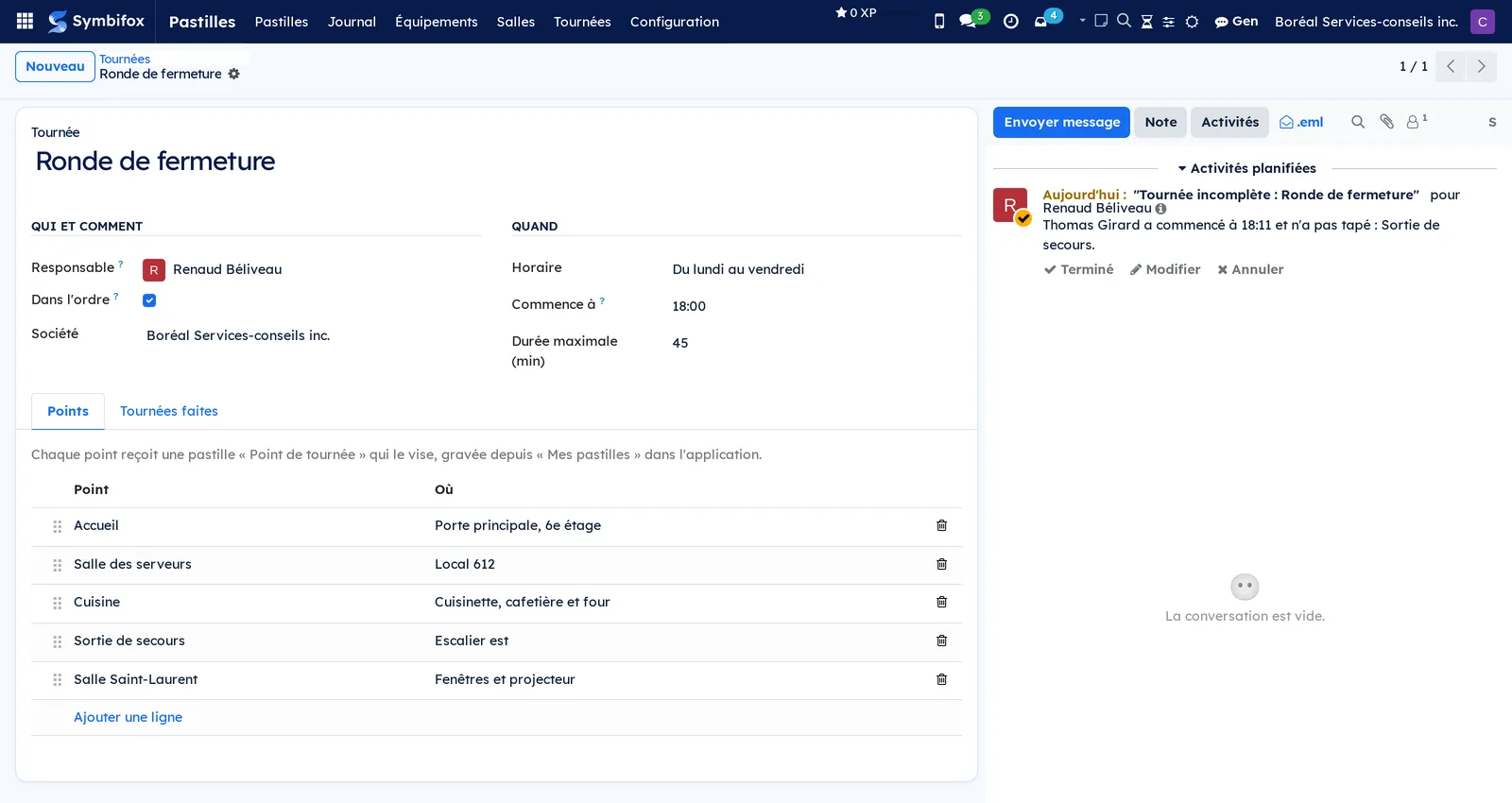
Do a round#
- Go to Tags › Rounds and create the round: person in charge, checkpoints in order, schedule and maximum duration.
- Create a Round checkpoint tag for each checkpoint, then engrave them from Mes pastilles.
- During the patrol, tap the checkpoints: the phone says "Checkpoint 3 of 5. Next: Kitchen."
At the last checkpoint, the round closes. A round started and not finished within its duration, or a scheduled round nobody did, creates an activity for the person in charge.
Report a problem#
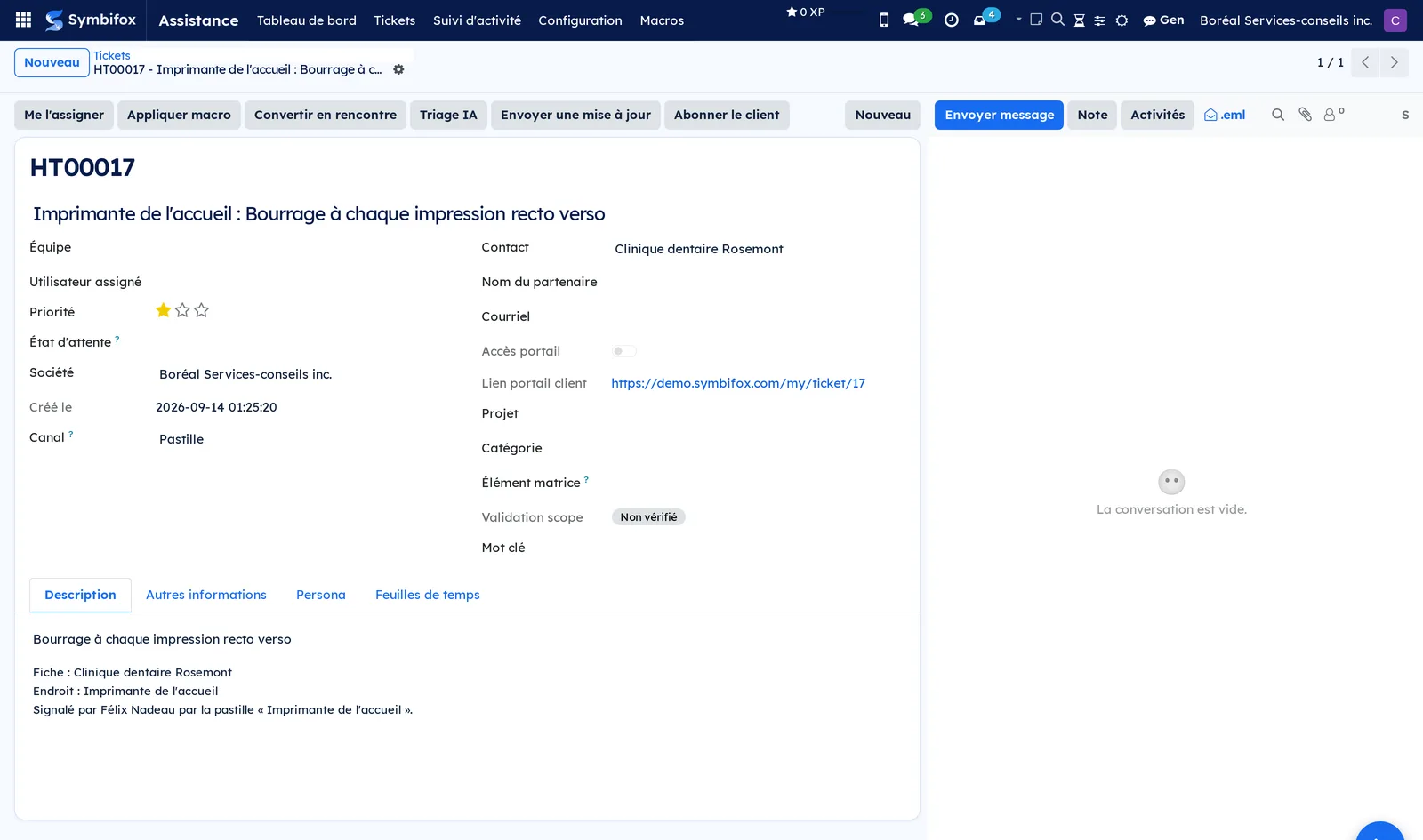
A tag on a customer's printer or machine opens a ticket already filled in.
- Bring the phone close to the tag.
- Select Describe the problem, write one sentence, then select Envoyer (send).
The ticket is created in Helpdesk, in the "Tag" channel, with the customer, the place, who reported it and when. The person who reported it follows the ticket and receives its updates.
Print labels#
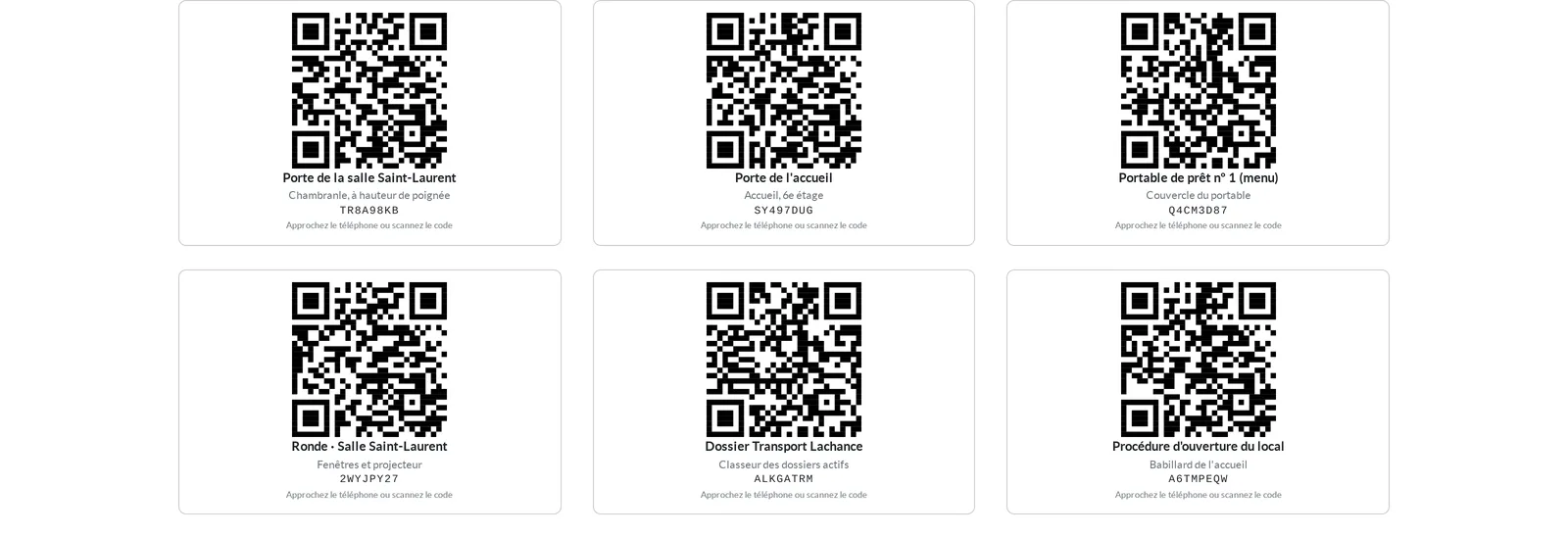
Every tag prints as a label with its QR code twin, for phones without NFC.
- Go to Tags › Tags.
- Check the tags you want.
- Select Print › Label with QR code.
A signed tag prints without a QR code: its address changes at every read.
Engrave a business card or a guest Wi-Fi#
These two chips are not tags: they carry the information itself and can be read without an app or an account.
- In the app, select Graver une puce.
- Choose Carte d'affaires (business card) and your link page, or Wi-Fi with the network name and its password.
- Check Verrouiller la puce for a chip left in public, then select Graver.
Remove a lost phone#
- Go to Tags › Configuration › Devices.
- Select the phone, then delete it.
Its token is erased: the phone can no longer play anything, even if it is found. At its next call, the app erases what it keeps. A phone that never connects again, in airplane mode or never reopened, erases itself after thirty days without a successful contact with Symbifox, a delay the person who administers the instance can change.
The menus, one by one#
Tags › Tags: the organization's tags, with their gesture, place, number of taps and last tap. The In service, Signed and Never tapped filters help find a tag to remove. The form holds the gesture, the target record, the parameters, the Menu tab for a menu tag, the signed tag section and the tag's log.
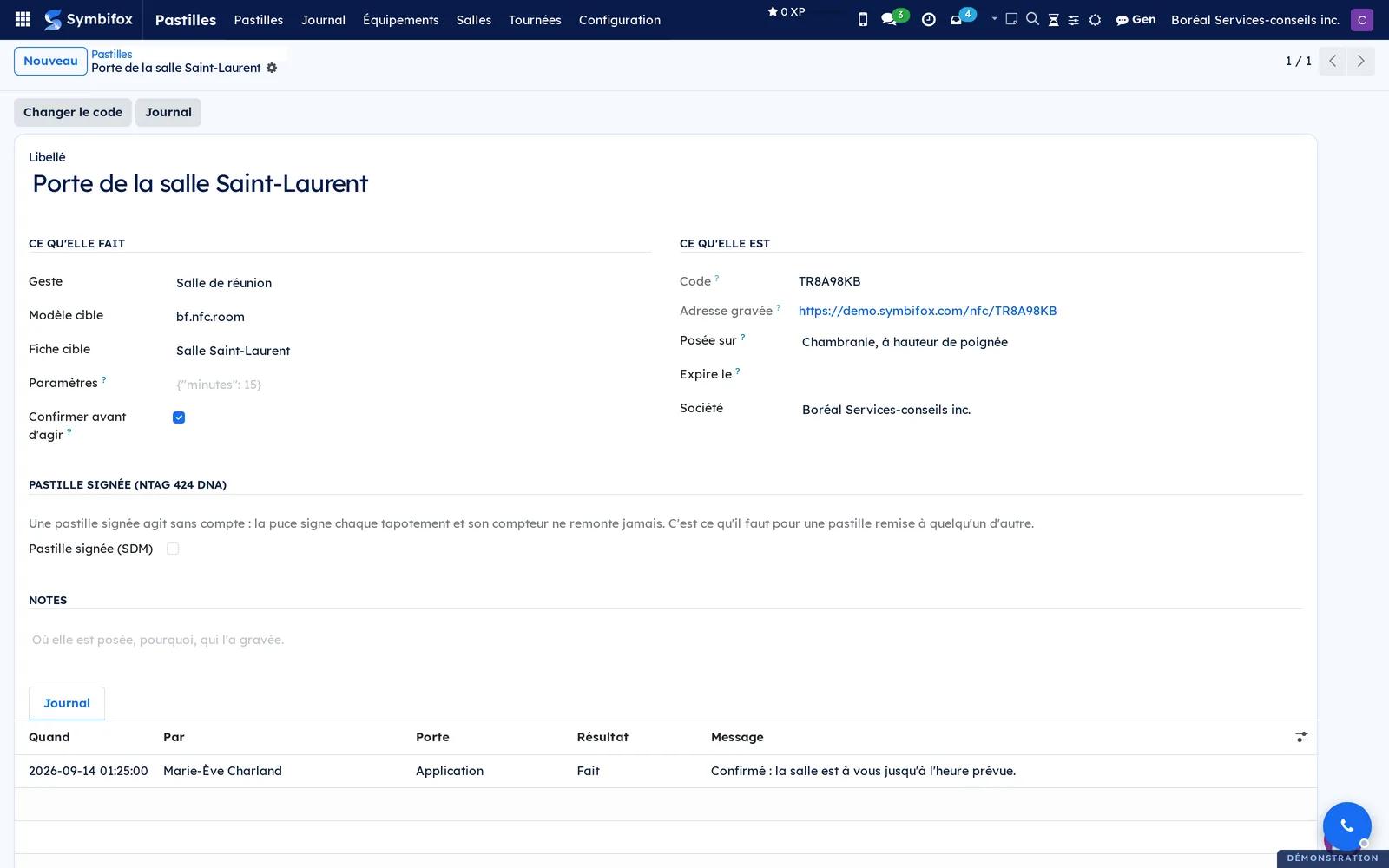
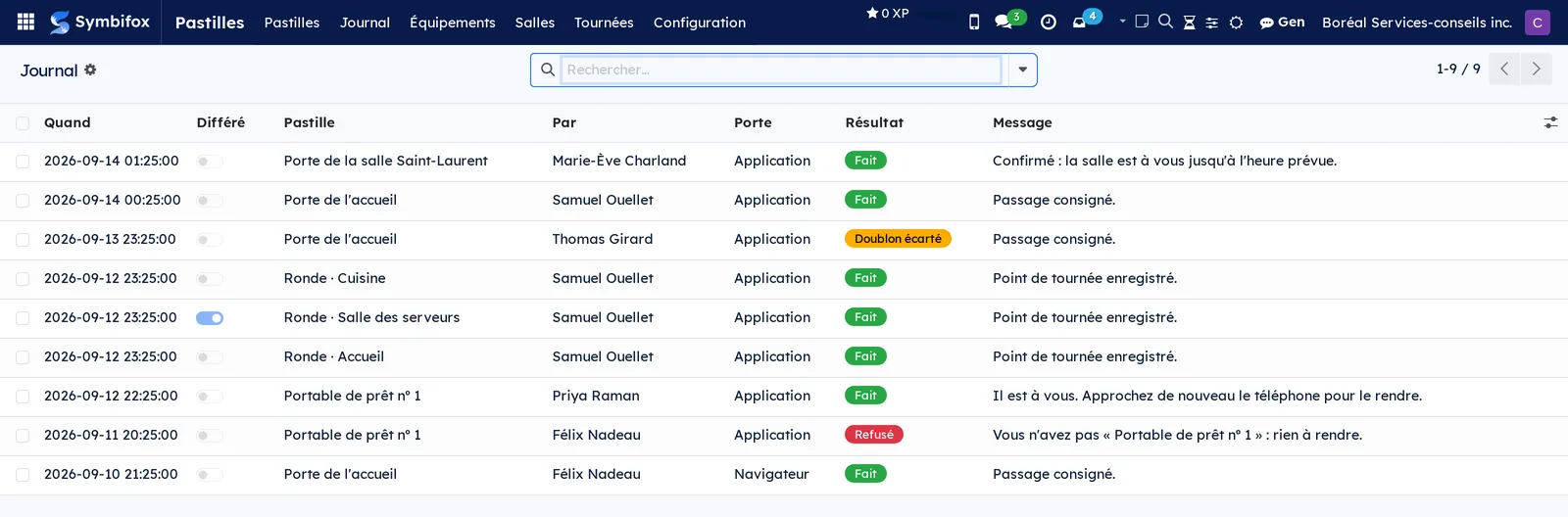
Tags › Log: every tap, including those that did nothing. Columns: when, tag, person, door, result and message. The Sent later filter shows taps made without a network. Each person sees their own; managers see everything.
Tags › QR codes: batches of QR labels printed in advance and the labels themselves, under Label batches and QR labels. See Managed QR codes.
Tags › Equipment: the lendable equipment, with its holder and since when. The On loan, Free and Mine filters answer everyday questions.

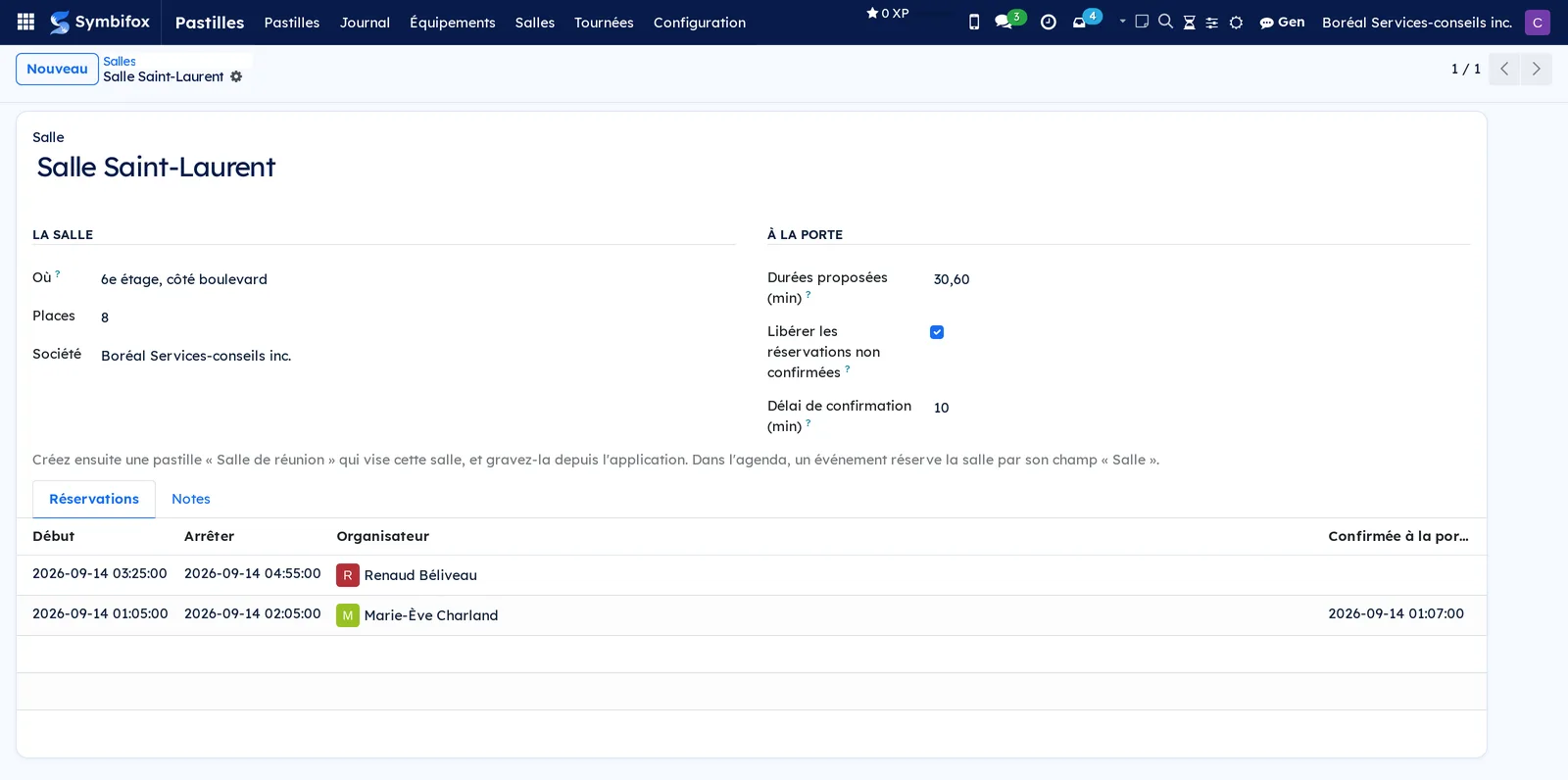
Tags › Rooms: the rooms bookable at the door, with their capacity and release rule. The form lists the room's bookings.
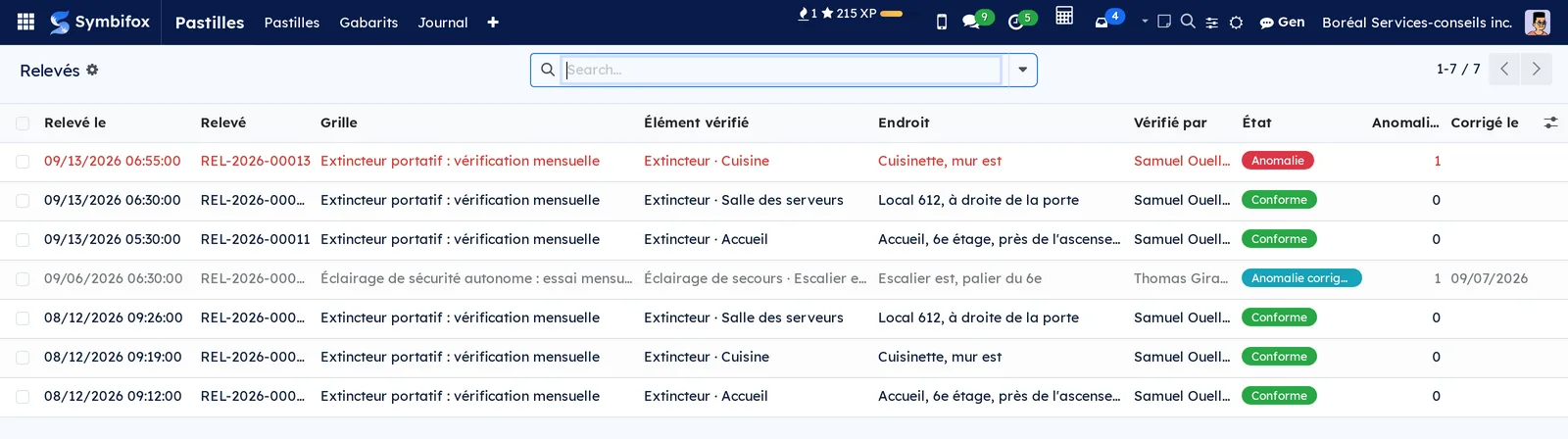
Tags › Readings: the readings taken, newest first, with the item checked, the person, the result of each item and the state. The Issues to correct, Corrected and Conforming filters lead straight to what is left to do; grouping by checklist produces one register per kind of equipment.
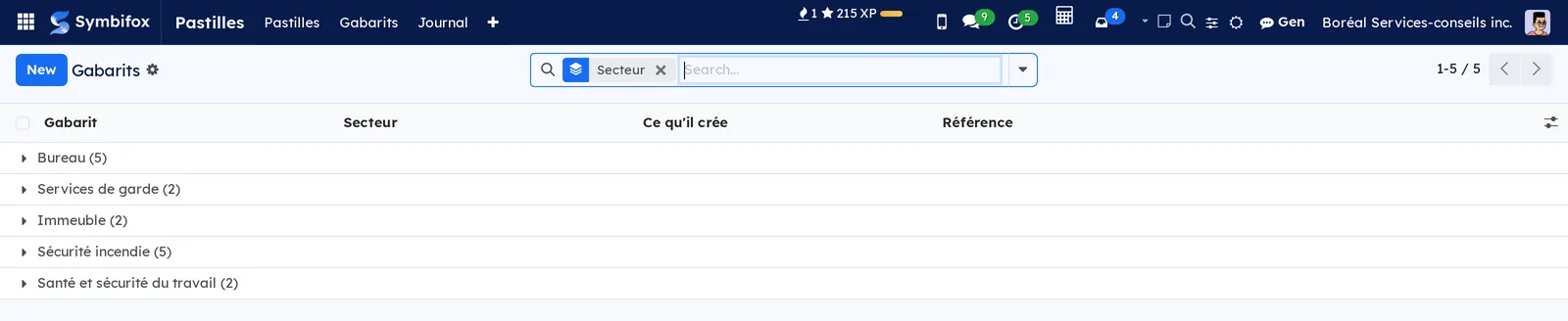
Tags › Templates: the ready-made layouts, with what each one creates. The Apply this template button asks for one line per tag and does the rest.
Tags › Rounds: the rounds, their person in charge, schedule and number of checkpoints. The form holds the checkpoints in order and the completed rounds, marked complete or incomplete.
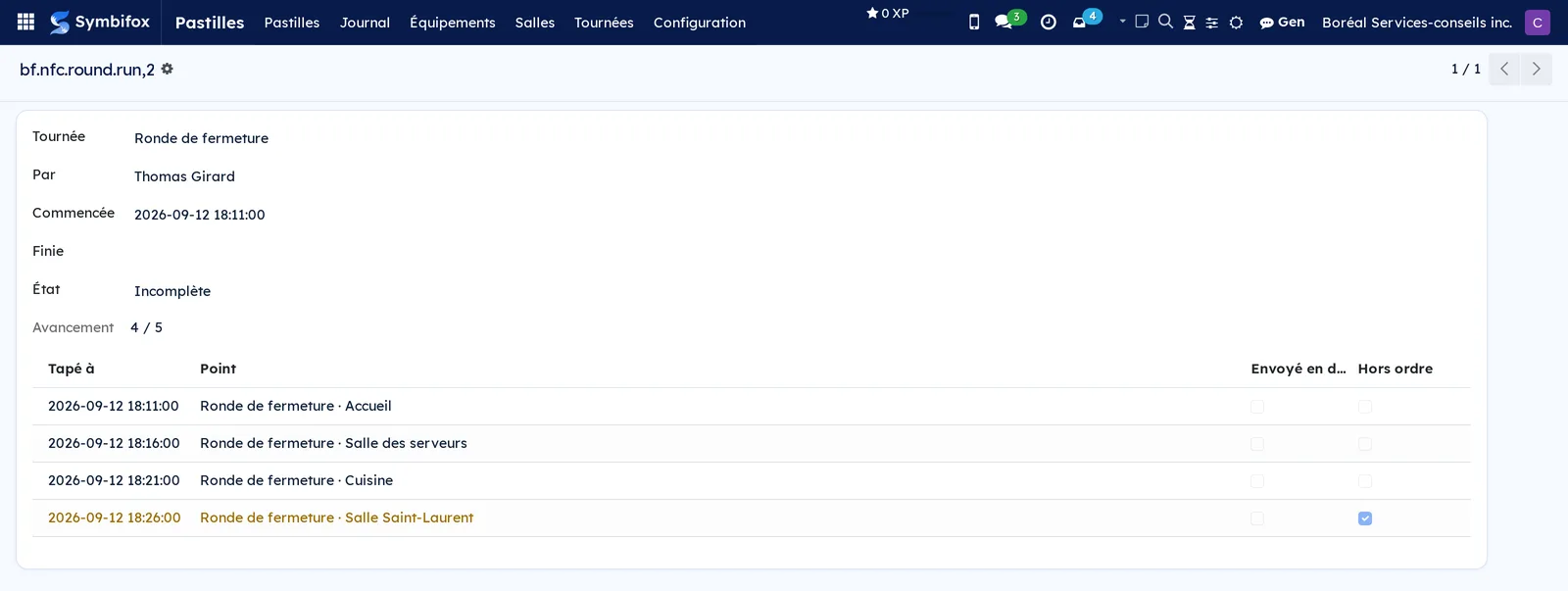
Tags › Configuration: grouping menu, visible to managers.
Tags › Configuration › Gestures: the gesture catalogue, with their kind and settings.
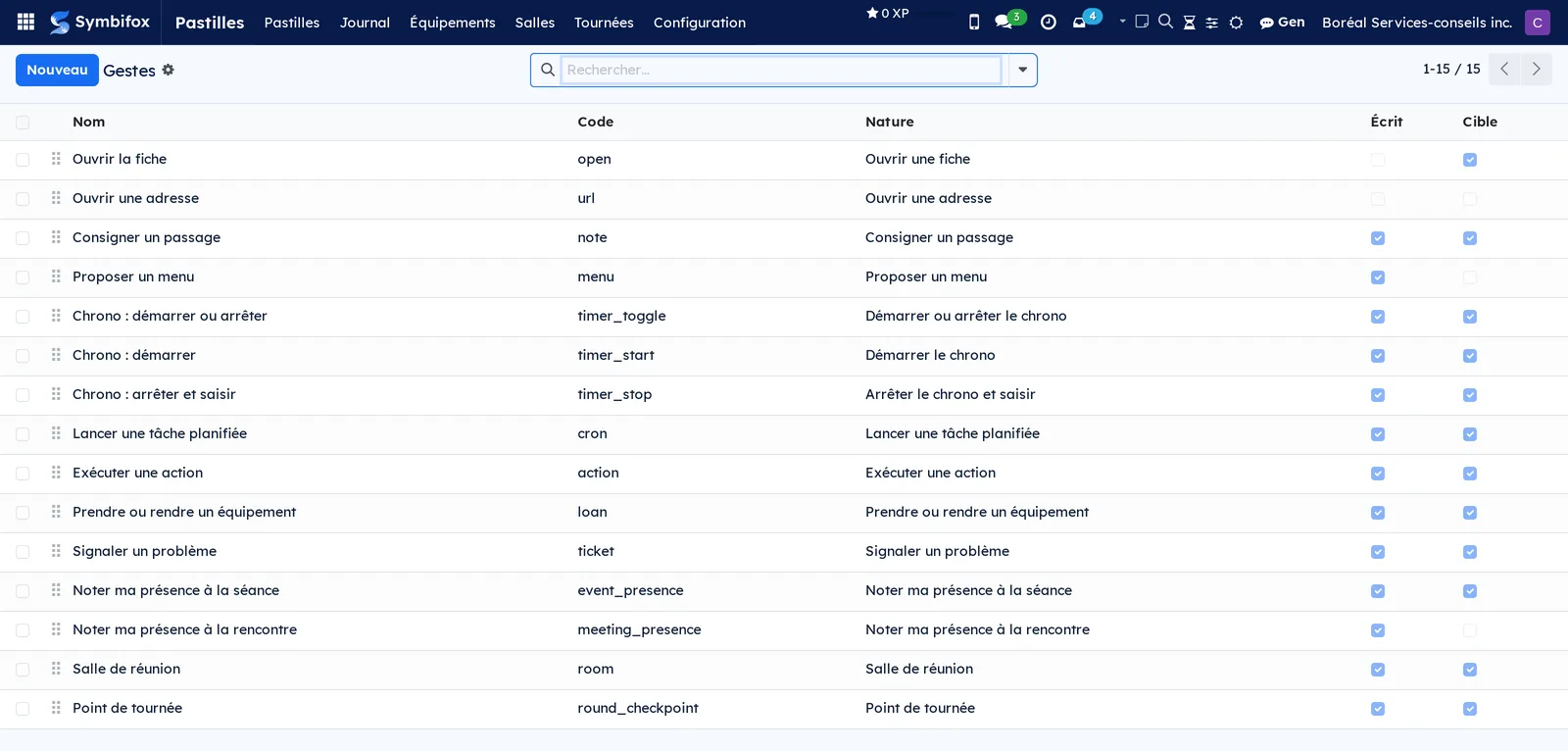
Tags › Configuration › Settings: the duplicate window, the maximum age of an offline tap, the state of the encryption key and the button that sets a company's keys.
Tags › Configuration › Record types: what a tag is allowed to point to, for the website as for the app.
Tags › Configuration › Label formats: the QR label sheet formats, described in the Managed QR codes chapter.
Tags › Configuration › Checklists: the checklists and their items, with the person who receives non-conformities and the expected cadence.
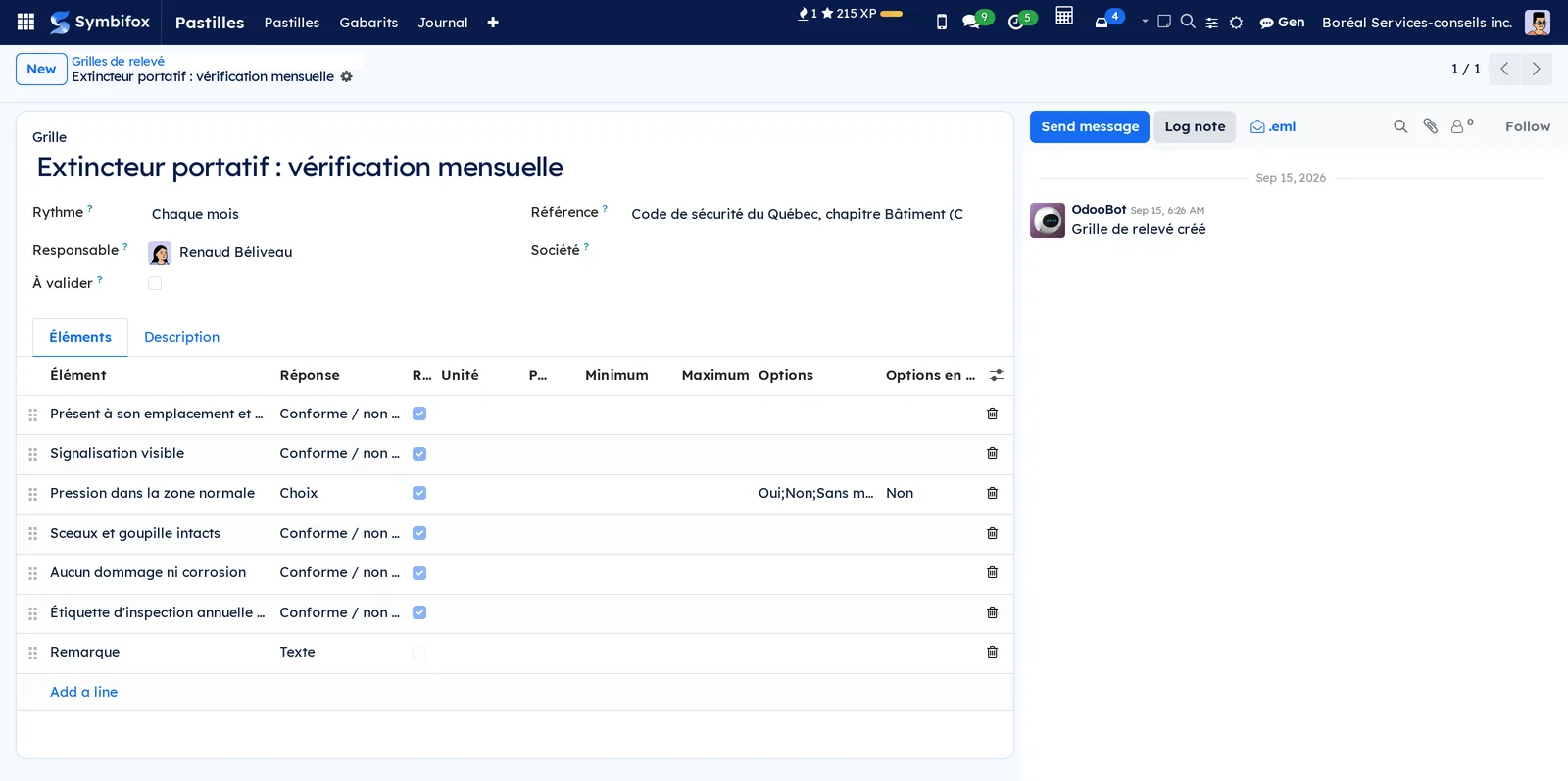
Tags › Configuration › Signed tag keys: one line per company, with the date they were set and their state. The keys themselves are never shown again.
Tags › Configuration › Gen skills: what the Gen bridge publishes, and the Allowed on this instance checkbox that decides what a tag may start.
Tags › Configuration › Gen requests: the log of requests, their state and what Gen answered.
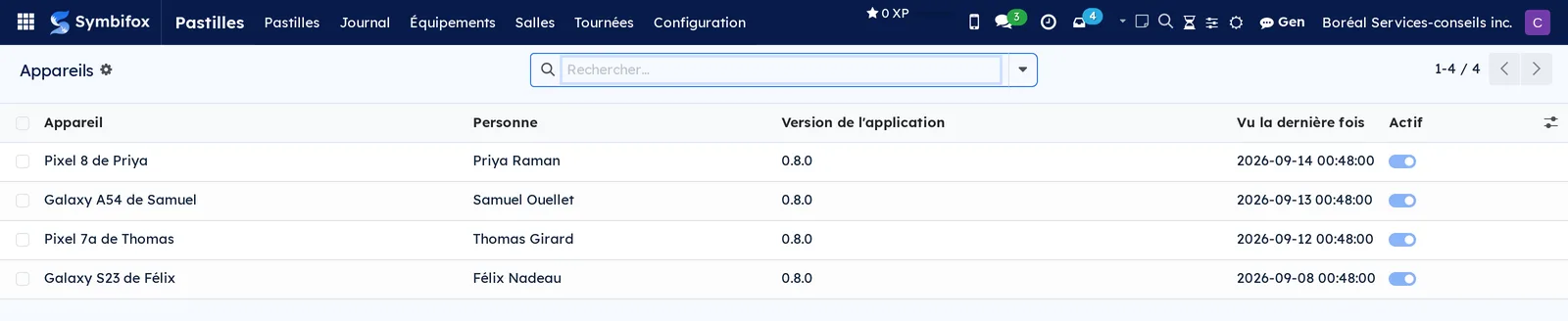
Tags › Configuration › Devices: the paired phones, their person and when each was last used.
Reference#
Tag form fields#
| Field | Description | Required or default |
|---|---|---|
| Label | The tag's name, the one read on the phone's screen | Required |
| Gesture | What the tag does | Required |
| Target record | The record type, then the record the gesture points to | Depends on the gesture |
| Checklist | The checklist the tap will have filled in | Required for a reading |
| Gen skill | The job handed to Gen | Required for "Ask Gen" |
| Parameters | Settings specific to the tag, for example a visit's text | Optional |
| Confirm before acting | A button to click before a gesture that writes, through the browser. Unchecked, the page submits itself | Checked |
| Code | What the chip carries, drawn at random | Automatic |
| Placed on | Where the tag is stuck | Optional |
| Expires on | After this date, the tag politely refuses | Optional |
| Signed tag | Turns on the chip signature check | Unchecked |
| Acts on behalf of | The account a signed tag acts for | Required for a signed tag |
Room form fields#
| Field | Description | Required or default |
|---|---|---|
| Room | The name shown at the door | Required |
| Where and Seats | Floor and capacity | Optional |
| Offered durations (min) | The "Take" buttons, separated by commas | 30,60 |
| Release unconfirmed bookings | Frees the room when nobody confirms | Checked |
| Confirmation delay (min) | The time allowed to confirm after the start | 10 |
Reports and exports#
The Label with QR code prints from the tag list or form. The Reading register prints from the readings list, the Hand-out register from the equipment list. The log, loans and completed rounds export like any list.
Automations#
- Every day, equipment kept beyond its reminder delay creates a "To return" activity for its holder, once per loan.
- Every five minutes, room bookings not confirmed within their delay lose their room.
- Every quarter of an hour, incomplete or missed rounds create an activity for the person in charge, once per miss.
- Every day, a tag whose checklist has a cadence (daily, weekly, monthly, yearly) and that has not been read within the period creates an activity for the person in charge of the checklist, once per missed period.
- Every day, phone pairings started and never finished are removed.
Public pages and portal#
A tag tapped by a phone without the app opens a Symbifox page. With a session open, a gesture that writes shows a one-button Confirmer (confirm) page, or a page that submits itself when the tag asks for no confirmation, and a menu shows its buttons. A signed tag acts without an account, for the account it designates, after checking the chip's signature.
Modules that extend this application#
Understanding#
Why does a tag carry no secret? Because it can be read without consent and copied easily. All a tag allows is finding its record. What proves who taps is the paired phone, the open session or the chip's signature.
Why does a second tap in quick succession do nothing? Android sometimes reads the same chip twice, and fingers hesitate. Within twenty seconds, the same gesture by the same person on the same tag returns the first result instead of doing it again.
Why does a gesture that asks a question do nothing? Anything the gesture would have touched before asking is undone. The choice is what acts, in a second send.
What happens to a tap made without a network? The phone keeps it with the time of the tap and sends it when the network is back. Symbifox accepts that time if it is less than 72 hours old and not in the future. The same send repeated counts once.
Why doesn't a signed tag record attendance or a loan? It acts for a designated account, not for the person holding the phone. Recording attendance or a loan under that name would write false information in the register.
Why is what a tag does decided when it is created? Because an address can be edited on the way. What a tag carries is fixed on its record, by management; what the person tapping brings is limited to their answer: a choice, a sentence, the fields of a checklist.
Why can't a reading be corrected? A register that is rewritten proves nothing any more. What is added to a reading is the correction: what was done, by whom, on what date.
Why does a signed tag ask for a name? A signed tag acts for a designated account, not for the person holding the phone. An inspection register has to say who checked: the checklist therefore asks for it first.
Why is a room taken at the door already confirmed? The person is standing at the door: confirming would be one gesture too many. Only bookings made in the calendar wait for confirmation.
Troubleshooting#
| Symptom | Probable cause | Fix |
|---|---|---|
| The tag opens in the browser instead of the app | The tag was engraved without "Open the app directly" | Play it from Exécuter, or engrave it again with the option checked |
| Engraving refused | Locked chip, chip too small, or MIFARE Classic | Use a blank NTAG213 or NTAG215 chip |
| "This gesture cannot be sent later" | The tap was made without a network for a gesture that must be done on site | Tap the tag again on site, with a network |
| "This gesture is reserved for tag managers" | The person is not in the Management group | Add them to the group, or use a tag with another gesture |
| "You are not allowed to write on…" | The gesture logs a visit on a record the person cannot edit | Grant the right on the record, or target another record |
| "No session in progress at…" | The session starts in more than an hour or ended more than thirty minutes ago | Tap the tag during the session |
| A booking lost its room | Nobody confirmed with the tag within the delay | Tap I'm here at the door, or uncheck the release on the room |
| "This reading requires the checklist to be filled in" | The app is older than the server | Update Symbifox Pastilles, or open the tag through its QR code |
| "Gen has been working on it since…" | A request is already running on the same record | Wait for the closing activity, or open Gen requests |
| "To be set again" on the signed tag keys | The encryption key changed since they were set | Set the company's two keys again |