

Part 5 · People and team
Noticeboard
Company announcements aimed at a precise audience, in view until they expire, with read receipts and a reporting path.
Watch it
Babillard (noticeboard) carries the announcements your organization has to circulate: a policy to read, a closure, a maintenance window, a job well done. Every post is addressed to a precise audience, stays in view until it expires, and can require each person concerned to confirm that they have read it. The application is for everyone who reads and confirms, and for the people who write internal communications.
Overview#
Six notions are enough.
- The post: a title, a text, a type and an audience. It moves through three states, Brouillon (draft), Publiée (published), then Échue (expired).
- The type: Annonce (announcement), Nouvelle (news), Reconnaissance (recognition), Événement (event) or Célébration (celebration). It colours how the feed reads, and changes no rights.
- The audience: everyone, selected departments, or selected access groups. People outside it never see the post, wherever they look for it.
- Lecture obligatoire (required reading): the post asks for a confirmation, and each confirmation writes a dated line in the reading record.
- The échéance (expiry date): the date after which the post leaves the feed. Nothing is destroyed, the post simply becomes expired.
- The signalement (report): how anyone tells the designated contact that a piece of content is a problem.
Two choices set the approach apart. The audience holds in the data, not on the screen: a post addressed to one department appears nowhere for anyone else, not in a search, not in an export. And the reading record exists to show that a notice went out, never to rate anyone: there is no score, no leaderboard, no measure of time spent.
Departments and people come from Employees, greeting cards from Celebrations, badges from Fox Quest, and what you still have to read appears on the Dashboard.
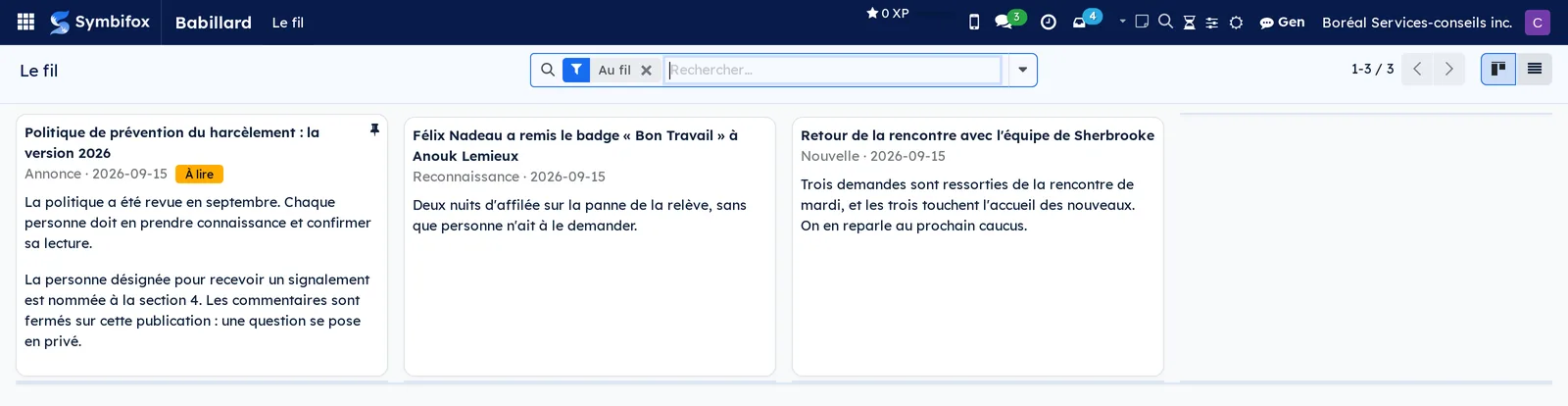
Every card in the feed reads before it has to be deciphered: the face of whoever signed it, a coloured pill giving the type, the first lines of the text, and the J'ai lu (I have read this) button when the post is waiting on you. The full body does not fill the card, so a three-page policy does not drown the rest of the feed.
The feed reads as one column, top to bottom, and the date is said in words: "aujourd'hui" (today), "hier" (yesterday), "il y a 3 jours" (3 days ago). A post less than two days old carries a Nouveau (new) pill.
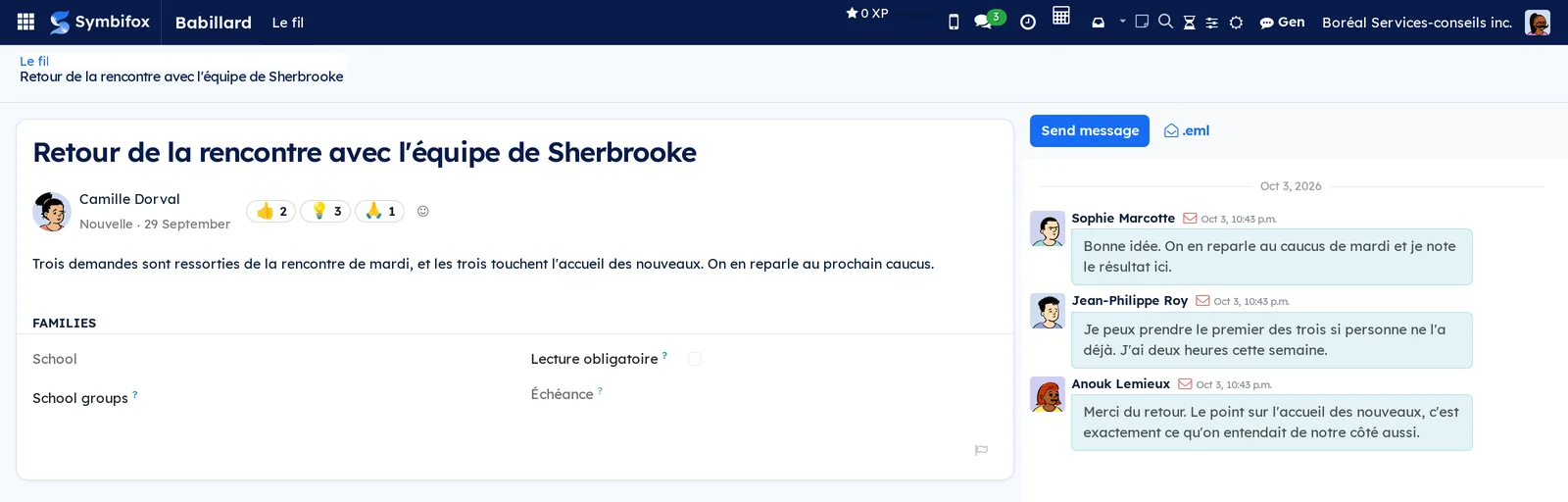
Opening a post gives you a page, not a record: the title, the face of whoever signs it, the text, the reactions and the discussion. Everything else belongs to the editorial team and appears to them alone, including the status bar, the page counter, the action cog, the internal note button, the follower list and the change history. What is left is what there is to read, and the means to answer.
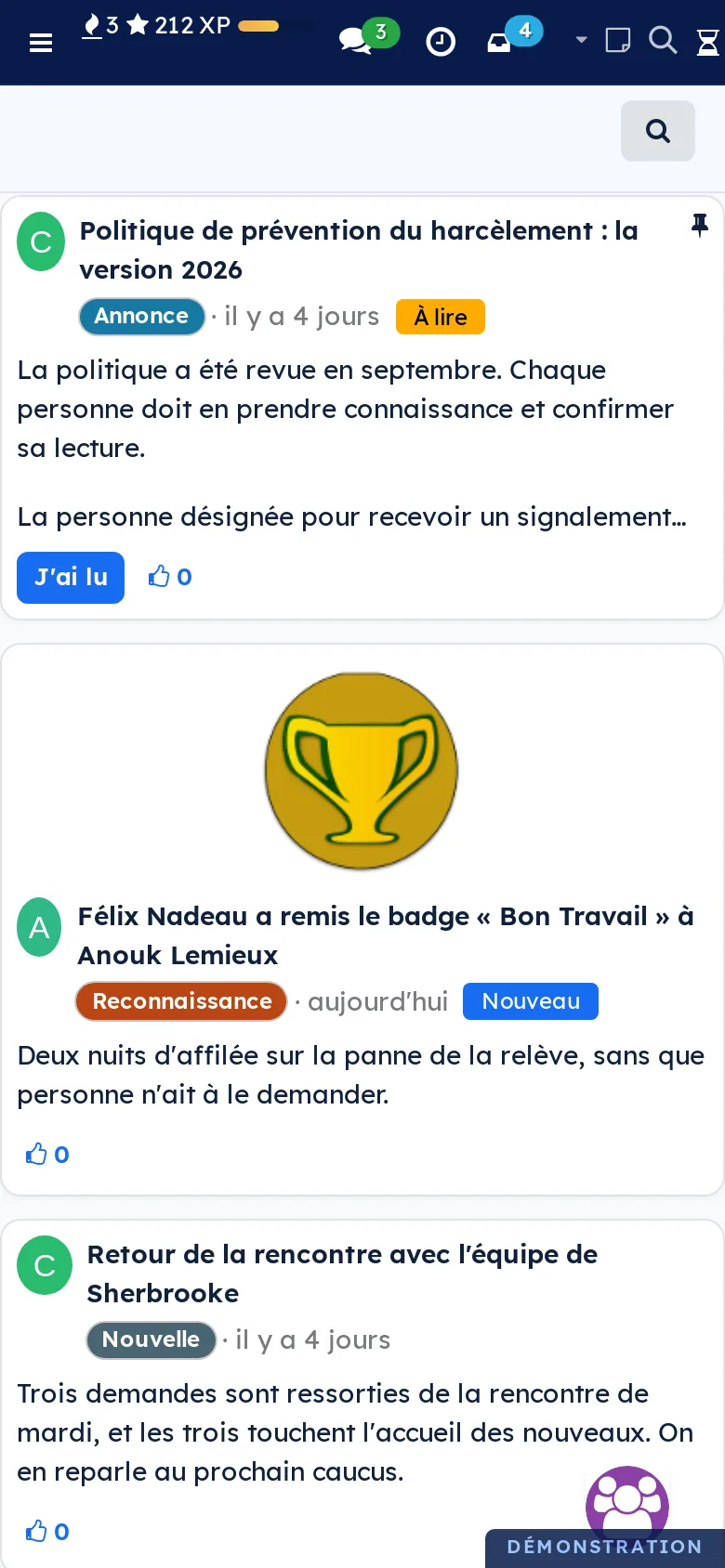
The feed holds up on a phone too: cards stack one under the other, and the J'ai lu button stays under your thumb.
Configuration#
Access and rights#
Two groups, set in the Babillard section of a user's record (Paramètres › Utilisateurs et sociétés › Utilisateurs).
| Group | What it opens |
|---|---|
| None (any internal user) | Le fil (the feed), to read what is addressed to them, confirm reading, comment when comments are open, and report content. |
| Rédaction (editors) | The Publications menu: write, publish, withdraw, send back to draft, and see who has confirmed. |
| Modération (moderation) | The Signalements menu: receive reports, take them on, remove a post from the feed. |
The two groups are independent. The person your harassment prevention policy designates gets Modération; they do not need Rédaction as well, and editors see no reports at all.
Settings#
Almost everything is decided on the post itself: its audience, its expiry date, whether reading is required, whether comments are open.
One setting lives elsewhere, and it is optional: the set of reactions the house offers. Babillard › Configuration › Réactions opens a checklist, reserved for administrators. Twelve reactions ship with the module, five are offered from the start, and the last row of the list adds one of your own.
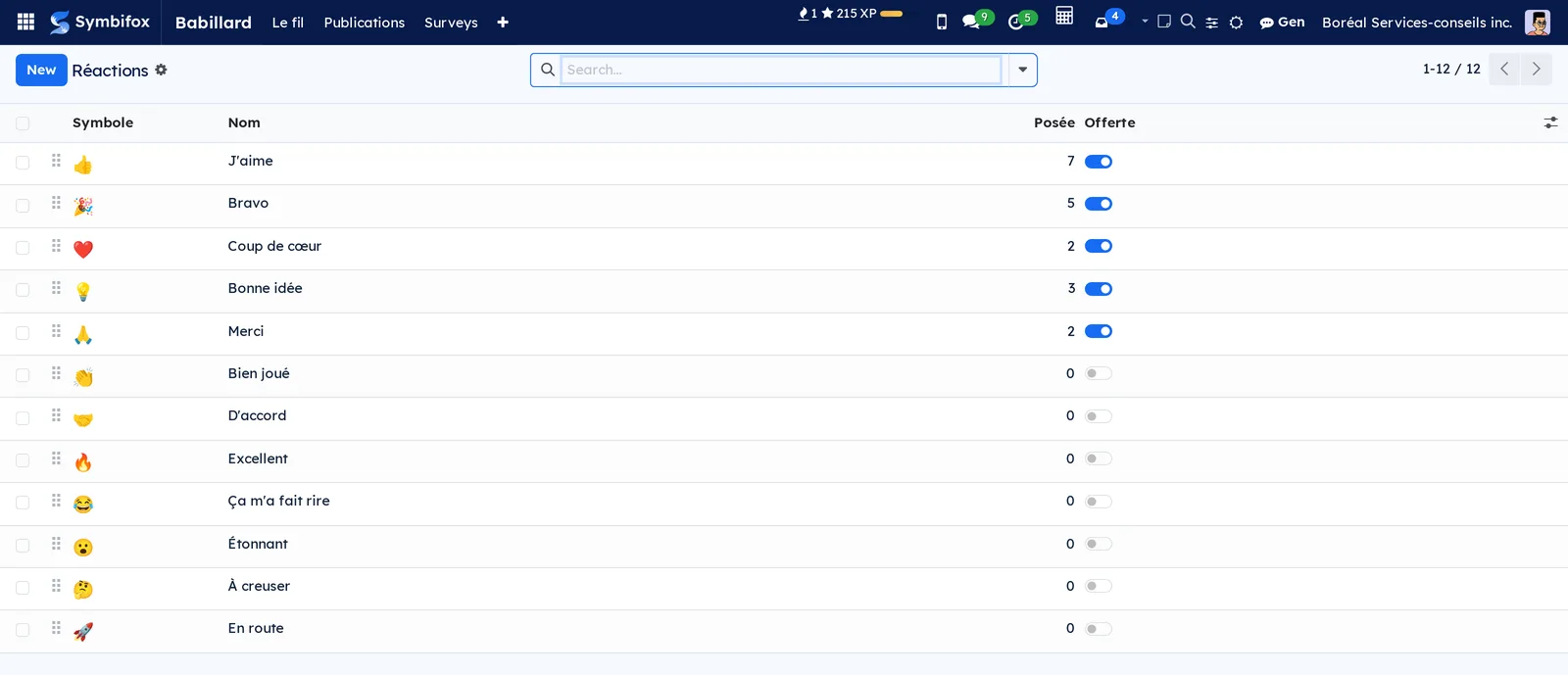
| Column | What it does |
|---|---|
| Symbole | The emoji shown on the post. Eight characters at most. |
| Nom | What the hover says: "Bravo", "Merci". |
| Posée | How many times this reaction has been used. A count: the catalogue names nobody. |
| Offerte | Unticked, the reaction is no longer offered. Those already placed stay visible. |
Untick rather than delete. A reaction that ships with the module refuses to be deleted, for a good reason: it would come back ticked at the next update. A reaction you created can be deleted, as long as nobody has placed it.
Base data#
Nothing to create in advance. The audience relies on the departments already entered in Employees and on existing access groups. If you plan to target by team, first check that each person carries the right department on their employee record: that is what the audience reads.
Getting started#
This walkthrough publishes a first required-reading announcement on the Boréal Services-conseils demonstration, and follows it through to its confirmation.
- Open Babillard › Publications, then select Nouveau.
- Enter the title, for example "Politique de prévention du harcèlement : la version 2026".
- Leave the type on Annonce and the audience on Tout le personnel (everyone).
- Tick Lecture obligatoire. Comments close by themselves: a notice that must be read does not call for a public thread.
- Write the text in the large area below the fields, then select Publier.
- Open Babillard › Le fil: the post is there, marked À lire (to read).
- Select J'ai lu (I have read this) on the card itself, without opening the post. Your name is written into the reading record with the time.
The quick access button at the top of the post then shows how many people have confirmed, out of how many were addressed.
Common tasks#
Publish a required-reading announcement#
A required-reading announcement is the most demanding form: it asks every person concerned for a confirmation.
- Open Babillard › Publications, then Nouveau.
- Enter the title and choose the Annonce type.
- Choose the audience, then tick Lecture obligatoire.
- Set an expiry date if the notice stops being useful on a known date.
- Select Publier.
The post reaches the feed of everyone concerned straight away, and the count of confirmations starts.
Target a department or a group#
A maintenance window does not concern everyone. Narrowing the audience keeps the noise down, and that is what makes the noticeboard still worth opening six months from now.
- Open the draft post.
- Under Audience, choose Des départements (departments) or Des groupes (groups).
- Select one or more departments, or one or more access groups.
- Select Publier.
The Destinataires field shows how many people are concerned. Nobody else will ever see the post.
Follow who has read, and nudge the rest#
The reading record answers two questions: how many have confirmed, and who is missing.
- Open Babillard › Publications, then the post.
- Read the quick access button at the top: confirmations out of people addressed.
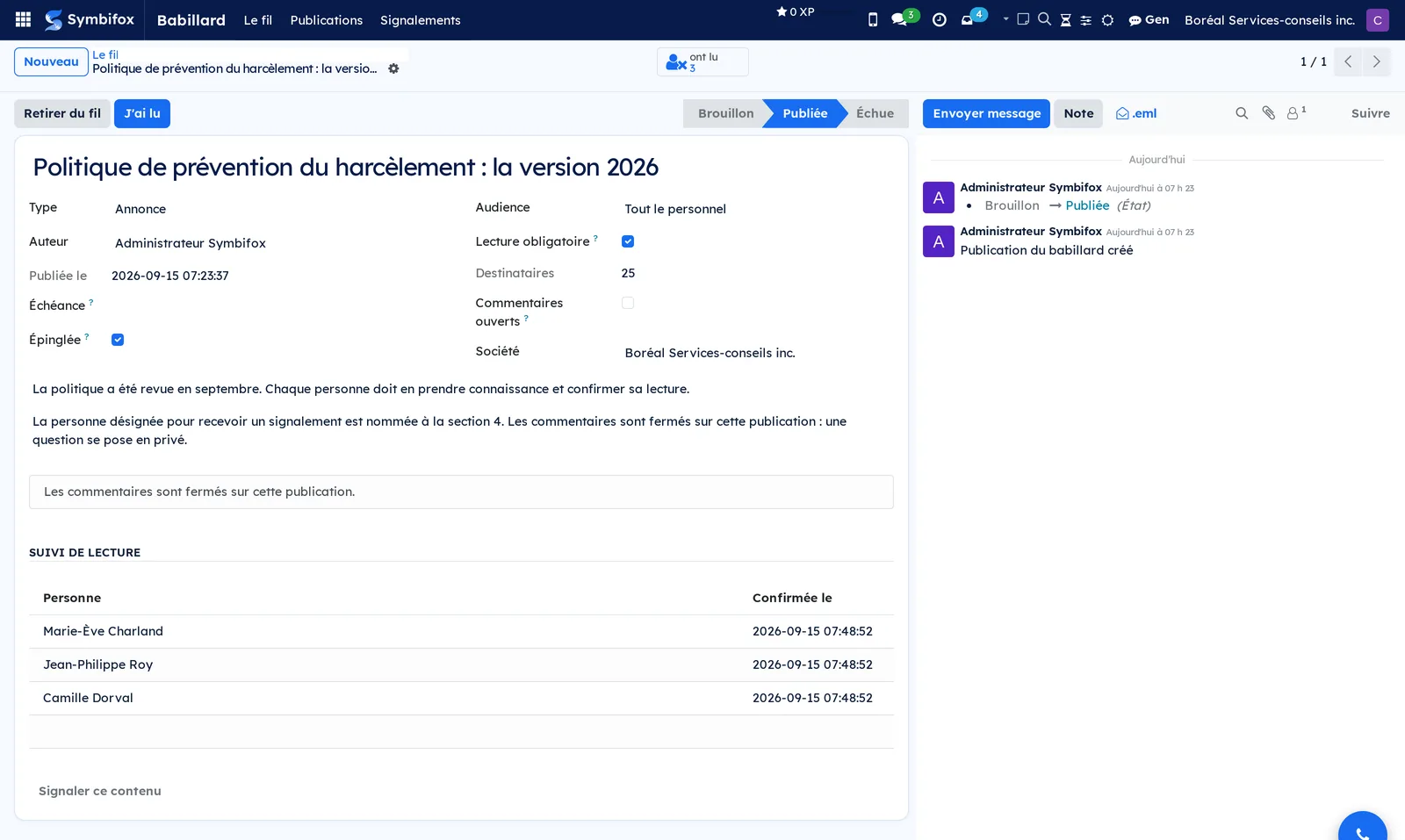
- Scroll to Suivi de lecture (reading record) to see each name and the time of their confirmation.
- Select the quick access button to get the list of people who have not confirmed yet.
That list is for nudging in person, at the shift huddle or in passing. It triggers no automatic reminder.
Confirm your reading#
The gesture is one button, and it happens once.
- Open Babillard › Le fil.
- Find the post marked À lire.
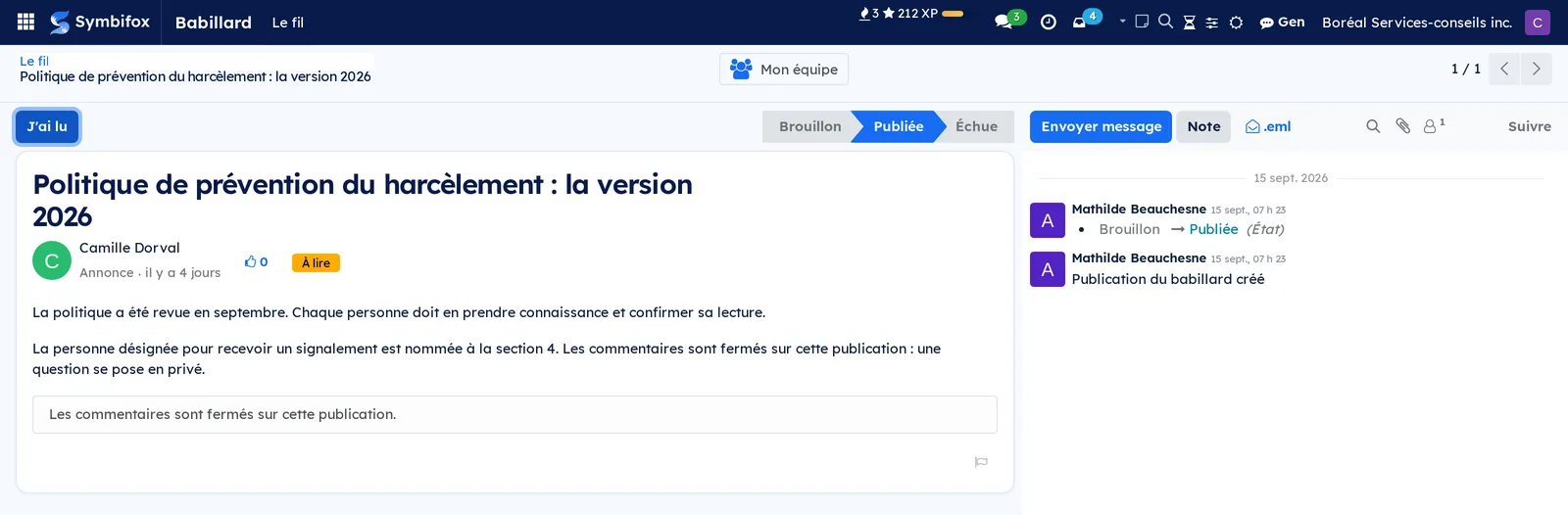
- Read it, then select J'ai lu, either on the card or in the opened post.
The Lue ribbon appears across the post and the button disappears. A second pass writes nothing more.
An opened post shows you only what concerns you: the title, who signed it, the text, and the gesture to make. The delivery settings (audience, deadline, pin, comments) belong to the editorial team and appear to them alone.
A required-reading announcement also comes to you: an email with a button that leads to the post, and an Odoo notification if your preferences say to handle notifications in Odoo. Opening the email does not count as reading: only the J'ai lu button records it.
React to a post#
The cheapest gesture the noticeboard asks for, and the only one that exists on a post that expects no confirmation.
- Open Babillard › Le fil.
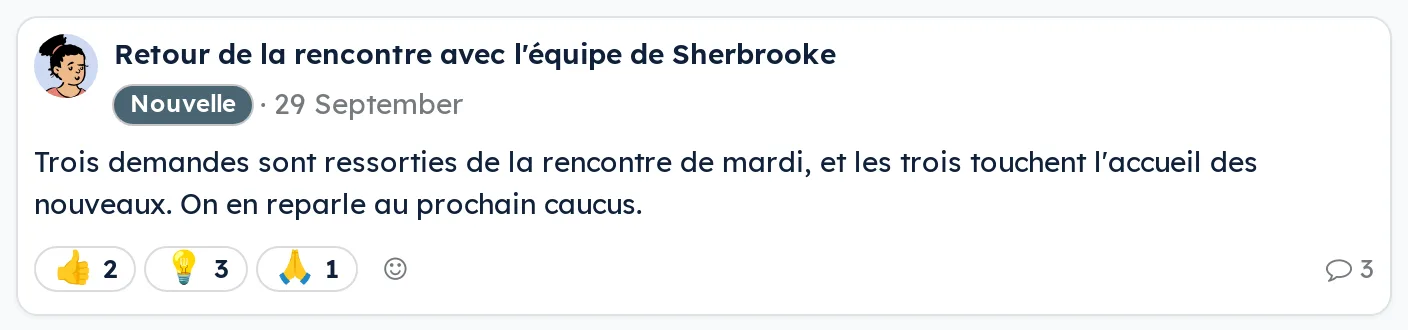
- Select a reaction already placed under the post, or the smiling face to choose another.
The count goes up by one, and a second click takes your reaction back. You may place several on the same post, so a counter adds up gestures rather than people.
Hovering a reaction says who placed it, to the people the post is addressed to and to nobody else. It is the same visibility reactions have in any discussion thread. What the noticeboard does not provide, and will not, is the total per person: the question "who never reacts" has no answer here.
The read receipt stays private: only the editorial team sees who confirmed.
Run a poll, and read the result#
The post's title is the question, and the post carries its own choices. One click casts a vote on the card, without leaving the feed.
- Open Babillard › Sondages, then New. That menu lists polls only, and what you create there already is one.
- Write the question as the title.
- In the Poll block, add your choices, one per line.
- Publish.
The post's type sits under the title, and it is what makes the Poll block appear. Starting from the Sondages menu, it is already set; starting from Publications, switch it to Sondage and the block arrives.
The Poll block carries four settings, and the first is the only one that really changes anything.
| Setting | What it does |
|---|---|
| Anonymous vote | Unticked, the audience sees who voted for what, the way it sees reactions. Ticked, nobody sees it, not even you |
| Several choices | Unticked, voting for a choice removes the previous one. Ticked, people tick as many as they want |
| The audience may add a choice | Anyone addressed can propose their own choices, up to the cap |
| Poll closed | The result stays in the feed, votes no longer come in. The Close the poll and Reopen the poll buttons sit at the top of the page |
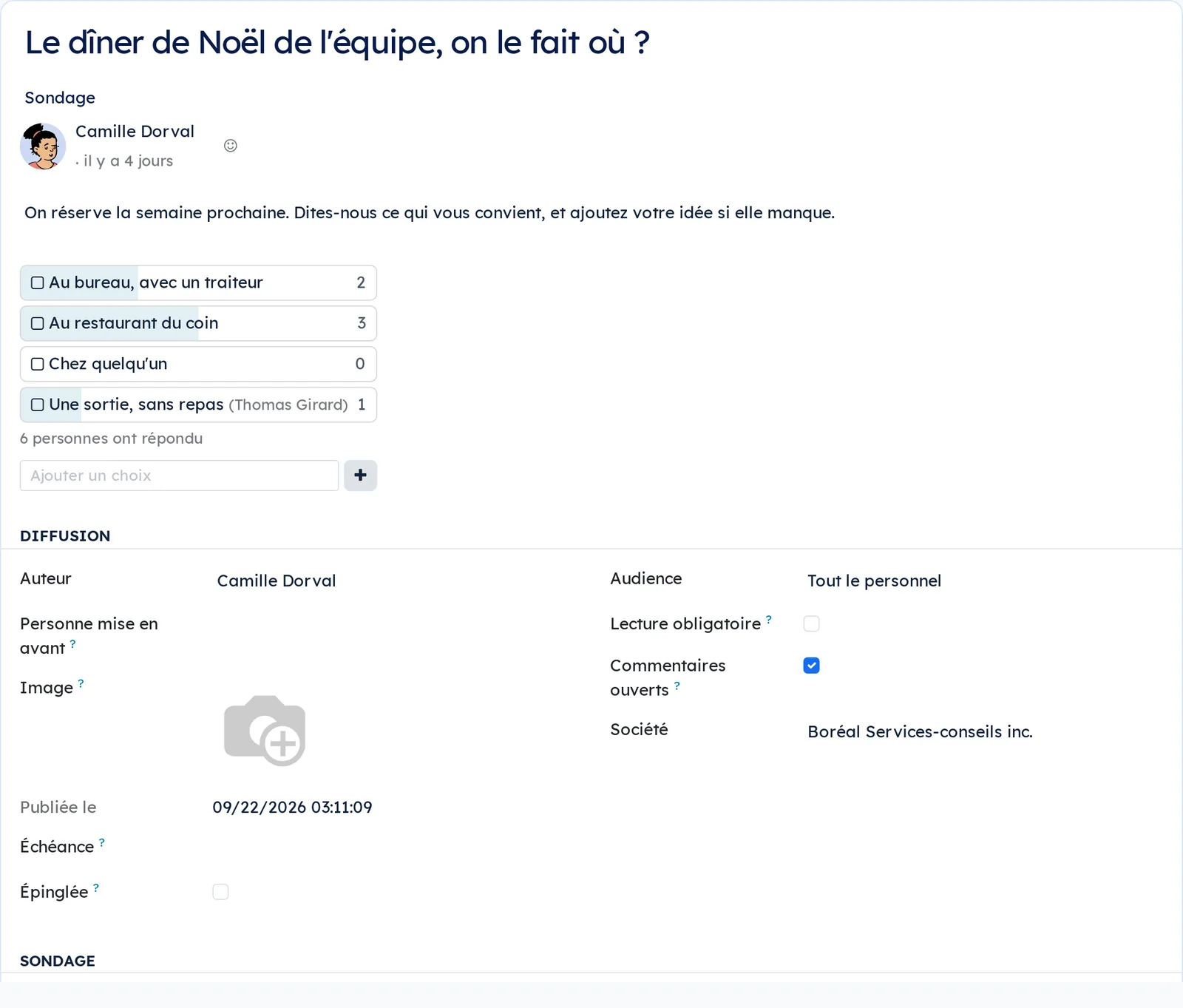
What an anonymous vote promises, and how it keeps it. In an anonymous poll, no vote is readable by anyone, you included: not on screen, not through a search, not through an export. And the result only appears once three people have answered. Below that, the card says "Not enough answers to show the result" rather than a zero, because with two votes the result is read back by subtraction as soon as one person says what they chose.
The threshold counts people, not votes: in multiple choice, two people easily cast three.
⚠️ If your audience has fewer than three people, a warning appears in the Poll block while you are writing. An anonymous poll in a team of two will never show anything, and it is better to know that before publishing than after the first vote.
When the audience adds a choice, their name goes with the choice they proposed, on a signed poll only. The per-person cap exists for a simple reason: without it, one person proposes fifteen and the result says nothing any more. An empty choice, a duplicate or a twenty-first choice are refused.
Chase up your own team#
If people report to you on the org chart, a required-reading post gives you one more button: Mon équipe (my team).
- Open the post to be read.
- Select Mon équipe at the top of the page.
- The list that opens holds only your direct reports who have not confirmed yet.
The button only appears when your team is actually addressed by the post. You never see another team's stragglers; the editorial team sees them all. Like the reading record, this list is there so you can chase people in person, not to score anyone.
Welcome someone without thinking about it#
Creating an employee record posts a welcome card on the feed, with that person's face and the name of their team if they have one. Nothing to do, nothing to write.
Feature a person, and add an image#
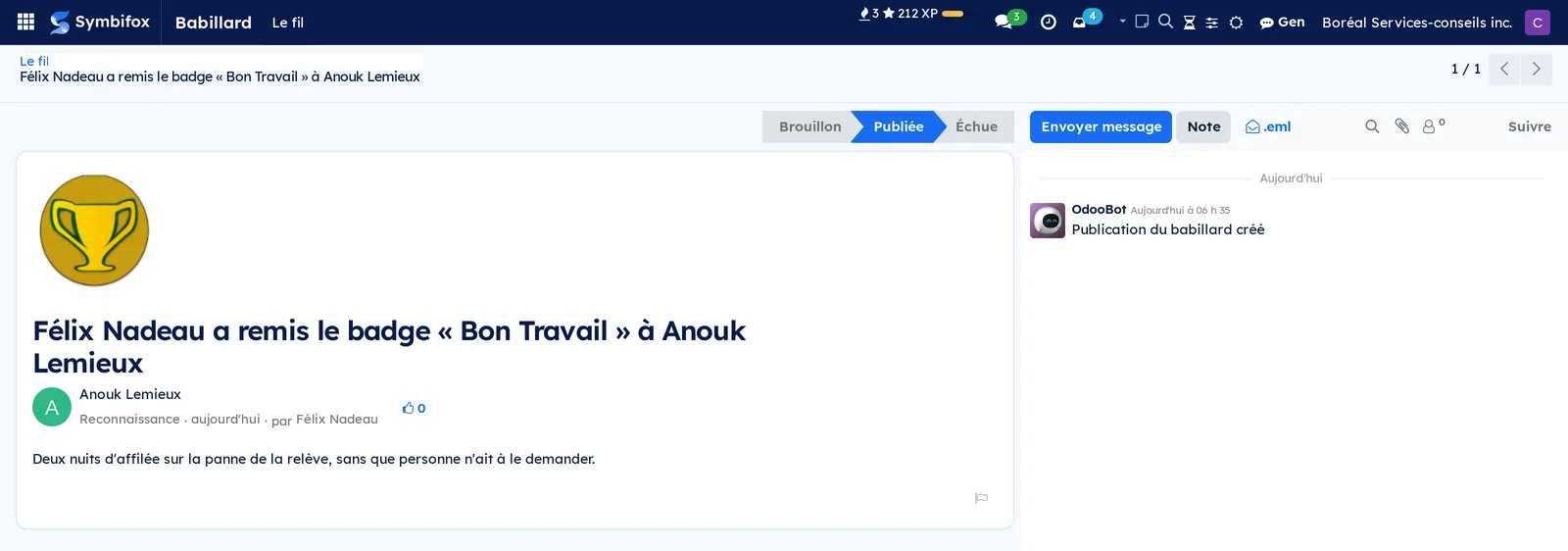
A recognition or a celebration is about someone: it is their face that should appear, not that of whoever wrote the post.
- Open the post, then the Diffusion block.
- In Personne mise en avant (featured person), choose the person concerned.
- In Image, drop a photo if you have one.
Their face then replaces the author's at the top of the post and on the card, and the signature reads "par" followed by the name of whoever wrote it. Cards posted automatically by Celebrations and by Fox Quest badges already do this on their own.
Pin a post#
A pinned post stays at the top of the feed, whatever its date.
- Open the post.
- Tick Épinglée (pinned).
Keep pinning for what must stay in sight: a policy being circulated, a safety instruction. Pin three at once and nothing is pinned any more.
Withdraw a post from the feed#
A withdrawn post leaves the feed without losing anything: confirmations already given stay in the record.
- Open the post.
- Select Retirer du fil (withdraw from the feed).
Its state becomes Échue. To put it back into circulation, open it and select Remettre en brouillon, then Publier again.
Report content#
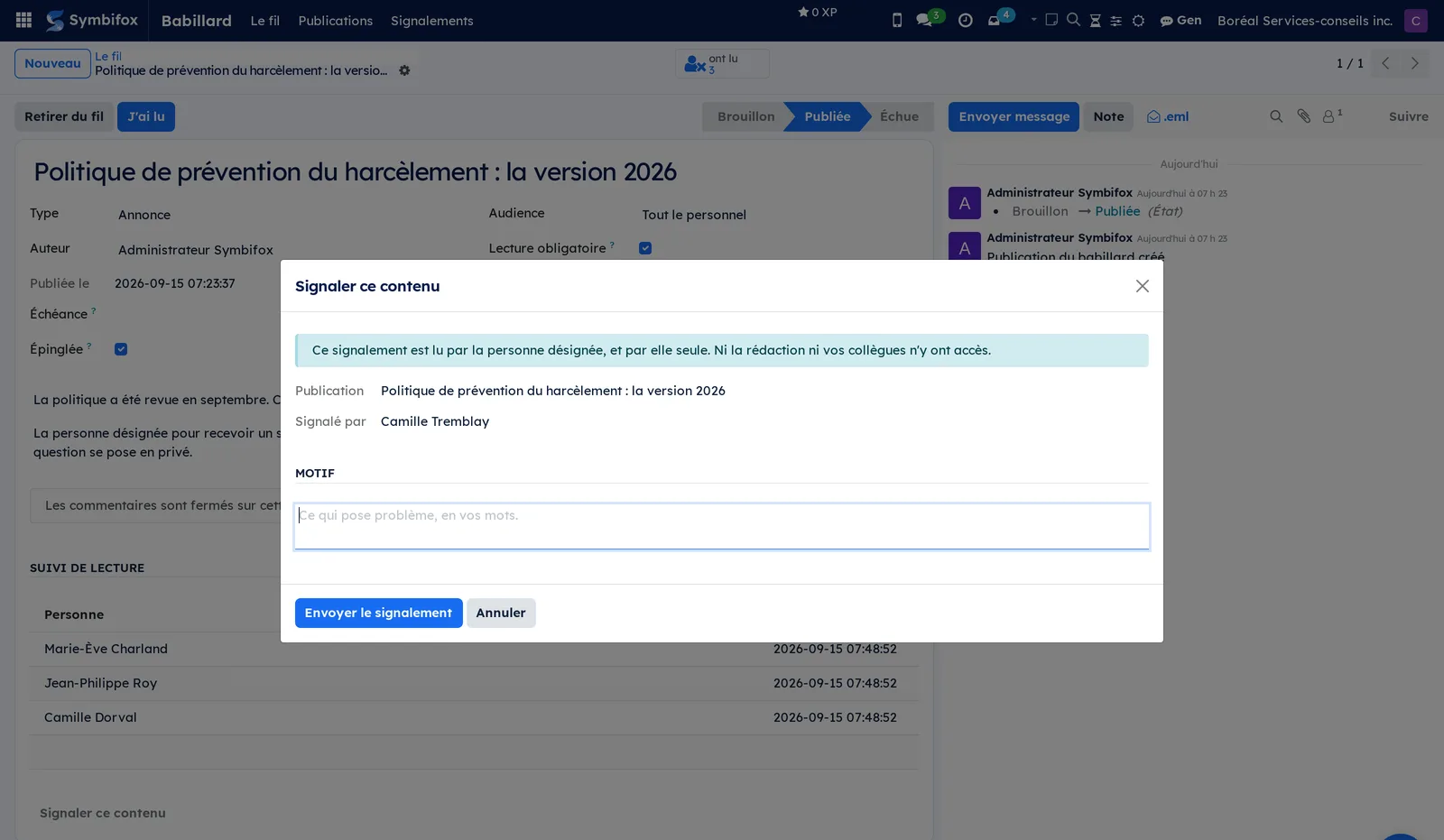
Anyone who reads a post can report what they find there, including a comment.
- Open the post in the feed.
- Select Signaler ce contenu (report this content), at the bottom of the post.
- Describe the problem under Motif (reason).
- Select Envoyer le signalement (send the report).
The report goes to the designated contact. Neither the editors nor colleagues can see it. Everyone in moderation receives an activity and an email that only says a report is waiting: neither the reason, nor your name, nor the post concerned appears in it. Everything else is read in the application.
Once sent, the report is no longer accessible to you: the outcome and the exchanges stay with moderation. A moderator never receives a report about their own content. If nobody else is in moderation, the report goes up to the company's administrators, who designate someone. And if nobody in the organisation can receive it, the dialog says so in plain words: the file is kept, and you are pointed to the person your policy designates, or to the CNESST.
The file keeps a copy of the reported content as it stood when the report was made, so a comment deleted or rewritten afterwards does not make the evidence disappear.
Handle a report#
The designated contact has the gestures a harassment prevention policy expects: take it on, make it stop, write down what was done.
- Open Babillard › Signalements, or follow the link in the email you received.
- Select the report, then Prendre en charge (take it on).
- If the content has to leave the feed at once, select Retirer la publication.
- Record what was done under Suite donnée (outcome), then select Clore.
Comment on a post#
When comments are open, the discussion happens in the message thread at the bottom of the post, with the usual reactions.
- Open the post in the feed.
- Select Envoyer message.
- Write your message, then send it.
If comments are closed, a line under the text says so, and the message is refused with the same explanation.
The menus, one by one#
- Babillard: the root menu of the application. It carries no screen of its own.
- Babillard › Le fil: the posts addressed to you, as cards, pinned ones first then the most recent. Each card shows the title, the type, the day it was published, and an À lire or Lue badge when the post asks for a confirmation. The Au fil filter is applied by default; the À lire and Épinglées filters are one gesture away. This is the screen everyone sees.
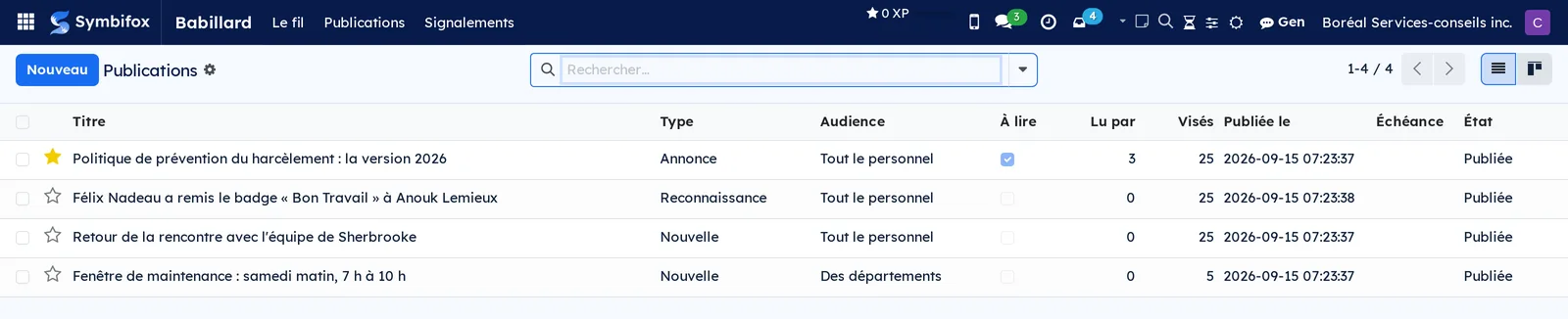
- Babillard › Publications: the full list, for editors. Useful columns: title, type, audience, À lire, Lu par (read by), Visés (addressed), publication date, expiry and state. This is where Nouveau creates a post, and where drafts and expired posts remain visible, which the feed no longer shows.
- Babillard › Sondages: polls only, for editors. A New there is already of the right type, which Publications is not. This is the way in when the question is "I want to ask the company something".
- Babillard › Signalements: the list of reports received, for moderation. A new report stands out in red. Columns: date received, the post concerned, who reported it, the designated contact handling it, and the state.
Reference#
Fields on the Publication form#
The title and the text are entered at the top. Everything else lives in the Diffusion block, which only the editorial team sees.
| Field | Description | Required or default |
|---|---|---|
| Titre | What people read first in the feed. | Required |
| Type | Annonce, Nouvelle, Reconnaissance, Événement or Célébration. | Annonce |
| Auteur | The person who signs the post. | Whoever creates it |
| Personne mise en avant | The person the post is about. Their face replaces the author's. | Empty |
| Image | An image at the top of the post and of its card. | Empty |
| Publiée le | Timestamp set when the post is published. | Automatic |
| Échéance | Date after which the post leaves the feed. | Empty, so open ended |
| Épinglée | Keeps the post at the top of the feed. | Unticked |
| Réactions | The reactions placed, with their count and the names, computed for whoever is looking. | Automatic |
| Audience | Everyone, selected departments, or selected groups. | Everyone |
| Départements, Groupes | The detail of the audience, per the previous choice. | Required when the audience calls for them |
| Lecture obligatoire | Asks every person concerned for a confirmation. | Unticked |
| Destinataires | Number of people addressed, computed. | Automatic |
| Commentaires ouverts | Allows discussion at the bottom of the post. | Closed when reading is required |
| Société | The company that owns the post. | The current company |
Fields on the Report form#
| Field | Description | Required or default |
|---|---|---|
| Publication | The post concerned. | Required |
| Commentaire visé | The message reported, when it is not the post itself. | Empty |
| Signalé par | The person reporting. | Whoever fills it in |
| Personne visée | The author of the reported content, frozen when the report was made. They neither receive the file nor can read it. | Automatic |
| Contenu signalé | A copy of the content as it stood when the report was made. | Automatic |
| Motif | What the problem is, in plain words. | Required |
| Personne désignée | Who handles the file. | Empty until it is taken on |
| Suite donnée | What was done. | Empty |
Reports and exports#
The application produces no printed report. The list of posts exports like any list, with the number of confirmations and the number of people addressed. The reading record itself is read on the post: that is where the proof of circulation sits, name by name and time by time.
Automations#
| What happens on its own | When |
|---|---|
| A required-reading announcement notifies its audience: an email with the link to confirm, and an Odoo notification for those who prefer it | At first publication, once only |
| A report notifies moderation: an activity for each person in the group, and an email that reveals nothing of the content | When the report is received |
| Posts past their expiry date leave the feed | Every day |
| A delivered greeting card appears in the feed | When the card is delivered |
| A badge handed over by a person appears in the feed | When the badge is granted |
| Survey wave results appear in the feed | When the wave closes |
| An Odoo survey is announced in the feed, with its link | When the editorial team asks for it |
| A date poll is looking for answers | When the editorial team asks for it |
| An upcoming event appears in the feed, and its card drops the day after; a new name or date follows, a cancelled event leaves the feed | When the event is created and each time it changes |
| The count of what you still have to read appears on the Dashboard | Each time the Dashboard opens |
None of these cards is ever duplicated: a source that comes round again never produces a second post.
Public pages and portal#
None. The noticeboard lives inside the application, for people who hold an internal account.
Modules that extend this application#

Understanding#
Why a noticeboard rather than a chat channel. A conversation scrolls: what matters slides down, then disappears. A noticeboard post stays in view until it expires, addresses a precise audience, and can ask for a confirmation. Discussion remains the place for exchanges; the noticeboard is the place for communications that have to arrive.
The audience is not a display filter. Someone outside the audience does not see the post, by any route: search, export, direct link. That is what lets you announce a closure at one site without worrying the others.
The record proves circulation, it does not measure people. A line in the reading record carries a name and a time, nothing else. There is no score, no ranking, no reading of anyone's tone: Law 25 governs profiling, which includes assessing performance at work, and a noticeboard has no reason to go near it.
Closing comments really closes comments. On a required-reading announcement, the message thread refuses messages instead of hiding them. Tracking messages keep being written: they are what preserves the history of the post.
The feed lives on what you already do. An empty noticeboard dies fast. The seven bridges drop delivered greeting cards, granted badges, publishable survey results, announced events, and, when the editorial team asks for it, the Odoo surveys and date polls that are looking for answers, into the feed, without anyone retyping them.
What the module does not do. It offers no interest communities, no personal feed, no chat. In an organization of fewer than two hundred people, spontaneous participation can be counted on one hand, and one more space to feed becomes one more space to abandon.
Troubleshooting#
| Symptom | Likely cause | Fix |
|---|---|---|
| Someone does not see a post | They are not in the audience, or their department is missing from their employee record | Check the audience of the post and the person's department in Employees |
| The J'ai lu button does not appear | The post does not require reading, or the person has already confirmed | Look for the Lue ribbon on the post; the reading record carries the time |
| A message is refused at the bottom of a post | Comments are closed on that post | Reopen them by ticking Commentaires ouverts, or answer privately |
| The count of people addressed looks too low | Some of them have no employee record, or no department | Complete the records in Employees, then reopen the post |
| An expired post is still in the feed | The daily pass has not run yet | Withdraw it by hand with Retirer du fil |
| An expected card from another application did not appear | The bridge is not installed, or the condition is not met | Check that the source application is installed; a badge with no giver, a past event or a score below the threshold do not appear |
| Editors see no reports | That is by design | Only someone in the Modération group has access |
| Nobody received an email for an announcement | Required reading was not ticked at publication, or the notice had already gone out once | The notice goes out once only; nudge in person with the list of people who have not confirmed |
| Moderation was not notified of a report | Nobody holds the Modération group in that company | Give the Modération group to the designated contact |
| A moderator cannot see a report | It concerns their own content | By design: another moderator handles it, or the administrators if there is nobody else |
| The dialog says nobody can receive the report | The only moderator is the person the content targets, and the company has no administrator | Give the Modération group to someone else; the file is kept in the meantime |