

Part 5 · People and team
Managed QR codes
Print sheets of QR codes before you know where each one goes, link them on first scan, change them without reprinting and see who scans them.
Managed QR codes let you print labels before you know where they will go. Each code leads to an address that Symbifox controls: you link it on first scan, change where it leads without reprinting, and reset it when the object leaves. The chapter serves the person who prepares the labels and the team that sticks them on. The result: desks, rooms, devices and posters that open with a phone camera, and a log that says who scanned them.
Overview#
A QR label is a tag without a chip. It lives in the Tags application, under the QR codes menu, and inherits everything a tag has: the gestures (open a record, open an address, log a visit, offer a menu), the log and the safeguards. What the NFC tags chapter says about a gesture therefore holds for a label.
Four notions are enough:
| Notion | What it is |
|---|---|
| Batch | A run of blank labels, numbered after a prefix: "BOR-0001", "BOR-0002". |
| Blank label | A printed label that is not linked yet. Its code exists, but leads nowhere yet. |
| Linking | Choosing what the label opens: a record, an address, a visit to log. |
| Reset | Going back to blank. The code, the number and the log stay. |
The number printed under the code ("BOR-0017") is the one you read aloud and put in a spreadsheet. It never changes. The code in the image itself is a random string of eight characters.
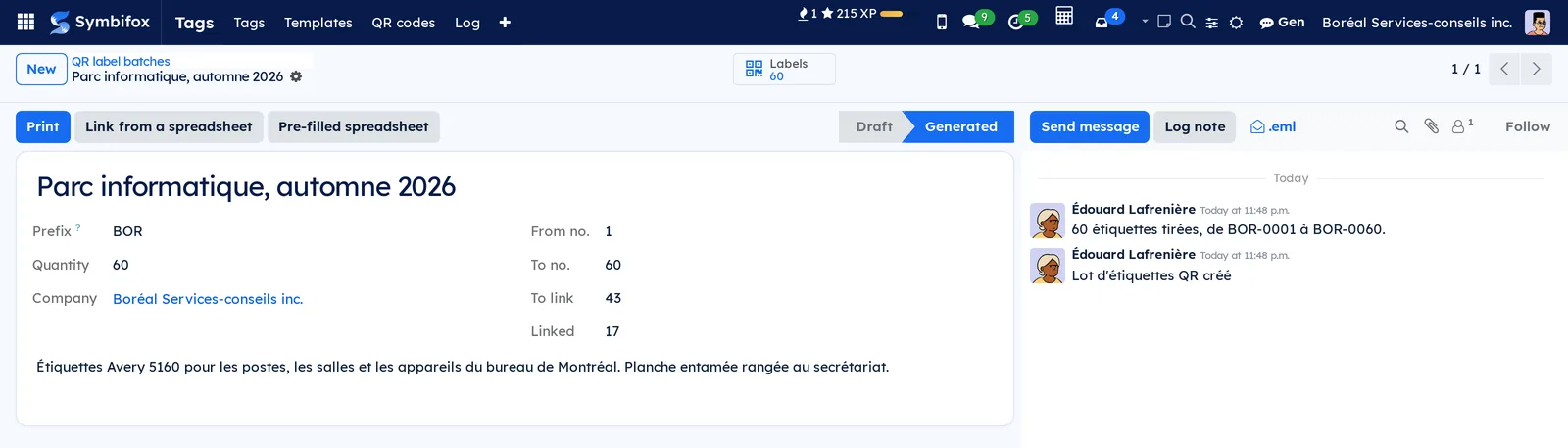
A batch's screen sums up its run: the prefix, the first and last numbers, and how many labels are still to link.
Configuration#
Access and permissions#
Everyone on the team can scan a linked label: the tag's gesture decides what it opens, with the permissions of the person scanning.
Linking and resetting are restricted. Tag managers can always do both. Each company can add other groups in the settings: on the demo, the "Soutien technique" (technical support) group. A person in those groups is not offered the gestures reserved to managers, such as running a scheduled action.
Generating a batch, creating a label format and changing the settings remain with the tag managers.
Settings#
The tag settings hold a QR labels block: Tags › Configuration › Settings.

- Who links QR labels: the groups that link and reset, in addition to the managers. The setting applies to the current company.
- Add the suggested types: adds to the list of record types those a label most often targets, only if they exist in your database: floor plan desks and rooms, devices and servers, equipment, events, link pages.
Base data#
Before a first batch, check two things:
- The record types the labels will target appear in Tags › Configuration › Record types. The Add the suggested types button covers most of it.
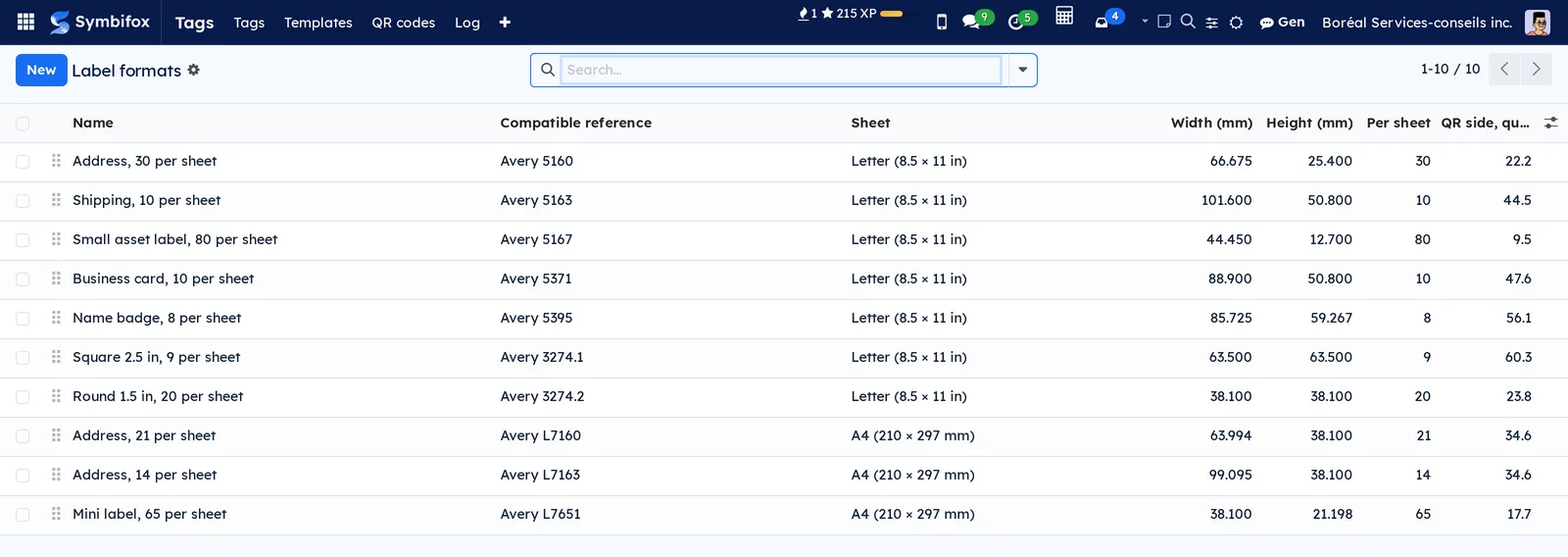
- The format of your sheets exists in Tags › Configuration › Label formats. Ten common formats are already there.
Getting started#
This walkthrough generates a small batch, prints it and links a first label to a desk on Boréal's floor plan.
- Go to Tags › QR codes › Label batches, then select New.
- Enter a name, for example "Open-area desks", a prefix such as "AIR" and a Quantity of "30".
- Select Generate the labels. The batch moves to Generated and the chatter gives the first and last numbers.
- Select Print, keep the Address, 30 per sheet format, then Produce the PDF. Print the page on a compatible label sheet.
- Stick a label on desk P-01, then scan it with the camera of a phone signed in to Symbifox. The label's form opens.
- Select Link this label, choose Open the record, the Élément d'un plan d'étage (floor plan item) type and desk "P-01", then Link.
- Scan again: the desk's record opens.
Common tasks#
Generate a batch of labels#
A batch prepares all the labels of a project at once: a floor, a fleet of devices, a room.
- Go to Tags › QR codes › Label batches, then select New.
- Enter the batch name and its Prefix: letters and digits, eight at most.
- Enter the Quantity, from 1 to 5,000.
- If needed, write in the note why the batch was generated and where it is stored.
- Select Generate the labels.
The batch moves to Generated. The Labels quick access button opens the list of the batch's labels. A generated batch cannot be deleted: its labels may already be stuck somewhere.
Print a sheet#
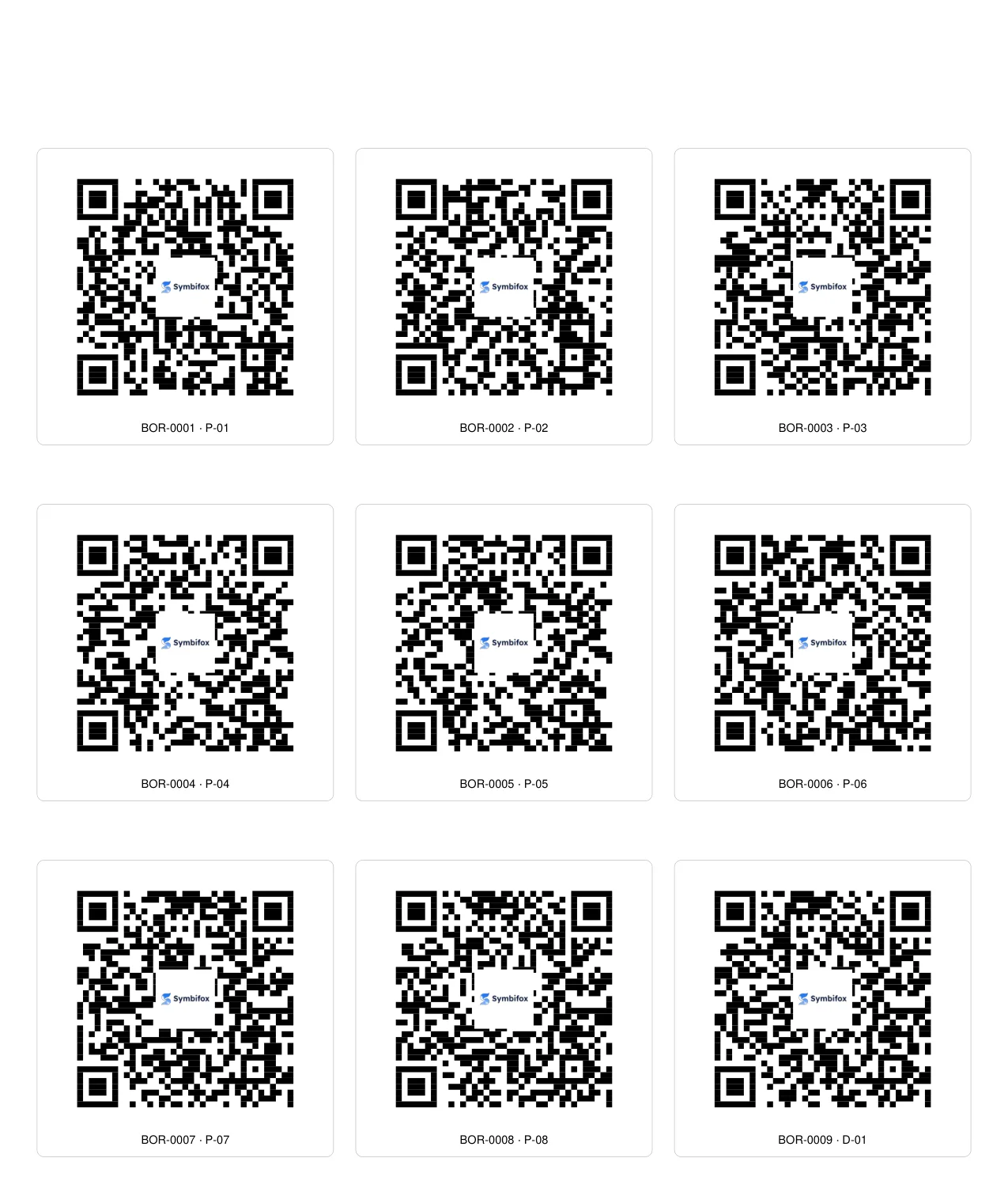
Printing places each code to the millimetre on a commercial label sheet, Letter or A4.
- Open the batch, then select Print.
- Choose the Format of your sheets.
- If the first sheet is partly used, enter in Places already used the number of labels already peeled off.
- Choose the Text printed under the code: none, the number, the label text, or both.
- For a first test, tick Draw the outlines and print on plain paper.
- Select Produce the PDF.
The PDF opens in a new tab. The Sheets and Code side, quiet zone included (mm) fields tell you in advance how many sheets you will need and how large each code will be.
Print branded labels#
A logo in the centre and custom colours are set in the same assistant, under Branded.
- In the print assistant, tick Logo in the centre.
- Leave Logo empty to use the company's, or upload a PNG or a JPEG.
- If needed, change the Code colour and the Background colour.
- Select Produce the PDF.
The assistant warns you before printing when a setting would make the codes unreadable.
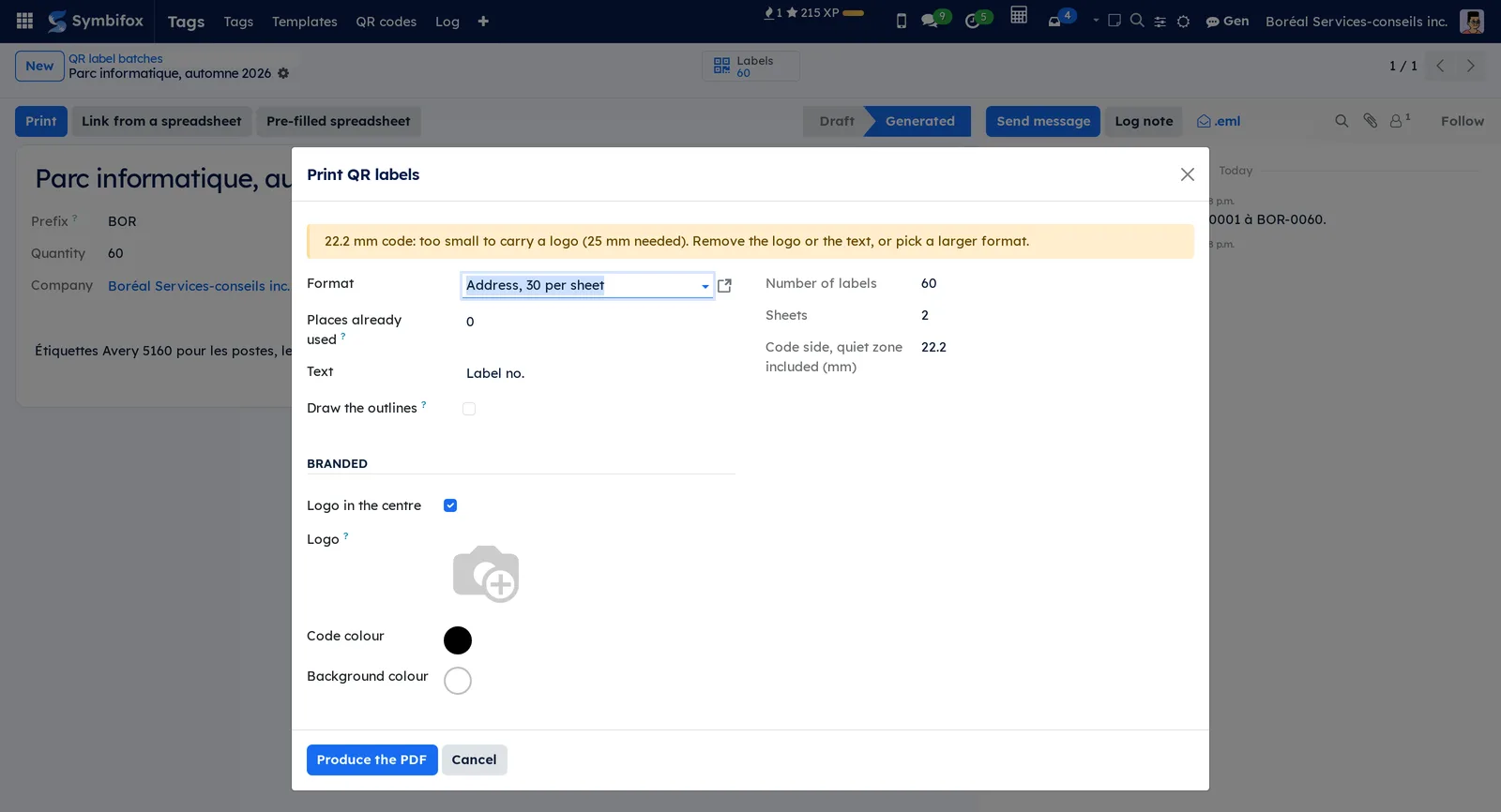
Three rules apply, and printing is refused until they are met:
| Rule | Why |
|---|---|
| A logo needs a code of at least 25 mm | The logo hides the centre of the code. There must be enough room around it for the phone to rebuild it. |
| The code is darker than its background | An inverted code has good contrast, but most phones cannot read it. |
| Contrast of at least 4 to 1 | Below that, the code reads poorly on screen and worse once printed. |
Under 20 mm, the code still prints, with a warning: it will only scan up close.
Link a label on first scan#
This is the everyday gesture: stick, scan, choose.
- Scan a blank label with a phone signed in to Symbifox. Its form opens, with the banner "Label printed in advance, not linked yet".
- Select Link this label.
- In What it does, choose the gesture: Open the record, Open an address or Log a visit.
- Choose the Record, or enter the Address.
- If needed, enter a Label text and where it is Stuck on.
- Select Link.
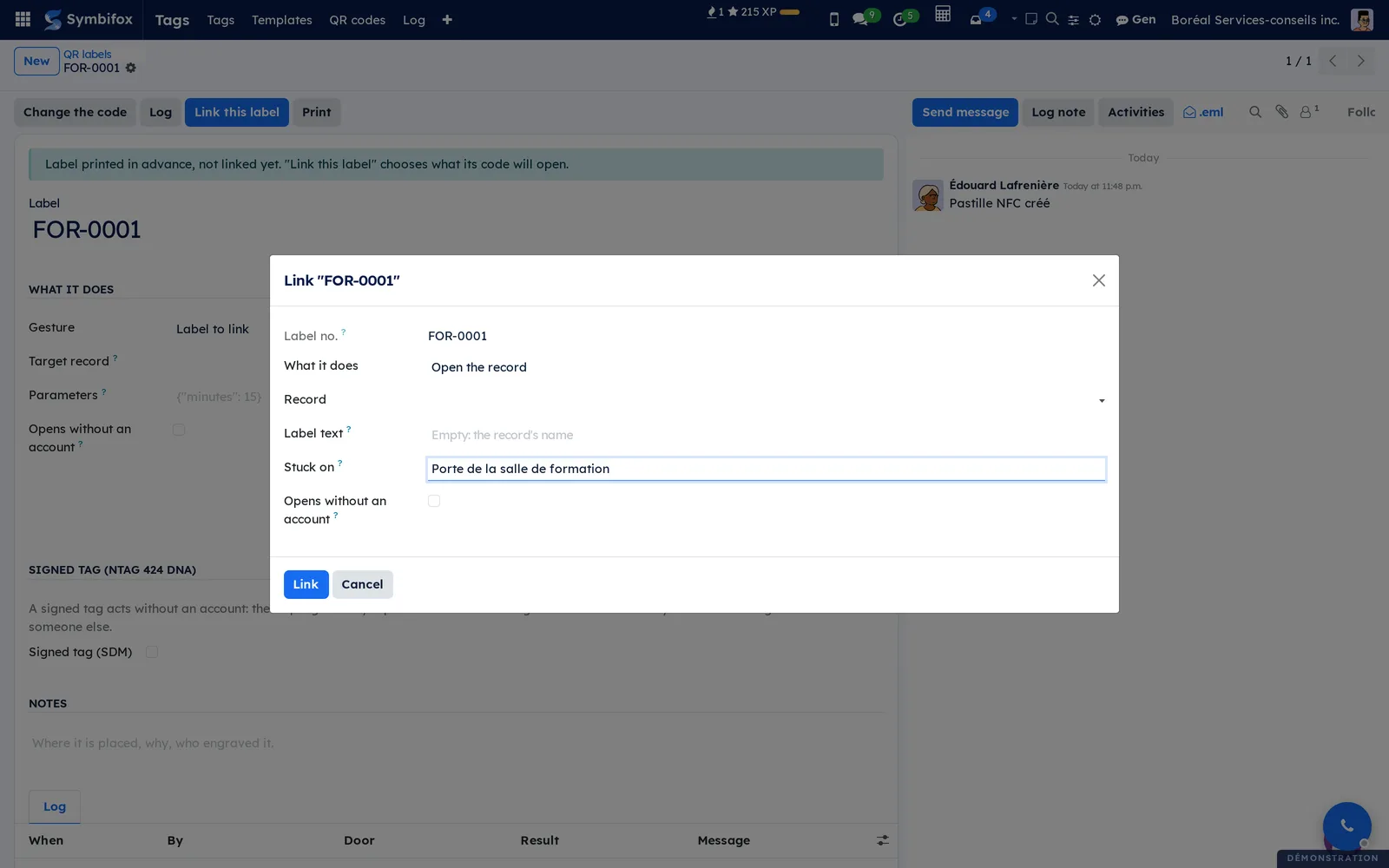
The label takes the record's name, unless you entered a label text. The label's chatter notes who linked it, and to what. The same linking works from a computer, by opening the label in Tags › QR codes › QR labels.
Open a label to everyone#
A poster, a display stand or a waiting room speak to people who have no account. Tick Opens without an account when linking.
- A label that opens an address takes the visitor straight to that address.
- A label that opens a published link page or a published event takes the visitor to its public page.
- A label that opens an internal record always asks to sign in.
The box ticks itself when the gesture is Open an address. It disappears for a gesture that writes, such as Log a visit: a visitor without an account never causes anything to be written.
Link labels from a spreadsheet#
For a fleet of 200 desks, a spreadsheet is faster than 200 scans.
- Open the batch, then select Pre-filled spreadsheet. The file lists the labels that are still blank, one per line.
- Fill in the columns: the type and the record, or an address. A line can target a range, such as "12-20".
- Go back to the batch, then select Link from a spreadsheet.
- Upload the file, then select Check.
- Read the preview: each line says what it will do, or why it is refused.
- Select Link.
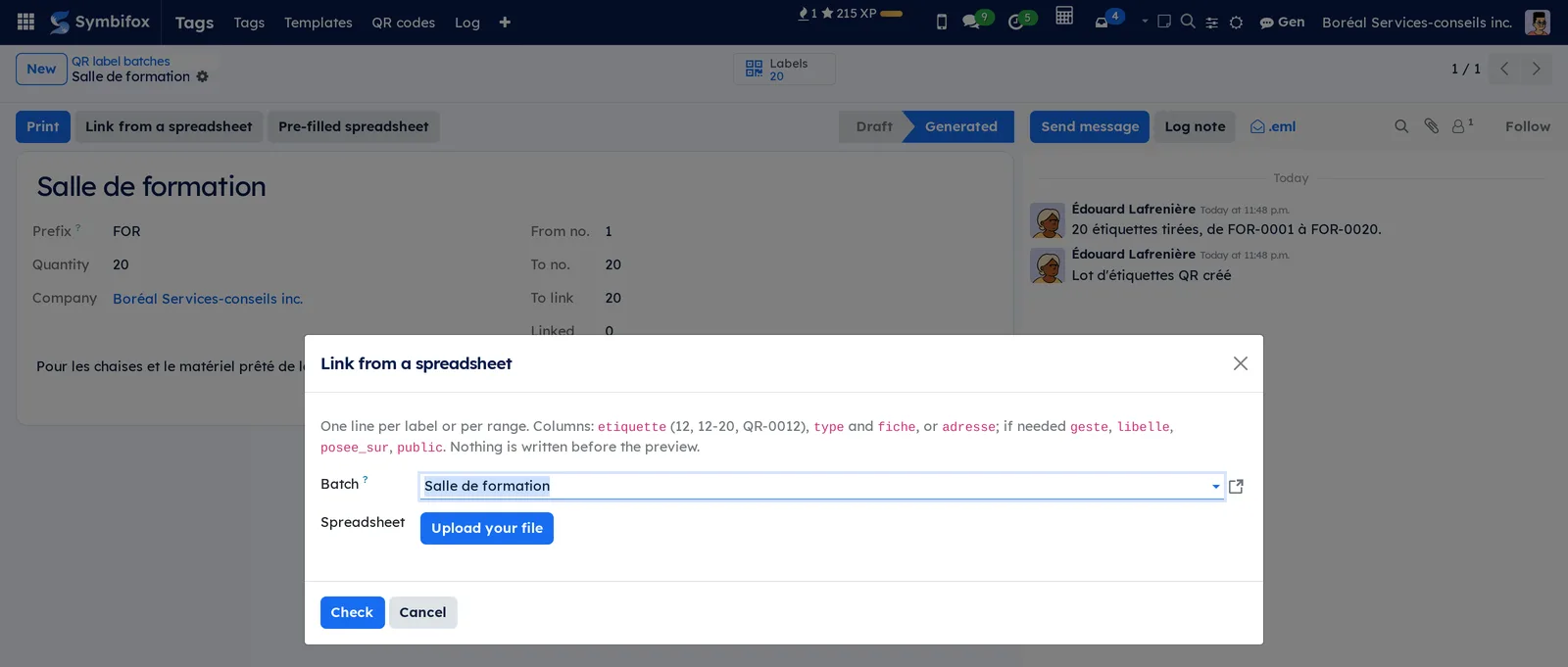
The recognized columns, in any order, regardless of accents and capitals. The column names are in French, as the file expects them:
| Column | Content |
|---|---|
| etiquette | A number ("12"), a range ("12-20"), a full number ("BOR-0012") or the code. |
| type | The record type, by its name ("Contact"). |
| fiche | The exact name of the record, or its ID. |
| adresse | A web address, instead of a record. |
| geste | Optional: ouvrir (open), adresse (address) or passage (visit). |
| libelle, posee_sur | Optional: the label text and the place. |
| public | Optional: "oui" (yes) for a label that opens without an account. |
Nothing is written while a line is in error. To apply the ready lines anyway, tick Apply the ready lines and leave the others.
Reset a label#
A laptop that leaves, a room that changes purpose: the label is reused.
- Open the label.
- Select Reset, then confirm.
The label becomes blank again: its next scan leads to linking. Its code, number and log are kept, and the chatter notes what it used to lead to.
Reset several labels at once#
- Go to Tags › QR codes › QR labels.
- Tick the labels to reset.
- Open the Actions menu, then select Reset the QR labels.
- Read the number of labels that will become blank again, then select Reset.
A single confirmation covers the whole selection. Labels that are already blank are counted separately and do not change.
Print selected labels#
To replace a damaged label, there is no need to reprint the whole batch.
- Go to Tags › QR codes › QR labels.
- Tick the labels you want.
- Open the Actions menu, then select Print as QR labels.
- Set up printing as for a batch, then select Produce the PDF.
The same Print button is on a label's form.
Add a label format#
If your sheets are not in the list, describe them once.
- Go to Tags › Configuration › Label formats, then select New.
- Enter a name, the Sheet and the number of Columns and Lines.
- Enter the Width (mm) and Height (mm) of one label.
- Enter the position of the first label and the Horizontal pitch (mm) and Vertical pitch (mm), as the manufacturer publishes them.
- Save.
The form refuses a grid that would run off the sheet or labels that would overlap. The QR side, quiet zone included (mm) field gives the largest possible code.
The menus, one by one#
Tags › QR codes groups the two label screens.
Tags › QR codes › Label batches lists the batches with their prefix, first and last numbers, what is still To link, the Linked ones and the State (Draft or Generated). This is where you generate a batch, print it and link it from a spreadsheet.

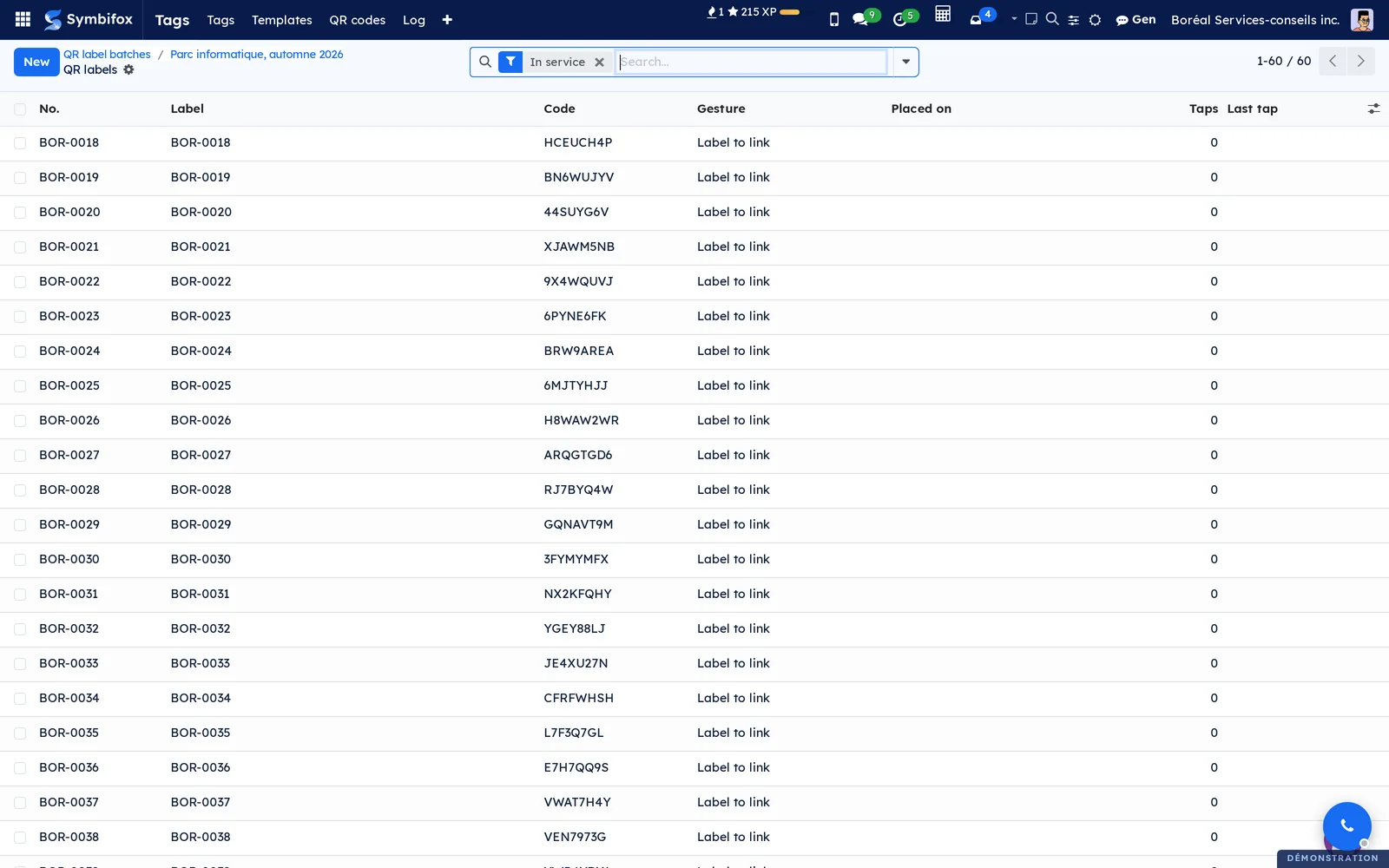
Tags › QR codes › QR labels lists every label generated from a batch, with its number, label text, code, gesture, where it is stuck and the number of scans. The QR to link and Linked QR filters separate the two states, and the Batch grouping sorts the list by run.
Tags › Configuration › Label formats lists the sheet formats: name, compatible reference, sheet, dimensions, labels per sheet and largest possible code.
Tags › Configuration › Settings holds the QR labels block described above. The application's other menus are described in the NFC tags chapter.
Reference#
Fields of the QR label batch form#
| Field | Description | Required or default |
|---|---|---|
| Batch | The name of the run. | Required, "Batch of" and the date |
| Prefix | Printed before the number. Letters and digits, eight at most. | Required, "QR" |
| Quantity | The number of labels to generate, from 1 to 5,000. | 100 |
| From no., To no. | The numbers of the first and last labels generated. | Filled in when generated |
| To link, Linked | The batch's labels in service, in each state. | Computed |
| Note | Why the batch was generated, where it is stored. | Optional |
Fields of the QR label form#
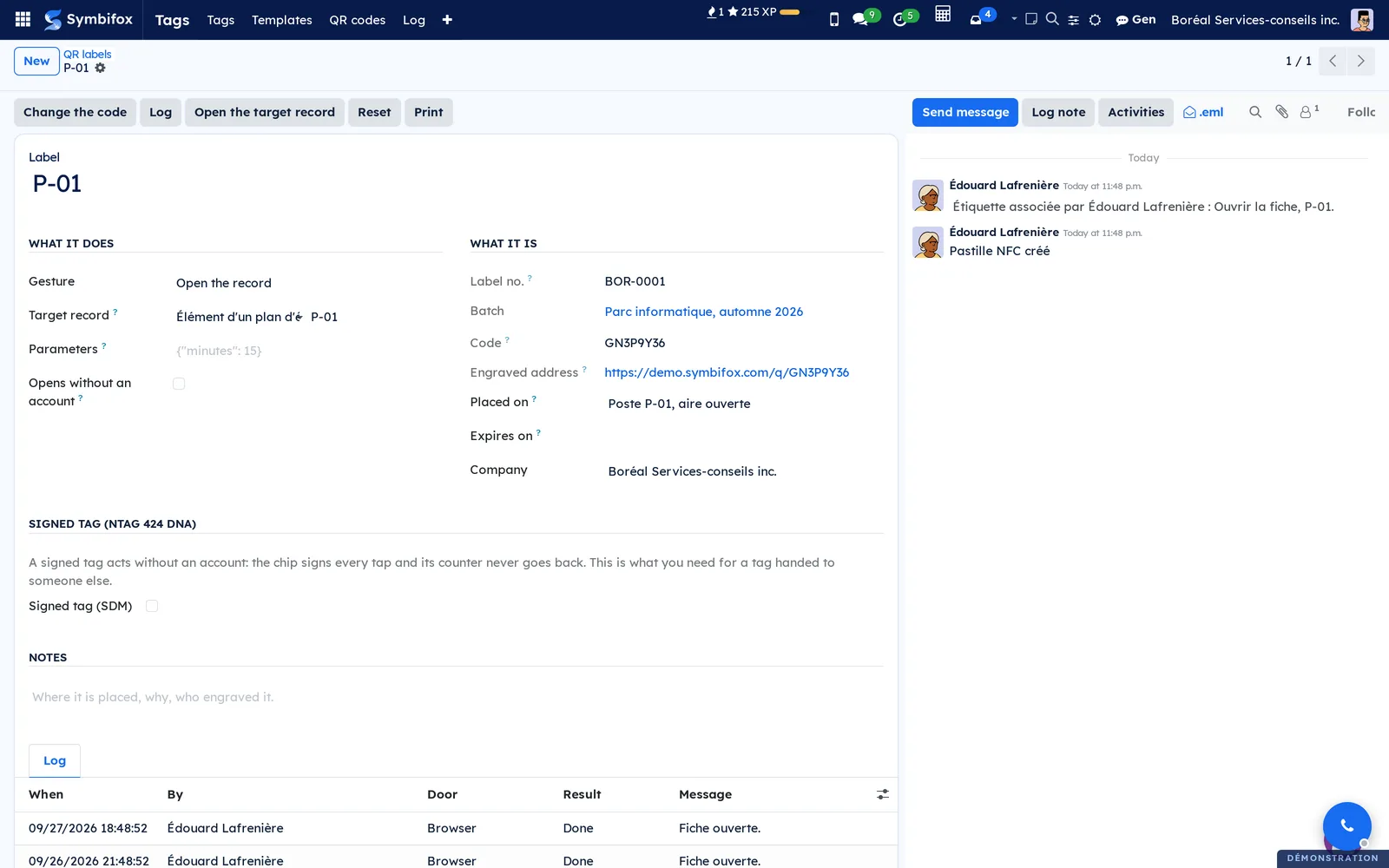
The label reuses a tag's form. The module adds this:
| Field | Description | Required or default |
|---|---|---|
| Label no. | The number printed under the code. Never changes. | Given at generation |
| Batch | The batch the label comes from. | Given at generation |
| Engraved address | The address the code carries. | Computed |
| Opens without an account | A visitor without an account follows the address or the public page. Absent for a gesture that writes. | Unticked, ticked by default for an address |
Fields of the Print QR labels assistant#
| Field | Description | Required or default |
|---|---|---|
| Format | The commercial sheet to print on. | Required, the first in the list |
| Places already used | Labels already peeled off the first sheet. | 0 |
| Text | What prints under the code: none, the number, the label text, or both. | Label no. |
| Draw the outlines | For a test on plain paper. | Unticked |
| Logo in the centre, Logo | The logo in the centre of the code; empty, the company's. | Unticked |
| Code colour, Background colour | The two colours of the code. | Black on white |
Reports and exports#
- The PDF of the sheets, produced by the print assistant.
- A batch's pre-filled spreadsheet, in Excel format, listing its blank labels.
Automations#
Nothing runs on a schedule. Two things happen on their own:
- every scan that opens something leaves a line in the label's log, including one from a visitor without an account;
- the Symbifox Pastilles mobile app does not show blank labels in Mes pastilles (my tags), and does not offer Label to link when engraving a chip.
Public pages and portal#
A label's code leads to an address of the form /q/ followed by its code.
- An unknown code or a retired label answer that the page does not exist.
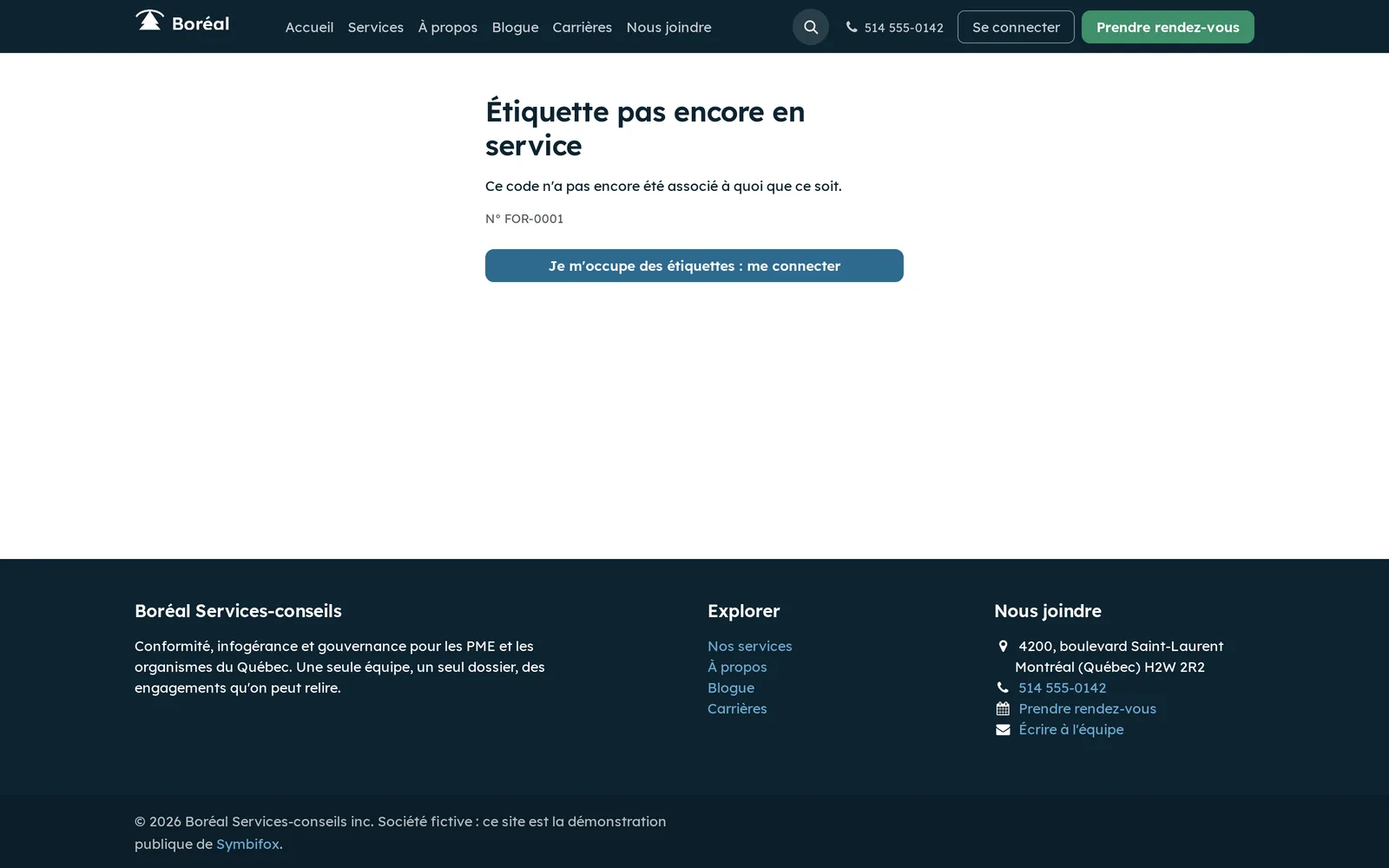
- A blank label shows a neutral page: "Étiquette pas encore en service" (label not in service yet), its number and a sign-in button for the person who manages the labels.
- A linked label open to everyone leads to its address or its public page.
- Any other label goes through sign-in, then opens what its gesture provides.
The public page follows the language of the website. Boréal's demo site exists in French only, so the visitor sees it in French.
Modules that extend this application#
Labels readily target records from other applications: desks and rooms of the Floor plans, managed devices, events and link pages. Each is described in its own chapter.
Understanding#
Why a code only holds a pointer. The printed code does not carry the destination, only a short code that finds it. That is what lets you relink a label without reprinting it, and answer "page not found" when a label has been retired.
Why the code is not a secret. Anyone can photograph a label and copy its address. The code is used to find the label, not to prove anything. What protects you is the permissions of the person scanning, and the public door that never causes anything to be written.
Why a link preview triggers nothing. A spam filter or a messaging preview sometimes opens addresses on its own. For a label that opens an address, that only adds a line to the log. For a gesture that writes, the tags' confirmation page steps in, as it does for a chip.
Why size matters. A phone held 25 cm away reads a 2 cm code easily. Below that, you have to move closer. The size shown includes the mandatory quiet zone around the code, about one fifth of its side.
Why the formats carry Avery references. Sheet dimensions are published facts, taken from an open database. The references only say which sheets fit: no link with their manufacturer is implied.
Troubleshooting#
| Symptom | Likely cause | Fix |
|---|---|---|
| Scanning a blank label shows the "not in service yet" page to an employee | The person is neither a tag manager nor in an allowed group. | Add their group to Who links QR labels, or ask a manager to link it. |
| The linking assistant refuses the chosen record | The person cannot read that record, or its type is not in the record types list. | Check their permissions on the target application, then Add the suggested types. |
| A visitor without an account lands on the sign-in page | The label is not open to everyone, or it targets an internal record. | Tick Opens without an account, or link an address or a published page. |
| Printing is refused with a logo | The code is under 25 mm on this format. | Remove the logo or the text, or choose a larger format. |
| The company logo is refused | The logo is an SVG. | Upload a PNG version in the assistant's Logo field. |
| The codes are shifted on the sheet | The format does not match the sheets used, or the printer scales the page. | Print at 100%, test with Draw the outlines, then correct the format. |
| A spreadsheet line targets a label from another batch | A bare number is read within the batch's prefix, and numbering continues from one batch to the next. | Write the full number, such as "BOR-0012". |