
Part 5 · People and team
Shifts
Build schedules for regular and unionised employees, get warned before publishing what labour standards or the collective agreement let people refuse, fill a shift from the call list, and hand payroll hours that are already coded.
The Shifts app decides who works when. It is for the person who builds schedules, for the managers who approve swaps and close pay periods, and for every employee, who sees their shifts there, answers offers and declares their availability. It works for a non-unionised team, where Québec's Act respecting labour standards (LNT) sets the rules, and for a unionised team, where the collective agreement raises them.
Overview#
Everything starts from working conditions. A Labour standards (Québec) record ships with the app and carries the LNT floor. A collective agreement is entered as a second record that raises that floor (overtime thresholds, premiums, notice, minimum call-back, order of offers). Each employee is attached to one record. When a value in the agreement is less favourable than the LNT, the LNT applies, and the record says so.
A shift template describes a standard shift: its hours, its break, its type (Day, Evening, Night, Weekend, On call). A schedule covers a period, often two weeks, and is filled from templates. It goes through three states: Draft, Published, Closed. Before publishing, the app checks the schedule and lists warnings. It never prevents publishing: labour standards give the person a right to refuse, they do not forbid asking.
Once a schedule is published, every change is written to the change log: before, after, who, when, and the employee's answer when one is required. Nobody edits or deletes this log. In a grievance, it is the evidence.
A shift that becomes free is an open shift. It is offered to one person at a time, in the order of the call list (seniority, rotation or inverse seniority). Every offer, refusal and skipped person is timestamped, with the reason for the skip.
Finally, a pay period gathers the hours actually worked and turns them into coded lines: regular hours, overtime, premiums, call-back minimum, holiday indemnity, benefits. The CSV file it produces goes to your payroll provider.
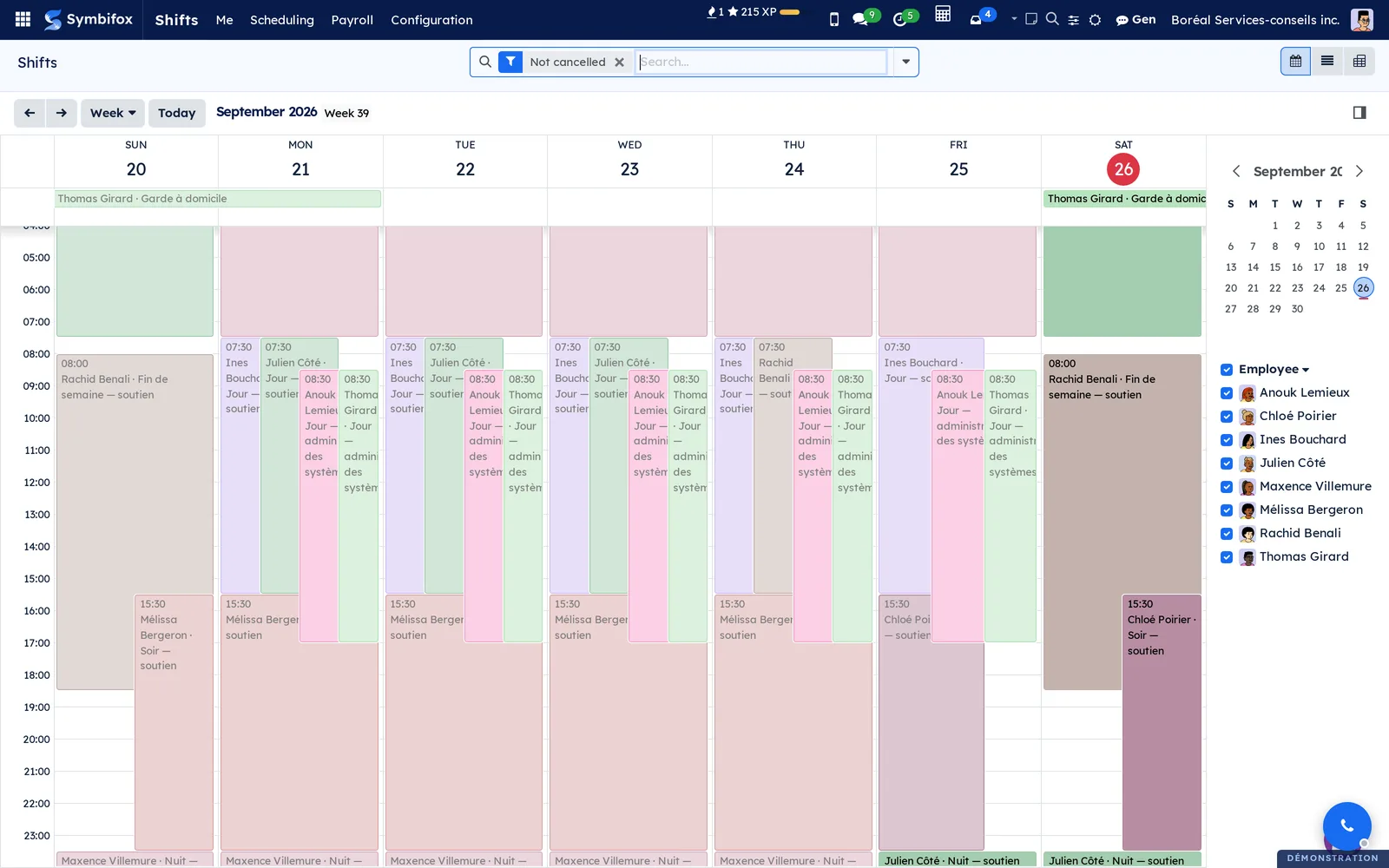
Here is the current week of the demonstration as a calendar: the support centre's day, evening and night shifts, and the weekend on-call at the top. The demonstration company works in French: its names, and the messages it recorded, stay in French in the English screenshots.
The employee record remains the one in Employees. If your organisation also keeps its certification, grievances and official seniority, see Labour relations: Shifts does not replace that file, it applies the agreement to the schedule.
Configuration#
Access and rights#
| Role | What it opens |
|---|---|
| Shifts / Employee | The Me menu: their shifts, the offers made to them, their swaps, availability, benefits and the changes that concern them. They also see published schedules and call lists. |
| Shifts / Manager | Everything else: working conditions, templates, schedules, offers, approvals, pay periods. |
Two points before granting access. Each person's employee record must be linked to their user, otherwise they see no shift. And call lists are posted, as collective agreements require: every employee sees the seniority date and counters of their colleagues on the list.
A shift manager does not need Employees officer rights. The fields of the Shifts tab of the employee record (working conditions, seniority, hourly rate, payroll number) are reserved to them.
Settings#
The app has no settings screen. Everything that varies is set in the working conditions. Public holidays are those of the company's working calendar, under Employees > Configuration.
Master data#
- Under Shifts > Configuration > Working conditions, review the labour-standards record. If a collective agreement covers part of the staff, create its record: tabs Hours and overtime, Scheduling, Premiums, Offers and swaps, Taxable benefits.
- Under Shifts > Configuration > Shift templates, create your standard shifts.
- On each employee record, Shifts tab: working conditions, seniority date, usual hourly rate, payroll number.
- If needed, create call lists under Shifts > Scheduling > Call lists.
Here is the Premiums tab of the demonstration's agreement: an evening and a night premium as a percentage with a minimum per hour, and a weekend premium as an amount per hour.
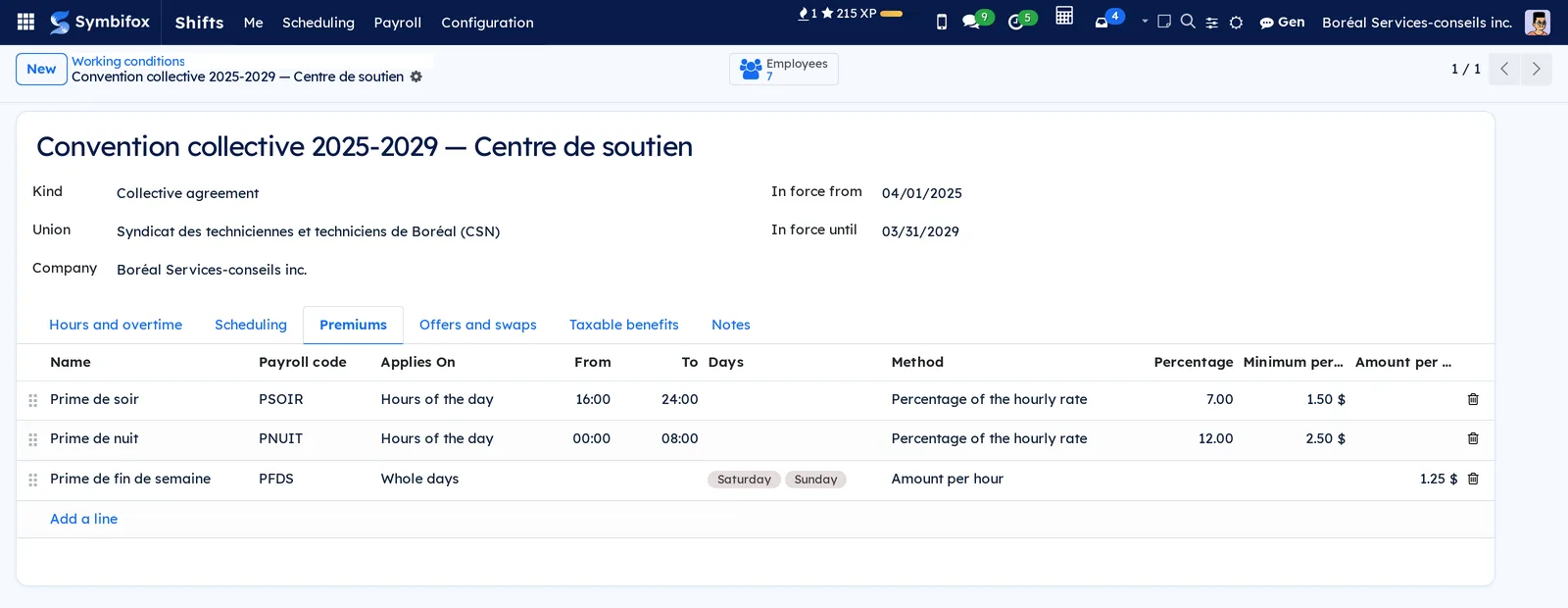
A premium is defined by a time window (which may cross midnight), by whole days or by public holidays. It can provide an enhanced rate above a number of hours, the majority-of-hours rule, and dates in force.
Getting started#
The shortest path through a first period:
- Create a schedule under Shifts > Scheduling > Schedules, with its dates and department.
- Click Add shifts, choose the templates, days and people.
- Click Check and read the Warnings tab.
- Fix what needs fixing, then click Publish. Each person is notified.
- At the end of the period, create the pay period, compute it and export it.
Common tasks#
Build a schedule#
A draft schedule is filled with Add shifts or by hand, in the Shifts tab. For the next period, Copy to the next period takes the same shifts with shifted dates. Nothing is sent while the schedule is a draft.
Check before publishing#
Check screens the schedule and fills the Warnings tab. The checks cover:
- notice (5 days under the LNT, or the agreement's);
- more than 2 hours beyond the usual day, more than 14 hours in 24 (12 with variable hours), more than 50 hours in the week;
- the 32 consecutive hours of weekly rest;
- the meal break after 5 hours;
- rest between two shifts, overlaps, declared unavailability and shifts still open.
Weekly limits also count shifts from neighbouring schedules.
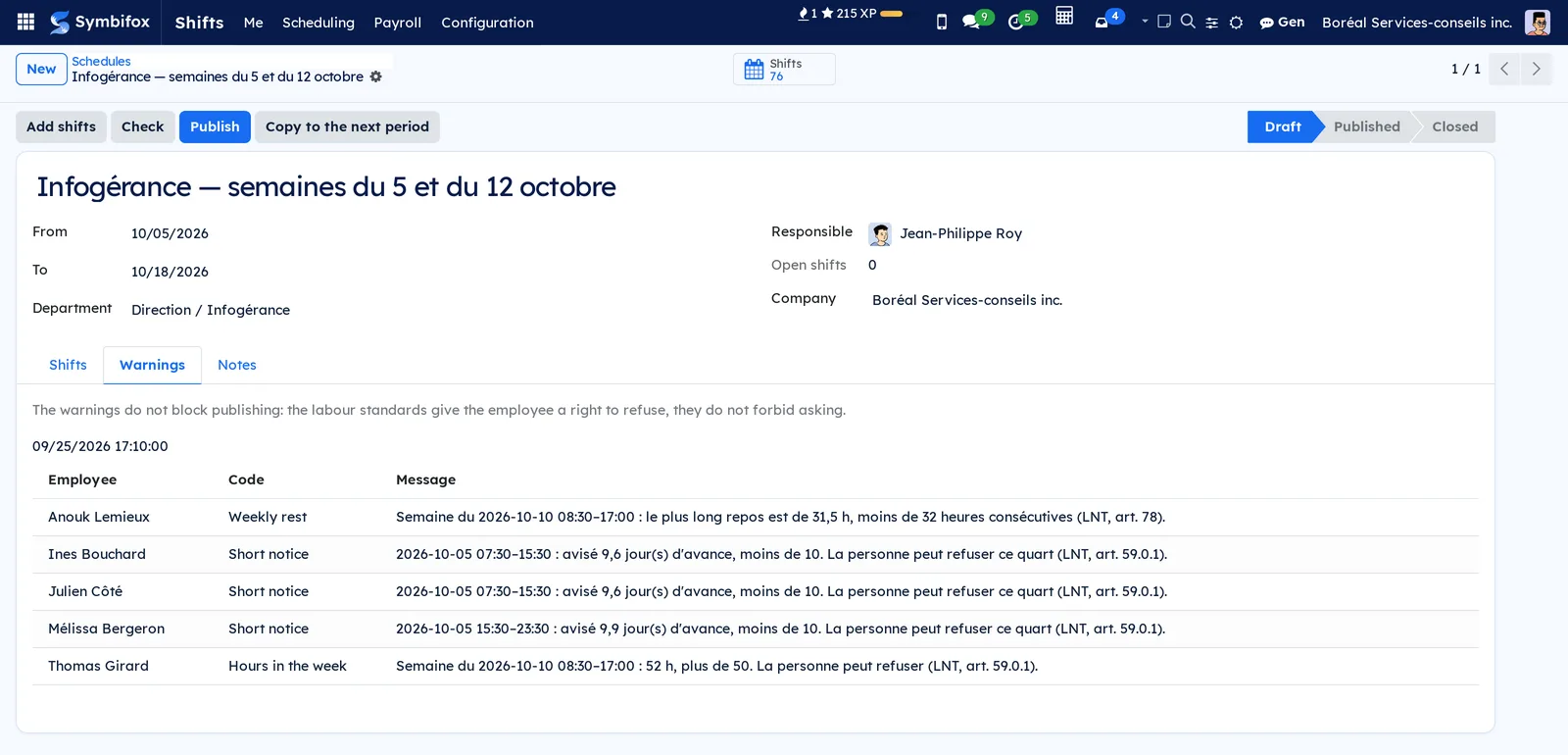
Each warning cites the section involved and says whether the person may refuse. You can publish despite a warning: the warning stays on record.
Publish a schedule#
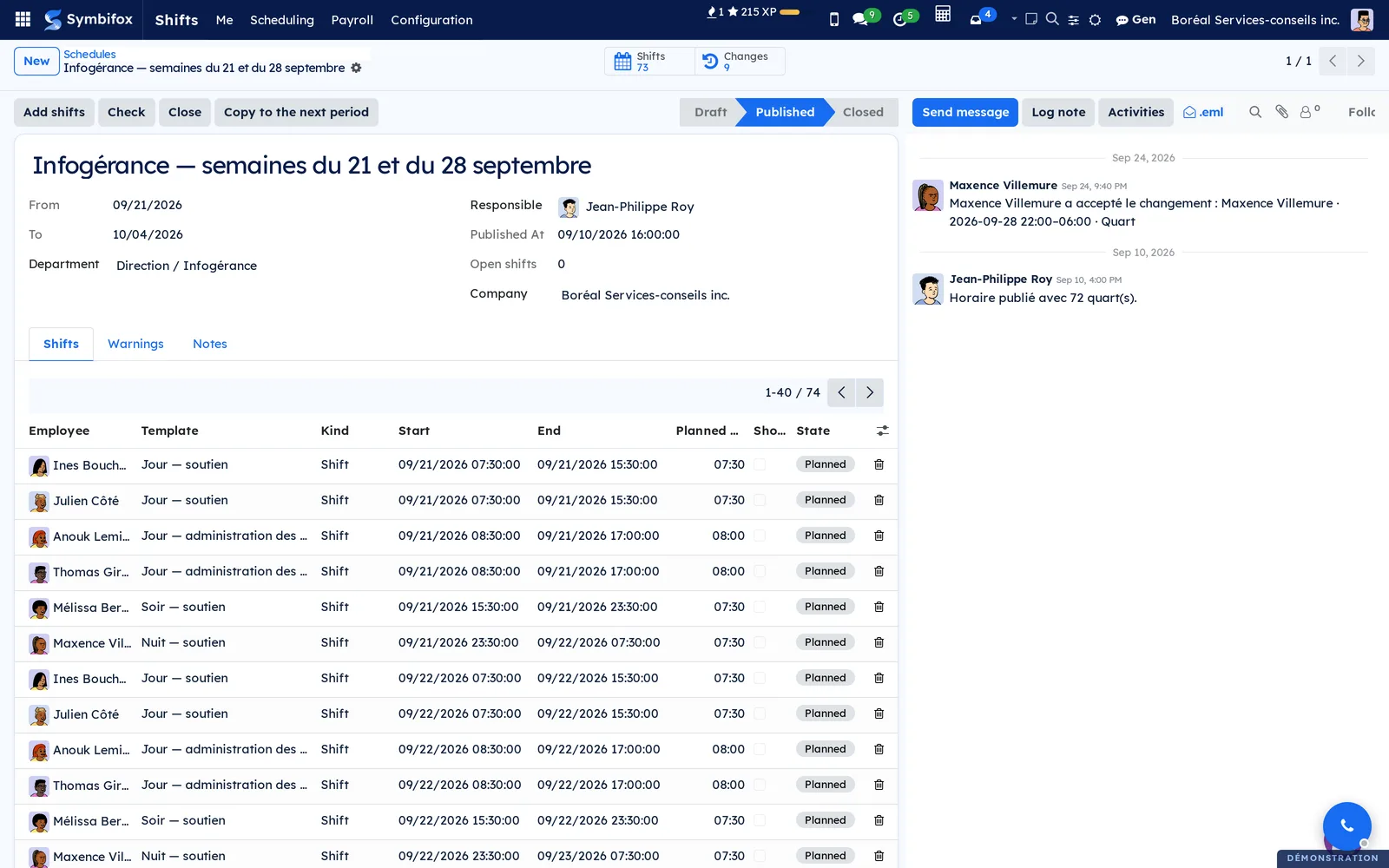
Publish moves the schedule to Published and notifies each person. The Changes button at the top of the form opens the log of that schedule.
Change a published schedule#
Adding, moving, reassigning or cancelling a shift on a published schedule is allowed, with a reason. The change goes to the log and the person is notified. If the change falls inside the notice period, it waits for their answer: Accept or Refuse, recorded once.
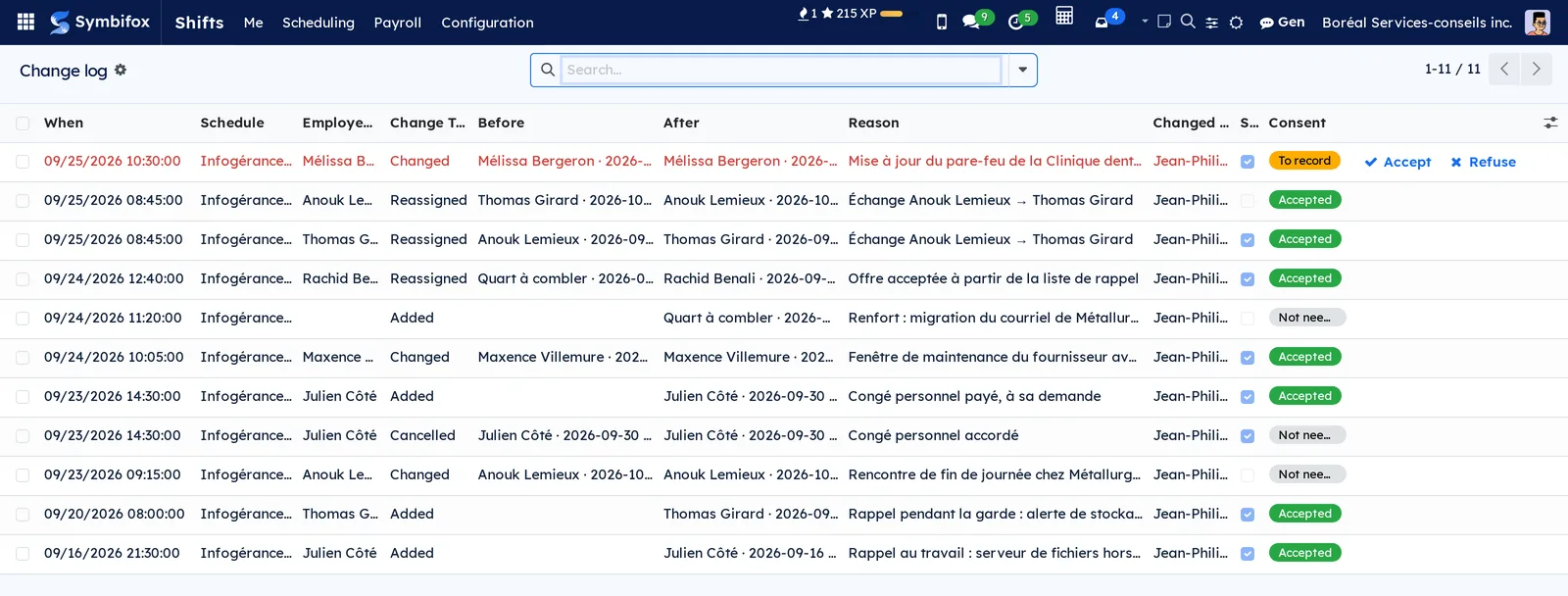
The log is under Shifts > Me > Change log. An employee sees only what concerns them.
Fill an open shift#
A shift with nobody on it is an open shift. Under Shifts > Scheduling > Open shift offers, the offer goes to the first eligible person on the call list, with an answer time. Someone already working or unavailable is skipped, with the reason recorded. A refusal or a missed deadline moves the offer to the next person. Depending on the agreement, a refusal can count as hours offered, and a number of refusals removes the person from the list.
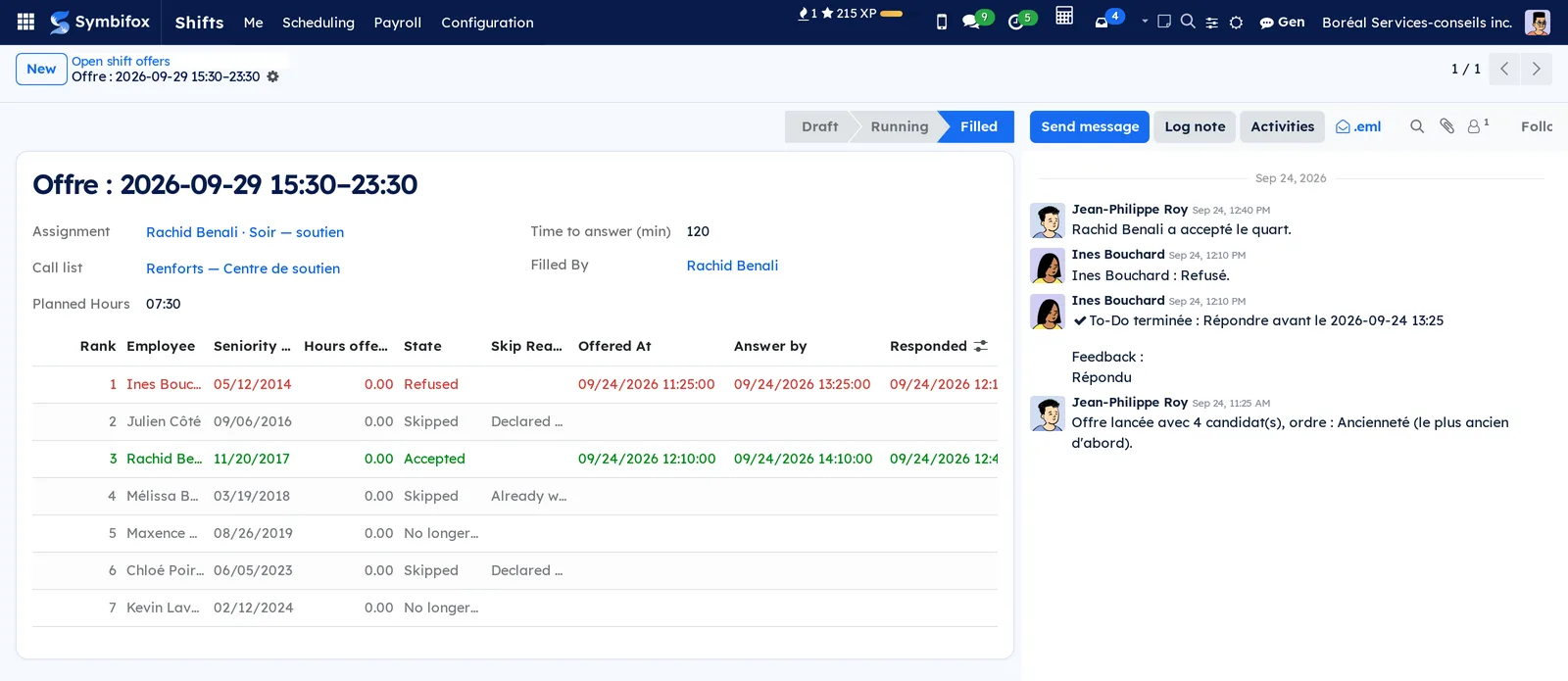
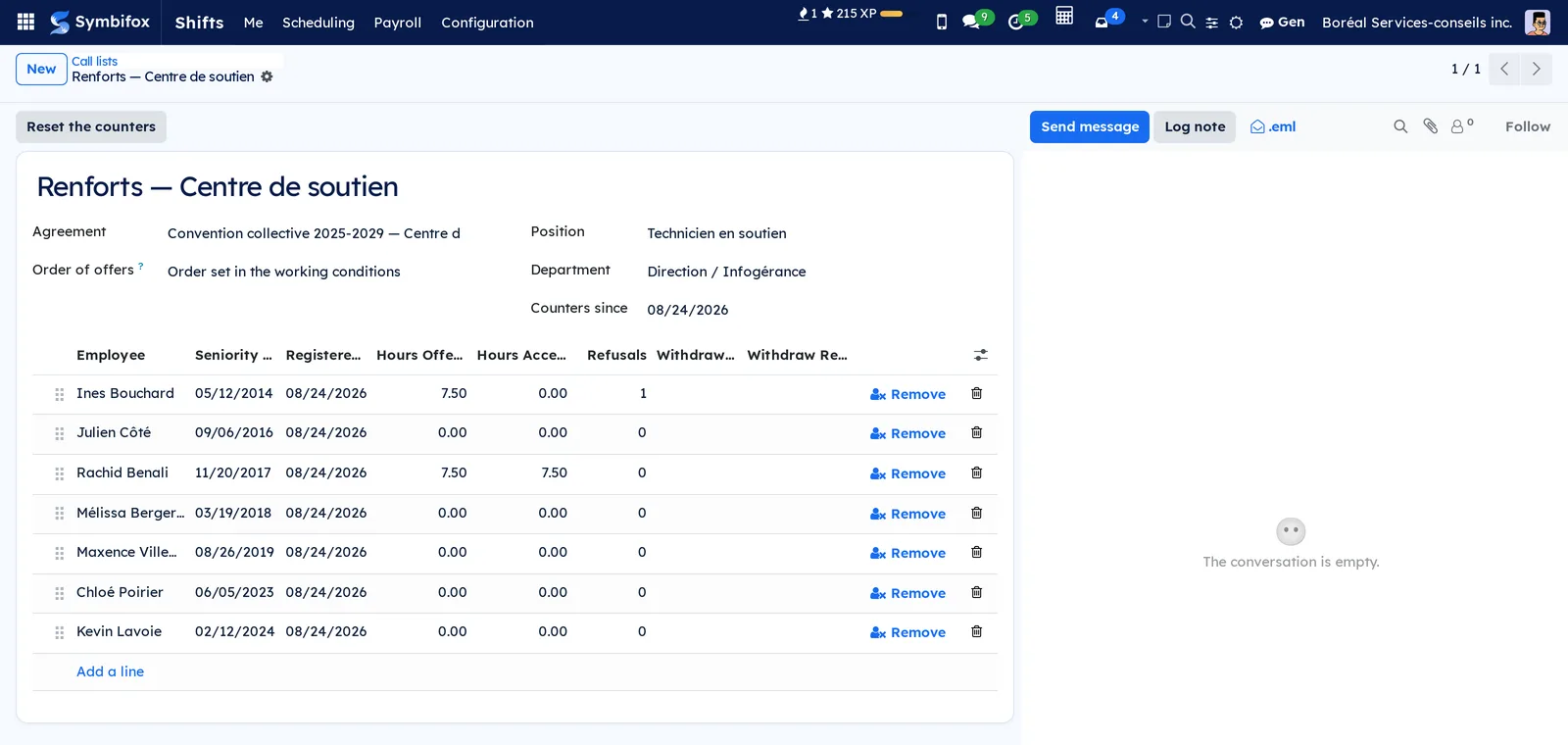
The call list shows each person's seniority date, hours offered and accepted, and refusals. Reset the counters starts a new cycle.
Approve a swap#
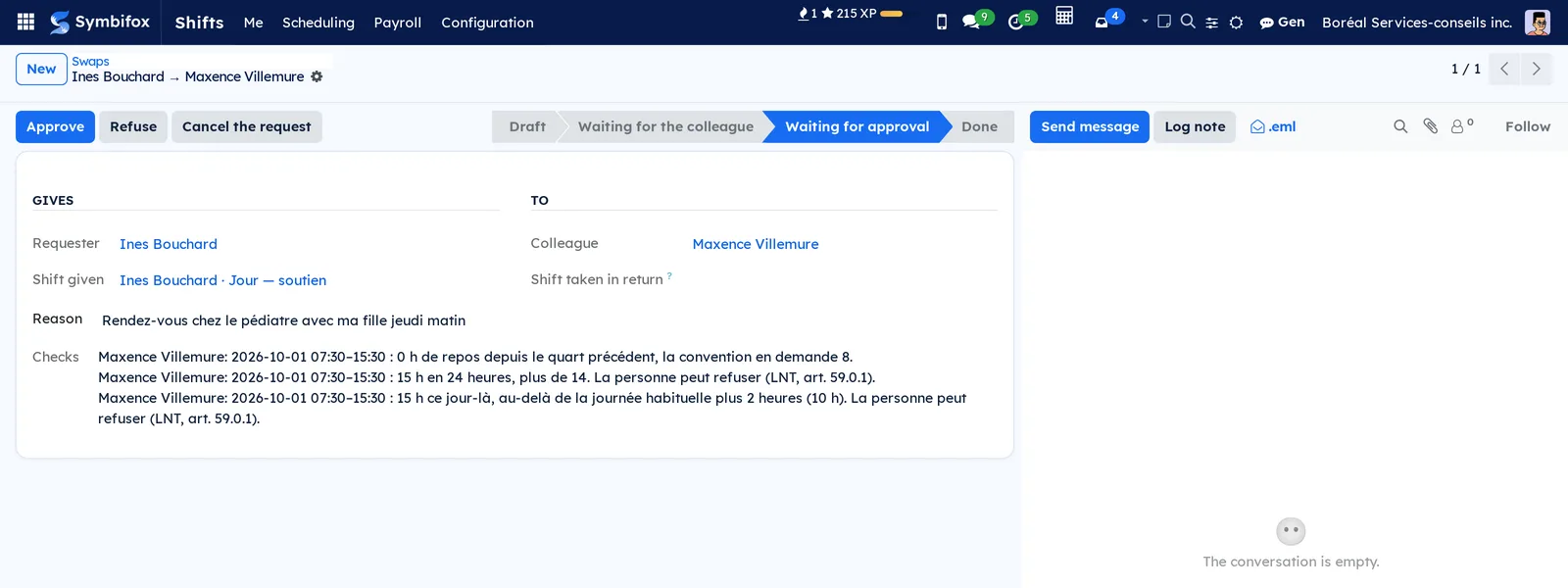
An employee can give a shift to a colleague or exchange it for one of theirs, under Shifts > Me > Swaps. The colleague accepts first. Then, if the agreement requires it, a manager approves. The warnings the swap would raise are recorded on the request: the manager sees them before deciding.
Declare availability#
Under Shifts > Me > Availability, each person states when they are available or not, as a standard week or by dates. Checks and offers take it into account.
Declare a benefit#
Under Shifts > Me > Benefits, an employee declares an overtime meal, a taxi home, parking or a uniform, and attaches the receipt. The app marks the benefit taxable, not taxable or to check, separately for Québec and federally, and says why. For example, an overtime meal without a receipt can be non-taxable federally and taxable in Québec. The manager approves, then the benefit goes into the pay period.
Close a pay period#
Before computing, enter the hours actually worked on the shifts that ran differently (actual start, end, break), then click Close on the schedule: a closed schedule only accepts those actual hours.
Under Shifts > Payroll > Pay periods, create the period, click Compute, review the lines, then Export for payroll. The export produces the CSV file and locks the period. Reopen remains possible if a correction is needed.
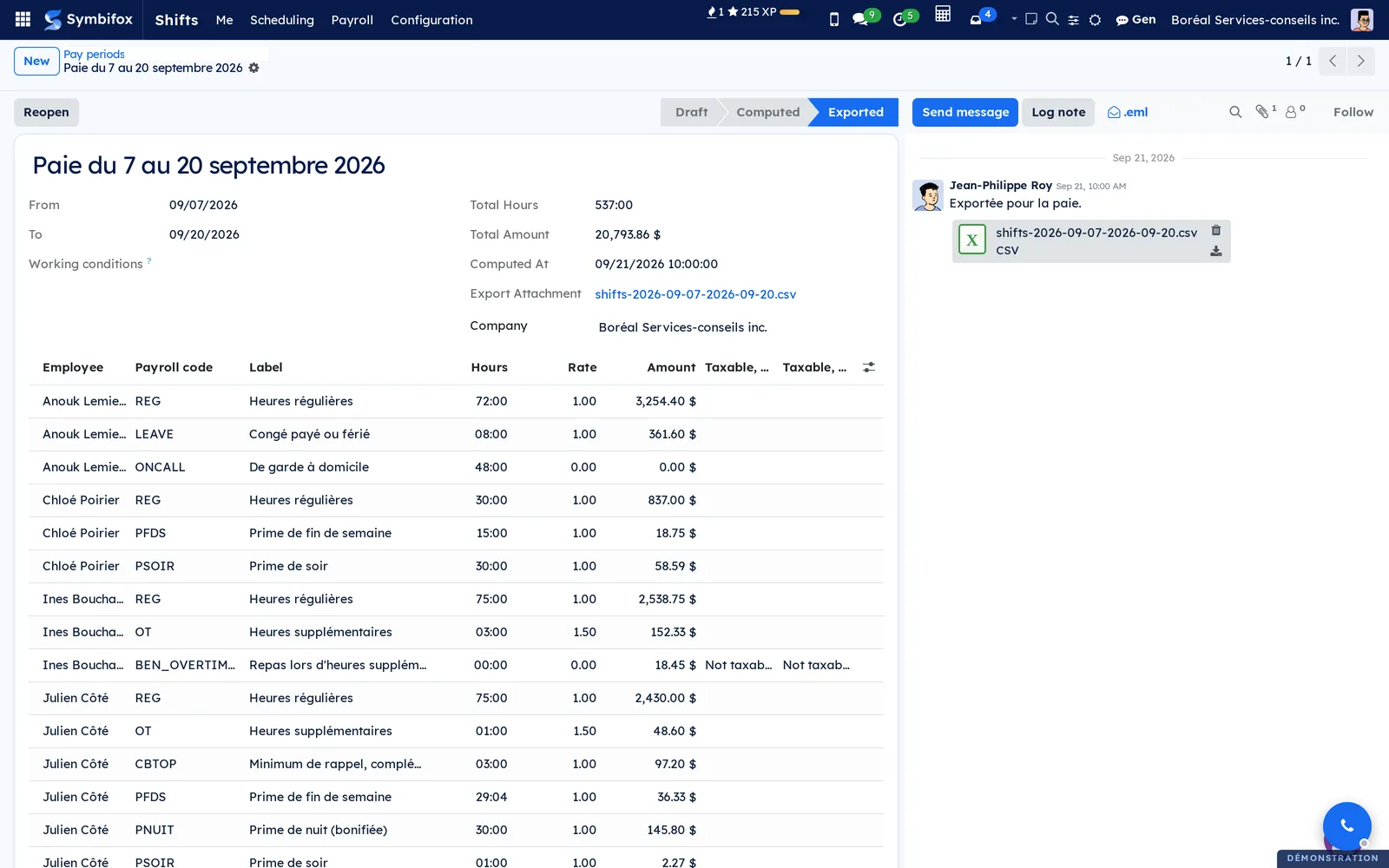
The codes (REG, OT, PSOIR, PNUIT, CBTOP and the others) are those of your working conditions. Your payroll provider receives them as they are.
The menus, one by one#
Shifts has four groups. Me and Scheduling open to every shift employee; Payroll and Configuration are reserved to managers.
Shifts > Me > My shifts opens your own shifts, as a calendar or a list.
Shifts > Me > Shifts offered to me opens the offers awaiting your answer, with the deadline.
Shifts > Me > Swaps opens your swap or give-away requests, and those a colleague sends you.
Shifts > Me > Availability opens what you declared, as a standard week or by dates.
Shifts > Me > Benefits opens your declared benefits, with the tax verdict of each.
Shifts > Me > Change log opens the changes that concern you, and, for a manager, the whole log. Changes awaiting an answer carry the Accept and Refuse buttons.
Shifts > Scheduling > Schedules opens the schedules, most recent first.
Shifts > Scheduling > Shifts (managers) opens every shift as a calendar, a list or a pivot table, filtered by default on shifts that are not cancelled.
Shifts > Scheduling > Open shift offers (managers) opens the offers, with their current rank and state.
Shifts > Scheduling > Call lists opens the posted lists, with everyone's seniority and counters.
Shifts > Payroll > Pay periods and Shifts > Payroll > Pay lines open the periods, then their coded lines, as a pivot table or a list.
Shifts > Configuration > Working conditions, Shift templates and Days of the week hold the master data. Days of the week serve whole-day premiums; leave them as they are.
Reference#
Shift template form fields#
| Field | Description | Required or default |
|---|---|---|
| Name | The name of the standard shift | Required |
| Code | A short code, shown in lists | Optional |
| Starts at, Ends at | The shift's hours; the end may cross midnight | Required |
| Meal break (min) | The length of the break | Optional |
| Paid break | Tick when the person cannot leave the workstation during the break (LNT s. 79) | Unticked |
| Type | Day, Evening, Night, Weekend or On call | Day |
| Position, Department | The position is carried to the shifts created from the template | Optional |
Schedule form fields#
| Field | Description | Required or default |
|---|---|---|
| Name | What the period is called | Required |
| From, To | The dates covered | Required |
| Department | The department the schedule is for | Optional |
| Responsible | The person who publishes | Optional |
| Published At, Checked At | Stamped by the app | Automatic |
| State | Draft, Published or Closed | Draft |
Call list form fields#
| Field | Description | Required or default |
|---|---|---|
| Name | The name of the list | Required |
| Agreement | The working conditions that govern it | Required |
| Position, Department | The pool concerned | Optional |
| Order of offers | Seniority, rotation or inverse seniority | Empty: the order of the working conditions |
| Counters since | Start of the current cycle | Today |
Reports and exports#
The pay period produces a CSV file on export: one line per employee and code, with hours, rate, amount and, for benefits, the Québec and federal tax verdicts. Other lists export through the standard export.
Automations#
A scheduled action runs every five minutes over open offers: an offer whose deadline has passed is recorded as "no answer" and moves to the next person. Paid hours, warnings and tax verdicts compute on their own, without settings.
Public pages and portal#
The app exposes no public page and no portal access. Each employee works in it through their user account.
Modules that extend this application#
No module extends it for now. Labour relations keeps the certification, grievances and official seniority alongside: the two apps are read together without depending on each other.
Understanding#
Why warnings do not block. The LNT gives the person the right to refuse a shift announced too late or a day that runs too long. It does not forbid the employer from asking. An app that blocked publishing would also block a legitimate arrangement. So it warns, and the warning stays on record.
Why the log cannot be edited. In arbitration, the question is what was posted, changed and answered, and when. A log the manager could correct would prove nothing. Even a manager reads it without being able to touch it, and an answer is recorded once.
Why the LNT stays beneath the agreement. An agreement can provide better than the law, never less. When an entered value is less favourable, the app applies the LNT and says so on the record, rather than letting an input error through.
What the app does not do.
- It computes no deductions and produces neither RL-1 nor T4 slips. Deductions stay with the payroll provider.
- It has not been reviewed by a lawyer or a tax specialist. Have these points confirmed before relying on them: the scope of LNT s. 59.0.1 for variable schedules, the retention period of the hours register, the federal treatment of a taxi home, the Québec treatment of subsidised meals, on-call pay, CNESST contributions and averaging of hours.
- Averaging of hours (s. 53) is not computed. For now, it is represented by raising the weekly threshold.
- A shift that crosses two weeks counts entirely in the week it starts.
- Holiday indemnity eligibility (absence the day before or after) is not checked. The indemnity is computed at the usual rate, without premiums.
- There is no time clock: actual hours are entered on the shifts.
Troubleshooting#
An employee sees no shift. Their employee record is not linked to their user, or they do not have the Shifts / Employee group. Check both.
The Payroll or Configuration menu does not appear. It is reserved to the Shifts / Manager group.
An answer to an offer is refused. The answer time had run out. The offer has already moved to the next person.
A change waits for an answer when you meant to impose it. It falls inside the notice period. The person may refuse it; that is their right, and it is why the app waits.
An exported period refuses changes. An exported period is locked. Use Reopen, correct, then export again.
A closed schedule refuses a change. A closed schedule only accepts actual hours (start, end, break).
See also#
- Employees: the person's record, position and department.
- Labour relations: certification, collective agreement, official seniority and grievances.