
Part 8 · Buildings
Occupant portal and operations
Open a portal of announcements, documents, maintenance requests, bookings and parcels to occupants, then route each request to the building's team and keep the building maintained.
This chapter covers the daily life of a building. On one side, the portal, where co-owners and lessees read announcements, consult documents, report a problem, book a common space and follow their parcels. On the other, operations, in the Maintenance app: the equipment located in the building, preventive maintenance, the teams and their work shifts. A request filed on the portal becomes work to carry out, and the occupant sees what was done.
Overview#
The portal is for people linked to an organisation: co-owners, recorded in the ownership register, and occupants, attached to the fraction they rent. It serves the syndicate of co-ownership described in Divided co-ownership. A lessor's lessee has a portal of their own, described in Residential leasing.
Every announcement and every document has an audience: Co-owners only, Occupants only or Co-owners and occupants. The lessee appears in the syndicate's register by name and address (art. 1070 CCQ), but the register is not open to them (art. 1070.1). The portal enforces that boundary.
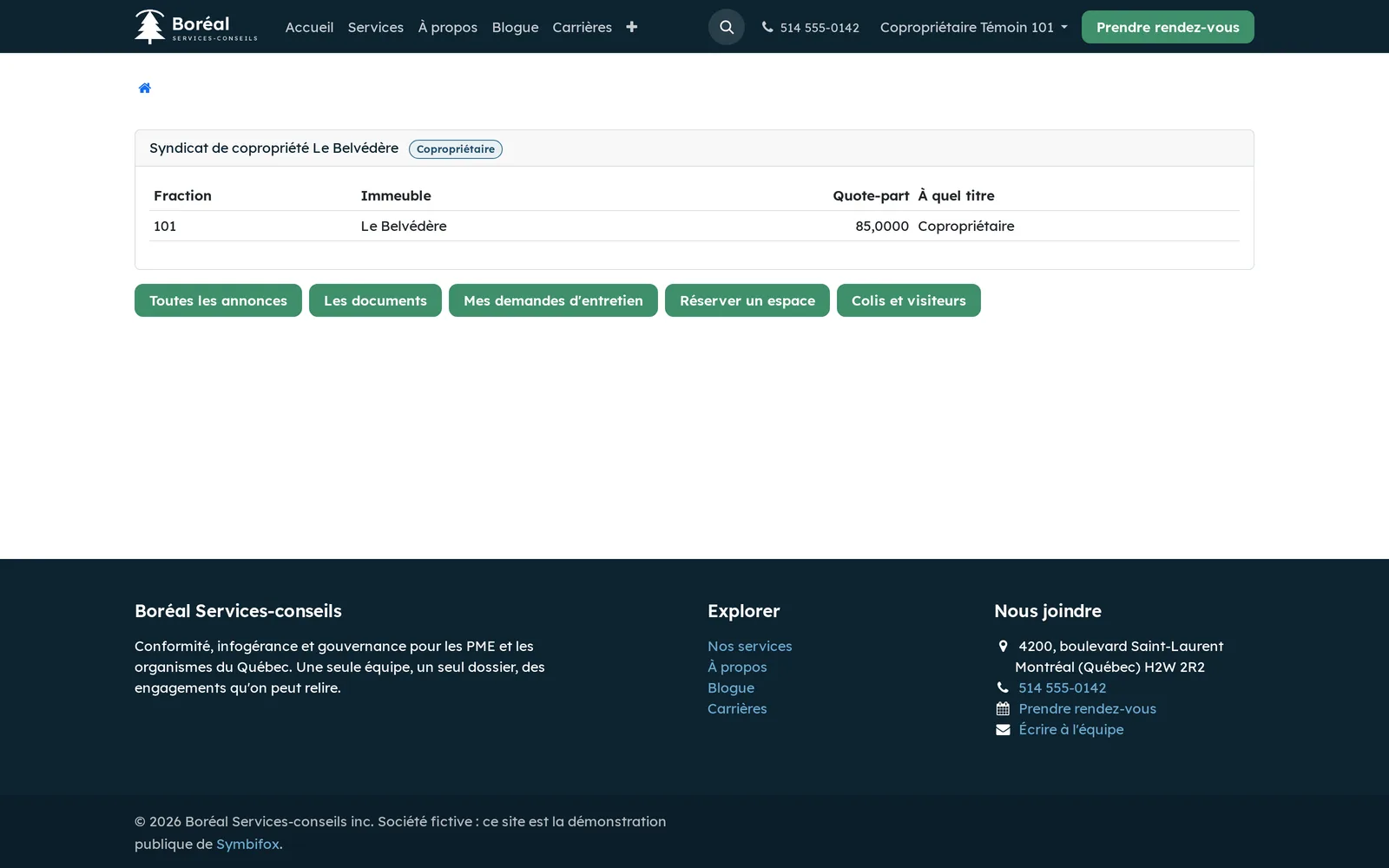
Here is the portal home page of a co-owner of the demonstration: their fraction, its relative value, the capacity in which they hold it, and the five doors of the portal. The portal screenshots show the demonstration in French; the portal pages are translated into English (Canada), with the labels used in this chapter.
At the office, portal filings arrive under Properties › Portal. Operations live in Odoo's Maintenance app, which the suite extends: a piece of equipment knows which immovable and which common portion it is in, each immovable names its maintenance team, and a maintenance request reaches that team without anyone dispatching it.
Configuration#
Access and rights#
| Role | What it opens |
|---|---|
| Properties / Consultation | Read access to announcements, documents, requests, bookings, parcels and visitors. |
| Properties / Manager | Publishing to the portal, answering requests, deciding on bookings, inviting residents. Managers also have the Operations role. |
| Properties / Operations | Equipment, maintenance schedules, work shifts and analyses in Maintenance. This role grants equipment management rights. |
| Portal | The co-owner or occupant: reading what concerns them, filing their own requests, bookings and announced visitors. |
An account created with the Operations role receives its notifications in Odoo rather than by email, so that a shift's list shows up in the app's inbox. An existing account keeps its choice: the shift screen names the people who will not receive notices.
Settings#
On the organisation record, Portal tab:
- Person to contact, Portal email, Portal telephone and Portal details: the contact details the portal shows;
- Undertaking to take in charge (days): the time the syndicate gives itself to answer a request; at zero, nothing is counted;
- Log retention (days): how long before closed parcels and visits are deleted; at zero, nothing is deleted;
- Text-message notices and Sending line, if text-message notices are installed.
Further down the same record, Occupant satisfaction section: Measure occupant satisfaction, unchecked by default.
On a bookable common portion: Confirmation by the syndicate required, Maximum duration (minutes), Bookable in advance (days) and Conditions of use, the text of the by-laws of the immovable as the occupant should read it.
In their preferences, each office user sets Portal filings by email: Safety requests only (default), Everything filed on the portal or No email.
Base data#
- On each immovable, choose the Maintenance team.
- Under Maintenance › Configuration › Maintenance Teams, name each team's Team leader.
- On each piece of equipment, enter the Immovable and, as the case may be, the Fraction or the Common portion.
- Invite residents to the portal from their fraction.
Getting started#
A request's path, from the portal to its resolution:
- The occupant opens My maintenance requests on the portal, describes what they see and selects Send the request.
- At the office, open Properties › Portal › Maintenance requests: the request is grouped by immovable.
- Select Take in charge: the request goes to the leader of the immovable's team.
- Select Open a work to create the maintenance work, then Works under way.
- Once the work is done, fill in the What was done tab and select Settle.
- The occupant sees the Settled status and the answer on their portal.
Common tasks#
Invite residents to the portal#
On a fraction, Invite to the portal invites the current co-owners and, if the fraction is rented, the occupant. Each receives an email with a link to choose a password.
- Open Properties › Structure › Fractions.
- Open the fraction.
- Select Invite to the portal.
A person already invited receives a new link: it is also what to do when someone has lost their password. The fraction's chatter (the message thread at the bottom of the form) keeps a summary of the invitations.
Publish an announcement#
- Open Properties › Portal › Announcements and create the announcement: title, text, immovable.
- Choose the Audience.
- Enter Displayed from and Removed after; check Pinned if needed.
- Select Publish.
The announcement shows on the portal during its display window, to its audience only. Remove from the portal takes it down.
Publish a document#
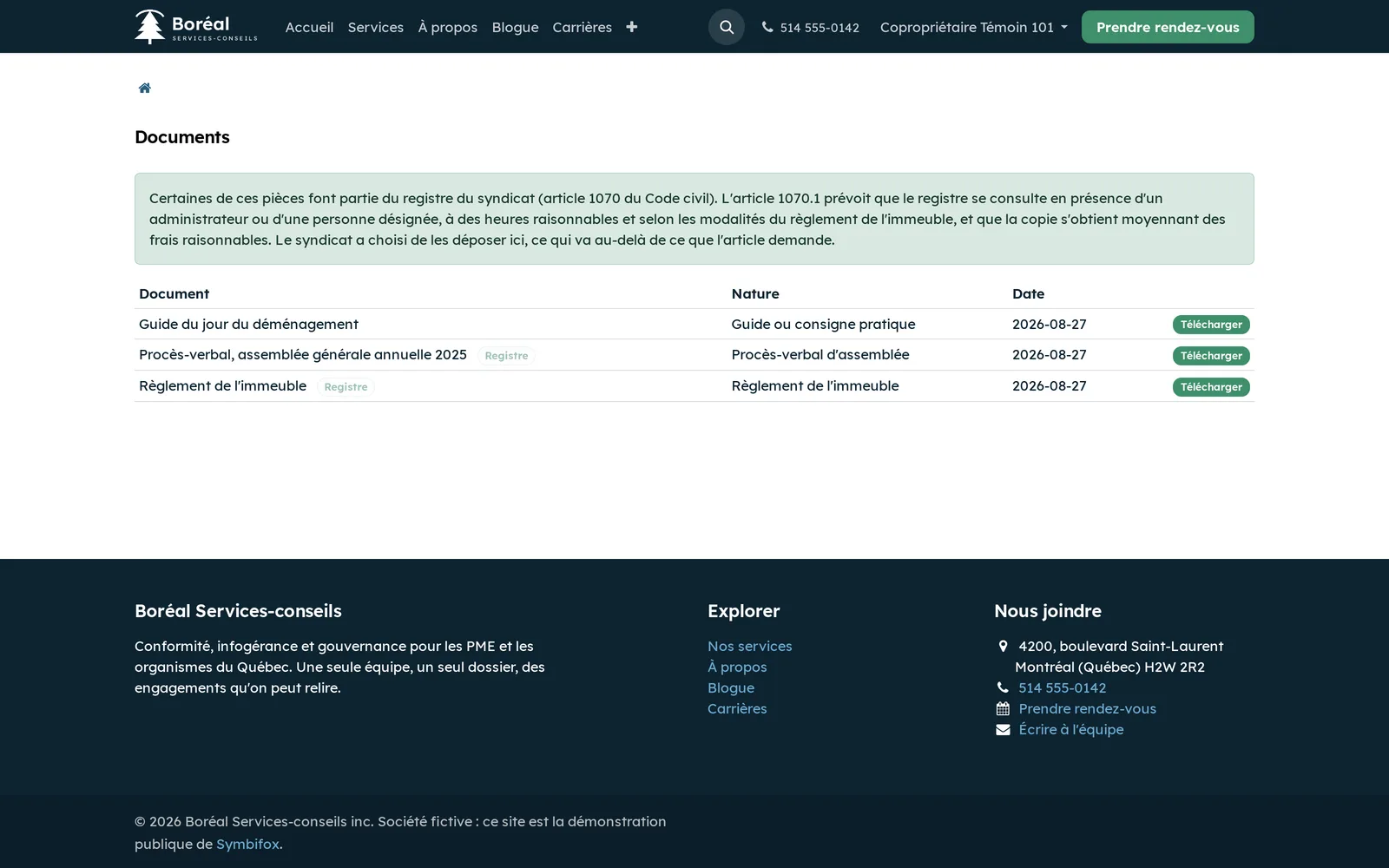
Thirteen document natures are documents of the register under art. 1070 CCQ: minutes of the general meeting and of the board, written resolutions, by-laws of the immovable, financial statements, the declaration, contracts, the cadastral plan, plans and specifications, location certificates, the maintenance log, the contingency fund study, and the description of the private portions. The others (notices, guides, forms) are published freely.
- Open Properties › Portal › Documents and create the document: title, nature, file, audience.
- For a document of the register, check Publication of the register assumed.
- Select Publish to the portal.
Without that box, publishing a document of the register is refused, with a reminder of art. 1070.1. Changing the nature of a published document into a document of the register removes it from the portal.
Handle a maintenance request#
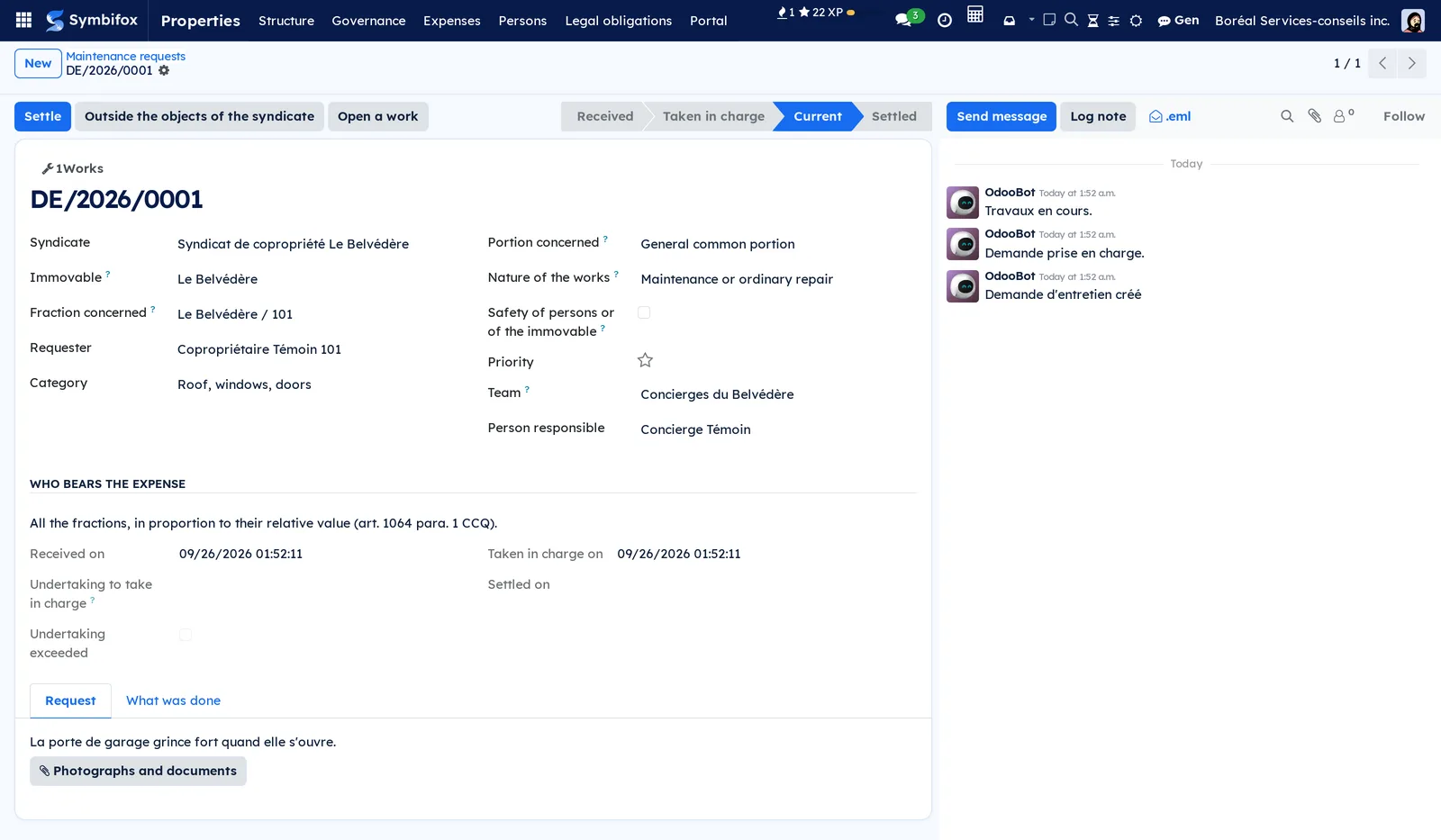
The request states the Portion concerned (general, for restricted use, private, or to be determined) and the Nature of the works. From those two values, the Who bears the expense section derives the reading of art. 1064 CCQ: all fractions, or only the beneficiaries of a portion for restricted use for ordinary maintenance.
- Open the request under Properties › Portal › Maintenance requests.
- Qualify the portion concerned and the nature of the works.
- Select Take in charge, then Works under way.
- Fill in What was done.
- Select Settle.
A request outside the syndicate's objects (art. 1039) closes with Outside the objects of the syndicate, with its reason. A request never closes without saying what was done or why. Reopen brings it back. A request that concerns the safety of persons or of the immovable also goes to the office by email.
Open a work from a request#
A request can lead to zero, one or several works: zero when a word settles it, several when the garage door turns out to be both the motor and the rail.
- On the request, select Open a work.
- Complete the work in Maintenance: equipment, technician, date.
The Works button at the top of the request leads to the works opened. The occupant sees neither the team, nor the technician, nor the works: they see their request's status and what was done.
Decide on a booking#
The occupant books a common space on the portal. A requested slot holds the space just as a confirmed one does.
- Open Properties › Portal › Bookings: the list is grouped by space.
- Open the booking.
- Select Confirm, or enter the Ground for the decision and select Refuse.
A common portion for restricted use cannot be booked by anyone: the app refuses and names the fractions that have its use (art. 1043). An occupant who moves a confirmed booking sends it back to Requested. Cancel frees the slot.
Receive a parcel and announce a visitor#
- When a parcel arrives, open Properties › Portal › Parcel and create the record: fraction, recipient, Nature, carrier, Where it is stored.
- When it is handed over, select Handed over, or Returned if it goes back to the sender.
The occupant announces their visitors on the portal. On arrival, the front desk selects Arrived, then Left. On the portal, each person sees only their own parcels and visitors. Announcing a visitor warns the caretaker; it opens no door.
Send a text-message notice#
A telephone number only goes into the register with the person's express consent (art. 1070 para. 1). Consent is therefore a dated record, per organisation, under Properties › Portal › Text-message notices, with two choices: Parcel and Urgent notices.
- On the published announcement, select Send by text message.
- Check the number of Recipients reached.
A parcel recorded notifies on its own the person who consented to it. The message gives only the syndicate's name: no door number, no carrier. Withdraw the consent closes it without erasing it. Nothing goes out if the syndicate has not opened the channel.
Follow processing times#
Properties › Portal › Processing times opens a pivot table of measurable requests, by immovable and against the undertaking: time to take in charge, time to settle, and the result against the undertaking. No law imposes a response time; the table measures the one the syndicate set for itself.
Locate equipment and schedule its maintenance#
- Open Maintenance › Equipment and open the equipment.
- Enter the Immovable and the Common portion or the Fraction.
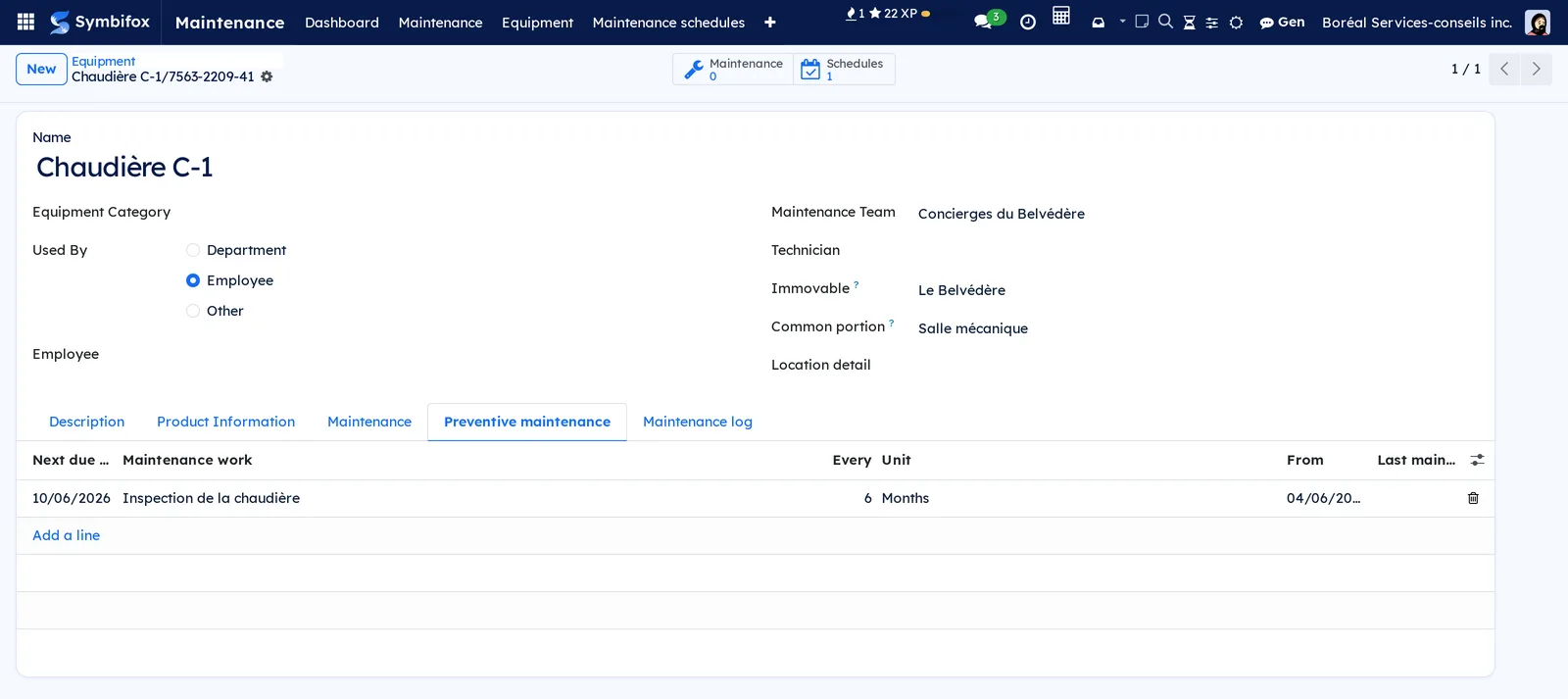
- In the Preventive maintenance tab, add a schedule: the work, the frequency (Every and Unit), the start date.
Each night, a task opens the preventive works coming due, whether or not the previous ones were closed: the backlog becomes the signal. Open what is due, on the schedule, does it right away.
Scheduled work that was not done is declared with Not done, with its reason: the annual update of the maintenance log requires the works not done and why.
Run a work shift#
A shift carries a time span, a team, people and its work list.
- Open Maintenance › Work shifts and create the shift.
- Select Compose the list: the works under way and the overdue preventive work of the team's immovables, or of the chosen immovable, are added.
- Select Open the shift.
- At the end of the shift, select Close and hand over, choose the next shift and enter What passes to the next shift.
Recomposing a list adds what has come up, without erasing anything. Remove takes a work off the list, with its reason. A shift records the work done, not hours: for schedules and payroll, see Shifts.
The menus, one by one#
Maintenance is Odoo's app. The entries the suite adds are flagged.
Maintenance › Dashboard opens the maintenance teams as cards, with their requests.
Maintenance › Maintenance groups Maintenance Requests (the works, in a kanban by stage) and Maintenance Calendar.
Maintenance › Equipment opens the equipment; the suite adds its location in the building and the Preventive maintenance and Maintenance log tabs.
Maintenance › Maintenance schedules (added by the suite) opens the schedules, their frequency and their next due date.
Maintenance › Work shifts (added by the suite) opens the shifts and their status: Prepared, Current, Closed.
Maintenance › Reporting groups Maintenance Requests, the standard analysis, and two added analyses: Operations, the backlog by immovable and by team, and What comes back, by item, the number of interventions and the time between two failures, by immovable.
Maintenance › Configuration groups Settings, Maintenance Teams (with their immovables and team leader), Equipment Categories, Maintenance Stages and Activity Types.
Under Properties › Portal, eight entries:
Properties › Portal › Maintenance requests opens the open requests, grouped by immovable.
Properties › Portal › Processing times opens the pivot table of processing times.
Properties › Portal › Bookings opens the active bookings, grouped by space.
Properties › Portal › Announcements opens the announcements and their display window.
Properties › Portal › Parcel opens the parcels held, grouped by immovable.
Properties › Portal › Visitors opens the expected visitors, grouped by immovable.
Properties › Portal › Documents opens the portal documents, their nature and their audience.
Properties › Portal › Text-message notices opens the consents to text-message notices.
Reference#
Maintenance request form fields#
| Field | Description | Required or default |
|---|---|---|
| Immovable, Fraction concerned | Where the problem is; the fraction stays empty for a lobby or the grounds | Optional |
| Requester | The person who filed the request | Required, set automatically on the portal |
| Category | Plumbing, Electricity, Heating, ventilation, air conditioning, Lift, Roof, windows, doors, Cleanliness, Grounds and parking, Vermin, Security and access, Other | Optional |
| Portion concerned | General common portion, for restricted use, private, or To be determined | To be determined |
| Nature of the works | Maintenance or ordinary repair, Major repair or replacement, or To be determined | To be determined |
| Safety of persons or of the immovable | Triggers the email notice to the office | Unchecked |
| Team, Person responsible | Taken from the immovable when the request is taken in charge | Automatic |
| What was done | The answer, required to settle | Required to settle |
Booking form fields#
| Field | Description | Required or default |
|---|---|---|
| Space | The common portion booked | Required |
| Booked by | The person | Required |
| In respect of fraction | The fraction the booking rests on | Optional |
| Beginning, End | The slot, in the person's time zone | Required |
| Ground or details | What the person wrote | Optional |
| Ground for the decision | Required to refuse | Optional |
Maintenance schedule form fields#
| Field | Description | Required or default |
|---|---|---|
| Maintenance work | What is to be done | Required |
| Item | The equipment maintained | Required |
| Every, Unit | The frequency, in days, weeks, months or years | 1 month |
| From, Until | The schedule's period | Start: today |
| Open the work in advance (days) | How many days before the due date the work opens | 0 |
| Instruction | Copied onto every work opened | Optional |
Reports and exports#
The two Maintenance analyses and the processing times table open as a graph, a pivot table or a list, and export through the standard export.
Automations#
- Each night, closed parcels and visits older than the retention period are deleted, not archived. A parcel still held or a visitor still expected stays, whatever its date.
- Each night, preventive works coming due are opened.
- A portal filing notifies the office in Odoo. Depending on each person's preference, a safety request, or any filing, also goes out by email.
- A parcel recorded notifies by text message the person who consented to it.
- A settled request triggers, if the syndicate turned it on, an email asking the occupant how it went.
Public pages and portal#
Every page requires a session: no anonymous link gives access to a document of the register.
| Address | What it shows |
|---|---|
/my/property |
The person's fractions, in what capacity, and how to reach the syndicate |
/my/property/announcements |
Published announcements, within their window, for their audience |
/my/property/documents |
Documents for their audience, with the register notice |
/my/property/requests |
Their requests, and the form to file one |
/my/property/bookings |
Bookable spaces, what is already taken, and their bookings |
/my/property/deliveries |
Their parcels, and the visitors they announce |
Here is a co-owner's request form and list of requests. A help text recalls that the portion concerned decides who bears the expense.
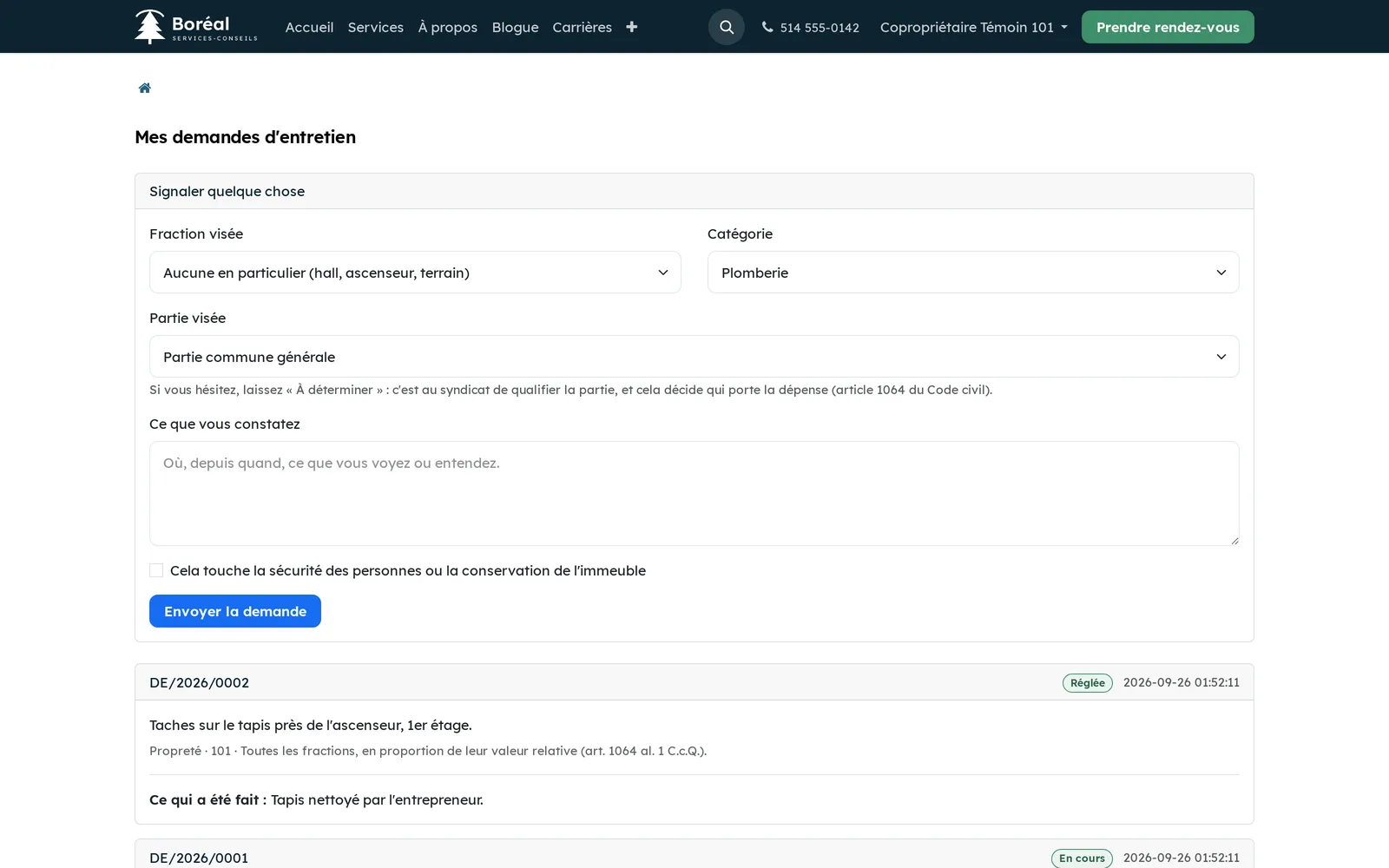
The bookings page shows that a slot is taken, never by whom. The portal offers no directory of the other occupants.
Modules that extend this application#
The art. 1064 reading stays on the request; the work does not copy it.
See SMS, calls and SIP phone for the sending line.
See Customer experience. Each send that is refused (no address, person solicited recently) leaves a line in the request's chatter.
The equipment then carries the Maintenance log tab. The signal blocks nothing and clears when the works are recorded in the log.
See Privacy (Law 25 and other frameworks).
Understanding#
Publishing the register is a decision. Art. 1070.1 has the register consulted in the presence of a director, at reasonable hours, with a copy for a reasonable fee. Putting it on the portal gives more than the article requires. That is not forbidden; it is a choice, and the app makes the syndicate take it rather than taking it by default.
The lessee is not the co-owner. The boundary between audiences is held by access rules, not by the screen: a lessee who guesses the address of a document reserved for co-owners gets nothing.
The log expires. A visitor log is about people who consented to nothing. It is therefore deleted after the chosen period. The retention period has no legislative source the app claims to cite; it is a question for legal review. What the text-message provider keeps does not follow this purge, and the screen says so.
What the app does not claim. It encodes neither access to a private portion for works nor the notice or indemnity that goes with it. It says nothing about custody of a parcel. It controls no lock and no intercom.
Two readings of one item. The maintenance log describes the boiler for the regulation; operations describe it for the team. Merging them would destroy information; the risk is drift, hence a signal rather than a copy.
Bookings do not rely on the Appointments app. Booking a room is not an appointment with a person; the portal handles them itself.
Troubleshooting#
| Symptom | Likely cause | Fix |
|---|---|---|
| Publishing a document is refused | It is a document of the register and publication is not assumed | Check Publication of the register assumed, then publish |
| A lessee does not see an announcement | The audience is Co-owners only, or the announcement is outside its display window | Check the audience and the dates |
| A booking is refused on the portal | The space is for restricted use, the slot overlaps another, or it exceeds the allowed duration or horizon | Read the message, which names the cause |
| A request cannot be settled | What was done is empty | Describe what was done, then settle |
| The caretaker does not get safety requests by email | Their Portal filings by email preference is No email | Change the preference |
| No text message goes out | The channel is not open on the organisation, or the person did not consent to that type of notice | Check both; the reason is written in the chatter |
| No survey arrives after a settled request | Measure occupant satisfaction is unchecked, or the occupant was solicited recently | Read the line left in the request's chatter |
See also#
- Divided co-ownership: the syndicate, its register, its meetings and its expenses.
- Residential leasing: the lease, notices and the lessee's portal.
- Shifts: employee schedules and payroll, not to be confused with Maintenance work shifts.
- Customer experience: measuring satisfaction.
- Privacy (Law 25 and other frameworks): the register of processing activities.