

Part 9 · Schools
School
Keep students and their families, reach every parent on the portal, get trips and contracts signed, admit new students, and follow attendance, conduct, homework, health and meals.
The School app lets a private school keep its students, their families and its daily life in Symbifox. It is for the school office, which enrols, admits, contracts and bills; for teachers, who take attendance, record conduct and post homework; and for the nurse or the people named for health matters. Parents never open the app: they follow everything on the family portal, on a computer or a phone. The result is one record per student, and every notice going to the right adult.
Overview#
Everything starts from three ideas. A school has school years, only one of which is current, and groups for the year (301, Les Hiboux, Secondaire 1 A) with their teachers. A student is a contact flagged as a student, with a birth date and a permanent code (the Québec code permanent); the student is enrolled in one or more groups. A family link ties an adult to a student.
The family link is the heart of the app. It does not just say "parent": it carries roles you tick, one by one. Parental authority, Receives notices, Signs, Pays, May pick up, Emergency contact, Lives with. Shared custody becomes two links that receive notices and sign, only one of which pays. A father's partner who picks the child up without parental authority gets a link with no signature and no notices. A grandmother to call in an emergency gets an Emergency contact link and nothing else. A grandparent or an "Other" link actually starts with no authority, no signature and no notices: the school ticks what it decides.
These roles drive everything else. An announcement goes to the adults who receive notices. A trip authorisation, a contract or a medication authorisation goes to the adults who sign. Meals are ordered by the adult who pays or by a holder of parental authority. Health, conduct and declaring an absence on the portal are for holders of parental authority. The parental authority links also feed the Law 25 consents (Québec's Act respecting the protection of personal information in the private sector): under 14, the parents are asked; from 14, the student.
Here is the record of a student of École Boréale, the demo's fictitious school, open on the student's guardians.
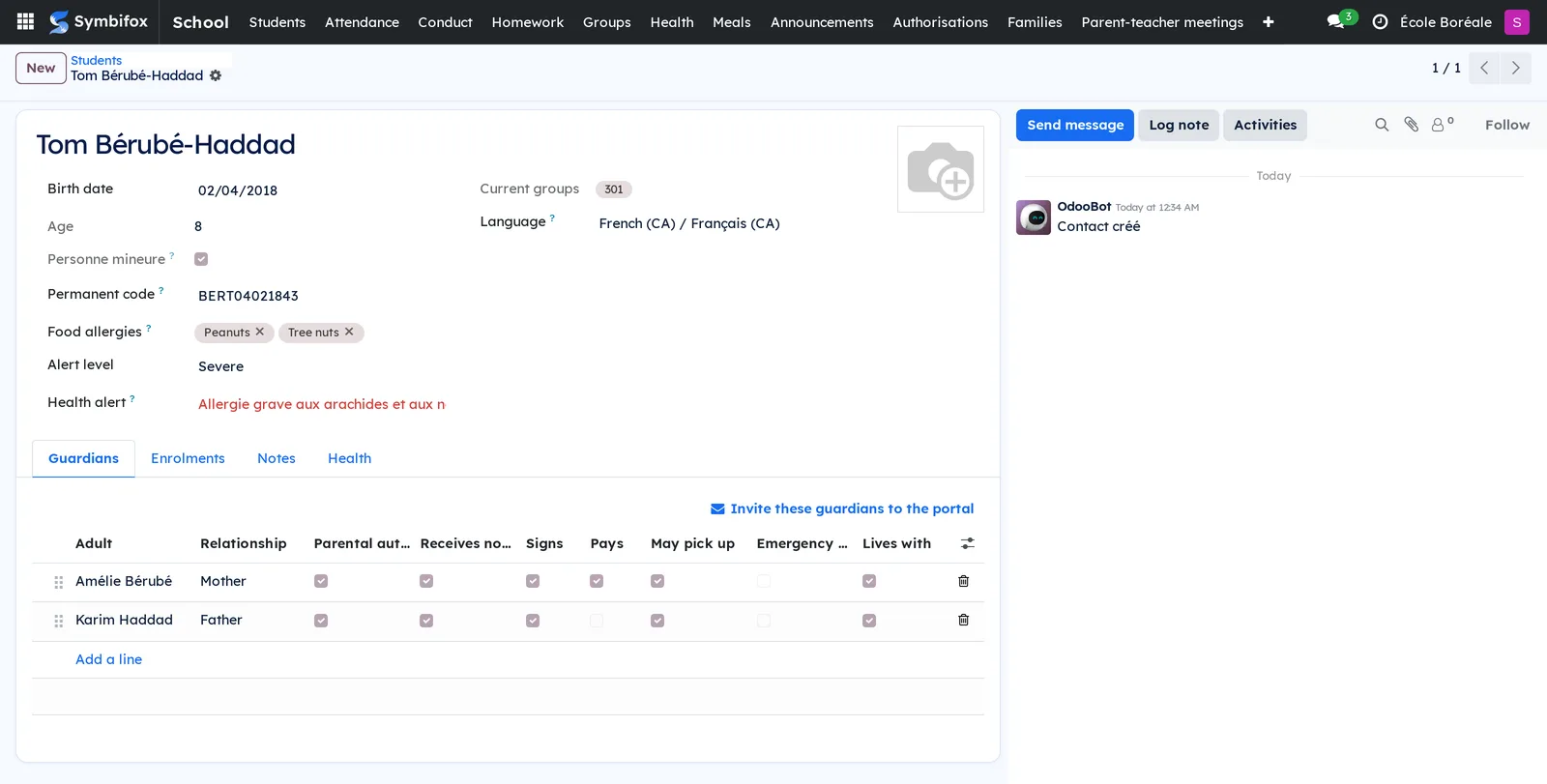
The screenshots in this chapter come from the École Boréale demo database. You see the school office, a teacher of group 301 and a mother of three on the portal.
The app relies on base applications: Contacts for adults and students, Invoicing for admission fees and meals, Electronic signatures for the contract, Noticeboard for announcements and Privacy (Law 25 and other frameworks) for consents.
Configuration#
Access and permissions#
Three roles are set on each user's record, under the School category. A teacher is a Staff member listed as a teacher of a group.
| Role | What it opens |
|---|---|
| School / Staff | Read schools, groups, students and families, without changing anything. A teacher takes attendance, records conduct, posts homework and writes to the families of their own groups, and sees their meeting schedule. All staff see a student's health alert. |
| School / Administration | The school office. Creates and edits everything, invites families, sends announcements, authorisations, contracts and consent requests, runs admissions, meetings, menus and meal accounts. This role also grants noticeboard editing, privacy management and sending for signature. It sees applications and their invoices, and asks for fees, without any accounting right. |
| School / Health | The detailed health record, the emergency plan, medication authorisations and the register of doses. The school names the people in this group (the nurse, a designated office member). Administration does not get it by default: health is read on a need-to-know basis. |
To record a payment made at the front desk (an admission fee, a meal account top-up), the school gives the Invoicing role separately to the people who handle it.
Parents have no access right on the school's data. The portal reads everything from the signed-in adult's own links: a family never reaches another family's child.
Settings#
The settings live on the school's record: School › Configuration › Schools. At the top, two buttons act on the whole school: Invite families to the portal and Ask this year's consents. The Students shortcut button counts the students enrolled this year.
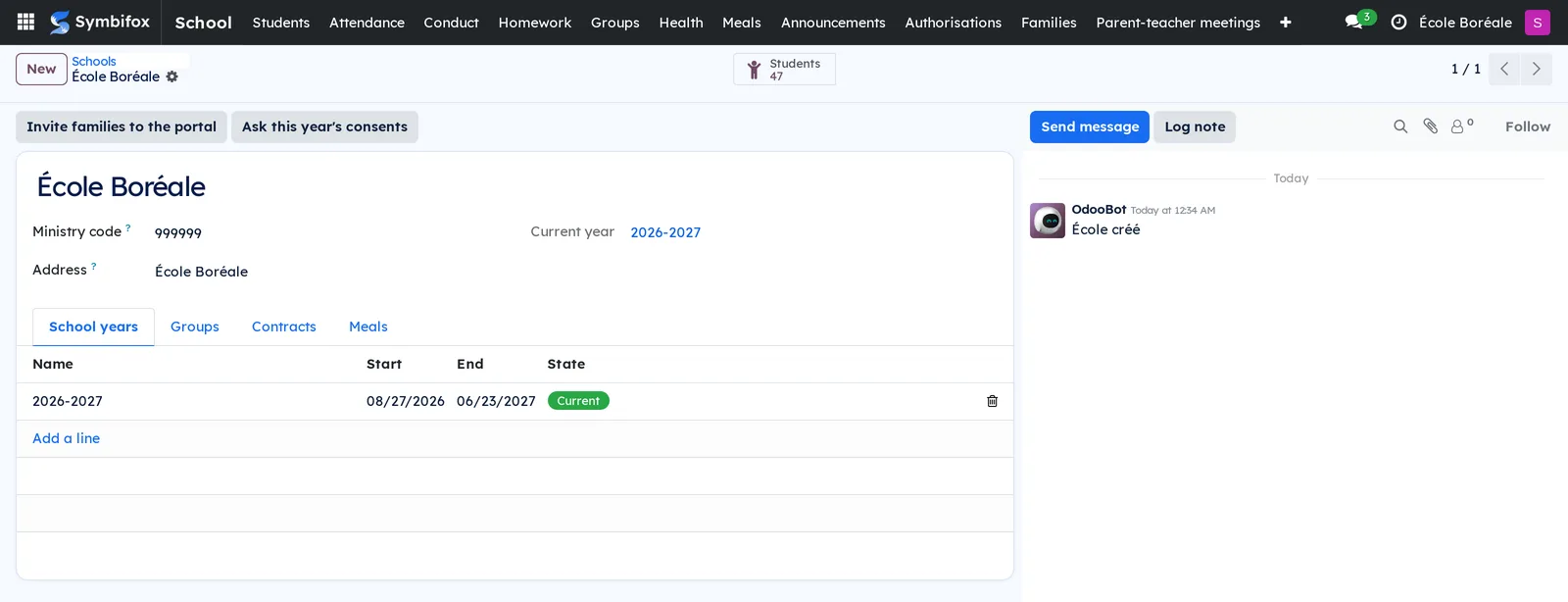
- Ministry code: the organization code the Québec ministry of Education gives the school.
- School years tab: the years, with their dates. Make current makes a year the current one; there is only one at a time.
- Contracts tab: Educational services on the permit, Language of instruction and the Print section 14 of the regulation box, to check if the school provided a security. These three mentions print on every contract.
- Meals tab: Meal payment ("Prepaid balance", "Monthly invoice" or "The family chooses"), Order ahead (days) and Cancel until (hour, same day).
Base data#
The app comes with lists already filled in, to adapt under School › Configuration:
- Levels: from "Pre-K (4 years)" to "Secondary V", with their code and stage (preschool, elementary, secondary).
- Authorisation types: "Field trip", "Extracurricular activity" and "Overnight stay". The last one needs the agreement of every guardian who signs.
- Absence reasons: illness, medical or dental appointment, family reason, trip during school days, other, unjustified. Each reason says whether it is Justified and whether Families may choose it on the portal.
- Rules of conduct and Sanctions: those of the regulation on rules of conduct (civility, cell phone, image captured without consent, respect, schedules, bullying, violence, sexual violence), and the sanctions by level, from a warning to an external suspension, plus the restorative gesture.
- Food allergens: Health Canada's priority allergens.
Before the first student, create the school, its current year and its groups with their teachers. The Law 25 consent texts need adapting before the first request (see Ask this year's consents).
Getting started#
This walk-through enrols a student in a group, links two parents with shared custody, and invites them to the portal.
- Open School › Groups and check that the group exists for the current year, with its teacher.
- Go to School › Students and select New.
- Enter the name, the Birth date and the Permanent code (four letters, then eight digits).
- In the Enrolments tab, add a line and choose the group.
- In the Guardians tab, add the mother: Relationship "Mother", then check Parental authority, Receives notices, Signs and Lives with.
- Add the father the same way, and also check Pays on the line of whichever parent receives the invoices.
- Save, then select Invite these guardians to the portal, above the list of guardians.
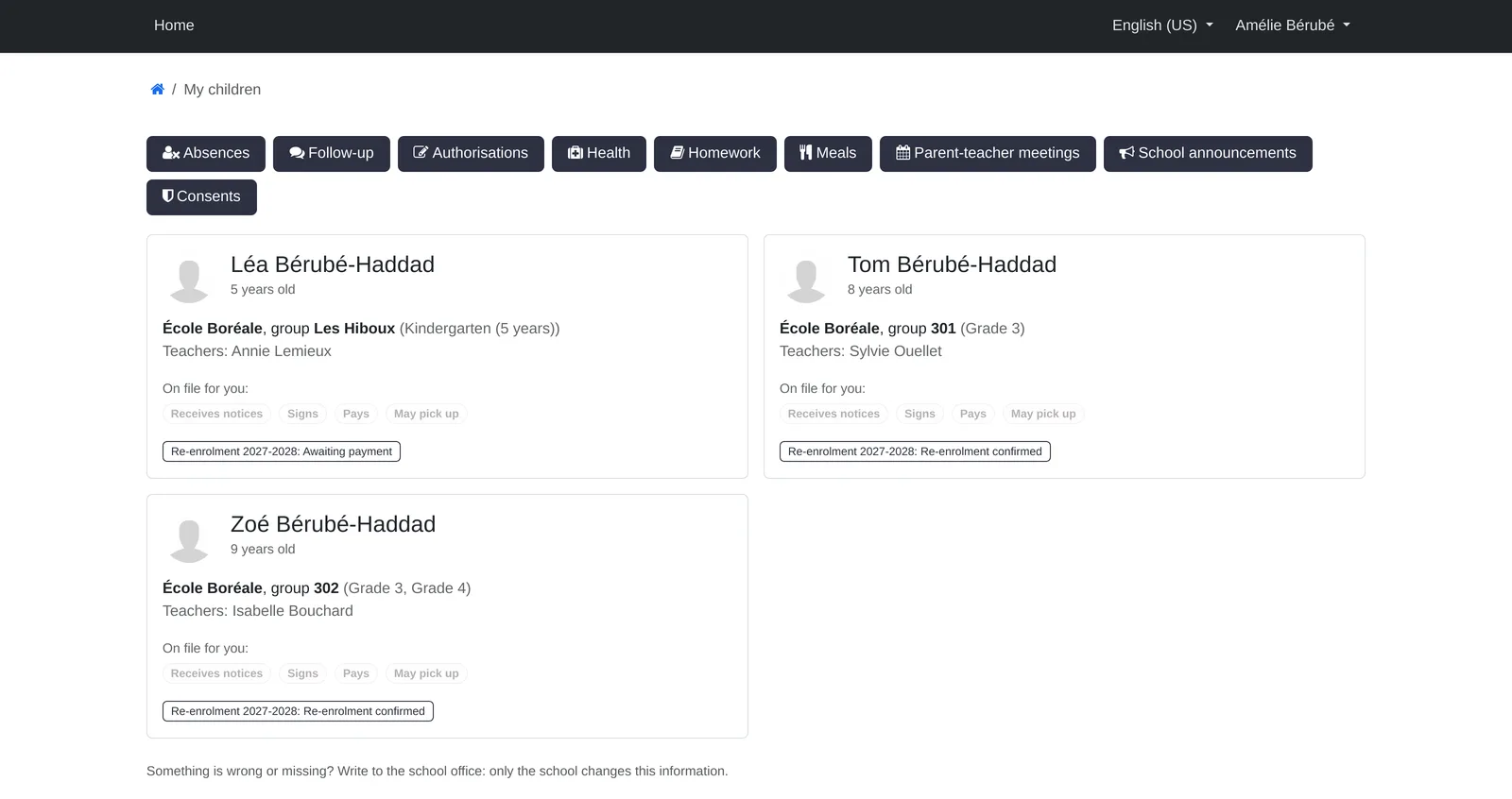
Result: the student shows in the group, both parents get a portal invitation, and their My children page shows the child, the group, the teacher and the roles recorded for each of them.
Common tasks#
Enrol a student and their guardians#
Each adult is linked only once to a given student; their roles are ticked on that one link.
- Open School › Students, then the student's record or New.
- Fill in the birth date, the permanent code and, if needed, the Food allergies.
- In Enrolments, choose the year's group.
- In Guardians, add each adult and tick their roles.
- If needed, add a Note on the link: only staff see it.
Result: the record shows the computed age, the Personne mineure box (minor) and the list of guardians. When a student leaves a group, the enrolment's Leaves button keeps it as history.
Invite families to the portal#
Only the adults who receive notices are invited.
- For one student: open the record and select Invite these guardians to the portal.
- For the whole school: open School › Configuration › Schools, then the school's record.
- Select Invite families to the portal.
Result: a message says how many invitations went out, how many adults already had access and how many have no usable email, then names the records to fix. An adult already on the portal, or a staff member, is never invited twice.
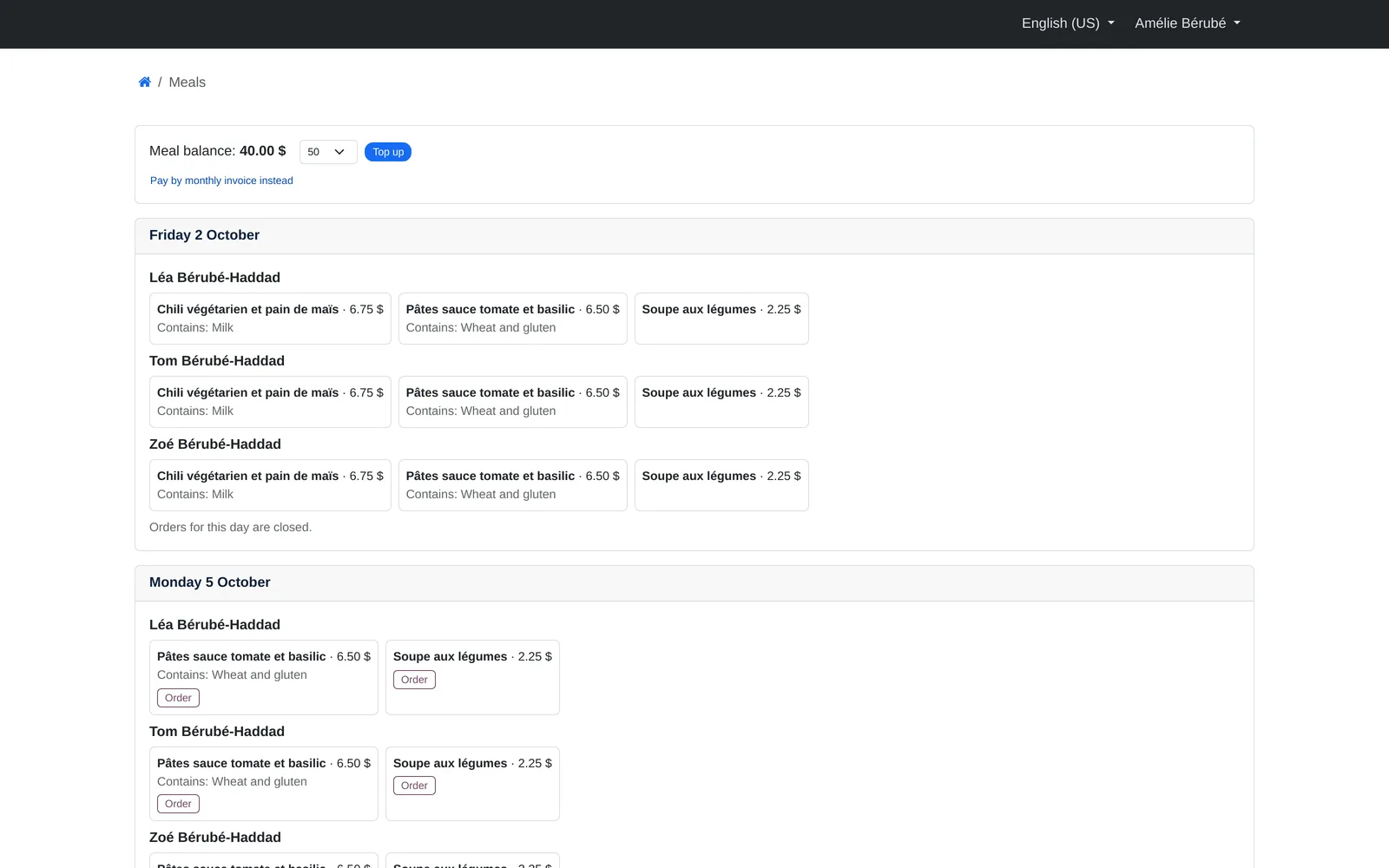
On the portal, the My children page is the door to everything else: absences, follow-up, authorisations, health, homework, meals, meetings, announcements and consents.
Publish an announcement to families#
An announcement goes to the whole school or to chosen groups. Each adult gets one email, in their language, whose subject names their children: a parent of three gets one email, not three.
- Open School › Announcements and select New.
- Enter the title and the content.
- Keep the "School families" audience and choose the School.
- Leave School groups empty for the whole school, or choose groups.
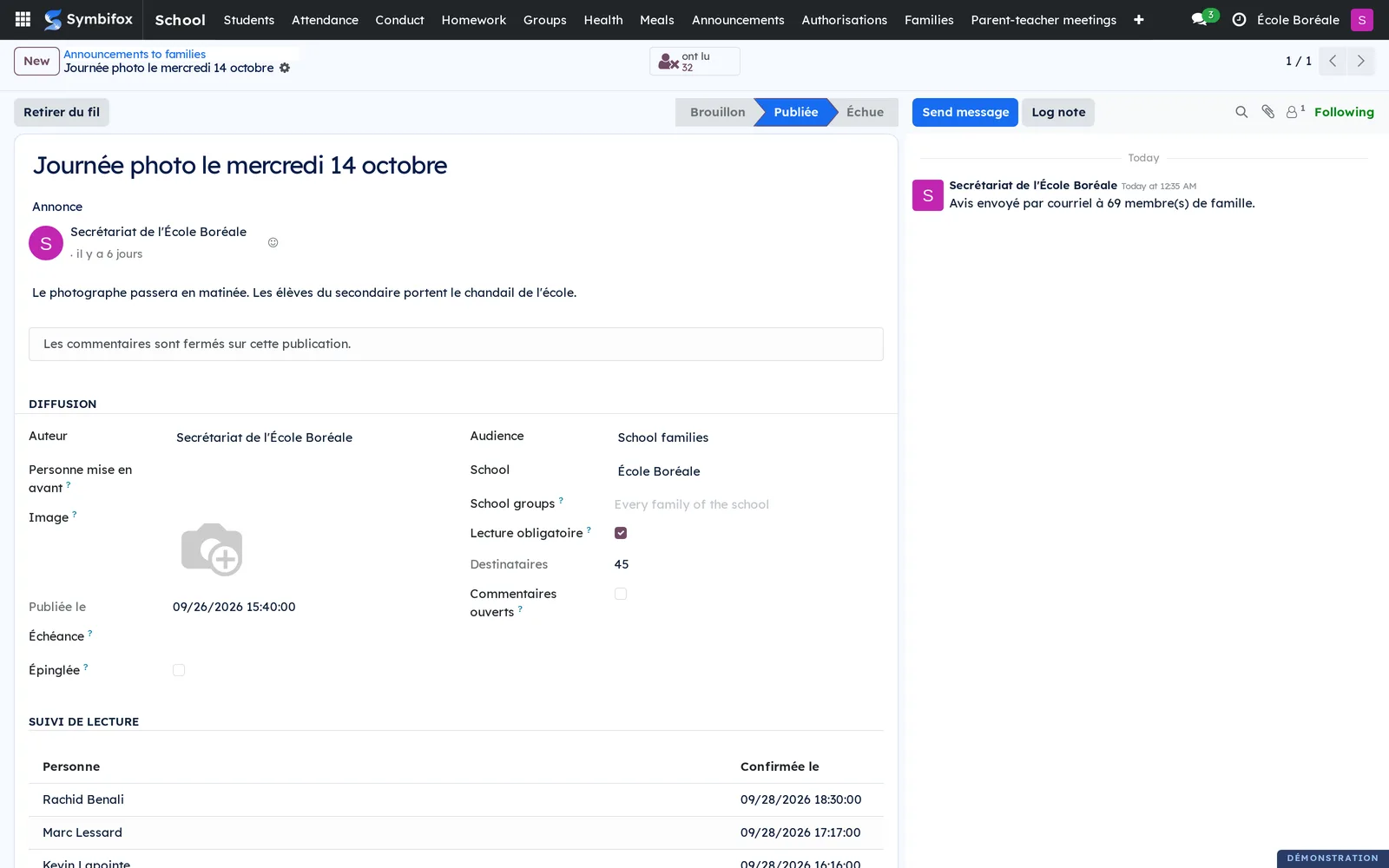
- Check Lecture obligatoire (mandatory reading) if the school wants a read receipt.
- Select Publier (publish).
Result: the announcement shows on the portal under School announcements and goes out by email. On the record, the Suivi de lecture section (read tracking) lists who confirmed and when.
Send a trip authorisation#
The office writes the authorisation; each adult who signs gets a personal link that works without an account.
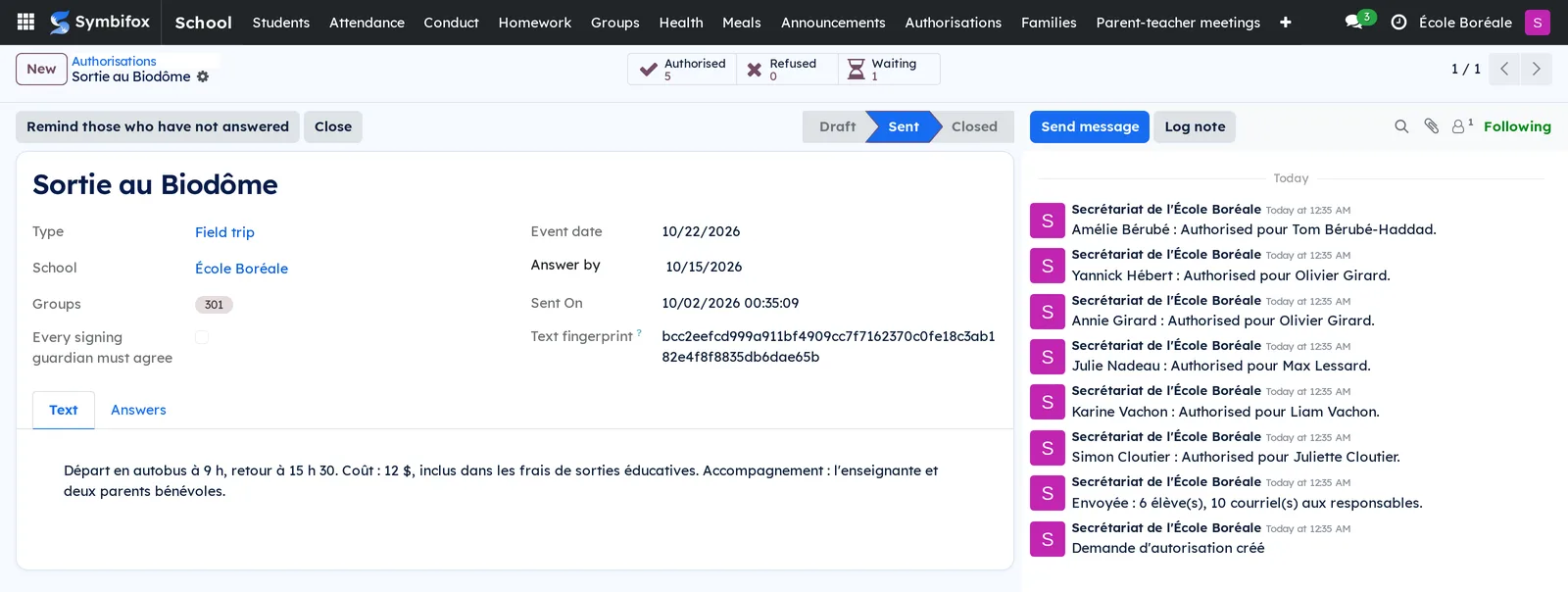
- Open School › Authorisations and select New.
- Choose the Type, the Groups, the Event date and Answer by.
- Write the text in the Text tab.
- Select Send to families.
- Later, select Remind those who have not answered if needed.
Result: one answer per student enrolled in those groups; the Authorised, Refused and Waiting counters stay up to date, the Answers tab details them, and the chatter (the message thread at the bottom of the record) logs each answer. Once sent, the text can no longer change: its fingerprint proves what the parents answered.
Ask this year's consents#
Four school purposes are ready: photos and videos inside the school, photos and videos published outside the school, the contact list of the group's families, and outside educational platforms.
- Before the first request, adapt the texts: the name of the person in charge of personal information, and the list of the school's educational platforms.
- Open the school's record and select Ask this year's consents.
- Check the students proposed in the dialog, then select Créer les demandes (create the requests).
Result: one request per student and purpose, sent to the adults with parental authority under 14, and to the student from 14. Students already asked are skipped. Follow-up happens in Privacy (Law 25 and other frameworks).
Prepare and sign a contract for educational services#
The contract follows Québec's Private Education Act: itemised price, caps and mandatory mentions.
- Open School › Contracts and select New.
- Choose the Student, the School and the School year; the Clients (signers) fill in from the guardians who sign.
- Enter the Admission or registration fee, the Educational services, the Instalments and, under Accessory services, each service with its price.
- Check the computed Total price and Maximum cancellation indemnity or penalty.
- Select Send for signature.
Result: each parent who signs receives the electronic signature request. The contract turns Signed once every one of them has signed. What they sign is frozen from the moment it is sent.
Record a contract termination#
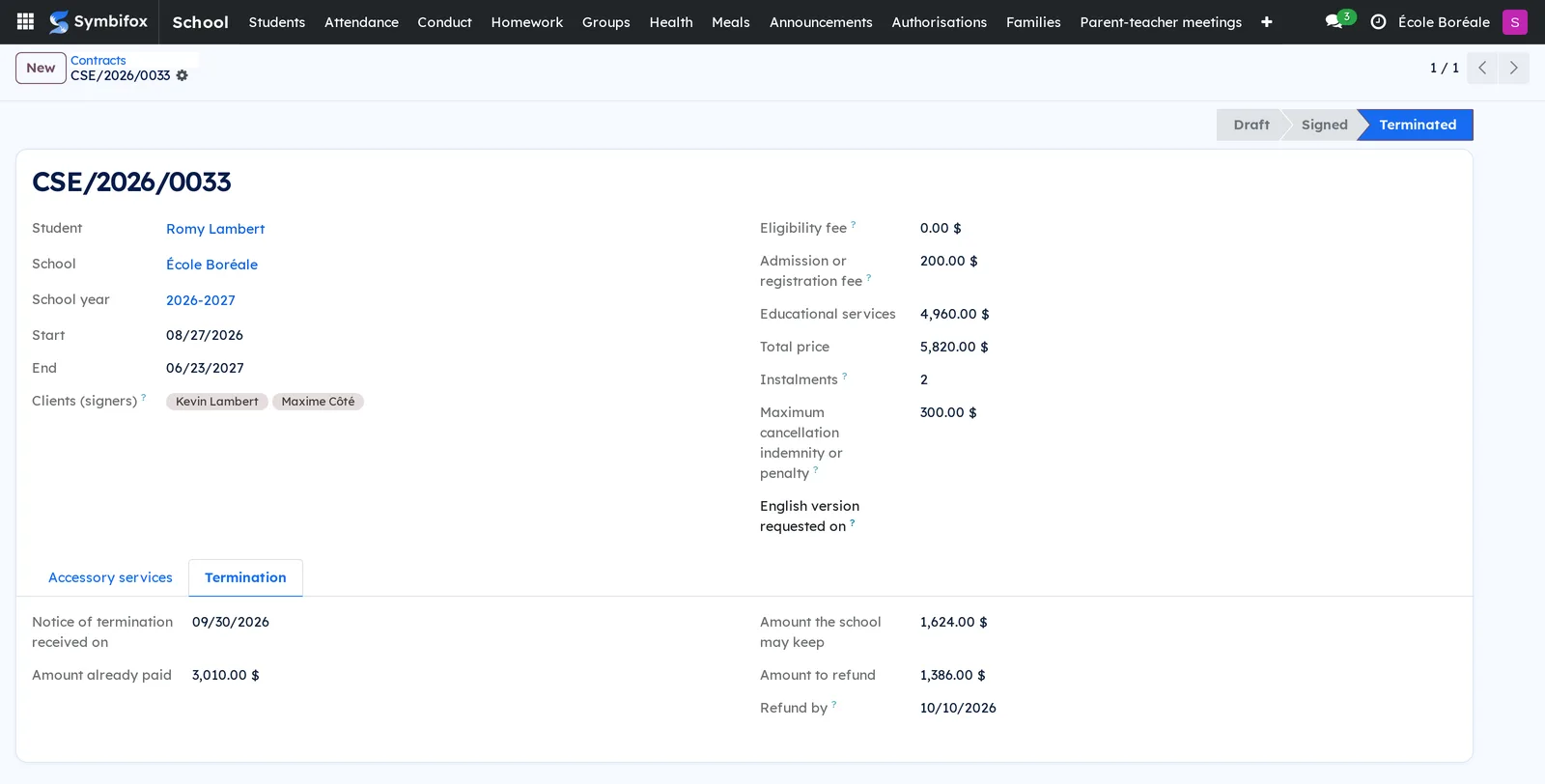
When a family terminates, the contract computes what the school may keep and what it must refund.
- Open the signed contract.
- In the Termination tab, enter Notice of termination received on and Amount already paid.
- Select Record the termination.
Result: the contract turns Terminated, with the Amount the school may keep, the Amount to refund and the Refund by date, ten days after the notice.
Open an admission campaign#
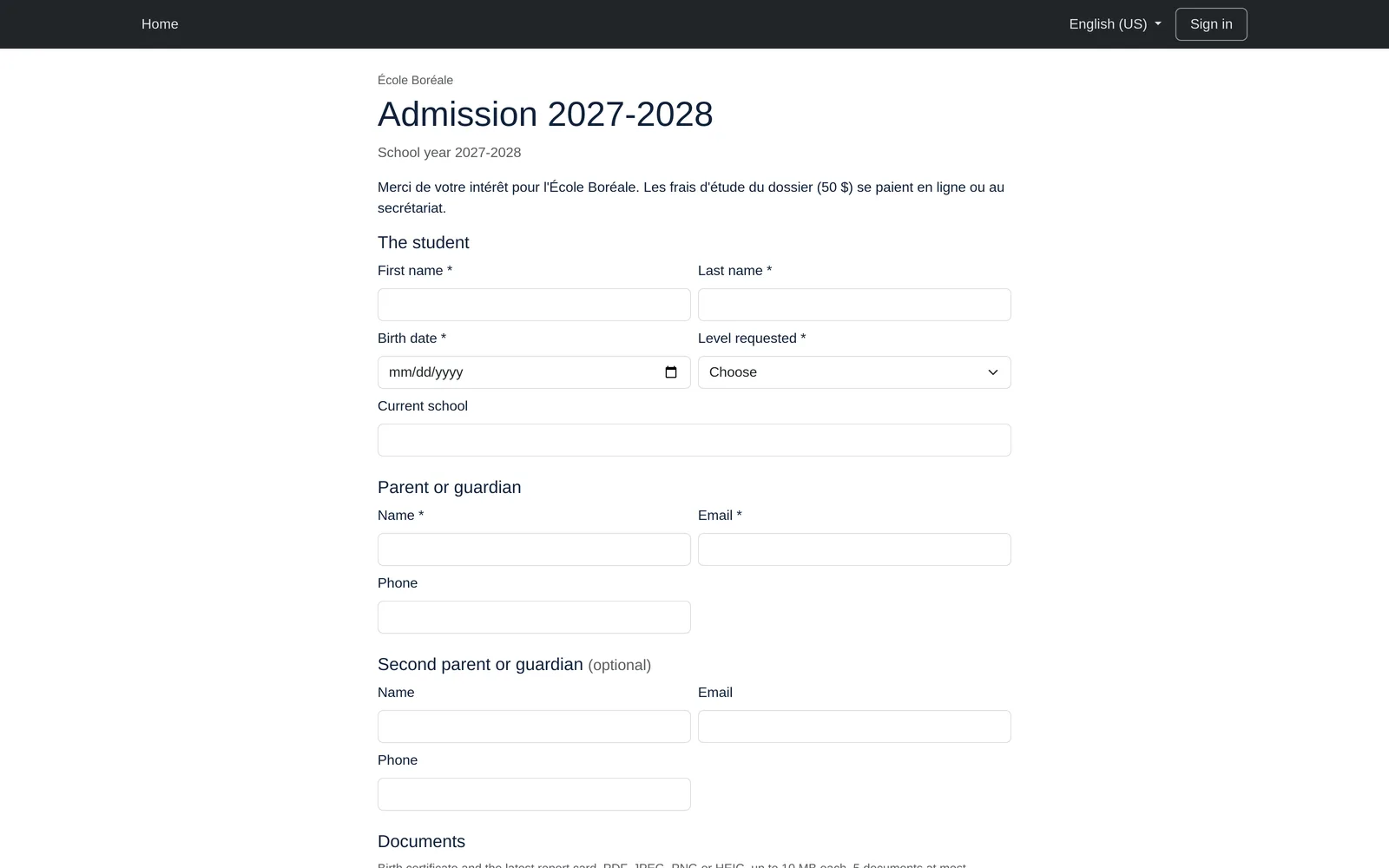
A campaign receives applications for a coming school year.
- Open School › Admission › Campaigns and select New.
- Choose the Kind "Admission of new students", the School, For the school year and the Levels offered.
- Enter Opens on, Closes on and the Fee, at most $50 to study an application.
- Fill in the Admission exam, the Exam location, then the Public form and Exam instructions tabs.
- Select Open.
Result: the campaign's public form answers at its web address. Close stops it; a closed campaign receives nothing more.
Process an application#
An application filed through the public form waits for payment; its invoice stays a draft until the office has checked it.
- Open School › Admission › Applications, with the Awaiting payment filter.
- Check the application and its documents, then select Ask for the fee.
- When the family pays at the front desk, someone with the Invoicing role opens the invoice from the application and selects Pay.
- On the submitted application, select Convene to the exam.
- After the exam, enter the score and select Evaluated.
- Choose Accept, Waiting list or Refuse.
- For an accepted student, select Enrol.
Result: each step emails each parent, and the family's personal status page updates. Enrol creates the student with their family links, the adult who paid marked Pays.
Ask for the fee first checks that the invoice amount equals the campaign's fee; if not, it refuses and asks you to correct the invoice. A fee invoice tied to an application cannot be deleted: to cancel it, withdraw the application with Withdrawn.
Purge the applications not retained#
Once the campaign is closed, the applications of students not enrolled are purged.
- Open the closed campaign.
- Select Purge the applications not enrolled.
Result: the documents, the student's identity, the evaluation and the history of each application not retained are destroyed, the status link stops working, and the contacts the form created are deleted or emptied. The fee invoice is kept for accounting. An application accepted but not yet enrolled is not purged.
Open re-enrolment#
- Create a campaign of Kind "Re-enrolment", with its levels and a Fee of at most $200.
- Select Open.
Result: on the portal, each child enrolled this year shows Re-enrol for followed by the year, to the adult who signs. On the page that opens, Confirm the re-enrolment issues the registration fee invoice; the re-enrolment is confirmed once it is paid. A child has only one re-enrolment per campaign.
Organize parent-teacher meetings#
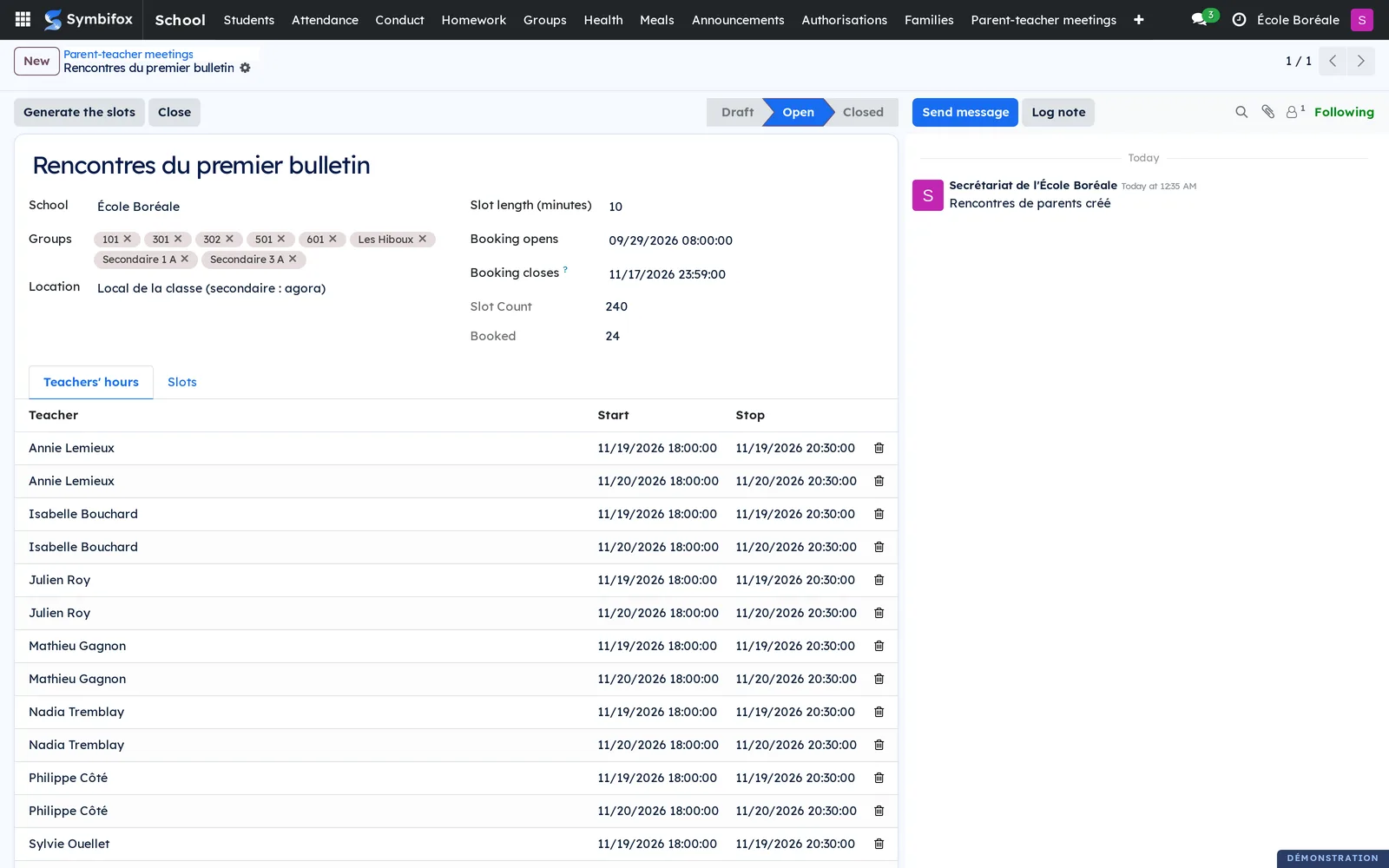
- Open School › Parent-teacher meetings › Meetings and select New.
- Enter the name, the Groups, the Slot length (minutes), the Location, Booking opens and Booking closes.
- Under Teachers' hours, enter each teacher's hours.
- Select Generate the slots.
- Select Open the booking.
Result: on the portal, each child shows the teachers of their groups and their free slots. One click books, one click cancels, until booking closes. Teachers see their schedule under My schedule.
Take attendance#
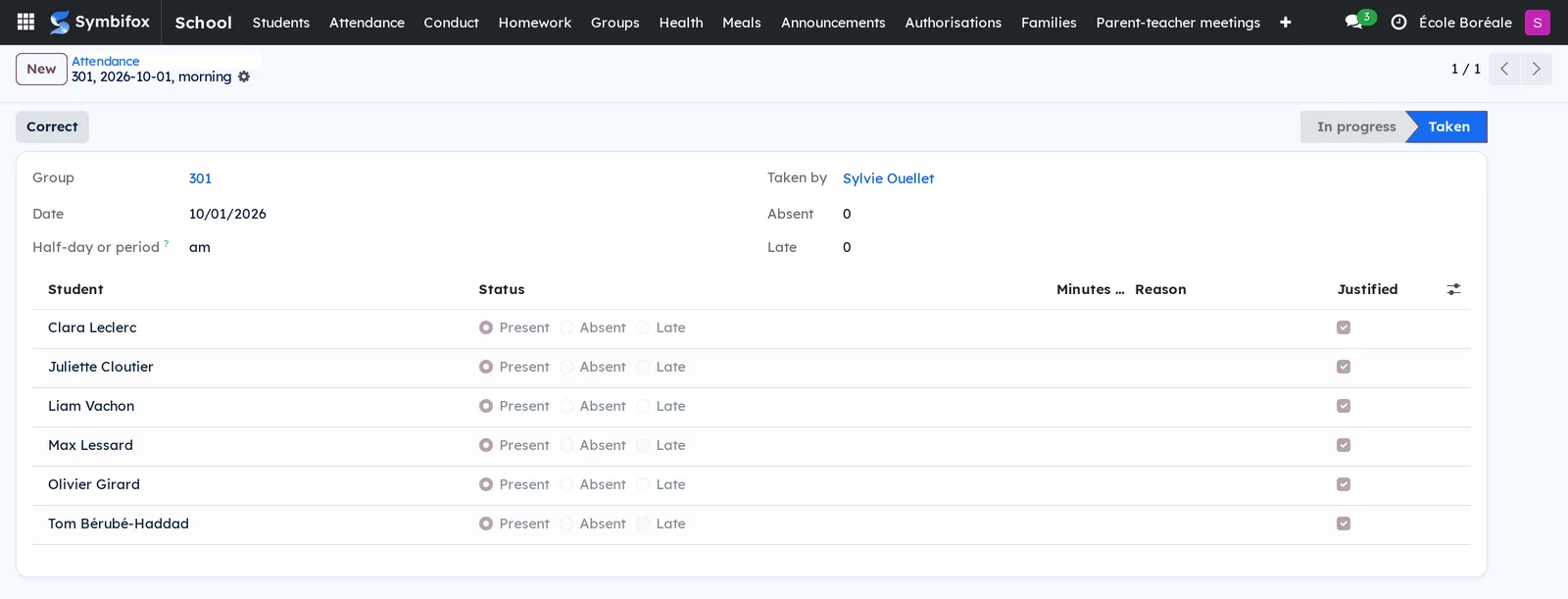
Teachers take attendance for their groups, by half-day in elementary or by period in secondary, depending on the group's Attendance Mode.
- Open School › Attendance › Take attendance and select New.
- Choose the Group and the Date.
- In Half-day or period, enter "am" or "pm" in half-day mode, or the period number.
- Mark each student Present, Absent or Late, with the minutes late.
- Select Attendance taken.
Result: every student starts as present; absences the family already declared are filled in, justified. When the roll call closes, the adults who receive notices are told the same day about any unjustified absence, at most once per student and day. Correct reopens a closed roll call.
Record an absence reported by phone#
Families declare absences themselves on the portal. For a phone call:
- Open School › Attendance › Declared absences and select New.
- Choose the student, the dates, the part of the day and the reason.
- Choose the source "School office" and save.
Result: the declaration justifies the roll calls it covers, even those already taken.
Record a breach and inform the parents#
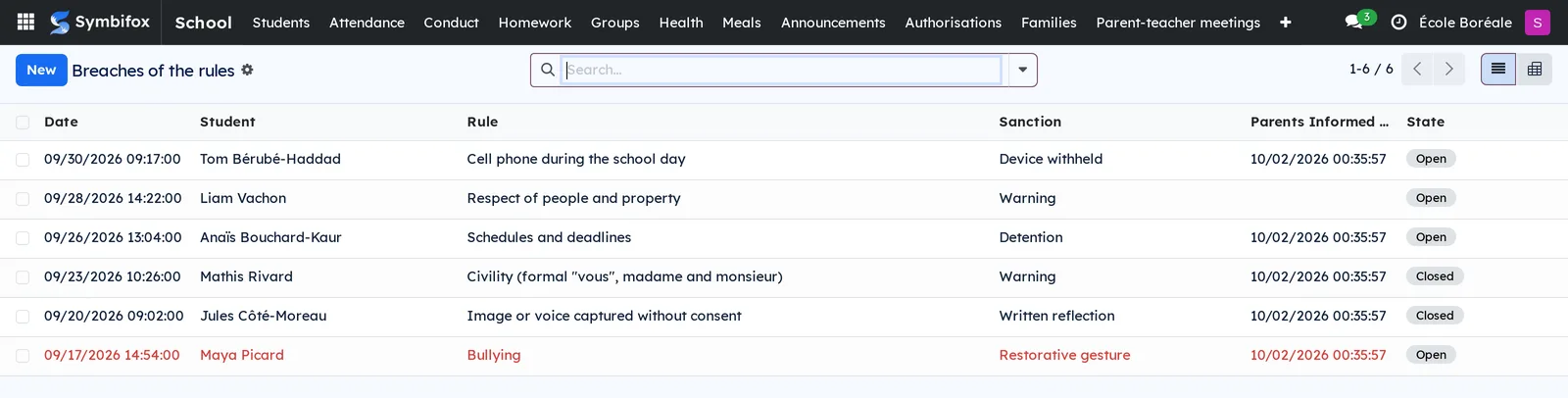
- Open School › Conduct › Breaches and select New.
- Choose the student and the Rule, then describe what happened.
- Read the Previous breaches of this rule and the Suggested sanction, then choose the Sanction.
- Enter the Restorative measure if needed.
- Select Inform the parents.
- Select Close once the matter is settled.
Result: the adults who receive notices and hold parental authority get an email, and the breach shows on their portal under Follow-up. A breach the family was not told about never shows there.
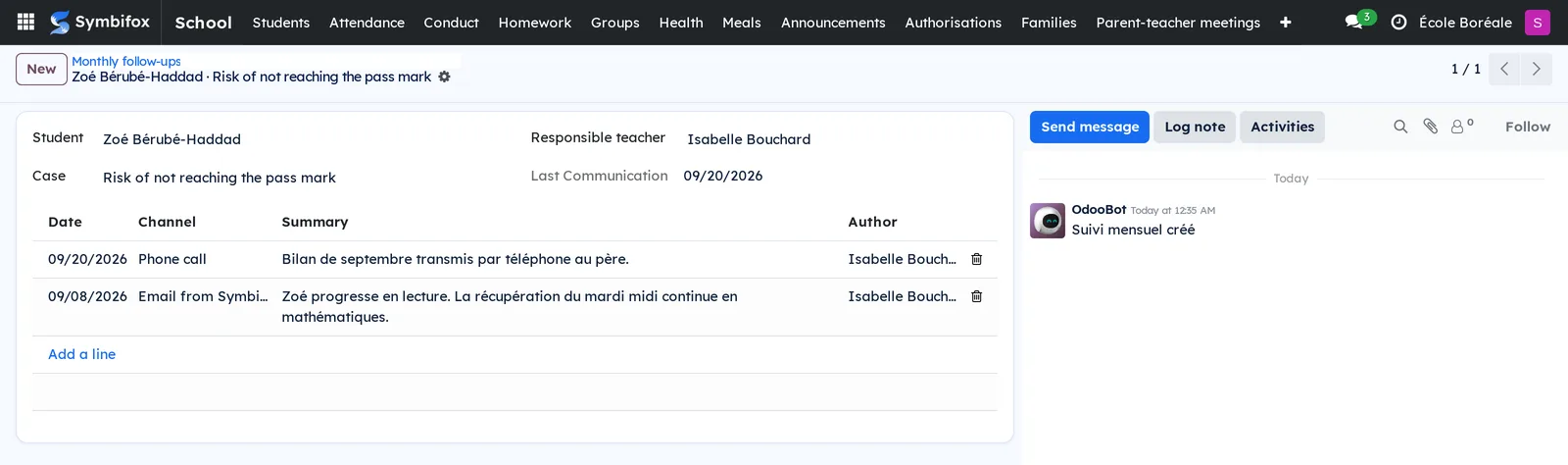
Keep the monthly follow-up#
A student at risk of failing, whose conduct is out of line with the rules, or who is covered by an intervention plan is owed news every month.
- Open School › Conduct › Monthly follow-ups and select New.
- Choose the student, the Case and the Responsible teacher.
- For each communication, add a line: date, channel and summary.
Result: news sent by email goes to the family and shows on its portal; a phone call or a meeting is only noted. At the start of each month, the responsible teacher gets an activity for every student whose parents had no news the month before.
Post homework#
- Open School › Homework and select New.
- Enter the name, the Group and the Kind ("Homework", "Study", "Project" or "Announced test").
- Enter Given on and Due on, then the description.
Result: the homework shows on the portal under Homework, sorted by date, for each child of the group. An adult who subscribes to their personal calendar address also sees it in Google Calendar or Apple Calendar.
Prepare a medication authorisation#
For the Health group only. School staff give only prescribed medication.
- Open School › Health › Medication authorisations and select New.
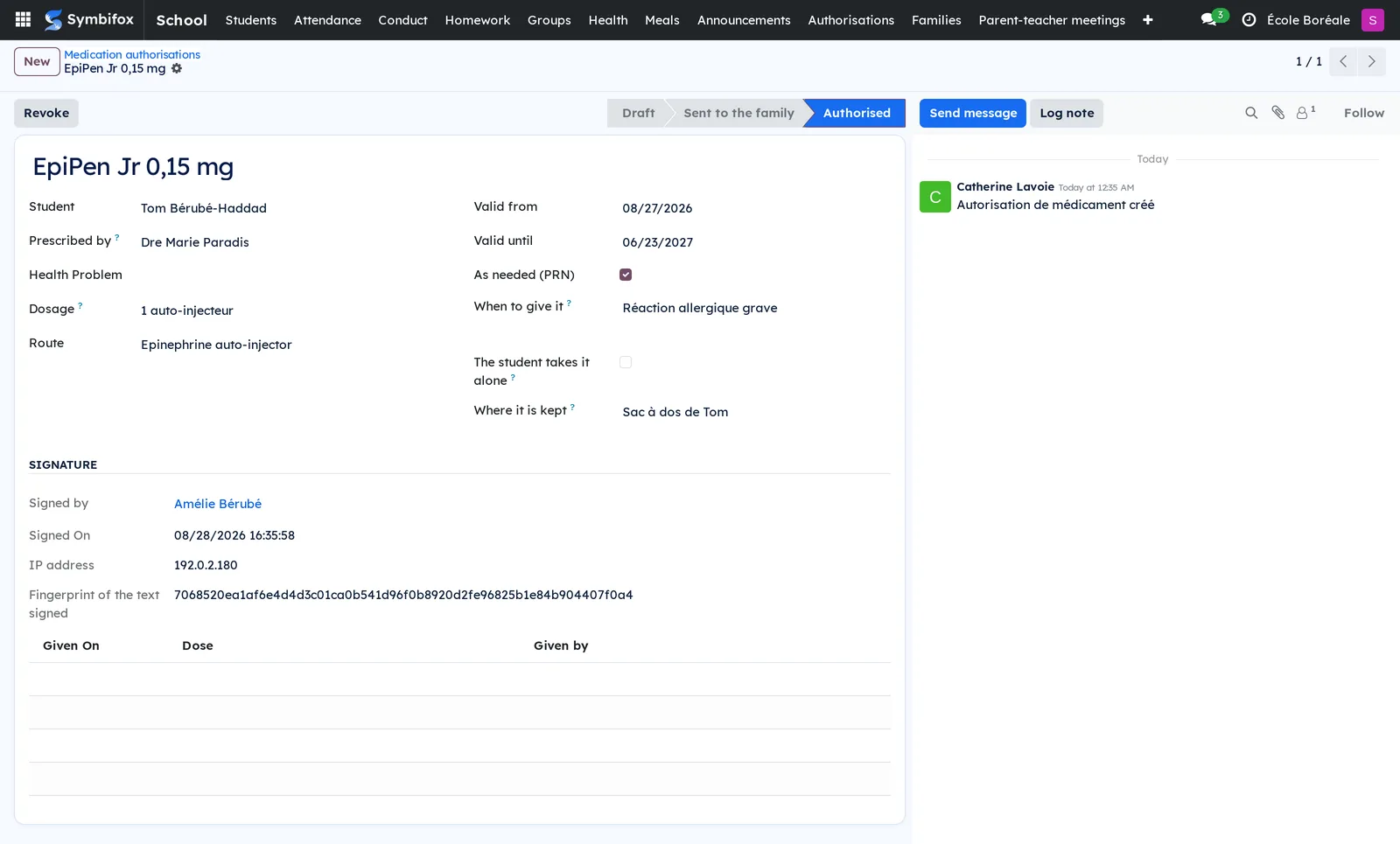
- Enter the student, the Medication, Prescribed by, the Dosage and the Route.
- For an as-needed medication, check As needed (PRN) and fill in When to give it.
- Enter Valid from, Valid until and Where it is kept.
- Select Ask the family to sign.
Result: the parents who sign get the request and answer on the portal with I authorise or I refuse. The Signature section keeps who signed, when, from which IP address, and the fingerprint of the text signed.
Record a dose or emergency epinephrine#
- For a planned dose: open School › Health › Doses given and select New.
- Choose the student and the authorisation, then enter the dose.
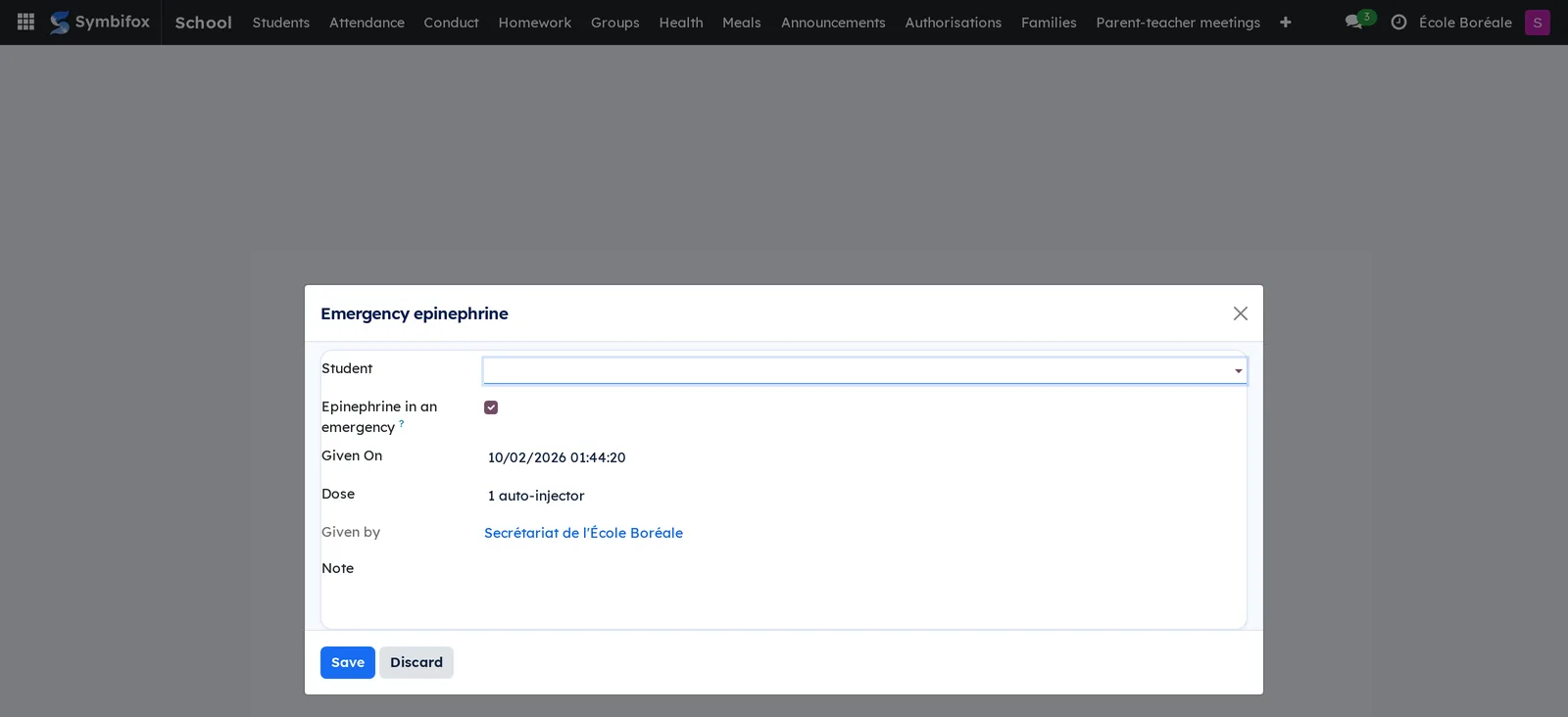
- In an emergency: open School › Health › Emergency epinephrine.
- Choose the student, check the proposed dose, then select Save.
Result: no dose is recorded without a valid authorisation that day, except emergency epinephrine, which any staff member records. The family is told right away. The register always names the person who recorded the dose, and a recorded dose is never rewritten: a note is added instead.
Publish menus and close a day#
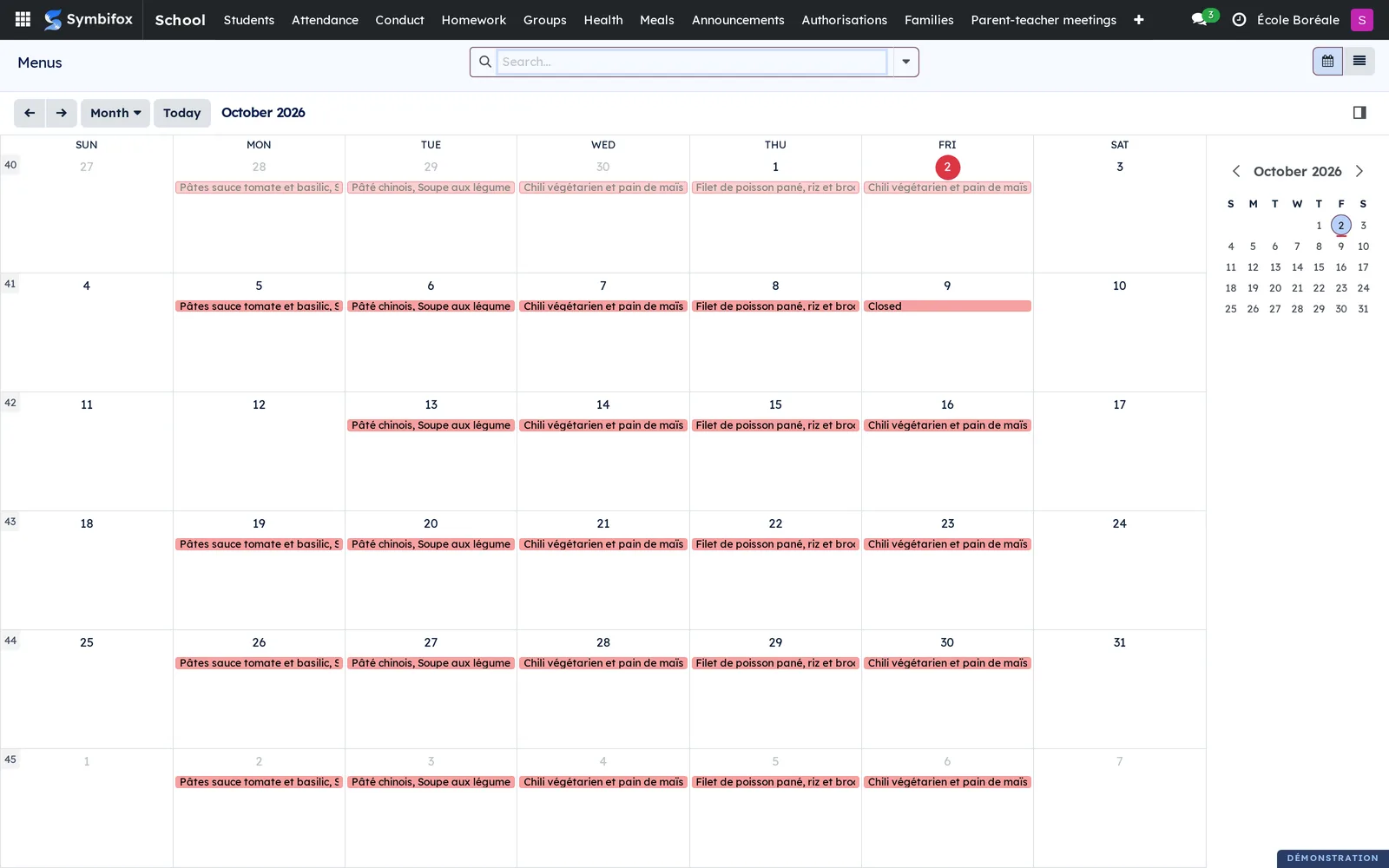
- Open School › Meals › Meals and create each meal with its Price and what it Contains.
- Open School › Meals › Menus and create the menu for each school day.
- For a storm or a professional day, open that day's menu and select Close the day, with a reason.
Result: families order on the portal up to the school's deadline. Closing a day credits all its orders at once.
Manage meal accounts#
Each adult who pays has an account, as a Prepaid balance or a Monthly invoice.
- Open School › Meals › Meal accounts and the adult's record.
- Read the Balance, then the Movements, Top-ups and Orders tabs.
- When a family pays a top-up at the front desk, someone with the Invoicing role opens its invoice and selects Pay.
Result: the balance is credited with what was actually paid. On the portal, the family tops up on its own or switches to the monthly invoice, if the school allows it.
Run the annual report on bullying and violence#
- Open School › Conduct › Annual report.
- Filter on the year you need.
Result: a pivot table counts bullying and violence breaches by rule and by year, to report to the ministry before December 31.
The menus, one by one#
School: the app's root, with its submenus in this order.
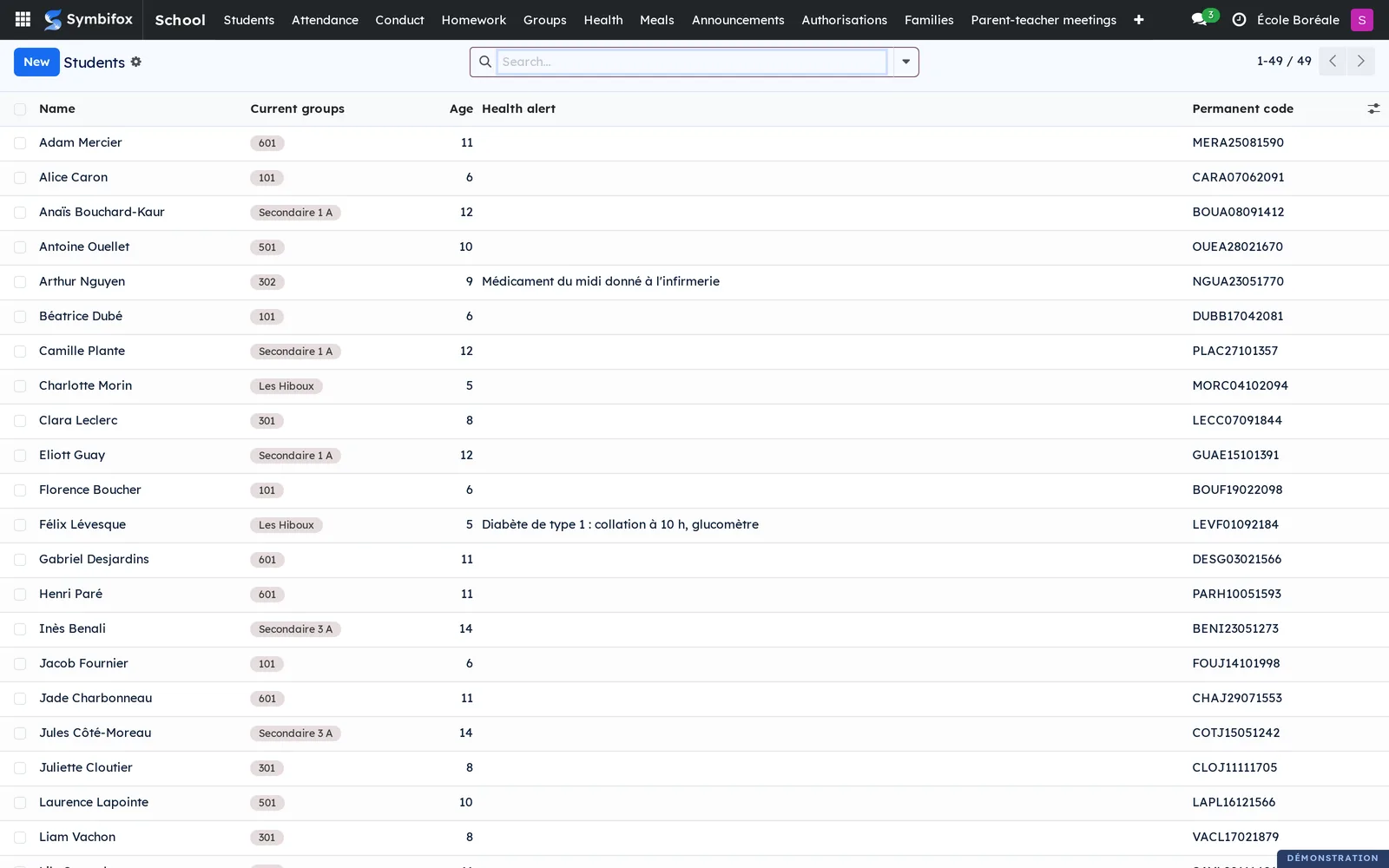
School › Students: the list of students, with their current groups, age, health alert and permanent code. It is the office's opening screen.
School › Attendance: a group of three screens.
School › Attendance › Take attendance: roll calls by group, date and half-day or period, with absences, late arrivals and status. The Today and My groups filters are for teachers.
School › Attendance › Declared absences: absences declared on the portal by families or recorded by the office, with dates, part of the day, reason and who declared them.
School › Attendance › Repeated unjustified absences: the students with three or more days of unjustified absence in thirty days. An aid for the office, not a decision.
School › Conduct: a group of three screens.
School › Conduct › Breaches: the year's breaches, with the student, the rule, the sanction and the date the parents were informed; bullying and violence stand out in red.
School › Conduct › Monthly follow-ups: the students being followed, with the case, the responsible teacher and the date of the last communication.
School › Conduct › Annual report: the bullying and violence pivot table (see Run the annual report on bullying and violence).
School › Homework: homework, studies, projects and announced tests for every group, as a list or a calendar, with the group, the kind and the teacher.
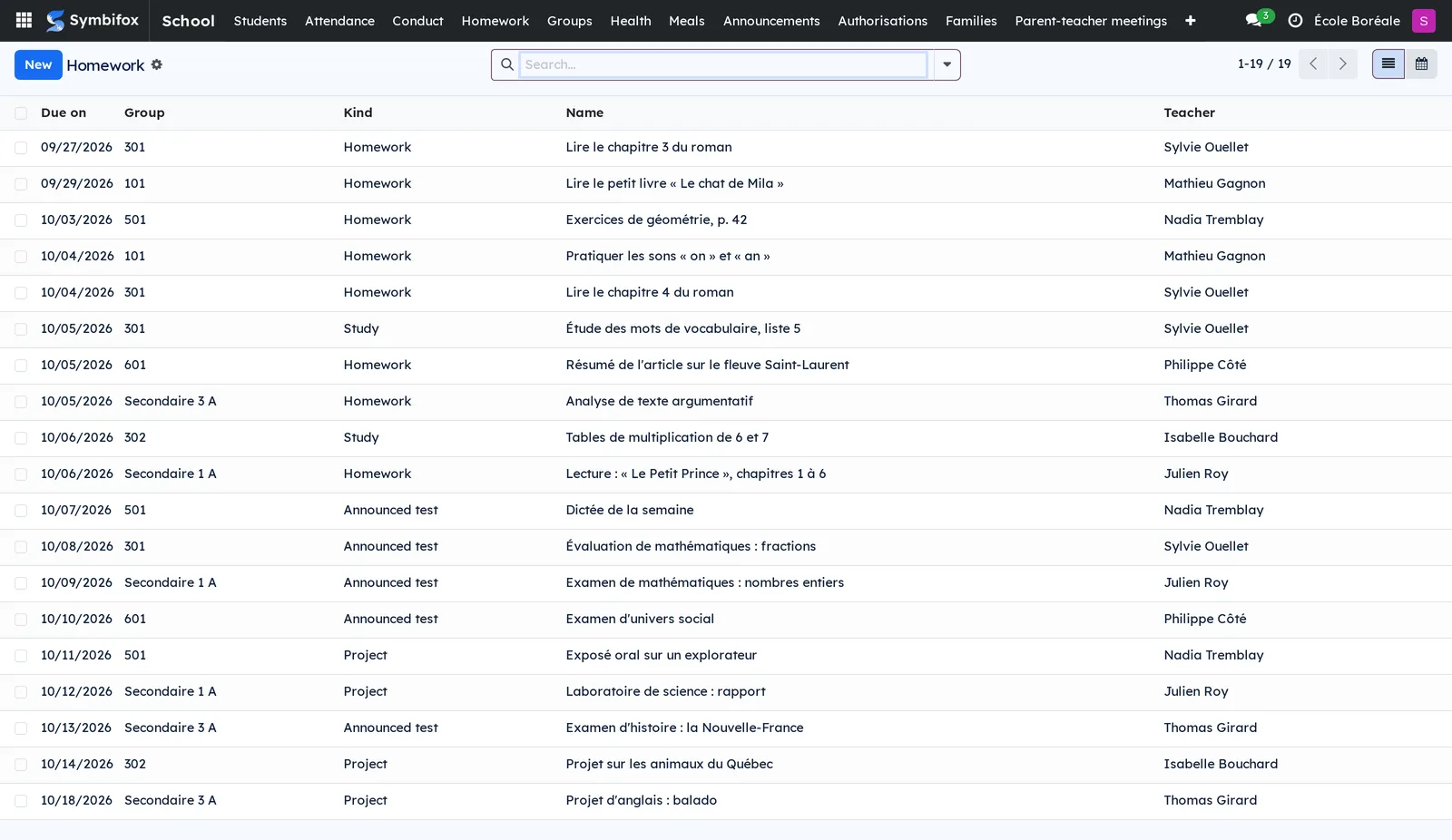
School › Groups: the groups of the current year, with the school, the year, the levels, the teachers and the number of students.
School › Health: a group of screens for the Health group, except Emergency epinephrine.
School › Health › Emergency epinephrine: the dialog to record epinephrine given in an emergency, open to all staff.
School › Health › Medication authorisations: the authorisations, with the student, the medication, the dosage, the route, the end date and the state (draft, sent to the family, authorised, refused, revoked).
School › Health › Doses given: the register of doses, with the date, the student, the authorisation, the dose, the emergency epinephrine box and the person who gave it.
School › Health › Health records: the students' detailed records, with allergies, health problems, the attending physician and the emergency plan.
School › Meals: a group of four screens.
School › Meals › Kitchen list: opens on the meals ordered for the next day, grouped by meal, with the date, the group, the student, their allergies and the state. It is the list you hand to the caterer; the With allergies filter singles out the students to watch.
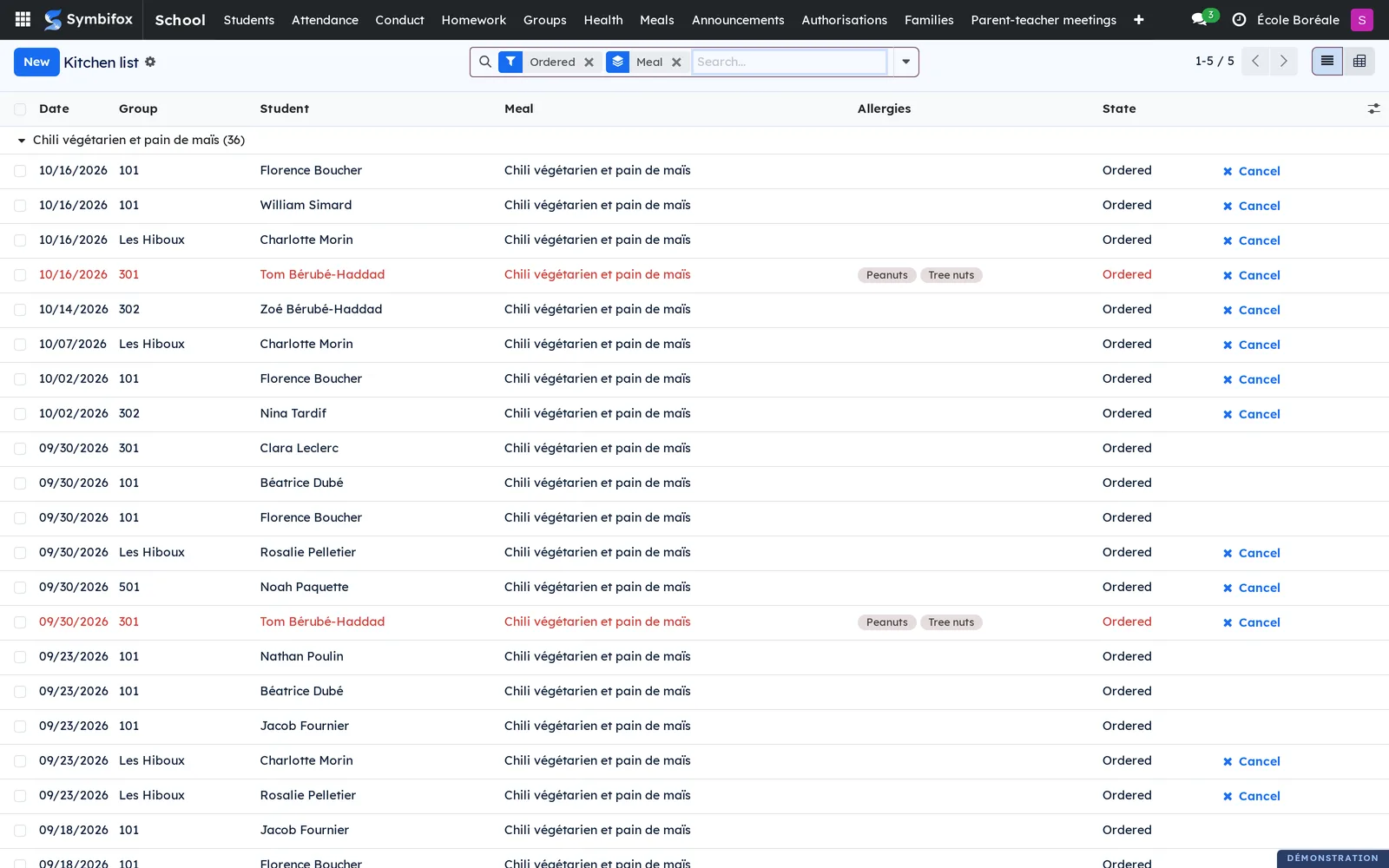
School › Meals › Menus: the calendar of each day's menu (see Publish menus and close a day).
School › Meals › Meals: the meals on offer, with the school, the price and the allergens they contain.
School › Meals › Meal accounts: the accounts of the adults who pay, with the mode and the balance.
School › Announcements: the announcements to families, with the audience, the read receipts received, the recipients and the publication date.
School › Authorisations: the authorisations, with the type, the groups, the dates, the answer counters and the status.
School › Families: a group of two screens.
School › Families › Guardians: the adults linked to at least one student, with their contact details.
School › Families › Family links: each link, with the student, the adult, the relationship and the ticked roles. The Pays and Receives no notices filters help check the roles across the school.
School › Parent-teacher meetings: a group of two screens.
School › Parent-teacher meetings › Meetings: the meeting sessions, with the booking deadline, the number of booked slots and the status.
School › Parent-teacher meetings › My schedule: the signed-in teacher's slots, with the children's names and the adult who booked.
School › Admission: a group of two screens.
School › Admission › Applications: the applications, with the campaign, the level, the state and the rank. The To decide and Awaiting payment filters sort the day's work.
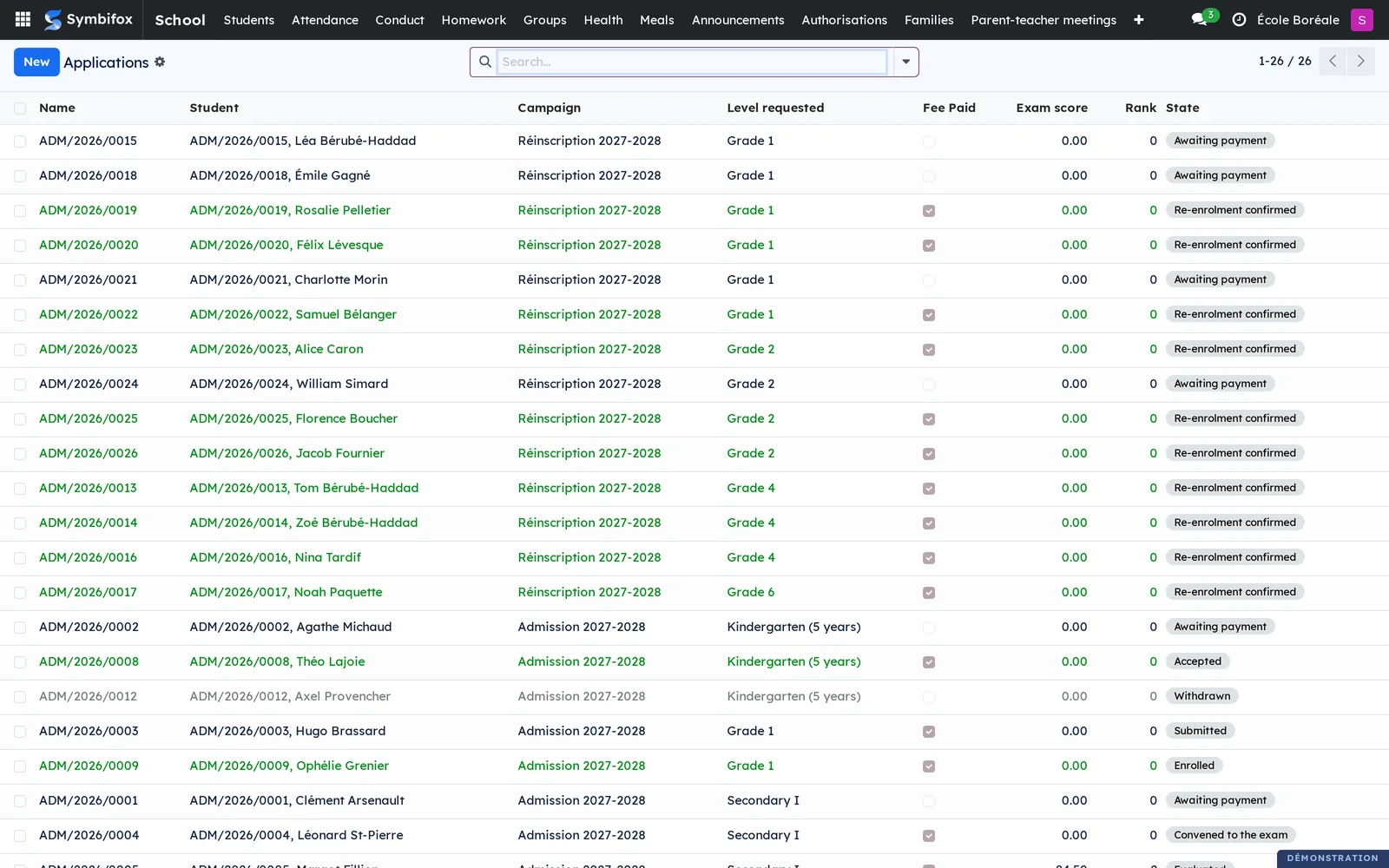
School › Admission › Campaigns: the admission and re-enrolment campaigns, with their dates, fees and number of applications.
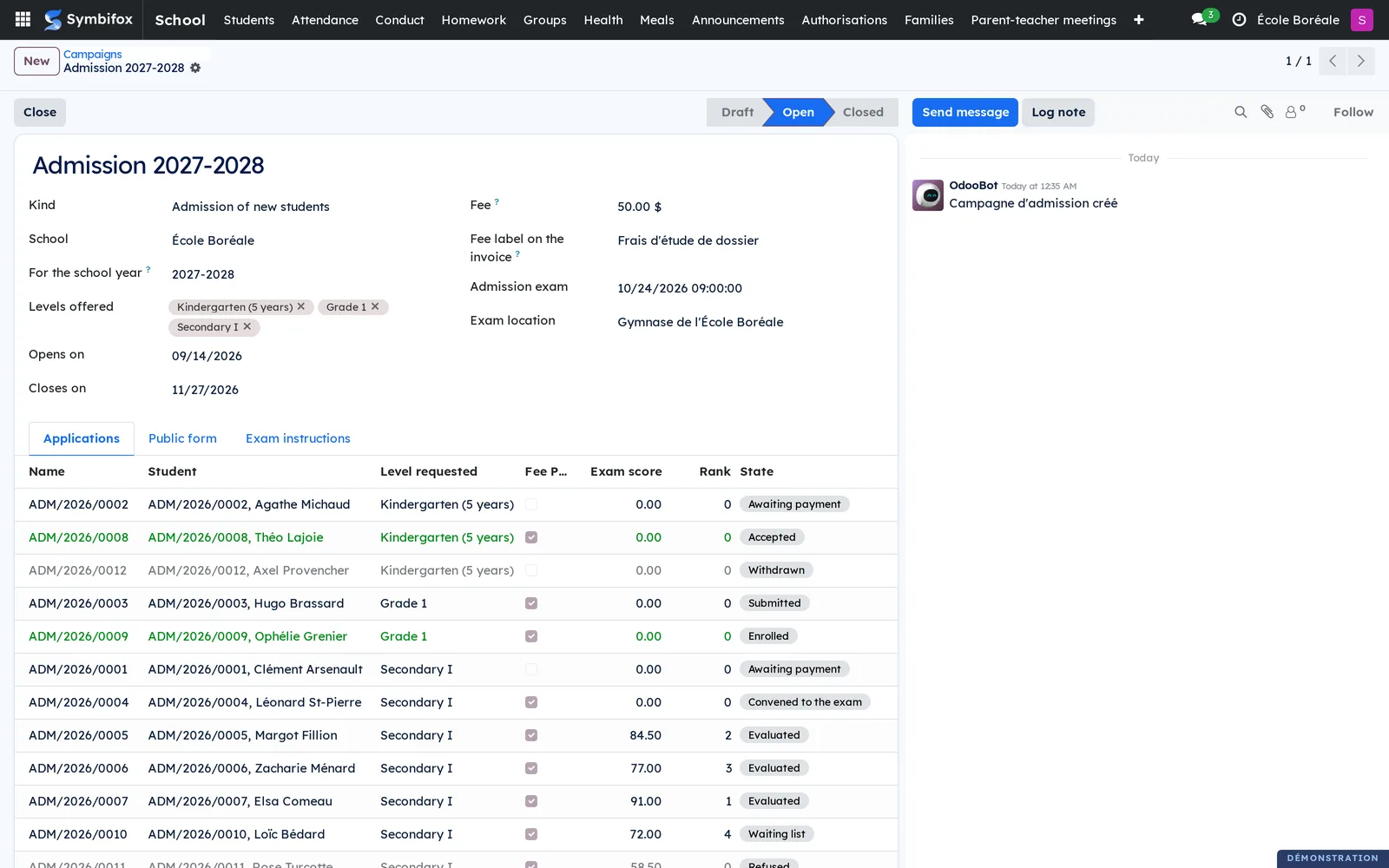
School › Contracts: the contracts for educational services, with the student, the year, the total price and the status.
School › Computers: this group, and its Lent computers and Student accounts screens, belong to lending Blue Fox OS computers to students, a separate module this chapter does not cover.
School › Configuration: a group of reference lists.
School › Configuration › Schools: each school's record (see Settings).
School › Configuration › Levels: the levels from preschool to Secondary V, with their code and stage.
School › Configuration › Answers (evidence): each guardian's answer to an authorisation, with the decision, the date, the channel and the evidence. For the office only: teachers see who is authorised, not the IP address or the browser.
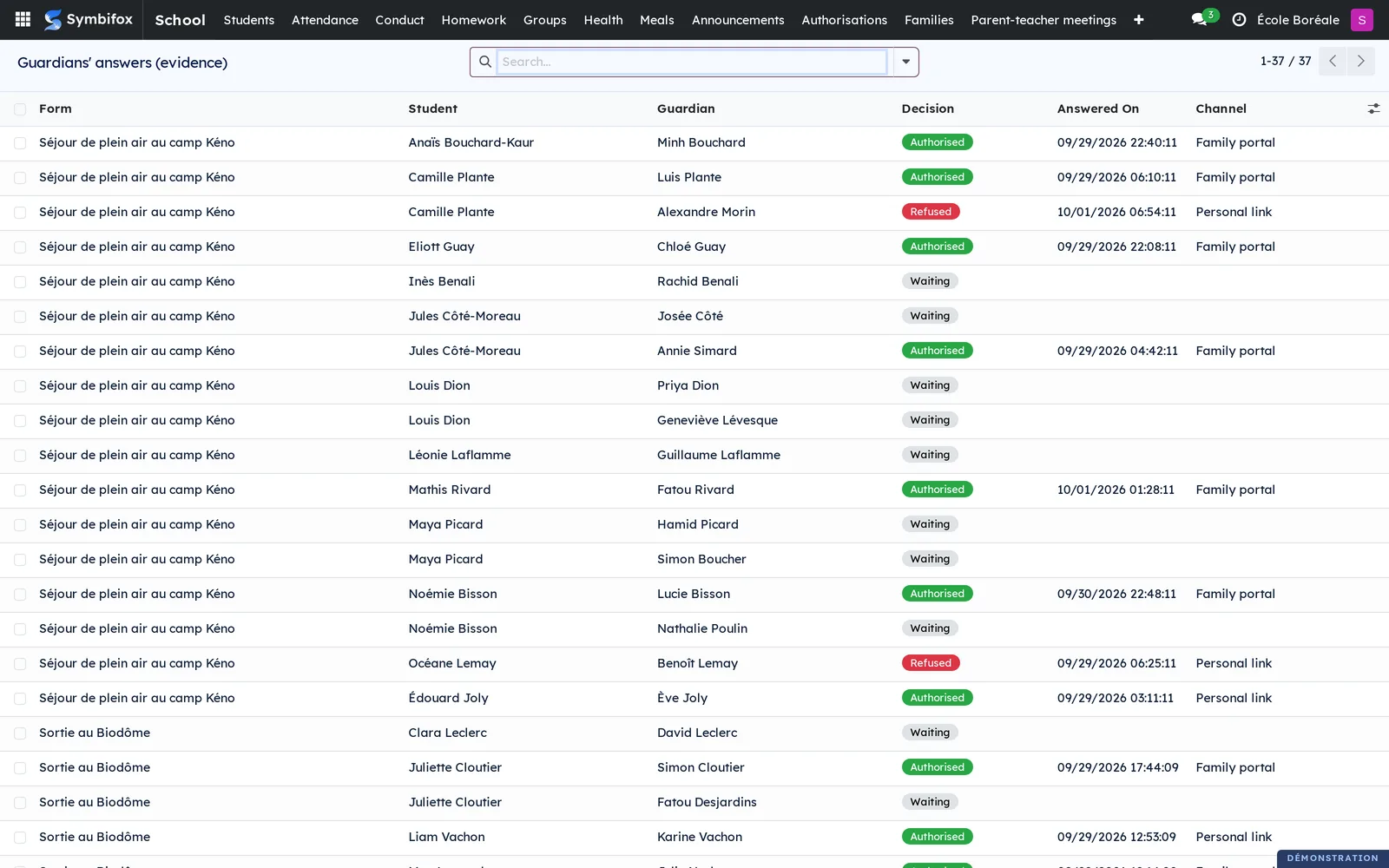
School › Configuration › Authorisation types: the types, and the box that requires every guardian who signs.
School › Configuration › Food allergens: the priority allergens, to tick on meals and on the student.
School › Configuration › Absence reasons: the reasons, with Justified and Families may choose it.
School › Configuration › Rules of conduct: the rules, with the boxes that count a breach in the annual report (bullying or violence) and that flag sexual violence.
School › Configuration › Sanctions: the sanctions by level, with the Suspension and Restorative measure boxes.
Reference#
Fields of the Family link form#
| Field | Description | Required or default |
|---|---|---|
| Adult | The person linked to the student. An adult is linked only once to the same student. | Required |
| Relationship | Mother, father, parent, legal tutor, grandparent, other. | "Parent" |
| Parental authority | Holds parental authority or tutorship. Only these adults consent and sign for a minor. | Checked, except grandparent and other |
| Receives notices | Receives the school's announcements and messages about the student. | Checked, except grandparent and other |
| Signs | Can sign authorisations, contracts and medication authorisations. | Checked, except grandparent and other |
| Pays | Receives and pays this student's invoices. | Cleared |
| May pick up | May pick the student up at school. | Checked |
| Emergency contact | To call in an emergency. | Cleared |
| Lives with | The student lives with this adult. | Checked |
| Note | Seen by staff only, never by the family. | Empty |
Fields of the Contract form#
| Field | Description | Required or default |
|---|---|---|
| Student, School, School year | The student concerned and the year of the contract. | Required |
| Start, End | The dates of the services. | Required |
| Clients (signers) | The adults who sign; by default, each guardian of the student who signs. | Filled in automatically |
| Eligibility fee | At most $50. | $0 |
| Admission or registration fee | At most $200 or a tenth of the total price; the only amount payable before services begin. | $0 |
| Educational services | The price of the educational services. | Required |
| Instalments | At least two roughly equal instalments. | 2 |
| Total price | Computed: admission, educational services and accessory services. | Computed |
| Maximum cancellation indemnity or penalty | The lower of $500 and a tenth of the total price, minus the admission fee. | Computed |
| English version requested on | The date the client expressly asked for an English version. | Empty |
Fields of the Admission campaign form#
| Field | Description | Required or default |
|---|---|---|
| Kind | Admission of new students or re-enrolment. | Admission |
| For the school year | For example 2027-2028. | Required |
| Levels offered | The levels that can be requested on the form. | Empty |
| Opens on, Closes on | The period during which the form takes applications. | Required |
| Fee | Admission: at most $50. Re-enrolment: at most $200. | $0 |
| Fee label on the invoice | Empty: application fee or registration fee, depending on the kind. | Empty |
| Admission exam, Exam location | The date and place of the exam notice. | Empty |
Fields of the Medication authorisation form#
| Field | Description | Required or default |
|---|---|---|
| Medication, Prescribed by | Only prescribed medication is given at school. | Required |
| Dosage | Quantity and frequency, as prescribed. | Required |
| Route | The routes the law allows school staff, including the epinephrine auto-injector. | Required |
| As needed (PRN), When to give it | An as-needed medication requires clear conditions of use. | Cleared |
| The student takes it alone | Staff only hand the medication over. | Cleared |
| Valid from, Valid until | The period of the authorisation. | Today, required |
| Where it is kept | Auto-injectors stay within reach, never locked away. | Empty |
Reports and exports#
The contract for educational services prints from its record with Print › Contract for educational services. It is written in French and reproduces word for word sections 70 to 75 of the Private Education Act and the uncovered-face clause. The conduct Annual report reads as a pivot table and exports like any Odoo view (see Common actions in every application). The Kitchen list exports for the caterer.
Automations#
| What happens on its own | When |
|---|---|
| Close the authorisations whose deadline has passed; students without an answer show "No answer". | Every day |
| Clear the Personne mineure box (minor) on the birthday when the student reaches the age set by the company's privacy framework. | Every day |
| Tell families about an unjustified absence, when a roll call closes. | When the roll call closes |
| Create, for the responsible teacher, one activity per followed student without news the month before. | At the start of each month |
| Issue the monthly meal invoice of each account billed monthly. | At the start of each month, for the month just ended |
| Produce the official PDF of fee and top-up invoices, so that the portal does not show them as pro forma. | Right after they are issued |
Public pages and portal#
The family portal starts from My children (address /my/school) and gives the adults entitled to it:
- Absences: declare an upcoming absence or justify one after the fact (thirty days back at most, and thirty days long at most; beyond that, the family calls the office);
- Follow-up: the monthly follow-up news and the breaches the family was told about;
- Authorisations: answer with I authorise or I refuse;
- Health: the alerts, the medication authorisations to sign, what is authorised and what was given in the last 60 days; the detailed record never shows there;
- Homework: what is due for each child, and the personal calendar address, with Get a new address (the old one stops working);
- Meals: order, cancel, top up the balance or switch to the monthly invoice;
- Parent-teacher meetings: book and cancel one slot per teacher;
- School announcements: read and confirm with I have read it;
- Consents: the Law 25 consents page.
On a phone, the same pages stack into one column.
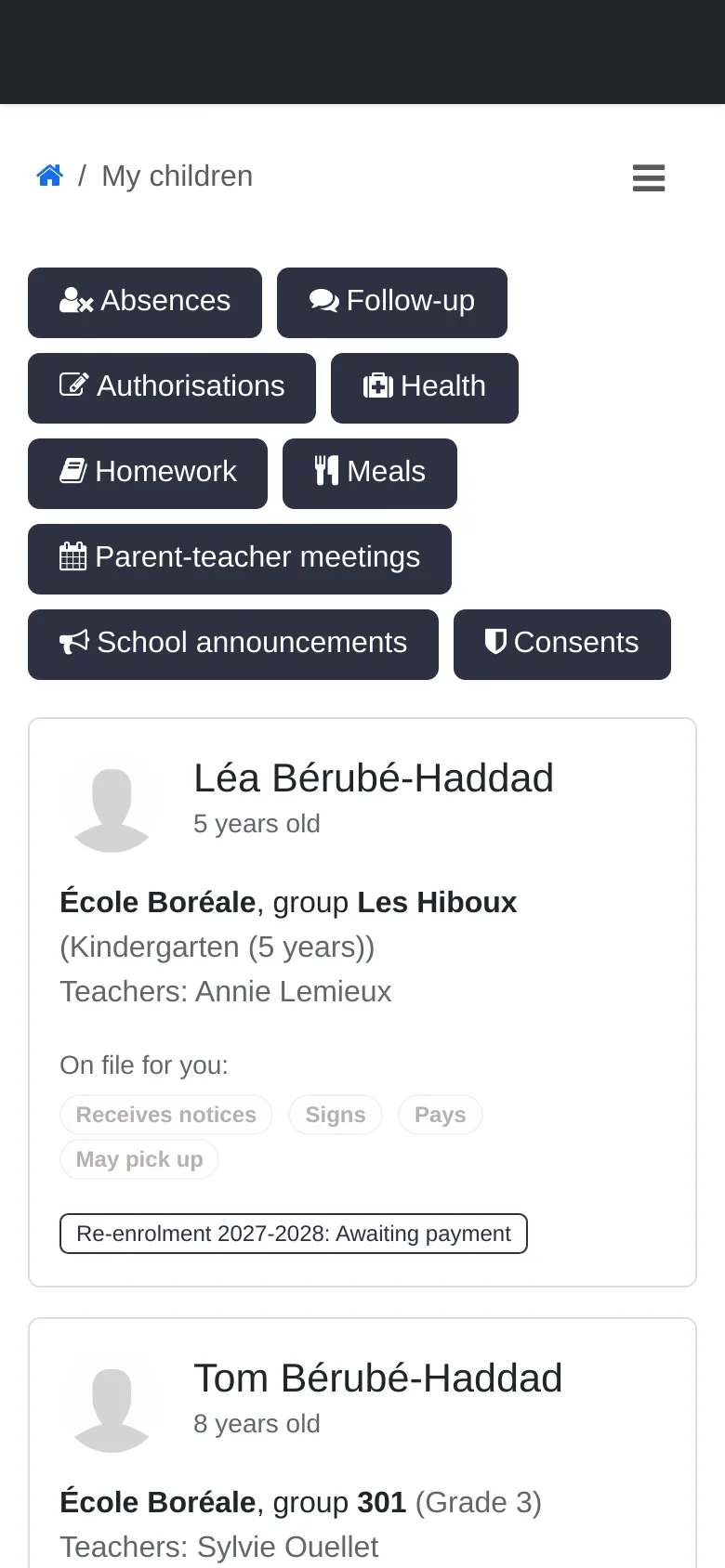
Three pages answer without an account: the admission form of an open campaign (/school/admission/…), an application's personal status page, and the page where a parent answers an authorisation through the personal link. The homework calendar feed is public but secret, one per adult.
Modules that extend this application#
Understanding#
Why roles rather than a parent. A school portal stands or falls on one question: which adult learns what about which child. Families are not "a parent and a child". The module records the answer once, as data, so that every other module asks the same question and gets the same answer.
Why a refusal wins. Towards a third party in good faith, one parent is presumed to act with the other's agreement (Civil Code of Québec, article 603): one parent is enough. But when parents disagree, the school needs a rule written down before the trip, not a phone call on the morning of it. One parent's "no" keeps the child at school.
Why an answer is final. An authorisation, a medication signature or an admission decision is evidence. It cannot be rewritten, on the screen or otherwise: states move through their buttons only. To change their mind, the family calls the school.
Why a person decides. The admission rank and the suggested sanction are aids. Law 25 forbids a decision based exclusively on automated processing: the decision records who took it and when.
Why the school's time. A family on the portal, or a visitor to the public form, often has no time zone. Every time a family reads (exam, slot, answer) is given in the school's time zone.
What the suite does not do yet. No installable app and no push notification for parents; no text message notices; no account for students aged 14 and over, whose consents stay pending until the school collects them; no payment with an authorisation; no reminder the day before a meeting; teachers do not enter their own hours or send authorisations to their groups. The contract has not been reviewed by a lawyer yet, and spreading the balance over monthly instalments still needs checking against section 70.
Troubleshooting#
| Symptom | Likely cause | Fix |
|---|---|---|
| A parent does not receive announcements. | Receives notices is not checked on their link, or their record has no email. | Check the box under Guardians; add the email. Adults without an address are counted in the announcement's chatter. |
| A student is left out of the consent request. | No birth date, a minor without anyone holding parental authority, or an address already used by another account. | Read the note on the school's record, fix the record, then ask again. |
| The portal refuses a meal because of a declared allergy. | The meal contains an allergen declared for the student. | This is intended. Choose another meal, or correct the student's allergies. |
| The portal refuses an order for lack of balance. | The prepaid balance does not cover the meal. | The family tops up its balance, or someone with the Invoicing role records the payment of the top-up. |
| Ask for the fee refuses to act. | The draft invoice amount does not match the campaign's fee. | Correct the invoice (Invoicing role), then ask for the fee again. |
| Inform the parents refuses to act. | A suspension without reasons or support measures, or sexual violence at 14 or over without the student's consent. | Fill in the required fields, or tick the student's consent. |
| A parent does not see a teacher's slots. | The teacher does not teach a group of the session, or booking is closed. | Add the group to the session, or check the booking dates. |
| A contract does not save. | An amount exceeds a legal cap, or there are fewer than two instalments. | Correct the amount reported. |