
Part 7 · Platform, hosting and artificial intelligence
Recovery after an Enterprise migration
Recover the data an Odoo Enterprise to Community migration left behind, rehome it where a destination exists, and check what is still outstanding.
The Reprise Enterprise (Enterprise recovery) application is used once in the life of an organization, the day it leaves Odoo Enterprise for Community. A migration abandons part of the data by construction, because a Community database simply has nowhere to put it. This application receives what the migration set aside, keeps it, rehomes it to its free equivalent when one exists, and then reviews the instance to say what is left to finish. It is for the person running the migration, not for the team that will use the result.
Overview#
Three words come up throughout the application and are worth settling. A reprise (recovery bundle) is a deposit: a file received from the migration tool, holding everything it could not place. A table reprise (recovered table) is a set of data of the same nature inside that deposit, for example helpdesk tickets or knowledge base articles. Reloger (to rehome) means recreating that data in the matching Symbifox application, when a match exists.
The order matters, and it is deliberate. The application keeps first, it rehomes second. Everything that lands in the deposit becomes readable and searchable, whether a destination exists or not: before knowing where to put a helpdesk ticket, you have to not have lost it. That is what sets the approach apart from the usual migration scripts, which handle what they know how to handle and let the rest disappear with the source copy.
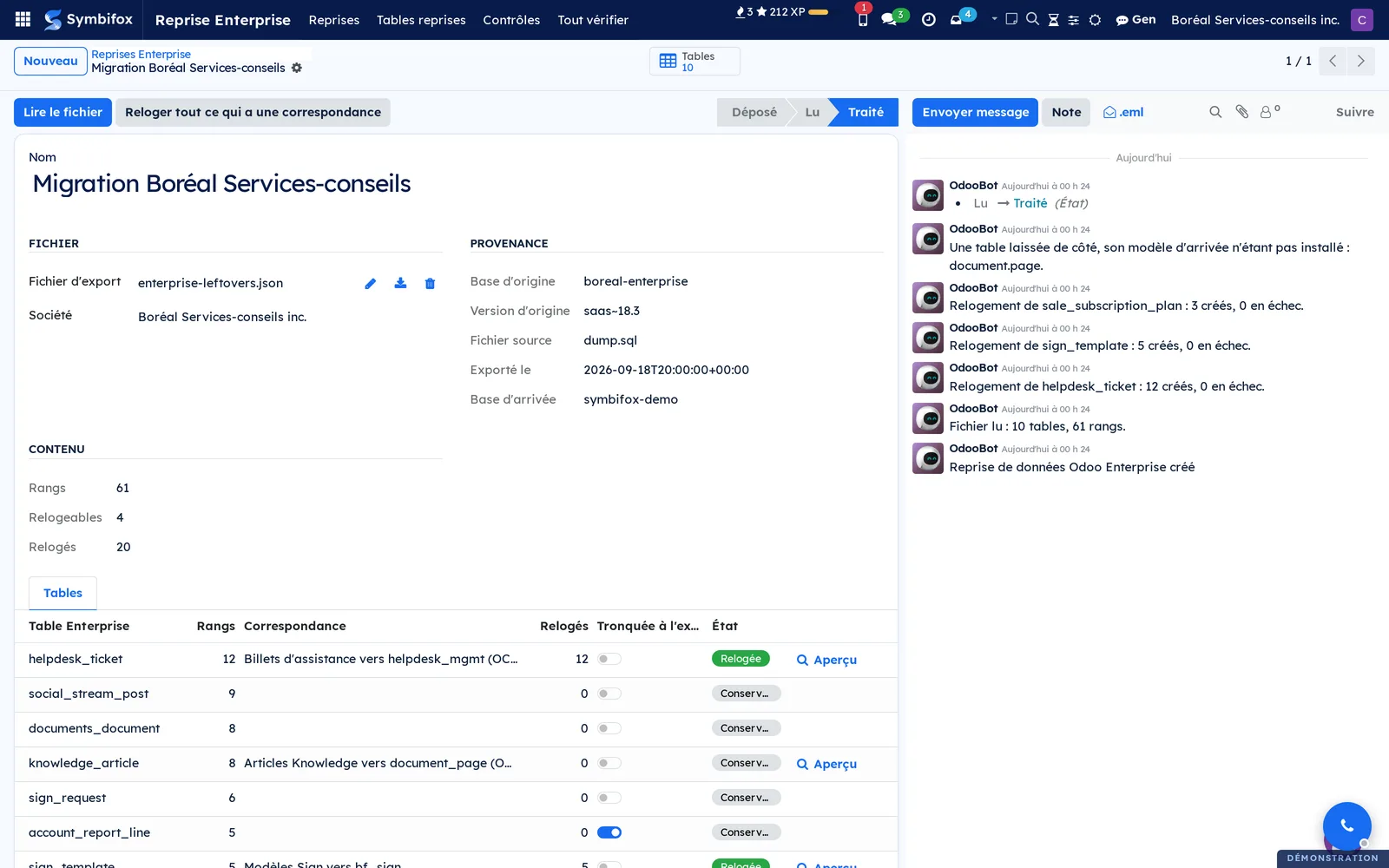
The form of a recovery bundle brings together everything you need to know: where the file came from, what it holds, and what became of each table.
This application touches several others without ever replacing them. Recovered tickets arrive in Helpdesk (tickets), articles in Knowledge base, signature templates in Electronic signatures and subscription plans in Subscriptions. The post-migration checks, for their part, look at the general configuration of the instance and overlap with what is set in Settings and brand identity.
Configuration#
Access and rights#
A single group, Gestion de la reprise (recovery management), and it sits high: system administration opens it automatically. That choice is deliberate. Rehoming writes records into your business applications from a deposited file, and the checks read the configuration of the instance: this is not a right you hand out to the team. Someone without that group sees neither the menu nor the data.
Recovery bundles are partitioned by company: a bundle belongs to its own and stays invisible to the others.
Settings#
None. The application adds no setting under Paramètres (settings) and has no configuration menu. Everything it needs travels inside the deposited file.
Base data#
Nothing to create in advance either, with one exception: the destination applications have to be installed for the matching rehoming to be possible. If the knowledge base is not installed, for instance, the articles are kept and set aside, by name, rather than failing the rest. The application says so on the table concerned and carries on with the others.
Getting started#
This walkthrough starts from the file the migration tool wrote beside the source copy, and goes as far as a first rehomed table. On the Boréal Services-conseils demonstration it holds ten tables and sixty one rows.
- Open Reprise Enterprise › Reprises (recovery bundles), then Nouveau (new).
- Give the bundle a name, for example "Migration Boréal Services-conseils", and drop in the file received from the migration tool.
- Select Lire le fichier (read the file). The application checks that this really is a recovery file, records where it came from, and creates one entry per table found.
- Go through the Tables tab. Each line says how many rows it carries, where it would go, and where it stands.
- On a table that has a match, select Aperçu (preview). The first ten records appear exactly as they would be created, with the list of what was dropped and why. Nothing is written yet.
- If the preview suits you, select Reloger (rehome). The records are created, and the source row keeps the link to what it became.
- Repeat for the other tables, or go back to the bundle and select Reloger tout ce qui a une correspondance (rehome everything that has a match) once the previews are done.
The visible result: the bundle moves to state Traité (handled), the Relogés (rehomed) counter rises, and each table carries its own state.
Common tasks#
Deposit a recovery file#
The migration tool writes its file beside the source copy. It is deposited here like any attachment, with no special access to the server.
- Open Reprise Enterprise › Reprises, then Nouveau.
- Name the bundle and drop in the file.
- Select Lire le fichier.
Where it came from appears: the source database, its version, the name of the source file and the export date. The message log on the form notes what was read.
Look before writing#
The preview is the only way to know what a match will give on your data, because it depends on your data.
- Open Reprise Enterprise › Tables reprises (recovered tables).
- Open a table that carries a match.
- Select Aperçu.
The first ten records appear with the values that would be written and, for each one, what was dropped. A reference to a contact that no longer exists is named rather than guessed at, and a value the destination field does not offer is flagged. Close the window: nothing has been created.
Rehome a table#
Once the preview is done, rehoming creates the records in the destination application.
- From the table, select Reloger.
- Confirm.
The table's Relogés counter rises, its state moves to Relogée (rehomed), and each row keeps the link to the record it became. If a row fails, it is the only one: its message is logged on it, the table's state becomes Partielle (partial), and the others went through.
Deal with the tables that have no destination#
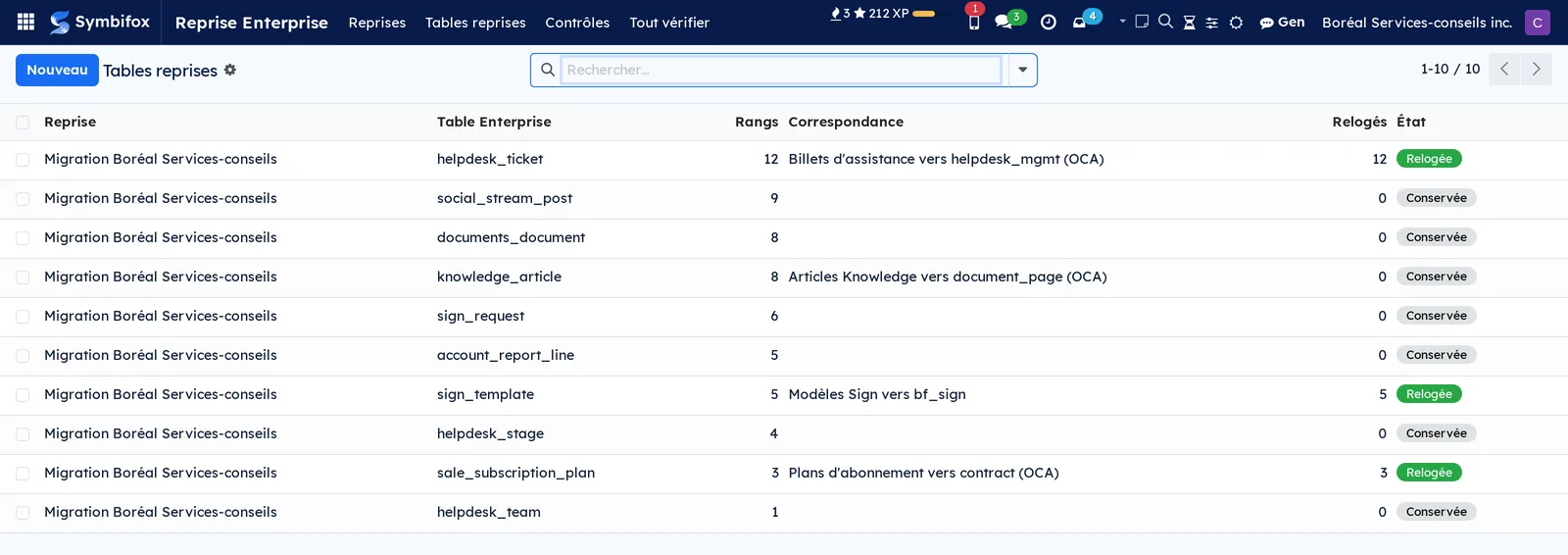
Six tables on the demonstration have no match at all, and that is normal: nothing in Community resembles them. They stay readable, searchable and exportable like any other list, which lets you handle them by hand, pour them somewhere else, or simply keep them while a doubt lasts.
Run the post-migration checks#
To be done once the bundle is handled, and again after each correction.
- Open Reprise Enterprise › Tout vérifier (check everything).
- Read the Constat (finding) column on each line.
- Correct what needs correcting, then run the check concerned again with Vérifier (check).
- For the two checks that are done by hand, do the gesture then select Réglé (settled).
The menus, one by one#
Reprise Enterprise is the application's root menu. It carries no screen of its own: it groups the four entries that follow.
Reprise Enterprise › Reprises lists the deposited files, with their source database, the number of tables and rows, the number of records rehomed and the state of the deposit. It is the entry you start from, and the one you come back to in order to run a rehoming again.
Reprise Enterprise › Tables reprises lists every table of every deposit, from the fullest to the lightest, with their match and their state. This is the working view: you open a table here, look at the preview, and rehome.
Reprise Enterprise › Contrôles (checks) lists the ten post-migration checks with their category, their state, their finding and the date they were last run. Each line carries Vérifier to run the check again and Réglé to mark it handled.
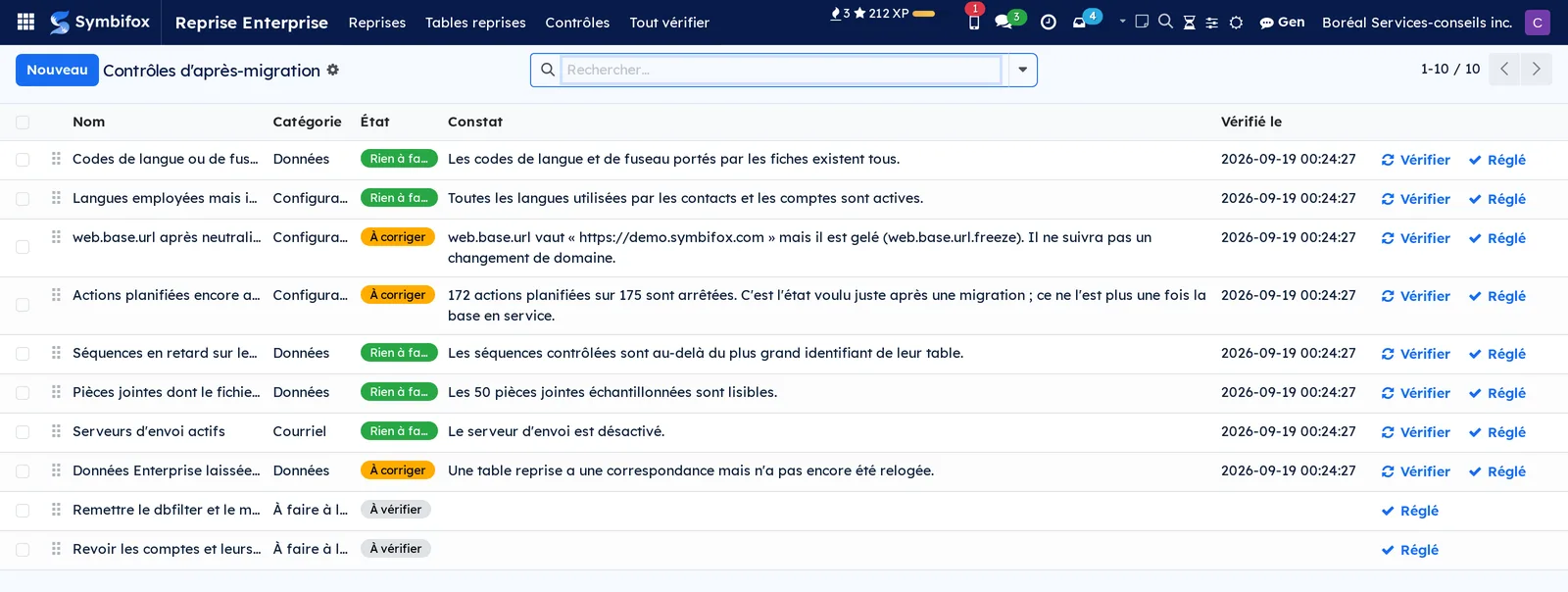
Reprise Enterprise › Tout vérifier does not open a screen as such: the entry runs the automatic checks and shows their updated list straight away.
Reference#
Fields on the Reprise form#
| Field | Description | Required or default |
|---|---|---|
| Nom (name) | What you call this deposit | Required |
| Fichier d'export (export file) | The file received from the migration tool | Required |
| État (state) | Deposited, Read or Handled | Deposited |
| Base d'origine (source database) | The name of the Enterprise database you came from | Read from the file |
| Version d'origine (source version) | The version of Odoo Enterprise you came from | Read from the file |
| Exporté le (exported on) | The date the file was written | Read from the file |
| Base d'arrivée (destination database) | The database the migration went to | Read from the file |
| Société (company) | The company that owns the bundle | The current company |
Fields on the Table reprise form#
| Field | Description | Required or default |
|---|---|---|
| Table Enterprise | The name this data carried in the source database | Read from the file |
| Rangs (rows) | The number of records recovered | Computed |
| Correspondance (match) | The destination application, where there is one | Computed |
| Cible installée (destination installed) | Whether the destination application is present here | Computed |
| Ce qui ne suit pas (what does not follow) | What the match cannot carry across | Computed |
| Relogés (rehomed) | The number of records already recreated | Computed |
| Tronquée à l'export (truncated on export) | Whether the migration tool capped this table | Read from the file |
| Journal (log) | The report of the last rehoming | Written by the application |
Reports and exports#
No printable report. The recovered tables and rows export like any Symbifox list, which is the way out for data that has no destination.
Automations#
None. Nothing fires on its own, and that is deliberate: the application writes into your business data from a file, and every write starts with a gesture. The checks themselves only run when you run them.
Modules that extend this application#
Understanding#
Why a second tool rather than one. The migration tears down the source database and builds a new one: it cannot run from inside the database it replaces. This application, for its part, lives in the destination instance once that instance exists. That is what lets it make do with a file dropped on a form, with no access to your servers or your databases.
Why the data is not simply imported. A Community database has nowhere to put it. The name of a source table can even exist on both sides while meaning two different things, and a direct import would then overwrite sound data. Going through a file makes that visible and reversible.
Why every match states its limits. A helpdesk stage, a service deadline, the position of the boxes on a signature or the recurrence of a subscription have no exact equivalent. Recreating them approximately would give records that look complete and are not. The application prefers to say so before writing, and to leave the work of reconstruction to whoever knows the file.
Why references are checked one by one. The migration keeps the identifiers, so a recovered contact often still points at the right record. Often is not always: a manager who left, a stage that no longer exists on this side. Every reference is therefore looked up in the destination application, and dropped with its reason when it does not resolve.
Why a check has three answers. "Nothing to do" means it looked. "To correct" means it found something. "Cannot be checked" means it could not look, because the application it needs is absent or the data is missing. Mistaking the third for the first is the simplest way to believe a migration is finished when it is not.
The check that comes first. A language or time zone code that does not exist does not merely look untidy: the instance raises an error on every operation that resolves it, and the message names the code rather than the record carrying it. That is the kind of defect that freezes a migration for half a day, and it is detected in a second.
Troubleshooting#
| Symptom | Likely cause | Fix |
|---|---|---|
| The deposit is refused with a message about the format | The file does not come from the migration tool, or it was edited | Take the original file written beside the source copy |
| The deposit is refused on size | Business data fell into the recovery file | Redo the export on the migration tool side |
| Reloger does not appear on a table | The destination application is not installed here | Install the application, then reopen the table |
| The rehoming says partial | One or more rows failed | Open the table, read the log, then the failed rows |
| A ticket arrives without its contact | The contact record does not exist in the destination database | Create the contact, then correct the ticket |
| A check stays on cannot be checked | The application or the data it needs is absent | Read its finding: it names what is missing |
| Links sent by email point to the wrong place | The site address stayed on the neutralization value | Check web.base.url après neutralisation, then correct it in the settings |