
Part 2 · Clients, sales and relationships
Work routes
Prepare recurring rounds, follow each visit on the phone, even without a network, and sell from the truck, deposits and payment included.
Watch it
The Routes application runs the rounds of people who spend their day on the road: deliveries, maintenance, restocking, technician visits. The office prepares a route once, and its days are created ahead of time. The worker follows the day on the phone and marks each stop. The result: a calculated order of visits, a dated log of every visit, and a sale made at the stop rather than copied out in the evening.
Overview#
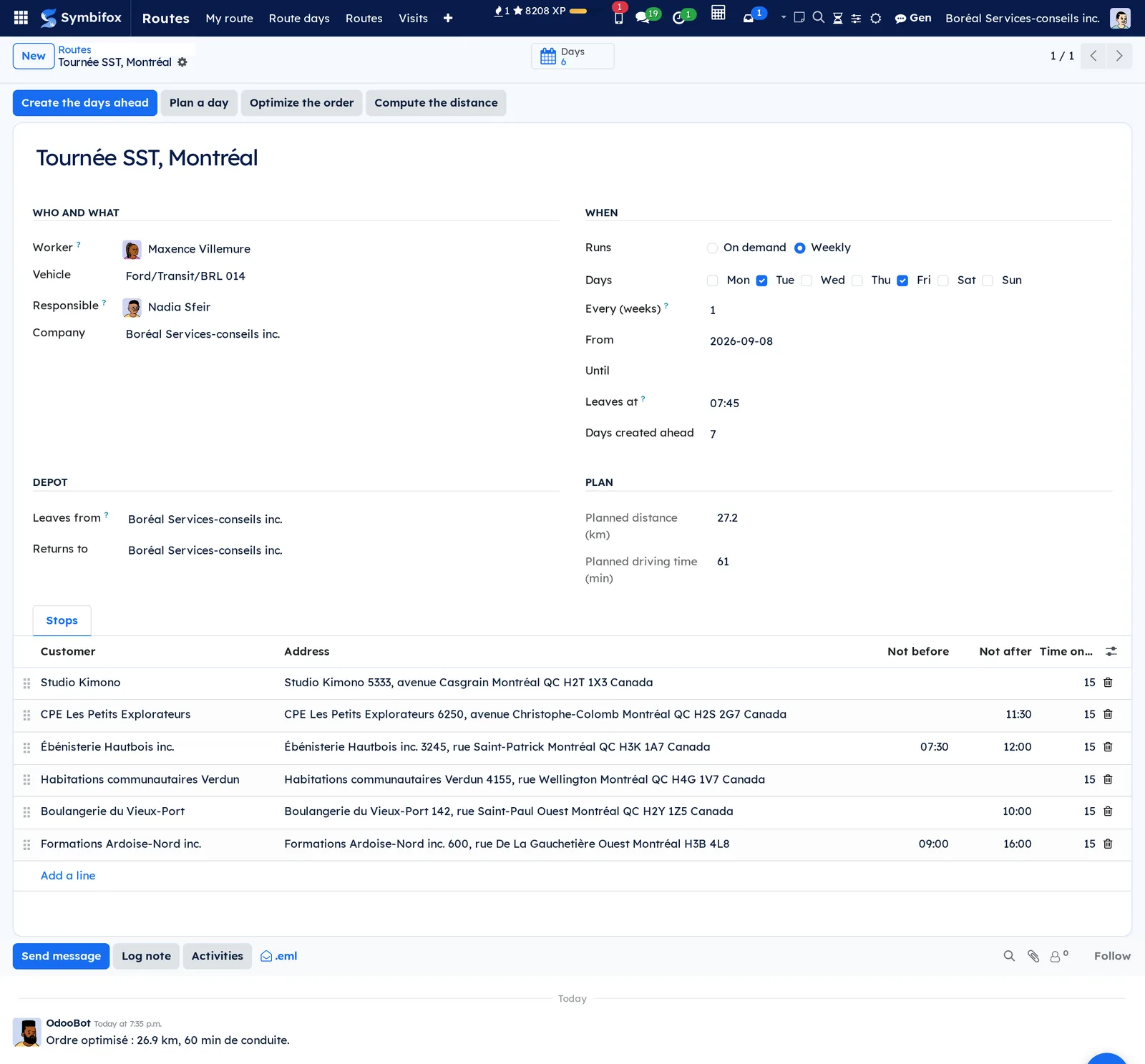
At Boréal, the compliance team restocks the first aid kits and swaps the fire extinguishers of six Montréal customers, every Tuesday and Friday. Nadia Sfeir is responsible for the route; Maxence Villemure drives it in truck BRL 014. This is how the current day looks from the office.
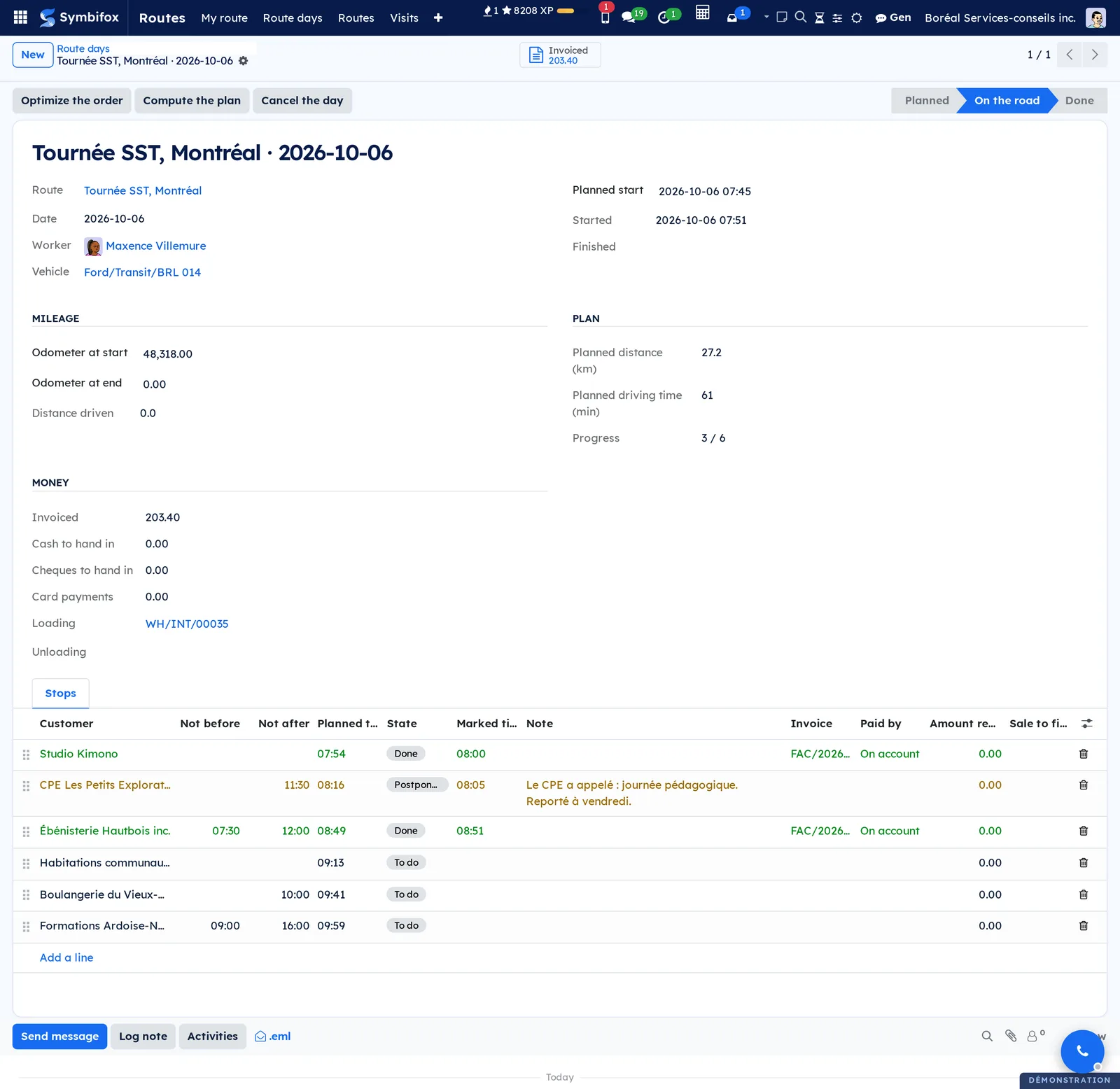
Eight ideas cover it.
- Route: the template of a round. Its stops in order, the person who drives it, the vehicle, the depot it leaves from and returns to, and the days it runs.
- Route day: a dated round, copied from the template. It moves from Planned to On the road, then to Done, or becomes Cancelled.
- Stop: a customer to visit, with a time window (Not before, Not after), a time on site and access instructions.
- Mark: what the worker records about a stop: Done, Customer absent or Postponed. A stop still To do at the end of the day becomes Missed.
- Worker: the person who drives the day and marks its stops from My route, on their phone.
- Responsible: the person at the office who receives the route's alerts.
- Routing engine: two services hosted by your organization, which calculate the order of the stops, the distance and the driving time. They receive coordinates and nothing else.
- Position at the stops: off by default. Once turned on, it is read a single time, when a stop is marked, after the worker has read a notice.
With the route sales module, each stop also carries its Usual products and the truck has its Truck stock. The day shows the money to hand in on return.
Configuration#
Access and permissions#
Rights are granted on the user form, in the Work routes category.
| Group | What it allows |
|---|---|
| Worker on the road | My route and their own days: start, mark the stops, sell, finish. Changes nothing directly at the office, and sees neither positions nor other people's routes. |
| Route manager | The routes, every day, the visits, the settings, the calculated order, loading and unloading the truck, and the positions if they are turned on. |
With the route sales module, route managers also get the inventory rights needed to load and unload the truck. The person named Responsible on a route receives its alerts, whatever their group.
Settings#
The settings live under Routes › Configuration › Settings, in the Work routes section.
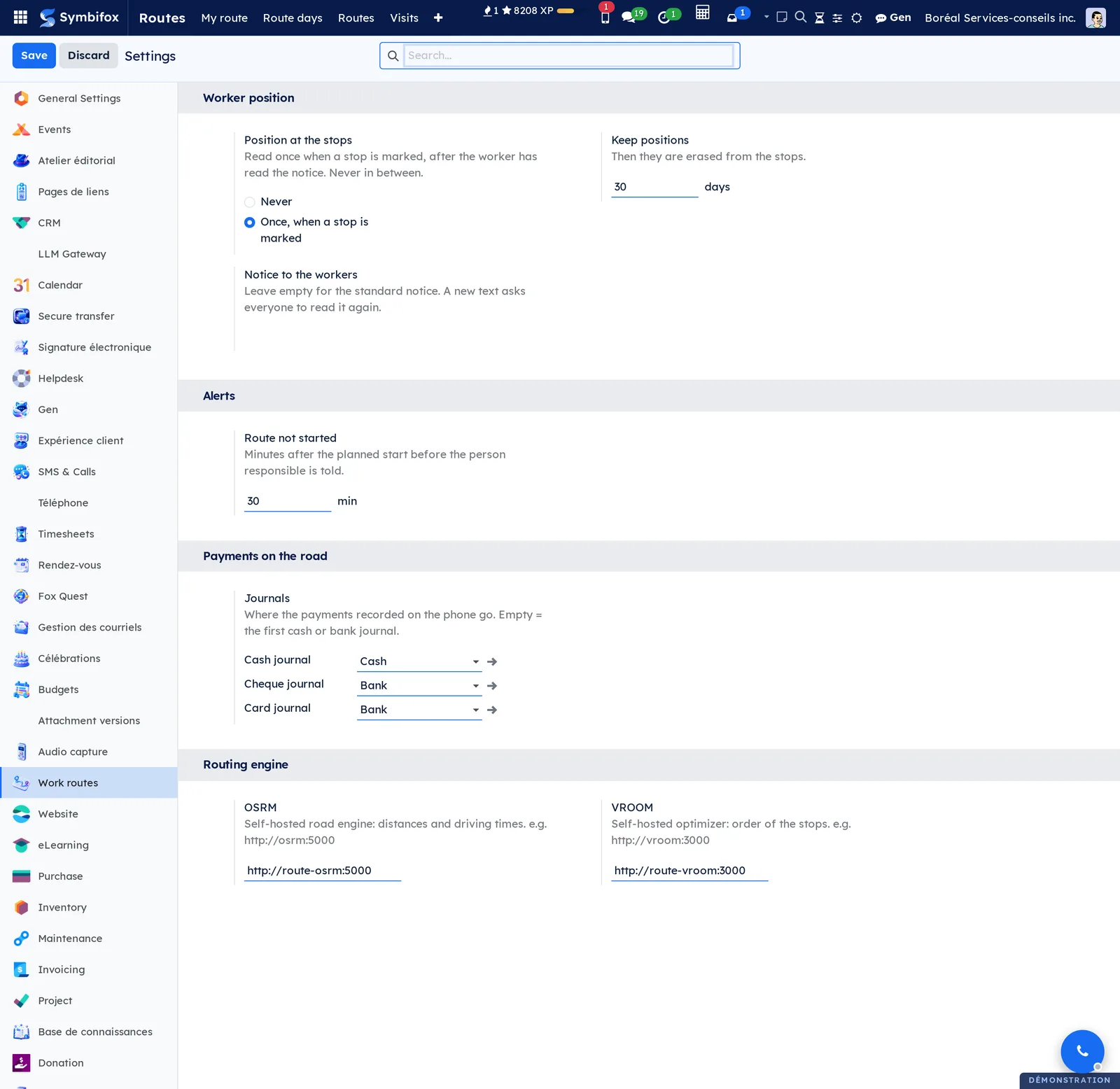
- Position at the stops: Never (the default) or Once, when a stop is marked.
- Keep positions: the number of days before a position is erased, from 1 to 3,650.
- Notice to the workers: leave it empty for the standard notice. A new text asks everyone to read it again.
- Route not started: how many minutes past the planned start before the responsible person is told.
- Cash journal, Cheque journal, Card journal: where the payments recorded on the phone go. When empty, the first cash or bank journal is used.
- OSRM and VROOM: the addresses of the two engines, for instance
http://osrm:5000. Without an address, the order stays the one you enter.
Base data#
Prepare three things before the first route.
- Customers with coordinates. The engine needs the latitude and longitude of each customer. The optional Latitude and Longitude columns of the stop list hold them.
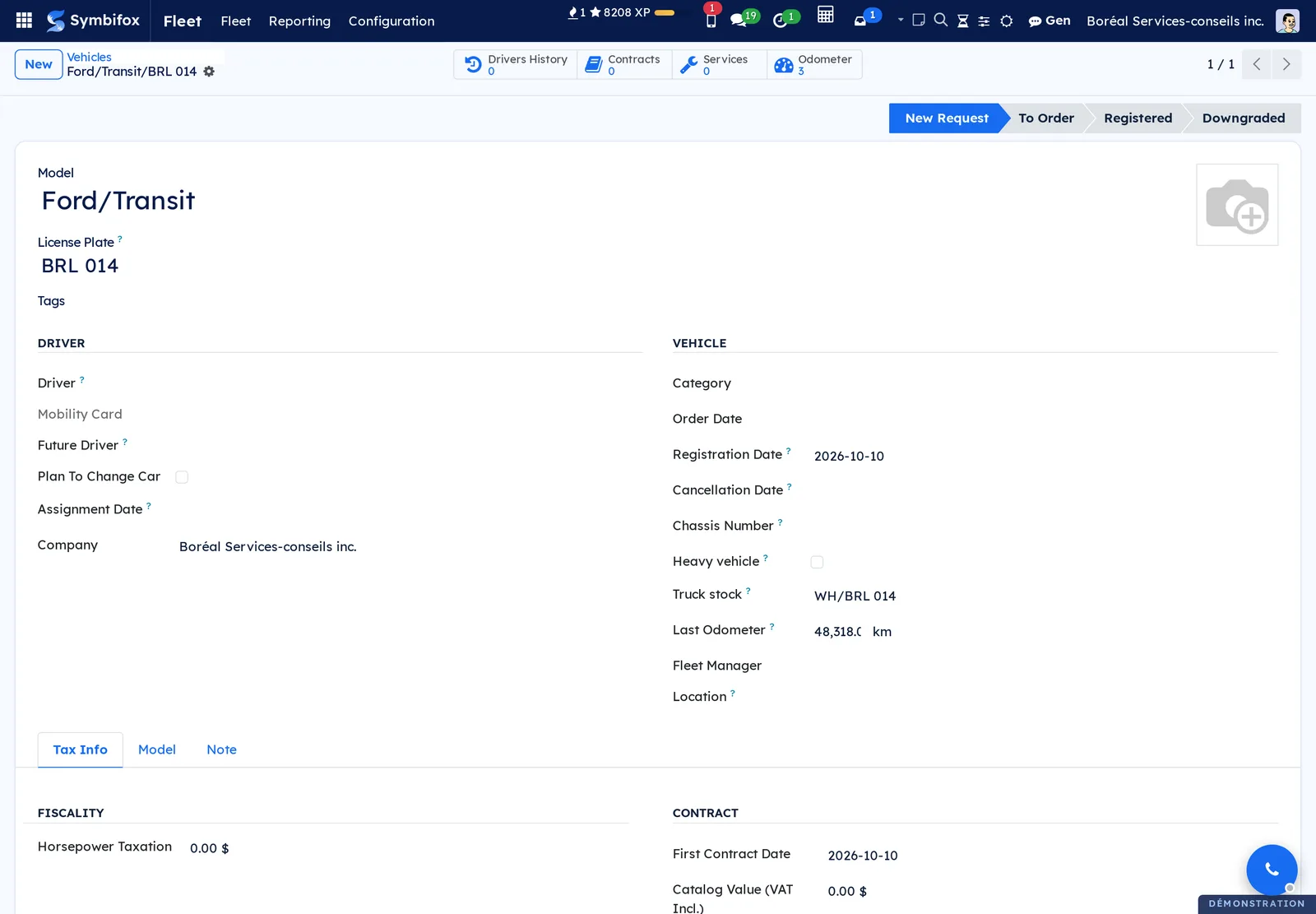
- The vehicle. Under Routes › Configuration › Vehicles, check Heavy vehicle for a vehicle of 4,500 kg or more: the pre-trip inspection is then required before leaving. With route sales, select Create next to Truck stock.
- The responsible person's time zone. The times of a day follow the time zone of the responsible person, or the company's if they have none.
Getting started#
This walkthrough follows Boréal's workplace health and safety round, from the template to the day under way.
- Go to Routes › Routes, then open “Tournée SST, Montréal”.
- Read the Stops tab: six customers, their Not before and Not after windows, and their time on site.
- Select Optimize the order. The stops change places, and the chatter (the message thread at the bottom of the form) notes the distance and the driving time.
- Select the Days shortcut button at the top of the form to see the days created ahead.
- Go to Routes › Route days, remove the To come filter, then open the day that is On the road.
- On the Stops tab, compare the Planned time and the Marked time of each visit.
- On the worker's phone, open Routes › My route.
You see the same day from both ends: the office knows how far along Maxence is without a phone call.
Common tasks#
Create a route#
You prepare a route once. Its days then follow on their own.
- Go to Routes › Routes, then select New.
- Enter the name, then choose the Worker, the Vehicle and the Responsible.
- Under When, choose Weekly, check the Days and set Every (weeks): “2” means every other week.
- Set Leaves at and Days created ahead.
- Under Depot, choose where the route Leaves from and where it Returns to.
- On the Stops tab, add the customers, their windows and their access instructions.
- Select Create the days ahead.
The days to come appear under Days. An On demand route creates none: you plan its days one at a time.
Plan an unscheduled day#
Use this for an exceptional round, or for an on-demand route.
- Open the route, then select Plan a day.
- Choose the date.
- Adjust the stops for that day only.
The day copies the route's stops. What you change on a day leaves the route untouched.
Optimize the order of the stops#
The engine arranges the stops to cut driving, while respecting the time windows.
- Open the route or a planned day.
- Select Optimize the order.
- Read the note in the chatter: distance and minutes of driving.
On a day, Compute the plan only recalculates the planned time of each stop, without changing the order. On a route, Compute the distance does the same for the distance. A stop that does not fit in its window is kept at the end, and the note names it.
Prepare the truck#
With route sales, the truck is loaded from the usual quantities of the stops.
- Open the planned day.
- On the Stops tab, adjust the Products of a stop for that day, if needed.
- Select Load the truck.
- Once the truck is full, validate the transfer that opens.
The transfer appears under Loading. The day now counts as prepared by the office: the route no longer rewrites it.
Follow your day on the phone#
The worker needs nothing but My route.
- Open Routes › My route. The first time the position is turned on, read the notice and select I have read the notice.
- Enter the Odometer at start. For a heavy vehicle, check I did the pre-trip inspection of this heavy vehicle. Then select Start the day.
- For each stop, select Directions or Call if needed.
- Select Note to write down what happened.
- Mark the stop: Done, Absent or Postpone.
- At the end, enter the Odometer at the end, then select Finish the day.
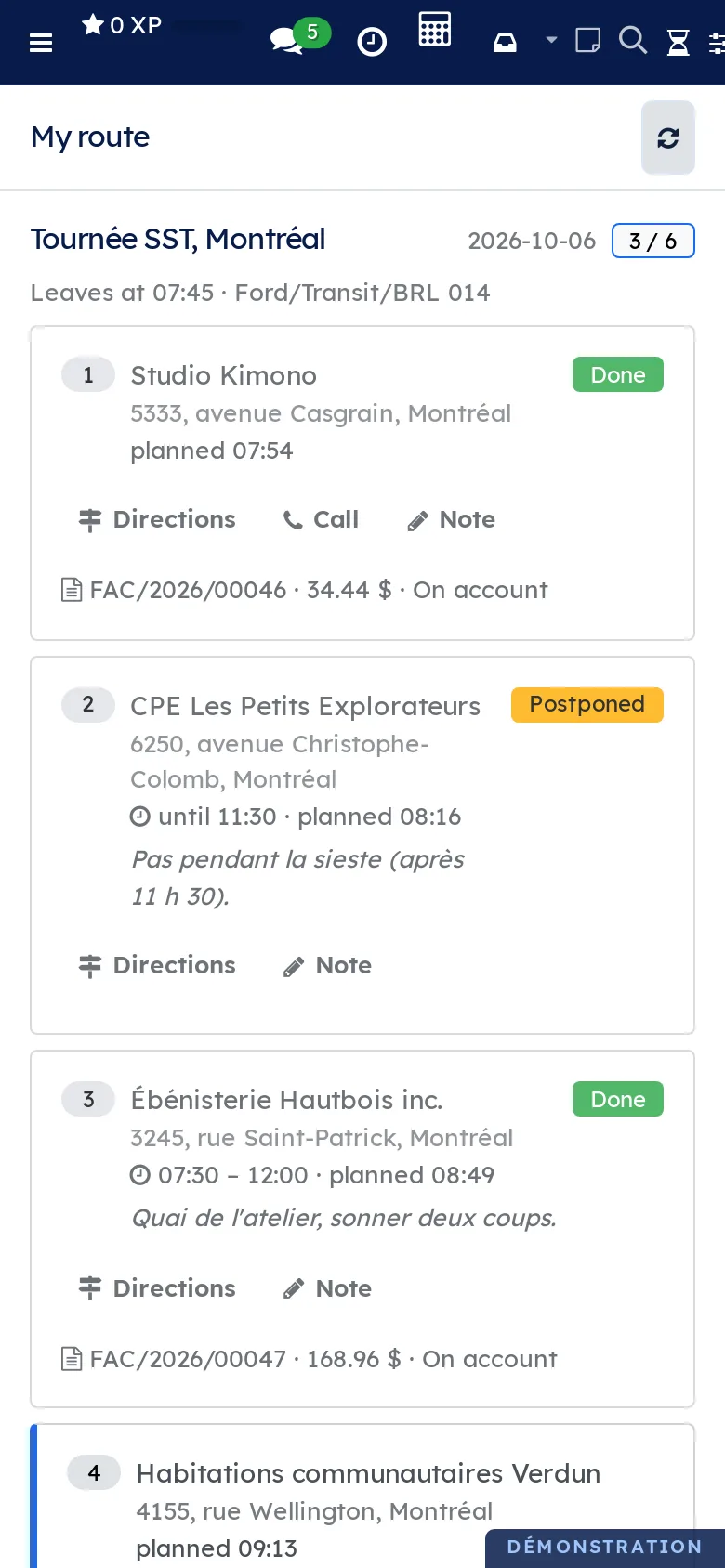
A postponed stop moves to the route's next planned day. If the customer is already on that day, what the stop carried is added to the existing stop.
Sell at a stop#
With route sales, each stop still to do shows its usual products.
- In My route, scroll down to the stop.
- Adjust the Delivered quantities and, for a deposit container, the Empties back.
- Read the About, taxes included estimate.
- Choose the payment: Cash, Cheque, Card (terminal) or On account.
- If needed, enter the Amount received and the Cheque no. or Authorization no.
- Select Done.
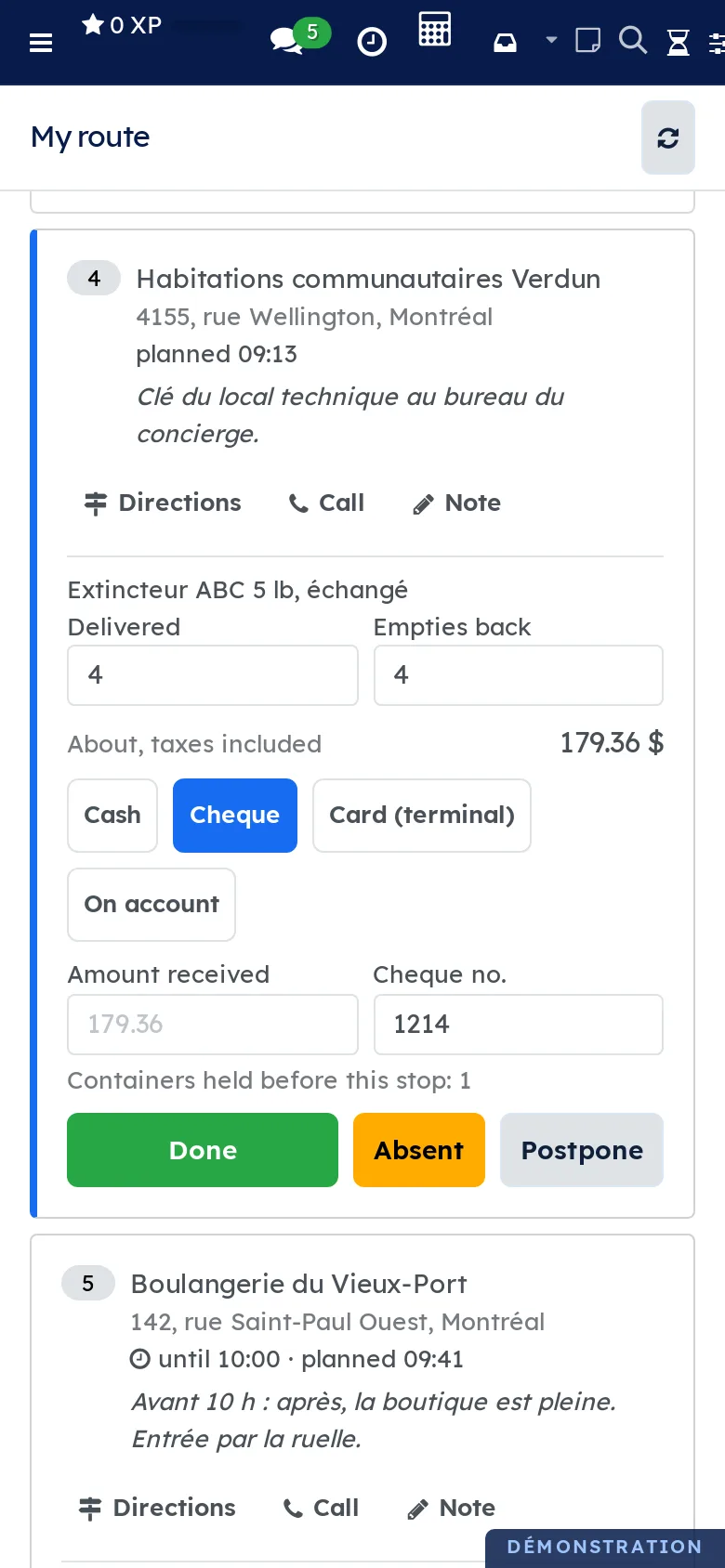
The invoice is made at the customer's price and shows under the stop. The payment is recorded as received; a card goes through the worker's own terminal. An amount left empty takes the estimate.
Finish a held sale#
An unusual, archived or unsaleable product never blocks the stop. The sale is kept, and the office confirms it.
- Open the day: the Sales to finish counter flags it.
- Open the stop that shows a Sale to finish box.
- Check the quantities, then select Retry the sale.
The invoice and the delivery are then made, and the box disappears.
Unload the truck and cash up#
On return, the truck goes back to zero and the money is handed in.
- Open the Done day.
- Under Money, read Cash to hand in, Cheques to hand in and Card payments.
- Select Unload the truck.
- Validate the transfer or transfers.
What is left goes back to the warehouse. If more was delivered than loaded, a correction transfer records it.
Cancel or reschedule a day#
- Open the planned day.
- Select Cancel the day.
- To put it back on the road, select Plan again.
The route never recreates a cancelled day.
Turn on the position at the stops#
Do this with the person in charge of protecting personal information.
- Go to Routes › Configuration › Settings.
- Choose Once, when a stop is marked.
- Set Keep positions.
- Keep the standard notice, or write your own.
- Select Save.
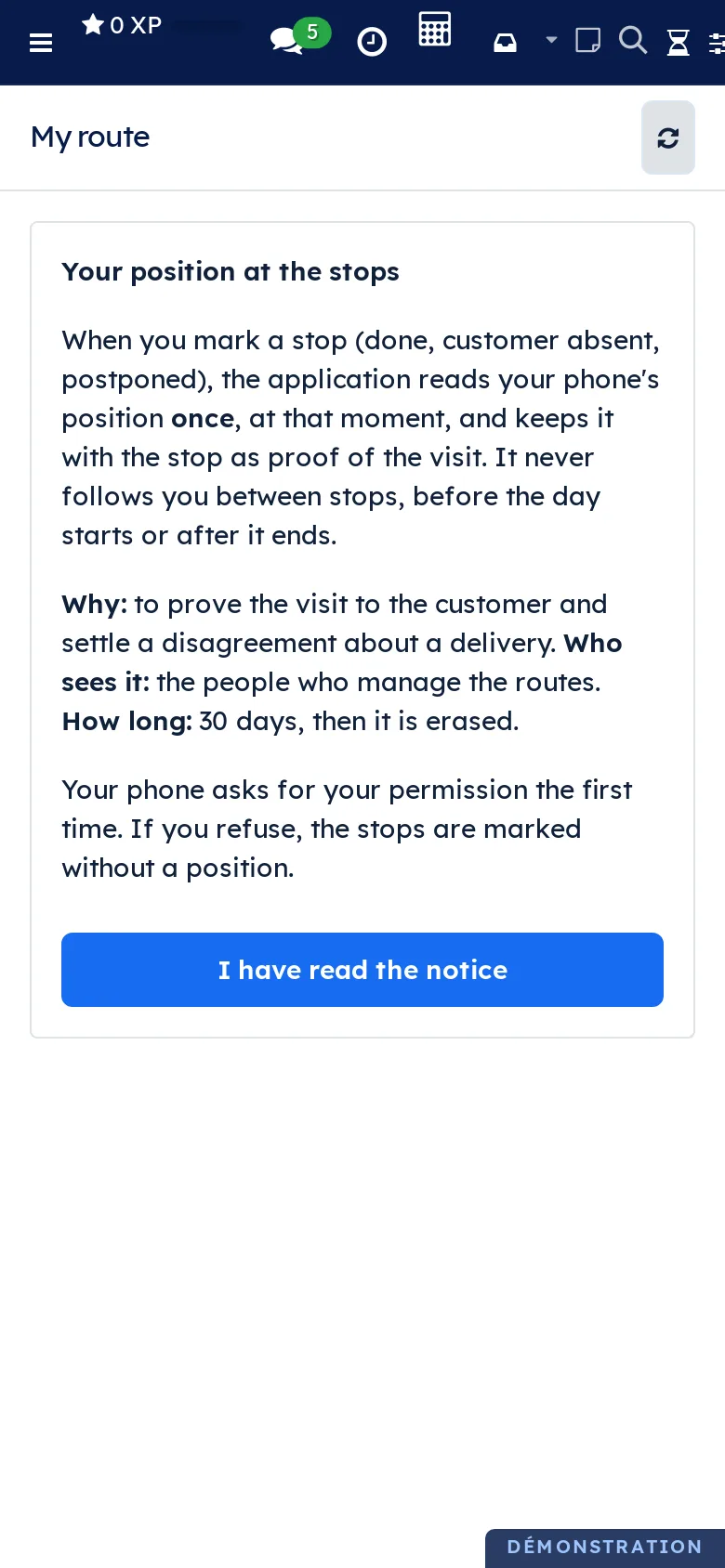
Each worker reads the notice the next time they open My route. The readings are listed under Position notices read.
The menus, one by one#
Routes › My route: the phone screen. It shows the signed-in person's days for today, and any day still on the road. With no day, it shows “No route for you today.”
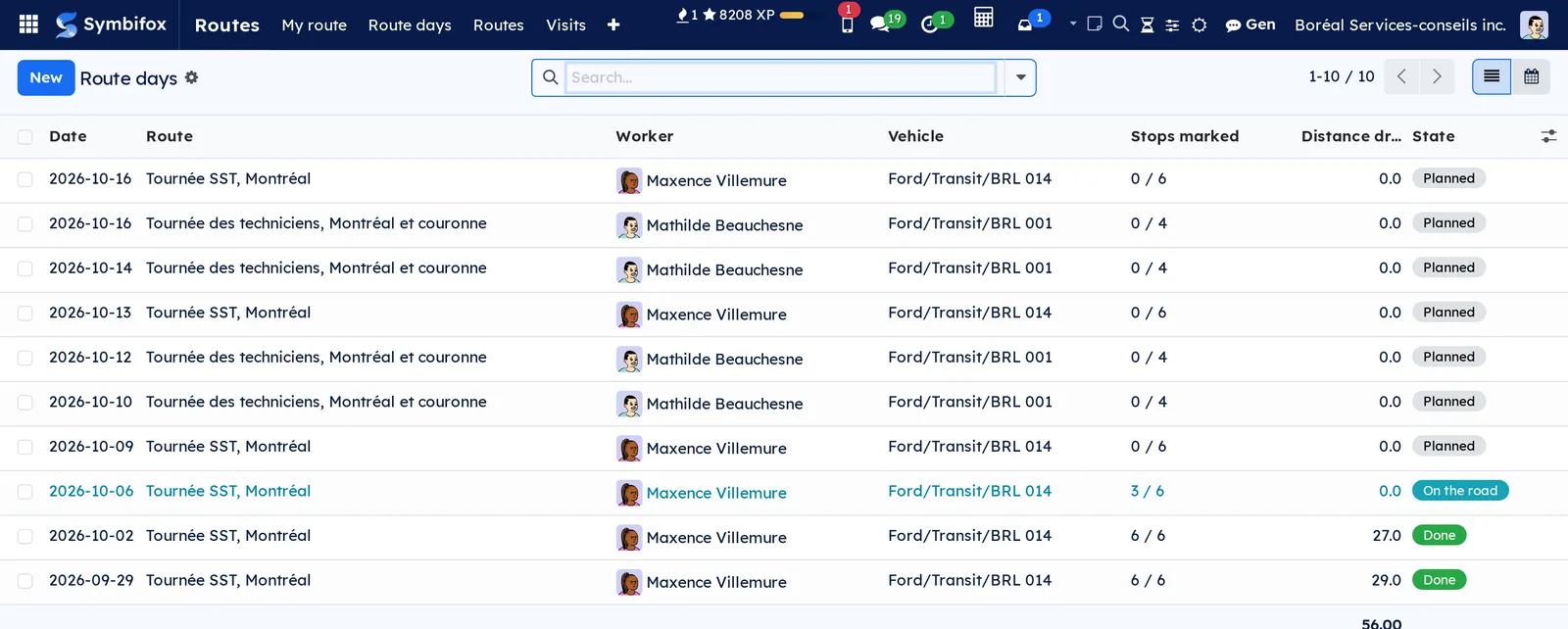
Routes › Route days: the list of days, with the date, the route, the worker, the vehicle, the stops marked, the distance driven and the state. The Today, To come, On the road and Mine filters help, as does grouping by route, worker or vehicle. A calendar view shows the week.
Routes › Routes: the templates, their days and their number of stops.
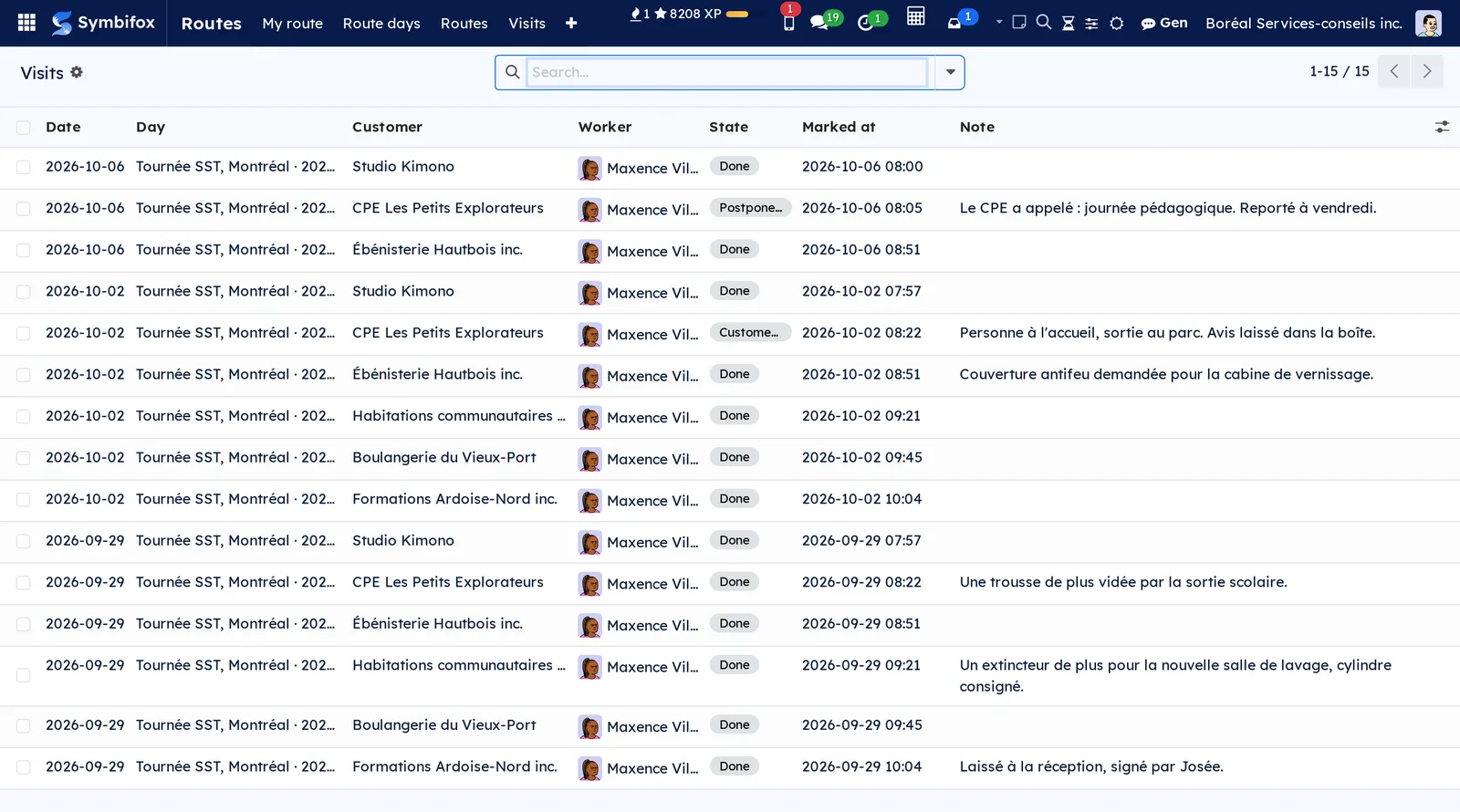
Routes › Visits: every stop already marked, newest first, with the day, the customer, the worker, the state, the time and the note. It is the register of visits.
Routes › Configuration: groups the three screens below.
Routes › Configuration › Settings: the settings described earlier.
Routes › Configuration › Vehicles: the vehicles of the fleet, with Heavy vehicle and Truck stock.
Routes › Configuration › Position notices read: who read which version of the notice, and when. It is empty on the demo, where no one has read the notice yet.
Reference#
Fields of the Route form#
| Field | Description | Required or default |
|---|---|---|
| Worker | Who drives the route by default, each day. | Optional |
| Vehicle | The vehicle used each day, by default. | Optional |
| Responsible | Receives the alerts; their time zone sets the times. | Optional |
| Runs | On demand or Weekly. | Weekly |
| Days | The days of the week the route runs. | Monday |
| Every (weeks) | 1 for every week, 2 for every other week. | 1 |
| From, Until | The period during which the route runs. | From: today |
| Leaves at | The planned departure time. | 08:00 |
| Days created ahead | How many days ahead the route prepares its days. | 7 |
| Leaves from, Returns to | The depot. | The company |
| Stops | Customer, Not before, Not after, Time on site (min), Access instructions. | 10 minutes on site |
Fields of the Route day form#
| Field | Description | Required or default |
|---|---|---|
| Route, Date | The route and the day. | Required |
| Worker, Vehicle | Copied from the route, and can be changed for that day. | From the route |
| Planned start, Started, Finished | The planned time and the actual times. | Filled in from the phone |
| Odometer at start, Odometer at end, Distance driven | The day's mileage, carried over to the vehicle. | Filled in from the phone |
| Planned distance (km), Planned driving time (min) | The engine's plan. | Calculated |
| Progress | The stops marked out of the total. | Calculated |
| Invoiced, Cash to hand in, Cheques to hand in, Card payments | The day's money (route sales). | Calculated |
| Loading, Unloading | The truck's transfers (route sales). | Office |
Reports and exports#
The lists of days and visits export like any list. The Invoiced shortcut button at the top of a day's form opens its invoices.
Automations#
Every 15 minutes, the application creates the coming days of each weekly route. It alerts the responsible person to a route not started on time, a day left open and missed stops, with one activity per problem. It also erases the positions that have reached the end of their retention period.
Public pages and portal#
The application has no public page and no portal. My route installs as an app on the phone's home screen.
Modules that extend this application#
Understanding#
The office keeps control of what it prepared. A day created by the route follows the route: change a stop on the template, and the planned days follow. A day edited at the office, or whose truck is loaded, no longer moves; a note in its chatter says so.
The position: once, and only if you want it. Section 8.1 of Québec's Act respecting the protection of personal information in the private sector, strengthened by Law 25, sets the rule. You must inform people before you turn on a means of locating them. The position is therefore off by default, read once when a stop is marked, never between stops, and erased after the period you choose. A worker who refuses the permission on their phone marks their stops without a position.
Offline, nothing is lost. The phone keeps every mark with its time, and sends it when the network returns. A phone clock running ahead of the server is not believed. The server may refuse a mark, for instance on a stop the office removed. The phone then keeps it in view under Marks not recorded (the office was told), and an activity alerts the office.
The engine cuts driving, not waiting. A late Not before window can leave the worker waiting at a locked door. If the wait is not worth it, widen the window or remove it.
The sale first, the paperwork after. The mark and the sale are saved before the invoice, the delivery and the payment. A failed document never loses the sale: it becomes a Sale to finish. When the empties taken back exceed what was delivered, the sale produces a credit note, left in draft for the office. Cash follows the legal rounding to 5 cents.
Troubleshooting#
| Symptom | Likely cause | Fix |
|---|---|---|
| Optimize the order answers “No optimizer: enter the VROOM address in the Routes settings.” | The VROOM address is empty. | Enter it under Settings, in the Routing engine section. |
| My route shows “No route for you today.” | The day belongs to another person, is on another date, or is cancelled. | Check the Worker and the date of the day. |
| The times of a day are off by a few hours. | The responsible person has no time zone. | Set their time zone in their preferences. |
| The notice comes back on the phone. | The text, the mode or the retention period changed. | That is intended: the worker rereads the notice once. |
| A stop shows Sale to finish. | An unusual, archived or unsaleable product was sold. | Check it, then select Retry the sale. |
| Unload the truck is refused. | The truck was already loaded again for a later day. | Unload that later day instead. |
| A stop finds no place in the calculated order. | Its window does not fit in the day. | Widen the window, or leave the stop at the end. |