
Part 3 · Projects, time and knowledge
Working Time
Your working time rebuilt from your own traces, with its margin of error, off until you turn it on and shown to you alone.
Watch it
The Working Time app rebuilds, for anyone who wants it, the stretches of their day where a trace proves they were working. It is meant for people who enter their hours after the fact, or who work with several assistants at once. What you get: reconstructed hours day by day, with a low and a high bound, next to the hours you entered. Nothing starts until the person turns it on themselves, and nobody else sees their figures unless they act.
Overview#
A timesheet says where the effort went, not how long someone actually worked. Hours entered on Friday are guesses, and work done with several agents running at once adds up end to end. Working Time supplies that second number without replacing the first.
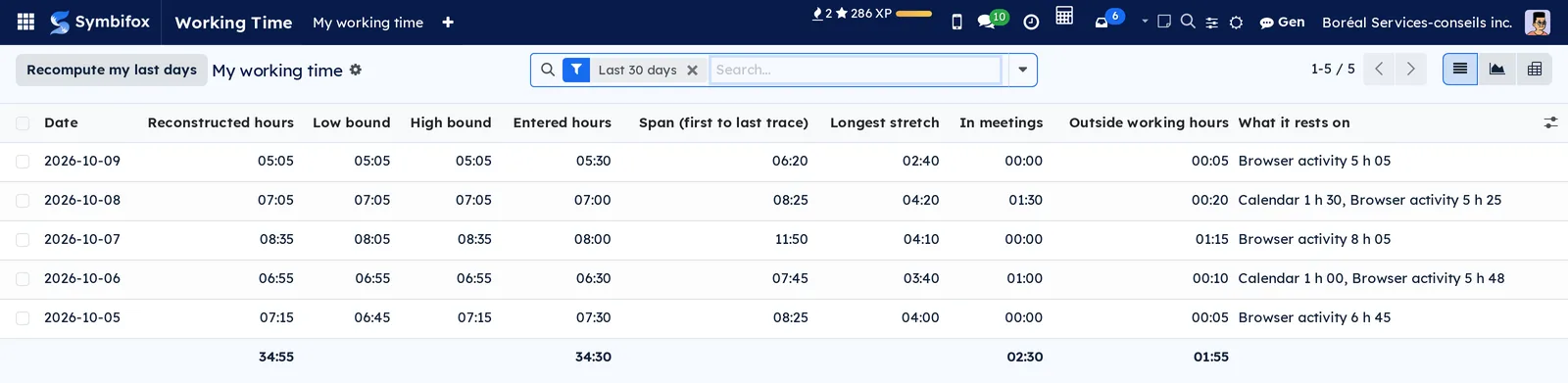
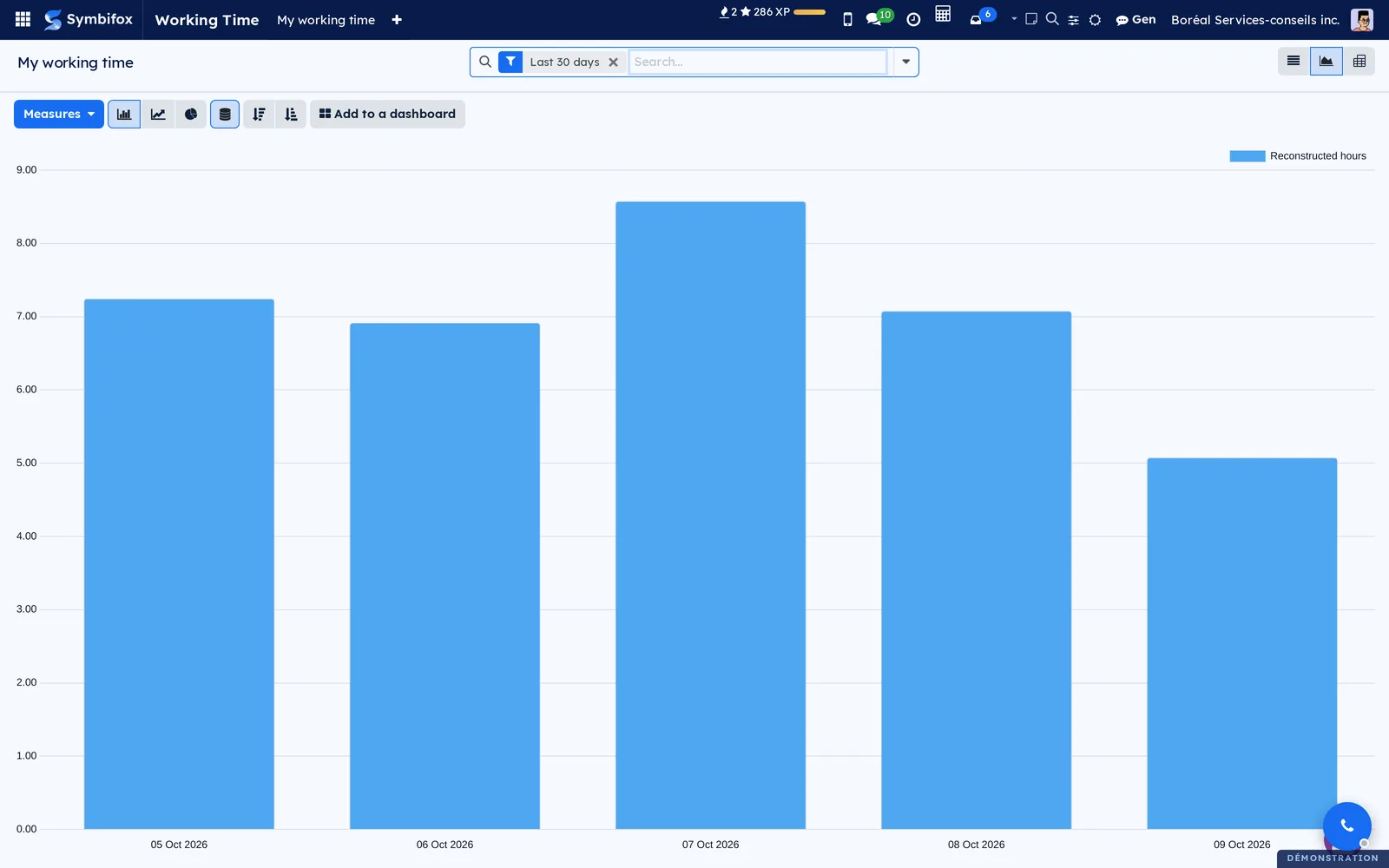
At Boréal, Camille Tremblay has turned on both switches. Her week of October 5 to 9 looks like this.
Eight ideas cover it.
- Trace: a moment or a stretch that proves a human hand. Keyboard or mouse in Symbifox, an accepted meeting, a prompt to Gen, a note, an email sent, a timer stretch.
- Stretch: a continuous piece of the day, made of merged traces.
- Idle gap: two traces closer than this form a single stretch. It is 15 minutes by default.
- Reconstructed hours: the sum of a day's stretches.
- Low bound and High bound: the same day recomputed with a 5-minute gap, then a 30-minute gap.
- Propose my hours: the first switch. It starts reading traces and computing days.
- My indicators: the second switch. It adds to each day the span, the longest stretch, time in meetings, back-to-back meetings and time outside working hours.
- Share: access to your days that you give to a colleague you name, revocable at any time.
With Timesheets installed, each day also shows the Entered hours: two numbers for two jobs, with no alert when one exceeds the other. Other bridges add their traces as soon as the neighbouring app is installed (see Modules that extend this application).
What sets the approach apart: the module serves the person, not the employer. Neither managers nor administrators see the figures, no score is computed, and nothing is decided from them.
Configuration#
Access and permissions#
The module adds no group. Everyone with an internal account sees the Working Time app, with their own days and those shared with them. There is no manager right: the access rules bind administrators too. Portal accounts do not get the app.
Only the person concerned turns things on, off, shares and revokes, and only in their own web session. An API key cannot do it, so neither can an agent or a program. Someone impersonating you sees neither your days nor your choices (see Impersonation).
Settings#
The organization has no settings screen to fill in. The choices belong to each person, under Working Time › My choices or in the Working time tab of their Preferences.
Base data#
Nothing to create. Two existing settings still change the figures.
- The person's time zone, in their Preferences. Days are cut at midnight, their time. Without a time zone, Symbifox counts in UTC.
- Their working schedule, on their employee record, or the company's if they have none. Without a schedule, Outside working hours is not computed (see Employees).
Getting started#
This walkthrough follows Camille Tremblay's week.
- Open Working Time › My choices. Propose my hours and My indicators are both checked.
- Go to Working Time › My working time. Five days appear, October 5 to 9, under the Last 30 days filter.
- Read the totals at the bottom of the list: 34:55 reconstructed hours, 34:30 entered hours.
- Open October 7.
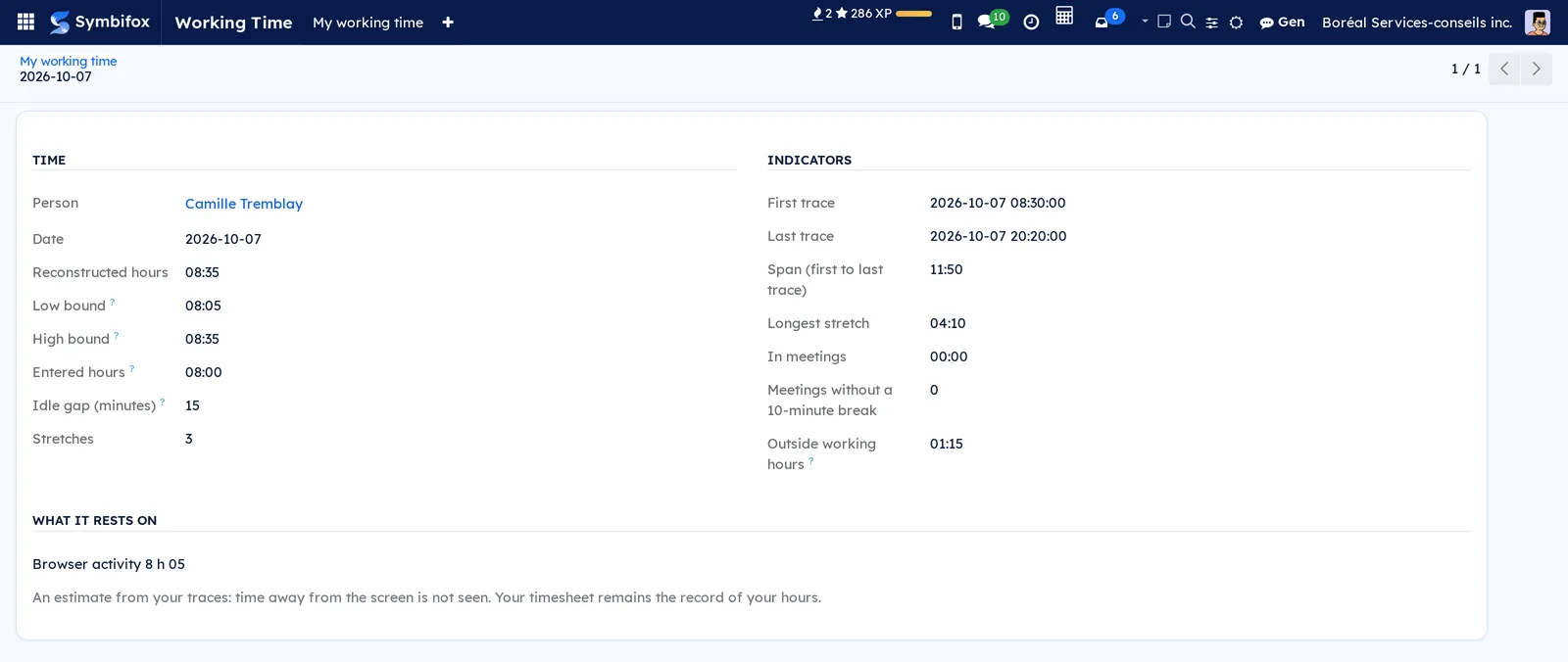
- Under Time, compare the Reconstructed hours, 08:35, with the Low bound, 08:05, and the High bound, 08:35.
- Under Indicators, read the Span (first to last trace): 11:50, from 8:30 a.m. to 8:20 p.m.
- Under What it rests on, read the day's only source: “Browser activity 8 h 05”.
Camille sees that a day spanning almost twelve hours holds 8 h 35 of work, 1 h 15 of it outside her schedule. Her timesheet said 8 hours.
Common tasks#
Turn on Propose my hours#
You are the only person who can turn it on, in your own session.
- Go to Working Time › My choices.
- Under Propose my hours, select Read the notice and turn on. The Before you turn it on dialog opens.
- Read the notice: what is read, what it gives you, who sees it, how long it is kept and how to turn it off.
- Check I have read this notice and I turn the feature on myself. The Turn on button appears.
- Select Turn on.
The notice names each installed source and says what is never read.
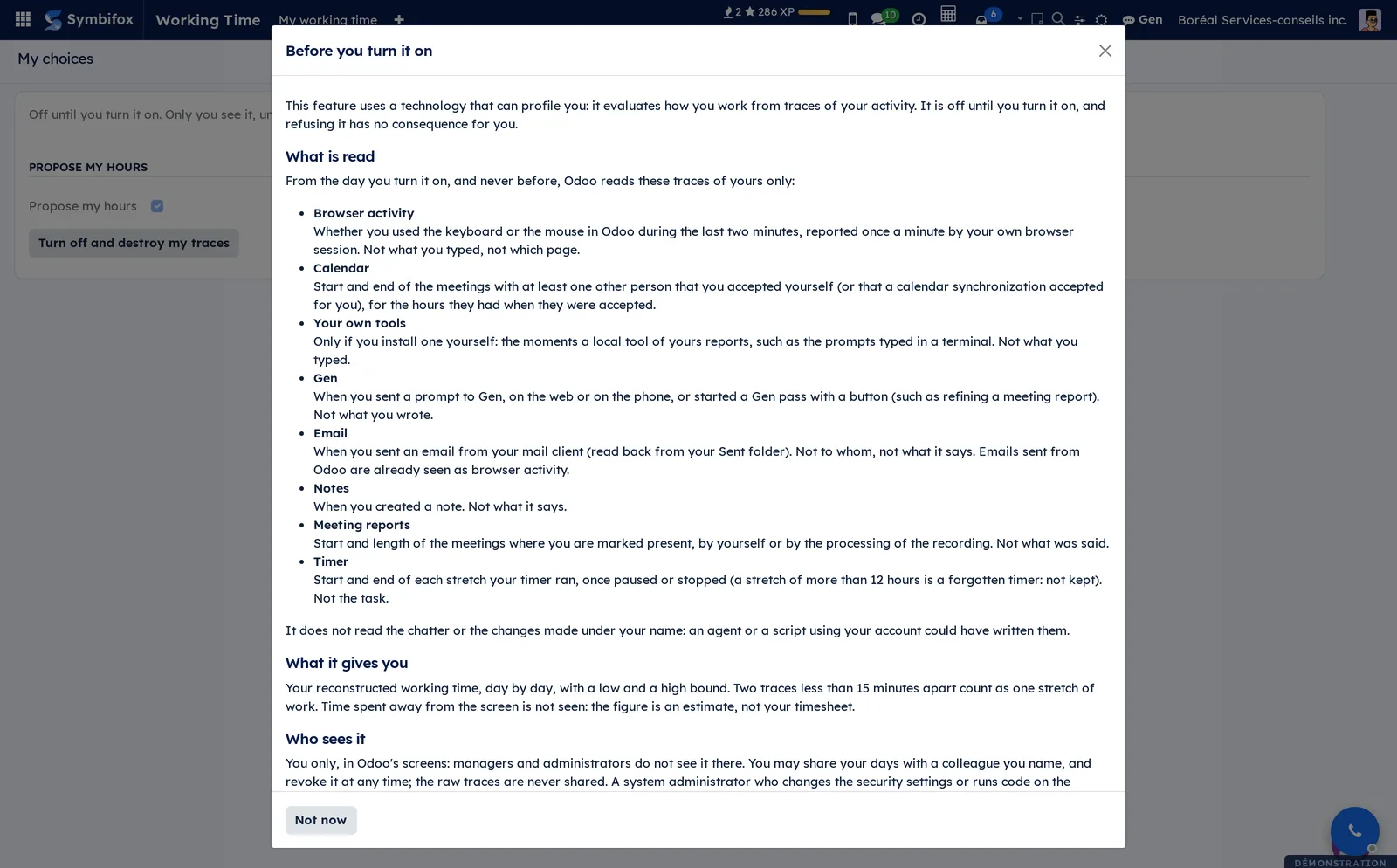
My choices comes back with the box checked. Traces are read from this moment on, never before. Your days appear within the hour, or right away with Recompute my last days.
Turn on your indicators#
Indicators describe how you work rather than how long. That is why they need a second agreement.
Before you start: Propose my hours is on.
- Go to Working Time › My choices.
- Under My indicators, select Read the notice and turn on.
- Read the What it adds section of the notice.
- Check I have read this notice and I turn the feature on myself.
- Select Turn on.
The indicator columns appear in My working time from the day of this activation. Earlier days stay without indicators.
Use your preferences instead#
The same two switches also live in your preferences.
- Select your avatar, at the top right, then Preferences.
- Open the Working time tab.
- Select Read the notice and turn on, Turn off or Turn off and destroy my traces.
The same notice opens, and the page reloads once you have made your choice.
Read a day#
Each day shows what it holds and what it rests on.
- Go to Working Time › My working time.
- Open a day.
- Under Time, compare the Reconstructed hours with the Low bound and the High bound.
- Compare them with the Entered hours, if you use timesheets.
- Under What it rests on, read the hours each source would give on its own.
Tight bounds mean your stretches are clean. Wide bounds mean the figure depends mostly on the idle gap chosen.
Recompute your last days#
Days are recomputed every hour on their own. The button is for when you want to see a recent trace right away.
- Go to Working Time › My working time.
- Select Recompute my last days.
Your last seven days are rebuilt and the page reloads. The button always rebuilds your own days, which is why it only appears under My working time, never under Shared with me.
See your week as a chart or a table#
- Go to Working Time › My working time.
- Select the graph view. One bar per day shows the Reconstructed hours.
- Optional: under Measures, add Low bound, High bound or Entered hours.
- For weekly totals, select the pivot view instead: one row per week.
Share your days with a colleague#
A share lets one named person see your days: your hours, and your indicators if you turned them on. Never your raw traces.
Before you start: Propose my hours is on. Without it there is nothing to see, and the hourly pass ends the share.
- Go to Working Time › My shares.
- Select New. A line is added to the list.
- In Shared with, choose the person.
- Save the line.

The line shows when the share started, with Revoke at the end. The person sees your days under Shared with me: your hours and their bounds, what they rest on, your entered hours and, if you turned them on, your indicators. Never your raw traces. They get no notification: Symbifox sends no email and no message, so tell them yourself.
A share goes to one internal person other than you. It cannot be edited: to change the person, revoke it and share again.
Revoke a share#
- Go to Working Time › My shares.
- On the person's line, select Revoke.
- Confirm the message “This colleague will no longer see any of your days. Continue?”.
Access to the whole history is cut at once. The line leaves the list, but the share is kept as a record of who saw what: it is revoked, never deleted.
View the days shared with you#
- Go to Working Time › Shared with me.
- Open a person's group.
- Open a day.
You see their hours, their bounds and, if they turned them on, their indicators. Everything is read-only, until they revoke the share.
Turn off your indicators#
- Go to Working Time › My choices.
- Under My indicators, select Turn off.
The indicators are wiped from all your days. Your hours stay.
Turn off Propose my hours#
This is the full withdrawal.
- Go to Working Time › My choices.
- Under Propose my hours, select Turn off and destroy my traces.
- Confirm the message “Your traces and your days will be destroyed, and your shares ended. Continue?”.
Your raw traces and your days are destroyed, your indicators turn off, and every share ends. The activation stays, marked as withdrawn, as a record of what happened. If you turn it on again later, reading starts over from the day of the new activation.
Prepare the rollout in your organization#
This is for the person in charge of protecting personal information, before installation.
- Carry out the privacy impact assessment required by section 3.3 of Québec's private sector Act, as amended by Law 25.
- Decide whether to offer the tool, and tell the team that each person stays free to turn it on or not.
- If the meeting reports bridge will be installed, name the recording processing accounts first (see Modules that extend this application).
- Install the module.
The app appears for everyone, switched off.
The menus, one by one#
The app has four entries. When the bar runs out of room, as in the screenshots, the entries that do not fit move under +.
Working Time › My working time: your days, most recent first, under the Last 30 days filter. The columns are those of the day form, with the less useful ones hidden by default. Filters This week and Last 30 days; grouping by Week and Person. List, graph and pivot views. Before activation, the screen shows “Nothing yet”.
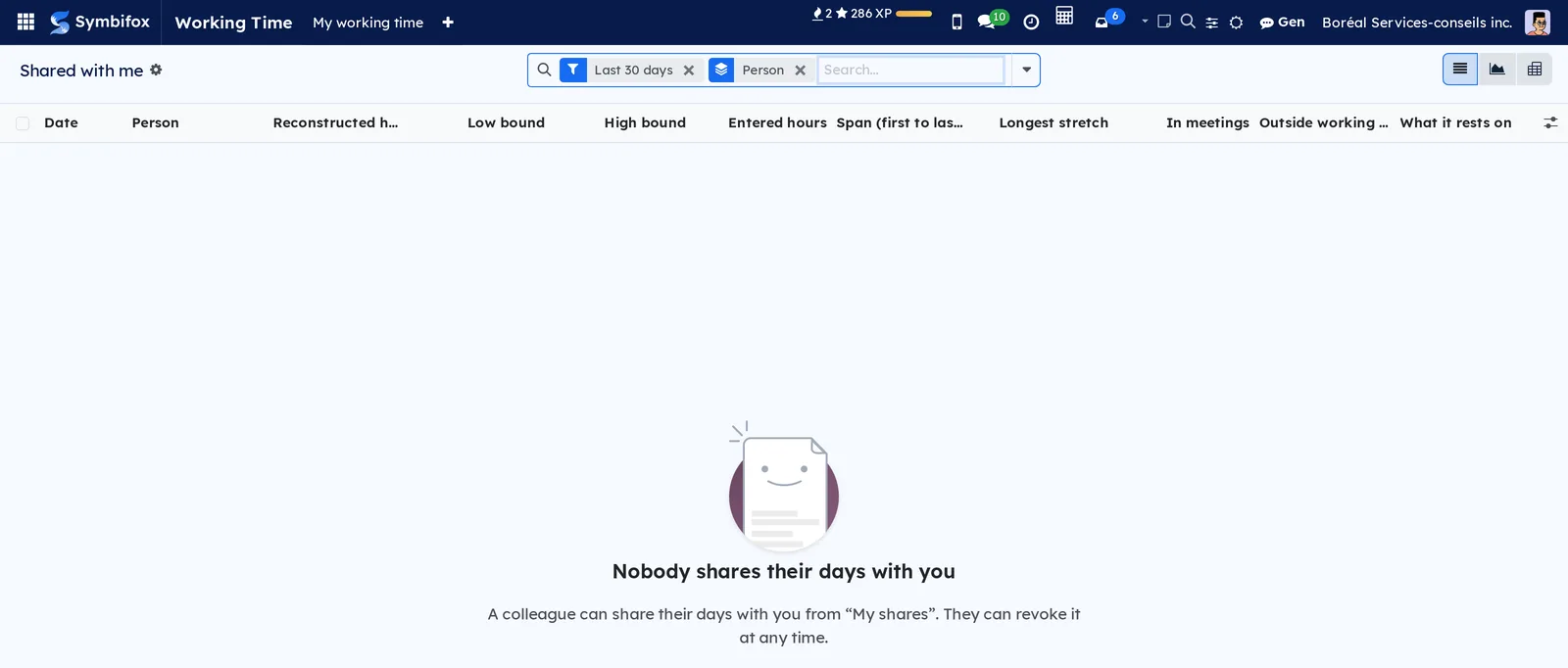
Working Time › Shared with me: the days of the people who share theirs with you, grouped by Person, under the Last 30 days filter. Same columns, plus Person, and the same views, without Recompute my last days. Camille has received no share, hence the empty screen and its help text.
Working Time › My shares: the people you share your days with, with Shared with, Since and Revoke. When empty, the screen shows “You share your days with nobody”.
Working Time › My choices: your two switches, each with its button to turn it on or off. Only you can read this page.
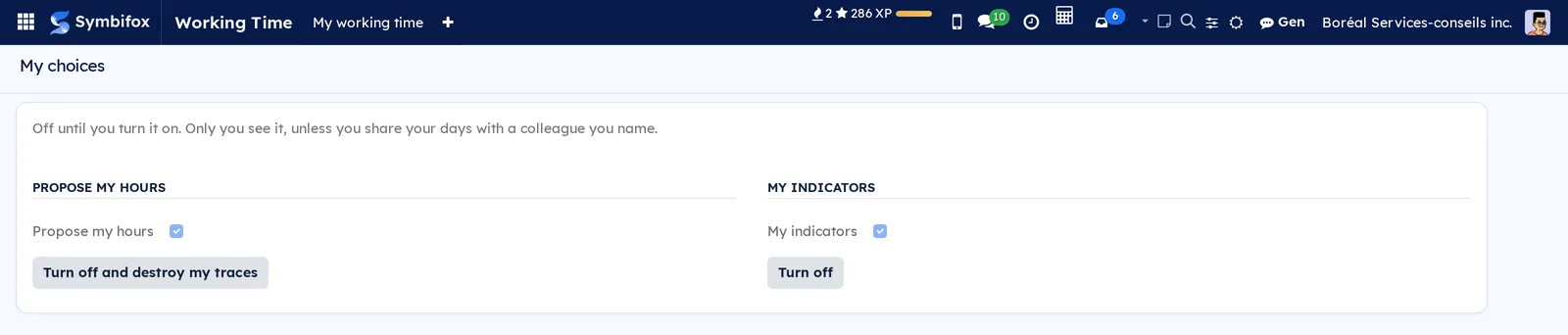
Your avatar > Preferences › Working time tab: the same two switches, outside the app.
Reference#
Fields of the day form#
| Field | Description | Required or default |
|---|---|---|
| Person, Date | Whose day it is, and which one. | Filled in by Symbifox |
| Reconstructed hours | The sum of the day's stretches. | Computed |
| Low bound, High bound | The same day with a 5-minute, then a 30-minute idle gap. | Computed |
| Entered hours | The day's timesheet lines, as entered (Timesheets). | Computed |
| Idle gap (minutes) | The gap in force when the day was computed. | 15 |
| Stretches | The number of stretches in the day. | Computed |
| First trace, Last trace | The start of the first stretch and the end of the last. | Indicators |
| Span (first to last trace) | The time elapsed from the first trace to the last. | Indicators |
| Longest stretch | The longest stretch without a gap. | Indicators |
| In meetings | Time spent in meetings, each minute counted once. | Indicators |
| Meetings without a 10-minute break | Meetings that start less than ten minutes after the previous one ends. | Indicators |
| Outside working hours | Reconstructed time outside your working schedule. | Indicators, with a known schedule |
| What it rests on | The hours each source would give on its own. | Computed |
Fields of the share form#
| Field | Description | Required or default |
|---|---|---|
| Shared with | The internal colleague who will see your days. | Required, fixed once saved |
| Since | When the share started. | Set when saved |
| Revoked At | When the share was revoked. | Set on revocation |
Trace sources#
| Source | With | What is kept |
|---|---|---|
| Browser activity | Working Time | Whether you used the keyboard or the mouse in Symbifox in the last two minutes, reported once a minute by your own session. |
| Calendar | Working Time | Start and end of meetings with at least one other person that you accepted yourself, for the hours you accepted. |
| Your own tools | Working Time | The moments a local tool you installed yourself reports, under your own identity. |
| Gen | Gen | When you sent a prompt, on the web or on your phone, or started a Gen pass with a button (such as refining a meeting report). |
| Notes | Notepad | When you created a note. |
| When you sent an email from your mail client. | ||
| Meeting reports | Meetings | Start and length of the meetings where you are marked present. |
| Timer | Timer | Start and end of each stretch your timer ran, once paused or stopped. |
Never read: what you type, which pages you open, the text of a prompt, a note or an email, or who an email went to. Nor what was said in a meeting, the timer's task, the chatter or changes to records.
Reports and exports#
The module prints no report. Lists export like any list. An exported file leaves the module's protection behind: store it accordingly.
Automations#
- Once a minute, while you use the keyboard or the mouse, your browser reports it. One tab reports for all of them, and nothing is kept before you turn the feature on.
- Every hour, Symbifox first purges traces older than 60 days and days older than 400 days. It also clears anything left by a person who turned it off. It then rebuilds the last seven days of each person who has it on, one person at a time.
- Each time someone answers a calendar invitation, Symbifox records who answered and for which hours. At installation, past answers are recorded from their last writer.
- Nothing is sent, no email and no message, not even to the person who receives a share.
Public pages and portal#
The app has no public page and no portal. With the privacy module, your activation also appears in your consent history on the portal (/my/privacy/consents).
Modules that extend this application#
The seven bridges install themselves as soon as the neighbouring app is present. Each adds a source or a column, and the notice names the sources installed.
Understanding#
Off by default, and turned on by the person only. Reading traces to assess how someone works is profiling. Section 8.1 of Québec's Act respecting the protection of personal information in the private sector, strengthened by Law 25, names “work performance”. Québec's privacy regulator, the Commission d'accès à l'information, reads it as off by default and switched on by the person concerned. Hence the notice read first, the checkbox, the action taken in their own session and the notice kept word for word. Nothing is read before the day of activation, even when the traces exist.
Only traces of a human hand. The chatter and changes to records do not count: an agent writing with your API key signs them with your name. A note or a prompt created with your key does count, since nothing tells it apart from one made by hand.
The method, in four rules. A one-off trace is worth the minutes before it: two, or five for an email. Stretches are merged: a minute counts once, even when two traces or two agents fill it. Two stretches closer than the idle gap become one. Days are cut at midnight, in the person's time zone.
A range, not a verdict. The idle gap is a choice, not a measurement: moving it from 5 to 30 minutes can change a week by a third. That is why every day shows both bounds and what it rests on.
An estimate, not a record. Time away from the screen is not seen: a phone call, thinking at the whiteboard. The record of your hours remains the timesheet you enter and approve. Entered hours are read again for the last seven days only: a timesheet line corrected later no longer changes an older day.
Calendar meetings. A meeting counts if it includes at least one other person, shows as busy and lasts less than 8 hours. You must have accepted it yourself, or a calendar synchronization on your behalf. An answer written by a colleague does not count, nor one given through an invitation email link, which others can trigger. If someone else moves the meeting, it counts for the hours you accepted.
Who sees what. You see your days. A colleague you name sees the shared days, never the raw traces, until you revoke the share. Nobody else, not in Odoo's screens and not through the API, managers and administrators included. The privacy register shows the activation and its date, never the hours. No score, no ranking, no automated decision.
What the protection does not cover. A system administrator who changes the security settings or runs code on the server could reach these data, as with any data in Odoo. The notice says so before activation.
Troubleshooting#
| Symptom | Likely cause | Fix |
|---|---|---|
| My working time shows “Nothing yet”. | Propose my hours is off, or was turned on less than an hour ago. | Turn it on in My choices, then select Recompute my last days. |
| “Only the person concerned can turn this on or off, in their own session.” | The action came through an API key, an impersonation or another account. | The person does it themselves, signed in to their own web session. |
| Turn on does not appear at the bottom of the notice. | The notice's checkbox is not checked. | Check I have read this notice and I turn the feature on myself. |
| My indicators does not offer Read the notice and turn on. | Propose my hours is off: the indicators are built from it. | Turn on Propose my hours first. |
| An accepted meeting does not count. | It was accepted by a colleague, or through the invitation email link. | Accept it again yourself, in Calendar. |
| Outside working hours does not appear on a day. | Neither your employee record nor the company has a working schedule. | Have a working schedule added to your employee record. |
| Days are cut at an odd hour. | Your profile has no time zone: Symbifox counts in UTC. | Set your Timezone in your Preferences. |
| “A share cannot be changed: revoke it and share again.” | You tried to change the person on an existing share. | Revoke the share, then create a new one. |