

Part 10 · Symbifox Personal
Personal Budget
Keep each person's budget and the household's, compare actuals with the plan, forecast subscriptions and import your statements, with no link to the bank.
The Personal Budget application keeps the money side of a Symbifox Personal household instance: spending and income, plans by category, subscriptions, loans, cheques and freelance invoices. Each member of the household has a private budget, and a shared budget is opened to the people its owner names. The result: a dashboard that shows, month by month, where the money went against the plan, and what the subscriptions will still cost before December.
Overview#
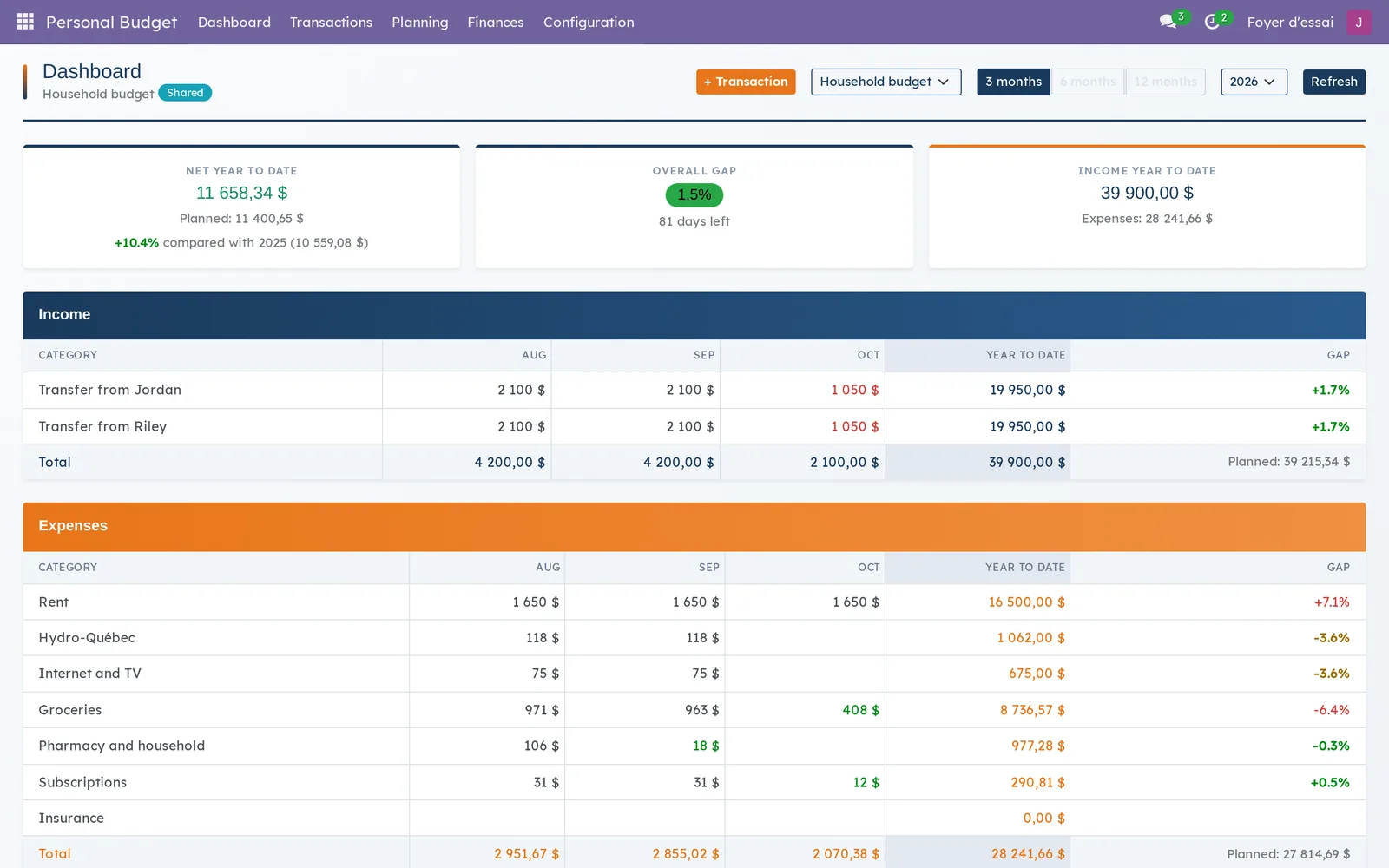
The application opens on the dashboard of the selected budget. At the top, three cards: net year to date, the overall gap with the plan, and income year to date. Below, an income table and an expenses table, one row per category and one column per month.
Seven ideas are enough.
- Budget: the container for all the data. Every category, transaction, plan, recurring expense, loan, cheque or invoice belongs to a budget.
- My budget: the personal budget each person gets on their first visit. Nobody else can see it.
- Shared budget: an extra budget, such as "Household budget", that its owner shares with the people of their choice.
- Category: a kind of expense or income ("Groceries", "Rent", "Salary"). The category decides which budget a transaction belongs to.
- Plan: the amount planned for a category, for the year (spread over twelve months) or month by month.
- Recurring expense: a subscription or regular bill, with its frequency and first payment date. It feeds the forecast and turns into a transaction when due.
- My amount: your share of a transaction. A 1,380 $ expense split 50 % counts for 690 $ in your budget.
The module is independent of Odoo accounting: it does not need the Invoicing app and writes nothing there. It connects to no bank and gives no financial advice.
Configuration#
Access and rights#
To see the application, a person must belong to the Budget user group. What they see next depends on the budgets, not on their rights.
| Who | Sees and edits the contents | Renames, shares or deletes the budget |
|---|---|---|
| The owner | Yes | Yes |
| The people under Shared with | Yes | No |
| Anyone else, administrators included | No | No |
Someone who cannot see a budget reads "Private budget" instead of its name, wherever that name could appear.
Settings#
The application has no setting in Settings. Everything is set in the Configuration menu: budgets, categories and contributors.
Master data#
No categories come preloaded. Before entering anything, create your expense and income categories in Personal Budget › Configuration › Categories. A category name is unique within a budget: the same name can exist in two different budgets.
For an expense shared with someone outside the household, first create them as a contributor in Personal Budget › Configuration › Contributors.
Getting started#
This walkthrough creates the household budget, a category, a subscription and a first expense.
- Go to Personal Budget › Configuration › Budgets and sharing. "My budget" is already there.
- Select New, enter "Household budget", then add your partner under Shared with. Save.
- Go to Personal Budget › Configuration › Categories and create "Groceries", an expense, in the household budget.
- Go to Personal Budget › Planning › Recurring expenses and create "Internet": amount, frequency Monthly, first payment and category.
- Go to Personal Budget › Transactions › Enter a transaction. Enter the date and amount, choose "Groceries" and save.
- Open Personal Budget › Dashboard and choose "Household budget" in the selector.
The expense appears in the Groceries row for the month, and the subscription in the subscriptions card.
Common tasks#
Enter an expense or income#
Quick entry opens a small window without leaving the current screen.
- Go to Personal Budget › Transactions › Enter a transaction, or select + Transaction on the dashboard.
- Enter the Date and the Amount.
- Choose the Category. The Type and the Budget follow the category.
- If needed, add Details ("Jean-Talon Market").
- Select Save.
The transaction appears in Transactions and on the dashboard of its category's budget.
Split an expense and track who owes what#
An expense paid for two only counts for your share.
- Open the transaction in Personal Budget › Transactions › Transactions.
- Enter the % me ("50").
- Choose the Contributor who pays the rest. My amount is calculated.
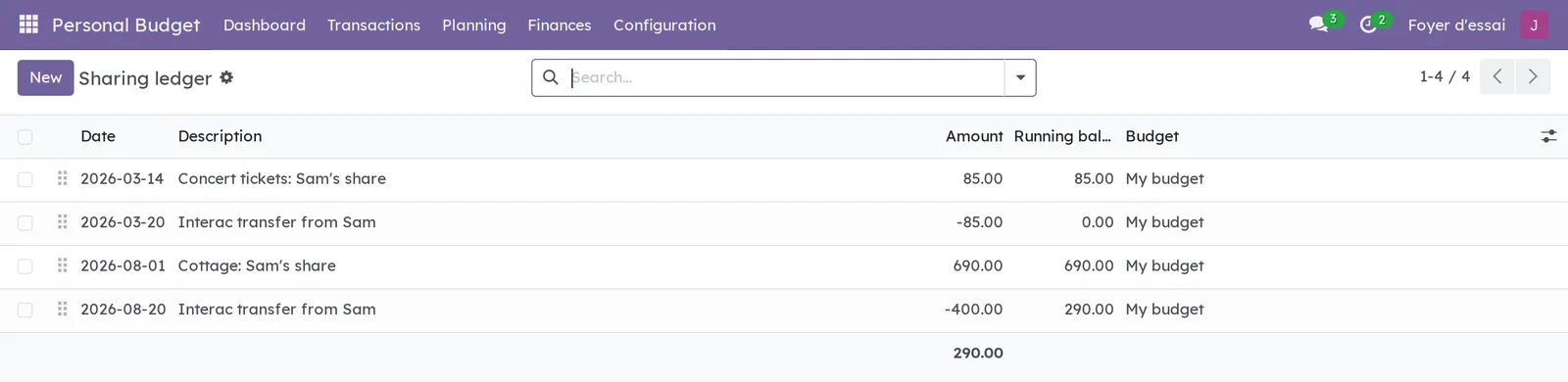
- To track the repayment, go to Personal Budget › Transactions › Sharing ledger.
- Add a positive line for what you are owed, then a negative line when it is repaid.
The Running balance column shows what is still owed, line after line.
Create and share a household budget#
Only the owner of a budget can change its sharing.
- Go to Personal Budget › Configuration › Budgets and sharing.
- Select New and enter the name.
- Add the people under Shared with.
- Tick Default budget if this budget should be offered by default for your new entries.
- Save.
The people added see and edit everything in the budget: categories, transactions, plans, recurring expenses. They cannot rename, share or delete it.

Set a category's plan#
- Go to Personal Budget › Planning › Budget plans.
- Select New and choose the year and the category.
- Enter an amount for the whole year, or a plan by month.
- Save.
The dashboard then compares each month with the plan and colours the months that drift from it.
Add a subscription#
- Go to Personal Budget › Planning › Recurring expenses.
- Select New and enter the Name, the Provider and the Category.
- Enter the Amount and, if needed, the % me.
- Choose the Frequency, from Weekly to Yearly.
- Enter the First payment and, if the subscription ends, the Last possible payment.
- Tick Record automatically so each payment is entered on its own.
- Save.
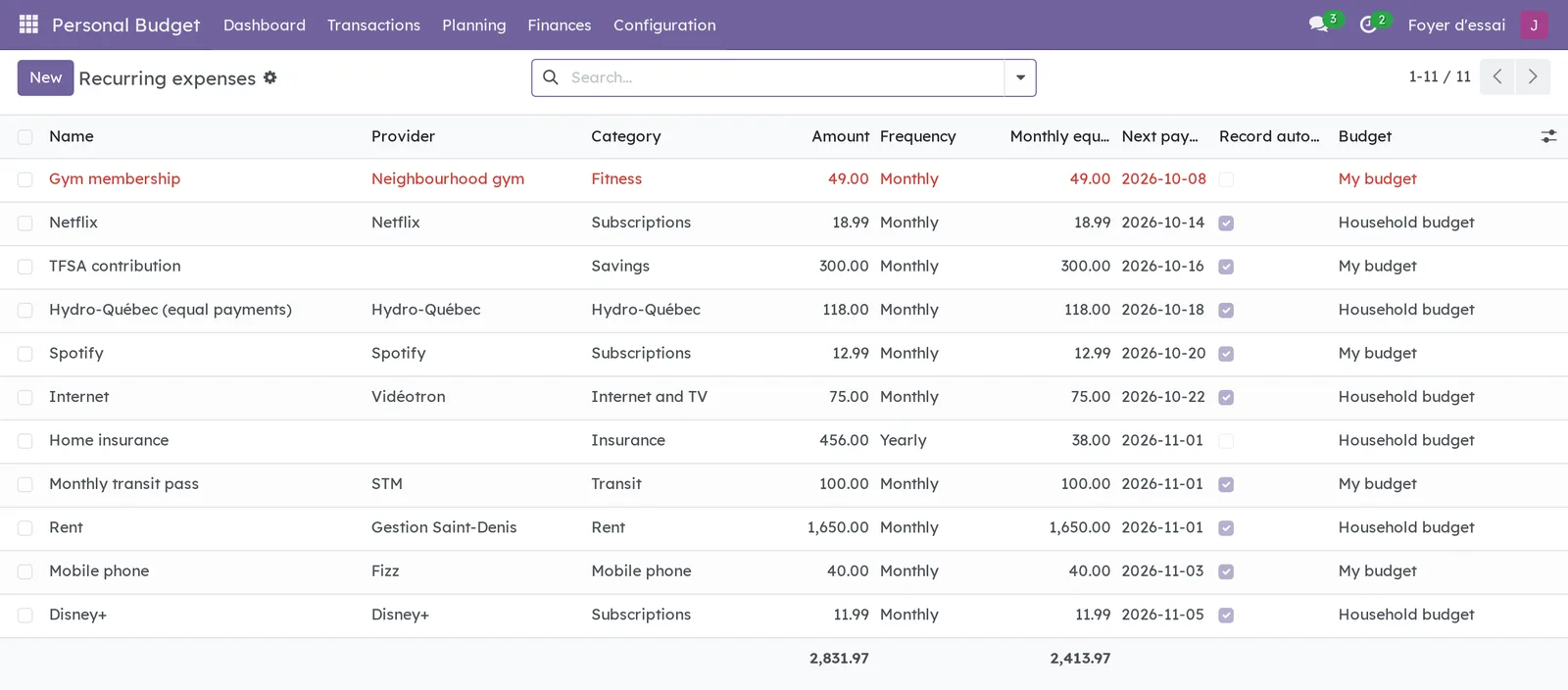
The Monthly equivalent and the Next payment are calculated.
Record a payment that is due#
Without Record automatically, a payment waits for you.
- Open the subscription in Personal Budget › Planning › Recurring expenses.
- Select Record the payment to create the transaction for the next due date.
- Or select Record due payments to catch up on every past one.
The subscription's Transactions quick access button counts the transactions created.
Import a bank statement#
You export the statement from your bank's website, then import it. The application connects to nothing.
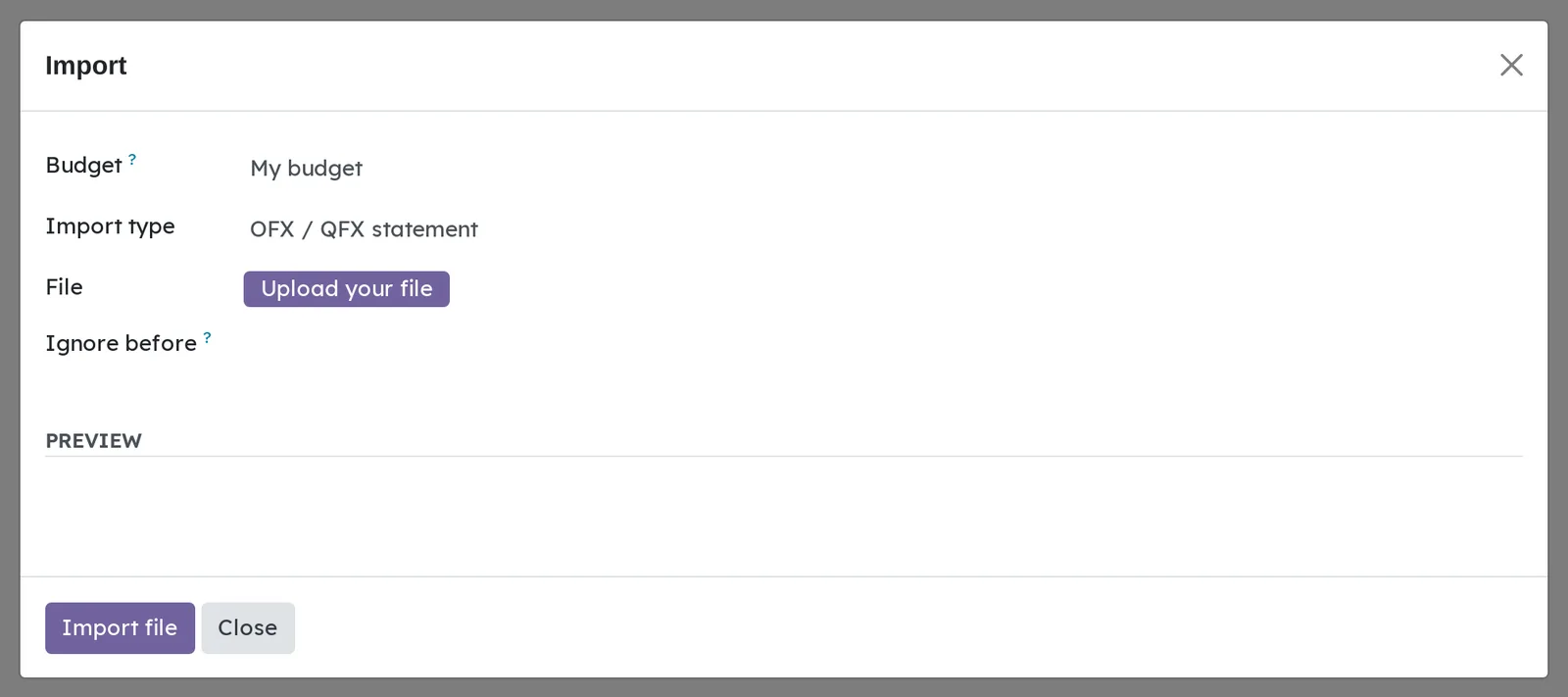
- Go to Personal Budget › Configuration › Import.
- Choose the Budget that receives the import.
- Choose the Import type OFX / QFX statement.
- Select Upload your file.
- If needed, enter a date in Ignore before.
- Select Import file.
A report says what was created, matched or left out. Imported expenses land in the "To assign" category and income in "Other income": sorting them is up to you.
Import a CSV file#
The same dialog takes transactions, budget plans, the sharing ledger, cheques, loan lines or invoices.
- Go to Personal Budget › Configuration › Import.
- Choose the Budget and the Import type.
- Upload the file, then set the Delimiter and Skip header.
- Check the preview, then select Import file.
A category named in the file and missing from the budget is created. A line in error is reported and leaves nothing behind; the others go through.
Sort several transactions at once#
- Go to Personal Budget › Transactions › Transactions.
- Tick the transactions to sort.
- Open the Actions menu and select Assign a category.
- Choose the category and confirm.
Track a loan#
- Go to Personal Budget › Finances › Loans and select New.
- Enter the Initial amount, the Monthly payment, the Term (months) and the Start date.
- In the Lines tab, add each payment as a negative amount and each fee or interest charge as a positive one.
The Current balance and the Overdue box are calculated. An overdue loan is flagged on the dashboard.
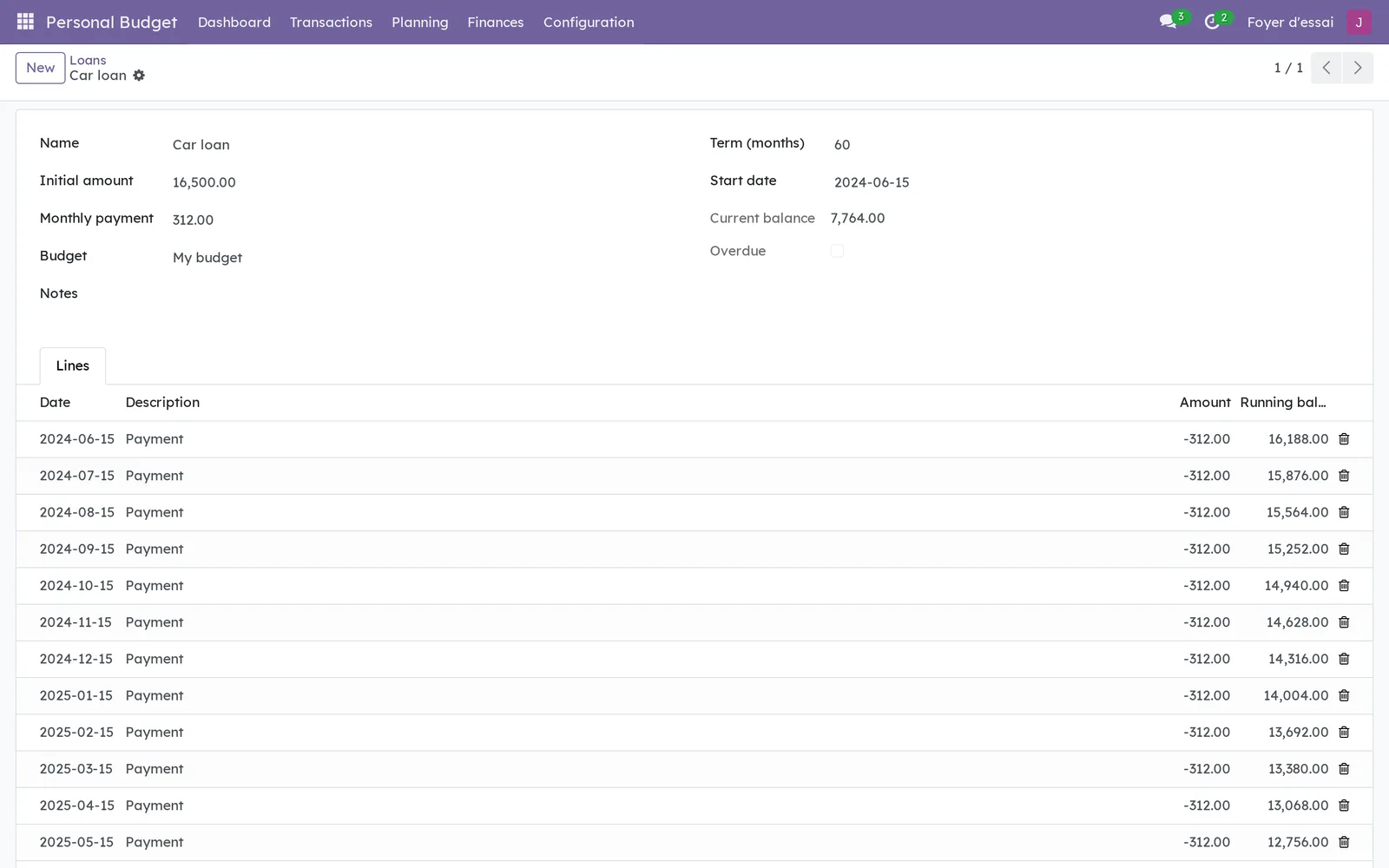
Keep cheques and freelance invoices#
- For a cheque, go to Personal Budget › Transactions › Cheques and enter the number, date, payee and amount. Tick Cashed once it is cashed.
- For an invoice, go to Personal Budget › Finances › Invoices and enter the number, customer, date and pre-tax amount.
The Not cashed filter finds the cheques still waiting. Each invoice shows a 40 % tax reserve and a 60 % operating amount.
The menus, one by one#
Personal Budget › Dashboard: the dashboard of the selected budget, with the budget selector, a 3 months, 6 months or 12 months range, the year and Refresh. Below the tables: subscriptions, loans, invoices and recent transactions.
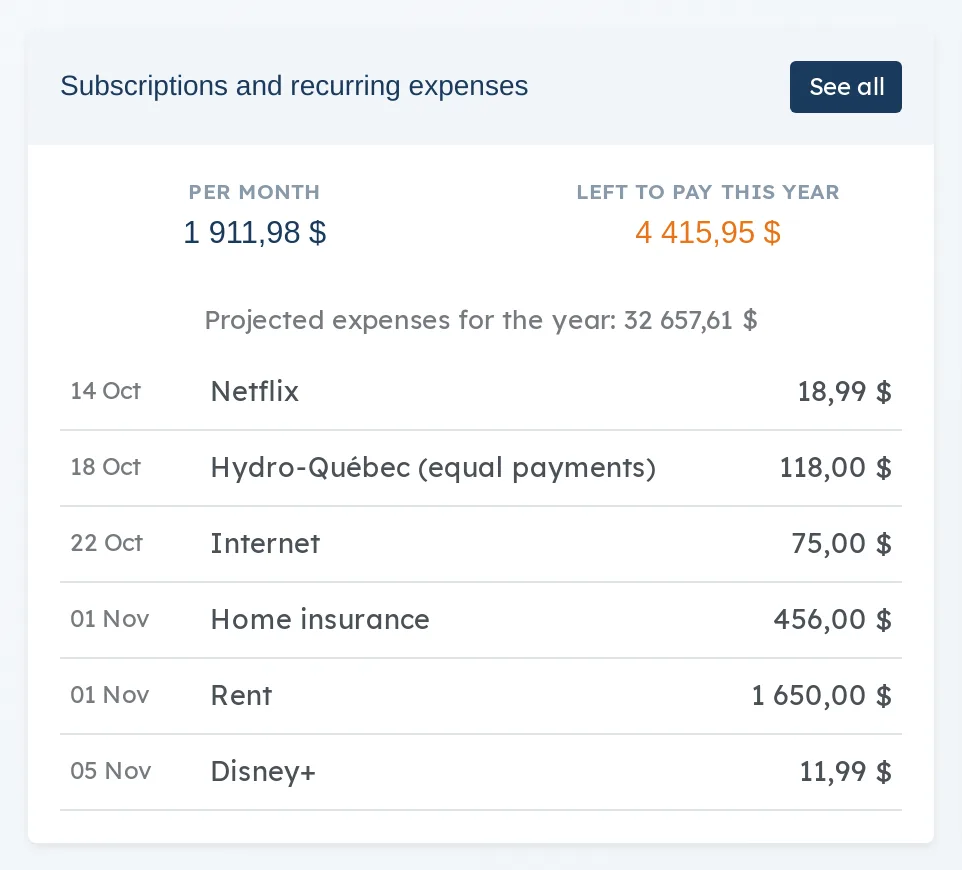
Personal Budget › Transactions: a grouping menu.
Personal Budget › Transactions › Enter a transaction: the quick entry window.
Personal Budget › Transactions › Transactions: this year's transactions, grouped by month, with category, details, gross amount, my amount and budget. Income shows in blue.
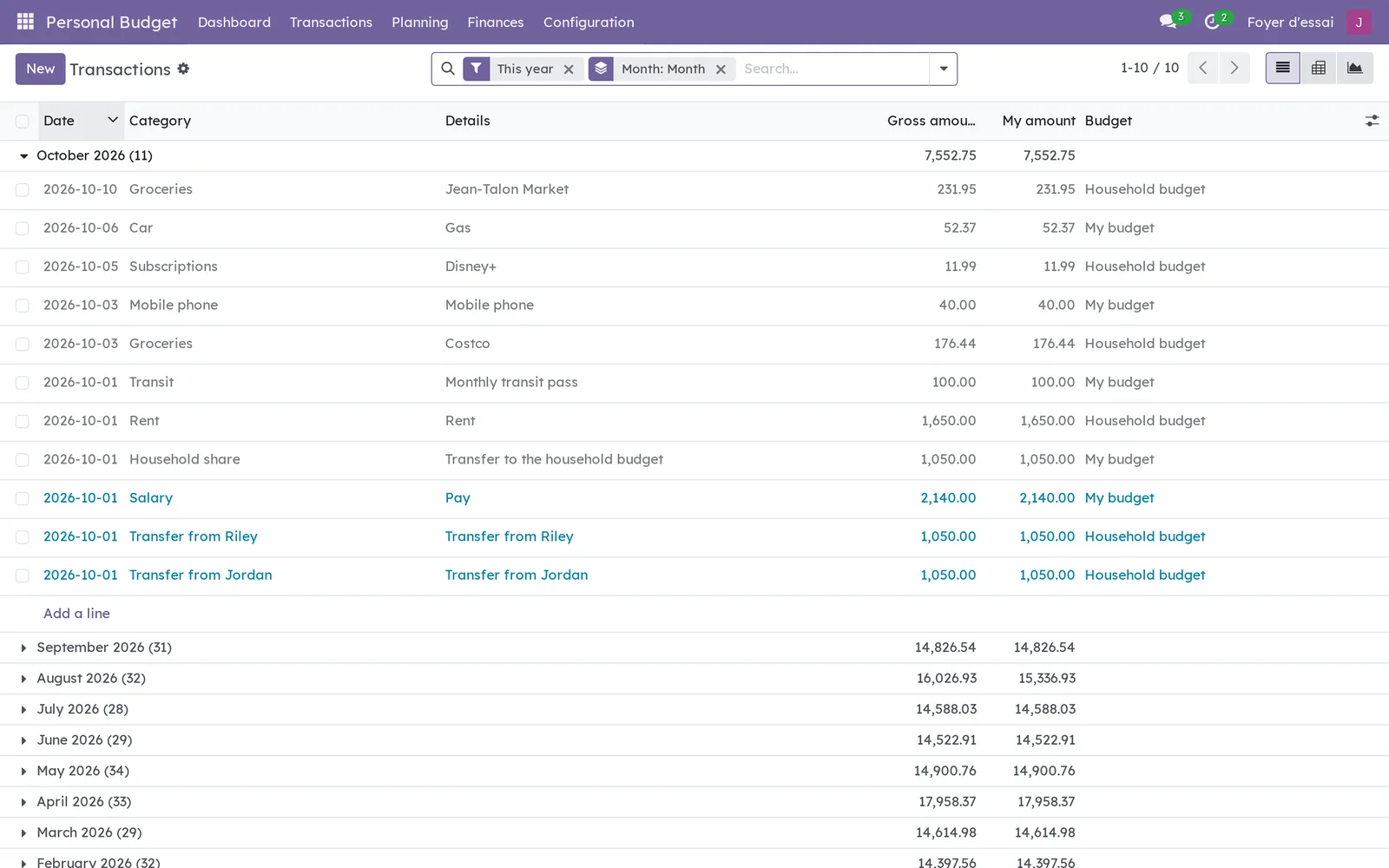
Personal Budget › Transactions › Monthly analysis: a pivot table of your shares, one row per category and one column per month of the year.
Personal Budget › Transactions › Sharing ledger: who owes what, with the running balance.
Personal Budget › Transactions › Cheques: cheques, cashed or not.
Personal Budget › Planning: a grouping menu.
Personal Budget › Planning › Budget plans: planned amounts by category, for the year or by month.
Personal Budget › Planning › Recurring expenses: subscriptions and regular bills, with their next payment.
Personal Budget › Planning › Analysis: gross and personal totals and the number of transactions, by budget, category, year and month, as a pivot table or a graph.
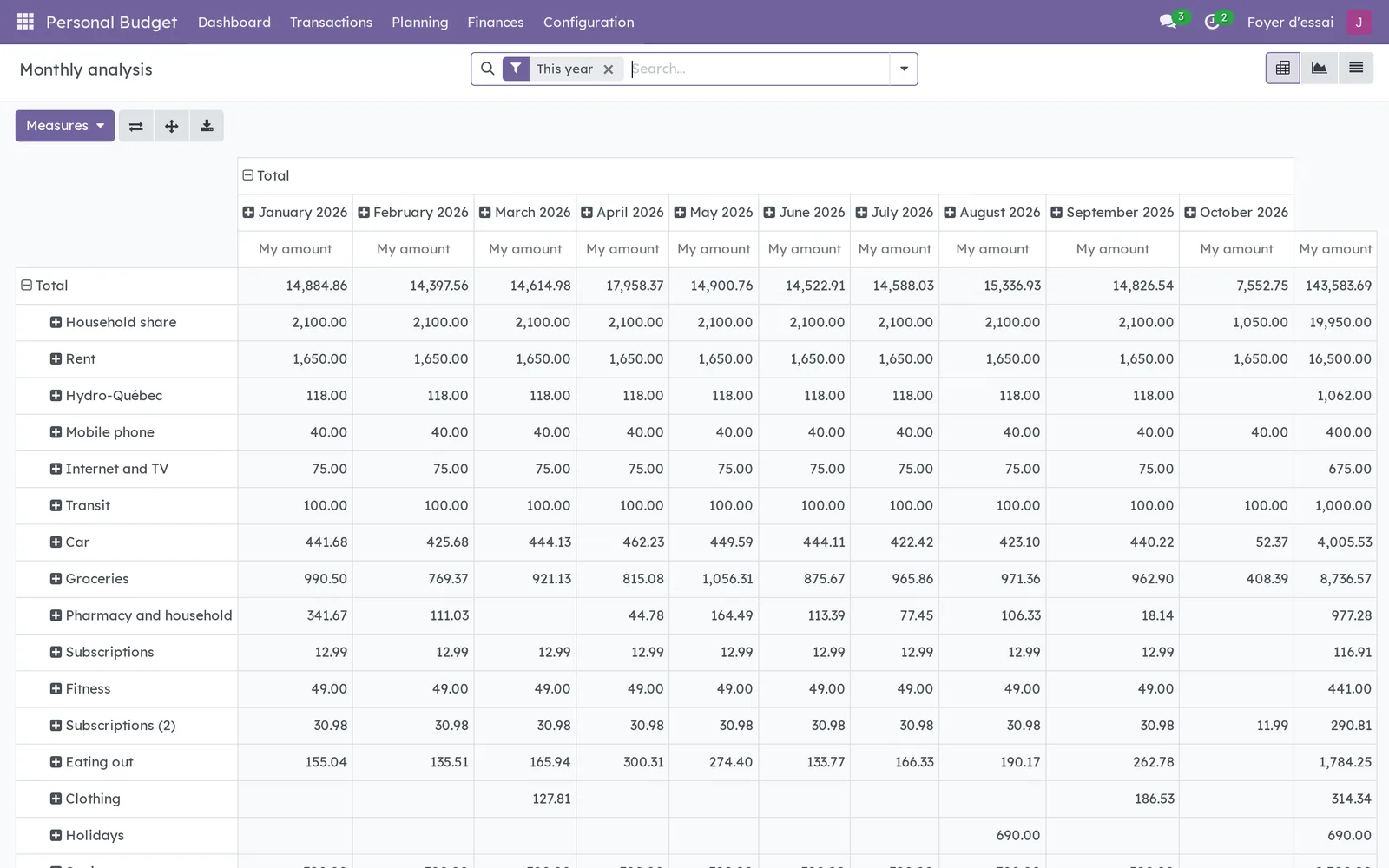
Personal Budget › Finances: a grouping menu.
Personal Budget › Finances › Loans: loans, their current balance and their status.
Personal Budget › Finances › Invoices: freelance invoices, with the tax reserve.
Personal Budget › Configuration: a grouping menu.
Personal Budget › Configuration › Budgets and sharing: your budgets, their owner and the people they are shared with.
Personal Budget › Configuration › Categories: the expense and income categories of each budget.
Personal Budget › Configuration › Contributors: the people who pay a share of your expenses.
Personal Budget › Configuration › Import: the import dialog for statements and CSV files.
Reference#
Fields of the Recurring expense form#
| Field | Description | Required or default |
|---|---|---|
| Name | What you pay for ("Netflix"). | Required |
| Provider | Who you pay. | Optional |
| Category | The expense category; it decides the budget. | Required |
| Amount | The amount of each payment. | Required |
| % me | Your share of each payment. | 100 |
| Frequency | Weekly, every two weeks, monthly, quarterly, every six months or yearly. | Monthly |
| First payment | The date every other one is counted from. | Today |
| Last possible payment | When the subscription ends, if it does. | Optional |
| Next payment, Last recorded payment, Monthly equivalent | Calculated. | Calculated |
| Record automatically | Enters each due payment, every day. | Unticked |
Fields of the Transaction form#
| Field | Description | Required or default |
|---|---|---|
| Date | The day of the expense or income. | Today |
| Category | Decides the type and the budget. | Required |
| Gross amount | The full amount paid or received. | Required |
| Details | The store or the reason. | Optional |
| % me | Your share. | 100 |
| Contributor, % contributor | Who pays the rest, and what share. | Optional |
| My amount | Your share in dollars: this is what counts in the budget. | Calculated |
Reports and exports#
The Monthly analysis and Analysis screens export like any Odoo pivot table. The application produces no printed report.
Automations#
A daily task enters the due payments of recurring expenses that have Record automatically ticked. The transactions created stay in their category's budget. Nothing else happens on its own.
Public pages and portal#
The application has no public page and no portal.
Modules that extend this application#
Understanding#
Why the category decides the budget. A transaction follows its category's budget. To put an expense in the household budget, choose a category from that budget. An entry can neither target nor move into a budget that is not shared with you.
Payments on the 31st. Due dates are counted from the first one, never step by step: a subscription on January 31 moves to February 28, then comes back on March 31.
A forecast with no plan. A category with no plan for the year uses the due dates of its recurring expenses as its planned amount. A plan entered by hand wins.
What is left to pay. The subscriptions card adds up the payments not yet recorded until December 31, overdue ones included. Yearly insurance counts for a twelfth of its amount in the monthly equivalent.
Comparing with last year. Net year to date is measured against the same day last year, not against the whole year.
What the import leaves out. A transaction already imported is recognized by its account and identifier. An expense entered by hand is matched with the statement line when the amount is the same and the dates are at most three days apart. Transfers your bank flags as such, and payments received on a credit card, are not imported.
Administrators see nothing. The access rules bind administrators too. Only whoever administers the system can lift them: on a household instance, that is Blue Fox, and no member of the household has that role.
Both analyses cover all your budgets. Monthly analysis and Analysis add up everything you can see. For a single budget, group or filter by budget; the dashboard, for its part, shows one budget at a time.
Troubleshooting#
| Symptom | Likely cause | Fix |
|---|---|---|
| The application does not appear | The person is not in the Budget user group | Ask whoever administers the instance to add them. |
| A budget shows as "Private budget" | It is not shared with you | Ask its owner to add you under Shared with. |
| An expense is missing from the household dashboard | Its category belongs to "My budget" | Change it to a category of the household budget. |
| Two "Subscriptions" categories look the same in the list | The same name exists in two budgets | Rename one of them ("Household subscriptions"). |
| A statement imported a second time creates nothing | Every line was already imported | Nothing to do: the report counts the duplicates left out. |
| Imported expenses are all in "To assign" | The import does not sort expenses | Use Assign a category on the transaction list. |
| A subscription is not entered on its own | Record automatically is not ticked | Tick it, or select Record due payments. |