

Part 10 · Symbifox Personal
Healthy Fox
Keep your own medications, check-ups, lab tests, readings, workouts, meals and mood journal, and those of your children under 14, closed to the rest of the household.
Healthy Fox is the personal health record of a Symbifox Personal household instance. Each person keeps their medications, screenings and lab tests, daily readings, workouts, meals and a private mood journal there. A parent also keeps the records of their children under 14, with a second parent if they name one. The result: a prescription renewed before the last dose, a check-up that comes back on schedule, and answers ready at the doctor's office.
Overview#
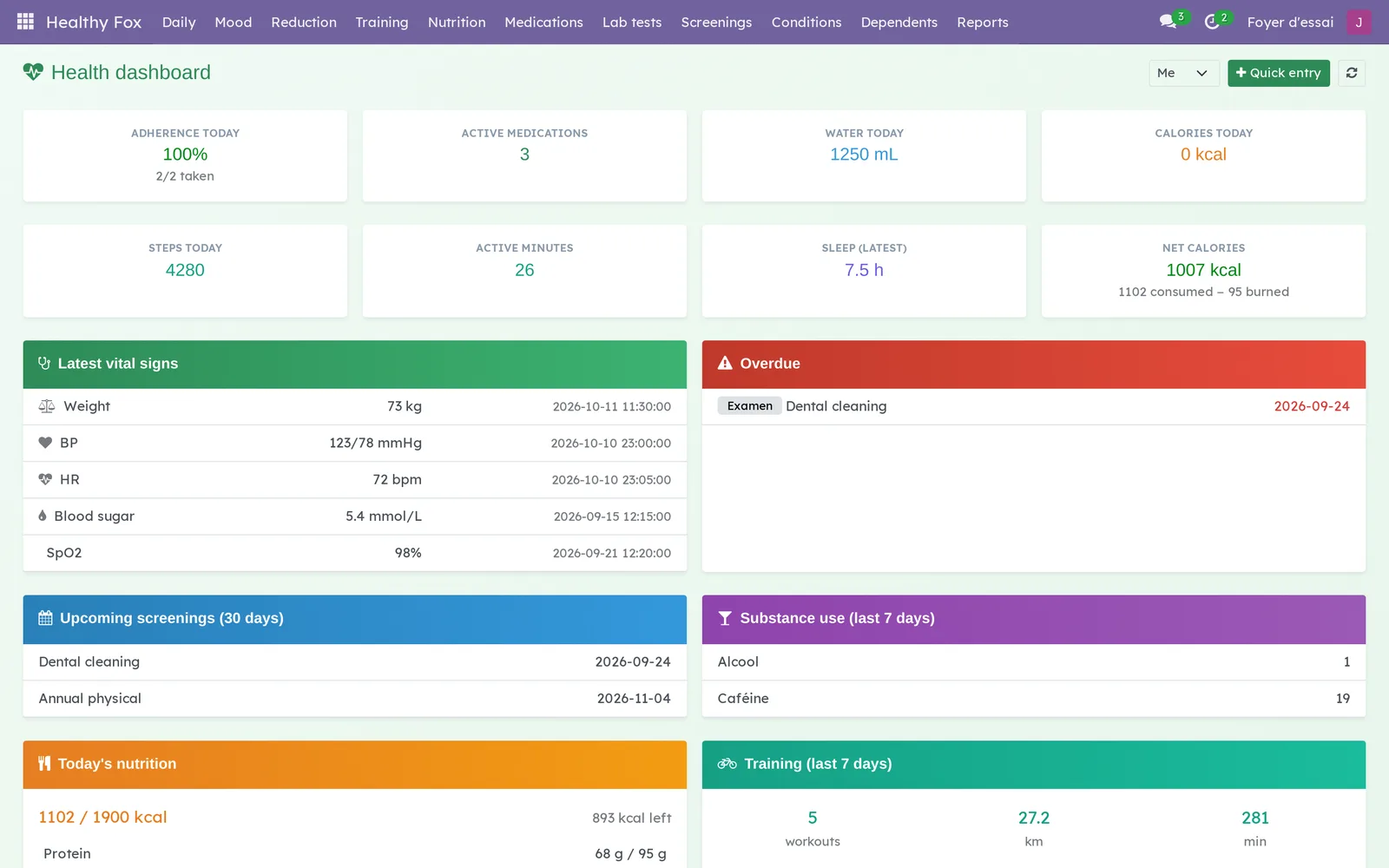
The application opens on the Health dashboard. Eight tiles show the day: medication adherence, active medications, water, calories, steps, active minutes, last night's sleep and net calories. Below them, panels sum up the latest vital signs, what is Overdue, screenings due in the next 30 days, substance use and training over the last seven days, and today's nutrition.
A few notions are enough.
- Record: a medication, a lab test, a screening, a condition, a reading, a workout, a meal. A record belongs to the person who created it, and no one else in the household sees it.
- For: the field on every record that says who it is about. Empty, the record is yours; filled in, it belongs to one of your children.
- Dependent: a child under 14 whose health you follow in your own account.
- Second parent: the person you name to read and add to the child's records with you.
- Turning 14: the moment the child's records move to their own account, with their own consent.
- Mood journal: a score from 1 to 5 each day, your activities and a free note. It belongs to you alone, even if you are a parent.
The application imports nothing from another health app. It makes only one call outside the instance: looking up a food by its barcode.
Configuration#
Access and permissions#
Access comes from the Health user group, checked on the person's user form under Settings › Users & Companies. This group opens the application, but each person sees only their own records.
| Who | What the person sees and does |
|---|---|
| You | Your records, and those of your children under 14 that you keep. |
| Second parent | The records of the child entrusted to them, read and write, while the child is followed. Nothing of the parent's own records. |
| Teen aged 14 or more | Their own records, once the transfer is accepted, and the choice of what they share back. |
| Other household members | Nothing. Wherever Odoo would show the name of one of your records, they read “Private health record”. |
| Blue Fox, the instance administrator | The first name and birth date of a child who is 14, to open their account. Never their records. |
Your mood journal stays private from everyone, administrators included.
Settings#
The application has no settings page. Three settings live where they are used:
- the reminder lead time for a renewal, on the medication form (14 days by default);
- the reminder lead time for a screening or a lab test, on its form (30 days by default);
- the mood reminder time and the correlation calculation, in Mood › My journal and correlations.
Base data#
Nothing is required before you start. To get the most from the dashboard, enter your active medications first, then your regular screenings. The activities offered in the mood journal can be edited in Mood › Activities.
Getting started#
This walkthrough enters a medication, then checks off today's dose.
- Go to Healthy Fox › Medications › All medications.
- Select New.
- Enter the name, for example “Vitamin D3”, the dosage and the frequency Daily.
- If it is a prescription, enter the Renewal date and the pharmacy.
- Save, then go back to the dashboard through Healthy Fox.
- Select Quick entry: the Medications tab lists today's doses with their time of day.
- Turn on Taken on the line, then select Save.
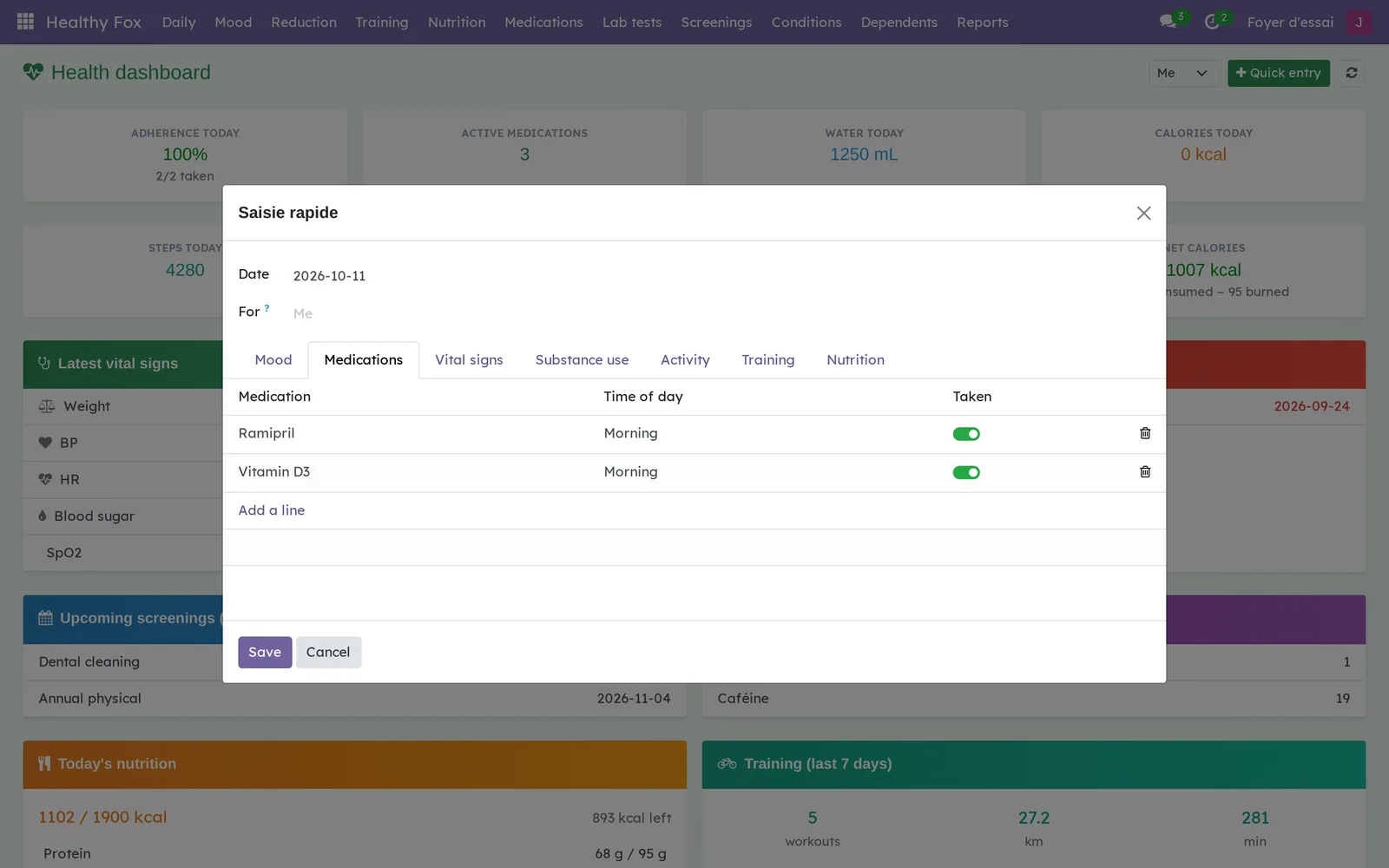
The adherence tile changes to the share of today's doses taken.
Common tasks#
Log everything at once with quick entry#
Quick entry gathers in one dialog what you would note during the day.
- Go to Healthy Fox › Daily › Quick entry, or select Quick entry on the dashboard. The dialog title still reads Saisie rapide (quick entry).
- Check the date.
- For a child, pick them in For: only their medications show.
- Fill in the tabs you need: Mood, Medications, Vital signs, Substance use, Activity (steps, sleep), Training, Nutrition.
- Select Save.
Each tab creates the matching record, filed under the right person. The Mood tab stays yours, even when For names a child.
Track a medication and its renewal#
- Go to Healthy Fox › Medications › All medications: the cards are grouped by status, Active, Discontinued, Paused.
- Open the medication.
- Enter the Renewal date, the Refills remaining and, if needed, the Reminder lead time (days).
- Save.
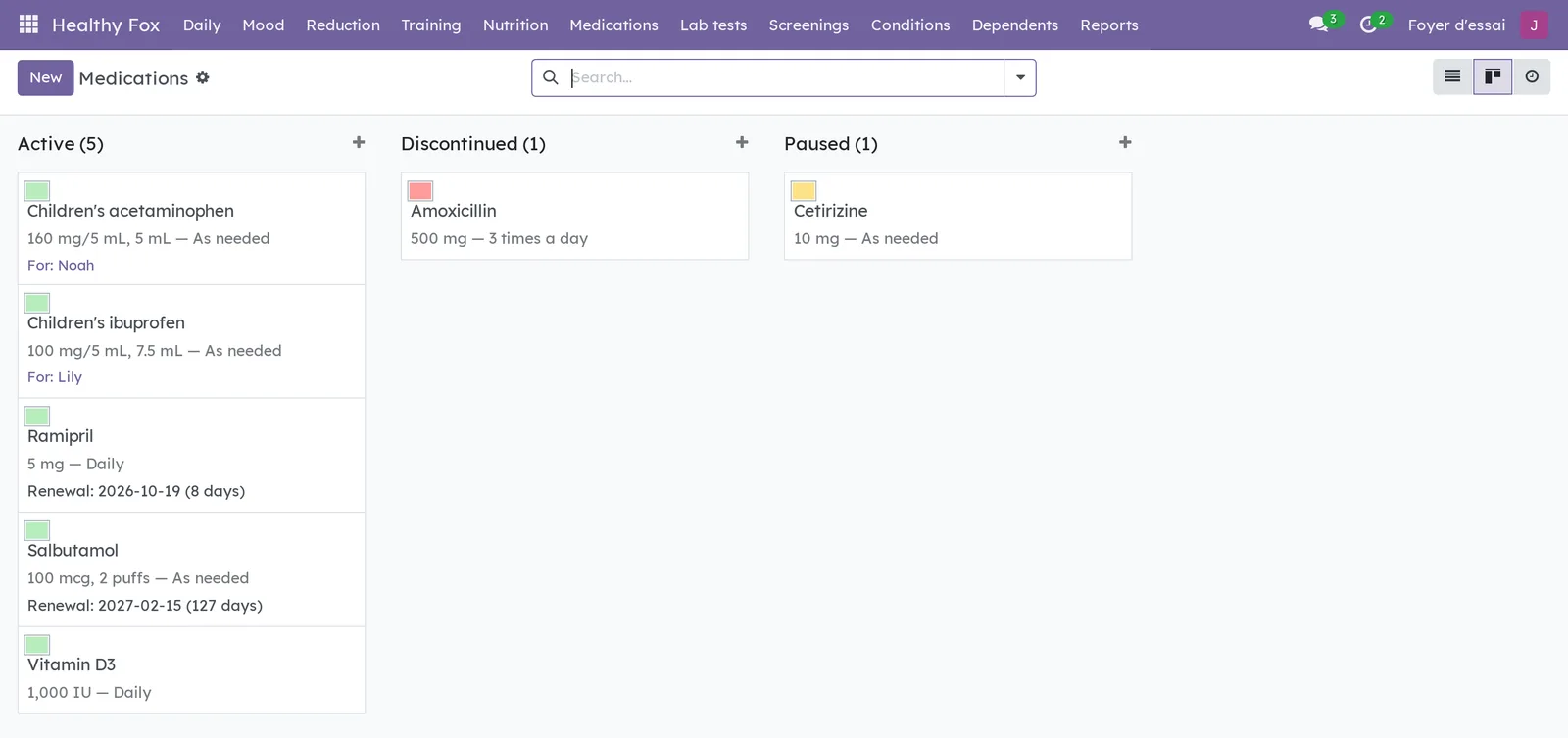
When the time comes, an activity in your name reminds you of the renewal. It carries only the medication's name: the dose and the pharmacy stay on the record. A medication you no longer take goes to Discontinued, which keeps its history.
Check off today's doses#
Every day, the application prepares one unchecked line per scheduled dose of your active medications.
- Go to Healthy Fox › Daily › Today's medications.
- Check the dose you took.
A missed dose stays unchecked and counts in the day's adherence.
Log a reading#
- Go to Healthy Fox › Daily › Vital signs.
- Select New.
- Choose the type: weight, blood pressure, heart rate, blood sugar, temperature, oxygen saturation, water, calories, steps, active minutes, resting heart rate or sleep.
- Enter the value and save.
The Weight trend and Blood pressure reports are built from these readings.
Follow a regular screening#
- Go to Healthy Fox › Screenings › All screenings.
- Select New.
- Choose the type (dental, vision, physical exam, dermatology, blood test, other) and the frequency, from quarterly to every five years.
- Enter the date of the last screening, then save.
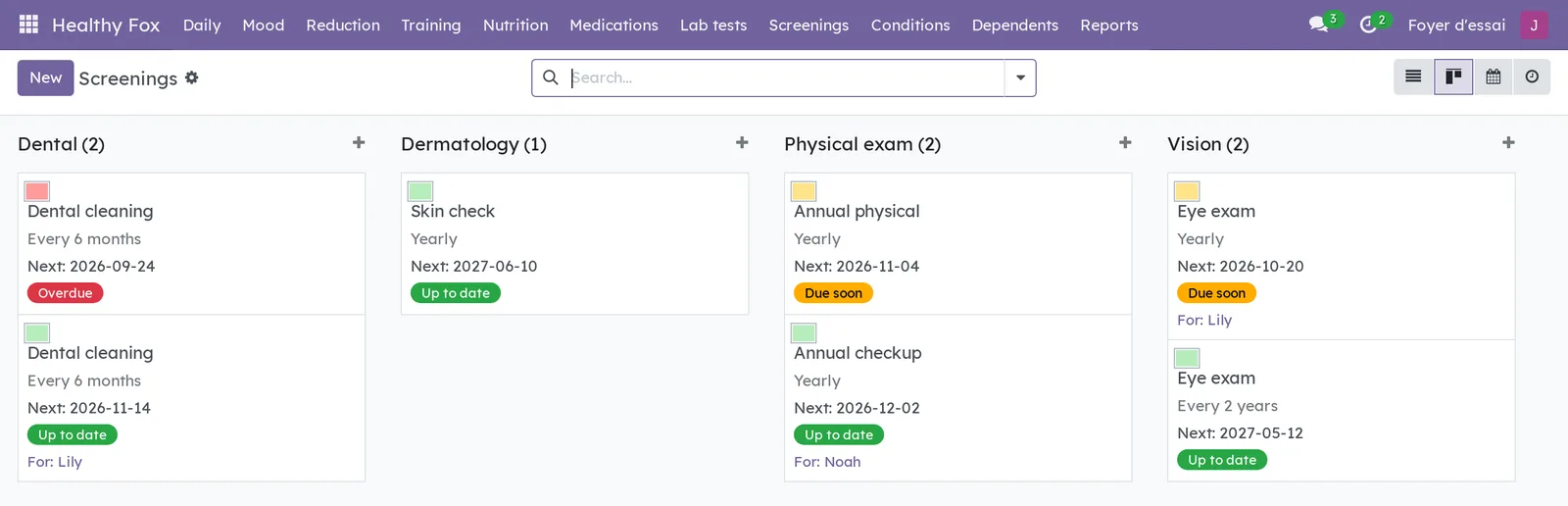
The next date works itself out. The screening turns to Due soon, then to Overdue if the date passes, and an activity reminds you ahead of time.
Follow a lab test through to results#
- Go to Healthy Fox › Lab tests › All lab tests.
- Select New and enter the test, the lab and the ordering doctor.
- Drag the card from one column to the next: Requisition, Scheduled, Done, Results received.
- When the results arrive, enter the Results summary and attach the lab's PDF in the chatter, the message thread at the bottom of the form.
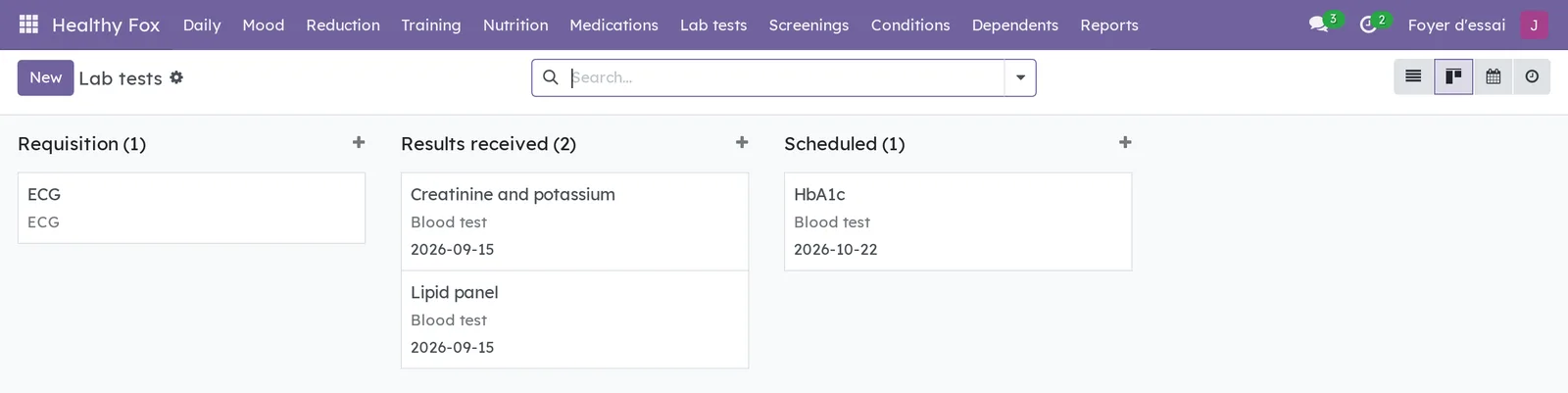
A test to repeat carries a Next due date: an activity reminds you 30 days before, by default.
Log a condition and its symptoms#
- Go to Healthy Fox › Conditions › All conditions and create the condition.
- For an episode, go to Daily › Symptoms, enter the symptom, its severity and, if needed, its condition.
A symptom linked to a condition follows the person that condition belongs to.
Cut down on a substance step by step#
- Log what you consume in Daily › Substance use: alcohol, cannabis, tobacco or caffeine, with the quantity.
- Go to Reduction › Reduction plan and create a step: substance, phase, description, start date and end date.
- Add the next steps.
Two days before a step starts, an activity warns you. Active steps shows the ones under way, and the dashboard shows the last seven days of substance use.
Record a workout#
- Go to Healthy Fox › Training › Workouts and select New.
- Enter the activity type, the date, the duration, the distance and, if you have them, the heart rate and the perceived effort.
- For an outing recorded by a watch, upload the GPX file in GPX file.
- Save.
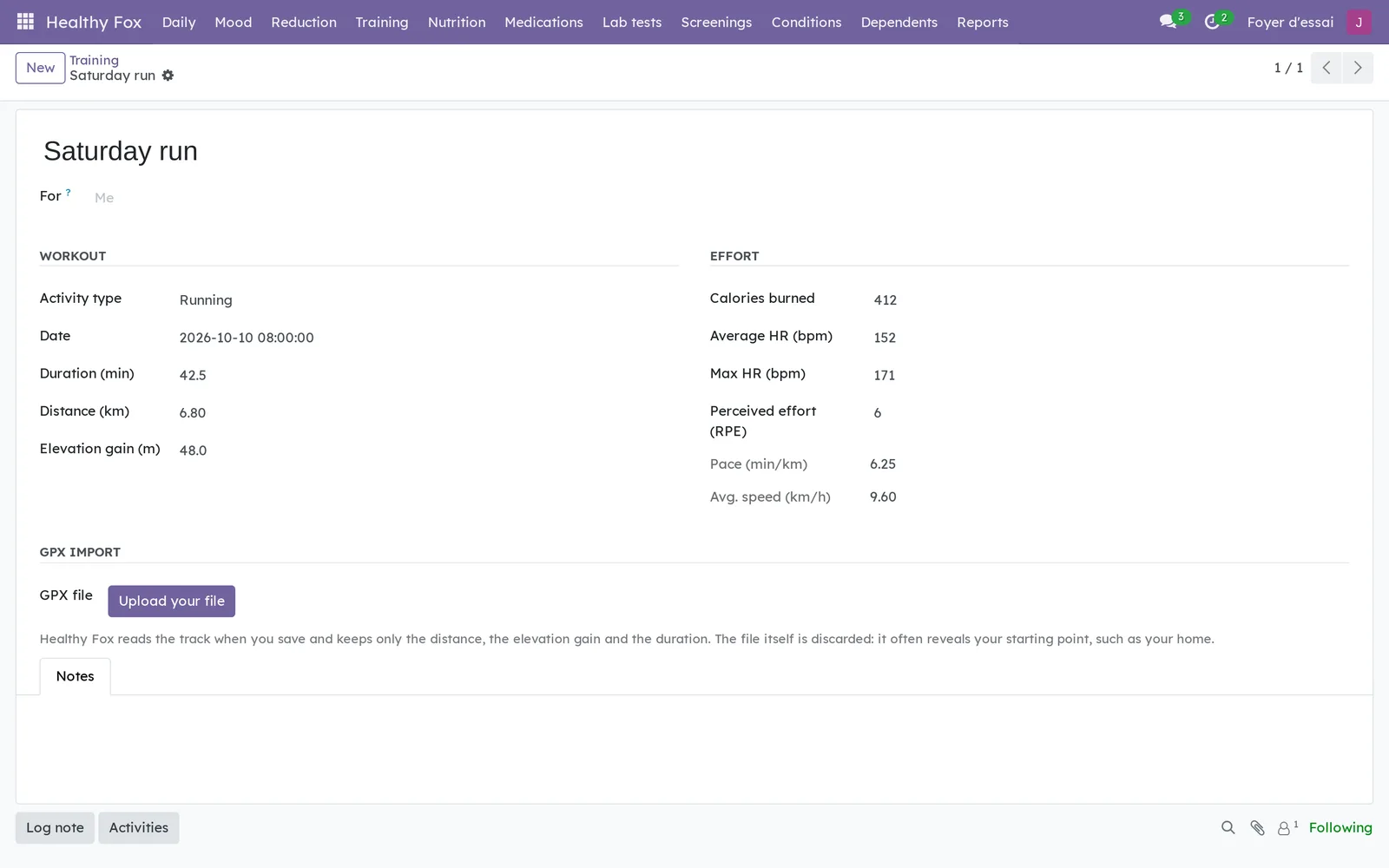
Pace and speed are calculated. The GPX file is read when you save: the distance, elevation gain and duration stay, and the file itself is discarded.
Keep a food log#
- Go to Healthy Fox › Nutrition › Food log.
- Add a line: meal, food and servings.
- For a food that is missing, create it in Nutrition › Foods; enter its barcode and select Search by barcode to fill in its nutrition values.
- Set your targets in Nutrition › Nutrition goal: calories per day, protein, carbohydrates and fat.
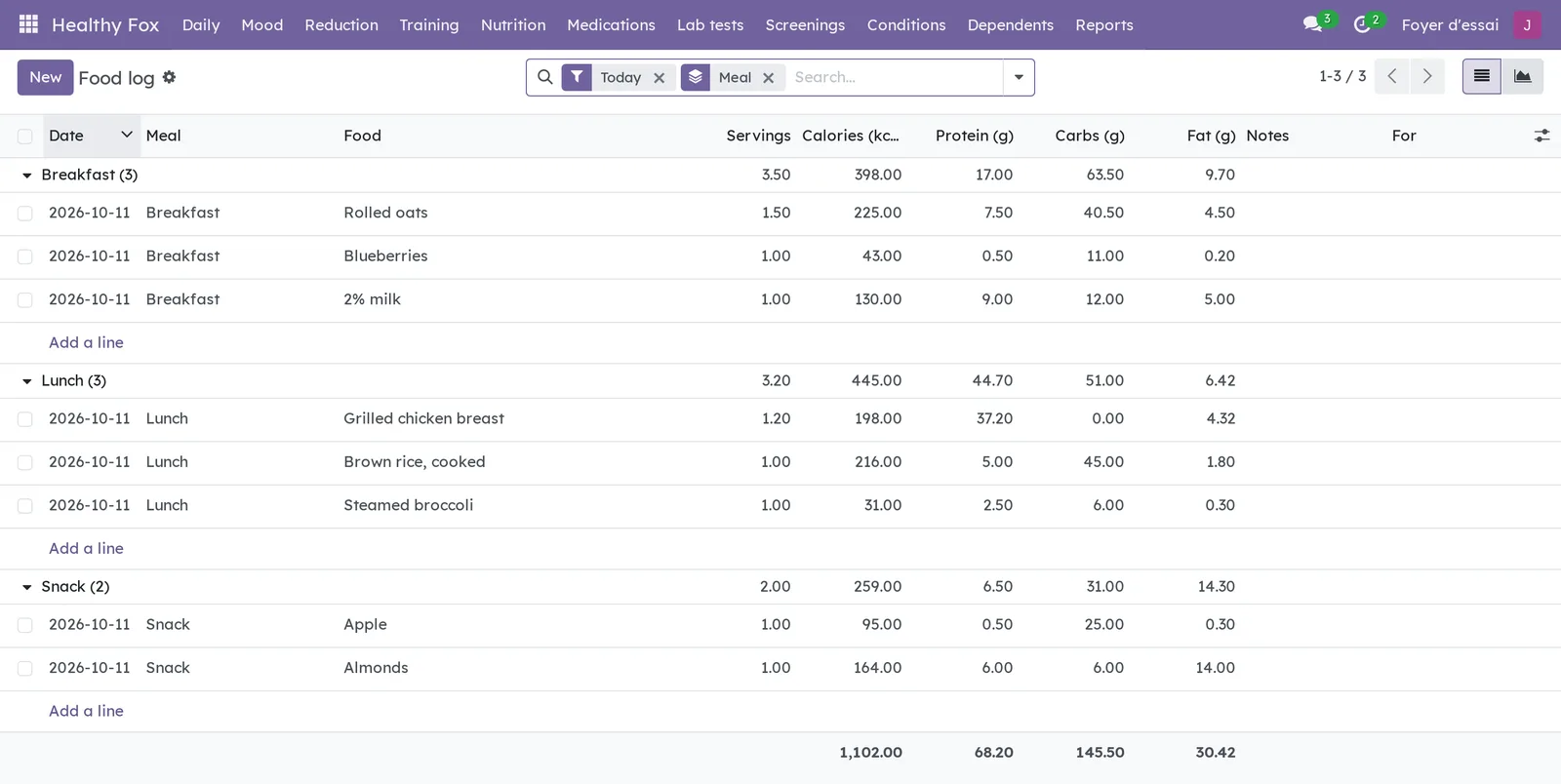
The dashboard compares the day with your goal and shows net calories, with what you burned taken off.
Log your mood on your phone#
- Go to Healthy Fox › Mood › Log on your phone.
- Add the page to your phone's home screen, like an app.
- Tap one of the five faces, then the day's activities.
- If you like, add a note, then tap Save.
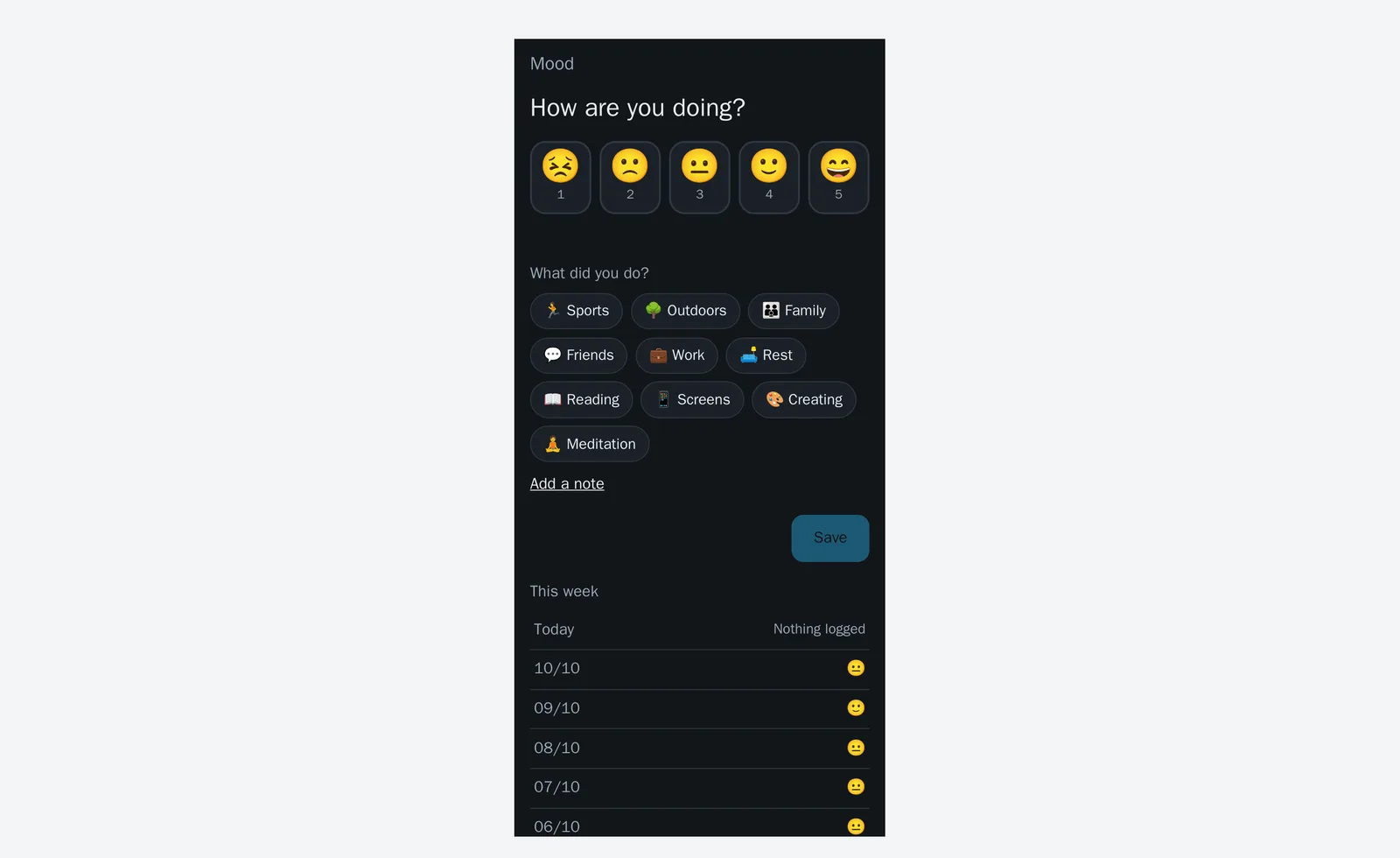
The page works offline: an entry made without a network waits on the phone and goes out when the network is back, without duplicates.
Set the mood reminder and correlations#
- Go to Healthy Fox › Mood › My journal and correlations.
- Check Daily reminder and choose the Reminder time.
- To compare your mood with your other data, turn on Calculate correlations.
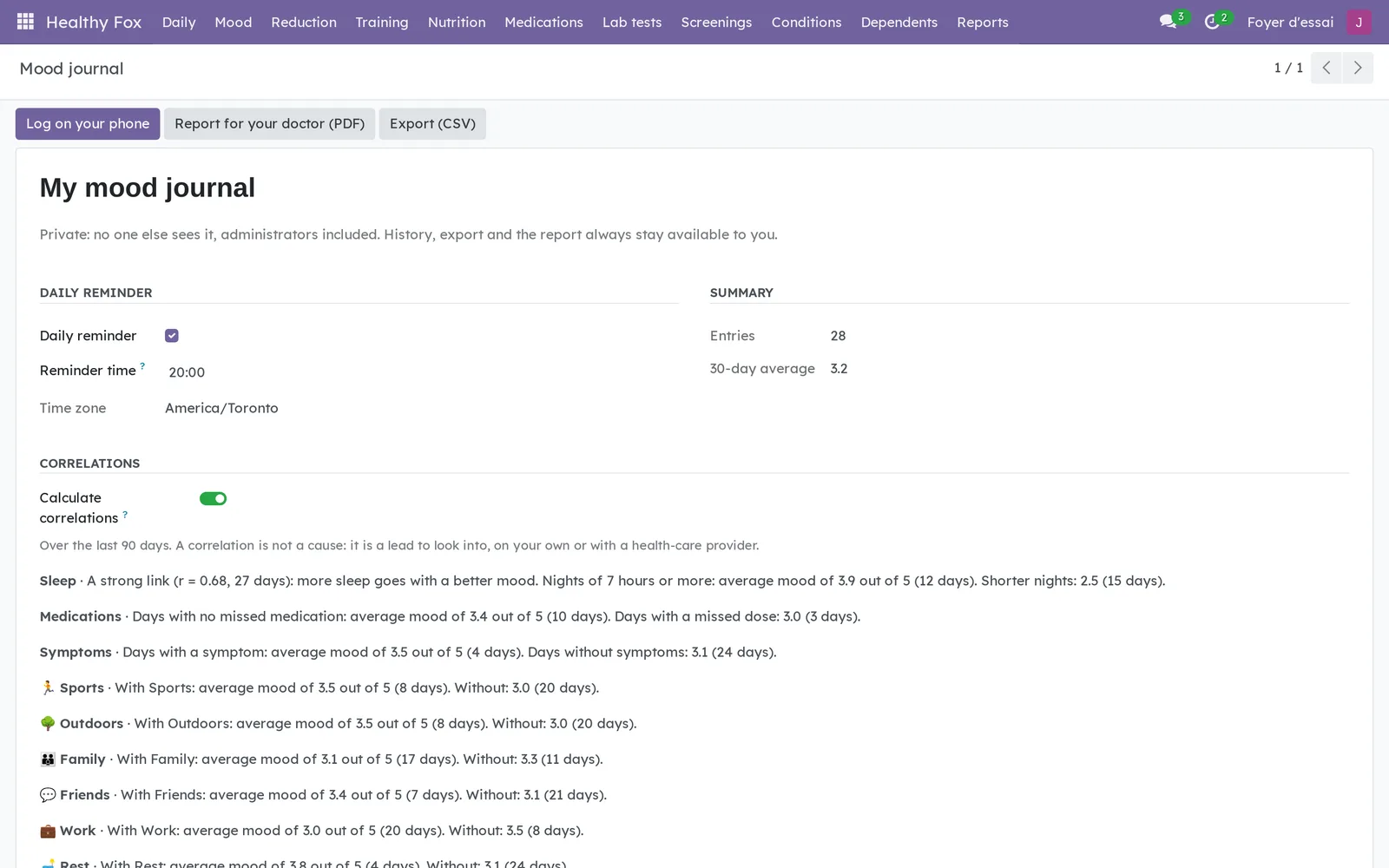
The reminder arrives once a day, at your time and in your time zone, with no email. Yesterday's reminder is deleted: nothing piles up if you skip a day.
Prepare a report for your doctor#
- Go to Healthy Fox › Mood › My journal and correlations.
- Select Report for your doctor (PDF).
- Choose the period, then check the correlations and your notes only if you want them included.
- Select Download the PDF.
The report gives the average, the daily curve, the distribution, the weekly averages and the correlations if they are turned on. It is not kept anywhere in the instance. Export (CSV) downloads all your entries.
Add a child under 14#
- Go to Healthy Fox › Dependents and select New.
- Read the notice at the top of the form.
- Enter the first name, the birth month and the birth year.
- Check the consent box.
- If needed, choose the Second parent.
- Save.
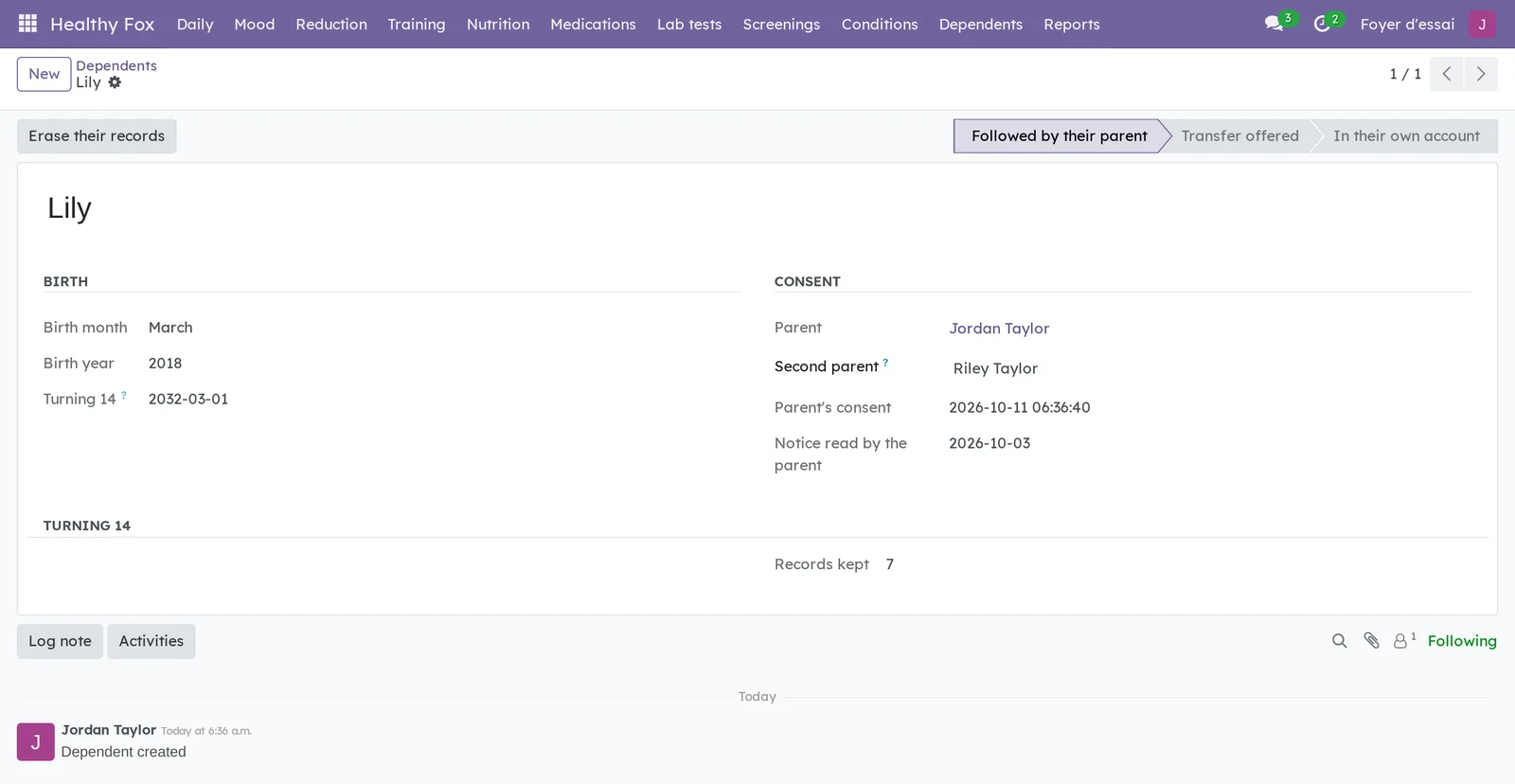
The child then appears in For on every record and in the Me selector of the dashboard. A child aged 14 or more is refused.
Name or change the second parent#
- Open the child in Dependents.
- Choose the Second parent, or replace them, then save.
The second parent reads and adds to the child's records. What they create comes back to you at once, so every record of the child has the same holder. Once removed or replaced, they lose the records' chatter, their own messages, the attachments and the reminders.
Hand the records over to the teen at 14#
On the first day of the month the child turns 14, you and the second parent get a reminder: ask Blue Fox for their account.
- Blue Fox opens the teen's account and selects Offer the transfer.
- The teen, signed in to their own account, opens their form in Dependents.
- They read the notice and select Receive my records, or Erase their records.
The stage changes to In their own account. The records move to the teen's account with their notes, attachments and reminders; you no longer have access.
Share records back with a parent#
After the transfer, the teen chooses what each parent sees.
- The teen opens their form in Dependents.
- Under What the teen shares with their parent, they turn on the categories they want.
- They do the same under What the teen shares with their second parent.
The parent reads these records without being able to change them. Turning a category off withdraws it in one gesture. The mood journal is never shared.
Withdraw your consent#
- Open the child in Dependents.
- Select Erase their records and confirm.
All of the child's records, their messages, attachments and reminders are erased, and the child's form with them. This cannot be undone.
The menus, one by one#
Healthy Fox opens the Health dashboard, described in the overview. The Me selector switches to a child's dashboard.
Healthy Fox › Daily groups the day's entries.
- Daily › Quick entry: the tabbed entry dialog.
- Daily › Today's medications: one line per scheduled dose, to check off.
- Daily › Vital signs: all your readings, by date and type.
- Daily › Symptoms: the episodes, with their severity.
- Daily › Substance use: alcohol, cannabis, tobacco and caffeine.
Healthy Fox › Mood groups the mood journal.
- Mood › Entries: the history, as a list, calendar, graph or pivot table.
- Mood › My journal and correlations: the reminder, the summary, the correlations, the report and the export.
- Mood › Activities: the activities offered when you log, which you can edit.
- Mood › Log on your phone: opens the phone page.
Healthy Fox › Reduction groups Reduction plan, all your steps, and Active steps, the ones under way.
Healthy Fox › Training › Workouts: your workouts, with distance, duration and calories.
Healthy Fox › Nutrition groups Food log, Foods, your catalogue, and Nutrition goal.
Healthy Fox › Medications groups All medications, grouped by status, and Upcoming renewals.
Healthy Fox › Lab tests groups All lab tests, grouped by stage, and Pending requisitions.
Healthy Fox › Screenings groups All screenings, grouped by type with their status, and Calendar, the next dates on a calendar.
Healthy Fox › Conditions groups Active conditions and All conditions.
Healthy Fox › Dependents: your followed children, their stage and the number of records kept.
Healthy Fox › Reports groups Dashboard, Weight trend, Blood pressure, Monthly substance use, Calorie intake and Training (pivot). On a narrow screen, this menu moves under the + in the bar.
Settings › Users & Companies › Turning 14 (Healthy Fox): for the administrator only, the list of children who are 14, without their records.
Reference#
Fields of the Medication form#
| Field | Description | Required or default |
|---|---|---|
| Medication name | The name on the label. | Required |
| For | The child concerned; empty for you. | Empty |
| Dosage, Form | The dose and form of the medication. | Optional |
| Frequency | From daily to monthly, or as needed. | Optional |
| Doses per day | The number of lines prepared each day. | Based on the frequency |
| Prescriber, Pharmacy, DIN | Where the prescription comes from. | Optional |
| Start date, End date | The treatment period. | Optional |
| Renewal date | The date the prescription must be renewed. | Optional |
| Reminder lead time (days) | How early the renewal reminder comes. | 14 |
| Refills remaining | What is left on the prescription. | Optional |
| Reason, Side effects, Notes | What you want to remember. | Optional |
| Status | Active, Paused or Discontinued. | Active |
Fields of the Dependent form#
| Field | Description | Required or default |
|---|---|---|
| First name | The child's first name, nothing more. | Required |
| Birth month, Birth year | Enough to know when the child turns 14. Never the day. | Required |
| Consent | The box checked after reading the notice. | Required |
| Second parent | The person who keeps the records with you. | Optional |
| Turning 14 | The first day of the month the child turns 14. | Calculated |
| Parent's consent, Notice read by the parent | The date of consent and the notice version. | Filled in when saved |
| Records kept | The number of the child's records. | Calculated |
Reports and exports#
- Reports: weight trend, blood pressure, monthly substance use, calorie intake and training, as a graph or pivot table.
- Report for your doctor (PDF): the mood journal over a period, never kept in the instance.
- Export (CSV): all your mood entries.
Automations#
| When | What happens |
|---|---|
| Every day | One unchecked line per scheduled dose of your active medications. |
| Every day | A reminder in your name for a renewal, a screening or a lab test coming up. |
| Every day | A reminder two days before a reduction step starts. |
| Every 15 minutes | The mood reminder at your time, once a day; yesterday's is deleted. |
| Every day | On the first day of the month a child turns 14: a reminder to the parent, the second parent and Blue Fox. |
Reminders carry the record's name and a neutral text. The details stay on the record.
Public pages and portal#
The application has no public page and no portal. The phone page, /healthy-fox/humeur, requires you to be signed in.
Modules that extend this application#
Understanding#
Why no one else sees your records. Each record belongs to the person who created it, and the access rule knows only that person. A child's records belong to the parent who holds them: they are closed to the rest of the household exactly like yours. The second parent reads them through a rule of their own, limited to that child.
Why a message becomes a note. On a health record, every message is an internal note: no recipients, no notifications, no email. The button to send a message is even removed from these screens.
Why only the month and year. The day of birth adds nothing: knowing when the child turns 14 is enough. From then on, the teen consents, and the teen alone: they receive their records or have them erased.
Why correlations are off by default. Comparing your mood with your sleep or your doses is profiling under section 8.1 of Quebec's Law 25: turning it on is your call. The calculation runs on demand, under your own permissions, and each line states how many days it rests on. A correlation is not a cause.
Why the GPX file is discarded. A track often reveals your starting point, and so your home. Only the distance, duration and elevation gain are useful: the rest is not kept.
What leaves the instance. Only the barcode of a food you look up goes to Open Food Facts, with nothing that names you.
The daily email digest. If your instance sends everyone a daily digest of their activities, your Healthy Fox reminders appear in it, with the record's name. Its published version does not leave them out yet. If these emails must not carry health record names, ask Blue Fox not to install it alongside Healthy Fox.
Gen and your health records. If your instance has Gen, the published version reads your health records like any other record you can open. No health-specific lock is offered yet.
Troubleshooting#
| Symptom | Likely cause | Fix |
|---|---|---|
| The application does not appear in the app grid. | You are missing the Health user group. | Ask the instance administrator to check it on your user form. |
| No reminder for a prescription that is about to run out. | The Renewal date is empty, or the medication is not Active. | Enter the date and check the status. |
| The For field does not offer your child. | You no longer follow the child, or they are 14. | Check their stage in Dependents. |
| The child is refused when you save. | They are 14 or older based on the month and year entered. | At 14, the teen keeps their records in their own account. |
| The second parent no longer sees the child's records. | They were removed or replaced, or the child has turned 14. | Name them again, or ask the teen to share categories back with them. |
| The report for your doctor shows no correlations. | Calculate correlations is turned off. | Turn it on in My journal and correlations. |
| Search by barcode finds nothing. | The food is not in Open Food Facts, or the instance has no Internet access. | Enter the nutrition values by hand. |