

Part 5 · People and team
Keys and access to the premises
Know who holds each key, access card or remote control, which doors it opens, and get everything back when an employee leaves.
Watch it
The Keys application keeps the register of the physical keys, access cards and remote controls of your premises. It tells you who holds each copy, since when, and which doors it opens, master keys included. It is meant for the person who keeps the keys (often the office administrator or the facilities manager), for the area managers who approve access, and for every employee, who sees what they hold. The result: a signed hand-out for every copy, an exact list of the doors at risk after a loss, and nothing forgotten on the day someone leaves.
Overview#
The register keeps three things apart, as key control policies recommend.
- The key type: all the keys cut the same way, or one model of access card. It carries a Symbol in the master key system (for example "AA1") and a Blind code, stamped on the key.
- The copy: each physical item, with its number. Its Label combines the blind code and the number ("K19-5"), and that number proves which copy came back.
- The door: its cylinder, and the key it is keyed to (Keyed to).
The master key system links the types by levels: a change key opens only its own door, a master key opens the doors of every key below it, and the grand master key opens the whole building. The doors each key opens are computed from this hierarchy. A door marked Not master keyed opens with its own key only, even for a master key.
The holder of a copy is never written next to it: it is read from the open hand-out. A hand-out starts with the Hand out dialog, with a signature on the screen, and ends at the return, the loss or the theft. A copy that someone holds must come back before it goes to someone else: no hand-to-hand transfers.
On the demo, the head office of Boréal Services-conseils has a three-level Medeco master key system, seven doors, ten key types and 41 copies. Sophie Marcotte keeps the keys. The Overview sums up what needs her attention.
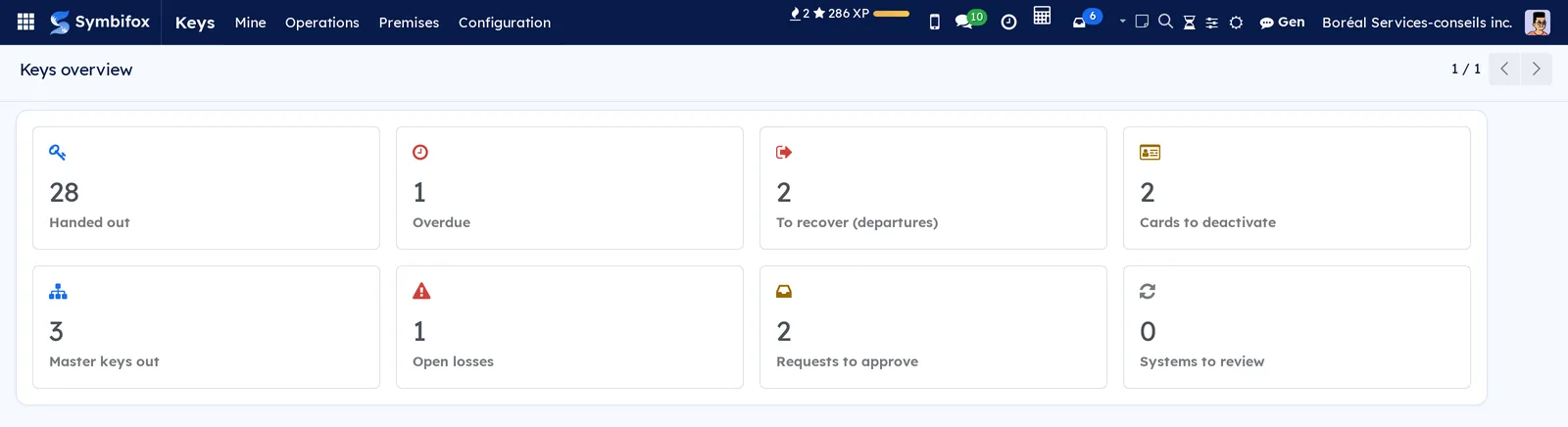
Each tile opens the list of hand-outs, losses, requests or master key systems behind it. The application connects to the employee record in Employees: a Keys tab there shows what the person holds, and a departure starts the recovery.
Configuration#
Access and permissions#
The application creates three groups, under the Keys category of the user form. Each one includes the previous one.
| Group | What it opens |
|---|---|
| Key holder | Given to every internal user. The Mine menu: their keys, the keys to confirm during an audit, their requests. |
| Area manager | The Operations and Premises menus. Approve the requests of their areas, hand out and take back their keys, declare a loss. The Keys tab and the Keys button of the employee record. |
| Key manager | Everything: audits, master key systems, doors, key types and areas. |
Symbols and master key systems describe the security of your premises: only area managers and key managers can read them. A key holder sees only their own hand-outs and their own requests.
Settings#
Keys › Configuration › Settings opens the Keys block of the settings. The Symbifox settings page requires the right to administer settings: this menu is reserved for administrators, even among key managers.
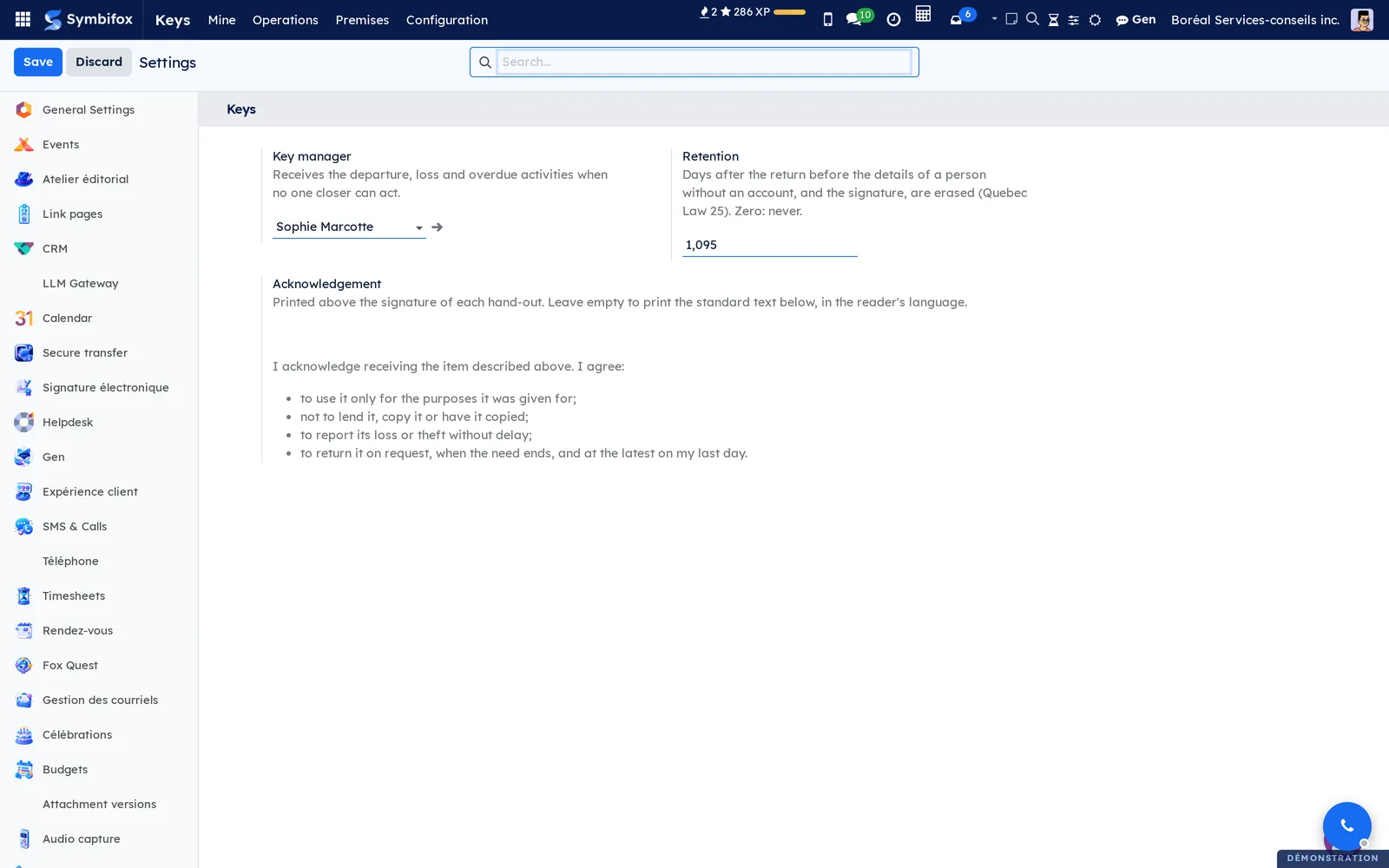
- Key manager: the person who receives the departure, loss and overdue activities when no one closer can act. On the demo, Sophie Marcotte.
- Retention: the number of days after the return before the details of a person without an account, and the signature, are erased (Quebec Law 25). The default is 1,095 days, or three years. Zero: never.
- Acknowledgement: the text printed above the signature of each hand-out. Left empty, as on the demo, it prints the standard text, which the page shows below the field, in the language of the person who reads the acknowledgement: they agree to use the item only for the purposes it was given for, not to lend it or copy it, to report its loss without delay, and to return it at the latest on their last day of work.
Base data#
Create the data in this order, since each step relies on the previous one.
- Keys › Premises › Areas: buildings, floors or wings, with their Responsible people. A sub-area inherits the responsible people of its parent.
- Keys › Premises › Master key systems: the number of levels, the keyway, the locksmith and the keying schedule. Single keys and cards do not need one.
- Keys › Premises › Key types: one type per cut key or card model, with its blind code and its key above.
- Keys › Premises › Doors: each door, its area, its lock and the key it is keyed to.
- Keys › Operations › Copies: one line per physical item, with the number stamped on it.
Getting started#
This walkthrough hands out a copy of the Laurentides conference room key to a Boréal employee, then checks who can open that door. It requires the Area manager or Key manager group.
- Open Keys › Operations › Copies. The list is grouped by key type.
- Expand the Salle de conférence Laurentides group, then open copy K18-1. Its state is Available, and the History tab shows its last hand-out, returned by Kevin Lavoie.
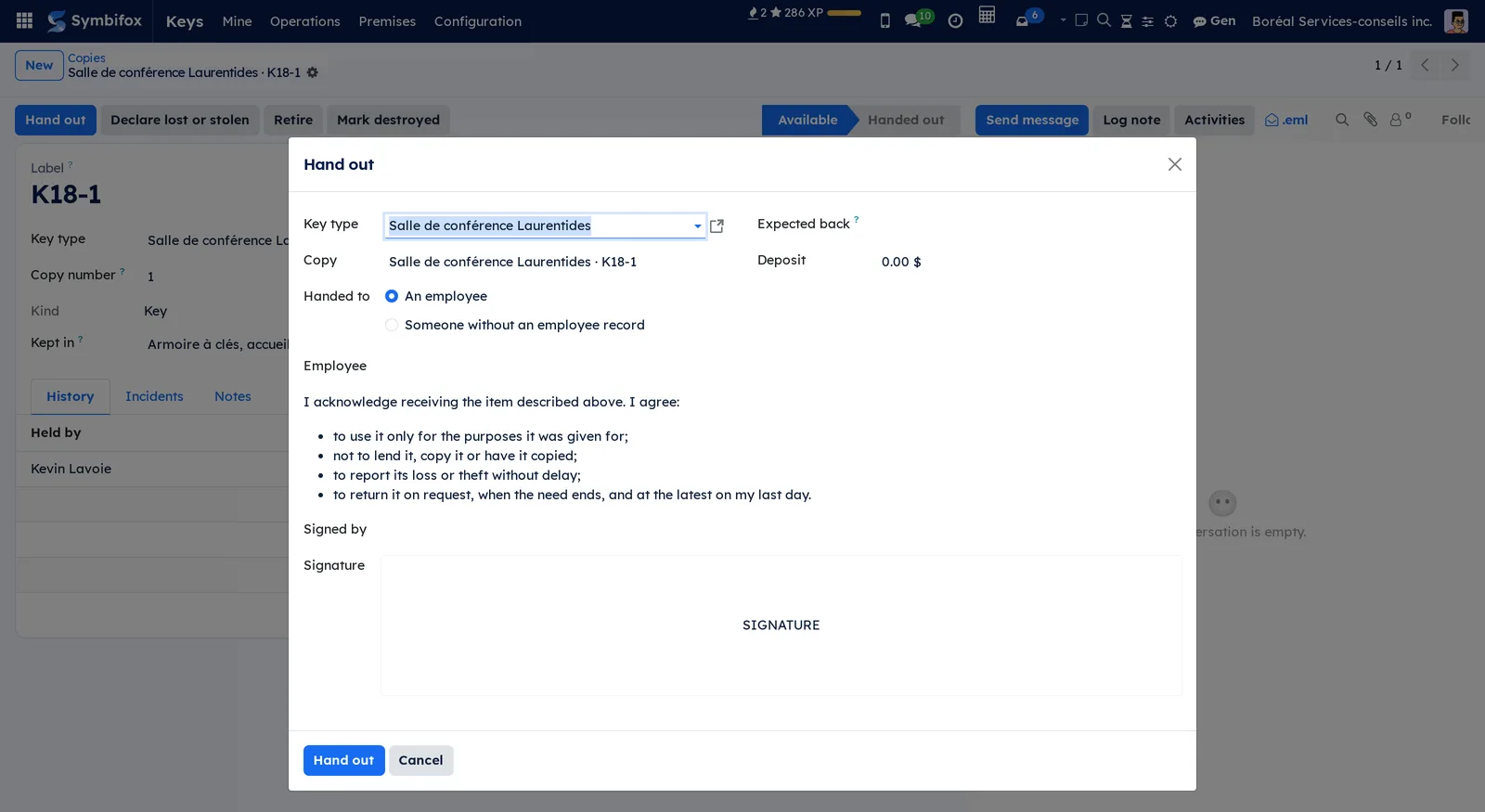
- Select Hand out. The Hand out dialog opens.
- Leave An employee selected and choose the employee in Employee.
- Have the person read the commitment, then have them sign in the Signature box.
- Select Hand out. The copy moves to Handed out and the person appears in Held by.
- Open Keys › Premises › Doors, then Salle de conférence Laurentides, and the Who can open it tab: the person is listed with the hand-out date.
Common tasks#
Hand out a key#
A hand-out always starts from the copy, never by writing a name on the record.
- Go to Keys › Operations › Copies and open an Available copy.
- Select Hand out.
- In Handed to, choose An employee and the employee, or Someone without an employee record and enter their name, phone and employer.
- Optional: adjust Expected back, which the type proposes from its usual duration, and enter a Deposit.
- Have the person sign in Signature.
- Select Hand out.
The hand-out opens in the Held state. If the person already holds a copy of the same type, the dialog says so before the hand-out.
Hand out a key to someone without an account#
A contractor, a volunteer or a cleaner receives a key without an employee record. In the Hand out dialog, choose Someone without an employee record, then enter their name, phone and employer. On the demo, Lucie Paré, from Entretien Clair-Net, holds a card and an open-area key until December 16.
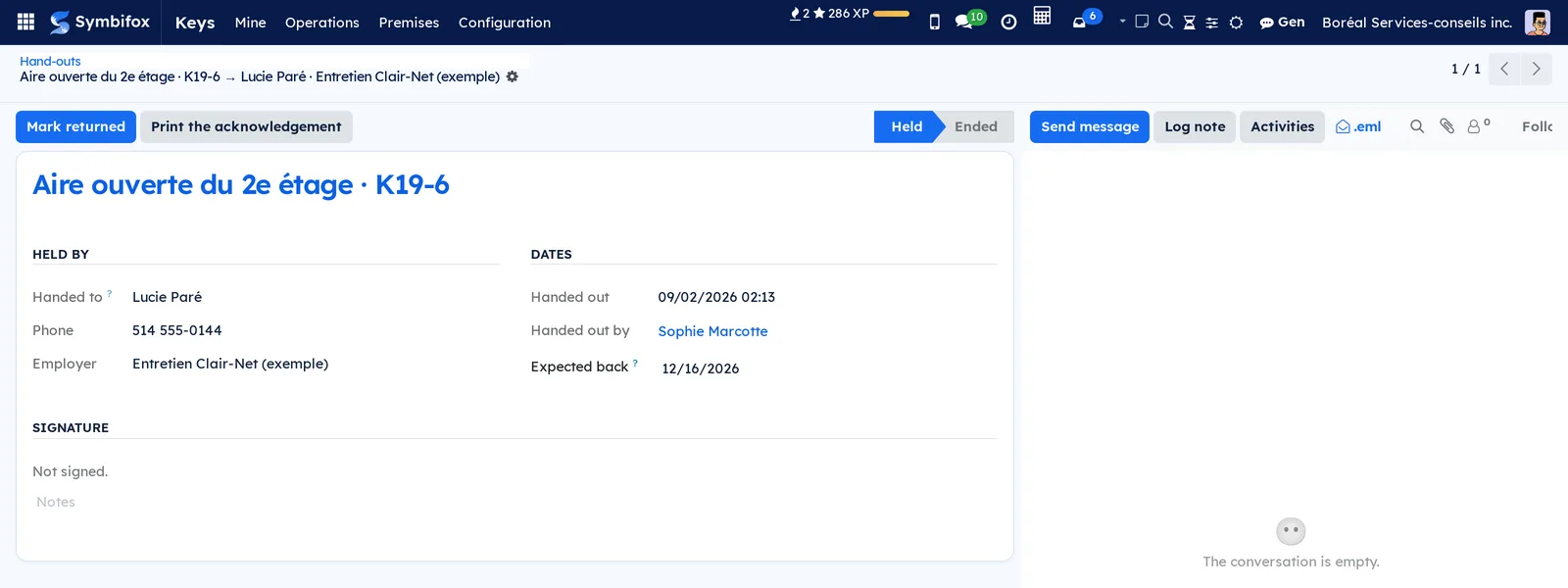
These details and the signature are erased after the retention period set in the settings.
Print the acknowledgement#
The acknowledgement shows the commitment, the copy, the person and their signature.
- Go to Keys › Operations › Hand-outs and open the hand-out.
- Select Print the acknowledgement.
The Key acknowledgement PDF downloads, named after the label of the copy.
Record the return of a key#
- Go to Keys › Operations › Hand-outs and open the open hand-out, or open the copy.
- Select Mark returned.
The hand-out moves to Ended and the copy becomes Available again. The overdue or departure activities tied to this hand-out close on their own. If a deposit was taken, a note "Deposit of … to refund." appears in the chatter (the message thread at the bottom of the form) of the hand-out.
Request a key#
Any employee can request a key for themselves.
- Go to Keys › Mine › My requests.
- Select New.
- Choose the Doors needed, or the Key type if you know it.
- Enter Needed until (the end of the need) and the Reason.
- Select Submit.
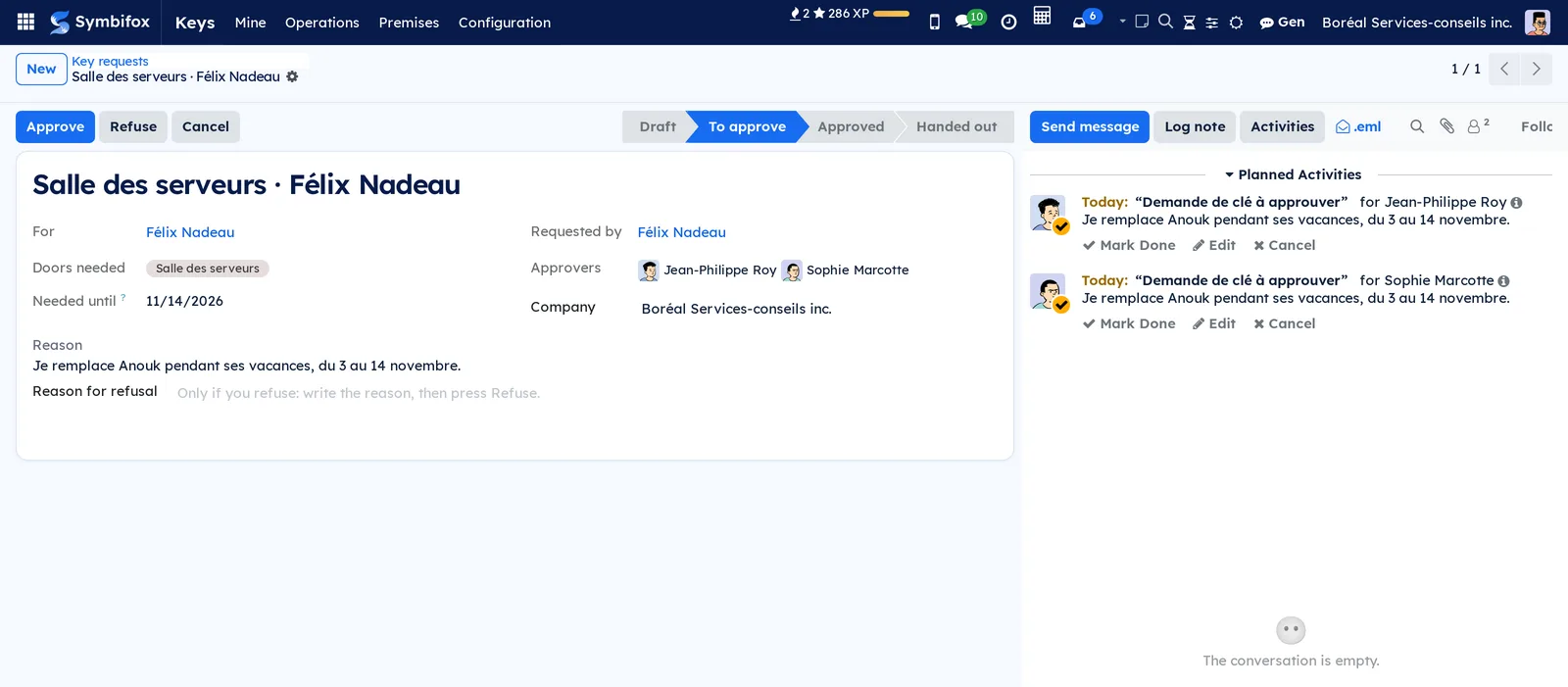
The request moves to To approve and each approver receives the activity "Key request to approve". For a key that needs no approval, the request is approved automatically, with a note in the chatter that says so.
Approve or refuse a request#
The Approvers are the responsible people of the areas of the doors or key type requested or, failing that, the key manager.
- Go to Keys › Operations › Requests. The To approve filter is on.
- Open the request.
- Select Approve, or enter the Reason for refusal and select Refuse. The field appears only to approvers, and can be read afterwards on the refused request.
If the person already holds a key that opens those doors, the Access already held field says so, and only the person and their approvers see it. Once the request is approved, Hand out opens the hand-out dialog, linked to the request. The dialog checks that the chosen copy opens every door requested.
Declare a key lost or stolen#
- Go to Keys › Operations › Copies and open the copy.
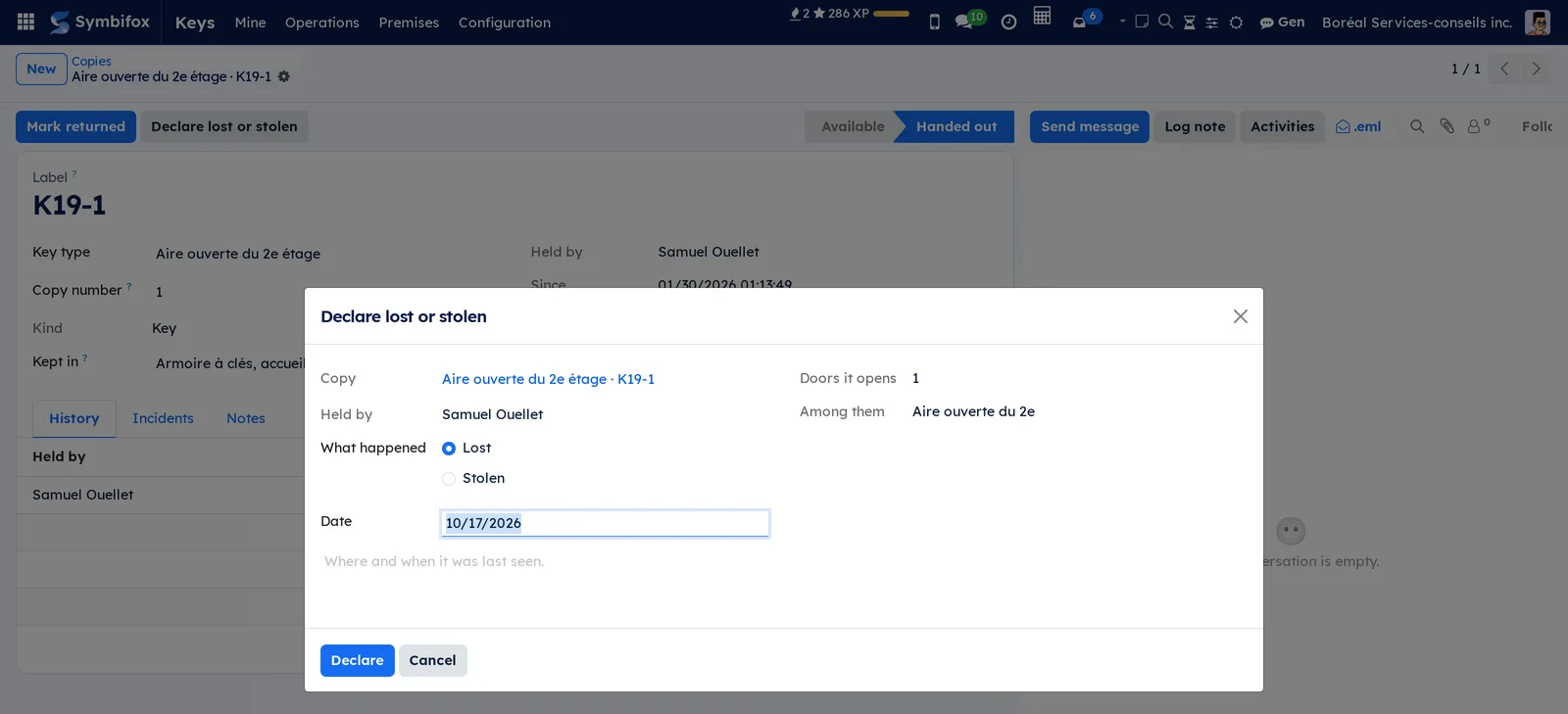
- Select Declare lost or stolen.
- Choose Lost or Stolen in What happened and check the Date.
- Describe where and when the copy was last seen.
- Select Declare.
The hand-out closes and a record opens in Lost and stolen, with the list of the doors the copy opened. The dialog already shows their number in Doors it opens. The key manager receives the decision activity: deactivate the card in the access control system, or decide whether to rekey the doors.
Decide after a loss#
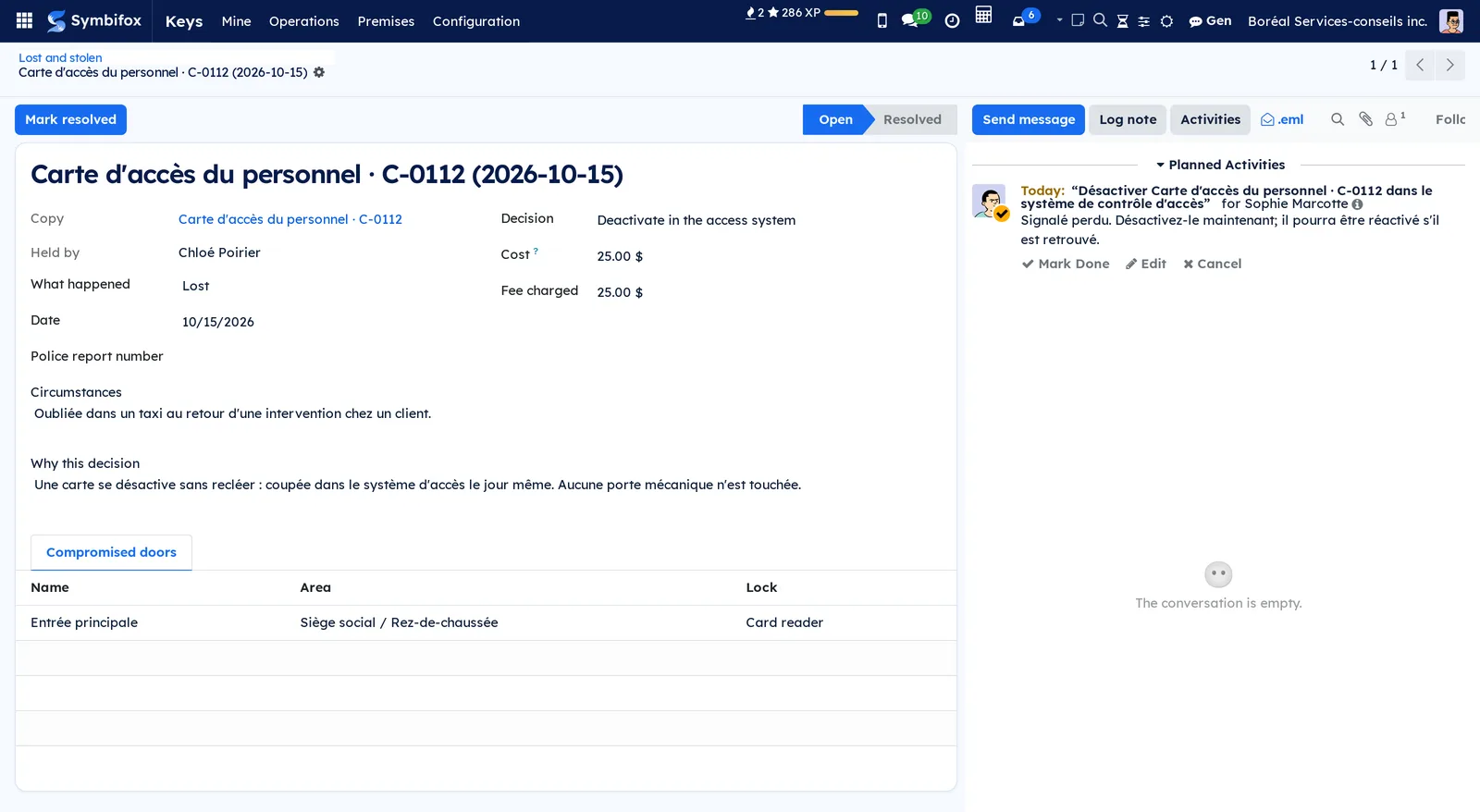
The loss record keeps the list of Compromised doors as it stood on the day of the declaration, even after a rekeying.
- Go to Keys › Operations › Lost and stolen and open the record.
- Choose the Decision: Rekey the doors, Deactivate in the access system, Risk accepted or Found again.
- Explain the choice in Why this decision.
- Enter the actual Cost and the Fee charged, if any.
- Select Mark resolved.
With the Found again decision, the copy becomes usable again when the record is resolved. Reopen puts the record back to Open.
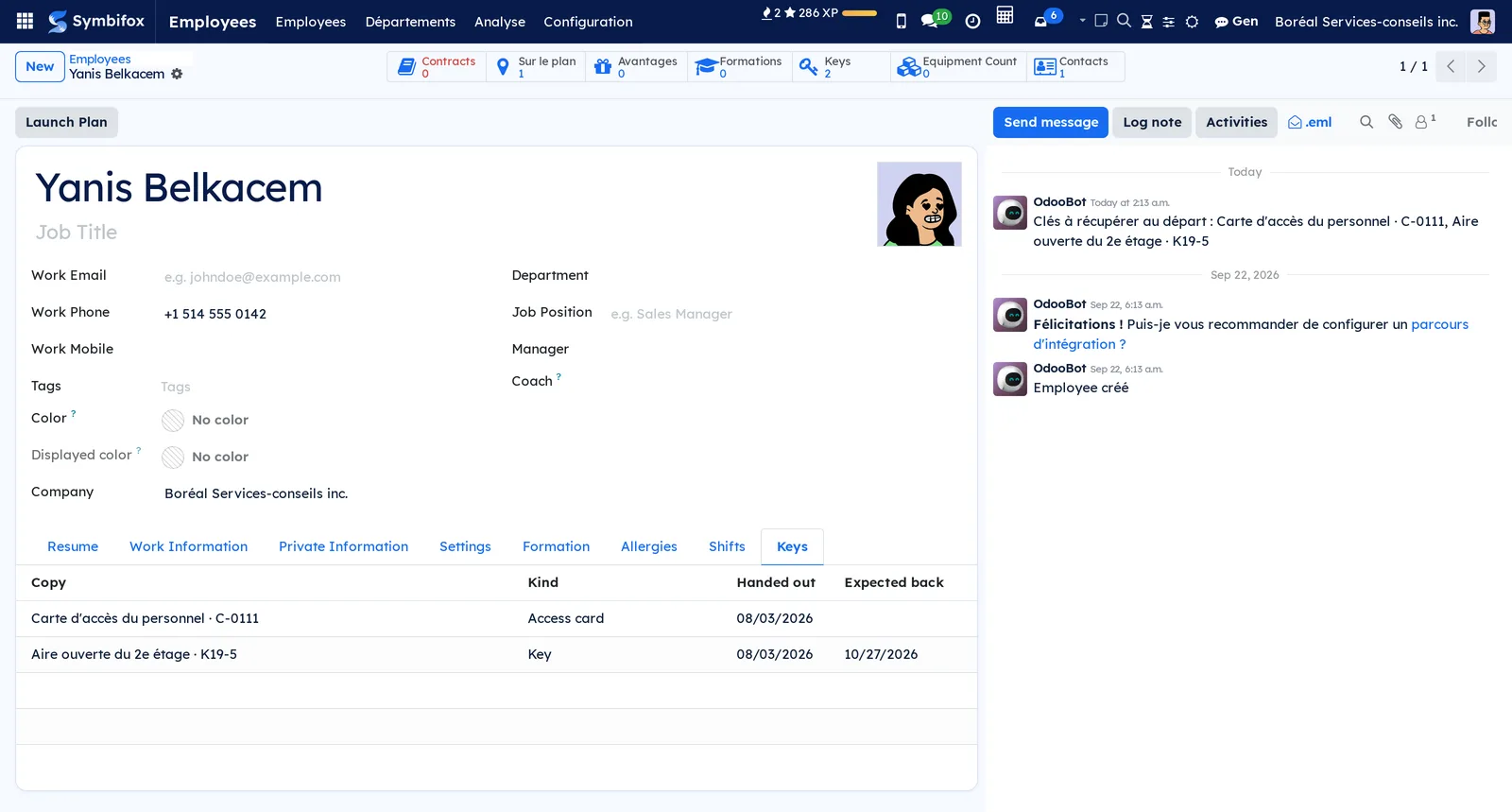
Prepare an employee's departure#
The departure starts from the employee record, in Employees.
- Open the employee record.
- Set their departure date, or archive the record.
- Open the Keys tab to see what they still hold.
For each copy still held, a "Recover: …" activity goes to the key manager, due on the departure date. For a card, a fob or a remote control, the activity reminds you to deactivate it the same day. A note "Keys to recover at departure" appears in the chatter of the employee. Each activity closes on its own when the copy comes back.
Run a key audit#
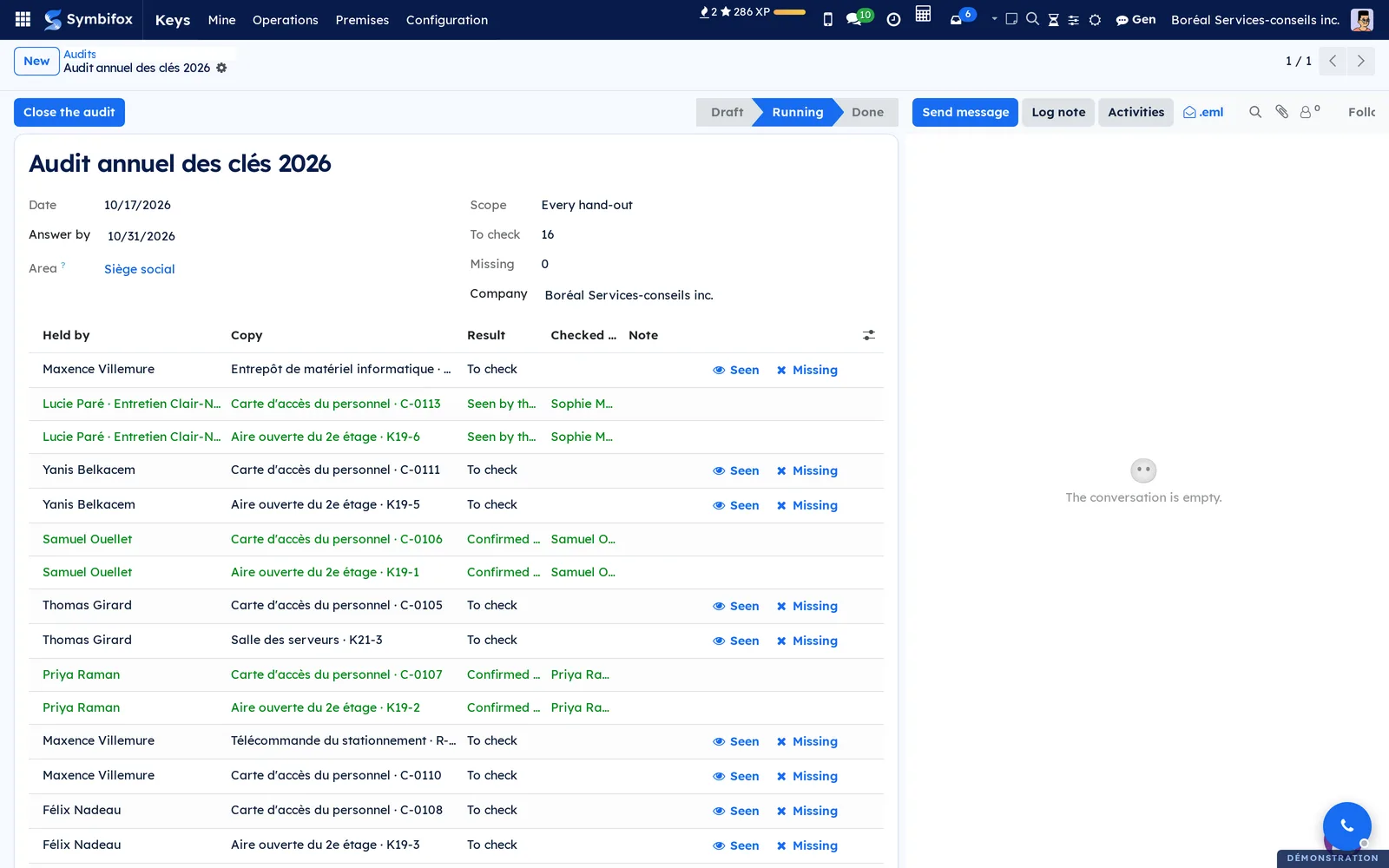
An audit checks that each copy handed out is still where the register says it is. It requires the Key manager group.
- Go to Keys › Operations › Audits and select New.
- Enter the name, the date and Answer by.
- In Scope, choose Every hand-out or A sample, and its percentage. Optional: limit it to an Area.
- Select Start. One line is added per open hand-out, and each holder with an account receives the activity "Confirm the keys you hold".
- For the copies you see yourself, select Seen on the line, or Missing.
- When the deadline arrives, select Close the audit.
The lines left at To check or Missing become discrepancies, listed in a "Discrepancies" note in the chatter of the audit. A sample draws holders, not copies: a holder who is drawn is checked for everything they hold.
Confirm your keys during an audit#
During an audit, each holder confirms what they have.
- Go to Keys › Mine › Keys to confirm.
- On each line, select I still have it or I no longer have it.
The line moves to Confirmed by the holder or to Missing, and the audit activity closes once all your lines have an answer. You can answer only for the keys you hold.
Retire or destroy a copy#
An Available copy can leave the register without being deleted.
- Open the copy.
- Select Retire, or Mark destroyed.
The copy keeps its history. A lost or stolen copy that comes back is put back in service with Found again.
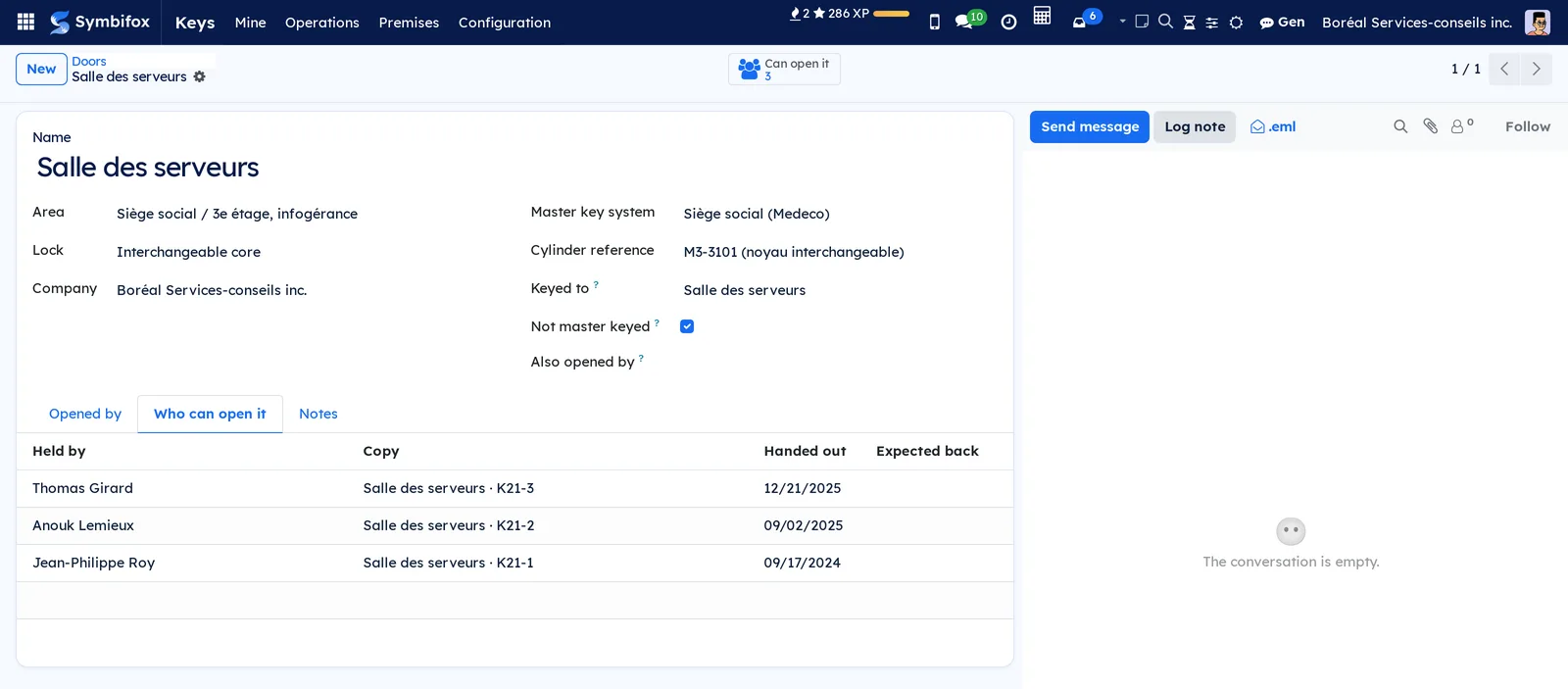
Find out who can open a door#
- Go to Keys › Premises › Doors and open the door.
- Open the Who can open it tab for the people, or Opened by for the key types.
The Can open it shortcut button at the top of the form gives the same count. For the server room, whose cylinder is not master keyed, only the three holders of its own key can open it: no master key is listed.
Print a report#
Three reports print from the Print menu of a record or a list.
- Door access, from a door: who can open it and with which key.
- Keys held, from an employee record: what they hold.
- Hand-out register, from the list of hand-outs: the selected hand-outs.
The menus, one by one#
Keys › Mine groups the three screens of each employee.
Keys › Mine › My keys lists your open hand-outs: copy, kind, hand-out date and expected return, with the Held filter. An overdue key shows in red. Camille Tremblay holds no key on the demo, hence the help text "You hold no key".
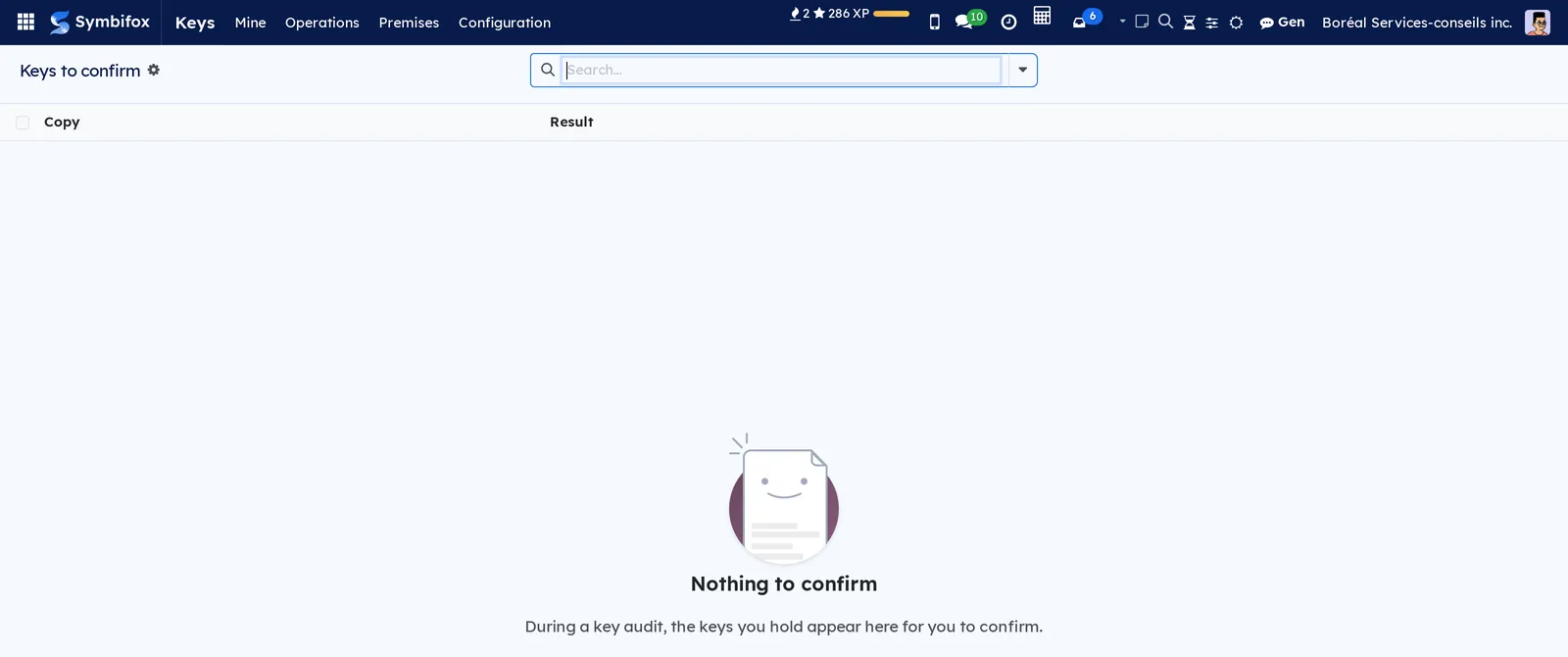
Keys › Mine › Keys to confirm lists, during an audit, the keys you hold and their Result. Outside an audit, the screen says "Nothing to confirm".
Keys › Mine › My requests lists your requests: date, for whom, key type, doors, area, end date and state. New creates one.
Keys › Operations groups the day-to-day work of the managers.
Keys › Operations › Overview shows the eight tiles described above, then the date of the Last audit once an audit is completed. An area manager sees only the figures of their areas.
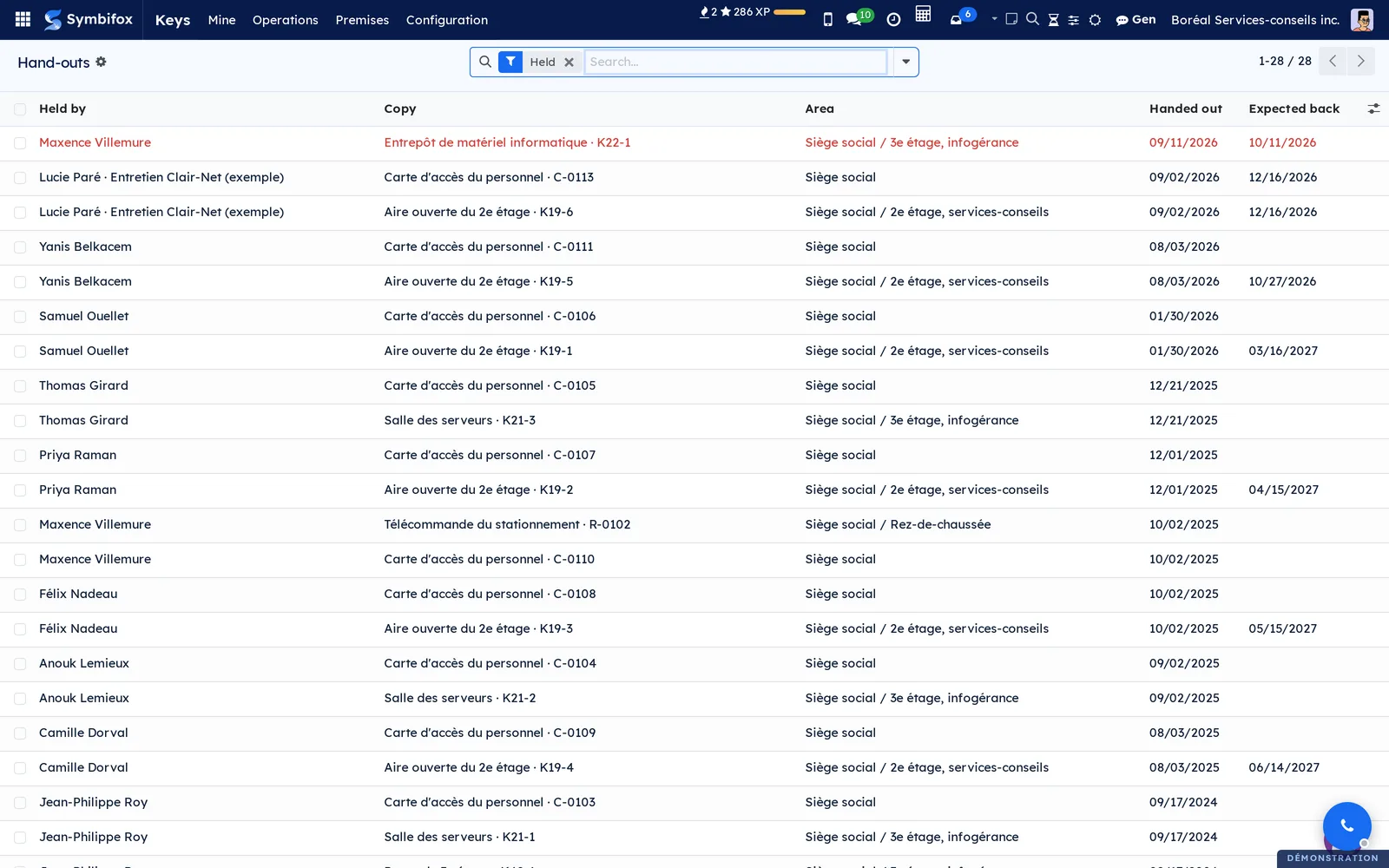
Keys › Operations › Hand-outs lists the hand-outs, with the Held filter on: holder, copy, area, hand-out date and expected return. The Returned and Ended columns can be added from the optional columns toggle at the end of the header. An overdue hand-out shows in red.
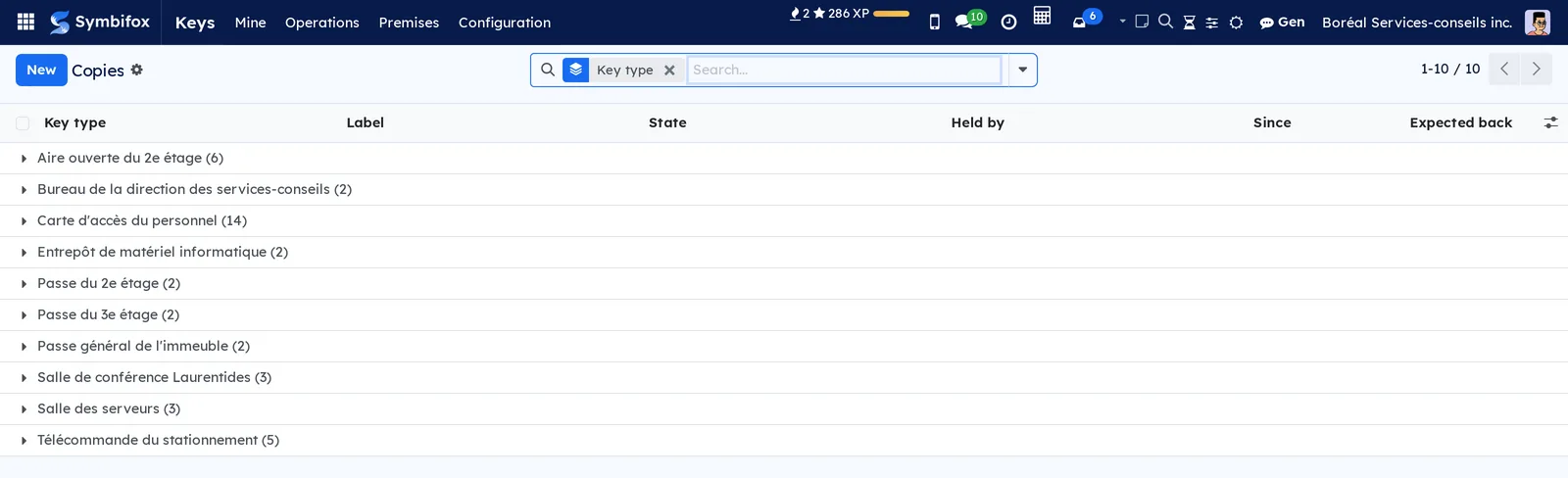
Keys › Operations › Copies lists the copies grouped by key type: label, state, holder, since when and expected return.
Keys › Operations › Requests lists the requests, with the To approve filter on. On the demo, Ines Bouchard asks for the storeroom and Félix Nadeau for the server room.
Keys › Operations › Lost and stolen lists the losses, with the Open filter on: date, copy, holder, what happened, number of doors, decision, cost and state.
Keys › Operations › Audits lists the audits with their scope, area, lines, what remains to check, the missing items and the state. Key managers only.
Keys › Premises groups the physical description of the premises.
Keys › Premises › Doors lists the doors: area, name, lock, the key it is keyed to and the number of holders. The main entrance, opened by the grand master key and the access card, has 13 holders on the demo.
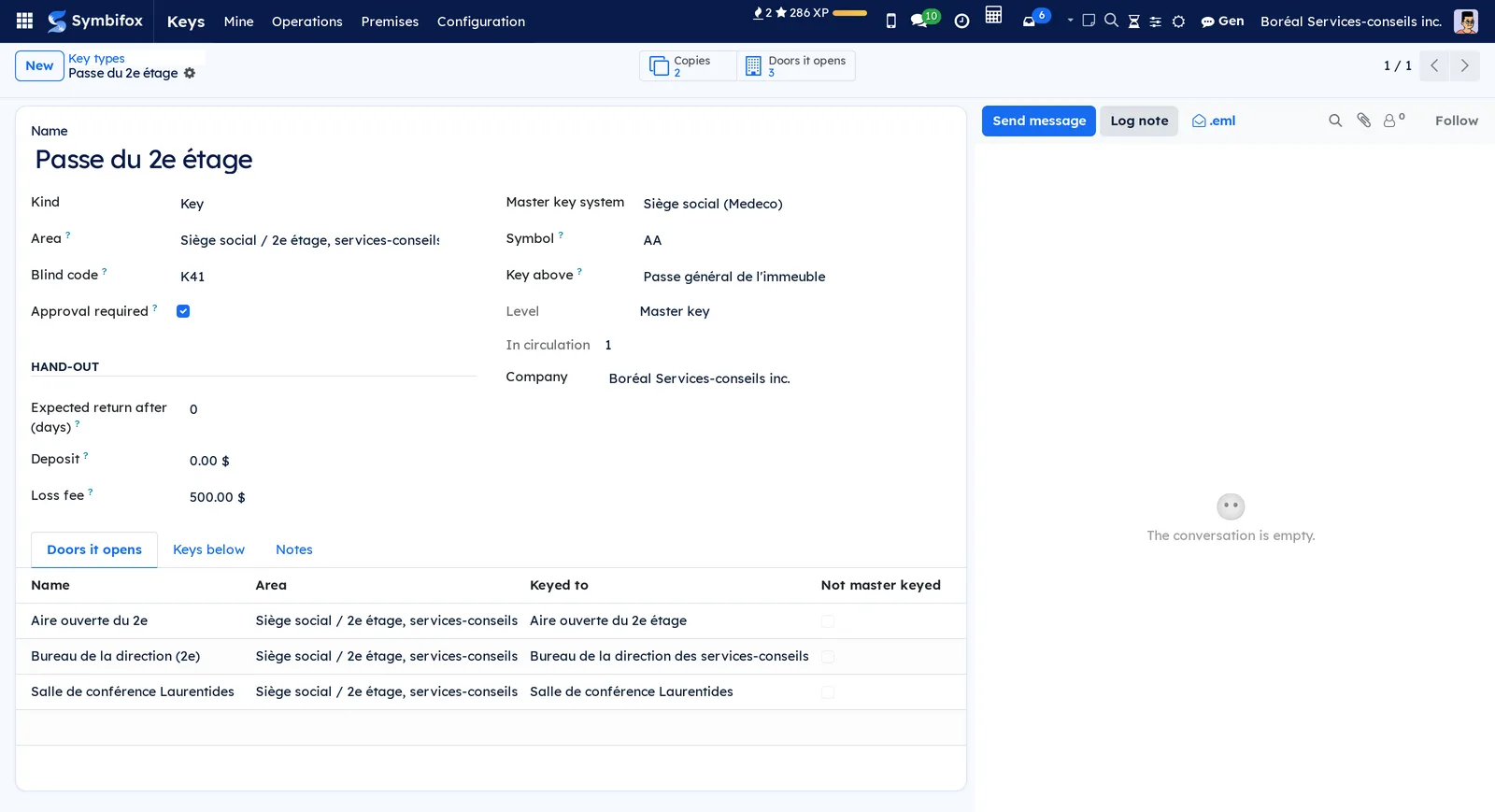
Keys › Premises › Key types lists the types: master key system, symbol, name, kind, level, area, blind code, number of copies and number in circulation.
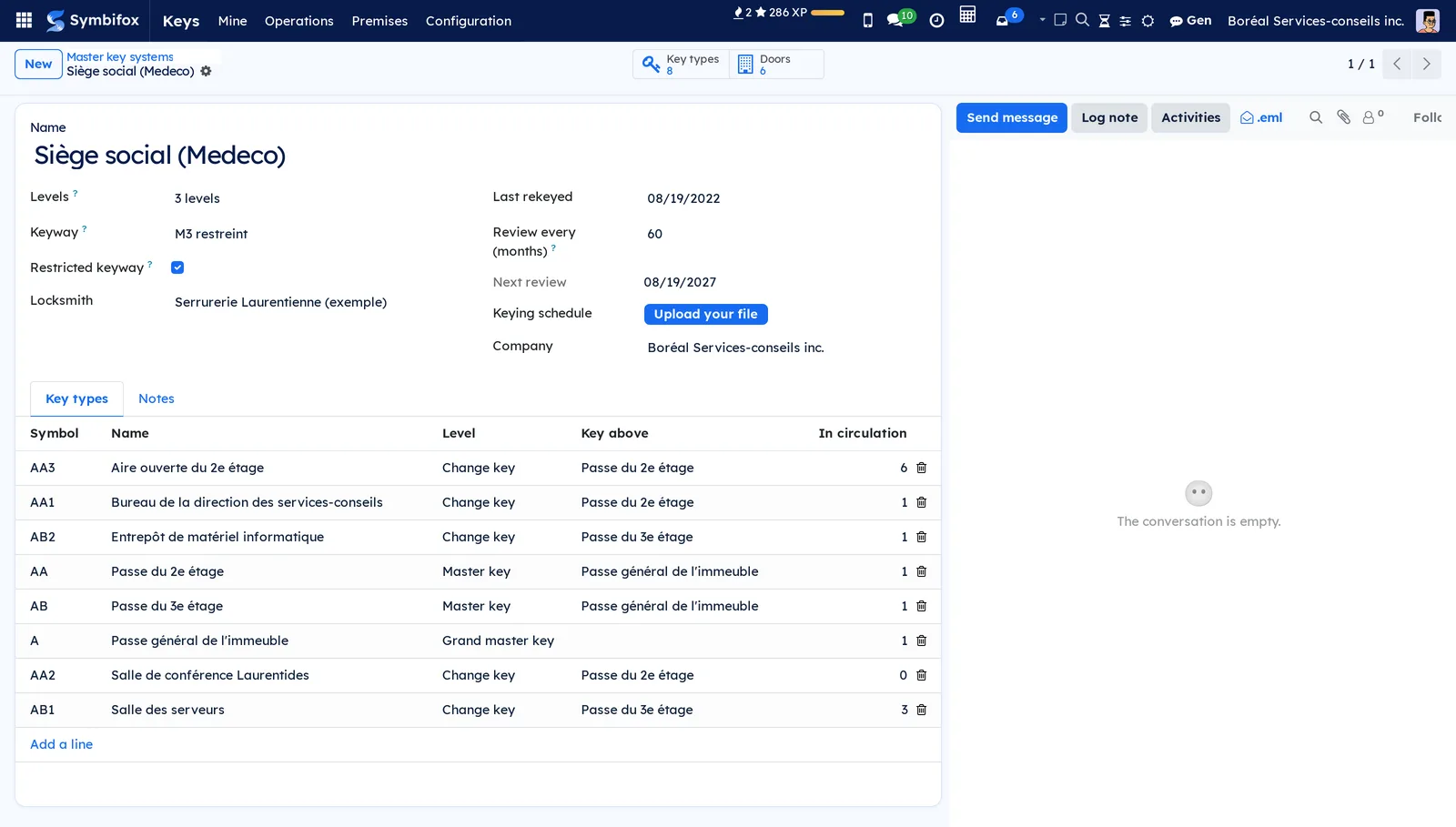
Keys › Premises › Master key systems lists the systems: levels, keyway, restricted keyway, last rekeying and next review.
Keys › Premises › Areas lists the areas with their responsible people. On the demo, Sophie Marcotte for the head office, Marie-Ève Charland for the second floor and Jean-Philippe Roy for the third.
Keys › Configuration groups the settings.
Keys › Configuration › Settings opens the Keys block of the settings, described in the Settings section and reserved for administrators.
Reference#
Fields of the Key type form#
| Field | Description | Required or default |
|---|---|---|
| Name | The name of the type, often the door or area it serves. | Required |
| Kind | Key, Access card, Fob, Remote control or Other. | Key |
| Master key system | The system of the type. Empty for a single key or a card. | Optional |
| Symbol | The system notation (A, AA, AA1). An inconsistent notation or a cross-keyed key is flagged. | Optional |
| Key above | The master key that also opens the doors of this type. | Optional |
| Level | Computed: grand master key, master key, change key, or single key for a key outside any master key system. A card or a remote control has no level. | Computed |
| Blind code | The code stamped on the copies, which says nothing about the door. | Optional |
| Approval required | A request for this type waits for the area's approval. | Checked for a master key |
| Expected return after (days) | The return date proposed at hand-out. Zero: no date proposed. | 0 |
| Deposit and Loss fee | The amounts proposed at hand-out and at a loss. | 0 |
Fields of the Copy form#
| Field | Description | Required or default |
|---|---|---|
| Key type | The type of the copy. | Required |
| Copy number | The stamped number, unique within the type. | Required |
| Label | Computed: blind code and number. | Computed |
| Kept in | Where the copy waits when it is available. | Optional |
| Held by, Since, Expected back | Read from the open hand-out. | Computed |
| State | Available, Handed out, Lost, Stolen, Retired or Destroyed. | Available |
Fields of the Door form#
| Field | Description | Required or default |
|---|---|---|
| Name and Area | The door and where it is. | Name required |
| Lock | Mechanical cylinder, interchangeable core, card reader, or garage or gate opener. | Optional |
| Cylinder reference | The locksmith's reference. | Optional |
| Keyed to | The change key the cylinder is keyed to. | Optional |
| Not master keyed | Only the key it is keyed to opens the door. | Cleared |
| Also opened by | Other types that open it: a card, a remote control, a cross-keyed key. | Optional |
Fields of the Hand-out form#
| Field | Description | Required or default |
|---|---|---|
| Handed to | An employee, or the name, Phone and Employer of someone without a record. | Required |
| Handed out and Handed out by | The date and the person who handed out the copy. | Set at hand-out |
| Expected back | The end of the need. Past this date, a reminder goes out. | Proposed by the type |
| Signature | The signature on the screen, or "Not signed." | Optional |
| Deposit | The amount taken, refunded at the return. | Proposed by the type |
A hand-out cannot be changed afterwards or deleted: you record its return, then make a new one.
Reports and exports#
- Key acknowledgement: from a hand-out, the signed commitment.
- Keys held: from an employee record.
- Door access: from a door.
- Hand-out register: from the list of hand-outs.
Every list can be exported from the Actions menu, as elsewhere in Symbifox (see Common actions).
Automations#
- Every day, a hand-out whose return date has passed receives a single activity: "To return: …" for a holder with an account, "Overdue: …" to the key manager for someone without an account.
- Every day, after the retention period, the name, phone and employer of someone without an account, and the signature, are erased from ended hand-outs.
- Every week, a master key system whose review date has arrived is flagged (every 60 months by default).
- At each departure, the "Recover: …" activities described above.
Public pages and portal#
The application has no public page and no portal access. Holders confirm their keys from Symbifox.
Modules that extend this application#
No other module extends it for now. Equipment loans by NFC tag and the padlock register stay in the NFC tags chapter: the same item is never tracked in both.
Understanding#
Why three records instead of one. A key opens several doors, a door opens with several keys, and a type has several copies. Keeping the type, the copy and the door apart makes it possible to compute the compromised doors of a loss and to prove which copy came back, which a spreadsheet cannot do.
Why the holder is read from the hand-out. Writing the name on the copy would create two truths, which end up disagreeing. The hand-out is the only source, the one you show in a dispute. That is also why a hand-out cannot be rewritten.
Why no direct transfer. A key that passes from hand to hand without a return erases the trace of who had it. The return, then the new hand-out, keep the full history of the copy.
Why a blind code. A tag that shows the door, the level or the address helps whoever finds the key first. Some insurers also exclude keys that carry the address. The label therefore shows only the blind code and the number.
Why the compromised doors are frozen. After a rekeying, the lost key no longer opens anything. The frozen list keeps what it opened on the day of the loss, which justifies the decision afterwards.
What the application does not do. It does not connect to an access control system: deactivating a card is done in that system, and the activity reminds you to. The signature is given on the screen, without an outside electronic signature. Loss fees are noted on the record without going to accounting, and holders confirm their keys from Symbifox, not by email.
Troubleshooting#
| Symptom | Likely cause | Fix |
|---|---|---|
| "… is held by …" at hand-out | The copy is still handed out to someone. | Record its return with Mark returned, then hand it out. |
| Approve refuses the approval | You are the person the request is for, or you made it for a colleague without being a key manager. | Let another approver decide. |
| The Operations menu does not appear | You are only a key holder. | Ask the administrator for the Area manager group. |
| The Keys tab is missing from the employee record | It is reserved for area managers and key managers. | Ask for the right group, or go through Hand-outs. |
| The hand-out refuses the copy of a request | The copy does not open every door requested, or the request is for another type. | Choose a copy of the approved type, or have a new request approved. |
| No departure activity | The employee held nothing, or no key manager or area manager is set. | Have an administrator choose the Key manager in the settings. |
| Start says nothing is handed out in this scope | The chosen area has no open hand-out. | Widen the scope or clear Area. |