

Part 1 · Communicating and meeting
Calendar trash
Recover a meeting deleted or archived by mistake, or erase it for good, including meetings removed in Nextcloud or Thunderbird.
Watch it
The calendar trash keeps the meetings you delete or archive instead of erasing them. It serves anyone who keeps a calendar in Symbifox, and above all anyone who syncs it with Nextcloud, Thunderbird or a phone. A meeting thrown away leaves all those calendars at once, and comes back to all of them at once if you restore it. Nothing is erased on its own: deleting for good is always your decision.
Overview#
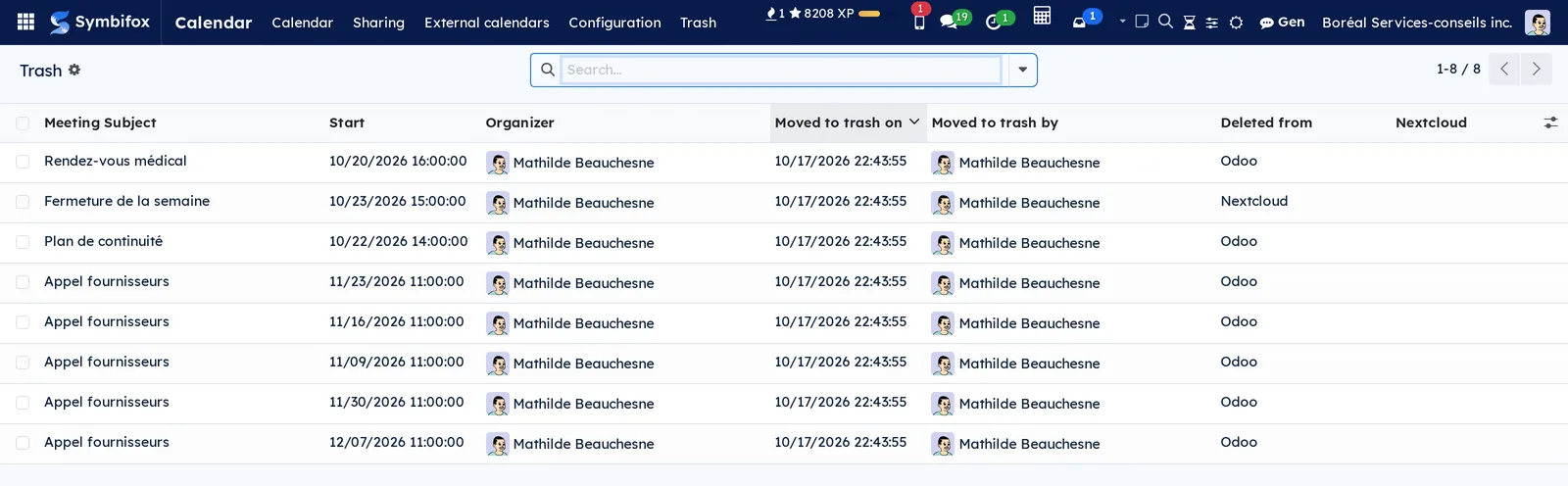
In Symbifox, deleting a meeting and archiving it lead to the same place: Calendar › Trash. Each meeting there keeps the date and the author of the action, and where it was deleted from: Odoo (Symbifox) or Nextcloud.
A meeting reaches the trash through any of these actions:
- Delete in the popover of the calendar grid, on a single meeting or on a series;
- Archive or Delete in the Actions menu of a meeting's form or of the list of meetings;
- deleting an activity together with its meeting;
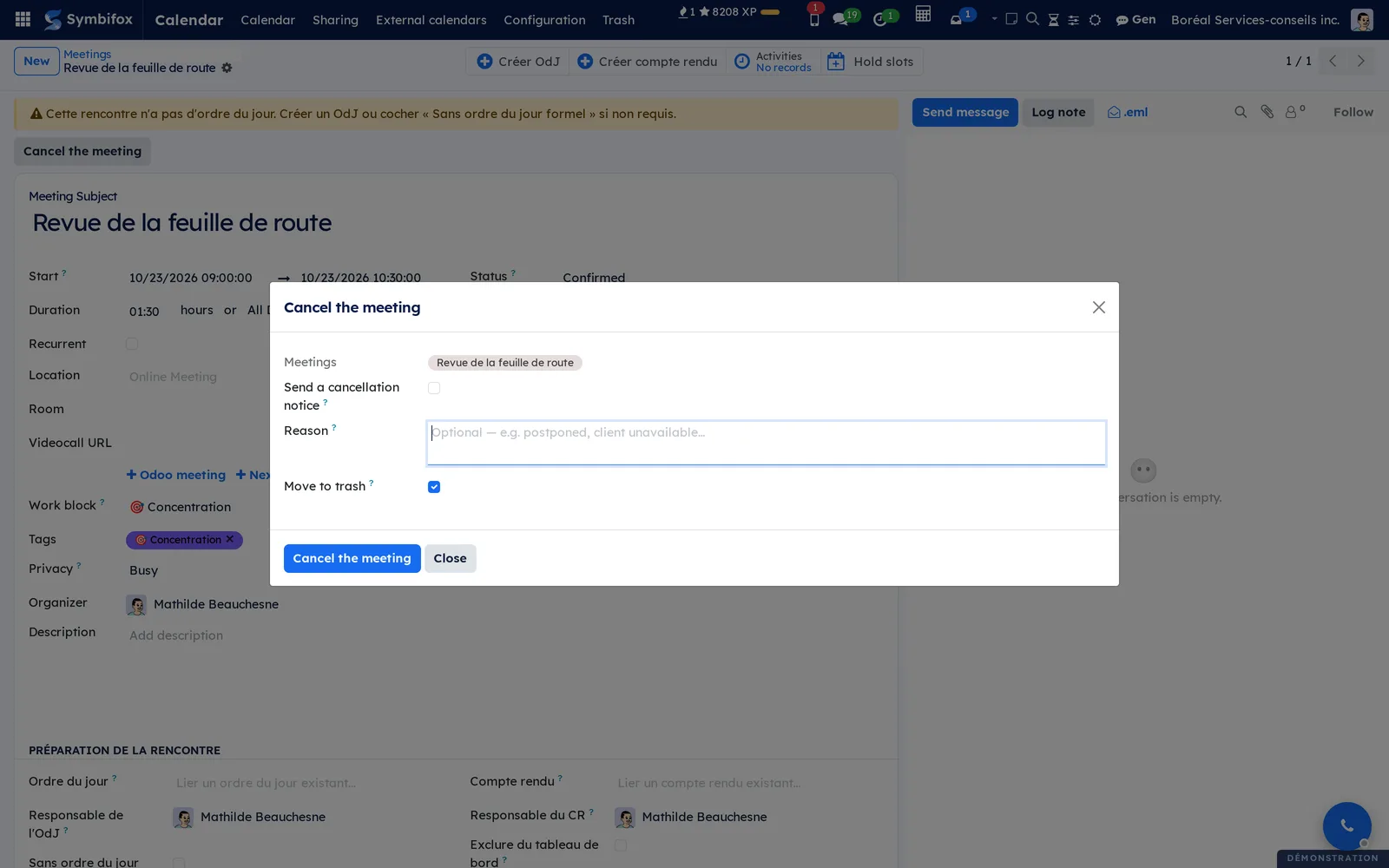
- the Move to trash checkbox of the Cancel the meeting dialog;
- a deletion made in Nextcloud or in Thunderbird, the whole series included.
The trash works by action. When you throw away the dates of a series from a given date on, those dates form a single action, and Restore brings them all back, the series getting its original end back.
On the demo, Mathilde Beauchesne's trash holds eight meetings: a personal appointment deleted in the grid, a business continuity plan cancelled and thrown away in one action, an end-of-week wrap-up deleted in Nextcloud, and the last five dates of the "Appel fournisseurs" series, cut at its fourth.
The trash complements the cancellation described in the Calendar chapter. A cancellation keeps the meeting in the grid, struck through, and can notify the guests. The trash takes it out of the grid and of the other calendars, without writing to anyone.
Configuration#
Access and permissions#
The trash adds no group. Anyone who can edit a meeting can move it to the trash, restore it or delete it for good. The list shows the meetings in the trash that you can read. A colleague's private meeting appears there as "Busy", without its details, as in the grid; the date, author and origin of the gesture stay readable, since they say nothing about the meeting. A permanent deletion that your rights refuse removes nothing from Nextcloud or Google.
Settings#
The trash has no settings. It has no retention period and no automatic emptying: a meeting stays there until someone restores it or deletes it for good.
Base data#
Nothing to create. When the module is installed, every meeting already archived enters the trash. Each one is dated by its last change, attributed to the last person who changed it, and forms an action of its own. The list may therefore open well filled on the first day.
Getting started#
This walkthrough throws away a demo meeting, finds it in the trash, then puts it back in the calendar.
- Go to Calendar › Calendar and select a meeting of the week in the grid.
- In the popover that opens, select Delete. The meeting leaves the grid.
- Go to Calendar › Trash. The meeting is at the top of the list, with the time of the action, your name and Odoo under Deleted from.
- Check its row.
- Select Restore. The meeting leaves the list.
- Go back to Calendar › Calendar: the meeting is back in its place, with its attendees.
Common tasks#
Move a meeting to the trash#
Every delete action of Odoo leads there, without changing your habits.
- Go to Calendar › Calendar and select the meeting.
- Select Delete in the popover, or open the form and choose Archive or Delete in the Actions menu.
Result: the meeting leaves the grid. If it is kept in Nextcloud, it leaves Nextcloud too, and therefore Thunderbird and the phone, after a copy of its content has been kept on the meeting. No email is sent.
Throw away part of a series#
On a recurring meeting, Delete asks which dates it applies to.
- Select a date of the series in the grid, then Delete in the popover.
- Choose Delete this event, Delete this and following events or Delete all the events.
- Confirm.
Result: the chosen dates go to the trash and form a single action. In Nextcloud, a single date is excluded from the series, "this and following events" ends the series before the chosen date, and the whole series is removed. Choosing "and following" on the first date amounts to throwing away the whole series.
Cancel a meeting and move it to the trash#
A meeting that will not take place, and will not be rescheduled, is cancelled and thrown away in one action.
- Open the meeting and select Cancel the meeting.
- Decide whether to Send a cancellation notice, and enter a Reason if needed.
- Check Move to trash.
- Select Cancel the meeting.
Result: the meeting is cancelled, with the notice if you checked it, then it leaves the calendar for the trash. On a series, the trash receives the same dates as the cancellation.
Restore a meeting#
- Go to Calendar › Trash.
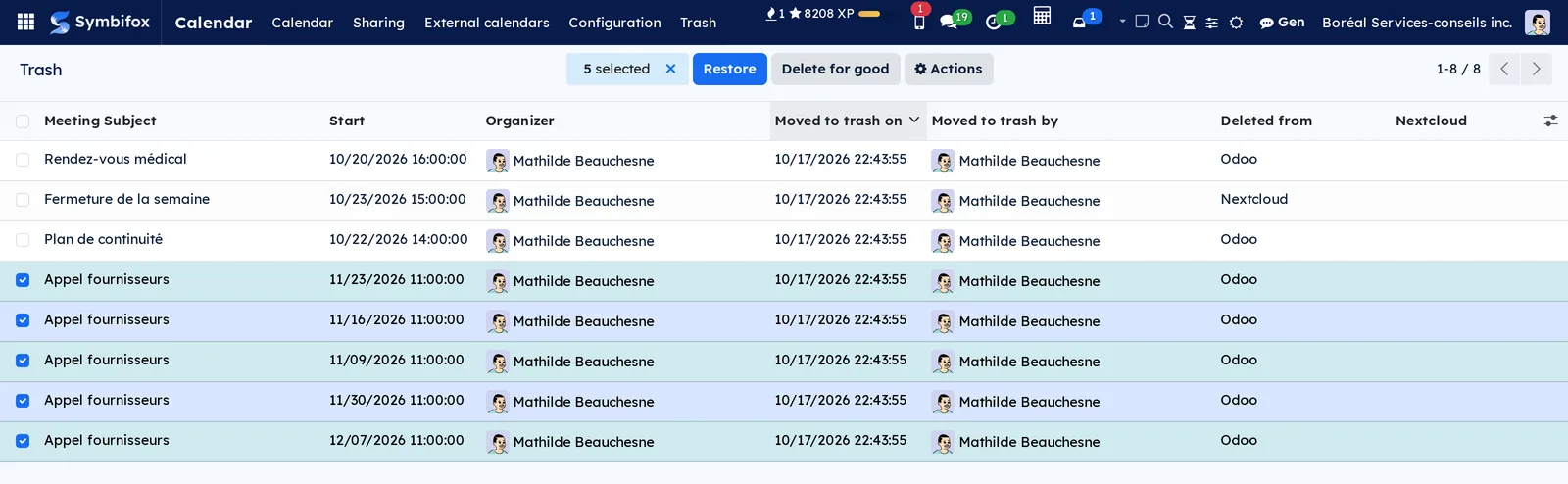
- Check the meeting's row. For a series cut short, one of its dates is enough.
- Select Restore.
Result: the meeting comes back to the calendar, and its whole action with it: a series cut short becomes whole again, its dates back in the series. In Nextcloud, restoring puts back exactly what was removed, if Nextcloud has not changed since.
Delete a meeting for good#
- Go to Calendar › Trash.
- Check the meetings to erase.
- Select Delete for good.
- Confirm the question "Delete these meetings for good? They cannot be restored afterwards."
Result: the meetings are erased, with their chatter (the message thread at the bottom of the form). A meeting still in Nextcloud or in Google is removed there first; if that fails, it stays in the trash and a message asks you to try again later, since it would otherwise come back with the next synchronisation. Deleting a meeting already in the trash from its form has the same effect.
Find a meeting deleted in Nextcloud#
A meeting deleted in Nextcloud or in Thunderbird also lands in the trash, its series with it.
- Go to Calendar › Trash.
- Open the search and select the Deleted in Nextcloud filter.
- Restore the meeting you want with Restore.
Result: the meeting comes back here and in Nextcloud. If it was restored in Nextcloud instead, it leaves the Symbifox trash on its own at the next synchronisation.
Clean up the trash#
The trash never empties itself. Filters and groupings help you choose what to erase.
- Go to Calendar › Trash.
- In the search, group by Moved to trash on or by Moved to trash by, or filter on My meetings.
- Check the meetings to erase, then select Delete for good and confirm.
The menus, one by one#
Calendar › Trash: the list of meetings in the trash, most recently thrown away first. Columns: Meeting Subject, Start, Organizer, Moved to trash on, Moved to trash by, Deleted from (Odoo or Nextcloud) and Nextcloud. The Attendees and Recurrent columns are added through the optional columns toggle, at the end of the header. Restore and Delete for good appear as soon as a row is checked. The search offers the My meetings, Deleted in Nextcloud and Moved to trash on filters, and groupings by date and by author of the action. When empty, the screen says "The trash is empty". The list creates and edits nothing; selecting a row opens the meeting's form.
The other entries of the Calendar menu are described in the Calendar chapter.
Reference#
Fields of the Trash list#
| Field | Description | Required or default |
|---|---|---|
| Moved to trash on | The date and time of the action. For a meeting archived before the installation, the date of its last change. | Set by the action |
| Moved to trash by | The person who took the action. For a deletion coming from Nextcloud, the account under which the synchronisation read it. | Set by the action |
| Deleted from | Odoo for an action taken in Symbifox, Nextcloud for a deletion made in Nextcloud or in Thunderbird. | Set by the action |
| Nextcloud | What became of the meeting in Nextcloud (or Google): Removed from Nextcloud, Dates removed from the series in Nextcloud or Still in Nextcloud. Empty for a meeting that was not there. | Computed at the action |
Messages#
| Message | When it appears |
|---|---|
| "…" comes from an appointment: cancel the appointment instead. | You throw away a meeting that comes from an online appointment. |
| This event comes from a subscribed external calendar: it cannot be deleted here. | You throw away an event from an external calendar. |
| "…" could not be removed from Nextcloud | Delete for good could not reach Nextcloud. The meeting stays in the trash. |
| Restored in Odoo only | The restore could not put the meeting back in your other calendars. |
Reports and exports#
The trash has no report. Its list exports through Actions › Export, as everywhere in Symbifox (see Common actions in every application).
Automations#
- On every deletion in Nextcloud or in Thunderbird read by the synchronisation, the meeting and its series go to the trash.
- On every restore in Nextcloud of a meeting deleted there, it leaves the Symbifox trash.
- When a meeting goes to the trash, the slots held to move it are released, as when it is deleted.
- Never: no automatic emptying, no email.
Public pages and portal#
The trash has no public page and no portal access.
Modules that extend this application#
Understanding#
Why deleting and archiving lead to the same place. Odoo's calendar already archived a meeting on its Delete button, without telling Nextcloud: the meeting stayed in Thunderbird and on the phone, and the next synchronisation brought it back, active and busy. The form and the list, on the other hand, erased it for good, with its history. One place, from which everything can be recovered, ends both surprises.
Why a copy before removing from Nextcloud. The meeting kept in Nextcloud carries things Symbifox does not always know, such as a reminder set on the phone. Its copy, kept on the meeting, makes it possible to put back exactly what was removed. The restore first checks that Nextcloud has not changed since: if someone has edited the series there, the trash does not overwrite their work and restores in Symbifox only.
Why the trash works by action. Throwing away "this and following events" is one decision, not five. Restoring it date by date would leave a series with holes, and a wrong series end in Nextcloud.
Why only your actions go there. Odoo and the synchronisation also delete meetings for their own housekeeping, for example when a series is rebuilt after a change. Those deletions remain deletions: a trash that collected them would fill with copies nobody threw away, and would remove from Nextcloud what nobody asked to remove.
Why no email. Throwing away a meeting is a decision about your calendar. Notifying the guests is another one, which belongs to the cancellation and its Send a cancellation notice checkbox.
What the trash does not cover.
- A meeting deleted in a Google calendar is still erased for good. Conversely, a meeting thrown away here is removed from Google, then created there again on restore.
- Series in a Google calendar: the synchronisation does not send them to Google either.
- "This one and the following ones" done in Nextcloud: the synchronisation recreates the series, and the dates it drops are erased for good.
- An appointment's meeting deleted in Nextcloud goes to the trash like any other, but the appointment itself is not cancelled.
- Meetings archived before the installation and still in Nextcloud are not removed from it at installation. Delete for good removes them there.
- A meeting archived before the installation that shares its Nextcloud or Google address with another meeting (a duplicate) is erased in Symbifox only, since the address also serves the other one.
- Restoring a series changed in Nextcloud since it went to the trash is done in Symbifox only.
Troubleshooting#
| Symptom | Likely cause | Fix |
|---|---|---|
| A meeting thrown away came back to the calendar. | It had been deleted in Nextcloud, then restored there, or someone restored it here. | Delete it again, here or in Nextcloud. |
| The Nextcloud column shows Still in Nextcloud. | Nextcloud did not answer at the time of the action. | Restore the meeting, or erase it with Delete for good, which removes it from Nextcloud first. |
| Delete for good says the meeting could not be removed from Nextcloud. | Nextcloud cannot be reached. | Try again later: the meeting waits in the trash. |
| The Restored in Odoo only notice appears. | Nextcloud has changed since the meeting went to the trash, the series no longer exists there, or another meeting holds its place there. | Read the reason in the notice, then check the meeting in Nextcloud and fix it there if needed. |
| Restoring one date brought back the whole series. | A restore brings back the whole action. | Move the dates you do not want back to the trash. |
| A meeting refuses to go to the trash. | It comes from an online appointment or from a subscribed external calendar. | Cancel the appointment, or change the external calendar at its source. |
| The trash is full of old meetings right after installation. | The meetings already archived entered it. | Group by Moved to trash on and erase in batches with Delete for good. |